I tried using 1Password Environments to manage .env files, which is now available

This page has been translated by machine translation. View original
Managing secret information, such as API keys and Firebase configuration settings, is an important challenge in iOS development. Many developers use .env files to manage environment variables, but since these are stored as plain text on disk, there is always a risk of accidentally committing them to Git.
I've been using Arkana to obfuscate secret information (see my previous article for details about Arkana), but there were still challenges with managing the underlying .env files.
In October 2025, 1Password released a new feature called "1Password Environments" as a public beta. This feature allows you to virtually mount .env files, managing secret information without writing it to disk.
This article introduces how to use 1Password Environments with Arkana and Xcode Cloud.
Test Environment
- macOS 15.7.1 (24G231)
- Xcode 26.1.1
- 1Password desktop app 8.11.18
- Arkana 1.4.0
Challenges with Traditional .env File Management
Here are the challenges many developers face with .env files:
Security Risks
- Secret information is stored as plain text on disk
- Risk of accidentally committing to Git if you forget to add to
.gitignore - May be included in macOS backups (potentially)
Team Development Challenges
- Cumbersome sharing of secrets with new members
- Sending API keys via Slack or email is not ideal for security
- Propagating environment variable updates across the team is tedious
Development Machine Migration
- When setting up a new Mac, you need to search for secrets in past chats or documents
What is 1Password Environments?
1Password Environments is a feature that provides a dedicated workspace for securely managing secret information for development projects.
Key Features
- Virtually mounts
.envfiles at specified paths - Secret information is not written to disk
- Passes data directly to applications through UNIX pipes
- Compatible with existing dotenv libraries
- Works with tools that read
.envfiles, like Arkana
How Virtual Mounting Works
1Password virtually mounts .env files, so while no physical file exists, applications can read them as normal files. Access is automatically blocked when 1Password is locked, and cached values can be accessed offline.
Development Environment Configuration
For my iOS app development, both professionally and personally, I use the following configuration for managing secrets:
Local Development Environment
1Password Environments (virtual .env mount)
    ↓
Arkana (generates obfuscated code)
    ↓
Xcode (build)
CI/CD Environment (Xcode Cloud)
Xcode Cloud environment variables
    ↓
Arkana (generates obfuscated code)
    ↓
Build & Distribution
This configuration allows consistent and secure secret management both locally and in CI/CD.
1. Enable 1Password Developer Features
First, enable developer features in 1Password:
- Launch the 1Password desktop app
- Open Settings > Developer
- Turn on [Show 1Password developer experience]
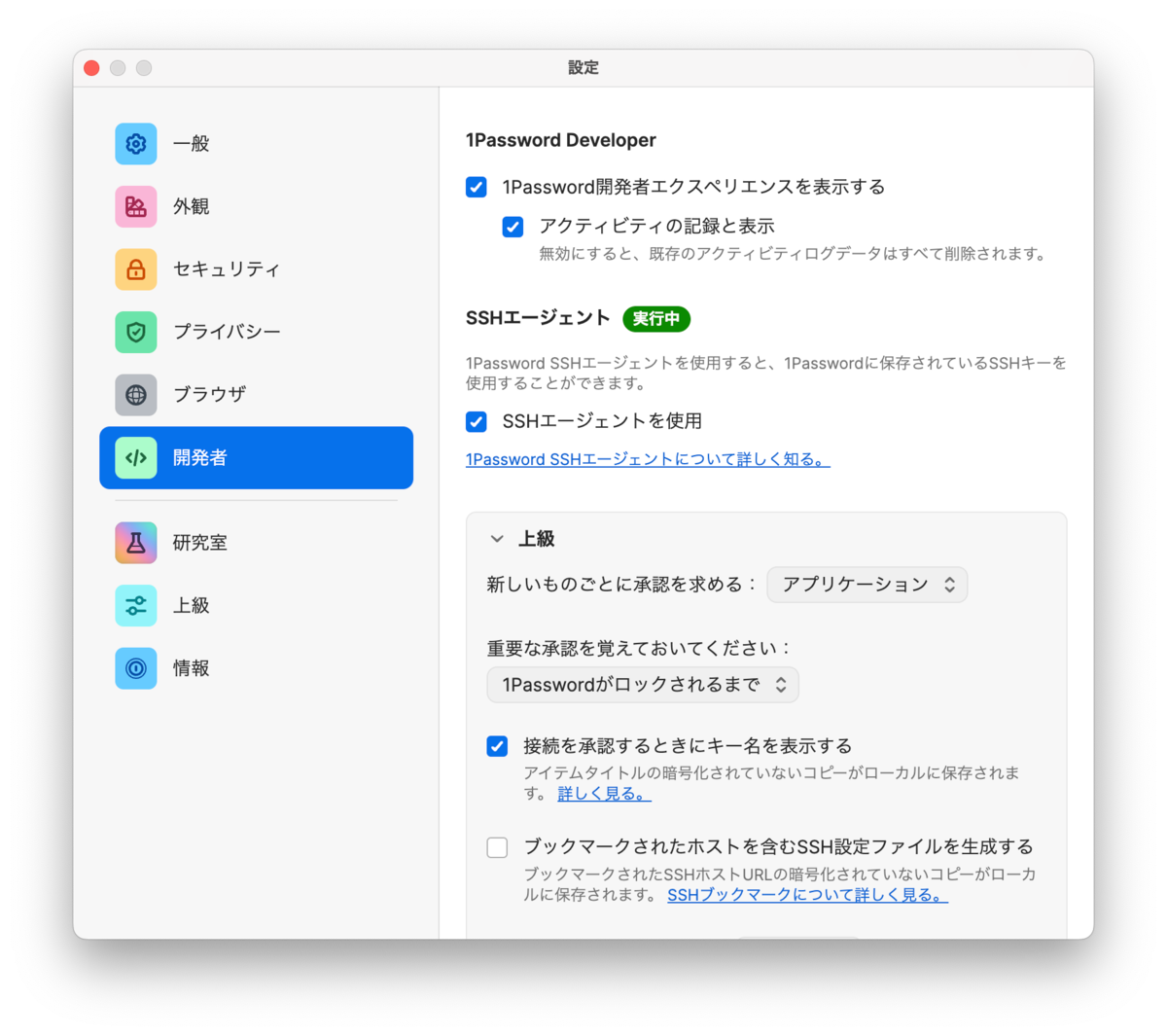
This will display the "Developer" section in the sidebar.
2. Create an Environment
Open the Developer section in the sidebar. Click the [Show Environments] button in the Environments tile.
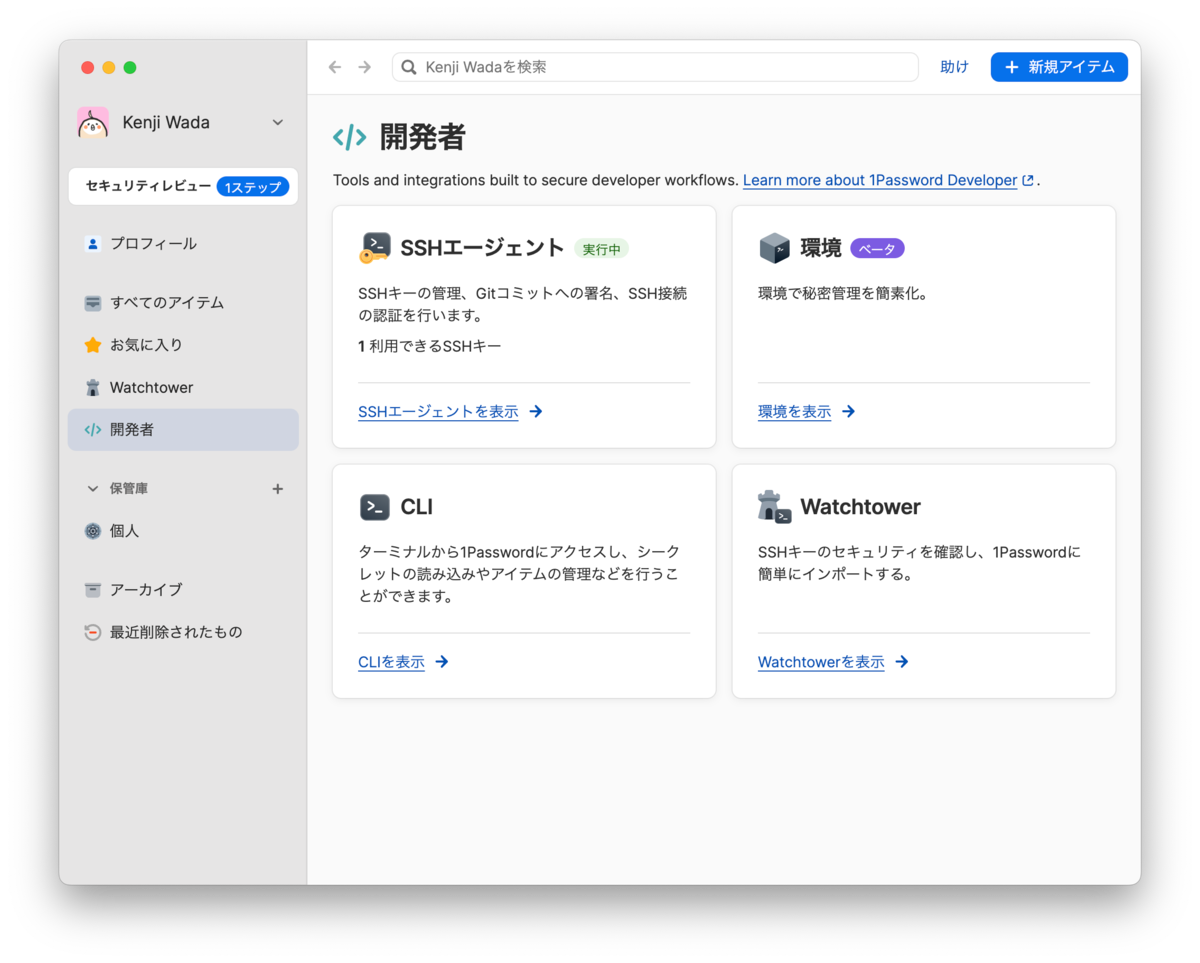
Click the [New Environment] button. A dialog will appear to input the environment name. Enter an appropriate name and click the save button. In this case, I used the name of the app under development.
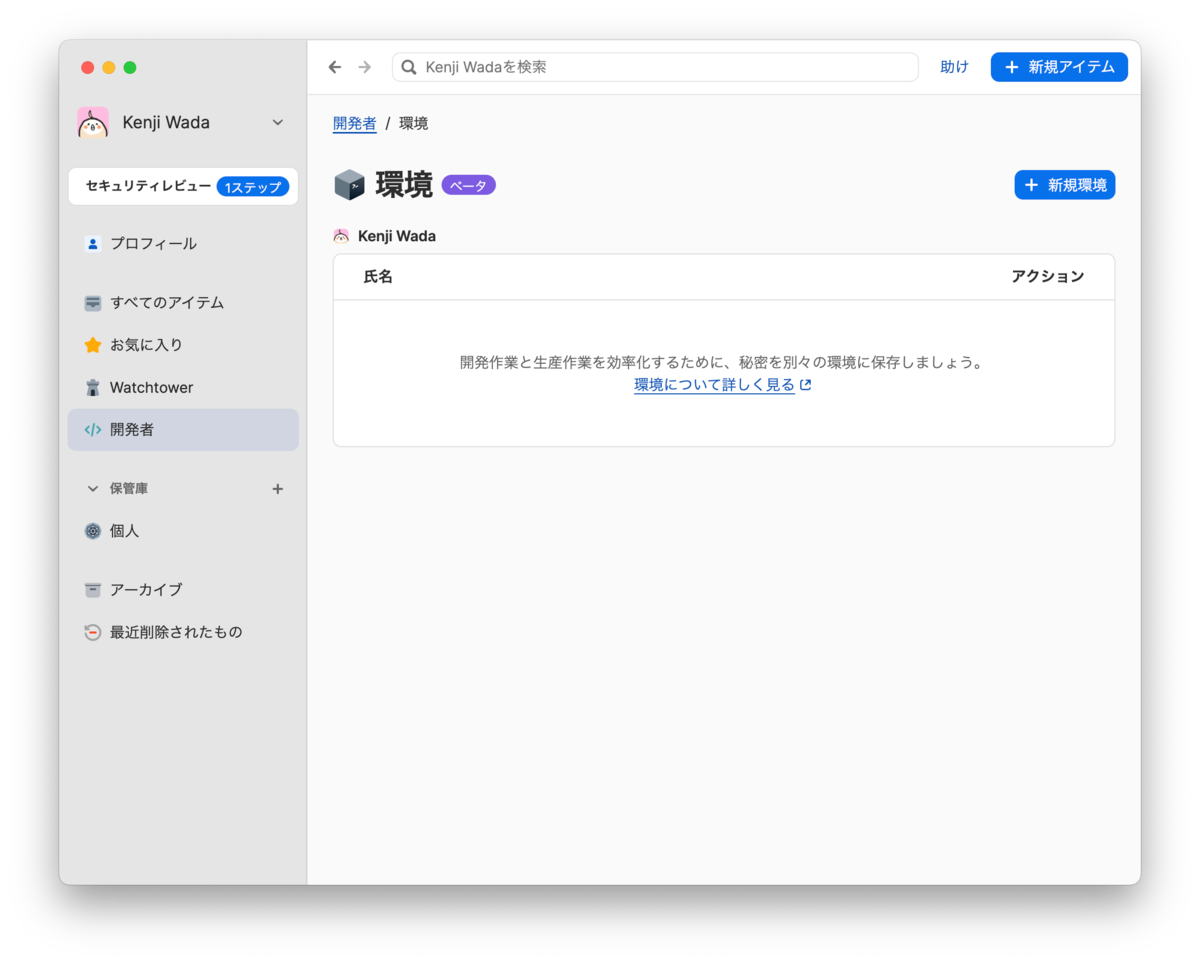
Click the [Show Environment] button for the created app (environment).
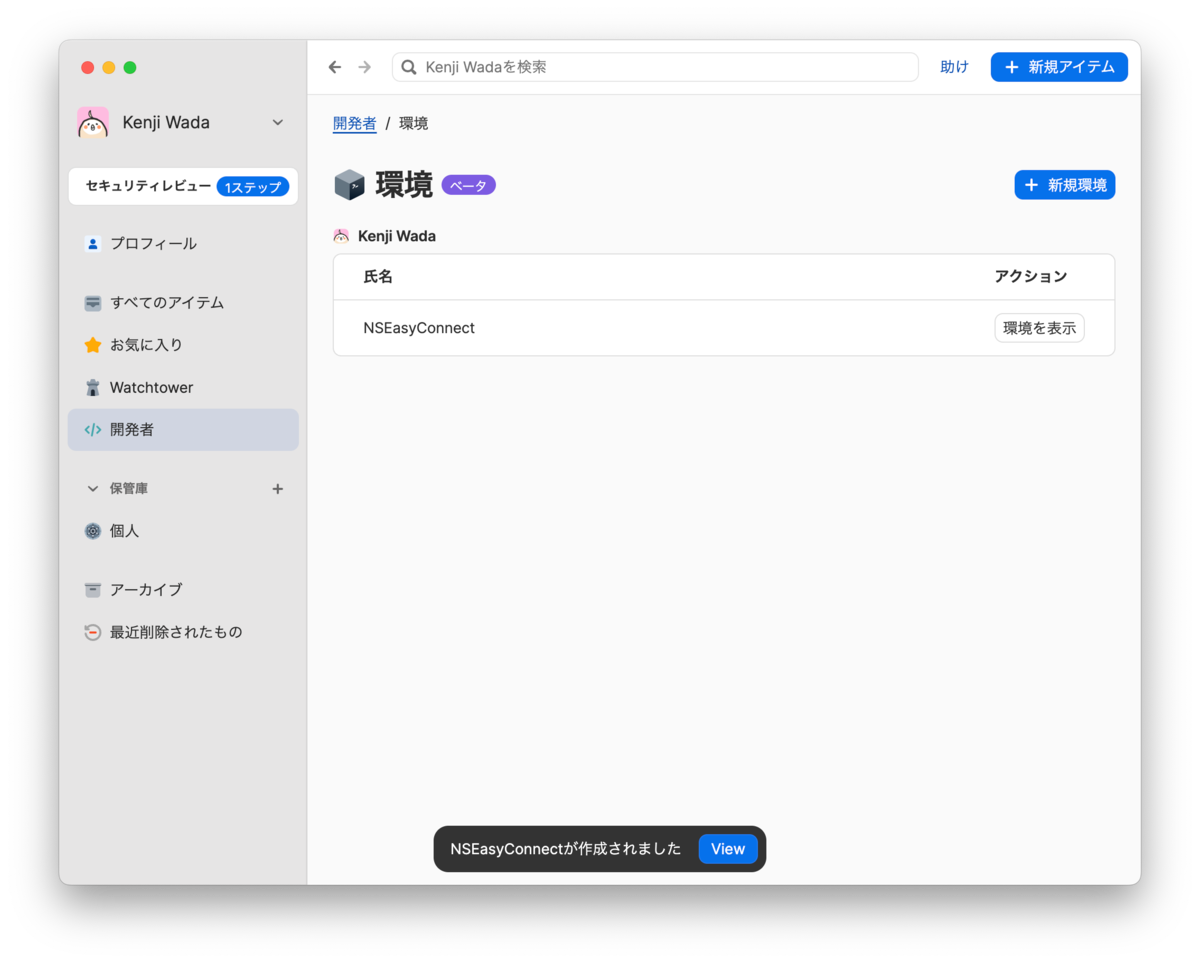
3. Import .env File
Click the [Import .env File] button.
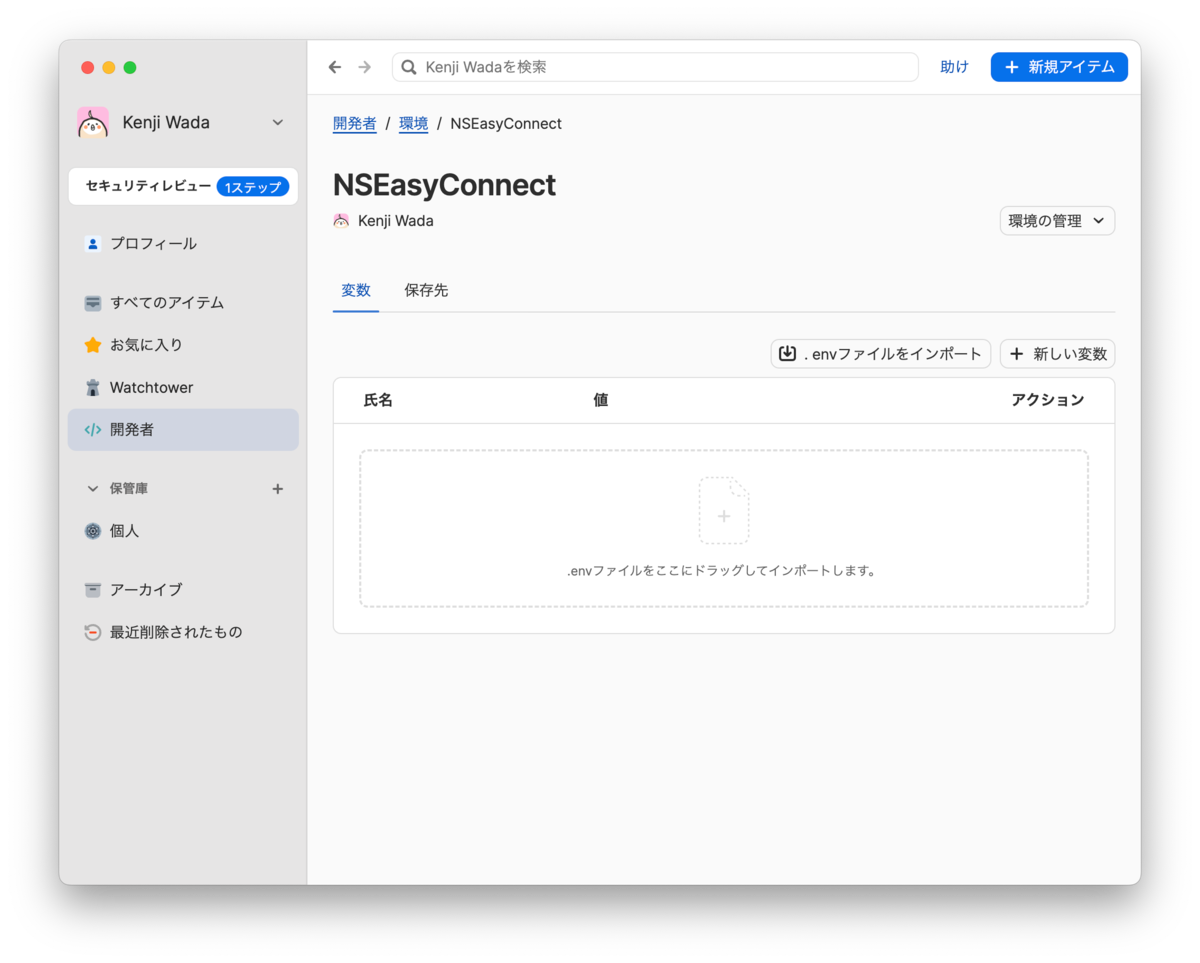
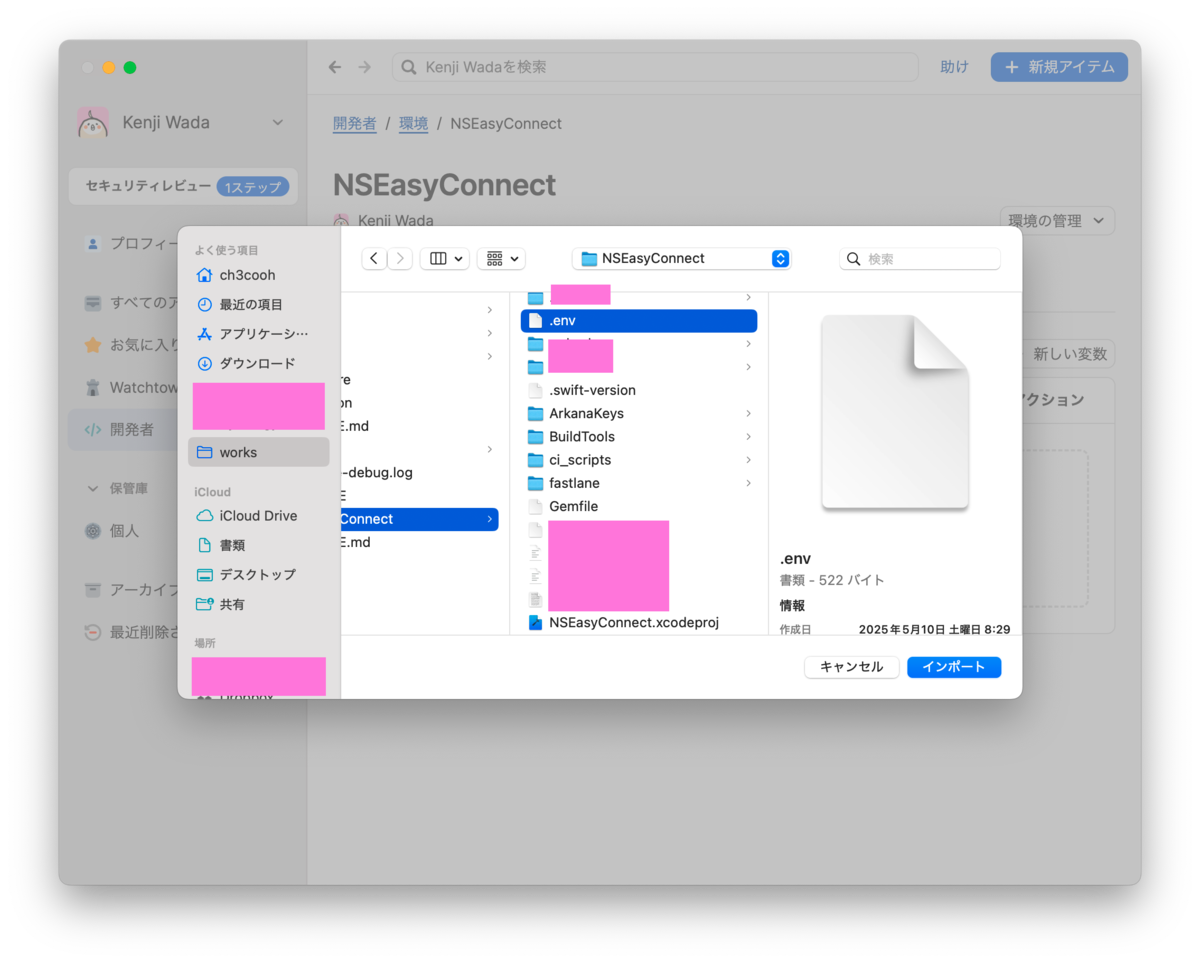
Select the .env file to import.
Verify the imported keys and values, then click the [Save] button.
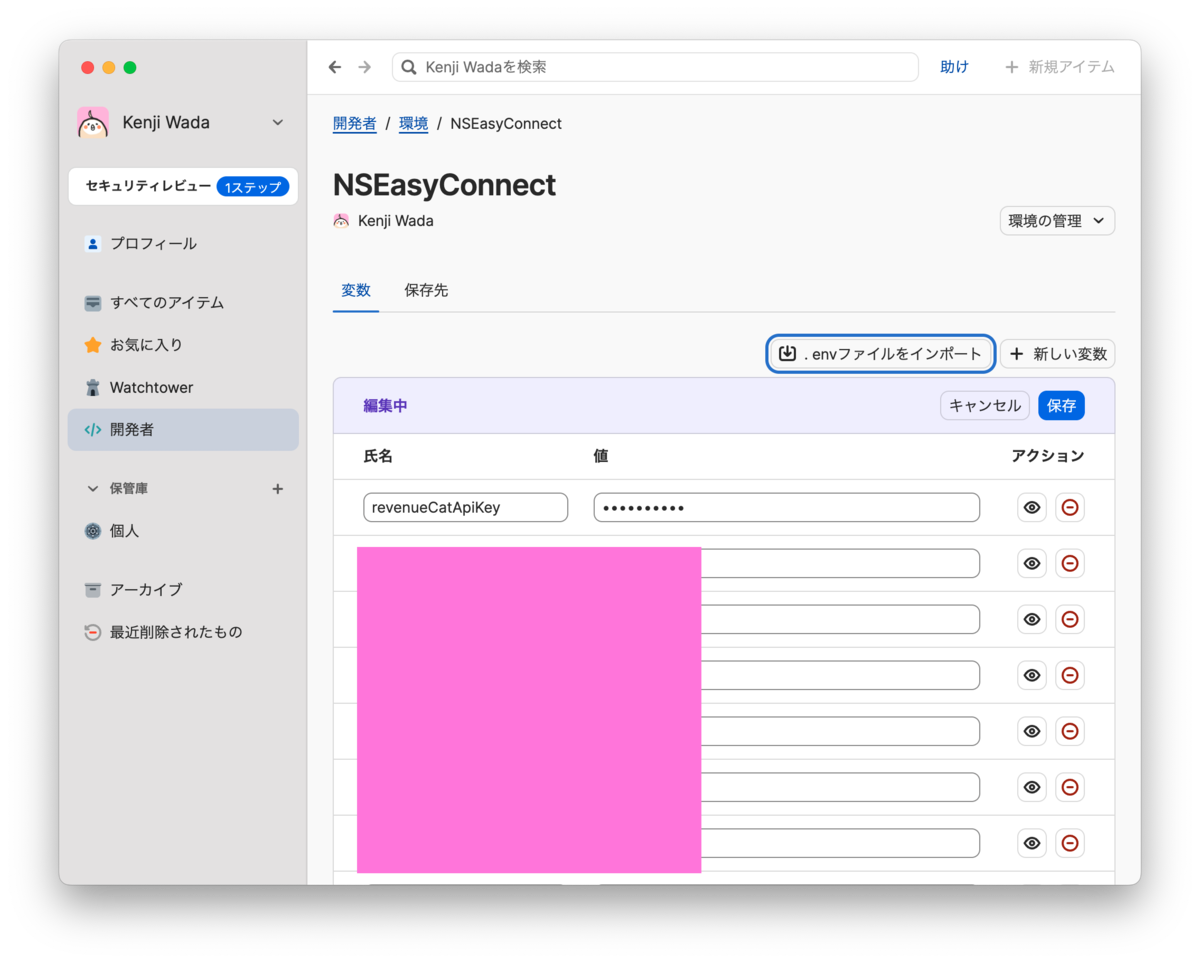
Once imported, each environment variable is encrypted as a 1Password item and stored securely.
4. Delete the Original .env File
For safety, delete the original .env file:
cd /Users/ch3cooh/works/NSEasyConnect/NSEasyConnect

# Backup just in case
cp .env .env.backup

# Delete
rm .env

# Check if .env is in .gitignore
cat .gitignore | grep .env
5. Set Up Local .env File Mount
Next, mount the virtual .env file:
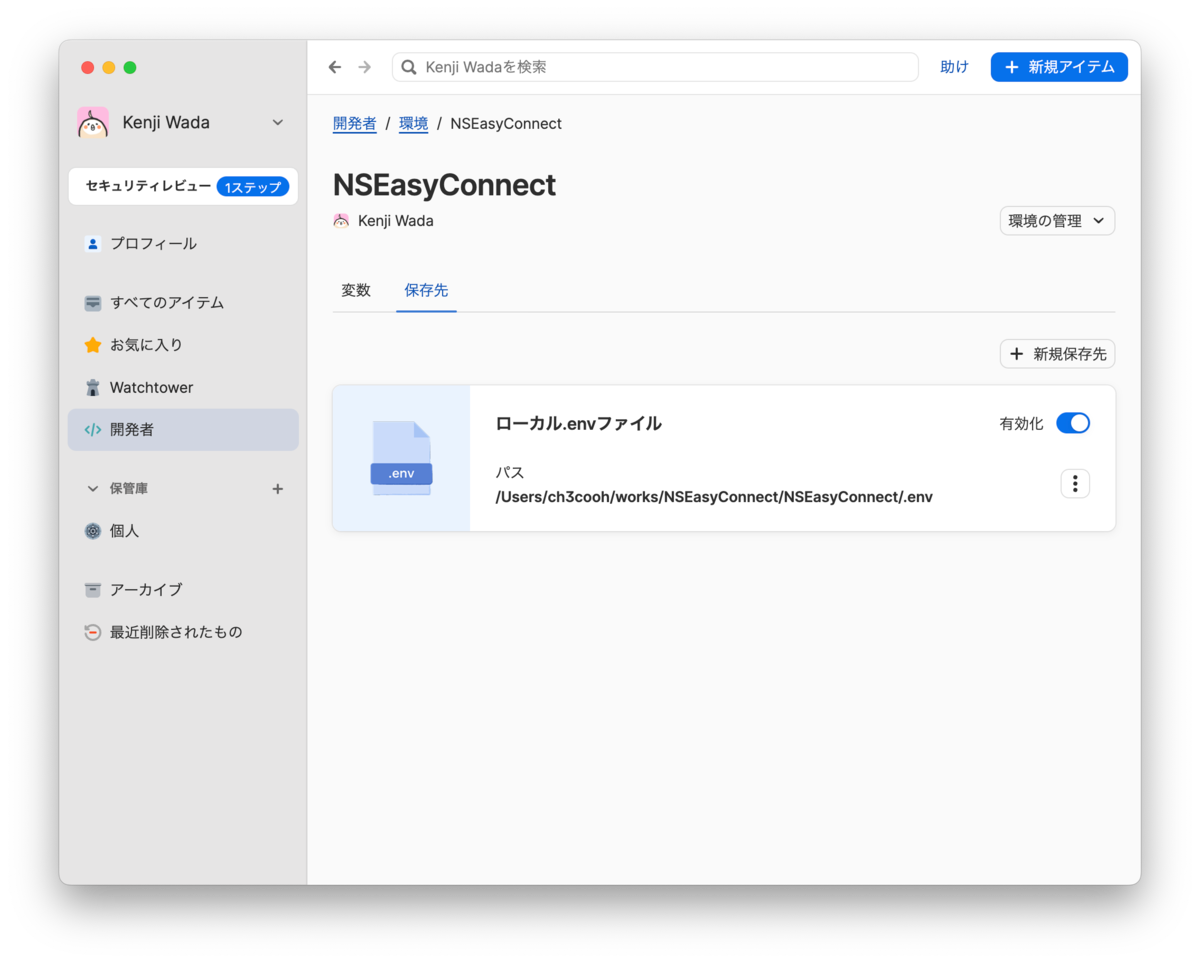
Open the Destinations tab. Click the [Set Destination] button in the Local .env File tile.
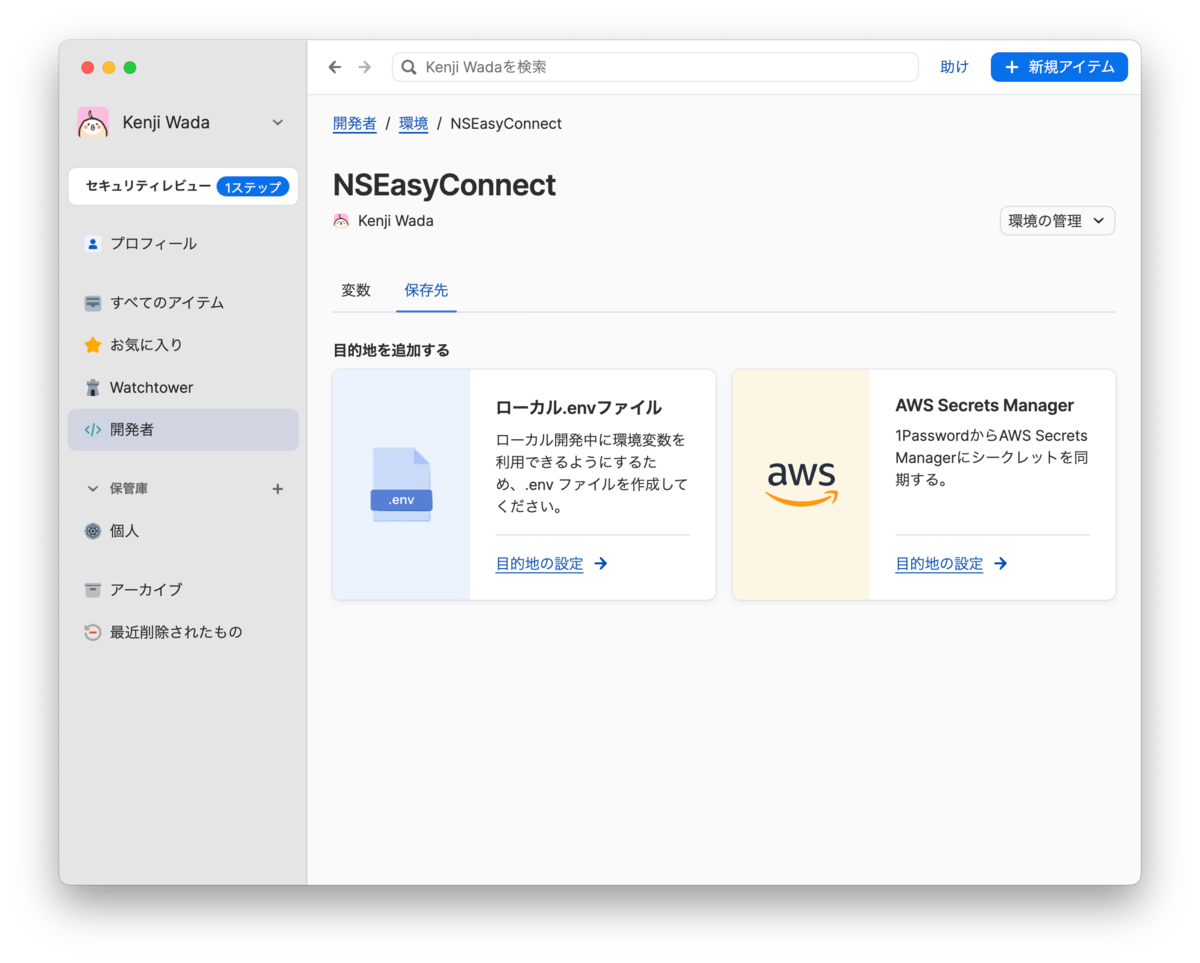
Click the [Choose File Path] button.
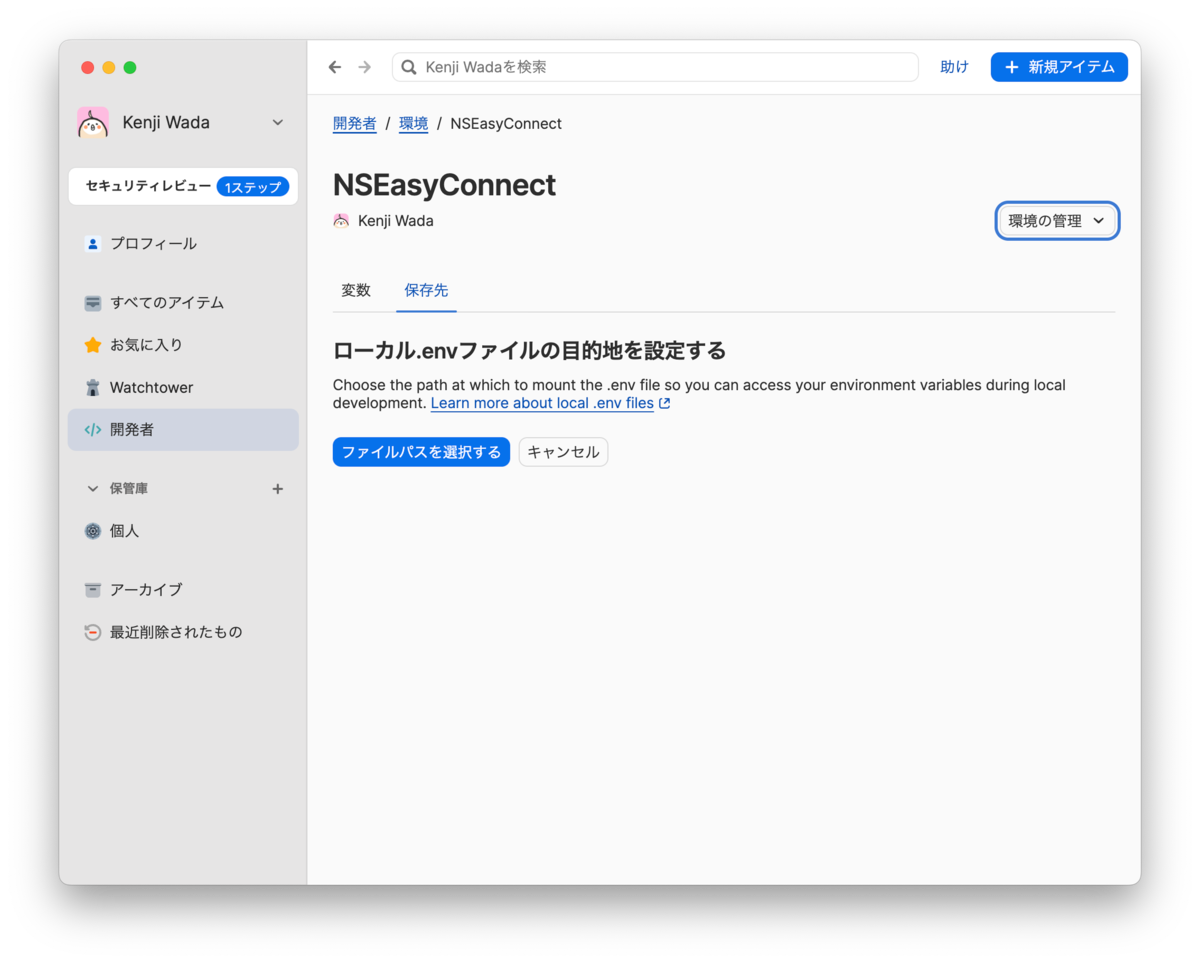
Specify the path where the .env file was previously located.
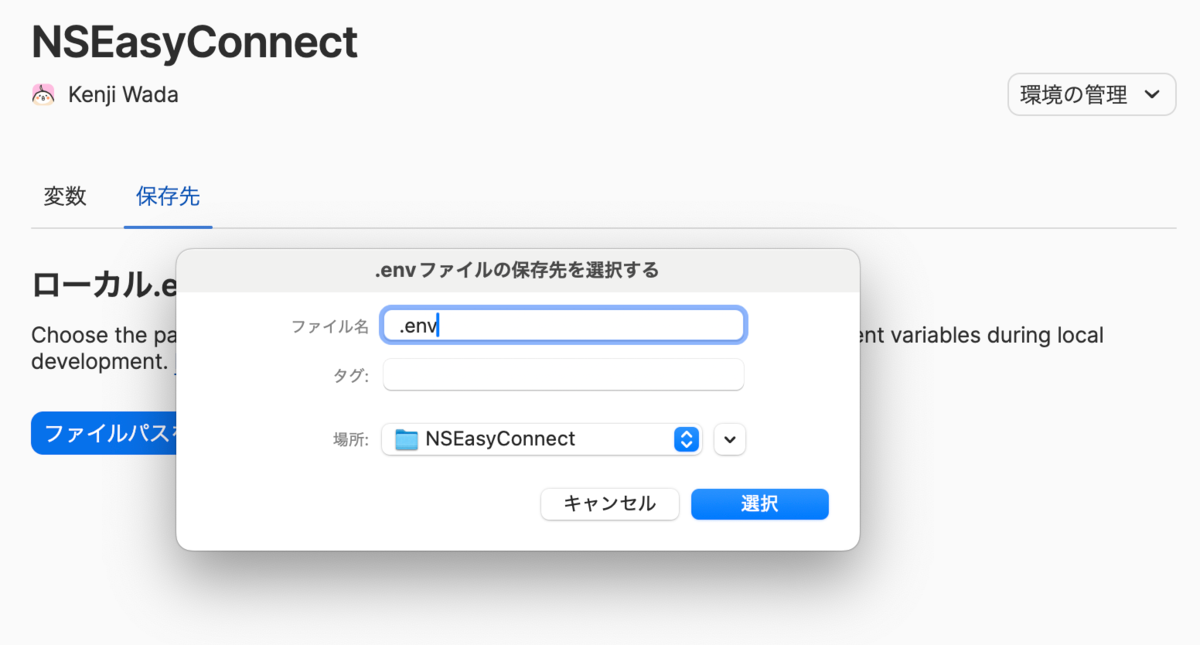
After specifying the .env file path, click the [Mount .env File] button.
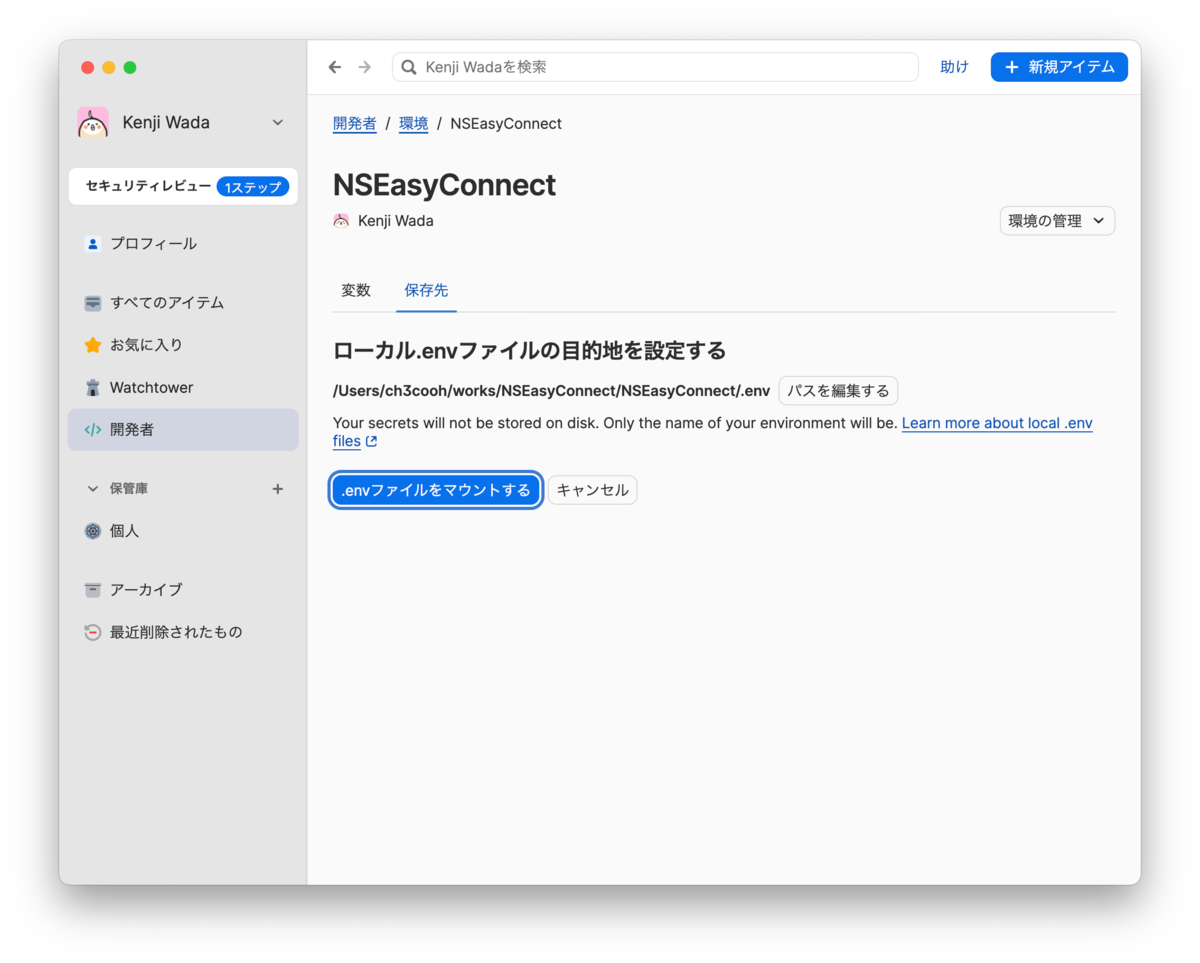
This virtually mounts the .env file at the specified path.
6. Verify Access to .env
Check if you can access the .env file:
vim /Users/ch3cooh/works/NSEasyConnect/NSEasyConnect/.env
When accessing the file path, 1Password hooks it and displays an access request dialog. After authentication, you can access the .env file.
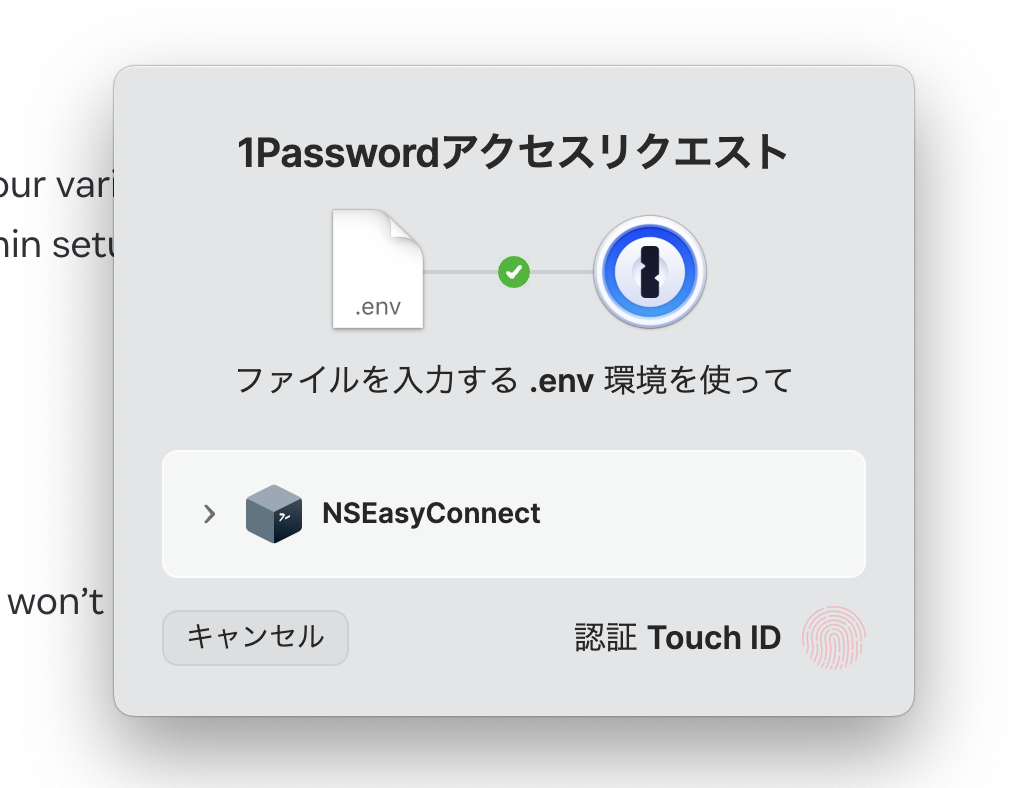
After authentication, you can access the .env file as before:
# This file was generated by 1Password. Manual edits will be lost.
# Learn more: https://developer.1password.com/docs/environments/local-env-file
revenueCatApiKey=XXXXXX_XXXXXXXXXXXXXX
7. Verify Arkana
Run Arkana to verify that obfuscated code is generated correctly:
# Run in the project directory
bundle exec arkana
If successful, obfuscated code like ArkanaKeys will be generated as usual, confirming that Arkana can correctly read the .env file mounted by 1Password.
For detailed Arkana setup instructions, see my previous article.
8. Integration with Xcode Cloud
For CI/CD environments using Xcode Cloud, use the environment variables feature instead of 1Password Environments.
8-1. Setting Environment Variables in Xcode Cloud
- Open App Store Connect
- Select the target app
- Open Xcode Cloud > Settings
- Add environment variables in the Environment Variables section
Example:
revenueCatApiKey = appl_xxx...
Check the Secret box for each variable to protect its value.
8-2. Arkana Environment Variable Reading
Arkana reads values with the following priority by default:
- Environment variables
.envfile
This means, without special configuration:
- Local: Reads from the
.envfile mounted by 1Password - Xcode Cloud: Reads from environment variables
Operational Notes
1Password App Must Be Running
When running Arkana, the 1Password desktop app must be:
- Running
- Unlocked
If locked, the build will fail.
CI/CD Environments Require Separate Configuration
1Password Environments cannot be used in CI/CD environments (Xcode Cloud, GitHub Actions, etc.). You need to use the secret management feature of each environment.
However, 1Password also offers integration with AWS Secrets Manager, which could be considered for more sophisticated CI/CD environments. This article does not cover AWS Secrets Manager verification.
Windows Currently Not Supported
Currently, 1Password Environments is only available for Mac and Linux. Windows support is under development.
Benefits
Here are the benefits I've experienced after implementing this:
Enhanced Security
.envfiles don't physically exist on disk, making it impossible to accidentally commit them to Git- Running
git add .won't detect virtual files - When 1Password is locked, access to the
.envfile is automatically blocked
Improved Development Efficiency
- When setting up a new Mac, just log in to 1Password to restore environment variables
- Clone the project and mount the Environment to start development immediately
- Cached values can be accessed offline
Team Development Advantages
- Safely share environment variables with team members using 1Password's sharing features
- No need to send secrets via Slack
- Environment variable change history is recorded in 1Password
Conclusion
After using 1Password Environments, I've found it more convenient than expected. The biggest relief is being completely free from the anxiety of "what if I accidentally commit the .env file to Git" since the file doesn't physically exist.
In the context of iOS app development, combining it with Arkana allows improved security while maintaining existing workflows. Using 1Password Environments for managing .env files in local development and environment variables in CI/CD environments like Bitrise or Xcode Cloud enables consistent secret management.
Currently available as a public beta for macOS/Linux, with Windows support under development. Though still in beta, it works reliably, and I recommend trying it if you're facing challenges with secret management in iOS development.
Reference Links
- 1Password Environments Official Blog
- 1Password Environments Documentation
- Arkana - GitHub
- Preparing for the End of CocoaPods: Migrating from cocoapods-keys to Arkana + SPM - My previous article
- 1Password Developer Settings
Job Openings: Classmethod is Hiring iOS Engineers
The Starbucks Digital Technology Department is hiring engineers who can develop iOS applications. We're looking forward to applications from people who want to work with us while sharing new iOS support information through misc-ios and other channels!
Additionally, we're hiring iOS/Android lead engineers in the manufacturing sector. Let's talk about mobile app development together!