Implementing User-Specific Folder Access Control in S3 with AWS Amplify Gen2

This page has been translated by machine translation. View original
Introduction
Hello, I'm Jinno from the Consulting Department, and I love supermarkets.
When managing files for individual users in a web application, you may wonder how to implement access control to S3 buckets. If you want to control permissions on both the application side and the infrastructure (IAM) side, creating personal folders or group folders for users authenticated with Cognito and setting appropriate access permissions can be surprisingly time-consuming. The image is to link user IDs with IAM permissions to establish permission separation, as shown in the article below.
I was checking the official documentation to see if I needed to configure the same in Amplify Gen2, and discovered there's a feature that can implement this requirement simply!
I've tried it out and would like to share my experience.
I've also created a sample application, so please refer to this repository when you want to try it yourself:
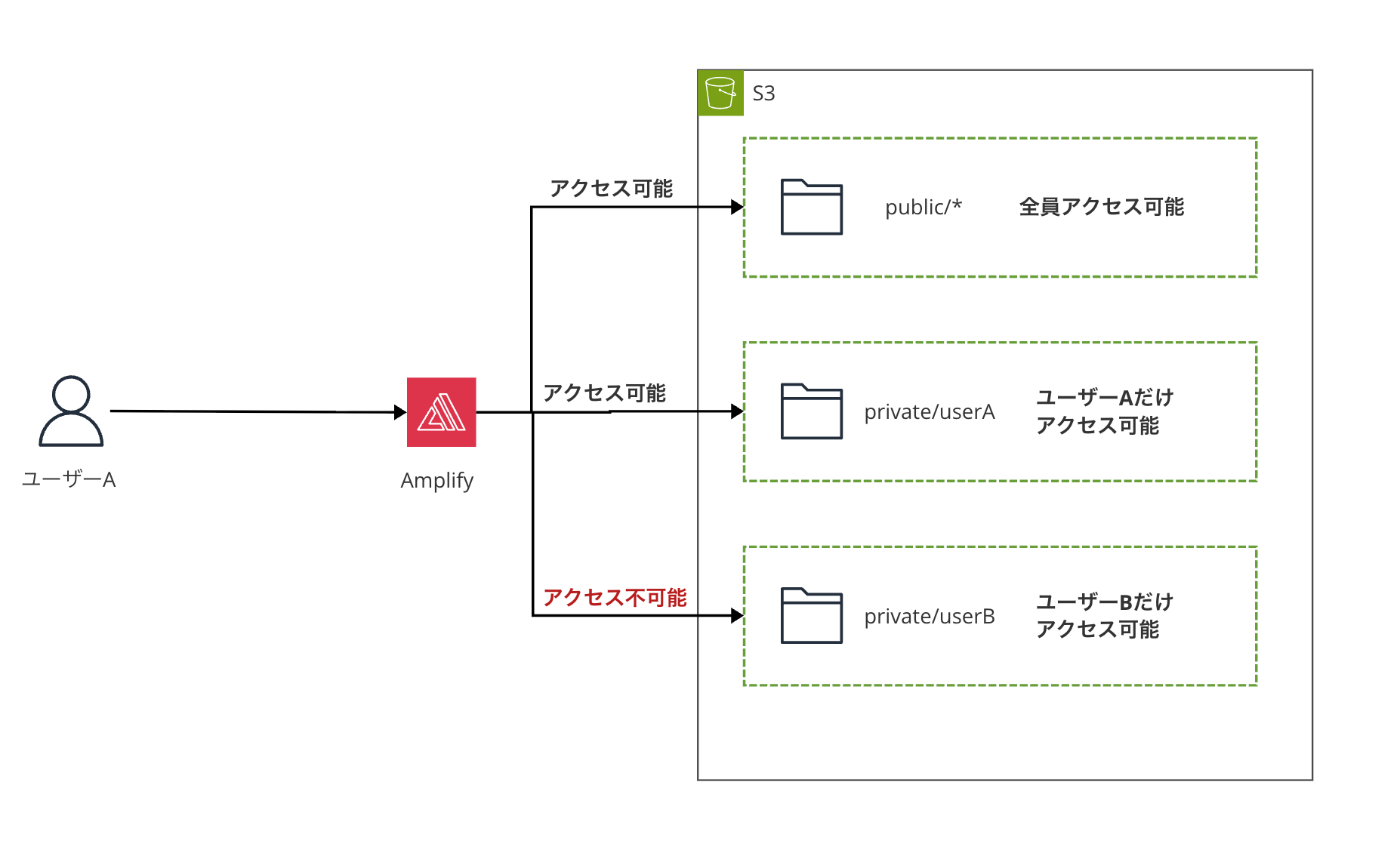
The image of what we want to achieve is shown below:
Amplify Gen2 Storage Authorization
In Amplify Gen2, you can define storage authorization rules declaratively.
You can easily implement the following access patterns:
- public: Anyone can read, authenticated users can write
- protected: Anyone can read, but only the owner can modify/delete
- private: Only the owner can access
- group-based: Access control based on Cognito groups
The official documentation Access definition rules provides detailed explanations, but I'll share my experience using it.
We'll implement the access patterns described above.
Implementation
Now, let's set up storage authorization in Amplify Gen2!
Creating Storage Definition
In Amplify Gen2, you define storage in amplify/storage/resource.ts (or elsewhere depending on your project configuration).
import { defineStorage } from "@aws-amplify/backend";

/**
 * Define and configure your storage resource
 * @see https://docs.amplify.aws/gen2/build-a-backend/storage/
 */
export const storage = defineStorage({
  name: "amplifyS3Gen2Storage",
  access: (allow) => ({
    // Public: anyone can read, authenticated users can read/write/delete
    "public/*": [
      allow.guest.to(["read"]),
      allow.authenticated.to(["read", "write", "delete"]),
    ],
    // Protected: owner can read/write/delete, authenticated users can read
    // 'read' includes both 'get' (download) and 'list' (browse) permissions
    "protected/{entity_id}/*": [
      allow.authenticated.to(["read"]),
      allow.entity("identity").to(["read", "write", "delete"]),
    ],
    // Private: only the owner can access
    "private/{entity_id}/*": [
      allow.entity("identity").to(["read", "write", "delete"]),
    ],
  }),
});
It's nice and simple! The declarative style makes it clear who can access what.
Let me explain the design intention for each pattern.
Explanation of Access Patterns
First, let's talk about the public folder.
'public/*': [
  allow.guest.to(['read']),
  allow.authenticated.to(['read', 'write', 'delete'])
]
Guest users (unauthenticated) can read, while authenticated users can read, write, and delete.
This is intended for files that should be publicly available, like images or documents.
Next, the protected folder.
'protected/{entity_id}/*': [
  allow.authenticated.to(['read']),
  allow.entity('identity').to(['read', 'write', 'delete'])
]
Using the {entity_id} token, you can automatically create folders for each user. Internally, a unique ID is used for each user, resulting in the following path structure in the S3 bucket. The ability to define paths dynamically is a nice feature.
s3://bucket-name/protected/us-west-2:0800230f-0a50-c165-4067-f0e446028bd4/file.png
Any authenticated user can read files, but only the owner (identity) can write or delete them.
This is useful when you want content to be visible to limited members but editable only by the owner.
Then, the private folder.
'private/{entity_id}/*': [
  allow.entity('identity').to(['read', 'write', 'delete'])
]
This is a completely private folder accessible only by the owner.
It's intended for personal documents or configuration files that you don't want other users to see.
Finally, group-based access control.
This is not implemented in the sample, but I'll share the concept.
'team/group-a/*': [
  allow.groups(['Admins', 'Managers']).to(['read', 'write', 'delete']),
  allow.groups(['Users']).to(['read'])
]
Access control integrated with Cognito user groups is also possible.
Users in the Admins or Managers groups can read, write, and delete, while users in the Users group can only read. Note that you cannot create dynamic paths based on group names like entity_id. You can only grant permissions to specific groups on fixed paths.
Checking the Generated IAM Policies
You might be curious about how these declarative definitions are translated into IAM policies. Here's the policy attached to the authenticated role in the Cognito Identity Pool after deployment:
{
    "Version": "2012-10-17",
    "Statement": [
        {
            "Action": "s3:GetObject",
            "Resource": [
                "arn:aws:s3:::amplify-xxxxx-amplifys3gen2storagebuck-xxxxx/public/*",
                "arn:aws:s3:::amplify-xxxxx-amplifys3gen2storagebuck-xxxxx/protected/*",
                "arn:aws:s3:::amplify-xxxxx-amplifys3gen2storagebuck-xxxxx/private/${cognito-identity.amazonaws.com:sub}/*"
            ],
            "Effect": "Allow"
        },
        {
            "Condition": {
                "StringLike": {
                    "s3:prefix": [
                        "public/*",
                        "public/",
                        "protected/*",
                        "protected/",
                        "private/${cognito-identity.amazonaws.com:sub}/*",
                        "private/${cognito-identity.amazonaws.com:sub}/"
                    ]
                }
            },
            "Action": "s3:ListBucket",
            "Resource": "arn:aws:s3:::amplify-xxxxx-amplifys3gen2storagebuck-xxxxx",
            "Effect": "Allow"
        },
        {
            "Action": "s3:PutObject",
            "Resource": [
                "arn:aws:s3:::amplify-xxxxx-amplifys3gen2storagebuck-xxxxx/public/*",
                "arn:aws:s3:::amplify-xxxxx-amplifys3gen2storagebuck-xxxxx/protected/${cognito-identity.amazonaws.com:sub}/*",
                "arn:aws:s3:::amplify-xxxxx-amplifys3gen2storagebuck-xxxxx/private/${cognito-identity.amazonaws.com:sub}/*"
            ],
            "Effect": "Allow"
        },
        {
            "Action": "s3:DeleteObject",
            "Resource": [
                "arn:aws:s3:::amplify-xxxxx-amplifys3gen2storagebuck-xxxxx/public/*",
                "arn:aws:s3:::amplify-xxxxx-amplifys3gen2storagebuck-xxxxx/protected/${cognito-identity.amazonaws.com:sub}/*",
                "arn:aws:s3:::amplify-xxxxx-amplifys3gen2storagebuck-xxxxx/private/${cognito-identity.amazonaws.com:sub}/*"
            ],
            "Effect": "Allow"
        }
    ]
}
Looking at the policy, we can see that our definitions are properly reflected.
For s3:GetObject, both public and protected folders are readable by all users, but private folders are only accessible for paths containing ${cognito-identity.amazonaws.com:sub}. This prevents users from accessing other users' private folders.
For s3:PutObject and s3:DeleteObject, all authenticated users can operate on public folders, but protected and private folders are limited to paths tied to the user's own ID.
It's convenient that a few lines of declarative definitions automatically generate appropriate IAM policies with proper Condition clauses. Writing these manually would be prone to configuration mistakes and oversights, so this feature is quite valuable.
About the Sample Application
The sample application I created includes user authentication with Cognito, file upload to public/protected/private folders, and file listing and download functionality.
If you're curious about how it works, please clone and try it:
Impressions from Using It
Appropriate IAM policies are automatically generated behind the scenes, eliminating the need to manually write S3 bucket policies or configure Cognito Identity Pools. Being able to implement access control intuitively without worrying about detailed IAM policies is a great advantage.
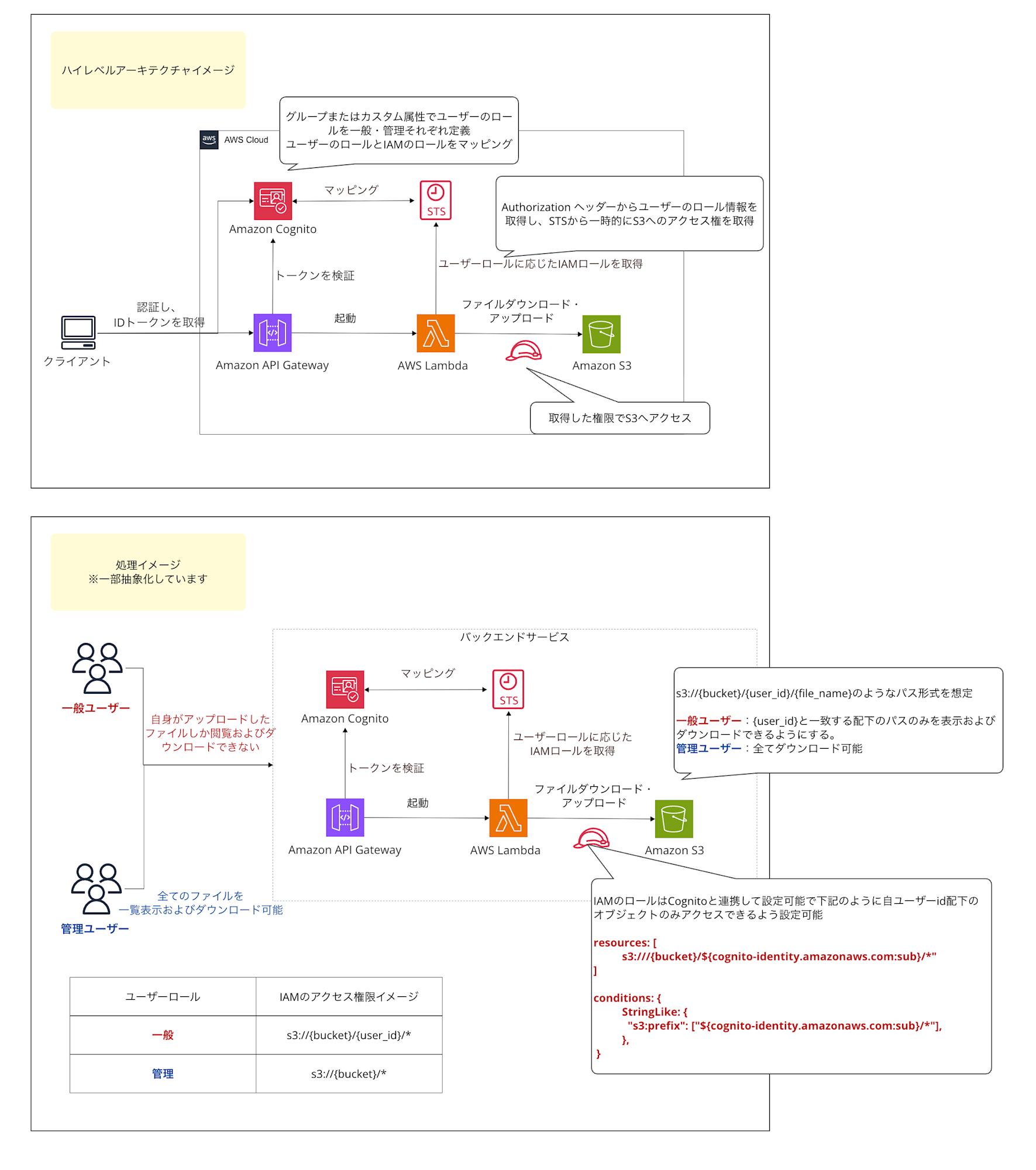
For more dynamic permission logic (e.g., cross-organizational access control), it might be worth considering an approach where Lambda acts as a proxy for S3 file processing. If you need to use custom attributes like tenant IDs or more complex business logic-based permission control, you might want to consider a different architecture. For simple separation of permissions at the individual level, this feature works well.
For complex configurations, the architecture might look something like this:
Conclusion
In this article, we explored S3 folder-level access control using Amplify Gen2.
Traditionally, detailed IAM policies and S3 bucket policies had to be configured, but now user-based and group-based access control can be implemented easily!
This feature is particularly useful when you want to create personal folders for each user and control access levels such as public, limited-public, and private.
However, for more complex dynamic permission control like tenant isolation or dynamic group mapping, you might want to consider an approach where Lambda acts as a proxy for S3 file processing.
I hope this article has been helpful. Thank you for reading!