
I investigated Parquet files stored in S3 using DuckDB

This page has been translated by machine translation. View original
Introduction
I'm kasama from the Big Data Team in the Data Business Division.
In this article, I'd like to explore how to analyze Parquet files stored in S3 using DuckDB.
Background
This approach is effective when you need to efficiently analyze Parquet files on S3 in environments where constraints prevent downloading highly confidential data to local storage.
Using DuckDB allows you to directly work with Parquet files on S3 without downloading them.
Test Data Preparation
First, let's prepare test data. We'll execute a Python script on AWS CloudShell to create Parquet files in an arbitrary S3 Bucket.
First, log in to CloudShell and install the necessary libraries.
pip install --user pandas pyarrow boto3 numpy
Next, set your chosen Bucket in an environment variable.
export BUCKET_NAME="<sample-analytics-bucket>"
Run the following command to create a script that will generate Parquet files.
cat > create_sample_parquet.py << 'EOF'
import pandas as pd
import numpy as np
from datetime import datetime, timedelta
import boto3
import pyarrow as pa
import pyarrow.parquet as pq
from io import BytesIO
import os

# Get bucket name from environment variable
bucket_name = os.environ.get('BUCKET_NAME', 'sample-analytics-bucket')
print(f"Using bucket: {bucket_name}")

# Initialize S3 client
s3_client = boto3.client('s3')

def create_sales_data(year_month, num_records=50):
    """Generate sales data"""
    np.random.seed(42 + int(year_month.replace('_', '')))

    data = {
        'id': range(1, num_records + 1),
        'product_name': np.random.choice(['Apple iPhone', 'Samsung Galaxy', 'Google Pixel'], num_records),
        'category': np.random.choice(['Electronics', 'Mobile', 'Gadgets'], num_records),
        'customer_name': [f'Customer_{i:03d}' for i in np.random.randint(1, 100, num_records)],
        'amount': np.random.randint(100, 1000, num_records),
        'date': pd.date_range(f'2024-{year_month.split("_")[1]}-01', periods=num_records, freq='D')
    }

    return pd.DataFrame(data)

def create_log_data(year_month, num_records=50):
    """Generate log data"""
    np.random.seed(100 + int(year_month.replace('_', '')))

    data = {
        'id': range(1, num_records + 1),
        'endpoint': np.random.choice(['/api/users', '/api/products', '/api/orders'], num_records),
        'method': np.random.choice(['GET', 'POST', 'PUT'], num_records),
        'status': np.random.choice(['SUCCESS', 'ERROR', 'WARNING'], num_records, p=[0.7, 0.2, 0.1]),
        'message': [f'Request processed for user_{i}' for i in np.random.randint(1000, 9999, num_records)],
        'count': np.random.randint(1, 100, num_records),
        'timestamp': pd.date_range(f'2024-{year_month.split("_")[1]}-01', periods=num_records, freq='h')
    }

    return pd.DataFrame(data)

def upload_parquet_to_s3(df, bucket, key):
    """Upload DataFrame as Parquet to S3"""
    try:
        buffer = BytesIO()
        table = pa.Table.from_pandas(df)
        pq.write_table(table, buffer)
        buffer.seek(0)

        file_size = len(buffer.getvalue())

        s3_client.put_object(
            Bucket=bucket,
            Key=key,
            Body=buffer.getvalue(),
            ContentType='application/octet-stream'
        )
        print(f'✓ Uploaded: s3://{bucket}/{key} ({len(df)} rows, {file_size:,}bytes)')
    except Exception as e:
        print(f'✗ Error uploading {key}: {str(e)}')

# Main process
try:
    print("Starting Parquet file creation (50 rows each)...")

    # 1. Sales data (root level) - 2 files
    print("Creating sales data...")
    sales_jan = create_sales_data('2024_01', 50)
    sales_feb = create_sales_data('2024_02', 50)

    upload_parquet_to_s3(sales_jan, bucket_name, 'sales_2024_01.parquet')
    upload_parquet_to_s3(sales_feb, bucket_name, 'sales_2024_02.parquet')

    # 2. Log data (subdirectory) - 1 file
    print("Creating log data...")
    logs = create_log_data('2024_01', 50)
    upload_parquet_to_s3(logs, bucket_name, 'logs/access_2024_01.parquet')

    print(f"\n🎉 Parquet file creation completed!")

except Exception as e:
    print(f"An error occurred: {str(e)}")
EOF
Execute the script.
python create_sample_parquet.py
If you see the following log, it was successful.
Using bucket: <sample-analytics-bucket>
Starting Parquet file creation (50 rows each)...
Creating sales data...
✓ Uploaded: s3://<sample-analytics-bucket>/sales_2024_01.parquet (50 rows, 5,642bytes)
✓ Uploaded: s3://<sample-analytics-bucket>/sales_2024_02.parquet (50 rows, 5,620bytes)
Creating log data...
✓ Uploaded: s3://<sample-analytics-bucket>/logs/access_2024_01.parquet (50 rows, 6,257bytes)

🎉 Parquet file creation completed!
Analyzing Parquet Files
Let's connect to DuckDB and analyze the parquet files.
For S3 configuration, I referenced the following blog.
In my environment, I'm connecting to the AWS account containing S3 by switching IAM Roles, so I'll try that method.
This assumes that DuckDB and AWS CLI command configurations are complete. I used DuckDB version 1.3.0 for this. Version 1.2.0 resulted in errors, so please update if needed.
First, retrieve the AccessKeyId, SecretAccessKey, and SessionToken using the following command:
aws configure export-credentials --profile <your-profile>
Next, launch the DuckDB Local UI.
duckdb --ui
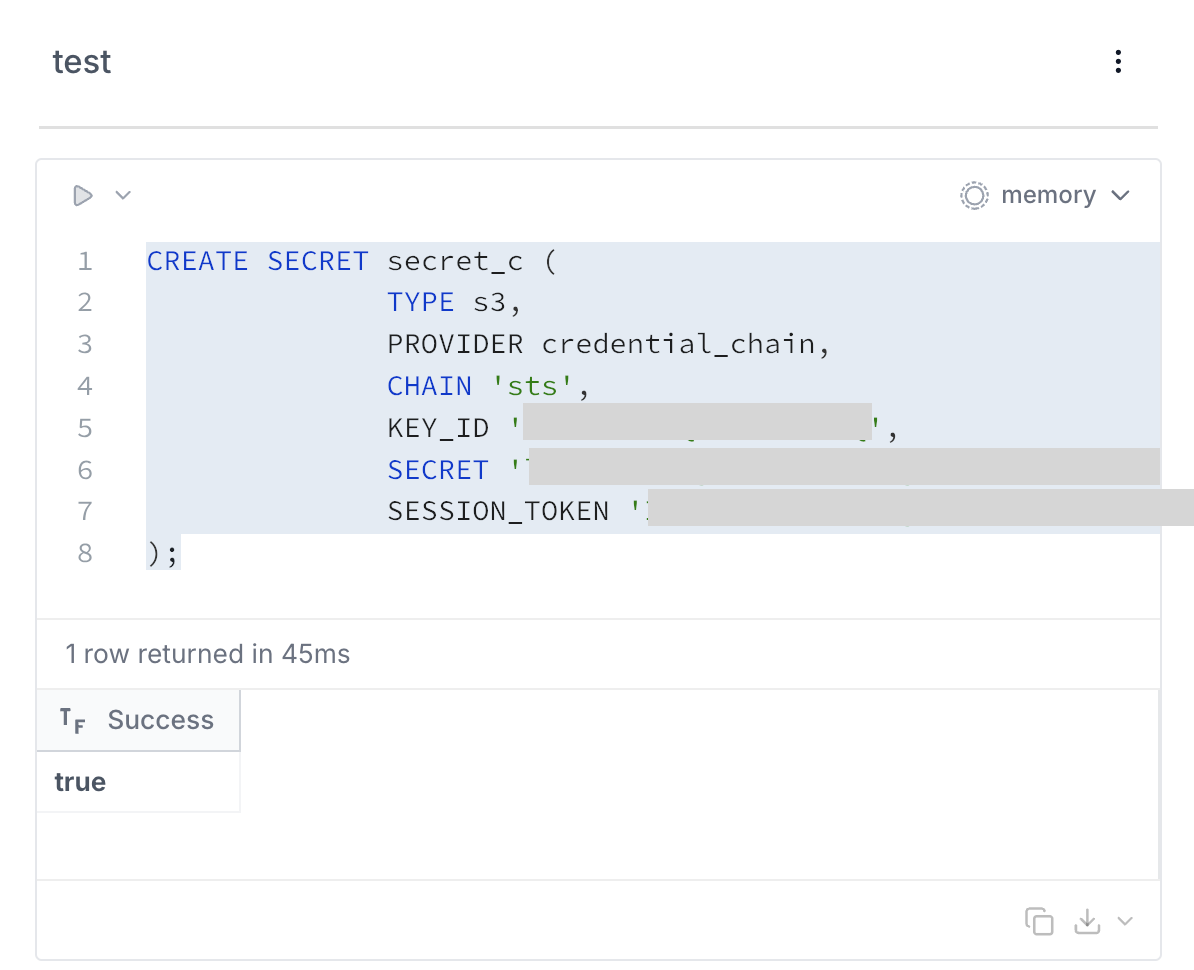
Once it's up, execute the following command in a cell:
CREATE OR REPLACE SECRET secret_c (
              TYPE s3,
              PROVIDER config,
              KEY_ID '<retrieved AccessKeyId>',
              SECRET '<retrieved SecretAccessKey>',
              SESSION_TOKEN '<retrieved SessionToken>'
              REGION 'ap-northeast-1'
);
If it returns true, the connection is successful.
- Checking file list
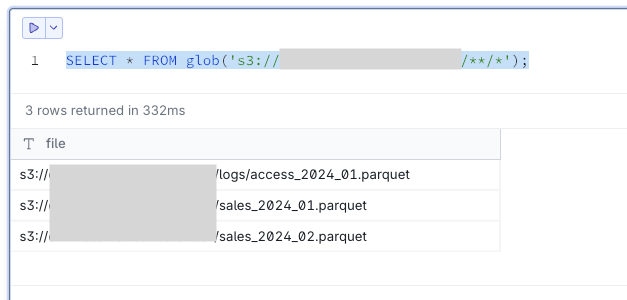
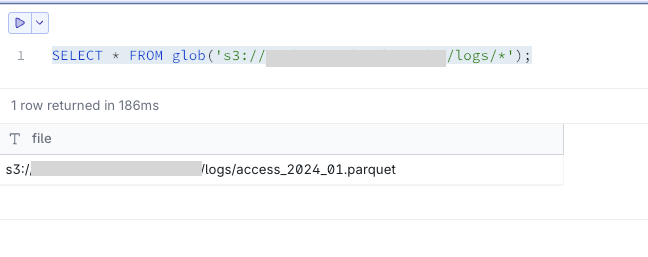
Use the glob() function to check the list of Parquet files in the S3 bucket.
-- Basic file list retrieval
SELECT * FROM glob('s3://<sample-analytics-bucket>/**/*');
-- Retrieving file list for a specific path
SELECT * FROM glob('s3://<sample-analytics-bucket>/logs/*');
- Viewing and analyzing data
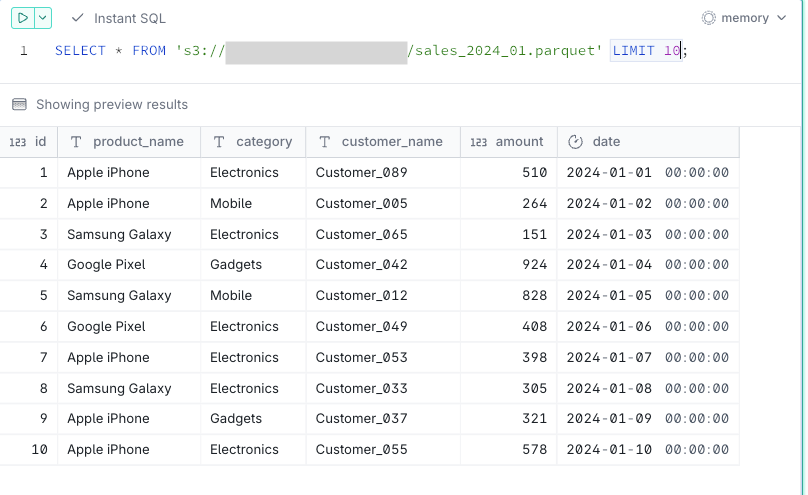
You can view data directly without downloading the files.
-- Viewing a single file
SELECT * FROM 's3://<sample-analytics-bucket>/sales_2024_01.parquet' LIMIT 10;
-- Viewing a single file
SELECT * FROM 's3://<sample-analytics-bucket>/sales_2024_01.parquet';
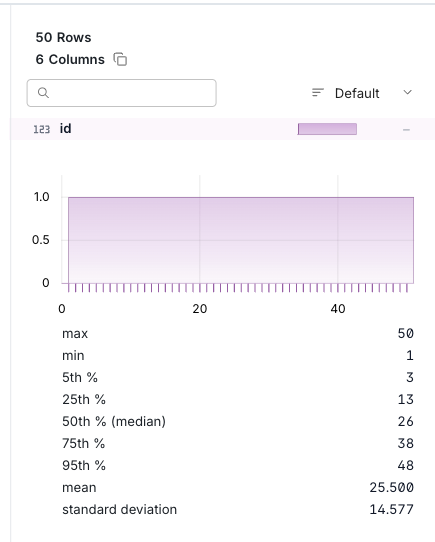
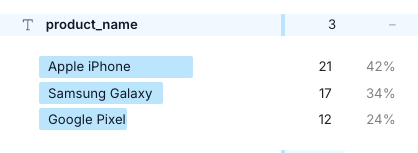
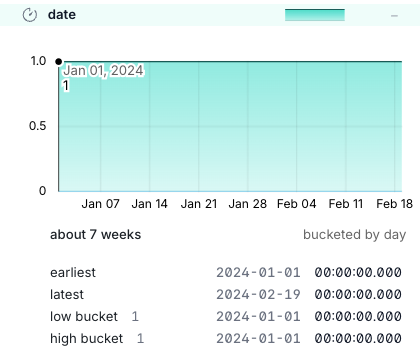
With the DuckDB UI, you can also see aggregated results by column on the right side of the SQL execution results.
For INT types, you can see MAX/MIN, etc.
For text types, you can see aggregation by string.
For date types, you can check earliest, latest, etc.
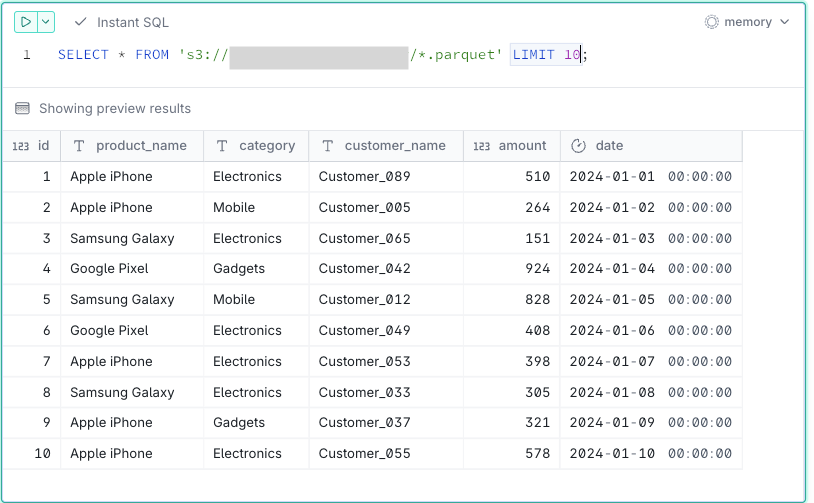
-- Bulk viewing of multiple files
SELECT * FROM 's3://<sample-analytics-bucket>/*.parquet';
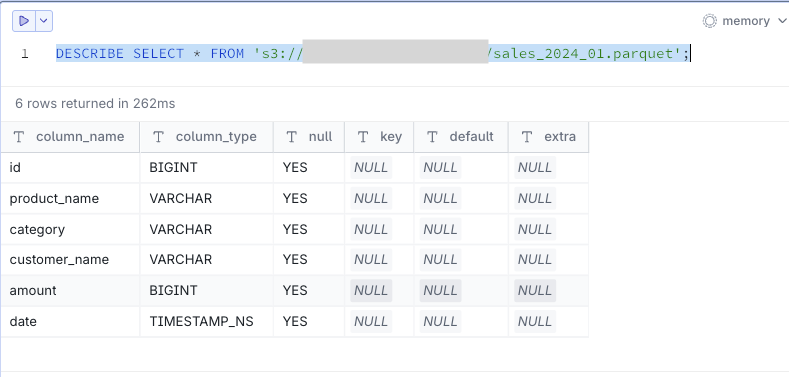
- Checking schema information
You can check schema information for parquet files.
DESCRIBE SELECT * FROM 's3://<sample-analytics-bucket>/sales_2024_01.parquet';
Conclusion
If you don't want to grant local access permissions, you can install DuckDB on CloudShell for data analysis, which I think can be useful in many scenarios. I hope you found this helpful.