I tried apple-doc-mcp which allows searching Apple Developer Documentation with AI agents

This page has been translated by machine translation. View original
With the proliferation of AI coding assistants, various Model Context Protocol (MCP) servers have emerged. Many official documentation search MCP servers are available, such as Microsoft Learn Docs MCP Server and AWS Documentation MCP server.
However, for iOS engineers, an MCP server to search Apple Developer Documentation is unfortunately not officially provided. Upon investigation, I discovered a third-party MCP server called "apple-doc-mcp".
apple-doc-mcp is an MCP server that provides direct access to Apple Developer Documentation. It features wildcard-supported search functionality, exploration of all Apple frameworks, and clean Markdown output for AI assistants.
For those who want to learn more about MCP, I recommend this video published by Microsoft Reactor. It provides an easy-to-understand explanation in Japanese.
In this article, I'll demonstrate how to set up apple-doc-mcp and verify its operation with both Claude for Desktop and GitHub Copilot for Xcode.
Testing Environment
- macOS 15.2
- Claude for Desktop
- GitHub Copilot for Xcode 0.38.0
- nodebrew 1.1.0
- node v22.13.1
- npm 11.4.2
Installing apple-doc-mcp
Prerequisites
- apple-doc-mcp requires Node.js 18.0.0 or higher.
- The current testing environment (Node.js v22.13.1) meets this requirement.
- If your environment doesn't meet this condition, update your Node.js version
Cloning the Repository
First, clone the repository from GitHub.
git clone https://github.com/MightyDillah/apple-doc-mcp.git
cd apple-doc-mcp
This repository is pre-built, so manual building is not necessary.
Installing Dependencies
npm install
Verification
node dist/index.js
If the server starts normally, installation is complete. Let's terminate the process with Ctrl+C.
You don't need to keep the MCP server running during usage, as the MCP client (such as Claude for Desktop) will launch it when needed.
Setup Method for Claude for Desktop
To use apple-doc-mcp with Claude for Desktop, you need to edit the configuration file.
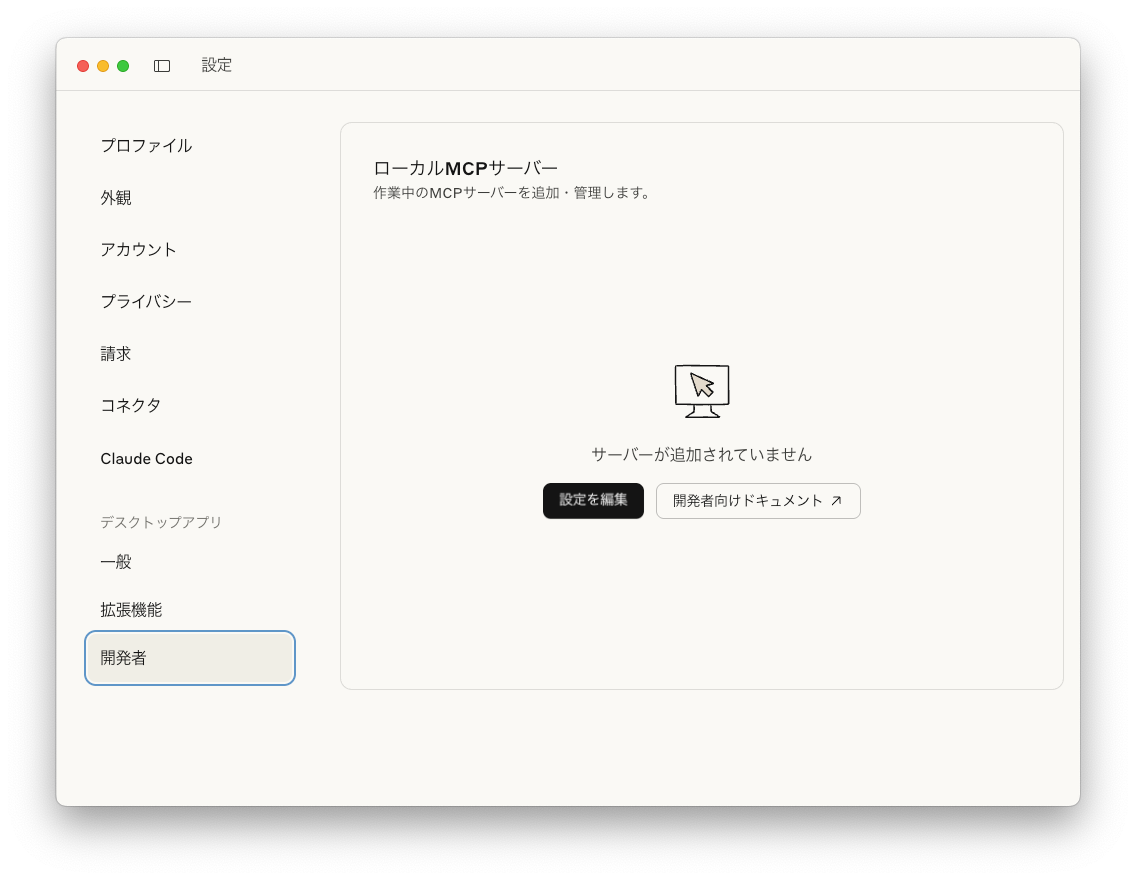
Click [Edit Settings] to open the configuration file.
According to the Claude for Desktop documentation, the configuration file is located at:
- For macOS:
~/Library/Application\ Support/Claude/claude_desktop_config.json - For Windows:
%APPDATA%\Claude\claude_desktop_config.json
Configuration Steps
Add the following content to the configuration file:
{
  "mcpServers": {
    "apple-doc-mcp": {
      "command": "node",
      "args": ["/absolute/path/to/apple-doc-mcp/dist/index.js"]
    }
  }
}
Replace /absolute/path/to/apple-doc-mcp with the absolute path to the directory you cloned. Since I use nodebrew to switch between node versions, I modified the command as follows:
{
  "mcpServers": {
    "apple-doc-mcp": {
      "command": "/Users/ch3cooh/.nodebrew/current/bin/node",
      "args": ["/Users/ch3cooh/works/apple-doc-mcp/dist/index.js"]
    }
  }
}
Restart Claude for Desktop
Restart Claude for Desktop to apply the settings. Check the settings screen again, and if it shows "running", the startup was successful.
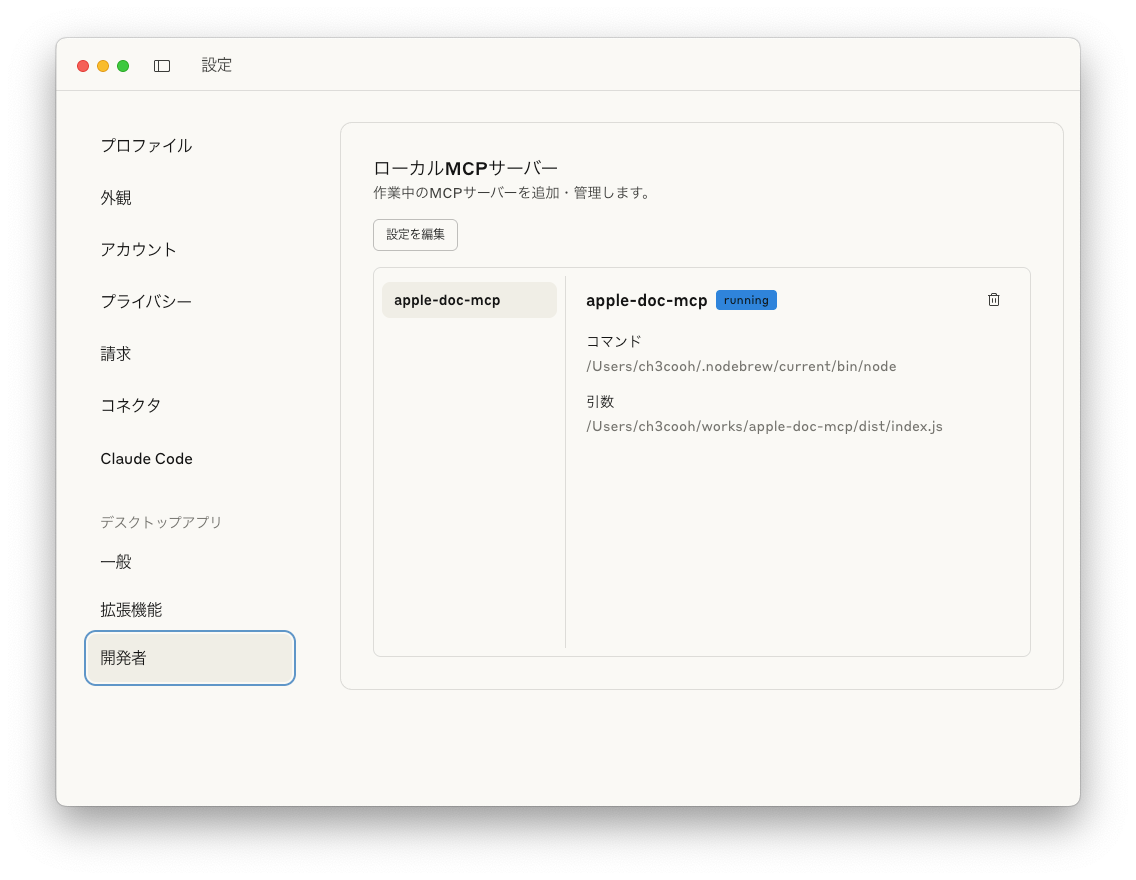
Verification
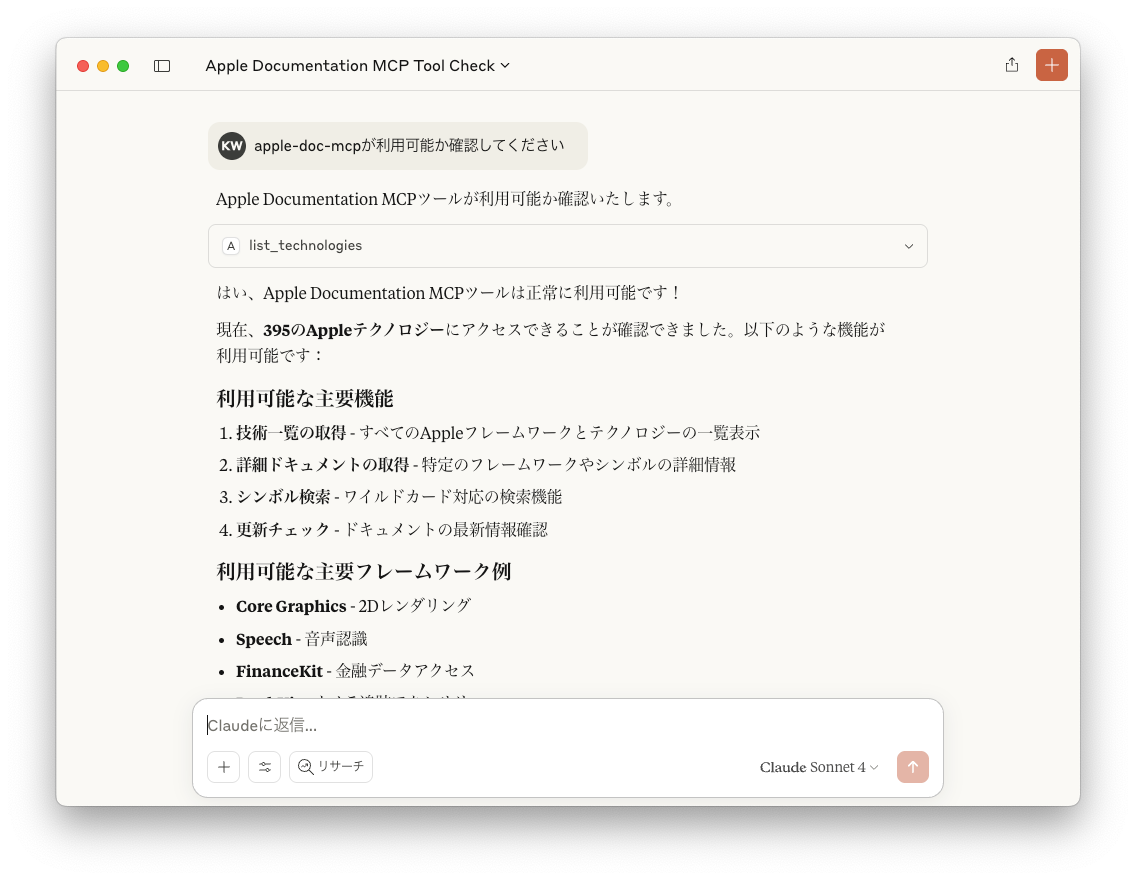
After restarting, try asking Claude the following:
Please check if apple-doc-mcp is available
If functioning correctly, you'll be asked for execution permission the first time.
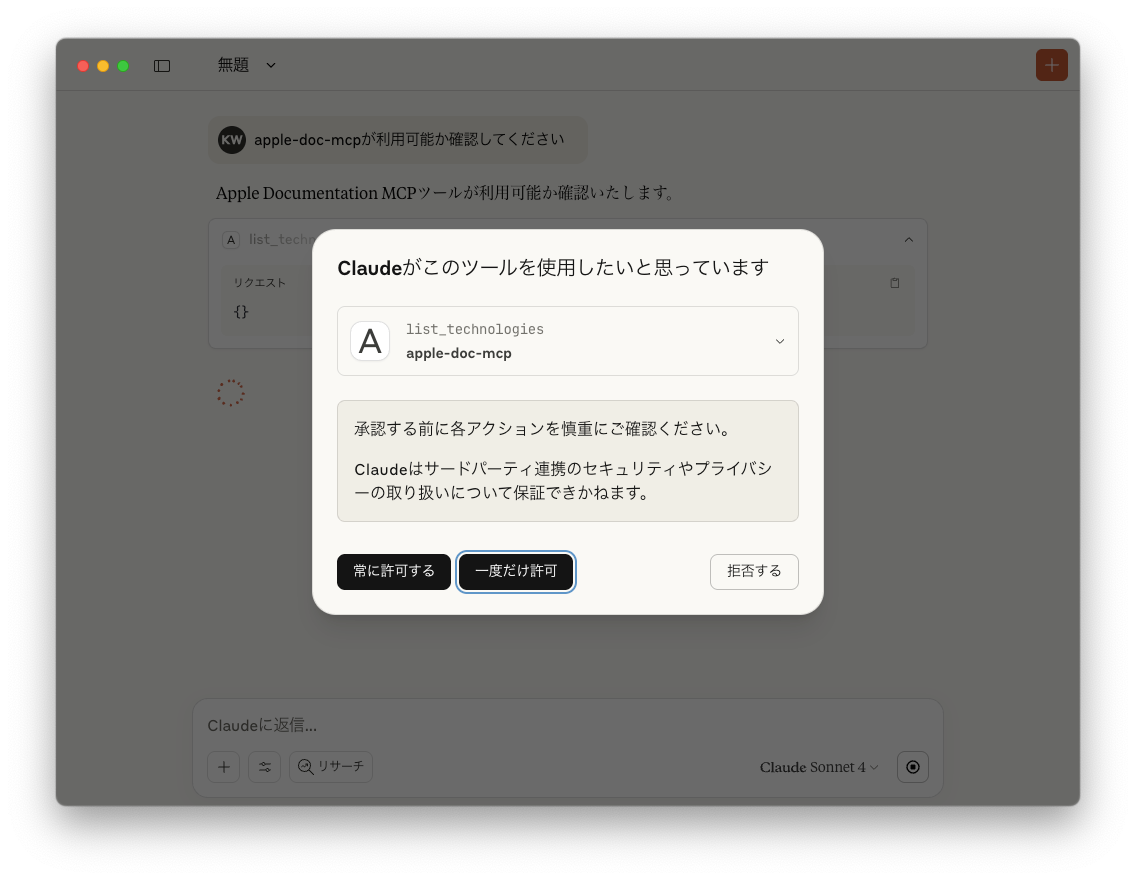
Once you allow it, Claude will provide an explanation of apple-doc-mcp.
Setup Method for GitHub Copilot for Xcode
MCP support in GitHub Copilot for Xcode is currently available as a public preview.
Configuration Steps
To configure in Xcode, open the GitHub Copilot for Xcode App and select "Edit Config" from the Agent Mode tool picker.
- Open the GitHub Copilot for Xcode app
- Open the MCP tab
- Select "Edit Config"
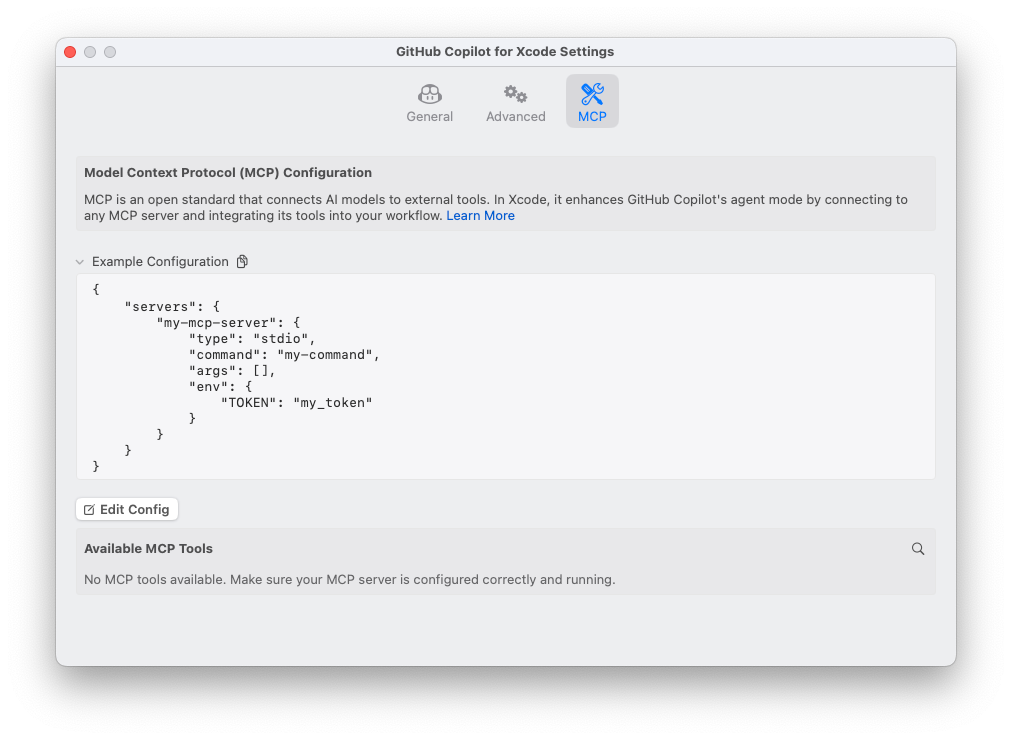
- Add the MCP configuration
{
    "servers": {
        "apple-doc-mcp": {
          "command": "/Users/ch3cooh/.nodebrew/current/bin/node",
          "args": ["/Users/ch3cooh/works/apple-doc-mcp/dist/index.js"]
        }
    }
}
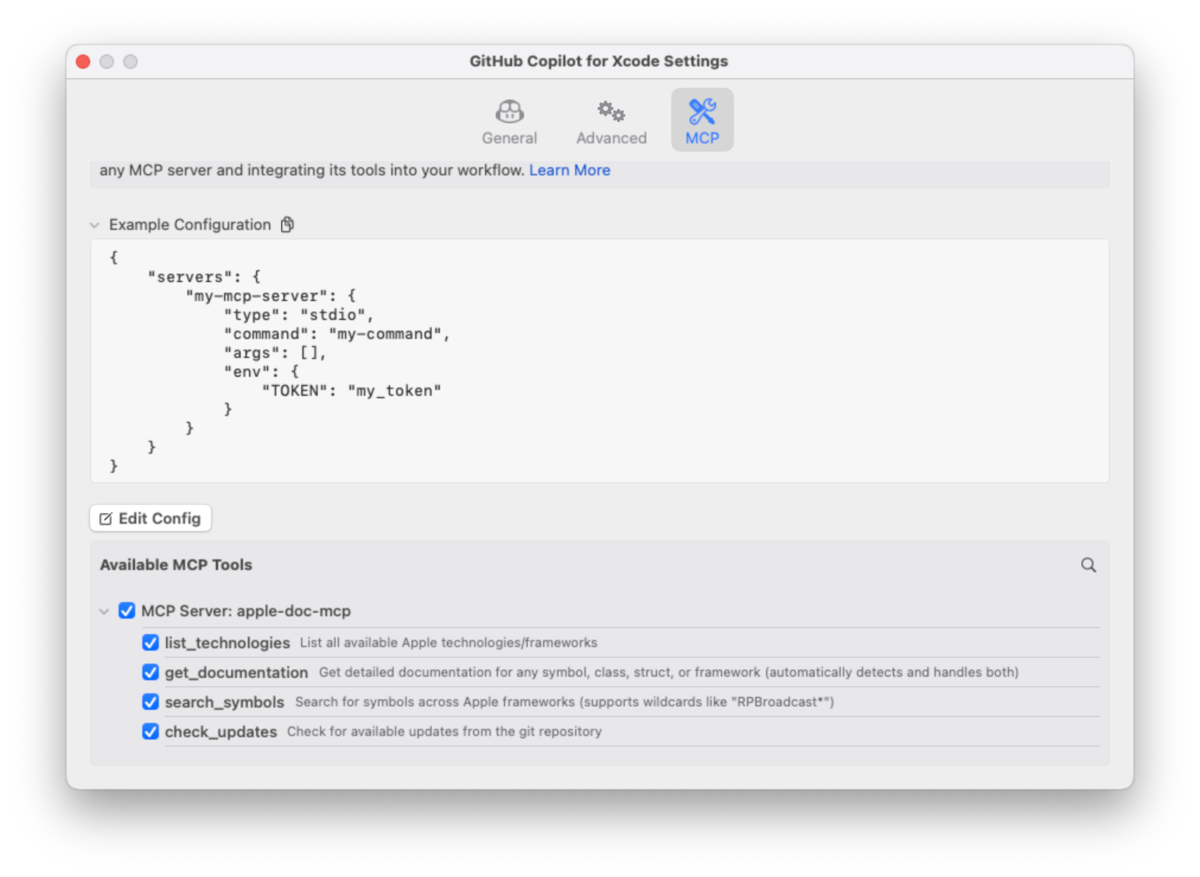
When you save mcp.json, it will automatically reload. You can see that apple-doc-mcp has been added to Available MCP Tools.
Verification
After configuration, try asking the following question in Agent mode:
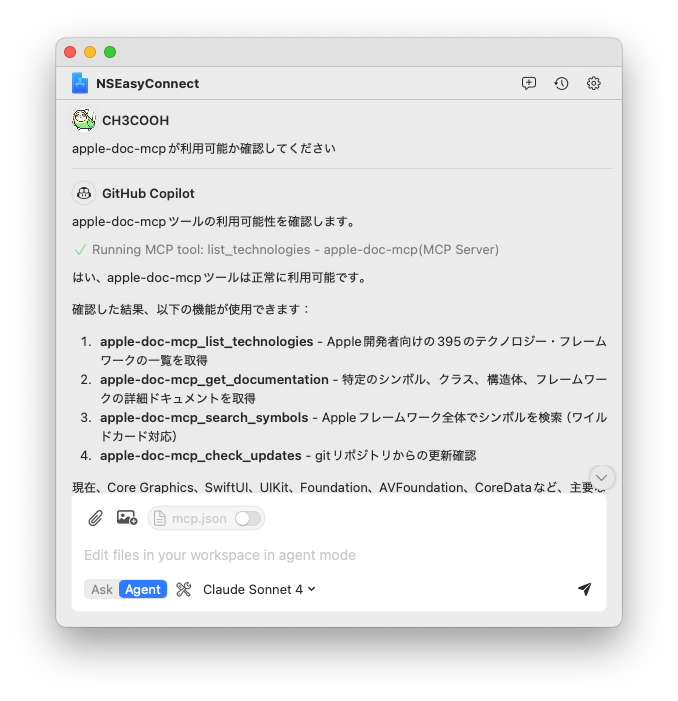
Please check if apple-doc-mcp is available
If working correctly, you'll be asked for permission to run apple-doc-mcp/list_technologies the first time.
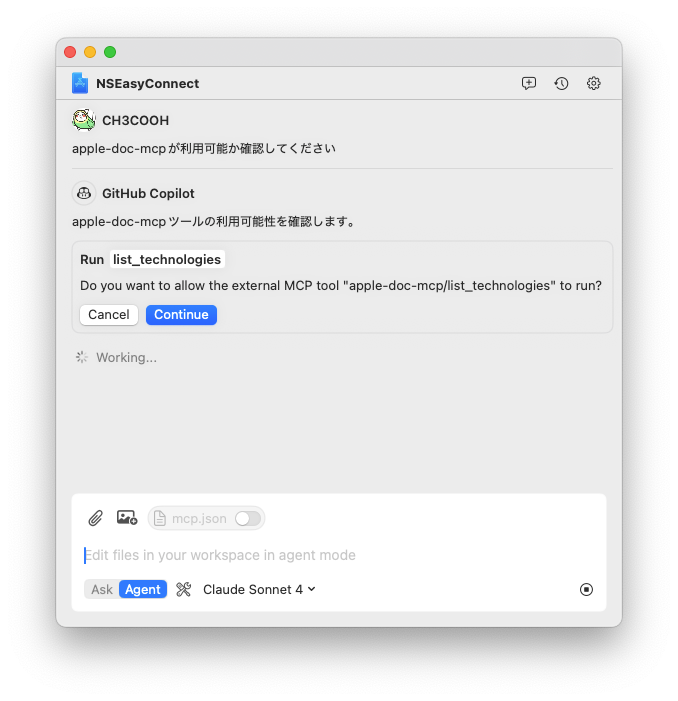
Click the [Continue] button, and Copilot will provide an explanation of apple-doc-mcp.
How to Use apple-doc-mcp
Here are the four functions provided by apple-doc-mcp. These examples show actual usage with GitHub Copilot for Xcode.
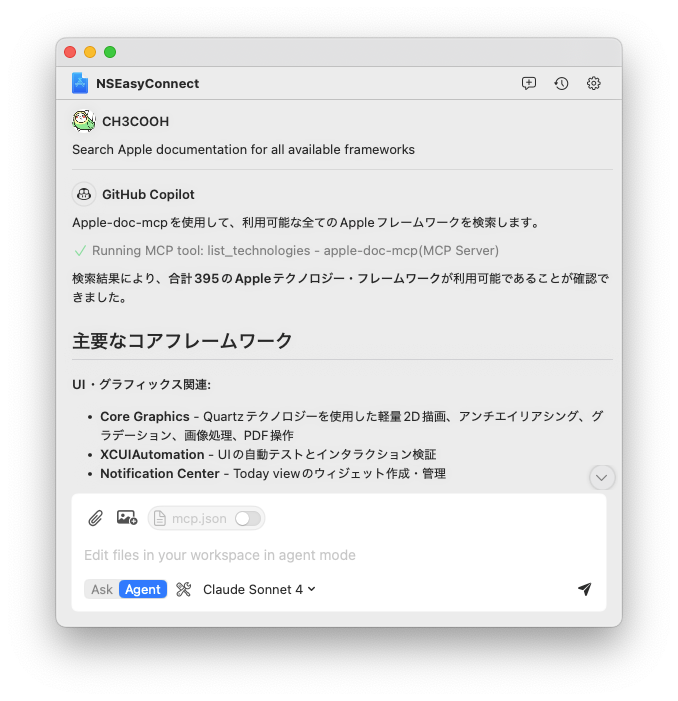
list_technologies
You can list all Apple frameworks and technologies.
Search Apple documentation for all available frameworks
The result is shown below.
get_documentation
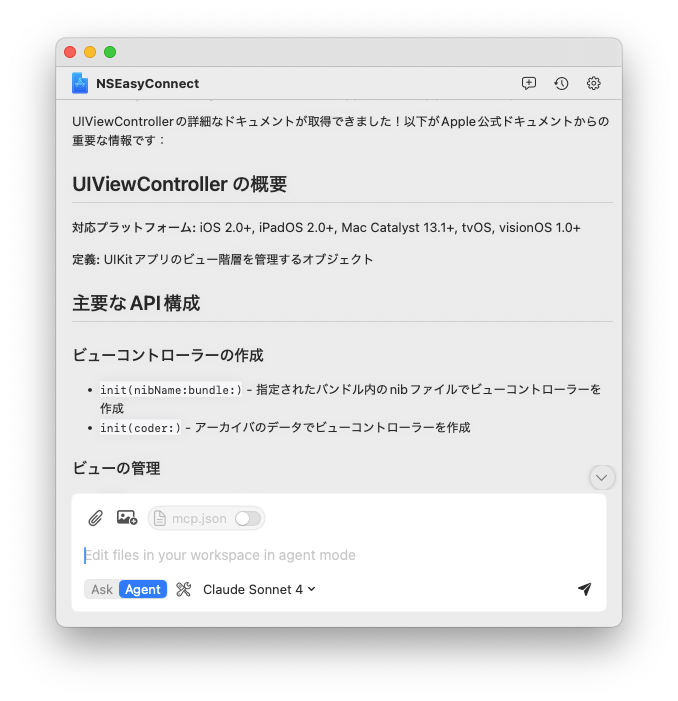
Retrieve detailed documentation for specific symbols or frameworks.
Use apple-doc-mcp to look up UIViewController documentation
The result is shown below.
search_symbols
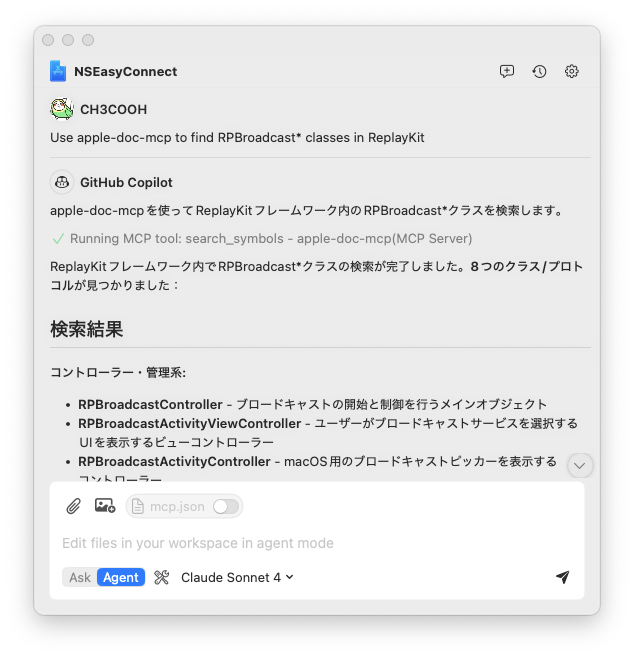
Advanced search functionality with wildcard support (*, ?).
Use apple-doc-mcp to find RPBroadcast* classes in ReplayKit
The result is shown below.
check_updates
Check for repository updates.
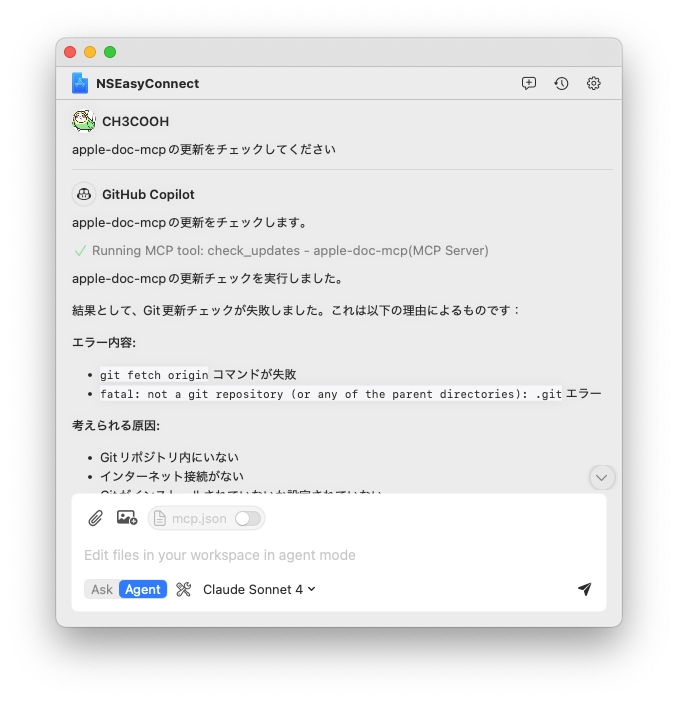
Please check for updates to apple-doc-mcp
The result is shown below. Perhaps because I'm using GitHub Copilot for Xcode, the git command execution failed.
Summary
apple-doc-mcp is an excellent MCP server that enables direct access to Apple Developer Documentation. After using it, I've experienced both its value and limitations.
Main Benefits
The biggest advantage is that it synchronizes with official Apple documentation in real-time, allowing you to always obtain the latest information. Since AI models have temporal limitations in their training data, this is especially powerful when checking the latest API specifications (like APIs added in iOS 18.2). It's particularly helpful when researching major frameworks such as SwiftUI, UIKit, and Foundation, or when confirming API specifications.
Its pre-built ease of implementation and clean Markdown output optimized for AI assistants are also major attractions.
Limitations to Consider
On the other hand, there are some limitations to understand. As a third-party tool, official support cannot be expected, and security considerations must be evaluated at your own risk. Also, there were cases where Japanese queries did not yield the expected responses.
I plan to continue using it and will update this article with new findings.