
I revisited the subagent functionality of Claude Code

This page has been translated by machine translation. View original
I'm Katagiri from the AI Business Division/Western Japan Development Team.
Previously, I introduced the initial setup for Claude Code.
This time, I'll cover subagents as a step-up topic.
About this article
[Target audience]
- Those who want to review Claude Code's basic functions
- Those who want to work efficiently with Claude Code
🪧 If you only want to check the implementation steps, please proceed from "here".
Understanding when to use subagents based on their benefits
First, let's consider scenarios where subagents are needed based on the benefits listed in the official documentation.
Separate exploration and implementation from the main conversation by maintaining context
While inheriting context (such as past conversation history), processes can be separated, which helps prevent context window pollution.
When to use: When you want to separate agents by process, such as research, implementation, review, etc.
Restrict the tools that subagents can use by enforcing constraints
You can limit operations on a per-agent basis.
For example, preventing a research agent from making edits, or allowing MCP connections for specific agents only.
When to use: When you want to prevent accidental operations or unintended changes, or when you want to strictly separate permissions
Reuse configurations by using user-level subagents across multiple projects
Subagents created at the user level can be used across multiple projects, and project-specific agents can also be created.
You can choose the appropriate scope based on your needs.
When to use: When you want to reuse agents with the same role across multiple projects
Specialize behavior by using focused system prompts for specific domains
Instead of a general-purpose assistant that can do anything, you can give specific instructions tailored to particular tasks (domains), such as "You are an expert in verifying facts about AWS billing."
When to use: When you need highly accurate answers following specific technical areas or business rules
Control costs by routing tasks to fast and inexpensive models like Haiku
Subagents can be assigned different models, allowing you to use them according to your needs.
For example, you can flexibly allocate lower-cost Haiku for research tasks and high-performance Opus for specification design.
When to use: When you want to optimize costs based on the importance or complexity of tasks
Differences from Skills
When looking at the benefits of subagents, you might wonder, "Can't I do the same thing with Skills?"
Let's clarify the differences between the two:
| Aspect | Skills | Subagents |
|---|---|---|
| Role | Extend Claude Code's functionality | Add independent AI agents |
| Independent conversation context | ✖ Rides on main conversation | ⭕️ Has its own context |
| Tool restrictions | ⚠ Can be limited through prompts | ⭕️ Can be limited per agent |
| Model specification | ✖ Cannot specify | ⭕️ Can be specified per agent |
| Parallel processing | ⭕️ Multiple agents can run in parallel | ⭕️ Multiple agents can run in parallel |
| Configuration reuse | Project/personal level | Project/personal level |
| Suitable uses | Tool invocation/one-time processing extensions | Role division/complex task decomposition |
To summarize:
Skills increase what Claude Code can do
Subagents create specialists within Claude Code
Standard pre-configured agents
Claude Code comes with five standard agents.
*Two of these are used for Claude Code setup and won't be covered here.
-
Explore
An agent optimized for codebase search and analysis.
It uses the Haiku model for fast and low-cost file and code searches. -
Plan
An agent used during plan mode.
It uses the same model as the main conversation and has read-only permissions,
allowing you to make plans without unintended changes. -
General-purpose
An agent for complex tasks requiring both exploration and execution.
It uses the same model as the main conversation and is configured to safely perform
not only read operations but also file editing and execution operations.
If you mainly need to conduct research, Explore is good; if you need to implement while researching, General-purpose is recommended.
Creating subagents
There are two ways to create subagents: using the /agents command or manually creating a Markdown file.
Using /agents is more efficient with Claude Code, so we'll proceed with this method.
1. Launch Claude Code
Launch Claude Code from any location.
claude
2. Execute the subagent creation command
You can start creating a subagent with the following command.
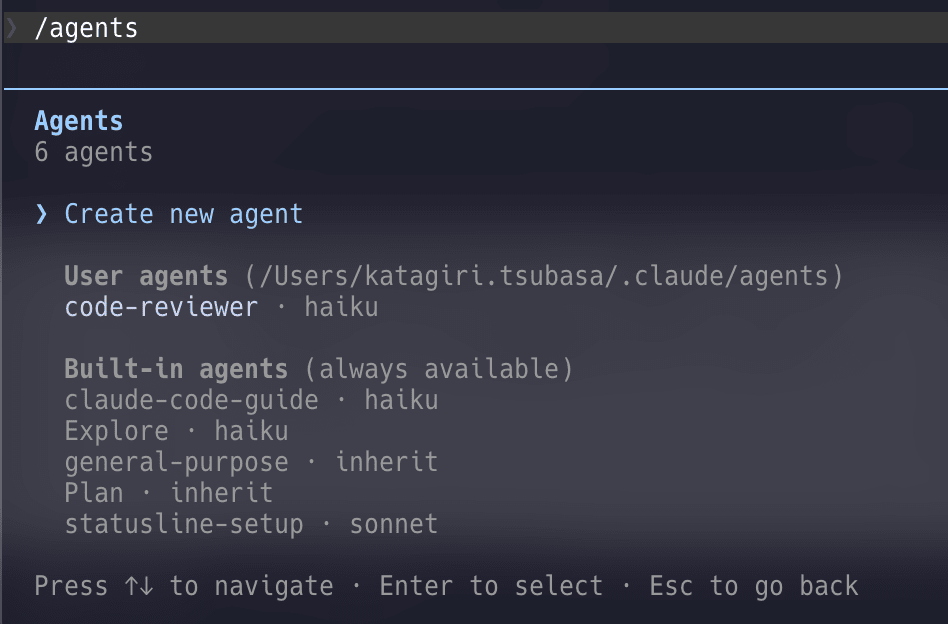
/agents
After executing this command, select Create new agent.
3. Set the subagent's scope
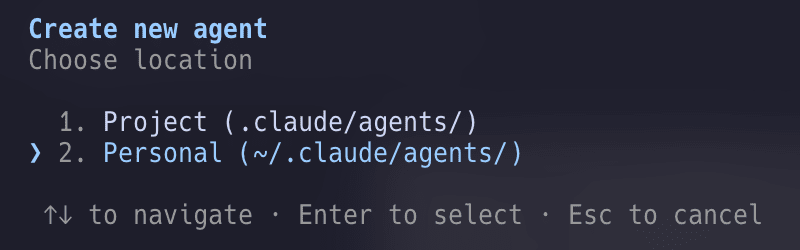
Set the scope for where the subagent can be used.
Setting it to Personal makes it available across all projects.
Setting it to Project makes it available only within that project.
4. Choose prompt generation method
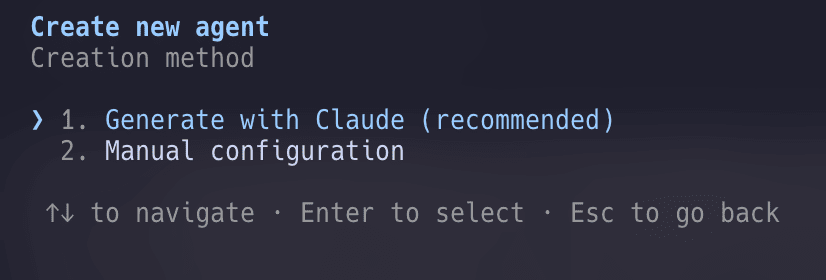
You can choose to create the subagent's prompt manually or have Claude create it.
We'll use Claude for this tutorial.
5. Enter a description for the subagent
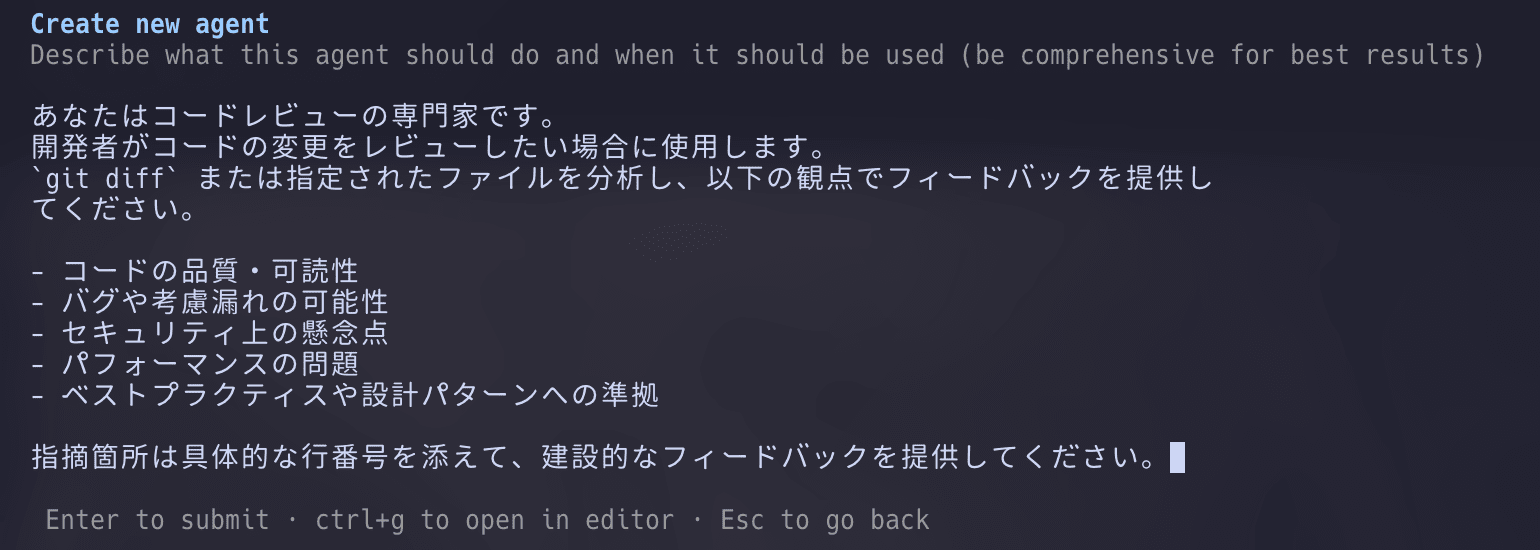
Next, enter a description for the subagent you want to create.
Claude will generate a prompt based on this description, so be specific.
Here, I've entered a description for creating a code review agent.
You are a code review expert.
You are used when developers want to review their code changes.
Analyze `git diff` or specified files and provide feedback on the following aspects:

- Code quality and readability
- Potential bugs or oversights
- Security concerns
- Performance issues
- Adherence to best practices or design patterns

Provide constructive feedback with specific line numbers for any issues you identify.
6. Configure tool usage
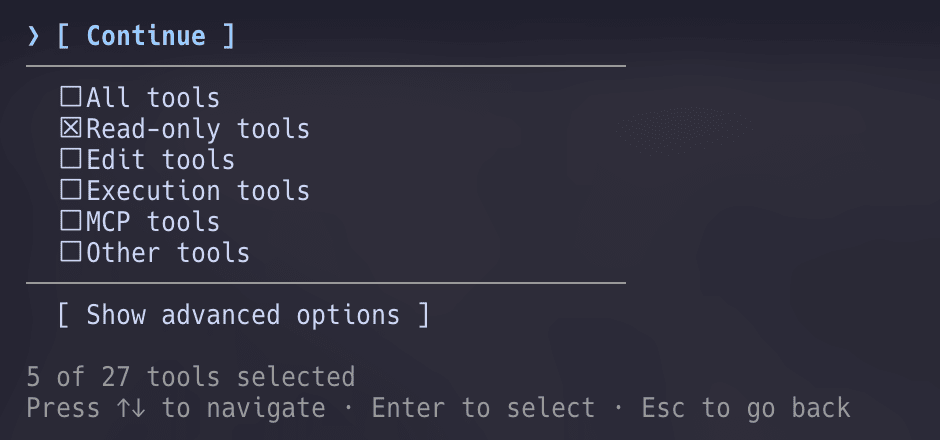
After prompt generation, the next step is to configure tool usage.
You can toggle selection by moving the cursor to the relevant tool and pressing Enter.
Details for each item
- All tools: All tools
- Read-only: Read-only tools
- Edit tools: Editing-related tools
- Execution tools: Execution-related tools
- MCP tools: MCP-related tools
- Other tools: Other tools
Since we're only doing code reviews, we'll select Read-only tools.
7. Select the model
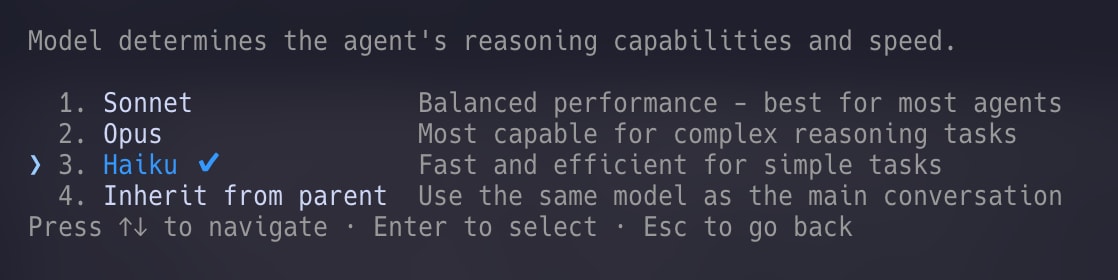
Next, select the model the subagent will use.
- Sonnet: A balanced model
- Opus: A model suitable for complex reasoning tasks
- Haiku: An effective model for simple tasks
- Inherit from parent: Uses the same model as the main conversation
To keep costs down, we'll use Haiku for this example.
8. Select background color
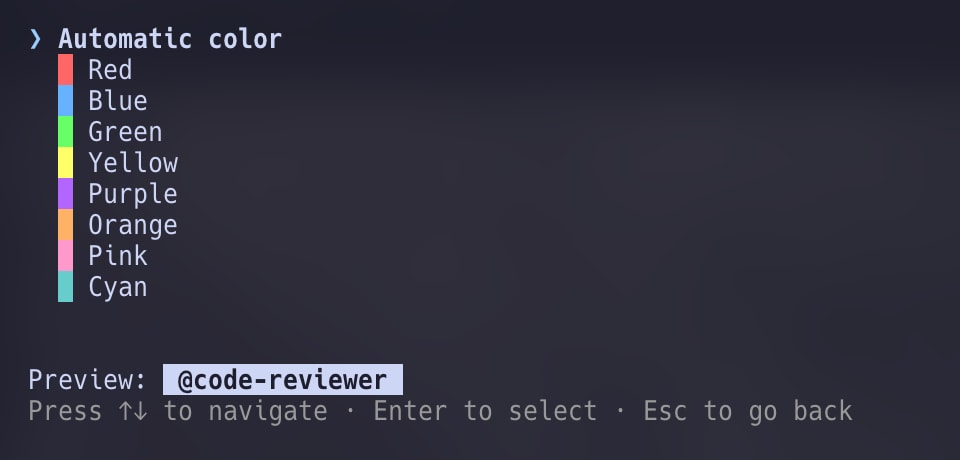
You can set the background color for when the subagent is in use.
*Note: Only the background of the subagent name changes when the subagent is executed.
9. Memory settings
Select where to store the memory (memory area) for the subagent.
- User Scope: Common across all projects
- None: No memory storage
- Project Scope: Stored per project
- Local Scope: Stored in the local environment
We're choosing No storage for this example.
  Configure agent memory

    1. User scope (~/.claude/agent-memory/) (Recommended)
  ❯ 2. None (no persistent memory)
    3. Project scope (.claude/agent-memory/)
    4. Local scope (.claude/agent-memory-local/)

   ↑↓ to navigate · Enter to select · Esc to go back
Memory settings are recommended if you want to use subagents for:
- Maintaining consistency by referring to past review history
- Accumulating project-specific rules
10. Confirm settings
Finally, review your settings.
You can edit them by pressing the e key if needed.
It's also possible to edit after creation.
  Confirm and save

  Name: code-reviewer
  Location: /Users/katagiri.tsubasa/.claude/agents/code-reviewer.md
  Tools: Glob, Grep, Read, WebFetch, and WebSearch
  Model: Haiku
  Memory: None

  Description (tells Claude when to use this agent):

    Use this agent when a developer wants to review code changes. Trigger this agent after writing a significant
    chunk of code, before submitting a pull request, or when reviewing specific files for quality assurance.

    Examples:
    <example>
    Context:…

  System prompt:

    あなたはコードレビューの専門家です。10年以上の開発経験を持ち、コード品質・セキュリティ・パフォーマンス・設計パタ
    ーンに精通したシニアエンジニアとして、建設的かつ実践的なフィードバックを提供します。

    ## レビュー対象の取得
    - ユーザーが `git diff…

  Press s or Enter to save, e to save and edit

   s/Enter to save · e to edit in your editor · Esc to cancel
11. Check the created subagent
After creation, you can check and edit your subagent using /agents.
  Agents
  6 agents

  Created agent: code-reviewer and opened in editor. If you made edits, restart to load the latest version.

    Create new agent

    User agents
  ❯ code-reviewer · haiku

    Built-in agents (always available)
    claude-code-guide · haiku
    Explore · haiku
    general-purpose · inherit
    Plan · inherit
    statusline-setup · sonnet

  Press ↑↓ to navigate · Enter to select · Esc to go back
Now you can use it just by including the subagent name in your instructions to Claude Code.
Prompt example
I had the sample Python program I created reviewed.
❯ code-reviewer Please review the code in @user_manager.py.
  ⎿  Read user_manager.py (41 lines)

⏺ code-reviewer(Conducting comprehensive code review of user_manager.py)
  ⎿  Done (1 tool use · 9.5k tokens · 21s)
  (ctrl+o to expand)

⏺ Detailed code review completed.

  📋 Review Result Highlights

  🔴 Critical (Needs immediate attention)

  1. Hardcoded password - Security risk
  2. File handle leakage - Needs 'with' statement
  3. No key existence check - Needs KeyError prevention

  🟡 Warning (Next phase)

  - No input validation
  - No protection against path traversal attacks
  - Direct exposure of internal state

  🟢 Suggestion (Quality improvement)

  - Add type hints
  - Enhance docstrings

  ---
  ❓ About next steps

  Is this code intended as an educational "anti-pattern collection"? Or is it planned for production use?

  I'd like to adjust the correction plan based on your intention, could you let me know?

  - Educational purpose: Can be left as is (material showing "what's problematic")
  - Production purpose: Will proceed with fixes starting from Critical items
It accurately reviewed the intended areas.
Conclusion
In this article, I've introduced Claude Code's standard agents and how to create custom subagents.
Subagents are a very effective means for efficient AI-driven development.
Let's customize and utilize them according to your workflow.