
Regular task automation: A comparison of /loop in Claude Code and /schedule in Claude Desktop App (Cowork)

This page has been translated by machine translation. View original
Introduction
The recent Claude Code v2.1.71 update added a new feature called /loop. Previously, if you wanted Claude to regularly check on things like CI/CD progress, you had to manage it manually. Now with the official cron job feature /loop available within sessions, this has become much more convenient.
Additionally, the Claude Desktop App (Cowork) already includes a /schedule feature. In this article, I'll test these two scheduling features and compare their differences.
Test Environment
- macOS Sequoia 15.7.1
- Claude Code v2.1.71
- Claude(Desktop App) v1.1.5368
Claude Code /loop
The official documentation: Claude Code /loop is in English, so interval specifications use expressions like every. Interestingly, Japanese expressions like "every x minutes" also work perfectly fine.
/loop {x s/m/h/d} {instruction}
/loop {instruction} every {x s/m/h/d}
I tested both English and Japanese formats and confirmed they work correctly.
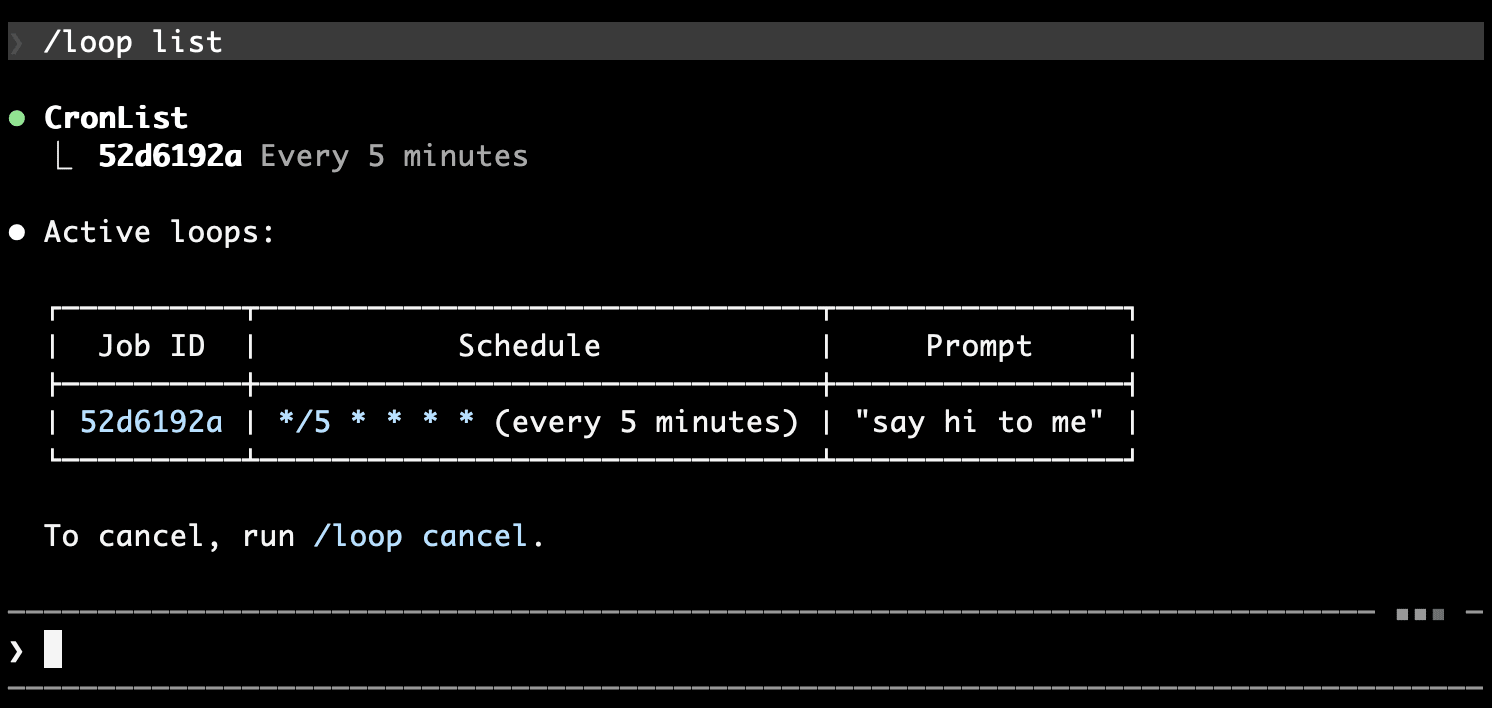
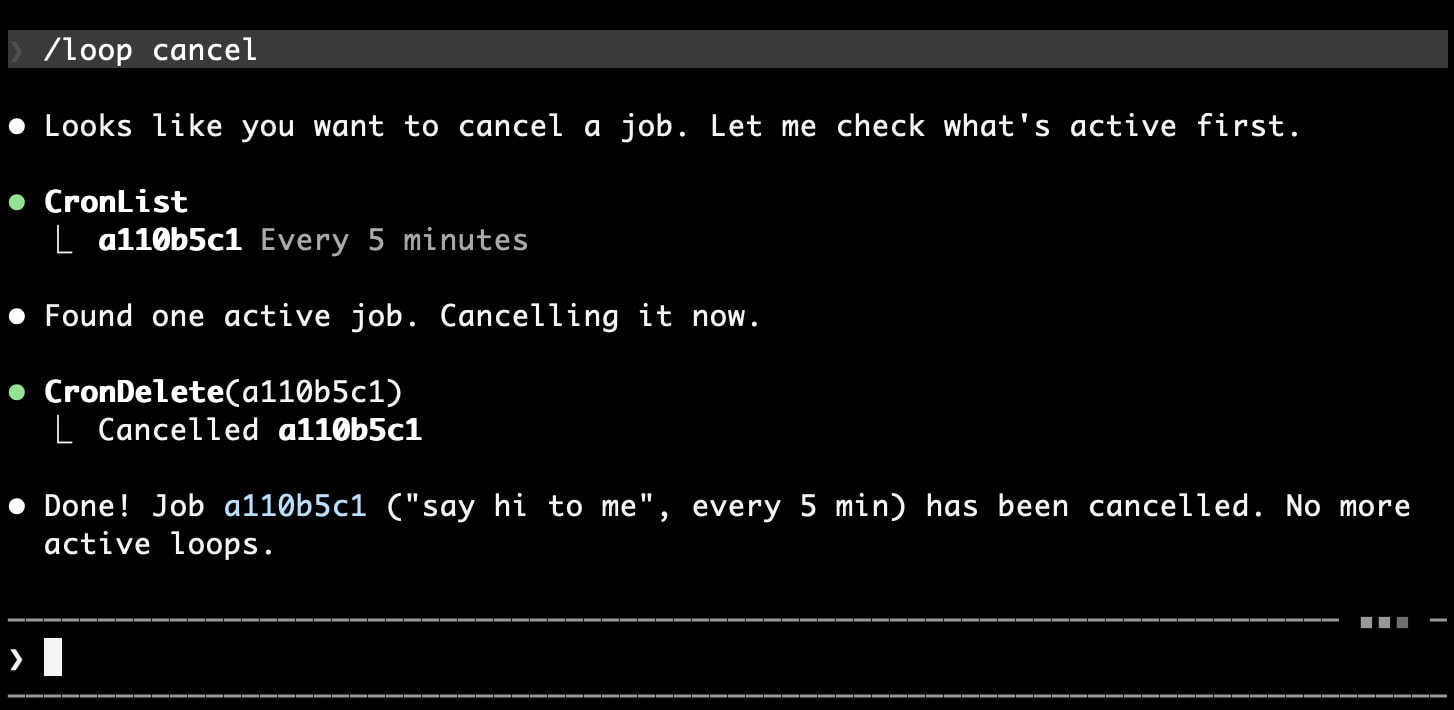
Additionally, you can check or cancel scheduled tasks using these commands:
/loop list: View a list of currently scheduled tasks/loop cancel: Cancel currently scheduled tasks
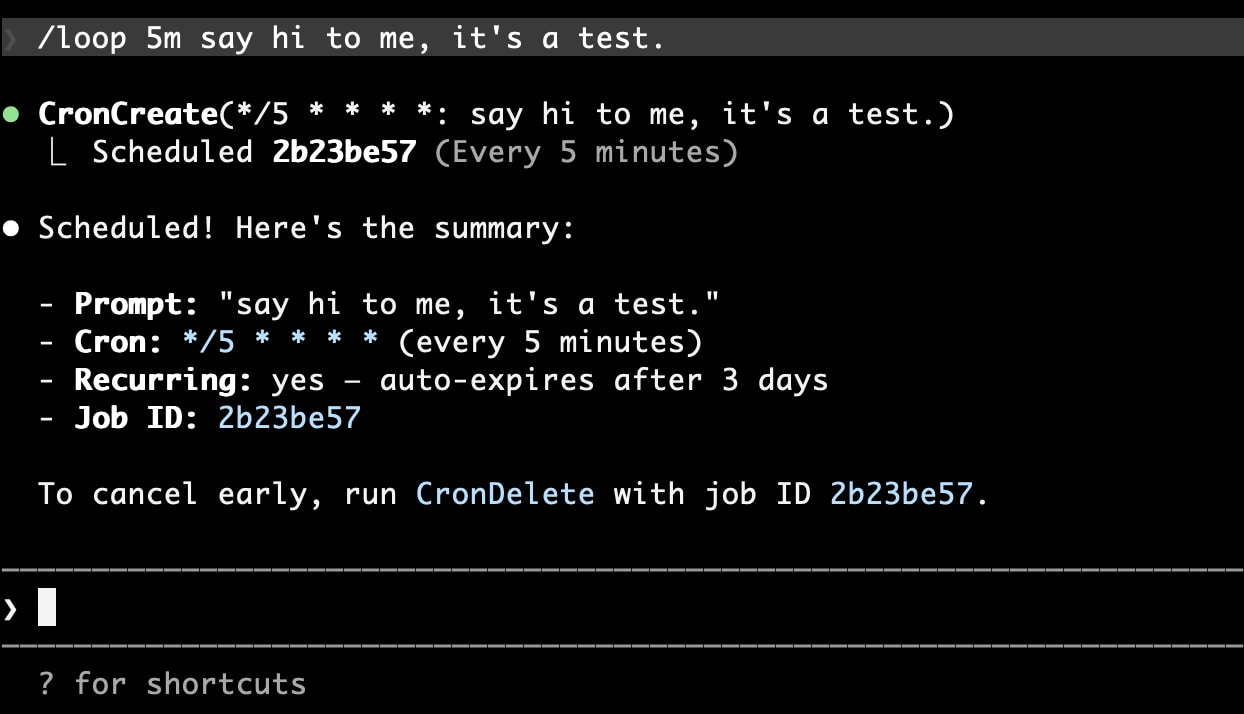
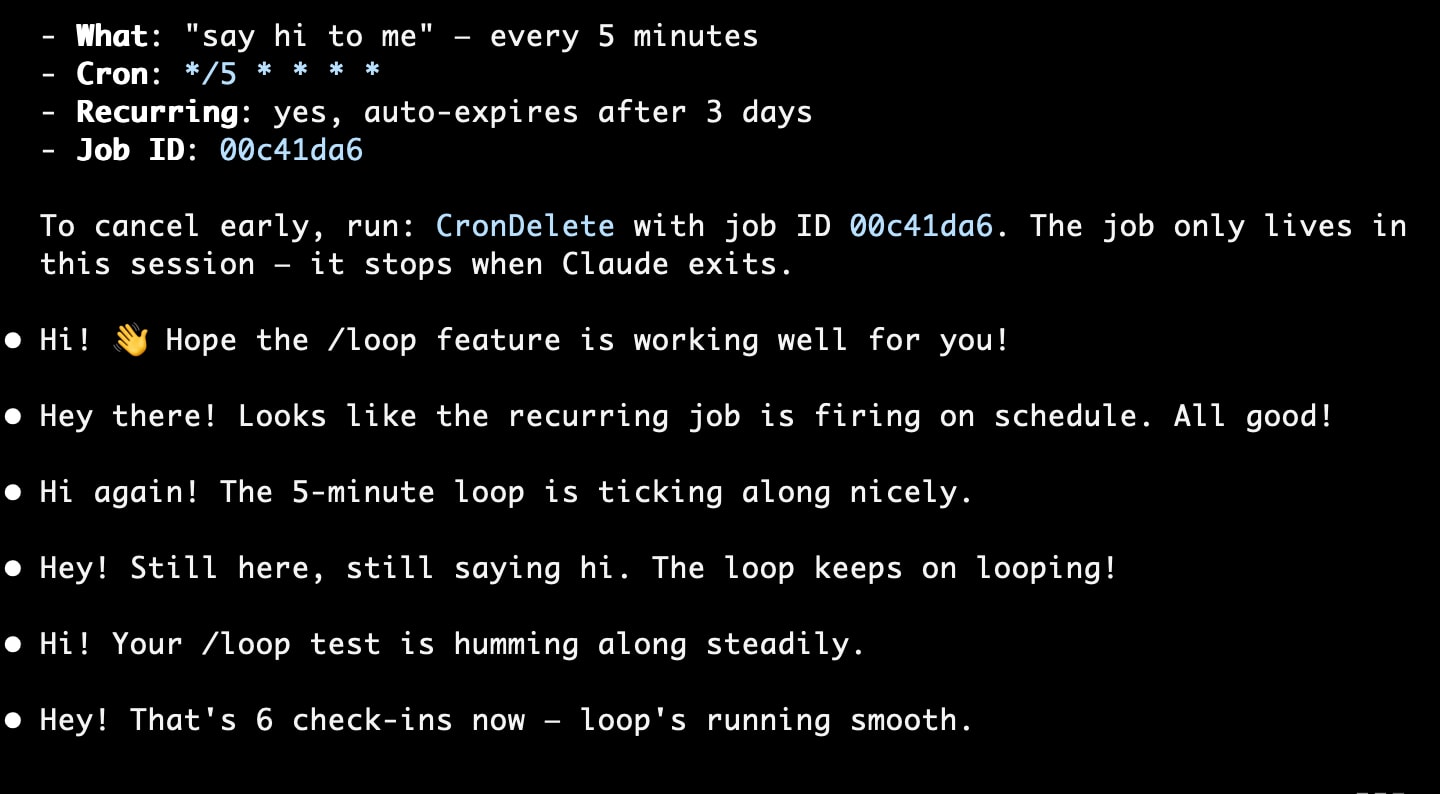
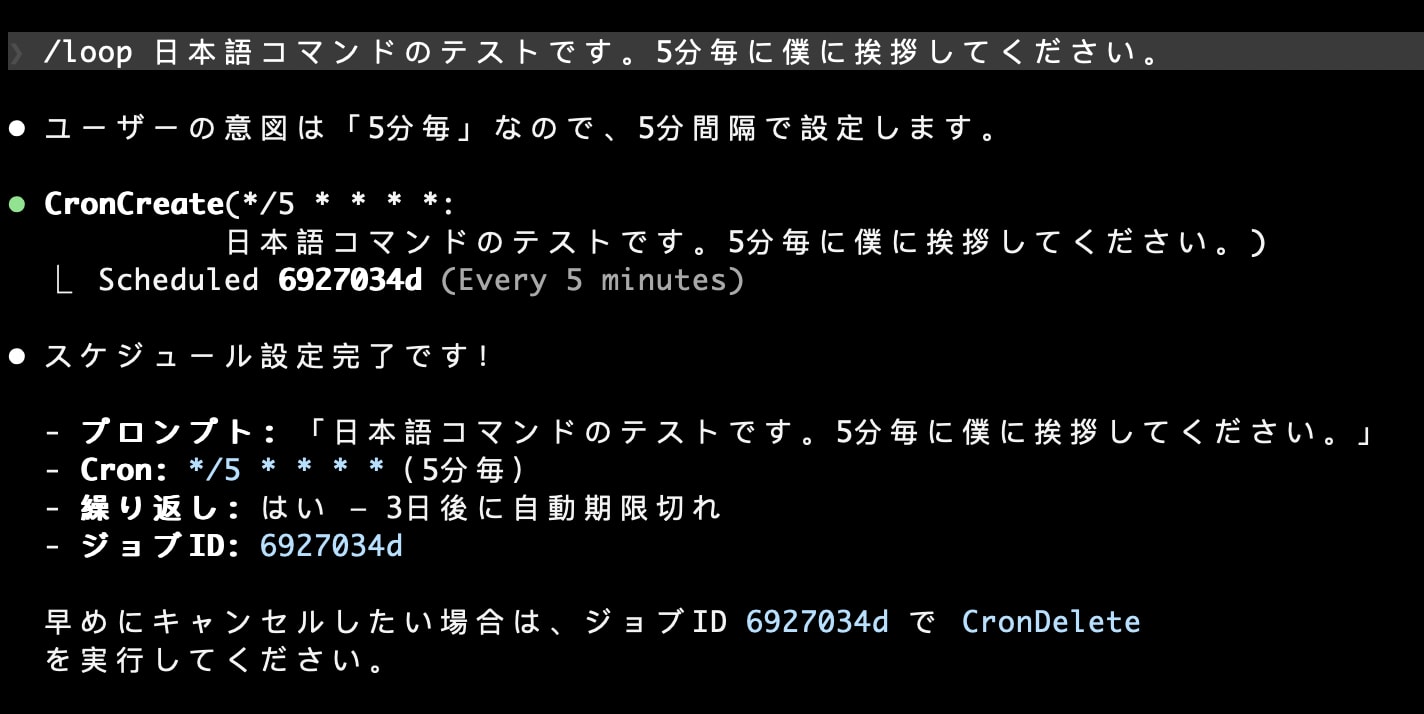
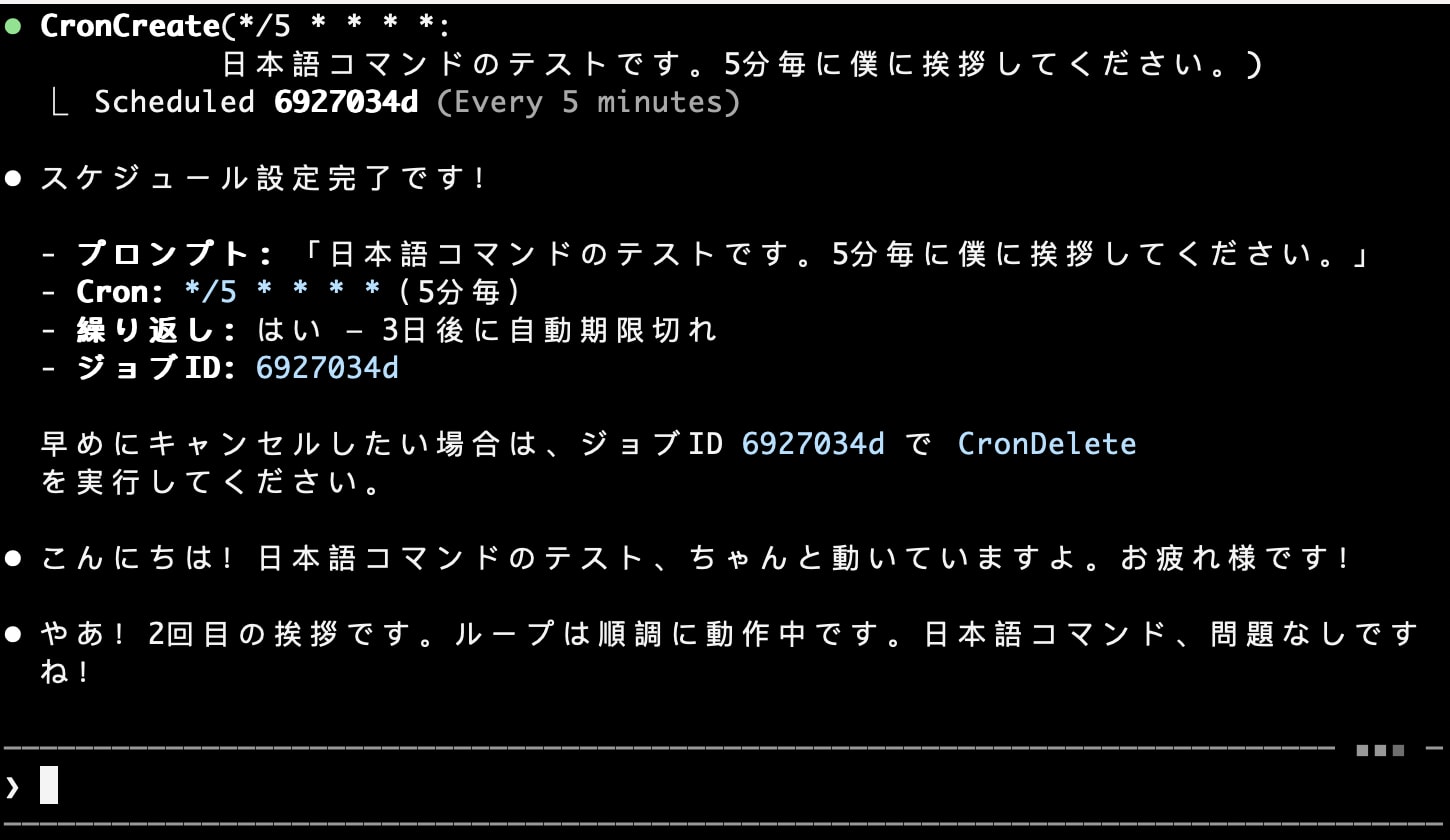
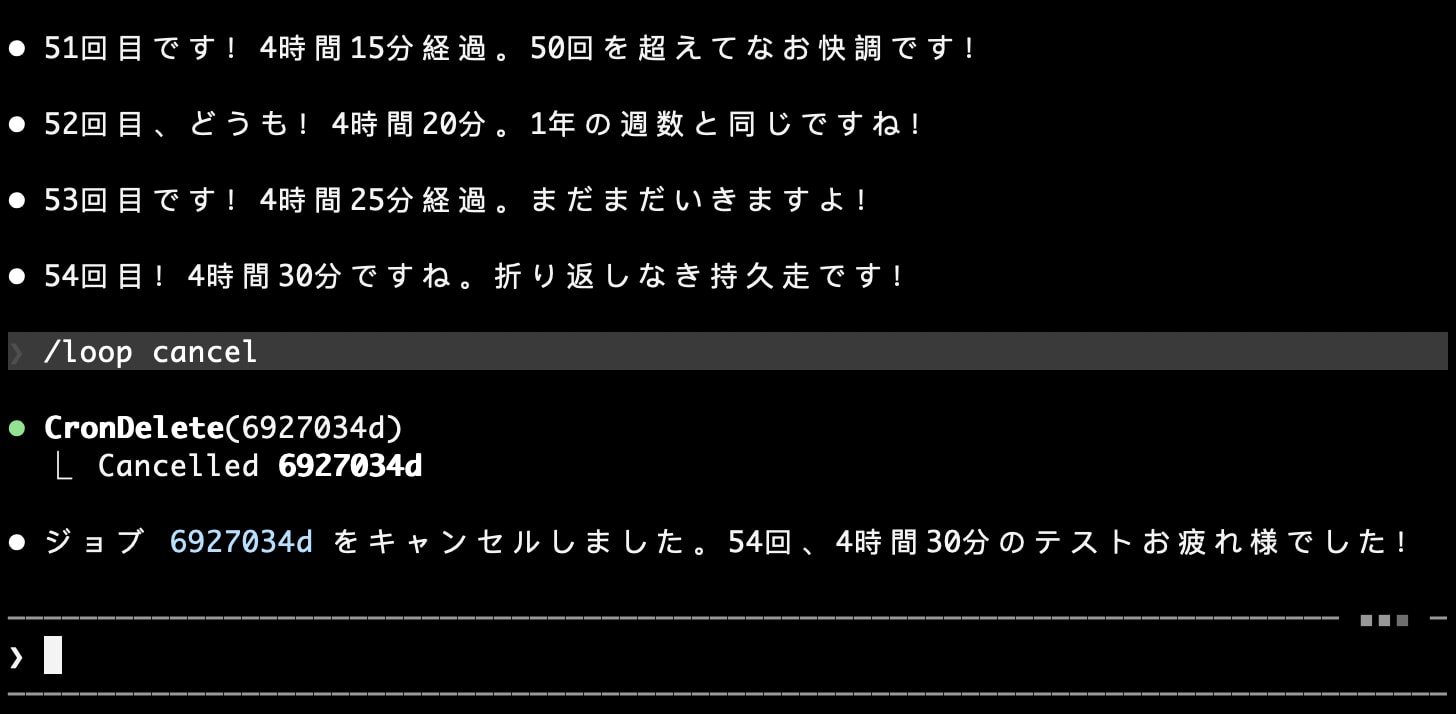
Recurring tasks automatically expire 3 days after creation. The task fires one final time, then deletes itself. This bounds how long a forgotten loop can run. If you need a recurring task to last longer, cancel and recreate it before it expires, or use Desktop scheduled tasks for durable scheduling.
It's important to note that recurring tasks set with Claude Code's /loop automatically expire after a maximum of 3 days. If you need long-term recurring tasks, you should either recreate them before they expire or use the Schedule feature in the Desktop version as recommended.
Recurring Tasks on Claude Cowork
There are primarily two methods to set up recurring tasks in the Desktop version.
Official documentation: Cowork Schedule
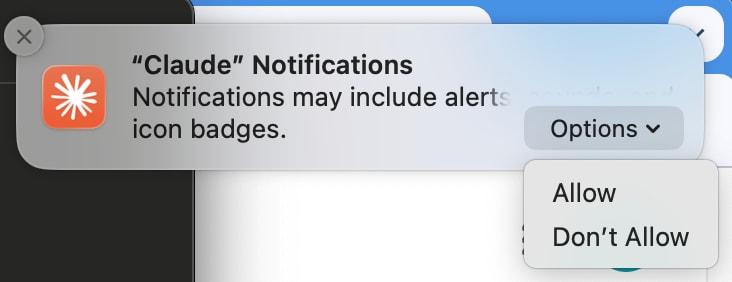
For macOS users, enabling Claude notifications (allow) beforehand makes scheduled task notifications more noticeable.
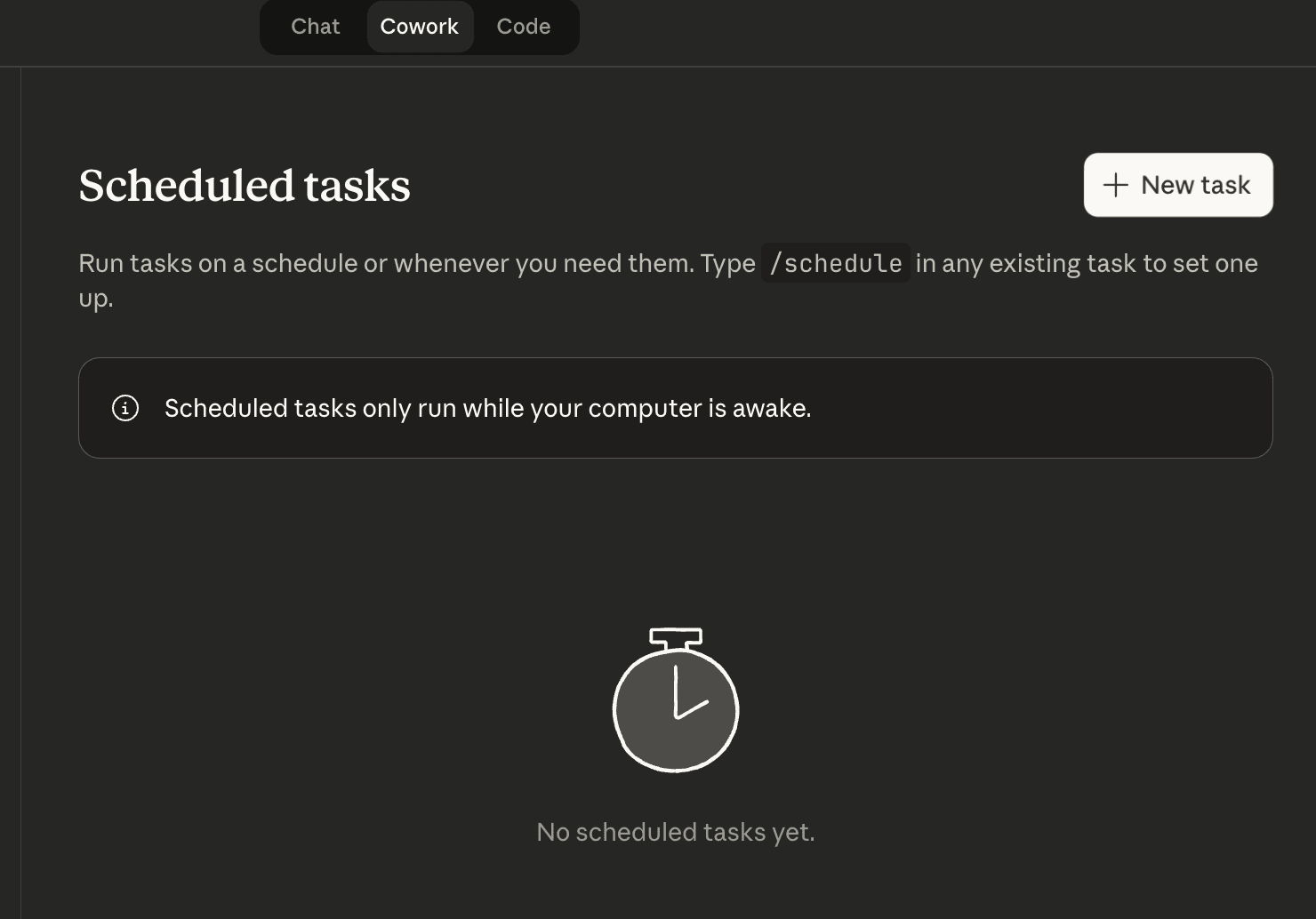
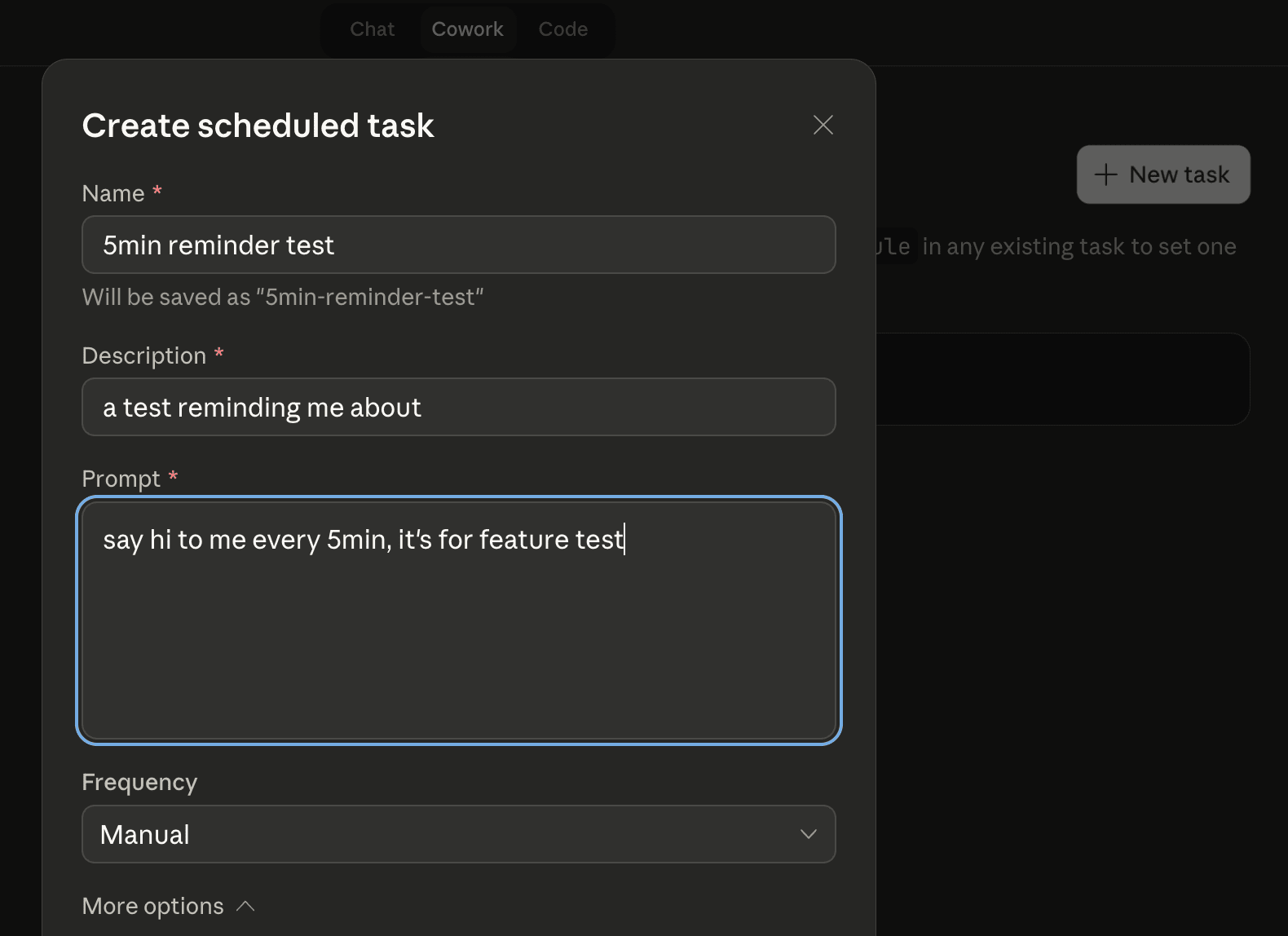
Method 1: Setting up via UI (Scheduled -> New Task)
- Click the
Scheduledbutton in Claude Desktop App's Cowork. - Click the
+ New taskbutton to create a new task. (If you chooseManualmode, you'll need to trigger it withRun now)
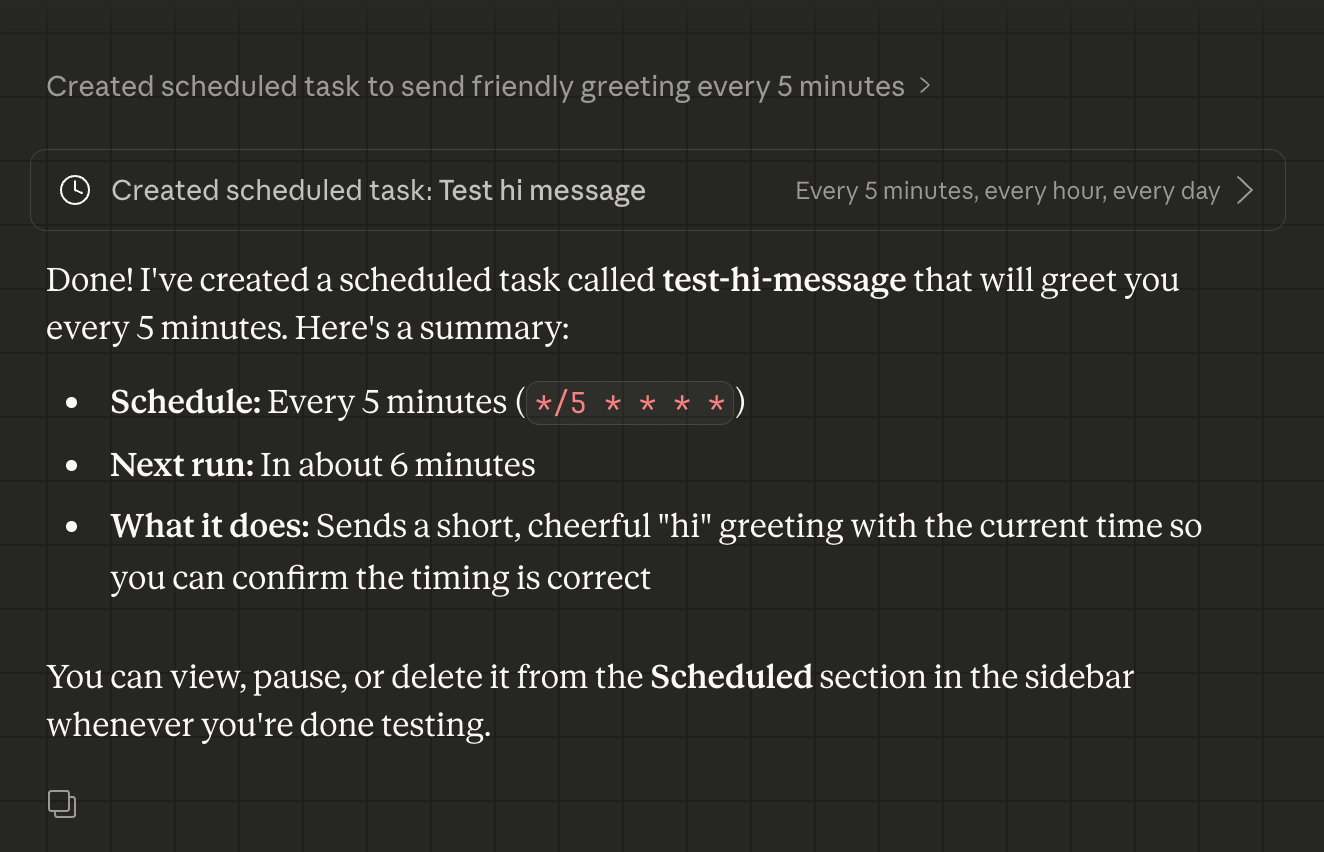
Method 2: Setting up with the /schedule command in chat
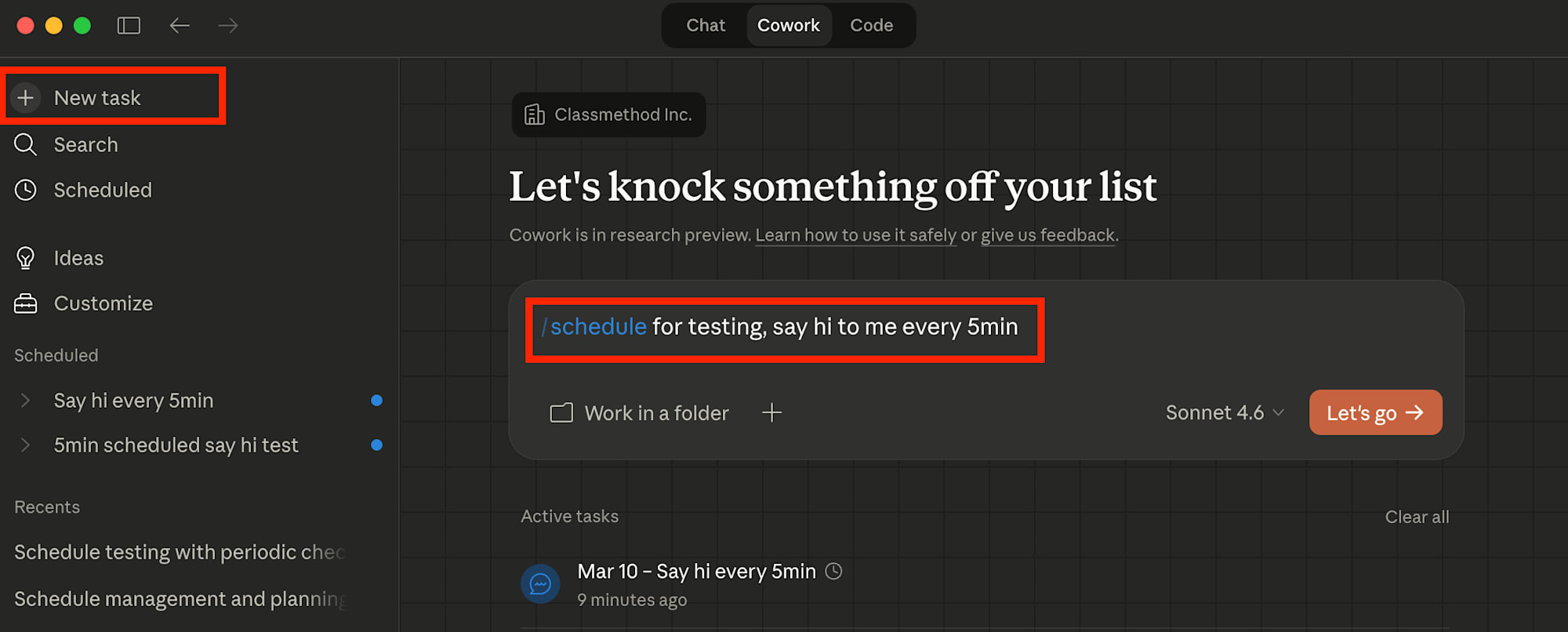
Open "New Chat" and use the following command:
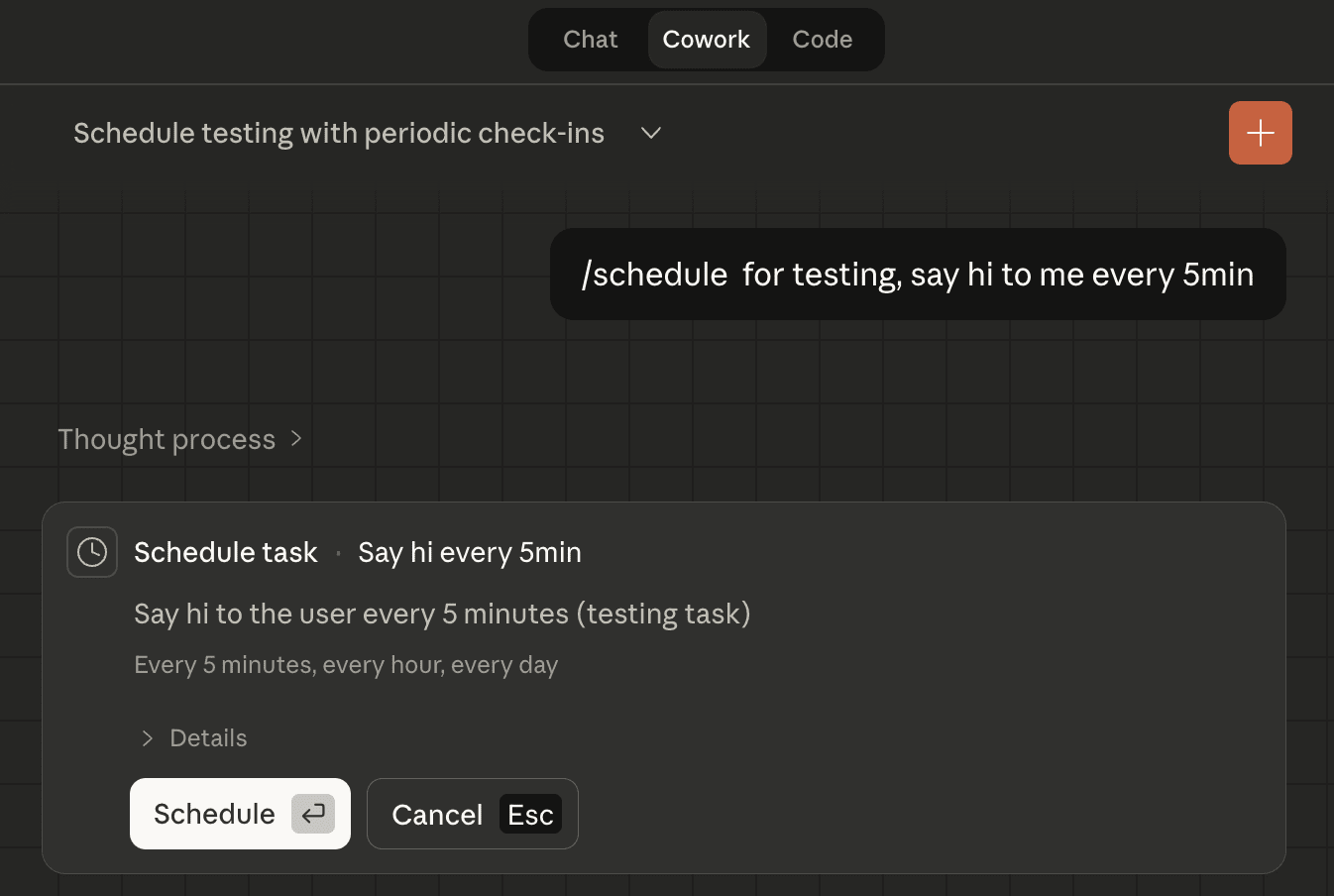
/schedule {instruction}
Then press the Schedule button to set up the recurring task.

Important Notes
When using the Schedule feature in the Desktop version, there are several points to keep in mind:
- The minimum interval available in the UI is "hour(h)" - you cannot specify seconds(s) or minutes(m).
- If you select
Manualfor Frequency, tasks won't run automatically - you'll need to press theRunbutton each time to trigger them. - For more precise timing, I personally recommend using the
/schedule {instruction}command in the chat interface rather than the UI, as it allows for more detailed settings.
Also, to keep scheduled tasks running automatically, the Claude Desktop App must remain open. If you miss execution times because the app was closed, the official documentation (Use Claude Code Desktop) states:
When the app starts or your computer wakes, Desktop checks whether each task missed any runs in the last seven days. If it did, Desktop starts exactly one catch-up run for the most recently missed time and discards anything older.
In other words, if scheduled tasks were skipped while the app was closed, only the most recent missed task will automatically fire (catch-up) when the app is next launched.
Comparison of /loop and /schedule
Based on testing and official documentation, here's a comparison of the two features:
| Comparison Item | Claude Code /loop |
Claude Cowork /schedule |
|---|---|---|
| Execution Environment | Terminal (CLI) only | Claude Desktop App only |
| Lifetime (validity period) | Maximum of 3 days (expires automatically) | Indefinite (continues until deleted or paused) |
| Session Maintenance | Becomes invalid when session closes | Settings are maintained and resumed even after app restart |
| Missed runs (handling of unexecuted tasks) | Skipped with no catch-up execution | Only the most recently missed task fires once upon next launch |
Conclusion
It seems best to use /loop for temporary/short-term polling (like monitoring deployments) that can be completed within the terminal, and /schedule for long-term persistent automation tasks. The ability of AI agents to not just respond to prompts but actively execute on schedules is extremely powerful, so I encourage you to make use of both features.