Create a QR code for Wi-Fi connection using qrencode

This article was published more than one year ago. Please be aware that the information may be outdated.
This page has been translated by machine translation. View original
For app development, I carry multiple iOS devices and Android devices. These devices need to be tested, but for security reasons, many API servers have IP restrictions and only allow connections from specific networks. Some networks have passwords that change regularly, and manually entering passwords on multiple devices is time-consuming and prone to errors.
As previously discussed in "Implementing simple Wi-Fi connection with Swift Concurrency and NEHotspotConfiguration", iOS 11 and later can connect to Wi-Fi by scanning QR codes in a specific format.
This article introduces how to create QR codes for Wi-Fi connections using qrencode. This method is useful not only for offices and homes but also for conference venues, hotels, cafes, and other establishments that want to provide Wi-Fi access to users.
QR Code Format for Wi-Fi Connection Information
The format for providing Wi-Fi network settings via QR code is somewhat standardized. Scanning a QR code in the following format allows devices to connect to Wi-Fi networks. For more details, see here.
Example: WIFI:T:WPA;S:mynetwork;P:mypass;H:false;;
Format examples:
- WPA/WPA2 Personal:
WIFI:T:WPA;S:MyNetwork;P:mypassword;H:false;; - WEP:
WIFI:T:WEP;S:MyNetwork;P:mypassword;H:false;; - Open Network:
WIFI:T:nopass;S:MyOpenNetwork;H:false;;
Parameter Explanation
| Parameter | Description |
|---|---|
| T | Authentication type (e.g., WPA, WEP, WPA2-EAP, nopass) |
| S | SSID (network name) |
| P | Password (optional if authentication type is nopass) |
| H | Whether SSID is hidden (true or false) |
| E | EAP method (WPA2-EAP only) |
| A | Anonymous ID (WPA2-EAP only) |
| I | ID (WPA2-EAP only) |
| PH2 | Phase 2 method (WPA2-EAP only) |
Creating QR Codes with qrencode
On macOS, you can install qrencode using Homebrew.
brew install qrencode
Next, check your Wi-Fi SSID and password. For example, if the SSID is "MyNetwork" and the password is "MyPassword", the text would be as follows.
WIFI:T:WPA;S:MyNetwork;P:MyPassword;H:false;;
Use this text to generate a QR code with qrencode.
qrencode -o wifi_qr.png "WIFI:T:WPA;S:MyNetwork;P:MyPassword;H:false;;"
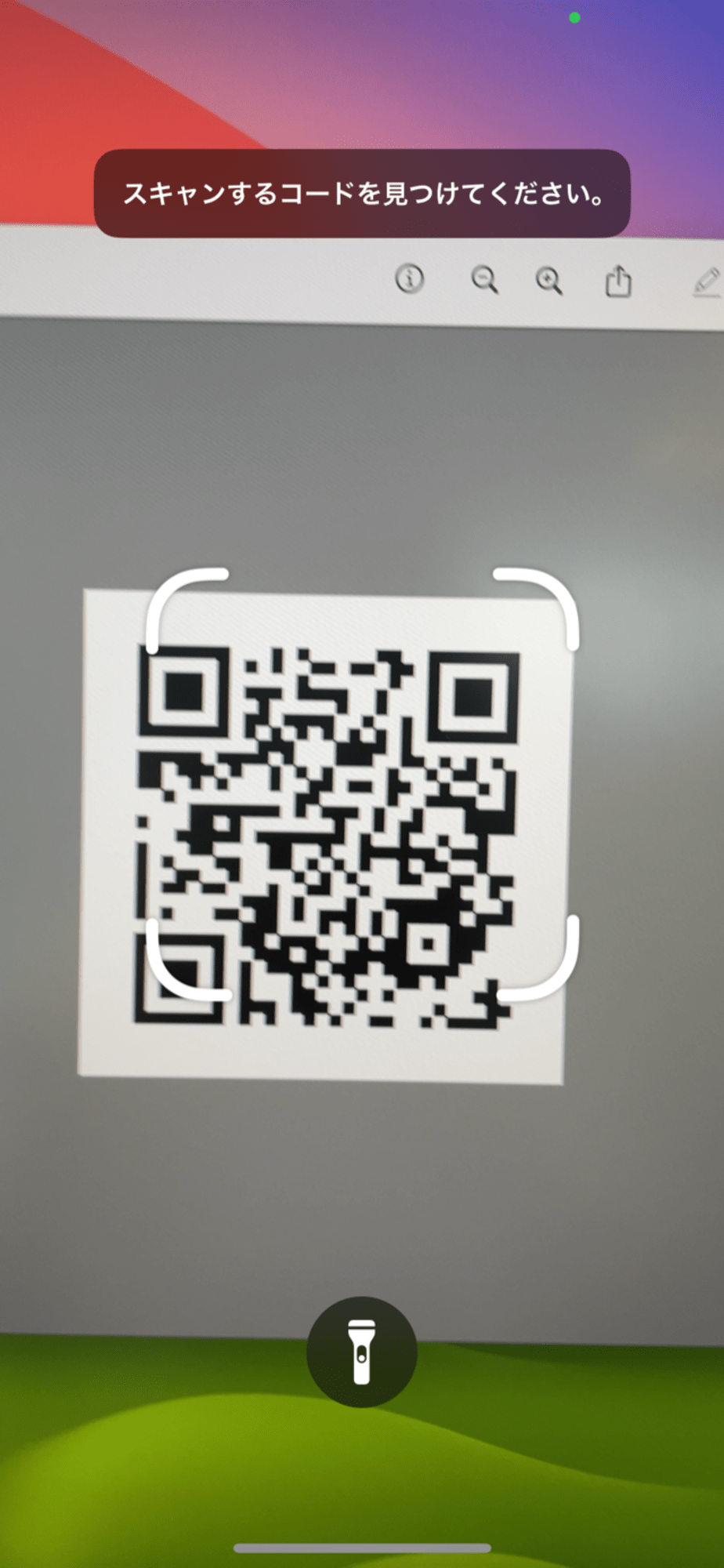
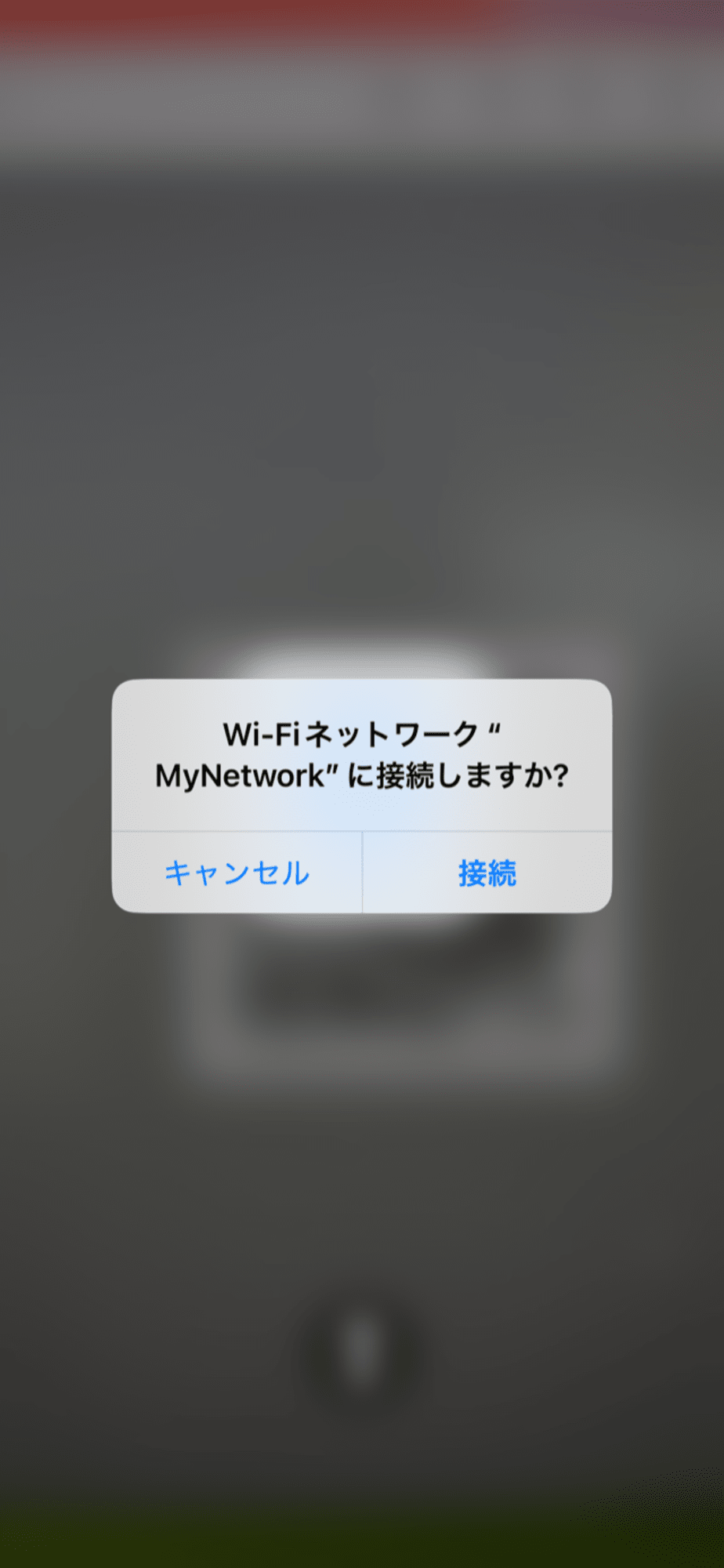
When executed, a QR code image named wifi_qr.png will be output in the current directory. You can scan this QR code with your smartphone to connect to the Wi-Fi network.
| Scanning with QR code reader | Connecting to Wi-Fi |
|---|---|
 |
 |
Passwords with Special Characters Require Escaping
If your password contains special characters (e.g., !, ", :, ;, ,), you might encounter errors when generating QR codes. This is because these characters have special meanings in the QR code format. To solve this problem, you need to escape special characters.
How to Escape
To escape special characters, use a backslash () or enclose the entire string in double quotes ("). For example, if your password is My!Password, you can escape it like this:
WIFI:T:WPA;S:MyNetwork;P:My\!Password;H:false;;
To generate a QR code using the escaped password, execute the following command:
qrencode -o wifi_qr.png "WIFI:T:WPA;S:MyNetwork;P:My\!Password;H:false;;"
Handle with Care as QR Codes Contain Passwords
QR codes contain both SSID and password. When connecting to private Wi-Fi networks, be careful not to let third parties see the code. Also be mindful about properly managing the QR code image after use.