
I tried Slack integration with Datadog for alert notifications and testing the /datadog command

This page has been translated by machine translation. View original
Hello. I'm Shiina from the Operations Department.
Introduction
Are you struggling with missed Datadog alert emails, wondering if an alert has been resolved, or if someone is already working on it?
By integrating Datadog with Slack, you can receive real-time alerts directly in the channels you use daily.
Utilizing Slack makes sharing incident response status and team communication significantly smoother.
This time, I tried setting up the Datadog-Slack integration and testing the useful /datadog command.
Prerequisites
- Slack workspace and notification channel already created
- Monitor already set up
Slack Integration Setup
Here's how to set up the integration between Slack and Datadog.
1. Integration Setup
Install the Slack application.
-
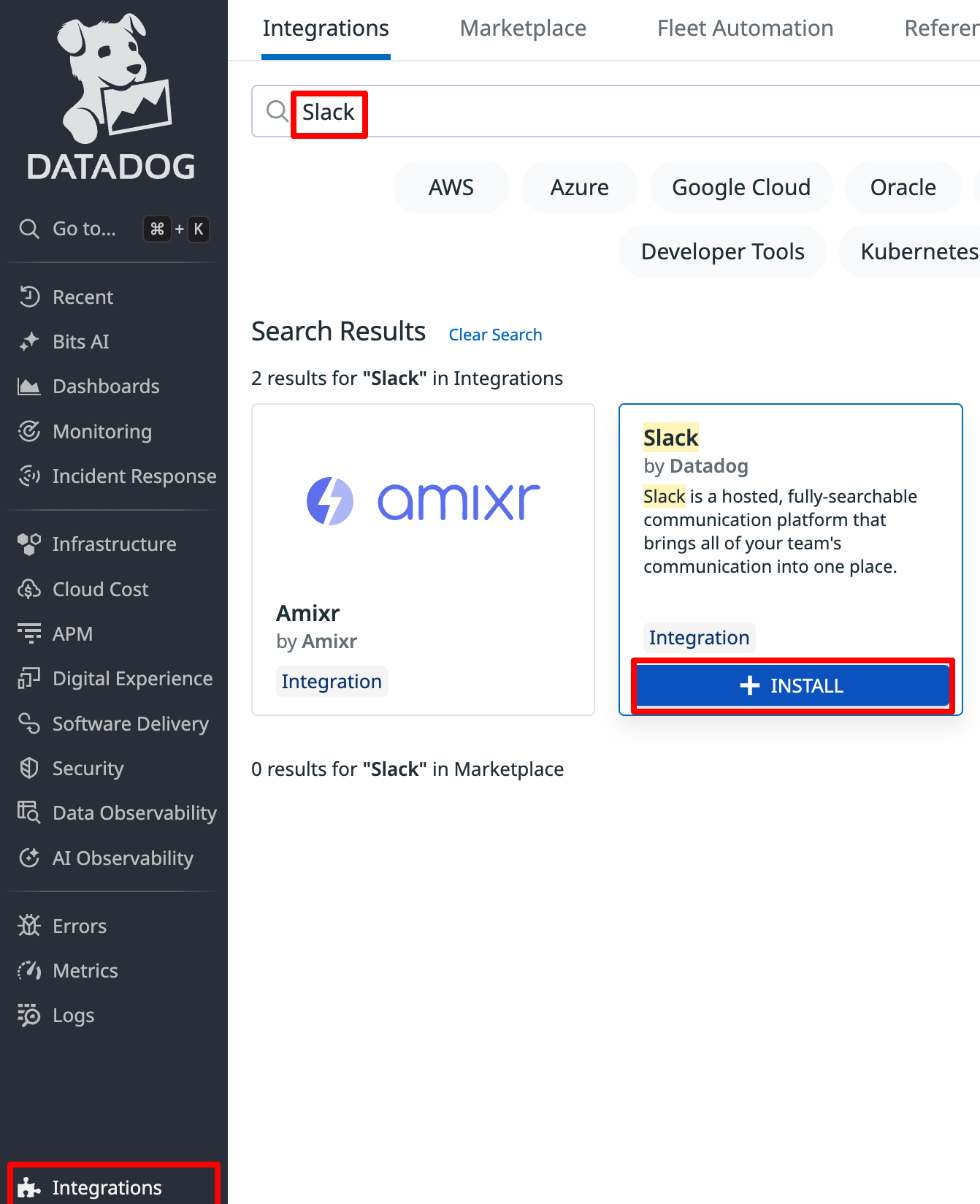
Select "Integrations" from the Datadog console.
-
Enter "Slack" in the search field and search.
-
Select "Install" from the Slack panel in the list.
-
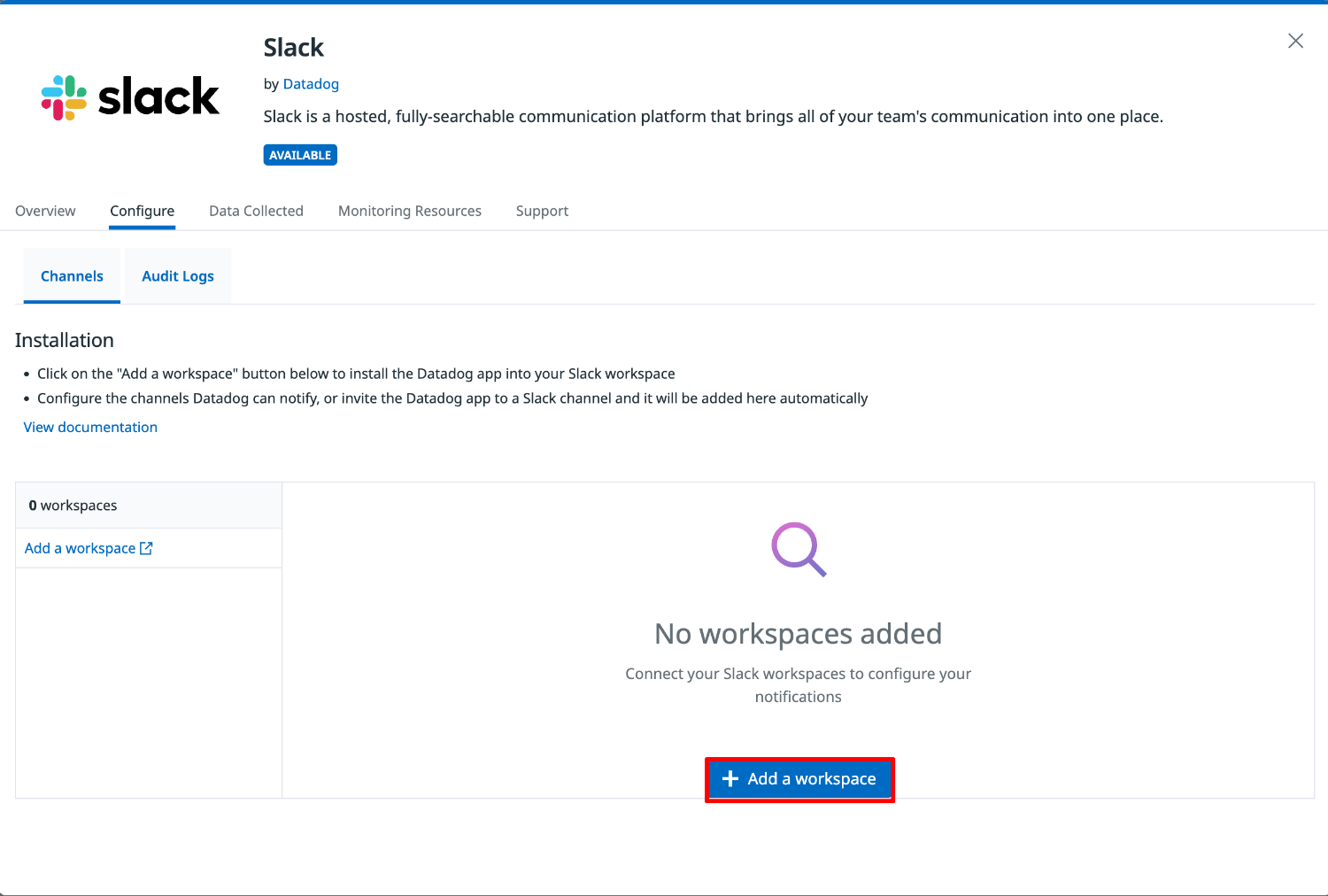
From the Configure tab, select "Add a workspace".
-
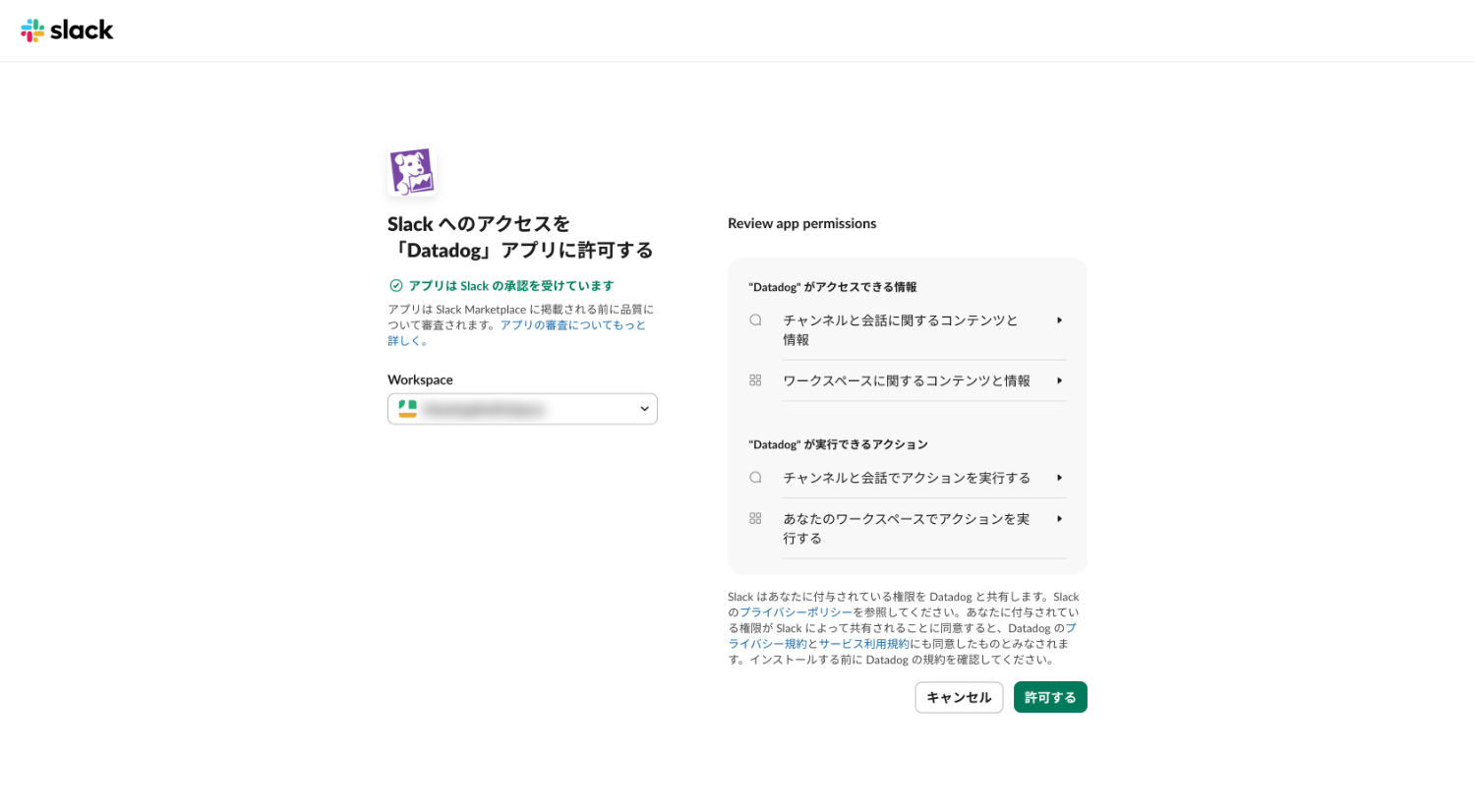
You'll be automatically redirected to the Slack permission page. Confirm the workspace name you want to connect to and select "Authorize".
-
When the Slack workspace integration is successful, the workspace name will appear in the Configure list.
-
You can confirm that the Datadog application appears in the Slack workspace Apps.

2. Datadog Connection Setup
Once connected, you can use the /datadog command from the channel to access functions such as creating Datadog incidents, sharing dashboards, and executing workflows.
-
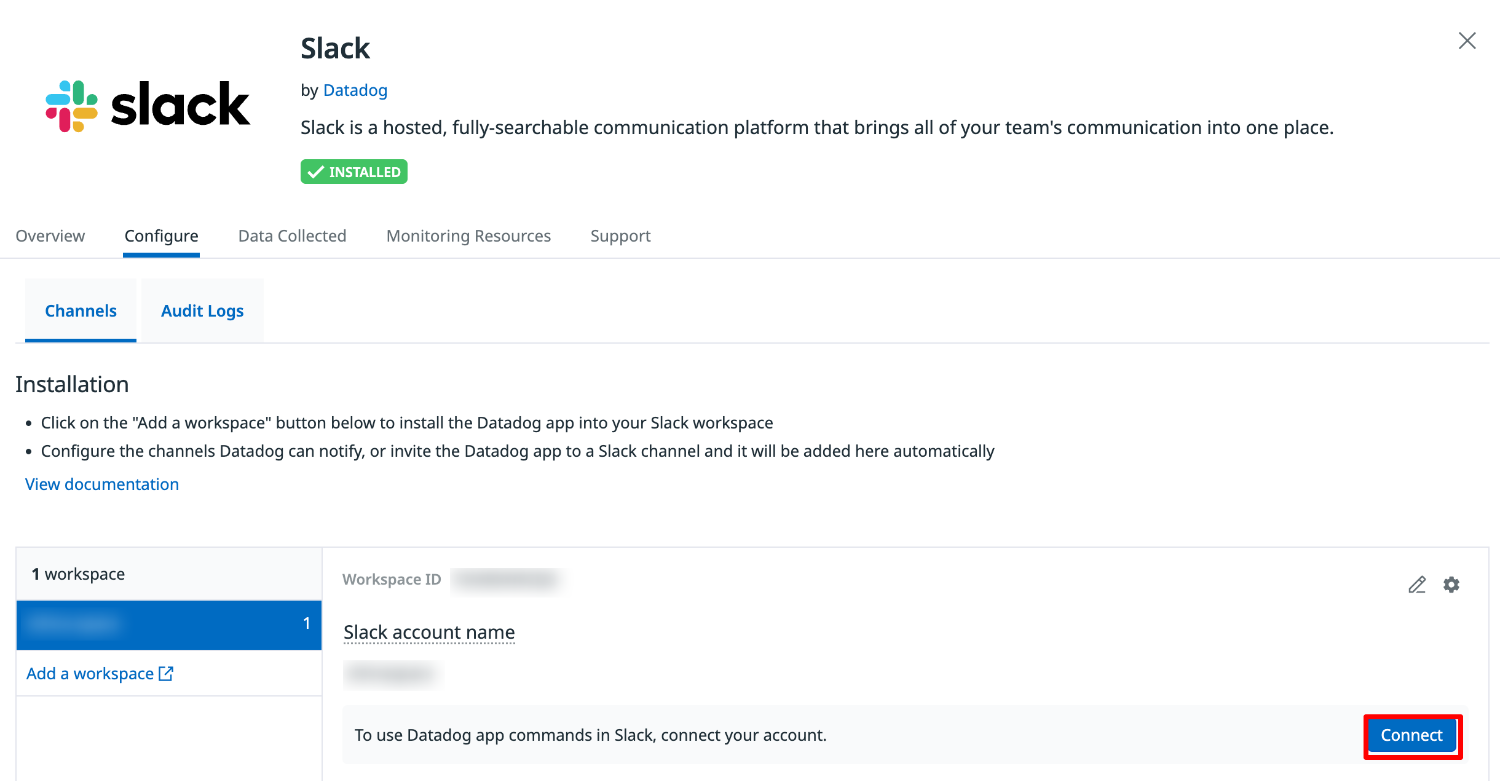
Select the connected workspace name from the Configure tab.
-
Select "Connect".
-
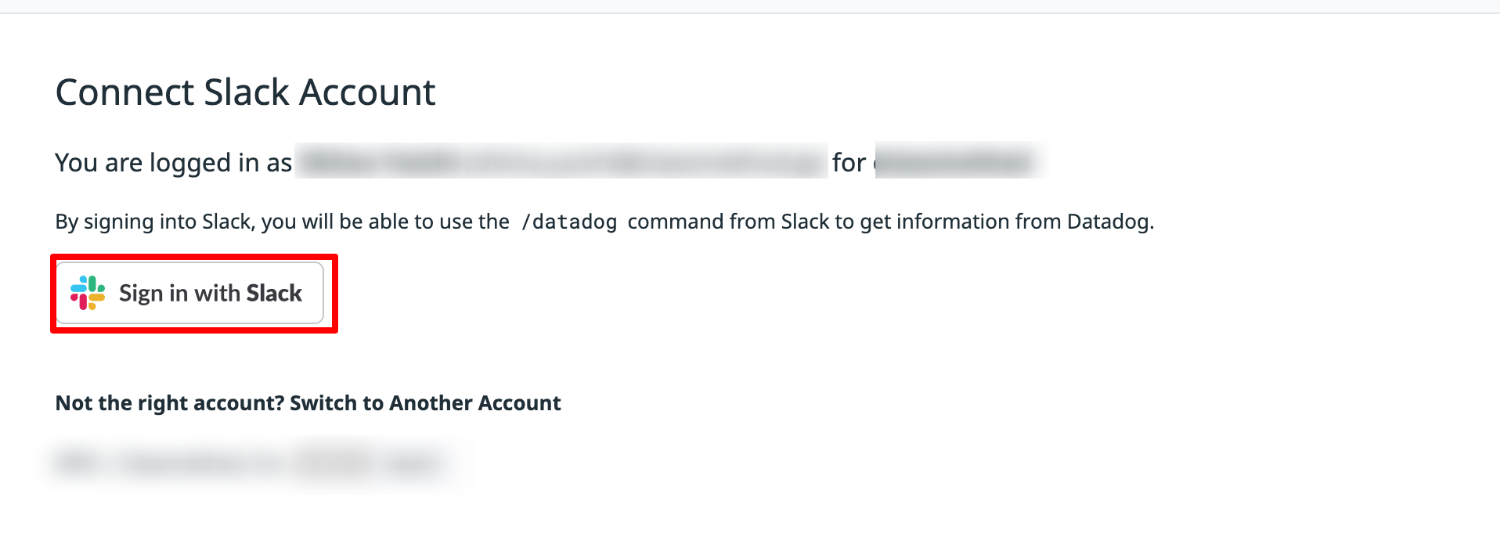
When the Slack account connection confirmation appears, select "Sign in with Slack".
-
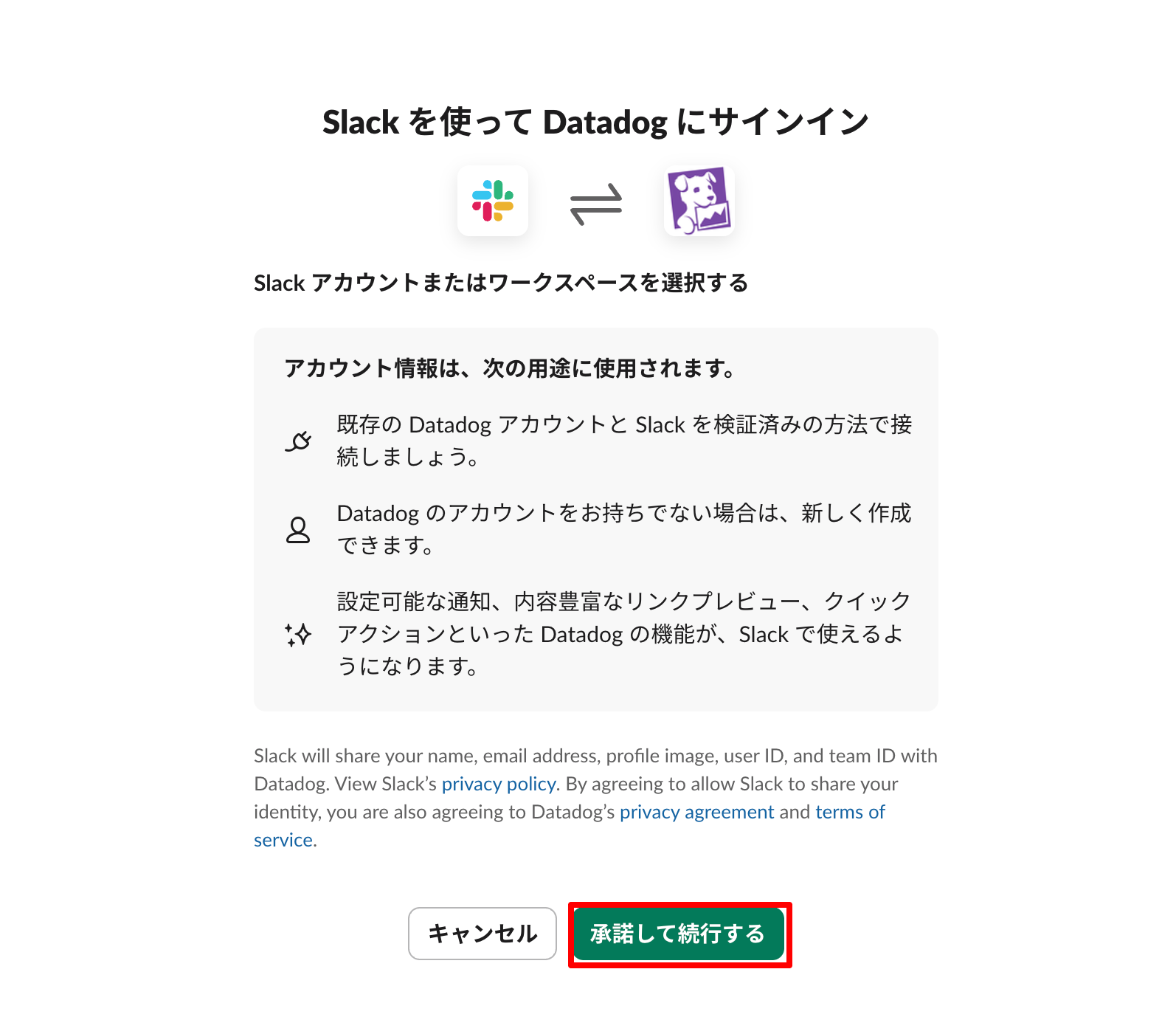
You'll be automatically redirected to the Slack approval page, select "Accept and continue".
-
If the target workspace name is displayed in Connected Workspaces, the connection is successful.

3. Channel Notification Setup
Configure the Slack channel to receive Datadog notifications.
The setup method differs between public and private channels.
Public Channel
Configure from the Datadog console.
-
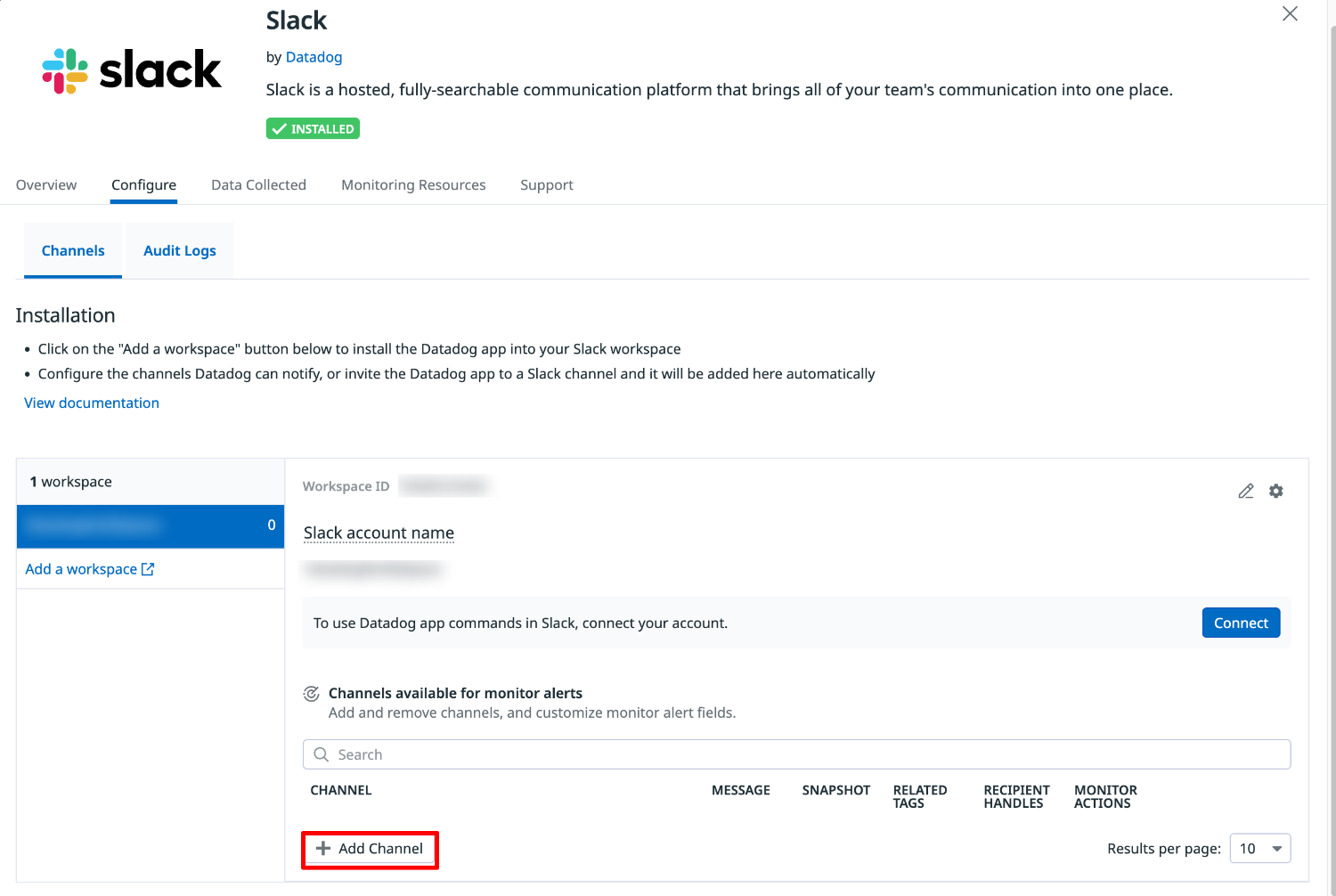
Select the connected workspace name from the Configure tab, then select "Add Channel".
-
When a new input field appears, select the desired channel name from the CHANNEL dropdown menu.
-
Select the checkmark to save the settings.

Private Channel
As you cannot configure from the Datadog console, use the Slack command to set up notification reception.
-
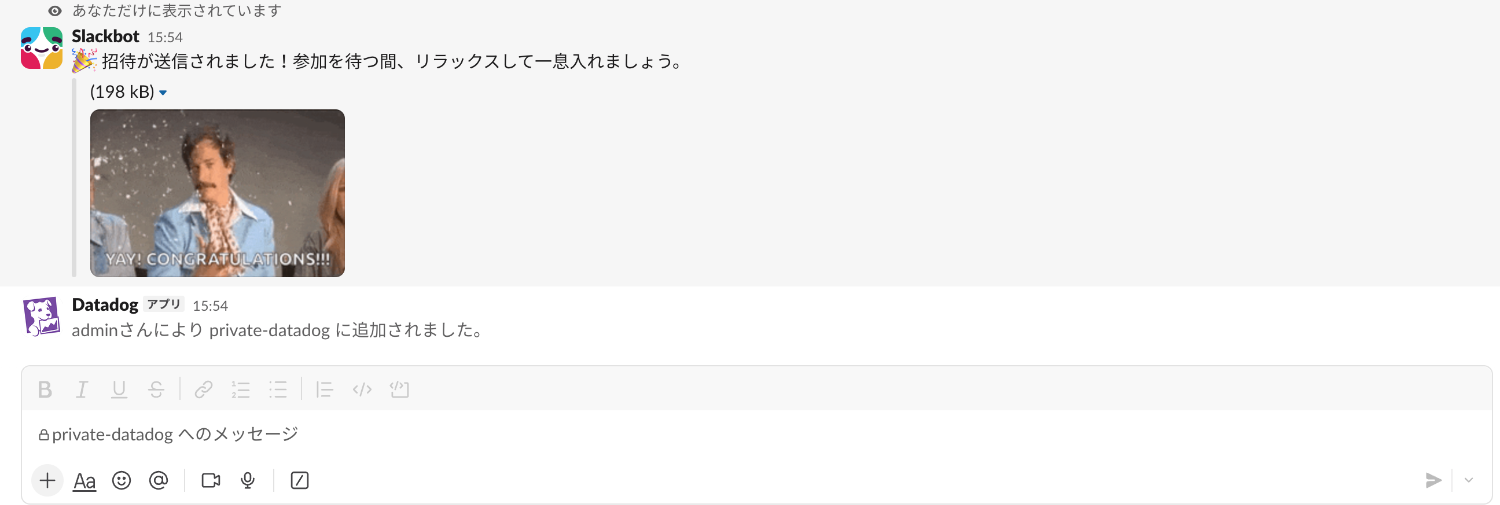
Run the
/invite @Datadogcommand in the Slack private channel.

-
Confirm that it has been added.
Notification Test
Test if Datadog alert notifications are properly received.
-
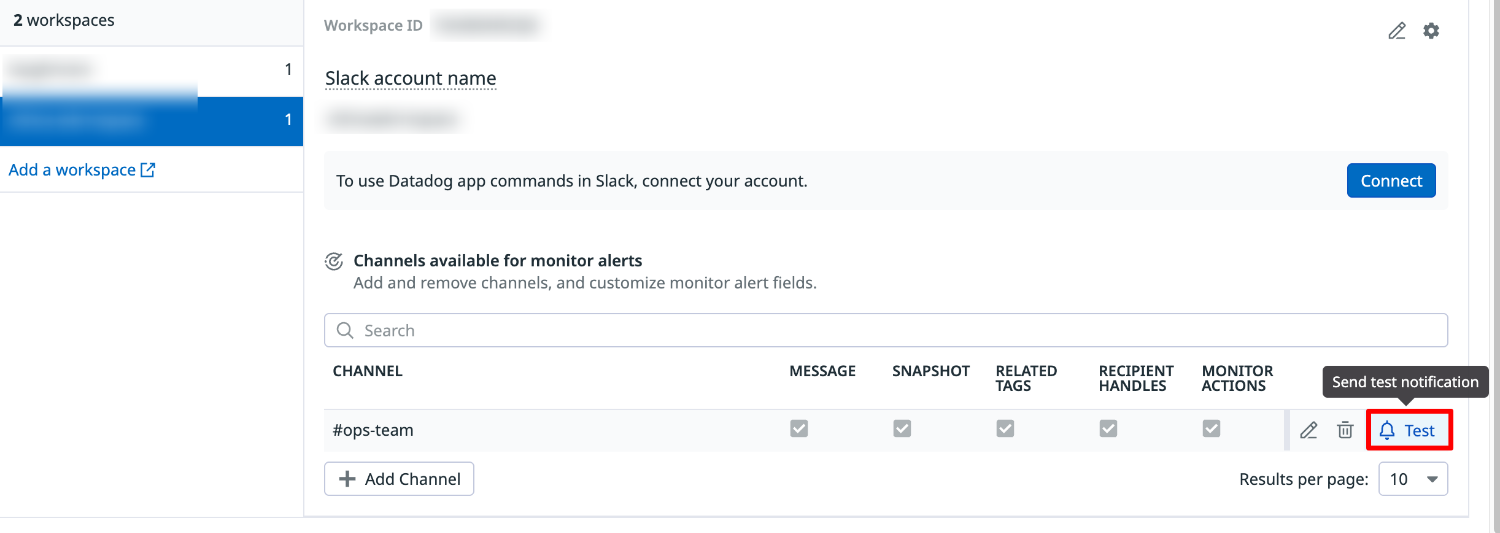
Select the connected workspace name from the Configure tab.
-
For the target channel, select "Test" which appears when moving the cursor to the right side of MONITOR ACTIONS.
-
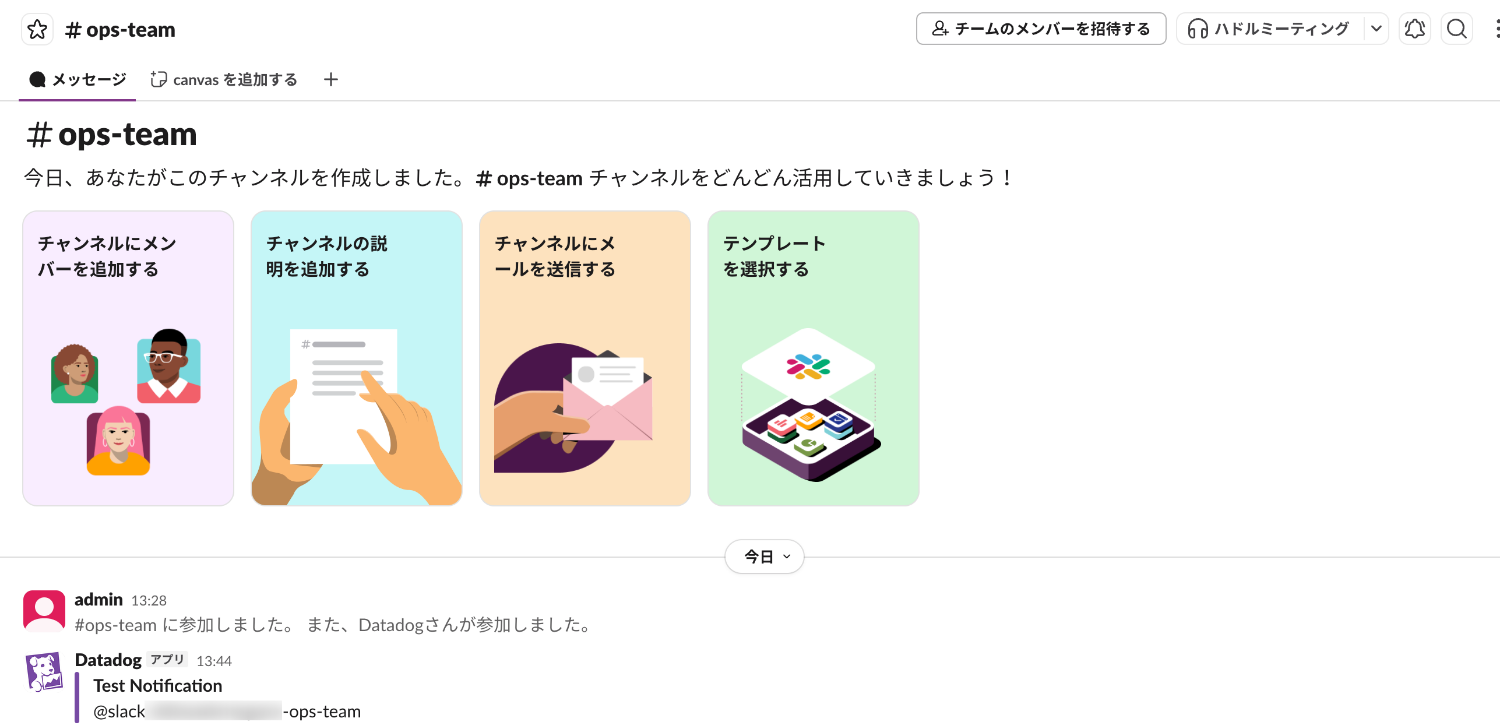
Confirm that a Test Notification message appears in the Slack channel.
4. Monitor Notification Setup
Specify the Slack integration as the monitor's notification recipient to send notifications to the channel.
-
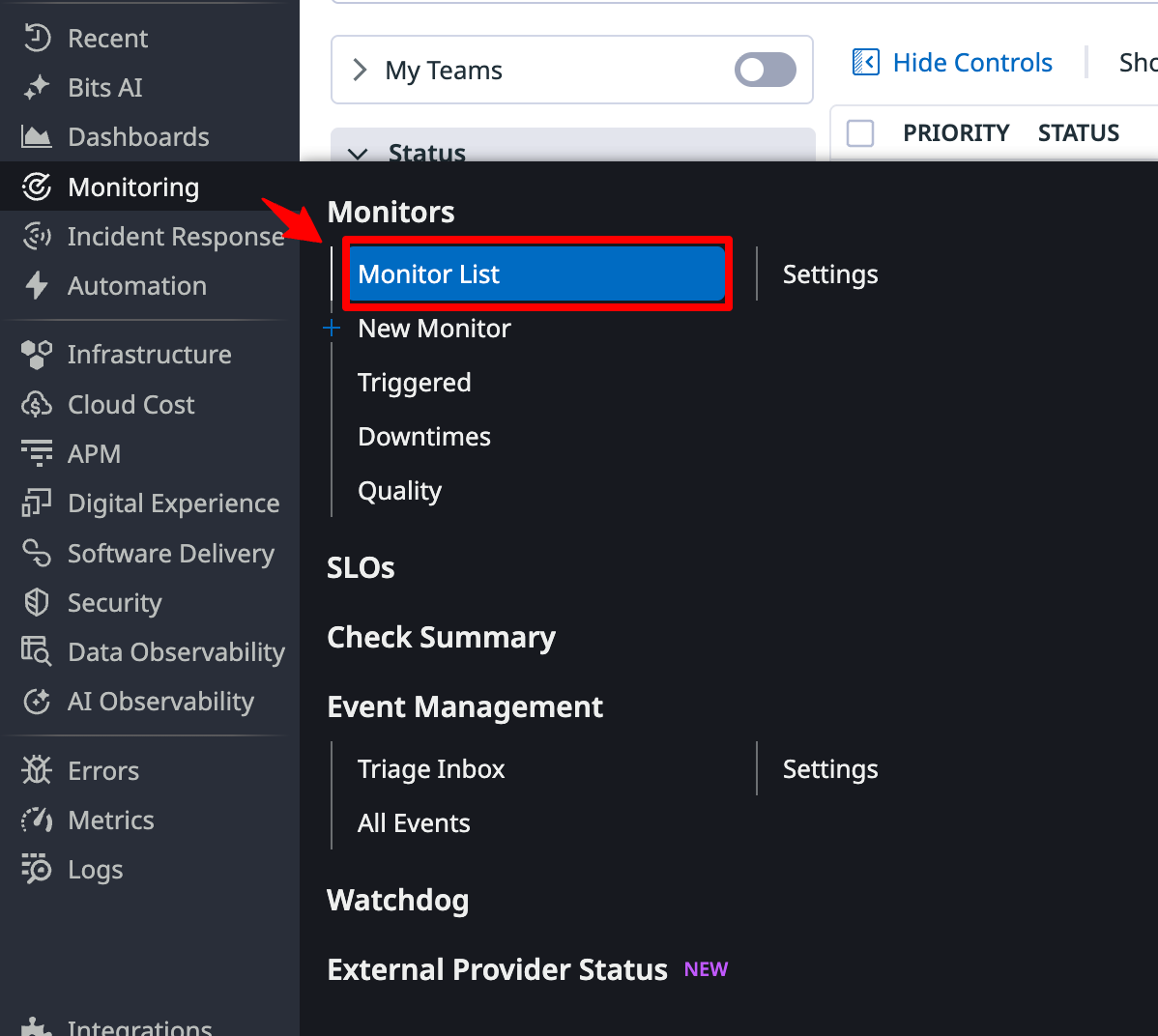
Select "Monitoring List" from Monitoring in the Datadog console.
-
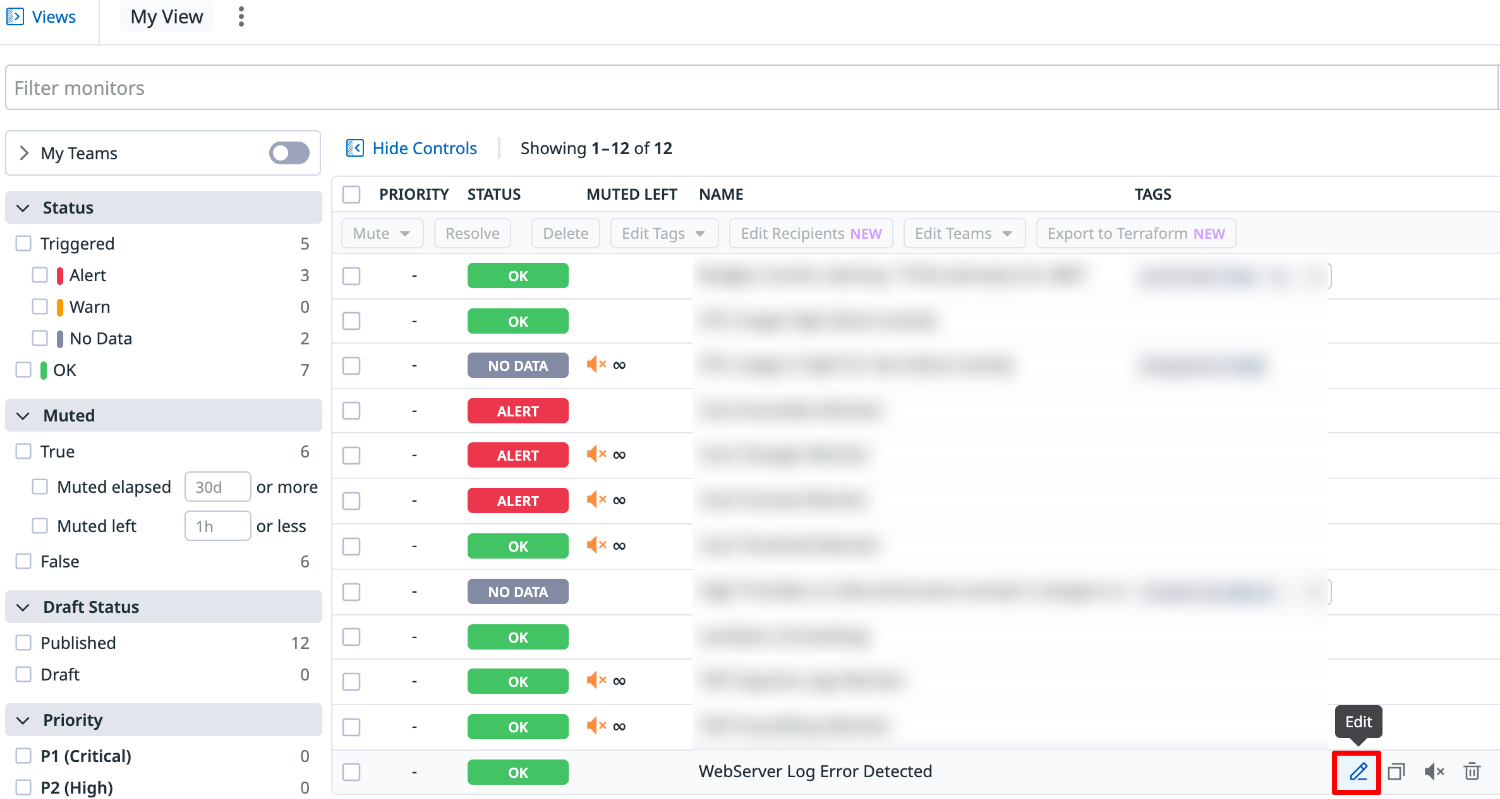
Move your cursor to the monitor name you want to send notifications for, and select "Edit" that appears.
-
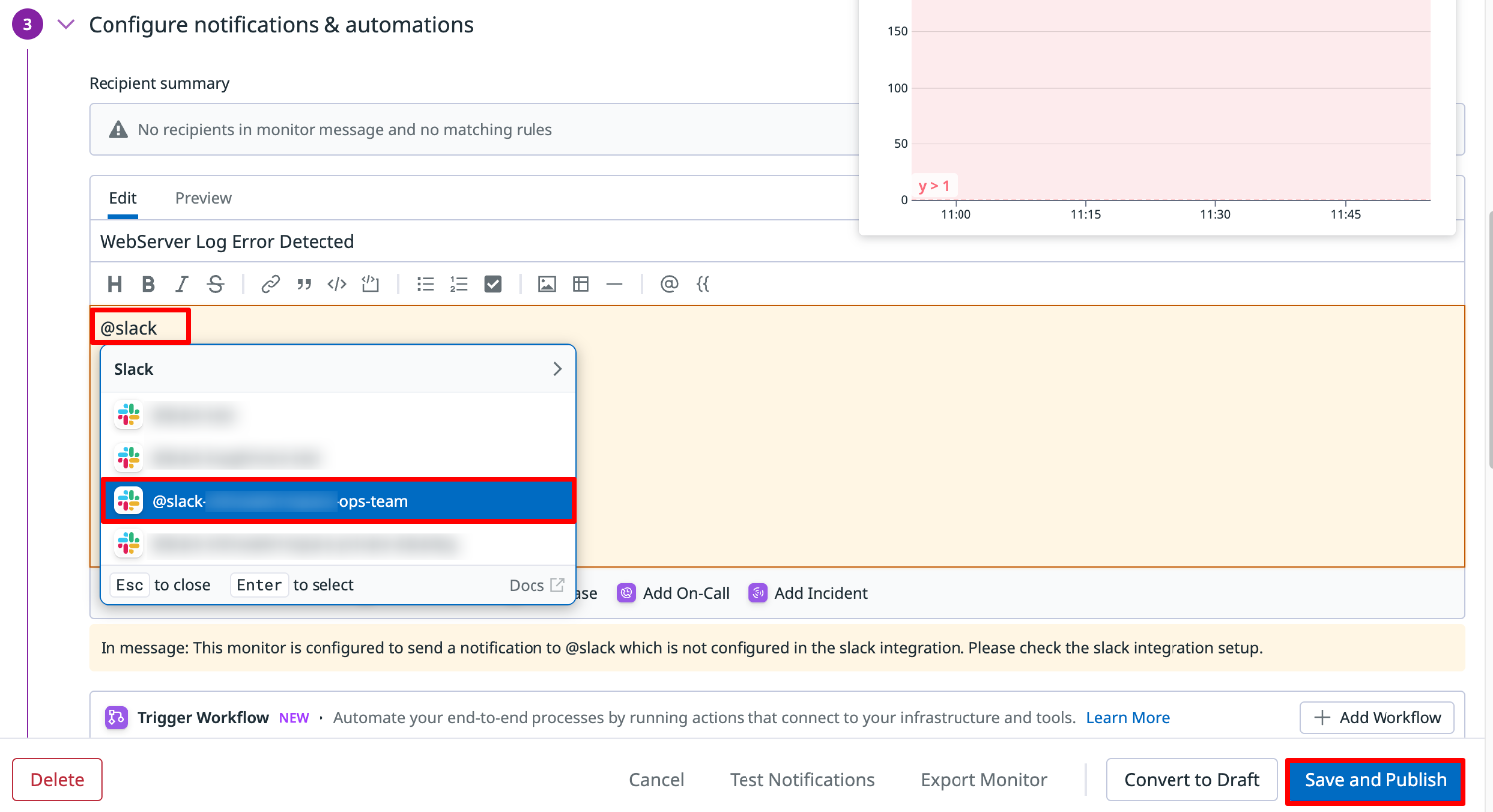
Enter
@slackin the Configure notifications & automations field. -
Select the appropriate one from the list that appears in the format
@slack-[workspace name]-[channel name]. -
Select "Save and Publish" to save.
Alert Notifications
Let's artificially trigger a Datadog monitor alert and see the notification in the Slack channel.
For this, we used a message template with variables in the monitor's Configure notifications & automations.
Using variables allows you to add graphs, detection messages, links, etc., to the notification, enabling smoother incident response.
Metrics Monitor
- Message template example
@slack-[workspace name]-[channel name]
High CPU Usage Detected

Host: {{host.name}}
Current CPU Usage: {{value}}%
Threshold: {{threshold}}%

{{#snapshot}} avg:aws.ec2.cpuutilization{*} by {host} {{/snapshot}}
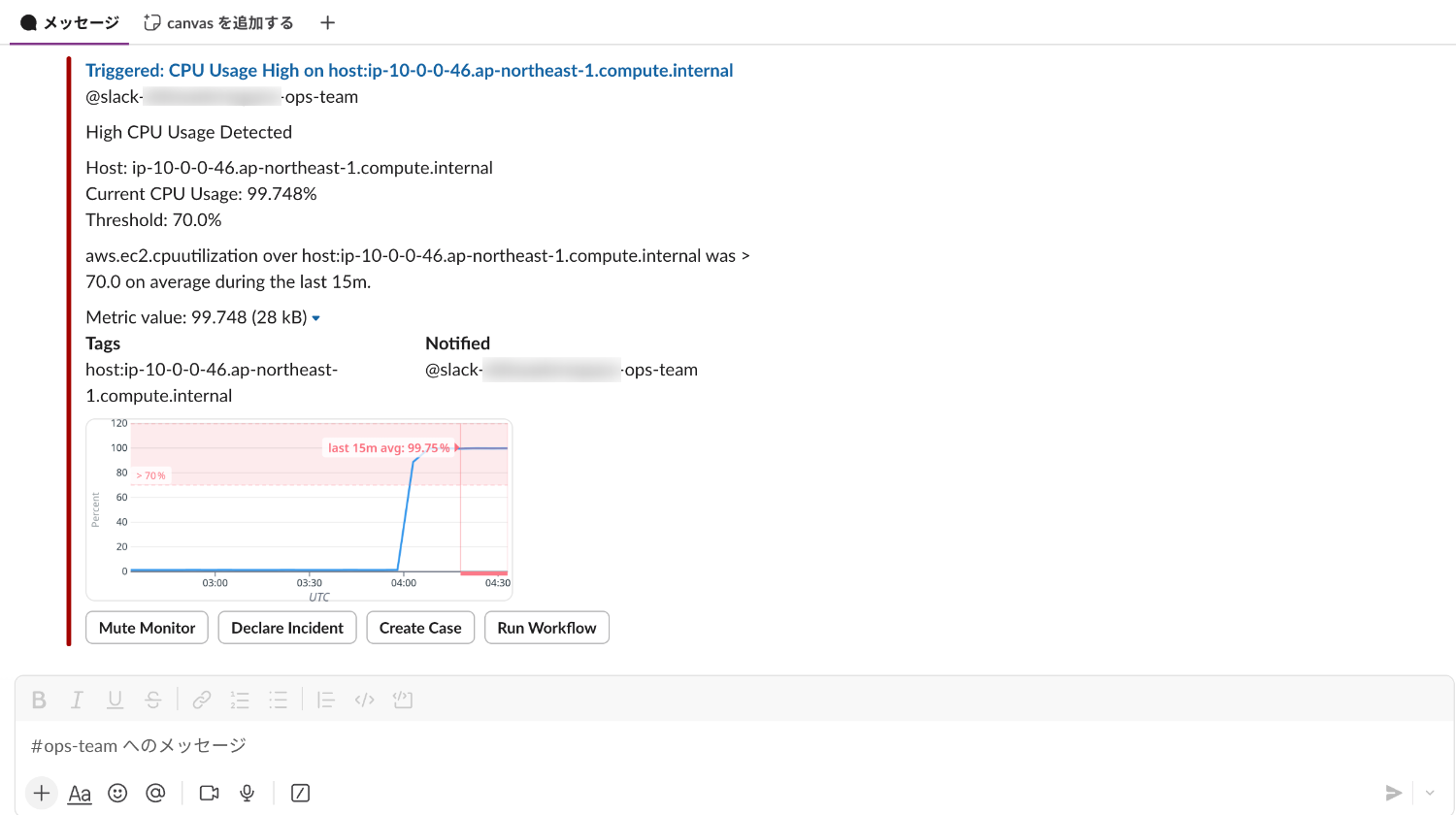
When an alert is detected, a message starting with Triggered: is notified to the Slack channel.
You can see information on the host name, current usage rate, threshold value from variables, and a graph displayed by the snapshot.
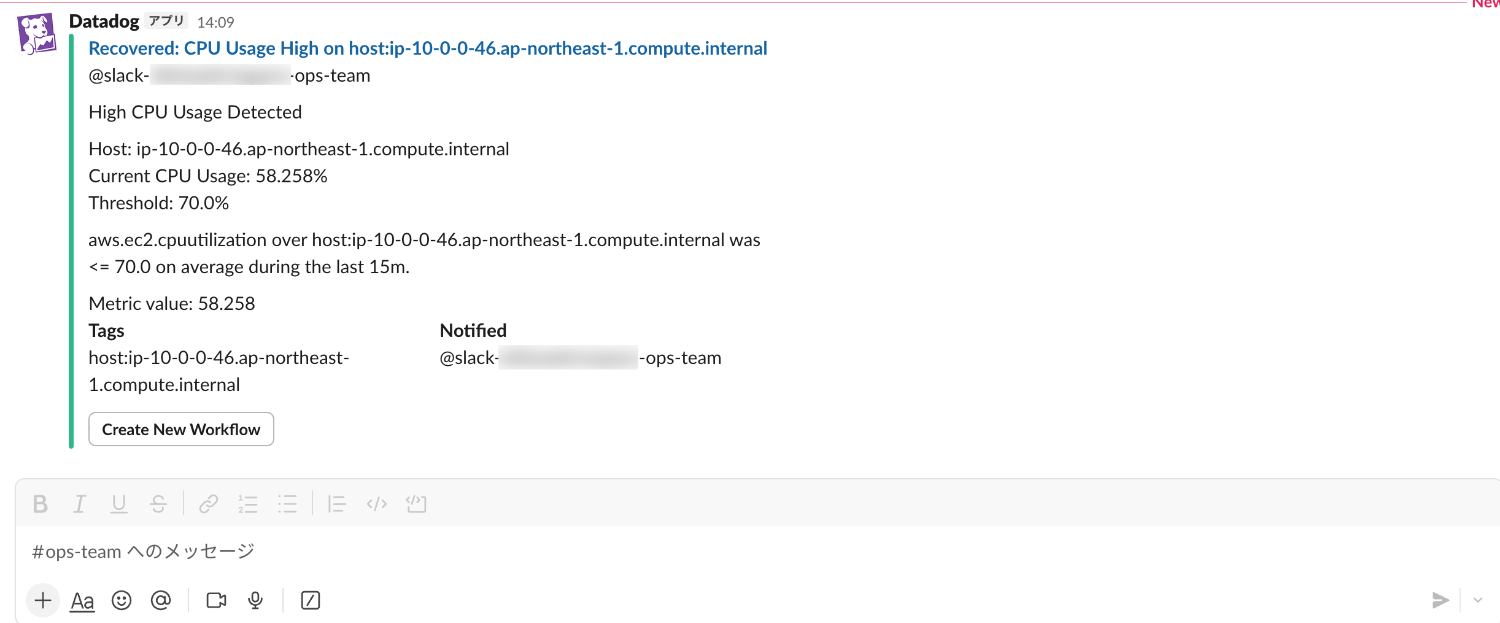
When the alert is resolved, a message starting with Recovered: is notified to the Slack channel.
Log Monitor
- Message template example
@slack-[workspace name]-[channel name]

Error Log Detected

Message: {{log.message}}
Log URL: {{log.link}}
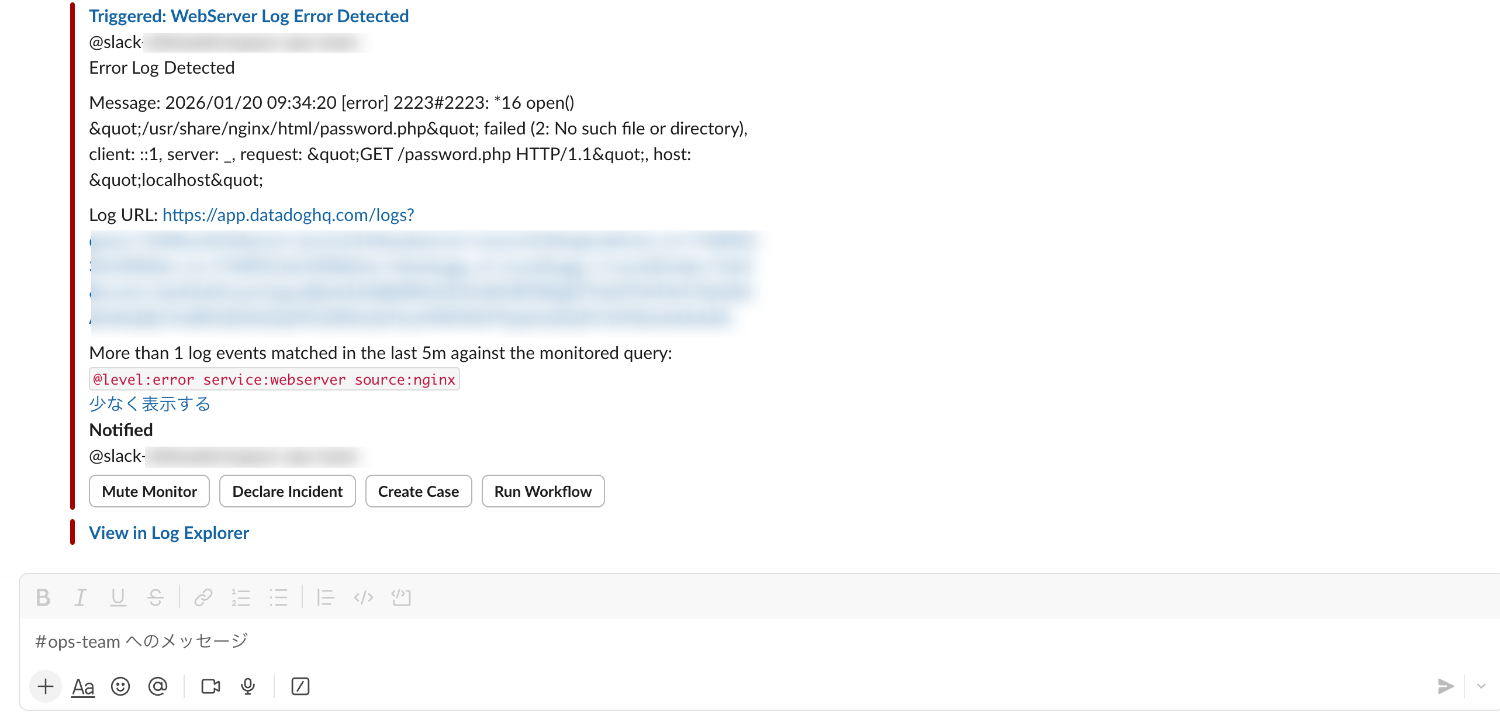
When an alert is detected, a message starting with Triggered: is notified to the Slack channel.
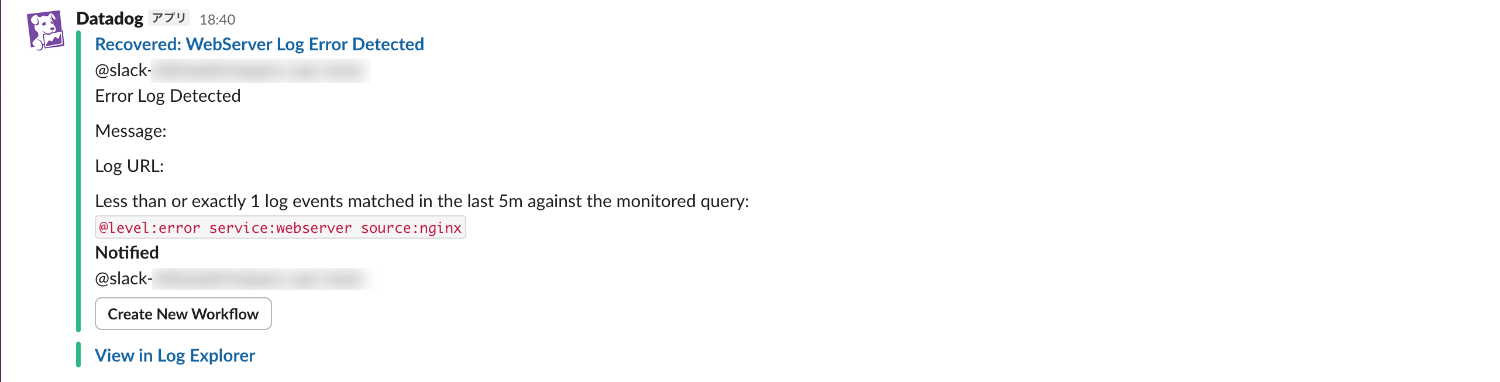
You can see the detection message from variables and a link to the Datadog console where you can check the log message.
For log monitors, even without specifying variables, a "View in Log Explorer" link is automatically added.
When the alert is resolved, a message starting with Recovered: is notified to the Slack channel.
Slack Commands
By installing the application, you can operate Datadog from the Slack channel using commands.
Command List
The command list can be checked with /datadog help.
As of writing this article, the following commands are available:
- Incident Response
| Command | Description |
|---|---|
/datadog incident |
Declare an incident |
/datadog incident test |
Declare a test incident |
/datadog incident list |
Display a list of open incidents |
/datadog incident edit |
Run in an incident channel to update the incident's title, status, severity, and attributes |
/datadog incident notify |
Run in an incident channel to notify the incident with @mentions |
/datadog incident private |
Run in an incident channel to make the incident private |
/datadog incident public |
Run in an incident channel to make the incident public |
/datadog incident responders |
Run in an incident channel to manage the incident response team |
/datadog incident summary |
Run in an incident channel to generate an incident summary with AI |
/datadog task |
Create a task for an incident |
/datadog task list |
Display all tasks for an incident |
/datadog page |
Send a call to a team |
/datadog shifts |
Check upcoming on-call shifts |
/datadog override |
Request a substitute for upcoming on-call shifts |
- Workflow
| Command | Description |
|---|---|
/datadog workflow |
Execute a workflow |
- Dashboard
| Command | Description |
|---|---|
/datadog dashboard |
Share dashboard widgets to the channel |
- Monitor
| Command | Description |
|---|---|
/datadog monitors |
Display all triggered monitors sent to this channel |
- Account Management
| Command | Description |
|---|---|
/datadog accounts |
Manage connected Datadog accounts |
/datadog monitors Command
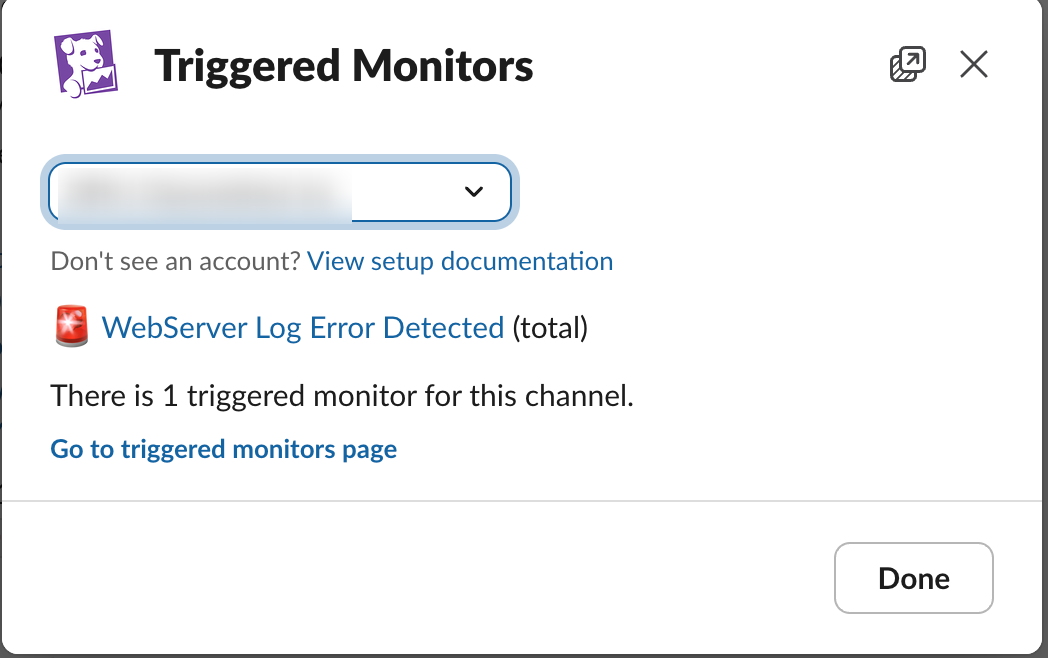
You can display a list of monitors that continue to be in alert state and have been notified to the Slack channel.
Those that have already been resolved are not displayed.
This is useful for preventing response oversights or missed alerts when multiple alerts are detected.
When executing the command, a popup window appears displaying the names of monitors in an alert state.
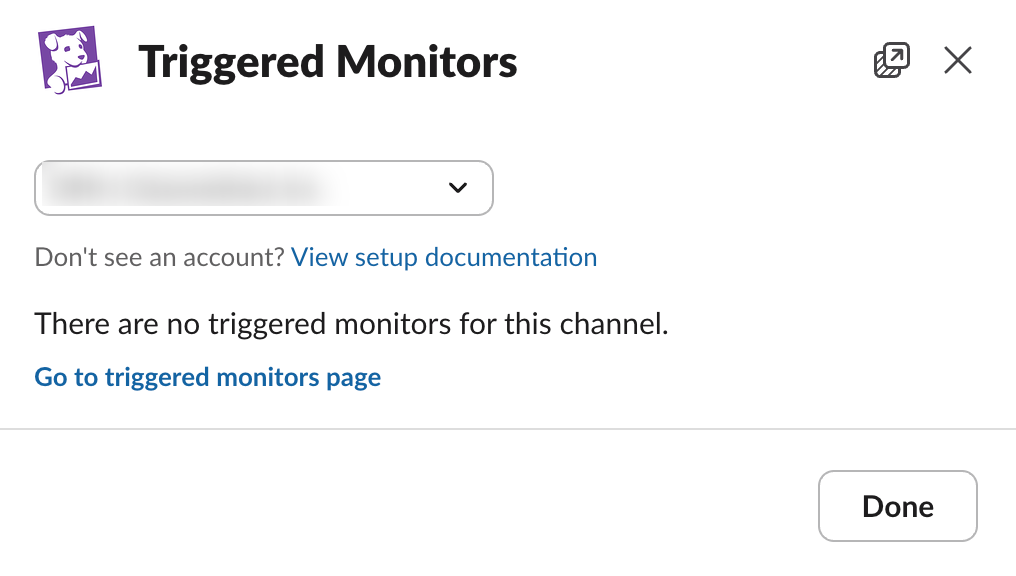
If there are no targets, it displays There are no triggered monitors for this channel.
/datadog workflow Command
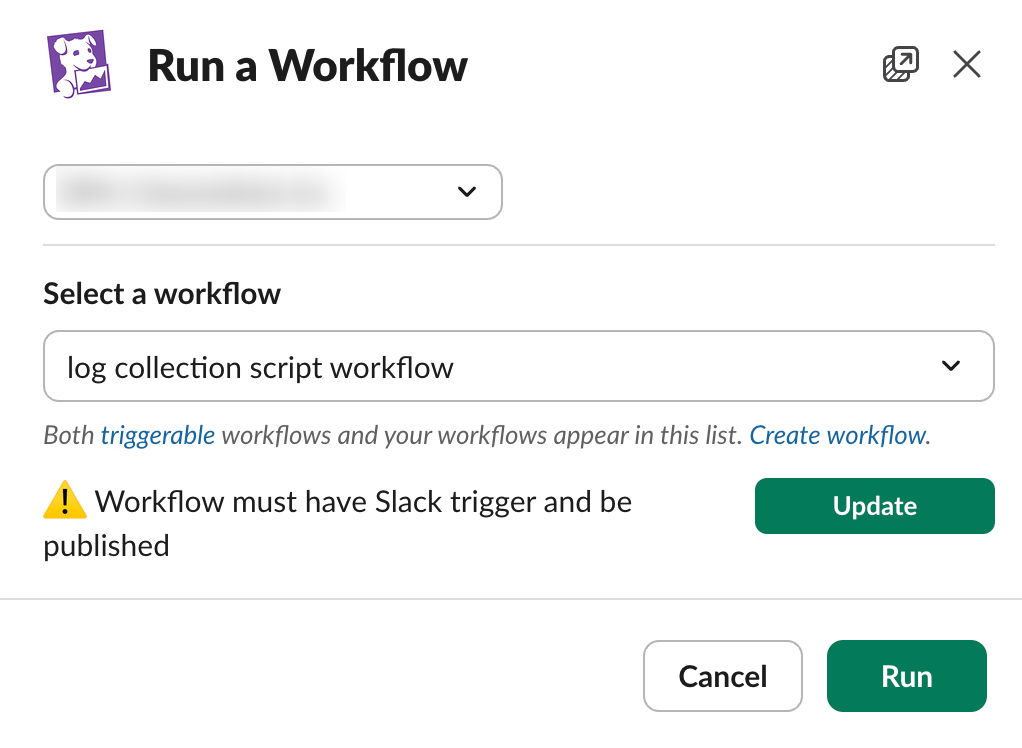
You can call workflow execution from the Slack channel.
Workflows can be used for recovery processes and initial response use cases.
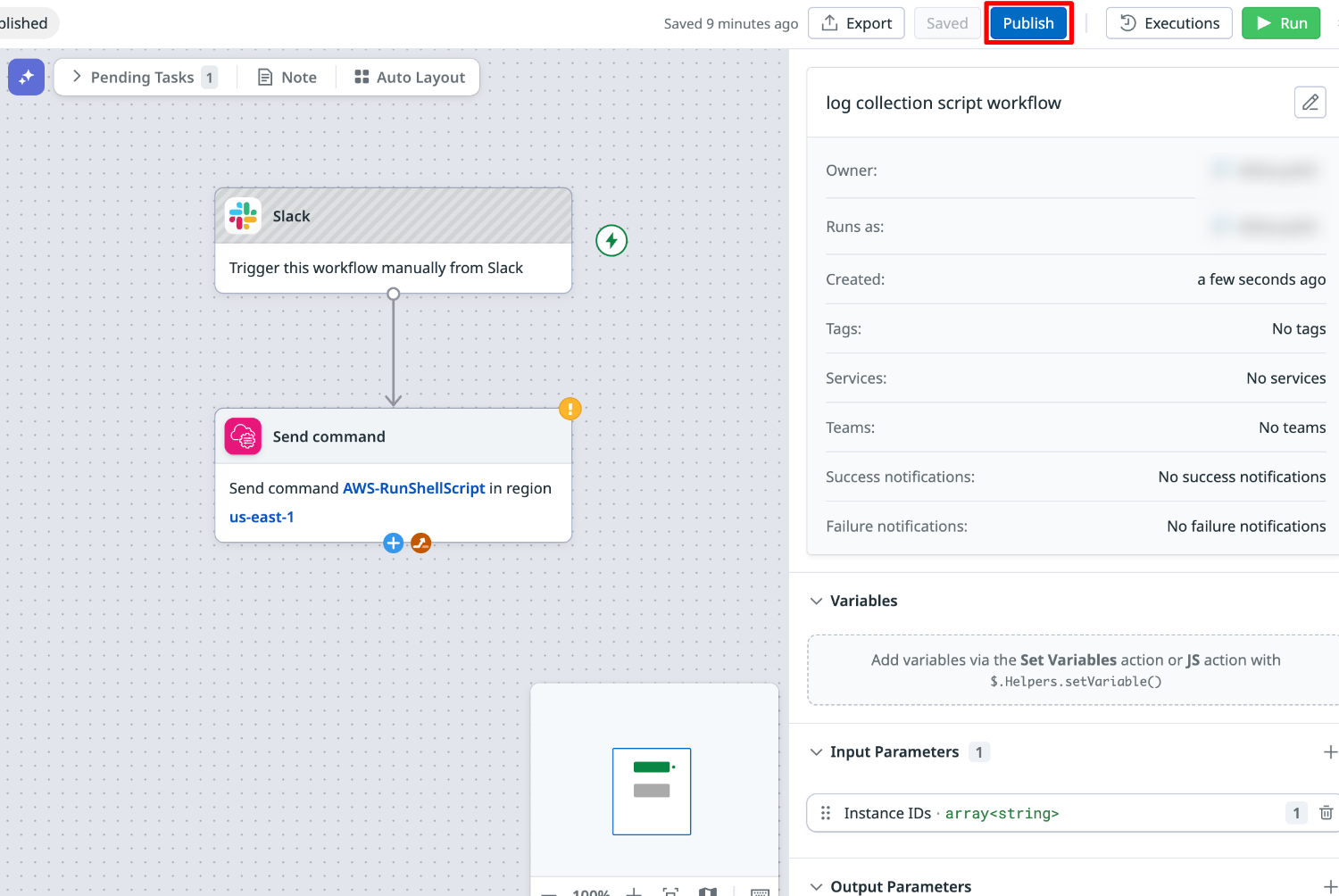
For example, when an alert occurs, you can execute a recovery script using AWS Systems Manager Run Command on an EC2 instance.
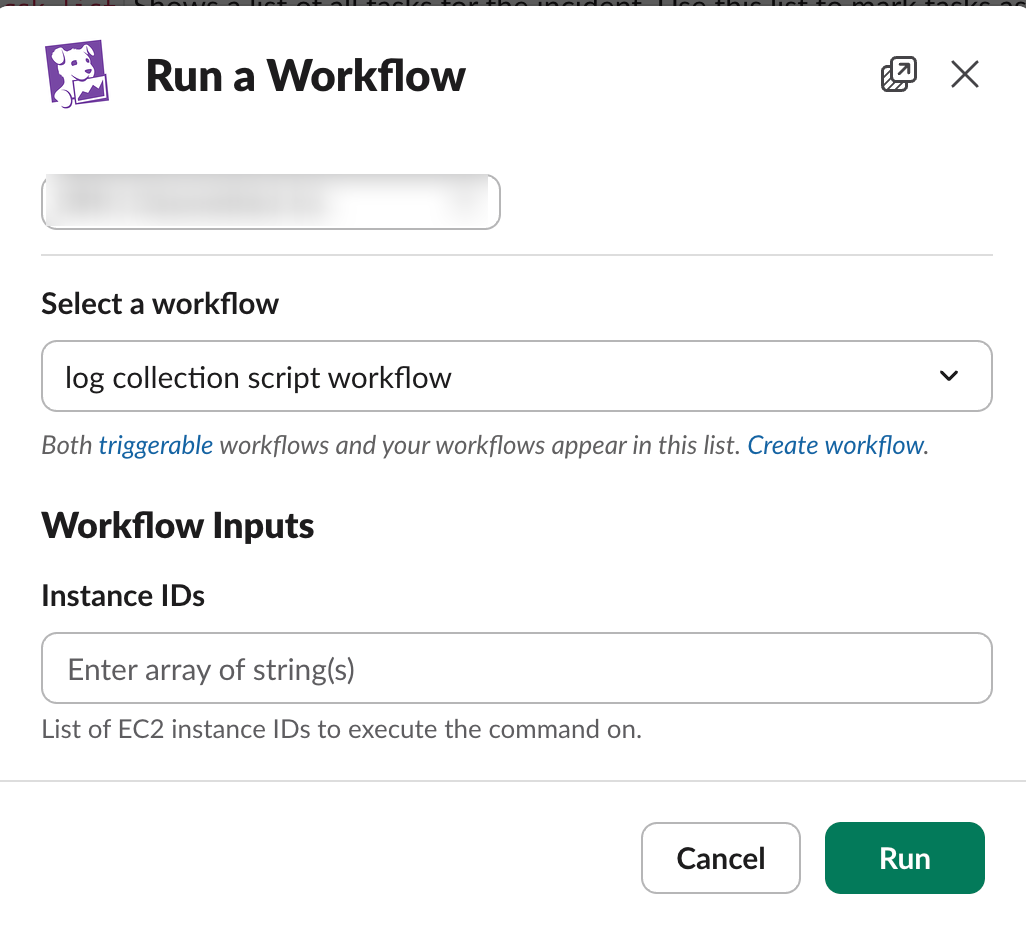
Note that when executing from Slack, the workflow must be published in advance.
/datadog dashboard Command
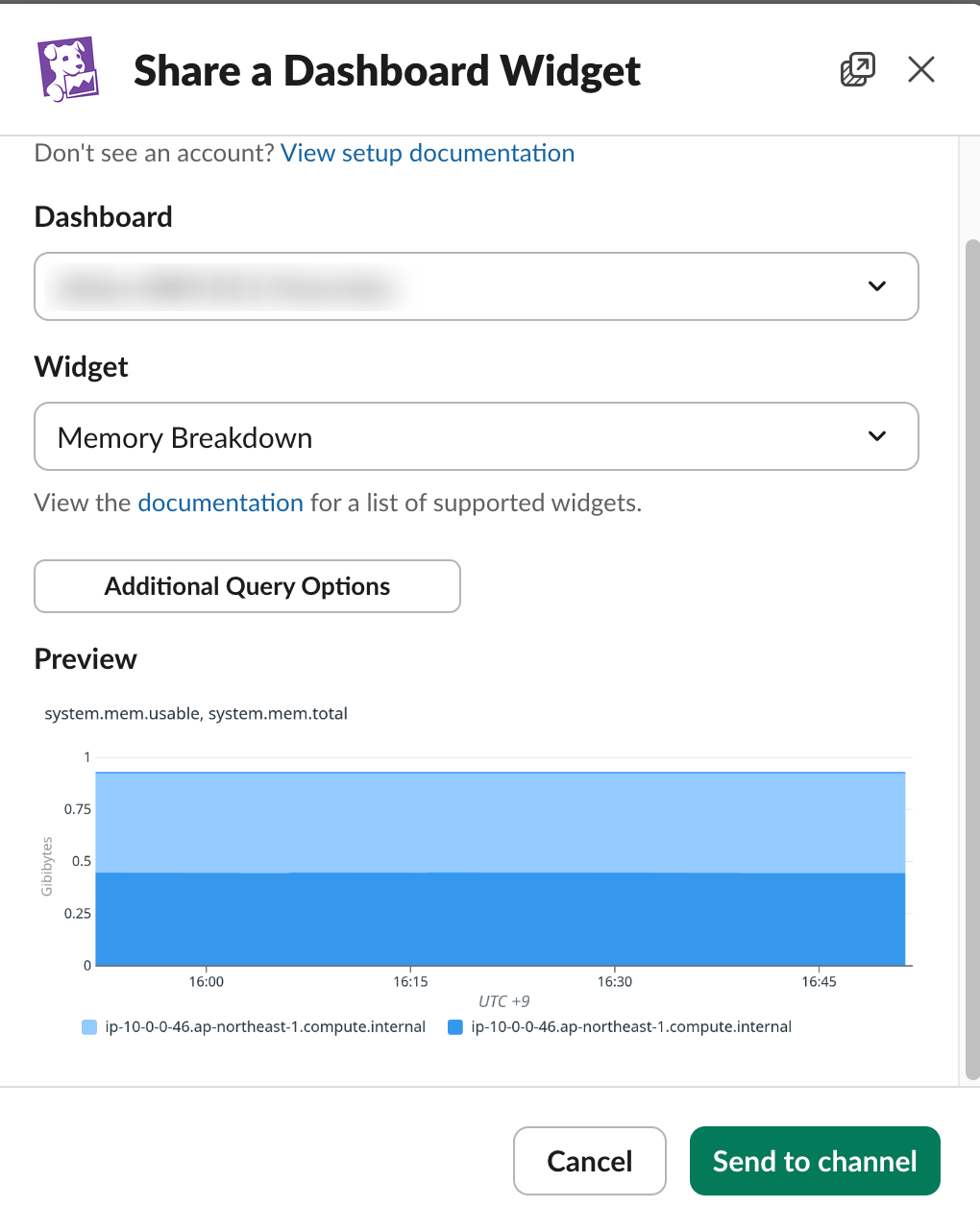
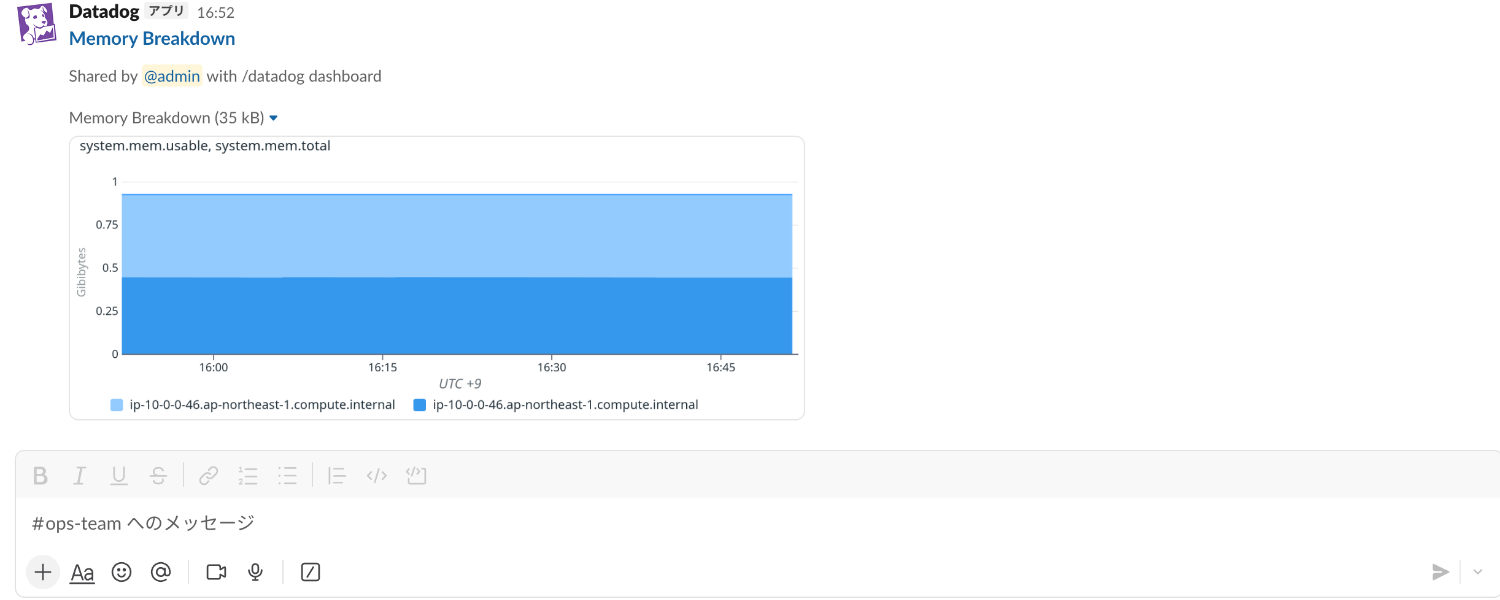
You can share widgets from dashboards in image format to the Slack channel.
This can be used when you want to quickly share clues or traces of the cause of an alert with your team.
Summary
We've tried setting up Slack integration, configuring monitor notifications, and operating with the /datadog command.
By integrating Slack and Datadog, you can not only receive real-time alert notifications but also complete incident management and dashboard sharing on the channel.
If you're considering optimizing your alert operations, please use this as a reference.
I hope this article was helpful.
References