Comparing differences between S3 CSV and BigQuery data using DuckDB

This page has been translated by machine translation. View original
Introduction
I'm kasama from the Big Data Team in the Data Business Division.
In this article, I'll explore how to use DuckDB to compare CSV files stored in S3 with BigQuery table data using the Except clause. For instance, this method is effective when comparing data that's stored as CSV files in S3 as a data lake and then loaded into BigQuery through some data loading service. By using DuckDB, you can directly compare data from different cloud services like S3 and BigQuery without downloading them locally.
Prerequisites
Required Tools
- DuckDB
- AWS CLI
I assume that DuckDB and AWS CLI command configurations are already completed. I used DuckDB version 1.4.0 for this demonstration.
Installing Google Cloud CLI and Authentication Setup
Since I'm using Google Cloud CLI for the first time, I'll document the steps.
I'll follow the official MacOS installation procedure. You should be fine if you follow the official documentation.
As described in the instructions, download the tar file, extract it, and run the script.
tar -xf google-cloud-cli-darwin-arm.tar.gz
./google-cloud-sdk/install.sh
Initialize the gcloud CLI.
source ~/.zshrc
gcloud init
Next, set up Application Default Credentials. This is a mechanism to obtain client credentials for applications (in this case, DuckDB) to access resources on Google Cloud.
gcloud auth application-default login
Once installation is complete, you can check your configuration with these commands:
# Check current account
gcloud auth list

# Check current project
gcloud config get-value project

# List accessible projects
gcloud projects list

# Verify authentication file
cat ~/.config/gcloud/application_default_credentials.json
Preparing Test Data
Creating Test CSV Files
Generate a CSV file in VS Code or your preferred editor.
id,name,age,email
1,Taro Yamada,25,taro@example.com
2,Hanako Sato,30,hanako@example.com
3,Jiro Tanaka,28,jiro@example.com
Upload this CSV file to your S3 bucket.
aws s3 cp test_data.csv s3://<your-bucket>/bq_test/test_data.csv
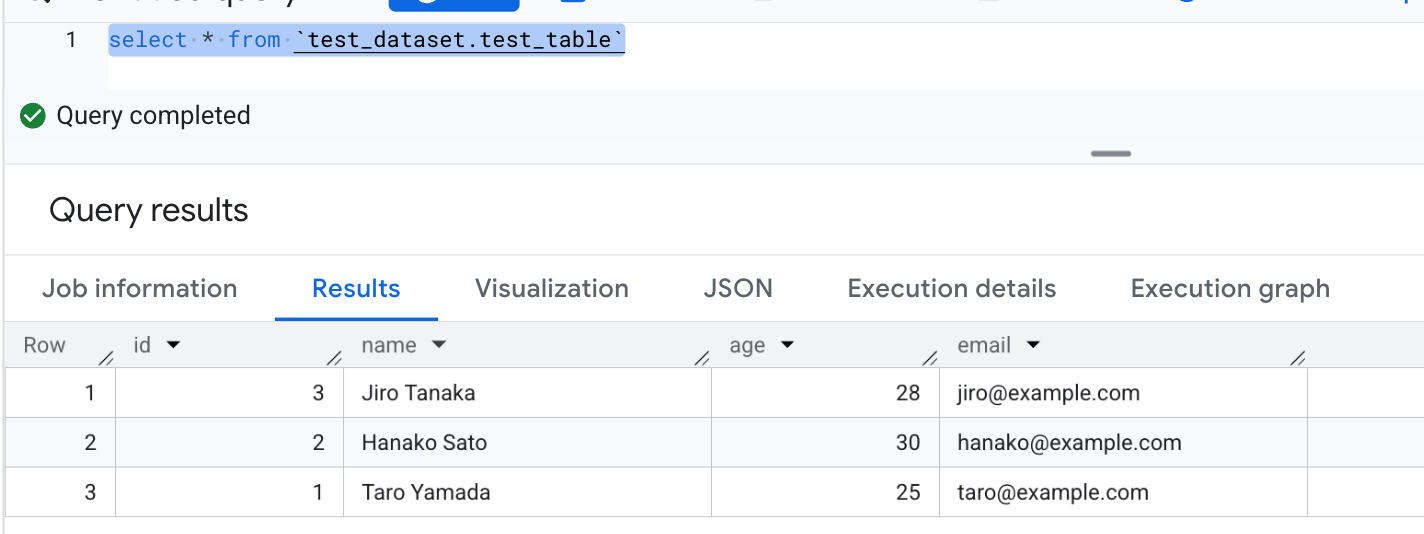
Creating BigQuery Test Dataset and Table
Execute SQL from the BigQuery console.
-- Create dataset
CREATE SCHEMA IF NOT EXISTS `your-project-id.test_dataset`
OPTIONS(
  description="Test dataset"
);

-- Create table
CREATE OR REPLACE TABLE `your-project-id.test_dataset.test_table` (
  id INT64,
  name STRING,
  age INT64,
  email STRING
);

-- Insert test data
INSERT INTO `your-project-id.test_dataset.test_table` VALUES
  (1, 'Taro Yamada', 25, 'taro@example.com'),
  (2, 'Hanako Sato', 30, 'hanako@example.com'),
  (3, 'Jiro Tanaka', 28, 'jiro@example.com');
Comparison Steps Using DuckDB
Connection Setup
First, obtain AccessKeyId, SecretAccessKey, and SessionToken with the following command:
aws configure export-credentials --profile <your-profile>
Next, launch the DuckDB Local UI.
duckdb --ui
Once it's up, execute the following command in a cell.
A return value of true indicates successful connection to S3.
CREATE OR REPLACE SECRET secret_c (
              TYPE s3,
              PROVIDER config,
              KEY_ID '<obtained AccessKeyId>',
              SECRET '<obtained SecretAccessKey>',
              SESSION_TOKEN '<obtained SessionToken>'
              REGION 'ap-northeast-1'
);
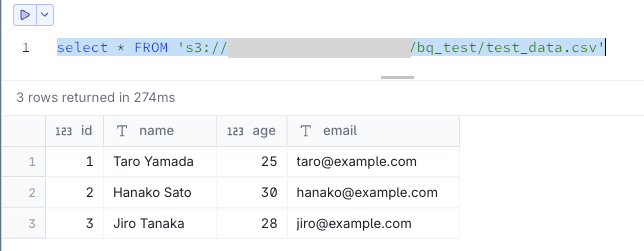
Now you can access S3 data.
select * FROM 's3://<your-bucket>/bq_test/test_data.csv'
Next, set up the BigQuery connection. Follow these steps:
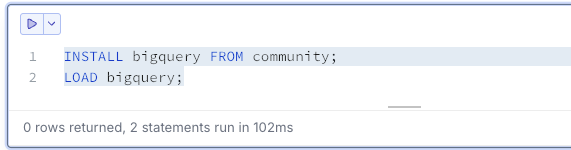
Execute these commands in a cell:
-- Install BigQuery extension
INSTALL bigquery FROM community;
LOAD bigquery;
Connect to your BigQuery project:
ATTACH 'project=your-project-id' AS bq (TYPE bigquery, READ_ONLY);

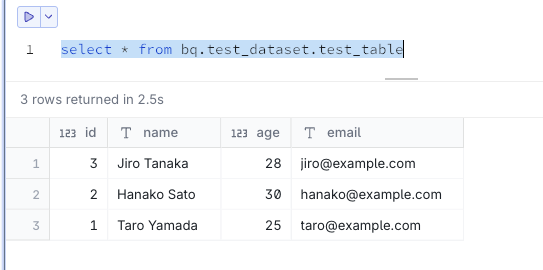
Now you can query BigQuery:
select * from bq.test_dataset.test_table
Data Comparison Using EXCEPT Clause
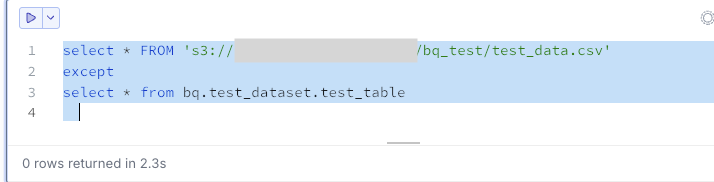
Extract data that exists in S3 but not in BigQuery. In this case, there are 0 records.
select * FROM 's3://<your-bucket>/bq_test/test_data.csv'
except
select * from bq.test_dataset.test_table
Extract data that exists in BigQuery but not in S3. In this case, there are 0 records.
select * from bq.test_dataset.test_table
except
select * FROM 's3://<your-bucket>/bq_test/test_data.csv'
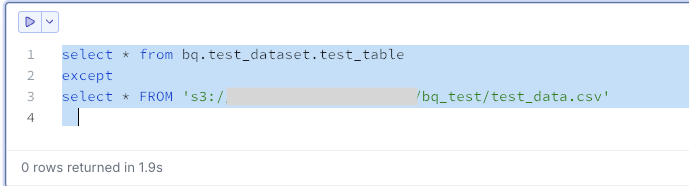
If both query results return 0 records, the data matches completely.
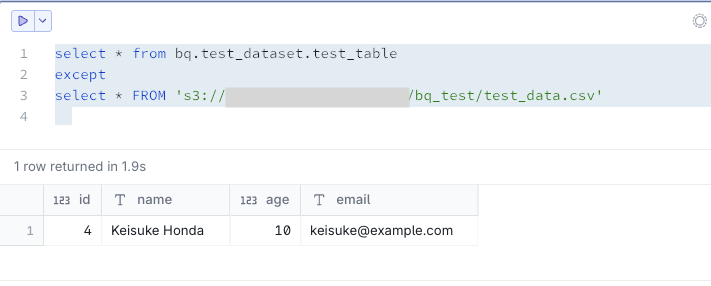
Let's try inserting data only into BigQuery and check again:
INSERT INTO `your-project-id.test_dataset.test_table` VALUES
  (4, 'Keisuke Honda', 10, 'keisuke@example.com');
As expected, this appears as data that exists in BigQuery but not in S3.
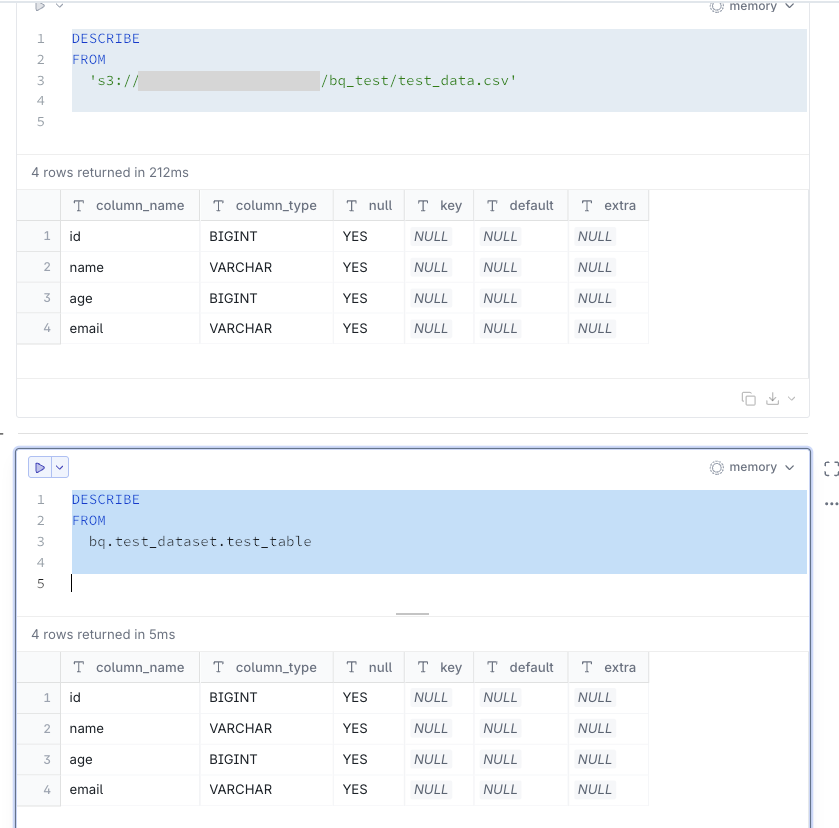
By the way, the schema information matched:
Conclusion
I hope this information about using DuckDB to simplify testing will be useful to you.
Additional Note
After reading the following blog, I found that you can use UNION ALL to do this in a single SQL statement, so I'm leaving this as a note:
SELECT 'Exists only in S3' as source, *
FROM 's3://<your-bucket>/bq_test/test_data.csv'
EXCEPT
SELECT 'Exists only in S3' as source, *
FROM bq.test_dataset.test_table

UNION ALL

SELECT 'Exists only in BigQuery' as source, *
FROM bq.test_dataset.test_table
EXCEPT
SELECT 'Exists only in BigQuery' as source, *
FROM 's3://<your-bucket>/bq_test/test_data.csv'