
I Tried the Infinity Plugin That Displays AWS API Responses Directly in Grafana

This page has been translated by machine translation. View original
Introduction
Have you ever wanted to execute AWS API from Grafana and display the results on a dashboard?
For example, you can check the status of EC2 instances from AWS CLI, but wouldn't it be nice to display that on a dashboard too?
And ideally, it would be better to have a simple configuration where you just execute the API from the dashboard, rather than a complex setup involving Lambda and so on.
Grafana has a plugin called Infinity that can fulfill such requests.
In this article, I tried displaying the results of AWS API execution on a dashboard using the Infinity plugin.
What is the Infinity plugin?
The Infinity plugin allows you to visualize external data via HTTPS in formats such as CSV, JSON, XML, and GraphQL in Grafana.
Additionally, it supports AWS authentication as an authentication method, so with appropriate IAM permissions, you can directly execute AWS APIs as HTTP requests from Grafana and display the results on a dashboard.
It also supports connections using AWS access keys.
This is convenient when you need to obtain data for AWS resources that are not supported by Grafana.
Once you understand how to use it, you can apply it to various scenarios!
Let's give it a try!
Prerequisite
I'm testing this on Grafana Cloud Version 13.0.0-22478626928.patch2.
Creating an Infinity plugin data source
Let's create a data source for the Infinity plugin.
Creating AWS access keys
To execute AWS APIs with Infinity, you need access keys.
First, let's create an IAM user in AWS and issue access keys.
Since we'll only be performing Read operations with Infinity, we'll attach EC2 ReadOnly permissions for this example.
# Create IAM user
aws iam create-user --user-name <username>

# Attach AmazonEC2ReadOnlyAccess policy
aws iam attach-user-policy \
  --user-name <username> \
  --policy-arn arn:aws:iam::aws:policy/AmazonEC2ReadOnlyAccess

# Issue access key
aws iam create-access-key --user-name <username>
Make a note of the issued access key and secret key as we'll use them later.
Enabling the plugin
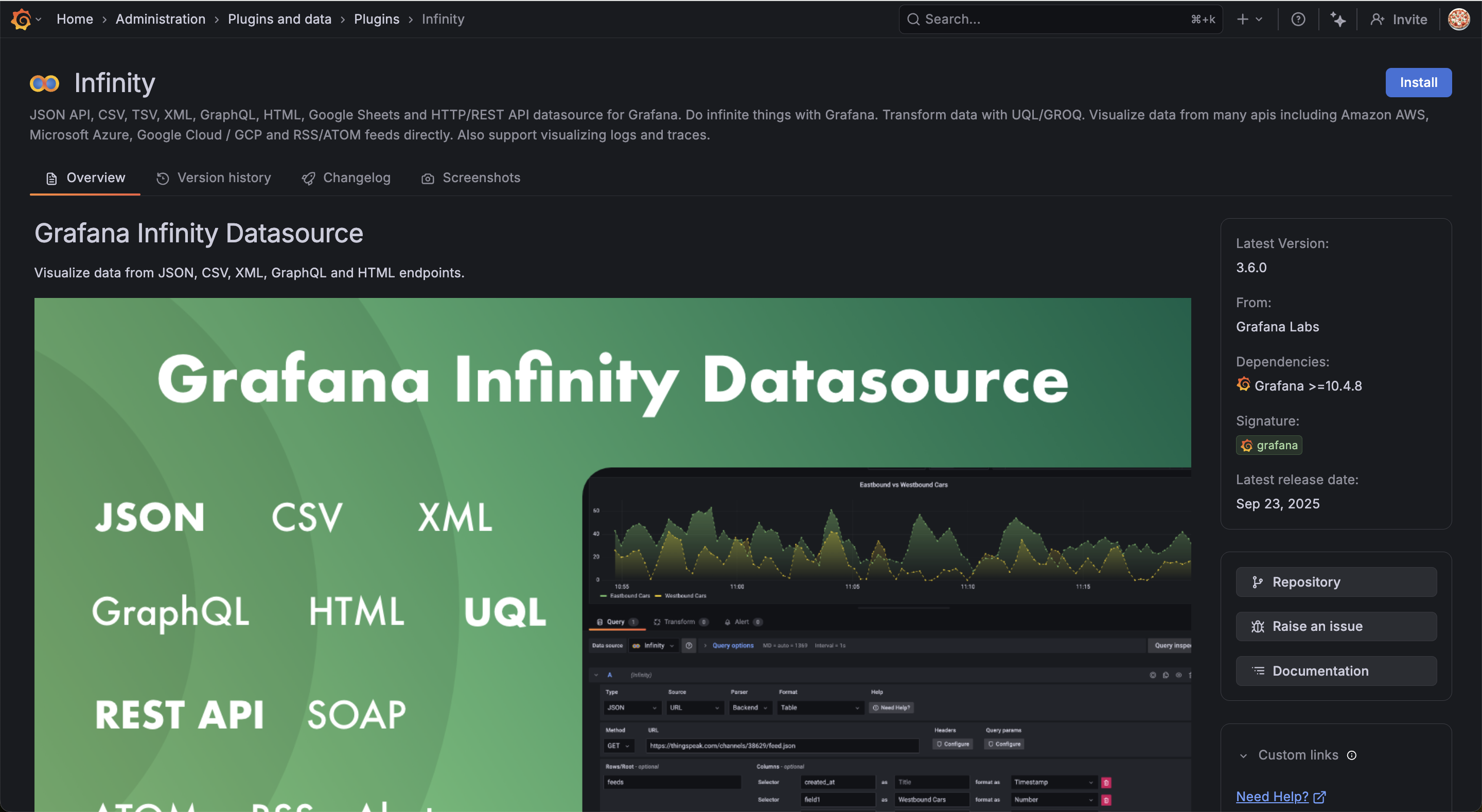
Search for "Infinity" in the Grafana plugin list and click Install in the upper right corner of the screen.
Creating a data source
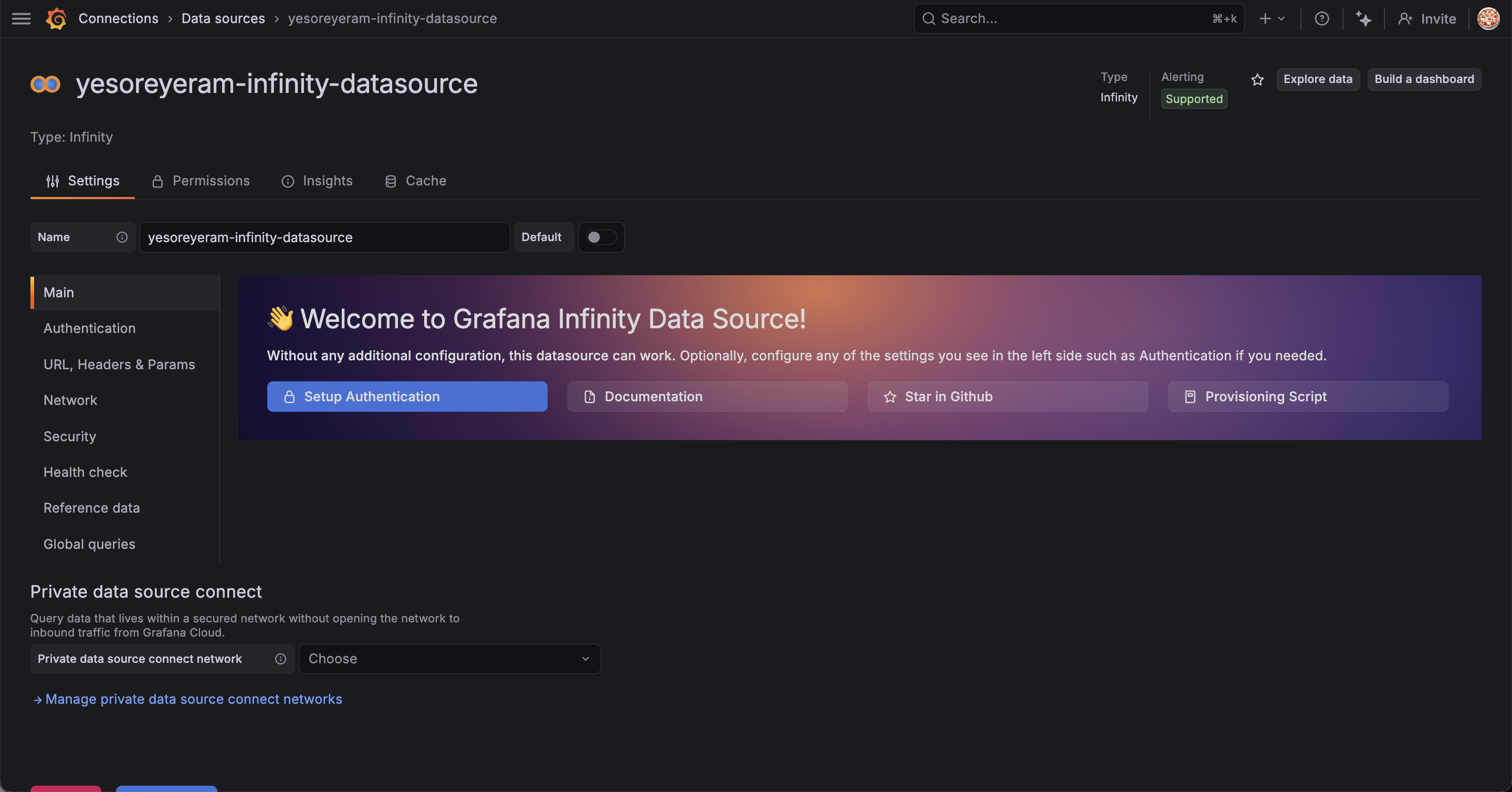
Navigate to Connections > Add new connection, search for Infinity and add the data source.
Click Setup Authentication to configure.
Select "AWS" as the Auth type and choose your preferred region.
Enter the service name in the Service field. The service name matches the prefix part of each service's endpoint. (For example: ec2 for EC2, lambda for Lambda)
You can check each service's endpoint in the official documentation below.
Enter the access key and secret key of the IAM user you noted earlier.
Specify the service endpoint in Allowed hosts.
For EC2 in this case, add https://ec2.ap-northeast-1.amazonaws.com.
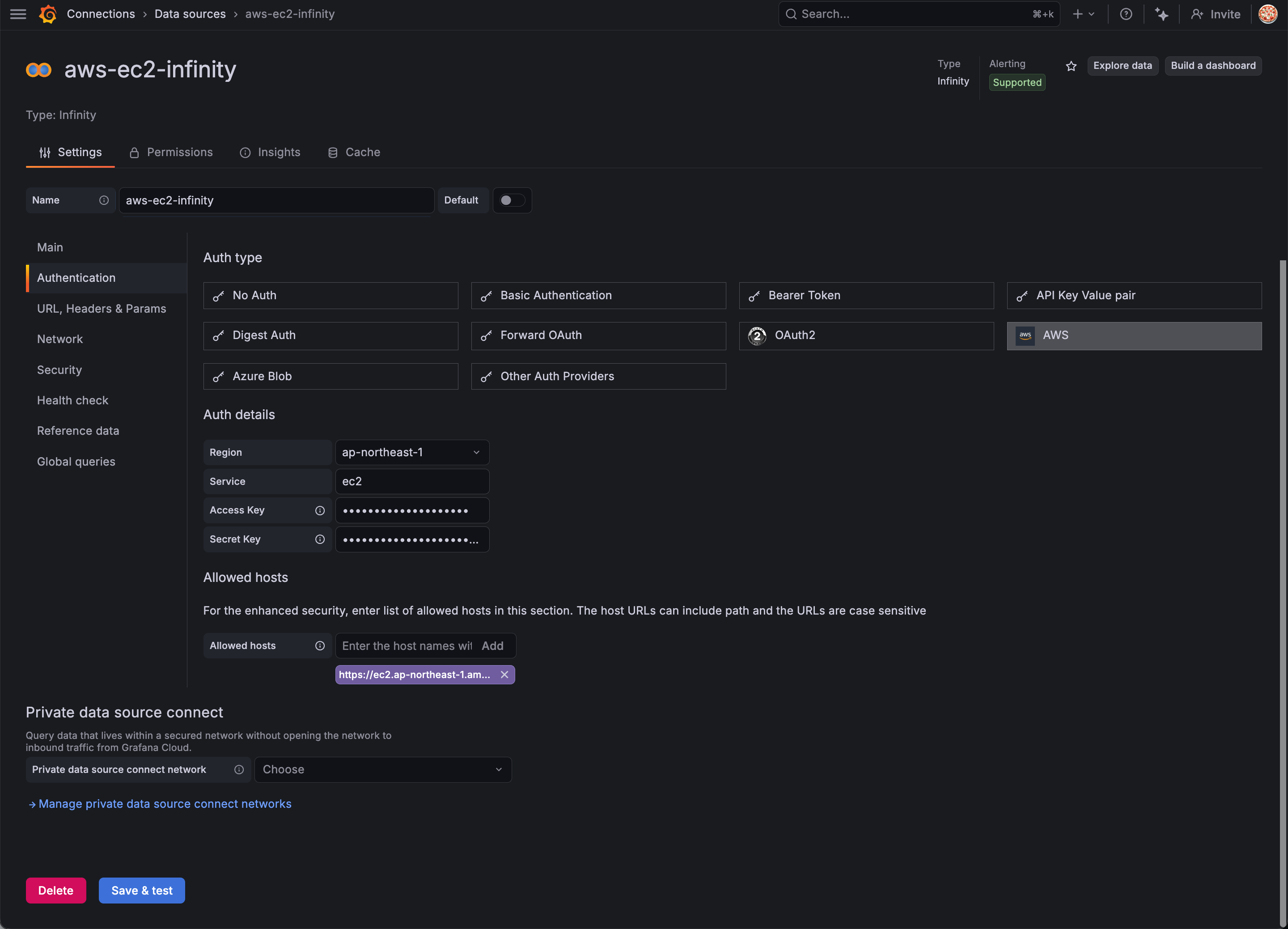
Click Save & test and if no errors appear, the plugin configuration is complete.
Retrieving EC2 status
Now that we have the data source set up, let's first verify in Explore that we can retrieve the expected values.
The query settings are as follows:
| Setting Item | Value |
|---|---|
| Type | XML |
| Parser | JSONata |
| Source | URL |
| Format | Table |
| Method | GET |
| URL | https://ec2.ap-northeast-1.amazonaws.com?Action=DescribeInstances&Version=2016-11-15 |
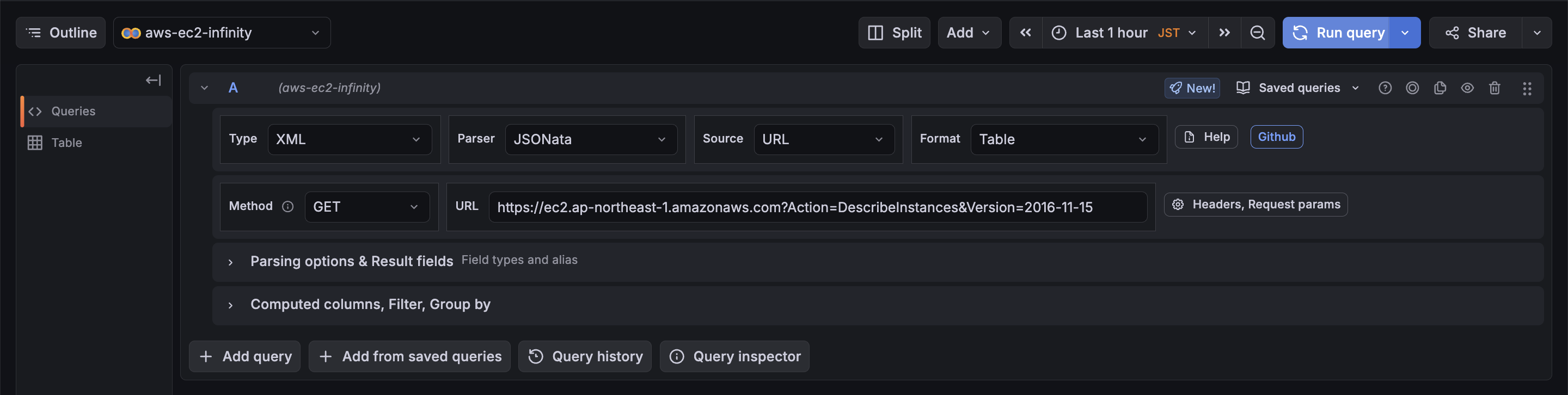
We select XML as the Type because the EC2 Query API returns responses in XML format.
The mechanism is to execute an HTTP request to the URL with the method specified by Method.
Authentication is automatically handled by the Infinity plugin using the access key set in the data source, so you don't need to include authentication information in the URL.
The URL is composed by combining the following three elements:
https://{service endpoint}?Action={action name}&Version={API version}
| Element | How to determine | Value in this example |
|---|---|---|
| Endpoint | {service name}.{region}.amazonaws.com |
ec2.ap-northeast-1.amazonaws.com |
| Action | Check in each service's API Reference | DescribeInstances |
| Version | Check in each service's API Reference | 2016-11-15 |
The endpoint differs by service. You can check the list of endpoints for each service here:
Action and Version can be found in each service's API Reference. For EC2 in this case:
- Action (API) list: https://docs.aws.amazon.com/AWSEC2/latest/APIReference/OperationList-query.html
- Query API request structure: https://docs.aws.amazon.com/AWSEC2/latest/APIReference/Query-Requests.html
Now let's run the query and check the response structure.
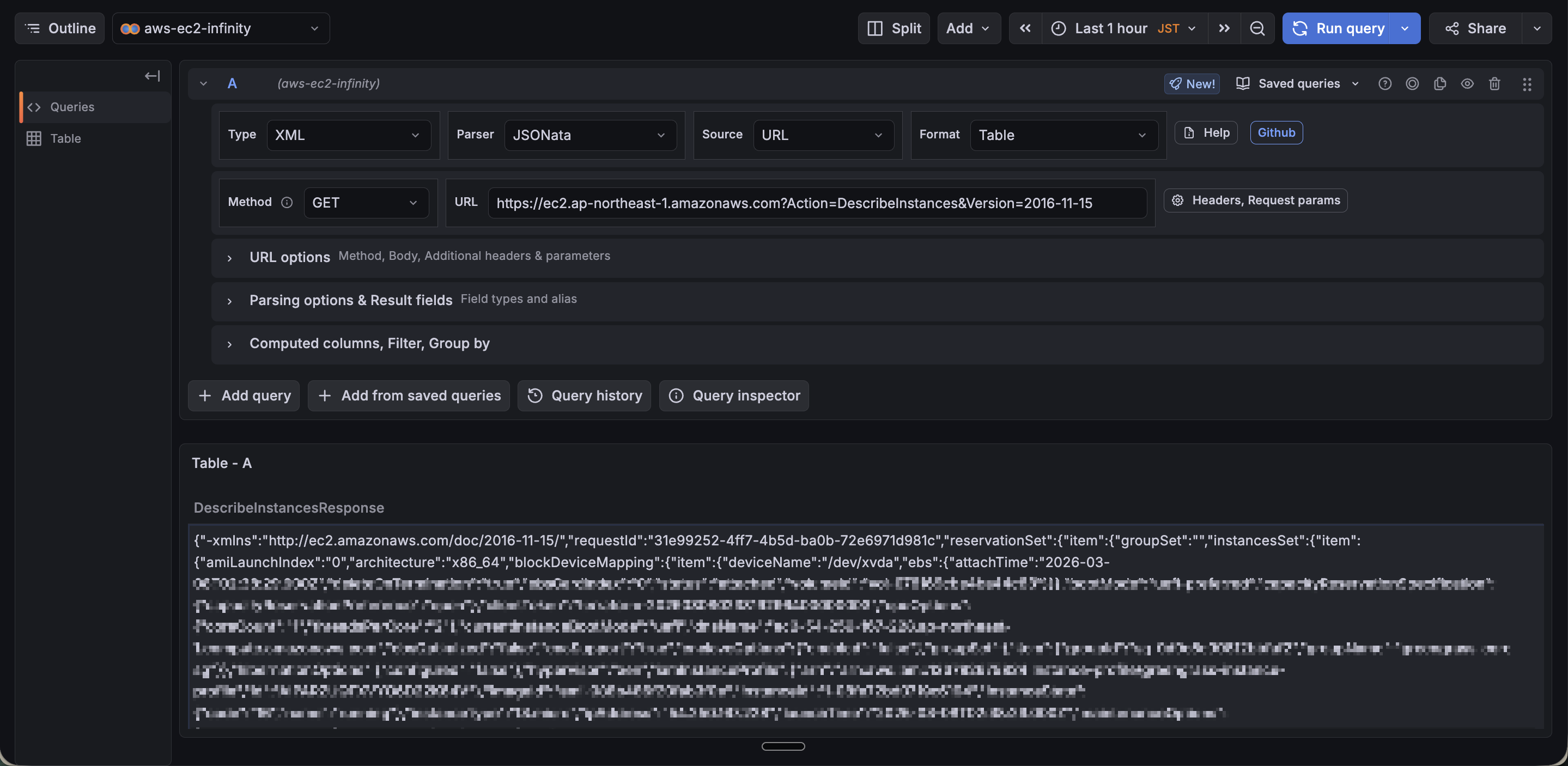
We're receiving the response in XML format as expected.
Now we need to extract the necessary information from this response.
Setting Rows/Root
Now that we've confirmed the response structure, let's set Rows/Root to extract instance-level data.
The XML response from the EC2 API has the following hierarchical structure:
<DescribeInstancesResponse>
  <reservationSet>
    <item>
      <instancesSet>
        <item>          ← Instance level (what we want)
          <instanceId>i-xxxx...</instanceId>
          <instanceState>
            <name>running</name>
          </instanceState>
        </item>
      </instancesSet>
    </item>
  </reservationSet>
</DescribeInstancesResponse>
By connecting XML tag names with dots, we specify the path to the level of data we want.
Set Rows/Root to DescribeInstancesResponse.reservationSet.item.instancesSet.item.
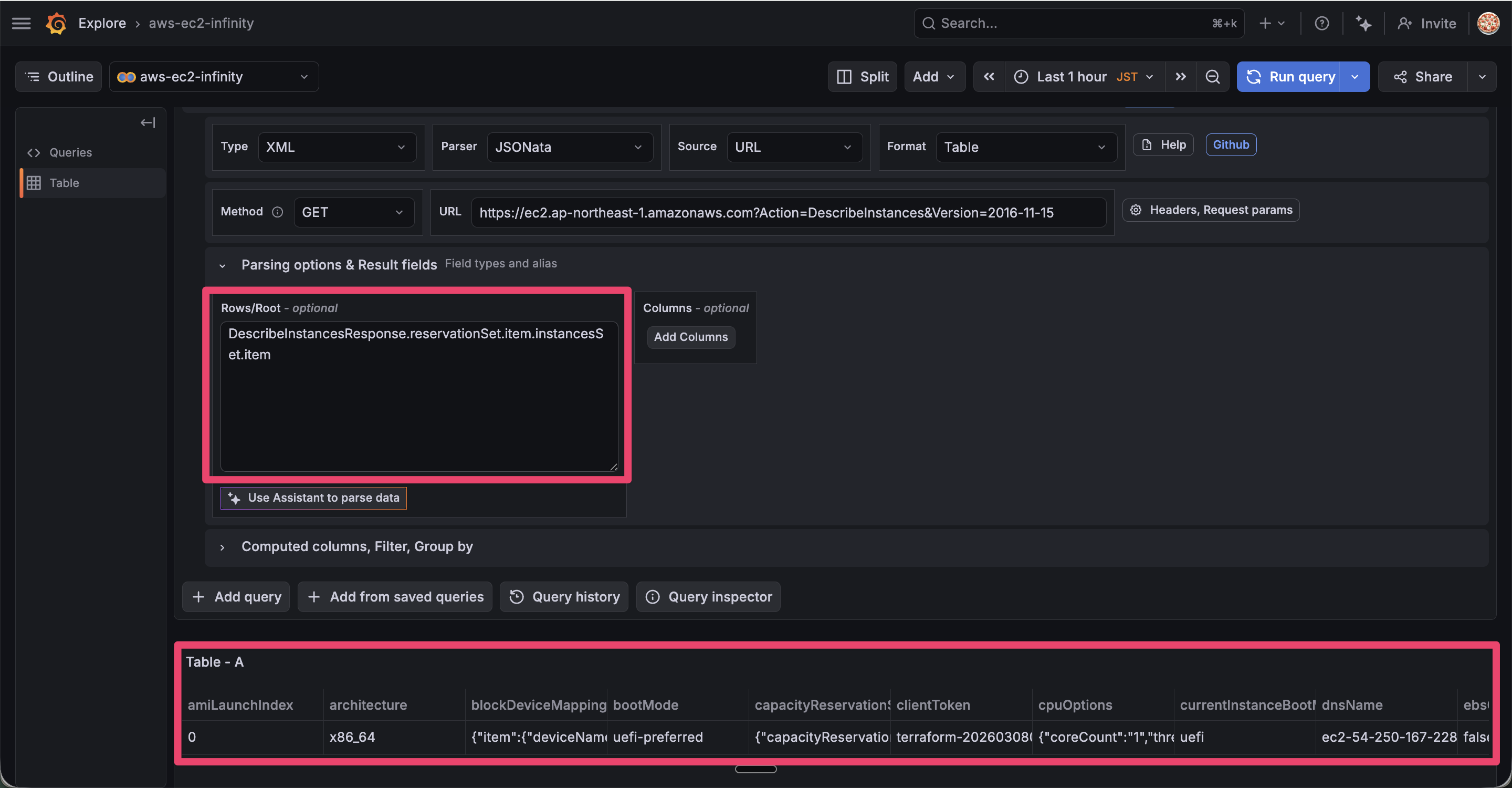
Now we can extract instance-level data row by row.
Setting Columns
Next, let's specify the columns to display in the table.
You can check the response elements of the DescribeInstances API in the AWS official documentation.
Since we want to get the name within instanceState, we set instanceState.name in Columns.
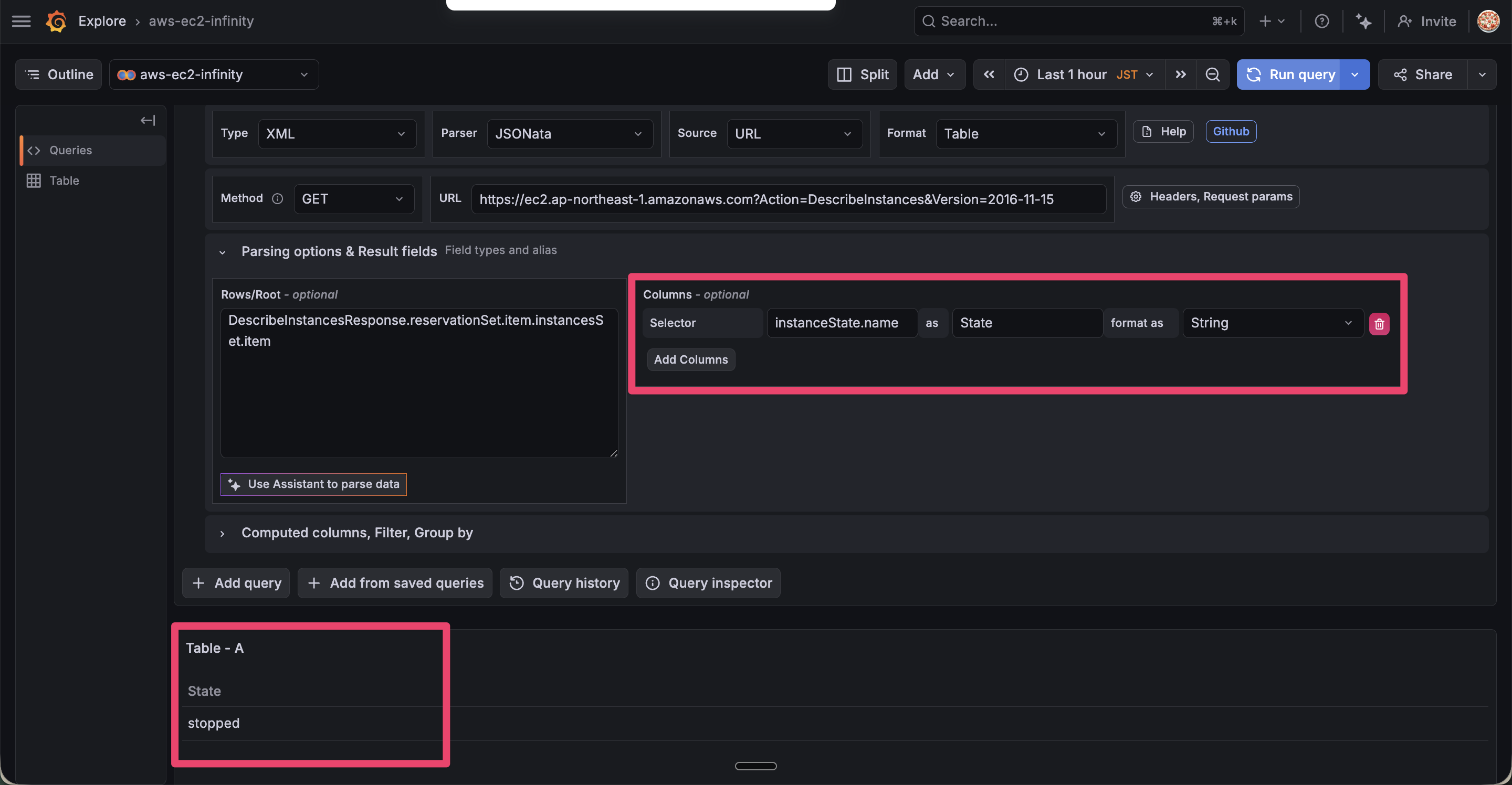
Now we've retrieved only the EC2 status.
Creating a panel
Now that we know how to retrieve status, let's create a panel to display EC2 status using the same settings.
One point to note when creating a panel is that with default settings, the result will show "No data".
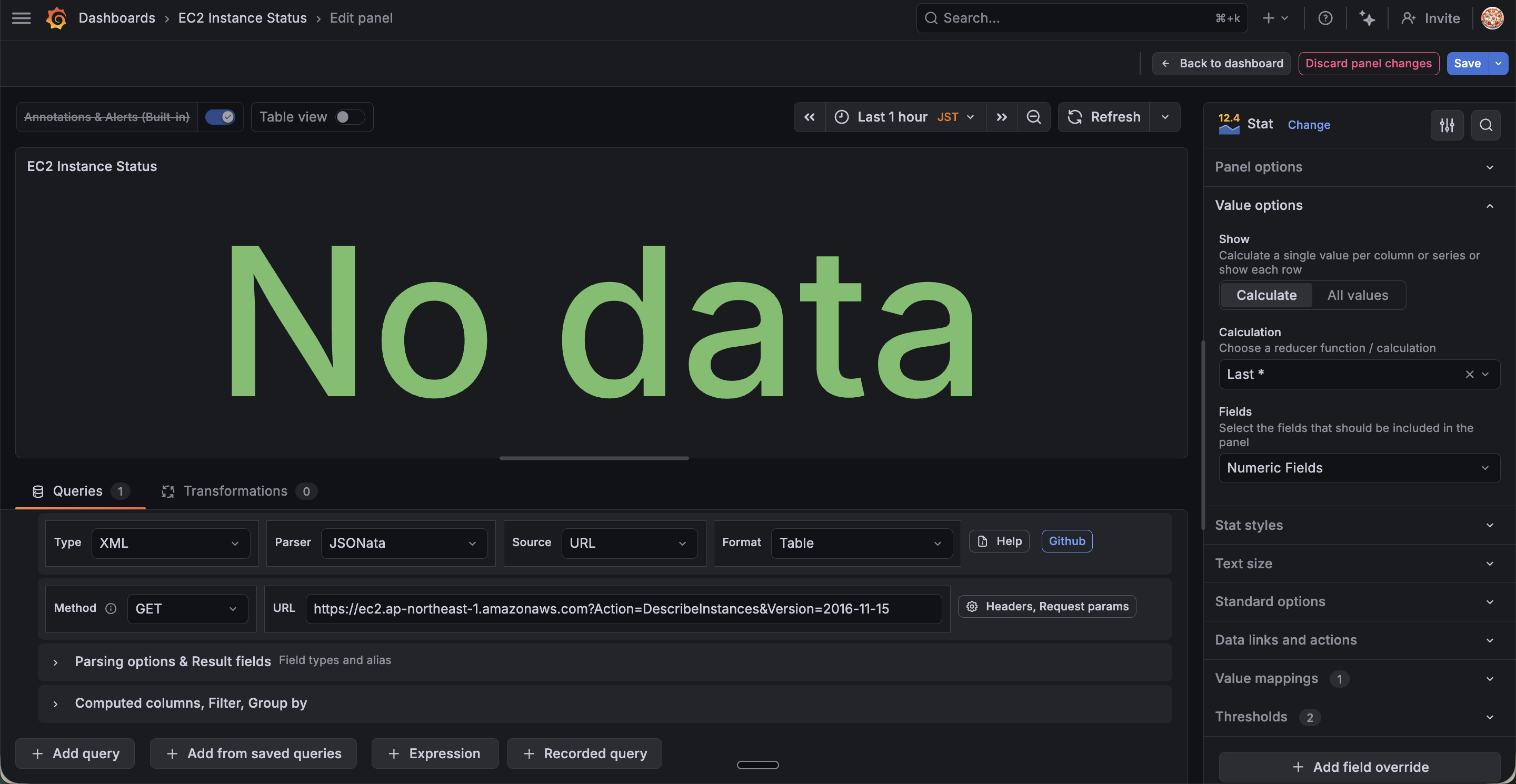
This is due to the Stat panel's Field filter mechanism, which by default only targets numeric fields with the Numeric Fields filter.
EC2 status (running, stopped) is a string, so it doesn't match the Numeric Fields filter and shows No data.
So, changing the Fields from Numeric Fields to State explicitly specifies a column named "State", allowing strings to be displayed.
Let's try it.
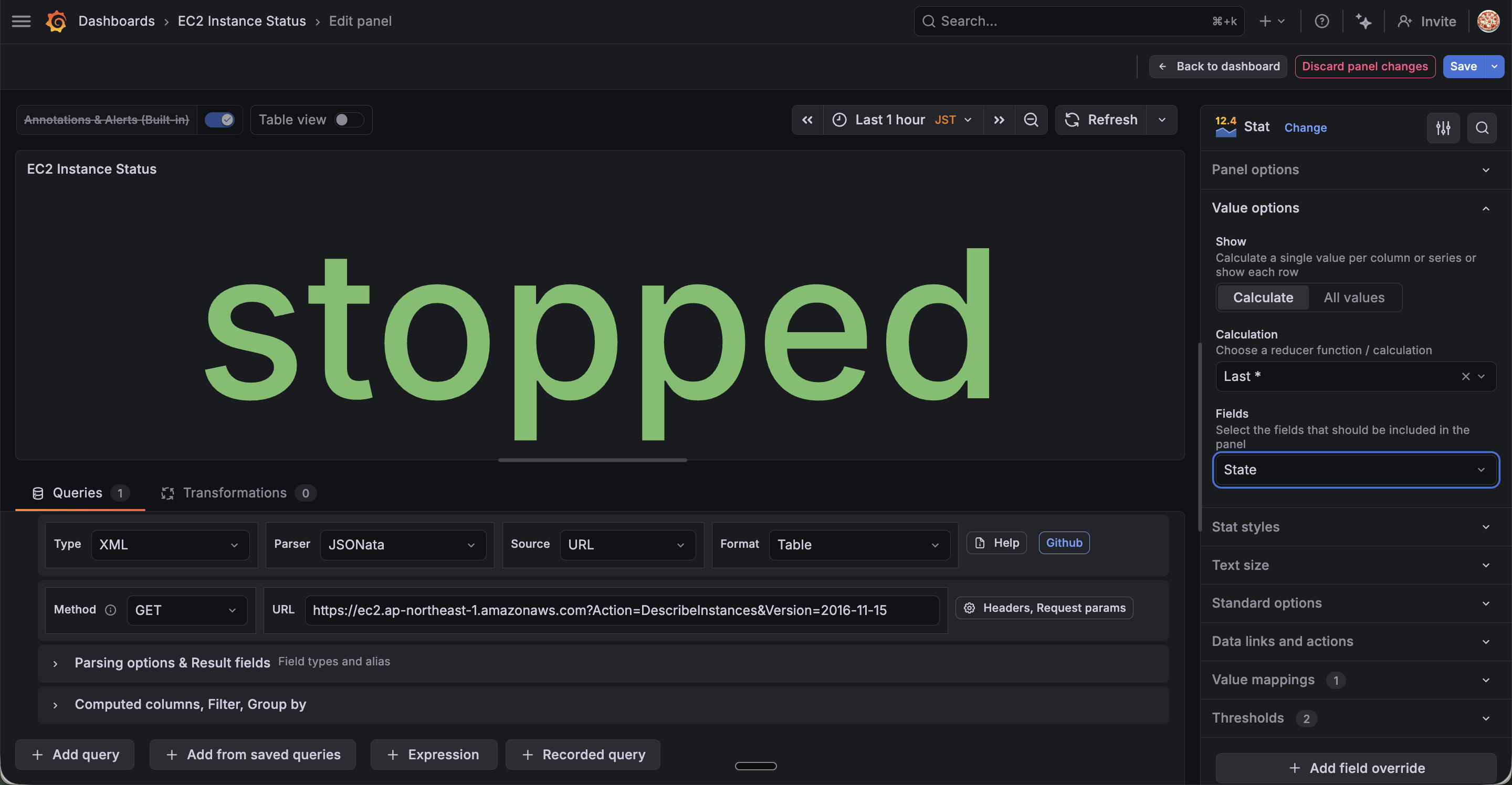
Now we can see the current status, "stopped".
We could call it a day, but let's also make "stopped" red and "running" green.
Map values and colors using Panel options > Value mappings.
In this case:
running → green
stopped → red
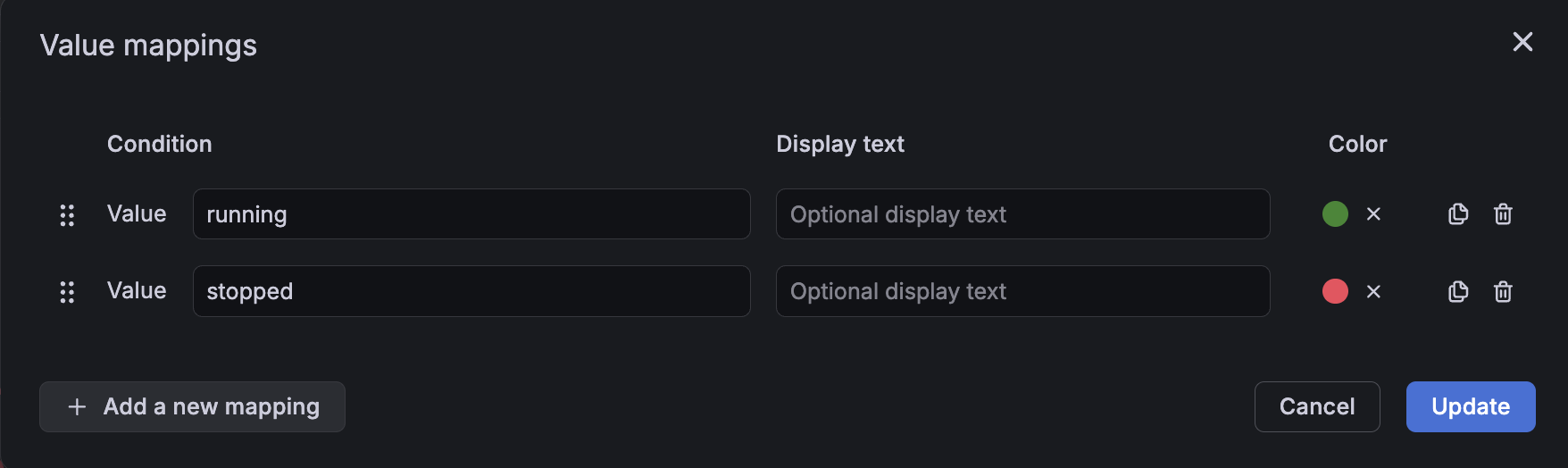
Click Update and Stopped will be displayed in red.
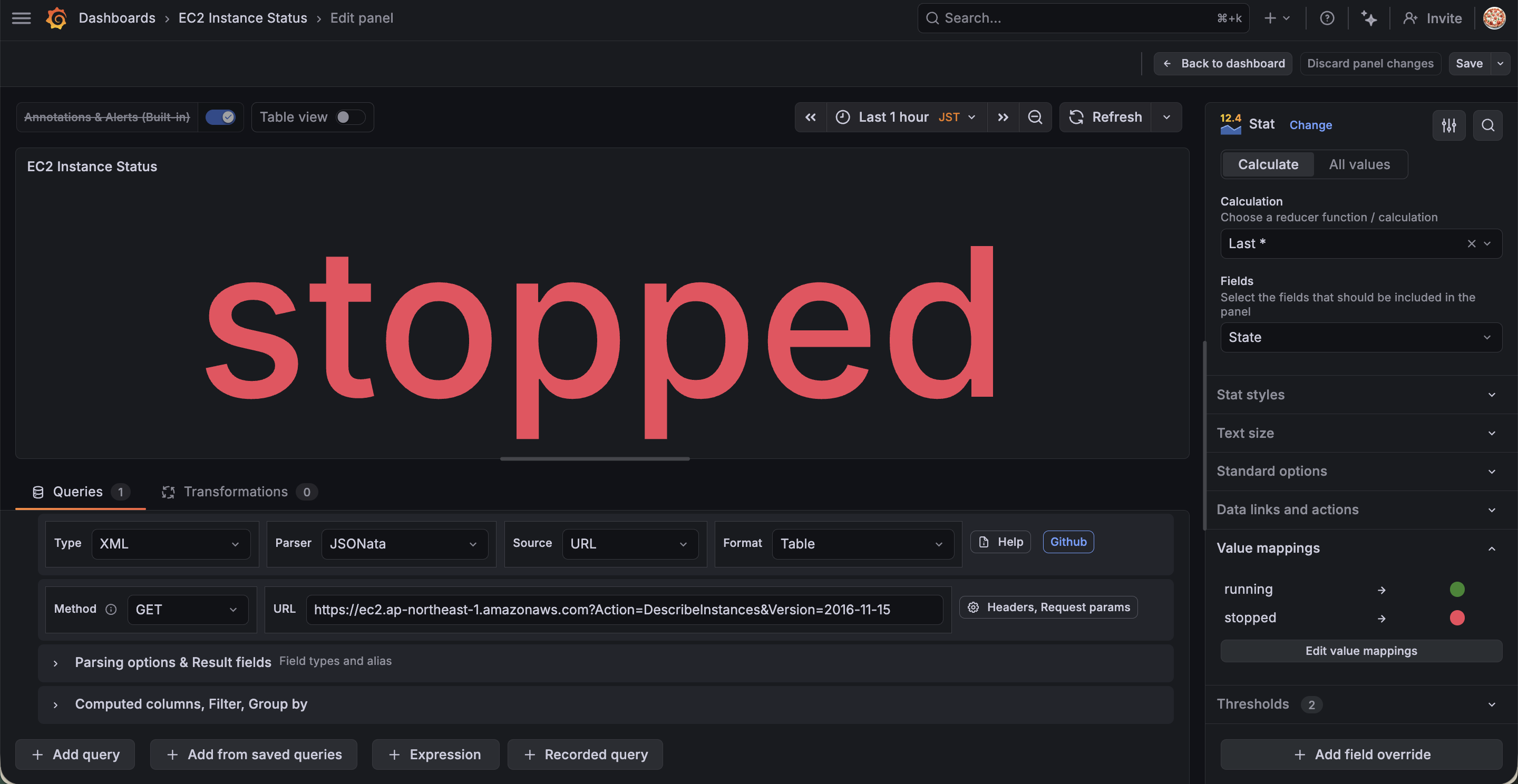
Now we can see the current state at a glance.
Making abnormal values red helps create dashboards where anomalies are easier to notice.
JSON format example: Retrieving Lambda function runtime
While EC2 used XML format, some AWS services return responses in JSON format.
Here, let's retrieve a list of Lambda functions as an example of JSON format.
Whether the format is XML or JSON is specified in the API Reference.
From an operational perspective, Lambda runtime versions are items you want to check regularly.
Lambda runtimes have support periods, and security patches are no longer applied to deprecated runtimes.
Displaying them on a dashboard makes it easier to identify functions that need updates.
Data source configuration
The basic setup is the same as for EC2 so I'll skip the details, but
for Lambda, set Service and Allowed hosts as follows:
| Setting Item | Value |
|---|---|
| Service | lambda |
| Allowed hosts | https://lambda.ap-northeast-1.amazonaws.com |
Also, I've attached the AWSLambda_ReadOnlyAccess policy to the IAM user.
Query configuration
Lambda uses REST API format, so the URL structure differs from EC2's Query API.
It specifies the API version and resource in the path.
| Setting Item | Value |
|---|---|
| Type | JSON |
| Parser | JSONata |
| Source | URL |
| Format | Table |
| Method | GET |
| URL | https://lambda.ap-northeast-1.amazonaws.com/2015-03-31/functions |
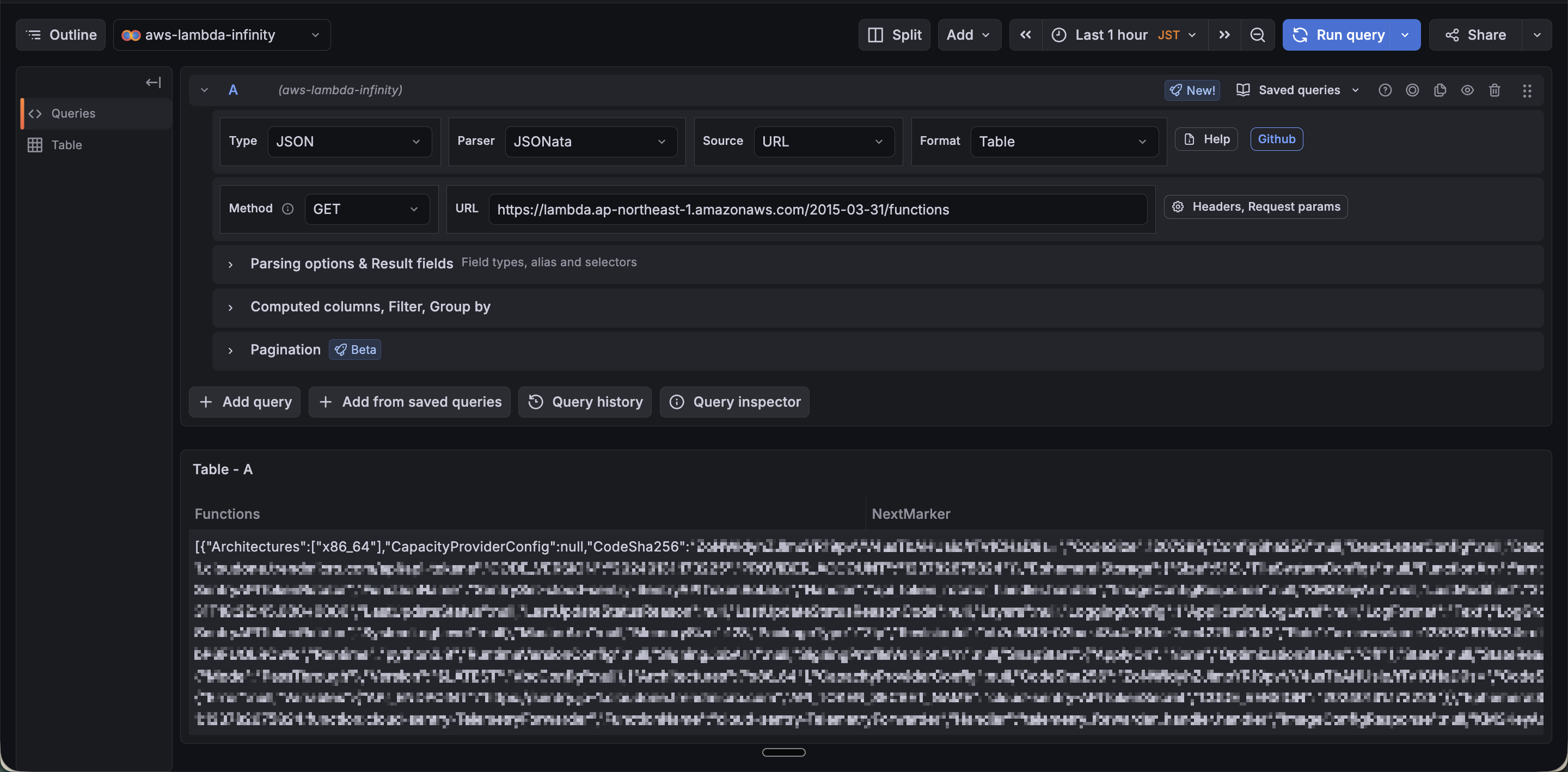
Unlike EC2, since the response is in JSON format, we select JSON as the Type.
Setting Rows/Root and Columns
The ListFunctions API response has the following JSON structure:
{
  "Functions": [
    {
      "FunctionName": "lambda-promtail",
      "Runtime": "provided.al2023",
      ...
    },
    {
      "FunctionName": "my-function",
      "Runtime": "python3.9",
      ...
    }
  ]
}
For JSON format, you don't need to traverse deep nesting like XML; you simply specify the key name.
Set Functions as Rows/Root, and configure the items needed for runtime monitoring in Columns.
| Selector | as | Type |
|---|---|---|
FunctionName |
Function Name | String |
Runtime |
Runtime | String |
Specifying Rows/Root and Columns is simpler for JSON format compared to XML.
The key names directly correspond to the response structure in the API Reference, making it intuitive.
Now let's actually execute the query.
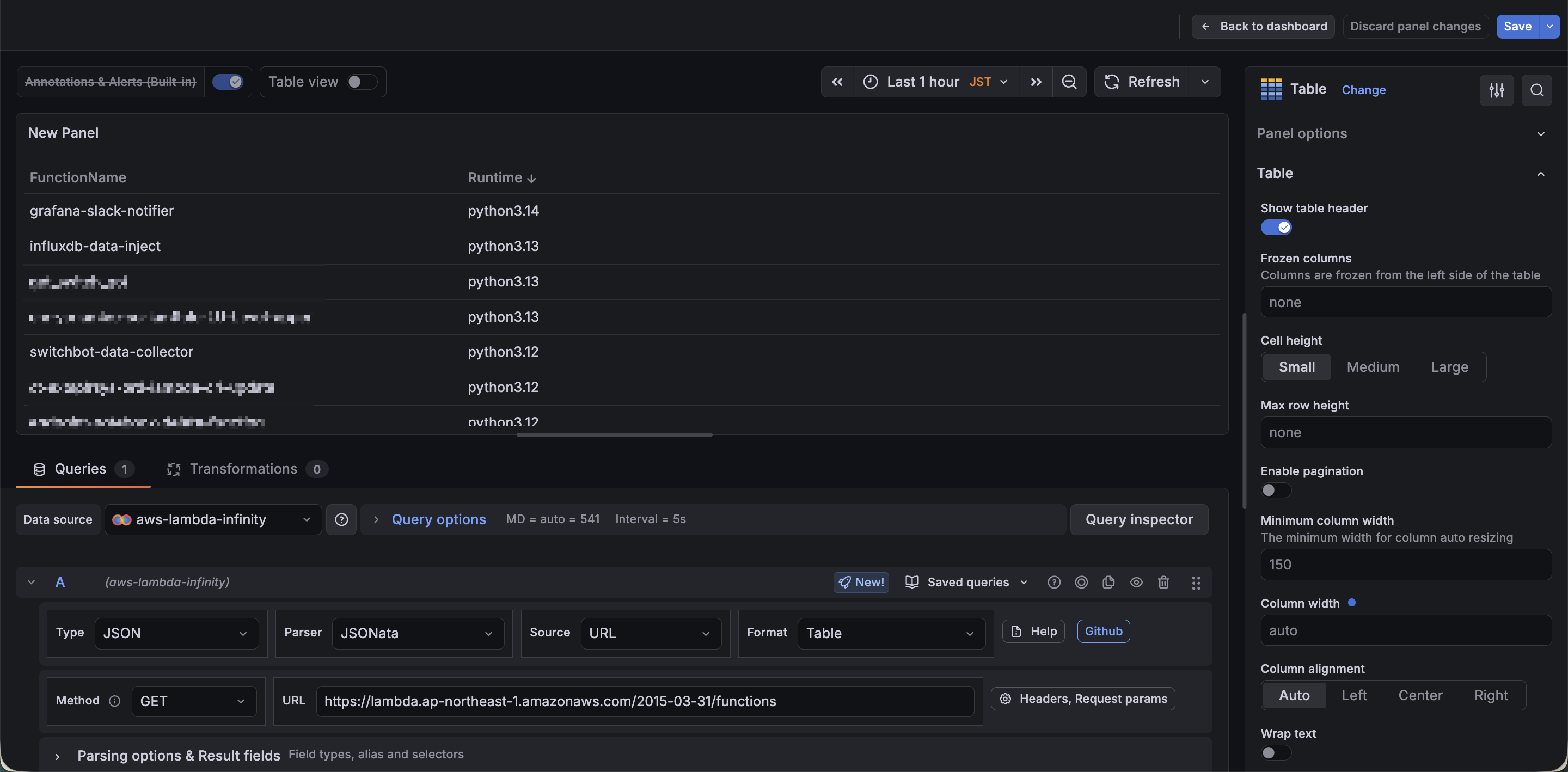
We successfully displayed a list of function names and runtimes.
We've confirmed that the Infinity plugin can display API execution results for AWS services that output in JSON format as well.
Summary
In this article, we were able to display AWS API on a dashboard using the Grafana Infinity plugin.
Since response formats differ by AWS service, it's a good idea to check the API Reference beforehand.
The Infinity plugin can be used with other AWS services besides EC2 and Lambda in the same way.
Consider using it when you need to retrieve data from services that aren't covered by data sources provided by Grafana, such as Athena or Timestream.