How to resolve the issue where Google Documents open in preview mode when accessed from Google Drive

This page has been translated by machine translation. View original
Good evening, this is Chiba (Yuki).
Today I'd like to introduce a minor but annoying issue I was facing and how I resolved it.
As the title suggests, I was troubled by "Google Documents opening in preview mode when opened from Google Drive". In my case it was with Google Docs, but the same issue can occur with Google Sheets or Google Slides.
Because it's such a minor issue, I had trouble finding information about it and had nearly given up, but I stumbled upon a solution by chance. Since I think about 3 people might face the same minor issue in the future, I'm documenting this for them.
The Solution First
If Google Documents open in preview mode when opened from Google Drive, check if "Use by default" is checked in Google Drive "Settings" → "Manage Apps".
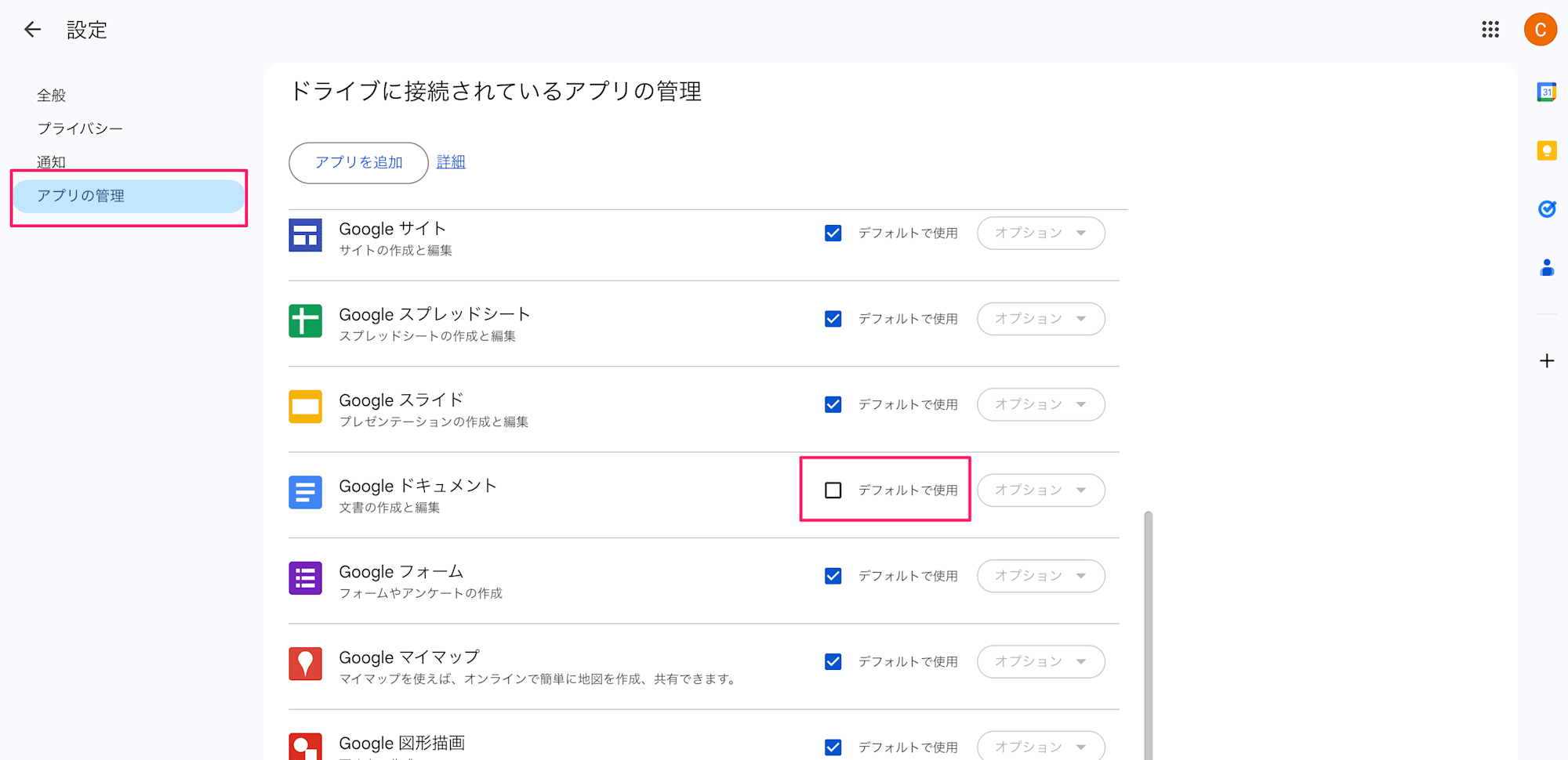
When this issue occurs, the checkbox is likely unchecked. If the issue persists even with the checkbox checked, I'm sorry but this blog doesn't have a solution for you.
My Environment
While I don't think this is particularly dependent on OS or browser, I tested in the following environment:
- macOS
- Google Chrome
What Was the Issue?
You might not understand what "Google Documents opening in preview mode from Google Drive" means, so let me explain further.
I have files in Google Drive created from Google Docs templates.
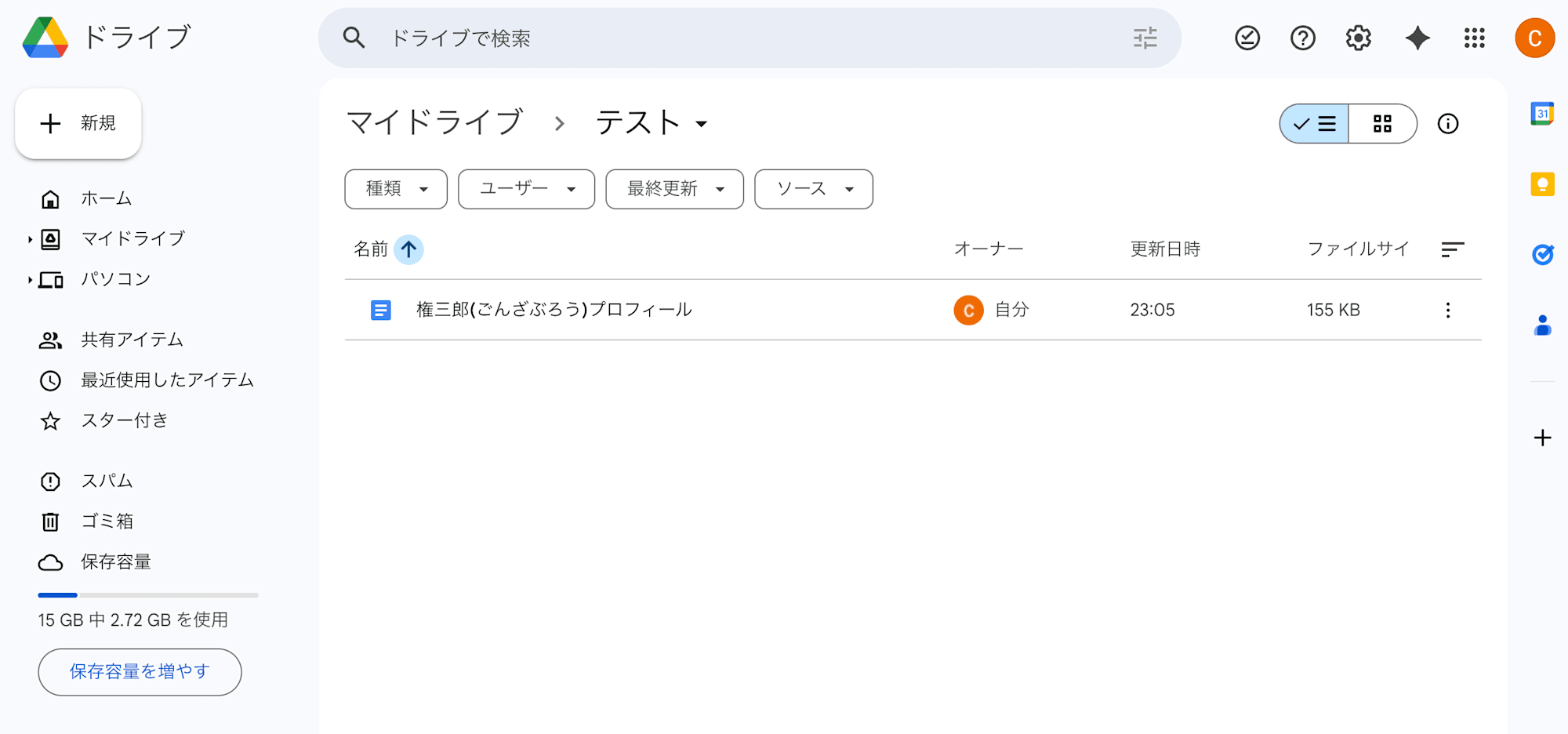
When I double-click these files, they open in preview mode.
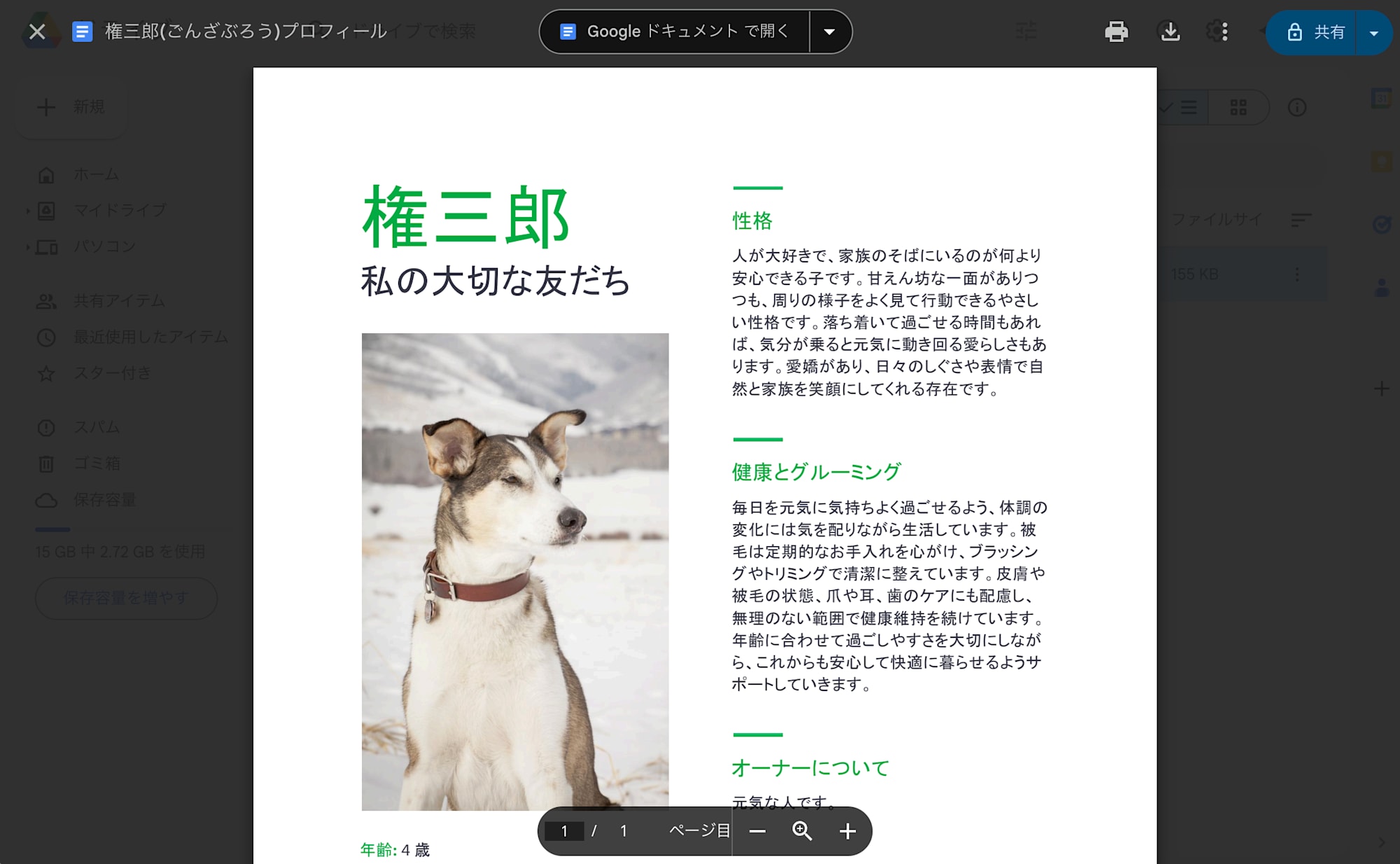
I then have to click "Open in Google Docs" at the top of the preview screen to get to the Google Docs editing screen.
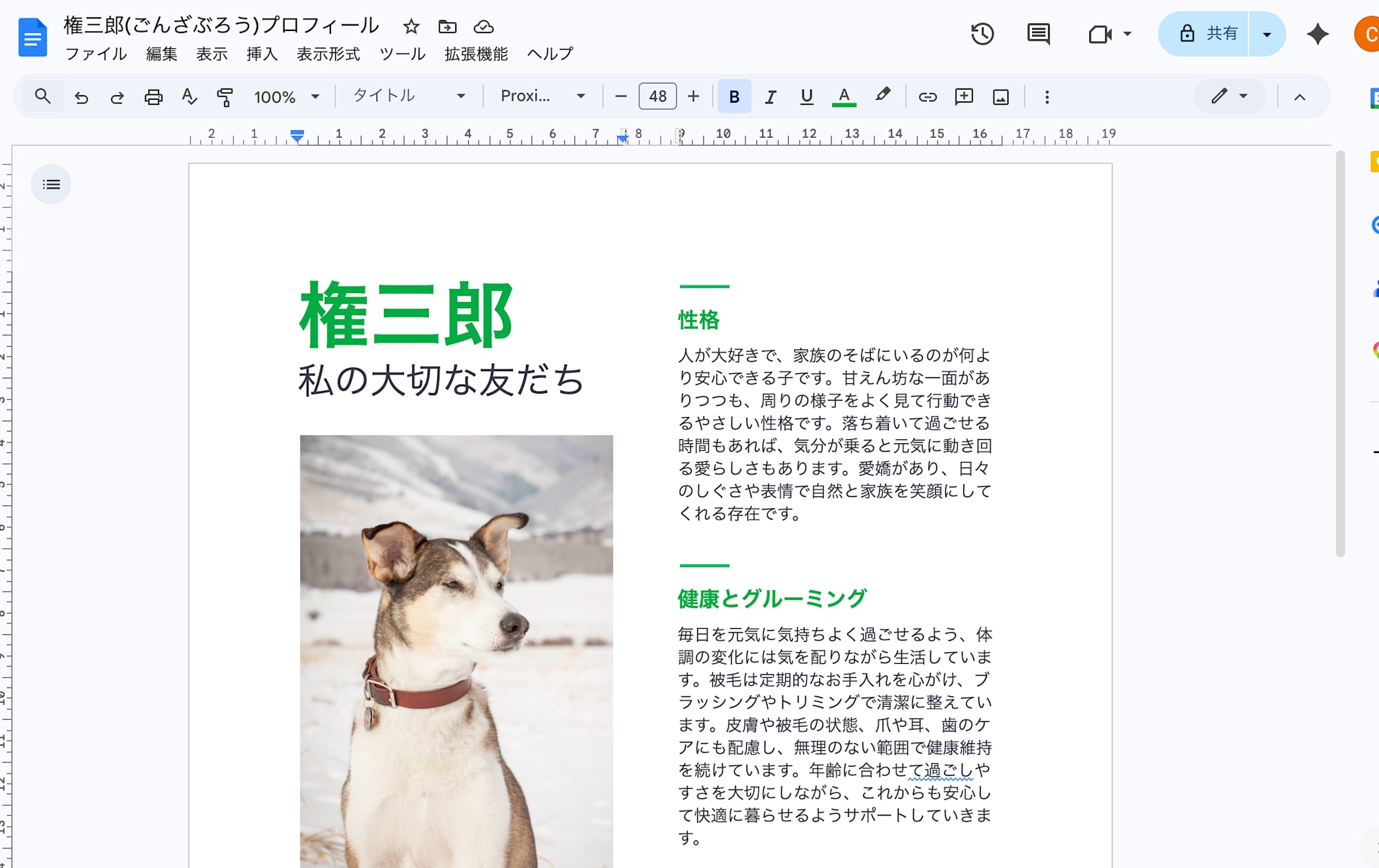
👆Ideally, I'd want to go straight to this screen when double-clicking a file in Google Drive.
What should be a 1-step "double-click to open" becomes a 2-step "open in preview then click a button" process, which is subtly annoying.
I could also select the file, right-click or use the ︙ menu at the top of the screen to select "Open with app", and choose "Open in new tab" or "Google Docs" to open the Google Docs editing screen. But compared to simply double-clicking, this still adds extra steps.
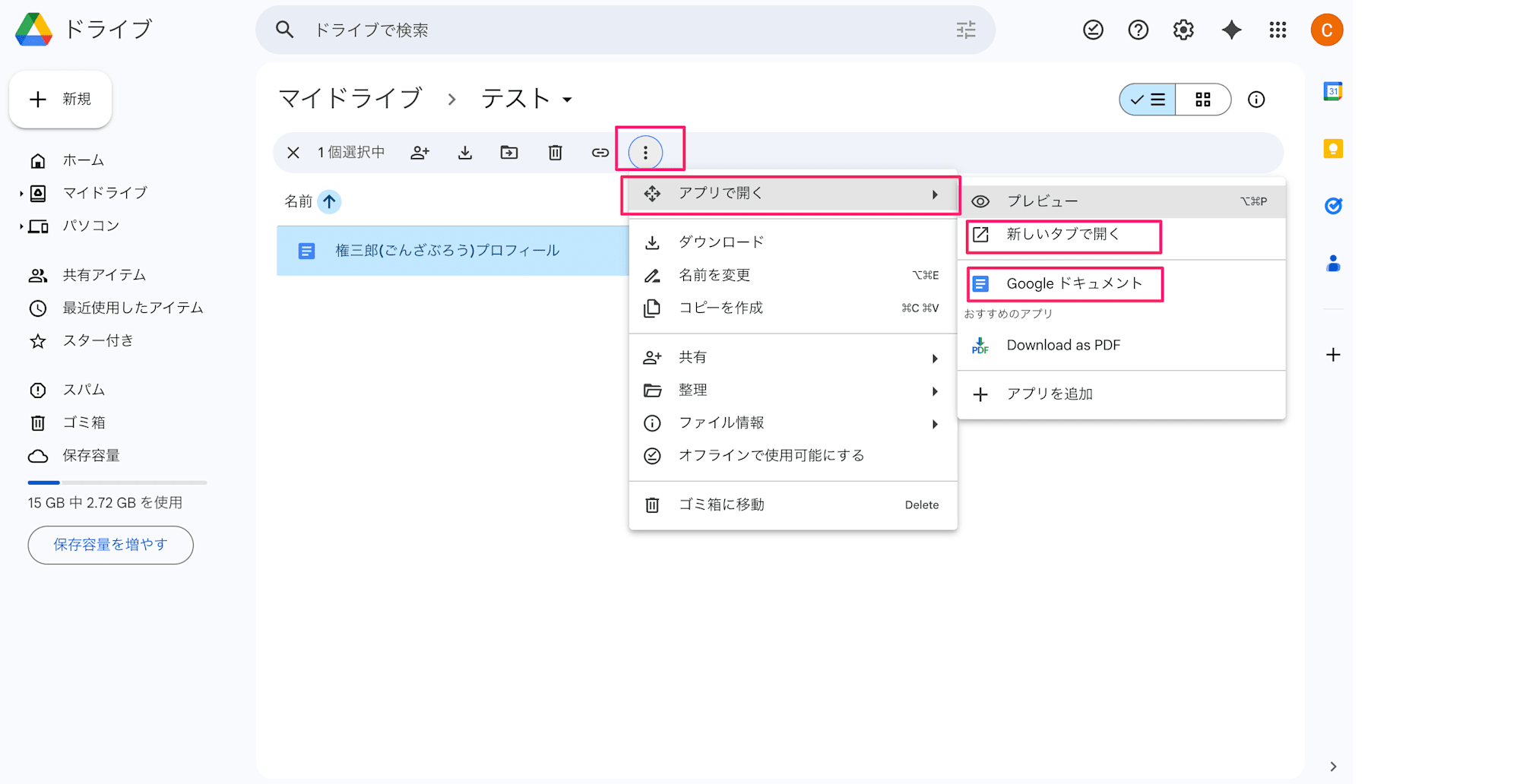
This was the issue I was facing.
How I Fixed It
As mentioned at the beginning, I resolved this by checking the settings in Google Drive's "Settings" → "Manage Apps".
You can access "Settings" from the gear icon at the top of Google Drive.
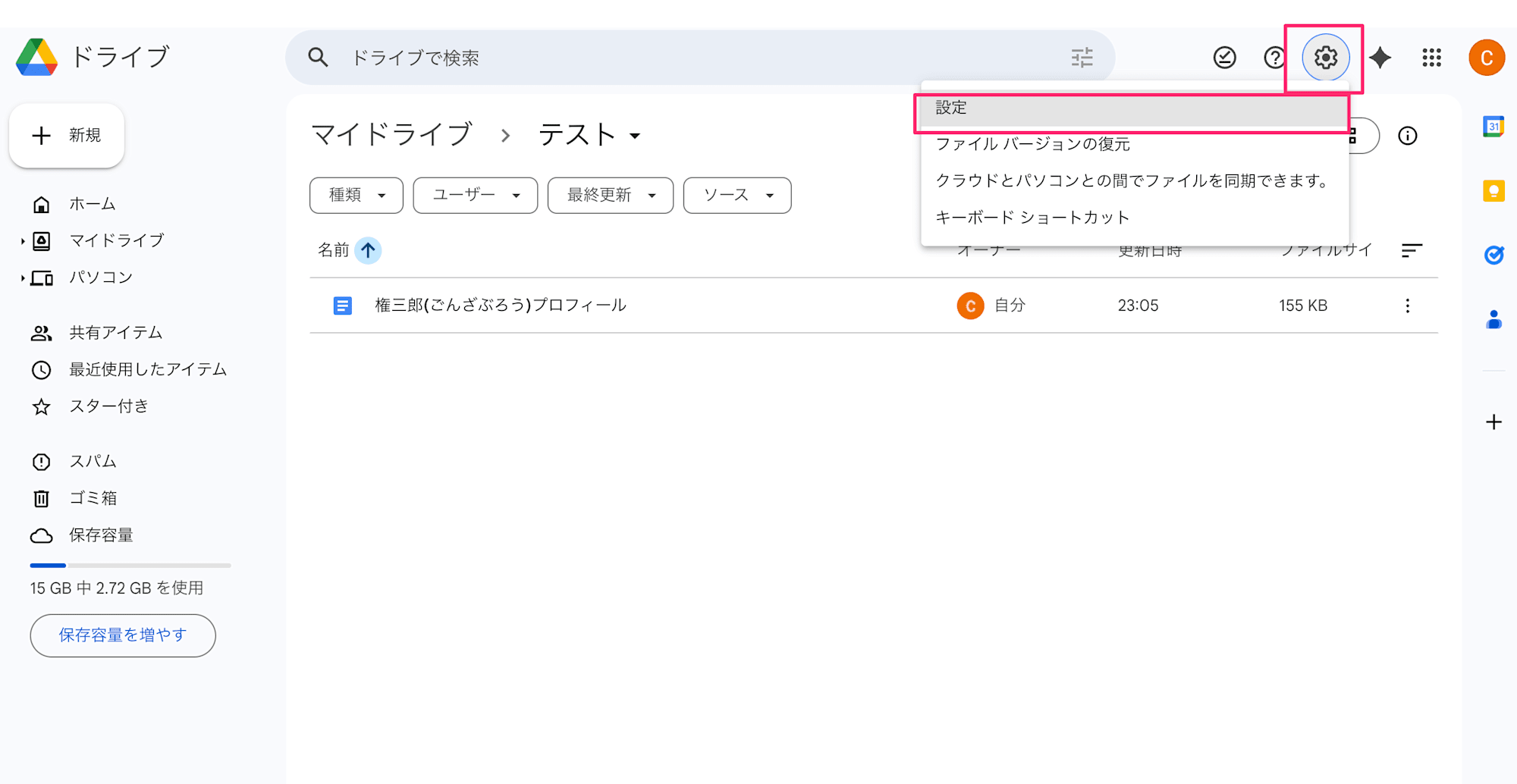
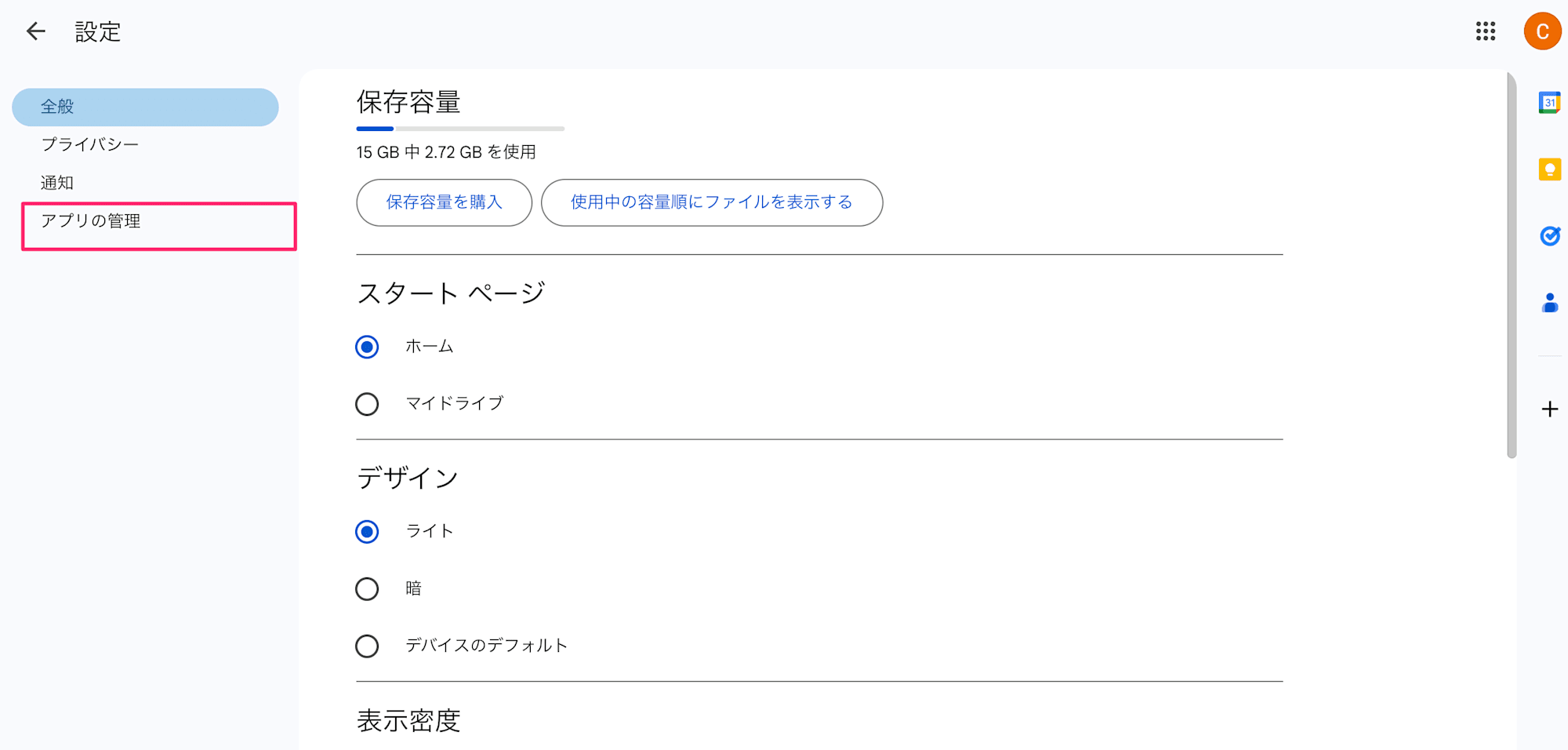
Click "Manage Apps" in the left pane of the "Settings" screen.
This takes you to a screen where you can manage apps connected to Drive. Here I found that the "Use by default" checkbox for Google Docs was unchecked.
I checked the box.
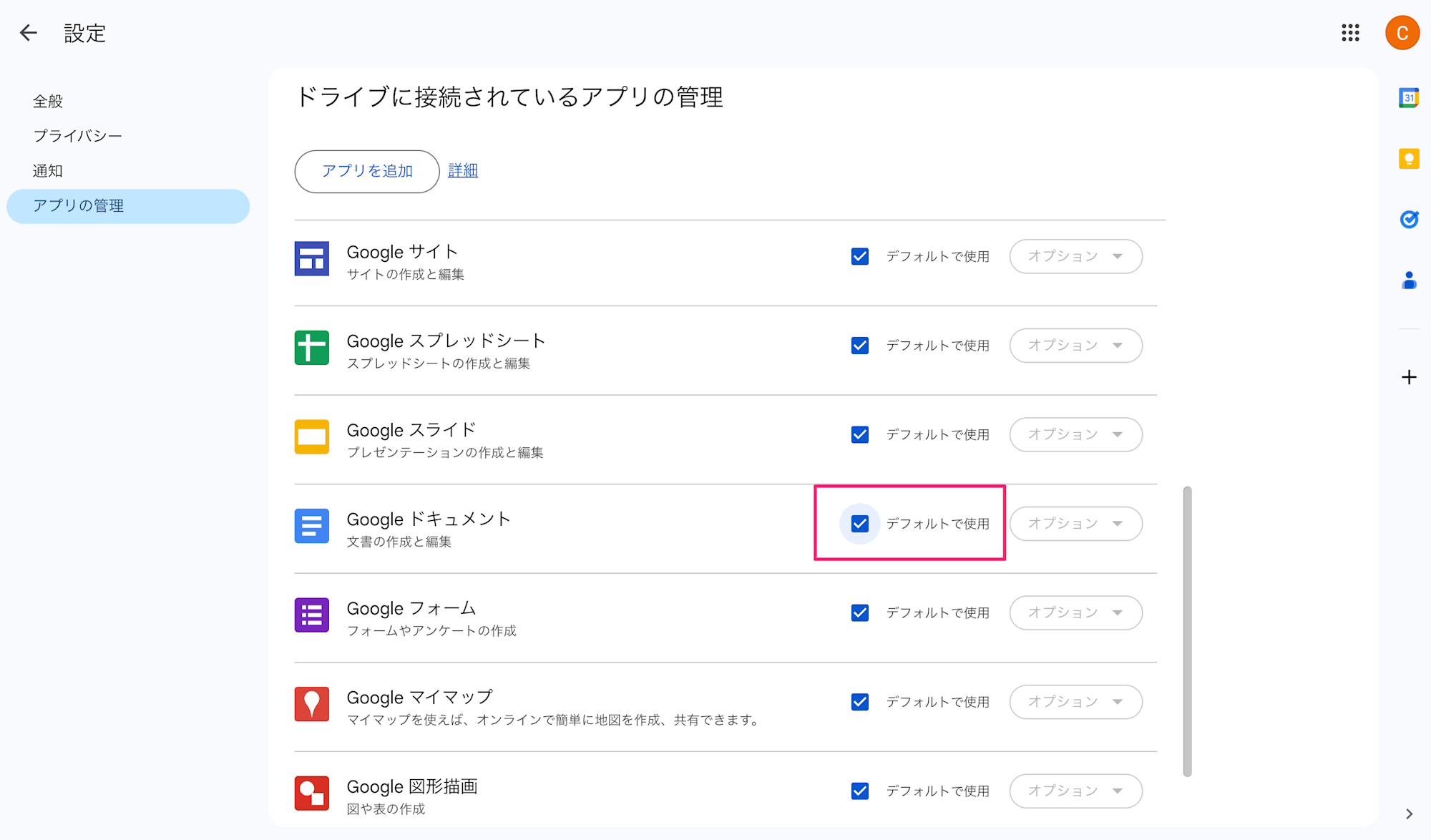
👆This setting change resolved the issue. I could now double-click Google Docs files in Google Drive and they would open properly in Google Docs.
Why Did This Issue Occur?
The exact cause is unclear. I might have unchecked this setting in the past. It's also possible that I had set another app as the default through the Google Workspace Marketplace (and later removed it).
The Key Takeaway
If Google Documents open in preview mode when opened from Google Drive, check if "Use by default" is checked in Google Drive's "Settings" → "Manage Apps".
Conclusion
This was a minor issue and its solution.
In retrospect, it was a very simple fix, but perhaps because of that, I couldn't find a direct answer through web searches or by asking generative AI chatbots.
As a last resort, I asked in our company chat, and Udon suggested "check this setting." I'd like to express my gratitude again here.
I hope this helps the approximately 3 people who might run into the same minor issue in the future.
This has been Chiba Yuki (@batchicchi). Thank you.