
Installing GitHub Copilot for Xcode

This article was published more than one year ago. Please be aware that the information may be outdated.
This page has been translated by machine translation. View original
GitHub Copilot is an AI coding assistant tool that leverages OpenAI technology. It improves development efficiency by completing code and making suggestions. For details, please check Wakatsuki-san's article "Trying out GitHub Copilot ~Introduction~".
In October 2024, an official extension for Xcode was announced as a public preview, providing support for languages including Swift and Objective-C for Apple developers, and general availability began in February 2025.
In this article, I'll introduce how to set up and use GitHub Copilot for Xcode.
Test Environment
To use GitHub Copilot for Xcode, you need to meet the following conditions:
- macOS version 12.0 or later, Xcode version 8.0 or later
- A GitHub account with access rights to GitHub Copilot
From April 24, 2025, the minimum requirements for uploading apps to App Store Connect will change, requiring builds with Xcode 16 or later (using SDK for iOS 18, iPadOS 18, tvOS 18, visionOS 2, or watchOS 11). Therefore, GitHub Copilot for Xcode should be usable in all environments.
You can use GitHub Copilot Free for free if you want to try GitHub Copilot. I initially used the Free version to confirm it works in my environment before subscribing to GitHub Copilot Pro.
My test environment is as follows:
- Xcode 16.2
- macOS Sequoia 15.3.1
- GitHub Copilot Pro
Setting up GitHub Copilot for Xcode
1. Install GitHub Copilot for Xcode
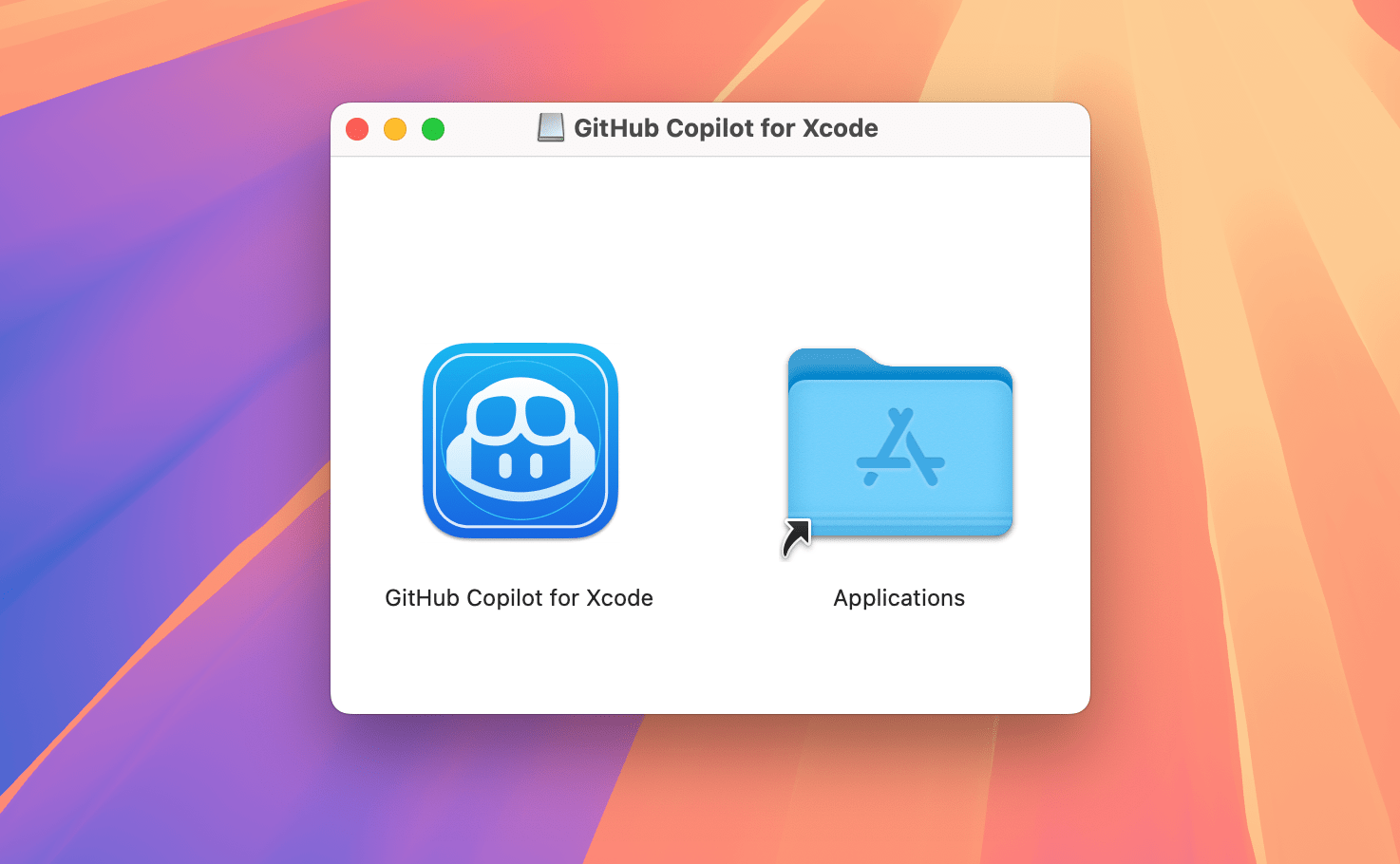
Download the latest stable version of GitHubCopilotForXcode.dmg from the release list. I used "Release 0.31.0" which was the latest at the time of writing. After downloading the dmg file, I dragged it to the Applications folder.
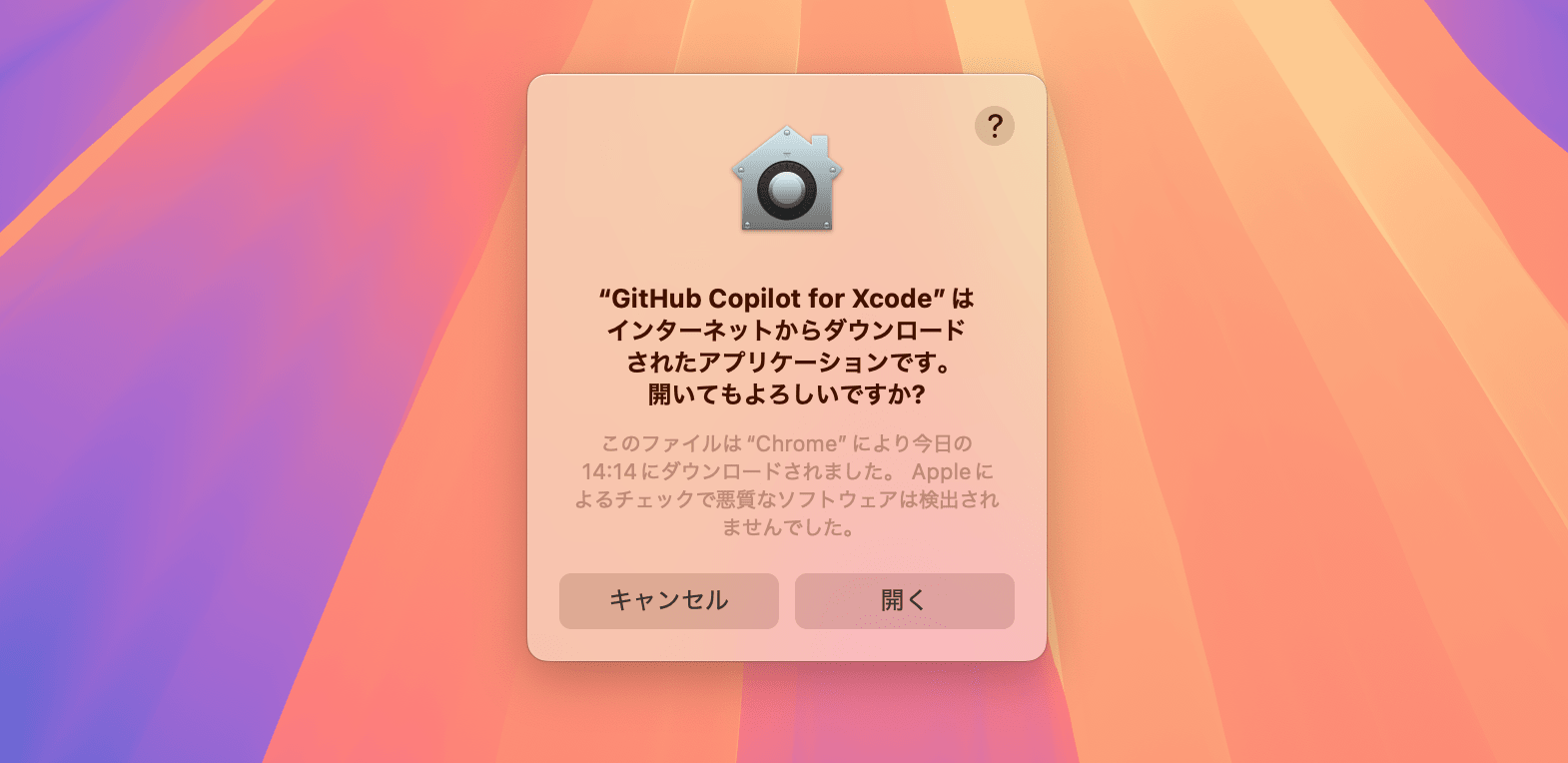
2. Open the application and approve the security warning
Click the [Open] button.
3. Grant the necessary permissions
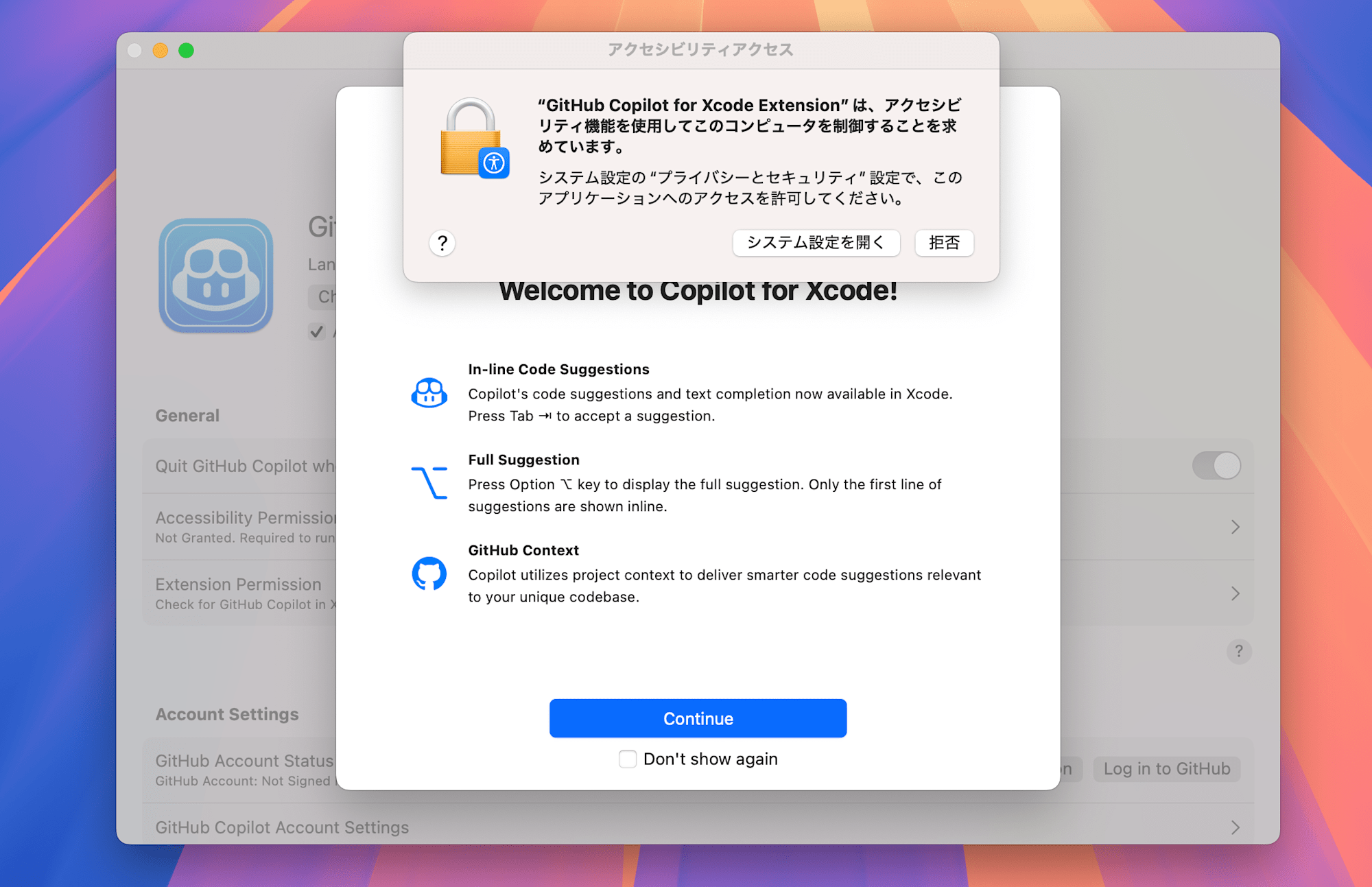
Accessibility permissions are automatically requested on first launch. When the "Accessibility Access" dialog appears, click [Open System Settings].
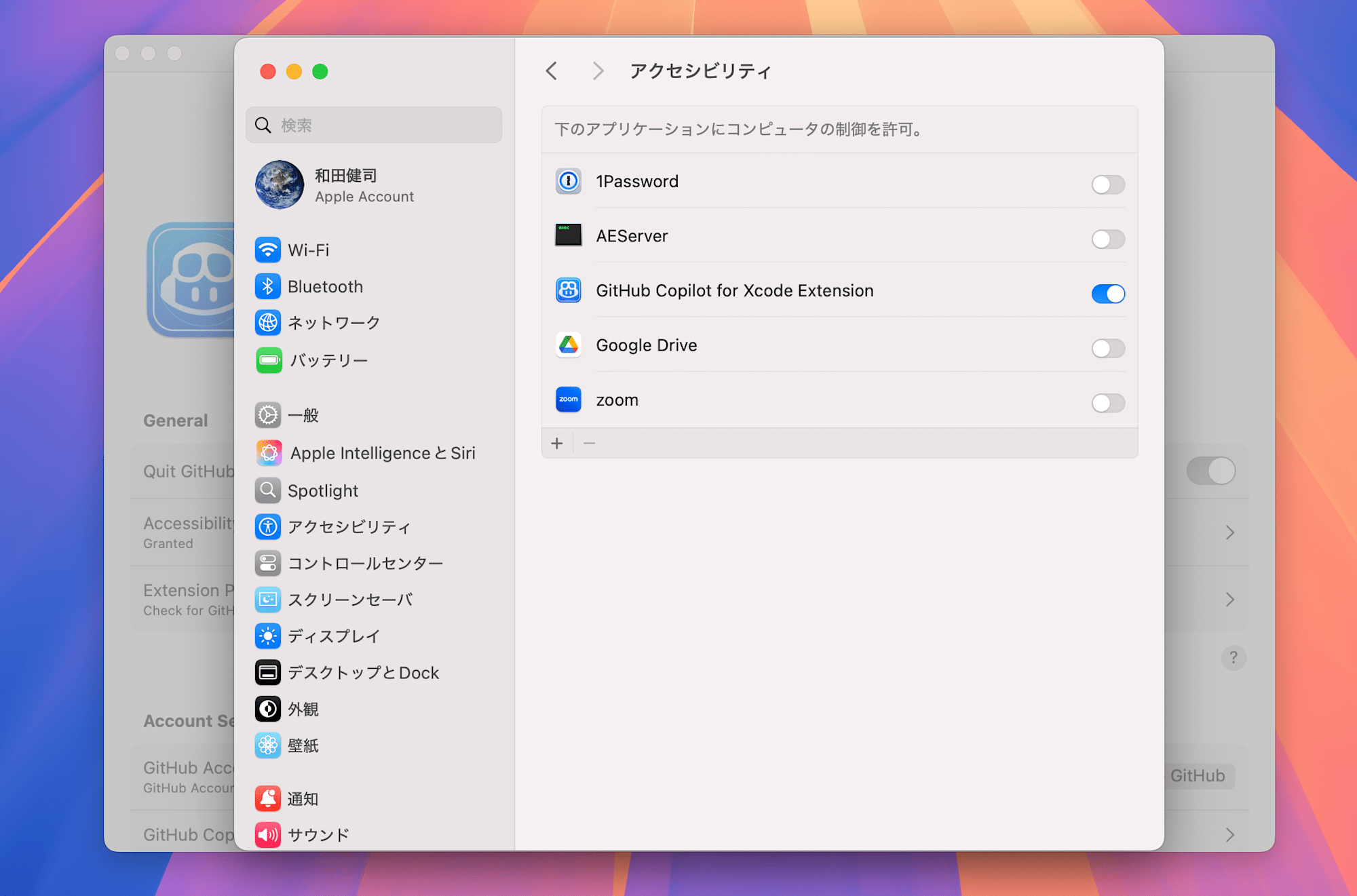
Turn "GitHub Copilot for Xcode Extension" to "ON".
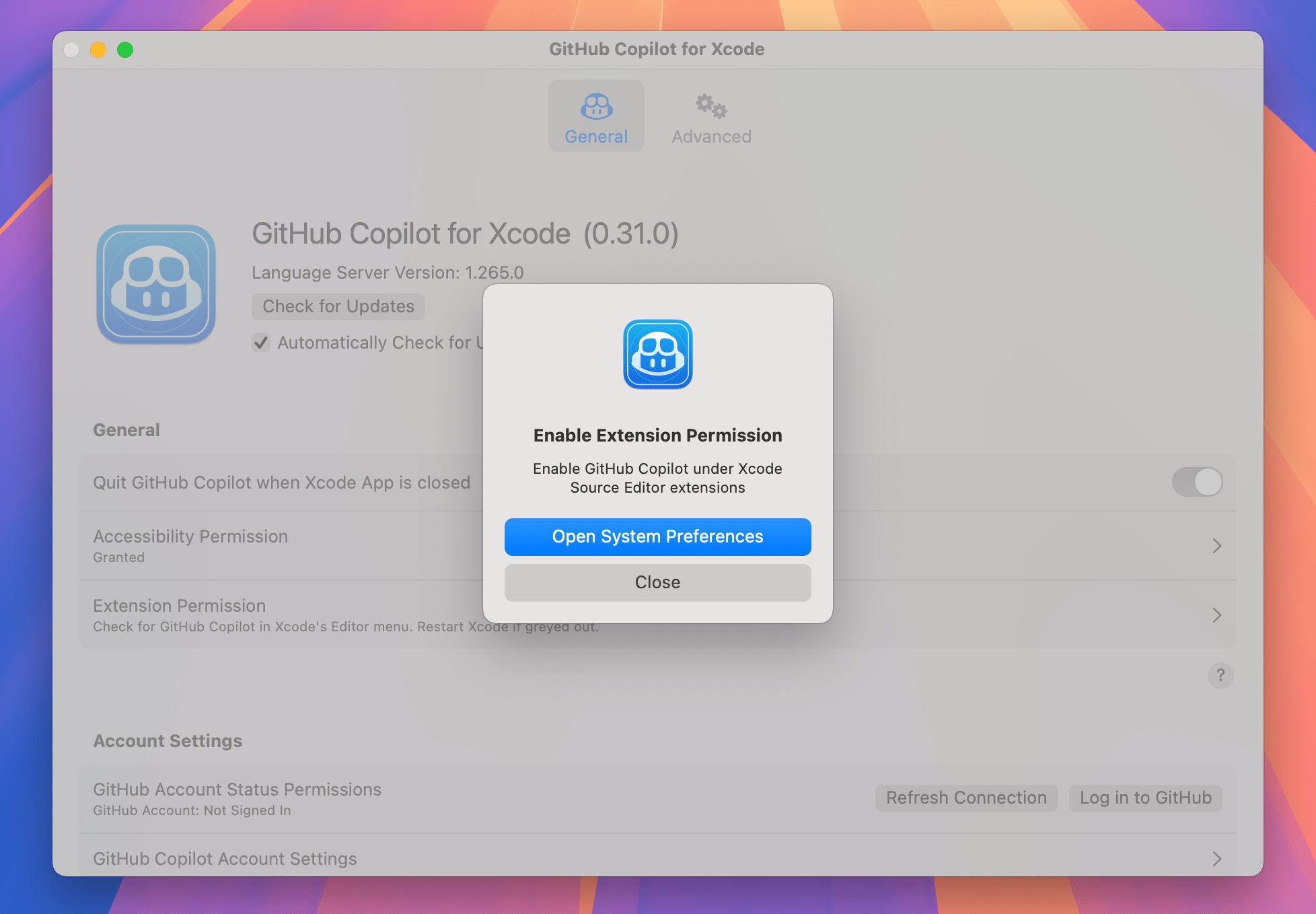
Next, grant permissions to the Xcode Source Editor extension. Click [Open System Preferences].
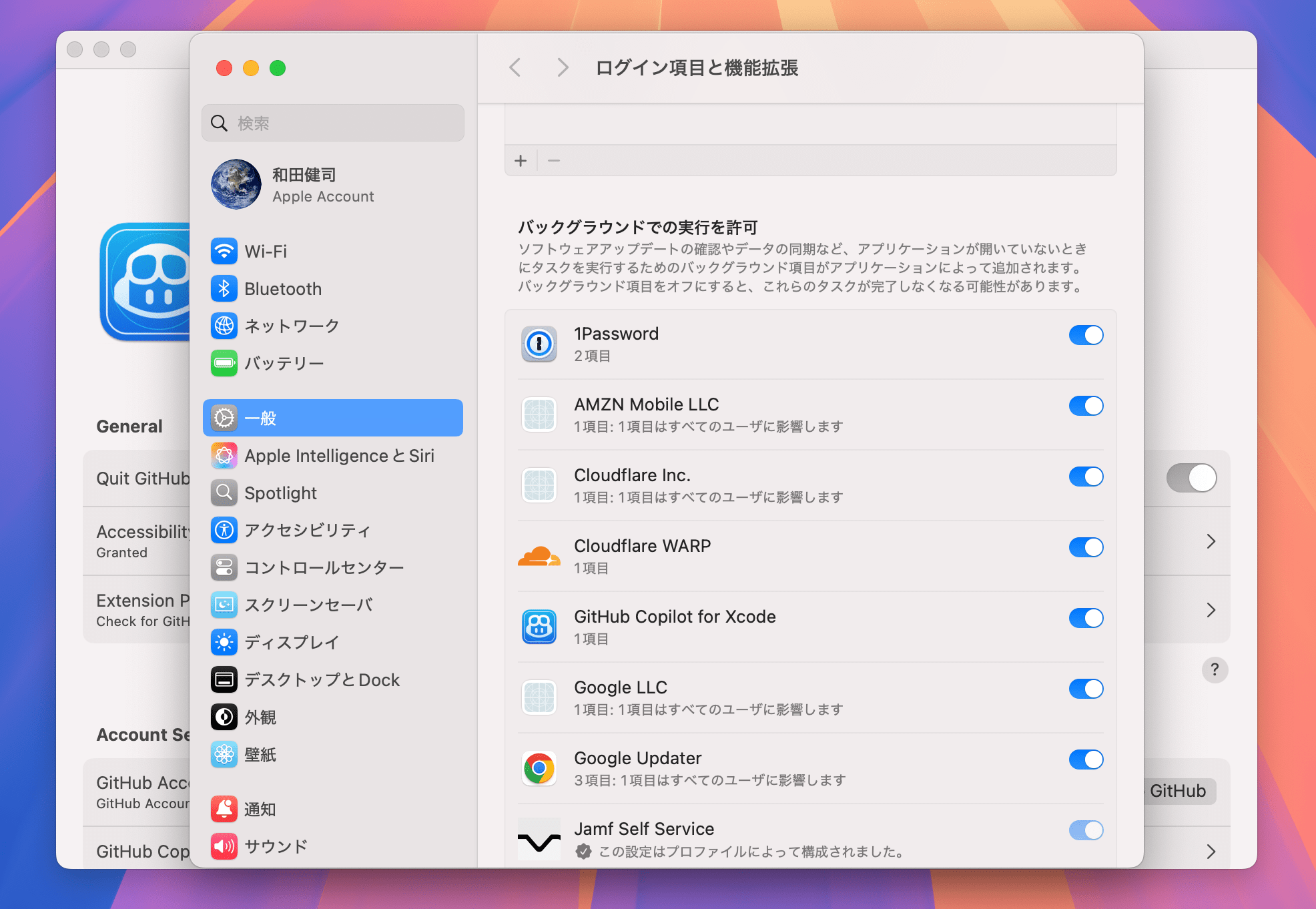
In the [Login Items and Extensions] section, turn "GitHub Copilot for Xcode" to "ON" in the "Allow in Background" section.
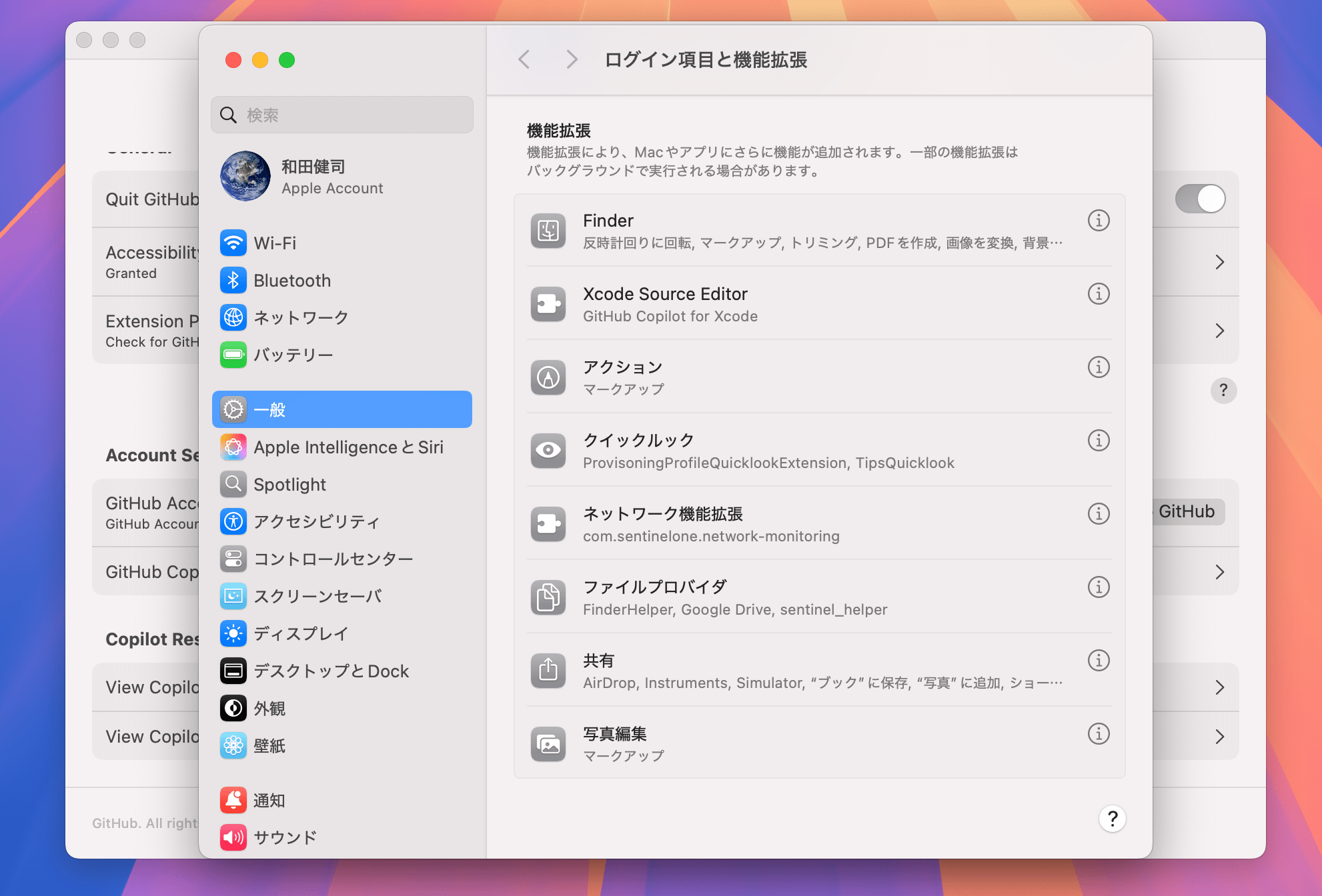
Furthermore, click on the "Xcode Source Editor" item in the "Extensions" section.
Turn "GitHub Copilot for Xcode" to "ON".
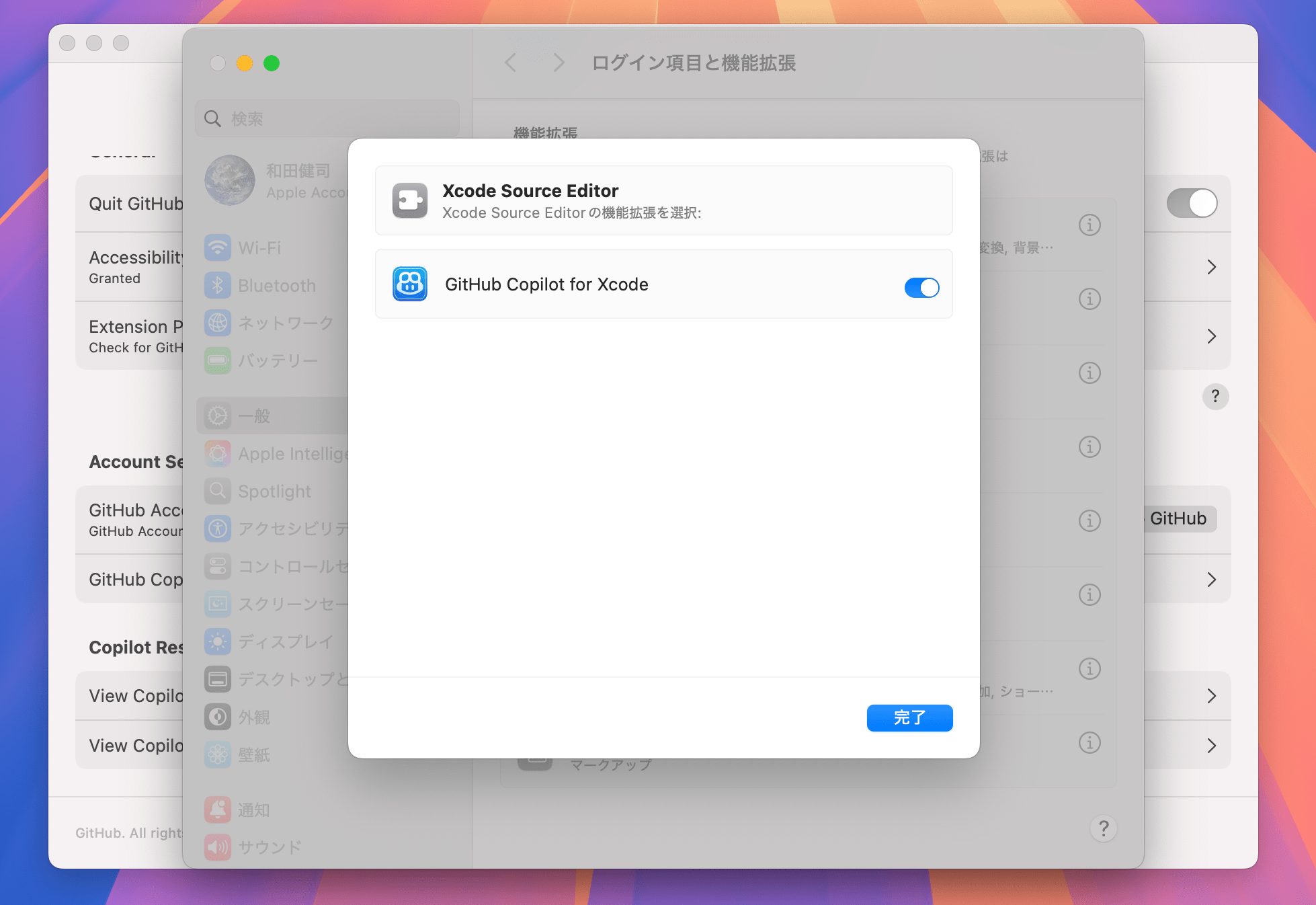
Now GitHub Copilot for Xcode should be running with all the necessary permissions granted.
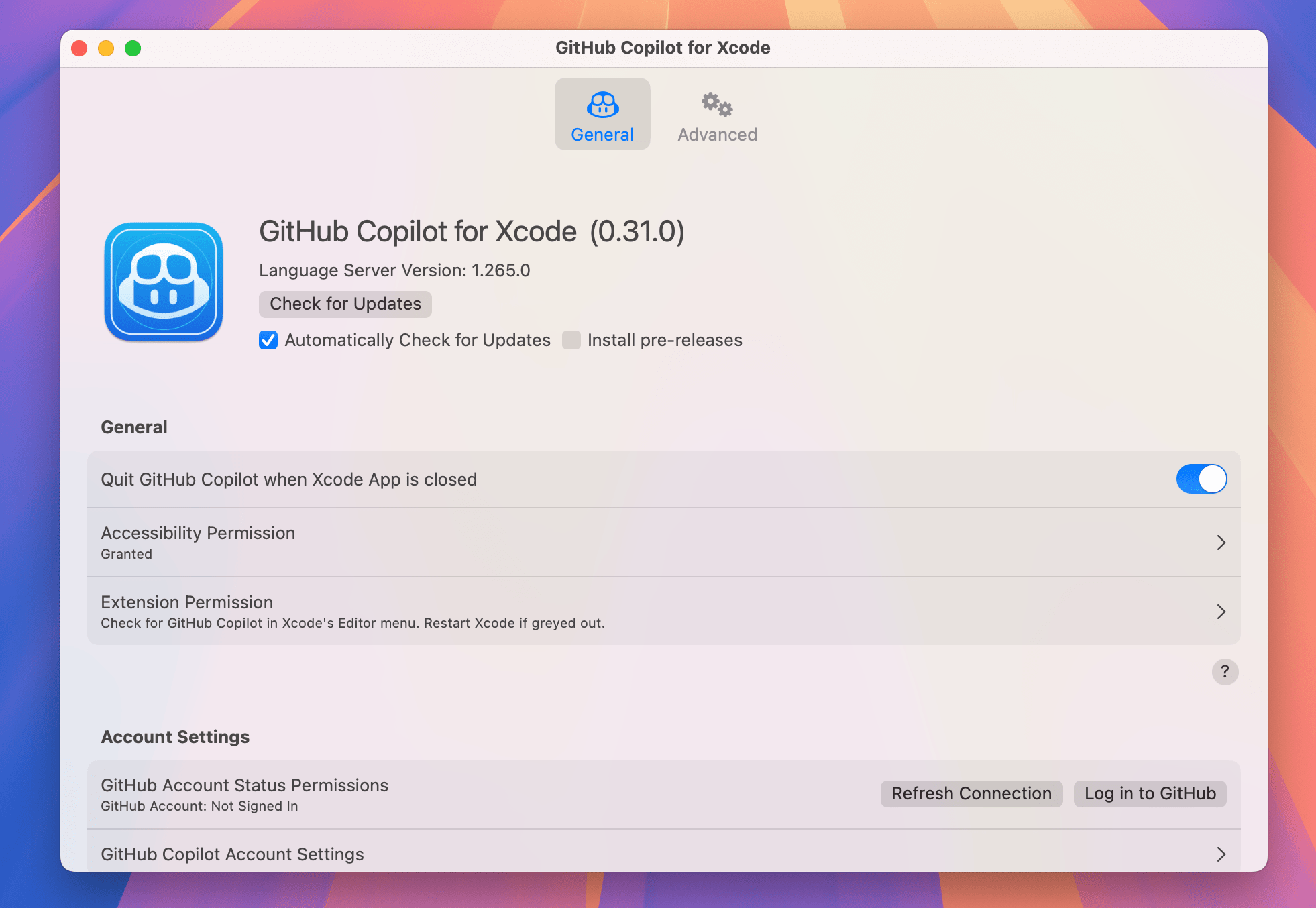
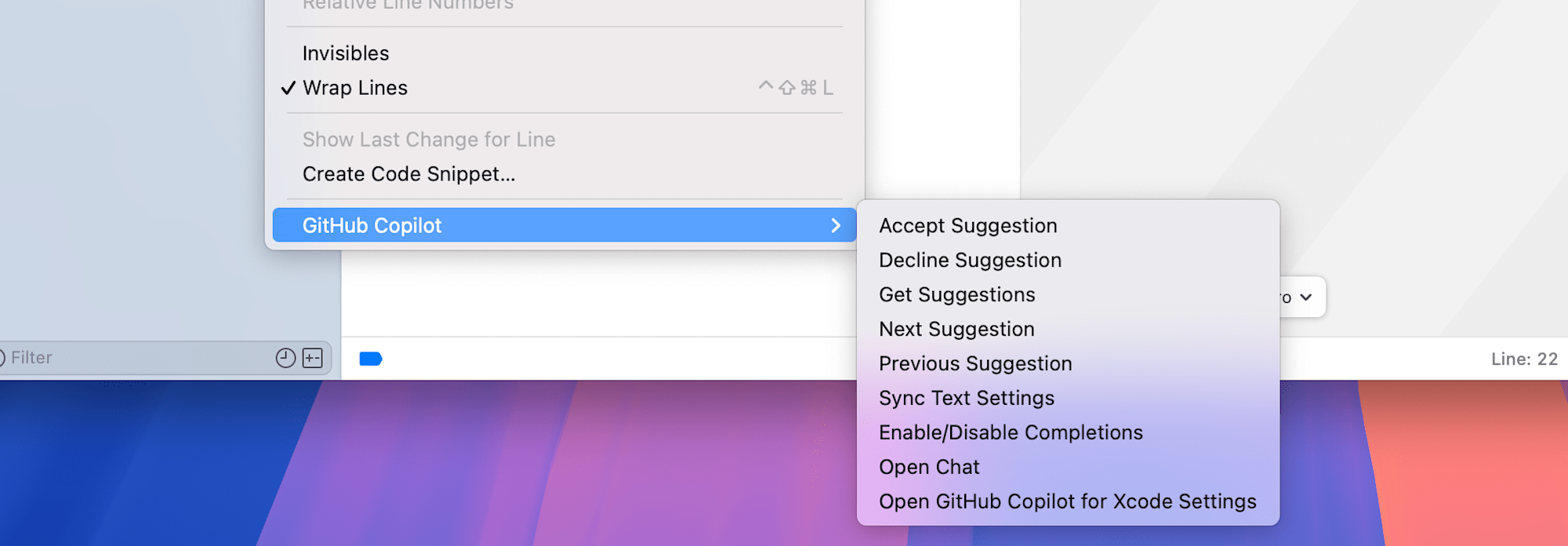
4. Open Xcode and check that "GitHub Copilot" appears in the "Editor" menu
"GitHub Copilot" should be added at the bottom of the [Editor] toolbar. Click [Open Chat] to open the chat UI.
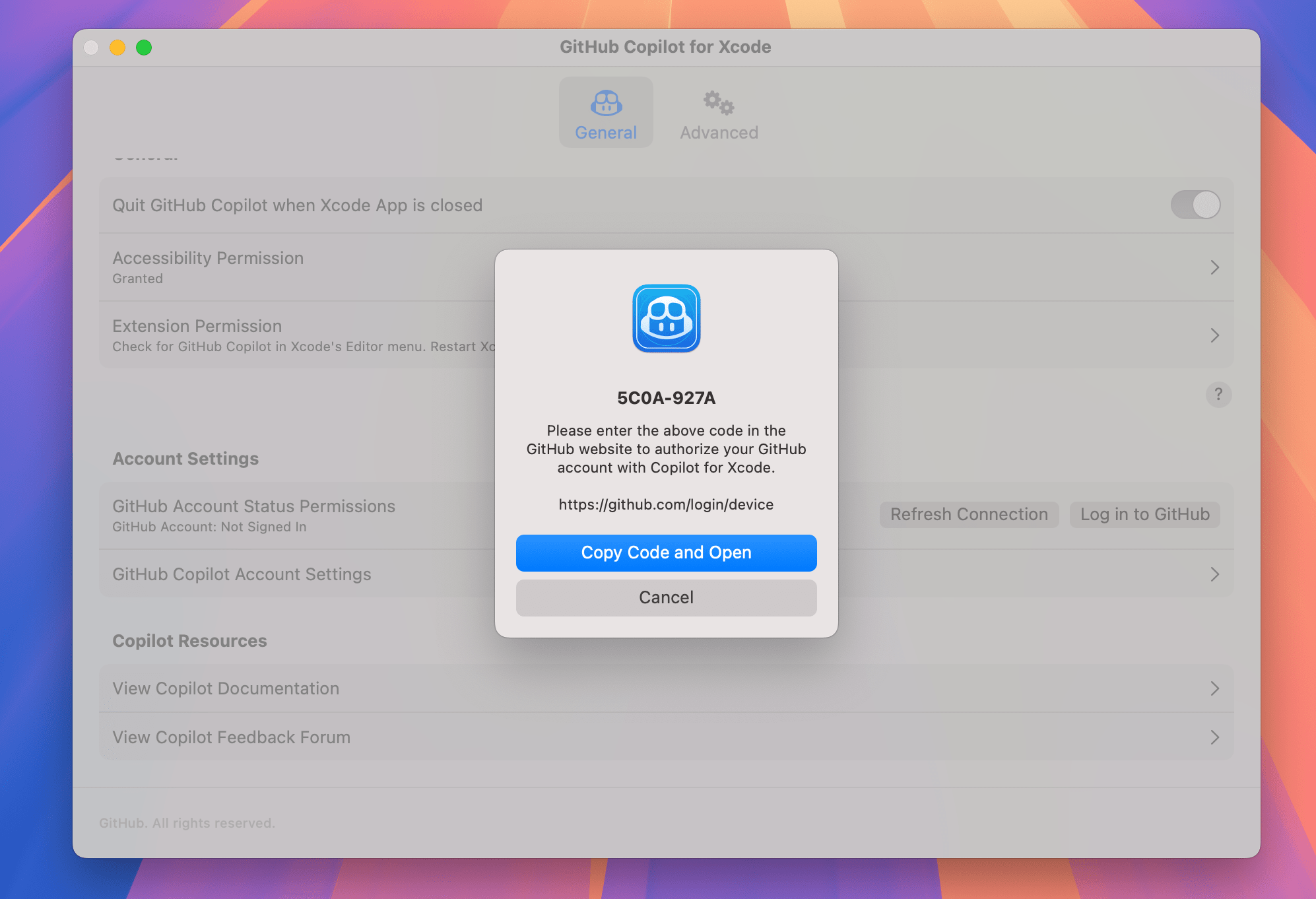
5. Click the "Log in to GitHub" button from the application settings to sign in to GitHub
Return to GitHub Copilot for Xcode and click the "Log in to GitHub" button. Copy the GitHub connection code to the clipboard and open the GitHub website.
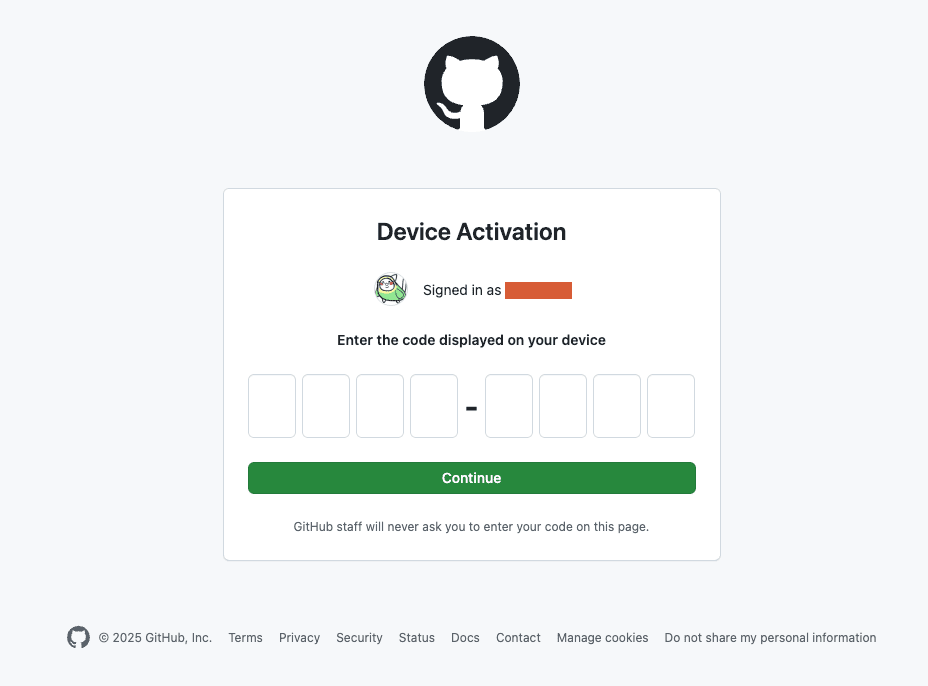
Enter (paste) the code you just copied.
Click [Authorize GitHub Copilot Plugin] to authorize the use of the GitHub Copilot plugin.
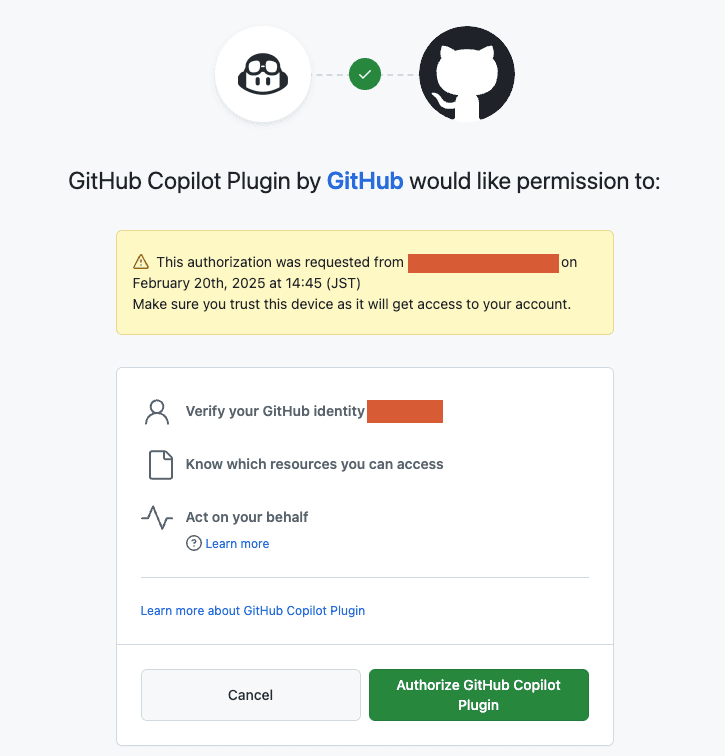
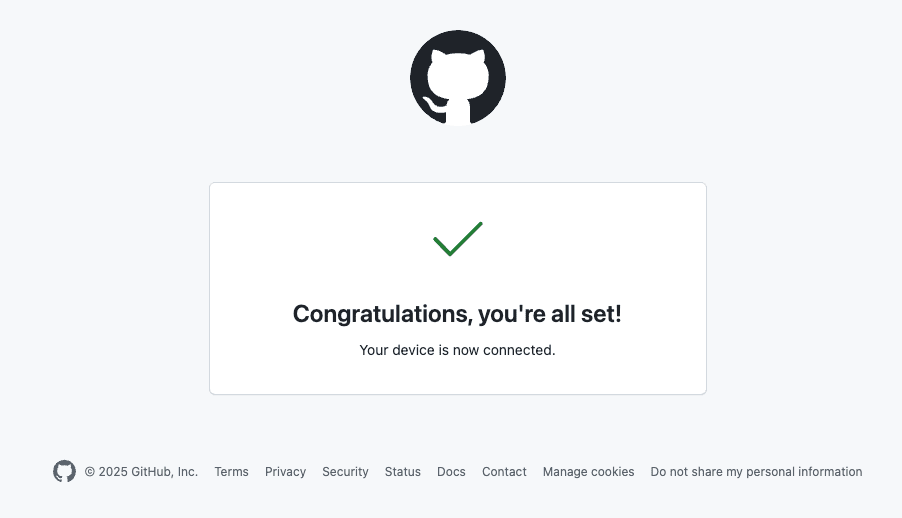
Login is now complete.
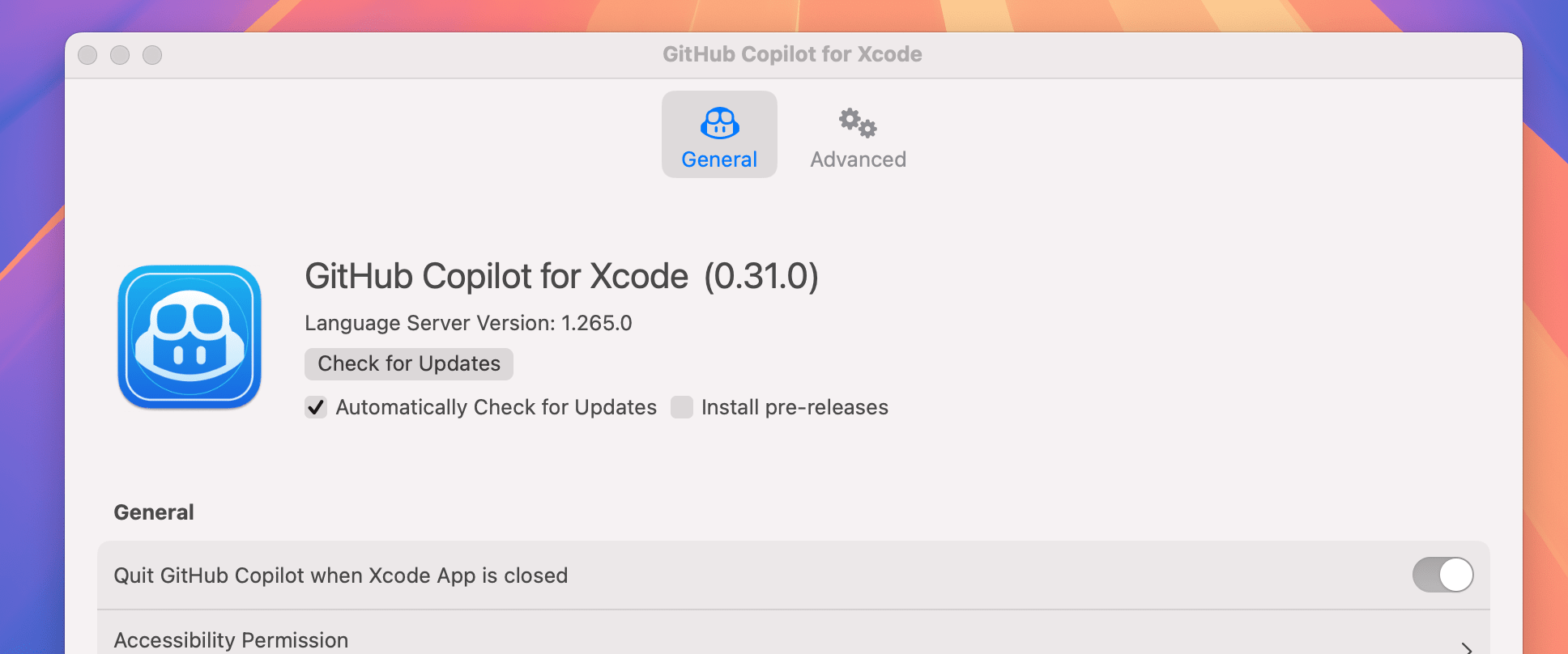
6. Updates can be performed from "Check for Updates"
To update GitHub Copilot for Xcode, click the "Check for Updates" button. Note that you'll need to restart Xcode after installing a new version.
7. Disable "Predictive code completion" in Xcode settings
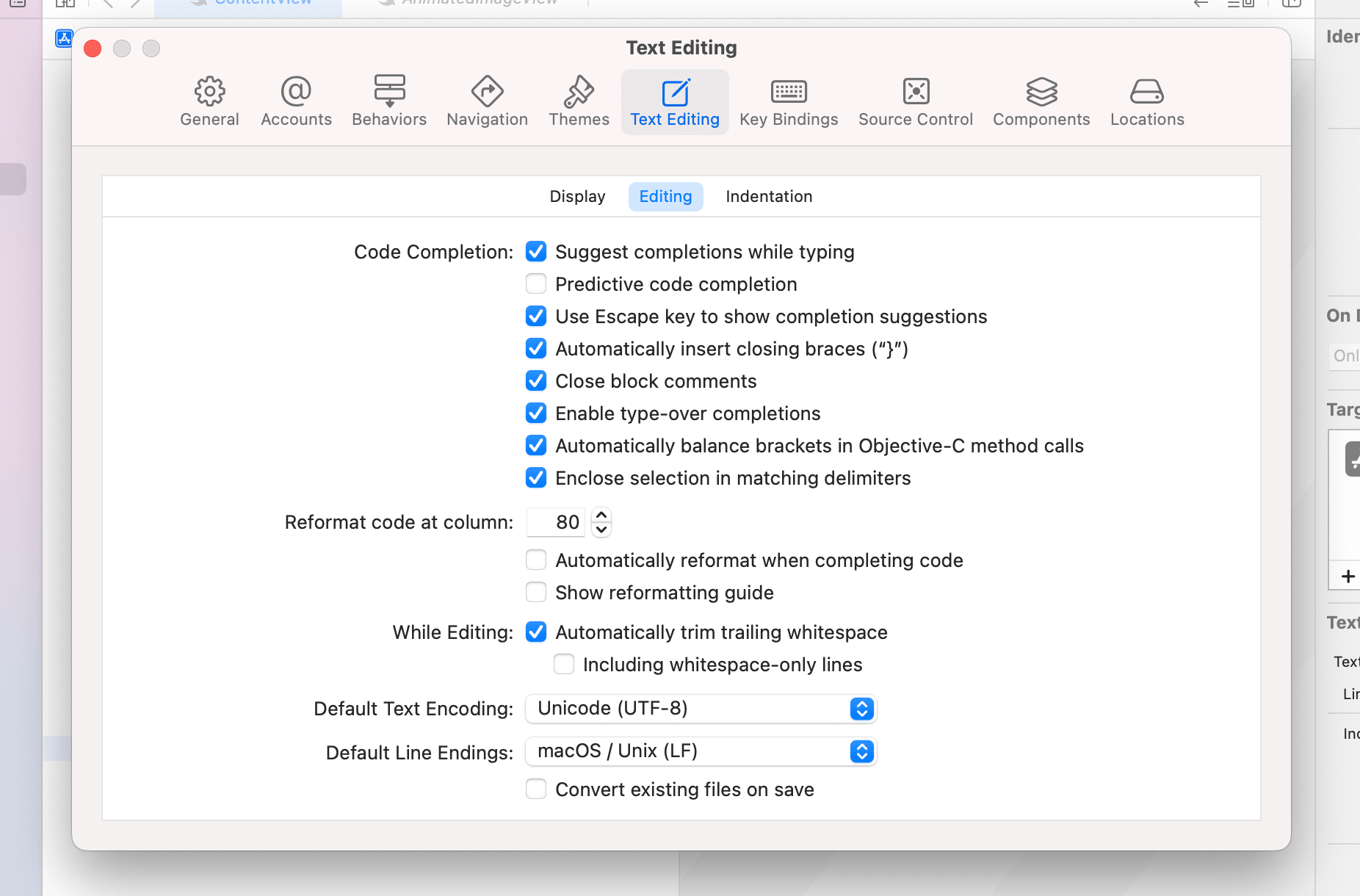
Since the AI completion features would overlap, turn off Xcode's AI completion feature.
Open the settings dialog by selecting [Xcode], [Settings...]. Open the [Text Editing] tab, then the [Editing] tab. Uncheck [Predictive code completion] in the Code Completion section.
This completes the setup of GitHub Copilot for Xcode.
How to use GitHub Copilot for Xcode
Using GitHub Copilot for Xcode is simple as follows. Basically, just press the Tab key:
- Press Tab to accept the first line of suggestion
- Hold Option key to see the entire suggestion
- Press Option + Tab to accept the entire suggestion
It's especially useful for quickly writing boilerplate code (e.g., API request handling, data model creation).
Code Completion
GitHub Copilot provides code suggestions while typing. For example, enter the following function signature in a Swift file:
nonisolated func bannerViewWillPresentScreen(_: GADBannerView) {
    logge
GitHub Copilot will automatically suggest the entire function body in gray text.
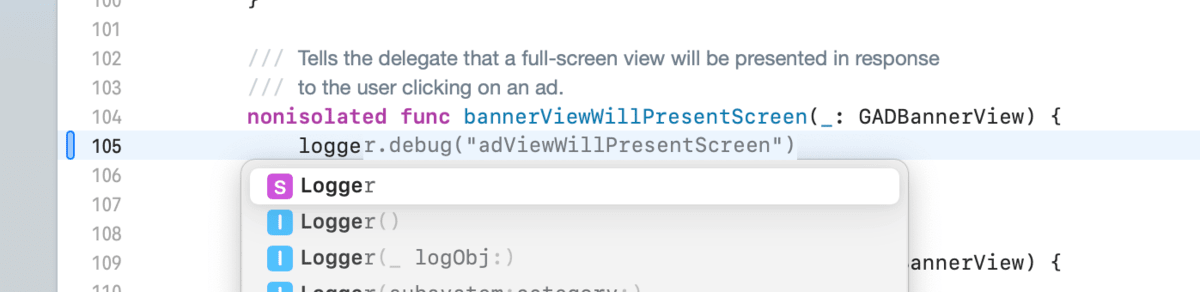
Press the Tab key to accept the suggestion.
Chat
You can use AI with a familiar chat UI experience.
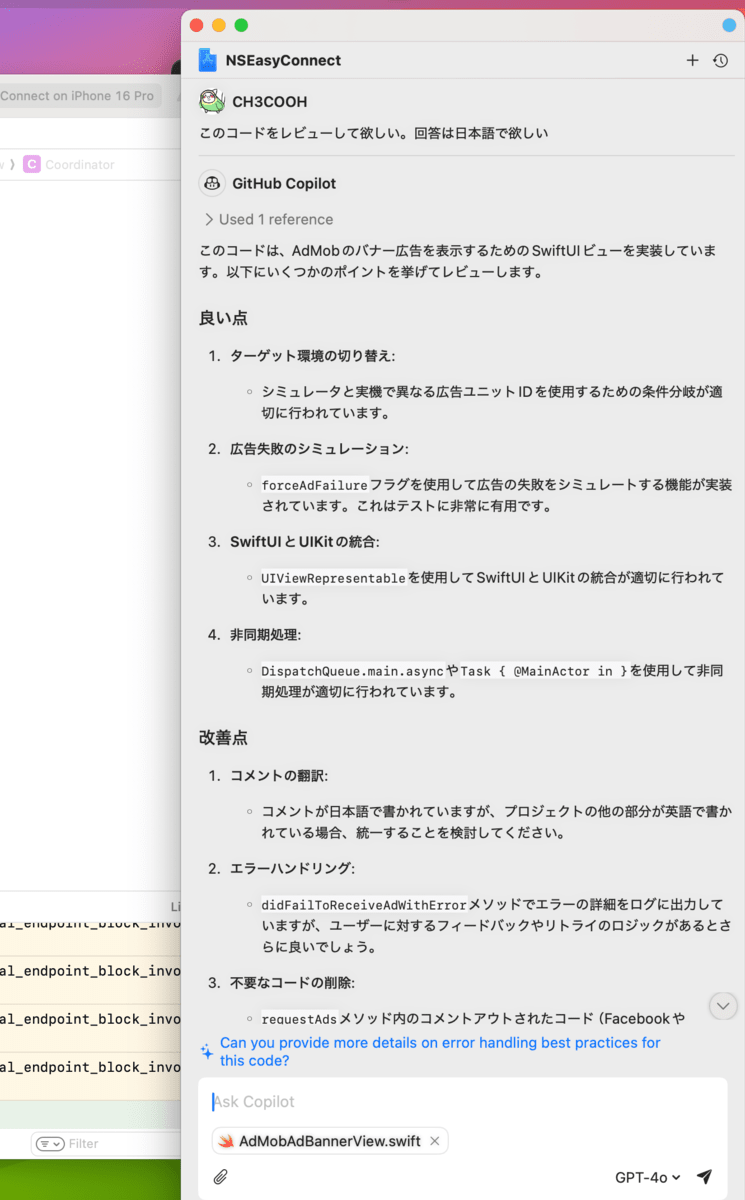
The Xcode extension doesn't allow model switching and only uses "GPT-4o". When I want to use chat functionality, I use the GitHub Copilot web page. As of v0.31.0, there's no model switching feature, so if you want to use Claude 3.7 Sonnet or other models, it might be better to give up using GitHub Copilot's chat on Xcode.
However, the web UI might not be available for GitHub Copilot Business accounts if it's disabled in the settings.
In the Xcode extension, the open source code tab is attached to the file. This makes it more convenient as you don't have to paste source code as you would in the chat UI.
Impressions after using GitHub Copilot for Xcode
Although I was granted access rights from my company to investigate GitHub Copilot's usability, I didn't have any implementation work recently and couldn't evaluate it for business use.
So, I subscribed to GitHub Copilot Pro on my personal account to use it with my personal app development that I work on almost daily. While it feels good to write code by repeatedly pressing the Tab key, the Xcode extension suggestions only use the "GPT-4o large model", which sometimes outputs code that doesn't quite work.
Particularly when implementing UIs with SwiftUI, code completion is often not helpful. This is likely due to GitHub Copilot's code completion behavior, which probably suggests implementations based on function names. In SwiftUI, you might get better suggestions if you break down your implementation into smaller Views.
Code suggestions are most useful when implementing logging. While the log message content can be anything, it's necessary to properly output what information is being logged. If you type print(, it will suggest appropriate log content based on where you're typing.
2025/03/16 Update: v3.20.0 has been released
The long-awaited model switching feature has been implemented. However, whether it's a bug or not, "Claude 3.7 Sonnet" cannot be used. An issue has already been filed regarding this problem, and it will likely be addressed soon.