I made an app in MCP Apps that allows you to verify JavaScript execution in chat!

This page has been translated by machine translation. View original
Hello, I'm Shunta Toda from the Retail App Co-creation Department.
I've created a VS Code-like playground with MCP Apps × Next.js × Monaco Editor that allows you to edit and run JavaScript code within AI chats.
Using this tool, you can complete the entire process from asking AI questions about JS syntax to executing code, making modifications, and asking follow-up questions all within the chat interface.
What I Created
When you ask the AI something like "Teach me how to use spread syntax," it responds with a text explanation plus an editable and executable code widget displayed within the chat.
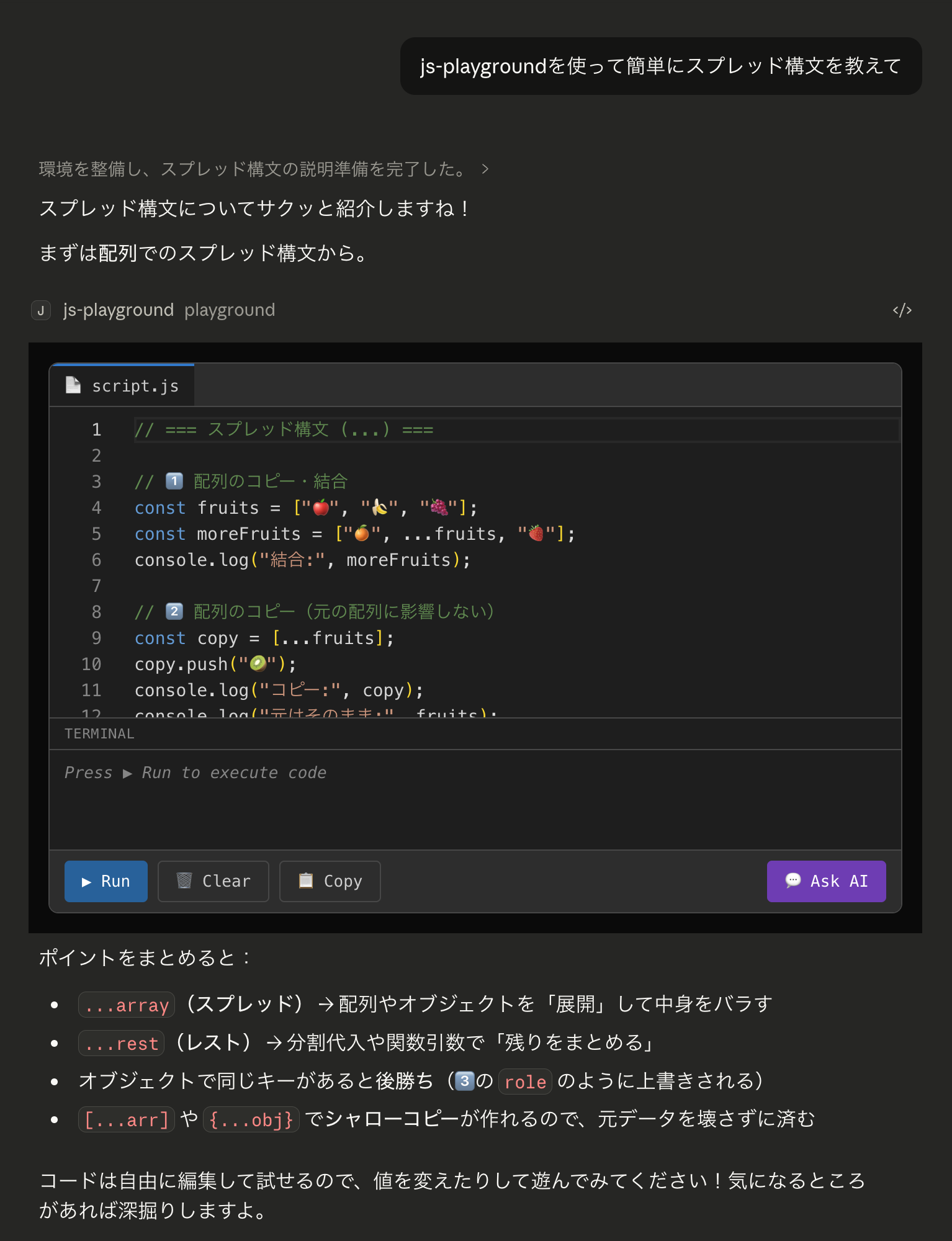
Traditionally, you would need to copy code blocks and paste them into DevTools to run them, but with this app, you can modify the code right there and click the Run button to check the results.
Traditional Experience
- Ask a question to AI
- Get a response with code blocks
- Copy the code
- Paste into DevTools or another environment to run it
- If you make modifications, copy and paste again... (return to step 3)
Experience with this App
- Ask a question to AI
- VS Code-like editor + terminal widget appears in the chat
- Edit the code there and click ▶ Run to execute it
- If you don't understand something, click 💬 Ask AI to ask the AI directly (return to step 2)
What is MCP Apps?
MCP Apps is a mechanism that allows you to display custom HTML/React UIs inline with MCP tool call results. Claude Desktop, ChatGPT, and others support it.
While normal MCP tools only return text, MCP Apps can display React UIs in a sandboxed iframe.
Claude Desktop chat screen
  │
  ├── User question (normal chat)
  ├── AI response text (normal chat)
  └── MCP tool call
        └── returns structuredContent
              └── MCP Apps widget (iframe) rendered inside chat
If you want to learn more about MCP Apps, please read this article.
Architecture
Technology Stack
| Technology | Purpose |
|---|---|
| Next.js 16 (App Router) | Framework |
@modelcontextprotocol/ext-apps |
MCP Apps SDK |
mcp-handler |
MCP handler for Next.js (by Vercel) |
@monaco-editor/react |
VS Code's editor engine |
| Tailwind CSS 4 | Styling |
| Zod | Schema validation |
| Vercel | Hosting |
Directory Structure
study-programming-mcp-apps/
├── app/
│   ├── mcp/
│   │   └── route.ts           # MCP server + playground tool definition
│   ├── components/
│   │   ├── PlaygroundWidget.tsx # Overall widget
│   │   ├── MonacoEditor.tsx    # Monaco Editor (dynamic import)
│   │   ├── TabBar.tsx          # script.js tab
│   │   ├── Terminal.tsx        # Terminal output panel
│   │   └── Toolbar.tsx         # Run / Clear / Copy / Ask AI buttons
│   ├── hooks/
│   │   ├── use-mcp-app.ts     # MCP connection bridge
│   │   └── useCodeExecution.ts # Code execution management
│   ├── lib/
│   │   └── vscode-theme.ts    # VS Code-like color palette
│   ├── page.tsx               # Entry point
│   └── layout.tsx             # iframe compatible layout
├── baseUrl.ts
├── middleware.ts
└── next.config.ts
Implementation Details
MCP Tool Definition — Data Flow from AI to Widget
With MCP Apps, you register two things on the server side:
- Tool — A function that AI calls. In this case, it's named
playgroundand takescodeandautoRunas arguments - Resource — The widget's HTML. This is the UI body displayed in the chat when the tool is called
These two are linked by a resourceUri, creating a flow where "AI calls a tool → corresponding UI is displayed".
Tool return values include two types: content and structuredContent. content is text that remains in the AI's conversation context, while structuredContent is data only delivered to the widget, invisible to the AI. In this case, we pass the code we want to display in the widget via structuredContent.
Widget-Side Reception — useApp Hook and State Management
To receive data on the widget side, we register ontoolinput and ontoolresult handlers with the official SDK's useApp hook.
One important note is that handlers must be registered within the onAppCreated callback. This is because useApp sets up handlers before connect() internally, ensuring no events are missed right after connection.
One issue I encountered during development was mounting the Monaco Editor with default code before MCP data arrived. Once mounted, the Monaco Editor doesn't update its display even when props change.
To address this, I decided not to mount the widget during connected && !data (connected but no data yet), and only render the PlaygroundWidget after the data arrives.
Code Execution — Hijacking the Console
Let's look at what happens when the ▶ Run button is pressed.
The basic flow is to temporarily override console.log and other methods, direct the output to React state for display in the terminal panel, and then restore the original methods after execution. Code execution uses the AsyncFunction constructor, allowing it to handle code containing await.
Since MCP Apps widgets already run in a sandboxed iframe on the host side, the security risks of this eval-based approach are limited.
Two-Way Communication from Widget to AI — sendMessage
So far, the flow has been one-way: AI → widget. However, for a complete learning experience, it would be better if users could ask the AI about their code execution results after modifying the code.
Using app.sendMessage(), we can send messages from the widget to the Claude conversation.
When the "💬 Ask AI" button is pressed, it sends the current code from the editor along with execution results to Claude. This is useful when you've modified and run the code but don't understand the results. The learning loop of AI provides code → user tries it → user asks AI if confused is completed entirely within the chat.
Development Considerations
Monaco Editor CDN Loading and CSP
The MCP Apps iframe sandbox has strict CSP settings. By default, Monaco Editor loads worker files from cdn.jsdelivr.net, so I needed to explicitly allow this in the CSP configuration.
If you forget this, the editor will remain in a perpetual "Loading..." state.
Try It Out
It's deployed on Vercel, so you can try it immediately from Claude Desktop. Add the following to your claude_desktop_config.json and restart Claude Desktop:
{
  "mcpServers": {
    "js-playground": {
      "command": "npx",
      "args": ["mcp-remote", "https://study-programming-mcp-apps.vercel.app/mcp"]
    }
  }
}
Then, ask Claude something like "Teach me how to use spread syntax" or any JavaScript question, and the playground tool will be called, displaying the widget.
Summary
Using MCP Apps, we can embed interactive UIs within AI conversations. While I created a JavaScript playground this time, the same mechanism can be used to implement various widgets like graph drawing tools, form builders, data visualizers, and more.
The app introduced here eliminates the need to "ask AI for code, copy-paste it, and run it elsewhere," creating a learning experience that takes place entirely within the chat.
I hope this is helpful for everyone.
References