![[Jujutsu] Trying out a Git-compatible VCS [Sorcery]](https://devio2024-media.developers.io/image/upload/f_auto,q_auto,w_3840/v1771462870/user-gen-eyecatch/h2cozajrerj8gp2gsexv.png)
[Jujutsu] Trying out a Git-compatible VCS [Sorcery]

This page has been translated by machine translation. View original
Introduction
Git has become the de facto standard in development environments and is a daily tool for many developers.
While it's an excellent VCS, it's not without its frustrations.
For example:
- Forgetting
git add - Rebase hell. Getting confused and using --abort repeatedly
- Working on something when an urgent task comes in → using
git stashas a workaround, creating branches, etc. - When conflicts occur, you can't proceed until they're resolved
While Git knowledge is considered common (though often delegated to AI),
and the basic staging-commit-push flow is powerful,
there's a lot to memorize, and small mistakes can cause problems.
That's where Jujutsu comes in.
Jujutsu(jj)?
Jujutsu(jj) is a next-generation VCS developed by Martin von Zweigbergk at Google.
※Currently, regular searches tend to bring up results for Jujutsu Kaisen anime, so search for jj-vcs/jj instead
jj's design philosophy is to "reduce the number of concepts developers need to understand."
In Git, you need to be aware of the working tree, staging area, and commit states separately,
but in jj, the working copy itself is always a commit.
When you edit files, they are automatically reflected in the change the next time you run a jj command, eliminating the need for git add or git stash.
Also, jj is Git compatible.
It uses Git repositories as a backend internally, so you can adopt it in existing Git repositories with a single command.
Even if other team members are unaware of jj, you can use Jujutsu for your local work.
This article will introduce setting up jj and its basic usage.
Environment
- MacBook Pro (14-inch, M3, 2023)
- OS: macOS 15.7
- jj: 0.38.0
Setup
On Mac, you can easily install it with Homebrew.
% brew install jj
・・・
% jj --version
jj 0.38.0
Like Git, you should set up your username and email address.
jj config set --user user.name "Your Name"
jj config set --user user.email "your@email.com"
Settings are saved in ~/.jjconfig.toml.
Introducing Jujutsu to an existing Git repository (colocate mode)
Currently, using jj with existing Git repositories in colocate mode is the main usage method.
In this case, use colocate mode.
cd /path/to/your-git-repo
jj git init --colocate
This allows .git and .jj to coexist, and both git and jj commands can be used.
(VS Code's Git integration continues to work)
If you no longer need Jujutsu, you can revert to the original Git repository by simply deleting the .jj directory.
% rm -rf .jj
For creating a new repository:
% mkdir my-project && cd my-project
% jj git init
Difference Between Git and Jujutsu
You can learn how to use Jujutsu from the Jujutsu docs.
Here I'll explain some of the differences between Git and Jujutsu.
| concept | Git | Jujutsu |
|---|---|---|
| Staging | Requires git add |
None (automatic) |
| Working copy | Can be in a dirty state | Always a commit |
| Identifier | commit hash | Change ID |
| Conflicts | Immediate resolution required | Can be postponed |
| undo | git reflog |
Simple jj undo |
| Rebase | Manual | Automatic |
| Branches | Named branches are standard | Anonymous is standard (bookmark) |
| stash | Temporary storage with git stash |
Not needed |
A major difference is that jj has no staging area.
In Git, you need three steps: "edit files → git add → git commit",
but in jj, edits are automatically recorded in the current change.
There's no operation equivalent to git add.
Status
Ways to view Git/jj status and logs.
(After initialization)
# With Git
% git status
% git log --oneline --graph

# With Jujutsu
% jj st       # Show status
The working copy has no changes.
Working copy  (@) : wulzrslt fca394db (empty) (no description set)
Parent commit (@-): zzzzzzzz 00000000 (empty) (no description set)

% jj log      # Show log
@  wulzrslt hoge@classmethod.jp 2026-02-18 12:14:18 fca394db
│  (empty) (no description set)
◆  zzzzzzzz root() 00000000
Commit (Creating Changes) Flow
First, make code changes.
% vim src/main.rs
At this point, running jj st shows that
the change has already been automatically recorded.
% jj st
Working copy changes:
A src/main.rs
Working copy  (@) : wulzrslt 60baeac0 (no description set)
Parent commit (@-): zzzzzzzz 00000000 (empty) (no description set)
After modifying files, set a message for the working copy.
% jj describe -m "Add main function"
jj describe is a command to set or change the commit message for the current working copy.
(In Git terms, similar to "git commit --amend -m "msg"")
Since the working copy itself is always a commit in jj,
"adding a message = describing the current commit".
After setting the message, create a new empty change with jj new and move on to the next task.
When you execute jj new, a new task begins.
% jj new
# You can also use `jj commit -m "message"` instead of `jj describe` + `jj new`
Modifying Past Commits
Let's assume the following state (right after jj new):
% jj st
The working copy has no changes.
Working copy  (@) : smvrxozl 77a9fd13 (empty) (no description set)
Parent commit (@-): wulzrslt eb57e123 Add main function
Now let's modify a previous commit (wulzrslt).
Use edit to move to the previous commit and modify files.
% jj edit wulzrslt
Working copy  (@) now at: wulzrslt eb57e123 Add main function
Parent commit (@-)      : zzzzzzzz 00000000 (empty) (no description set)
Add a message with describe, then use jj new to complete the past commit modification.
% jj describe -m "Add main function & println"
Working copy  (@) now at: wulzrslt d3761b58 Add main function & println
Parent commit (@-)      : zzzzzzzz 00000000 (empty) (no description set)

% jj new
Working copy  (@) now at: yvzmutyr 210954a0 (empty) (no description set)
Parent commit (@-)      : wulzrslt d3761b58 Add main function & println
jj detects that the content of wulzrslt has changed and automatically rebases its descendants (smvrxozl).
Since smvrxozl had no changes and no description, it was automatically discarded.
In Git, when you change a past commit, you need to manually run git rebase --continue.
If there are conflicts, the rebase stops.
In jj, even with conflicts, the rebase completes (conflicts are recorded in the commit state).
In Git, conflicts must be fixed immediately,
but in jj, conflicts are just recorded, and you can fix them at your convenience.
Undoing Operations
Undoing operations in jj is very easy.
In Git, you need to search through the reflog and use reset --hard,
but in jj, you just run the undo command.
# Undo the previous operation
% jj undo
There's no redo command, but you can return to any point like this:
# View operation history
jj op log

# Restore to a specific operation point
jj op restore <Operation ID>
Example: Reordering Commits
Let's try reordering commits with Jujutsu.
In Git, you would use git rebase -i to open an editor and swap lines, but in Jujutsu it's more intuitive.
Preparation: Create a Sample Repository
% mkdir jj-reorder-demo && cd jj-reorder-demo
% jj git init
Initialized repo in "."
Create three changes.
# Change 1: Add README
% echo "# My Project" > README.md
% jj commit -m "Add README"

# Change 2: Add main.rs
% echo 'fn main() { println!("Hello"); }' > main.rs
% jj commit -m "Add main.rs"

# Change 3: Add tests
% echo '#[test] fn it_works() { assert!(true); }' > test.rs
% jj commit -m "Add tests"
Check the log.
% jj log
@  txszzynm 2026-02-19 17:58:54 cfd62f33
│  (empty) (no description set)
○  uoluosyv 2026-02-19 17:58:54 55464835
│  Add tests
○  zwuuskou 2026-02-19 17:57:09 fdefccea
│  Add main.rs
○  souuksxy 2026-02-19 17:56:55 3d8ee9e1
│  Add README
◆  zzzzzzzz root() 00000000
The current order is: Add README → Add main.rs → Add tests.
Reordering Commits
Let's move "Add tests" to "before" "Add main.rs".
In Git, you would use git rebase -i HEAD~3 to open an editor and swap lines,
but in Jujutsu, the jj rebase command does it all.
# Insert "Add tests" (uoluosyv) before "Add main.rs" (zwuuskou)
% jj rebase -r uoluosyv --insert-before zwuuskou
Rebased 1 commits to destination
Rebased 2 descendant commits
-r specifies the change to move, and --insert-before means "insert before the specified change."
Let's check the log again.
% jj log
@  txszzynm 2026-02-19 18:00:19 4a441f48
│  (empty) (no description set)
○  zwuuskou 2026-02-19 18:00:19 9b8cc7c1
│  Add main.rs
○  uoluosyv 2026-02-19 18:00:19 b80013f7
│  Add tests
○  souuksxy 2026-02-19 17:56:55 3d8ee9e1
│  Add README
◆  zzzzzzzz root() 00000000
The commits have been reordered (Add README → Add tests → Add main.rs). Jujutsu
automatically rebases descendant changes, so there's no need to manually run rebase --continue.
If You Make a Mistake
If you make a mistake, just undo it.
% jj undo
Restored to operation: 206b291a9959 (2026-02-19 17:58:54) commit 6479a91b...
It's easy to revert. Compared to making a mistake with Git's rebase -i,
this provides much more confidence.
Jujutsu from Git Perspective
Currently, Jujutsu uses Git internally.
Let's see how jj operations are handled inside Git.
File Editing
echo "# My Project" > README.md
When you create a file as above,
at the time you run jj st, a snapshot of the working copy (converted to a commit object) is taken before the command executes.
# jj side
$ jj log
@  tvptzzuk ...  72e10386
│  (no description set)         # ← description is empty but commit exists
◆  zzzzzzzz root()

# Git side
$ git log --oneline --all
* 72e1038                       # ← Git commit auto-generated by jj (empty message)
* dab4864                       # ← Initial empty commit
In Git, you need two steps: git add → git commit,
but in Jujutsu, when you run any jj command, it detects changes in the working copy and takes a snapshot.
This commit object is kept as a jj-managed reference (refs/jj/...),
so you can see it with git log --all.
If you run git status before and after jj st,
you can see that Git's internal state changes due to the snapshot.
| Timing | git status display |
|---|---|
Before running jj st |
Untracked files: README.md |
After running jj st |
Changes not staged for commit: new file: README.md |
This is because jj's snapshot affects Git's index and reference state.
While jj st appears to be a status check command, internally a working copy snapshot is taken first.
(※ This happens with all jj commands, not just jj st, including jj log and jj diff)
Setting a Commit Message
The jj describe command sets a message for the current working copy (@).
$ jj describe -m "Add README"

# jj side
$ jj log
@  tvptzzuk ...  75bebcd
│  Add README                   # ← Message has been set
◆  zzzzzzzz root()

# Git side
$ git log --oneline --all
* 75bebcd Add README            # ← New hash (with message)
* 72e1038                       # ← Old commit (still exists)
* dab4864
While jj describe appears to overwrite the message, a new commit object is created on the Git side. The Change ID remains the same, but the Git commit hash changes.
(Old commit objects remain in Git internally for a period but are not visible from jj)
Starting the Next Task
The jj new command creates a new empty change and moves the working copy (@).
$ jj new

# jj side
$ jj log
@  xyzqwert ...  356e916
│  (empty) (no description set) # ← New empty change (@ position)
○  tvptzzuk ...  75bebcd
│  Add README
◆  zzzzzzzz root()

# Git side
$ git log --oneline --all
* 356e916        # ← New empty commit
* 75bebcd Add README
jj new confirms the previous change and moves on to the next.
In colocate mode, this can be seen on the Git side as an empty commit object.
(You can also use jj commit -m "message" instead of jj describe + jj new)
Moving to a Past Change
jj edit makes the specified change the working copy (@),
allowing you to edit the content of that change.
# Move to the "Add README" change
$ jj edit tvptzzuk

# Working directory
$ ls

# main.rs is gone (returned to the state of Add README)
README.md

# Git side
$ git log --oneline --all

# Previous @ commit (still remains)
* 726b5bc
* 4a386a3 Add main.rs
* 75bebcd Add README
jj edit reverts the working directory content to the state of the specified change.
It's similar to Git's git checkout, but jj doesn't switch branches;
it switches "which change is being edited (@ position)."
(On the Git side, past commits aren't deleted but remain preserved)
Editing Past Changes & Automatic Rebase
Let's look at the "Modifying Past Commits" operation from the Git side.
When updating the README while editing the "Add README" change, on the Git side:
# Git side: Both old and new commits exist
$ git log --oneline --all --graph
* b014c89 Add main.rs           # ← New hash (after rebase)
* 5b872a7 Add README            # ← Content updated
* 4a386a3 Add main.rs           # ← Old version (before rebase)
* 75bebcd Add README            # ← Old version
jj's automatic rebase is implemented by recreating commit objects for the target and all descendants
with new hashes on the Git side.
Old commit objects remain in Git internally, but only the latest ones are visible from jj.
Summary
| jj operation | What happens on Git side | commit hash change |
|---|---|---|
| File edit + run jj command | Snapshot generates a commit object | New creation |
jj describe |
Replaced with new commit with message | Changes |
jj new |
Empty commit added | New creation |
jj edit |
Working directory reverts to target state | No change |
| Editing past change | Target+all descendants rebased (recreated as new commits) | All change |
jj commit |
Batch execution of describe + new | New creation |
Jujutsu's Change ID (like tvptzzuk) never changes during these operations.
While Git's commit hash changes, the Change ID functions as a stable identifier.
Github Cooperation(bookmark / clone / fetch / push)
In Jujutsu, the concept equivalent to Git's branch is called a bookmark.
While branches are central to working in Git, jj primarily operates on changes directly,
so branches (bookmarks) serve as "synchronization points" with remotes.
Since jj changes can be worked on without explicitly declaring them, bookmarks become necessary
when interacting with external systems like GitHub.
| Concept | Git | Jujutsu |
|---|---|---|
| Unit of work | Commits on branch | change (no explicit declaration needed) |
| Named reference | branch (required) | bookmark (only when needed) |
| Remote tracking | origin/main |
main@origin |
clone
You can clone a Git repository as a jj repository with jj git clone.
$ jj git clone https://github.com/user/repo.git my-repo
Fetching into new repo in "/path/to/my-repo"
bookmark: main@origin   [new] tracked
bookmark: dev@origin    [new] tracked
Remote branches are automatically tracked as bookmarks.
Introduction to existing repositories (colocate)
For using jj with existing Git repositories, use colocate mode.
$ cd /path/to/existing-git-repo
$ jj git init --colocate
.git and .jj coexist, and both git and jj commands can be used.
Pushing changes
To push changes to GitHub, create a bookmark and push it.
# 1. Edit files
$ echo "new feature" > feature.md

# 2. Set description
$ jj describe -m "Add new feature"

# 3. Create bookmark (linked to current change)
$ jj bookmark create my-feature -r @

# 4. Push
$ jj git push --bookmark my-feature
Changes to push to origin:
  Add bookmark my-feature to xxxxxxxx
Here's how to push again with a new change.
Use jj bookmark set to update the bookmark before pushing.
# Work on a new change
$ jj new
$ echo "update" >> feature.md
$ jj describe -m "Update feature"

# Move bookmark to current change
$ jj bookmark set my-feature -r @

# Push (forward move)
$ jj git push --bookmark my-feature
Changes to push to origin:
  Move forward bookmark my-feature from bbee3c58be98 to ca8ed46d35f5
fetch
Use jj git fetch to incorporate remote changes.
$ jj git fetch
bookmark: main@origin  [updated] tracked
This is equivalent to Git's git fetch, importing remote information and updating tracked bookmarks. However, integration (merge) into local working changes is not automatic.
Deleting bookmarks (= deleting Git branches)
Deleting a jj bookmark is equivalent to deleting a branch in Git/GitHub.
# Delete local bookmark
$ jj bookmark delete my-feature

# Also delete from remote (removes branch on GitHub)
$ jj git push --deleted
Changes to push to origin:
  Delete bookmark my-feature from ca8ed46d35f5
Summary
Jujutsu (jj) is a next-generation version control system that fundamentally rethinks Git's "pain points."
- Eliminates the staging area, with file edits immediately reflected in changes
- No need for stash, use
jj editto move to and edit past changes anytime jj undosafely reverses all operations- Conflicts can be postponed, allowing work to continue without interruption
- Automatic rebasing makes descendant changes follow automatically
- Fully Git compatible, can be adopted in existing Git repositories without risk
In short, it's a tool that "does what you wanted to do with Git, with fewer commands, more safely."
With colocate mode, you can revert by just deleting .jj, so feel free to try it out.
Appendix:TUI Tool for Jujutsu
For those thinking "I don't want to learn another set of console commands after reading all this."
There's a TUI tool for Jujutsu called Tij.
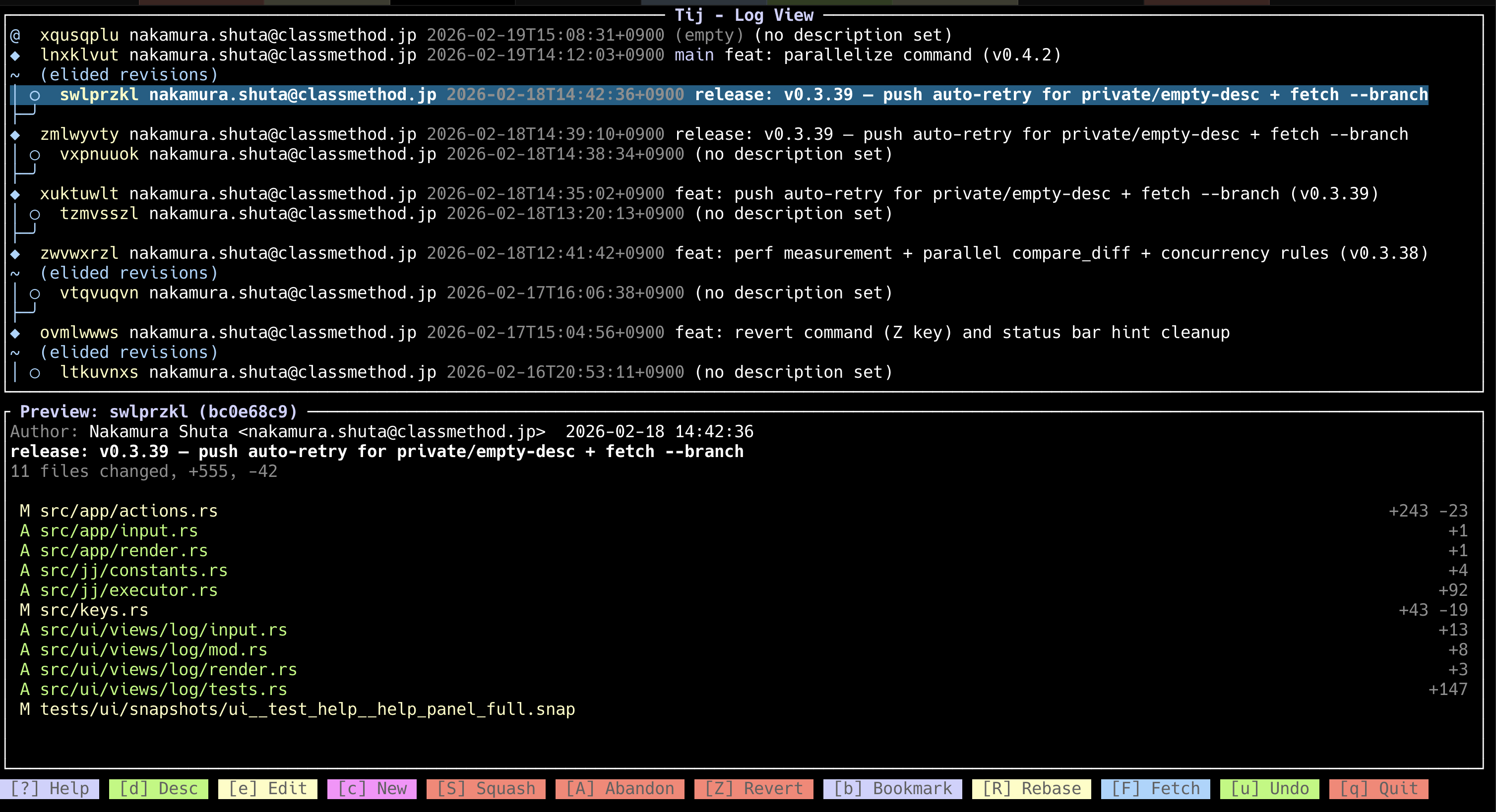
It's the Jujutsu version of tig for Git, allowing simple Jujutsu operations in the terminal.
You can install it with Cargo or Homebrew:
※Requires Rust 1.85+ and jj
% cargo install tij
or
% brew tap nakamura-shuta/tij && brew install tij
Launch it inside a jj repository:
% cd /path/to/jj-repo
% tij
tij uses vim-like key bindings:
| Key | Operation |
|---|---|
j/k |
Move cursor (up/down) |
Enter |
Show diff |
d |
Edit description (commit message) |
e |
Edit change (equivalent to jj edit) |
c |
Create new change (equivalent to jj new) |
S |
squash (merge into parent change) |
R |
rebase (move change) |
u |
undo |
r |
revset filter |
/ |
Text search |
? |
Help |
q |
Exit |
Give tij a try for easily browsing and operating on your logs.