
Integrating Kendra and SharePoint using Azure AD App-Only Authentication

This page has been translated by machine translation. View original
Introduction
In this article, we will explore how to synchronize SharePoint documents with Amazon Kendra, specifically using SharePoint Connector V2.0 with Azure AD App-Only authentication.
This method uses certificate-based authentication for applications instead of user credentials, so there's no need to add users to groups you want to share with.
However, certificates have a 365-day validity period, so they need to be replaced periodically.
Requirements for integration
To integrate using Azure AD App-Only authentication, you'll need the following information:
- Client ID of the application registered with Azure AD
- Self-signed X.509 certificate
- Private Key corresponding to the certificate
- SharePoint Tenant ID
Procedure
1. Generate a self-signed certificate
Generate a self-signed certificate using OpenSSL.
openssl req -x509 -newkey rsa:2048 -keyout private.key -out certificate.crt -days 365 -nodes
private.key: Private key file (store in AWS Secrets Manager)certificate.crt: Certificate file (upload to Azure AD), also upload to S3
2. Register an app in Azure AD
- Login to Azure Portal
- Navigate to Azure Active Directory → App registrations
- Register a new application using "New registration"
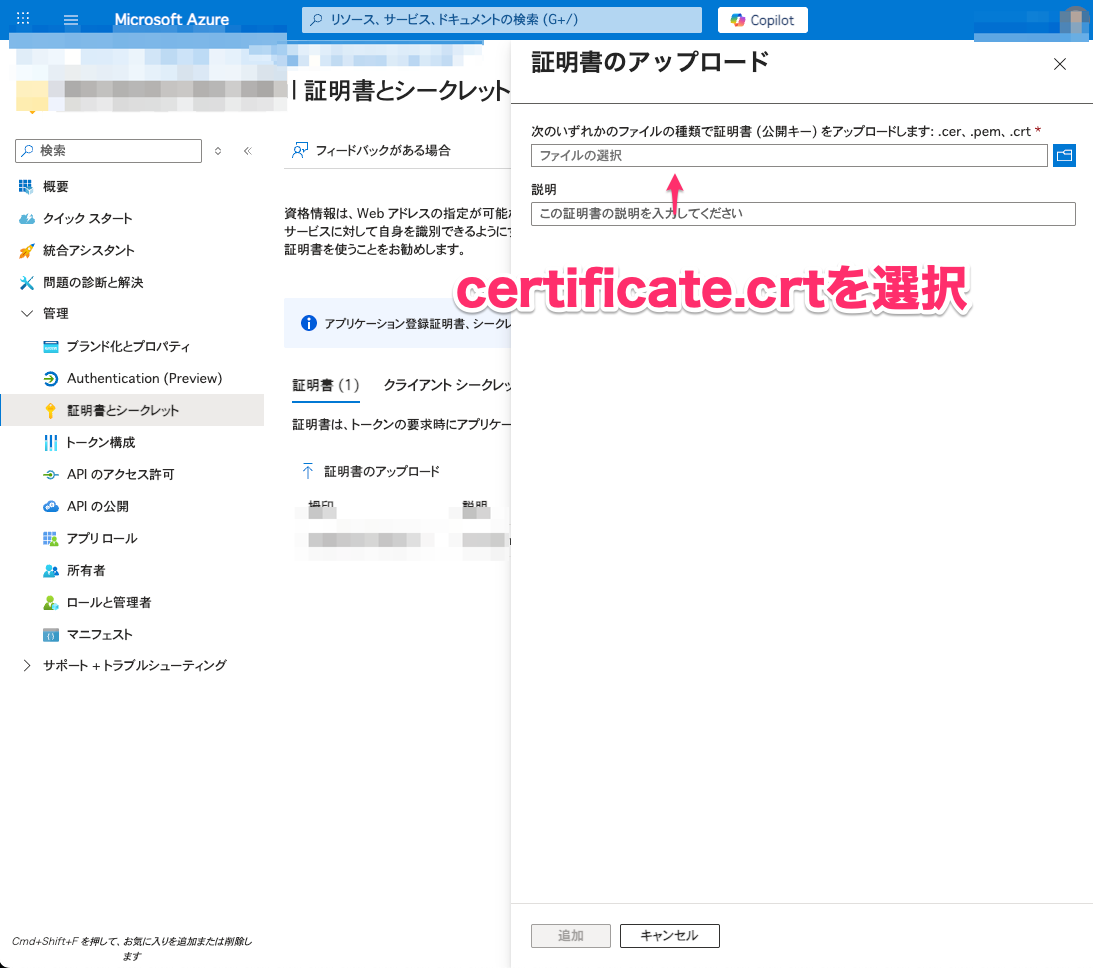
- Upload the certificate (.crt) from the "Certificates & secrets" → "Certificates" tab
3. Configure API permissions
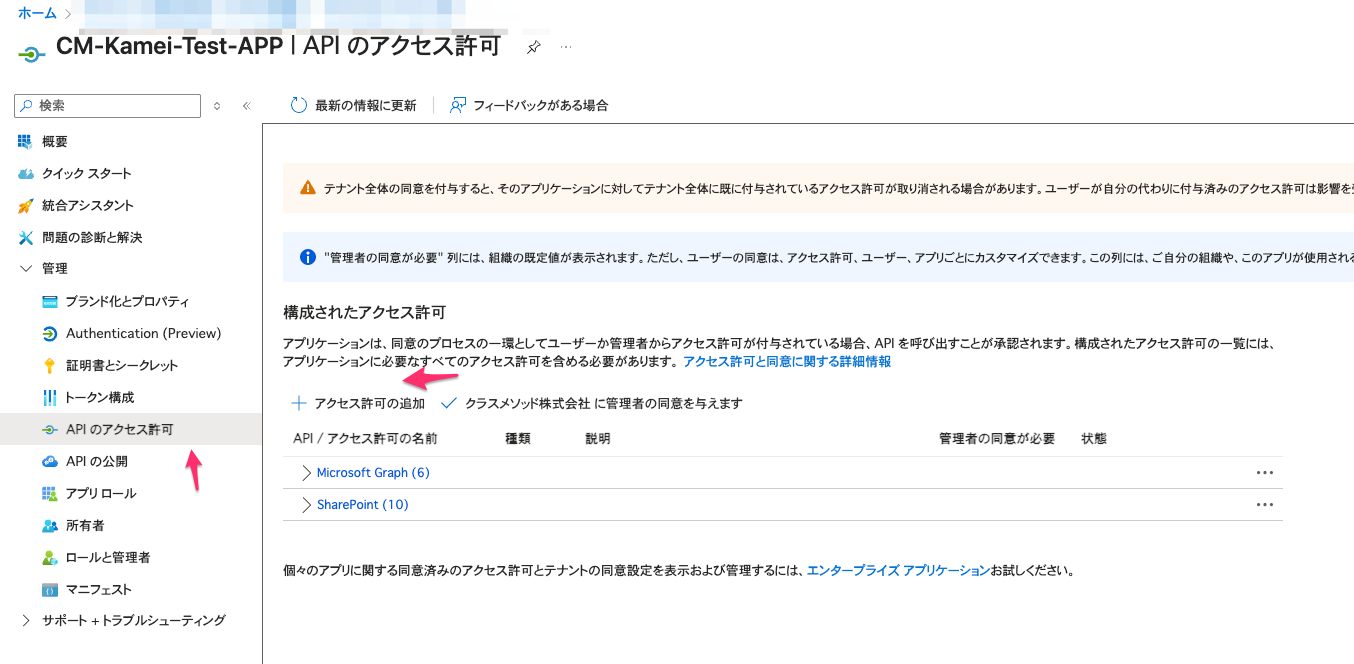
- Add SharePoint permissions in "API permissions"
- Grant administrator consent using "Grant admin consent"
The API permissions needed to access SharePoint differ depending on whether you use ACL (Access Control List).
Without using ACL
| API | Permission | Description |
|---|---|---|
| SharePoint | Sites.Read.All (Application) | Required for accessing items and lists in all site collections |
When using ACL
| API | Permission | Description |
|---|---|---|
| SharePoint | Sites.FullControl.All (Application) | Required to retrieve document ACLs |
If you only want to crawl specific sites, you can set the Sites.Selected (Application) permission and
explicitly set access permissions for each site using the Microsoft Graph API.
4. Upload certificate.crt to S3
Register certificate.crt to any bucket in S3.
5. Add a DataSource to Kendra
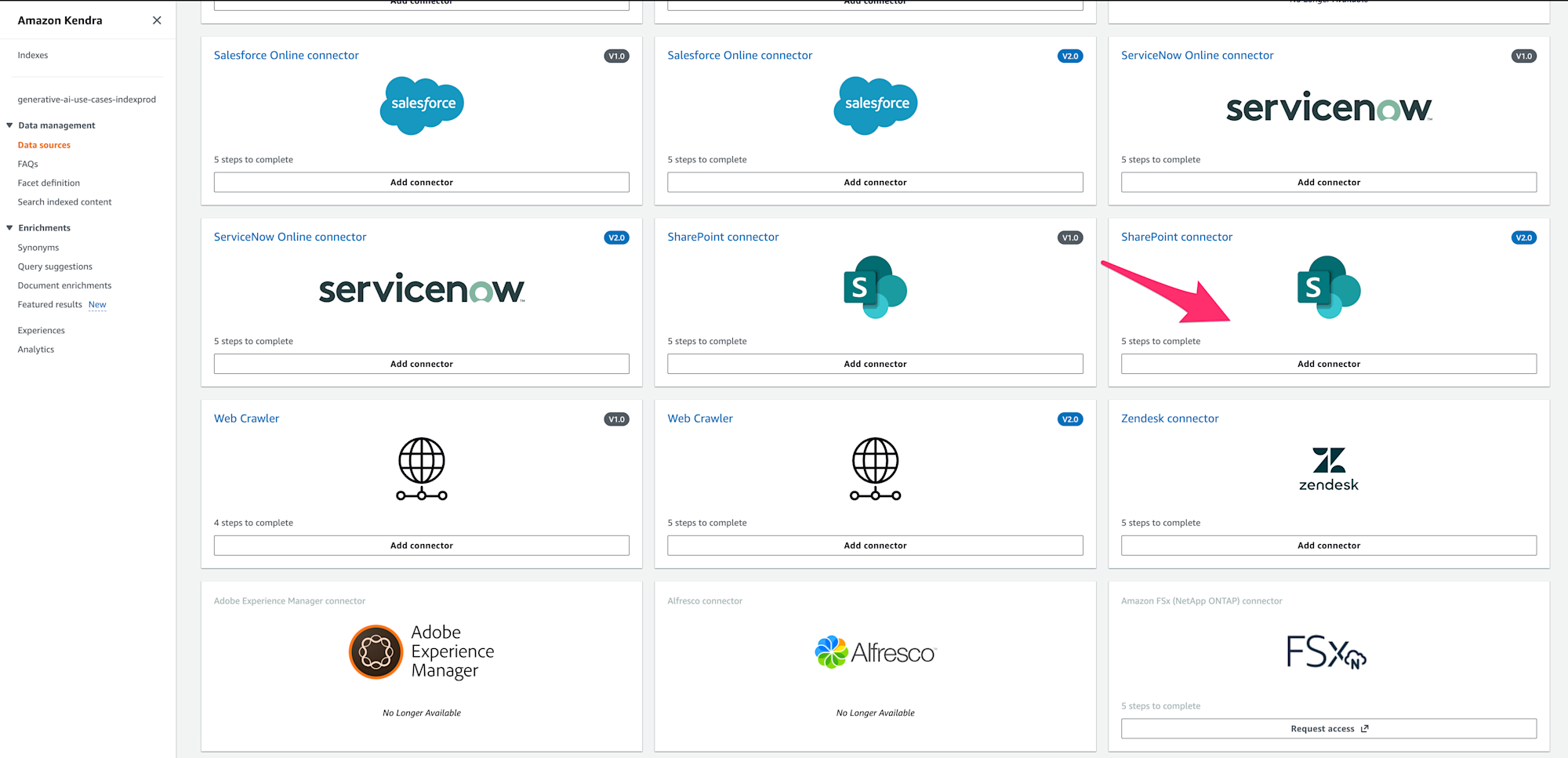
Add a Data source in the Kendra console and select SharePoint connector (V2.0).
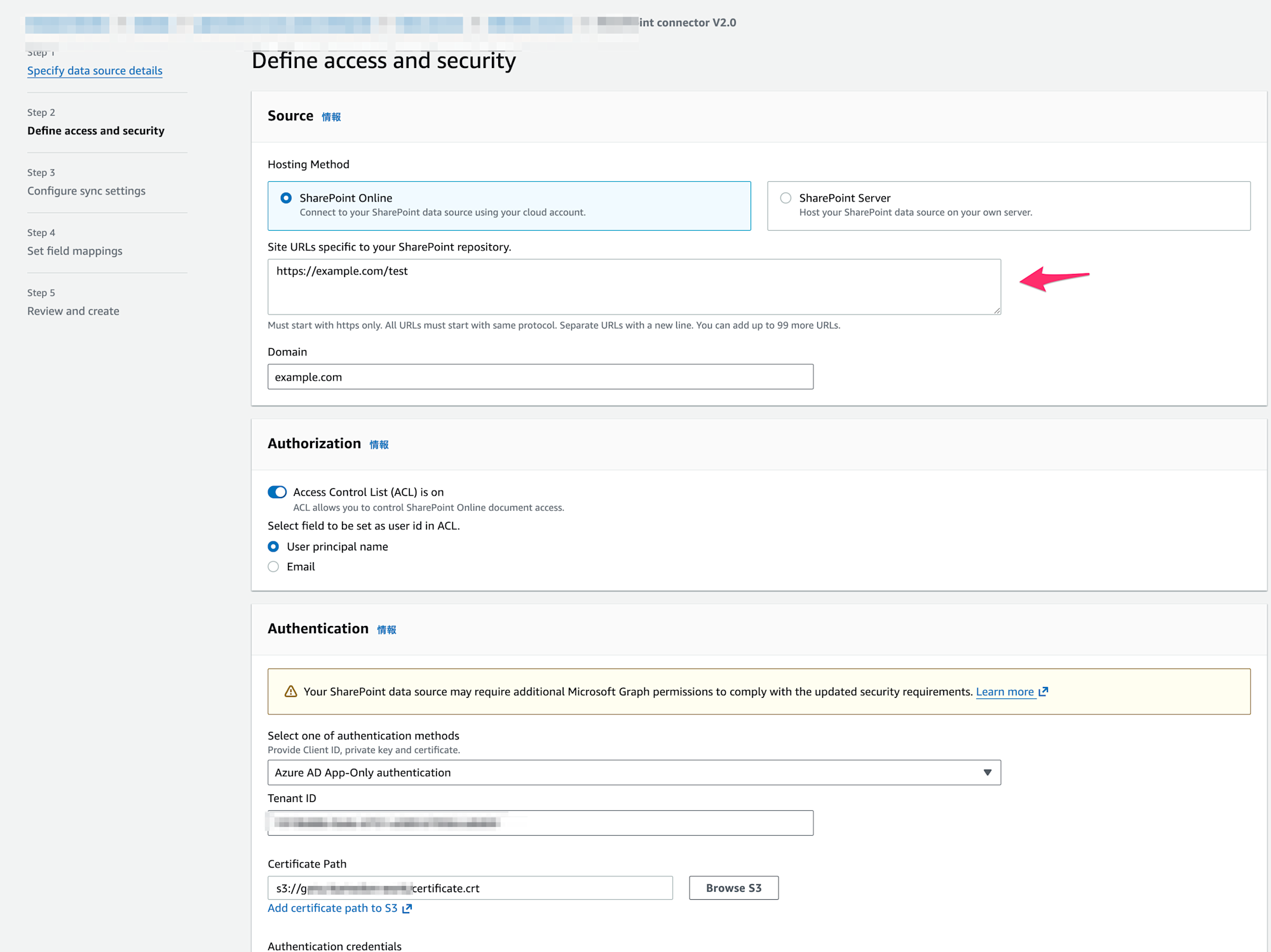
Configure the following items. Only important parts are excerpted below. Configure IAM, ACL, etc., according to your environment. This example is created with the recommended settings.
| Item | Setting Value |
|---|---|
| Hosting Method | SharePoint Online |
| Site URLs | Enter in the format https://yourdomain.sharepoint.com/sites/mysite |
| Domain | SharePoint domain name (e.g., yourdomain) |
| Authentication | Azure AD App-Only authentication |
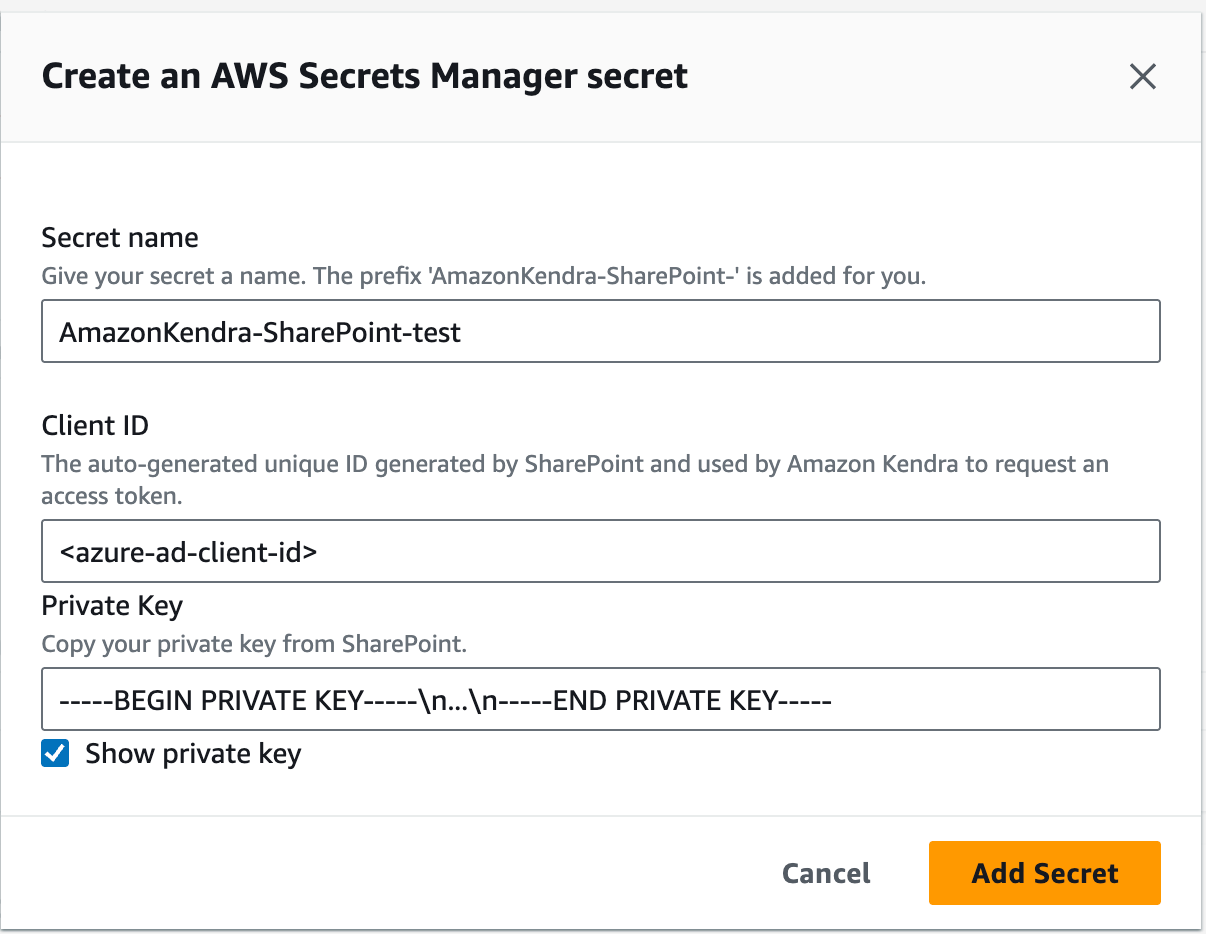
Enter the Tenant ID and create a secret in AWS Secrets Manager for Azure AD App-Only authentication.
| Key | Value |
|---|---|
| clientId | azure-ad-client-id |
| privateKey | -----BEGIN PRIVATE KEY-----\n...\n-----END PRIVATE KEY----- |
6. Document synchronization
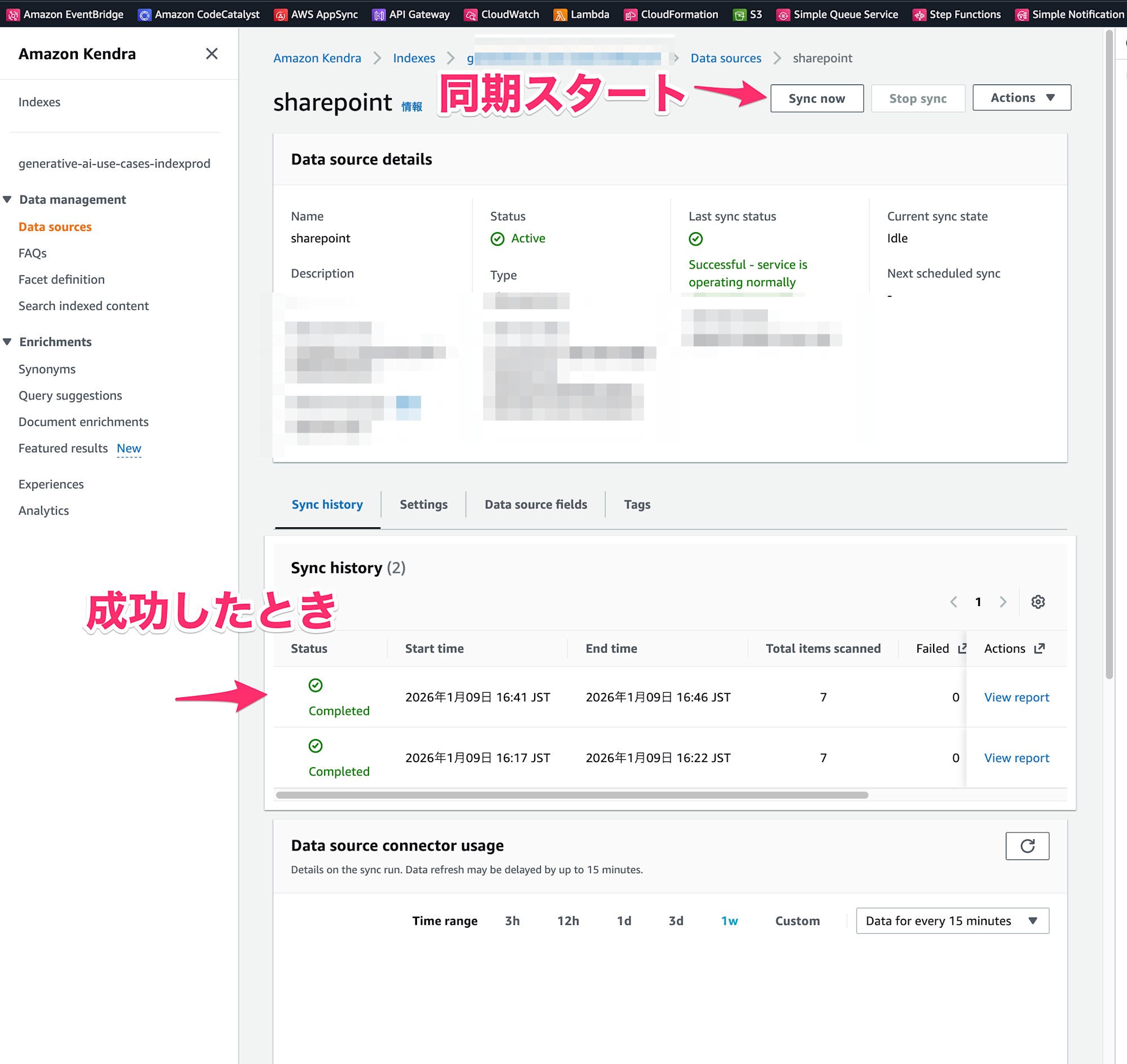
When document synchronization is successful, you'll see a screen like this:
Summary
By using Azure AD App-Only authentication with Kendra's SharePoint Connector V2.0,
you can synchronize SharePoint documents without using user credentials.
Certificate-based authentication eliminates the need to manage service account passwords,
but don't forget to manage certificate expiration dates.
If you encounter issues with the configuration, check the Azure AD API permissions, administrator consent,
and the format of the secrets in Secrets Manager.