
Make Kiro CLI usable within DevContainer (Docker)

This page has been translated by machine translation. View original
Kiro CLI Have you ever wanted to use it in DevContainer (Docker)?
Since AI agents can read and write files and execute commands, installing them directly on your host PC would create a situation where they have broad access to your local PC information, including files and environment variables outside of your project.
By containing them within a DevContainer, you can limit their access range to project files within the container, reducing the risk of unintended file operations.
I use Kiro CLI in DevContainer, so I'd like to share how I do it.
For how to use Kiro CLI itself, please check our company blog post about utilizing it.
Conclusion First
Write the installation in your Dockerfile and persist authentication information in a named volume using mounts in devcontainer.json.
ARG USERNAME=node

# Create directories for Kiro CLI and set permissions
RUN mkdir -p /home/${USERNAME}/.kiro /home/${USERNAME}/.local/share/kiro-cli && \
  chown -R ${USERNAME}:${USERNAME} /home/${USERNAME}/.kiro /home/${USERNAME}/.local

# non-root user
USER ${USERNAME}

# Add Kiro CLI installation path to PATH
ENV PATH=$PATH:/home/${USERNAME}/.local/bin

# Install Kiro CLI
RUN curl -fsSL https://cli.kiro.dev/install | bash
{
    "mounts": [
        {
            "source": "kiro-config",
            "target": "/home/node/.kiro",
            "type": "volume"
        },
        {
            "source": "kiro-cli-data",
            "target": "/home/node/.local/share/kiro-cli",
            "type": "volume"
        }
    ]
}
Complete samples of Dockerfile and devcontainer.json are provided at the end of this blog post.
What is Kiro CLI?
Kiro CLI is the command-line version of "Kiro," an AI coding assistant provided by AWS. You can directly request AI coding from the terminal, automating code generation, bug fixing, test execution, and more.
(For Mac and Linux) Installation is completed with a one-liner, and the binary is placed in ~/.local/bin/kiro-cli.
$ curl -fsSL https://cli.kiro.dev/install | bash
Challenges when using in devcontainer
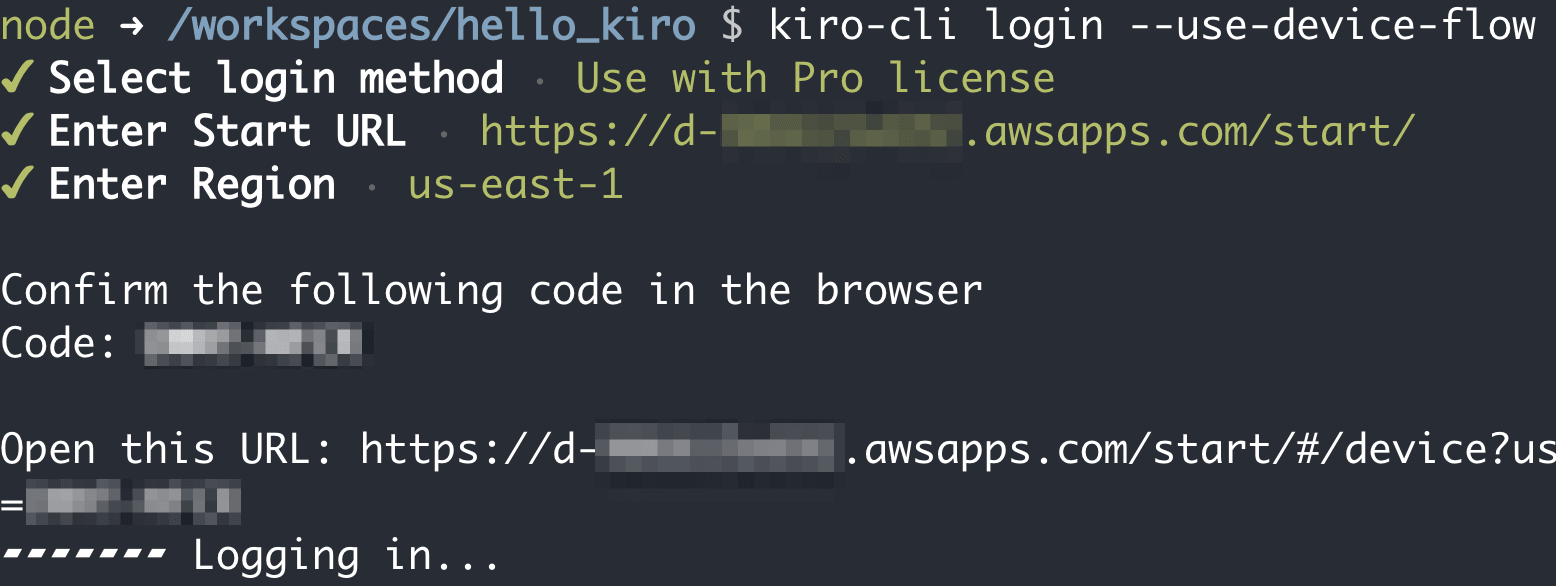
Kiro CLI offers several authentication methods, but in container environments where a browser can't be directly opened, device code authentication is used.
At first launch, a URL and confirmation code are displayed, and you complete authentication using your host PC's browser.
$ kiro-cli login --use-device-flow
✔ Select login method · Use with Pro license
✔ Enter Start URL · https://d-XXXXXXXXXX.awsapps.com/start/
✔ Enter Region · us-east-1

Confirm the following code in the browser
Code: XXXX-XXXX

Open this URL: https://d-XXXXXXXXXX.awsapps.com/start/#/device?user_code=XXXX-XXXX
- Reference: CLI commands - CLI - Docs - Kiro
Even in Docker, you can complete authentication by opening the URL in your host PC's browser.
The problem is that authentication information is saved in files inside the container, so it disappears when you recreate the container.
Having to reauthenticate each time is cumbersome.
Setup
We'll address this with the following approach:
- Installation → Include in the Dockerfile to be part of the image
- Authentication persistence → Mount to named volumes using
mountsin devcontainer.json
Modifying Dockerfile
Add the necessary settings for Kiro CLI installation.
ARG USERNAME=node

# Create directories for Kiro CLI and set permissions
RUN mkdir -p /home/${USERNAME}/.kiro /home/${USERNAME}/.local/share/kiro-cli && \
  chown -R ${USERNAME}:${USERNAME} /home/${USERNAME}/.kiro /home/${USERNAME}/.local

# non-root user
USER ${USERNAME}

# Add Kiro CLI installation path to PATH
ENV PATH=$PATH:/home/${USERNAME}/.local/bin

# Install Kiro CLI
RUN curl -fsSL https://cli.kiro.dev/install | bash
The key points are mkdir and chown. We create mount point directories in advance with non-root user permissions.
Without this, directories owned by root would be created at mount time, and Kiro CLI wouldn't be able to write authentication information.
If you already have a Dockerfile, add these lines at an appropriate position.
Modifying devcontainer.json
Define named volumes in the mounts property of devcontainer.json.
{
    "mounts": [
        {
            "source": "kiro-config",
            "target": "/home/node/.kiro",
            "type": "volume"
        },
        {
            "source": "kiro-cli-data",
            "target": "/home/node/.local/share/kiro-cli",
            "type": "volume"
        }
    ]
}
- Reference: Dev Container metadata reference
We're mounting both ~/.kiro and ~/.local/share/kiro-cli.
I confirmed that authentication information is stored in the ~/.local/share/kiro-cli folder from this site.
- Reference: Kiro | Docker Docs
The mounts in devcontainer.json uses the same format as the Docker CLI's --mount flag, allowing you to define named volumes.
Adjust the mount path according to the user in your container. The above is an example for the default user node (with home at /home/node).
Verification
Initial Authentication
Build and start the devcontainer. Run Kiro CLI in the container terminal.
$ kiro-cli login --use-device-flow
When the URL and confirmation code are displayed, copy and paste the URL into your browser to complete authentication.
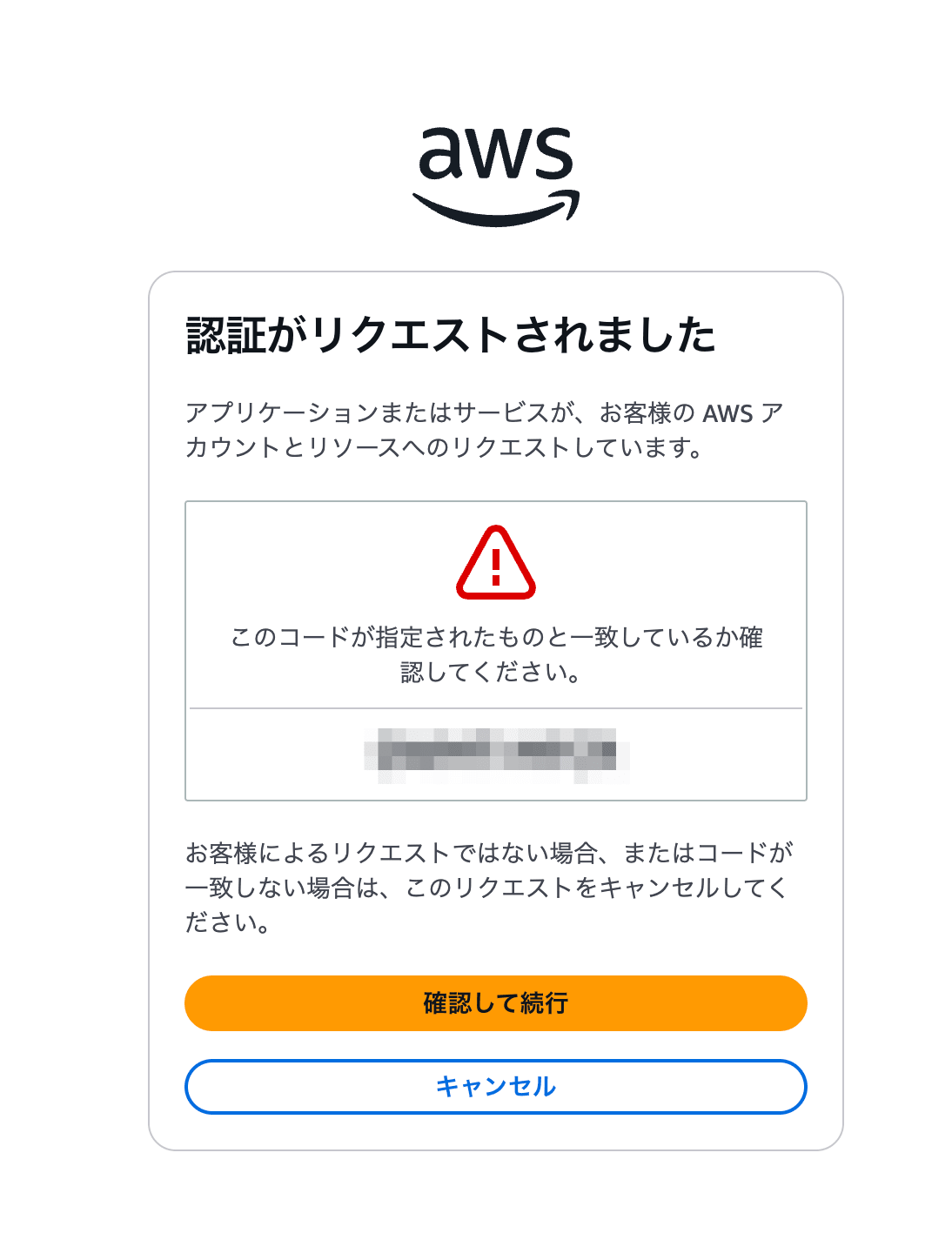
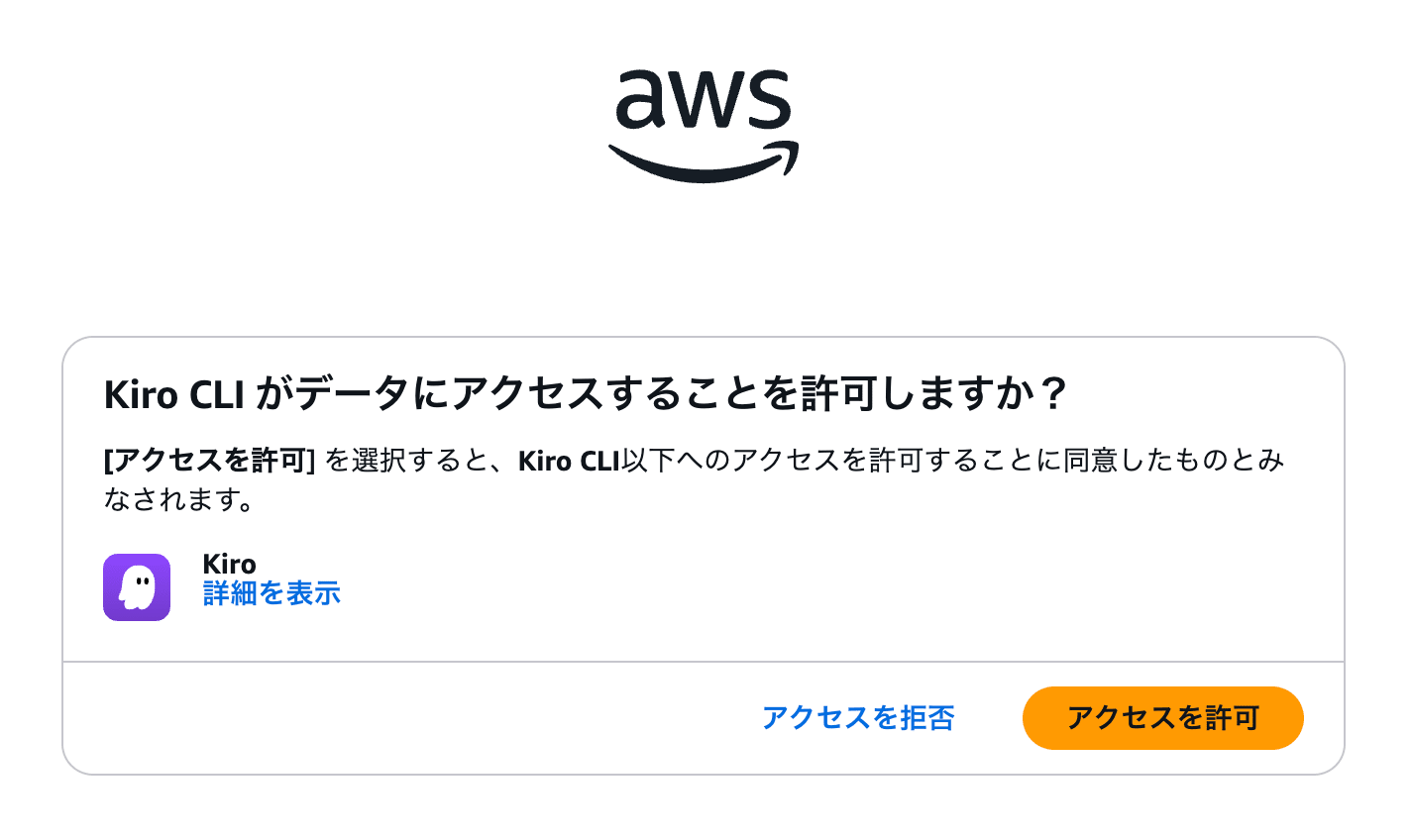
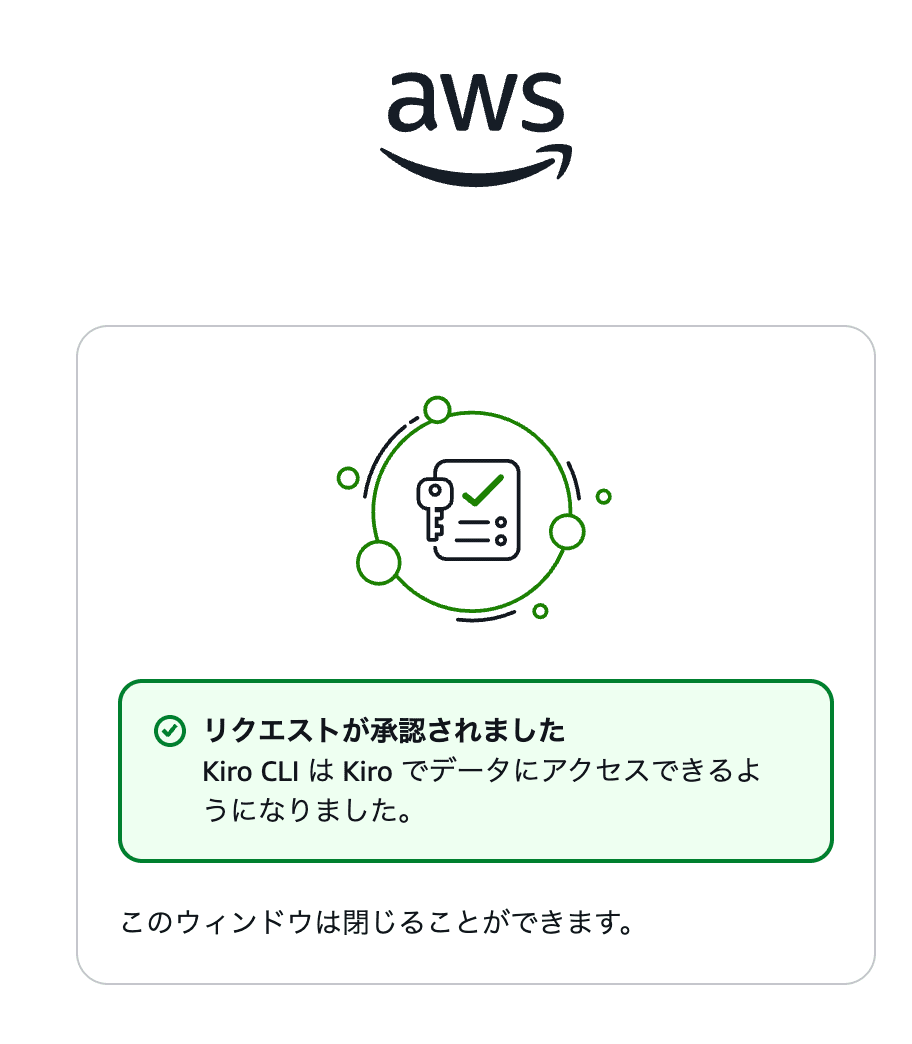
After authentication is complete, run Kiro CLI to confirm you're logged in and can use it.
$ kiro-cli
Welcome to Kiro!
Verify Authentication Persists After Rebuild
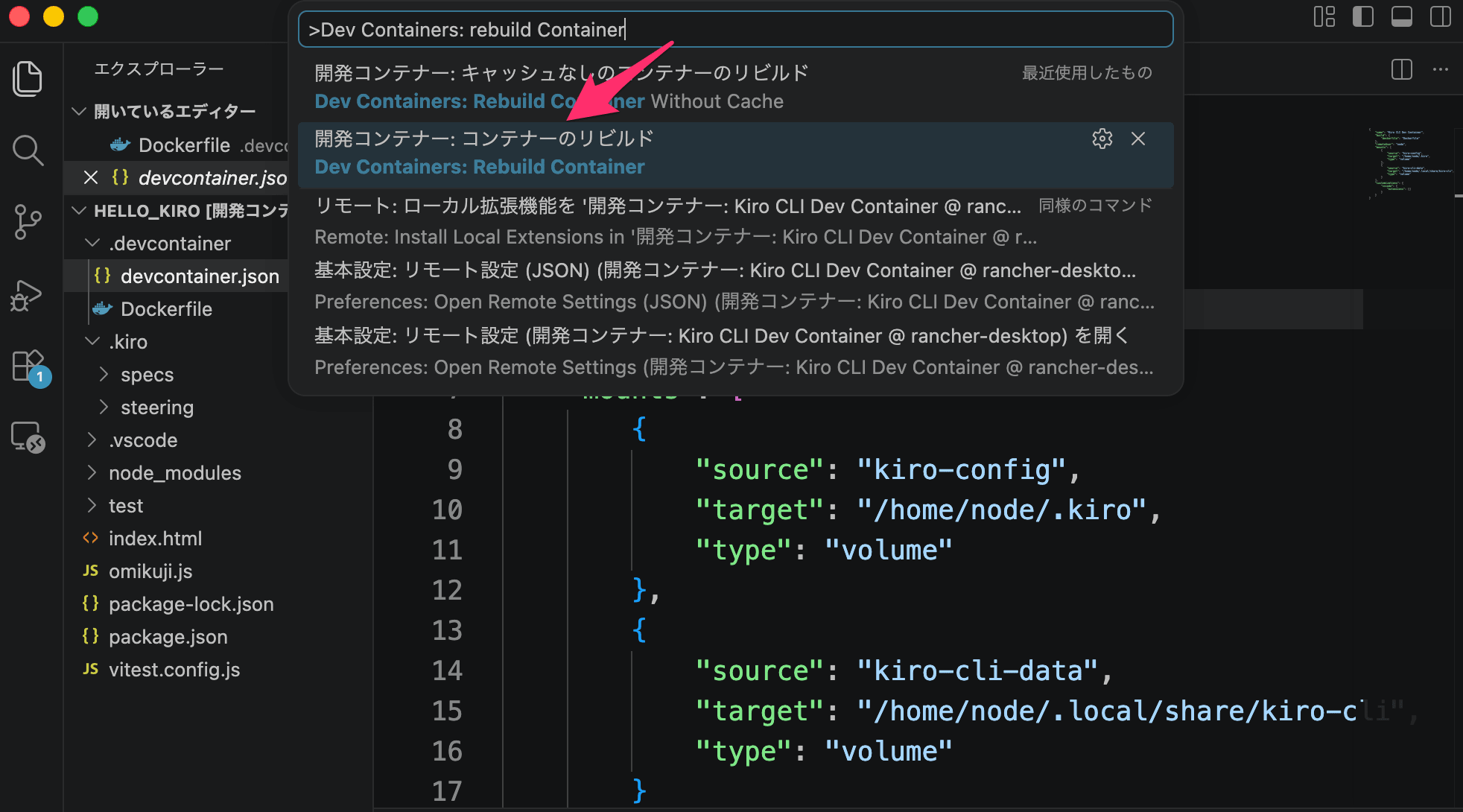
After authentication is complete, rebuild the devcontainer and restart the docker process.
Run "Dev Containers: Rebuild Container" from VS Code's command palette.
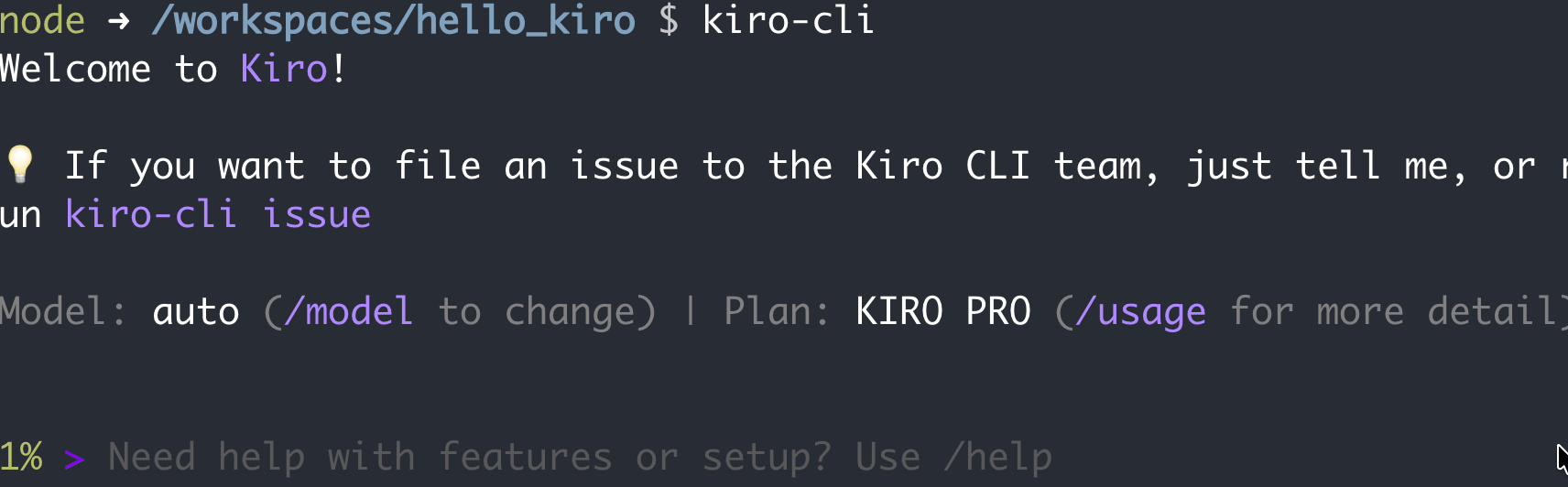
After rebuilding, enter the devcontainer and launch Kiro CLI.
$ kiro-cli
If the chat screen launches without showing the authentication screen, then authentication persistence is successful.
Conclusion
I've shared how to use Kiro CLI within a DevContainer (Docker).
Containing AI agents within a DevContainer provides peace of mind as it limits their impact on your host PC.
However, note that the workspace folder is bind-mounted from the host, so it's not a complete sandbox.
Our company blog also has an article about setting up Claude Code in a DevContainer, which you may find useful.
I hope this blog helps someone.
Complete Configuration Files
Finally, here are the complete configuration files.
I'm using mcr.microsoft.com/devcontainers/javascript-node as the base image because I want to use skills and tools that use npx.
FROM mcr.microsoft.com/devcontainers/javascript-node:24

ARG USERNAME=node

# Create directories for Kiro CLI and set permissions
RUN mkdir -p /home/${USERNAME}/.kiro /home/${USERNAME}/.local/share/kiro-cli && \
  chown -R ${USERNAME}:${USERNAME} /home/${USERNAME}/.kiro /home/${USERNAME}/.local

# non-root user
USER ${USERNAME}

# Add Kiro CLI installation path to PATH
ENV PATH=$PATH:/home/${USERNAME}/.local/bin

# Install Kiro CLI
RUN curl -fsSL https://cli.kiro.dev/install | bash
{
    "name": "Kiro CLI Dev Container",
    "build": {
        "dockerfile": "Dockerfile"
    },
    "remoteUser": "node",
    "mounts": [
        {
            "source": "kiro-config",
            "target": "/home/node/.kiro",
            "type": "volume"
        },
        {
            "source": "kiro-cli-data",
            "target": "/home/node/.local/share/kiro-cli",
            "type": "volume"
        }
    ],
    "customizations": {
        "vscode": {
            "extensions": []
        }
    }
}