Running Qwen3-Coder 30B on a Rented GPU with NVIDIA Brev

The problem with "local" AI
Qwen3-Coder-30B is genuinely good at writing code. It also wants roughly 20GB of VRAM in its 4-bit quantized form, and closer to 60GB unquantized. My laptop has none of that.
The usual advice is to buy a GPU or rent a cloud instance, and renting a cloud instance normally means picking a region, wrestling with a VPC, finding an AMI with the right CUDA version, and discovering three hours later that the GPU quota you needed requires a support ticket.
NVIDIA Brev collapses that into a search command and a deploy button. It aggregates GPU inventory across several providers — AWS, GCP, Hyperstack, Massed Compute, Paperspace and others — and gives you one CLI to provision, SSH into, and tunnel out of whatever you rent.
This post walks through the whole thing end to end: renting an A6000 for $0.60/hour, serving Qwen3-Coder 30B on it with vLLM, tunnelling the endpoint to localhost:8000, and pointing real coding agents at it. Including the part where I got the model name wrong and vLLM refused to start.
The end state is a coding agent running against a model on hardware I don't own, that thinks it's talking to something on my own machine.
Step 1: Install the CLI and log in
Sign up at brev.nvidia.com first. On macOS:
brew install brevdev/homebrew-brev/brev
Linux and WSL have their own installers in the Brev docs.
Then authenticate:
brev login
This opens a browser to complete the handshake.
The browser handshake — you can close this window afterwards
Back in the terminal, you get your org context and a couple of pointers:
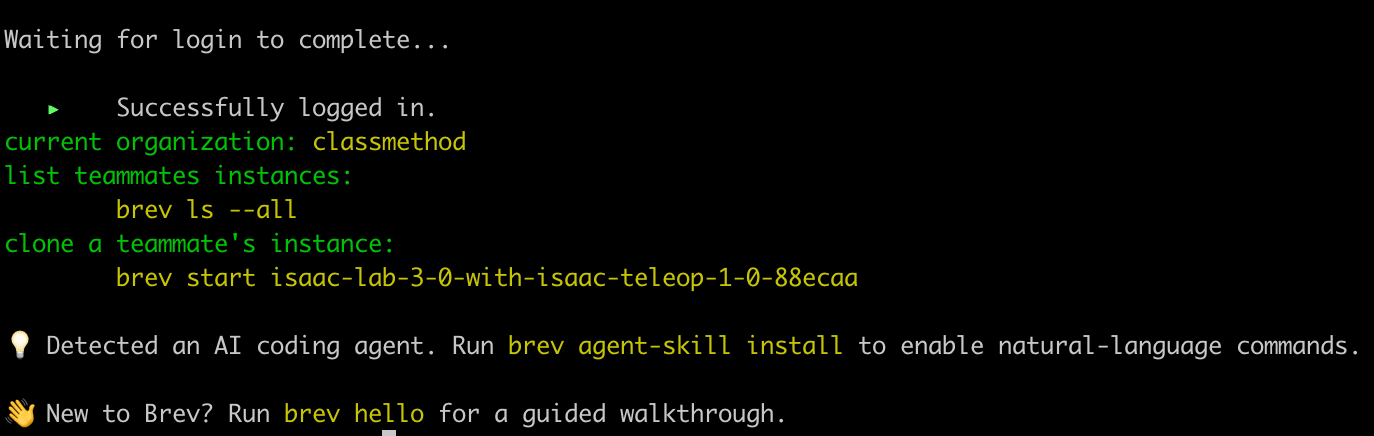
Logged in, with the current organization resolved
Credentials and a generated SSH keypair land in ~/.brev. That keypair is what makes brev shell and brev port-forward work later without any manual key juggling.
There's a guided walkthrough if you want it:
brev hello
brev hello opens with some ASCII art

...then walks you through the basics
Step 2: Find a GPU worth renting
This is the command that makes Brev worth using:
brev search --sort price
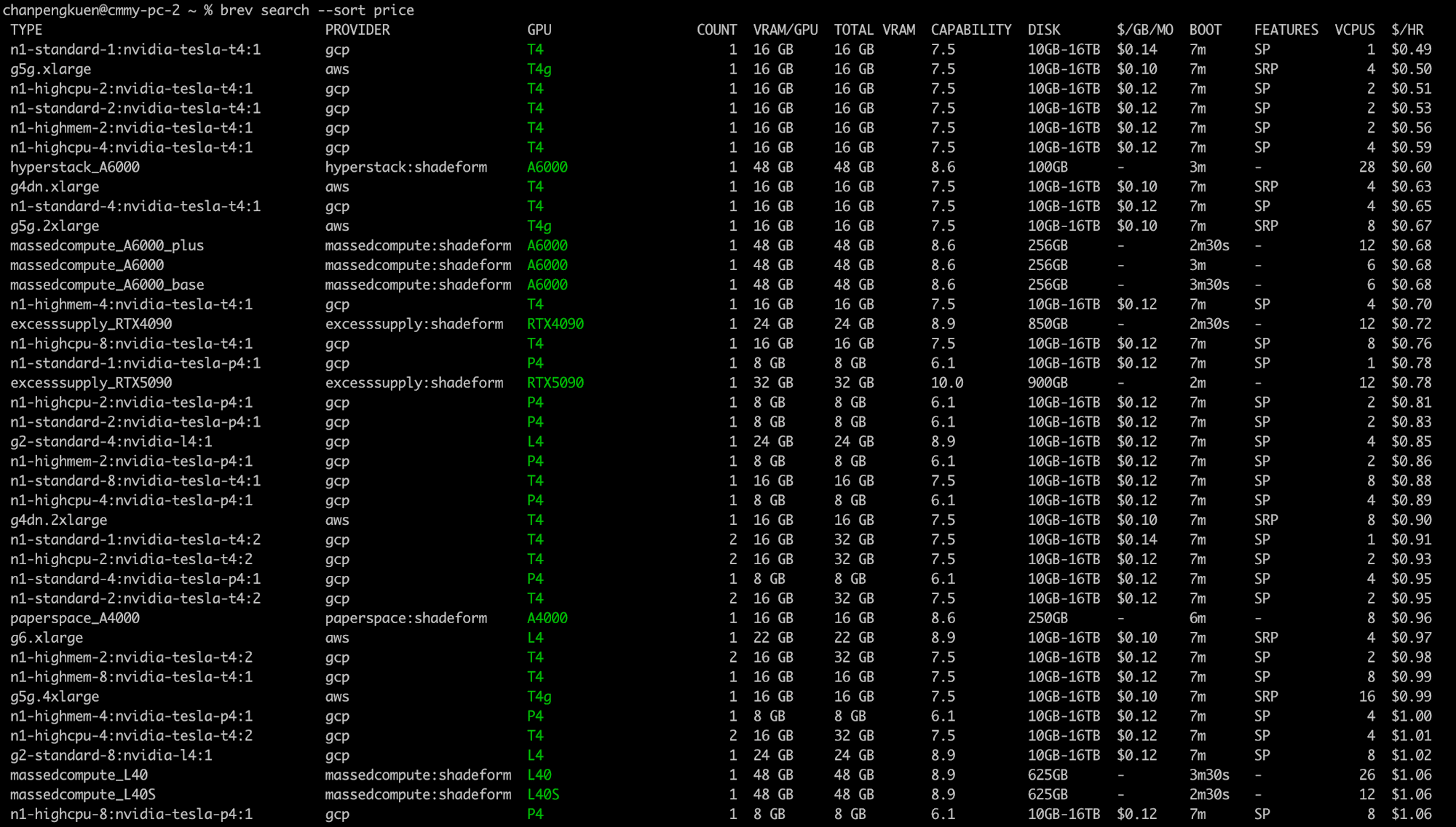
Live inventory across the whole provider pool, sorted by hourly price
You get GPU type, VRAM per GPU, total VRAM, compute capability, disk, boot time, vCPUs, and dollars per hour.
Read this table with your model's requirements in hand. Qwen3-Coder-30B-A3B in 4-bit AWQ needs about 18–20GB for weights, plus KV cache. At a 65K context window the cache is not small. I wanted comfortable headroom, which ruled out most of the cheap end:
| Option | VRAM | $/hr | Verdict |
|---|---|---|---|
T4 (n1-standard-1) |
16 GB | $0.49 | Too small. Won't hold the weights. |
| RTX 4090 | 24 GB | $0.72 | Fits, but tight on KV cache at 65K context. |
| RTX 5090 | 32 GB | $0.78 | Comfortable, and fast. |
| A6000 (Hyperstack) | 48 GB | $0.60 | Cheapest option with real headroom. |
The A6000 at $0.60/hour is the outlier here — 48GB of VRAM for less than the 24GB 4090, with a 3-minute boot time and 28 vCPUs. That kind of inversion is exactly what aggregating across providers surfaces, and it's why guessing at a config without running search first is a mistake. Pricing and availability shift.
If slow provisioning would annoy you, filter it out:
brev search --sort price --max-boot-time 3
Step 3: Provision the instance
I used the web console for this part, because the configuration screen shows you the constraints before you commit. Head to the GPU Environments page and hit Create Environment:
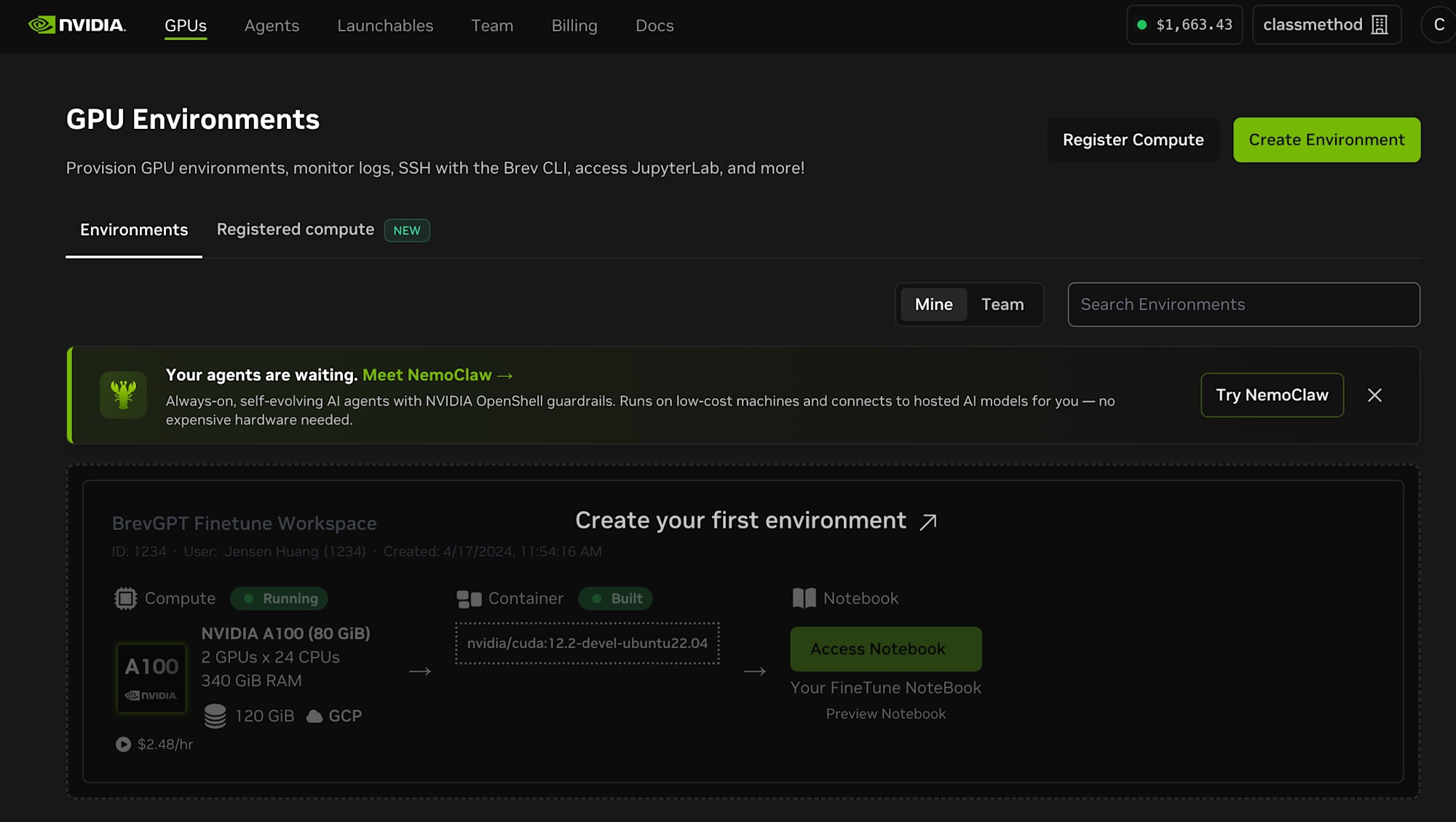
The console before anything exists
Pick the instance type you settled on, and you land on the configuration screen:
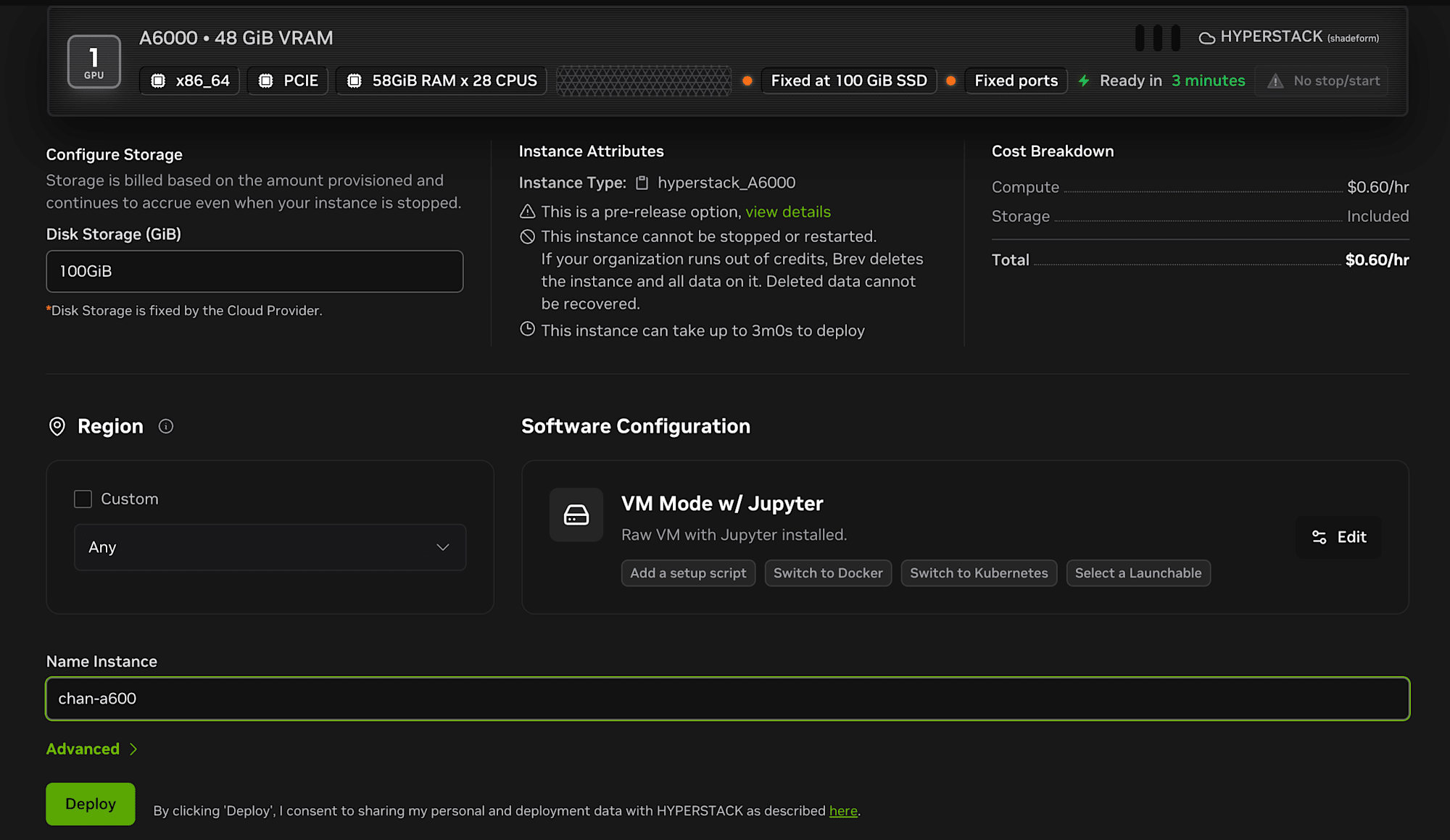
Read the Instance Attributes panel before clicking Deploy
Worth reading carefully before you deploy:
- Disk is fixed at 100GiB on this instance type. Some providers let you choose; this one doesn't.
- Storage is billed even when stopped, on instance types that can stop.
- Software configuration defaults to "VM Mode w/ Jupyter" — a raw VM with Jupyter installed. You can switch to Docker or Kubernetes mode, or pick a prebuilt Launchable. VM Mode is the right choice here because we want to run Docker ourselves.
I named it chan-a600 and deployed. Roughly three minutes later:
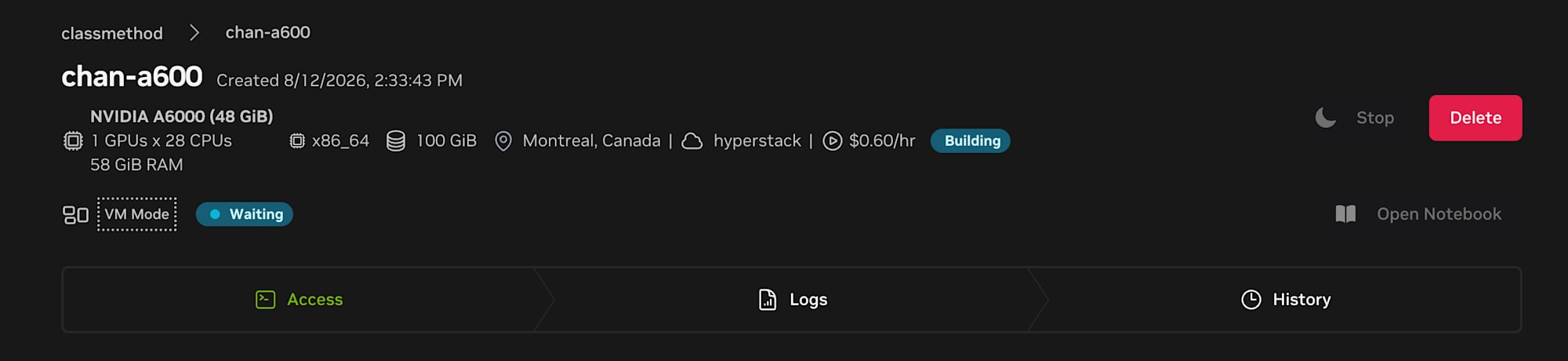
Building — A6000, 48 GiB, Montreal, $0.60/hr
Once it's running, get a shell:
brev shell chan-a600
And confirm the hardware is what you paid for:
nvidia-smi
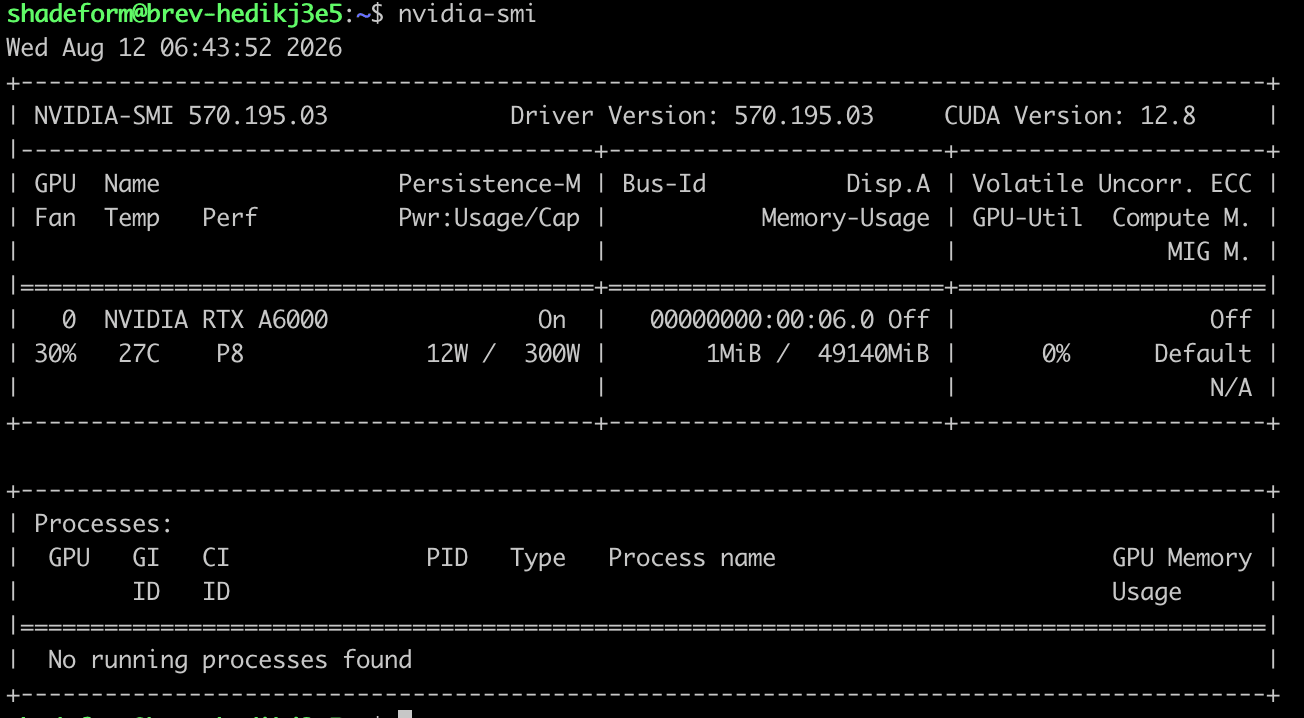
RTX A6000, 49140MiB VRAM, CUDA 12.8, nothing else using the card
Step 4: The five-minute version (Ollama)
Before doing anything sophisticated, it's worth proving the GPU can actually run the model. Ollama is the fastest way to do that:
curl -fsSL https://ollama.com/install.sh | sh
ollama run qwen3-coder:30b
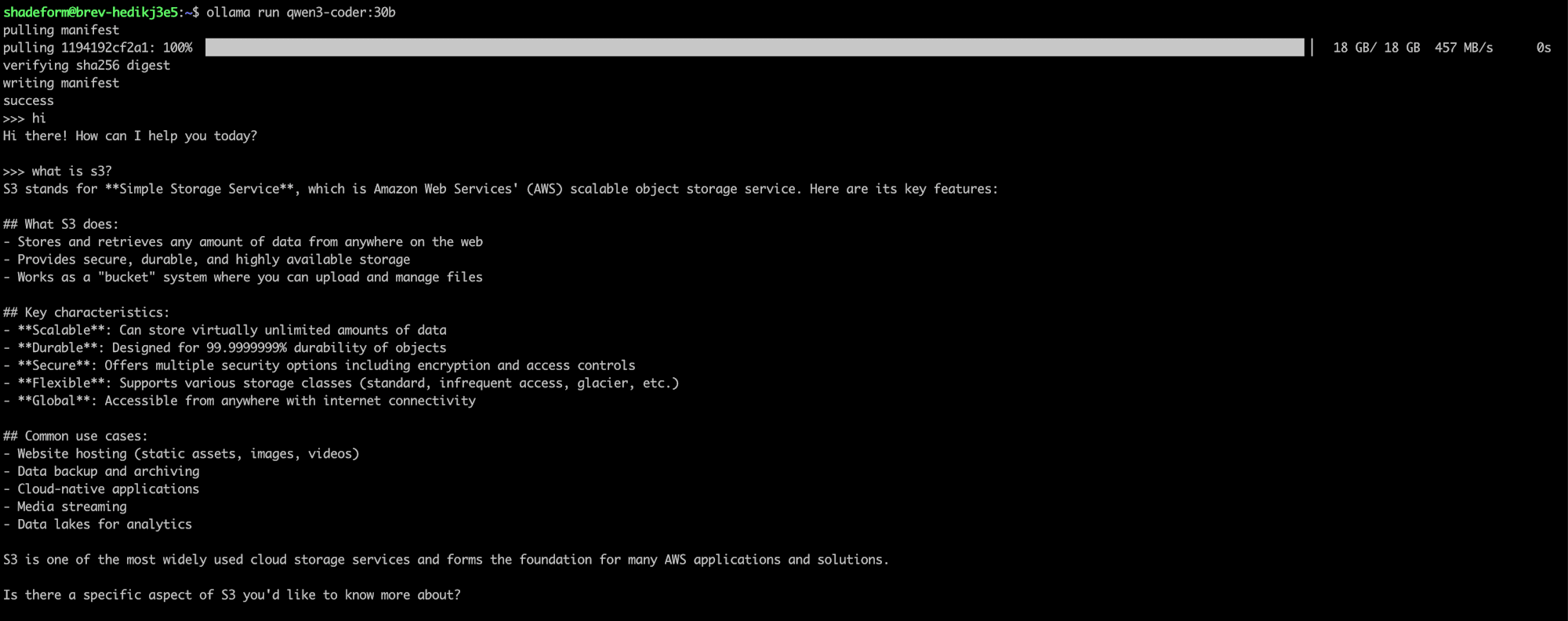
An 18GB pull at 457 MB/s, then a working chat prompt
Total elapsed time: a couple of minutes.
This is a completely legitimate place to stop if all you want is a chat interface on a big model. But it's not what I wanted, for one specific reason: coding agents need tool calling, and they need it through an OpenAI-compatible API with a parser that understands how this particular model emits tool calls. Ollama's OpenAI compatibility layer is serviceable but thinner, and gives you much less control over context length, quantization choice, and batching.
So: vLLM.
Step 5: Serving with vLLM (and the error you'll probably hit)
Here's the command I ran first. It does not work. I'm including it because the failure is instructive and you will likely hit it too:
docker run --gpus all --ipc=host --shm-size=8g \
  -v ~/.cache/huggingface:/root/.cache/huggingface \
  -p 8000:8000 \
  vllm/vllm-openai:latest \
  --model Qwen/Qwen3-Coder-30B-A3B-Instruct-AWQ \
  --max-model-len 65536 \
  --enable-auto-tool-choice \
  --tool-call-parser qwen3_coder
The image pulls fine — about 4.6GB:
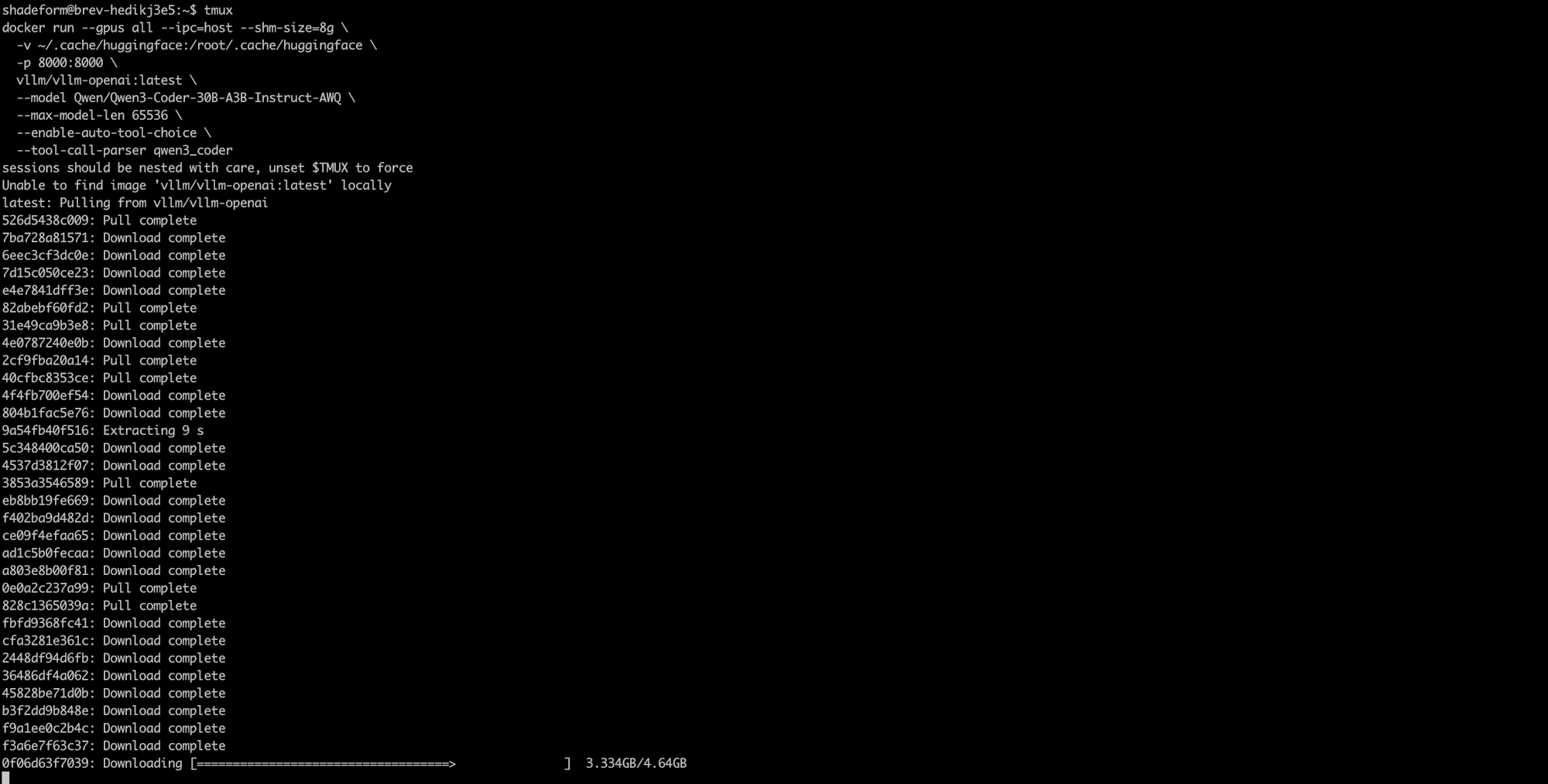
Pulling vllm/vllm-openai:latest
Then vLLM starts, walks through its config loading, and dies:
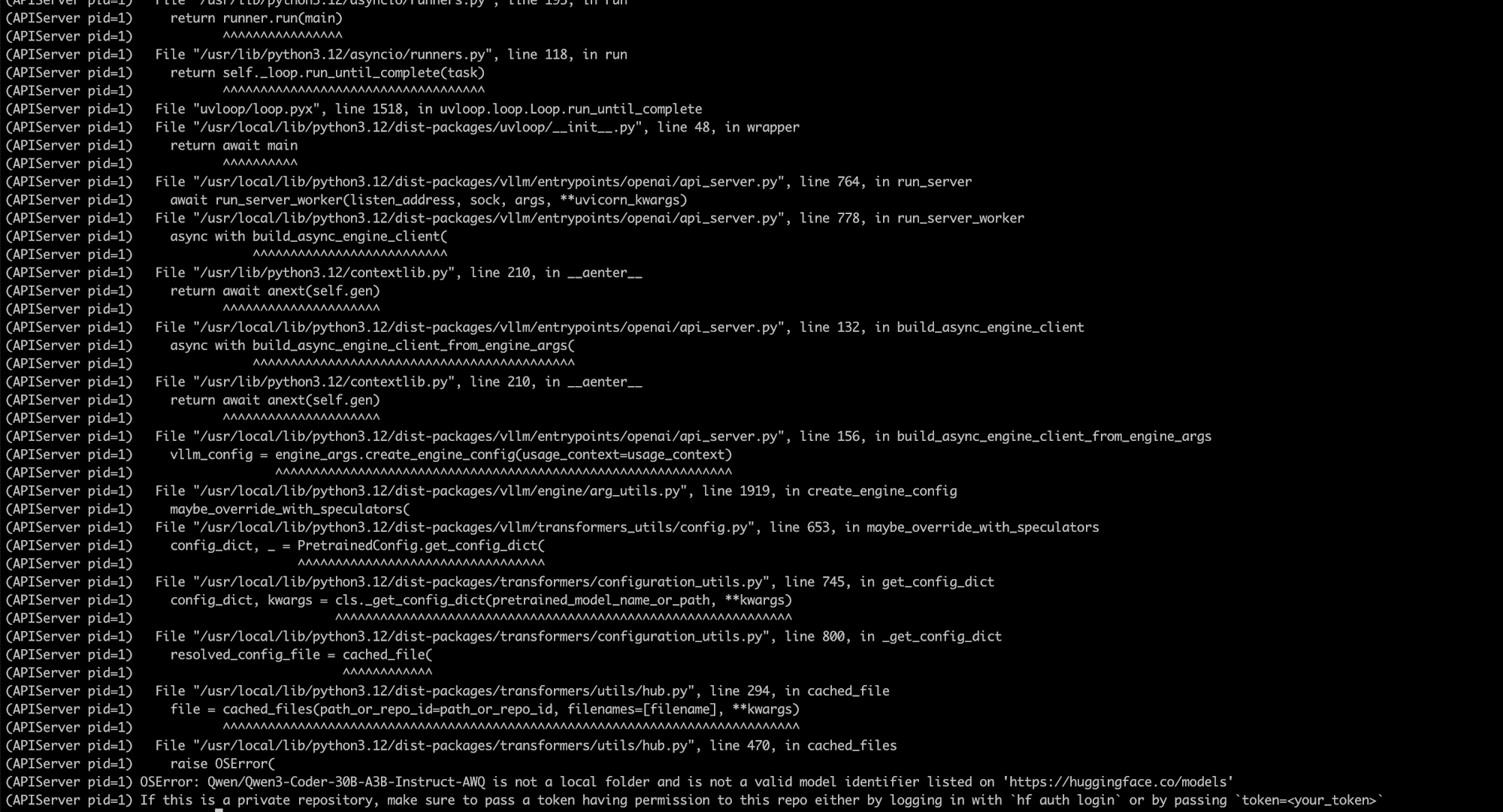
The traceback bottoms out in transformers/utils/hub.py
OSError: Qwen/Qwen3-Coder-30B-A3B-Instruct-AWQ is not a local folder
and is not a valid model identifier listed on 'https://huggingface.co/models'
If this is a private repository, make sure to pass a token having permission
to this repo either by logging in with `hf auth login` or by passing
`token=<your_token>`
The error message suggests an authentication problem, and that's a red herring. The actual cause is simpler: that repository doesn't exist. Qwen published the base model and several quantizations, but not an official AWQ build under that exact name. I'd assumed the naming convention and guessed.
Quantized builds are very often community-published. The working one here is from cpatonn:
docker run --gpus all --ipc=host --shm-size=8g \
  -v ~/.cache/huggingface:/root/.cache/huggingface \
  -p 8000:8000 \
  vllm/vllm-openai:latest \
  --model cpatonn/Qwen3-Coder-30B-A3B-Instruct-AWQ-4bit \
  --max-model-len 65536 \
  --enable-auto-tool-choice \
  --tool-call-parser qwen3_coder
What the flags are doing
--gpus all— expose the GPU to the container. Without this vLLM will try CPU and fail.--ipc=host --shm-size=8g— vLLM uses shared memory heavily between worker processes. Docker's 64MB default causes cryptic crashes under load.-v ~/.cache/huggingface:/root/.cache/huggingface— cache weights on the host. Restart the container and you skip the ~18GB re-download.--max-model-len 65536— 64K context. Directly determines KV cache size; this is where the A6000's 48GB earns its keep.--enable-auto-tool-choice+--tool-call-parser qwen3_coder— the reason we're using vLLM at all. Qwen3-Coder emits tool calls in its own format; this parser translates them into OpenAI-shapedtool_callsresponses. Omit these and every coding agent you connect will fail to invoke a single tool.
A successful boot
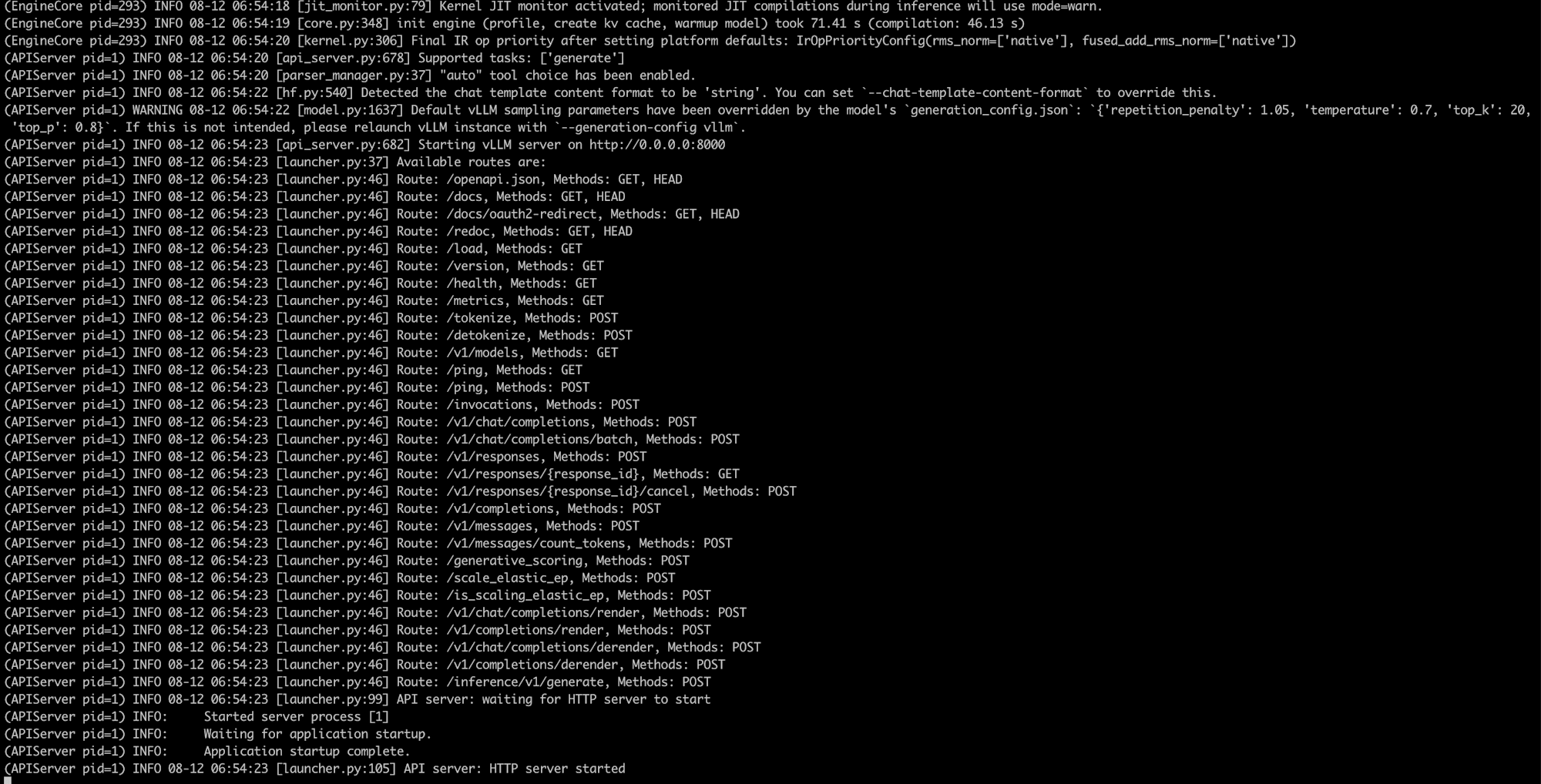
Engine initialized, HTTP server up on port 8000
Things worth noticing in that log:
- Engine init took 71.41 seconds, of which 46.13s was torch compilation. This is normal for a first start and is largely cached afterwards.
"auto" tool choice has been enabled— the parser registered correctly.- The route list includes
/v1/chat/completions,/v1/completions,/v1/modelsand/v1/responses. That last one matters in Step 7.
A warning you can safely ignore
vLLM logs that the model's own generation_config.json overrode its sampling defaults:
Default vLLM sampling parameters have been overridden by the model's
generation_config.json: {'repetition_penalty': 1.05, 'temperature': 0.7,
'top_k': 20, 'top_p': 0.8}
These are the values Qwen recommends for this model, so leaving them alone is correct. Pass --generation-config vllm if you specifically want vLLM's defaults instead.
Step 6: Bring the endpoint to your laptop
The server is listening on 0.0.0.0:8000 inside the instance. Your laptop can't see it yet.
Brev's console has an Access tab that will expose ports publicly:
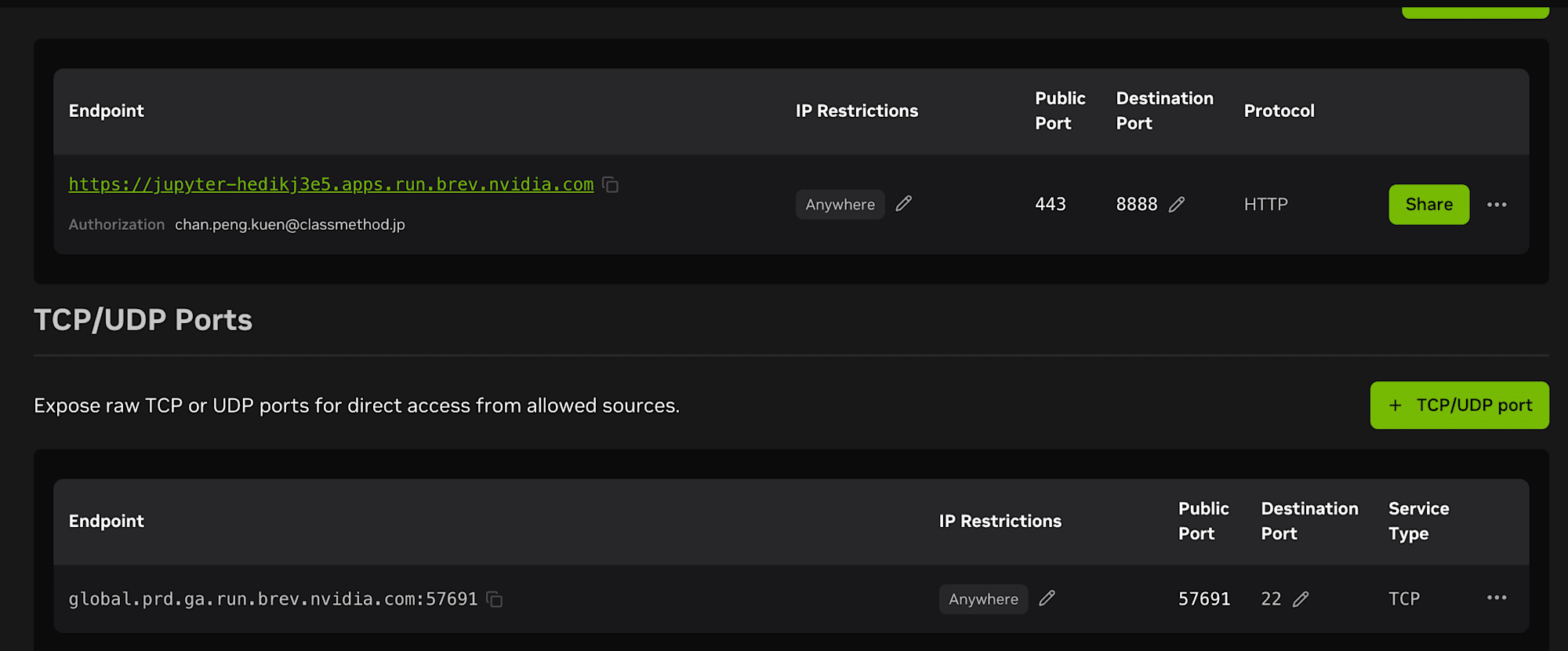
Jupyter mapped to 443, SSH exposed on a TCP port — note "Anywhere" under IP Restrictions
You could add port 8000 here and get a public URL.
Use the tunnel instead:
brev port-forward chan-a600 --port 8000:8000
This forwards over the SSH connection Brev already set up. Nothing is exposed to the internet, no auth to configure, and localhost:8000 on your laptop now reaches vLLM on the rented GPU. Leave it running in its own terminal.
Verify from your laptop:
curl -s http://localhost:8000/v1/models | python3 -m json.tool
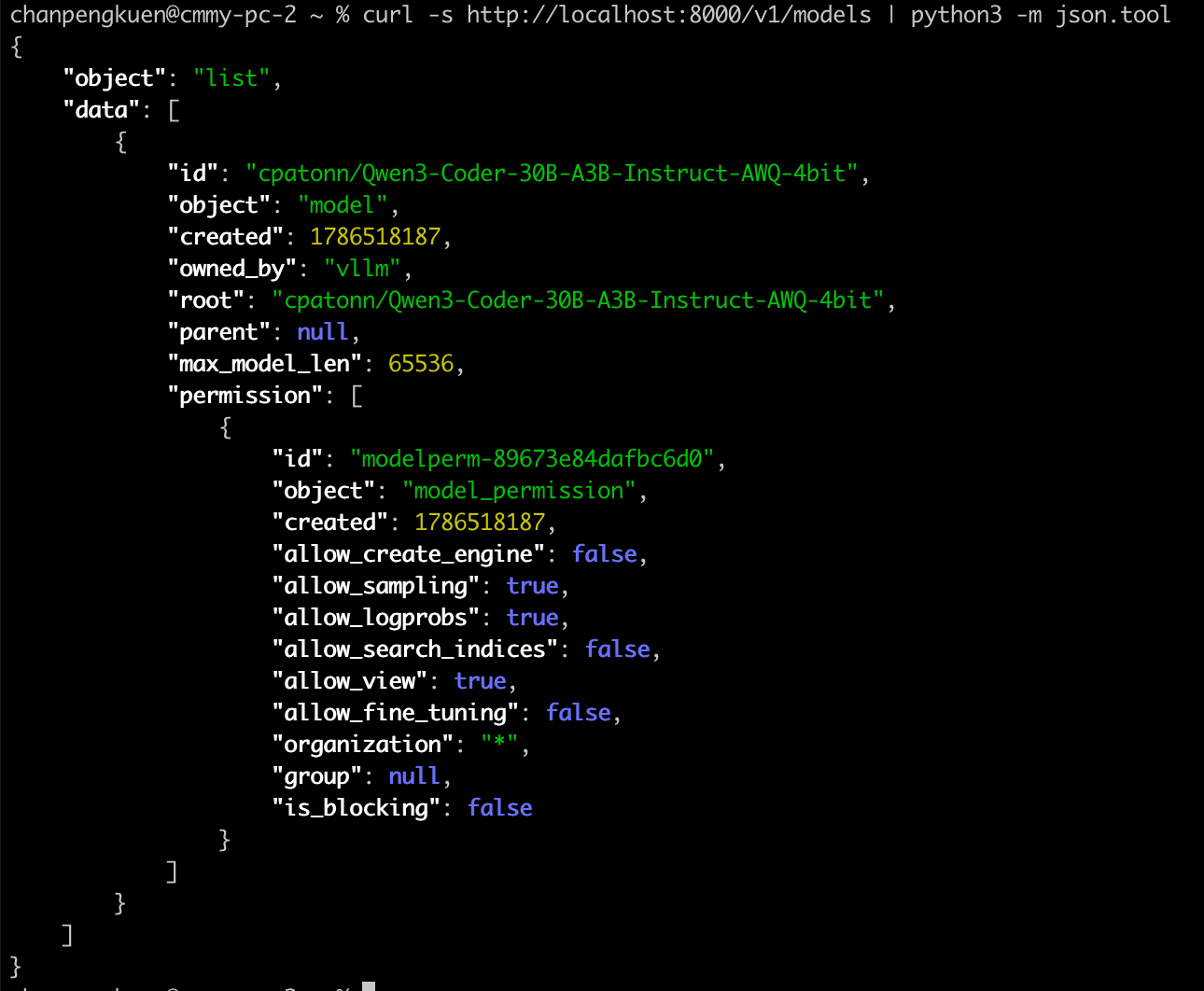
The tunnel works — this is running on the laptop, not the GPU box
{
    "object": "list",
    "data": [
        {
            "id": "cpatonn/Qwen3-Coder-30B-A3B-Instruct-AWQ-4bit",
            "object": "model",
            "owned_by": "vllm",
            "max_model_len": 65536
        }
    ]
}
A real completion, to confirm inference works end to end:
curl -s http://localhost:8000/v1/chat/completions \
  -H 'Content-Type: application/json' \
  -d '{
    "model": "cpatonn/Qwen3-Coder-30B-A3B-Instruct-AWQ-4bit",
    "messages": [{"role": "user", "content": "Write a Python function that reverses a linked list."}],
    "max_tokens": 300,
    "temperature": 0.2
  }' | python3 -m json.tool
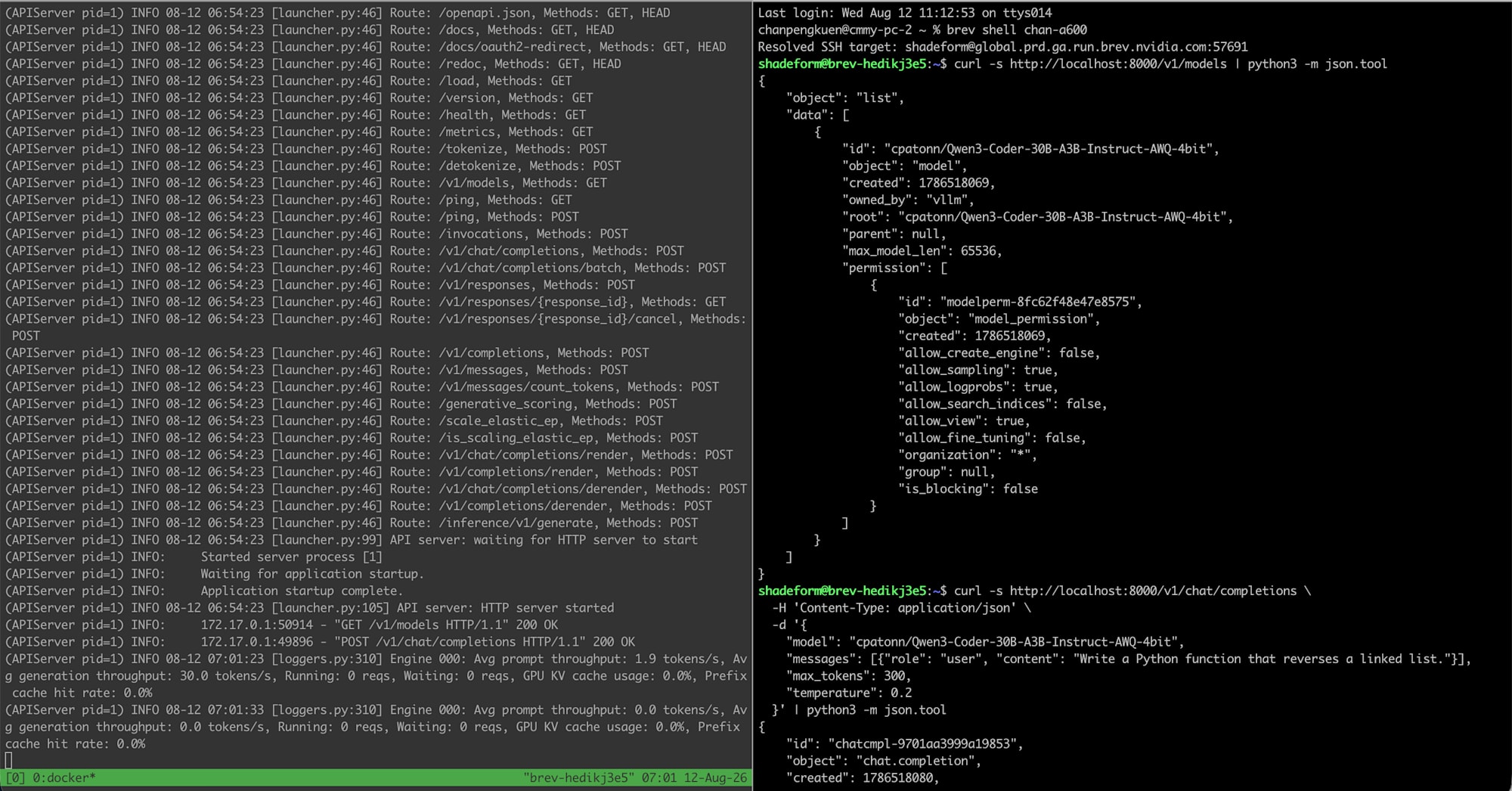
vLLM logs on the left, the request and response on the right
Step 7: Point real coding agents at it
From here the model is just an OpenAI-compatible endpoint on localhost. Anything that speaks that protocol will work.
Continue (VS Code)
name: Main Config
version: 1.0.0
schema: v1
models:
  # The vLLM-served Qwen3-Coder 30B
  - name: Qwen3-Coder 30B
    provider: openai
    model: cpatonn/Qwen3-Coder-30B-A3B-Instruct-AWQ-4bit
    apiBase: http://localhost:8000/v1   # points at the tunnel
    apiKey: dummy                        # any string works
    roles:
      - chat
      - edit
      - apply

  # A small model kept for inline tab completion
  - name: Qwen2.5-Coder 1.5B
    provider: ollama
    model: qwen2.5-coder:1.5b-base
    roles:
      - autocomplete

  # Embeddings for codebase context retrieval
  - name: Nomic Embed
    provider: ollama
    model: nomic-embed-text:latest
    roles:
      - embed
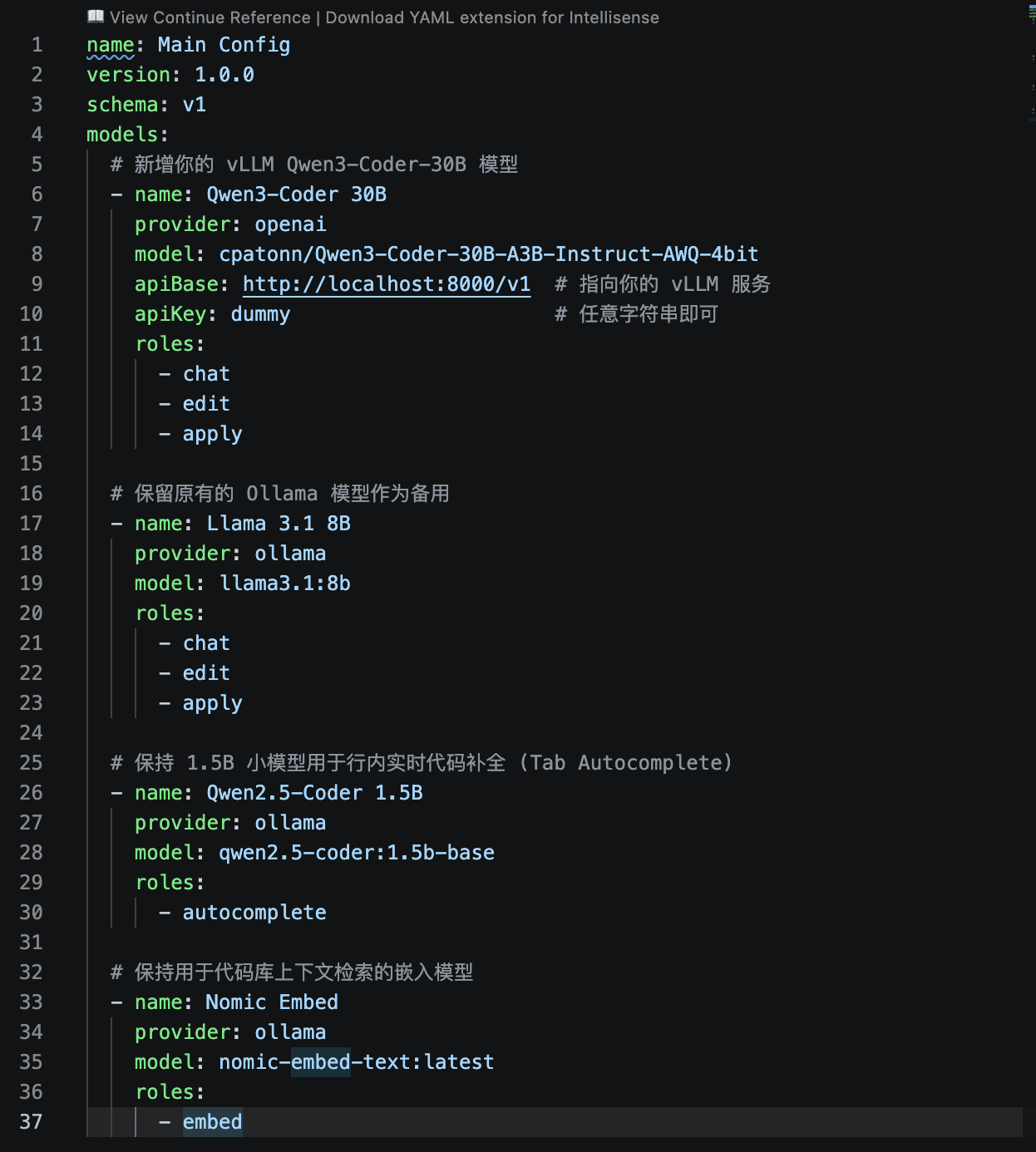
The same config in the editor
Two details:
provider: openaieven though there's no OpenAI involved. You're declaring the protocol, not the vendor.apiKey: dummy— vLLM doesn't check it, but Continue requires the field to be present.
The roles split is deliberate. Autocomplete fires on every keystroke, and routing that at a 30B model over a network tunnel would feel awful. Small local model for autocomplete, big remote model for chat and edits.
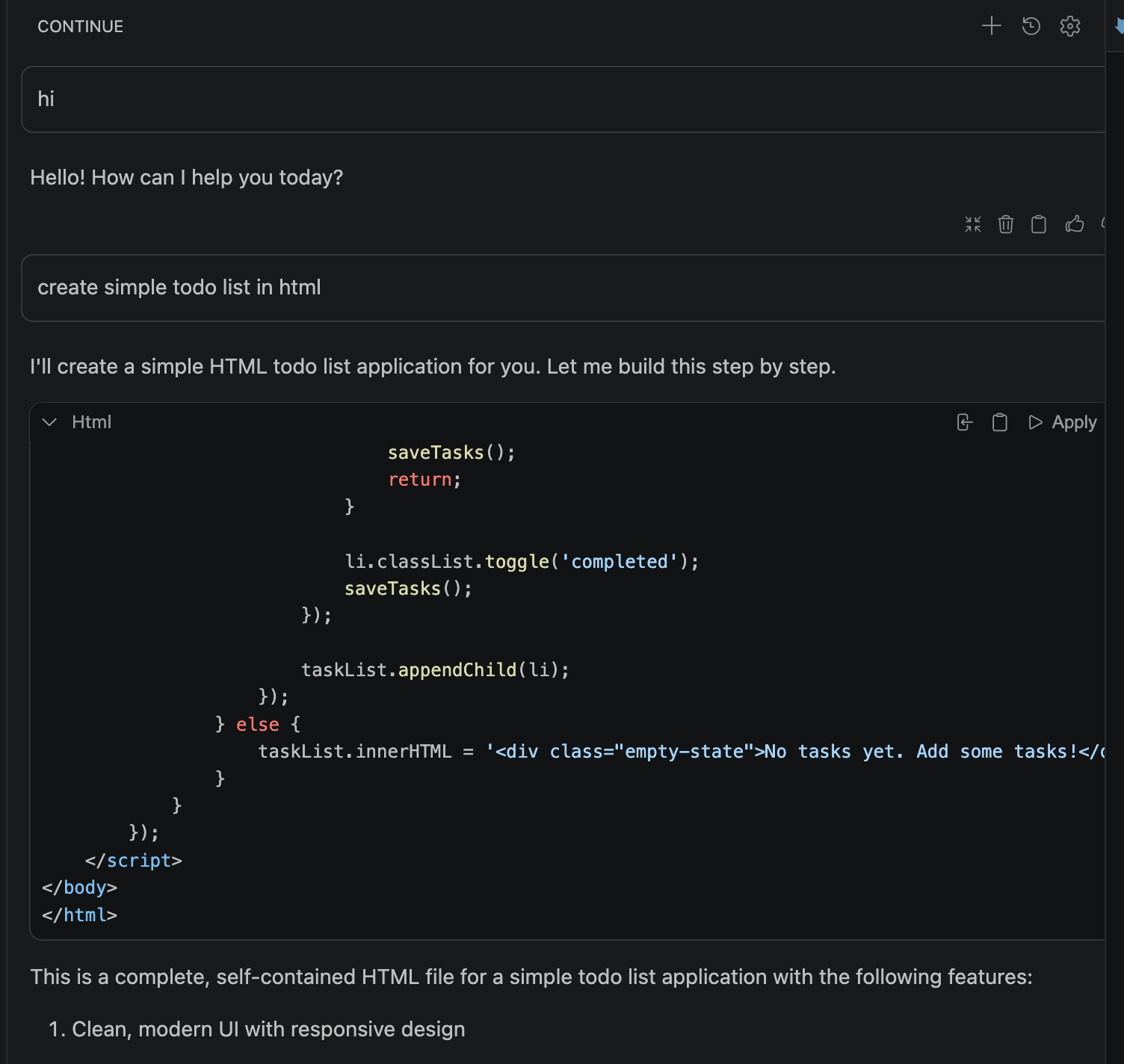
Chatting against the remote 30B from inside VS Code
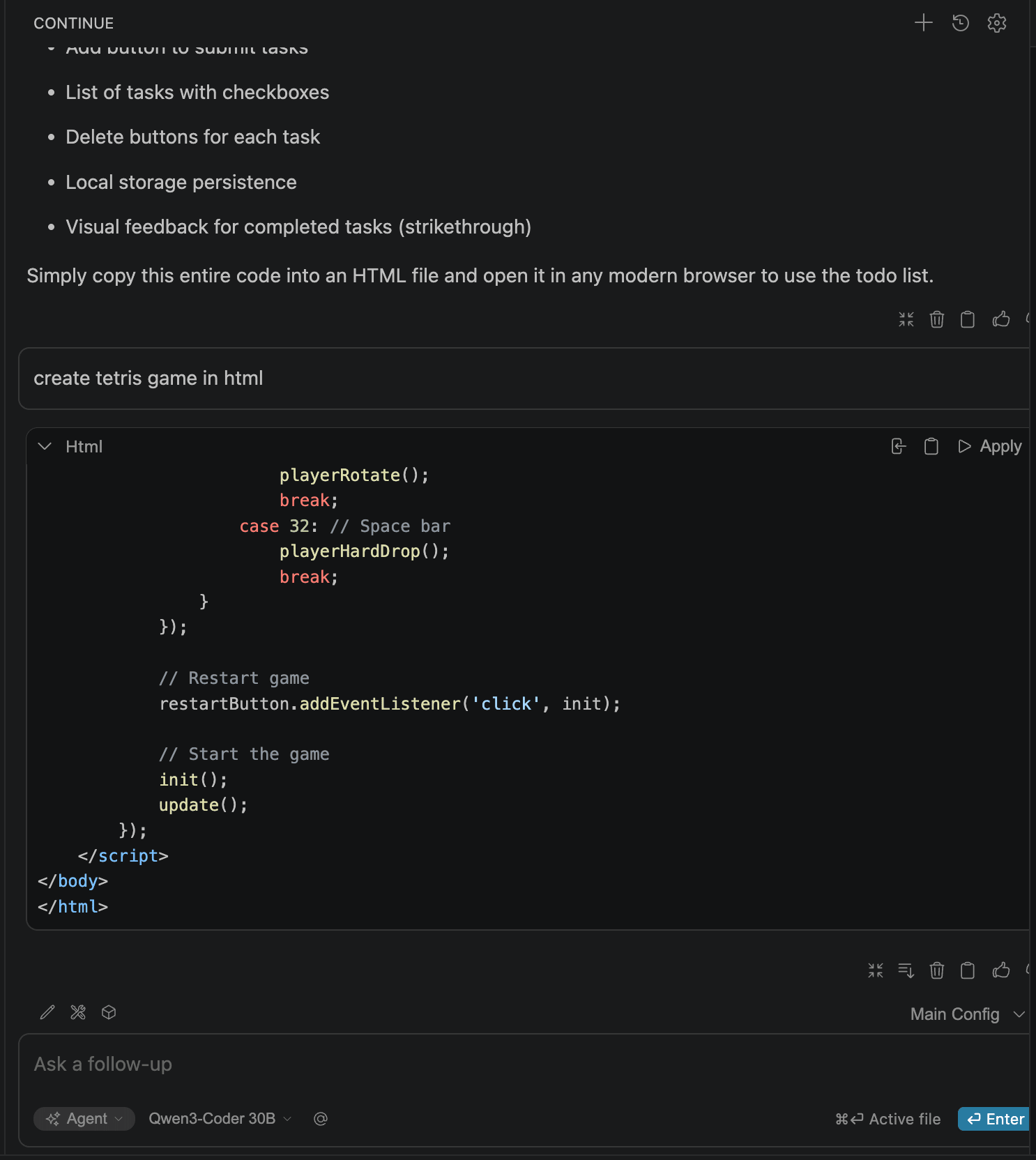
Model selector confirms Qwen3-Coder 30B is the active chat model
Codex CLI
brew install --cask codex
mkdir -p ~/.codex
[model_providers.local_vllm]
name = "Local vLLM"
base_url = "http://localhost:8000/v1"
requires_openai_auth = false
wire_api = "responses"
env_key = "VLLM_API_KEY"

[profiles.qwen-30b-local]
model_provider = "local_vllm"
model = "cpatonn/Qwen3-Coder-30B-A3B-Instruct-AWQ-4bit"
The line that matters most is wire_api = "responses". Codex can talk either the older chat-completions protocol or the newer Responses API, and it defaults to the latter. Remember /v1/responses in vLLM's route list from Step 5 — recent vLLM implements it, so this works.
Set the dummy key and launch:
export VLLM_API_KEY="dummy"
codex --profile qwen-30b-local
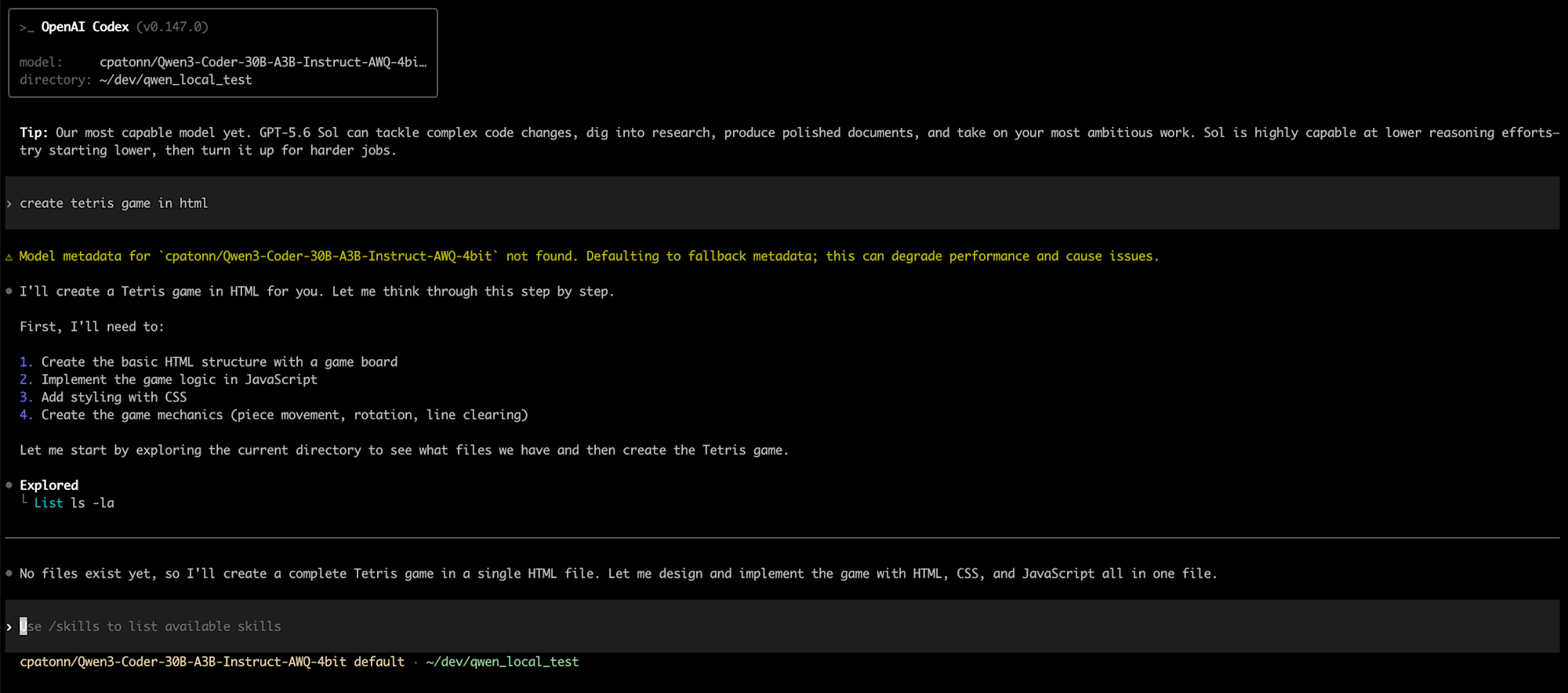
Codex running against a model on a rented GPU, via localhost
You'll see this on startup:
Model metadata for `cpatonn/Qwen3-Coder-30B-A3B-Instruct-AWQ-4bit` not found.
Defaulting to fallback metadata; this can degrade performance and cause issues.
This is expected and harmless. Codex ships a table of known models with their context windows and pricing; a community AWQ quant isn't in it, so it falls back to conservative defaults. The model works fine.
Step 8: Does it actually hold up?
Generating code is easy. Iterating on it is the real test, because that's where tool calling and multi-turn context either work or fall apart.
I asked for a Tetris game. Codex explored the directory, planned, and wrote a single-file implementation in about 90 seconds.
It had a bug — left and right arrows didn't move the piece. So I told it:
i press left or right cannot be move, can you fix it?
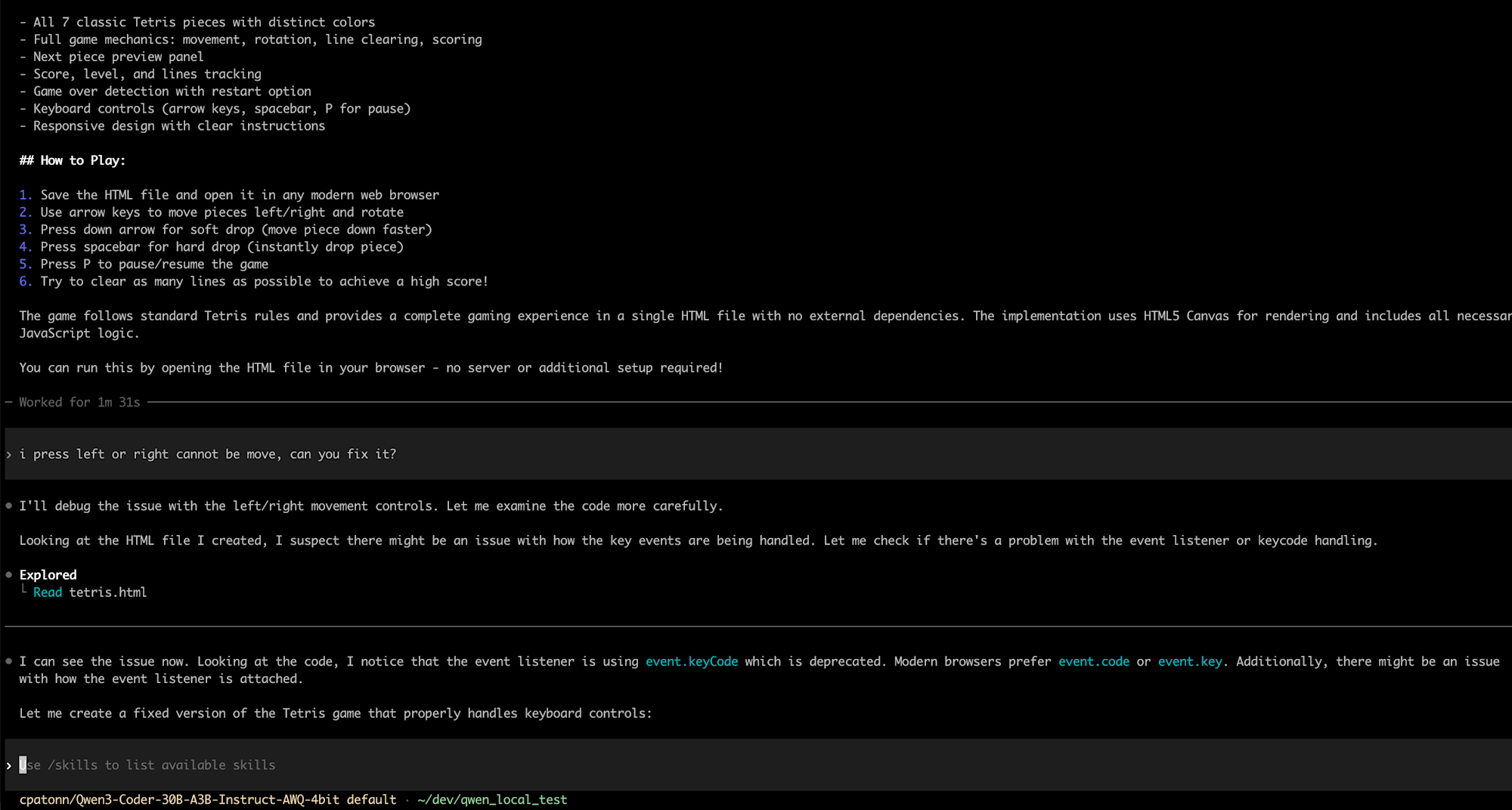
It re-read its own file and found the deprecated event.keyCode usage
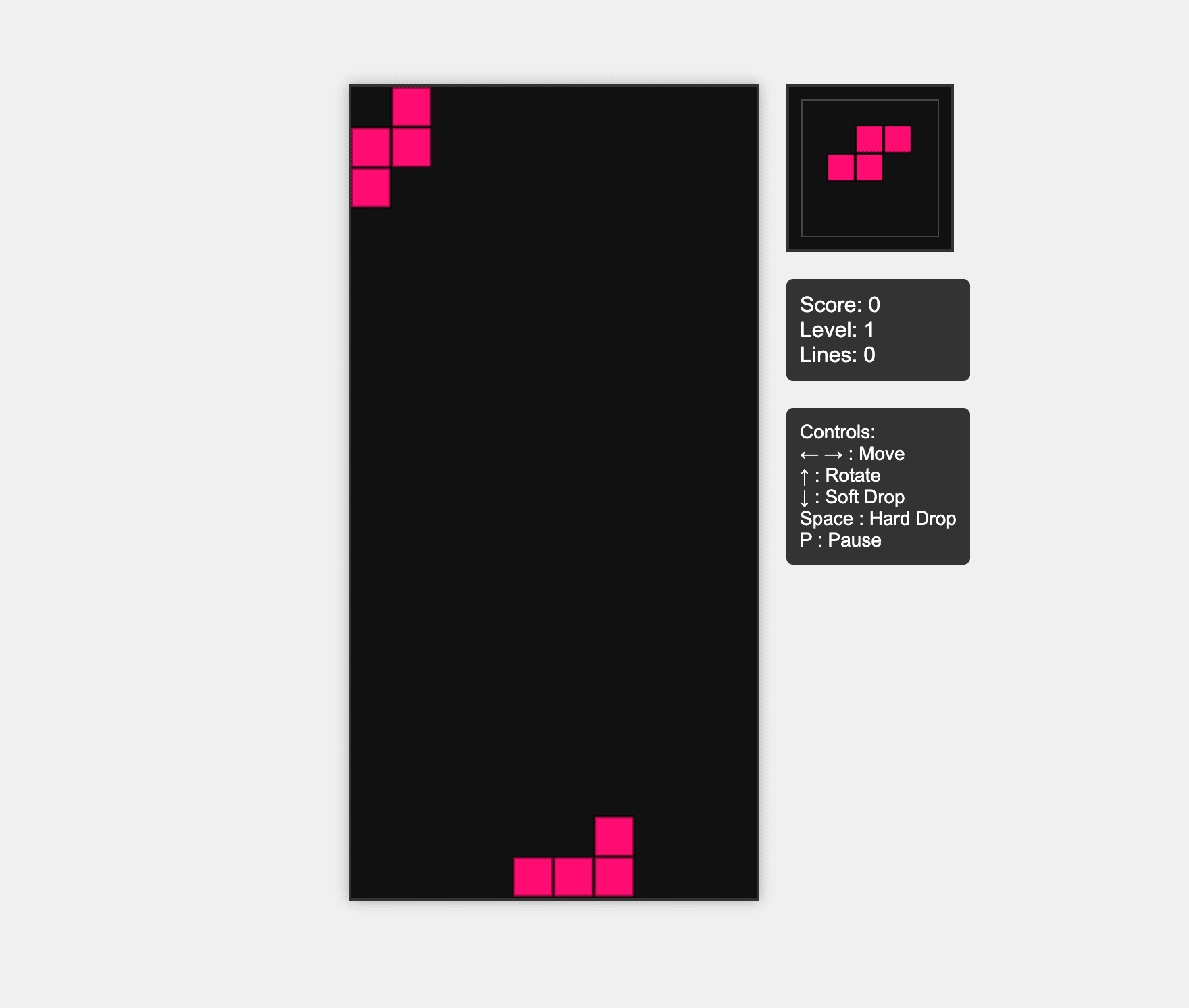
Working game, controls and all
That round trip — read the file, diagnose, patch, verify — is the whole point. It requires tool calling to work correctly, which requires --tool-call-parser qwen3_coder from Step 5.
Observed performance
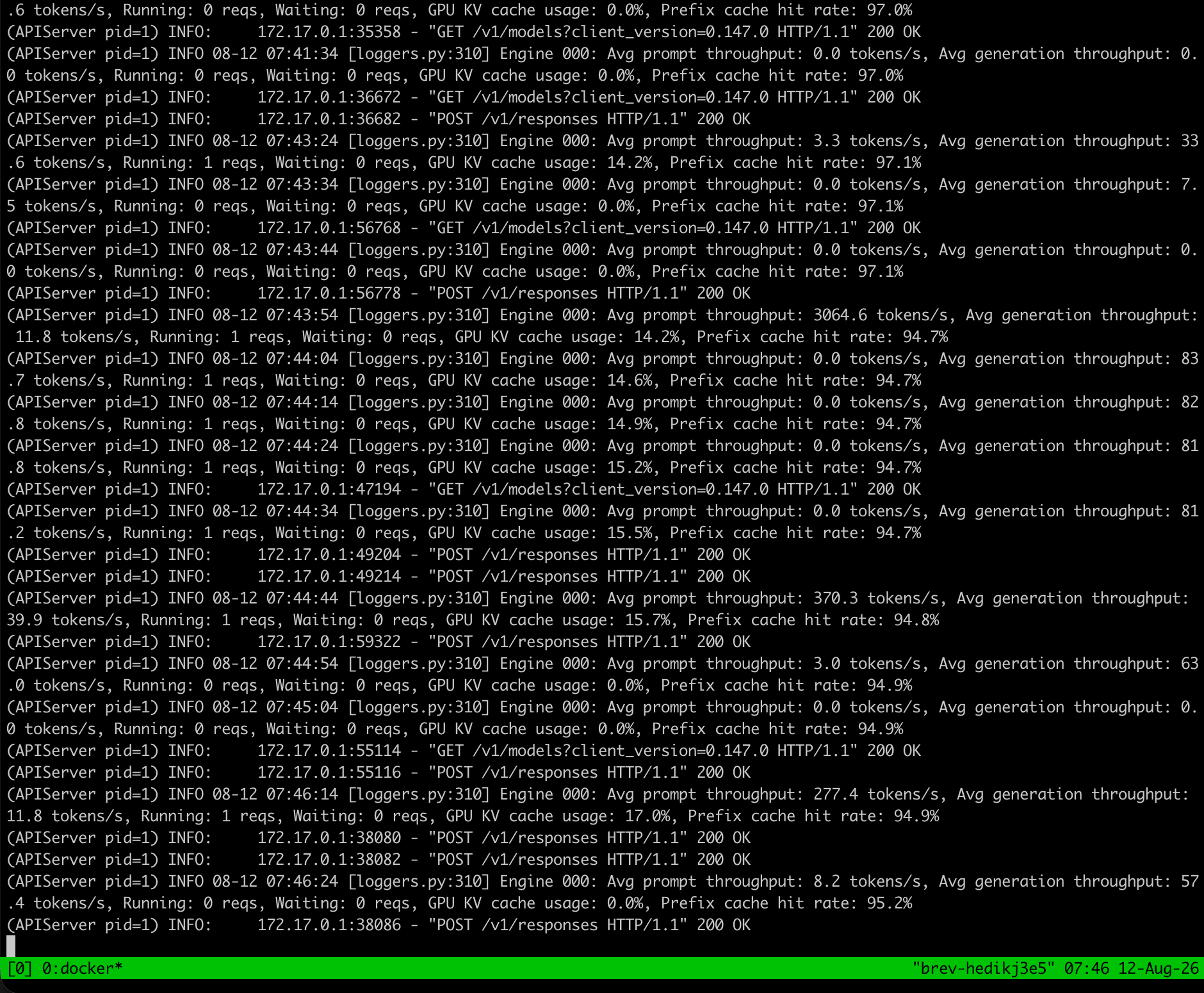
Engine stats during the coding session
- Generation throughput: ~30–84 tokens/sec on sustained single-user generation. Comfortably faster than reading speed.
- Prompt throughput peaking above 3,000 tokens/sec when ingesting large context.
- Prefix cache hit rate: 94–97%. This is the number that makes agentic workflows viable. Coding agents resend a near-identical prompt prefix every turn — system prompt, file contents, conversation history — and vLLM's prefix caching means that prefix isn't recomputed. Without it, each turn would re-ingest tens of thousands of tokens.
- GPU KV cache usage: 14–17%. At 64K context and single-user load, the A6000 is barely working. There's room to raise
--max-model-lenor serve several people at once.
Step 9: Turn it off
This part is not optional. A GPU you forgot about bills continuously.
brev delete chan-a600
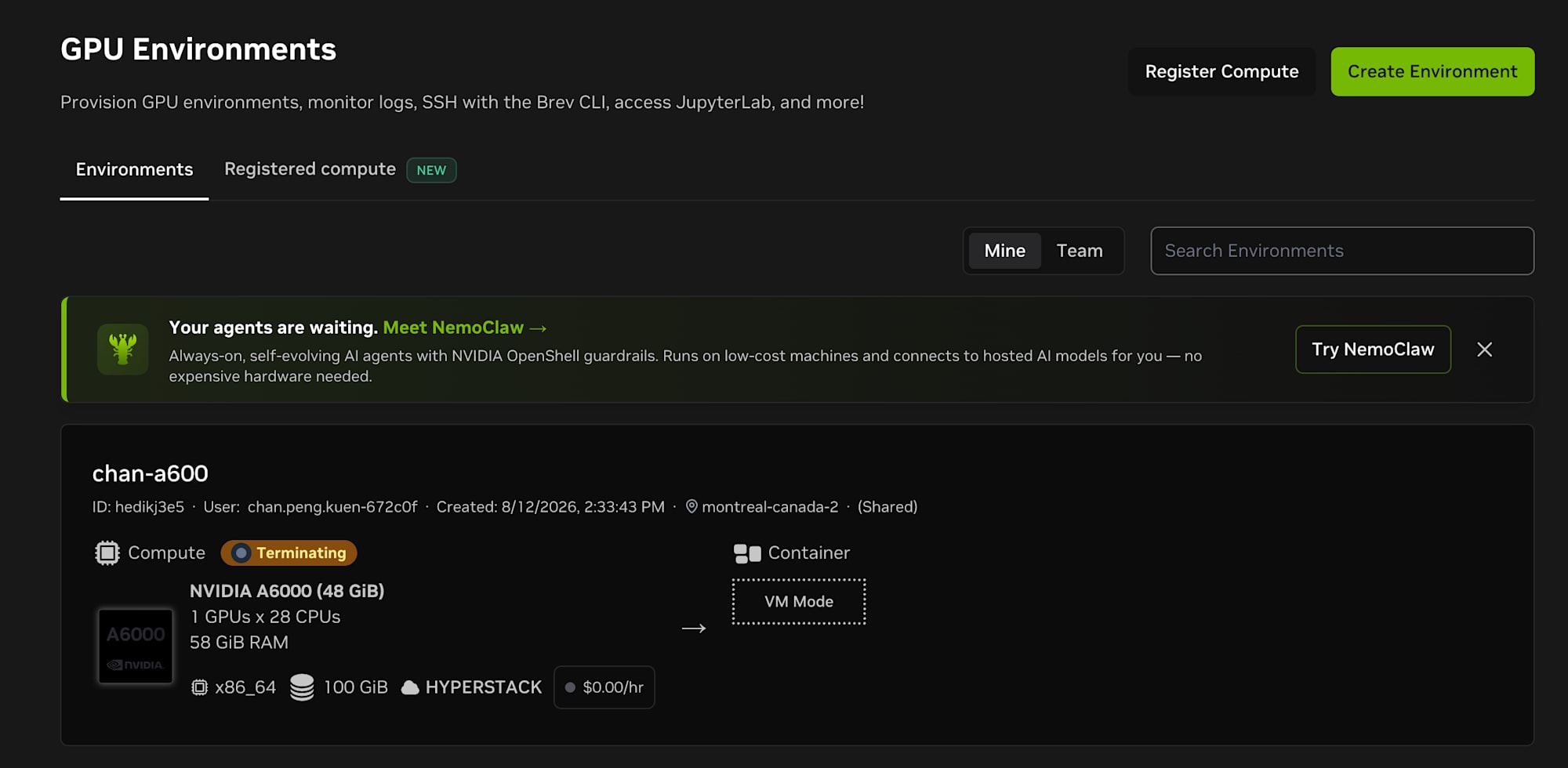
Terminating, and the rate drops to $0.00/hr
The cost
| Item | Cost |
|---|---|
| Setup, model download, first vLLM boot | ~30 min / $0.30 |
| Actual coding session | ~90 min / $0.90 |
| Total | ~$1.20 |
For context: a used RTX A6000 runs several thousand dollars. Renting at $0.60/hour, you could work eight hours a day, five days a week, for over a year before matching the purchase price — with no depreciation, no power bill, and the freedom to switch to an H100 the day your workload needs one.
If you are running eight hours a day every day, buy the card. For everything else, this is the better trade.
Things worth knowing
- Confirm quantized model IDs exist before you use them. The single failure in this walkthrough came from assuming
Qwen/published an AWQ build. Search the Hub, don't infer. --tool-call-parseris not optional for agent work. Without it the model still chats, still writes code into the terminal, and silently fails to call a single tool. This failure mode looks like "the model isn't very good" rather than "the config is wrong", which makes it genuinely hard to debug.- Prefer
brev port-forwardto public port exposure. vLLM ships with no auth. An exposed endpoint is someone else's free GPU. - Run
brev searchevery time. The A6000 at $0.60/hr being cheaper than a 24GB 4090 isn't a stable fact — it's a snapshot of one moment across one provider pool. - Split roles across model sizes. Autocomplete belongs on a small local model. Only chat, edit, and apply are worth a network round trip to a 30B.