
Recommendation for WinDirStat.

This page has been translated by machine translation. View original
Introduction
Hello everyone, I'm Akaike.
Have you ever been troubled by a mysteriously full Windows disk? I have.
I clean unnecessary files from my home Windows PC about once a year, but I was always troubled by mysterious used space that wouldn't decrease.
"What's taking up so much space..." I wondered, but couldn't grasp the full picture using just PowerShell commands, and was at a loss.
That's when I encountered the WinDirStat tool. Using this solved everything.
Thank you thank you thank you.
In this article, I'll share my experience cleaning up disk space using this wonderful tool.
Investigation with Commands
First, I'll use PowerShell to check which folders are consuming space.
I checked the usage for each folder directly under the C drive.
> Get-ChildItem C:\ -Directory -Force | ForEach-Object {
>>     $size = (Get-ChildItem $_.FullName -Recurse -Force -ErrorAction SilentlyContinue | Where-Object { -not $_.PSIsContainer } | Measure-Object -Property Length -Sum).Sum
>>     [PSCustomObject]@{ フォルダ = $_.Name; GB = [math]::Round($size/1GB, 2) }
>> } | Sort-Object GB -Descending | Format-Table -AutoSize

フォルダ                     GB
--------                     --
Users                     55.58
Windows                   46.85
Program Files (x86)       14.99
Program Files             11.72
ProgramData                5.56
$WinREAgent                1.36
AMD                        0.18
$Recycle.Bin                  0
System Volume Information     0
Recovery                      0
Documents and Settings        0
Config.Msi                    0
.cache                        0
inetpub                       0
PerfLogs                      0
OneDriveTemp                  0
Intel                         0
Users takes 55GB, Windows takes 46GB, so I got a rough breakdown.
Let's dig deeper into the Windows folder.
WinSxS is 23GB and System32 is 10GB.
> Get-ChildItem C:\Windows -Directory -Force | ForEach-Object {
>>     $size = (Get-ChildItem $_.FullName -Recurse -Force -ErrorAction SilentlyContinue | Where-Object { -not $_.PSIsContainer } | Measure-Object -Property Length -Sum).Sum
>>     [PSCustomObject]@{ フォルダ = $_.Name; GB = [math]::Round($size/1GB, 2) }
>> } | Sort-Object GB -Descending | Select-Object -First 15 | Format-Table -AutoSize

フォルダ                GB
--------                --
WinSxS               23.79
System32             10.24
Installer             3.63
assembly              2.39
ServiceProfiles       2.03
SysWOW64              1.33
SystemApps            1.15
Microsoft.NET         0.77
servicing             0.65
SoftwareDistribution  0.64
Panther               0.63
Logs                  0.56
Fonts                 0.47
SystemResources       0.21
Speech                0.15
But here's where a problem arose.
The total calculated by the commands doesn't match the actual disk usage.
I even checked shadow copies, but couldn't explain the difference.
> vssadmin list shadowstorage
vssadmin 1.1 - ボリューム シャドウ コピー サービス管理コマンド ライン ツール
(C) Copyright 2001-2013 Microsoft Corp.
シャドウ コピーの記憶域関連付け
   ボリューム: (C:)\\?\Volume{f4a181a2-01af-47e1-b845-2aaf73fdbbff}\
   シャドウ コピーの記憶域ボリューム: (C:)\\?\Volume{f4a181a2-01af-47e1-b845-2aaf73fdbbff}\
   シャドウ コピーの記憶域の使用領域: 1.65 GB (0%)
   シャドウ コピーの記憶域の割り当て領域: 2.00 GB (0%)
   シャドウ コピーの記憶域の最大領域: 8.93 GB (2%)

> Get-PSDrive C | Select-Object Used, Free | ForEach-Object {
>>     [PSCustomObject]@{
>>         使用済みGB = [math]::Round($_.Used/1GB, 2)
>>         空きGB = [math]::Round($_.Free/1GB, 2)
>>         合計GB = [math]::Round(($_.Used + $_.Free)/1GB, 2)
>>     }
>> }

使用済みGB 空きGB 合計GB
---------- ------ ------
    255.33 190.92 446.25

> Get-WmiObject Win32_LogicalDisk -Filter "DeviceID='C:'" |
>>     Select-Object @{N="合計GB";E={[math]::Round($_.Size/1GB,2)}},
>>                   @{N="空きGB";E={[math]::Round($_.FreeSpace/1GB,2)}},
>>                   @{N="使用GB";E={[math]::Round(($_.Size-$_.FreeSpace)/1GB,2)}}
合計GB 空きGB 使用GB
------ ------ ------
446.25 190.92 255.33
I couldn't figure out the breakdown of the 255GB used space with commands alone.
So, here's the main topic.
Investigation with WinDirStat
What is WinDirStat?
WinDirStat is a tool that visually displays disk usage.
It shows folder structures as a treemap, making it easy to see what's taking up space at a glance.
(It's actually quite a historical tool, introduced on Window's Forest around 2006)
Installation is quick with winget.
> winget install -e --id WinDirStat.WinDirStat
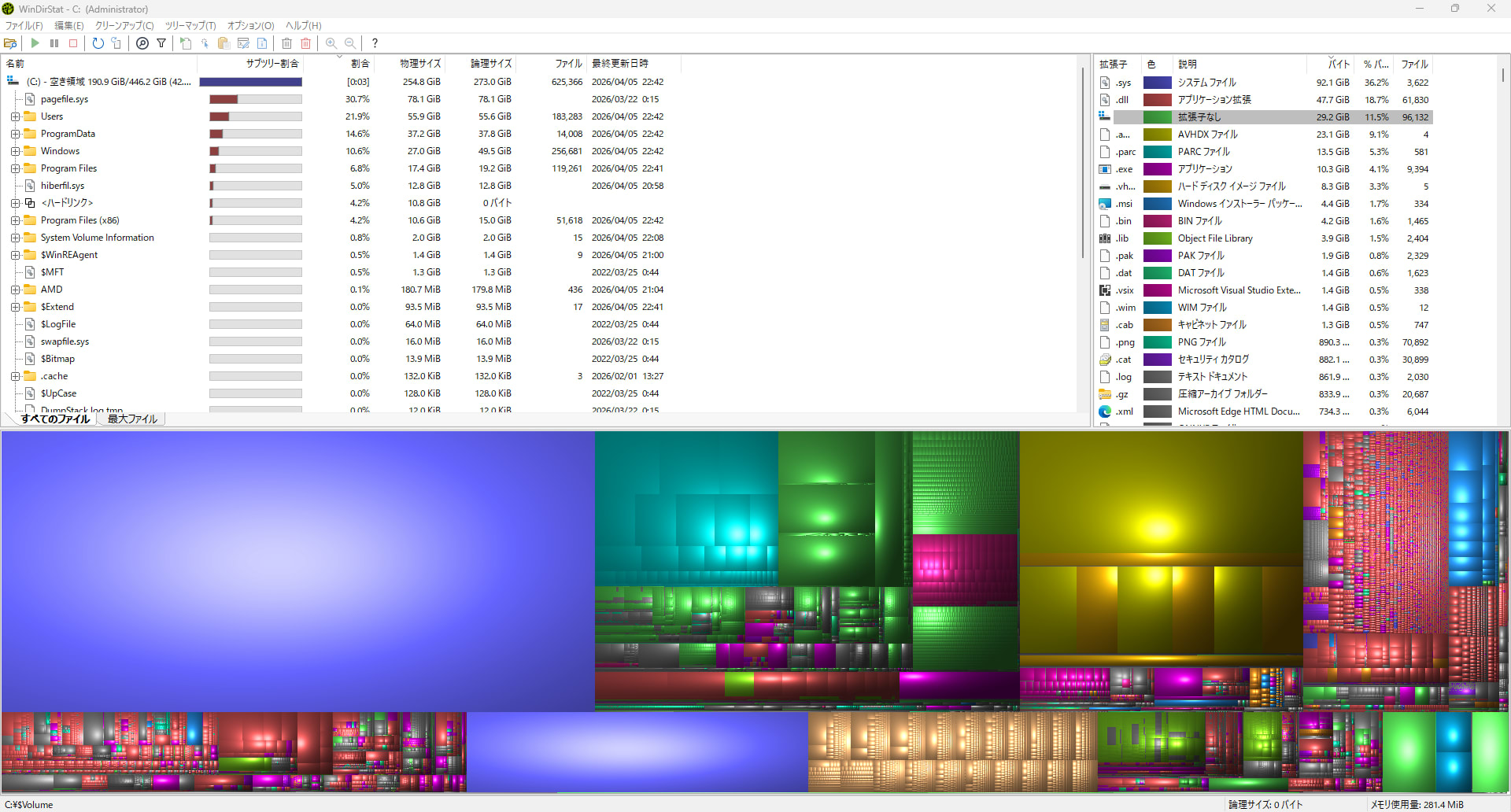
When I actually scanned, the following screen appeared.
Here, I discovered two major issues that weren't visible with commands.
Removing Unnecessary Space
Hibernation
The first issue was the hibernation file.
Hibernation is a feature that saves the PC's state to disk before shutting down, but most people probably don't use it.
Since I don't use it either, I'll disable it to free up space.
> powercfg /hibernate off
With just one command line, about 12GB was freed.
> Get-PSDrive C | Select-Object Used, Free | ForEach-Object {
>>     [PSCustomObject]@{
>>         使用済みGB = [math]::Round($_.Used/1GB, 2)
>>         空きGB = [math]::Round($_.Free/1GB, 2)
>>         合計GB = [math]::Round(($_.Used + $_.Free)/1GB, 2)
>>     }
>> }

使用済みGB 空きGB 合計GB
---------- ------ ------
    242.67 203.58 446.25
Virtual Memory
The second issue was virtual memory (page file).
When I checked, somehow 80GB was allocated.
With 32GB of physical memory, this is about 2.5 times that amount.
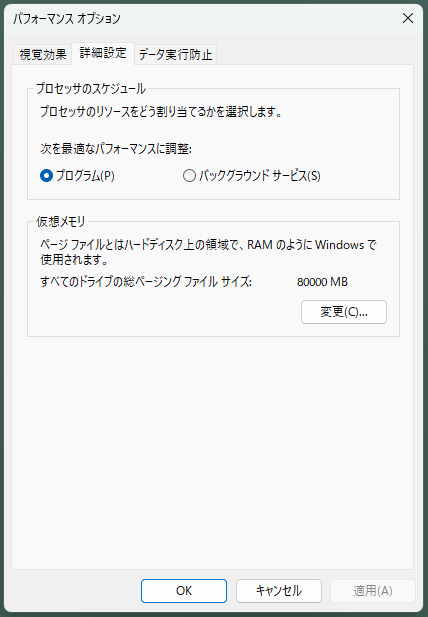
Generally, 1.5 to 3 times the physical memory is recommended, but with 32GB of physical memory, there's no need to allocate that much virtual memory.
I can't remember at all why past-me made this setting...
So, I'll trust Windows and switch to automatic management.
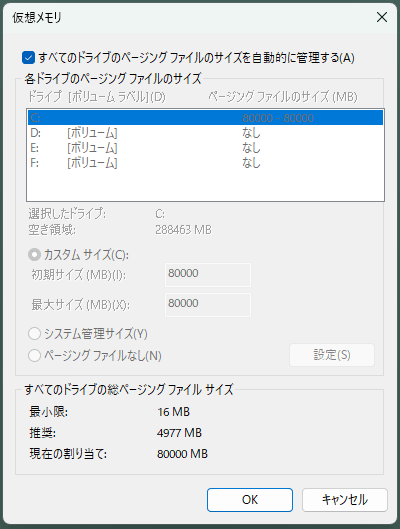
After changing the setting, I restarted the PC to apply it.
After restarting, I confirmed that about 2GB was allocated by automatic management.
Since it's working fine for now, let's go with this.
Multipass
Finally, I'll organize the Multipass area that stood out in the WinDirStat screen.
Multipass is a tool provided by Canonical to easily create Ubuntu virtual machines.
Upon investigation, I had used it for blog verification in the past, and it was taking up 31GB that I had left neglected... I'm too sloppy.
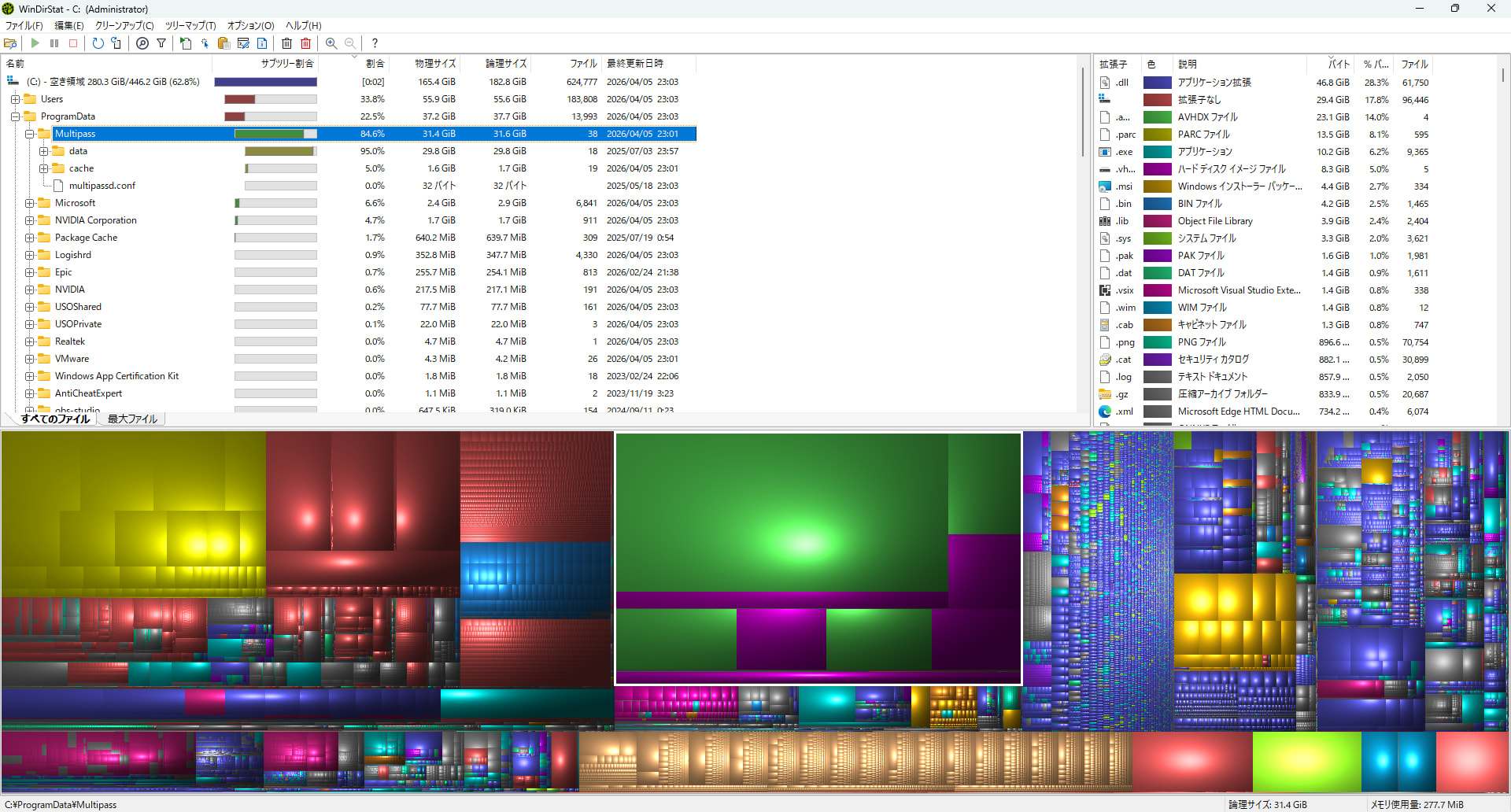
Since the service is also stopped and I'm definitely not using it, I'll uninstall it.
> multipass list
list failed: cannot connect to the multipass socket
> Get-Service -Name Multipass* | Select-Object Name, Status, StartType

Name       Status StartType
----       ------ ---------
Multipass Stopped Automatic
> winget uninstall Canonical.Multipass
見つかりました Multipass [Canonical.Multipass]
パッケージのアンインストールを開始しています...
正常にアンインストールされました

> Remove-Item "C:\ProgramData\Multipass" -Recurse -Force
Remove-Item : パス 'C:\ProgramData\Multipass' が存在しないため検出できません。
発生場所 行:1 文字:1
+ Remove-Item "C:\ProgramData\Multipass" -Recurse -Force
+ ~~~~~~~~~~~~~~~~~~~~~~~~~~~~~~~~~~~~~~~~~~~~~~~~~~~~~~
    + CategoryInfo          : ObjectNotFound: (C:\ProgramData\Multipass:String) [Remove-Item], ItemN
   otFoundException
    + FullyQualifiedErrorId : PathNotFound,Microsoft.PowerShell.Commands.RemoveItemCommand
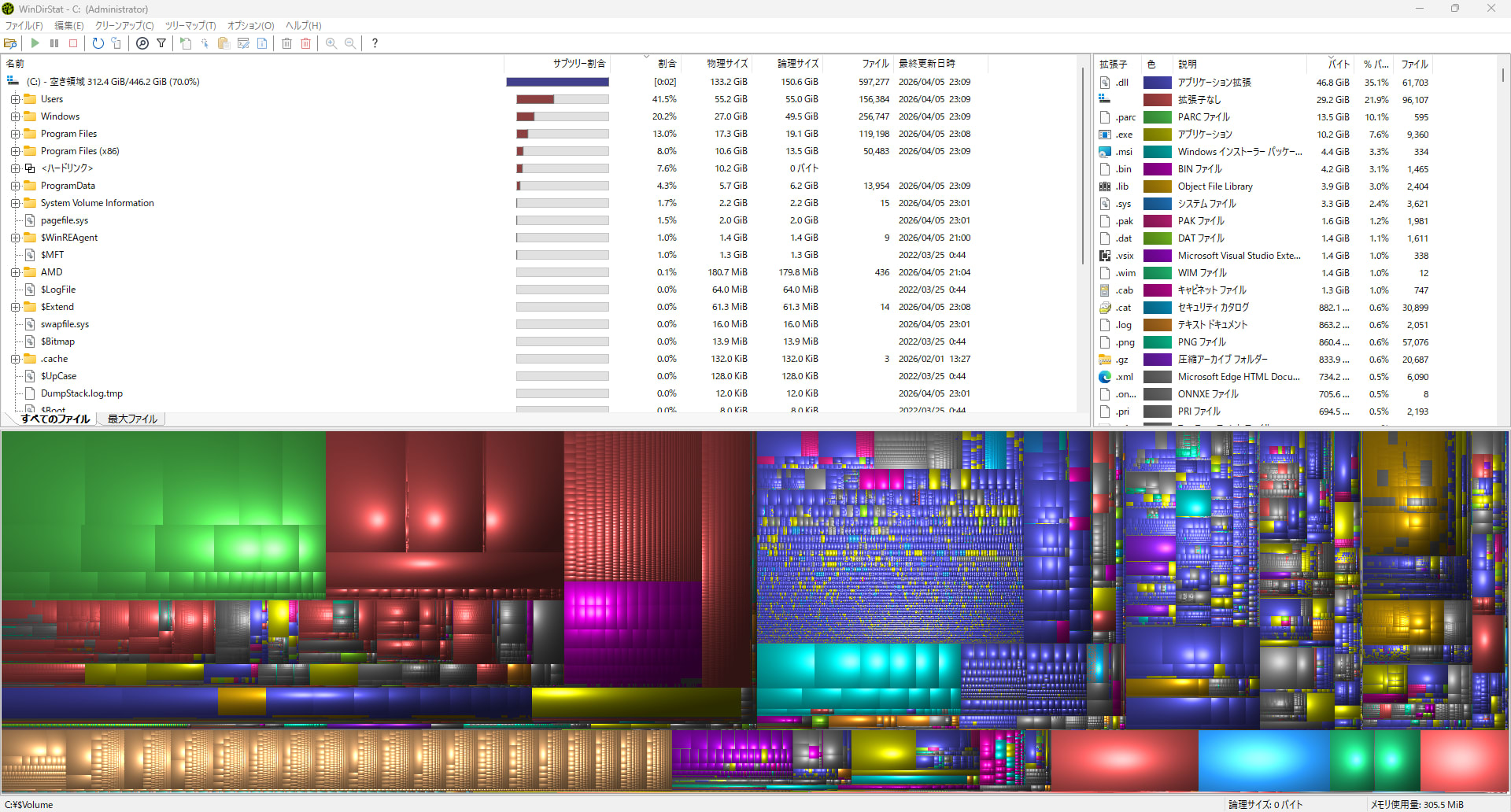
Final State
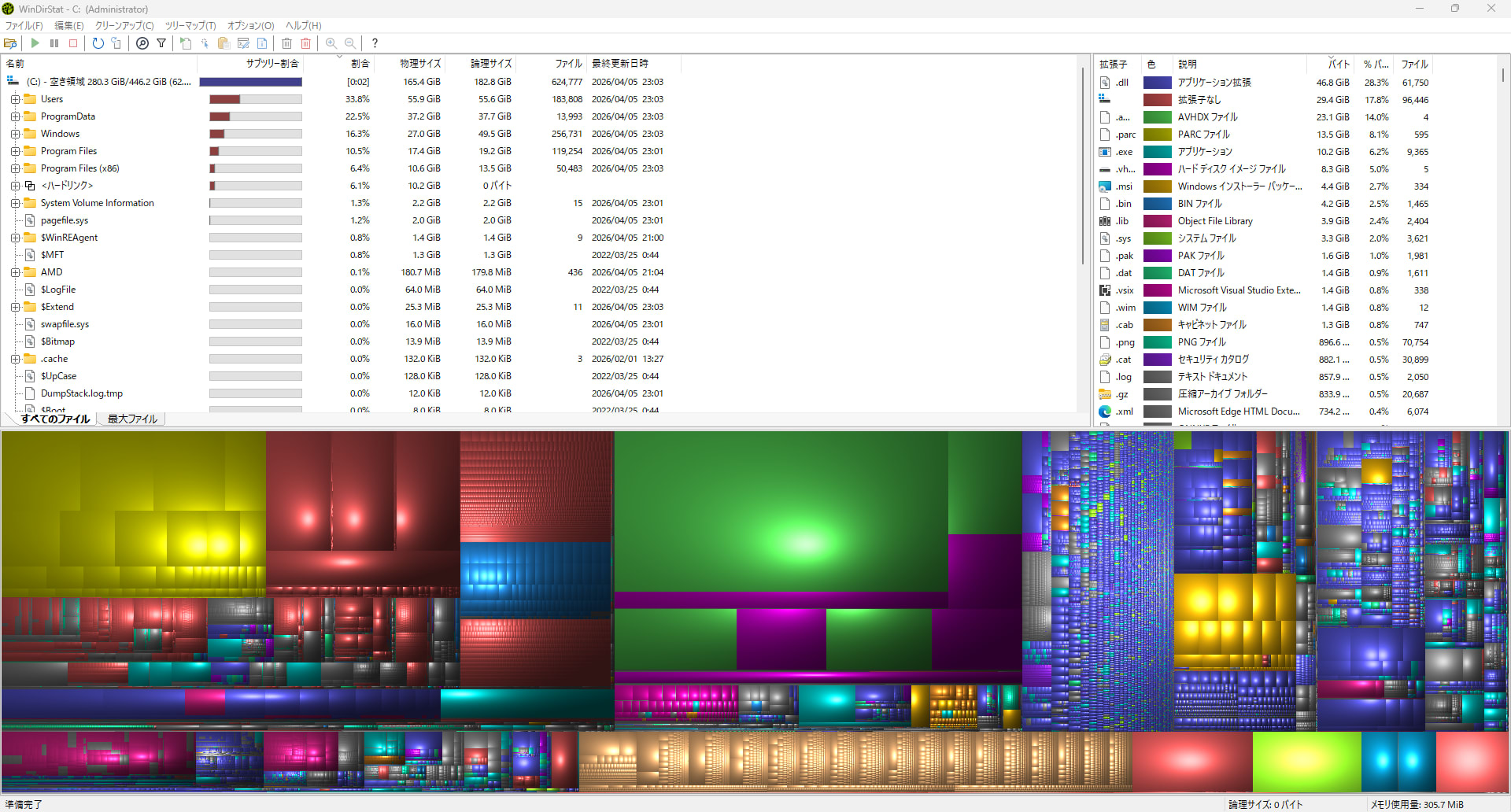
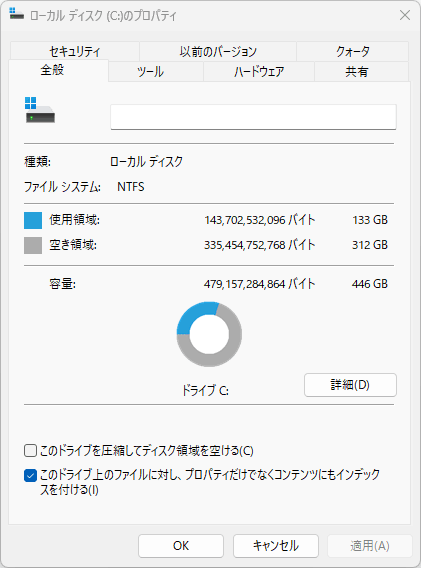
All cleanup is complete; here is the final state of the disk.
Thanks to WinDirStat, I was able to reduce capacity by more than 100GB.
It's truly a wonderful tool that could instantly identify causes that couldn't be found with commands alone.
Conclusion
That was my experience cleaning up disk space using WinDirStat.
To summarize this work, I reduced over 100GB with these three steps:
- Disabling hibernation: about 12GB reduction
- Switching virtual memory to automatic management: about 78GB reduction
- Uninstalling Multipass: about 31GB reduction
It's difficult to understand the complete picture of your disk with PowerShell commands alone, especially when system files or hidden files are the cause, you can often reach a dead end.
However, with WinDirStat, you can see "what's taking up space" across the entire disk, allowing for efficient cleanup.
If you're troubled by disk capacity, please give it a try.
I hope this article has been helpful to someone.