
Comparing Twilio SendGrid's Activity feed and Email Logs, and verifying CSV and JSON

This page has been translated by machine translation. View original
Introduction
In this article, I will explain the differences in use cases between Twilio SendGrid's Email Activity Feed (hereafter "Activity feed") and Email Logs. Additionally, I will demonstrate how to use both features and confirm the CSV and JSON outputs.
What is Twilio SendGrid?
Twilio SendGrid is a service that provides email sending capability as an API. You can send emails via HTTP requests from your applications and track delivery status.
Target Audience
- Those who want to understand the differences between Activity feed and Email Logs as a basis for operational design or proposal materials
- Those who want to check the status of sending issues using both console and API
- Those considering internal sharing or secondary use of logs obtained as CSV or JSON
References
- Email Activity Feed | SendGrid Docs
- Email Logs (UI) | SendGrid Docs
- Email Logs API Overview | SendGrid Docs
- Email Logs: Filter all messages | SendGrid Docs
- Email Logs: Filter messages by ID | SendGrid Docs
- Mail Send | SendGrid Docs
About Activity feed and Email Logs
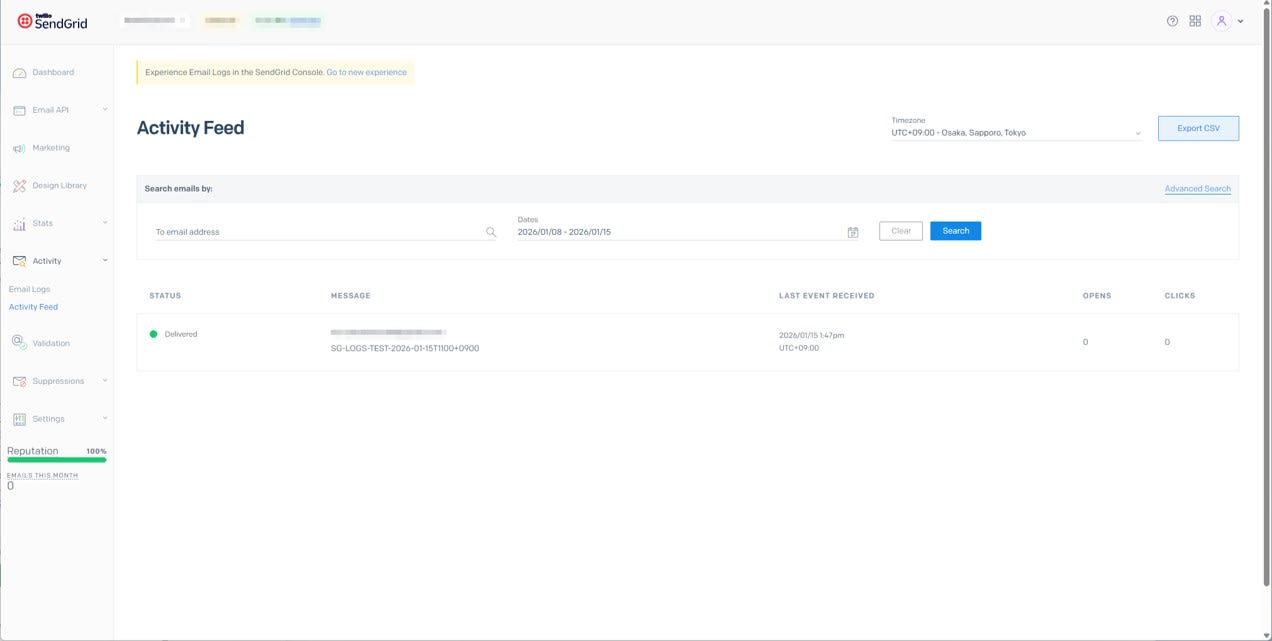
Activity feed is a feature for listing recent email events and tracking delivery flows on a message-by-message basis. The list can be exported as CSV. The default retention period varies by plan, typically 3 or 7 days. Additionally, purchasing the Email Activity history add-on extends the retention period to up to 30 days.
On the other hand, Email Logs, released in November 2025, is a feature for investigating email delivery routes and problem locations. It provides event-level data in JSON format that can be used for troubleshooting or saving verification results. The retention period is 30 days and cannot be extended.
Practical Usage
Since Email Logs UI filtering is based on exact matching, we'll use a fixed subject line for easier searching during testing. Also, an API Key is required when using the Email Logs API.
Setup
First, set up dependencies in your working directory.
npm init -y
npm i dotenv
Create .env file
Create a .env file in the project root.
SENDGRID_API_KEY=YOUR_SENDGRID_API_KEY_HERE

TO_EMAIL=your.address@example.com
FROM_EMAIL=verified.sender@example.com

SUBJECT=SG-LOGS-TEST-2026-01-15T1100+0900
Create a Node.js script
Create sendgrid-tools.js.
sendgrid-tools.js full text
/* sendgrid-tools.js */
const dotenv = require("dotenv");

dotenv.config();

function requireEnv(name) {
  const v = process.env[name];
  if (!v) {
    throw new Error(`${name} is not set. Please check your .env file.`);
  }
  return v;
}

function parseArgs(argv) {
  const args = { _: [] };
  for (let i = 0; i < argv.length; i += 1) {
    const a = argv[i];
    if (a.startsWith("--")) {
      const key = a.slice(2);
      const next = argv[i + 1];
      if (!next || next.startsWith("--")) {
        args[key] = true;
      } else {
        args[key] = next;
        i += 1;
      }
    } else {
      args._.push(a);
    }
  }
  return args;
}

async function sgFetch(url, { method, bodyObj } = {}) {
  const apiKey = requireEnv("SENDGRID_API_KEY");

  const res = await fetch(url, {
    method: method ?? "GET",
    headers: {
      Authorization: `Bearer ${apiKey}`,
      "Content-Type": "application/json",
    },
    body: bodyObj ? JSON.stringify(bodyObj) : undefined,
  });

  const text = await res.text();
  const xMessageId = res.headers.get("x-message-id");

  return {
    ok: res.ok,
    status: res.status,
    headers: {
      "x-message-id": xMessageId ?? "",
    },
    text,
    json: (() => {
      try {
        return text ? JSON.parse(text) : null;
      } catch {
        return null;
      }
    })(),
  };
}

function buildDefaultQuery() {
  const subject = requireEnv("SUBJECT");
  const toEmail = requireEnv("TO_EMAIL");
  return `subject = '${subject}' AND to_email = '${toEmail}'`;
}

async function cmdSend() {
  const toEmail = requireEnv("TO_EMAIL");
  const fromEmail = requireEnv("FROM_EMAIL");
  const subject = requireEnv("SUBJECT");

  const body = {
    personalizations: [
      {
        to: [{ email: toEmail }],
      },
    ],
    from: { email: fromEmail },
    subject,
    content: [{ type: "text/plain", value: "SendGrid logs test." }],
  };

  const r = await sgFetch("https://api.sendgrid.com/v3/mail/send", {
    method: "POST",
    bodyObj: body,
  });

  const out = {
    status: r.status,
    ok: r.ok,
    "x-message-id": r.headers["x-message-id"],
  };
  console.log(JSON.stringify(out, null, 2));

  if (!r.ok) {
    console.error(r.text);
    process.exitCode = 1;
  }
}

async function cmdSearch(args) {
  const limitRaw = args.limit ?? "10";
  const limit = Number(limitRaw);
  if (!Number.isFinite(limit) || limit < 1 || limit > 1000) {
    throw new Error("--limit must be between 1 and 1000.");
  }

  const query = args.query ? String(args.query) : buildDefaultQuery();

  const r = await sgFetch("https://api.sendgrid.com/v3/logs", {
    method: "POST",
    bodyObj: { query, limit },
  });

  const out = r.json ?? { status: r.status, ok: r.ok, raw: r.text };
  console.log(JSON.stringify(out, null, 2));

  if (!r.ok) {
    process.exitCode = 1;
  }
}

async function cmdDetail(args) {
  const sgMessageId = args._[0];
  if (!sgMessageId) {
    throw new Error("Please specify sg_message_id. Example: node sendgrid-tools.js detail <sg_message_id>");
  }

  const url = `https://api.sendgrid.com/v3/logs/${encodeURIComponent(sgMessageId)}`;
  const r = await sgFetch(url);

  const out = r.json ?? { status: r.status, ok: r.ok, raw: r.text };
  console.log(JSON.stringify(out, null, 2));

  if (!r.ok) {
    process.exitCode = 1;
  }
}

async function main() {
  const argv = process.argv.slice(2);
  const sub = argv[0];
  const args = parseArgs(argv.slice(1));

  try {
    if (sub === "send") {
      await cmdSend();
      return;
    }
    if (sub === "search") {
      await cmdSearch(args);
      return;
    }
    if (sub === "detail") {
      await cmdDetail(args);
      return;
    }

    console.log(
      [
        "Usage:",
        "  node sendgrid-tools.js send",
        "  node sendgrid-tools.js search --limit 10",
        "  node sendgrid-tools.js search --query \"subject = '...' AND to_email = '...'\"",
        "  node sendgrid-tools.js detail <sg_message_id>",
      ].join("\n"),
    );
    process.exitCode = 2;
  } catch (e) {
    console.error(e?.message ?? e);
    process.exitCode = 1;
  }
}

main();
Send a test email using Mail Send API
node sendgrid-tools.js send
Example output:
{
  "status": 202,
  "ok": true,
  "x-message-id": "****"
}
Check Activity feed in the console and download CSV
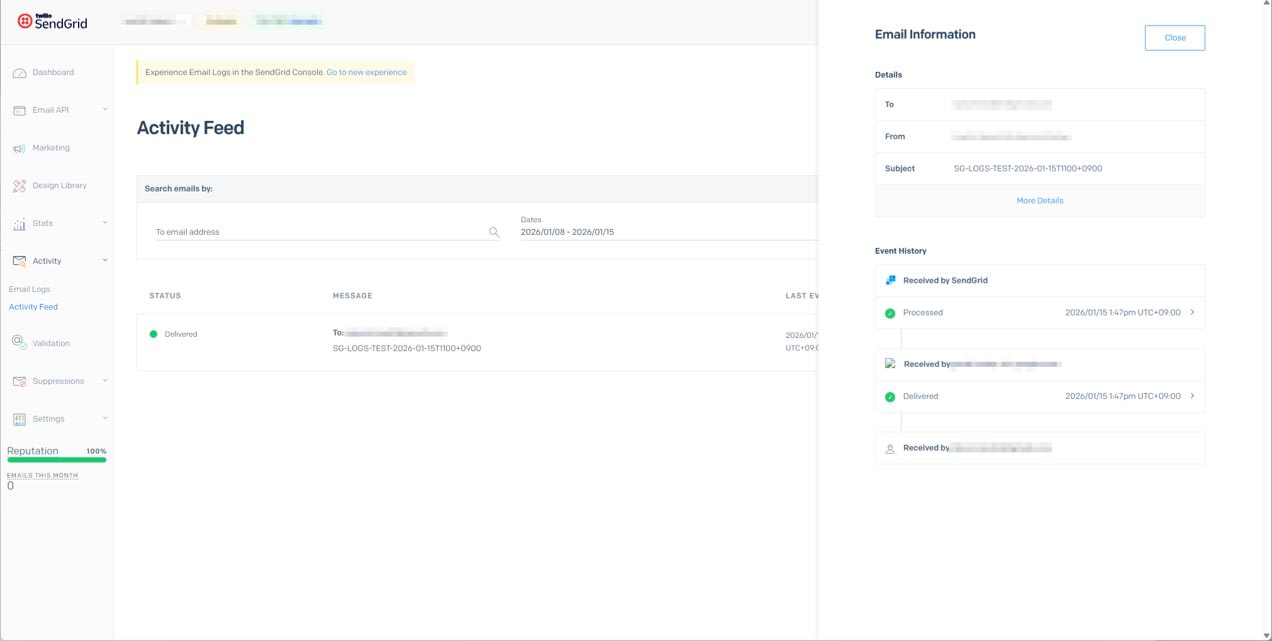
Activity feed allows you to view details and history for a selected message.
Next, execute Export CSV.
Check the contents of the downloaded CSV. Assess whether the column structure and value granularity provide sufficient information for your operational needs.
"processed","message_id","event","api_key_id","recv_message_id","credential_id","subject","from","email","asm_group_id","template_id","originating_ip","reason","outbound_ip","outbound_ip_type","mx","attempt","url","user_agent","type","is_unique","username","categories","marketing_campaign_id","marketing_campaign_name","marketing_campaign_split_id","marketing_campaign_version","unique_args"
"2026-01-15 04:47:02.000","****","processed","","****","","SG-LOGS-TEST-2026-01-15T1100+0900","****@example.com","****@example.com","","","***.***.***.***","","","","",0,"","","","","","[]","","","","","{}"
"2026-01-15 04:47:04.000","****","delivered","","****","","","","****@example.com","","","","250 2.0.0 OK DMARC:Quarantine **** - gsmtp","***.***.***.***","dedicated","gmail-smtp-in.l.google.com",0,"","","","","","[]","","","","","{}"
Search in Email Logs via console
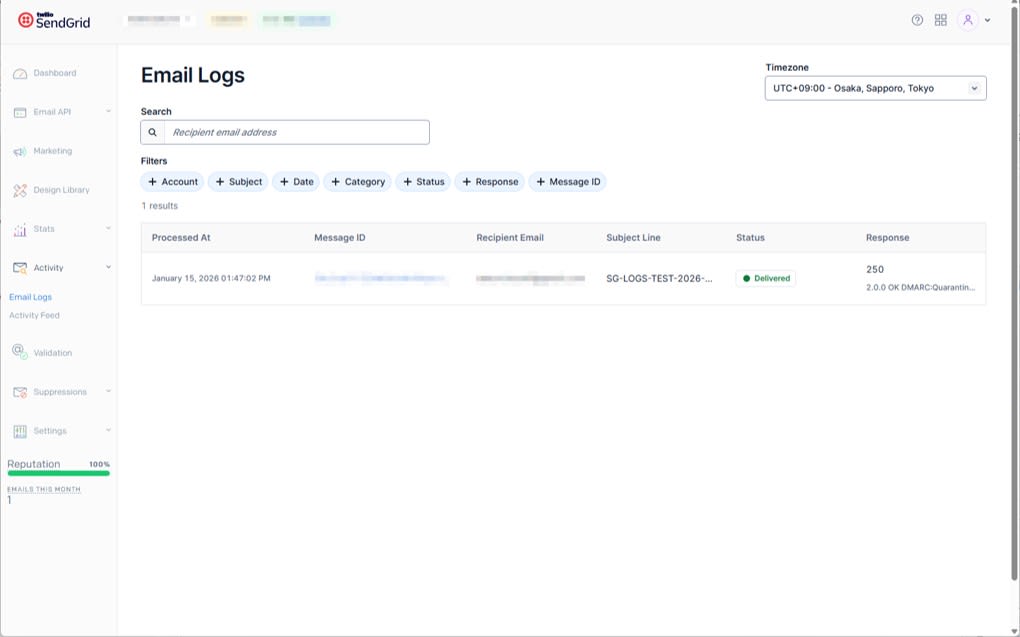
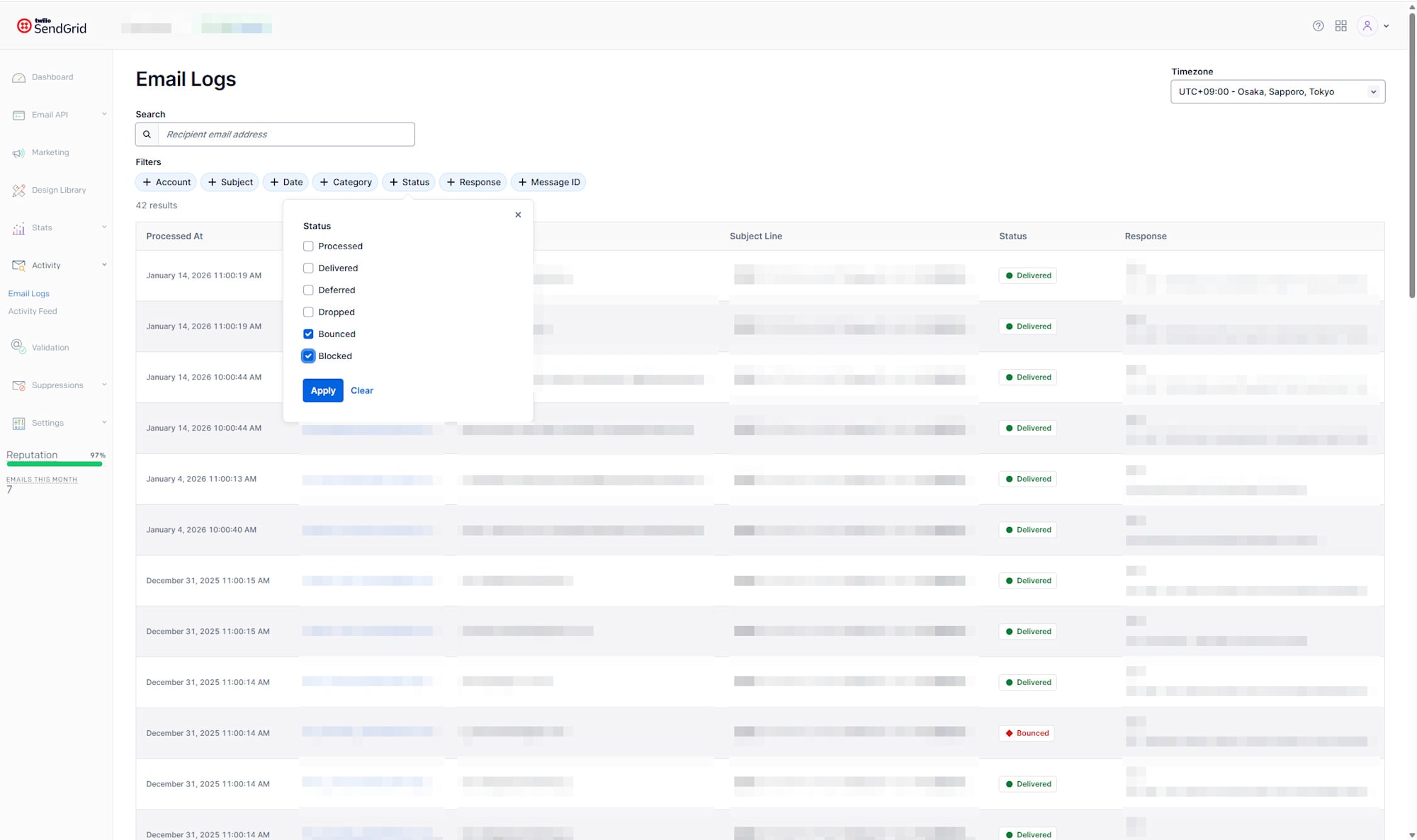
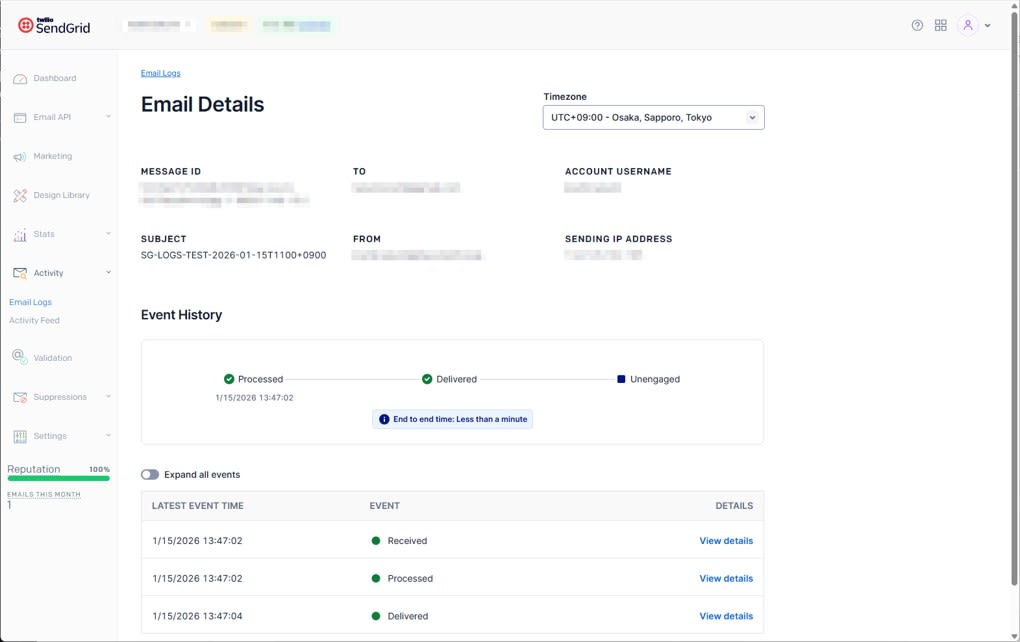
Email Logs can be searched by Recipient Email Address, Subject, Date, Category, Status, and more.
For example, you can filter by Status values like Bounced or Blocked.
The detailed view page looks like this:
Get a list from Email Logs API and obtain sg_message_id
The Filter all messages endpoint is POST /v3/logs. Specify conditions using a query string, and limit values range from 1 to 1000.
node sendgrid-tools.js search --limit 10
Example output (placeholder for execution results):
{
  "messages": [
    {
      "from_email": "****@example.com",
      "sg_message_id": "****",
      "subject": "SG-LOGS-TEST-2026-01-15T1100+0900",
      "to_email": "****@example.com",
      "reason": "250 2.0.0 OK DMARC:Quarantine **** - gsmtp",
      "status": "delivered",
      "sg_message_id_created_at": "2026-01-15T04:47:02Z"
    }
  ]
}
If necessary, you can explicitly specify a query:
node sendgrid-tools.js search --limit 10 --query "subject = 'SG-LOGS-TEST-...' AND to_email = '...'"
Get detailed events for a single message using Email Logs API
Filter messages by ID is GET /v3/logs/{sg_message_id}. By specifying the sg_message_id obtained from Filter all messages, you can get the full event timeline for that message.
node sendgrid-tools.js detail 'previously obtained sg_message_id'
Example output (placeholder for execution results):
{
  "from_email": "****@example.com",
  "sg_message_id": "****",
  "subject": "SG-LOGS-TEST-2026-01-15T1100+0900",
  "to_email": "****@example.com",
  "status": "delivered",
  "api_key_id": "****",
  "events": [
    {
      "event": "received",
      "recv_msgid": "****",
      "sg_event_id": "****",
      "timestamp": 1768452422,
      "api_key_id": "****",
      "api_version": "3",
      "client_ip": "***.***.***.***",
      "protocol": "HTTP",
      "recipient_count": 1,
      "reseller_id": "****",
      "size": 616,
      "useragent": "node",
      "v3_payload_details": {
        "customarg_count": 0,
        "substitution_bytes": 0,
        "substitution_count": 0,
        "content_bytes": 19,
        "recipient_count": 1,
        "sender_count": 1,
        "customarg_largest_bytes": 2,
        "text/plain": 1,
        "personalization_count": 1,
        "attachments_bytes": 0
      }
    },
    {
      "event": "processed",
      "email": "****@example.com",
      "sg_message_id": "****",
      "sg_event_id": "****",
      "timestamp": 1768452422,
      "smtp-id": "<****>"
    },
    {
      "event": "delivered",
      "email": "****@example.com",
      "sg_message_id": "****",
      "sg_event_id": "****",
      "timestamp": 1768452424,
      "smtp-id": "<****>",
      "ip": "***.***.***.***",
      "response": "250 2.0.0 OK DMARC:Quarantine **** - gsmtp",
      "tls": 1
    }
  ],
  "client_ip": "***.***.***.***",
  "outbound_ip": "***.***.***.***",
  "outbound_ip_type": "dedicated"
}
Analysis - Use Cases for Each
Email Logs is suitable for tracking specific message delivery paths and troubleshooting. You can check detailed views of individual messages via the UI and retrieve event history as JSON via the API. It's strong for investigations "assuming you know how to search", such as when you have clues like date, recipient, or message ID (e.g., "a message sent to person A around 3:00 PM on January 10th with subject X").
However, the Email Logs API doesn't support pagination and assumes limiting with the limit parameter. As a result, use cases like extracting logs comprehensively for CSV conversion and AI input would require additional design and implementation for period-based retrieval, deduplication, retries, and storage management. For such needs, Activity feed's ability to download CSV files through console operations and share them with stakeholders or AI might be more suitable.
Summary
Activity feed is suitable for downloading comprehensive CSVs from the console to share in various scenarios. Email Logs is appropriate for troubleshooting specific messages and retrieving events via API. However, if you need long-term storage or analysis of large amounts of data, consider also using Event Webhook.