
Pass or extract files explicitly to AgentCore Code Interpreter using Strands Agents' built-in tools

This page has been translated by machine translation. View original
Introduction
Hello, I'm Jinno from the Consulting Department, and I love supermarkets.
Recently, I introduced the Code Interpreter built-in tool for Strands Agents in the article below.
After writing that article, I wondered how to explicitly pass files to Code Interpreter to execute code.
While having an agent create and run code autonomously is convenient, there are cases where you might want to place a CSV file in the sandbox beforehand for analysis.
As shown in the official documentation example below, if you use CodeInterpreter directly, you can explicitly write files as follows:
from bedrock_agentcore.tools.code_interpreter_client import CodeInterpreter

code_client = CodeInterpreter('us-east-1')
code_client.start()

# Explicitly write files
files_to_create = [
    {"path": "data.csv", "text": data_content},
    {"path": "stats.py", "text": stats_content}
]
code_client.invoke("writeFiles", {"content": files_to_create})

# Execute code
code_client.invoke("executeCode", {"code": "exec(open('stats.py').read())", "language": "python"})
I was curious if the same implementation is possible with Strands Agents' built-in tool AgentCoreCodeInterpreter, so I decided to investigate.
Conclusion
AgentCoreCodeInterpreter provides a write_files() method that allows you to explicitly write files.
from strands_tools.code_interpreter import AgentCoreCodeInterpreter
from strands_tools.code_interpreter.models import WriteFilesAction, FileContent

code_interpreter = AgentCoreCodeInterpreter(region="us-west-2")

# Explicitly write files (not relying on the agent)
code_interpreter.write_files(WriteFilesAction(
    type="writeFiles",  # Required field
    content=[
        FileContent(path="data.csv", text=data_content),
        FileContent(path="stats.py", text=stats_content)
    ]
))
This allows you to place files in the sandbox beforehand without relying on the agent.
Let's look at the tool in more detail.
Examining the Implementation Details
Let's check GitHub.
AgentCoreCodeInterpreter Operation Methods
The AgentCoreCodeInterpreter class provides methods for file operations, code execution, and command execution.
| Method | Corresponding Pydantic Model | Description |
|---|---|---|
execute_code() |
ExecuteCodeAction |
Execute code |
execute_command() |
ExecuteCommandAction |
Execute shell command |
write_files() |
WriteFilesAction |
Write files to sandbox |
read_files() |
ReadFilesAction |
Read files from sandbox |
list_files() |
ListFilesAction |
List directory contents |
remove_files() |
RemoveFilesAction |
Delete files |
When calling each method, you pass an instance of the corresponding Pydantic model as an argument. For example, you pass a WriteFilesAction when using write_files() and an ExecuteCodeAction when using execute_code().
Let's Try It Out
Prerequisites
| Item | Version |
|---|---|
| Python | 3.12 |
| strands-agents | 1.20.0 |
| strands-agents-tools | 0.2.18 |
Setting Up the Environment
Let's set up the project using uv.
uv init
uv add strands-agents strands-agents-tools bedrock-agentcore bedrock-agentcore-starter-toolkit aws-opentelemetry-distro
We'll also install bedrock-agentcore, bedrock-agentcore-starter-toolkit, and aws-opentelemetry-distro for later deployment to AgentCore.
Preparing Sample Files
First, let's prepare a CSV file data.csv and analysis script stats.py for analysis.
We will place these files in the Code Interpreter.
name,age,score,department
田中太郎,28,85,営業
佐藤花子,34,92,開発
鈴木一郎,25,78,マーケティング
高橋美咲,31,88,開発
伊藤健太,29,95,営業
渡辺真理,27,72,マーケティング
山本大輔,33,91,開発
中村愛,26,83,営業
小林拓也,30,87,開発
加藤由美,32,79,マーケティング
import pandas as pd

# Load data
df = pd.read_csv('data.csv')

print("=== Data Analysis Results ===\n")

# Basic statistics
print("【Basic Statistics】")
print(f"Number of records: {len(df)}")
print(f"Average age: {df['age'].mean():.1f} years")
print(f"Average score: {df['score'].mean():.1f} points")

# Department statistics
print("\n【Average Score by Department】")
dept_stats = df.groupby('department')['score'].agg(['mean', 'count'])
for dept, row in dept_stats.iterrows():
    print(f"  {dept}: {row['mean']:.1f} points ({int(row['count'])} people)")

# Highest score
top = df.loc[df['score'].idxmax()]
print(f"\n【Highest Score】")
print(f"  {top['name']} ({top['department']}): {top['score']} points")
Implementation
Here's an implementation that explicitly writes files and then lets the agent only execute the code.
from strands import Agent
from strands.models import BedrockModel
from strands_tools.code_interpreter import AgentCoreCodeInterpreter
from strands_tools.code_interpreter.models import WriteFilesAction, FileContent

# Model settings
model = BedrockModel(
    model_id="us.anthropic.claude-sonnet-4-5-20250929-v1:0",
    region_name="us-west-2"
)

code_interpreter = AgentCoreCodeInterpreter(region="us-west-2")

# Read local files
with open("data.csv", "r") as f:
    data_content = f.read()
with open("stats.py", "r") as f:
    stats_content = f.read()

print("=== Checking File Contents ===")
print(f"data.csv: {len(data_content)} bytes")
print(f"stats.py: {len(stats_content)} bytes")

# Explicitly write files (not relying on the agent)
print("\n=== Writing Files to Sandbox... ===")
result = code_interpreter.write_files(WriteFilesAction(
    type="writeFiles",  # Required field
    content=[
        FileContent(path="data.csv", text=data_content),
        FileContent(path="stats.py", text=stats_content)
    ]
))
print(f"Write result: {result}")

# Agent only uses executeCode
print("\n=== Running Agent ===")
agent = Agent(
    model=model,
    tools=[code_interpreter.code_interpreter],
    system_prompt="Code Interpreter already has data.csv and stats.py. Please execute the code using executeCode."
)

response = agent("Run stats.py and tell me the results")
print(f"\n=== Results ===")
print(response)
You must specify type="writeFiles" for WriteFilesAction and specify the path and text content with FileContent. We place the files in the sandbox before the agent execution using write_files() and inform the agent in the system prompt that the files already exist.
Execution
uv run test_file_upload.py
=== Checking File Contents ===
data.csv: 180 bytes
stats.py: 559 bytes

=== Writing Files to Sandbox... ===
Write result: {'status': 'success', 'content': [{'text': "[{'type': 'text', 'text': 'Successfully wrote all 2 files'}]"}]}

=== Running Agent ===
I'll run stats.py.
Tool #1: code_interpreter
I've run stats.py. Here are the results:

## Data Analysis Results

**【Basic Statistics】**
- Number of records: 10
- Average age: 29.5 years
- Average score: 85.0 points

**【Average Score by Department】**
- Marketing: 76.3 points (3 people)
- Sales: 87.7 points (3 people)
- Development: 89.5 points (4 people)

**【Highest Score】**
- Ito Kenta (Sales): 95 points

The Development department has the highest average score (89.5 points), and Ito Kenta from the Sales department achieved the highest score of 95 points.
The files were successfully written, and the agent was able to use them to execute the code!
Let's also look at the file reading feature of the Code Interpreter.
Using ReadFilesAction to Retrieve Files from the Sandbox
ReadFilesAction is used to read files from the sandbox.
It doesn't read local files.
For example, you might use it to retrieve CSV or image files generated by code execution. Let's try it.
Generating Graphs in the Sandbox and Retrieving Files
Let's generate graphs in the sandbox and retrieve the generated files locally with the following code.
from strands import Agent
from strands.models import BedrockModel
from strands_tools.code_interpreter import AgentCoreCodeInterpreter
from strands_tools.code_interpreter.models import (
    WriteFilesAction,
    FileContent,
    ReadFilesAction,
    ListFilesAction,
    ExecuteCodeAction,
)
import base64

# Model settings
model = BedrockModel(
    model_id="us.anthropic.claude-sonnet-4-5-20250929-v1:0",
    region_name="us-west-2"
)

code_interpreter = AgentCoreCodeInterpreter(region="us-west-2")

# Read local files
with open("data.csv", "r") as f:
    data_content = f.read()

print("=== Step 1: Writing CSV File to Sandbox ===")
result = code_interpreter.write_files(WriteFilesAction(
    type="writeFiles",
    content=[
        FileContent(path="data.csv", text=data_content),
    ]
))
print(f"Write result: {result}")

print("\n=== Step 2: Executing Code to Generate Graphs ===")
chart_code = """
import pandas as pd
import matplotlib.pyplot as plt
import matplotlib
matplotlib.use('Agg')  # Draw without GUI

# Load data
df = pd.read_csv('data.csv')

# Map department names to English
dept_mapping = {
    'マーケティング': 'Marketing',
    '営業': 'Sales',
    '開発': 'Development'
}
df['department_en'] = df['department'].map(dept_mapping)

# Calculate average scores by department
dept_scores = df.groupby('department_en')['score'].mean().sort_values(ascending=True)

# Create graph
plt.figure(figsize=(10, 6))
bars = plt.barh(dept_scores.index, dept_scores.values, color=['#3498db', '#2ecc71', '#e74c3c'])

# Display values next to bars
for bar, value in zip(bars, dept_scores.values):
    plt.text(value + 0.5, bar.get_y() + bar.get_height()/2, f'{value:.1f}',
             va='center', fontsize=12)

plt.xlabel('Average Score', fontsize=12)
plt.ylabel('Department', fontsize=12)
plt.title('Average Score by Department', fontsize=14, fontweight='bold')
plt.xlim(0, 100)
plt.tight_layout()

# Save as image
plt.savefig('chart.png', dpi=100, bbox_inches='tight')
plt.close()

print("chart.png generated")

# Also generate CSV report
report = df.groupby('department').agg({
    'score': ['mean', 'min', 'max', 'count']
}).round(1)
report.columns = report.columns.droplevel(0)  # Remove MultiIndex
report = report.reset_index()  # Make department a column
report.to_csv('report.csv', index=False)
print("report.csv generated")
"""

result = code_interpreter.execute_code(ExecuteCodeAction(
    type="executeCode",
    code=chart_code,
    language="python"
))
print(f"Execution result: {result}")

print("\n=== Step 3: Checking File List in Sandbox ===")
result = code_interpreter.list_files(ListFilesAction(
    type="listFiles",
    path="."
))
print(f"File list: {result}")

print("\n=== Step 4: Reading Generated Files ===")
result = code_interpreter.read_files(ReadFilesAction(
    type="readFiles",
    paths=["report.csv", "chart.png"]
))
print(f"Read result: {result}")

# Parse results and save locally
print("\n=== Step 5: Saving Files Locally ===")

# Parse read_files results
import ast
content_str = result['content'][0]['text']
resources = ast.literal_eval(content_str)

for resource in resources:
    if resource['type'] == 'resource':
        res = resource['resource']
        uri = res['uri']
        mime_type = res['mimeType']
        filename = uri.split('/')[-1]

        print(f"\nFile: {filename} (MIME: {mime_type})")

        if 'text' in res:
            # For text files
            with open(f"output_{filename}", "w") as f:
                f.write(res['text'])
            print(f"  → Saved to output_{filename}")
            print(f"  Content preview:\n{res['text'][:200]}")

        elif 'blob' in res:
            # For binary files
            blob_data = res['blob']
            with open(f"output_{filename}", "wb") as f:
                f.write(blob_data)
            print(f"  → Saved to output_{filename} ({len(blob_data)} bytes)")

print("\n=== Complete ===")
Execution Results
Now let's run the code.
uv run test_read_files.py
Execution Results (Click to Expand)
=== Step 1: Writing CSV File to Sandbox ===
Write result: {'status': 'success', 'content': [{'text': "[{'type': 'text', 'text': 'Successfully wrote all 1 files'}]"}]}

=== Step 2: Executing Code to Generate Graphs ===
Execution result: {'status': 'success', 'content': [{'text': "[{'type': 'text', 'text': 'chart.png generated\\nreport.csv generated'}]"}]}

=== Step 3: Checking File List in Sandbox ===
File list: {'status': 'success', 'content': [{'text': "[{'type': 'resource_link', 'mimeType': 'image/png', 'uri': 'file:///chart.png', 'name': 'chart.png', 'description': 'File'}, {'type': 'resource_link', 'mimeType': 'text/csv', 'uri': 'file:///data.csv', 'name': 'data.csv', 'description': 'File'}, {'type': 'resource_link', 'mimeType': 'text/csv', 'uri': 'file:///report.csv', 'name': 'report.csv', 'description': 'File'}]"}]}

=== Step 4: Reading Generated Files ===
Read result: {'status': 'success', 'content': [{'text': '[{\'type\': \'resource\', \'resource\': {\'uri\': \'file:///report.csv\', \'mimeType\': \'text/csv\', \'text\': \'department,mean,min,max,count\\nマーケティング,76.3,72,79,3\\n営業,87.7,83,95,3\\n開発,89.5,87,92,4\\n\'}}, {\'type\': \'resource\', \'resource\': {\'uri\': \'file:///chart.png\', \'mimeType\': \'image/png\', \'blob\': b\'...(binary data omitted)...\'}}]'}]}

=== Step 5: Saving Files Locally ===

File: report.csv (MIME: text/csv)
  → Saved to output_report.csv
  Content preview:
department,mean,min,max,count
マーケティング,76.3,72,79,3
営業,87.7,83,95,3
開発,89.5,87,92,4

File: chart.png (MIME: image/png)
  → Saved to output_chart.png (25031 bytes)

=== Complete ===
Let me explain just the key points.
Using list_files() to check the file list in the sandbox, you can see the generated files.
{'status': 'success', 'content': [{'text': "[
  {'type': 'resource_link', 'mimeType': 'image/png', 'uri': 'file:///chart.png', 'name': 'chart.png', 'description': 'File'},
  {'type': 'resource_link', 'mimeType': 'text/csv', 'uri': 'file:///data.csv', 'name': 'data.csv', 'description': 'File'},
  {'type': 'resource_link', 'mimeType': 'text/csv', 'uri': 'file:///report.csv', 'name': 'report.csv', 'description': 'File'}
]"}]}
Files retrieved using read_files() are returned in different formats depending on the file type.
| File Type | Return Format |
|---|---|
| CSV (text/csv) | Returned as text in the text field |
| PNG (image/png) | Returned as binary in the blob field |
Saving Files Locally
To save the retrieved files locally, I simply handled them differently based on the return format.
import ast

content_str = result['content'][0]['text']
resources = ast.literal_eval(content_str)

for resource in resources:
    if resource['type'] == 'resource':
        res = resource['resource']
        uri = res['uri']
        mime_type = res['mimeType']
        filename = uri.split('/')[-1]

        if 'text' in res:
            # For text files
            with open(f"output_{filename}", "w") as f:
                f.write(res['text'])

        elif 'blob' in res:
            # For binary files
            blob_data = res['blob']
            with open(f"output_{filename}", "wb") as f:
                f.write(blob_data)
This allowed us to extract graphs and CSV files generated in the sandbox to our local environment! By the way, the image we retrieved was generated as shown below. It was extracted perfectly.
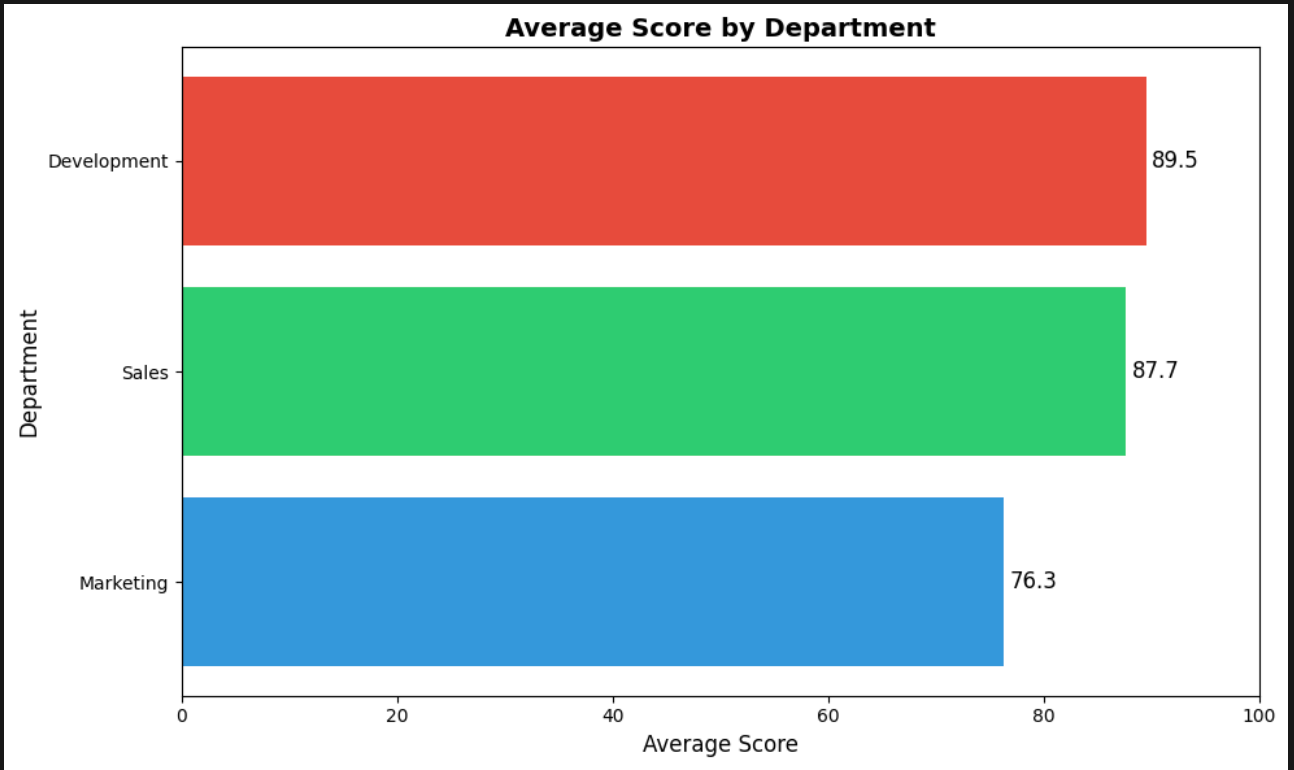
The CSV content was as follows:
department,mean,min,max,count
マーケティング,76.3,72,79,3
営業,87.7,83,95,3
開発,89.5,87,92,4
We've successfully retrieved the departmental statistics as our execution result!
Allowing the Agent to Perform Autonomous Analysis
So far, we've seen examples of executing pre-prepared code.
The implementations so far aren't very agent-like, as they simply execute code using the Code Interpreter. I'm curious how the tool would be used if given ambiguous instructions, so let's check that out.
Let's deploy to AgentCore and examine the traces!
Implementation
from bedrock_agentcore.runtime import BedrockAgentCoreApp
from strands import Agent
from strands.models import BedrockModel
from strands_tools.code_interpreter import AgentCoreCodeInterpreter
from strands_tools.code_interpreter.models import WriteFilesAction, FileContent

app = BedrockAgentCoreApp()

# Sample data for analysis
SAMPLE_DATA = """name,age,score,department
田中太郎,28,85,営業
佐藤花子,34,92,開発
鈴木一郎,25,78,マーケティング
高橋美咲,31,88,開発
伊藤健太,29,95,営業
渡辺真理,27,72,マーケティング
山本大輔,33,91,開発
中村愛,26,83,営業
小林拓也,30,87,開発
加藤由美,32,79,マーケティング"""

@app.entrypoint
def main(payload):
    model = BedrockModel(
        model_id="us.anthropic.claude-sonnet-4-5-20250929-v1:0",
        region_name="us-west-2"
    )

    code_interpreter = AgentCoreCodeInterpreter(region="us-west-2")

    # Write CSV file to sandbox
    code_interpreter.write_files(WriteFilesAction(
        type="writeFiles",
        content=[FileContent(path="data.csv", text=SAMPLE_DATA)]
    ))

    # Give the agent ambiguous instructions
    agent = Agent(
        model=model,
        tools=[code_interpreter.code_interpreter],
        system_prompt="You are a data analyst. data.csv is in the Code Interpreter. Write your own code to analyze the user's questions."
    )

    # Ambiguous instruction: Let the agent decide how to analyze
    response = agent("Analyze data.csv and tell me three interesting insights")
    return response

if __name__ == "__main__":
    app.run()
I'm giving the ambiguous instruction "Tell me three interesting insights." The system prompt instructs "Write your own code to analyze," so I want to see what code it writes for analysis.
Deploying to AgentCore Runtime
First, we use the configure command for setup.
It proceeds in an interactive format, but we'll mostly use automatic creation and choose "Direct Code Deploy."
uv run agentcore configure --entrypoint test_agent_analysis.py
# Choose mostly automatic creation options, select Direct Code Deploy
Once the configuration is complete, deploy to AgentCore Runtime with the launch command.
uv run agentcore launch
After deployment is complete, run the agent.
uv run agentcore invoke '{"prompt": ""}'

Response:
After analyzing data.csv, I found the following **three interesting insights**:

## 📊 Insight 1: The Development Department is Overwhelmingly Excellent and Stable
- **Development Department Average Score**: 89.5 points (highest among all departments)
- **Score Stability**: Standard deviation of just 2.38, the most consistent performance
- All 4 people in the Development Department scored 87 points or higher, maintaining a high level across the team

In contrast, the Marketing Department has an average of 76.3 points, about 13 points lower, showing the most room for improvement.

## 📈 Insight 2: There is a moderate positive correlation (0.562) between age and score
- **Young employees (~27 years)**: Average 77.7 points
- **Mid-career (28-30 years)**: Average 89.0 points (highest!)
- **Veteran (31+ years)**: Average 87.5 points

Surprisingly, **the 28-30 year mid-career group shows the highest performance**. This suggests a balance between experience and energy, indicating that the relationship is not simply "higher age equals better performance."

## 🏆 Insight 3: Top performers are older and concentrated in the Development Department
- **Characteristics of the top 30% (3 people)**:
  - Average age: 32.0 years (higher than the overall average of 29.5 years)
  - Average score: 92.7 points
  - **Department distribution**: 2 in Development, 1 in Sales (0 in Marketing)

Two-thirds of top performers belong to the Development Department, suggesting that the Development Department either attracts talented people or has an excellent development environment. It's notable that there are no top performers from the Marketing Department.
We got the execution results! Let's see what code it executed for the analysis.
Check the Trace
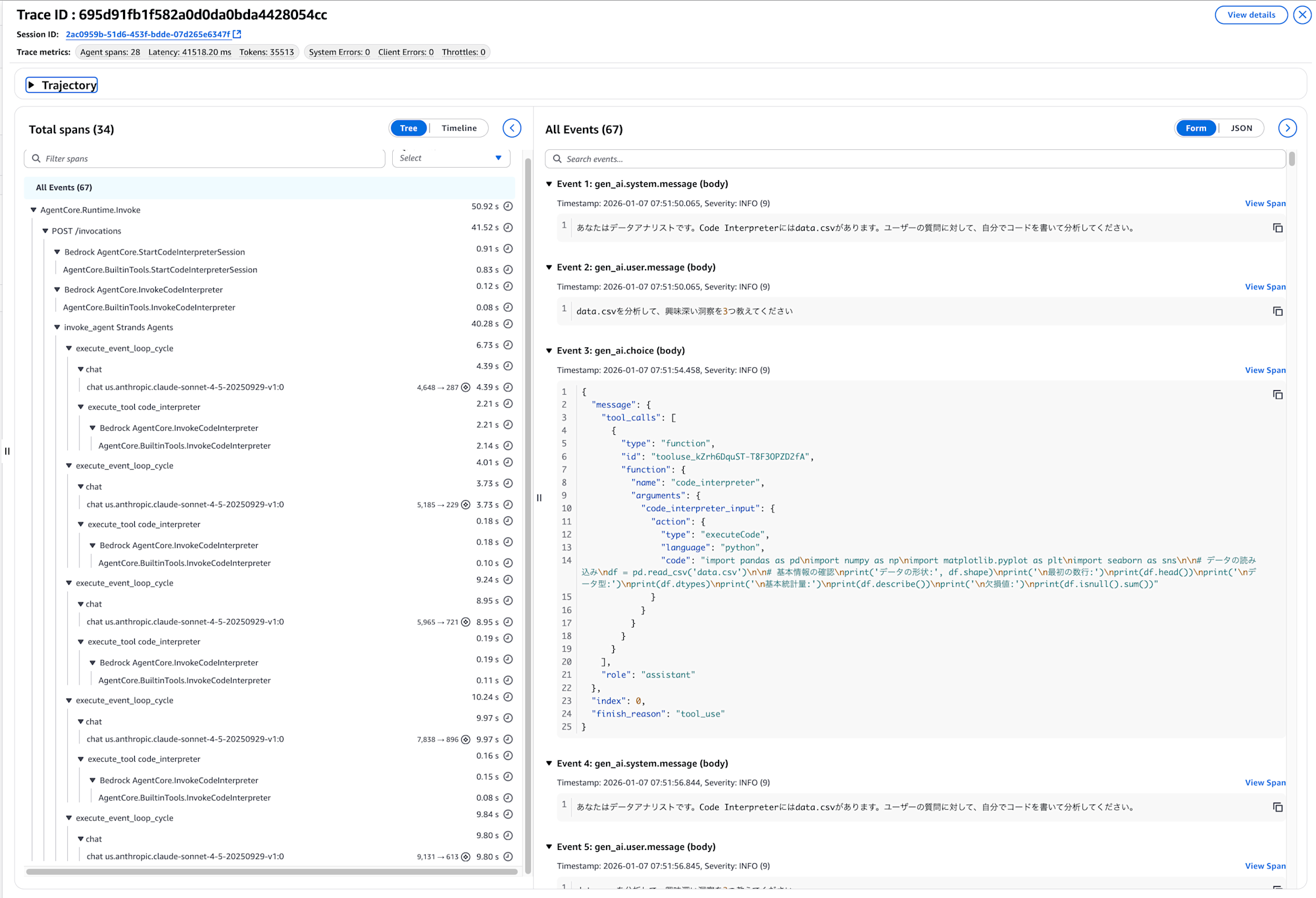
Oh, probably because the instructions were loose, there are quite a few spans. Let me briefly check what processing was performed.
By looking at the trace, we can better understand the flow of the agent's actions. Let's look at excerpts from the actual trace.
First, the agent tried to execute code that included seaborn.
Event 3: gen_ai.choice (body)
"code": "import pandas as pd\nimport numpy as np\nimport matplotlib.pyplot as plt\nimport seaborn as sns\n\n# データの読み込み\ndf = pd.read_csv('data.csv')\n..."
However, since seaborn wasn't installed in the sandbox environment, an error occurred.
In this regard, it might be smoother to inform about the available libraries in the system prompt.
Event 7: gen_ai.tool.message (body)
"ModuleNotFoundError: No module named 'seaborn'"
In response to this error, the agent automatically modified the code to exclude seaborn and re-executed it.
Event 9: gen_ai.choice (body)
"code": "import pandas as pd\nimport numpy as np\nimport matplotlib.pyplot as plt\n\n# データの読み込み\ndf = pd.read_csv('data.csv')\n\n# 基本情報の確認\nprint('データの形状:', df.shape)\nprint('\n最初の数行:')\nprint(df.head(10))\n..."
As a result, the basic information about the data was returned.
Event 16: gen_ai.tool.message (body)
データの形状: (10, 4)

最初の数行:
   name  age  score department
0  田中太郎   28     85         営業
1  佐藤花子   34     92         開発
...

基本統計量:
            age      score
mean   29.50000  85.000000
std     3.02765   7.118052
After understanding the data structure, the agent created and executed analysis code to derive three insights.
Event 18: gen_ai.choice (body)
"code": "# 洞察1: 部署別の分析\ndept_score = df.groupby('department')['score'].agg(['mean', 'count'])\n\n# 洞察2: 年齢とスコアの関係\ncorrelation = df['age'].corr(df['score'])\ndf['age_group'] = pd.cut(df['age'], bins=[0, 27, 30, 35], labels=['若手(~27歳)', '中堅(28-30歳)', 'ベテラン(31歳~)'])\n\n# 洞察3: トップパフォーマー分析\ntop_threshold = df['score'].quantile(0.7)\n..."
The execution results provided analysis for each insight.
Event 28: gen_ai.tool.message (body)
=== 洞察1: 部署別パフォーマンス分析 ===
部署別の平均スコア:
                 mean  count
department
開発          89.500000      4
営業          87.666667      3
マーケティング     76.333333      3

=== 洞察2: 年齢とスコアの相関分析 ===
年齢とスコアの相関係数: 0.562
年齢層別の平均スコア:
若手(~27歳)    77.666667
中堅(28-30歳)  89.000000
ベテラン(31歳~)  87.500000

=== 洞察3: トップパフォーマー分析 ===
上位30%のスコア閾値: 88.9
トップパフォーマーの特徴:
人数: 3人
平均年齢: 32.0歳
平均スコア: 92.7点
部署別分布: 開発2人、営業1人
The agent also voluntarily performed additional detailed analysis.
Event 30: gen_ai.choice (body)
"code": "# さらに詳細な分析\nfor dept in df['department'].unique():\n    dept_data = df[df['department'] == dept]\n    print(f'  スコアの標準偏差: {dept_data[\"score\"].std():.2f}')\n..."
Event 43: gen_ai.tool.message (body)
=== 追加分析 ===
営業: スコアの標準偏差: 6.43
開発: スコアの標準偏差: 2.38
マーケティング: スコアの標準偏差: 3.79

最高スコア: 95点 - 伊藤健太 (営業, 29歳)
最低スコア: 72点 - 渡辺真理 (マーケティング, 27歳)
The entire process took about 41 seconds.
Event 48: Invocation completed successfully (41.517s)
Following this process, the agent created the final response. It's interesting to track what actions it took. If it's not behaving as expected, we can adjust the prompts or use Evaluations to improve its performance.
In this case, since the instructions were vague, there were many agent actions. I think it would be more efficient to explicitly instruct what actions to take.
data.csvを分析した結果、以下の**3つの興味深い洞察**が見つかりました:

## 📊 洞察1: 開発部署が圧倒的に優秀かつ安定している
- **開発部署の平均スコア**: 89.5点(全部署中トップ)
- **スコアの安定性**: 標準偏差わずか2.38で、最も一貫したパフォーマンス
- 開発部署は4人中全員が87点以上を取得しており、チーム全体として高い水準を維持

一方、マーケティング部署は平均76.3点と約13点も低く、最も改善の余地があります。

## 📈 洞察2: 年齢とスコアに中程度の正の相関(0.562)がある
- **若手(~27歳)**: 平均77.7点
- **中堅(28-30歳)**: 平均89.0点(最も高い!)
- **ベテラン(31歳~)**: 平均87.5点

意外にも、**28-30歳の中堅層が最も高いパフォーマンス**を示しています。これは経験と活力のバランスが取れた年齢層であることを示唆して
おり、単純な「年齢が高いほど良い」という関係ではないことが分かります。

## 🏆 洞察3: トップパフォーマーは年齢が高く、開発部署に集中
- **上位30%(3人)の特徴**:
  - 平均年齢: 32.0歳(全体平均29.5歳より高い)
  - 平均スコア: 92.7点
  - **部署分布**: 開発2人、営業1人(マーケティング0人)

トップパフォーマーの2/3が開発部署に所属しており、開発部署が優秀人材を集めているか、育成環境が優れている可能性があります。マーケティング部署からはトップパフォーマーが1人も出ていない点は要注意です。
Conclusion
If you want to reliably execute specific files, you can use the built-in write_files() and read_files() methods to explicitly handle file operations. It would be good to utilize these as needed!
I hope this article was useful to you. Thank you for reading until the end!