Thinking about how to solve the problem where Japanese text can't be cleared after being confirmed in SwiftUI TextField

This article was published more than one year ago. Please be aware that the information may be outdated.
This page has been translated by machine translation. View original
Apple Developer Forums had a question posted titled "Unable to clear Japanese text in TextField". Since this is a common UI pattern in smartphone apps, I was curious and investigated.
Issue with clearing Japanese text in SwiftUI TextField after text input confirmation
There's a TextField wrapped in an HStack with a Button. The Button is an × button that clears the text when clicked. The implementation looks like this:
import SwiftUI

struct SearchBar: View {
    @Binding private var text: String

    var body: some View {
        HStack {
            TextField("", text: $text, prompt: Text("Search"))
                .textFieldStyle(.plain)
                .padding()
                .foregroundStyle(.white)
            Button {
                text = ""
            } label: {
                Image(systemName: "xmark")
                    .foregroundStyle(.black)
            }
        }
        .padding(.horizontal, 8)
        .background(RoundedRectangle(cornerRadius: 8).fill(.gray))
        .padding(.horizontal, 8)
    }

    init(text: Binding<String>) {
        _text = text
    }
}

struct ContentView: View {
    @State var text = ""

    var body: some View {
        SearchBar(text: $text)
    }
}

#Preview {
    ContentView()
}
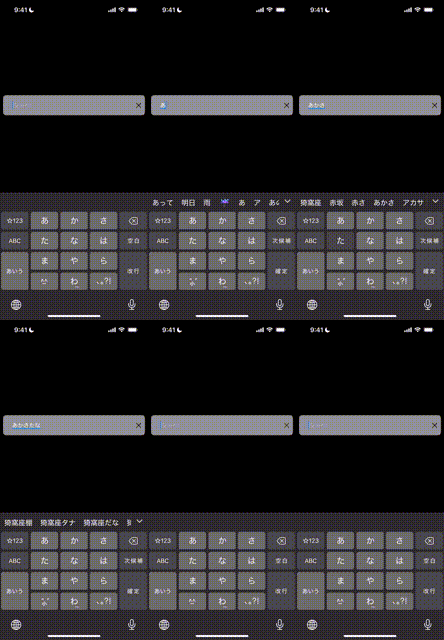
The reported issue is as follows:
- When pressing the × button while typing hiragana (before confirmation) → Text is cleared normally
- When pressing the × button after confirming hiragana input → Text is not cleared
- When Japanese text is converted to kanji → Text is cleared normally
Test Environment
- Xcode 16.2
- iPhone 13 Pro / iOS 18.3.1
Considering solutions
Since this is a common UI pattern, I wanted to know the solution. Currently, SwiftUI's TextField doesn't provide a clear button.
I tried to find a solution without having to wrap a UITextField in a UIViewRepresentable.
Here are four solutions. I've also prepared a comparison table summarizing the pros and cons of each.
| Solution | Pros | Cons | Impact on Accessibility |
|---|---|---|---|
| 1. Manipulating focus | Simple implementation | Keyboard briefly disappears | Significant visual change may cause confusion |
| 2. Using TextEditor | Works reliably | Layout customization required | May provide a different experience than expected with TextField, but minimal impact |
| 3. Changing UIKit settings | Uses standard system UI | Affects TextField style throughout the app, showing clear buttons in unintended places | Few accessibility issues as it uses system standard functionality |
| 4. Delete one character then delete all | Minimal visual disruption | Hack-like solution that might stop working in future iOS versions | Two text change notifications occur but display naturally to users |
Solution 1: Remove and reapply focus
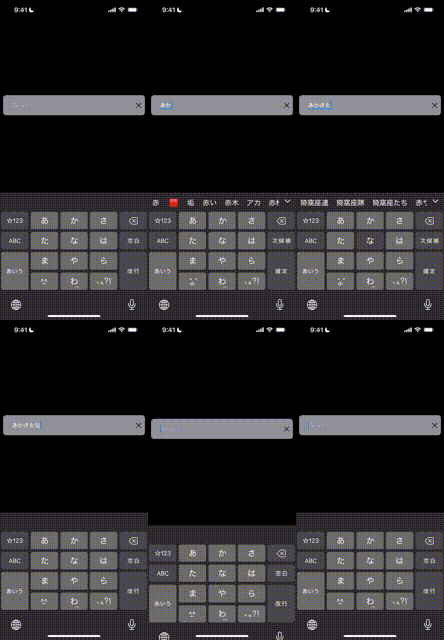
This method avoids the problem by controlling the TextField's focus state. It resets the input state by removing focus and then reapplying it.
struct SearchBar1: View {
    @Binding private var text: String
    @FocusState private var isFocused: Bool

    var body: some View {
        HStack {
            TextField("", text: $text, prompt: Text("Search"))
                .textFieldStyle(.plain)
                .padding()
                .foregroundStyle(.white)
                .focused($isFocused)
            Button {
                isFocused = false
                text = ""
                // Delay to re-focus
                DispatchQueue.main.asyncAfter(deadline: .now() + 0.1) {
                    isFocused = true
                }
            } label: {
                Image(systemName: "xmark")
                    .foregroundStyle(.black)
            }
        }
        // omitted
    }

    init(text: Binding<String>) {
        _text = text
    }
}
I tried this sample code. Since focus is temporarily removed, the keyboard briefly disappears. This isn't a great user experience.
Solution 2: Use TextEditor instead of TextField
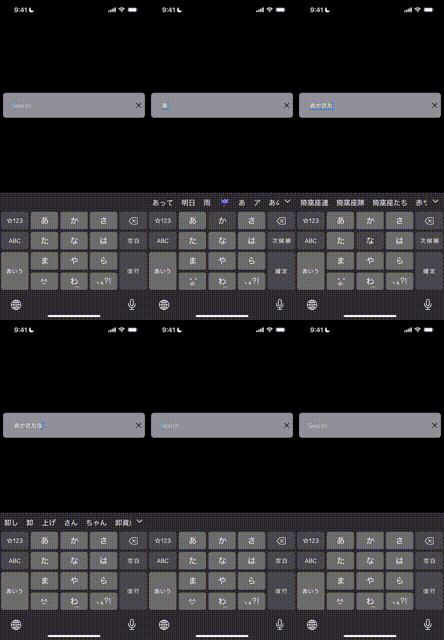
TextEditor has a different internal implementation than TextField.
struct SearchBar2: View {
    @Binding private var text: String

    var body: some View {
        HStack {
            TextEditor(text: $text)
                .padding()
                .foregroundStyle(.white)
                .frame(height: 66)
                .scrollContentBackground(.hidden)
                .overlay(
                    Group {
                        if text.isEmpty {
                            Text("Search")
                                .foregroundStyle(.white.opacity(0.5))
                                .padding(.leading, 16)
                                .padding(.top, 24)
                                .allowsHitTesting(false)
                        }
                    },
                    alignment: .topLeading
                )
            Button {
                text = ""
            } label: {
                Image(systemName: "xmark")
                    .foregroundStyle(.black)
            }
        }
        // omitted
    }

    init(text: Binding<String>) {
        _text = text
    }
}
I tested this sample code. When the × button is pressed, the displayed text disappears as intended.
Solution 3: Set UITextField.appearance().clearButtonMode = .always
This method changes the settings of the UITextField behind SwiftUI's TextField to display the system standard clear button.
struct SearchBar3: View {
    @Binding private var text: String

    var body: some View {
        HStack {
            TextField("", text: $text, prompt: Text("Search"))
                .textFieldStyle(.plain)
                .padding()
                .foregroundStyle(.white)
        }
        // omitted
        .onAppear {
            UITextField.appearance().clearButtonMode = .always
        }
    }

    init(text: Binding<String>) {
        _text = text
    }
}
I tried this sample code. Being the system standard clear button, both appearance and operability are good.
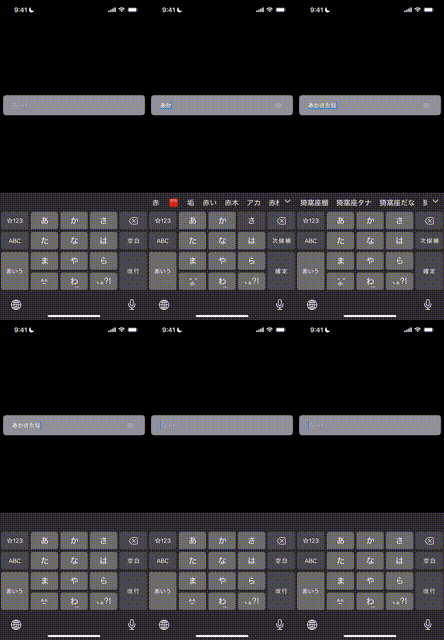
However, this method affects all TextFields in the app, so it may not be suitable in many cases. For example, it causes problems if you don't want to display a clear button on some TextFields or want to apply different styles. Consider creating a custom UIViewRepresentable to apply to specific TextFields only. Ideally, SwiftUI's TextField should provide a clearButtonMode modifier.
Solution 4: Delete one character then clear all in the next UI loop
Another solution is to forcibly reset the Japanese input confirmation state. First, delete one character, then after a slight delay, clear the remaining text.
struct SearchBar4: View {
    @Binding private var text: String

    var body: some View {
        HStack {
            TextField("", text: $text, prompt: Text("Search"))
                .textFieldStyle(.plain)
                .padding()
                .foregroundStyle(.white)
            Button {
                if !text.isEmpty {
                    let _ = text.removeLast()
                    DispatchQueue.main.asyncAfter(deadline: .now() + 0.1) {
                        self.text = ""
                    }
                }
            } label: {
                Image(systemName: "xmark")
                    .foregroundStyle(.black)
            }
        }
        // omitted
    }

    init(text: Binding<String>) {
        _text = text
    }
}
This method works as a hack to reset the Japanese input system state. By deleting one character, the input system's state changes, allowing the subsequent full deletion to work correctly. The delay ensures that the UI updates properly.
I tested this sample code. The operability isn't bad, and it seems like a good workaround.
Full Sample Code
I've prepared a sample project for verification on GitHub at the following repository:
Please check the repository for the full sample code.
References
Solution 4 is based on the method described in kabeya's article. The code using MainActor didn't work well on Xcode 16.2 / iOS 18.3.1 simulator, so I used DispatchQueue instead.