Playing GIF animations in SwiftUI! How to use Kingfisher's KFAnimatedImage

This article was published more than one year ago. Please be aware that the information may be outdated.
This page has been translated by machine translation. View original
There are several libraries for caching and displaying images from the web. Among them, "SDWebImage" and "Kingfisher" are particularly well-known.
SDWebImage is easy to use in Objective-C projects, and I mainly used SDWebImage even after Swift became mainstream. This was because SDWebImage offers high customizability and I had the know-how to meet even somewhat challenging requirements.
However, the app I'm developing at my current job uses Kingfisher, so I've been using Kingfisher more frequently over the past year. While Kingfisher is simple and easy to use, there is relatively little information available in Japanese, so I had to proceed by trial and error. Even the official documentation has few concrete examples of GIF playback in SwiftUI, and I couldn't find any implementation examples specifically for SwiftUI.
Therefore, in this article, I will explain how to play GIF animations in SwiftUI using "KFAnimatedImage" provided by Kingfisher. I will also touch on important considerations when handling GIF animations and customization methods.
Testing Environment
The environment used in this article is as follows:
- Xcode 16.2 (16C5032a)
- iOS 18.2 simulator
Installing Kingfisher
First, let's add Kingfisher to the project. Using Swift Package Manager (SPM) is the easiest way.
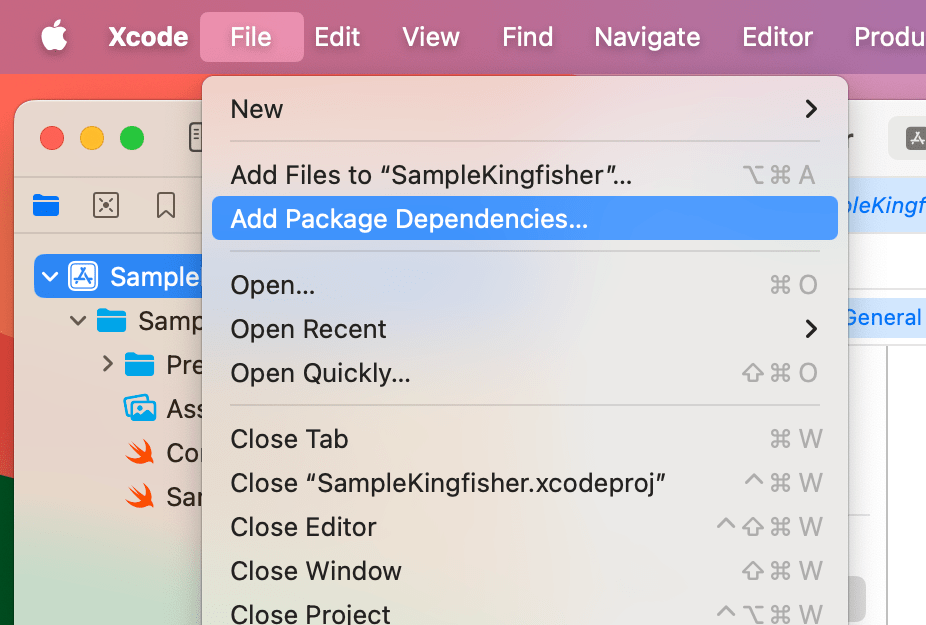
From Xcode menu, select "File" -> "Swift Packages" -> "Add Package Dependency".
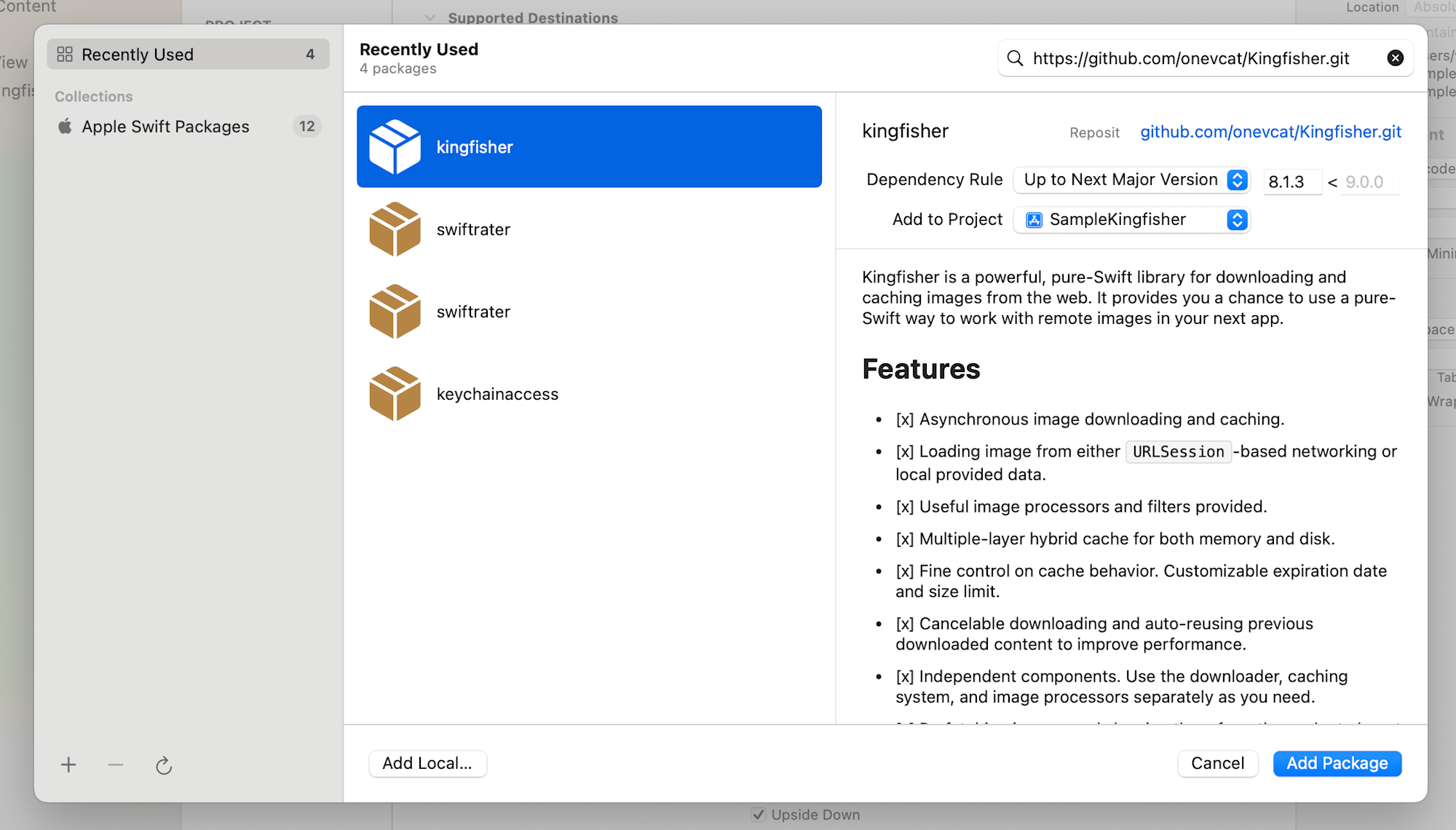
In the search field at the top right, enter the repository URL https://github.com/onevcat/Kingfisher.git. Select "kingfisher" from the list, and choose "Up to Next Major" for version specification.
Specify version "8.1.3". This version is the latest stable release. Finally, click the "Add Package" button at the bottom right.
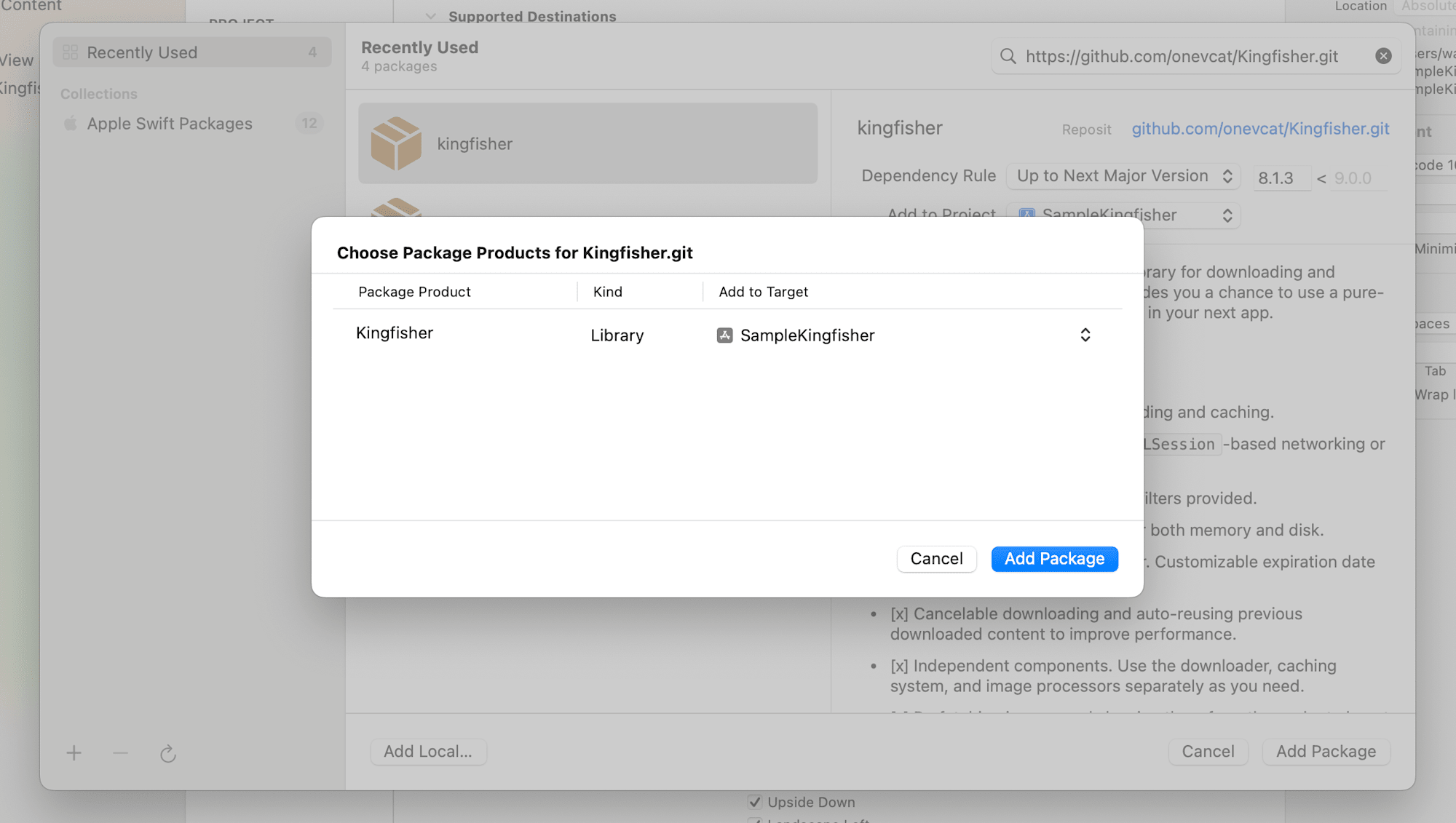
Confirm the target to add and click the "Add Package" button at the bottom right.
Now Kingfisher has been added to the project. Next, let's check the basic usage.
Basic Usage of Kingfisher
Kingfisher makes it easy to display images from the web. Below is a basic example of using Kingfisher to display an image in SwiftUI. With this code, once an image is downloaded, it's stored in the cache, and subsequent displays don't require network access.
import Kingfisher
import SwiftUI

struct ContentView: View {
    let url = URL(string: "https://raw.githubusercontent.com/onevcat/Kingfisher/master/images/logo.png")!

    var body: some View {
        VStack {
            KFImage(url)
                .resizable()
                .scaledToFit()
        }
        .padding()
    }
}
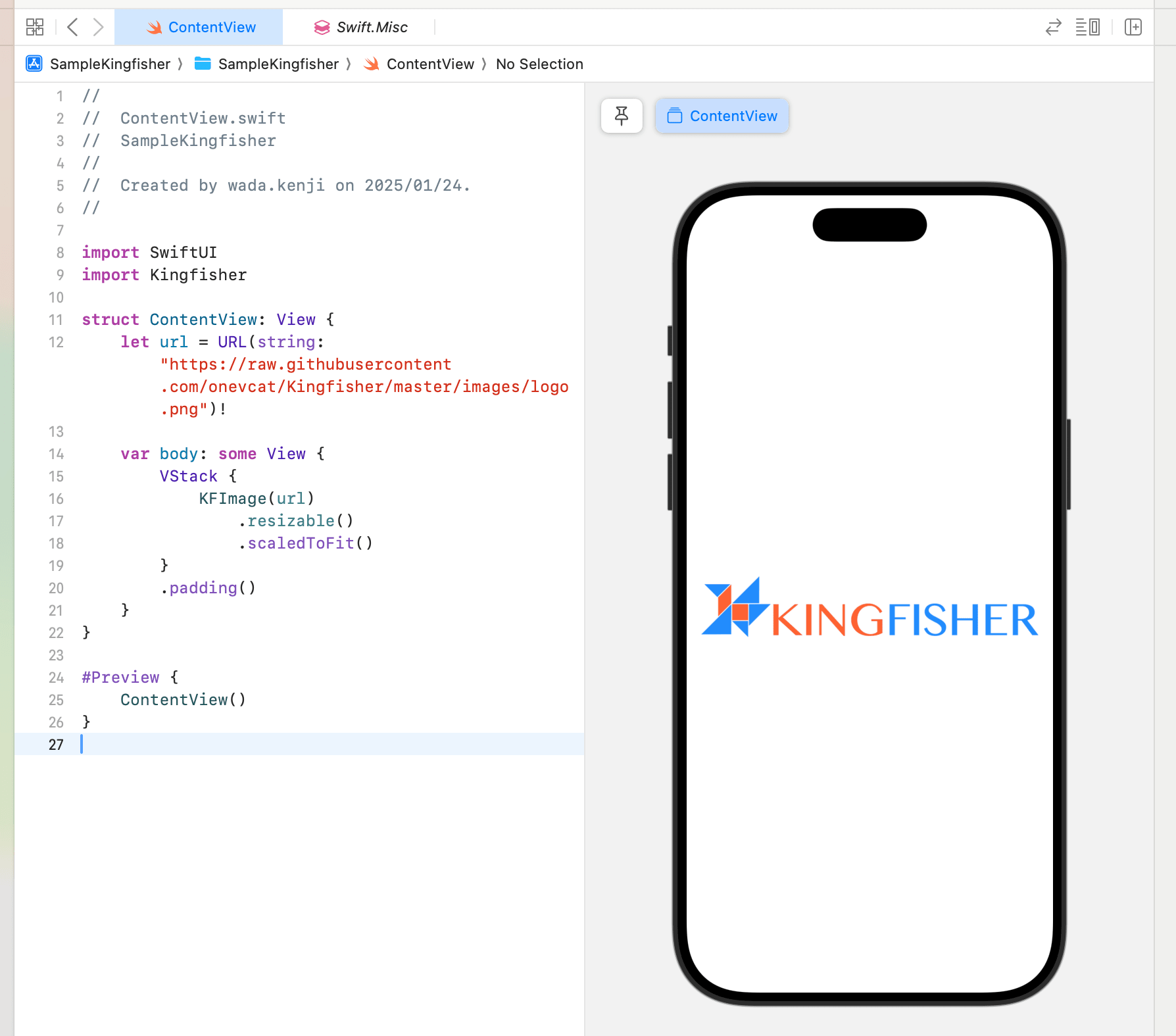
In this code, KFImage is used to display the image from the specified URL. By combining resizable() and scaledToFit(), you can flexibly adjust the size and display method of the image. Also, if the image fails to load, you can use the placeholder modifier to display an alternative image.
Playing GIF Animations
The Static Image Problem
When trying to display a GIF animation using KFImage, by default, only the first frame is displayed as a "static image". Let's look at the following example code.
struct ContentView: View {
    let url = URL(string: "http://localhost:3000/img/sample.gif")!

    var body: some View {
        VStack {
            KFImage(url)
                .resizable()
                .scaledToFit()
        }
        .padding()
    }
}
With this code, the GIF animation doesn't play, only the first frame is displayed as a static image. To play GIF animations, you need to use the dedicated KFAnimatedImage instead of KFImage. KFImage is a component for handling static images and doesn't support animated GIFs. On the other hand, KFAnimatedImage is designed for playing animated images like GIFs.
Playing GIF Animations with KFAnimatedImage
Using KFAnimatedImage, you can easily play GIF animations. Here's a basic example:
struct ContentView: View {
    let url = URL(string: "http://localhost:3000/img/sample.gif")!

    var body: some View {
        VStack {
            KFAnimatedImage(url)
                .scaledToFit()
        }
        .padding()
    }
}
In this code, using KFAnimatedImage allows the GIF animation to play correctly. With scaledToFit(), you can fit the animation within the display area while maintaining its aspect ratio.
When dealing with large GIF files, loading may take time, so it's recommended to use appropriately sized GIFs.
Controlling GIF Animation Playback Count
By default, equivalent to repeatCount = .infinite, GIF animations play in an infinite loop, but there are cases where you might want to control the number of times it plays. With KFAnimatedImage, you can customize various settings by directly manipulating the AnimatedImageView used internally. In this article, I'll introduce how to change the playback count, but you can also customize other aspects such as animation speed and background color.
The following code is an example of accessing AnimatedImageView using the configure modifier to set the playback count:
KFAnimatedImage(url)
    .configure { view in
        view.repeatCount = .finite(count: 3) // play 3 times
    }
    .scaledToFit()
The repeatCount property can be set to the following values:
.once: Play only once..finite(count: UInt): Play the specified number of times (e.g.,.finite(count: 10)to play 10 times)..infinite: Play indefinitely (default)..finite(count: 0): Do not play (display as a static image).
Here are specific examples:
Play in an infinite loop
Keep playing endlessly:
KFAnimatedImage(url)
    .configure { view in
        view.repeatCount = .infinite
    }
    .scaledToFit()
Play just once
Play once and then stop the animation:
KFAnimatedImage(url)
    .configure { view in
        view.repeatCount = .once
    }
    .scaledToFit()
Play a specified number of times
For example, to play 10 times:
KFAnimatedImage(url)
    .configure { view in
        view.repeatCount = .finite(count: 10)
    }
    .scaledToFit()
Don't play (display as a static image)
If you want to display a GIF animation as a static image, set the playback count to 0:
KFAnimatedImage(url)
    .configure { view in
        view.repeatCount = .finite(count: 0)
    }
    .scaledToFit()
Summary
Using Kingfisher's KFAnimatedImage, you can easily play GIF animations in SwiftUI. Also, with the configure modifier, you can flexibly customize the playback count and detailed behavior.
When handling GIF animations, it's important to understand the difference between KFImage and KFAnimatedImage and use them appropriately. For example, when displaying loading animations in your app, KFAnimatedImage is convenient. Since you can configure settings according to your use case, such as controlling the playback count or displaying as a static image, I hope you will utilize this in your projects.