Managing AWS Budgets with Terraform in a multi-account environment in a nice way

This page has been translated by machine translation. View original
Introduction
Hello everyone, I'm Akaike.
When you're operating in a multi-account environment, cost management for each account can be quite challenging, right?
Especially in sandbox or verification environments where developers have freedom to work with resources, it's not uncommon for expensive resources to be accidentally left running.
To prevent such situations, it's necessary to set budgets for each account and configure alerts.
But when you try to implement this, you might wonder "Should I set it up in each account separately? Can I configure it all at once from the management account?" (I was confused about this too)
So in this article, I'll summarize how to centrally manage AWS Budgets for multiple accounts using Terraform from a management account.
Methods for Setting Individual AWS Budgets for Accounts
There are broadly two methods for setting individual budgets in AWS Budgets.
1. Configuring in Each Account
This method involves setting up budgets from the AWS Budgets screen in each account.
This is the simplest approach but has the following disadvantages, with operational costs increasing as the number of accounts grows...
- Disadvantages
- Need to log in to each account to configure settings
- Setup work is required every time a new account is added
- Difficult to maintain consistency in settings, leading to variations between accounts
- If Admin permissions are granted without controlling via SCP, account users can change or delete settings
2. Configuring from the Management Account
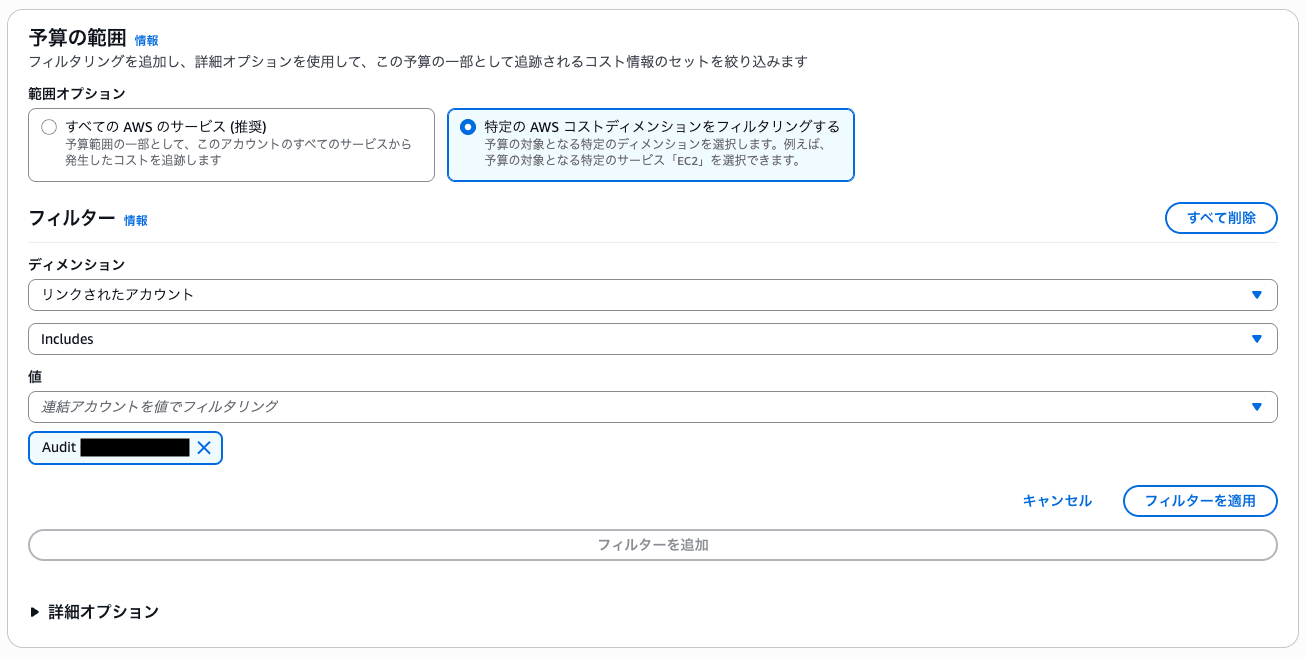
If you're using AWS Organizations, you can set AWS Budgets from the management account and filter target accounts using the "Linked Account" filter.
So if you're using Organizations, this centralized management approach is recommended.
-
Prerequisites
- AWS Organizations must be set up
- Operations must be performed from the management account
-
Advantages
- All accounts' AWS Budgets can be managed from a single management account
- Easy to codify settings with Terraform
- Settings can be standardized
The actual configuration screen looks like this.
When you select "Linked Account" as a filter, you can specify each account.
In this article, we'll implement method #2 using Terraform.
Pricing and Quotas
Before implementation, let's check AWS Budgets pricing and quotas.
Pricing
Since we're implementing AWS Budgets with notifications only (email notifications), it's free.
We're not using actions (like attaching IAM policies or stopping EC2 instances), so no costs will be incurred even as the number of accounts increases.
| Item | Price |
|---|---|
| AWS Budgets with notifications only (no actions) | Free (no limit on quantity) |
| AWS Budgets with actions (first 2) | Free |
| AWS Budgets with actions (3rd and beyond) | $0.10/day |
| Budget Reports | $0.01/report |
Quotas
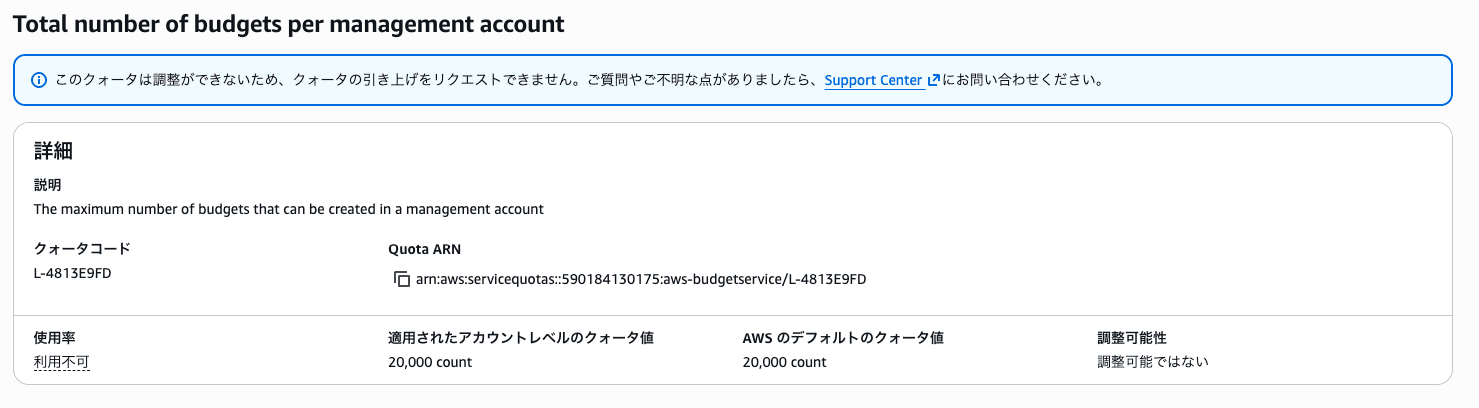
The limit is 20,000 per management account, so you're unlikely to hit the limit unless you have an extremely large organization.
| Item | Limit |
|---|---|
| Total AWS Budgets per management account | 20,000 |
It appears this limit cannot be changed.
Managing AWS Budgets with Terraform
File Structure
Here's the file structure for this implementation.
It's a simple structure where AWS Budgets resources are defined in budgets.tf and settings for each account are written in config/budgets_config.yaml.
.
├── provider.tf
├── budgets.tf
└── config/
    └── budgets_config.yaml
budgets_config.yaml
This file contains the configuration values for AWS Budgets for each account.
As I introduced in the following blog, I personally prefer defining configurations in YAML for resources that are created in large numbers with for_each or when non-engineers might need to work with them.
# Common settings
default:
  limit_amount: "100"       # USD/month
  thresholds: [50, 80, 100] # Notification thresholds (%)
  admin_notification_email: "example+admin@gmail.com" # Admin notification destination

# Account-specific settings
accounts:
  - account_id: "XXXXXXXXXXXX" # target account id
    notification_emails:
      - "example+user@gmail.com" # Sandbox user
    limit_amount: "200" # Uses default value if omitted
    thresholds: [70, 90, 100] # Uses default value if omitted
    admin_notification_email: "example+admin00@gmail.com" # Uses default value if omitted
Write common settings for all accounts in the default section and add account-specific settings in the accounts section.
notification_emails is for notifying account users, so it must be set for each account.
limit_amount, thresholds, and admin_notification_email can be omitted per account, in which case the default values will be applied.
budgets.tf
This file reads budgets_config.yaml and creates resources.
locals {
  # Load YAML
  budgets_config = yamldecode(file("${path.module}/config/budgets_config.yaml"))

  # AWS Budgets settings
  budget_accounts = try(local.budgets_config.accounts, [])
  budget_default  = local.budgets_config.default
}

# Create AWS Budgets in the management account and filter by linked accounts
resource "aws_budgets_budget" "sandbox" {
  for_each = { for account in local.budget_accounts : account.account_id => account }

  name        = "monthly-budget-${each.value.account_id}"
  budget_type = "COST"
  time_unit   = "MONTHLY"

  limit_amount = try(each.value.limit_amount, local.budget_default.limit_amount)
  limit_unit   = "USD"

  cost_filter {
    name   = "LinkedAccount"
    values = [each.value.account_id]
  }

  cost_types {
    include_credit             = false
    include_discount           = true
    include_other_subscription = true
    include_recurring          = true
    include_refund             = false
    include_subscription       = true
    include_support            = true
    include_tax                = true
    include_upfront            = true
    use_blended                = false
  }

  dynamic "notification" {
    for_each = try(each.value.thresholds, local.budget_default.thresholds)
    content {
      comparison_operator = "GREATER_THAN"
      threshold           = notification.value
      threshold_type      = "PERCENTAGE"
      notification_type   = "ACTUAL"
      subscriber_email_addresses = concat(
        [try(each.value.admin_notification_email, local.budget_default.admin_notification_email)],
        each.value.notification_emails
      )
    }
  }

  tags = {
    ManagedBy = "terraform"
  }
}
Let me explain some key points:
Create AWS Budgets for each account using for_each
for_each = { for account in local.budget_accounts : account.account_id => account }
This converts the accounts list from YAML into a map with account IDs as keys and passes it to for_each.
This way, AWS Budgets are automatically created just by adding accounts to the YAML.
Filter accounts using cost_filter
cost_filter {
  name   = "LinkedAccount"
  values = [each.value.account_id]
}
The LinkedAccount filter narrows down to costs for specific accounts only.
By setting this filter, you can target only costs for specific accounts even when viewed from the management account.
Fallback to default values using try()
limit_amount = try(each.value.limit_amount, local.budget_default.limit_amount)
Using Terraform's try() function, the default value is used when an account-specific setting is omitted.
This creates a simple design where accounts can be customized in detail while common settings are applied when values are omitted.
Generate notifications for each threshold using dynamic "notification"
dynamic "notification" {
  for_each = try(each.value.thresholds, local.budget_default.thresholds)
  content {
    threshold = notification.value
    subscriber_email_addresses = concat(
      [try(each.value.admin_notification_email, local.budget_default.admin_notification_email)],
      each.value.notification_emails
    )
  }
}
This loops through the threshold list (e.g., [50, 80, 100]) and dynamically generates notification settings for each threshold.
Notification recipients are concatenated with concat() from the admin email and account user emails, allowing flexible notification settings for each account.
provider.tf
You need to run Terraform with the management account's credentials.
There are no other special considerations.
terraform {
  required_version = ">= 1.10"

  required_providers {
    aws = {
      source  = "hashicorp/aws"
      version = "~> 5.0"
    }
  }
}

provider "aws" {
  region = "ap-northeast-1"
}
Applying the Configuration
For example, if you apply a configuration like the one below, AWS Budgets for three accounts will be created.
Account XXXXXXXXXXXX (the first one) overrides individual settings, while the remaining two use the default settings.
# Common settings
default:
  limit_amount: "100"       # USD/month
  thresholds: [50, 80, 100] # Notification thresholds (%)
  admin_notification_email: "example+admin@gmail.com" # Admin notification destination

# Account-specific settings
accounts:
  - account_id: "XXXXXXXXXXXX" # target account id
    notification_emails:
      - "example+user00@gmail.com" # Sandbox user
    limit_amount: "200" # Uses default value if omitted
    thresholds: [70, 90, 100] # Uses default value if omitted
    admin_notification_email: "example+admin00@gmail.com" # Uses default value if omitted
  - account_id: "XXXXXXXXXXXX" # target account id
    notification_emails:
      - "example+user01@gmail.com" # Sandbox user
  - account_id: "XXXXXXXXXXXX" # target account id
    notification_emails:
      - "example+user02@gmail.com" # Sandbox user
Three AWS Budgets will be created as shown below. Looks good!

If you want to add a new account, just add an entry to accounts in budgets_config.yaml and apply.
Conclusion
So that's how to centrally manage AWS Budgets for multiple accounts using Terraform from a management account.
By using AWS Organizations' LinkedAccount filter, you can manage budgets for all accounts from a single management account.
Not only do you avoid having to log into each account, but as an administrator, it's also reassuring that account users cannot change or delete the settings.
For Terraform, by externalizing settings in YAML as we did here, you can handle new accounts without touching the code itself, so please consider incorporating this approach.
I hope this is helpful for those struggling with cost management in a multi-account AWS Organizations setup.