Automating Multilingual Support for iOS Apps with Claude Code's Agent Skills (xcstrings → XLIFF → AI Translation)

This page has been translated by machine translation. View original
Last time, I wrote "iOS app localization: splitting and merging .xcstrings into XLIFF files by language".
With the XLIFF-based workflow, I was able to split .xcstrings by language and send them for AI translation. However, when actually implementing this process, manually executing the export → translation → import workflow each time became a major bottleneck as the number of supported languages increased.
So I decided to automate this entire workflow using Claude Code's Agent Skills.
xcstrings → Export → AI Translation → Import → xcstrings
In this article, I'll introduce the design and usage of a skill that delegates the entire process from export to import to Claude Code.
Testing Environment
- MacBook Pro (16-inch, 2023), Apple M2 Pro
- macOS 15.7.3
- Xcode 26.1.1
- Claude Code v2.1.77
What are Agent Skills?
Agent Skills are sets of instructions that teach Claude Code how to handle specific tasks. They consist of a SKILL.md markdown file and, when needed, reference files or scripts bundled in a folder placed in ~/.claude/skills/. I usually create skills whenever I notice I'm entering the same prompts multiple times.
Skills can be explicitly triggered with a slash command (/xcstrings-localize) or automatically triggered with natural language like "localize this."
A distinctive feature is the ability to delay file loading. Claude Code only loads the frontmatter (skill name and description) at startup, and only loads the main content and reference files when the skill is actually triggered. No matter how many skills you register, unused skills don't consume context.
For more details on Agent Skills, please refer to the official documentation.
The Created Skill
I created a skill called xcstrings-localize to automate multilingual support for iOS apps. It's published in a GitHub repository.
The directory structure is as follows:
xcstrings-localize/
├── SKILL.md                 # Workflow instructions
└── references/
    ├── glossary.yaml        # Definitions of proper nouns not to translate and standardized terminology
    └── language-guide.yaml  # Language-specific plural categories, politeness levels, and notes
It's a simple structure with just 3 files. I'll explain the role of each.
Design Points of SKILL.md
Frontmatter
The YAML frontmatter at the beginning of SKILL.md helps Claude Code decide whether to automatically trigger the skill.
---
name: xcstrings-localize
description: >
  iOS app localization skill based on xcstrings (String Catalog).
  It analyzes XLIFF files in xcloc packages exported by xcodebuild,
  translates untranslated trans-units to target languages, and prepares them for import.
  It automatically detects and translates all languages supported by the project.
  Use when the user mentions "localization," "translation," "multilingual support," "xcstrings,"
  "XLIFF," "xcloc," or "[language] support."
---
The name field becomes the slash command name. You can explicitly trigger it with /xcstrings-localize.
The description provides information for Claude Code to decide "Should I use this skill?" It should include comprehensive keywords that will trigger automatic activation, so I've included expressions developers are likely to use, such as "localization," "translation," "multilingual support," "xcstrings," etc.
According to the official documentation, Claude tends to under-trigger skills, so it's recommended to write descriptions "a bit strongly." Personally, I find word-based triggers unreliable, so I always use slash commands.
Not Hardcoding Target Languages
In this skill, target languages are not hardcoded.
In "Step 0: Identify target languages" of SKILL.md, I instruct it to JSON parse the project's .xcstrings file to automatically retrieve supported languages. Since the .xcstrings file is in JSON format, extracting all keys except sourceLanguage (development language) gives us the list of target languages.
With this design, when you add a new language to the String Catalog in your Xcode project, the skill automatically includes that language as a translation target. Even if you add French or Italian later, no modification to the skill is required.
Of course, if the user explicitly requests "translate only to English," the skill will target only the specified language.
Translation Rules to Keep XLIFF Intact
When having AI edit XLIFF files, it's essential to clearly define what must not be broken. SKILL.md defines the following as "rules that must be strictly followed":
1. **Do not modify the `<source>` element** — Xcode matches based on source during import
2. **Do not change `id` attributes or `original` attributes**
3. **Preserve format specifiers exactly**: %@, %d, %lld, %1$@, %2$@
4. **Keep stringsdict variable keys intact**: %#@variable@
5. **Set `state="translated"` for translated `<target>` elements**
6. **Maintain `xml:space="preserve"`**
Points 1 and 3 are particularly important.
Changing the <source> element would cause key matching to fail when importing with xcodebuild -importLocalizations, resulting in translations being silently skipped. This creates bugs that are hard to notice since no errors are displayed.
Format specifiers (%@, %d, %1$@, etc.) must be included exactly as they are in the translated text. One of the most common mistakes in AI translation is corrupting or omitting placeholders. There are cases where %@ is changed to %s or position specifier indexes are altered, so this is explicitly stated as a rule.
Separating Information in the references/ Directory
I've separated the glossary (glossary.yaml) and language-specific guides (language-guide.yaml) into the references/ directory.
While all information could be packed into the SKILL.md main text, separating them into references/ ensures that only necessary information is loaded when the skill is triggered. Even if the glossary grows large, it won't consume context until it's actually referenced during the translation step.
Additionally, separating files makes it easier to customize specific components, such as adapting the glossary for individual projects.
Glossary and Language Guide
glossary.yaml (Terminology Guide)
glossary.yaml defines a list of proper nouns that should not be translated and language-specific terminology that should be standardized.
do_not_translate:
  - HealthTakeout    # App name
  - HealthKit
  - Apple Watch
  - CSV
  - JSON

terminology:
  エクスポート:
    en: Export
    zh-Hans: 导出
    ko: 내보내기
    fr: Exporter
    it: Esportare
    # Add any needed language codes freely
The do_not_translate list prevents app names and platform-specific terms from being incorrectly translated.
terminology defines translations using language codes as keys. When supporting a new language, you just add a new key. If a language not defined in glossary.yaml becomes a translation target, Claude will translate appropriately based on existing translation patterns and context.
language-guide.yaml (Language-Specific Guide)
language-guide.yaml defines CLDR plural categories, formality levels, text length tendencies, and special notes for each language.
For example, French and Arabic have very different plural category requirements:
languages:
  fr:
    name: Français
    plural_categories: [one, many, other]
    formality: Use vouvoiement (vous) as the default
    text_length: Tends to be 15-20% longer than Japanese/English
    notes:
      - Use infinitive form for UI labels (e.g., "Exporter", "Enregistrer")
      - Use accent marks precisely (é, è, ê, ë, à, ç etc.)

  ar:
    name: العربية
    plural_categories: [zero, one, two, few, many, other]
    formality: Use فصحى (Standard Arabic) as the default
    notes:
      - RTL (right-to-left) layout
      - Translate all six plural categories precisely
French needs 3 categories (one, many, other), but Arabic requires all 6 from zero to other. This differs significantly from Japanese (only other) or English (one, other), so without this information, plural form translations would be missed.
Currently, guides for 14 languages are included. For languages not listed, SKILL.md instructs to refer to CLDR plural rules.
Setup
Installing the skill is as simple as cloning the repository and creating a symbolic link.
# Clone the repository
git clone https://github.com/CH3COOH/claude-skills.git ~/repos/claude-skills

# Create symbolic link in ~/.claude/skills/
mkdir -p ~/.claude/skills
ln -s ~/repos/claude-skills/xcstrings-localize ~/.claude/skills/xcstrings-localize
Using symbolic links means updating the skill requires just a git pull.
cd ~/repos/claude-skills && git pull
After setup, it's advisable to customize the do_not_translate list and terminology in glossary.yaml for your project. Adding your app name and project-specific terms improves translation consistency.
Execution Demo
Let's run the skill on an actual project.
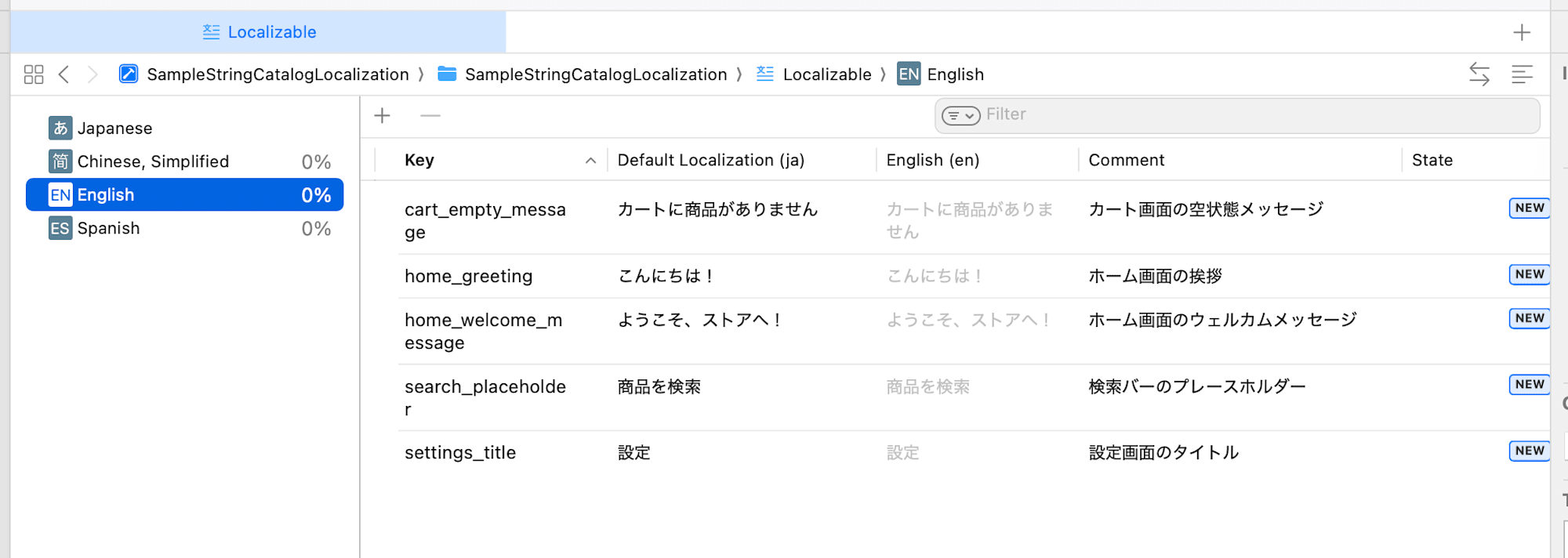
Here's how it looks in the Xcode String Catalog editor. The localized string resources are currently empty.
Launching the Skill
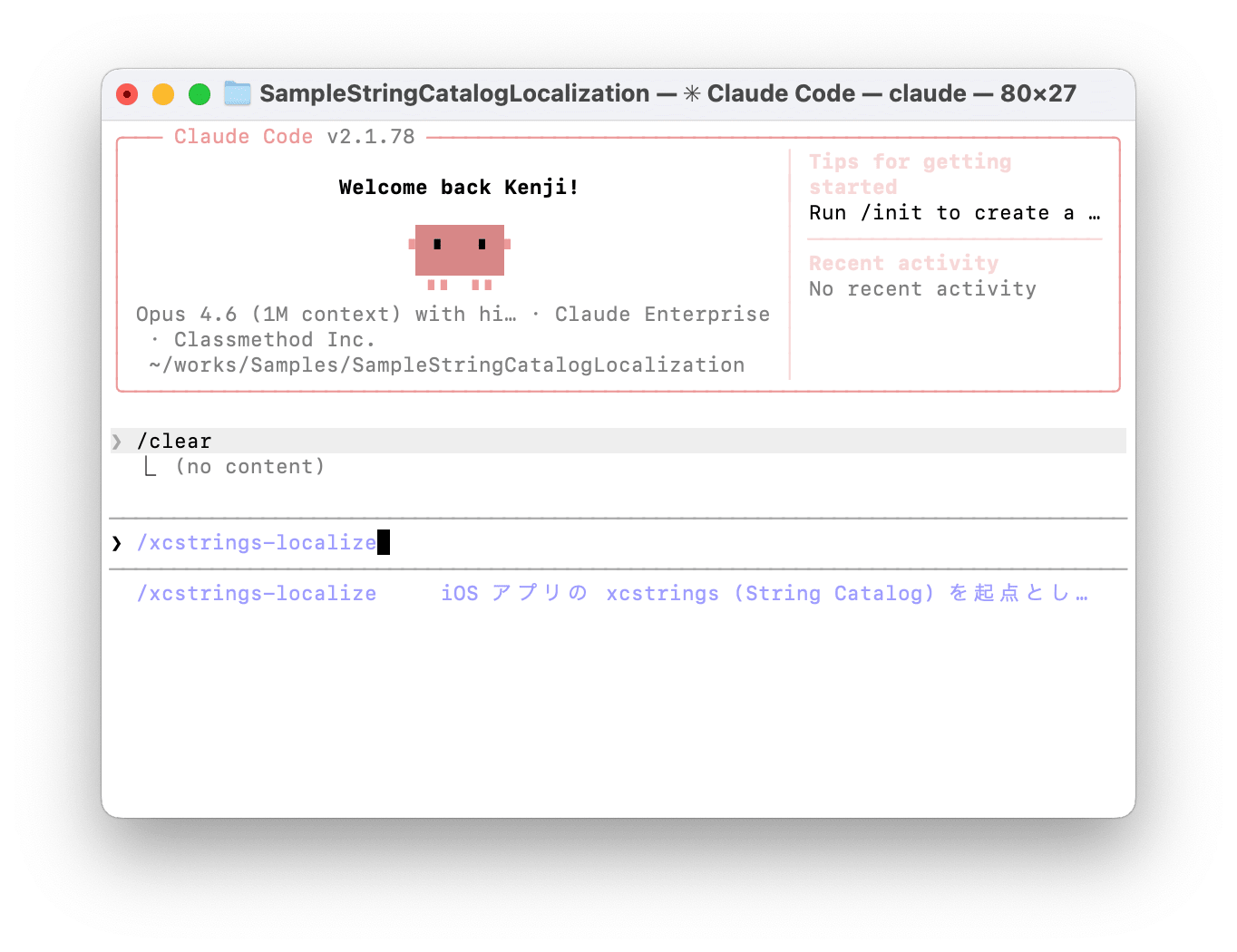
In Claude Code, trigger the skill using either:
/xcstrings-localize
Or using natural language:
Localize this
Translate to English and French
For reliable triggering, I'll use the slash command /xcstrings-localize.
Automatic Language Detection
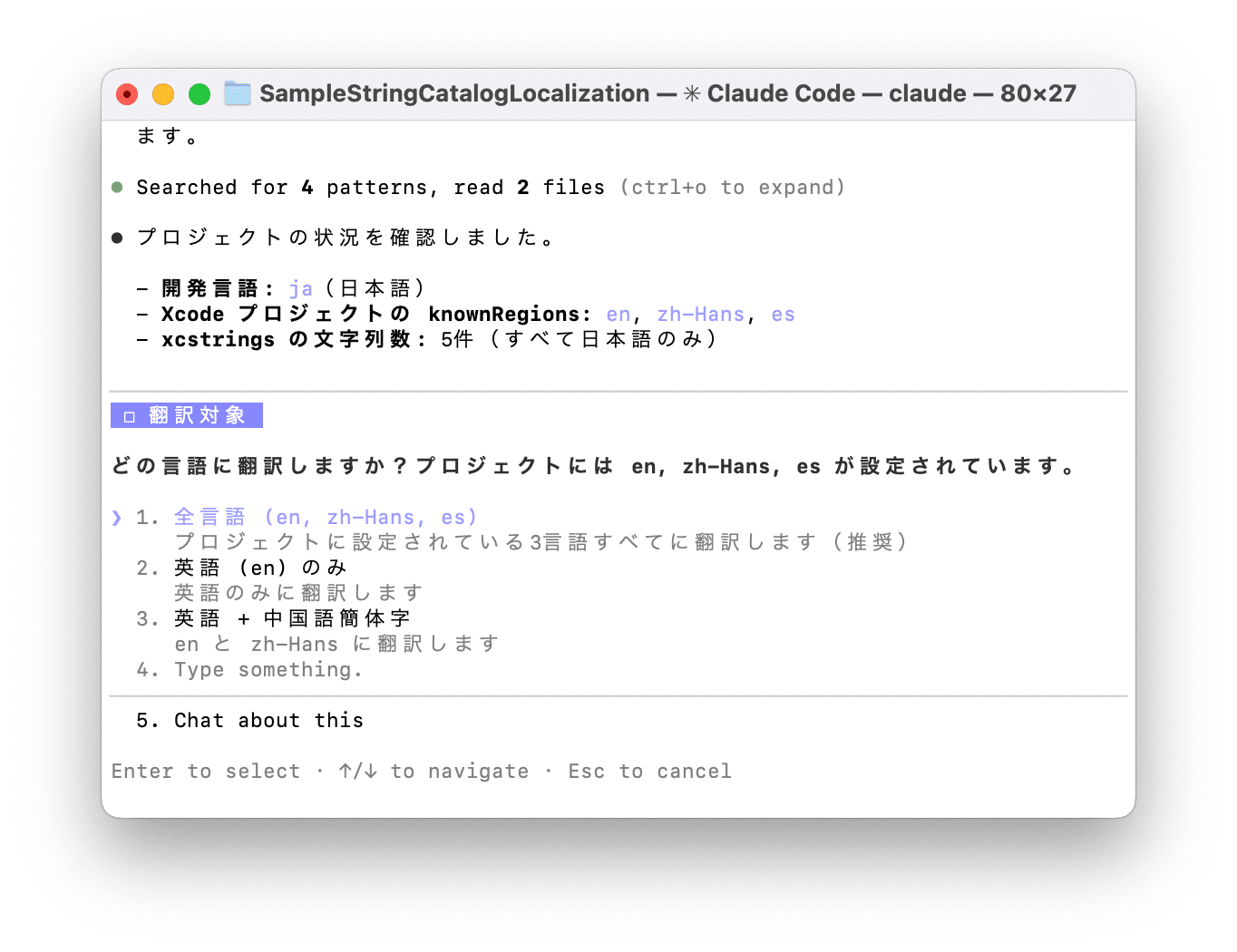
When the skill launches, it first automatically detects supported languages from the project's .xcstrings files.
Export
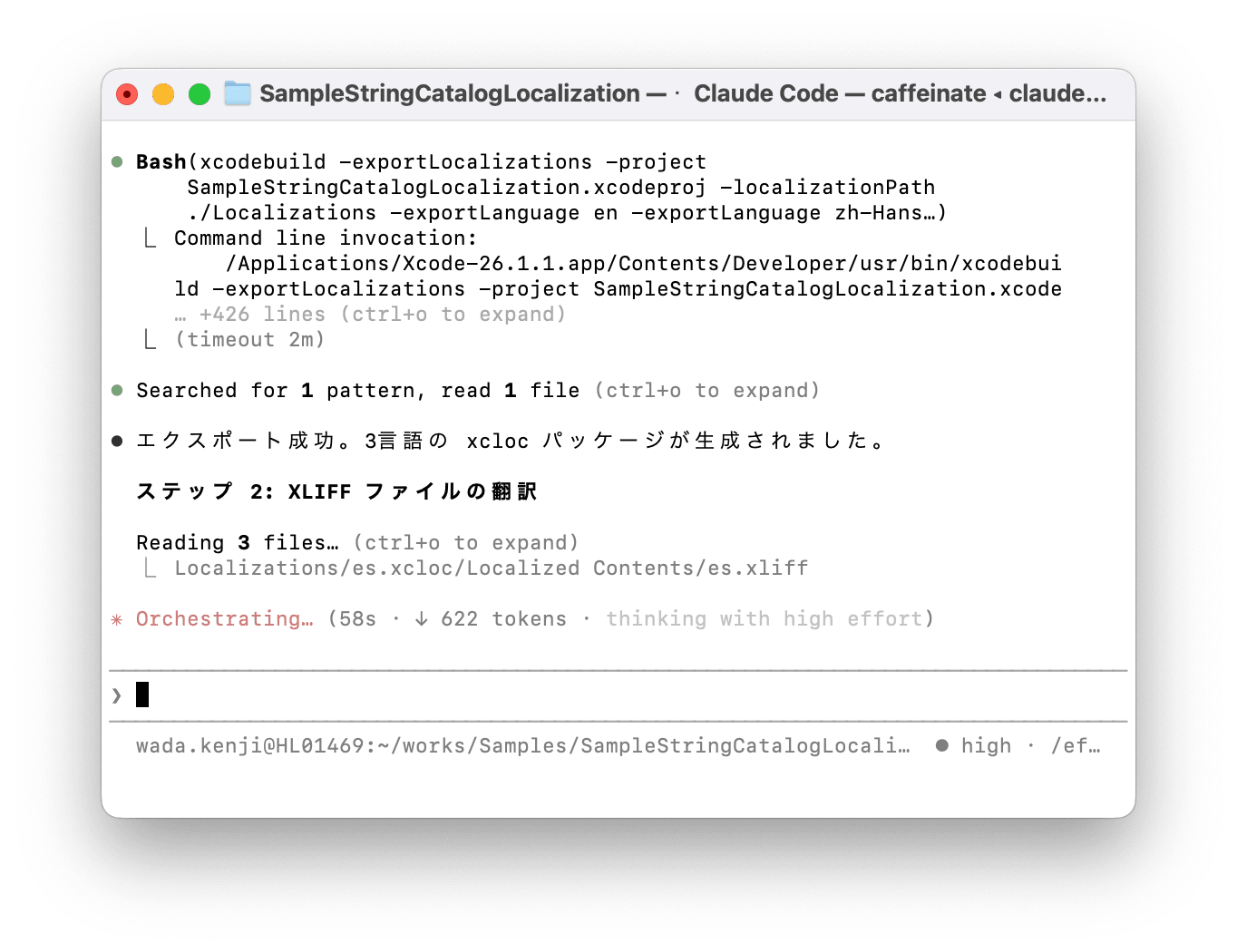
xcodebuild -exportLocalizations is run for the detected languages, generating xcloc packages for each language.
AI Translation
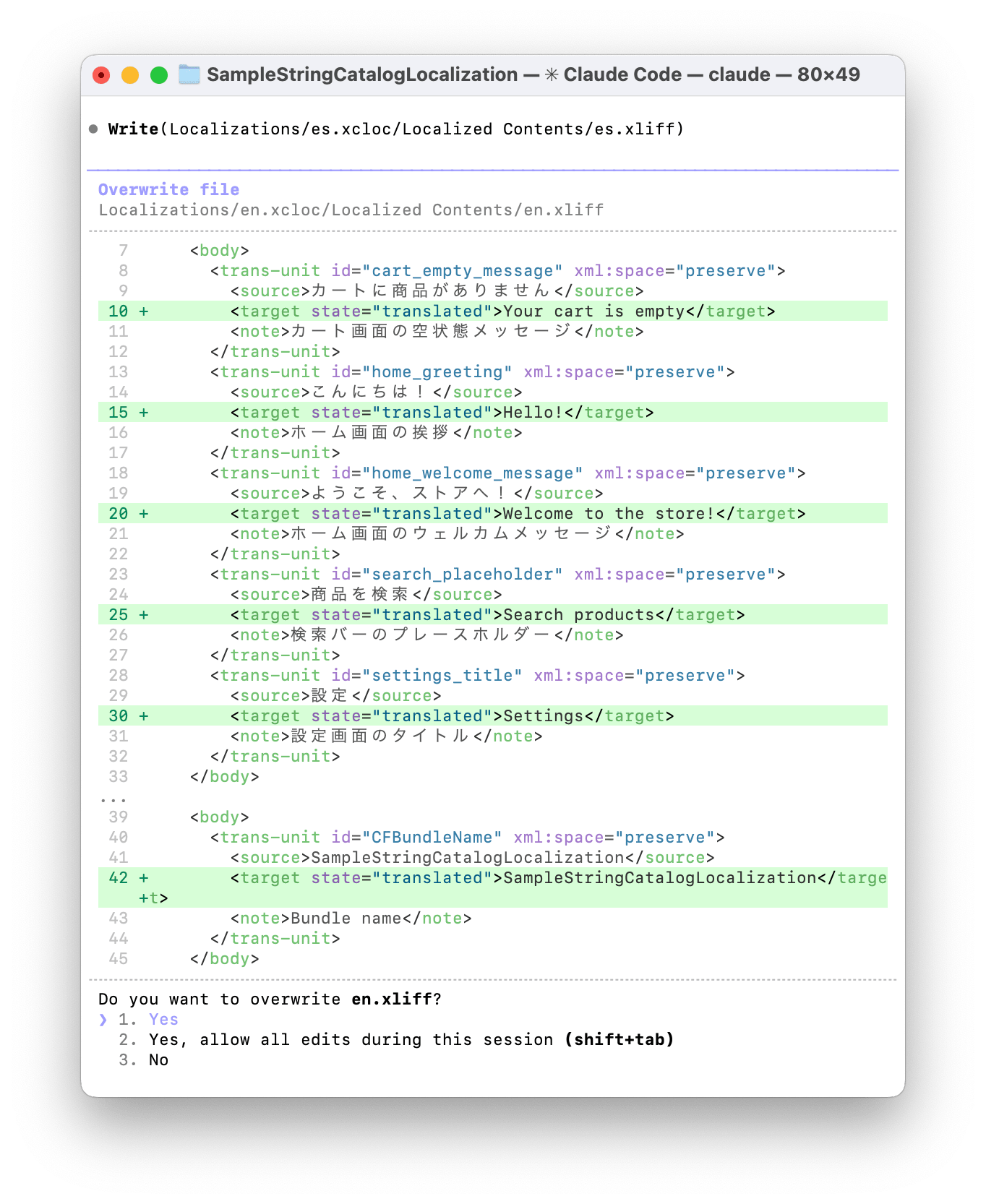
In each language's XLIFF file, <trans-unit> elements with state="new" (untranslated) are identified and translated. During translation, the glossary.yaml terminology guide and language-guide.yaml language-specific guides are referenced.
Validation
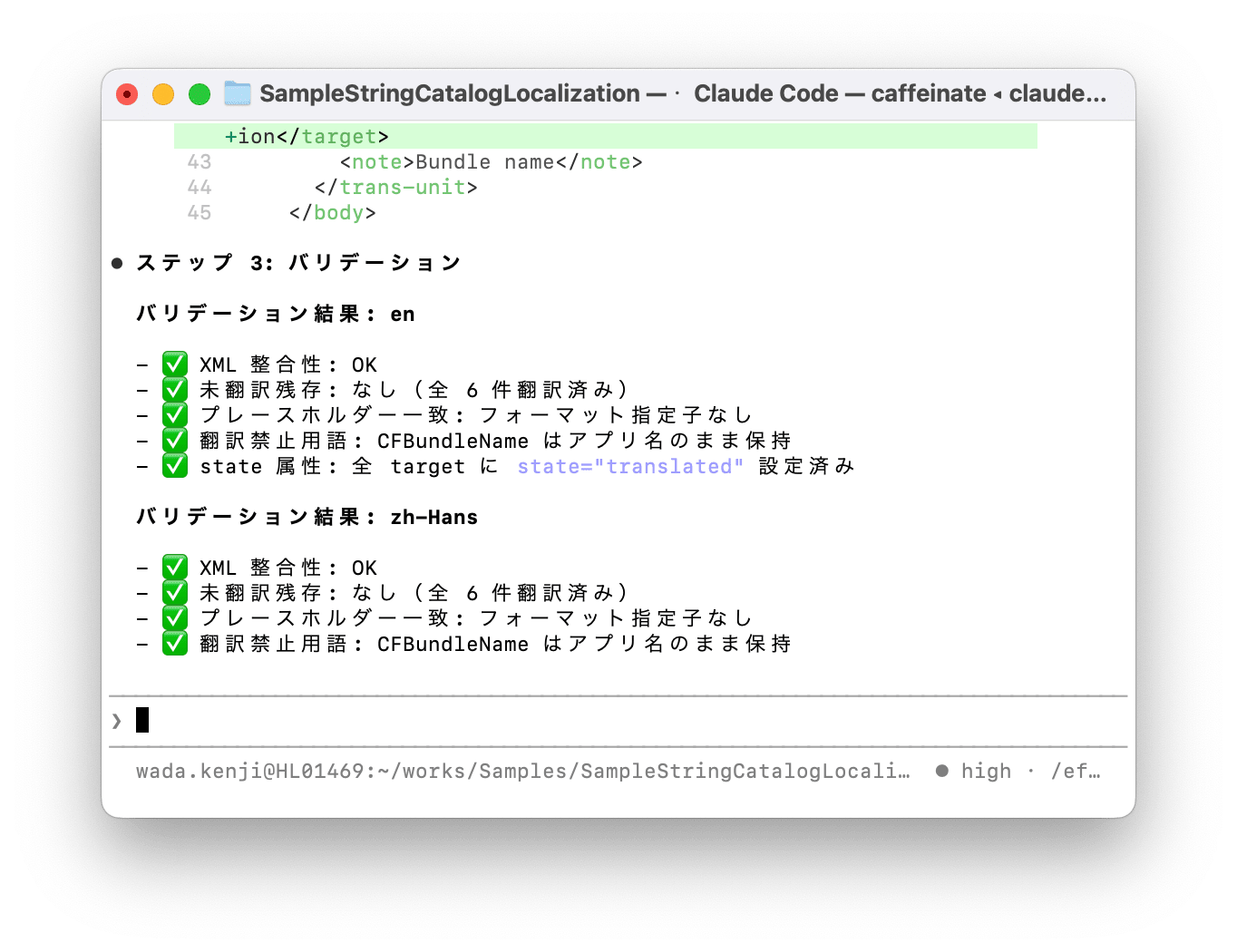
After translation, the following items are automatically verified:
- XML integrity (well-formed check)
- Whether placeholder counts match between source and target
- Whether any untranslated strings (
state="new") remain
Import
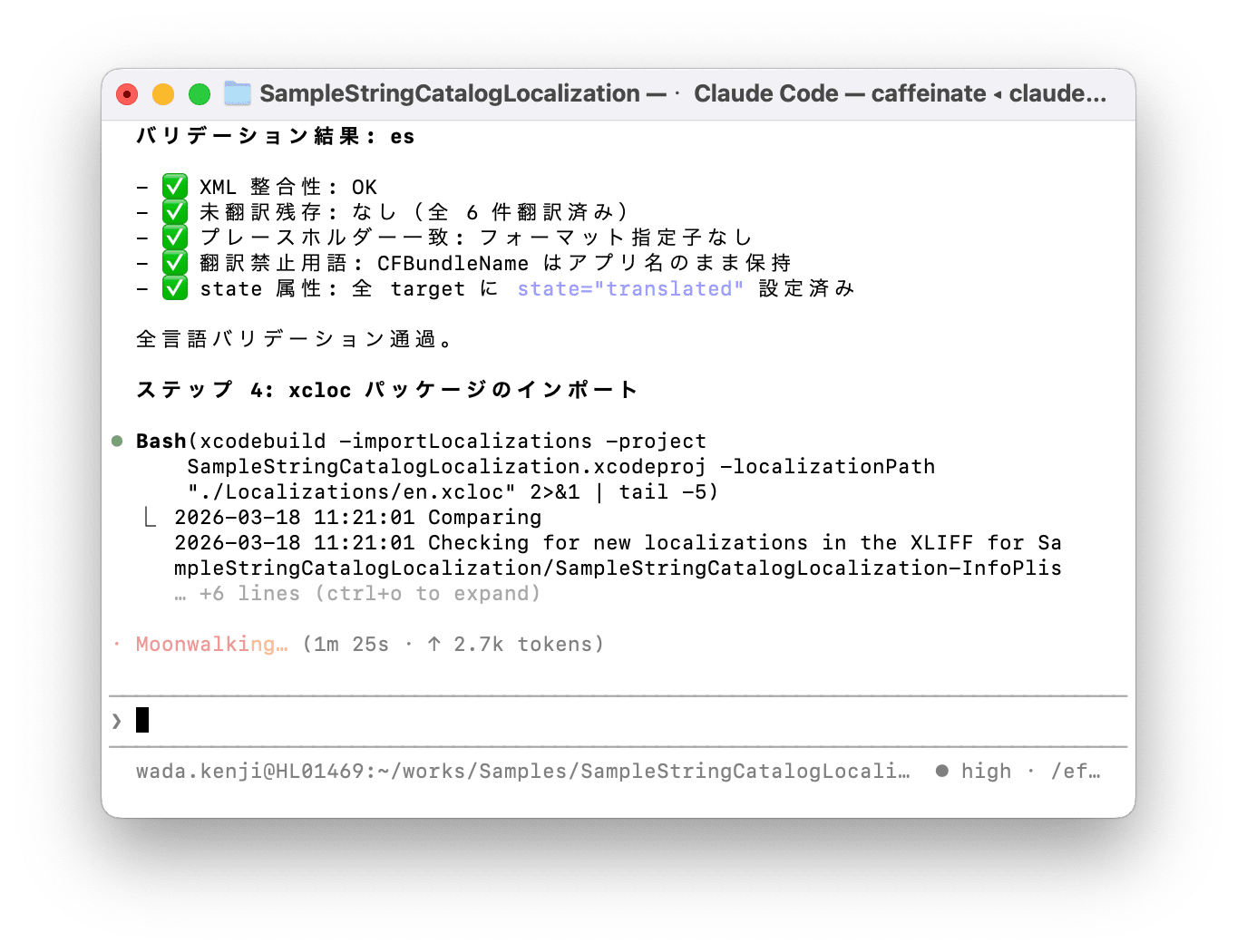
xcloc packages that pass validation are imported into the project language by language using xcodebuild -importLocalizations.
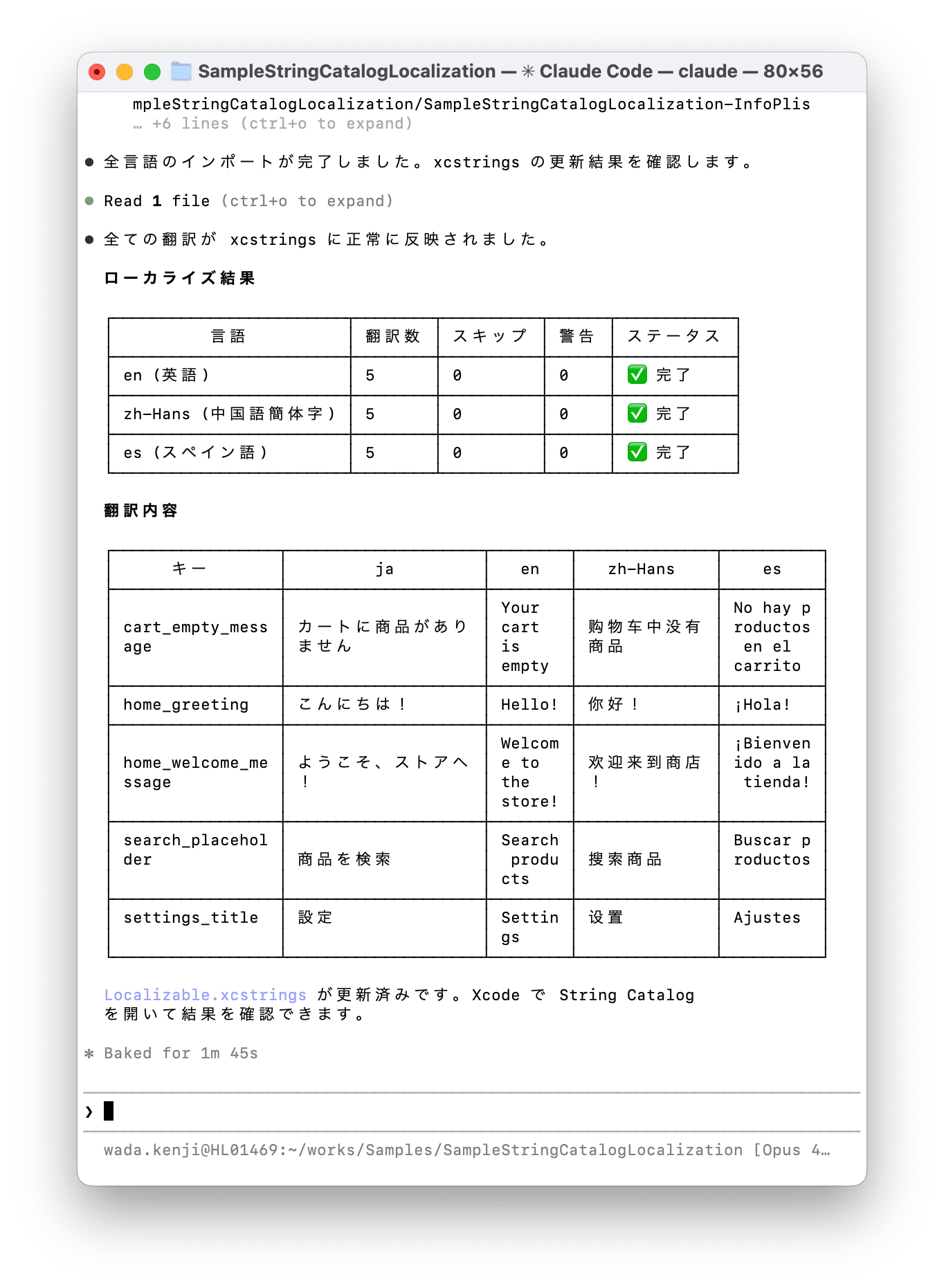
Result Summary
Finally, a summary of translation results is reported by language.
## Localization Results

| Language | Translated | Skipped | Warnings | Status |
|----------|------------|---------|----------|--------|
| en       | 5          | 0       | 0        | ✅ Complete |
| zh-Hans  | 5          | 0       | 0        | ✅ Complete |
| es       | 5          | 0       | 0        | ✅ Complete |
In the CLI, translation content is also displayed as shown below.
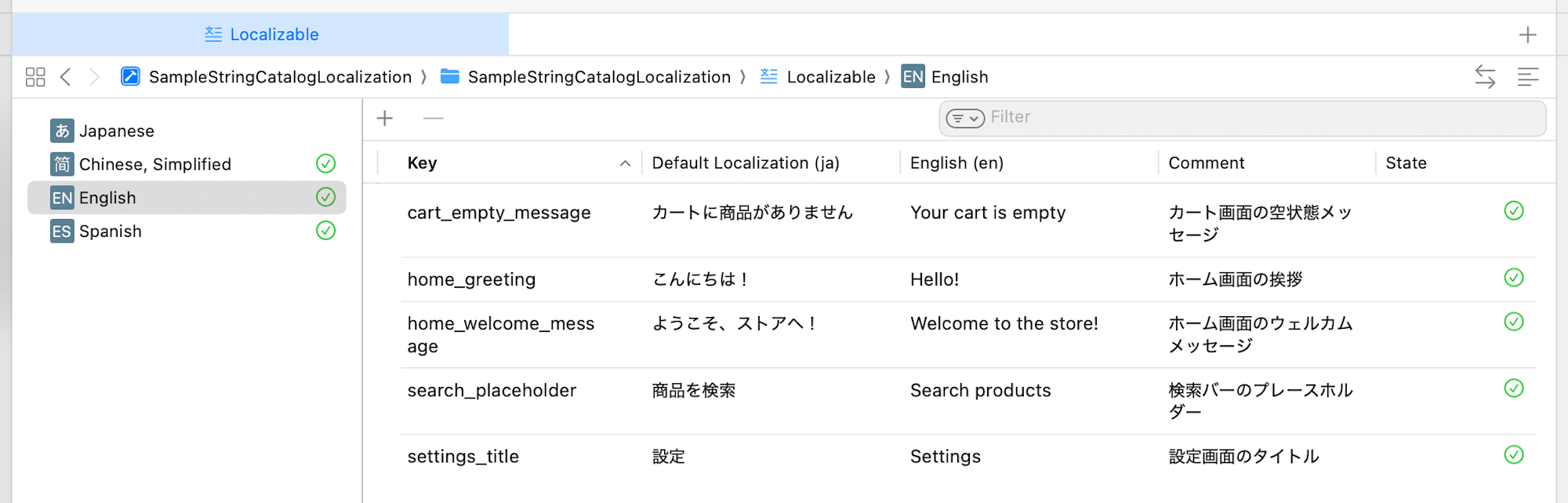
Verification in Xcode
After import, opening the String Catalog in Xcode confirms that the translated strings have been applied.
Reviewing Translation Quality
AI translations often reach shippable quality, but there are several points to check.
Placeholder Preservation
Even with explicit rules in SKILL.md, format specifiers can occasionally change. These are detected in the validation step, but if warnings appear, manually check those sections.
Missed Proper Nouns
Proper nouns not registered in glossary.yaml's do_not_translate list might get translated. When you find these cases, add them to glossary.yaml to improve future translation accuracy.
Plural Categories
English one/other translations are relatively stable, but complex cases like Arabic's 6 categories might miss translations. It's recommended to check the translation status of each category in Xcode's String Catalog editor.
Context-Dependent Translation
Strings with <note> elements (translator comments) are translated relatively accurately. Conversely, short strings without comments (e.g., whether "Archive" is a noun or verb) might be translated differently than intended. Enhancing comments in Xcode's String Catalog editor improves translation accuracy.
Conclusion
Using Claude Code's Agent Skills, I automated the iOS app localization workflow (export → AI translation → import).
Multilingual support is costly. Supporting multiple languages doesn't guarantee more users, yet without multilingual support, user growth is limited. Each new text resource added increases translation costs. In the past, I tried various approaches to reduce costs, such as generating Localizable.strings from Google Sheets. While the introduction of xcstrings and advancements in AI have reduced translation costs, manual bottlenecks remained. This skill is my current solution to this challenge.
The skill has a simple structure with just 3 files, with SKILL.md containing instructions for the entire workflow. Target languages are dynamically detected from the project's .xcstrings file, so the skill adapts automatically when languages are added in Xcode. The terminology guide (glossary.yaml) and language-specific guide (language-guide.yaml) should be customized and grown with each project.
In practice, I've found that projects with many supported languages benefit the most from automation. Manual work previously required opening XLIFF files for each language for translation or editing in Xcode's String Catalog editor, but with this skill, all languages can be translated with a single command. I believe translation quality will improve with each iteration as the terminology guide and language guide are enhanced.
However, AI translation results still require review before shipping. Particular attention is needed for context-dependent short strings and languages with many plural categories. In the future, I'd like to explore integration with translation memory and mechanisms to incorporate feedback from past translation results.
The skill is available on GitHub. It can be used simply by git clone and creating a symbolic link, so I encourage developers struggling with localization efficiency to try it out.