iOS app localization: Splitting and merging .xcstrings into XLIFF files by language

This page has been translated by machine translation. View original
Currently, I'm working on multilingual support in an application under development. As the number of supported languages increases, managing the Localizable.xcstrings file has become more challenging, necessitating a review of the translation workflow.
String Catalog (.xcstrings), introduced in Xcode 15, is designed to consolidate all languages and keys into a single JSON file. While it's still manageable with two languages like Japanese and English, when supporting 10 languages, the file size increases dramatically, resulting in JSON files with thousands to tens of thousands of lines.
This creates a problem with translation workflow management. Providing translators with a massive JSON file containing all languages is inefficient since it contains large amounts of data for languages they're not working on, making both translation and review difficult. Diff management in Git also becomes less clear, increasing the risk of unintended changes.
This article introduces a practical workflow for breaking down .xcstrings by language to make translation work safer and more efficient.
Test Environment
- macOS 15.7.3
- Xcode 26.1.1
Why .xcstrings Files Grow So Large
Let's first examine the internal structure of .xcstrings. The content is JSON formatted as follows:
{
  "sourceLanguage": "ja",
  "strings": {
    "home_greeting": {
      "comment": "ホーム画面の挨拶",
      "localizations": {
        "en": {
          "stringUnit": {
            "state": "translated",
            "value": "Hello!"
          }
        },
        "ja": {
          "stringUnit": {
            "state": "translated",
            "value": "こんにちは!"
          }
        },
        "zh-Hans": {
          "stringUnit": {
            "state": "translated",
            "value": "你好!"
          }
        }
      }
    }
  }
}
For each key, localizations are nested according to the number of supported languages. This means file size grows in proportion to number of keys × number of languages.
| Keys | Languages | Approximate Lines | Estimated File Size |
|---|---|---|---|
| 100 | 2 | ~800 lines | ~20KB |
| 100 | 10 | ~3,500 lines | ~90KB |
| 500 | 10 | ~17,000 lines | ~450KB |
| 1,000 | 10 | ~35,000 lines | ~900KB |
With 500 keys × 10 languages, you end up with about 17,000 lines. At this scale, even tracking the translation status for a specific language becomes challenging. Reviewing changes in diffs becomes difficult, and it's hard to provide translators with only the parts they need.
Splitting and Merging by Language Using XLIFF
What is XLIFF
XLIFF (XML Localization Interchange File Format) is the industry standard format for translations. Xcode includes built-in functionality to export and import .xcstrings in XLIFF format.
The key advantage is that it separates content into one file per language.
Export Procedure
xcodebuild -exportLocalizations \
  -project MyApp.xcodeproj \
  -localizationPath ./Localizations \
  -exportLanguage en \
  -exportLanguage ja \
  -exportLanguage zh-Hans \
  -exportLanguage es
When executed, it creates the following directory structure:
Localizations/
├── en.xcloc/
│   └── Localized Contents/
│       └── en.xliff
├── ja.xcloc/
│   └── Localized Contents/
│       └── ja.xliff
├── zh-Hans.xcloc/
│   └── Localized Contents/
│       └── zh-Hans.xliff
└── es.xcloc/
    └── Localized Contents/
        └── es.xliff
In Finder, it appears as follows:
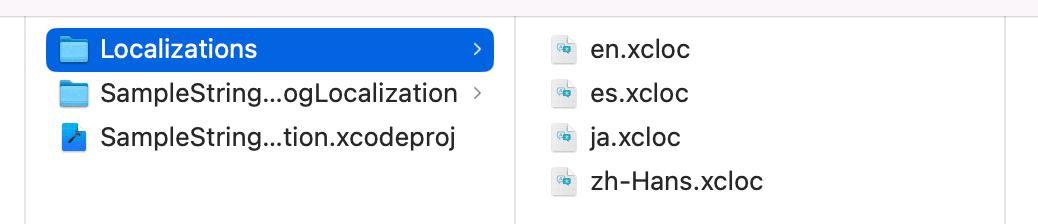
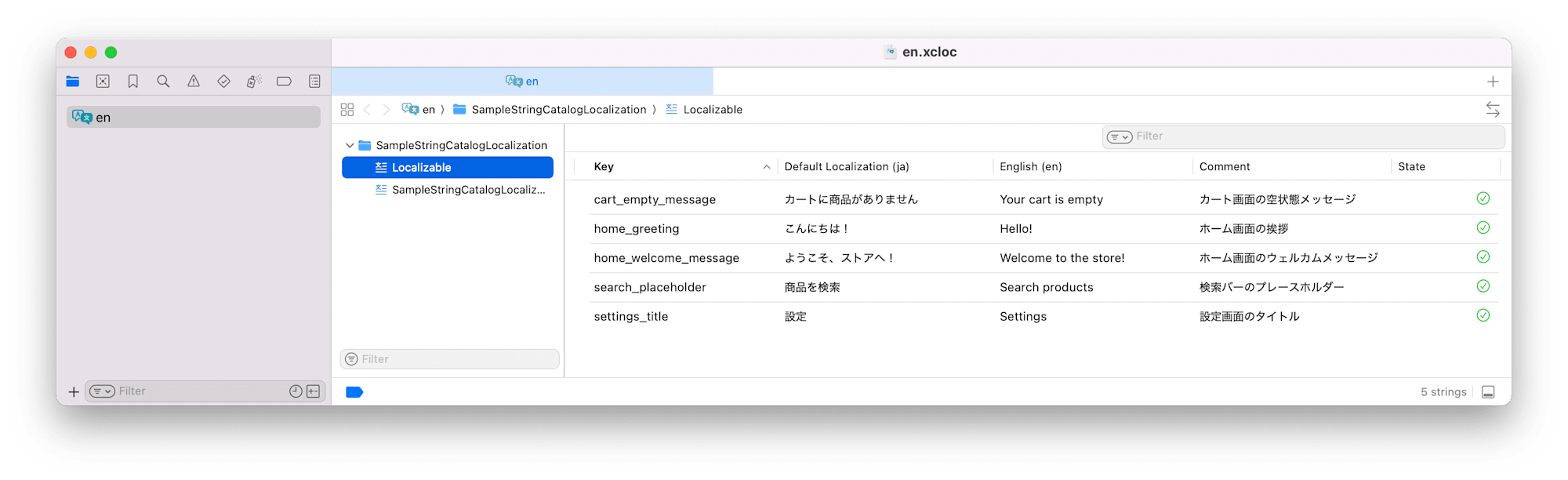
Double-clicking en.xcloc launches the XLIFF editor. If you want to manipulate string resources via GUI, you can edit them in this editor.
Inside the XLIFF
The generated XLIFF is a simple XML:
<?xml version="1.0" encoding="UTF-8"?>
<xliff xmlns="urn:oasis:names:tc:xliff:document:1.2" xmlns:xsi="http://www.w3.org/2001/XMLSchema-instance" version="1.2" xsi:schemaLocation="urn:oasis:names:tc:xliff:document:1.2 http://docs.oasis-open.org/xliff/v1.2/os/xliff-core-1.2-strict.xsd">
  <file original="MyApp/Localizable.xcstrings" source-language="ja" target-language="en" datatype="plaintext">
    <header>
      <tool tool-id="com.apple.dt.xcode" tool-name="Xcode" tool-version="26.1.1" build-num="17B100"/>
    </header>
    <body>
      <trans-unit id="cart_empty_message" xml:space="preserve">
        <source>カートに商品がありません</source>
        <target state="translated">Your cart is empty</target>
        <note>カート画面の空状態メッセージ</note>
      </trans-unit>
      <trans-unit id="home_greeting" xml:space="preserve">
        <source>こんにちは!</source>
        <target state="translated">Hello!</target>
        <note>ホーム画面の挨拶</note>
      </trans-unit>
      <trans-unit id="settings_title" xml:space="preserve">
        <source>設定</source>
        <target state="new"/>
        <note>設定画面のタイトル</note>
      </trans-unit>
    </body>
  </file>
</xliff>
The <source> contains the original text (Japanese), and the <target> contains the text in the target language. state="new" indicates untranslated content.
With this format, you can clearly instruct translators to "translate sections with <target state="new"/> and change them to state="translated"". Since it only contains data for the target language, the scope of work is immediately clear.
Note: Difference in state attribute values between .xcstrings and XLIFF
There are naming convention differences between
.xcstrings(JSON) and XLIFF (XML) state attributes..xcstringsusesneeds_review(underscore), while XLIFF 1.2 specification usesneeds-review-translation,needs-review-adaptation, andneeds-review-l10n(hyphenated). Xcode handles automatic conversion during export/import, so you don't need to worry about this in practice, but it's important to note when manually editing XLIFF or processing it with third-party tools.
Import Procedure
Writing translated XLIFF back to .xcstrings is also done with a single command:
xcodebuild -importLocalizations \
  -project MyApp.xcodeproj \
  -localizationPath ./Localizations/en.xcloc
This updates only the English portion of Localizable.xcstrings without affecting other languages or keys.
There's no option to import everything at once. To update Japanese (ja), you'd run:
xcodebuild -importLocalizations \
  -project MyApp.xcodeproj \
  -localizationPath ./Localizations/ja.xcloc
Recommended Workflow
Using XLIFF offers these advantages:
- One file per language keeps sizes small and clearly identifies translation targets
- Clear source/target pairs make it harder to mistranslate content
- State attributes allow mechanical identification of untranslated, translated, and review-needed content
- It follows Xcode's official workflow for high stability
- XLIFF is an industry standard format that translation companies can work with directly
Based on these considerations, here's the recommended workflow:
- Add keys in Japanese to
.xcstringsusing Xcode's String Catalog editor - Use
xcodebuild -exportLocalizationsto break it down into XLIFF, generating.xlifffiles for each language - Optionally extract only untranslated keys by targeting
trans-unitelements withstate="new" - Translate the XLIFF for each language (outsource to translators, in-house translation, AI tools, etc.). Fill in
targetvalues and updatestateto"translated" - Use
xcodebuild -importLocalizationsto write back to.xcstrings - Implement CI to detect untranslated keys and verify builds
For step 3, you can use grep to check the number of untranslated keys:
# Check count of untranslated keys
grep -c 'state="new"' Localizations/en.xcloc/Localized\ Contents/en.xliff

# List IDs of untranslated keys
grep -B1 'state="new"' Localizations/en.xcloc/Localized\ Contents/en.xliff | grep 'trans-unit id'
Summary
While .xcstrings is a very convenient system as Xcode's String Catalog, files grow large as multilingual support expands, making management and review challenging.
Splitting by language using XLIFF not only facilitates collaboration with translators but also improves the clarity of diff reviews and prevents unintended changes. The approach of "breaking down into structurally safe units before working" rather than "handling entire large JSON files" is a principle that applies to file management in general, not just multilingual support.
I hope this helps those struggling with multilingual support operations.