![[Update] I tried the native support for scheduled execution and automation of Amazon SageMaker Unified Studio notebooks](https://images.ctfassets.net/ct0aopd36mqt/wp-thumbnail-4e6e510f2f74e1cc7d0ec360f38d138a/c00e9d7f4e47022543b37632bc20bcc0/amazon-sagemaker?w=3840&fm=webp)
[Update] I tried the native support for scheduled execution and automation of Amazon SageMaker Unified Studio notebooks

This page has been translated by machine translation. View original
This is Ishikawa from the Cloud Business Division. A feature has been added to Amazon SageMaker Unified Studio (hereafter SMUS) that allows you to schedule and automate notebook executions. You can create background runs and scheduled runs directly from the notebook interface, without needing to separately prepare and manage an external orchestration platform.
This is a welcome operational update that allows you to turn periodic reports and data quality checks that were previously run manually with "Run all" into scheduled jobs, directly from your notebooks.
What is Notebook Scheduled Execution and Automation
Previously, SageMaker Unified Studio notebooks had no native means to schedule executions, and running them periodically required separately preparing and managing external orchestration tools such as Apache Airflow.
With this update, you can now schedule, parameterize, and orchestrate directly from the notebook interface. The main changes are as follows.
- Background execution — Run notebooks on-demand on dedicated compute without interrupting interactive sessions
- Recurring schedules — Schedule repeated executions using rate expressions / cron expressions, or schedule a one-time future execution
- Parameterization — Define parameters in a single notebook and reuse it with different input values
- Orchestration with Workflows — Chain multiple notebooks together with the Notebook Operator, passing the output of one execution as the input to the next
- AI-assisted troubleshooting — When an execution fails, SageMaker Data Agent helps identify the root cause and suggest fixes
The overall flow of the feature is as follows.
This makes it easier to move periodic workloads such as daily report generation, data quality checks, and model retraining from experimental notebooks directly into production operations.
Parameterizing Notebooks
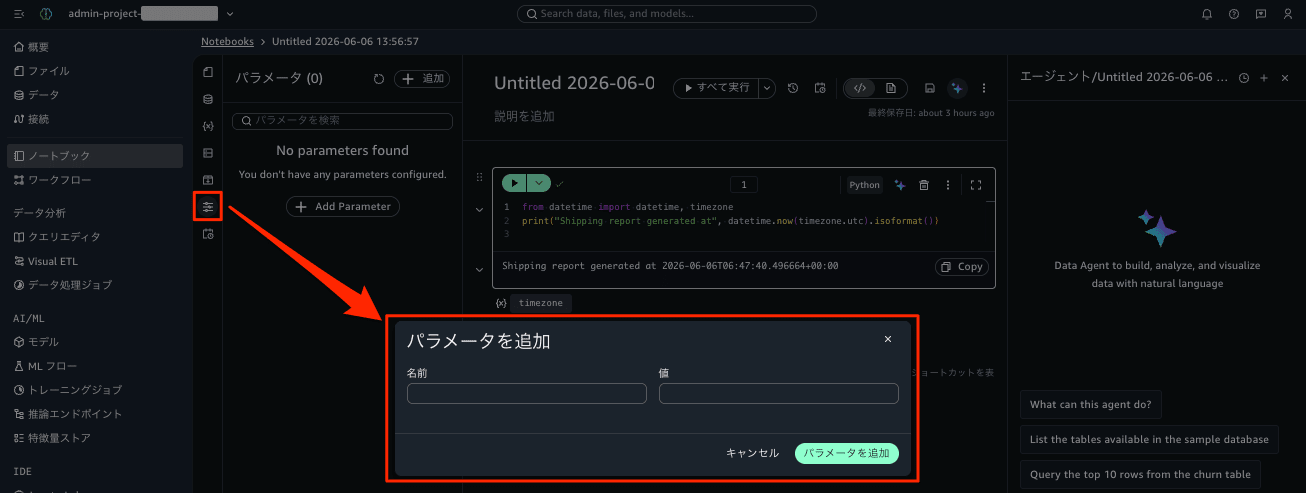
In the "Parameters" activity panel, you define parameters (name and default value). In the notebook code, you retrieve values using parameters.get() from sagemaker_studio.nbutils.
Trying It Out
Prerequisites
The verification environment is as follows.
- AWS Region: ap-northeast-1 (Tokyo)
- SMUS Domain: V2 / IAM-based
- Project: Using an existing admin project
The domain used this time was an IAM-based domain with SSO disabled. Let's verify with the AWS CLI.
$ aws datazone get-domain \
    --identifier dzd-d3w2uawk8vo7a1 \
    --query '{name:name, version:domainVersion, ssoType:singleSignOn.type}' \
    --output table
----------------------------------------------------
|                     GetDomain                    |
+--------------------------+-----------+-----------+
|           name           |  ssoType  |  version  |
+--------------------------+-----------+-----------+
|  Default_05252026_Domain |  DISABLED |  V2       |
+--------------------------+-----------+-----------+
Since ssoType is DISABLED, you can access the portal directly with the IAM principal signed into the AWS Management Console.
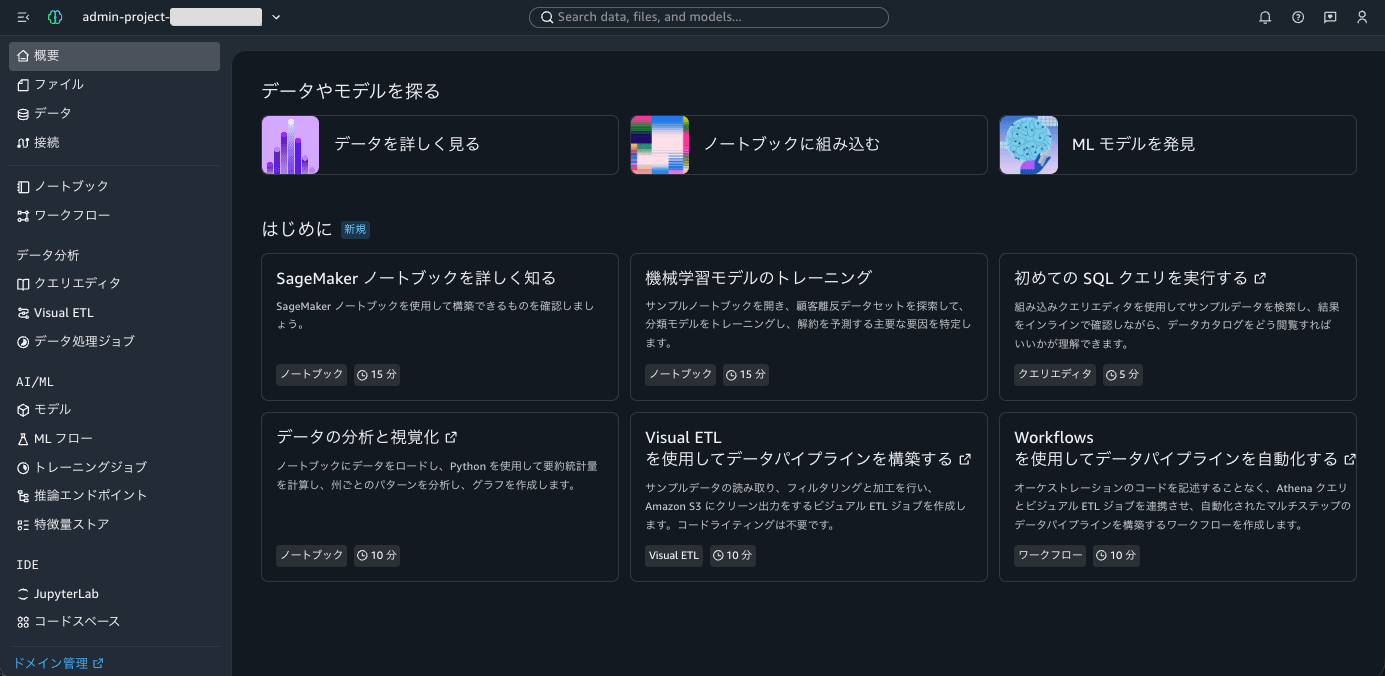
Step 1: Create a Notebook
Open "Notebooks" in the left navigation of the portal. There are three tabs here: "Notebooks," "Runs," and "Schedules" — these are exactly the UI for this scheduling feature.
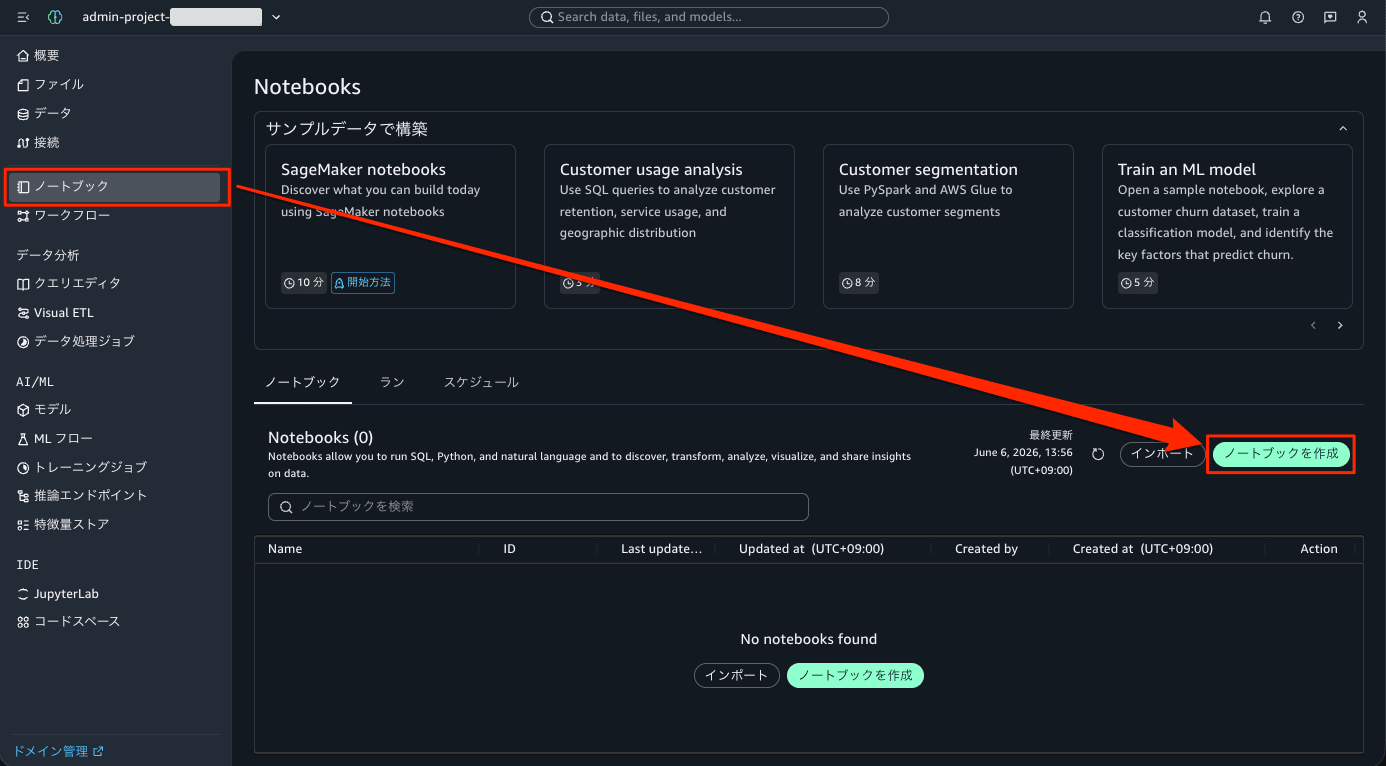
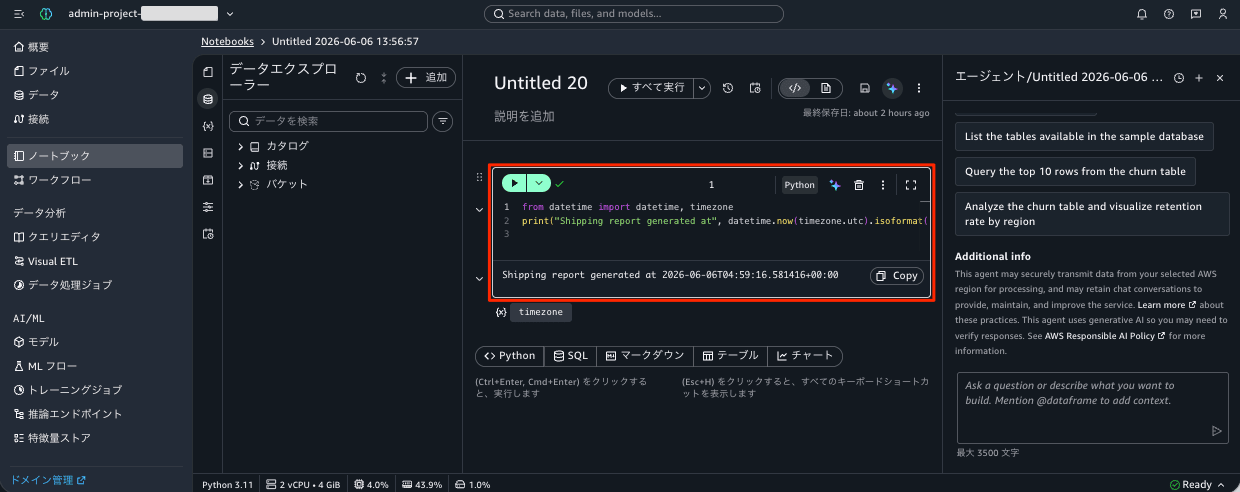
Clicking "Create notebook" opened the serverless notebook editor. On the right side, the Data Agent (generative AI assistant) is integrated and displayed, and the toolbar contains "Run all" and schedule icons. The compute at the bottom of the screen was Python 3.11 / 2 vCPU · 4 GiB, and it was already in a Ready state immediately after creation.
Step 2: Run the Notebook
Before scheduling, let's first run it interactively to verify it works. I entered a simple piece of code simulating a shipping report.
from datetime import datetime, timezone
print("Shipping report generated at", datetime.now(timezone.utc).isoformat())
Pressing "Run all" returned output within a few seconds.
Shipping report generated at 2026-06-06T06:47:40.496664+00:00

Since it's a serverless notebook, I was able to run it without having to worry about preparing compute resources.
Step 3: Create a Schedule
Now for the main topic. Clicking "Add schedule" in the toolbar opens the schedule creation panel.
This time I created it with the following settings. For verification purposes, I set it to "every 1 minute" so I can confirm operation quickly.
- Schedule name:
blog-demo-schedule - Schedule type: Recurring
- Rate-based expression: Every 1 day
- Timezone: (UTC+09:00) Asia/Tokyo
- Flexible time window: 5 minutes (default)
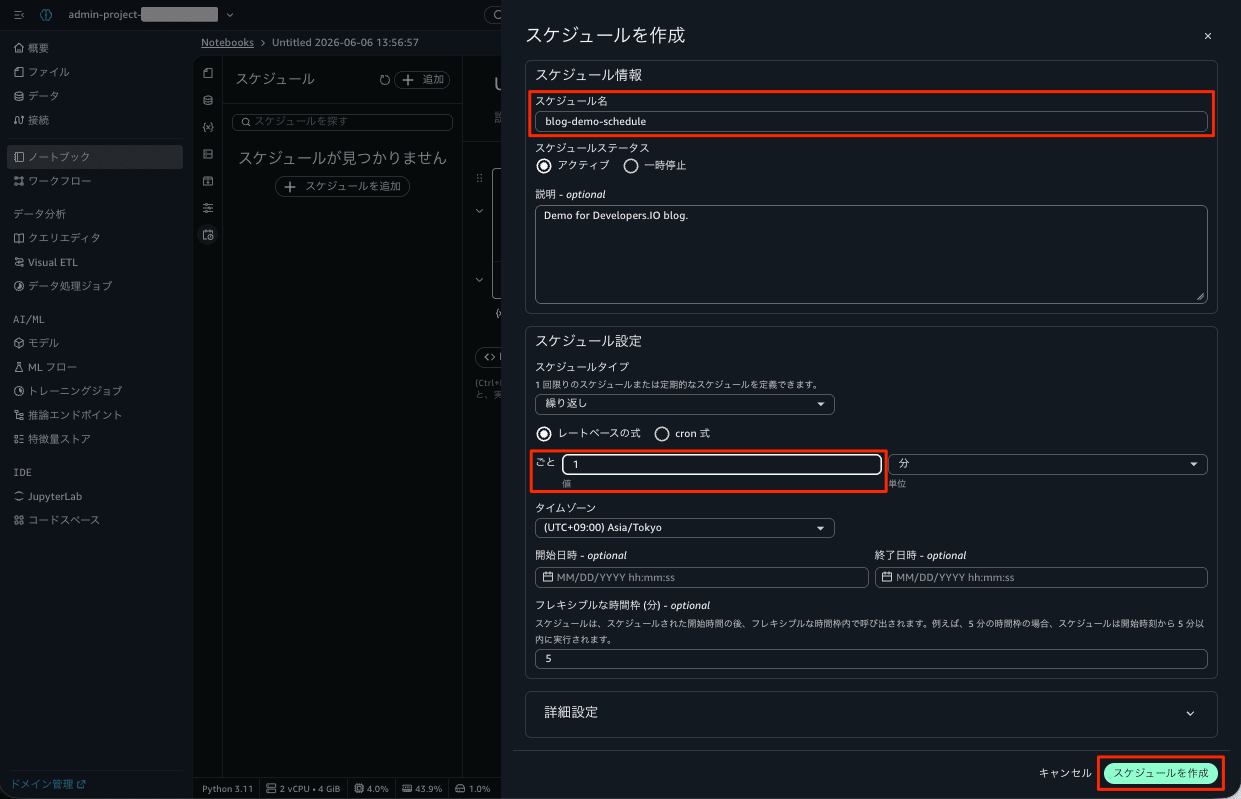
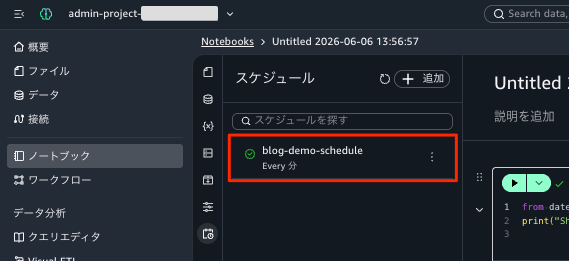
Pressing "Create schedule" added blog-demo-schedule (Every day) to the "Schedules" list in the side panel.
Step 4: Verify the EventBridge Scheduler Behind the Scenes
From the Management Console, you can confirm that a schedule has been added in the EventBridge Scheduler settings.
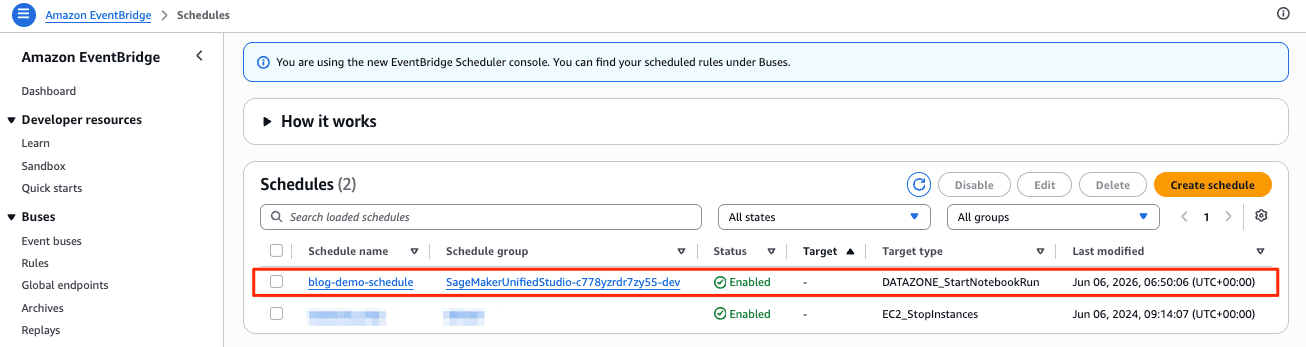
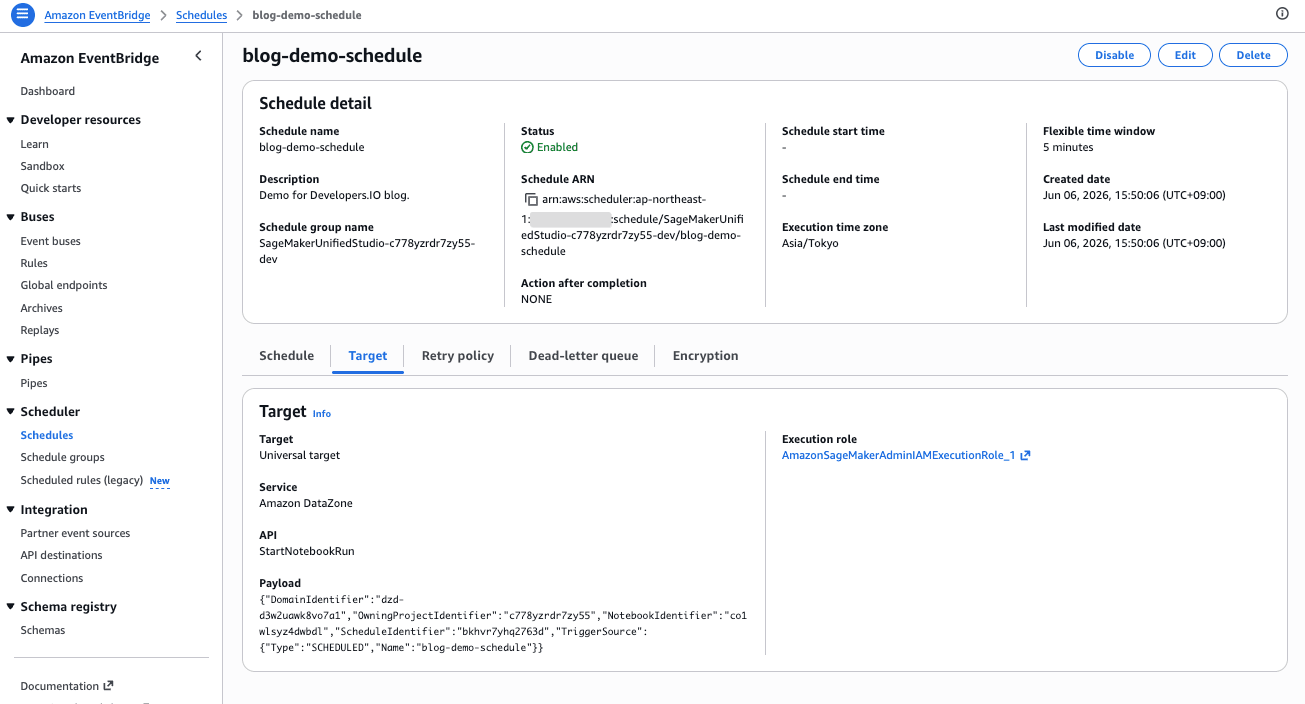
You can see that it uses the EventBridge Scheduler universal target to call the DataZone API's StartNotebookRun.
I was also able to confirm that the UI configuration values are mapped to EventBridge Scheduler parameters as follows.
- "Every 1 day" →
rate (1 minutes) - Timezone "Asia/Tokyo" →
Asia/Tokyo - Flexible time window "5 minutes" →
5 minutes
I also confirmed that a Retry policy has been configured.
- Maximum retention time of event:
1 day - Maximum retries:
185 times
The SageMaker execution role (AmazonSageMakerAdminIAMExecutionRole_1) was used as the execution role.
Step 5: Check the Schedule Execution Status
Click on the schedule name.
A list of completed and currently running schedules is displayed. Although the schedule was set to 1 minute, you can confirm that it actually runs after 3 to 4 minutes have elapsed.
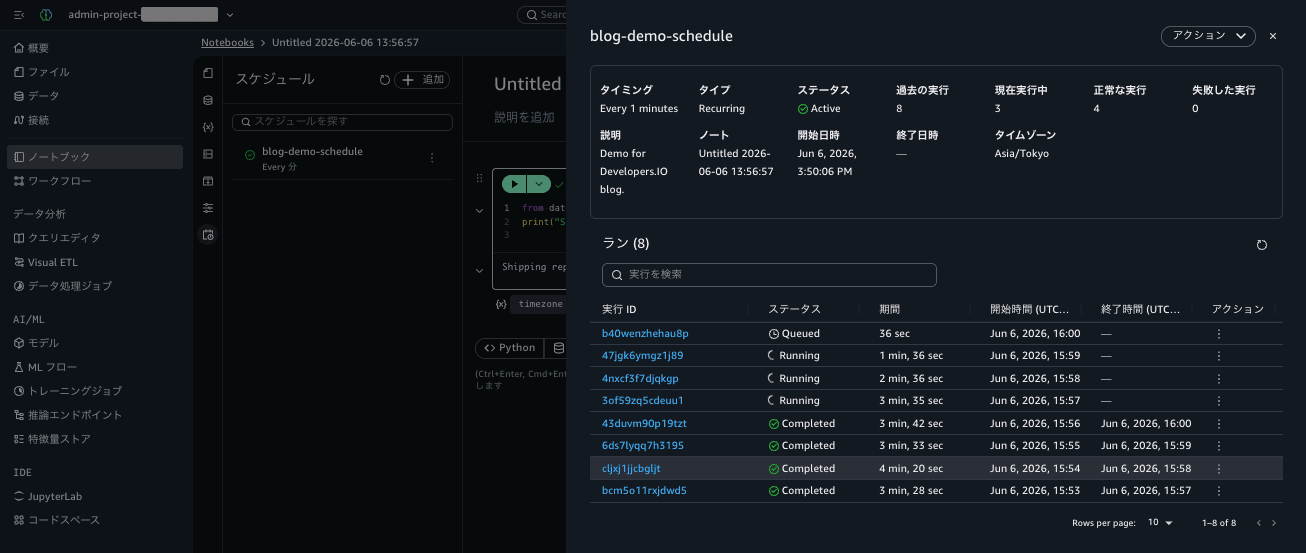
You can also click on the execution ID to check the execution results.
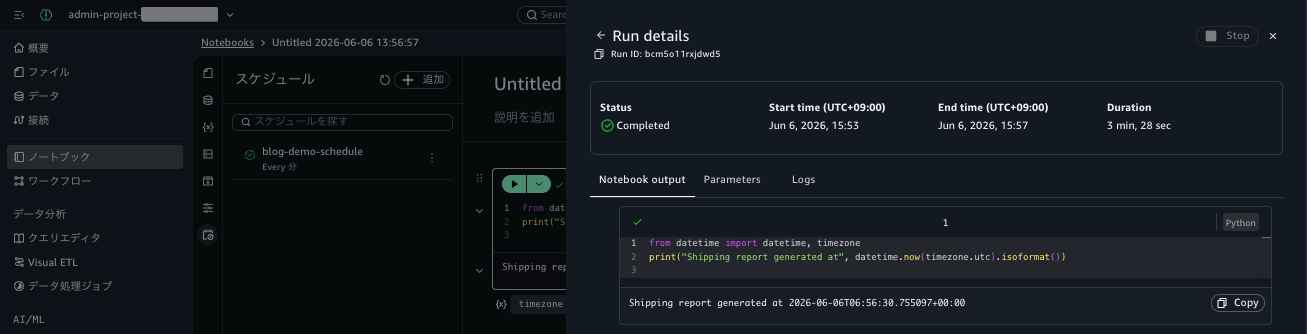
Selecting the [Logs] tab in the execution results allows you to check the execution status as well.
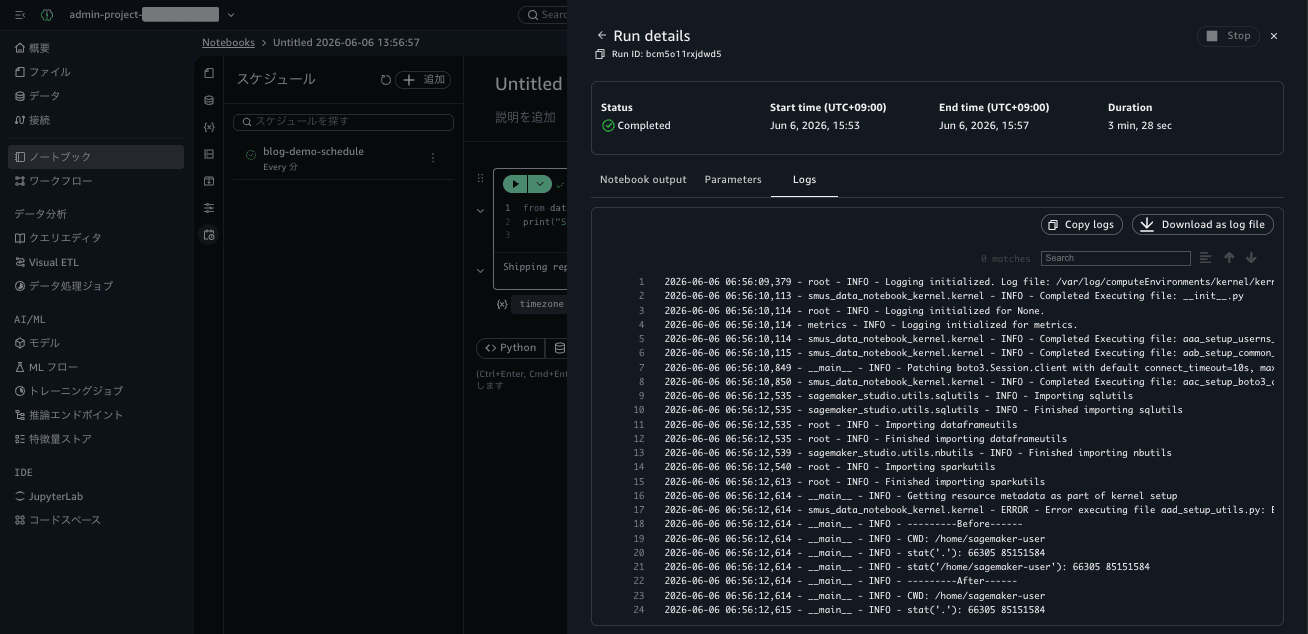
Discussion
SMUS scheduled execution is built on top of EventBridge Scheduler. When a project environment is created, a schedule group called SageMakerUnifiedStudio-<project>-dev is prepared, and each time you create a schedule in the UI, a schedule is added to this group.
- Creating, editing, and deleting schedules is intended to be done primarily from the notebook UI (or via natural language instructions to the Data Agent), and no dedicated AWS CLI/API for directly creating schedules is provided. On the other hand, since the underlying mechanism is EventBridge Scheduler, you can use
aws scheduler list-schedulesandget-scheduleto comprehensively audit and inventory what schedules exist. This is useful to keep in mind from a governance and inventory perspective. - Background executions and scheduled executions run on dedicated compute isolated from the interactive session, so local files from the interactive session cannot be referenced. Data you want to persist must be stored in S3.
- The flexible time window (default 5 minutes) maps directly to
FlexibleTimeWindowin EventBridge Scheduler. It is a load-balancing mechanism to prevent a large number of schedules from concentrating at the same time.
In Closing
I verified Amazon SageMaker Unified Studio's notebook scheduled execution not only by creating it from the UI, but also by examining the underlying Amazon EventBridge Scheduler.
Being able to set up scheduled executions from just the notebook screen, without needing to prepare an external orchestration platform, is a major advantage when transitioning from exploratory analysis to steady-state data pipelines. And since the underlying implementation is EventBridge Scheduler, I was also able to confirm hands-on that schedules can be comprehensively reviewed for operations and auditing using scheduler-related CLI commands.
This feature is available in all AWS regions supported by SageMaker Unified Studio. If you want to run notebooks on a schedule in SMUS, please give it a try.
Further Reading