![[Update] I tried out AWS CloudShell's new built-in visual file editor support](https://images.ctfassets.net/ct0aopd36mqt/wp-thumbnail-7fab4c6d4a50c159030635d00b644654/08efbb27fb1720f030920d660c5e2187/aws-cloudshell?w=3840&fm=webp)
[Update] I tried out AWS CloudShell's new built-in visual file editor support

This page has been translated by machine translation. View original
This is Ishikawa from the Cloud Business Division. A built-in visual file editor has been added to AWS CloudShell, allowing you to launch a GUI editor in your browser simply by running the edit command from the shell, so I tried it out from the management console.
AWS CloudShell is a browser-based shell environment that inherits management console credentials as-is. It is used for running AWS CLI commands and scripts, and adjusting IaC templates.
Until now, editing files on CloudShell required using terminal-based editors like Vim or Emacs, or downloading files locally, editing them, and re-uploading them. The newly added visual file editor eliminates this hassle. Syntax highlighting, find and replace, multi-line selection, copy and paste, and undo/redo are all available within the browser session.
The official documentation tutorial has also been updated with steps for using the edit command.
What is the Built-in Visual File Editor
Running edit <file path> from the CloudShell shell switches the CloudShell tab to a GUI editor, allowing you to edit files on the spot. No additional installation or configuration is required.
To save edits, use the keyboard shortcut Cmd+S on macOS or Ctrl+S on Windows, or click the save icon in the upper right of the screen. If you try to close a tab with unsaved changes, a confirmation dialog will appear.
Trying It Out
Prerequisites
- An AWS account and an IAM principal with permissions equivalent to
AWSCloudShellFullAccess - Verification region: ap-northeast-1 (Tokyo)
- CloudShell runtime environment: Amazon Linux 2023
Creating a New File by Specifying a Non-existent File
Assuming we are writing a new operations script from scratch, we launch with a filename that does not yet exist.
% mkdir -p ~/editor-demo && cd ~/editor-demo
% edit list-vpc.sh
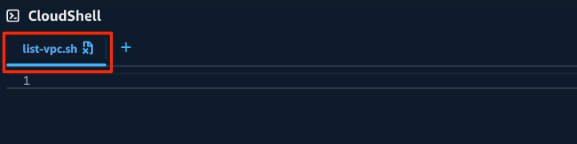
No error occurred and an empty editor opened. The tab name changed to the filename, and in the lower right of the screen, the line number, column number, and language mode SH are displayed. This shows that the file was automatically recognized as a shell script based on its extension.
Checking Syntax Highlighting
Enter a script that lists VPCs in the region.
#!/bin/bash
# List VPCs in the region
set -euo pipefail

REGION="ap-northeast-1"

echo "Listing VPCs in region ${REGION}"

aws ec2 describe-vpcs --region "${REGION}" --query 'Vpcs[].{ID:VpcId,CIDR:CidrBlock,Default:IsDefault,State:State}' --output table
echo "Listing complete"
Shell built-in commands like set, variable names, string literals, and comments are each color-coded. Even within double-quoted strings, ${REGION} is identified as a variable reference, demonstrating that this is not simple keyword coloring. Japanese comments and strings could also be entered without any issues.

When there are unsaved changes, a yellow dot appears to the right of the filename on the tab, indicating that changes have not been saved.
Saving
Clicking the save icon in the upper right caused the yellow dot to disappear, indicating the file is saved.
I also tried the Cmd+S keyboard shortcut. The browser's "Save page" dialog did not open; instead, it was handled by the editor and the file was saved.

Using the Editor in Parallel with a Terminal Tab
Since the editor opens by replacing the originating terminal tab, you cannot run commands in that tab while the editor is open. Adding a new environment tab via the "+" in the tab bar allows you to use the editor and terminal in parallel.
Check the file status in the new tab.
% cd ~/editor-demo && ls -l
total 4
-rw-r--r--. 1 cloudshell-user cloudshell-user 335 Aug 18 05:41 list-vpc.sh
The saved file is created with permissions 644. Execute permission is not granted, so if you want to run the script, you will need to use chmod separately.
Running the Script
Grant execute permission and run it.
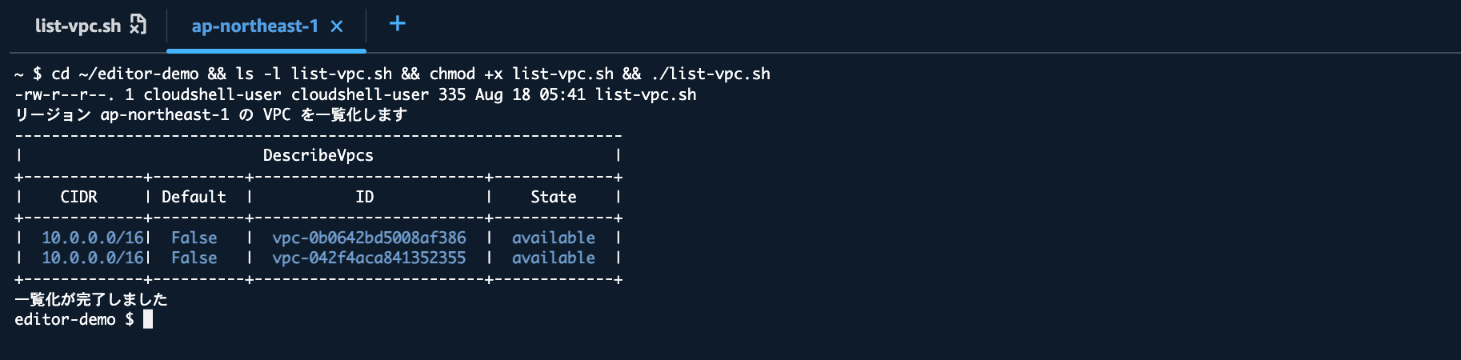
$ chmod +x list-vpc.sh && ./list-vpc.sh

Listing VPCs in region ap-northeast-1
------------------------------------------------------------------
|                          DescribeVpcs                          |
+-------------+----------+-------------------------+-------------+
|    CIDR     | Default  |           ID            |    State    |
+-------------+----------+-------------------------+-------------+
|  10.0.0.0/16|  False   |  vpc-0b0642bd5008af386  |  available  |
|  10.0.0.0/16|  False   |  vpc-042f4aca841352355  |  available  |
+-------------+----------+-------------------------+-------------+
Listing complete
The script written in the editor could be run directly from the shell. While leaving the editor tab open, the script was executed in a separate tab.
Listing Shortcuts with the Action Palette (F1)
In the upper right of the editor, there is another icon next to the save icon, and the same thing can be opened with the F1 key. It is the "Open action palette," which displays a list of available operations and keyboard shortcuts.
| Action | Shortcut (macOS) |
|---|---|
| Find | Cmd+F |
| Find and replace | Cmd+Shift+F |
| Redo | Cmd+Y |
| Toggle block comment | Option+Shift+A |
| Toggle code folding | Cmd+Option+[ |
| Toggle line comment | Cmd+/ |
| Undo | Cmd+Z |

Although not mentioned in the official announcement, toggling line and block comments and code folding are also supported.
Trying Find and Replace
Open the find and replace panel with Cmd+Shift+F. You can switch between Find and Replace using "Search mode" on the left side of the panel.
Entering ap-northeast-1 in the search field and us-west-2 in the replace field displayed 1/1 as the match count to the right of the search field. Clicking "Replace all" executed the replacement and the match count changed to 0/0.

The search options menu (︙) provides the following three options.
- RegEx (regular expressions)
- Match case (case sensitivity)
- Whole words (whole word matching)
It was confirmed that search and replace using regular expressions is also supported.

Undoing with Undo
Using Cmd+Z to undo the replacement restored ap-northeast-1.
There is one behavioral point worth noting here. Even if you undo the content back to the same state as the saved file, the unsaved marker on the tab does not disappear. The save confirmation dialog covered in the next section also appears. It appears that the dirty state is determined by whether editing operations have occurred, not by comparing the content.
Closing a Tab with Unsaved Changes
Clicking the close button on a tab with unsaved changes displayed a confirmation dialog.
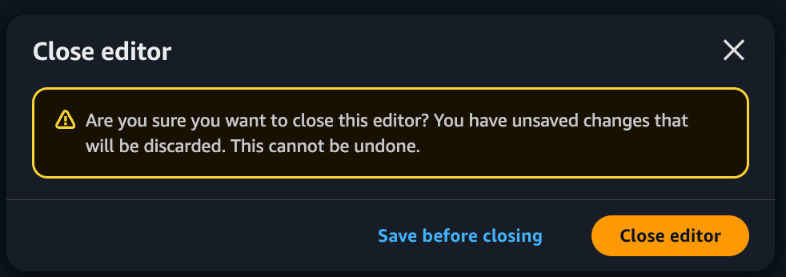
Choosing "Close editor" discards the changes. Checking the file from the terminal showed the content was still in its pre-replacement state. Note that when you close the editor tab, you return to the original terminal session from which edit was run. The scrollback was also preserved.
Trying Edge Cases
From here, I will verify behaviors not described in the official announcement or official documentation.
File Size Limit is 300 KiB
Attempting to open a text file with 200,000 lines and approximately 1.3 MB resulted in an error.
% edit large.txt
File is too large to edit, the file size should not exceed 300 kB
The error message says "300 kB," but I used binary search to identify the actual boundary.
% for n in 307200 307201; do
  head -c $n /dev/zero | tr '\0' 'a' > s$n.txt
done

% edit s307201.txt
File is too large to edit, the file size should not exceed 300 kB
While 307,201 bytes resulted in an error, a file of 307,200 bytes could be opened in the editor. Since 307,200 is 300 × 1024, the implementation threshold is not 300 kB (300,000 bytes in SI units) but 300 KiB (307,200 bytes).
The CloudShell service quotas documentation mentions a command length limit (65,412 characters), but there was no mention of this editable file size limit.
When working with larger log files or CloudFormation templates with many resources, this limit is worth keeping in mind.
Binary Files Cannot Be Opened
The behavior when a binary file is specified.
% head -c 512 /dev/urandom > binary.bin
% edit binary.bin
File content contains invalid Unicode
Files with content that cannot be interpreted as UTF-8 are explicitly rejected. The terminal display is not corrupted.
Directories, Non-existent Paths, and Files Without Permission
Checking cases that result in errors all at once.
% edit .
Path is not a file

% edit /notexist/foo.txt
Failed to create file: No such file or directory (os error 2)

% edit /etc/shadow
Unsupported file permissions: '', expected 'rw' or 'r'
All exit with code 1, and the messages distinguish between the types of errors.
From the third message, it can be read that not only rw (read-write) but also r (read-only) permissions are supported.
Specifying a Non-existent File Creates It at That Point
I was curious about the second error message saying "Failed to create file," so I investigated. I opened the editor with a filename that does not exist, and closed the tab without entering anything and without saving.
% ls brandnew.txt
ls: cannot access 'brandnew.txt': No such file or directory
% edit brandnew.txt
# Close the tab without entering anything
% ls -l brandnew.txt
-rw-r--r--. 1 cloudshell-user cloudshell-user 0 Aug 18 04:53 brandnew.txt
A 0-byte empty file was created. It appears that edit is implemented to create the file at startup. It is worth noting that launching with a mistyped filename will leave behind an unintended empty file.
Read-only Files Are View-only
Opening a file with permissions 444.
echo 'CloudShell' > readonly.txt
chmod 444 readonly.txt
edit readonly.txt
The editor opens normally and the content is displayed. However, typing any characters produces no change in the text at all — editing was blocked.
Opening the F1 action palette in this state showed only two actions: Find and Toggle code folding. Editing actions (Find and replace, Undo, Redo, various comment toggles) were excluded, confirming that the file is treated as read-only mode.

Specifying Multiple Files Simultaneously Is Not Supported
Passing multiple files as arguments.
% edit sample.py sample.json sample-template.yaml
error: unexpected argument 'sample.json' found

Usage: edit <FILE_PATH>

For more information, try '--help'.
Only one file path is accepted as an argument. To open multiple files at the same time, you need to add tabs and run edit for each one.
Language Detection Is Extension-based
I checked the language modes for different file extensions. The detection result is displayed in the lower right of the screen.
| File | Language Mode |
|---|---|
| list-vpc.sh | SH |
| sample.py | Python |
| sample-template.yaml | YAML |
| verification-notes.md | Markdown |
| readonly.txt | Text |
When a CloudFormation template is opened, it is recognized as YAML, keys and values are color-coded, and folding markers appear to the right of line numbers according to the nesting structure.

Pressing Cmd+/ in this state inserted the YAML comment character # at the beginning of the line. The comment character corresponding to the language mode is used.

Japanese filenames were also opened without any issues.
On the other hand, opening a file with a shebang but no extension resulted in a language mode of Text.
% printf '#!/bin/bash\necho "with shebang, no extension"\n' > noext-script
% edit noext-script
Syntax highlighting also did not work. Language detection relies solely on the extension and does not reference the shebang. If you manage scripts without extensions on CloudShell, you will not benefit from highlighting.
Saved Files Do Not Have a Trailing Newline
This is a behavior I noticed while checking a saved script. When counting a file that has 10 lines in the editor using wc, the line count comes out one short.
% wc -l -c list-vpc.sh
      9     335 list-vpc.sh

% tail -c 3 list-vpc.sh | od -c
0000000 201 237   "
0000003
The last byte is a double quote and does not end with a newline (\n). Since wc -l counts the number of newlines, a 10-line file is displayed as 9. POSIX requires each line of a text file to end with a newline, and files without a trailing newline may show \ No newline at end of file in Git diffs, or lines may be concatenated when joined with cat. This is a behavior worth being aware of when managing files created or edited in the editor with Git.
Discussion
Having actually used this feature, I felt it shines in situations where you want to make small edits to a file that already exists on CloudShell. Even if you are not familiar with Vim, you can edit scripts and configuration files without leaving the AWS CLI execution environment. Closing the editor tab returns you to the original terminal session with the scrollback intact, significantly reducing the cost of switching between editing and executing.
On the other hand, organizing the constraints identified in this verification also makes the intended use cases clear.
- Files up to 300 KiB can be edited
- Only one file argument is accepted; separate tabs are needed to open multiple files side by side
- There is no file tree or directory-opening feature (
edit .results in an error) - Language detection relies solely on the file extension
- Saved files do not have a trailing newline
The design of opening one file at a time without a file tree also makes it clear that this is positioned as "an editor within the shell," not an IDE for working with entire projects. It seems likely that the division of roles will be: serious development continues in local development environments or IDEs as before, while CloudShell handles minor edits during operations work.
The error handling appeared to be carefully implemented. Directories, binary files, insufficient permissions, and size overflows each return messages that distinguish the cause. The attention to detail is also evident in how the action palette items are reduced when a read-only file is opened.
Given that the version is 0.1.3, further feature additions can be expected. The following areas in particular, if expanded, would further improve usability.
In Closing
I tried the built-in visual file editor added to AWS CloudShell directly from the management console.
Simply running edit <file path> launches a GUI editor with syntax highlighting, with no setup required. Find and replace supports regular expressions, and shortcuts can be checked from the F1 action palette. Edited files can be run directly from the shell, allowing editing and execution to be completed entirely within CloudShell.
On the other hand, constraints were also identified: files up to 300 KiB can be edited, only one file argument is accepted, language detection is extension-based, and saved files do not have a trailing newline. In particular, since the size limit is not documented in the official docs, it is worth knowing in advance when working with larger files.
In the past, opening files in AWS CloudShell with vi and pasting code would sometimes introduce unexpected indentation, but this behavior has improved, suggesting that the AWS CloudShell implementation may have changed. If you have opportunities to work with scripts or IaC templates on CloudShell, why not start by running edit --version in your own environment to confirm whether this feature is available?
I hope this article is helpful to someone.
