![[Update] Amazon Q has integrated with AWS Agent Registry, and I tried connecting with the AWS Knowledge MCP Server](https://images.ctfassets.net/ct0aopd36mqt/2x7muHjvW69fxuVNSKWZHp/b37e05a972fc8125e9214abd764928fa/amazon-quick.png?w=3840&fm=webp)
[Update] Amazon Q has integrated with AWS Agent Registry, and I tried connecting with the AWS Knowledge MCP Server

This page has been translated by machine translation. View original
This is Ishikawa from the Cloud Business Division. MCP servers registered in AWS Agent Registry can now be searched and used from Amazon Quick, so I tried everything from creating a registry to executing tools in chat.
Amazon Quick has announced integration with AWS Agent Registry. MCP servers and agents registered in your organization's AWS Agent Registry can now be searched and referenced directly from the Amazon Quick interface, and enabled with just a few clicks. Connection information is automatically pulled from the registry, so there is no need to manually enter URLs on the Quick side. Enabled resources can be shared within your team and used from Quick Chat, agents, apps, Amazon Quick Flows, and Amazon Quick Research.
The goal of this integration is to bridge the gap between technical teams building agents and MCP servers with Amazon Bedrock AgentCore, and business users who perform their daily work in Amazon Quick. Organizations no longer need to recreate individual connection configurations for agents and tools that already exist in AWS Agent Registry.
What Is the AWS Agent Registry and Amazon Quick Integration?
AWS Agent Registry is a fully managed discovery service that allows you to centrally register, approve, and search for MCP servers, agents, agent skills, and custom resources within your organization. You create a catalog in units called registries, and register resource metadata as records within them. Registered records must pass through an approval workflow before they become searchable.
From the Amazon Quick side, approved remote MCP records from linked registries appear as pre-configured cards on the "Connectors" page. Once you create an action connector from there, it can be used just like any other Quick action connector. The registry content is not copied to Quick — it is read from the registry each time you open the connector page.
The overall flow is as follows.
Supported Scope
The official documentation organizes the supported records and configurations as follows.
| Supported | Not Supported |
|---|---|
MCP records using the mcpServer descriptor |
Skill records, custom records |
| Agent records accessed via the MCP protocol | Agent-to-agent (A2A) descriptors |
| Remote MCP servers that expose a remote server URL | Local MCP endpoints such as npx / docker / stdio |
Prerequisites
Before linking a registry, the following conditions must be met.
- The registry must be in the same AWS account and same region as the Quick account (cross-account and cross-region are not supported)
- The registry must use AWS IAM (
AWS_IAM) authorization and haveREADYstatus (registries with JWT authorization will not appear in the Quick admin console) - The registry must use the
agent-registrynamespace (registries using the oldbedrock-agentcorenamespace are not supported) - Each Quick account can connect to only one registry
- The administrator's IAM identity must have
agent-registry:ListRegistries
A note on namespaces is needed. AWS Agent Registry is GA under the new agent-registry namespace, and the official documentation explicitly states that support for the bedrock-agentcore namespace from the public preview period is scheduled to end on September 17, 2026. The Quick integration only targets the new namespace.
Trying It Out
Prerequisites
The verification environment is as follows.
- AWS Region:
ap-northeast-1(Tokyo) - Amazon Quick: Enterprise edition (existing account, authentication type is IDENTITY_POOL), main region is
ap-northeast-1 - AWS CLI:
aws-cli/2.36.35 - MCP server to register: AWS Knowledge MCP Server (public remote MCP server requiring no authentication)
Note that the target AWS Knowledge MCP Server requires no authentication and returns a response simply by sending initialize.
% curl -s -X POST "https://knowledge-mcp.global.api.aws/mcp" \
  -H "Content-Type: application/json" \
  -H "Accept: application/json, text/event-stream" \
  -d '{"jsonrpc":"2.0","id":1,"method":"initialize","params":{"protocolVersion":"2025-03-26","capabilities":{},"clientInfo":{"name":"probe","version":"1.0"}}}'

{"jsonrpc":"2.0","id":1,"result":{"protocolVersion":"2025-03-26","capabilities":{"tools":{"listChanged":false}},"serverInfo":{"name":"AWSKnowledgeMCP","version":"1.0.0"}}}
Calling tools/list returned the following 5 tools. This number becomes relevant in later verification.
tool count: 5
 - aws___read_documentation
 - aws___search_documentation
 - aws___list_regions
 - aws___get_regional_availability
 - aws___retrieve_skill
Step 1: Create an AWS Agent Registry
Registry creation is done from the Management Console. AWS Agent Registry has its own independent console and is available in the Tokyo region as well. From "Create Registry," I configured the following.
- Name:
quick-agent-registry-demo - Search API authorization / Authorization type: "Use IAM username"
- Record approval: Enable "Auto-approval"
- Tags:
run_id,owner
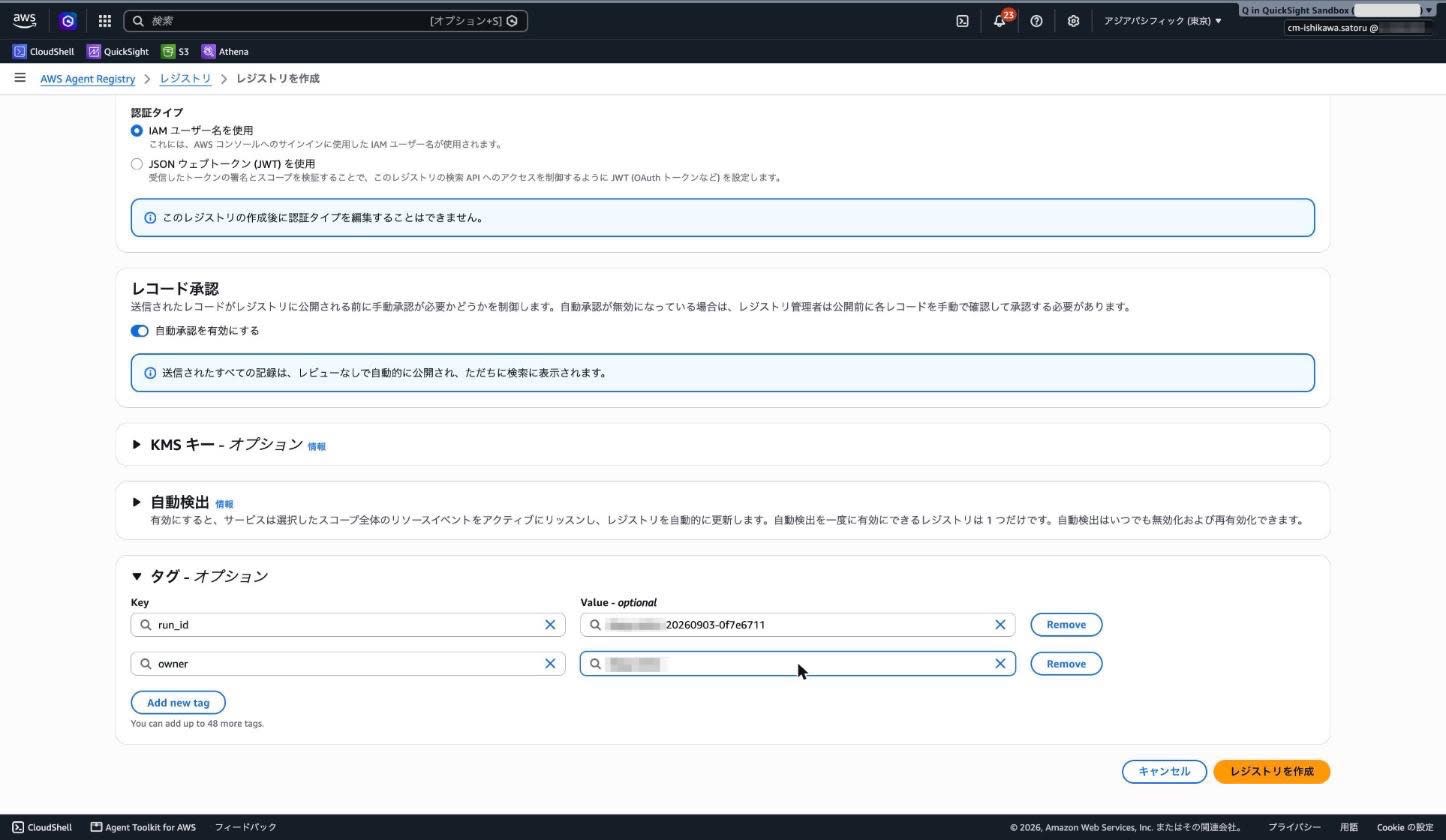
A note in the authorization type field states: "The authorization type cannot be edited after this registry is created." Since the requirement for Quick integration is AWS IAM authorization, selecting JWT here would prevent you from connecting to Quick later. You must be sure to select IAM at the time of creation.
You can confirm on the console that the status has changed to "Ready" and that auto-approval shows "Enabled."
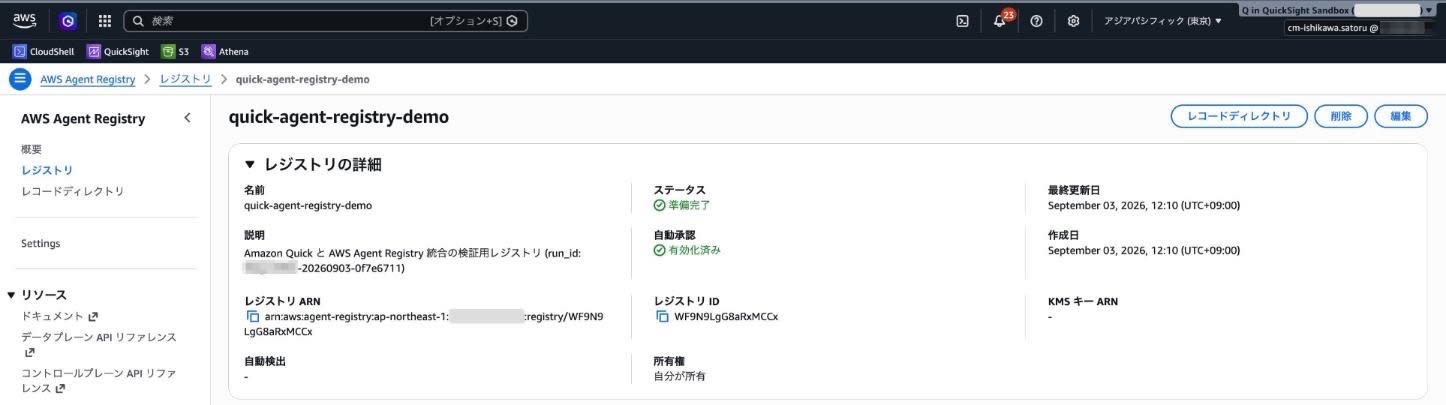
Step 2: Register an MCP Server Record (Endpoint Sync)
Registration is done from "Create Record" on the registry detail screen. There are two types of record sources.
- Source: Specify an endpoint URL and credentials, and the registry connects to automatically retrieve details, tools, and metadata
- Manually define: Manually specify the record definition, schema, and metadata
I first chose "Source." The only settings I configured were the following.
- Type: MCP, Descriptor: MCP Server
- Endpoint:
https://knowledge-mcp.global.api.aws/mcp - Credential type: No authentication
Selecting "IAM role" for "Credential type" displays fields for a role ARN and service name, but selecting "No authentication" removes them, leaving only the endpoint as an input field.
After creation, the record name AWSKnowledgeMCP was automatically assigned and the server schema had been retrieved.
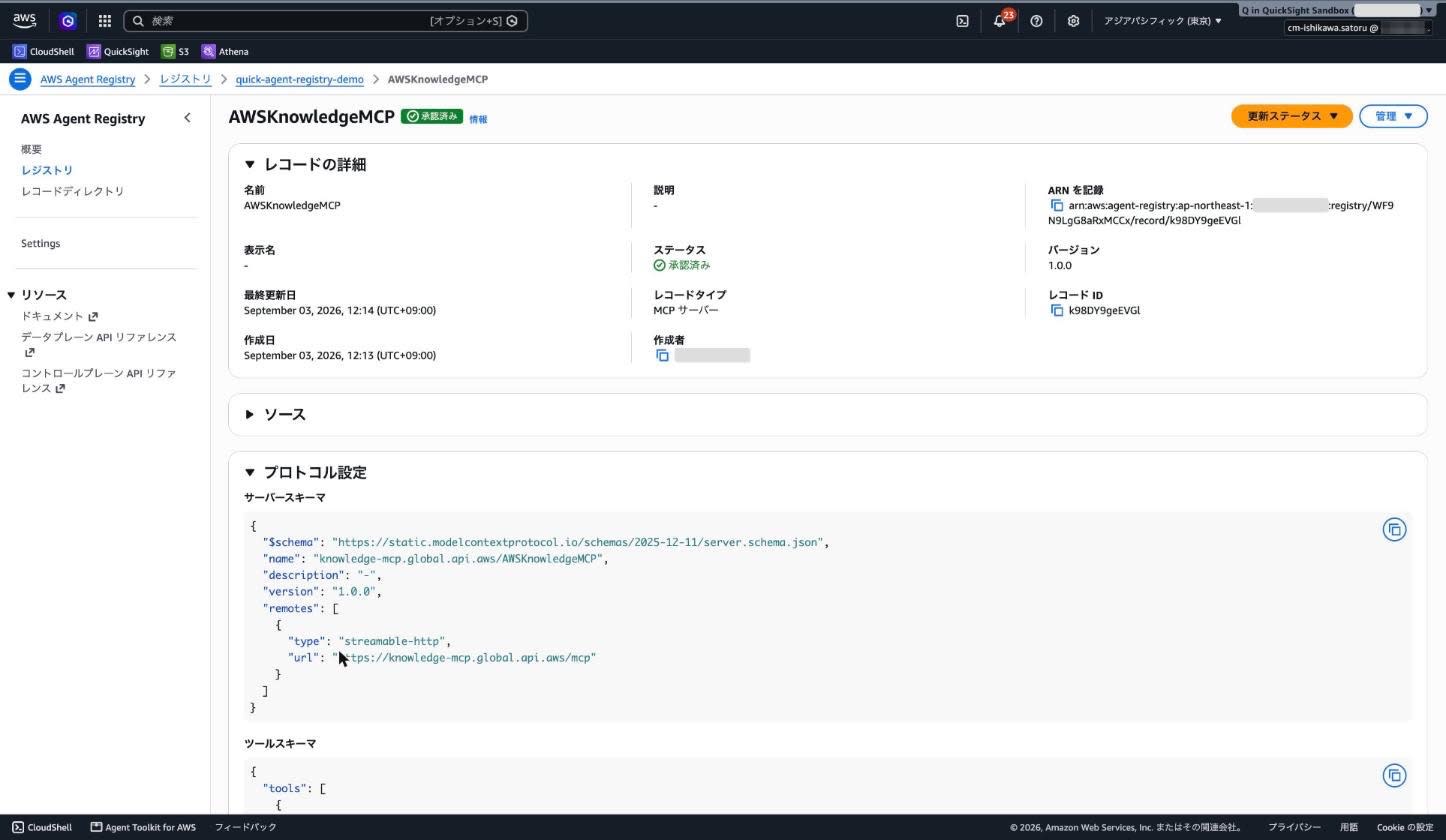
Furthermore, the inputSchema for all 5 tools was automatically imported as tool schemas. This is the advantage of endpoint sync.
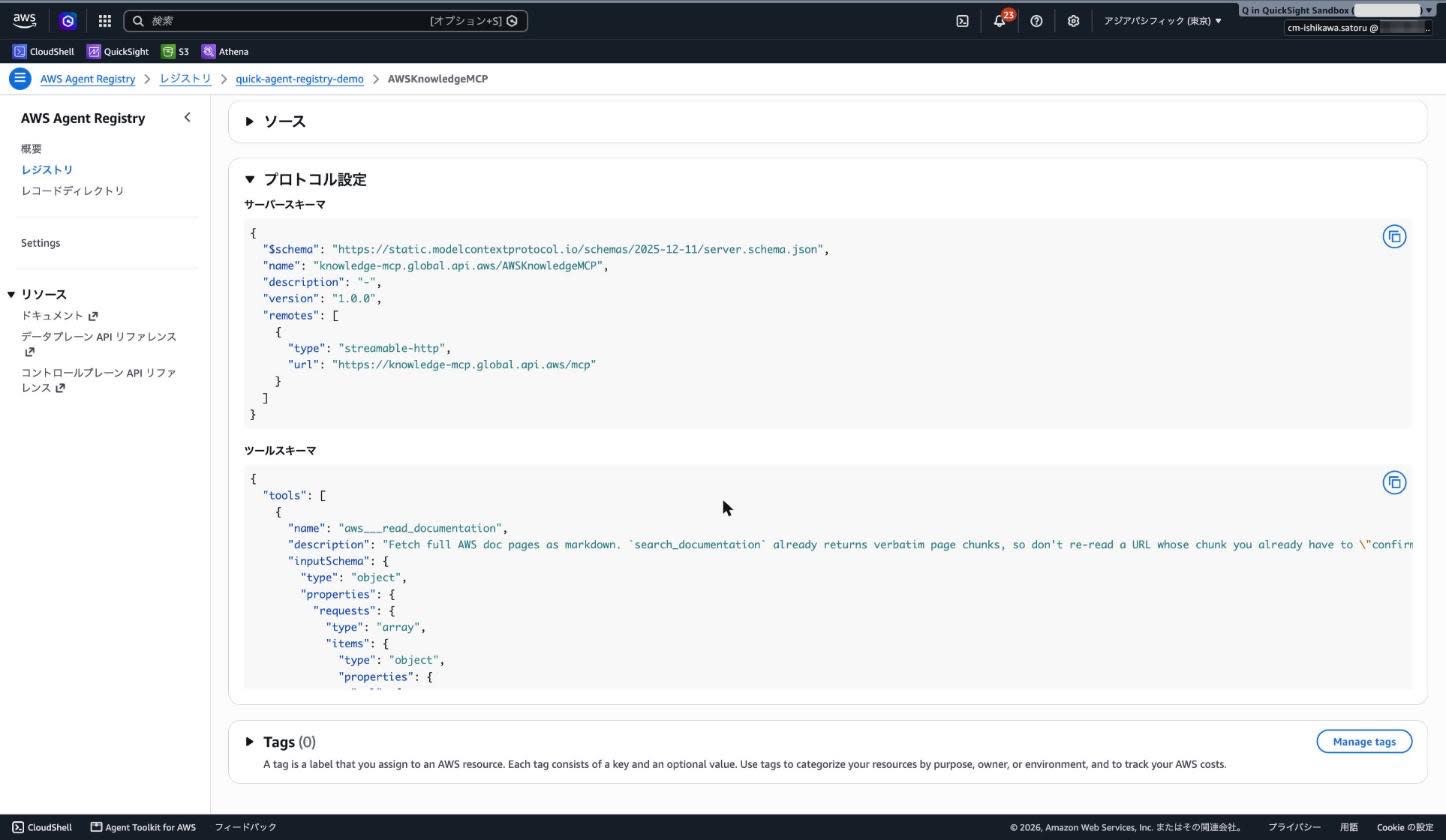
One thing to note here: the status immediately after creation is DRAFT, and even with auto-approval enabled, records are not published automatically. You can confirm on the console that the status badge to the right of the record name shows "Draft."

Changing the Approval Status
To make a record searchable, you need to change its status to move it through the approval flow. Opening "Update Status" in the upper right of the record detail screen shows options based on the current status. For a draft, the two options are "Submit for approval" and "Deprecate."

Selecting "Submit for approval" processed immediately without a confirmation screen. Because auto-approval is enabled for the registry, the record proceeded all the way to approval simultaneously with submission, and the status badge changed to "Approved."

My understanding is that auto-approval is simply a setting that "publishes submitted records without review," while the submission operation itself is still required separately. If auto-approval is disabled, the record would show "Pending approval" at this point and would not become searchable until a curator reviews and approves it. Note that this operation is common regardless of how the record was created (endpoint sync or manual definition).
Opening the same menu on an approved record changes the options to "Reject" and "Deprecate." The available transitions switch based on the current status.

Step 3: Register Another Record Using Manual Definition
To see the difference from sync, I registered another record using "Manually define." Here I manually specified the name, display name, description, and version, and wrote the descriptor JSON directly.
- Name:
AWSKnowledgeMCP-manual - Display name:
AWS Knowledge MCP Server (Manual) - Description: Entered in Japanese
- Record version:
1.0.0
The JSON editor starts with the following template.
{
  "name": "io.example/my-server",
  "description": "Brief description of server functionality",
  "version": "1.0.0"
}
This template does not include remotes, which represents the connection destination. Simply filling in this template as-is will not produce a record that Quick can connect to, so you need to add remotes yourself. I entered the following.
{
  "$schema": "https://static.modelcontextprotocol.io/schemas/2025-12-11/server.schema.json",
  "name": "io.classmethod/aws-knowledge-mcp-manual",
  "description": "AWS Knowledge MCP Server (manually defined record)",
  "version": "1.0.0",
  "remotes": [
    {
      "type": "streamable-http",
      "url": "https://knowledge-mcp.global.api.aws/mcp"
    }
  ]
}
Step 4: Link the Registry to Amazon Quick
From here, the work takes place in the Amazon Quick admin console. From the left navigation under "Manage Account," go to "Permissions" → "AWS Agent Registry." This menu was available even in the Tokyo region.
The page explains: "Select one Agent Registry to connect your organization's custom agents and skills. Only registries in READY status that use AWS_IAM authorization can be selected." Only registries meeting the conditions appear in the list. The quick-agent-registry-demo I created was displayed, so I toggled it ON to link it. No confirmation dialog appeared; it became active immediately.
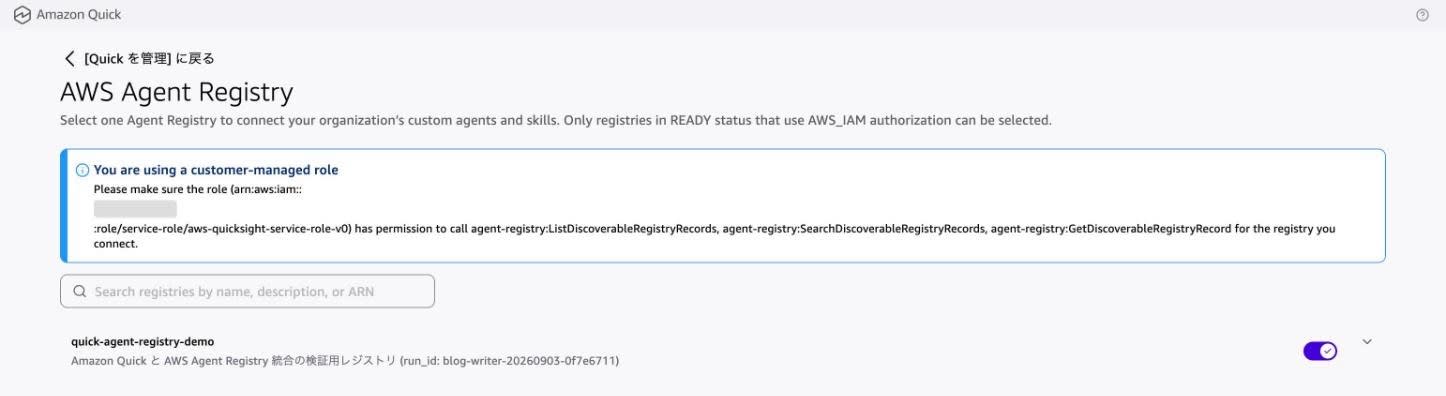
At this point, the following warning was displayed.
You are using a customer-managed role
Please make sure the role (arn:aws:iam::<ACCOUNT_ID>:role/service-role/aws-quicksight-service-role-v0)
has permission to call agent-registry:ListDiscoverableRegistryRecords,
agent-registry:SearchDiscoverableRegistryRecords, agent-registry:GetDiscoverableRegistryRecord
for the registry you connect.
According to the official documentation, for accounts using the Quick managed role (aws-quicksight-agent-registry-role-v0), the necessary permissions are automatically granted when the registry is enabled. However, for accounts using a customer-managed service role, the administrator must manually add the above three permissions. My environment fell into the latter category, which is why the warning appeared.
Step 5: Create a Connector
Navigate to the Quick main interface, and open "Learn more" → "Connectors" from the left navigation. The important thing here is that registry-derived cards appear not in the "Available" tab, but in the "Create for your team" tab.
Switching to that tab showed the two registered records as cards.
AWSKnowledgeMCP(description shows "-")AWSKnowledgeMCP-manual(description shows the Japanese text I entered during manual definition as-is)
The reason the description for the sync-registered record shows "-" is that the AWS Knowledge MCP Server itself does not return a description. With manual definition you can write the description yourself, so manual definition has an advantage in terms of clarity for business users who are choosing from the catalog.
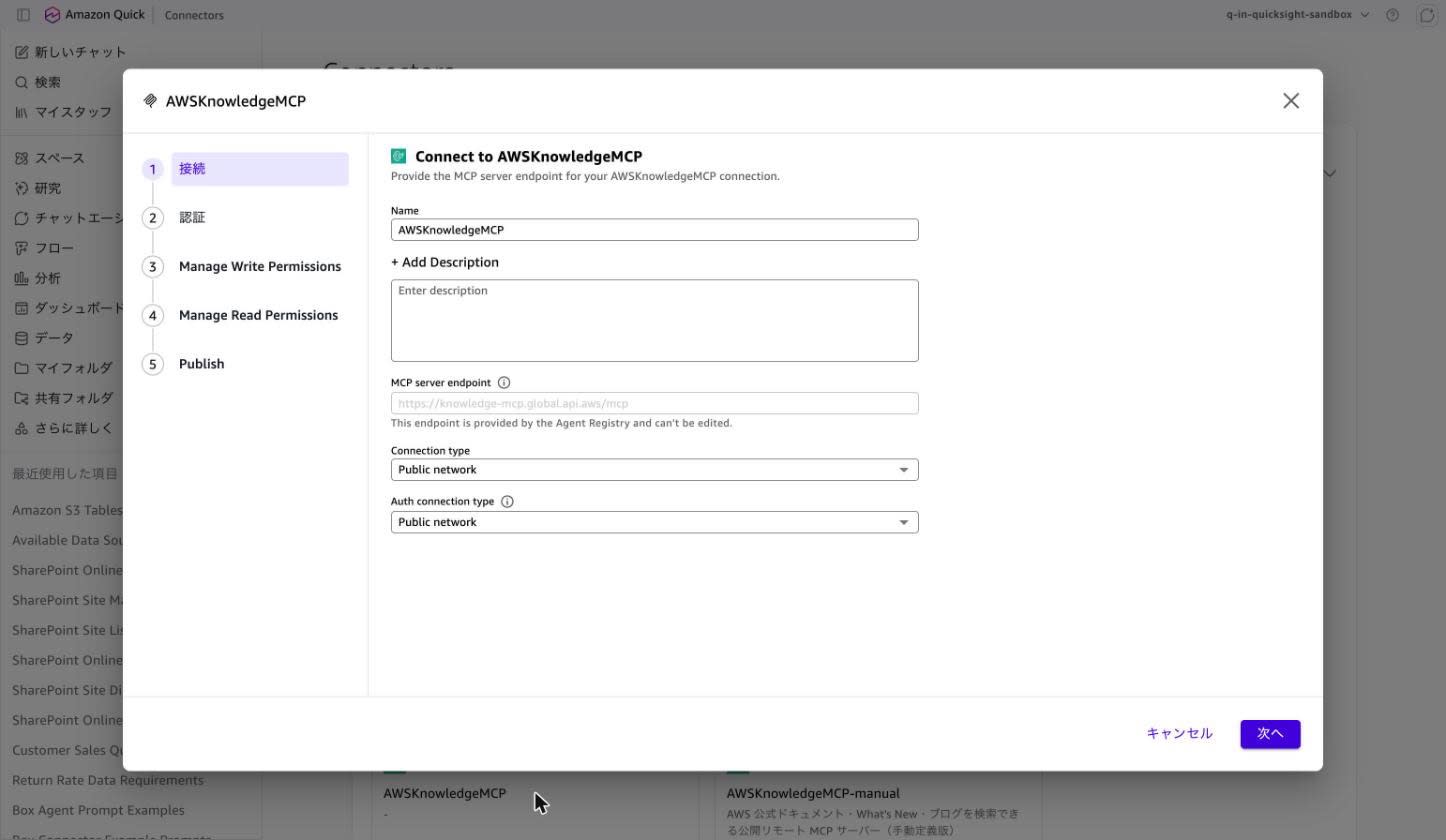
Opening the AWSKnowledgeMCP card launched a 5-step wizard. In the first "Connect" step, the connection information was pre-filled as described in the What's New announcement.
- Name:
AWSKnowledgeMCP - MCP server endpoint:
https://knowledge-mcp.global.api.aws/mcp(grayed out) - Connection type: Public network
The endpoint field displays "This endpoint is provided by the Agent Registry and can't be edited." and cannot be edited. This reflects the design intent of treating the registry as the organization's single source of truth and preventing Quick from arbitrarily overwriting the connection destination.
A Stumbling Block Around Description
First, pressing "Next" while the field was empty stopped me with Description is required. Because the sync-registered record had a description of "-", it was not carried over to the Quick side, leaving the required field empty when the wizard started.
So I entered a description in Japanese, which then produced the following error.
Description can only contain letters, numbers, spaces, and the characters _ . , ! ? -
Removing full-width brackets did not resolve it, and the issue was only cleared after rewriting the description using only alphanumeric characters.
This restriction causes more trouble with the manually defined record. Opening the AWSKnowledgeMCP-manual card showed the Japanese description registered in the registry auto-filled into the Description field.
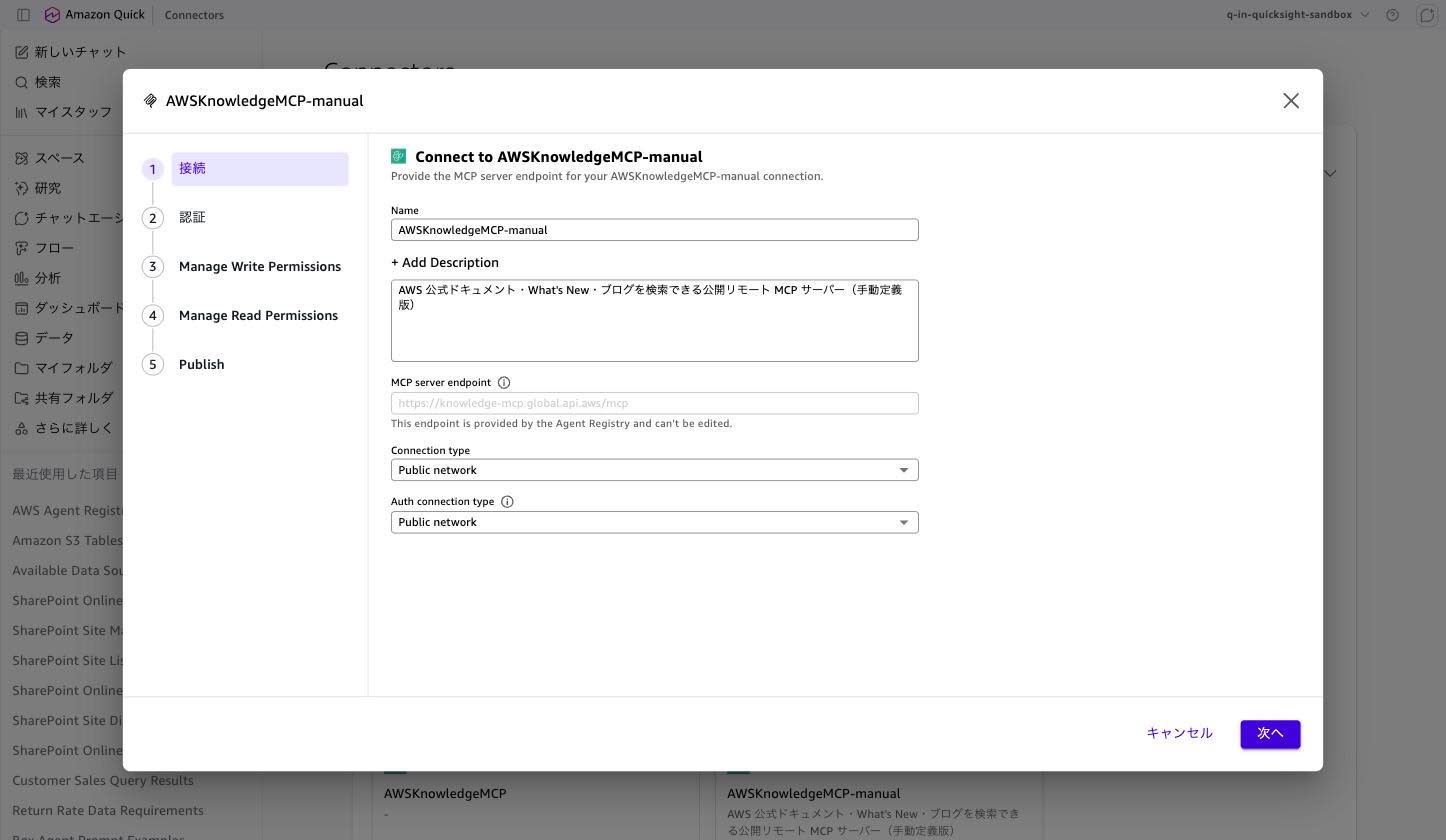
At first glance this seems convenient as it saves input effort, but pressing "Next" in this state causes the auto-filled Japanese text to fail validation.
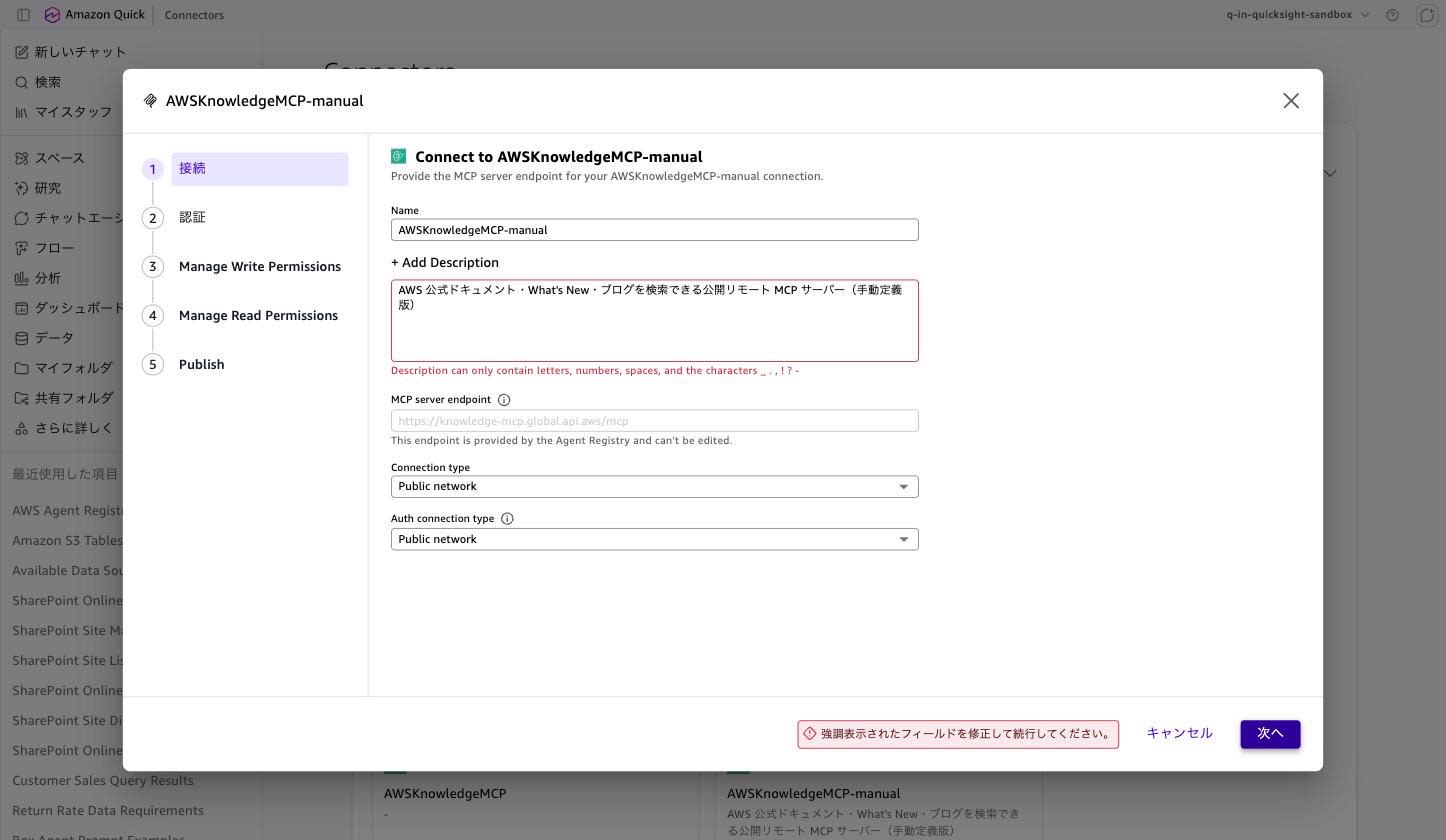
This means that if you write the registry record description in Japanese, every time a connector is created in Quick, the user will need to rewrite the description in alphanumeric characters. For organizations operating in a Japanese-language environment, it is more efficient to write registry descriptions in alphanumeric characters from the start to avoid rework.
Choosing an Authentication Method
In the subsequent "Authentication" step, you can choose between "User authentication" and "Service authentication." Since the AWS Knowledge MCP Server requires no authentication, you might want to select "None," but "None" does not exist in the Auth configuration for "User authentication" (the only options are "Custom user-based OAuth" and "Custom headers"). Switching to "Service authentication" makes "None" appear in the Auth configuration.
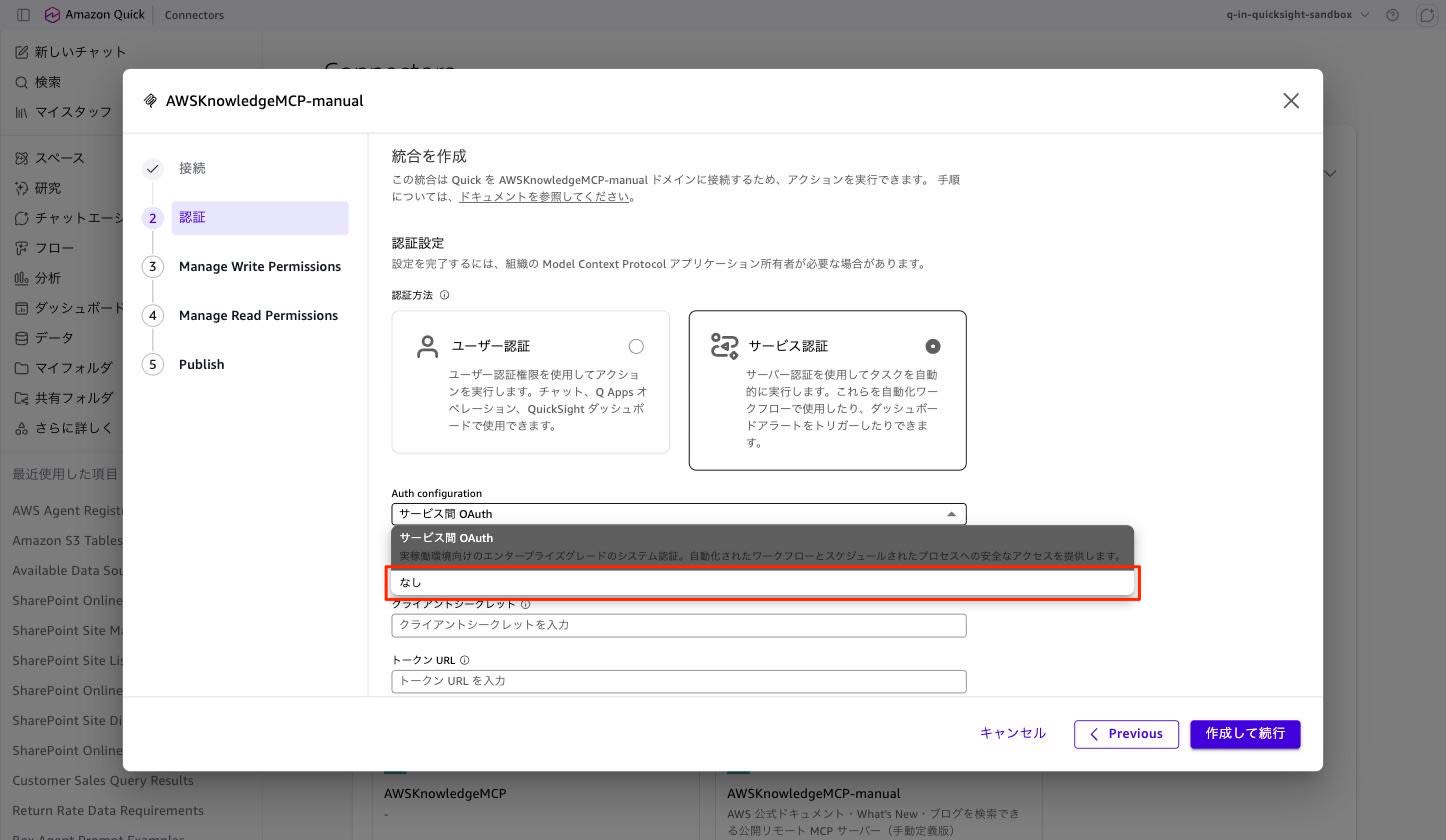
When connecting an MCP server that requires no authentication, you must select service authentication.
Tool Discovery
Pressing "Create and continue" displayed Discovering tools from the MCP server. This may take a couple of minutes. and tool discovery began. It was still in progress after 20 seconds, and after waiting about 1 minute it had moved to the next step.
The discovery results were as follows.
- Write Operations: 0
- Read Operations: 5 (
aws___get_regional_availability,aws___list_regions,aws___read_documentation,aws___retrieve_skill,aws___search_documentation)
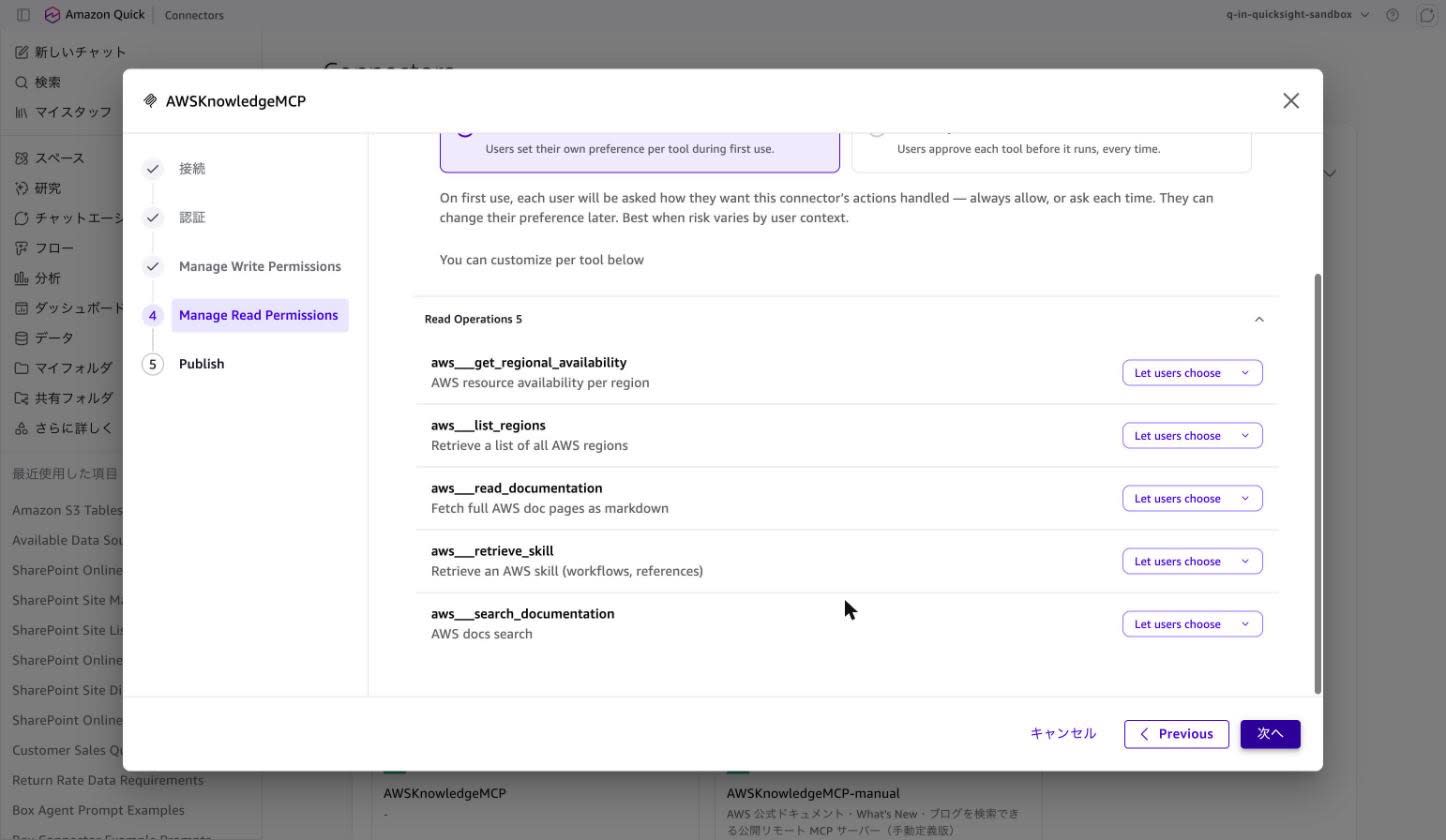
This is a perfect match with the 5 tools obtained by calling tools/list from the CLI. Each tool of the AWS Knowledge MCP Server returns readOnlyHint: true, which is presumably why the write operation count is 0.
In the final "Publish" step, you select the sharing scope. Since this was for verification purposes, I published it without sharing organization-wide, making it accessible only to myself. After publishing, searching in the "Available" tab showed AWSKnowledgeMCP displayed as ✓ Connected.
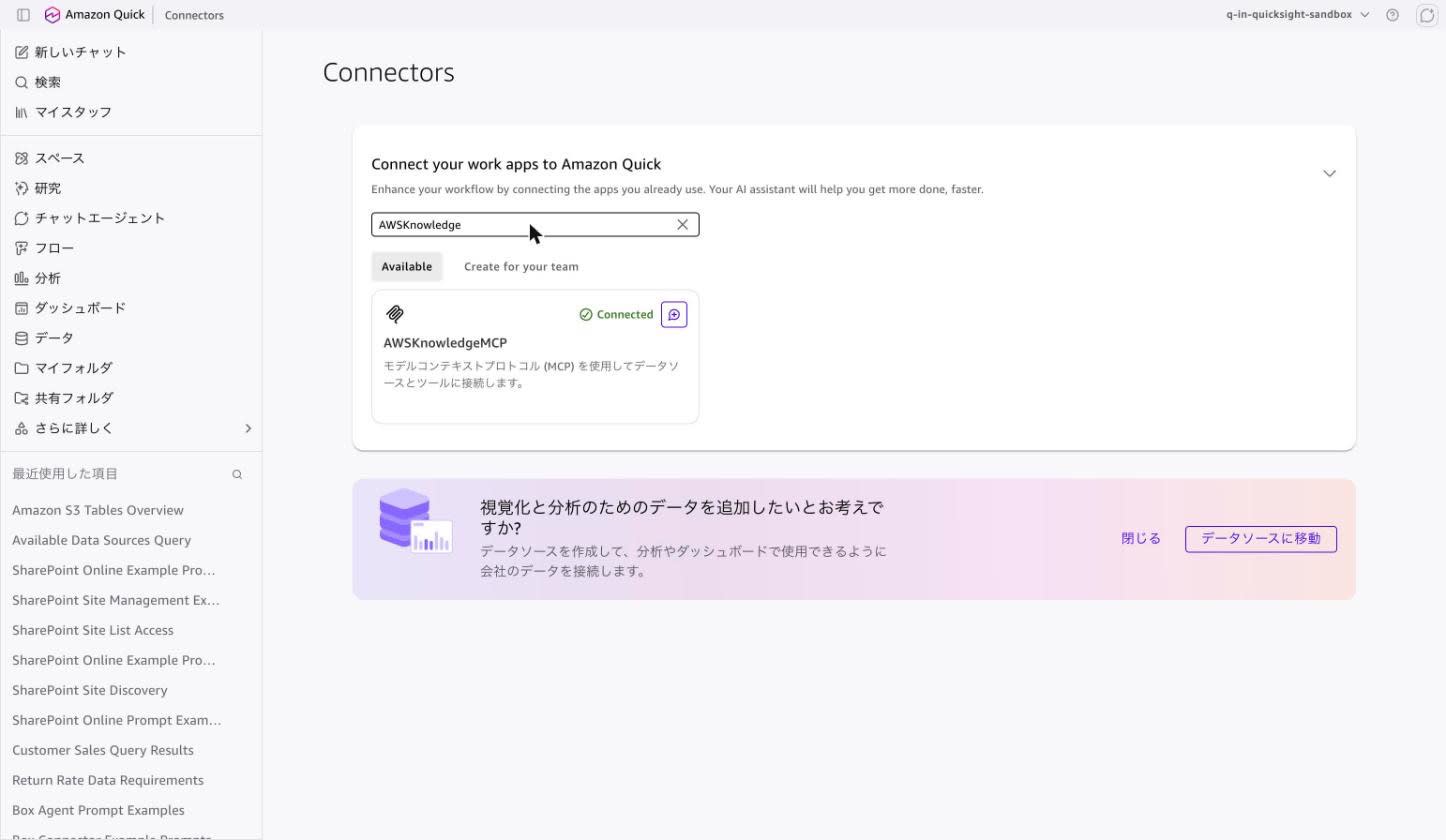
Step 6: Call MCP Tools from Quick Chat
Opening a new chat and checking "+" → "Connectors" in the input field showed AWSKnowledgeMCP listed with a connected checkmark.
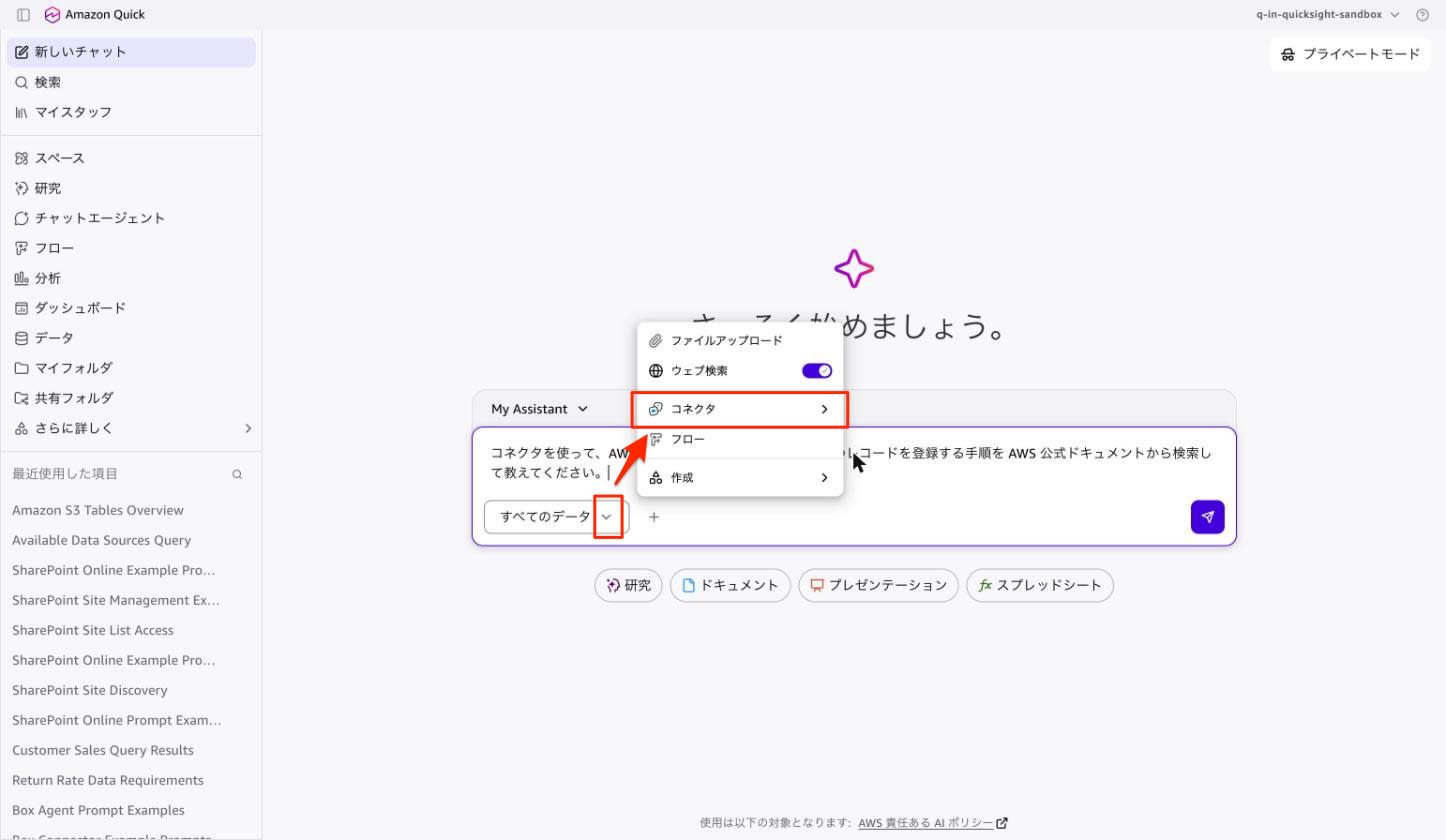
I asked the following question.
Using the AWSKnowledgeMCP connector, please search the official AWS documentation
for the steps to register an MCP server record in AWS Agent Registry and explain them.
The response began with "Completed 5 steps," which I expanded to see the processes that had been executed.
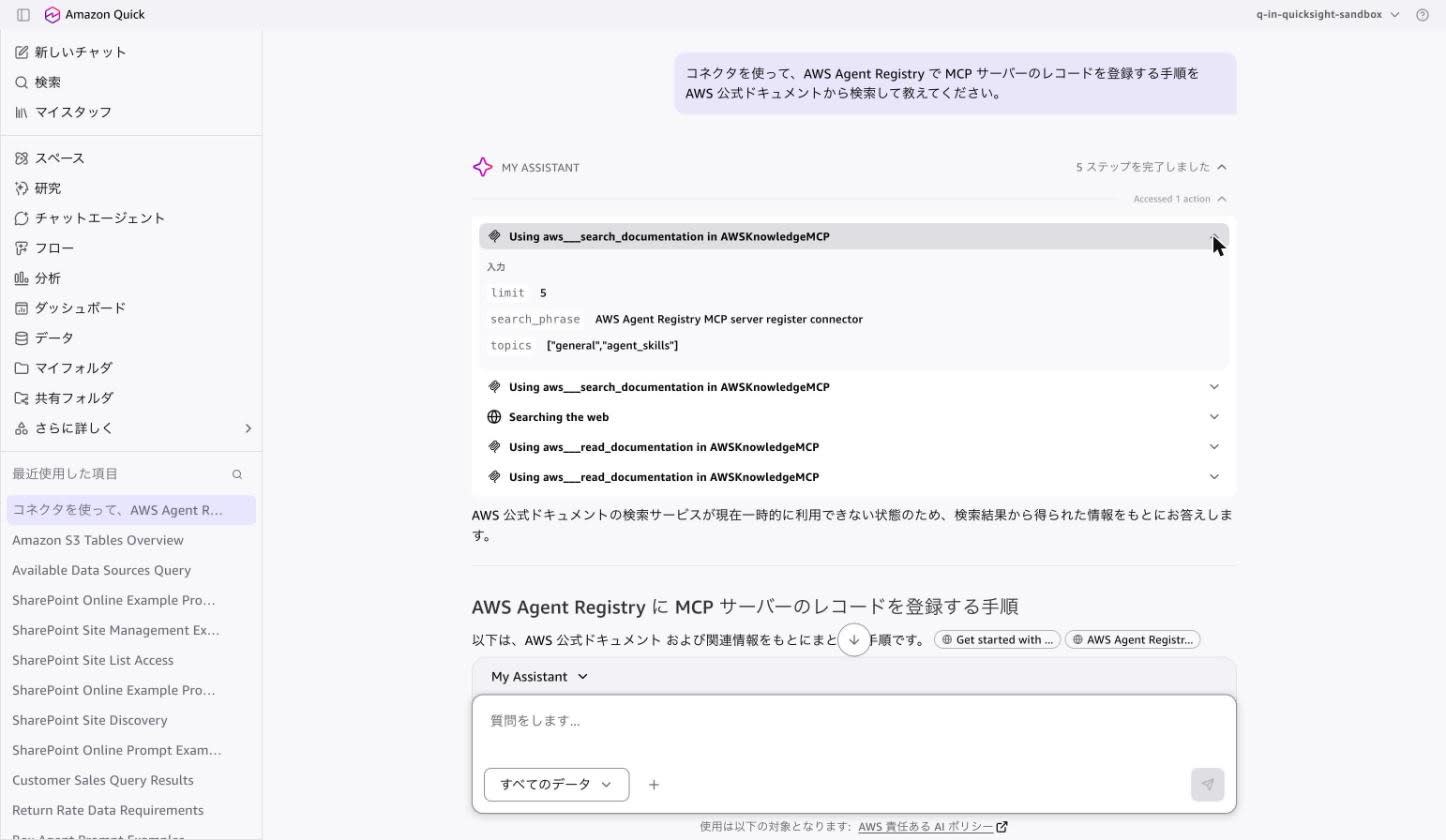
Using aws___search_documentation in AWSKnowledgeMCP
Using aws___search_documentation in AWSKnowledgeMCP
Searching the web
Using aws___read_documentation in AWSKnowledgeMCP
Using aws___read_documentation in AWSKnowledgeMCP
The MCP server tools registered via the registry were actually called 4 times from Quick Chat. Expanding each step further allowed me to see the input parameters as well.
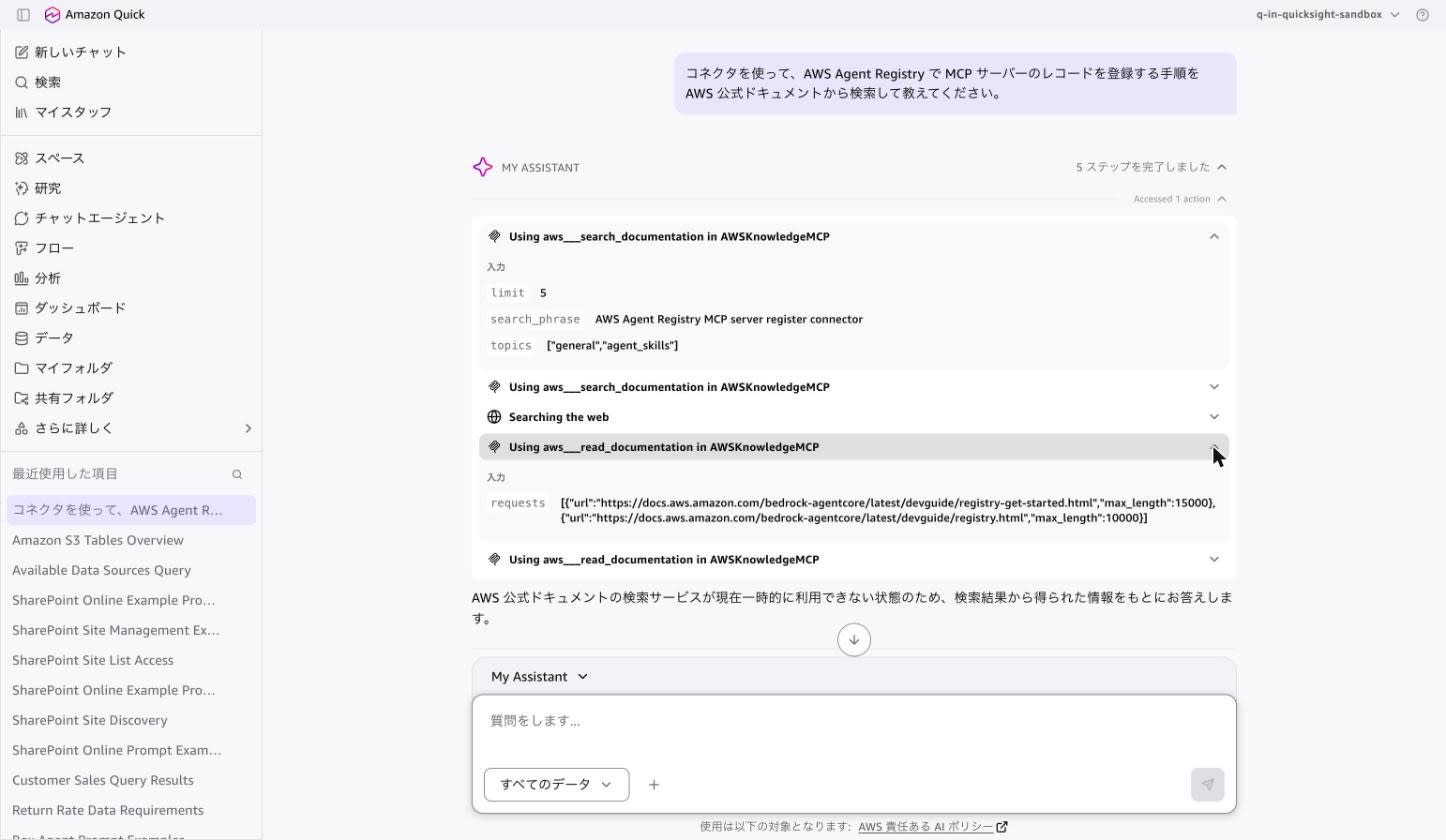
limit          5
search_phrase  AWS Agent Registry MCP server register connector
topics         ["general","agent_skills"]
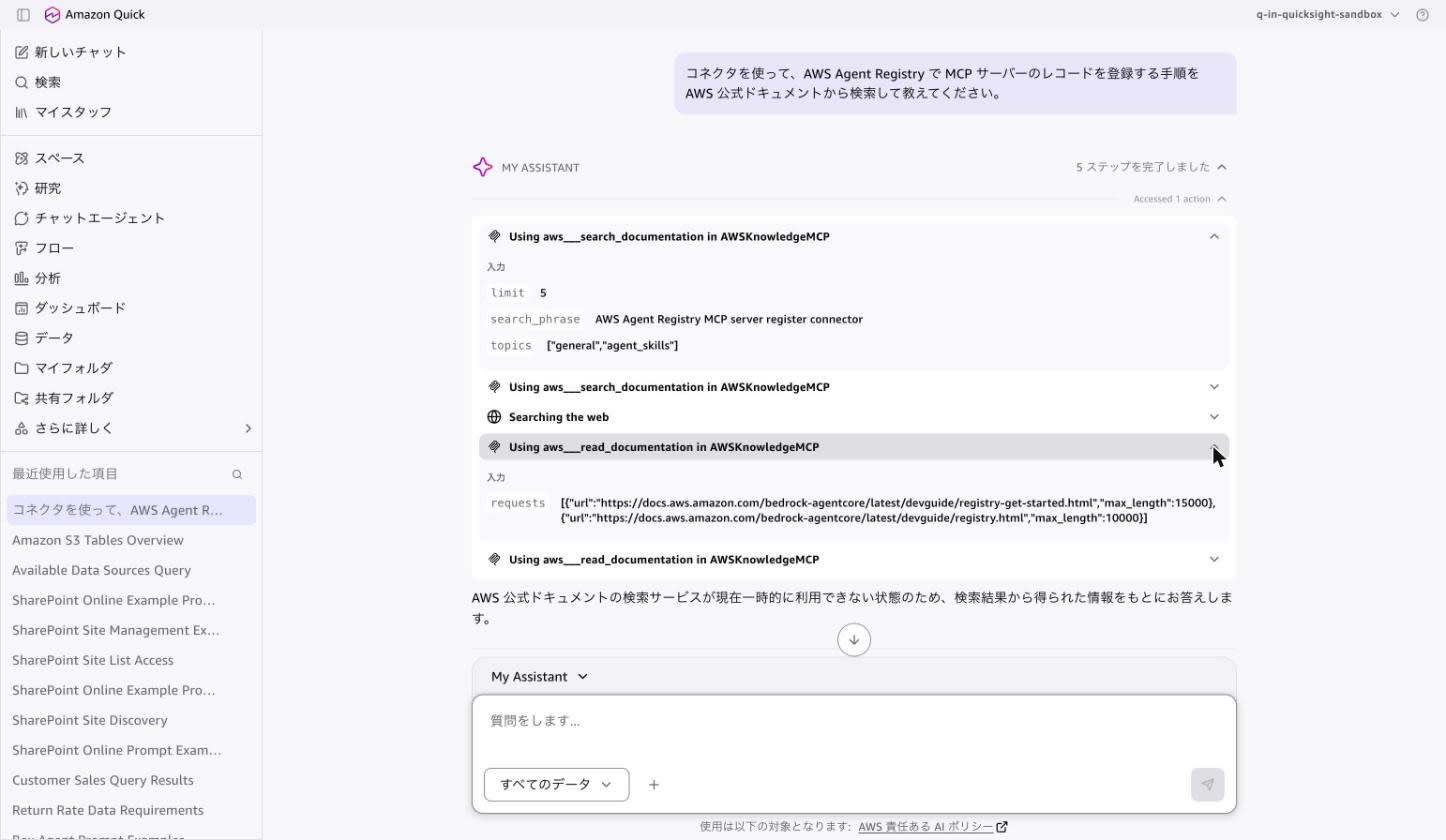
requests  [{"url":"https://docs.aws.amazon.com/bedrock-agentcore/latest/devguide/registry-get-started.html","max_length":15000},
           {"url":"https://docs.aws.amazon.com/bedrock-agentcore/latest/devguide/registry.html","max_length":10000}]
Arguments such as search_phrase, topics, and the requests array all conform to the tool schema published by the AWS Knowledge MCP Server. This confirmed that Quick is correctly interpreting and calling the MCP tool definitions.
On the other hand, the following disclaimer appeared at the top of the response.
Because the AWS official documentation search service is temporarily unavailable,
I will answer based on information obtained from the search results.
It appears that search_documentation temporarily returned an error, causing a fallback to web search. Indeed, the response body contained the statement "AWS Agent Registry is provided as a feature of Amazon Bedrock AgentCore (currently in Preview)." AWS Agent Registry is already GA, so this information is outdated. However, the sources presented included official documentation pages retrieved via read_documentation, confirming that MCP-based retrieval itself was successful.
Note that in this verification, the chat's "Web search" was ON by default. If you want to strictly evaluate only the MCP server responses, it is easier to isolate by turning off web search first.
Observations
Here I summarize what was confirmed in this verification and points to keep in mind in practice.
First, the point advertised in the What's New — "connection information is auto-filled from the registry" — was exactly as described. In the connector creation screen, the endpoint is presented pre-filled and non-editable, meaning users do not need to know the URL. The design enforces the registry as the organization's single source of truth and prevents Quick from creating connections to destinations outside of it. Administrators can control the range of tools available to business users by approving or deprecating records in the registry.
On the other hand, even if you unlink a registry, connectors already created from it are not deleted. The official documentation explicitly states: "The action connector is an independent Quick resource." Even if a record is withdrawn from the registry side, existing connectors continue to work, so when conducting audits, both the registry and connectors need to be checked.
Regarding the choice between endpoint sync and manual definition, the following summary can be made.
| Aspect | Endpoint Sync | Manual Definition |
|---|---|---|
| Name / Schema | Automatically retrieved from endpoint | Entered manually |
| Tool definitions | Automatically retrieved | Not included |
remotes spec |
Not required | Required (must be added manually as it is not in template) |
| Description | Depends on MCP server's description |
Can be written freely |
| Steps to approval | "Submit for approval" required after creation | One step with "Create and submit for approval" |
The practical approach would be to try sync first if the endpoint is reachable, and use manual definition when you want to tailor descriptions for business users or when the endpoint is not reachable from your environment. In cases like this verification where the MCP server itself does not return a description, the sync-registered record's description becomes "-", causing a required field error during connector creation in Quick. If catalog appearance matters, I found it practical to either edit the record after sync to add a description, or choose manual definition.
However, that description must be written in alphanumeric characters. Registry descriptions are auto-filled into the Quick connector creation screen, but Quick's validation only accepts alphanumeric characters, spaces, and _ . , ! ? -. Writing in Japanese means users creating connectors will have to rewrite the description every time. This is a frustrating constraint for organizations that want to standardize catalog descriptions in Japanese, and I hope to see improvement in the future.
Common pitfalls can be summarized as follows.
- The authorization type cannot be changed after registry creation. If you plan to connect to Quick, you must select AWS IAM at the time of creation
- The registry must be in the same account and same region as Quick. The actual Quick region can be confirmed from
CapacityRegioninlist-namespaces - When connecting an MCP server that requires no authentication, you must select "Service authentication" rather than "User authentication" for "None" to appear in the Auth configuration
- The connector Description is required and does not accept Japanese. Writing registry descriptions in alphanumeric characters also prevents rework
- The manual definition JSON template does not include
remotes, so you must add it yourself - If using a customer-managed service role, you must manually grant the three
agent-registryread permissions
Regarding pricing, AWS Agent Registry uses pay-as-you-go pricing with a free tier. According to the official pricing page, the first 5,000 records, 1 million Search API calls, and 2 million combined Get and List calls per month are free, and deleted records are subtracted from the net count. This verification involved only 2 records and a few dozen API calls, so no additional charges were incurred.
Looking ahead, I hope to see expansion of supported record types. At this point, only remote MCP servers using the mcpServer descriptor are supported, and A2A descriptors, skill records, and custom records cannot be handled from Quick. Since AWS Agent Registry itself can catalog agent skills and custom resources, having these available on the Quick side as well would make it much easier to operate the registry as a true organizational catalog.
Closing
I went through the full process of integrating AWS Agent Registry with Amazon Quick, from creating the registry to executing tools in Quick Chat. With one MCP server registered in the registry, all you need to do on the Quick side is select a card from the "Create for your team" tab and specify an authentication method to complete the connector. The design of not requiring manual endpoint entry — and making it non-editable — fits well with an operational model where the technical team controls the tool providers while opening up usage to business users.
For organizations that have built out MCP servers and agents with Amazon Bedrock AgentCore, this is worth considering as a channel to deliver those to Quick users. Starting by registering one publicly available server requiring no authentication, such as the AWS Knowledge MCP Server, and going through the full flow from connector creation to calling it in chat will give you a good grasp of the required permissions and configuration essentials.
When doing so, confirming upfront that the registry is created with the new agent-registry namespace, with AWS IAM authorization, and in the same region as Quick will prevent rework. If you are operating a registry under the old bedrock-agentcore namespace, you will also need to plan a migration ahead of the end of support on September 17, 2026.
