![[Update] I tried out Amazon Q's new support for per-tool enabling of connector tools and MCP sync](https://images.ctfassets.net/ct0aopd36mqt/2x7muHjvW69fxuVNSKWZHp/b37e05a972fc8125e9214abd764928fa/amazon-quick.png?w=3840&fm=webp)
[Update] I tried out Amazon Q's new support for per-tool enabling of connector tools and MCP sync

This page has been translated by machine translation. View original
This is Ishikawa from the Cloud Business Division. I tried out the newly supported per-tool enable/disable settings, execution-time consent configuration, and MCP sync that follows changes to external MCP servers, all available in the Amazon Quick connector.
Amazon Quick connectors are a mechanism that allows tools from external services such as Outlook, Slack, Salesforce, and Jira, as well as MCP servers you prepare yourself, to be used from workflows on Quick such as chat agents, apps, flows, and deep research.
The three additions in this update are as follows.
- Tools within a connector can be individually enabled or disabled, exposing only approved tools to end users
- For each tool, you can choose whether to require consent before execution or leave it up to the end user
- MCP sync allows connectors to follow tool additions and description updates on the external MCP server side
As the number of connectors grows, so does the number of tools attached to them. Connecting a single MCP server can register a dozen or more tools at once, and whether all of them should be unconditionally exposed to end users requires a separate judgment. This feature is positioned as a way to put administrative control over that decision.
Note that using MCP integration requires a Quick Enterprise subscription. Only remote MCP servers are supported; local stdio connections are not. HTTP streaming is recommended over Server-Sent Events (SSE) as the transport.
What Are Tool Settings and MCP Sync?
MCP (Model Context Protocol) is an open standard that defines how AI applications communicate with external tools and data sources. MCP servers publish a list of tools they provide, and clients call them to perform operations such as database queries and API calls.
In Amazon Quick, tools published by an MCP server are registered as "actions." The official documentation states that after tools are detected and registered at connection time, each tool is listed as an action to be reviewed and enabled, and is not automatically made available. This update can be understood as enabling finer-grained control over this review and enablement process.
Trying It Out
Prerequisites
- Amazon Quick (Enterprise edition)
- AWS CLI v2 (in this case aws-cli/2.36.35, botocore 1.43.65)
- Test environment: identity region is ap-northeast-1
For the target MCP server, I used the AWS Knowledge MCP Server, which can be used without authentication.
https://knowledge-mcp.global.api.aws/mcp
Checking the Number of Connectors Before Testing
First, I check the number of action connectors before testing using the CLI. Quick action connectors are operated under the quicksight API namespace.
% aws quicksight list-action-connectors \
  --aws-account-id 123456789012 \
  --region ap-northeast-1 \
  --query 'length(ActionConnectorSummaries)'
18
Creating an MCP Connector
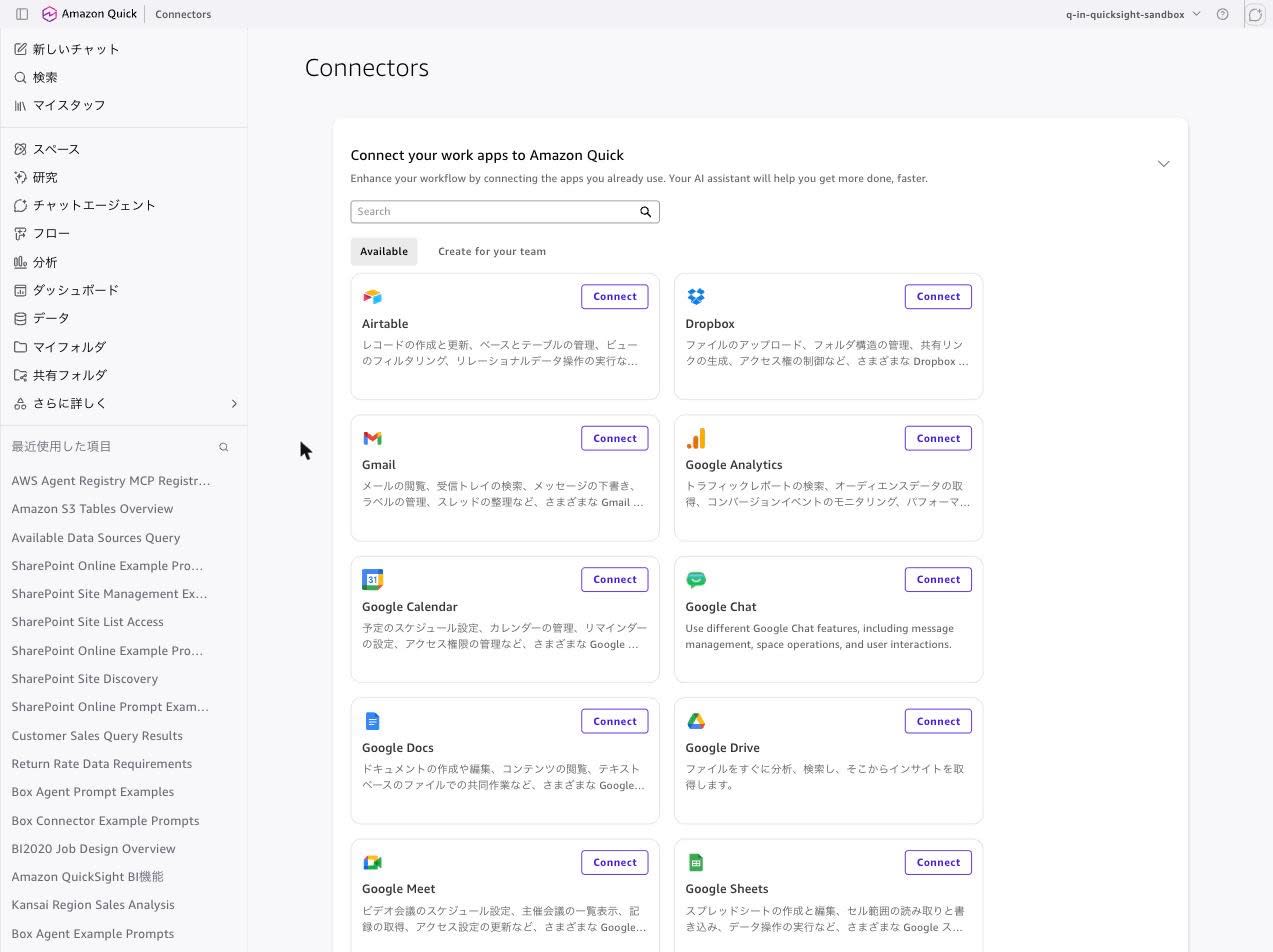
In the Quick console, open "Connectors" from "Learn more" in the left sidebar.
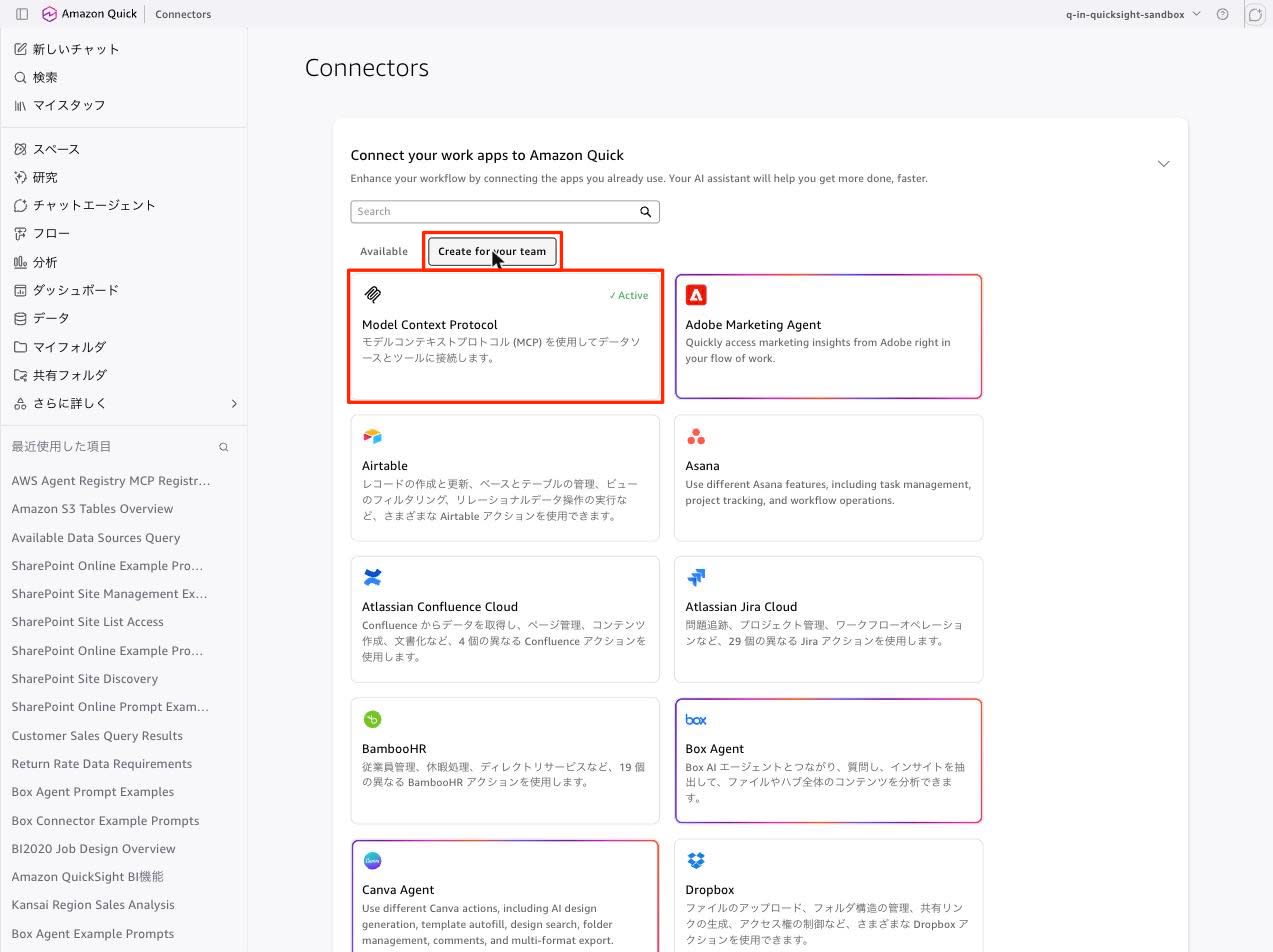
Switch to the "Create for your team" tab and select "Model Context Protocol."
Here I notice the first change. The wizard has a 5-step structure: Connect, Authentication, Manage Write Permissions, Manage Read Permissions, and Publish.
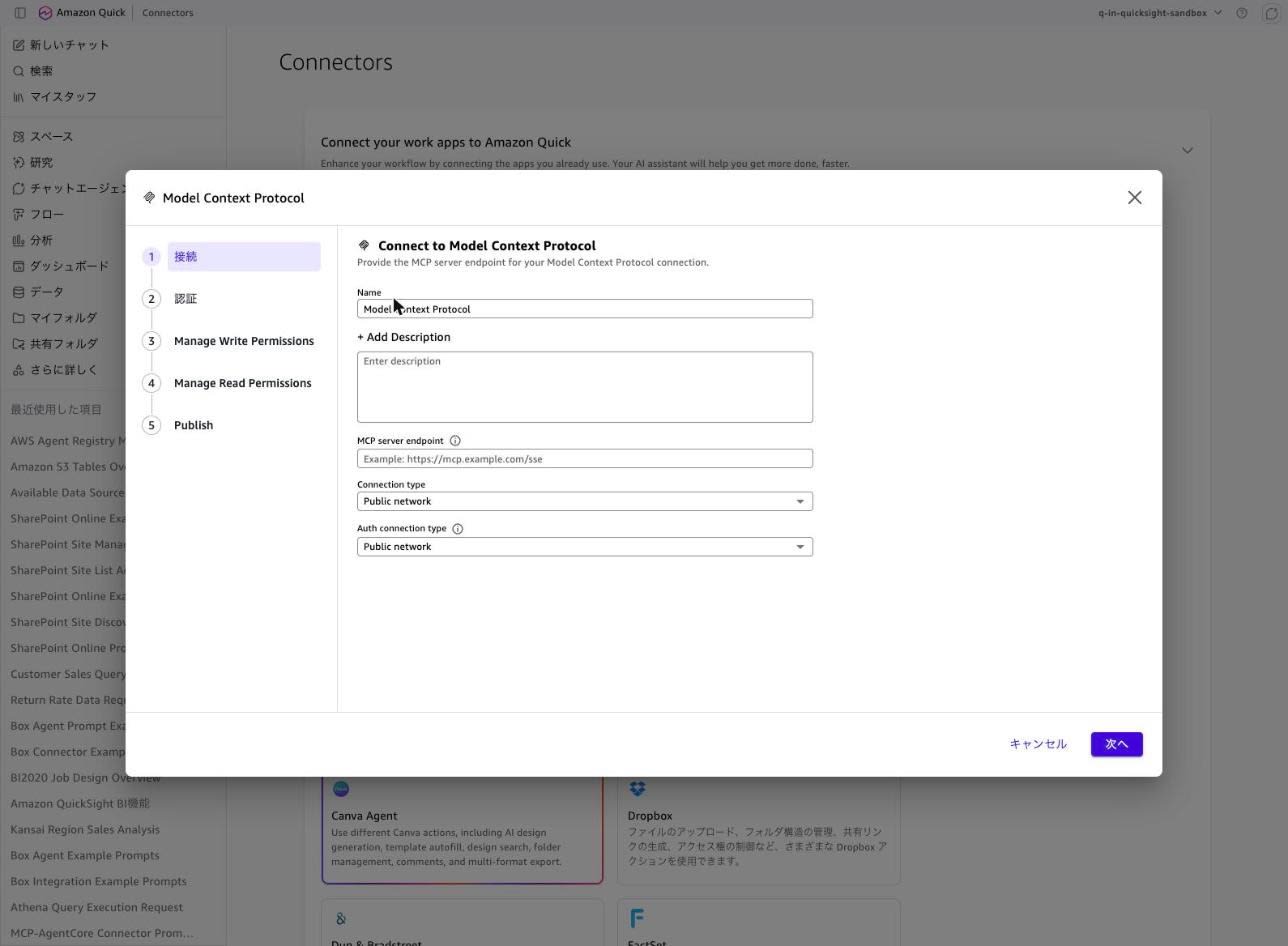
The steps described in the official documentation proceed from authentication settings to reviewing integration details and sharing settings, but the actual screen has two permission management steps in between. The tool settings added in this update are consolidated into these steps.
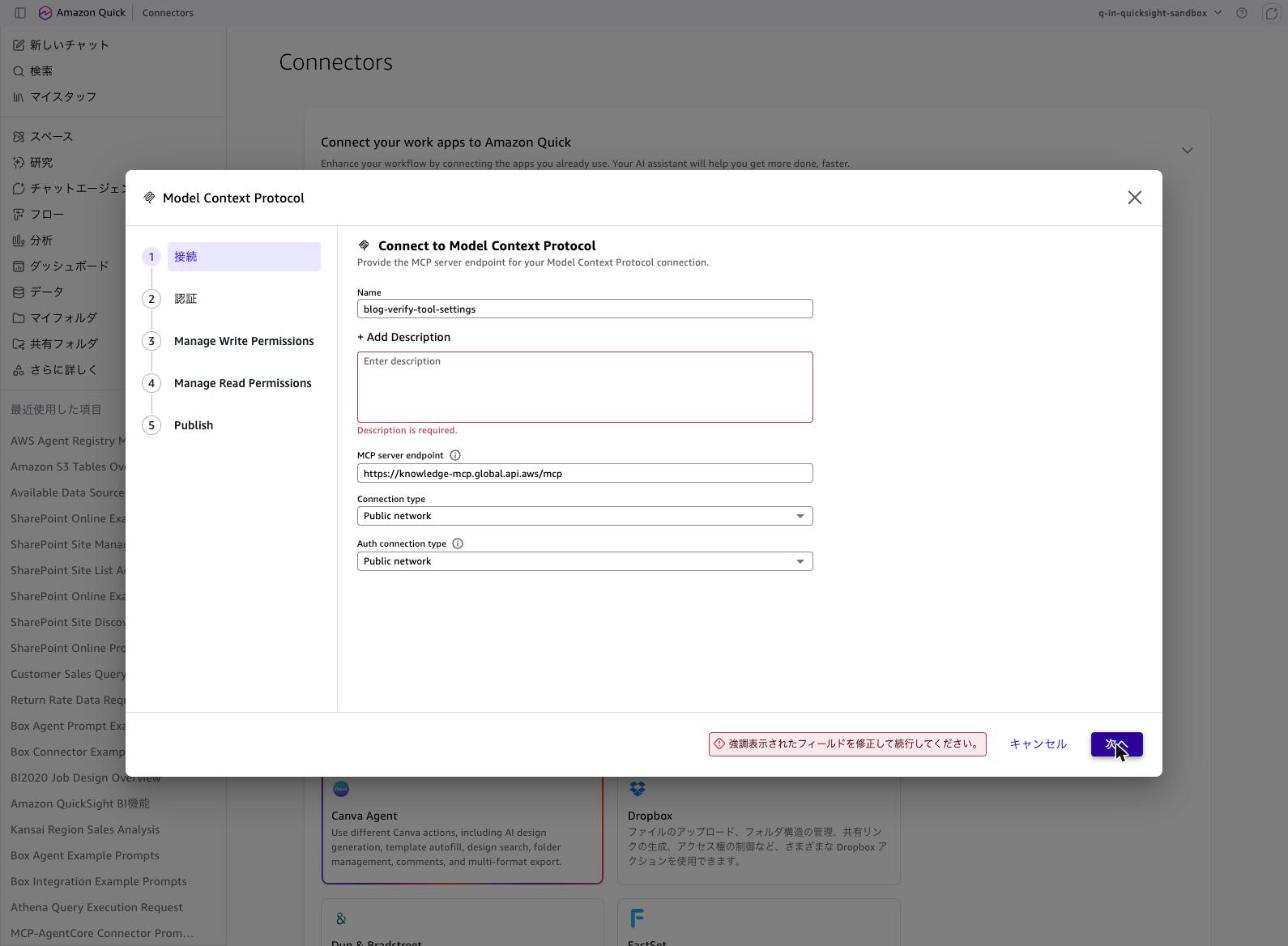
In step 1, you enter the name, description, MCP server endpoint, and connection type. There are two things to note. The first is that Description was a required field. The label on the screen reads "+ Add Description," and the official documentation also lists it as Optional, but trying to proceed with it empty displays Description is required. and prevents you from moving forward.
Second, the characters allowed in the description are restricted. When I entered a description containing parentheses, the following validation error was returned.
Description can only contain letters, numbers, spaces, and the characters _ . , ! ? -
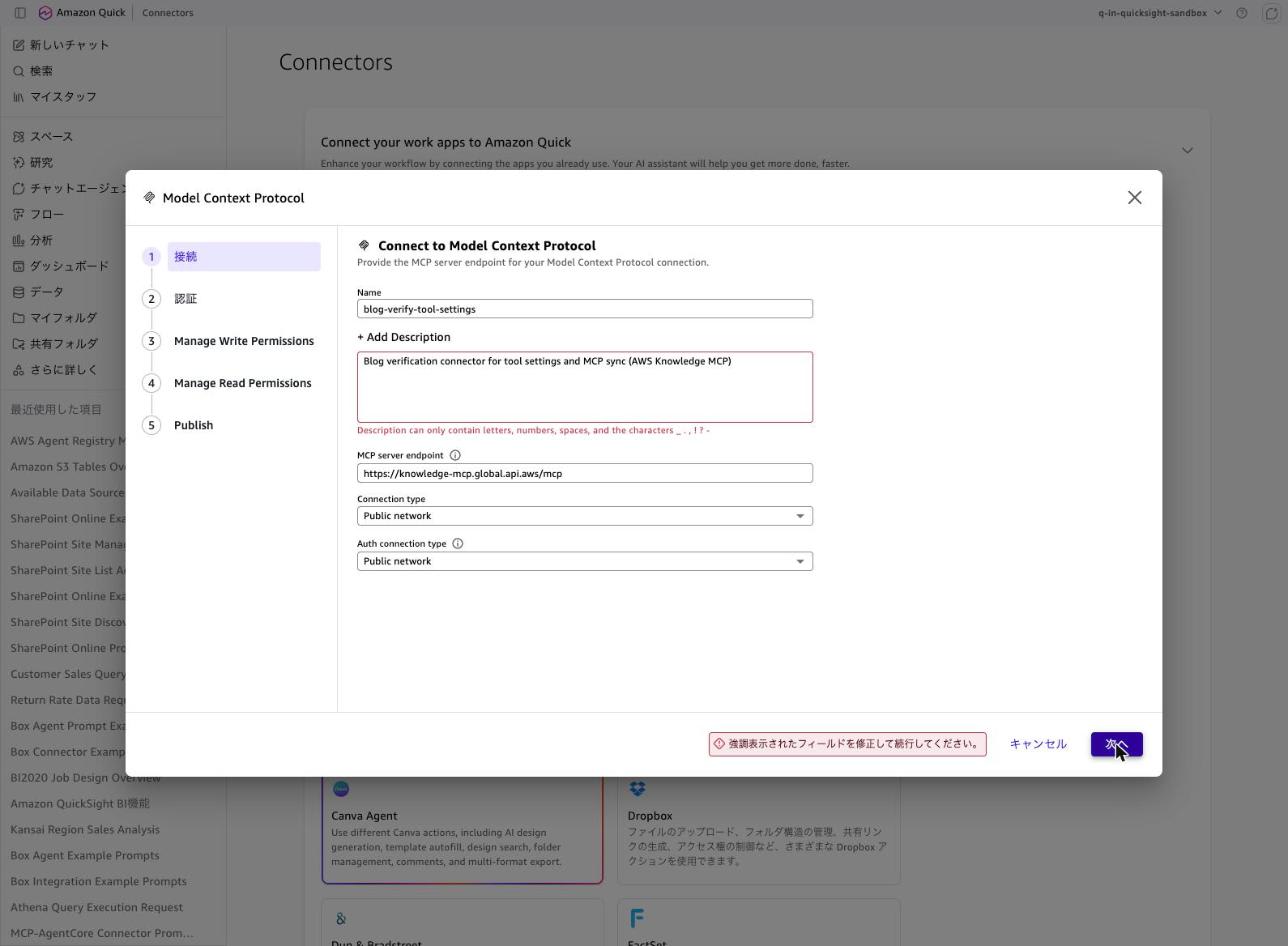
Rewriting the description without parentheses allowed me to proceed.
Also, there was an "Auth connection type" field below the connection type, which allowed specifying a connection path to the authentication server separately from the connection path to the resource server.
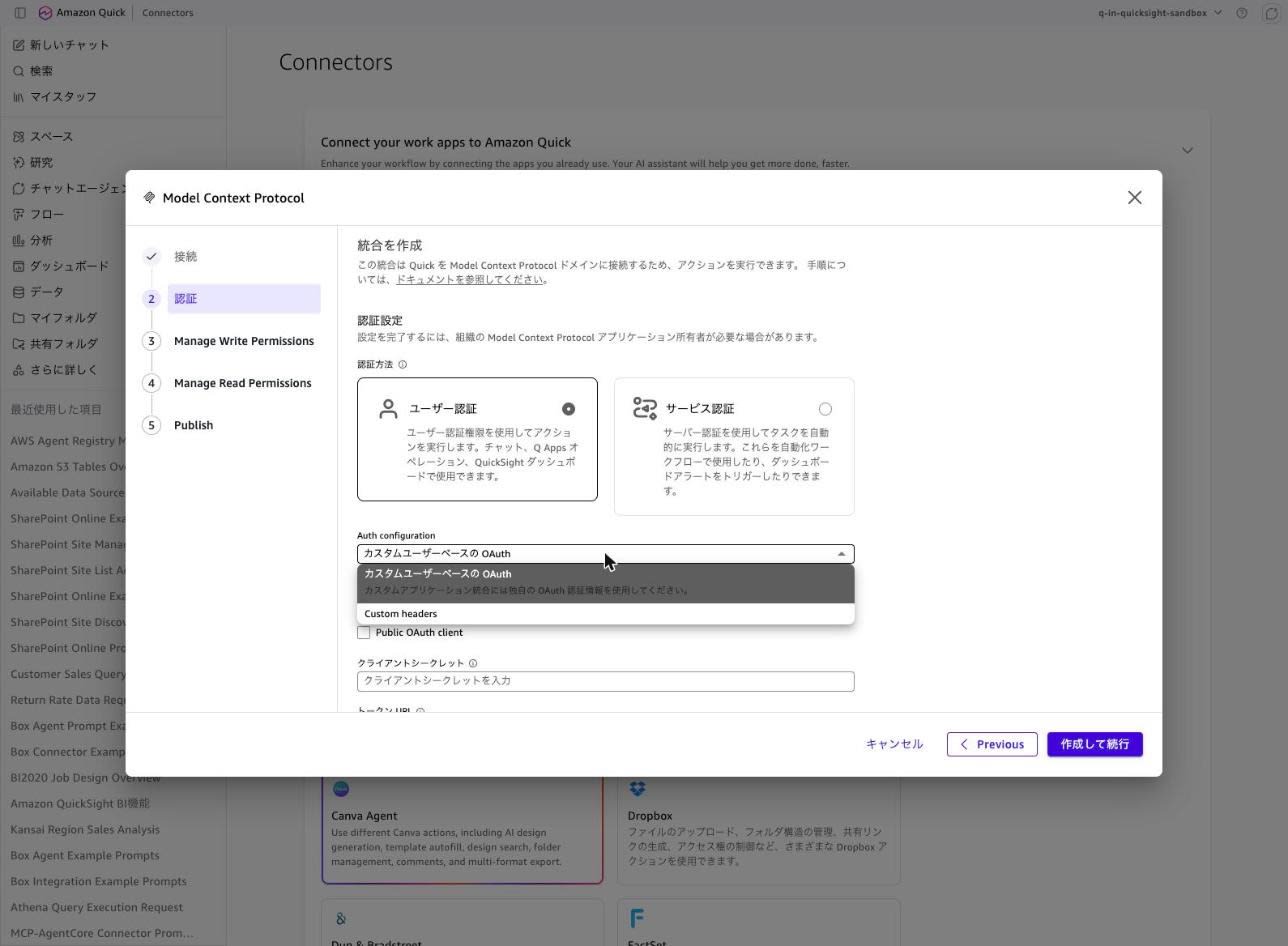
In step 2, authentication, you choose between user authentication and service authentication. Since the AWS Knowledge MCP Server requires no authentication, I would prefer to select no authentication, but when choosing user authentication, the Auth configuration options are only "Custom user-based OAuth" and "Custom headers," with no option equivalent to no authentication.
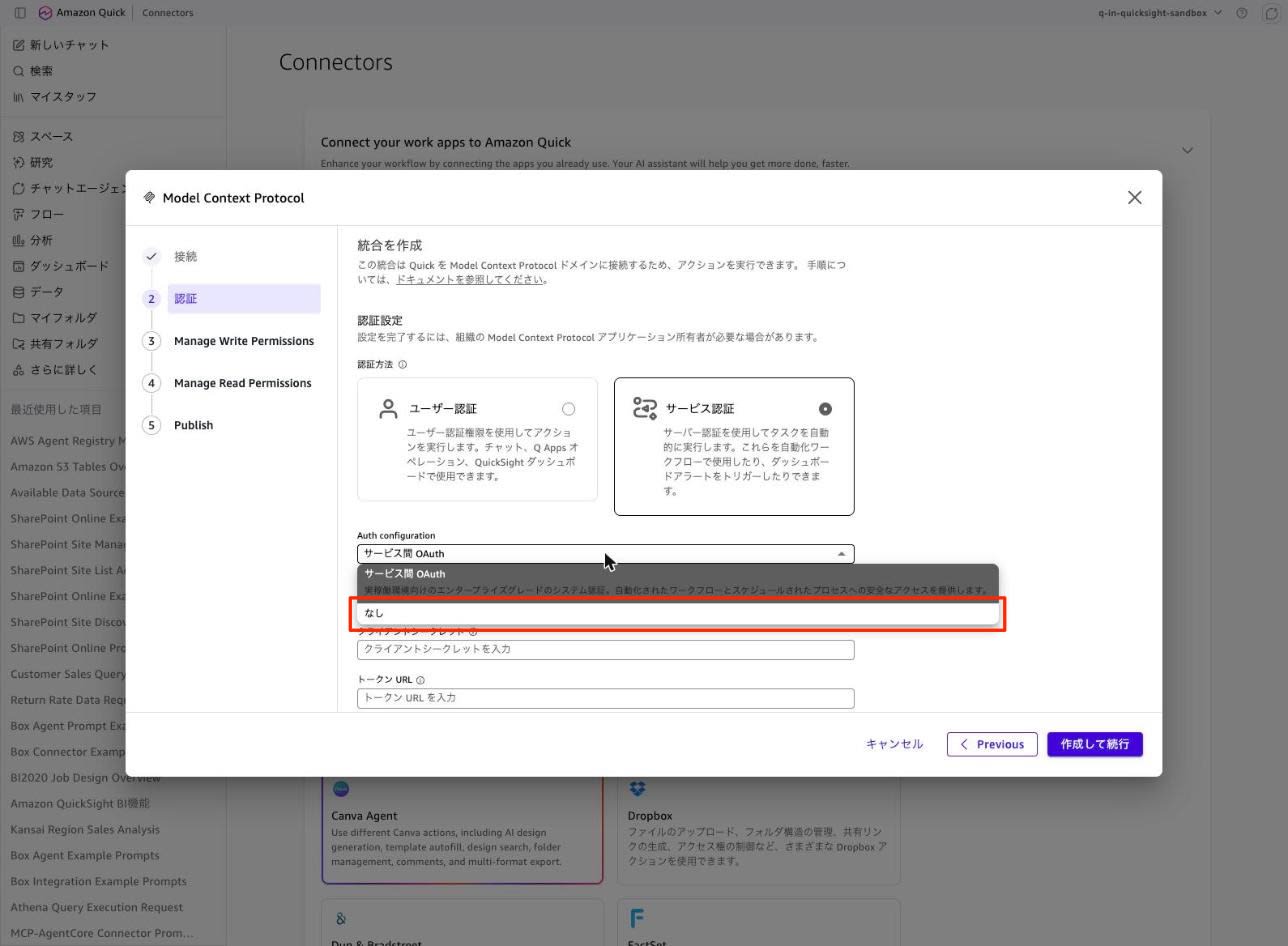
Switching to service authentication reveals "None" in the Auth configuration. I selected this option.
Setting Access Levels Per Tool
Pressing "Create and continue" starts tool detection from the MCP server. The screen indicates this may take a few minutes, but it completed in under 10 seconds this time.
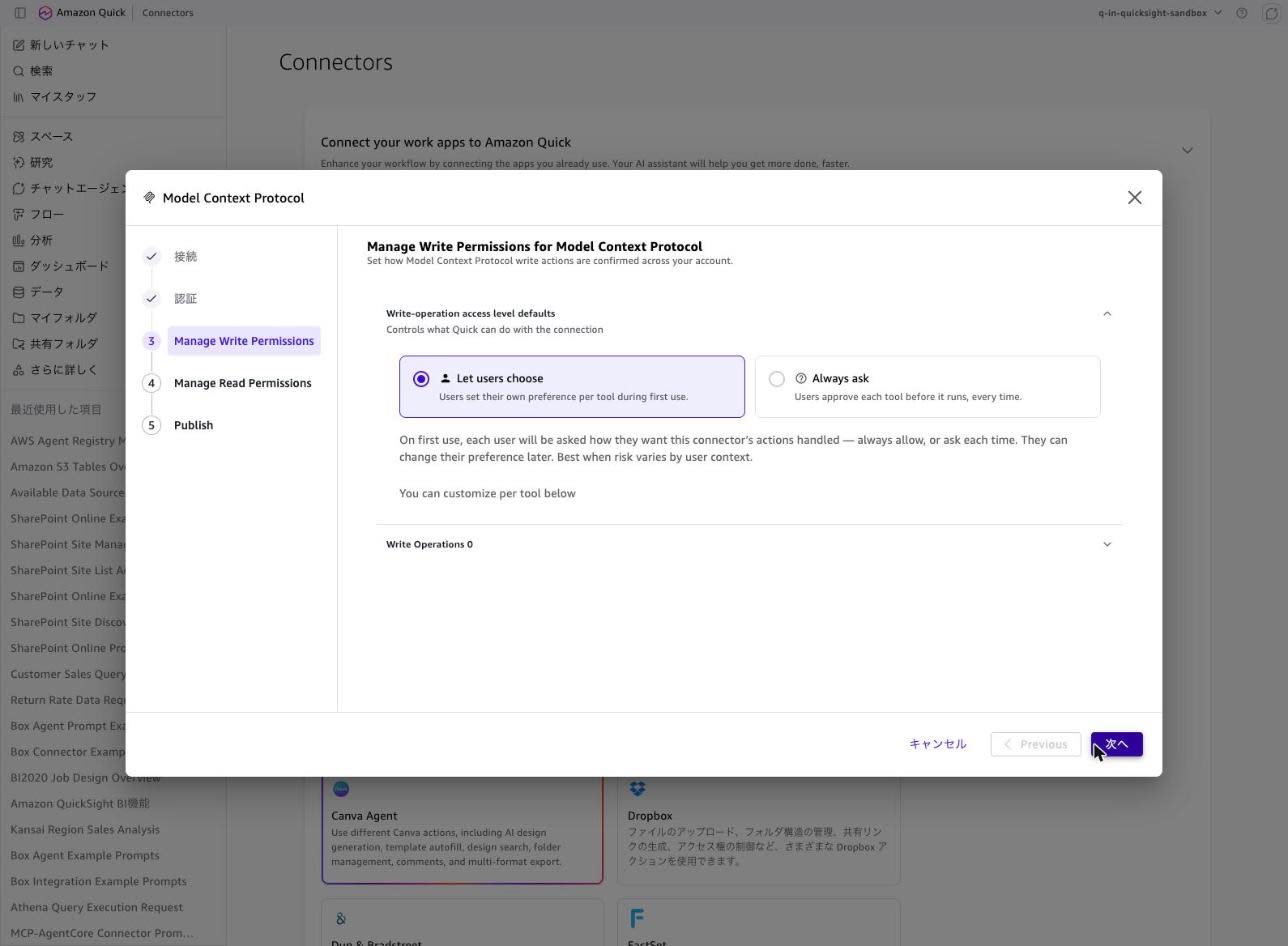
Once detection is complete, you proceed to step 3, Manage Write Permissions. Here there were two options under "Write-operation access level defaults" for deciding how write-type tools are handled by default.
- Let users choose: Users configure this themselves on first use
- Always ask: Require user approval before each execution
Since the AWS Knowledge MCP Server is read-only, there were 0 Write Operations.
In the following step 4, Manage Read Permissions, 5 read-type tools were detected.
| Action | Description |
|---|---|
| aws___get_regional_availability | AWS resource availability per region |
| aws___list_regions | Retrieve a list of all AWS regions |
| aws___read_documentation | Fetch full AWS doc pages as markdown |
| aws___retrieve_skill | Retrieve an AWS skill (workflows, references) |
| aws___search_documentation | AWS docs search |
A dropdown is provided for each tool. The options were Let users choose, Always ask, and Disabled.
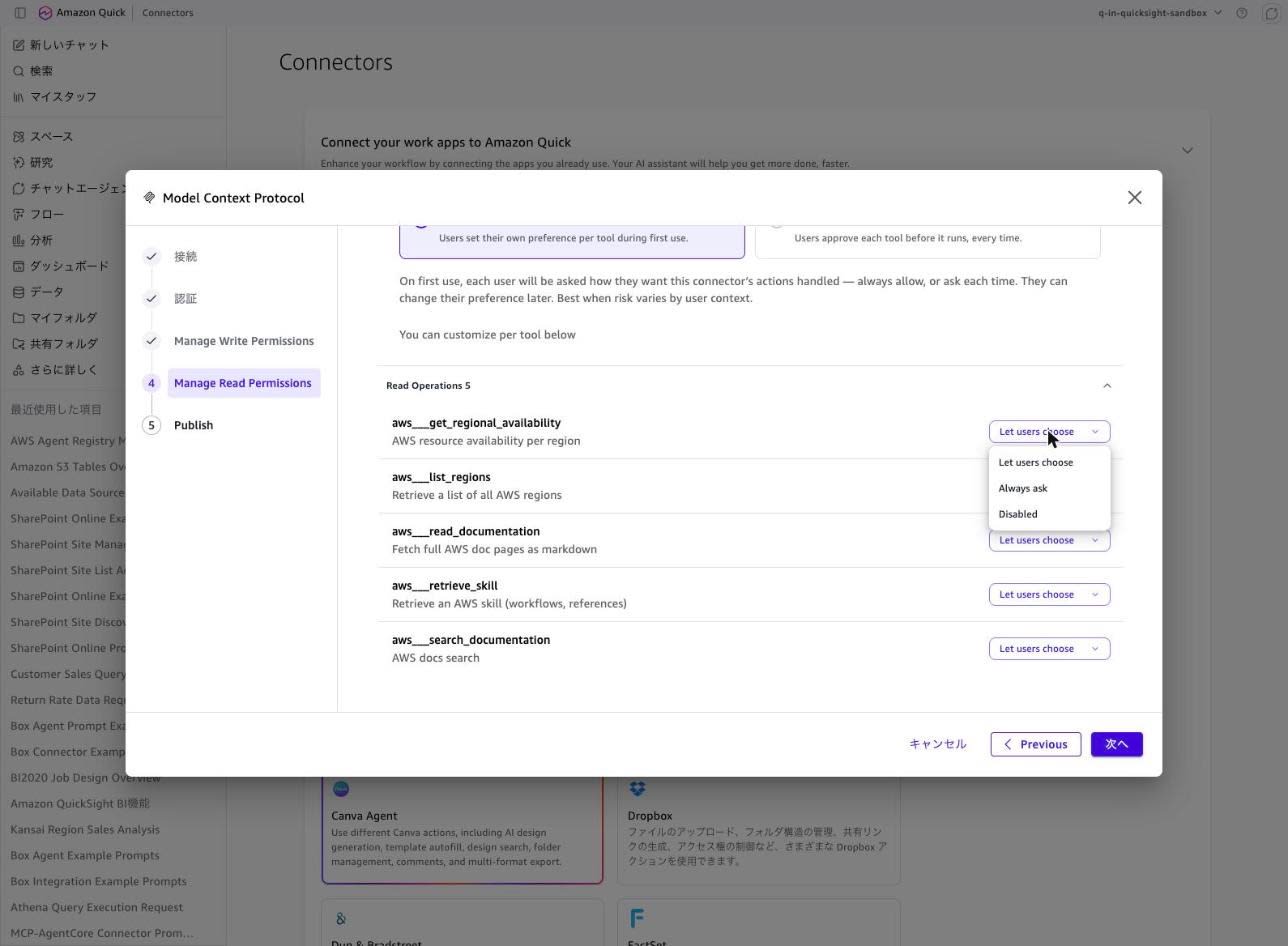
In other words, the "individual enable/disable of tools" and "consent requirement settings" mentioned in the What's New are not separate configuration items but are integrated into a single per-tool dropdown.
To verify behavior, I configured the following.
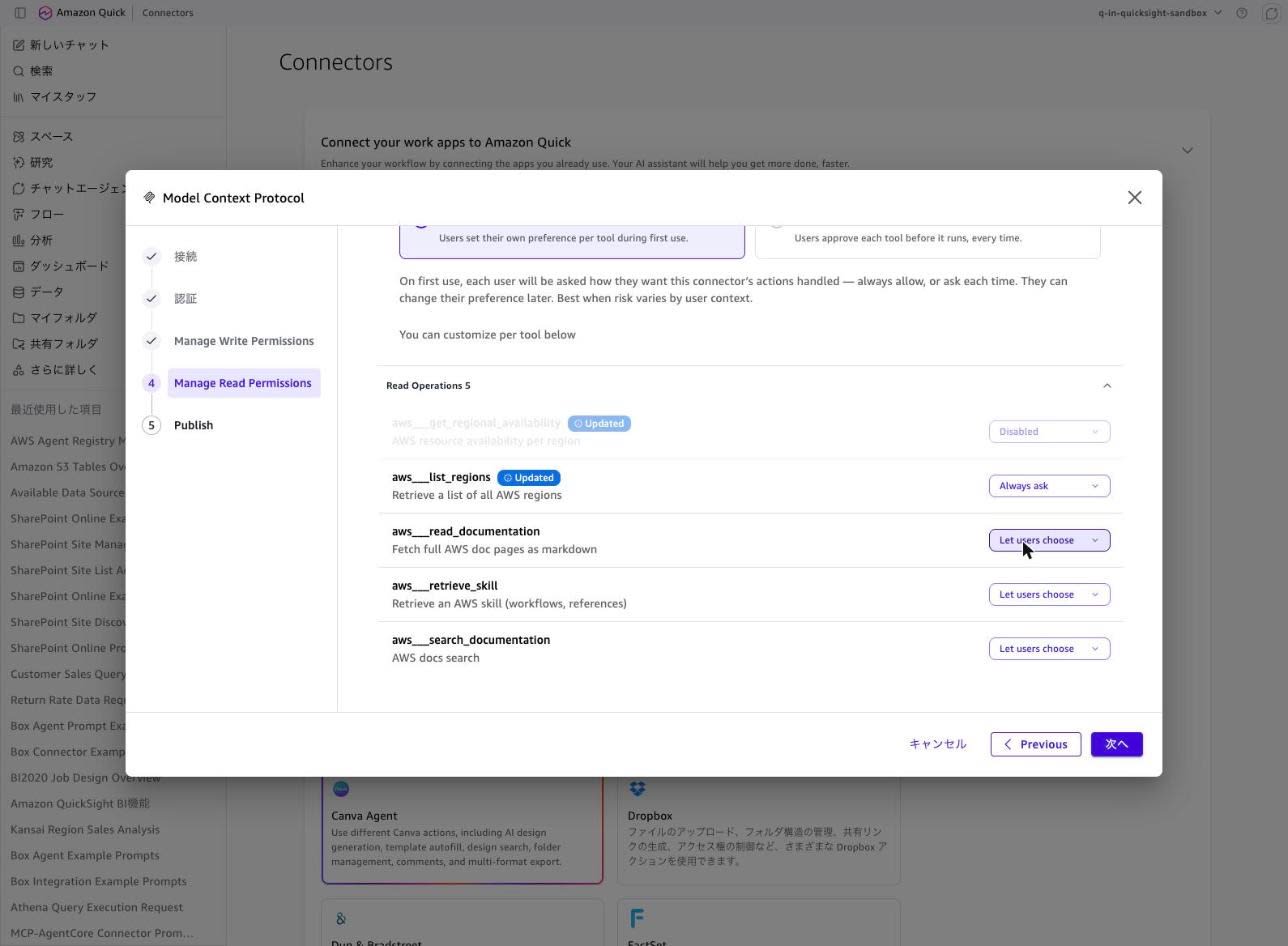
- Set
aws___get_regional_availabilityto Disabled - Set
aws___list_regionsto Always ask - Left the remaining 3 as Let users choose
Tools with changed settings show an "Updated" badge, and tools set to Disabled have their entire row grayed out.
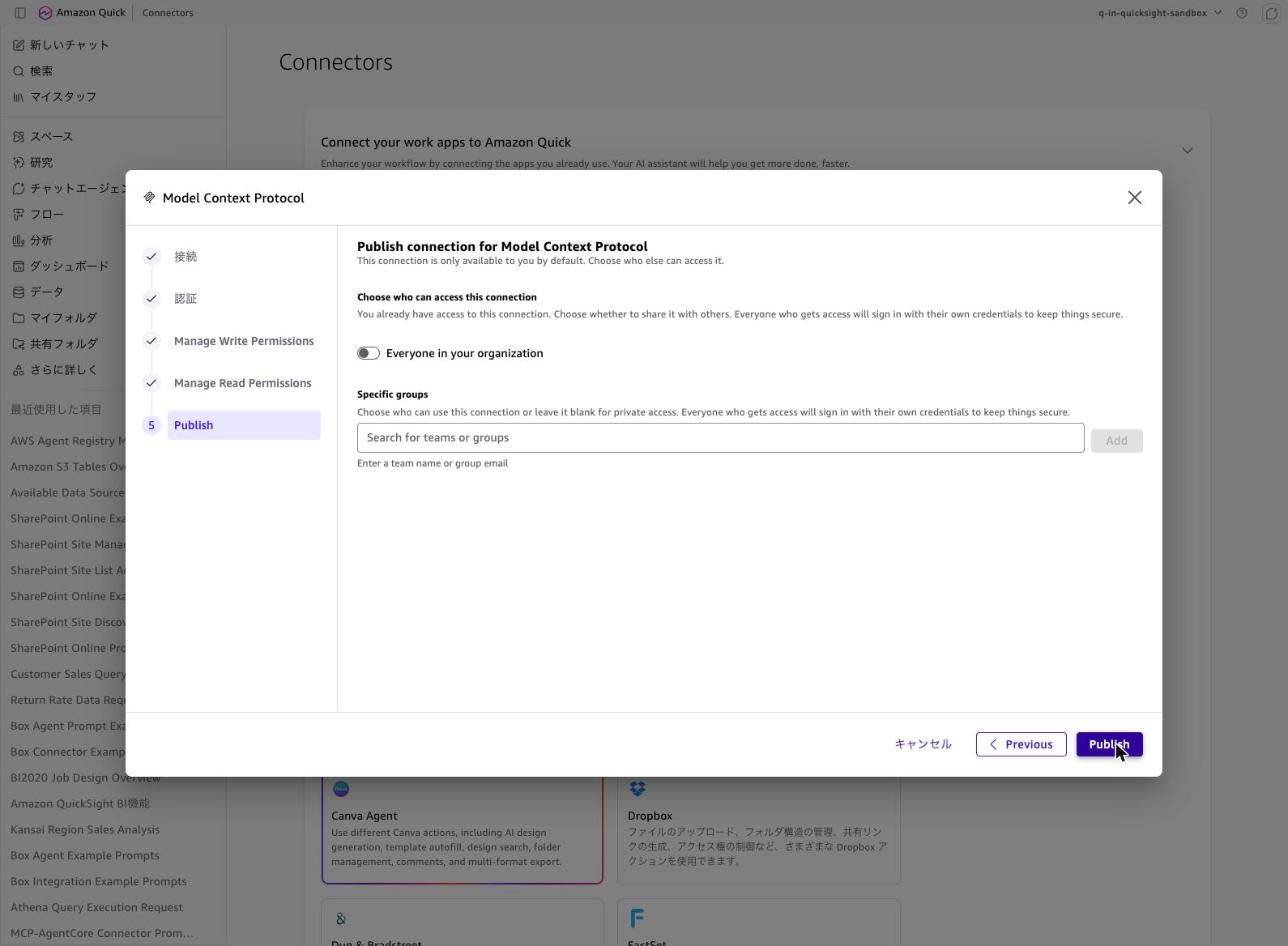
In step 5, Publish, you specify the sharing scope. I published it privately, leaving the organization-wide sharing toggle off and not specifying any particular group.
Checking the Created Connector via CLI
After publishing, I check the connector from the CLI.
% aws quicksight list-action-connectors \
  --aws-account-id 123456789012 \
  --region ap-northeast-1 \
  --query "ActionConnectorSummaries[?Name=='blog-verify-tool-settings']" \
  --output json
[
    {
        "Arn": "arn:aws:quicksight:ap-northeast-1:123456789012:action-connector/7aaa19a8-7740-4aa0-bf18-f2a01cd5d6c6",
        "ActionConnectorId": "7aaa19a8-7740-4aa0-bf18-f2a01cd5d6c6",
        "Type": "MODEL_CONTEXT_PROTOCOL",
        "Name": "blog-verify-tool-settings",
        "CreatedTime": "2026-09-03T19:21:45.758000+09:00",
        "LastUpdatedTime": "2026-09-03T19:24:19.513000+09:00",
        "Status": "CREATION_SUCCESSFUL"
    }
]
Since the connector was created from the console, it is in the identity region (ap-northeast-1 in this case), so I specify ap-northeast-1.
Type is returned as MODEL_CONTEXT_PROTOCOL. Note that this value was not included in the ActionConnectorType enum held by botocore 1.43.65 at the time of verification. The API was ahead of the SDK, but this did not prevent referencing it via CLI.
Next, I retrieve the details.
% aws quicksight describe-action-connector \
  --aws-account-id 123456789012 \
  --action-connector-id 7aaa19a8-7740-4aa0-bf18-f2a01cd5d6c6 \
  --region ap-northeast-1 \
  --output json
{
    "Status": 200,
    "ActionConnector": {
        "Arn": "arn:aws:quicksight:ap-northeast-1:123456789012:action-connector/7aaa19a8-7740-4aa0-bf18-f2a01cd5d6c6",
        "ActionConnectorId": "7aaa19a8-7740-4aa0-bf18-f2a01cd5d6c6",
        "Type": "MODEL_CONTEXT_PROTOCOL",
        "Name": "blog-verify-tool-settings",
        "CreatedTime": "2026-09-03T19:21:45.758000+09:00",
        "LastUpdatedTime": "2026-09-03T19:24:19.513000+09:00",
        "Status": "CREATION_SUCCESSFUL",
        "Description": "Blog verification connector for tool settings and MCP sync using AWS Knowledge MCP",
        "AuthenticationConfig": {
            "AuthenticationType": "NONE",
            "AuthenticationMetadata": {
                "NoneConnectionMetadata": {
                    "BaseEndpoint": "https://knowledge-mcp.global.api.aws/mcp"
                }
            }
        },
        "EnabledActions": [
            "4a887df9-ea40-4d12-b97c-c733e3996793",
            "798fed48-56fc-44de-8af8-ef9d1840860c",
            "9d9f57cd-e6bc-452e-9ef7-6ee9590c7c03",
            "bdf3b3dc-90a6-4a73-a54a-0aba9c42844d"
        ]
    }
}
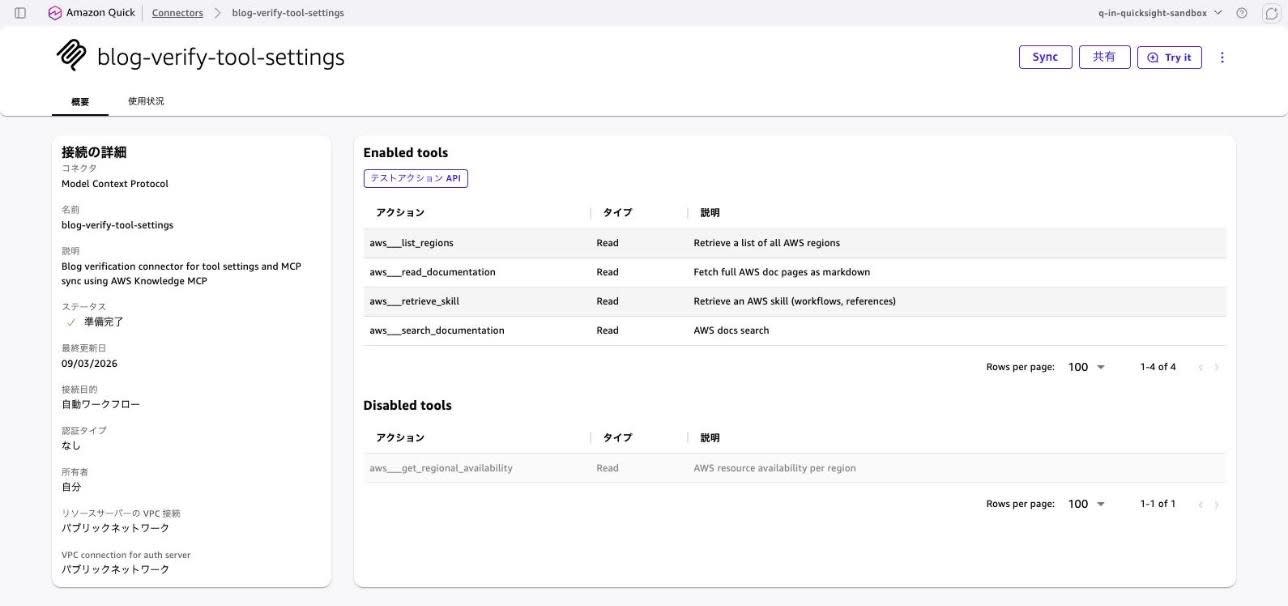
Although 5 tools were detected, EnabledActions shows 4. This confirms that the disabled aws___get_regional_availability has been excluded.
On the other hand, aws___list_regions, which was set to Always ask, remains in EnabledActions. This means EnabledActions only indicates "enabled or disabled," and whether consent is required cannot be determined from the current API response.
The connector details screen in the console was also consistent with this result. 4 tools appear under Enabled tools and 1 under Disabled tools.
Running MCP Sync
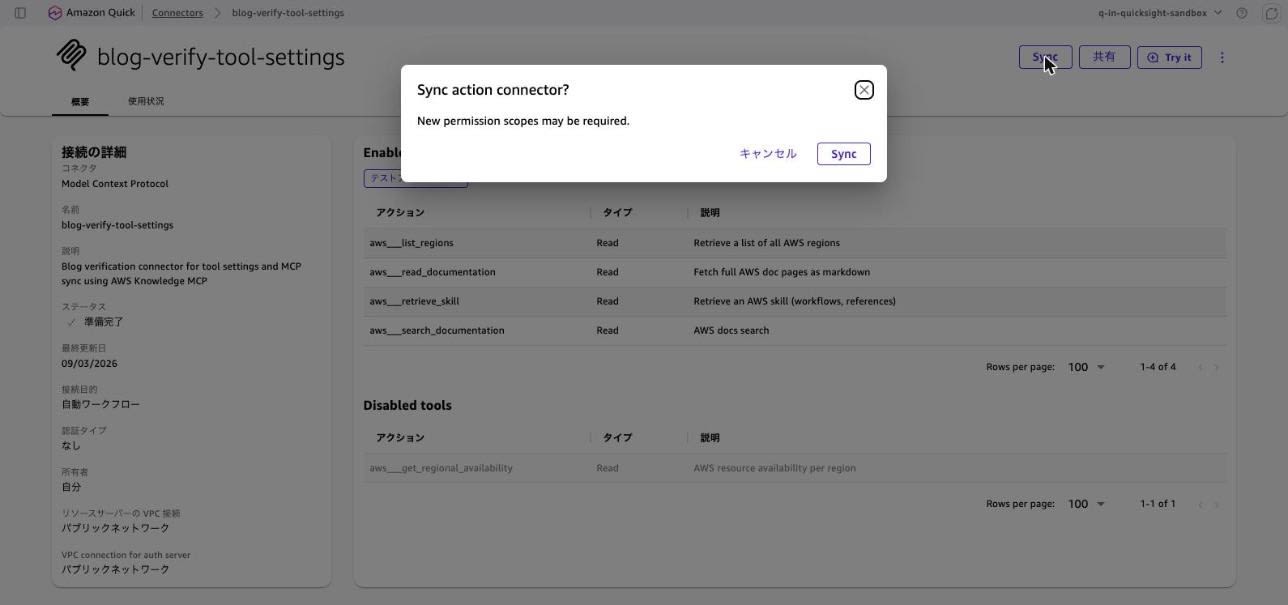
A Sync button has been added to the upper right of the connector details screen. Pressing it displayed a confirmation dialog.
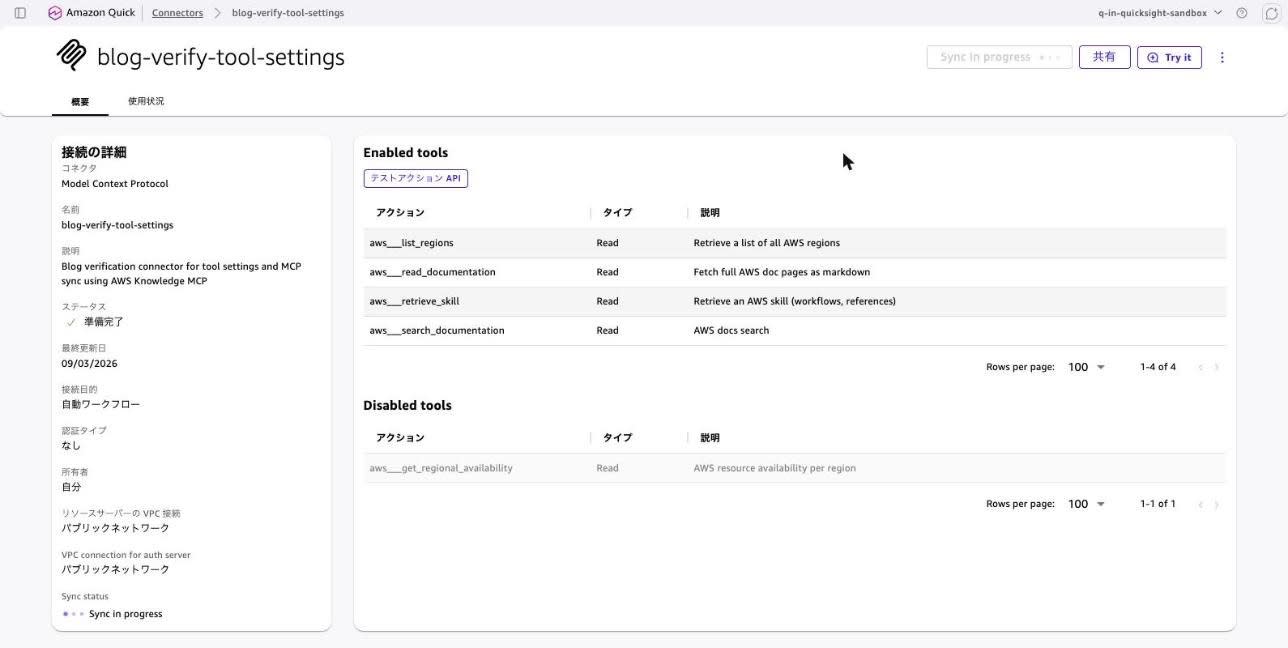
Upon execution, the button changes to "Sync in progress," and a Sync status item is added to the connection information on the left, displaying Sync in progress.
It changed to Synced in about 10 seconds.
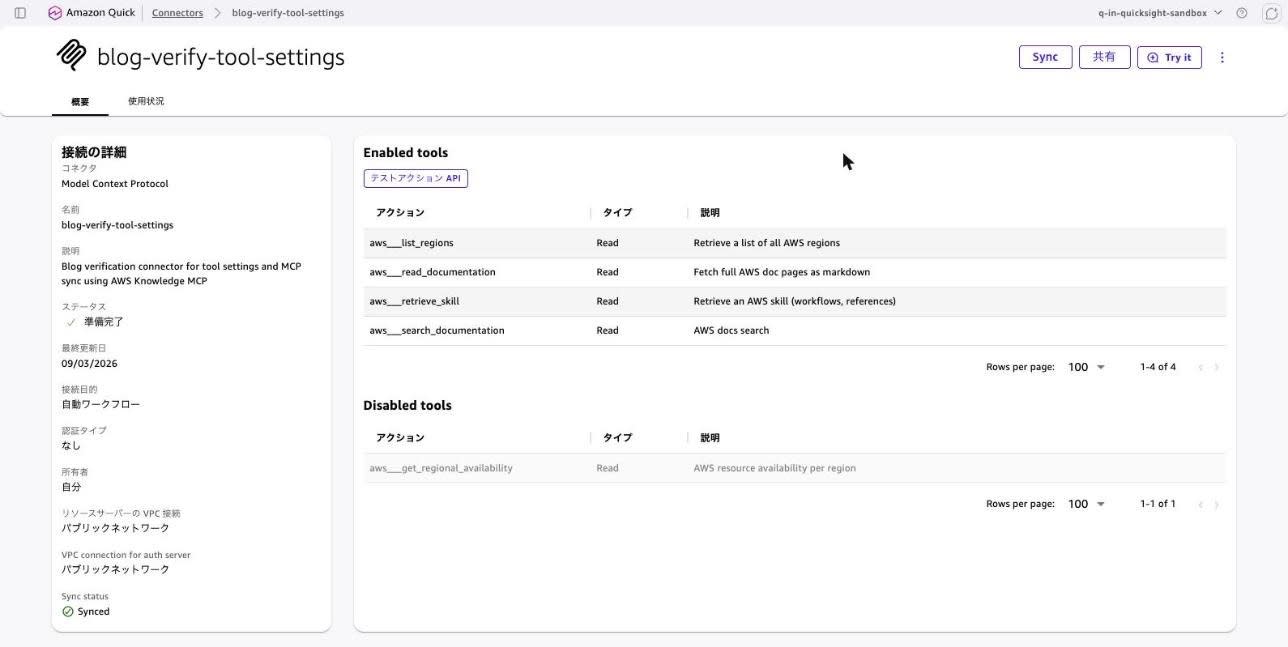
What I found notable was that the tool enable/disable settings were retained after the sync. Enabled tools remained at 4 and Disabled tools at 1, and the disabled tool was not re-enabled by the sync. The behavior is that a tool intentionally closed by an administrator will not be reopened due to updates on the server side.
I also retrieved the state from the CLI before and after running the sync, but there was no change in Status, EnabledActions, or LastUpdatedTime.
% aws quicksight describe-action-connector \
  --aws-account-id 123456789012 \
  --action-connector-id 7aaa19a8-7740-4aa0-bf18-f2a01cd5d6c6 \
  --region ap-northeast-1 \
  --query 'ActionConnector.{Status:Status,LastUpdated:LastUpdatedTime,Enabled:length(EnabledActions)}' \
  --output json
{
    "Status": "CREATION_SUCCESSFUL",
    "LastUpdated": "2026-09-03T19:24:19.513000+09:00",
    "Enabled": 4
}
Since the target was the AWS Knowledge MCP Server and I could not add or modify tools on my end, I was unable to observe the sync picking up changes from the server side. Including the fact that the Sync status display is not exposed in the API, verifying the full picture of this feature would require setting up your own MCP server.
Changing Tool Settings After Creation
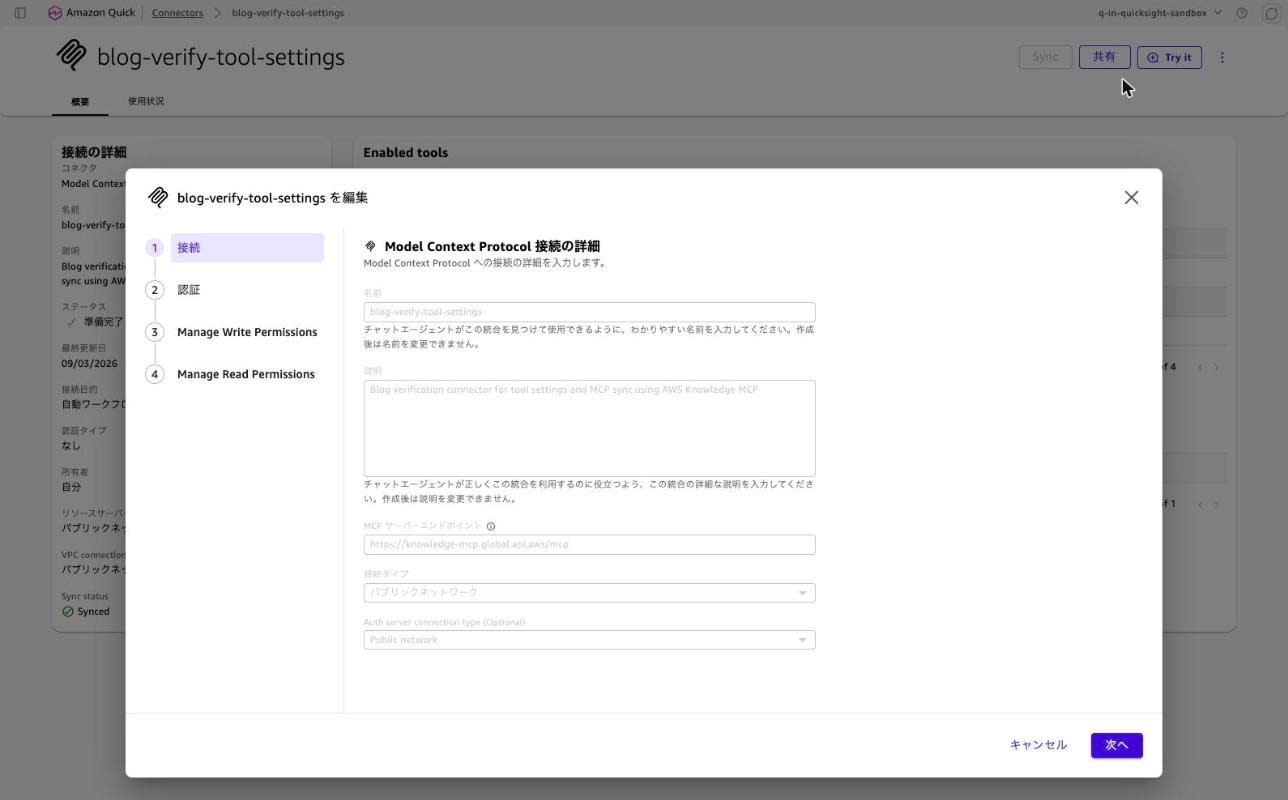
Selecting "Edit" from the menu at the upper right of the connector details screen opens a wizard with 4 steps (Publish is removed, replaced with an update button).
What I confirmed here is that the range of changes you can make in the edit screen is limited. The name, description, MCP server endpoint, and connection type are all grayed out, and the screen explicitly states "Name cannot be changed after creation" and "Description cannot be changed after creation." Only authentication settings and tool permissions can be edited.
When I proceeded to the Manage Read Permissions step, there was a concerning behavior. The disabled aws___get_regional_availability is displayed as Disabled, but aws___list_regions, which was supposed to be set to Always ask, is displayed as Let users choose.
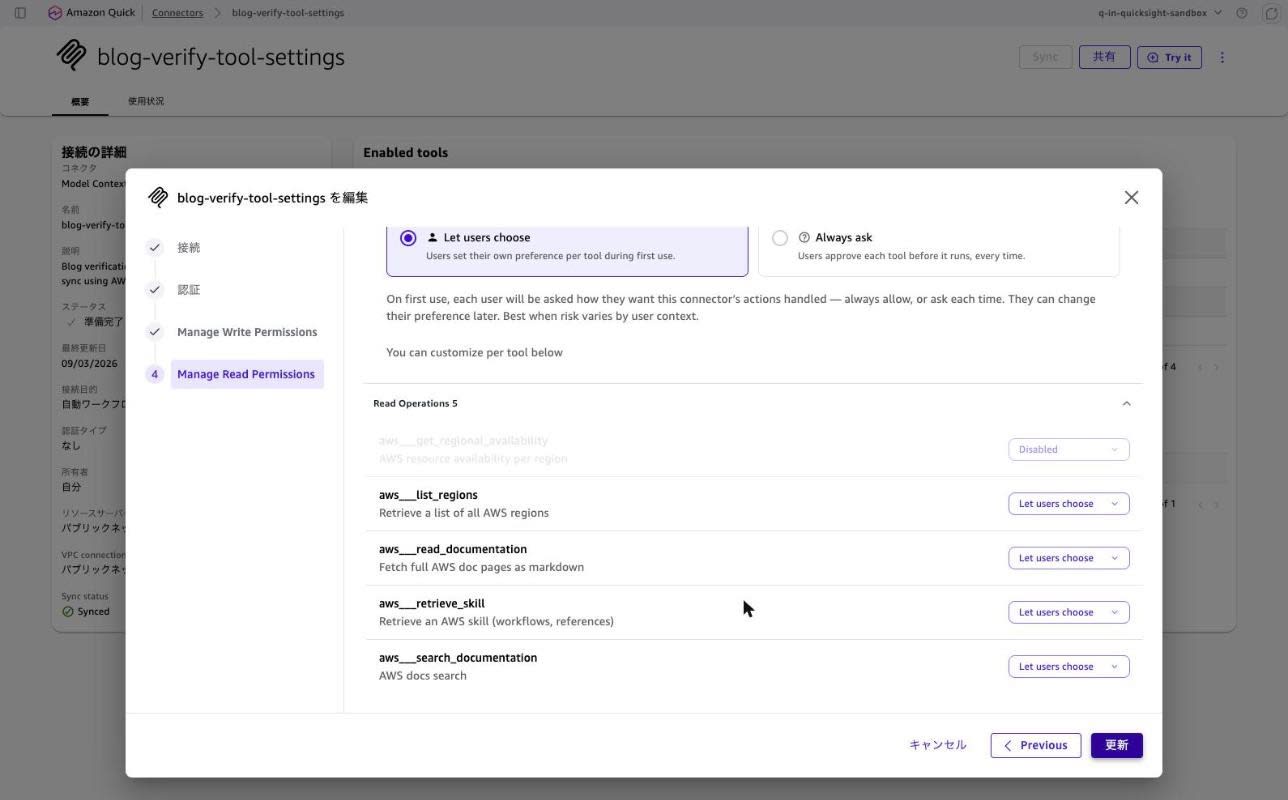
The enabled/disabled state is retained, but the consent requirement is not read back into the edit screen. Whether this means it was never saved in the first place, or the screen simply isn't loading it, cannot be determined since there is no other way to check the consent setting. Either way, proceeding with the update from this screen would save it as Let users choose, so if you have tools with required consent, you will need to reconfigure the setting every time you edit.
Next, I make changes in the opposite direction.
- Change
aws___get_regional_availabilityfrom Disabled back to Let users choose - Change
aws___search_documentationfrom Let users choose to Disabled
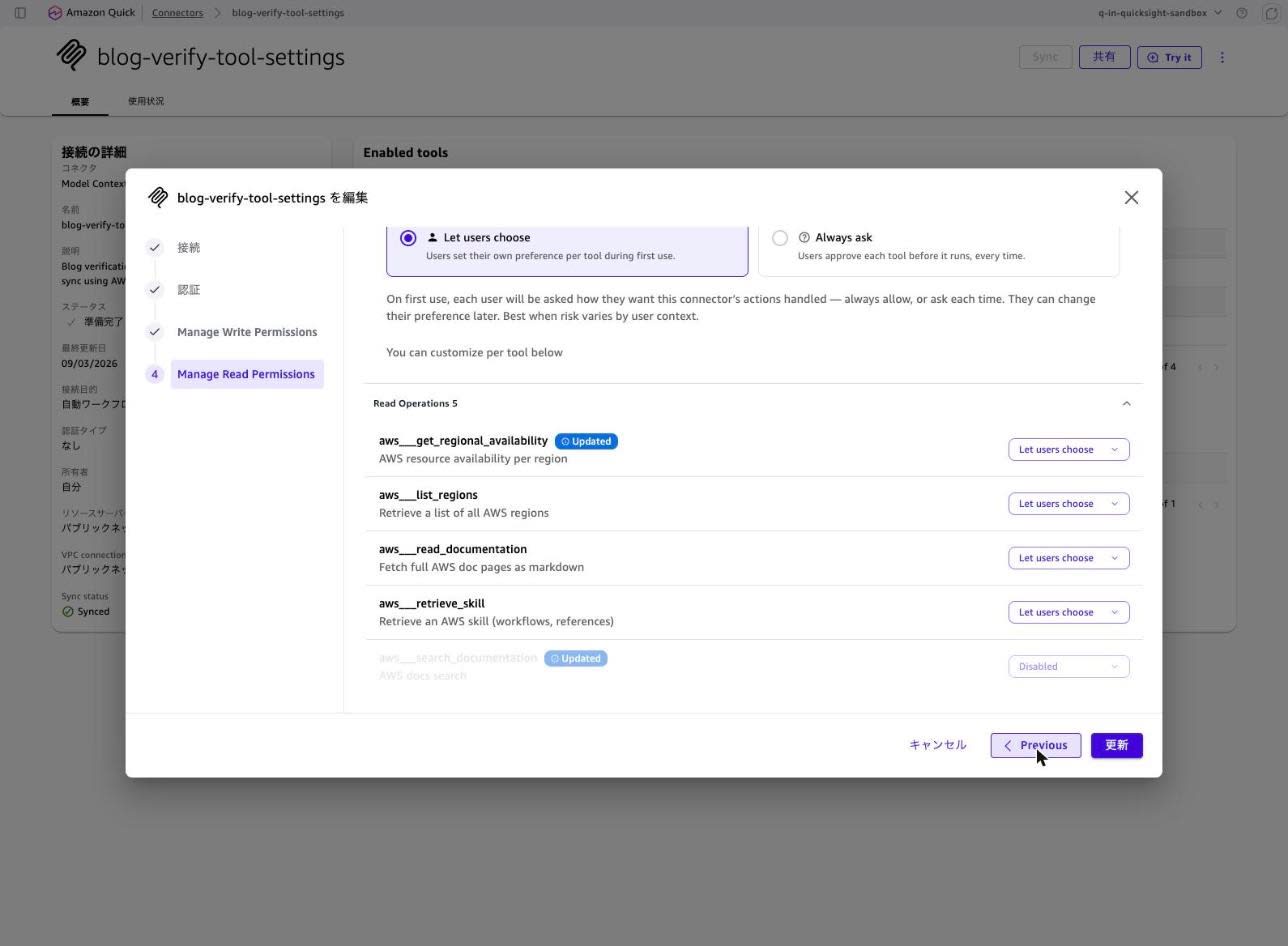
Pressing the update button displayed a confirmation dialog.
Disable selected tools?
Existing Quick agents and services that use these tools may stop working.
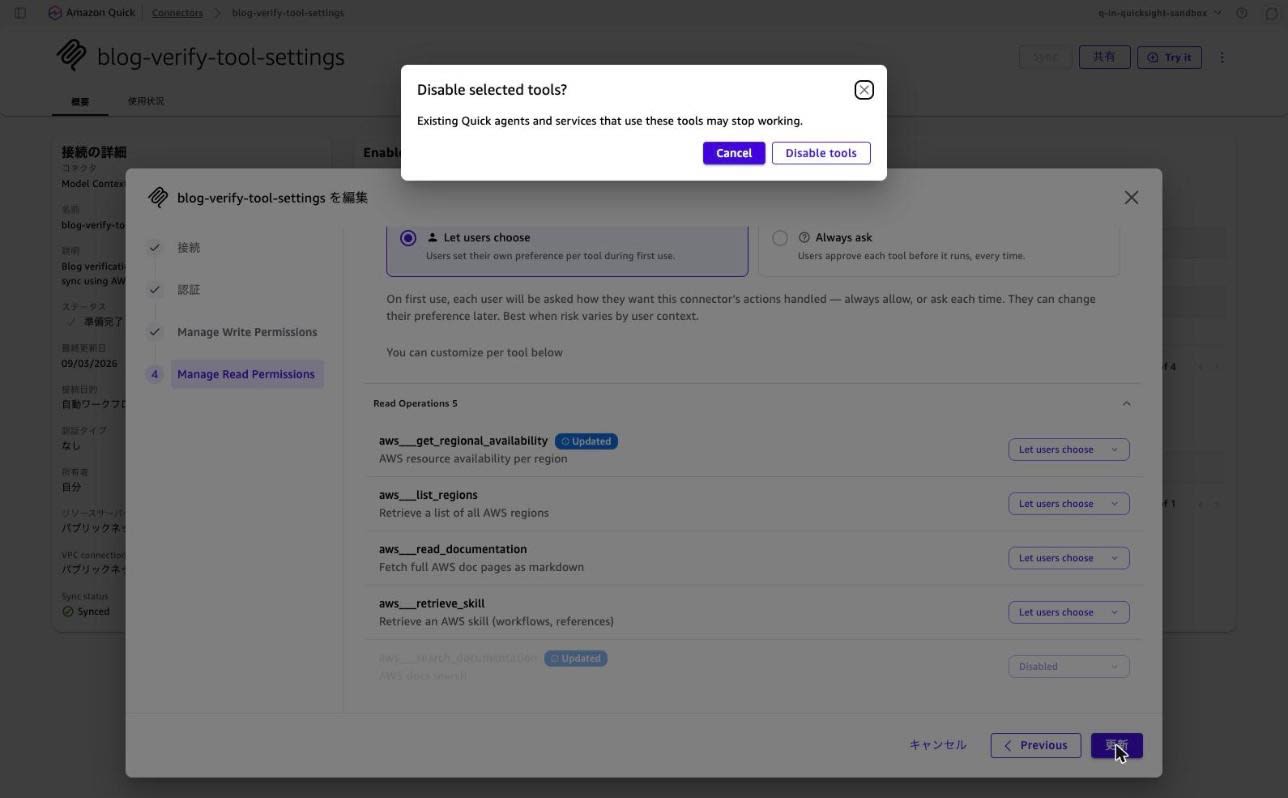
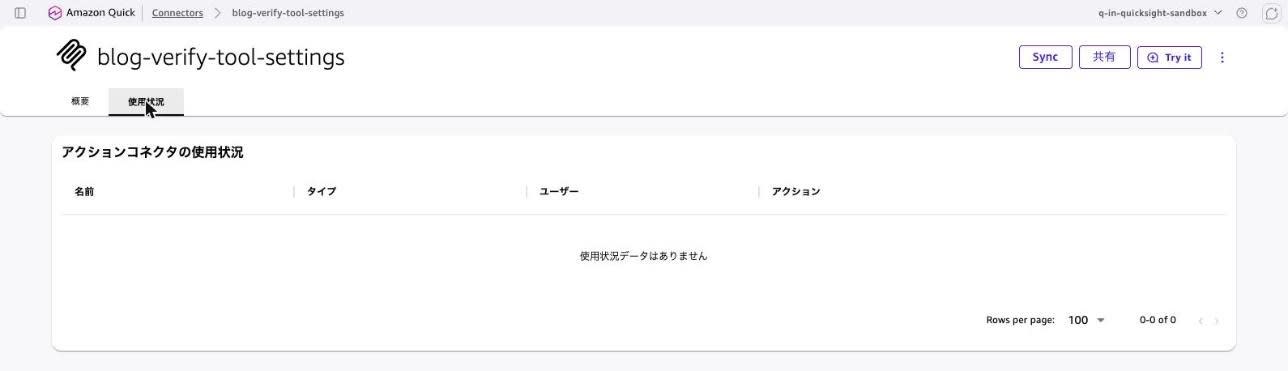
This warns that disabling a tool may affect existing agents and services that use it. Before actually disabling a tool, it is safer to check the "Usage" tab on the connector details screen to see which agents and users are using that connector.
After updating, I retrieve the diff from the CLI.
$ aws quicksight describe-action-connector \
  --aws-account-id 123456789012 \
  --action-connector-id 7aaa19a8-7740-4aa0-bf18-f2a01cd5d6c6 \
  --region ap-northeast-1 \
  --query 'ActionConnector.EnabledActions' \
  --output json
[
    "37d3e56f-5044-4970-a19b-a04f2723b28c",
    "798fed48-56fc-44de-8af8-ef9d1840860c",
    "9d9f57cd-e6bc-452e-9ef7-6ee9590c7c03",
    "bdf3b3dc-90a6-4a73-a54a-0aba9c42844d"
]
The count remains at 4, but the contents have changed. The 4a887df9-ea40-4d12-b97c-c733e3996793 of the disabled aws___search_documentation has been removed, and 37d3e56f-5044-4970-a19b-a04f2723b28c for the re-enabled aws___get_regional_availability has been added instead. LastUpdatedTime has also been updated from 19:24:19 to 19:30:00.
The console display has also changed accordingly.
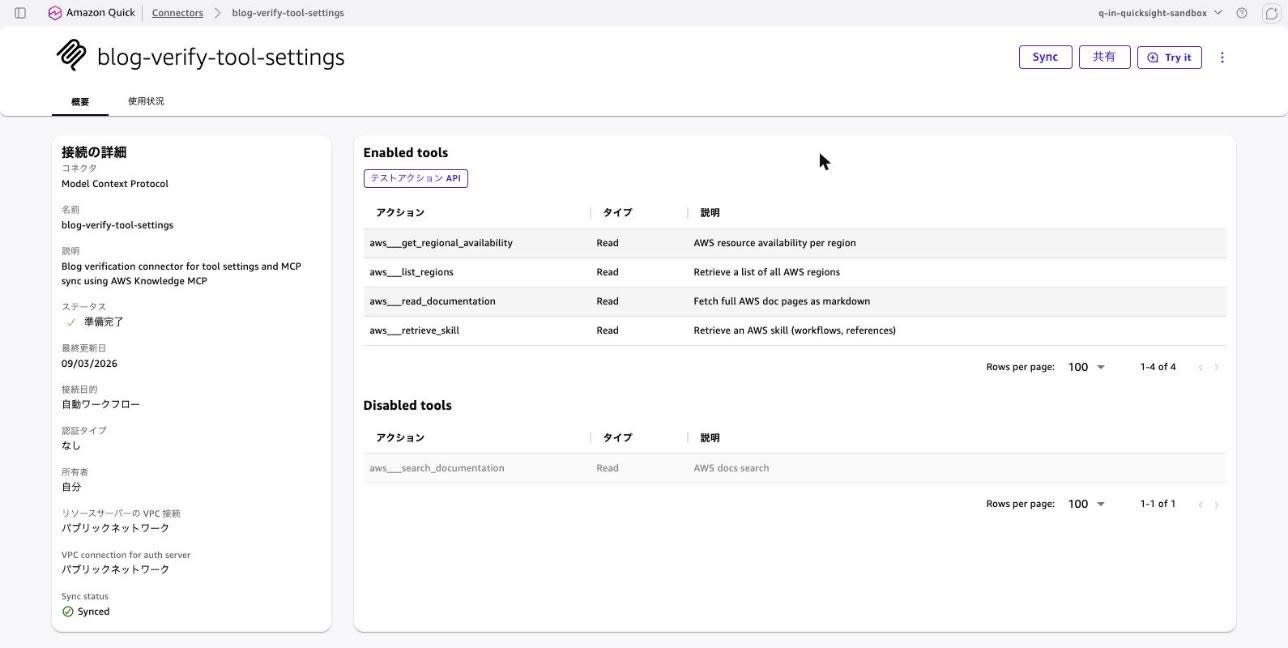
One thing to note here is that the ActionId assigned to the re-enabled tool is a different value from before it was disabled. It would be wise to avoid treating ActionId as a fixed identifier.
Executing Tools via the Test Action API
The Enabled tools section of the connector details screen has a "Test Action API" button. This is a feature for individually executing registered actions to verify that the connection is working correctly.
Selecting an action on this screen displays its schema. Selecting the re-enabled aws___get_regional_availability shows 37d3e56f-5044-4970-a19b-a04f2723b28c as the id. This matches the UUID that newly appeared in the CLI's EnabledActions, and you can correlate tool names and IDs here.
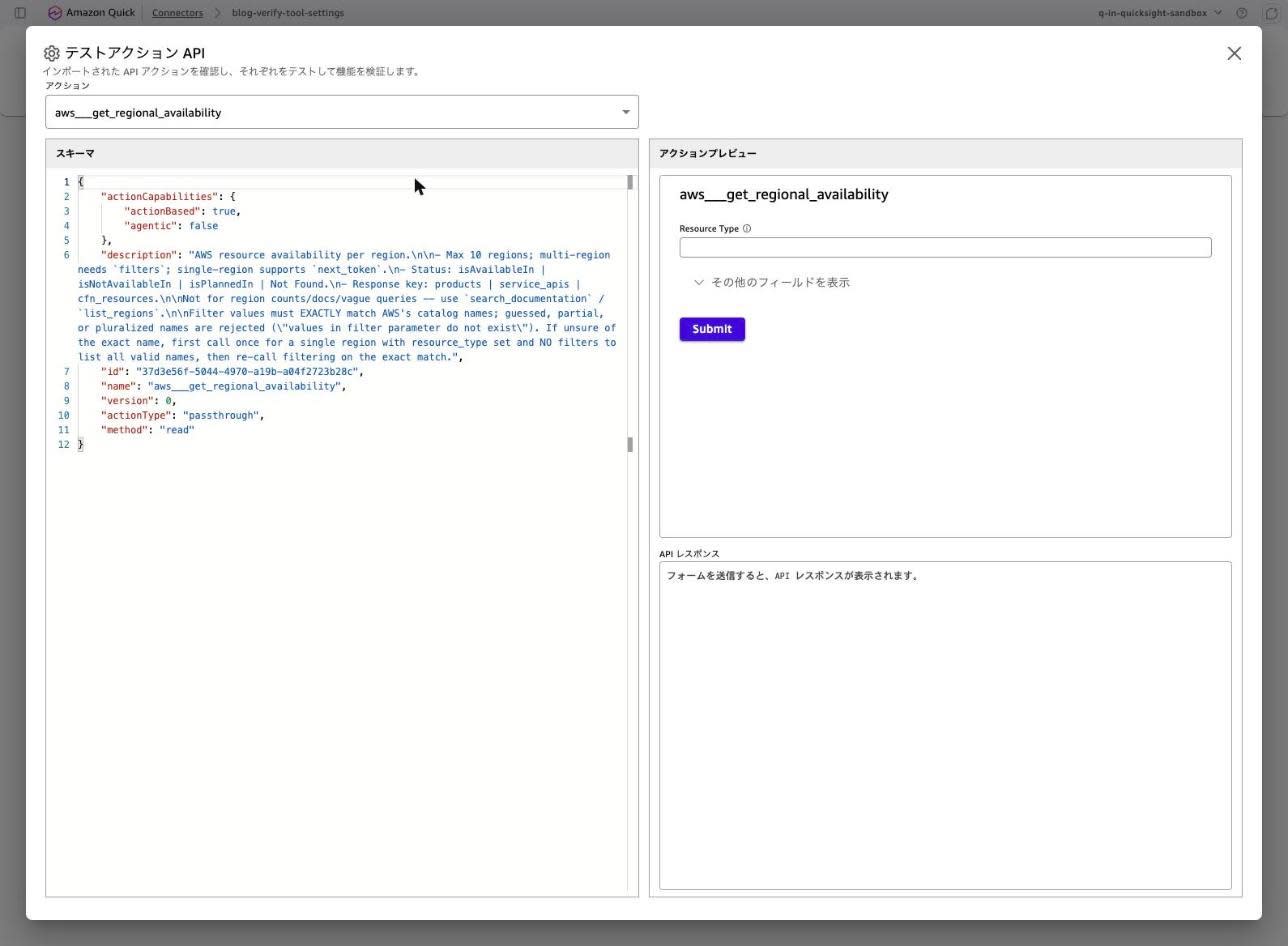
The action dropdown only shows the 4 Enabled tools, and the disabled aws___search_documentation does not appear as an option.
I should also note that method is read. This value is likely what determines whether a tool is classified under Manage Read Permissions or Manage Write Permissions.
When I tried submitting aws___list_regions on a whim, the following error was returned.
{
    "InvokeActionError": {
        "requestError": {
            "mcpInvokeActionError": {
                "content": [
                    {
                        "textContent": {
                            "text": "Primary CALL_TOOL operation failed for endpoint: https://knowledge-mcp.global.api.aws/mcp. Error: MCP session with server terminated"
                        }
                    }
                ]
            }
        }
    },
    "InvokeActionResponseMetadata": {
        "ExternalLatency": 766
    },
    "InvokeActionStatus": "ERROR",
    "RequestId": "4eb89679-5343-46f2-9938-5d3c1828c37e"
}
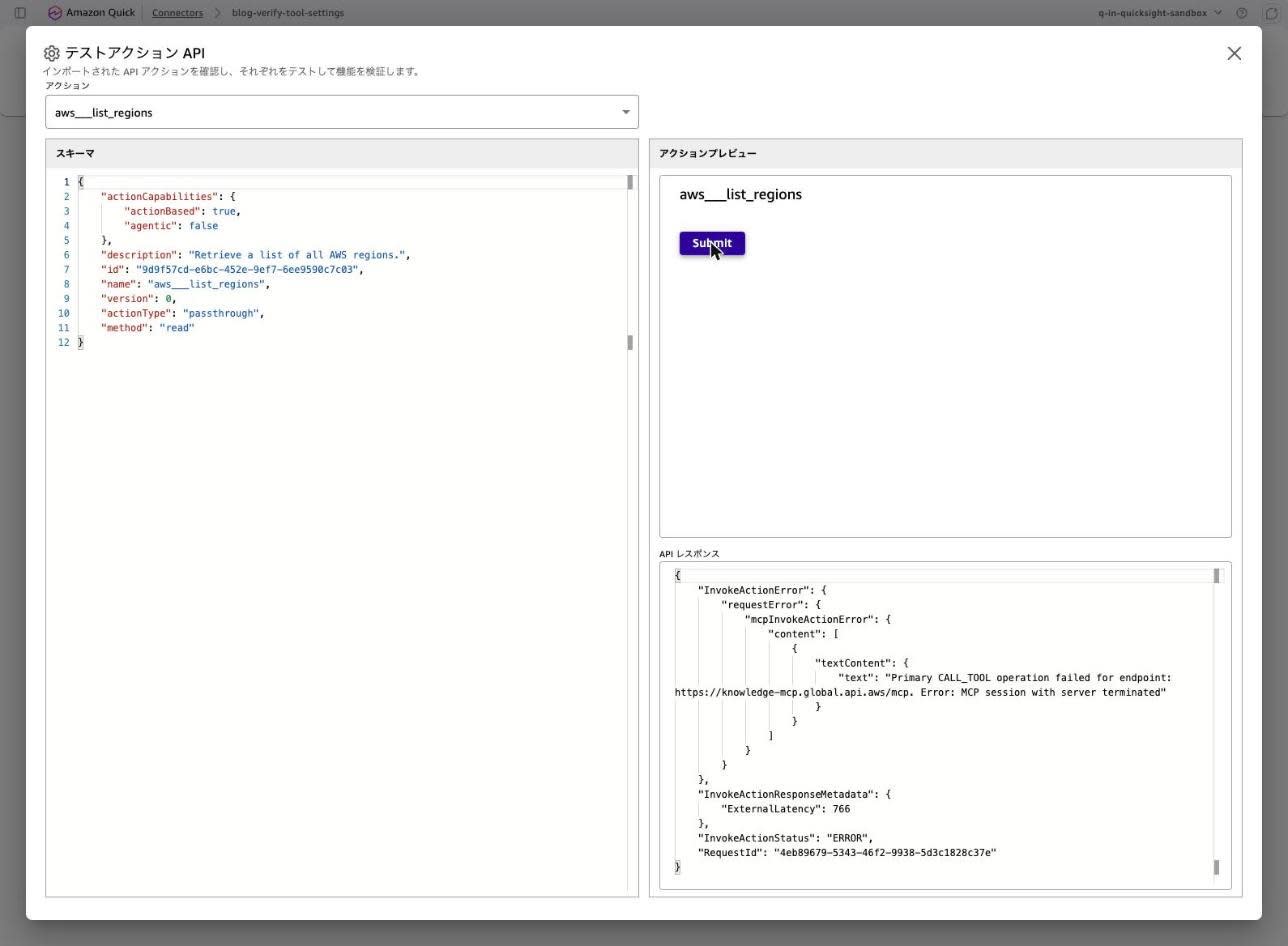
To determine whether this was a Quick-side issue, I sent a request directly to the MCP server to check.
curl -s -D - -X POST "https://knowledge-mcp.global.api.aws/mcp" \
  -H "Content-Type: application/json" \
  -H "Accept: application/json, text/event-stream" \
  -d '{"jsonrpc":"2.0","id":1,"method":"initialize","params":{"protocolVersion":"2025-03-26","capabilities":{},"clientInfo":{"name":"verify","version":"1.0"}}}'
HTTP/2 200
content-type: application/json
mcp-session-id: 0a4ae2ce-a7b4-44ca-bc35-b8c8af31478d

{"jsonrpc":"2.0","id":1,"result":{"protocolVersion":"2025-03-26","capabilities":{"tools":{"listChanged":false}},"serverInfo":{"name":"AWSKnowledgeMCP","version":"1.0.0"}}}
Initialization succeeds and a session ID is issued. Running tools/list in the same session also returned a list of 5 tools without issue.
However, tools/call alone consistently returns the following, regardless of changes to the presence or absence of a session ID, the type of tool, or the MCP-Protocol-Version header.
{"success":false,"error":"Http operation is not supported for gateway protocol type MCP"}
This is not even a JSON-RPC formatted error, and it is a response from the MCP server side. The "MCP session with server terminated" returned by Quick is likely the result of treating this unexpected response as a session anomaly. In other words, the test execution failure this time was due to the circumstances of the target MCP server, and is not an issue with the tool settings or MCP sync functionality itself.
Since tool detection (tools/list) had succeeded, this did not affect the verification of connector creation and tool settings.
Discussion
Here is a summary of what was confirmed in this verification.
Tool enable/disable status can be checked from the API
By looking at EnabledActions in DescribeActionConnector, you can see which tools are actually available in that connector. This value can serve as a starting point for auditing connectors with many tools, or for periodically checking whether any unintended tools have been enabled.
There is no way to check whether consent is required
The distinction between Always ask and Let users choose does not appear in EnabledActions. Moreover, reopening the edit screen shows Always ask as Let users choose. At this point, there is no way for an administrator to verify after the fact that a tool they intended to require consent for actually has that setting. If this is to be used as a governance setting, this is an area where future improvements would be welcome.
Tool settings and MCP sync are currently console-only
I checked the input parameters of CreateActionConnector and UpdateActionConnector, but found nothing corresponding to tool settings or MCP sync. While connector creation itself is possible from the CLI or SDK, the part most relevant to operations—which tools to expose—currently requires console operation. If you want to deploy the same settings to multiple accounts, manual work will be necessary for some time.
ActionId is not immutable
Re-enabling a disabled tool assigns a different ActionId. If you build a mechanism that saves EnabledActions values as configuration management targets and detects differences, be careful not to misinterpret ID changes as tool replacements. The correspondence between tool names and IDs can be confirmed from the Test Action API screen or from tools/list on the MCP server side.
Sync does not override tool enable/disable settings
A tool closed by an administrator was not reopened by sync. The design is that changes on the MCP server side are followed while the administrator's decisions are preserved. However, how newly added tools on the server side are handled (whether they are disabled by default or follow the defaults) could not be confirmed in this environment.
Documentation has not yet caught up
At the time of verification, the official documentation pages for integration workflow and MCP integration contained no mention of the tool settings or MCP sync added in this update. The actual screen is ahead, including in the number of wizard steps.
Future improvements I would like to see include API/CLI support for tool settings and MCP sync, a way to view consent settings, and scheduled execution of MCP sync.
Closing Thoughts
Connecting a single MCP server registers all the tools that server has at once. While convenient, if that includes tools that write to external services, whether all of them should be unconditionally exposed to end users is a separate judgment. The tool settings in this update allow that judgment to be made on a per-tool basis.
I also found it practical that the steps are separated by read and write. You can set different defaults based on risk, such as Let users choose for reads and Always ask for writes.
Regarding MCP sync, I was able to confirm that the tool enable/disable settings configured by the administrator are maintained. Since external MCP servers are updated outside of our control, having a mechanism to follow those updates while ensuring our decisions are not overridden arbitrarily is reassuring. On the other hand, the fact that there is no way to check the consent requirement after the fact, and that it may need to be reconfigured with each edit, is something to understand before incorporating it into operations.
From the perspective of per-connector access control, it is also possible to restrict three types of actions—"Create and Update action," "Share action," and "Use action"—for connectors using custom permissions. It seems this will involve combining per-tool settings to design who can use which tools and in what way.
If you are running MCP servers connected to Quick, I recommend checking the Enabled tools of your existing connectors once. I hope this article is helpful to someone.
