I tried verifying document-level ACL for S3 knowledge bases in Amazon Bedrock Managed Knowledge Base from Amazon Q - Serving confidential documents differently for each user

This page has been translated by machine translation. View original
I am Ishikawa from the Cloud Business Division. I tried connecting Amazon Bedrock Managed Knowledge Base as a knowledge source for Amazon Quick, and tested per-user access control using document-level access control lists (ACLs).
The other day, I verified the document-level ACL that Amazon Quick's S3 knowledge base itself has. It is a feature that allows setting ALLOW/DENY on a per-user and per-group basis for individual documents, rather than at the bucket or prefix level.
What I tested this time is a different approach. Amazon Quick can connect Amazon Bedrock Managed Knowledge Base as a "bring-your-own knowledge source." In this case, ACL definition and evaluation are both handled on the Bedrock side, and Quick's role is to pass the user's ID to Bedrock at query time.
Even for the same purpose of "attaching ACLs to documents on S3 to control what is shown," both where to configure things and what features are available differ. I referred to documents with the same structure to understand what differs and how.
Also, for the flow of querying Amazon Bedrock Managed Knowledge Base in Japanese natural language from Amazon Quick, please refer to the following blog post.
What is Document-Level ACL for Bedrock Managed Knowledge Base
Bedrock Managed Knowledge Base is a knowledge base that can be used without setting up a vector store or configuring chunking. It is created by specifying MANAGED for knowledgeBaseConfiguration.type.
In this Managed Knowledge Base, ACL support varies by data source connector.
| Connector | Pre-filter | Real-time ACL Validation |
|---|---|---|
| SharePoint | Supported | Supported |
| OneDrive | Supported | Supported |
| Google Drive | Supported | Supported |
| Confluence | Supported | Supported |
| Amazon S3 | Supported | Not supported |
| Custom | Supported | Not supported |
| Web Crawler | Not supported | — |
Note that I only verified the Amazon S3 connector this time. This table and the following explanations of real-time validation and ID models are based on official documentation, and the behavior of SharePoint and Google Drive has not been confirmed.
The reason S3 and Custom do not support real-time validation is that the source of ACL information is "a configuration file prepared by the user." Unlike SharePoint or Google Drive, there is no permission system to query, so what was read at ingestion time is treated as the source of truth.
Email addresses are used for ID matching. The email address passed at query time must exactly match the email address written in the ACL. Alias resolution and cross-identity-provider mapping are not performed.
There are two ways to define ACLs.
Global ACL Configuration File
This is a JSON file that lists ACL entries for each S3 key prefix. When creating the data source, you specify the S3 URI of this file with aclConfiguration.globalAccessControlListS3Uri.
[
  {
    "keyPrefix": "s3://BUCKETNAME/finance/",
    "aclEntries": [
      {
        "Name": "user1@example.com",
        "Type": "USER",
        "Access": "ALLOW"
      }
    ]
  }
]
Name is the user's email address, Type is USER, and Access is either ALLOW or DENY. DENY takes precedence over ALLOW.
This is the first difference from Quick's S3 knowledge base that I verified previously. In Quick's ACL, you could specify GROUP for Type and write Quick's group names, but in Bedrock's S3 connector, only USER is supported according to the documentation. I will actually verify this in a later step.
Per-Document Metadata File
This method involves placing a <filename>.metadata.json file at the same S3 path for each document, and writing ACL entries in accessControlList.
{
  "metadataAttributes": {},
  "accessControlList": [
    {
      "Name": "user1@example.com",
      "Type": "USER",
      "Access": "ALLOW"
    }
  ]
}
The documentation explicitly states that "per-document metadata takes precedence over the global ACL file." When both are configured, the metadata side is used.
Also, documents with no associated ACL entries will not be ingested. This behavior is the same as Quick's S3 knowledge base from last time.
Let's Try It
Prerequisites
- AWS Account: Amazon Quick ENTERPRISE subscription already in place (authentication type is IDENTITY_POOL)
- Verification region: us-east-1
- AWS CLI: aws-cli/2.36.40
There are regional constraints. Managed Knowledge Base connections to Quick are only supported in four regions: US East (N. Virginia), US West (Oregon), Europe (Ireland), and Asia Pacific (Sydney). The Tokyo region is not included. Additionally, the Managed Knowledge Base and Quick instance must be in the same region.
The maximum number of Managed Knowledge Bases that can be connected per Quick instance is 2.
Verification Configuration
I placed 8 documents and an ACL configuration file in a single S3 bucket, and created 2 Managed Knowledge Bases that differ only in whether ACL is enabled or disabled.
The identifiers for the two knowledge bases are as follows. These IDs are used interchangeably in subsequent commands.
| MKB-A (ACL Enabled) | MKB-B (For comparison · ACL Disabled) | |
|---|---|---|
| Knowledge base name | mkb-acl-blog-acl-987164eb |
mkb-acl-blog-noacl-987164eb |
| Knowledge base ID | O3VLSO3CS9 |
VZCVVT2YJL |
| Data source name | s3-acl-connector |
s3-noacl-connector |
| Data source ID | YBNLLH2UBM |
61AKBSB7TR |
aclEnabled |
true |
Not specified (false) |
Each document has an embedded management number for identification. The ACL settings are as follows. other-user@example.com is a dummy email address that does not exist in Quick, used as a contrast for DENY.
| Document | Management Number | Definition Location | Self | other-user |
|---|---|---|---|---|
| global/allow/holiday-policy.md | ALPHA-GLOBAL-ALLOW | Global ACL | ALLOW | - |
| global/deny/exec-compensation.md | BRAVO-GLOBAL-DENY | Global ACL | DENY | ALLOW |
| global/noacl/uncontrolled-memo.md | CHARLIE-GLOBAL-NOACL | None | - | - |
| meta/allow/incident-report.md | DELTA-META-ALLOW | Metadata | ALLOW | - |
| meta/deny/ma-valuation.md | ECHO-META-DENY | Metadata | DENY | ALLOW |
| meta/noacl/orphan-note.md | FOXTROT-META-NOACL | None | - | - |
| group/board-minutes.md | GOLF-GROUP-TYPE | Metadata (Type: GROUP) | - | - |
| override/override-doc.md | HOTEL-OVERRIDE | Global DENY + Metadata ALLOW | Conflict | - |
group/ was prepared to observe behavior when writing Type: GROUP, and override/ was prepared to observe priority when global and metadata conflict.
docs
├── acl
│   └── global-acl.json
├── global
│   ├── allow
│   │   └── holiday-policy.md
│   ├── deny
│   │   └── exec-compensation.md
│   └── noacl
│       └── uncontrolled-memo.md
├── group
│   ├── board-minutes.md
│   └── board-minutes.md.metadata.json
├── meta
│   ├── allow
│   │   ├── incident-report.md
│   │   └── incident-report.md.metadata.json
│   ├── deny
│   │   ├── ma-valuation.md
│   │   └── ma-valuation.md.metadata.json
│   └── noacl
│       └── orphan-note.md
└── override
    ├── override-doc.md
    └── override-doc.md.metadata.json
Step 1: Place Documents and ACL File in S3
Prepare the global ACL file named global-acl.json and place it under the acl/ prefix. The contents are as follows. Since files under meta/ are defined using metadata files, they are not written here. override/ is set to DENY so it conflicts with the ALLOW on the metadata side. At data source creation time, the S3 URI is specified with globalAccessControlListS3Uri.
[
  {
    "keyPrefix": "s3://mkb-acl-blog-987164eb/global/allow/",
    "aclEntries": [
      { "Name": "xxxxxxxxxx@classmethod.jp", "Type": "USER", "Access": "ALLOW" }
    ]
  },
  {
    "keyPrefix": "s3://mkb-acl-blog-987164eb/global/deny/",
    "aclEntries": [
      { "Name": "xxxxxxxxxx@classmethod.jp", "Type": "USER", "Access": "DENY" },
      { "Name": "other-user@example.com", "Type": "USER", "Access": "ALLOW" }
    ]
  },
  {
    "keyPrefix": "s3://mkb-acl-blog-987164eb/override/",
    "aclEntries": [
      { "Name": "xxxxxxxxxx@classmethod.jp", "Type": "USER", "Access": "DENY" }
    ]
  }
]
group/board-minutes.md.metadata.json includes Type: GROUP, which should not be supported.
{
  "metadataAttributes": {},
  "accessControlList": [
    { "Name": "mkb-acl-blog-group", "Type": "GROUP", "Access": "ALLOW" },
    { "Name": "xxxxxxxxxx@classmethod.jp", "Type": "USER", "Access": "ALLOW" }
  ]
}
Create the bucket and upload.
% aws s3api create-bucket --bucket mkb-acl-blog-987164eb --region us-east-1
% aws s3 sync docs/ s3://mkb-acl-blog-987164eb/ --region us-east-1
% aws s3 ls s3://mkb-acl-blog-987164eb/ --recursive --region us-east-1
2026-09-12 00:20:59        621 acl/global-acl.json
2026-09-12 00:20:59        460 global/allow/holiday-policy.md
2026-09-12 00:20:59        435 global/deny/exec-compensation.md
2026-09-12 00:20:59        332 global/noacl/uncontrolled-memo.md
2026-09-12 00:20:59        273 group/board-minutes.md
2026-09-12 00:20:59        219 group/board-minutes.md.metadata.json
2026-09-12 00:20:59        423 meta/allow/incident-report.md
2026-09-12 00:20:59        145 meta/allow/incident-report.md.metadata.json
2026-09-12 00:20:59        327 meta/deny/ma-valuation.md
2026-09-12 00:20:59        221 meta/deny/ma-valuation.md.metadata.json
2026-09-12 00:20:59        315 meta/noacl/orphan-note.md
2026-09-12 00:20:59        453 override/override-doc.md
2026-09-12 00:20:59        145 override/override-doc.md.metadata.json
The ACL configuration file must be placed in the same bucket as the data source target bucket.
Step 2: Create an IAM Service Role
With Managed Knowledge Base, permissions for a vector store are not required. What is needed is a trust policy that allows AssumeRole from Bedrock, and read permissions for the S3 data source.
Save the trust policy as trust-policy.json.
{
  "Version": "2012-10-17",
  "Statement": [
    {
      "Effect": "Allow",
      "Principal": { "Service": "bedrock.amazonaws.com" },
      "Action": "sts:AssumeRole",
      "Condition": {
        "StringEquals": { "aws:SourceAccount": "123456789012" },
        "ArnLike": { "AWS:SourceArn": "arn:aws:bedrock:us-east-1:123456789012:knowledge-base/*" }
      }
    }
  ]
}
Attach s3:ListBucket and s3:GetObject, as well as permissions to invoke the embedding model, to the permissions policy. Save this as kb-permissions.json.
{
  "Version": "2012-10-17",
  "Statement": [
    {
      "Sid": "S3ListBucketStatement",
      "Effect": "Allow",
      "Action": ["s3:ListBucket"],
      "Resource": ["arn:aws:s3:::mkb-acl-blog-987164eb"],
      "Condition": { "StringEquals": { "aws:ResourceAccount": "123456789012" } }
    },
    {
      "Sid": "S3GetObjectStatement",
      "Effect": "Allow",
      "Action": ["s3:GetObject"],
      "Resource": ["arn:aws:s3:::mkb-acl-blog-987164eb/*"],
      "Condition": { "StringEquals": { "aws:ResourceAccount": "123456789012" } }
    },
    {
      "Sid": "BedrockModelStatement",
      "Effect": "Allow",
      "Action": ["bedrock:ListFoundationModels", "bedrock:ListCustomModels", "bedrock:InvokeModel"],
      "Resource": "*"
    }
  ]
}
Create the role using the two files.
% aws iam create-role \
  --role-name mkb-acl-blog-role-987164eb \
  --assume-role-policy-document file://trust-policy.json \
  --query 'Role.Arn' --output text
arn:aws:iam::123456789012:role/mkb-acl-blog-role-987164eb

% aws iam put-role-policy \
  --role-name mkb-acl-blog-role-987164eb \
  --policy-name mkb-acl-blog-policy \
  --policy-document file://kb-permissions.json
Step 3: Create a Bedrock Managed Knowledge Base
Pass type: MANAGED and managedKnowledgeBaseConfiguration to knowledgeBaseConfiguration. Setting embeddingModelType to MANAGED uses a service-managed embedding model, eliminating the need to specify a model ARN or configure a vector store.
% aws bedrock-agent create-knowledge-base \
  --name "mkb-acl-blog-acl-987164eb" \
  --description "Bedrock Managed Knowledge Base with ACL enabled (blog verification)" \
  --role-arn arn:aws:iam::123456789012:role/mkb-acl-blog-role-987164eb \
  --knowledge-base-configuration '{"type":"MANAGED","managedKnowledgeBaseConfiguration":{"embeddingModelType":"MANAGED"}}' \
  --region us-east-1
{
    "knowledgeBase": {
        "knowledgeBaseId": "O3VLSO3CS9",
        "name": "mkb-acl-blog-acl-987164eb",
        "knowledgeBaseArn": "arn:aws:bedrock:us-east-1:123456789012:knowledge-base/O3VLSO3CS9",
        "roleArn": "arn:aws:iam::123456789012:role/mkb-acl-blog-role-987164eb",
        "knowledgeBaseConfiguration": {
            "type": "MANAGED",
            "managedKnowledgeBaseConfiguration": {
                "embeddingModelType": "MANAGED"
            }
        },
        "status": "CREATING"
    }
}
I also created the comparison ACL-disabled knowledge base with the same command (ID is VZCVVT2YJL). The only changes were setting --name to mkb-acl-blog-noacl-987164eb and updating --description; --role-arn and --knowledge-base-configuration are identical. Since whether ACL is enabled or not is determined by the data source in the next step rather than the knowledge base, there is no difference between the two at this point.
Step 4: Create the S3 Data Source (ACL Enabled)
For a Managed Knowledge Base data source, specify MANAGED_KNOWLEDGE_BASE_CONNECTOR for type, and write connector-specific settings in connectorParameters. Save this configuration as ds-acl.json.
{
  "type": "MANAGED_KNOWLEDGE_BASE_CONNECTOR",
  "managedKnowledgeBaseConnectorConfiguration": {
    "connectorParameters": {
      "type": "S3",
      "version": "1",
      "aclEnabled": true,
      "connectionConfiguration": {
        "bucketName": "mkb-acl-blog-987164eb",
        "bucketOwnerAccountId": "123456789012"
      },
      "aclConfiguration": {
        "globalAccessControlListS3Uri": "s3://mkb-acl-blog-987164eb/acl/global-acl.json"
      }
    }
  }
}
Set aclEnabled to true, and specify the S3 URI of the global ACL file in aclConfiguration.globalAccessControlListS3Uri. If this path is omitted, only the metadata file method is used. In this case, both methods are used together in a single data source.
% aws bedrock-agent create-data-source \
  --knowledge-base-id O3VLSO3CS9 \
  --name "s3-acl-connector" \
  --data-source-configuration file://ds-acl.json \
  --region us-east-1
{
    "dataSource": {
        "knowledgeBaseId": "O3VLSO3CS9",
        "dataSourceId": "YBNLLH2UBM",
        "name": "s3-acl-connector",
        "status": "CREATING",
        "dataSourceConfiguration": {
            "type": "MANAGED_KNOWLEDGE_BASE_CONNECTOR",
            "managedKnowledgeBaseConnectorConfiguration": {
                "connectorParameters": "{\"type\":\"S3\",\"aclEnabled\":true,\"aclConfiguration\":{\"globalAccessControlListS3Uri\":\"s3://mkb-acl-blog-987164eb/acl/global-acl.json\"},\"connectionConfiguration\":{\"bucketName\":\"mkb-acl-blog-987164eb\",\"bucketOwnerAccountId\":\"123456789012\"},\"filterConfiguration\":{\"maxFileSizeInMegaBytes\":\"500\"},\"version\":\"1\"}"
            }
        },
        "dataDeletionPolicy": "DELETE"
    }
}
Looking at the response, connectorParameters is stored as a string, and the default value of 500 has been filled in for filterConfiguration.maxFileSizeInMegaBytes, which was not specified.
Step 5: Create the S3 Data Source (ACL Disabled)
As a baseline for the controlled experiment, create a data source that does not read ACLs in MKB-B. The only difference from the ACL-enabled side is removing aclEnabled and aclConfiguration from connectorParameters; the connectionConfiguration bucket is the same. Save this as ds-noacl.json.
{
  "type": "MANAGED_KNOWLEDGE_BASE_CONNECTOR",
  "managedKnowledgeBaseConnectorConfiguration": {
    "connectorParameters": {
      "type": "S3",
      "version": "1",
      "connectionConfiguration": {
        "bucketName": "mkb-acl-blog-987164eb",
        "bucketOwnerAccountId": "123456789012"
      }
    }
  }
}
While pointing to the same bucket, create the data source targeting only MKB-B (VZCVVT2YJL).
% aws bedrock-agent create-data-source \
  --knowledge-base-id VZCVVT2YJL \
  --name "s3-noacl-connector" \
  --description "S3 connector with ACL disabled (for comparison)" \
  --data-source-configuration file://ds-noacl.json \
  --region us-east-1
In this response, false is explicitly set for aclEnabled.
{"type":"S3","connectionConfiguration":{...},"filterConfiguration":{"maxFileSizeInMegaBytes":"500"},"aclEnabled":false,"version":"1"}
This completes the configuration where the same documents in the same S3 bucket are ingested by both a data source that checks ACLs and one that does not.
Step 6: Compare Ingestion Results
Start ingestion for both knowledge bases.
% aws bedrock-agent start-ingestion-job \
  --knowledge-base-id O3VLSO3CS9 \
  --data-source-id YBNLLH2UBM \
  --region us-east-1
It completed in about 2 minutes. A clear difference appears in the results.
% aws bedrock-agent get-ingestion-job \
  --knowledge-base-id O3VLSO3CS9 --data-source-id YBNLLH2UBM \
  --ingestion-job-id FWZKF0FLMX --region us-east-1

{
    "status": "COMPLETE",
    "stats": {
        "numberOfDocumentsScanned": 8,
        "numberOfMetadataDocumentsScanned": 3,
        "numberOfNewDocumentsIndexed": 5,
        "numberOfDocumentsFailed": 3,
        "numberOfDocumentsSkipped": 0
    },
    "fail": [
        "[\"The sync completed with partial failures. Some documents could not be crawled.\"]"
    ]
}
The ACL-disabled side is as follows.
{
    "status": "COMPLETE",
    "stats": {
        "numberOfDocumentsScanned": 9,
        "numberOfMetadataDocumentsScanned": 4,
        "numberOfNewDocumentsIndexed": 9,
        "numberOfDocumentsFailed": 0
    }
}
Comparing the numbers makes the difference clear.
| MKB-A (ACL Enabled) | MKB-B (ACL Disabled) | |
|---|---|---|
| Documents scanned | 8 | 9 |
| Metadata scanned | 3 | 4 |
| Documents indexed | 5 | 9 |
| Documents failed | 3 | 0 |
The reason the scan count on the ACL-enabled side is 8 while the disabled side is 9 is due to the different handling of acl/global-acl.json. On the ACL-enabled side, it is interpreted as an ACL configuration file and excluded from documents, whereas on the disabled side it is ingested as a plain JSON file.
The split in metadata scan counts of 3 and 4 is also similar — board-minutes.md.metadata.json, which contains Type: GROUP, is not counted as valid metadata on the ACL-enabled side.
Let's check which documents were ingested.
% aws bedrock-agent list-knowledge-base-documents \
  --knowledge-base-id O3VLSO3CS9 --data-source-id YBNLLH2UBM --region us-east-1

INDEXED    global/allow/holiday-policy.md
INDEXED    global/deny/exec-compensation.md
INDEXED    meta/allow/incident-report.md
INDEXED    meta/deny/ma-valuation.md
INDEXED    override/override-doc.md
Total: 5 documents
The 3 documents that were dropped were the following.
global/noacl/uncontrolled-memo.md(not listed in global ACL)meta/noacl/orphan-note.md(no metadata file)group/board-minutes.md(Type: GROUPspecified)
That documents without ACL entries are not ingested is as documented. In addition, documents with Type: GROUP written were also not ingested. Even though the same metadata file also included a USER ALLOW for my own email address, it still did not pass. Rather than individual entries being ignored, the entire document is rejected.
The DENY-configured exec-compensation.md and ma-valuation.md are ingested. ACLs work in two stages — "whether to ingest" and "whether to return at search time" — and DENY is processed in the latter stage.
On the other hand, the ACL-disabled knowledge base ingested all 9 documents.
% aws bedrock-agent list-knowledge-base-documents \
  --knowledge-base-id VZCVVT2YJL --data-source-id 61AKBSB7TR --region us-east-1

INDEXED    acl/global-acl.json
INDEXED    global/allow/holiday-policy.md
INDEXED    global/deny/exec-compensation.md
INDEXED    global/noacl/uncontrolled-memo.md
INDEXED    group/board-minutes.md
INDEXED    meta/allow/incident-report.md
INDEXED    meta/deny/ma-valuation.md
INDEXED    meta/noacl/orphan-note.md
INDEXED    override/override-doc.md
Total: 9 documents
There are 13 files total in the bucket, but only 9 appear here. The remaining 4 are metadata files such as incident-report.md.metadata.json, and they are not indexed as documents regardless of whether ACL is enabled or disabled. Statistically, they are counted under numberOfMetadataDocumentsScanned rather than numberOfDocumentsScanned.
The reason acl/global-acl.json appears as the 9th document is that it does not match the metadata file naming convention (<filename>.metadata.json). From a data source that does not read ACLs, it is treated as a plain JSON file.
Step 7: Verify the ingested ACL
With get-ingested-document-acl, you can check the ACL stored in the index. Pass the S3 URI as-is to --document-id.
This is the result for the document where DENY was configured.
% aws bedrock-agent-runtime get-ingested-document-acl \
  --knowledge-base-id O3VLSO3CS9 --data-source-id YBNLLH2UBM \
  --document-id "s3://mkb-acl-blog-987164eb/global/deny/exec-compensation.md" \
  --region us-east-1
{
    "documentAcl": {
        "allowList": {
            "conditions": [
                {
                    "conditionOperator": "OR",
                    "users": [
                        { "id": "other-user@example.com", "type": "KNOWLEDGE_BASE" }
                    ]
                }
            ],
            "memberRelation": "AND"
        },
        "denyList": {
            "conditions": [
                {
                    "conditionOperator": "OR",
                    "users": [
                        { "id": "xxxxxxxxxx@classmethod.jp", "type": "KNOWLEDGE_BASE" }
                    ]
                }
            ],
            "memberRelation": "AND"
        }
    }
}
The ALLOW / DENY written in JSON is broken down and stored as allowList and denyList.
Looking at override/override-doc.md here gives us the answer about priority. This document was set to DENY in the global ACL file and ALLOW in the metadata file.
% aws bedrock-agent-runtime get-ingested-document-acl \
  --knowledge-base-id O3VLSO3CS9 --data-source-id YBNLLH2UBM \
  --document-id "s3://mkb-acl-blog-987164eb/override/override-doc.md" \
  --region us-east-1
{
    "documentAcl": {
        "allowList": {
            "conditions": [
                {
                    "conditionOperator": "OR",
                    "users": [
                        { "id": "xxxxxxxxxx@classmethod.jp", "type": "KNOWLEDGE_BASE" }
                    ]
                }
            ],
            "memberRelation": "AND"
        }
    }
}
denyList does not exist. The DENY from the global side was discarded at ingestion time, and only the ALLOW from the metadata side remains. The rule "DENY takes precedence over ALLOW" only applies within the same ACL source. When the source itself is replaced, the metadata file wins.
Step 8: Verify access permissions
Using check-ingested-document-acl, you can directly query access permissions on a per-user basis. This is the equivalent of the Quick Permission Checker verified last time, available from the CLI.
Here are the results of checking 5 items with my own email address.
% for key in global/allow/holiday-policy.md global/deny/exec-compensation.md \
             meta/allow/incident-report.md meta/deny/ma-valuation.md \
             override/override-doc.md; do
    aws bedrock-agent-runtime check-ingested-document-acl \
      --knowledge-base-id O3VLSO3CS9 --data-source-id YBNLLH2UBM \
      --document-id "s3://mkb-acl-blog-987164eb/${key}" \
      --user-context "userId=xxxxxxxxxx@classmethod.jp" --region us-east-1
  done

global/allow/holiday-policy.md      {"hasAccess": true}
global/deny/exec-compensation.md    {"hasAccess": false}
meta/allow/incident-report.md       {"hasAccess": true}
meta/deny/ma-valuation.md           {"hasAccess": false}
override/override-doc.md            {"hasAccess": true}
With other-user@example.com, which was given ALLOW on the DENY side, the results are reversed.
global/allow/holiday-policy.md      {"hasAccess": false}
global/deny/exec-compensation.md    {"hasAccess": true}
meta/deny/ma-valuation.md           {"hasAccess": true}
override/override-doc.md            {"hasAccess": false}
I also tried with an email address that does not appear in the ACL at all.
% aws bedrock-agent-runtime check-ingested-document-acl \
  --knowledge-base-id O3VLSO3CS9 --data-source-id YBNLLH2UBM \
  --document-id "s3://mkb-acl-blog-987164eb/global/allow/holiday-policy.md" \
  --user-context "userId=unknown@example.com" --region us-east-1
{"hasAccess": false}
If a user is not on the ALLOW list, they are denied. There is no need to explicitly write a DENY.
Step 9: Verify ACL effectiveness with retrieve
Let's verify with an actual search. I'll submit a question about both an ALLOWed document and a DENIed document: "What are the executive compensation revision rates and holidays?"
% aws bedrock-agent-runtime retrieve \
  --knowledge-base-id O3VLSO3CS9 \
  --retrieval-query '{"text":"役員報酬の改定率と休業日について教えてください"}' \
  --user-context "userId=xxxxxxxxxx@classmethod.jp" \
  --region us-east-1

score=0.4403  global/allow/holiday-policy.md
Hit count: 1
Only the holiday document is returned, and the DENIed executive compensation document is not returned.
Running the same query with other-user@example.com produces the opposite result.
score=0.3646  global/deny/exec-compensation.md
Hit count: 1
I also checked what happens when userContext is omitted.
% aws bedrock-agent-runtime retrieve \
  --knowledge-base-id O3VLSO3CS9 \
  --retrieval-query '{"text":"役員報酬の改定率と休業日について教えてください"}' \
  --region us-east-1

Hit count: 0
Zero results. The documentation explicitly states "if userContext is not specified in a Retrieve request, a data source with ACL enabled returns zero results," and the behavior matched exactly. The design does not return results without filtering when ACL cannot be evaluated—it returns nothing at all.
Step 10: Compare with an ACL-disabled knowledge base
To confirm that ACL is truly effective, I'll submit the same question to an ACL-disabled knowledge base (MKB-B, VZCVVT2YJL). Note that --knowledge-base-id changes from the steps up to this point.
% aws bedrock-agent-runtime retrieve \
  --knowledge-base-id VZCVVT2YJL \
  --retrieval-query '{"text":"役員報酬の改定率と休業日について教えてください"}' \
  --region us-east-1

score=0.6565  global/deny/exec-compensation.md
score=0.3101  global/allow/holiday-policy.md
score=0.1837  acl/global-acl.json
score=0.1686  group/board-minutes.md
score=0.1664  meta/deny/ma-valuation.md
Hit count: 5
5 results were returned without userContext. With the same bucket, the same documents, and the same query producing different results, the only difference is the ACL configuration.
There is one more noteworthy point in these results. acl/global-acl.json itself is included in the search results. Because the ACL definition file contains exactly who can access which prefix, if you create an ACL-disabled knowledge base pointing to the same bucket, the content of the permission design becomes searchable.
I also tried passing userContext to the ACL-disabled knowledge base, but it still returned 5 results. As described in the documentation, a data source without ACL support returns results normally.
Step 11: Verify global and metadata priority through search
In Step 7, we verified the priority by examining the ACL content. Let's see if the same result appears in a search.
% aws bedrock-agent-runtime retrieve \
  --knowledge-base-id O3VLSO3CS9 \
  --retrieval-query '{"text":"OVERRIDE-VALUE-7788 優先順位検証用ドキュメント"}' \
  --user-context "userId=xxxxxxxxxx@classmethod.jp" --region us-east-1

score=0.4346  override/override-doc.md
score=0.1608  meta/allow/incident-report.md
Hit count: 2
Even though the document was DENY in the global ACL, it was returned. The ALLOW in the metadata file has won.
Step 12: Connect to Amazon QuickSight
From here, the work moves to the QuickSight side. I connected only MKB-A (O3VLSO3CS9), the ACL-enabled one, to QuickSight. The limit is 2 Managed Knowledge Bases per QuickSight instance, and there was already 1 existing Bedrock integration in the account used for verification. MKB-B without ACL was not registered in QuickSight and was left as a CLI comparison in the previous steps only.
I'll create it from the console. Opening "Knowledge" from "Learn more" in the left menu of the QuickSight screen displays a list of connectable applications.
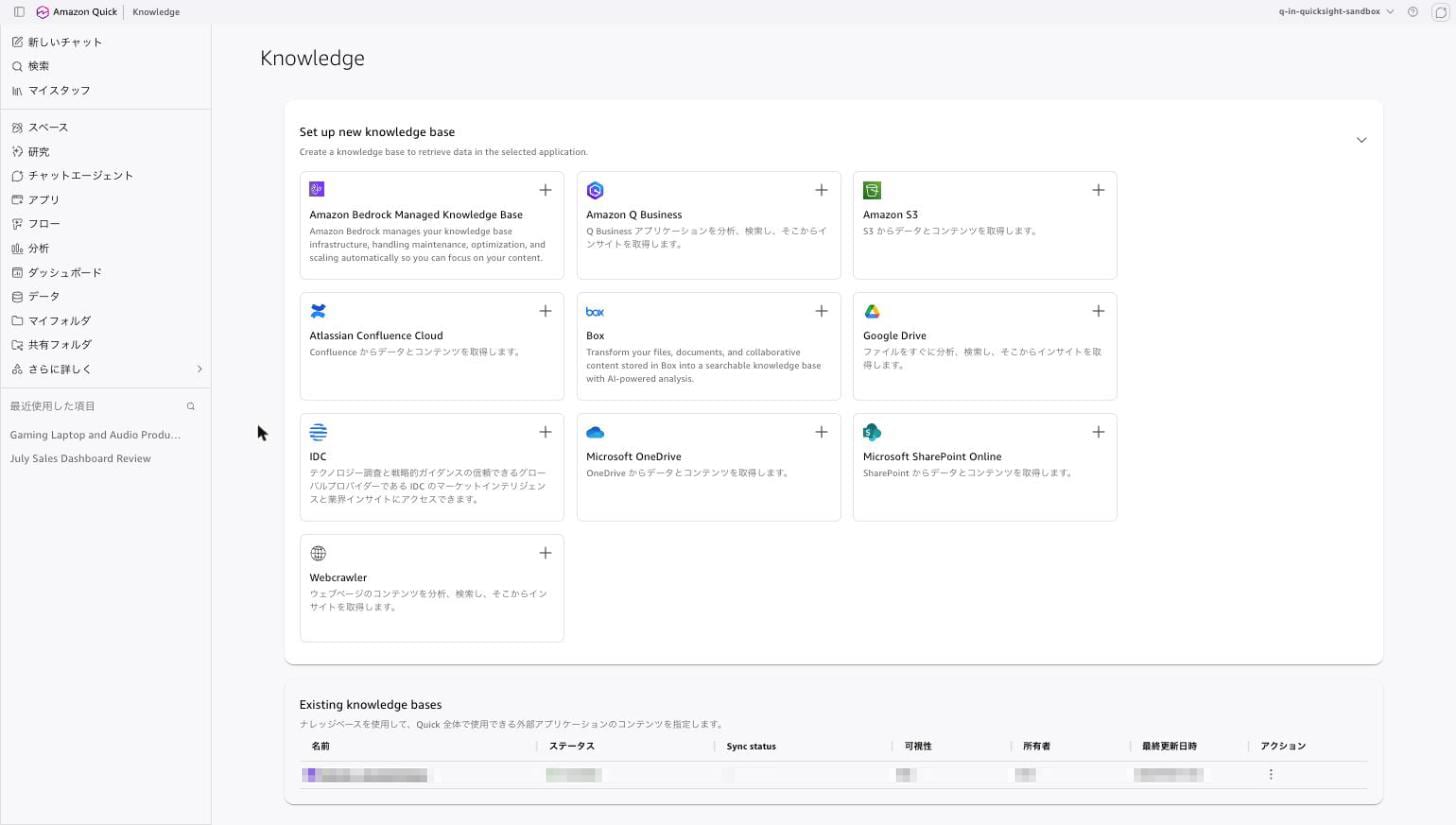
Select "Amazon Bedrock Managed Knowledge Base" in the upper left and enter the name and the knowledge base ARN on the Bedrock side.
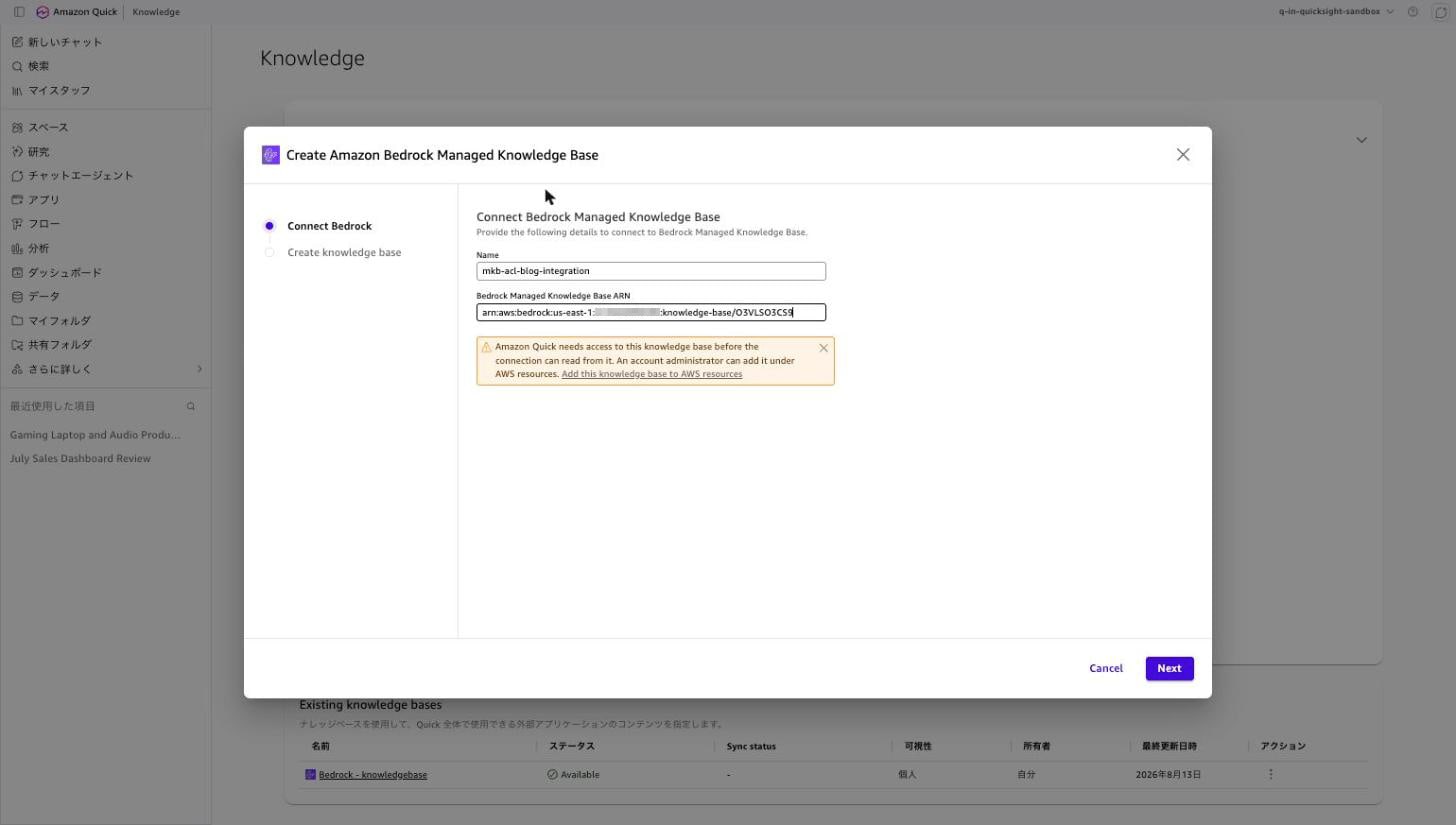
A warning appeared after entering the ARN.
Amazon Quick needs access to this knowledge base before the connection can read from it.
An account administrator can add it under AWS resources.
The "Add this knowledge base to AWS resources" link takes you to a screen where you can grant QuickSight's service role access to this knowledge base.
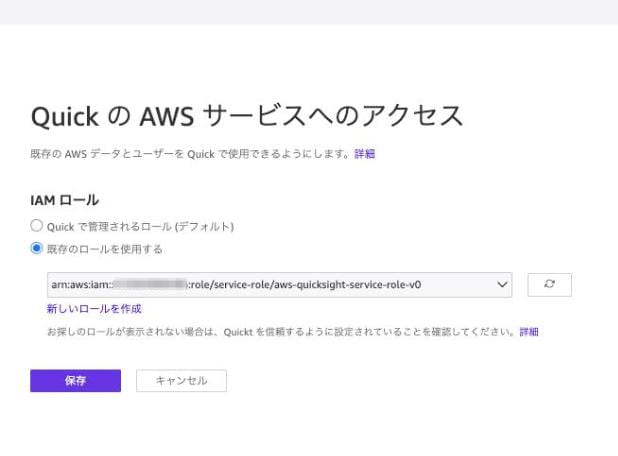
QuickSight requires two permissions for the Bedrock knowledge base: bedrock:Retrieve and bedrock:GetDocumentContent. Registering on this screen causes QuickSight to attach an IAM policy scoped to the relevant ARN to the service role. After saving, I entered the knowledge base name and description and created it.
Let's check the configuration of the created knowledge base.
% aws quicksight describe-knowledge-base \
  --aws-account-id 123456789012 \
  --knowledge-base-id ced09646-bb81-4528-8bd0-89682a7c8ffc \
  --region us-east-1

Name        : mkb-acl-blog-acl-enabled
Type        : FULLY_MANAGED_KNOWLEDGE_BASE
Status      : ACTIVE
Template    : {"templateConfiguration": {"template": {"type": "BEDROCKFMKB", "retrievalScope": "ALL", ...}}}
ACL config  : {"isACLEnabled": false}
What catches the eye is that isACLEnabled is false. In the Quick S3 knowledge base verified last time, this flag needed to be set to true to enable ACL. When going through a Managed Knowledge Base, since both the ACL definition and evaluation reside on the Bedrock side, the QuickSight-side flag remains false.
The documentation also states "no additional configuration in Amazon QuickSight is required to enable ACL support," which is consistent with this display.
Step 13: Verify through QuickSight chat
In the chat screen, specify the created knowledge base in the data source selection. First, I'll ask about ALPHA-GLOBAL-ALLOW, to which I was given ALLOW.
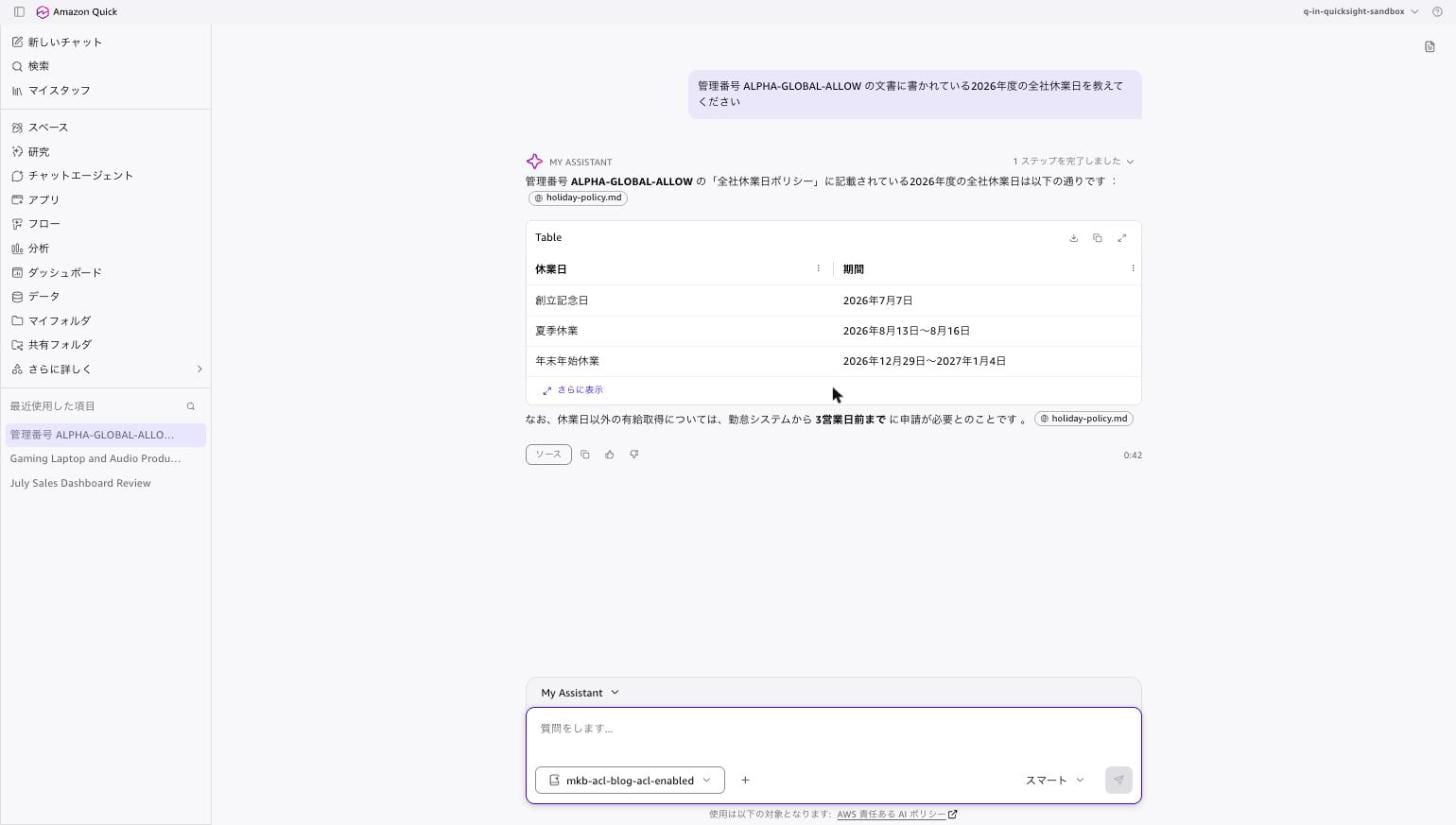
Quoting holiday-policy.md, the holidays were returned in table format.
Next, I'll ask about BRAVO-GLOBAL-DENY, where I was set to DENY.
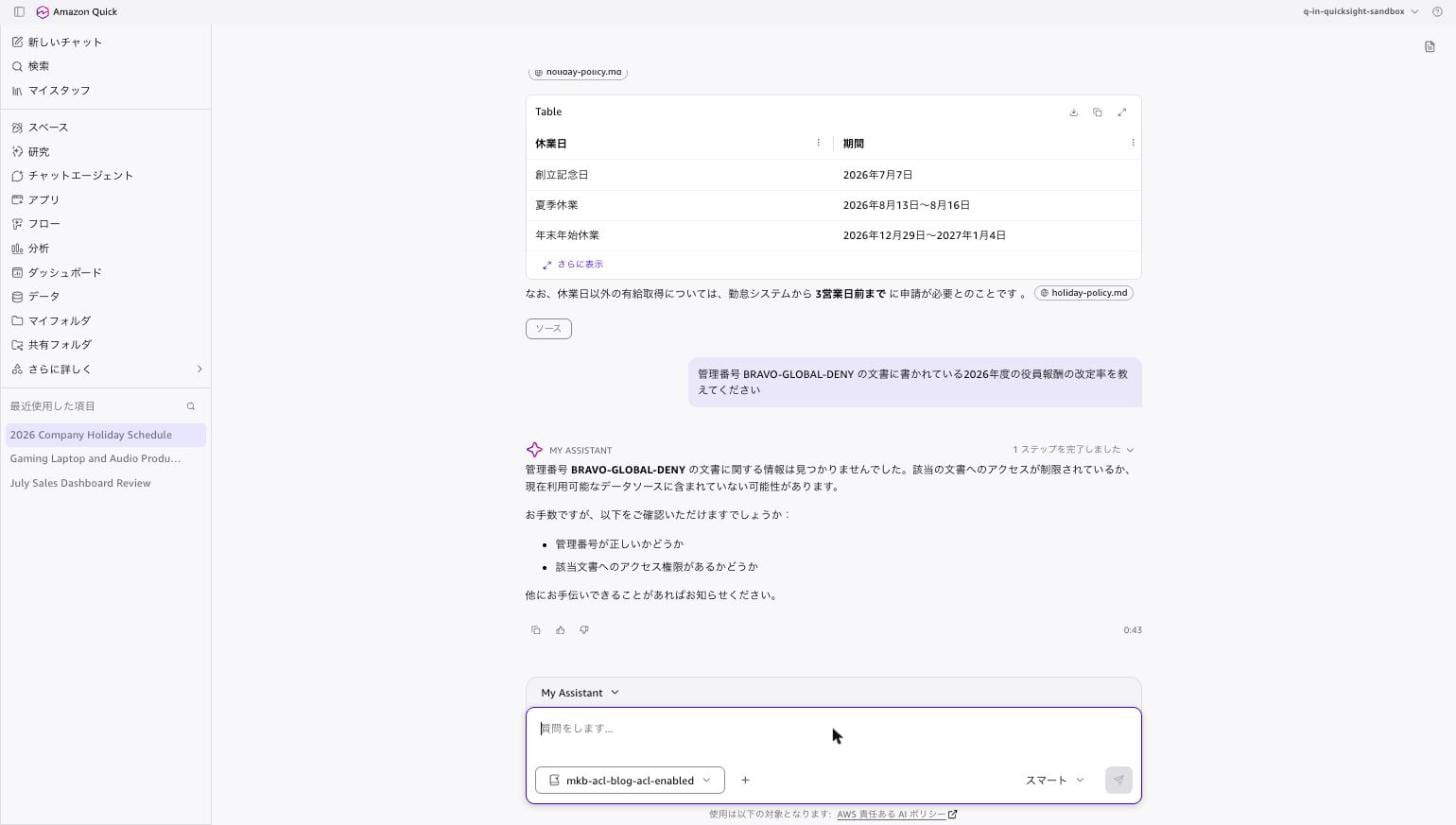
No information was found for the document with reference number BRAVO-GLOBAL-DENY.
Access to the relevant document may be restricted, or it may not be included in the currently available data sources.

Please check the following:
- Whether the reference number is correct
- Whether you have access permissions to the relevant document
The 12.5% revision rate was not returned. Even though no ACL settings were made on the QuickSight side, the DENY on the Bedrock side is effective in the chat response.
I asked about the metadata-based ALLOW / DENY and the priority verification document in a single question.
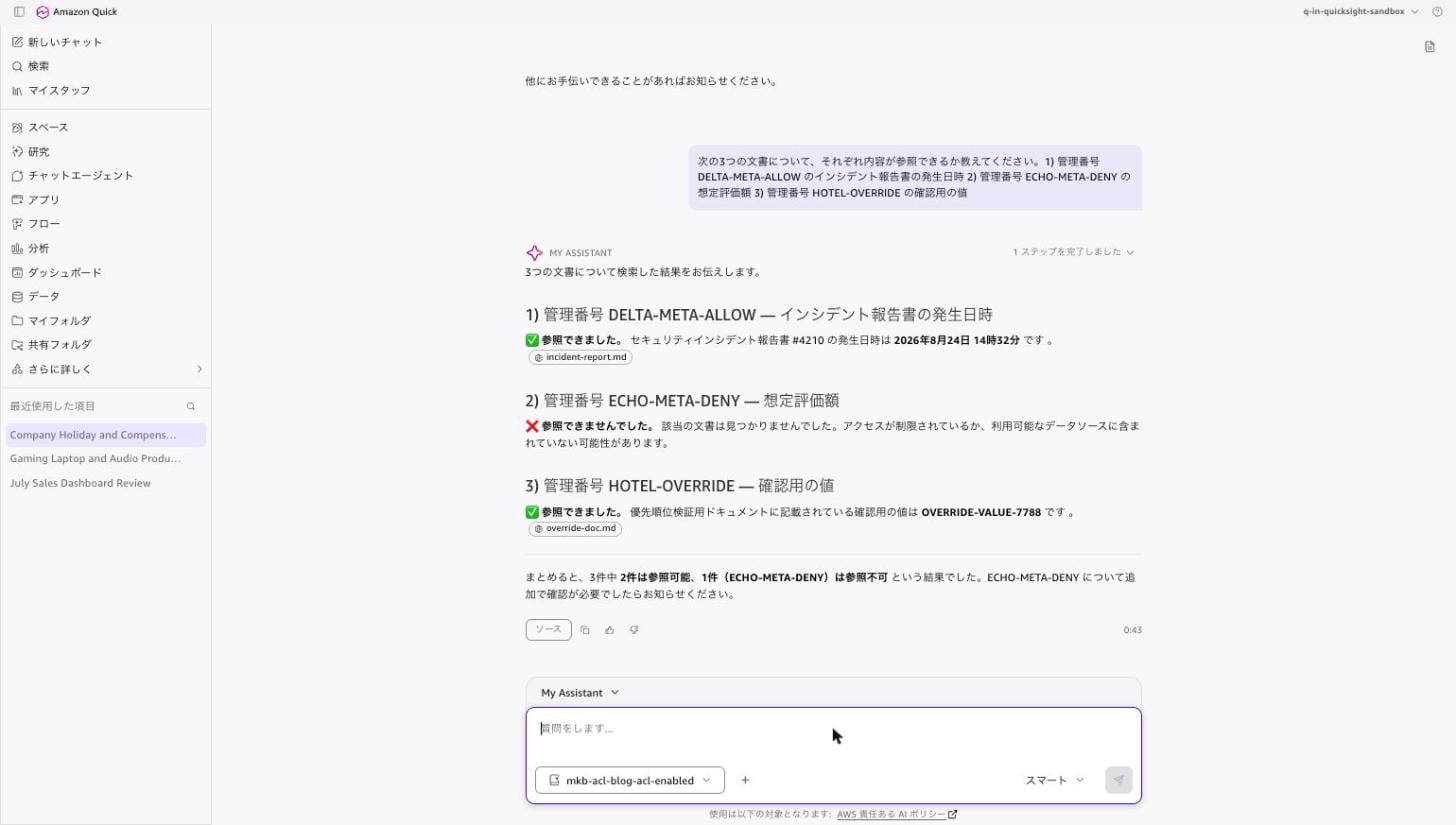
1) Reference number DELTA-META-ALLOW — Incident report occurrence date and time
✅ Successfully referenced. The occurrence date and time of Security Incident Report #4210 is August 24, 2026, at 14:32.

2) Reference number ECHO-META-DENY — Estimated valuation
❌ Could not reference. The relevant document was not found. Access may be restricted or it may not be included in the available data sources.

3) Reference number HOTEL-OVERRIDE — Verification value
✅ Successfully referenced. The verification value listed in the priority verification document is OVERRIDE-VALUE-7788.
This is the same result as the CLI retrieve. HOTEL-OVERRIDE, which was DENY in the global ACL, is accessible because the ALLOW in the metadata file is effective.
Finally, I'll ask about the 2 documents that were not ingested.
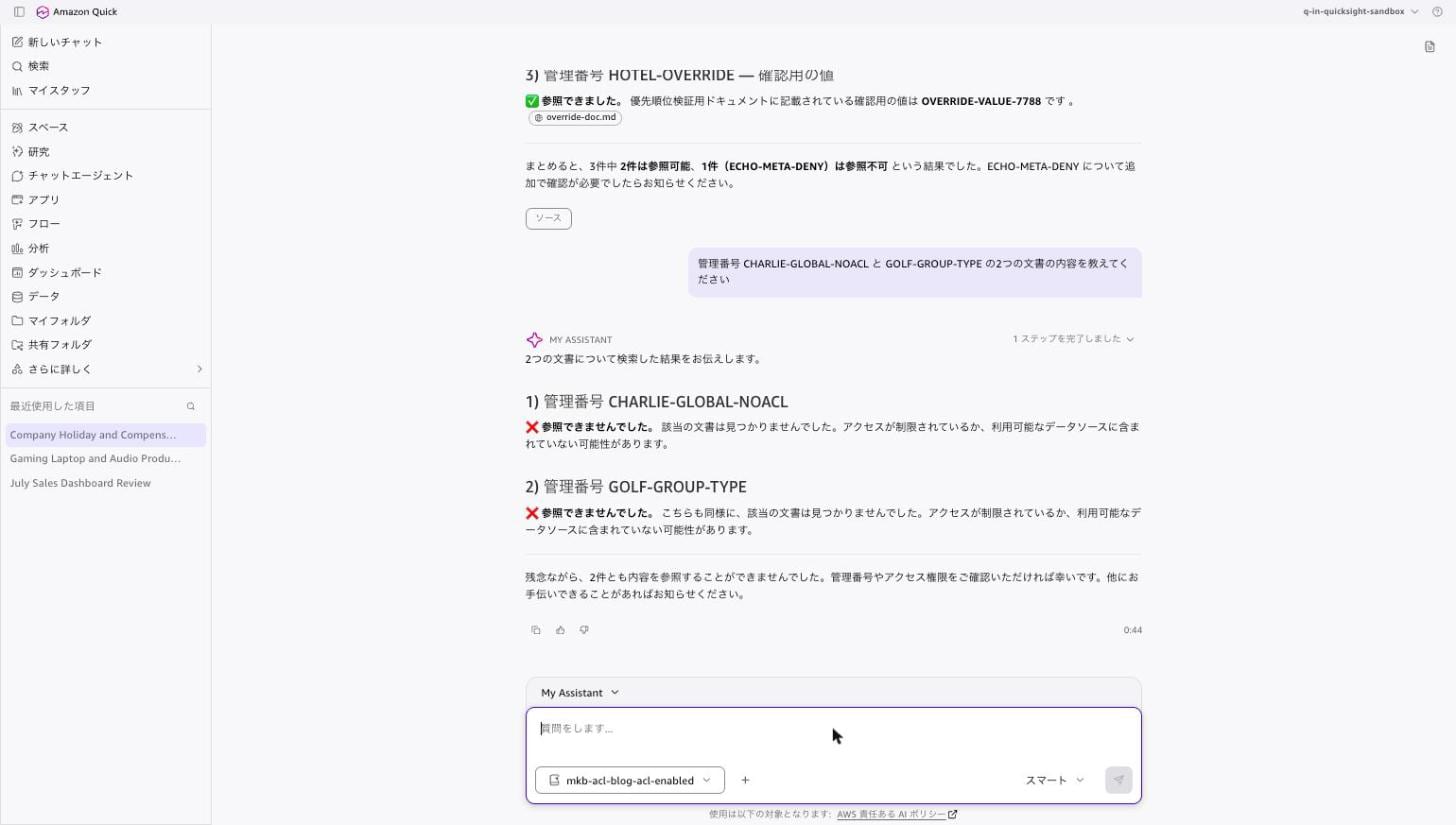
Neither CHARLIE-GLOBAL-NOACL nor GOLF-GROUP-TYPE could be referenced. A missing ACL entry and an unsupported Type: GROUP both end up at the same "cannot be referenced" outcome.
Step 14: Verify ACL from the console
Opening the data source details in the Bedrock console displays the ACL configured via CLI as-is.
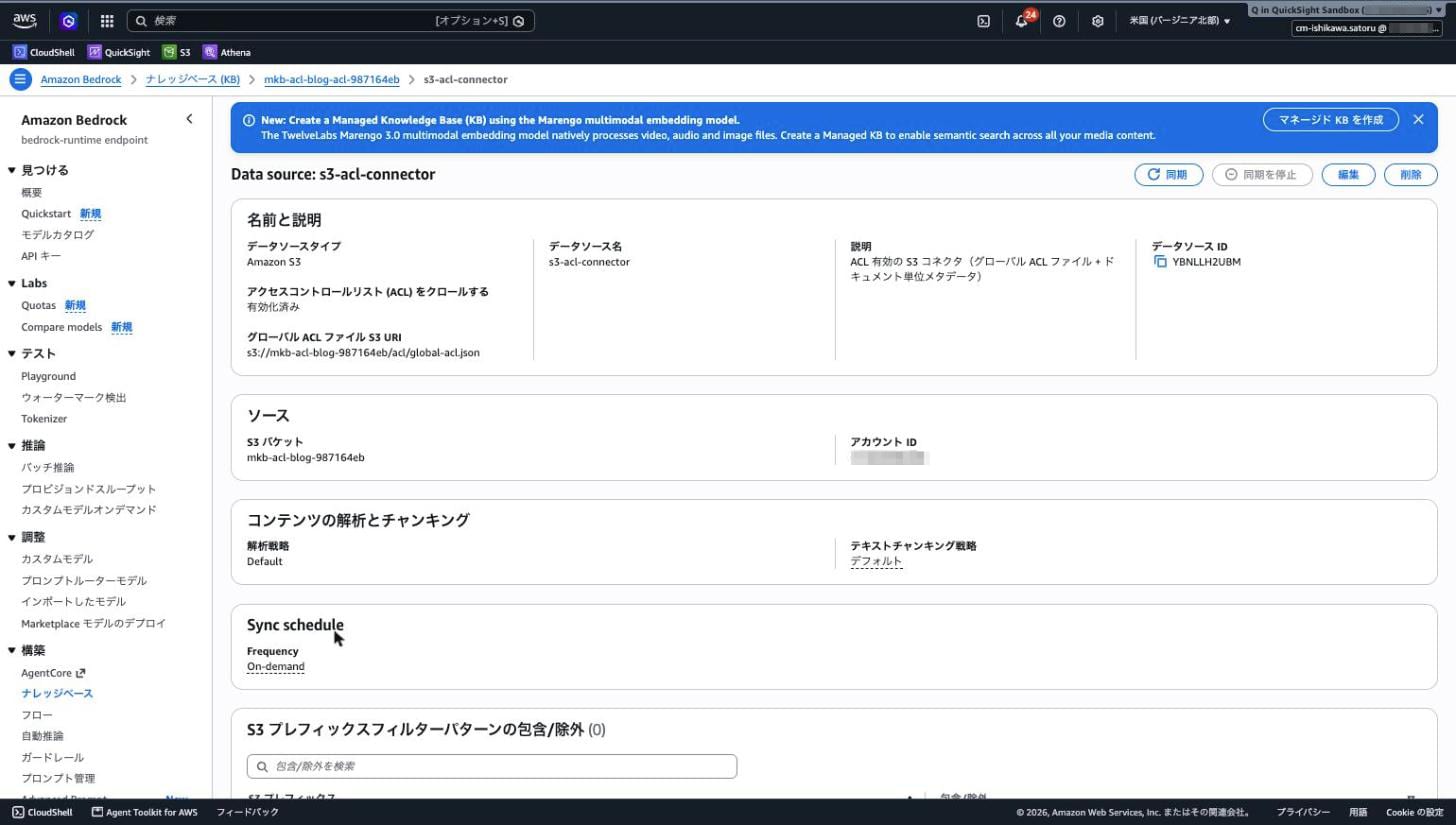
You can see "Crawl access control lists (ACLs): Enabled" and "Global ACL file S3 URI."
In the sync history, the breakdown of 8 scanned, 5 added, and 3 failed is visible in a list.
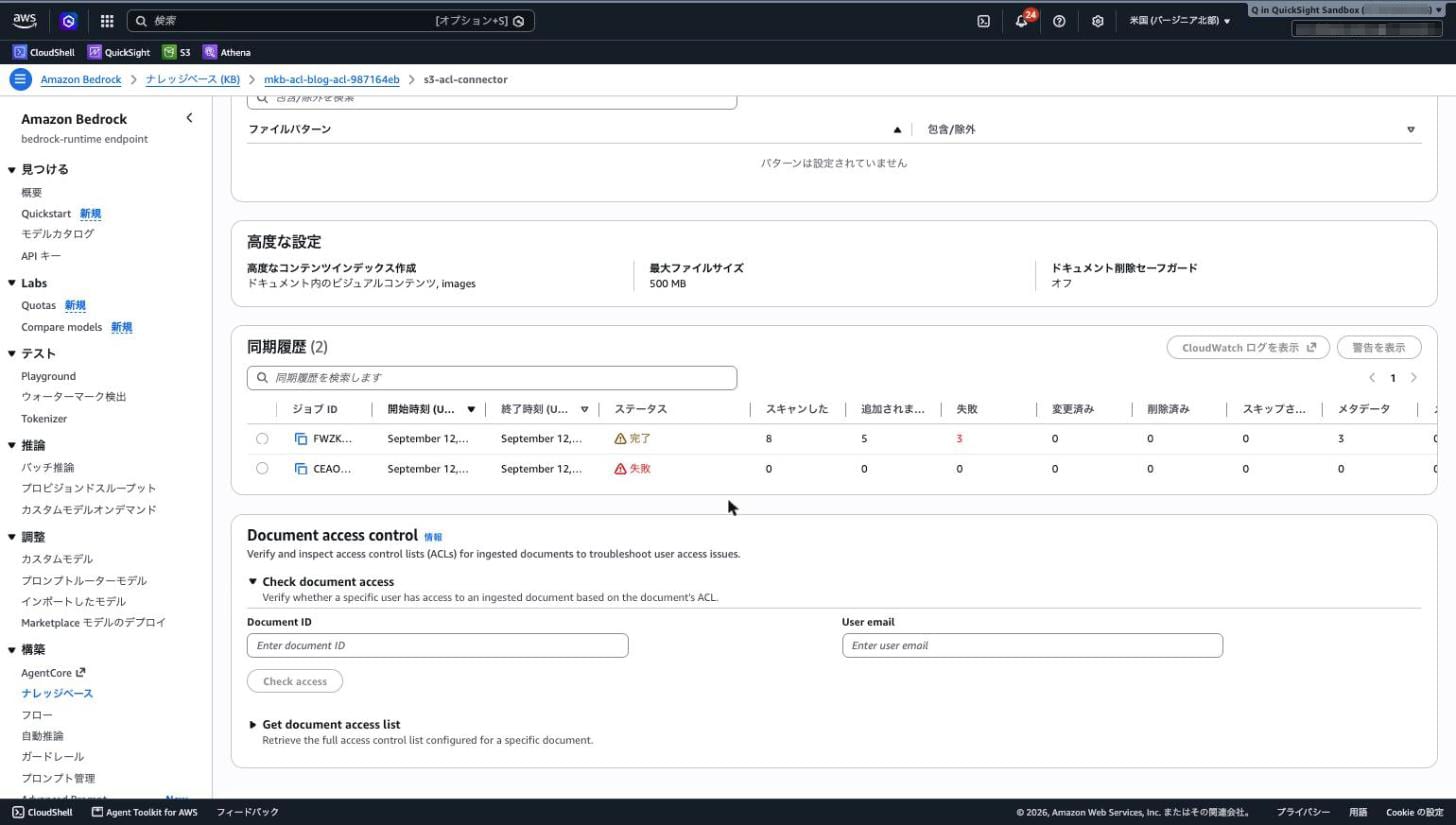
The content displayed by "Show warnings" was only a single line of message for the whole.
The sync completed with partial failures. Some documents could not be crawled.
In the Quick S3 knowledge base verified last time, the sync report showed per-document failure reasons (No ACL entries found for document in ACL-enabled data source.). With the Managed Knowledge Base this time, which file failed and why cannot be determined from this screen. Even querying individually with get-knowledge-base-documents, only NOT_FOUND is returned.
% aws bedrock-agent get-knowledge-base-documents \
  --knowledge-base-id O3VLSO3CS9 --data-source-id YBNLLH2UBM \
  --document-identifiers '{"dataSourceType":"S3","s3":{"uri":"s3://mkb-acl-blog-987164eb/group/board-minutes.md"}}' \
  --region us-east-1

  status: NOT_FOUND
  reason: (none)
At the bottom of the same screen is "Document access control," where the two CLI APIs are available directly as a GUI.
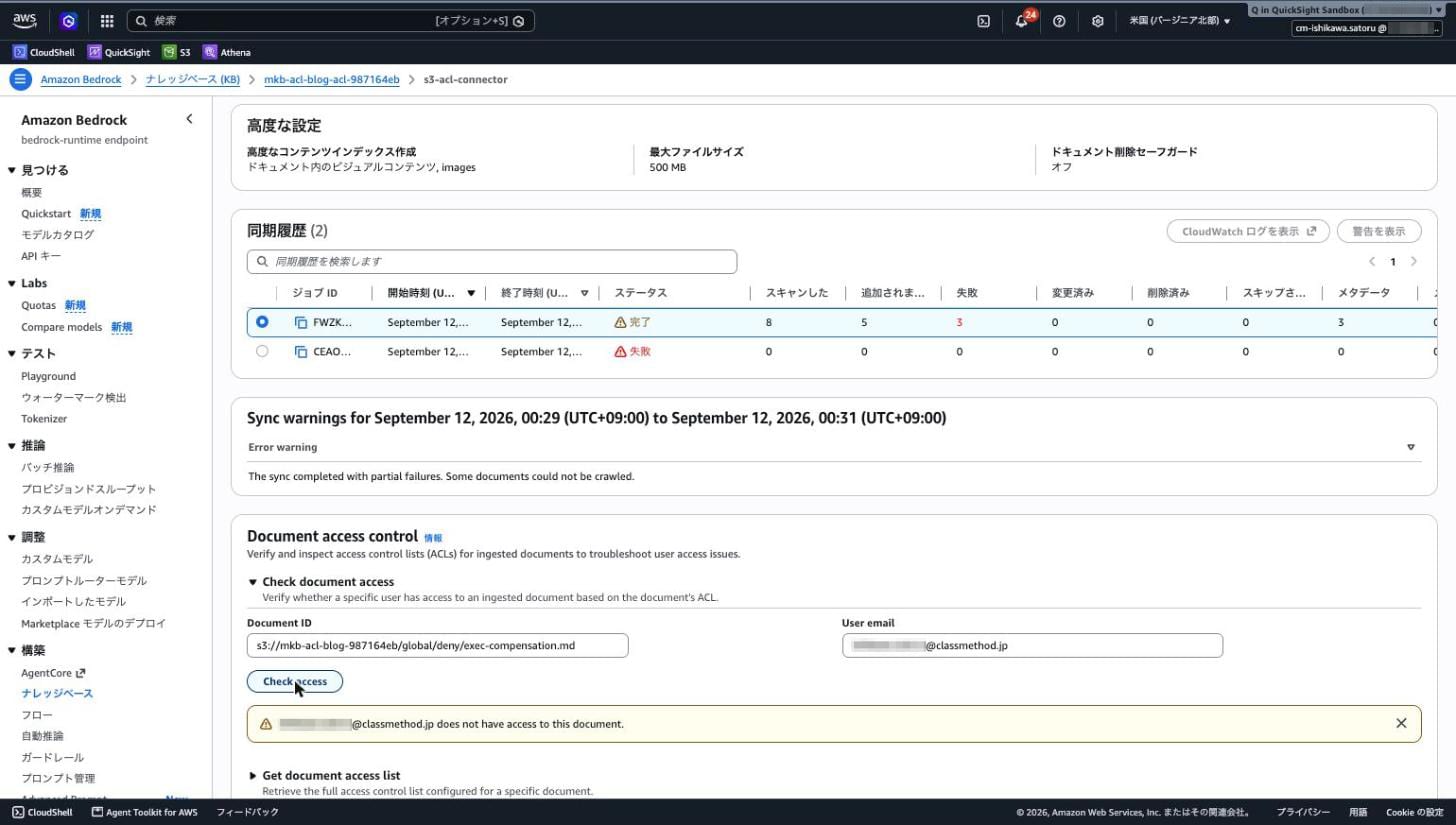
Enter the Document ID and the user's email address and press "Check access" to get a determination.
ishikawa.satoru@classmethod.jp does not have access to this document.
"Get document access list" displays a list of ACLs configured for the document. Here are the results for override/override-doc.md.
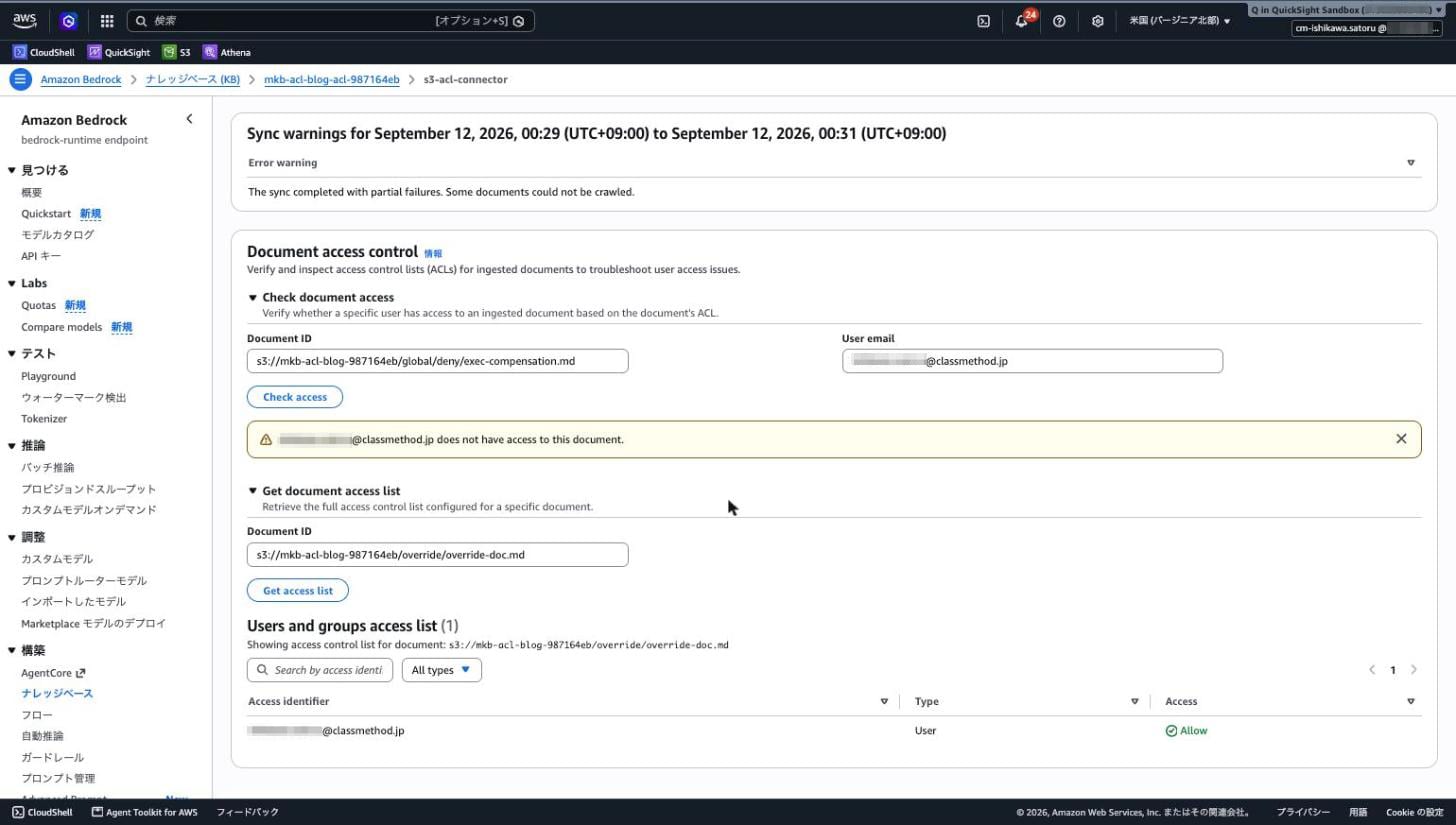
| Access identifier | Type | Access |
|---|---|---|
| xxxxxxxxxx@classmethod.jp | User | Allow |
There is only one entry. The DENY written in the global ACL file does not appear here either. This is consistent with what was confirmed via CLI.
Discussion
Let me summarize what was learned from the verification.
The main battleground for ACL shifts from QuickSight to Bedrock
When using a Managed Knowledge Base, there are absolutely no ACL-related settings on the QuickSight side. QuickSight's isACLEnabled remains false, and both the global ACL file and metadata file are referenced by Bedrock's data source configuration. The only thing QuickSight does is pass the user's ID at query time.
This structure has advantages. When the same Bedrock knowledge base is used from applications other than QuickSight, the ACL definition can be kept in one place. Conversely, control using QuickSight groups becomes unavailable.
Groups cannot be used with the S3 connector
Documents with Type: GROUP were not ingested. The result is the same even if USER ALLOW is written alongside in the same metadata file. In the previous Quick S3 knowledge base, QuickSight group names could be specified, so this is a clear regression.
To perform group-based control with Bedrock Managed Knowledge Base, you would need to use one of the SharePoint, OneDrive, Google Drive, or Confluence connectors. These crawl group membership from the connected source and resolve the user's membership at query time. As long as the target is files placed in S3, permissions can only be expressed by enumerating email addresses.
The metadata file overrides the global ACL file
As documented, it was a gain to confirm this as actual behavior. Since denyList itself disappears, an operation of "broadly DENY globally, then individually ALLOW exceptions" works.
However, the flip side is that placing a single metadata file can nullify the global-side restrictions. Even if write permissions to the ACL file are restricted, someone who can place a .metadata.json in the same location as a document can bypass it. The write permissions to the bucket itself need to be part of the design.
There is a route through which ACL definition files can leak
If you create an ACL-disabled knowledge base pointing to the same bucket, global-acl.json appears in search results. This single file enumerates who can access which prefix. Even if the confidential documents themselves cannot be read, the organization's permission structure can be read.
As a countermeasure, the straightforward approach is to exclude the ACL file from the data source's inclusionPrefixes or explicitly exclude it with exclusionPrefixes. However, since the ACL file must be placed in the same bucket as the data source, separating into different buckets is not an option.
Investigating ingestion failure causes takes more effort than last time
In the previous Quick S3 knowledge base, per-document failure reasons were clearly shown in the sync report. With the Managed Knowledge Base this time, there is no more information than "partial failures" in either the console or the API. Even when suspecting missed ACL entries, to determine which files failed, you need to manually compute the difference between "list of files placed in S3" and "list of indexed files."
The sync history screen has a link to CloudWatch logs, so if log delivery is configured, there may be a way to track this. It was not configured this time, so it could not be confirmed.
ACL can now be verified from the CLI
Last time the only means was the console's Permission Checker, but now check-ingested-document-acl and get-ingested-document-acl are available from the CLI. I think it is significant that it has become possible to mechanically verify "whether the intended permissions are actually reflected" in CI.
Only knowledge base creation cannot be completed via CLI
On the QuickSight side, data source creation goes through via CLI but only knowledge base creation is rejected. The error message says "other public knowledge base APIs support this connector type," so further support is expected in the future.
FAQ
Q. Which should I use: the previous Quick S3 knowledge base ACL or this one?
A. It depends on the use case. The differences between the two are as follows.
| Aspect | Quick S3 Knowledge Base | Via Bedrock Managed Knowledge Base |
|---|---|---|
| ACL configuration location | QuickSight knowledge base | Bedrock data source |
QuickSight-side isACLEnabled |
true required |
Remains false |
Type: GROUP |
Available | Not available (S3 connector) |
| Changing ACL enablement after creation | Cannot be changed after creation | Not verified |
| Access permission verification | Console Permission Checker | Both CLI and console |
| Ingestion failure reason | Shown per document in sync report | Only overall warning |
| Tokyo region | Available | Not available |
| Reuse from other apps | QuickSight-exclusive | Any app that can call Bedrock |
If completing within QuickSight and group-based control is needed, use the former. If there are plans to use the same knowledge base from applications other than QuickSight, the latter is suitable. If you want to use it in the Tokyo region, only the former is an option.
Q. How can I verify that ACL is configured correctly?
A. You can check per-user access permissions with check-ingested-document-acl and check the content of the ingested ACL with get-ingested-document-acl. Since both look at content stored in the index, you can see "the ACL that is actually in effect" rather than "the ACL you thought you wrote."
ACL configuration mistakes do not appear as errors at search time. Results just decrease or become zero. When query results differ from expectations, the fastest approach is to first check the ACL itself with these two APIs.
Q. Can ACL settings be changed after the fact?
A. For changes to ACL file content, they are reflected by re-syncing the affected prefix. Changing one line in the global ACL file makes everything under that prefix a target. Keeping frequently-changed permissions in the metadata file side allows keeping the re-indexing scope smaller.
On the other hand, whether ACL enablement itself can be switched on or off after the fact was not verified this time. In the previous Quick S3 knowledge base, it was rejected with the error ACL enablement cannot be changed. Since ACL configuration is on the data source side for Bedrock Managed Knowledge Base, the situation may differ, but I will avoid making definitive statements as it has not been confirmed. Until the policy is solidified, it is safer to test on a verification knowledge base before creating production.
Q. How much of the authentication does Bedrock handle?
A. Nothing. The documentation repeatedly states "ACL awareness is not authorization." Bedrock does not verify whether the passed email address is genuine. It is assumed that authentication is completed on the application side and a verified ID is passed.
In today's configuration, QuickSight plays that role. Since the ID of the user who signed into QuickSight is passed to Bedrock, users cannot impersonate arbitrary email addresses. On the other hand, when building an application that directly calls the retrieve API, controlling what goes into userContext is the responsibility of the implementer.
Conclusion
I connected Amazon Bedrock Managed Knowledge Base as a knowledge source for Amazon QuickSight and tested document-level ACL for the S3 connector from both the AWS CLI and the console.
For the same documents in the same bucket, I was able to confirm via CLI retrieve that DENIed documents are not returned from the ACL-enabled knowledge base, but are returned from the ACL-disabled one. Connecting the ACL-enabled one to QuickSight and asking through chat also does not return the content of DENIed documents. Even without any ACL configuration on the QuickSight side, the Bedrock-side permissions are in full effect.
Compared to the Quick S3 knowledge base verified last time, groups can no longer be used, but ACL verification becomes possible from the CLI, and the knowledge base itself can be reused from applications other than QuickSight. Rather than one being superior to the other, the difference between holding a knowledge base as a QuickSight-exclusive asset versus holding it as a shared asset across multiple applications appears directly as a difference in where ACL is designed.
While availability in the Tokyo region is awaited, those considering a configuration where the same knowledge base is used from applications other than QuickSight would do well to start their design with the understanding that permission expression is limited to enumerating email addresses.