![[Update] I Tried Out Smart Approvals, Now Available in Amazon Quick, Which Automatically Approves Agent Actions](https://devio2024-media.developers.io/image/upload/f_auto,q_auto,w_3840/f_auto,q_auto/v1790875080/eyecatch/fu4oqvi9h5yej1imliyf.png)
[Update] I Tried Out Smart Approvals, Now Available in Amazon Quick, Which Automatically Approves Agent Actions

This page has been translated by machine translation. View original
I'm Ishikawa from the Cloud Business Division. Smart Approvals, a feature in Amazon Quick where a separate review model evaluates the actions an agent is about to execute and decides whether to ask the user for approval, is now available, so I tried it out in the desktop app.
An Amazon Quick agent can execute actions on the user's behalf, such as sending emails, updating records, and creating tickets. Asking a human for approval at every step causes approval fatigue, and oversight tends to weaken over time. Smart Approvals is a review mechanism that addresses this problem. A separate review model called a classifier evaluates each eligible action against the user's request. It automatically approves routine actions and routes high-impact actions to the user for review.
What is Smart Approvals
Order of evaluation
The official documentation explains that actions proposed by the agent are evaluated in the following order.
- Check against existing controls (permissions, custom permissions, guardrails, connector action permissions, and the user's own settings). Actions denied by policy remain denied, and actions that require human approval are always routed to the user
- For actions eligible for automatic review, Smart Approvals evaluates them against the user's request and the conversation. Low-risk actions that match the request are automatically approved, and the conversation shows that they were auto-approved
- Critical actions such as sending content outside the organization, changing permissions, deleting or overwriting content, and payments are routed to the user for review. If the review fails, for example due to a timeout, the action is also routed to the user
An automatic approval applies only to that single action that was reviewed. Smart Approvals never grants new access rights.
Eligible actions
Smart Approvals reviews only actions that satisfy both of the following two conditions.
| Who configures it | Where it is configured | Eligible value |
|---|---|---|
| Connector author | Connector action permissions | "Let user choose" (written as Let user choose in the documentation) |
| User | The user's own action permissions | "Ask each time" (written as Ask each time in the documentation; displayed as "Ask me each time" in the desktop app) |
Actions that the connector side sets to "Ask each time" are always confirmed with the user, and actions set to "Always allow" run without confirmation. Neither goes through Smart Approvals review.
The default values for action permissions are: for Write actions, "Let user choose" on the connector side and "Ask each time" on the user side; for Read actions, "Always allow" on the user side. The confirmation prompt has buttons for "Allow" (run this time only and ask again next time), "Trust" (run and do not show the confirmation prompt from then on), and "Deny" (do not run).
Enabling and disabling
Smart Approvals is enabled for all users by default. Administrators can restrict its use per user with custom permission profiles. Users can toggle it ON/OFF themselves from the "+" menu in chat. This setting is global and applies to all conversations and to actions that scheduled runs execute on the user's behalf.
In custom permissions, features with an AI badge belong to the AI governance category. If you restrict the AI category as a whole in a profile, the features in this category become unavailable unless you individually allow them.
The documentation says that for actions that always require human approval, you should consider making confirmation mandatory through the connector's action permissions rather than relying on automatic review.
Audit logs
Smart Approvals operations are recorded in AWS CloudTrail. The event source for all of them is quicksight.amazonaws.com.
| Operation | Event name | Main fields |
|---|---|---|
| The user toggled ON/OFF | BatchUpdatePreferencesInternal |
scope=USER, preferenceKeys=UseSmartApprovals, updatedValues=ON or OFF |
| Smart Approvals approved an action | BatchUpdatePermissionsInternal |
connectorId, actionId, approvalSource=SMART_APPROVALS |
An event with approvalSource=SMART_APPROVALS indicates that the action was approved, not that it was executed.
Supported clients and Regions
Smart Approvals is available in the Amazon Quick desktop app and mobile app, and is currently not available in the web version. The Regions are all Regions where Amazon Quick's agent features are supported.
Trying it out
Prerequisites
- AWS account (Amazon Quick Enterprise edition)
- Amazon Quick identity region: Asia Pacific (Tokyo) ap-northeast-1
- Test user: an IAM-federated user with the Admin (Professional) role
- Amazon Quick desktop app, macOS version 1.1.4053. Signed in as the same user as on the web via the enterprise sign-in (SSO) configured by the administrator
- Gmail action connector (owned by myself, connected with Managed OAuth)
Usage of Amazon Quick's AI features is metered in agent hours (Professional includes up to 8 hours per month).
Verified: Checking the administrator-side setting
I checked whether custom permissions have an item that lets administrators restrict Smart Approvals. Opening "Manage account" > "Custom permissions" > "Create profile", the "AI features" section under "Capabilities and features" had Smart approvals, which was "Allowed" by default (I did not save the profile).
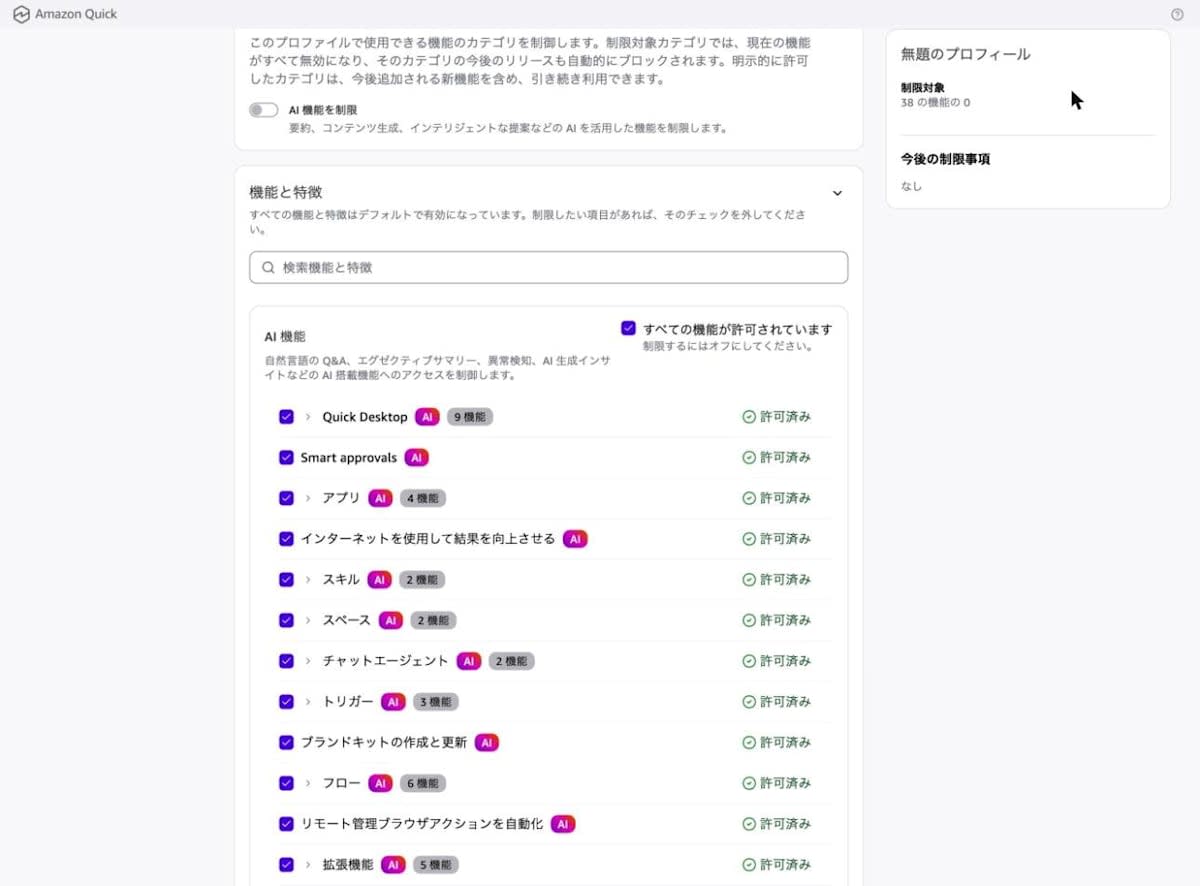
Smart approvals had an AI badge. At the top of the same screen there is a "Restrict AI features" toggle.
Verified: Comparing the "+" menu in the web and desktop versions
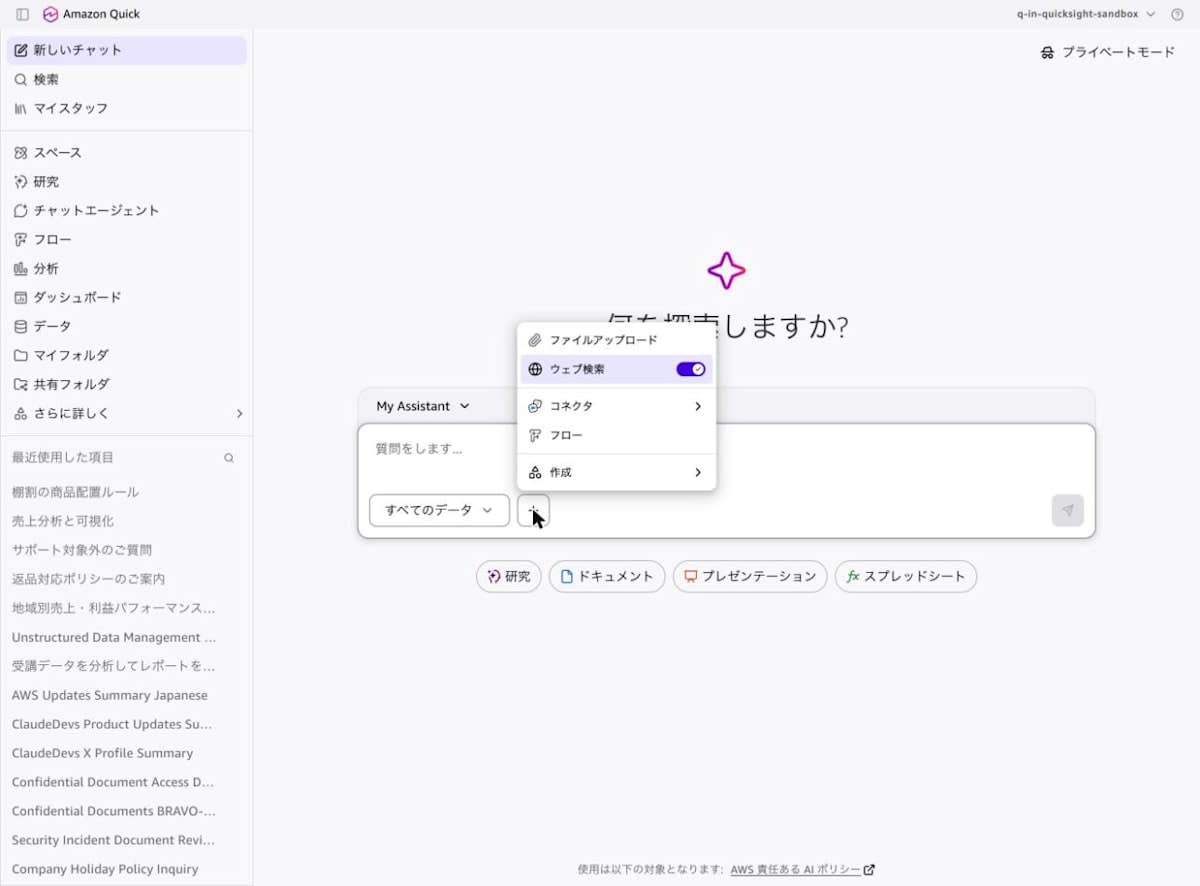
I compared the "+" menu of the chat input field in the web and desktop versions.
The web version's items were "File upload", "Web search", "Connectors", "Flows", and "Create", with no Smart Approvals toggle.
The desktop version's items were "Upload file", "Web search", "Local folder", "Space", and "Smart approvals", and the Smart approvals toggle was ON.
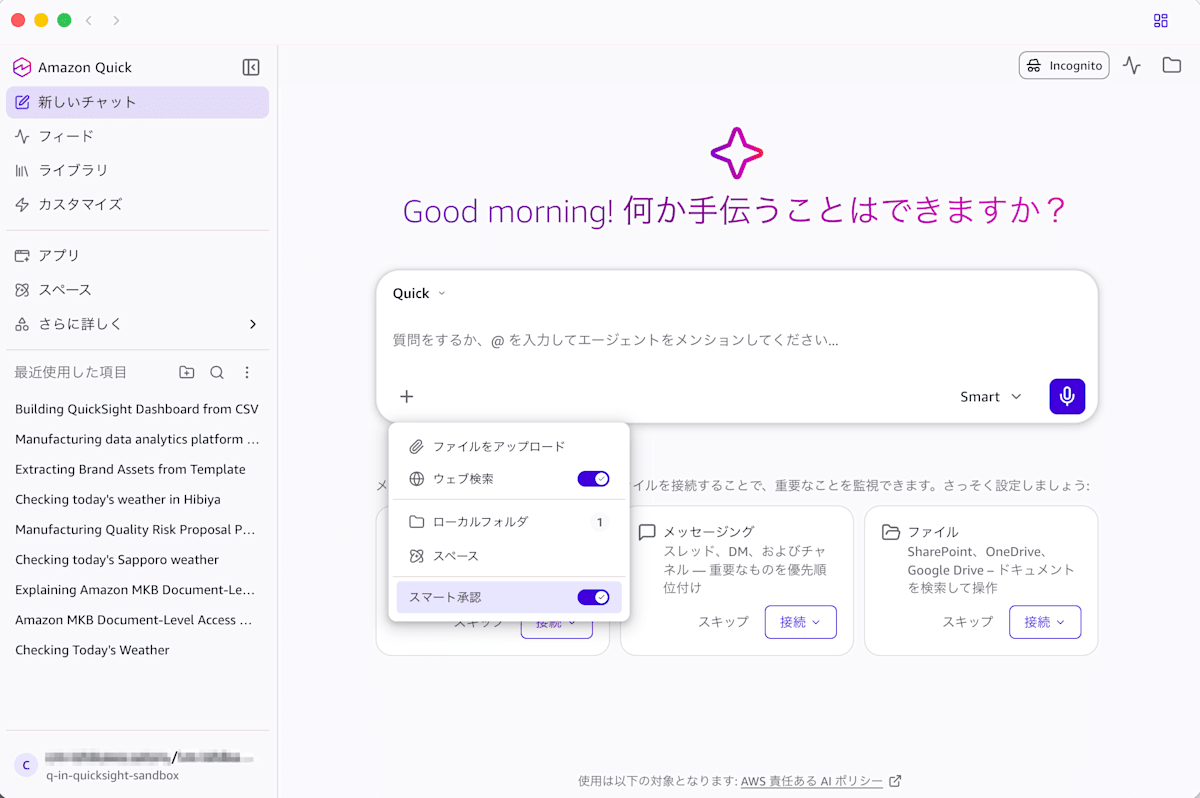
As the documentation states, this setting is not in the web version.
Verified: Checking whether the Gmail connector meets the eligibility conditions
I checked whether the Gmail connector's Write tools meet the conditions for Smart Approvals review ("Let user choose" on the connector side and "Ask each time" on the user side).
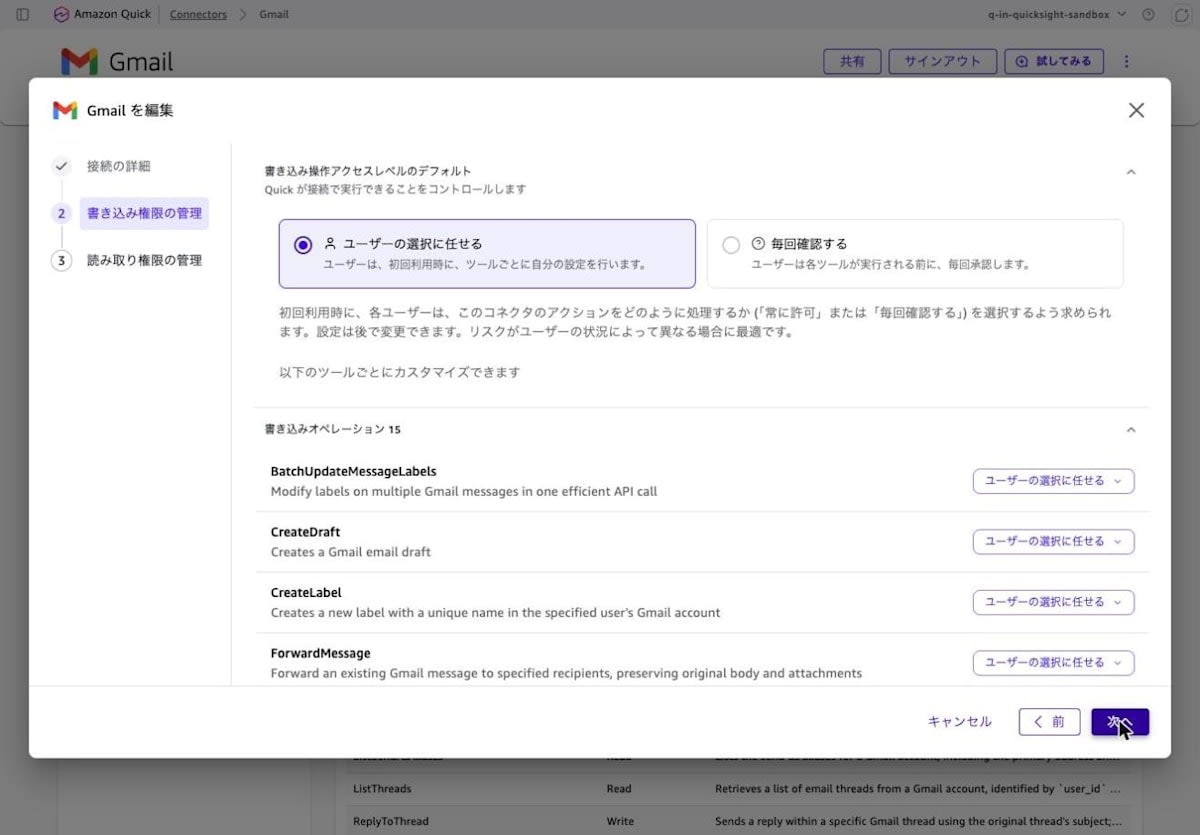
On the connector side, I checked in the web's "Connectors" > Gmail > "Edit" > "Manage write permissions". All 15 Write tools were set to "Let user choose".
On the user side, I checked in the web's account menu > "Preferences" > "Connectors" > Gmail. All 15 Write tools were set to "Ask each time", and the Read tools were set to "Always allow".
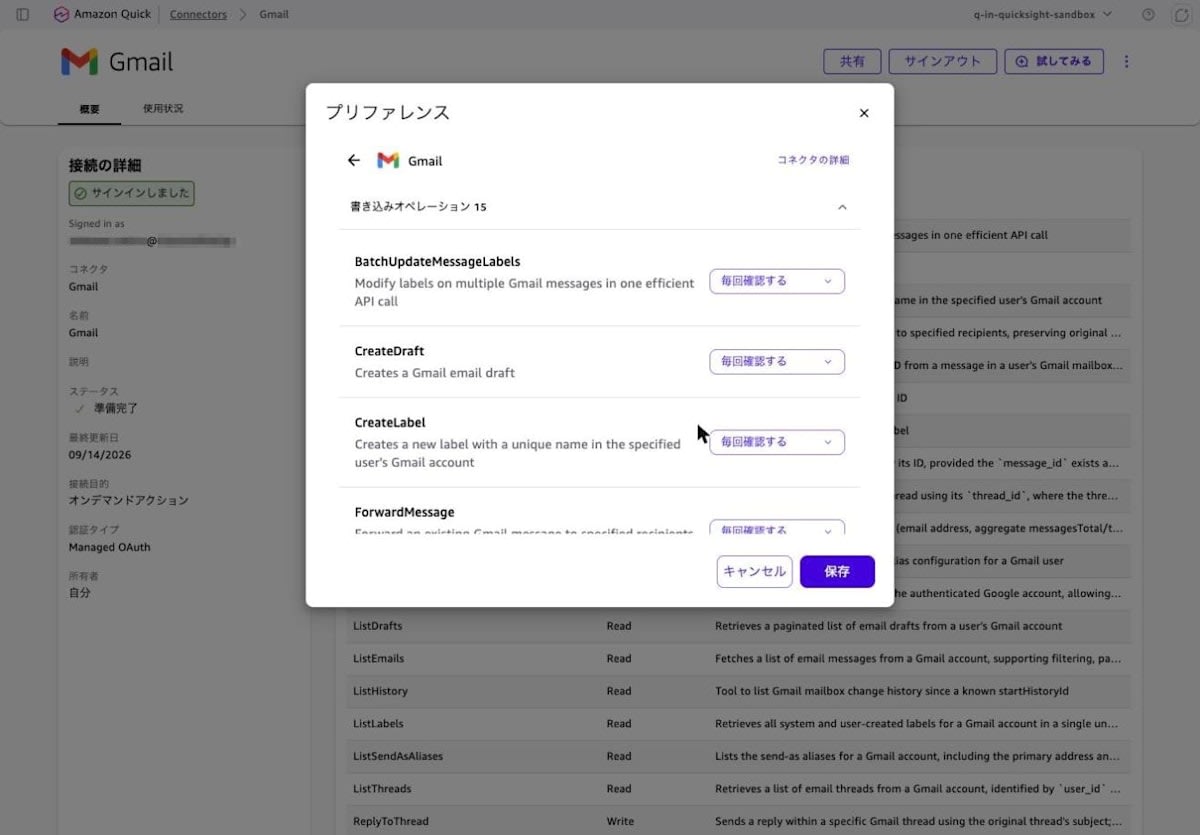
In the desktop app as well, Gmail's write actions were shown as "Ask me each time".
| Where checked | Write tools such as CreateDraft / CreateLabel / SendEmail / TrashMessage |
|---|---|
| Connector side (web) | Let user choose |
| User side (web) | Ask each time |
| User side (desktop) | Ask me each time |
Gmail's Write tools meet the eligibility conditions in the documentation.
Verified: Having the agent execute actions in the desktop app
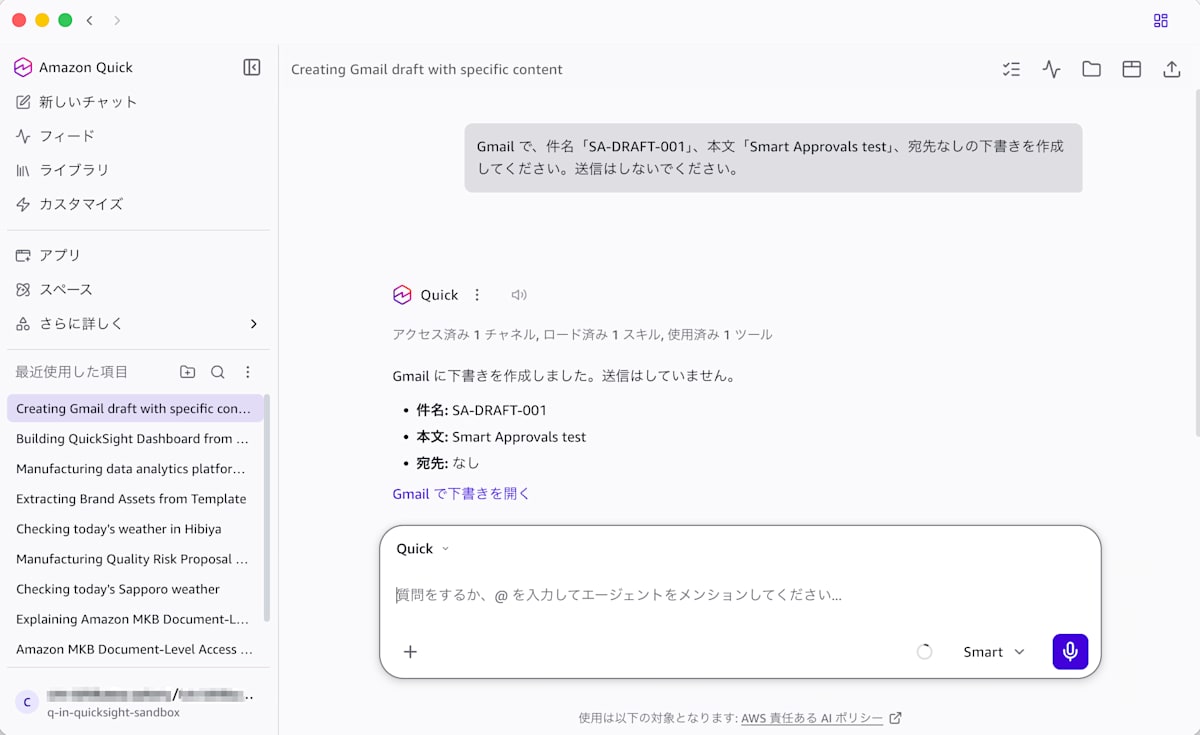
With Smart Approvals ON, I opened a new chat for each case and entered the following requests. When a confirmation prompt appeared, I proceeded without choosing "Trust".
A1: Gmail で、件名「SA-DRAFT-001」、本文「Smart Approvals test」、宛先なしの下書きを作成してください。送信はしないでください。
A2: Gmail で「SA-LABEL-001」という名前のラベルを作成してください。
A3: Gmail で、自分(<自分の社内アドレス>)宛てに、件名「SA-MAIL-001」、本文「Smart Approvals test」のメールを送信してください。
B : Gmail で、件名「SA-MAIL-001」のメールを受信トレイから探して、ゴミ箱に移動してください。
For case C, I asked for an email with the subject "SA-MAIL-EXT-001" and the body "Smart Approvals test" to be sent to the same internal address of my own as in A3. I confirmed which tools were called from the actionId of GetAction recorded in CloudTrail.
| Case | Request | Tool called | Confirmation shown | Result |
|---|---|---|---|---|
| A1 | Create a draft with no recipient | CreateDraft | None | Created |
| A2 | Create a label (then change its color) | CreateLabel / UpdateLabel | None | Created and changed |
| A3 | Send an email to myself | SendEmail | None | Sent, and arrived in the inbox |
| B | Move the A3 email to the trash | ListEmails / TrashMessage | None | Moved to the trash |
| C | Send an email to myself (different subject) | SendEmail | Review & Send card | Denied, so it was not sent |
A1 to A3 and B were executed without any confirmation prompt. The documentation explains that auto-approved actions are indicated in the conversation, but I found no indication of automatic approval either.
In case C, a "Review & Send" card appeared where the To, Cc, BCC, subject, and body could be edited, and I could choose "Deny" or "Send". When I pressed "Deny", the email was not sent.
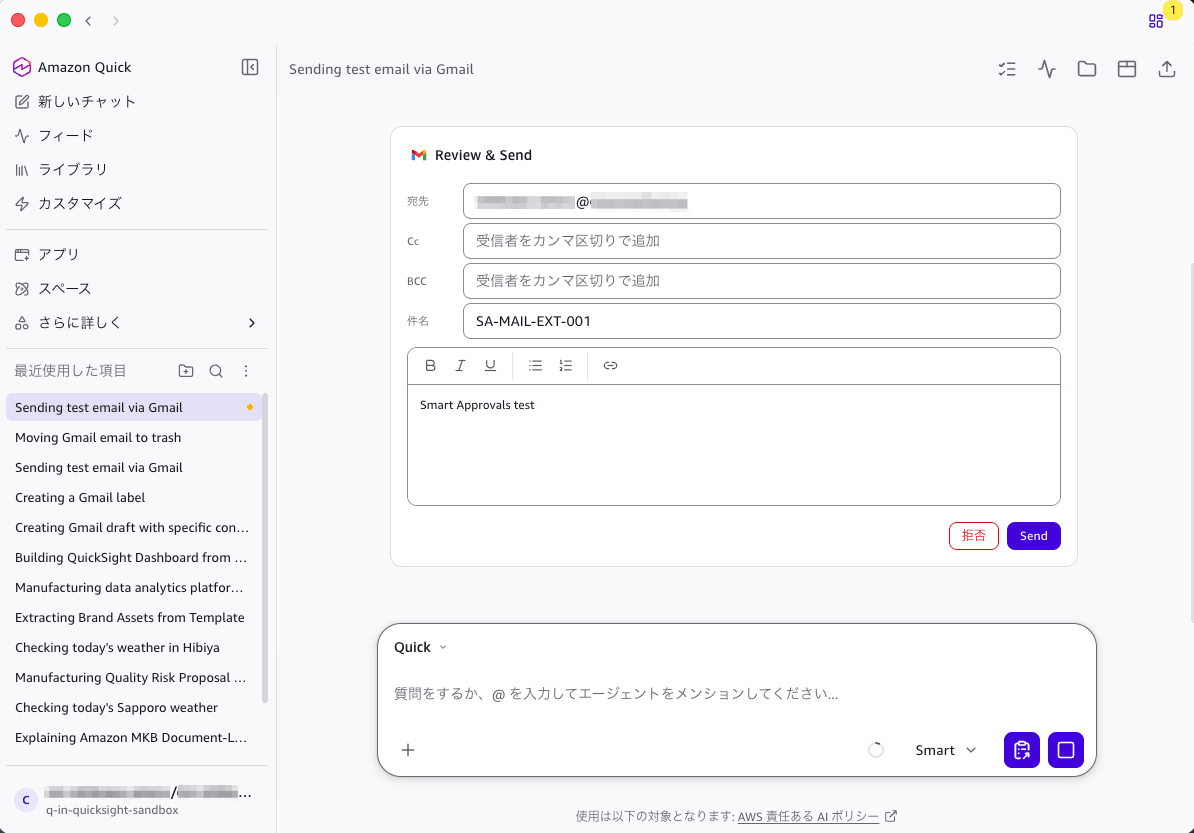
A3 and C were both SendEmail to my own address, but A3 was sent without confirmation while C displayed a card. From these results, I could not tell why this difference occurred.
Moving to the trash in case B is an operation that can be undone in Gmail. Whether this operation falls under "deletion/overwriting", which the documentation gives as an example of what gets routed to the user, cannot be determined from these results.
Verified: Running the same kind of operation with Smart Approvals OFF
The documentation explains that when Smart Approvals is OFF, eligible actions are not automatically approved and require user review. So I turned Smart Approvals OFF from the "+" menu and then asked for a label creation in a new chat.
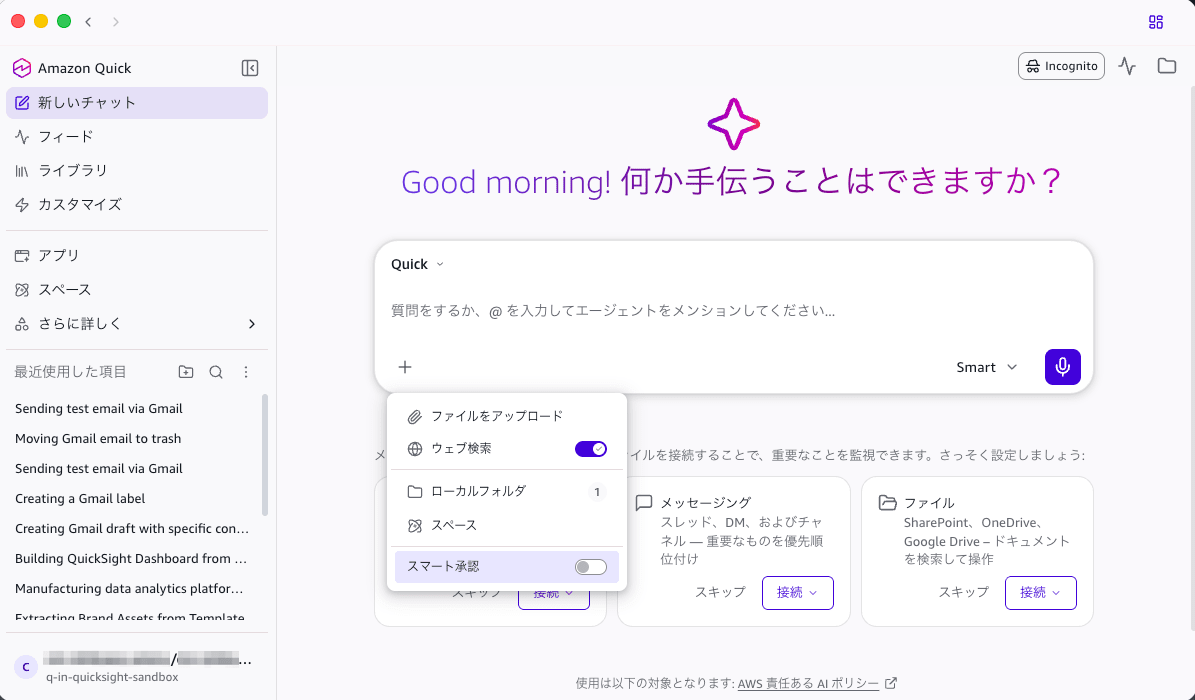
D : Gmail で「SA-LABEL-002」という名前のラベルを作成してください。
Contrary to what I expected, the label was created without a confirmation prompt being displayed.
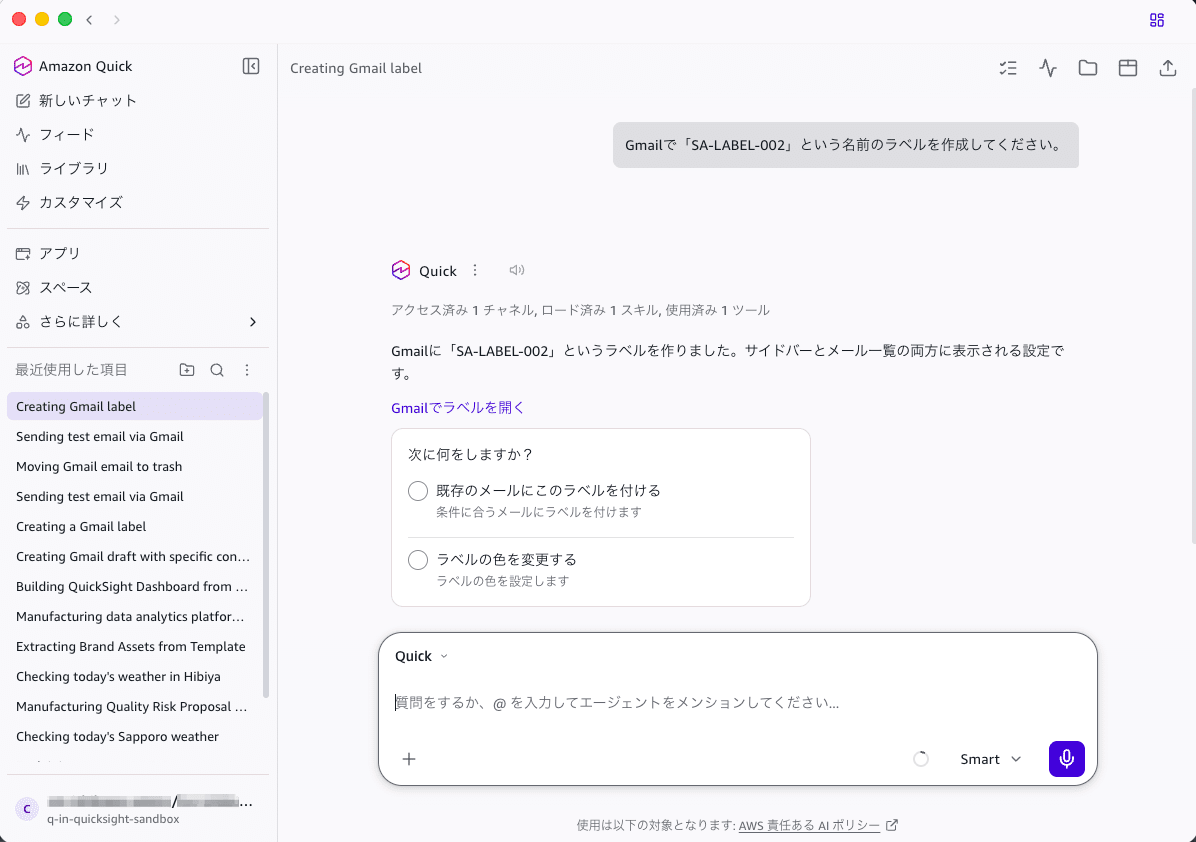
After the verification, I turned Smart Approvals back ON.
Verified: Running the same operation in the web version
For comparison, I asked for the same kind of label creation in a chat in the web version, which does not have Smart Approvals.
Gmail で「SA-LABEL-WEB-001」という名前のラベルを作成してください。
The web version displayed "Requesting Action review", and a card saying "Allow Quick to run CreateLabel" appeared with "Deny", "Trust", and "Allow" buttons.
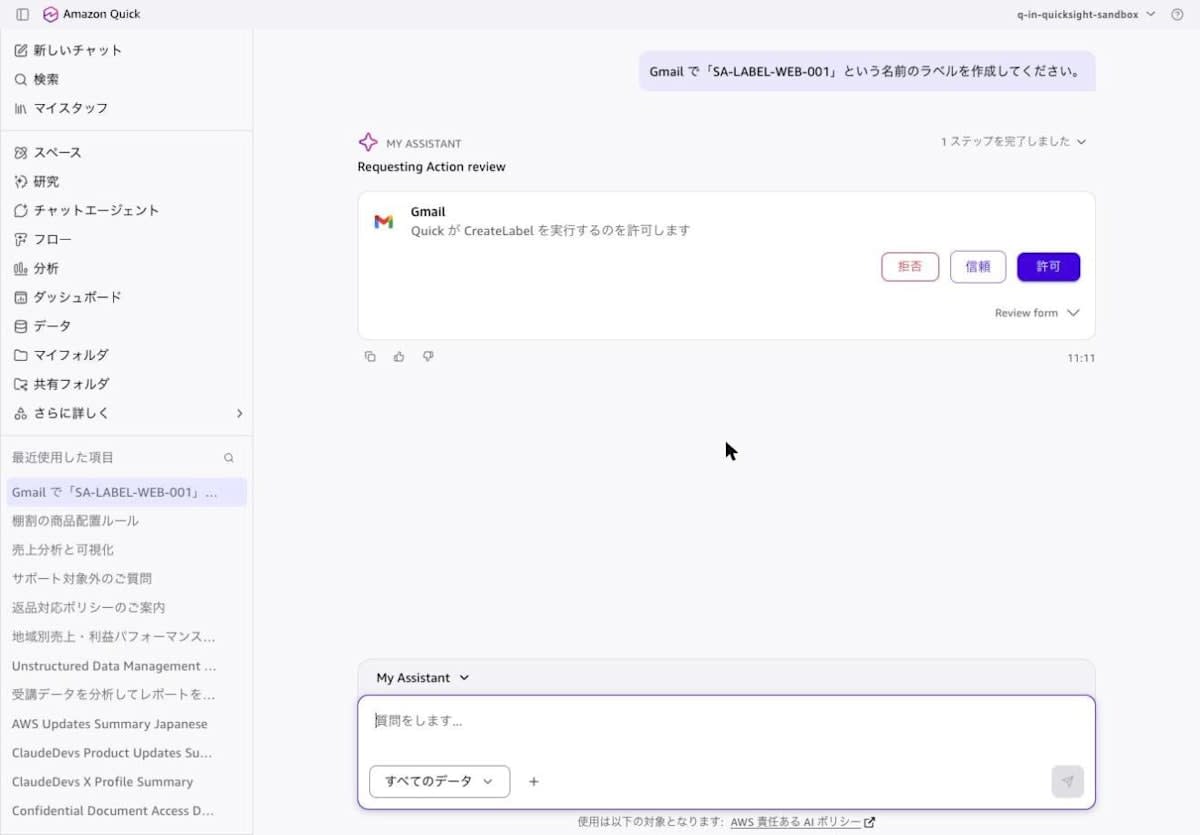
When I pressed "Deny", "The action was canceled" was displayed and the label was not created. This means that with the same user, the same connector, and the same "Ask each time" setting, confirmation was displayed in the web version but not in the desktop version (cases A2 and D).
Verified: Checking the records in CloudTrail
I checked whether the two events described in the documentation were recorded. In the verification, I called the LookupEvents API from the AWS SDK. In the AWS CLI, this corresponds to the following commands.
% aws cloudtrail lookup-events \
  --region ap-northeast-1 \
  --lookup-attributes AttributeKey=EventName,AttributeValue=BatchUpdatePreferencesInternal \
  --start-time 2026-10-29T01:00:00Z \
  --query 'length(Events)'
0

% aws cloudtrail lookup-events \
  --region ap-northeast-1 \
  --lookup-attributes AttributeKey=EventName,AttributeValue=BatchUpdatePermissionsInternal \
  --start-time 2026-10-29T01:00:00Z \
  --query 'length(Events)'
0
I also searched in us-east-1 and us-west-2 in addition to ap-northeast-1, but both events returned 0 results. The last search was done more than 25 minutes after running case D.
On the other hand, GetAction for the Gmail connector was recorded at the time of each case.
| Time (JST) | actionId | Case |
|---|---|---|
| 10:25:22 | CreateDraft | A1 |
| 10:27:32 | CreateLabel | A2 |
| 10:30:40 | UpdateLabel | A2 (color change) |
| 10:32:58 | SendEmail | A3 |
| 10:36:05 | ListEmails | B |
| 10:36:09 | TrashMessage | B |
| 10:38:22 | SendEmail | C |
| 10:49:06 | CreateLabel | D |
I also checked the desktop app's local logs, but the only record related to a permission decision was a single one when I denied in case C.
Discussion
This verification was only partial: I could confirm the admin screen and the settings on each client, but could not confirm that the classifier sorts actions between automatic approval and user confirmation. The facts I could confirm are as follows.
- For administrators, there is a Smart approvals item under "AI features" in custom permissions
- The Smart Approvals toggle is in the "+" menu of the desktop version and not in the web version
- Gmail's Write tools met the eligibility conditions in the documentation on both the connector side and the user side
- In the desktop version, regardless of whether Smart Approvals was ON or OFF, draft creation, label creation, sending to myself, and moving to the trash were executed without confirmation
- Confirmation was displayed only in case C of the desktop version and in the control test in the web version
BatchUpdatePreferencesInternalandBatchUpdatePermissionsInternal, described in the documentation, were not recorded
Looking only at cases A1 to A3 and B, the results could be read as Smart Approvals having auto-approved them. However, neither the auto-approval indication described in the documentation nor the CloudTrail events could be confirmed, and even case D with it turned OFF was executed without confirmation. Therefore, from these results I could not distinguish whether the classifier approved them or whether the confirmation process itself was never performed.
If you are considering adoption, please note the following points.
- Confirmation display may differ depending on the client: This time, even with the same user and the same settings, confirmation was displayed in the web version but not in the desktop version. Before distributing the desktop app, I recommend verifying the behavior of the target actions in your own environment
- Fix actions that must always have human approval on the connector side: The documentation also recommends making confirmation mandatory through the connector's action permissions rather than relying on automatic review. Actions for which the connector side is set to "Ask each time" are excluded from Smart Approvals
- First confirm that CloudTrail auditing actually records events: If you audit using CloudTrail events, you need to confirm in advance whether the events in the documentation are recorded in your environment
- Be careful about the difference between "Trust" and "Allow" in the confirmation prompt: If you choose "Trust", the confirmation prompt will no longer be shown for that action. To keep the user-side setting at "Ask each time", choose "Allow"
I look forward to the following in the future.
- Smart Approvals being offered in the web version
Conclusion
Amazon Quick's Smart Approvals is a feature in which the classifier decides whether to automatically approve or ask the user to confirm actions that are "Let user choose" on the connector side and "Ask each time" on the user side. It is designed so that existing policies take precedence and no new access rights are granted.
In this verification, I could confirm the administrator-side setting item, the differences between the web and desktop versions, and the eligibility conditions. On the other hand, in the desktop version, Gmail's Write tools were executed without confirmation regardless of whether Smart Approvals was ON or OFF, and I could not confirm the auto-approval indication described in the documentation or the CloudTrail events.
Before widening the scope of what you entrust to agents, I recommend checking the behavior of each target action and the CloudTrail records in your own environment, and setting actions that a human must always confirm to "Ask each time" on the connector side.
