
Fix ERR_TOO_MANY_REDIRECTS When Placing IIS Behind ALB Without Touching the Code

This page has been translated by machine translation. View original
Introduction
Hello, I'm watabo from Classmethod Operations.
This article covers an issue that's likely to occur during a somewhat legacy AWS migration.
When migrating an IIS web application that was directly accessed via IP address in the on-premises era to sit behind an ALB, I encountered a situation where "the top page could be opened, but only certain screens could not."
The cause is the all-too-common ALB redirect loop.
When I looked up how to fix it, almost all articles involved modifying the application code.
However, on the operations side, it's often the case that "the app is vendor-managed, so we can't touch the code."
So this time, I tried a method to fix it using only the IIS Manager screen operations in a test environment.
Environment
| Item | Details |
|---|---|
| Load Balancer | ALB (TLS termination at HTTPS:443 → HTTP:80 to target) |
| OS | Windows Server 2022 Japanese Edition |
| Web Server | IIS 10 |
| App | ASP.NET Core (in-process hosting, with UseHttpsRedirection) |
Configuration Example
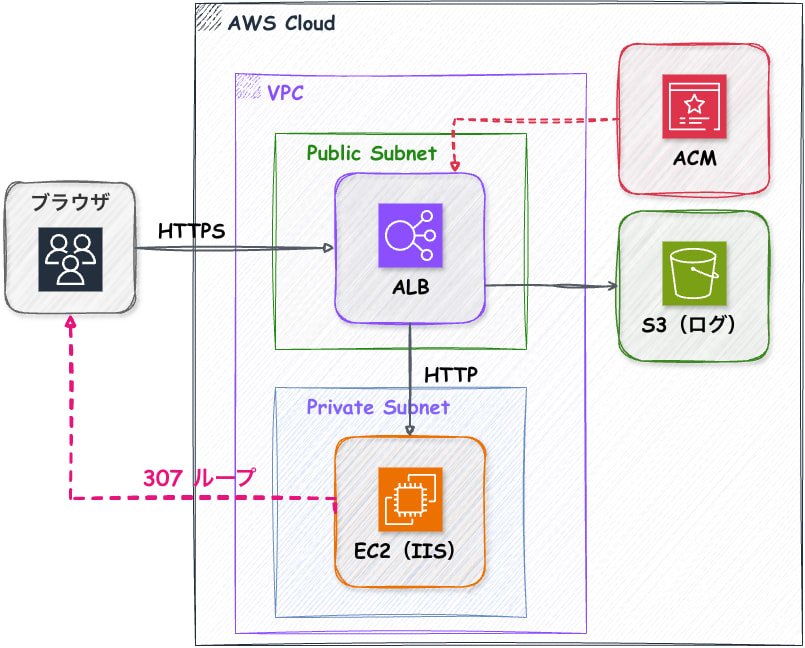
The Issue That Occurred
When opening the target screen, the browser displays the following.

When checking with curl, it kept being redirected with a 307 to the same URL that was accessed.
curl -sk -o /dev/null -D - https://loop.example.com/demo/
HTTP/2 307
location: https://loop.example.com/demo/
In the ALB access logs, elb_status_code=307 / target_status_code=307 was shown, making it clear that the redirect was coming not from the ALB but from the app (IIS side).
Conclusion
You can fix this by adding a single environment variable in the IIS Configuration Editor.
| Name | Value |
|---|---|
ASPNETCORE_FORWARDEDHEADERS_ENABLED |
true |
Why the Loop Occurs
In a configuration where HTTPS is terminated at the ALB, the ALB opens the "sealed envelope (HTTPS)" and passes only the contents to the EC2 via HTTP.
From the app on EC2, it appears as though the request arrived via HTTP.
When the app's UseHttpsRedirection (a feature that redirects HTTP requests to HTTPS) kicks in, the following loop occurs.
- Browser: "I'll send via HTTPS"
- ALB: "I'll open it and pass it via HTTP"
- App: "This is HTTP. Please come via HTTPS" (307)
- Return to step 1
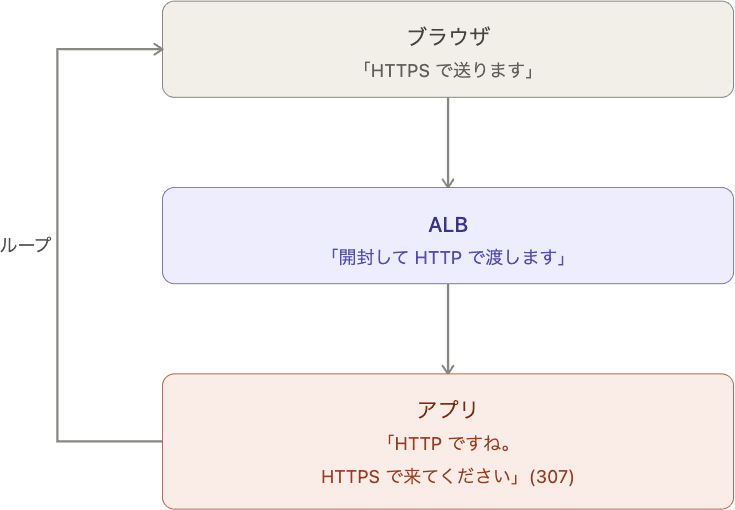
Actually, the ALB does attach a note saying "this was originally HTTPS" (X-Forwarded-Proto: https).
The root cause is that the app is not reading this note.
"It's Behind IIS, So It Should Be Fine" Wasn't True
This was the biggest stumbling block this time.
ASP.NET Core has a mechanism (IIS integration) that automatically reads X-Forwarded-Proto when running behind IIS.
So I assumed, "If it's running on IIS, it should handle it automatically."
However, reading the official documentation revealed that this automatic configuration has conditions.
There's quite a bit written there, but to summarize:
- Automatic enablement only applies to Out-of-Process hosting
- Moreover, it only trusts a single localhost proxy (= IIS itself on the same server)
Since the app in this case uses In-Process hosting, it is not subject to automatic configuration in the first place.
Even if it were out-of-process, only IIS itself is trusted, so the note from the ALB sitting in front of it would not be read.
In other words, from the app's perspective, the ALB is "a reverse proxy other than IIS."
The documentation explicitly states that using UseHttpsRedirection behind a reverse proxy other than IIS will cause an infinite loop.
Apps that call UseHttpsRedirection and UseHsts put a site into an infinite loop if deployed to an Azure Linux App Service, Azure Linux virtual machine (VM), or behind any other reverse proxy besides IIS.
"It's running on IIS, so it's fine" no longer holds once an ALB is placed in front.
Note: In-process hosting is the default setting since .NET Core 2.2.
How to Fix It (Entirely Within IIS Manager)
1. Open the Configuration Editor
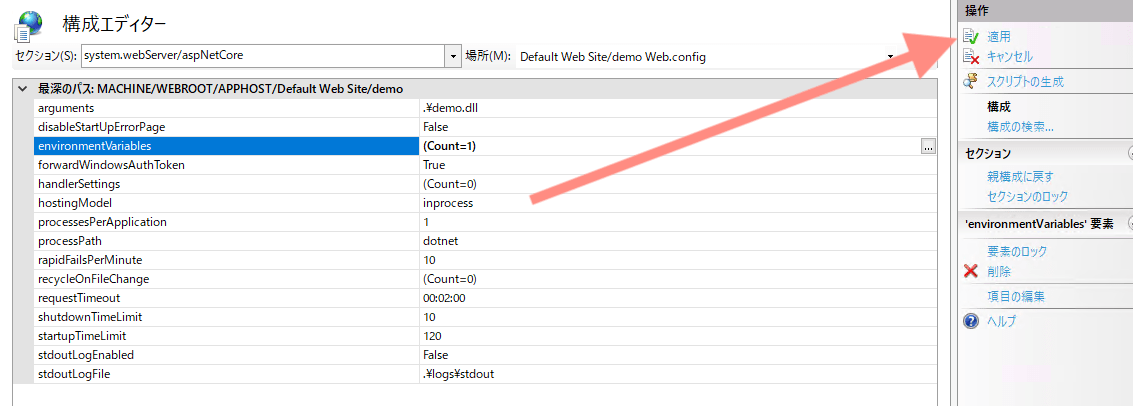
In IIS Manager, select Sites → Default Web Site → demo (the target app), and open the Configuration Editor.

2. Select system.webServer/aspNetCore
From the "Section" at the top, select system.webServer → aspNetCore.
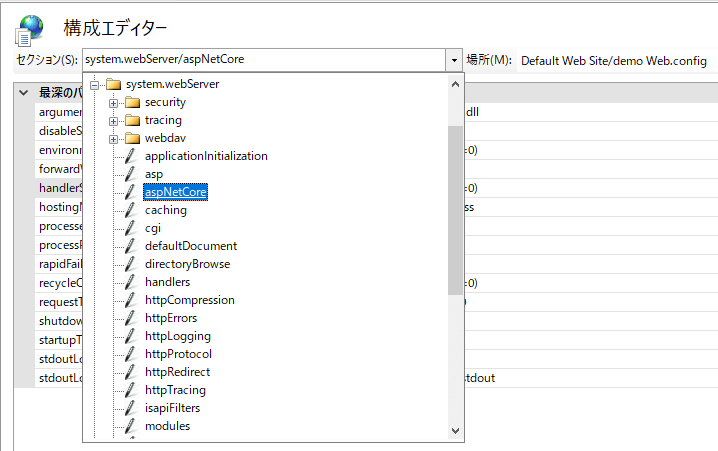
3. Add the Environment Variable
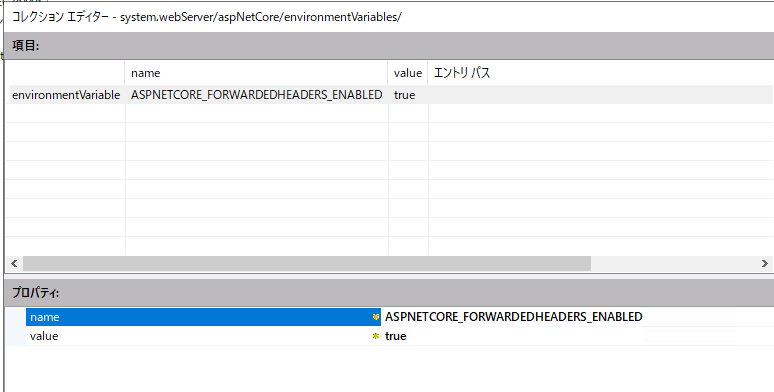
Click the "…" next to environmentVariables, then click "Add" and enter the following values.
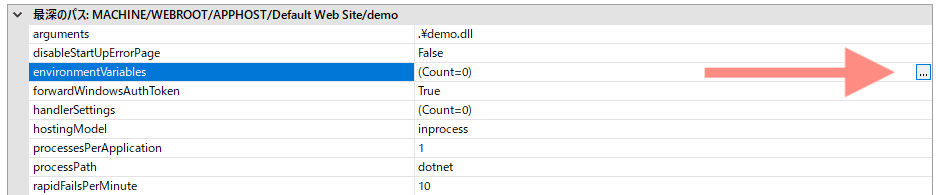
- name:
ASPNETCORE_FORWARDEDHEADERS_ENABLED - value:
true
After closing, click Apply on the right side. The app will restart automatically.
4. Verification
After reloading the page, it is now displayed correctly.
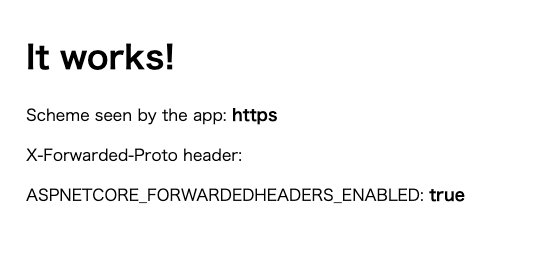
The scheme recognized by the app is now https, confirming that it is reading the ALB's note.
Notes
- Settings may be lost when the app is redeployed
The settings from this procedure are written toweb.config, so if the vendor reinstalls the app, they may be overwritten.
For long-term use, it is safer to configure this in the server node's Configuration Editor →system.applicationHost/applicationPools→ the target pool →environmentVariables. - EC2 should only accept traffic from the ALB
Using this environment variable causes the app to trust notes from any source (the documentation also notes that the feature to restrict trusted proxies does not work).
Make sure the EC2 security group only allows traffic from the ALB's security group.
Other fixes include the following alternatives.
- Set the target group to HTTPS
- Add
UseForwardedHeadersto the app
If the infrastructure or development team can handle it, those are also valid options.
Closing
An app behind an ALB does not know that it is being called via HTTPS.
And "it's running on IIS, so it's fine" does not hold with in-process hosting.
Since there are no obvious settings in the IIS interface, it's easy to get lost fiddling with the "Require SSL" checkbox, but it can be fixed simply by adding a single environment variable in the Configuration Editor.
I hope this is helpful for operations staff who cannot touch the code.