
I encountered many errors when trying to integrate SharePoint with S3 using AppFlow, so I will summarize the solutions.

This page has been translated by machine translation. View original
Introduction
Hello everyone, I'm Akaike.
Recently, I had the opportunity to consider a data integration method from Microsoft SharePoint Online to Amazon S3, and through the article below I learned about a service called Amazon AppFlow, so I decided to actually try out the Microsoft SharePoint Online connector.
I followed the steps in the official documentation, but when I actually got my hands on it, I encountered a series of errors that couldn't be understood from the documentation alone.
Hoping this will help others who get stuck in the same places, I've compiled the errors I encountered, how to resolve them, and the results of actually running the flow.
Prerequisites
- Having a Microsoft 365 tenant with Microsoft SharePoint Online enabled
- Having an AWS account to use AppFlow
- Having administrator privileges for app registration in Azure AD
About AppFlow
Amazon AppFlow is a fully managed service that allows you to integrate data from various SaaS applications such as Salesforce and Slack into AWS services without writing code.
This time, I'll use AppFlow to transfer documents from Microsoft SharePoint Online to Amazon S3.
What I Did Before Creating the Flow
The general flow follows the official documentation.
Entra ID App
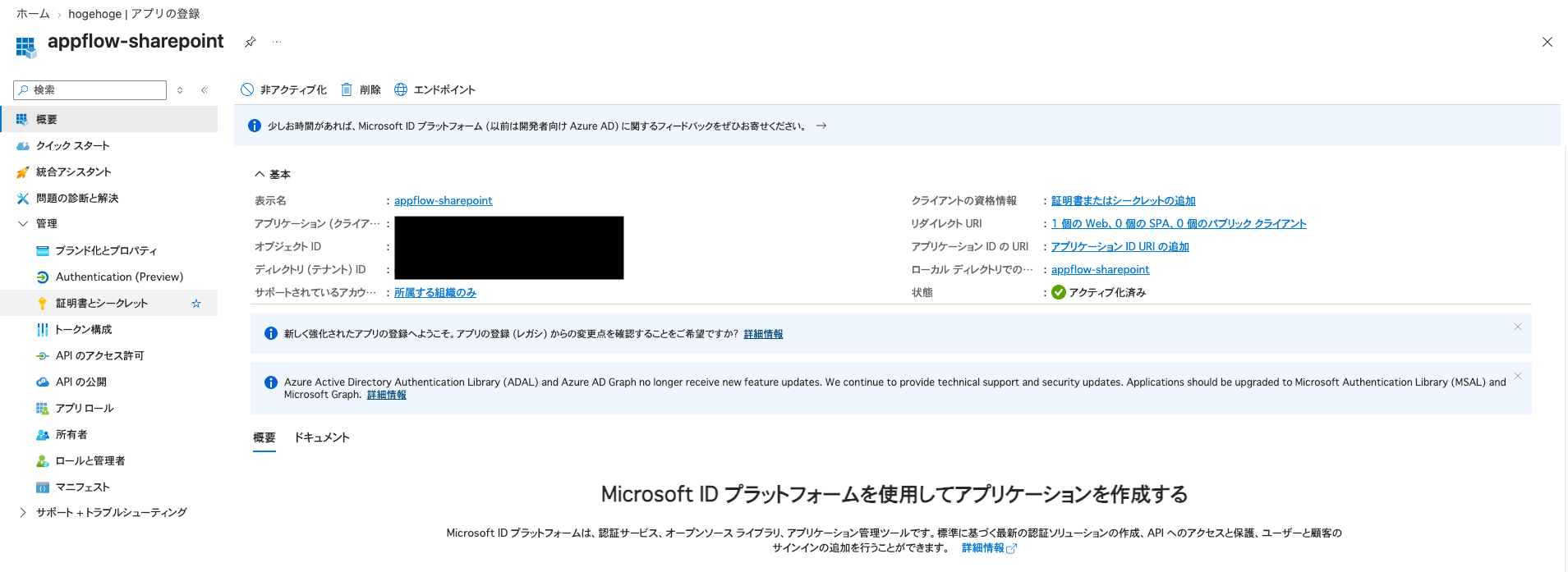
First, register an app for AppFlow on the Entra ID (formerly Azure AD) side.
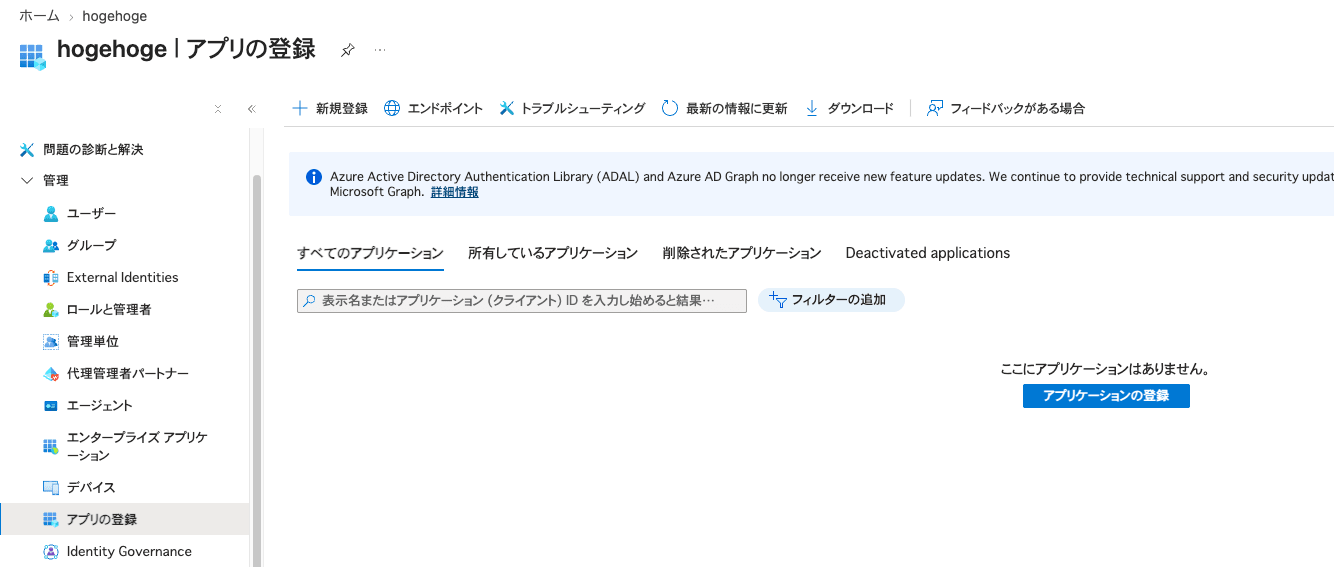
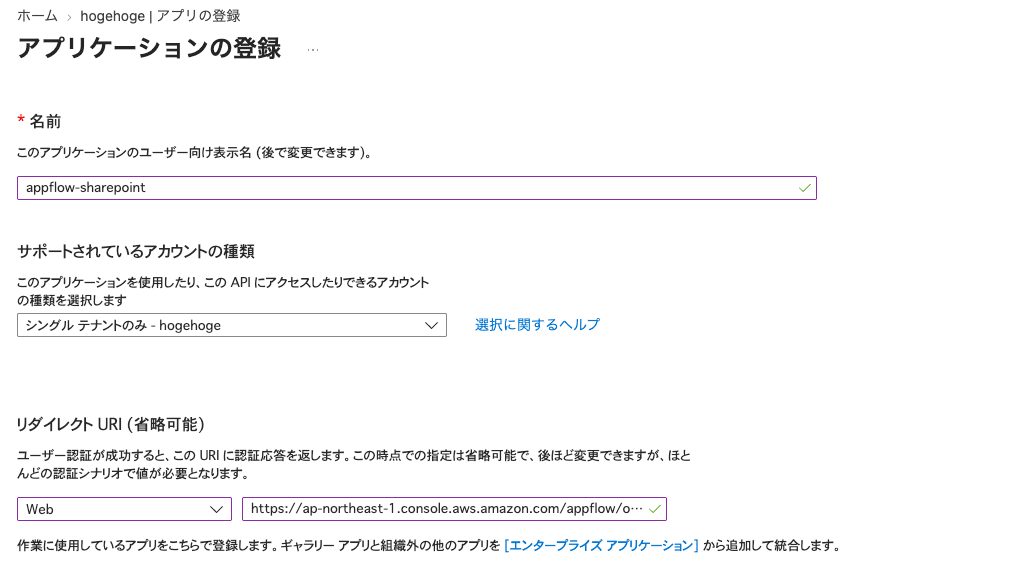
Specify the redirect URL listed in the official documentation.
For the region, specify the region where you will create AppFlow.
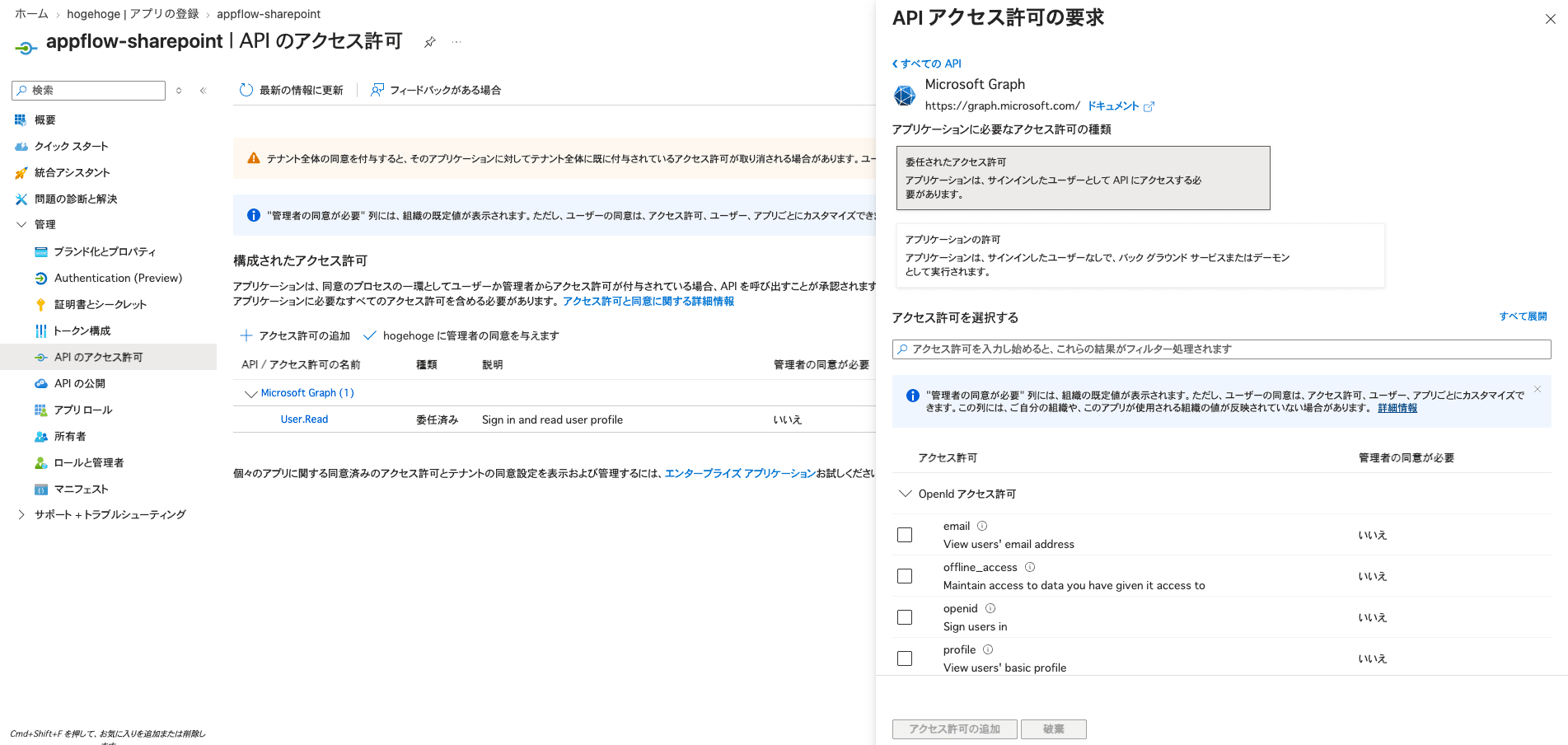
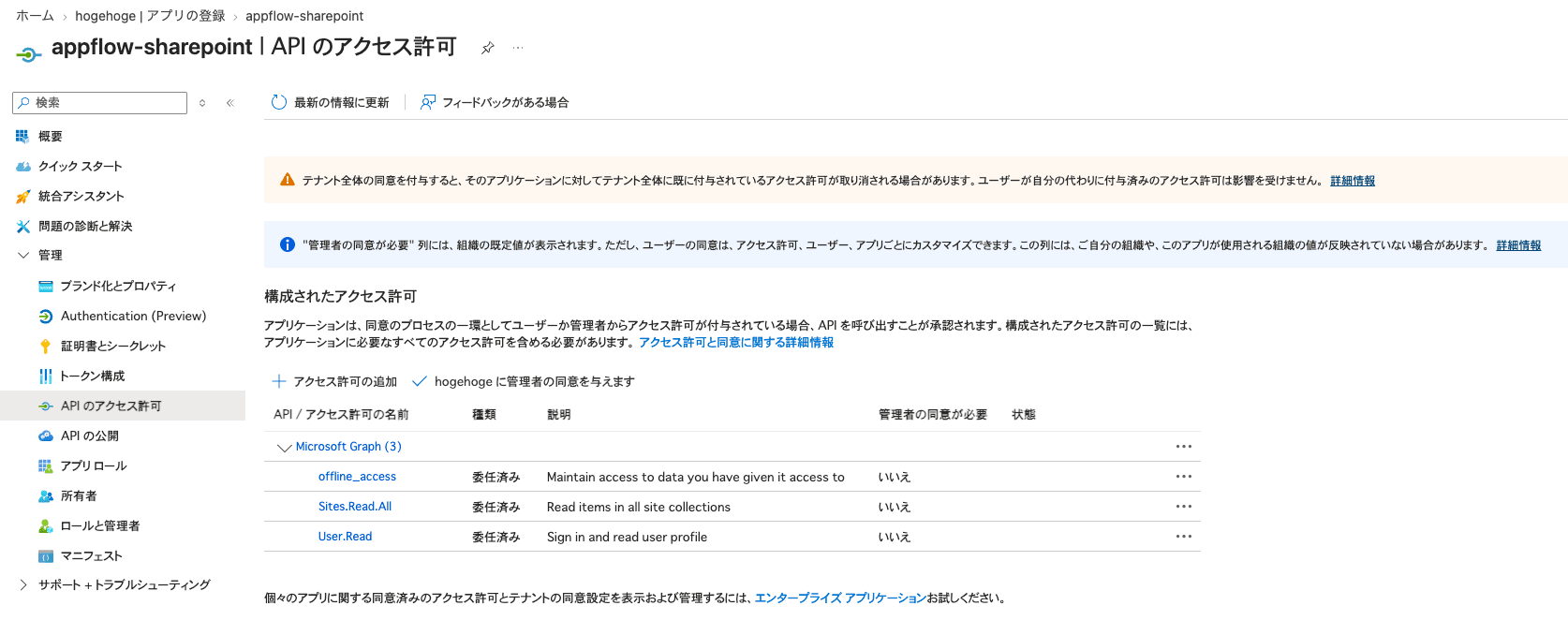
Add the following permissions specified in the official documentation to the API permissions.
- offline_access
- Sites.Read.All
- User.Read
Make note of the tenant ID and client ID.
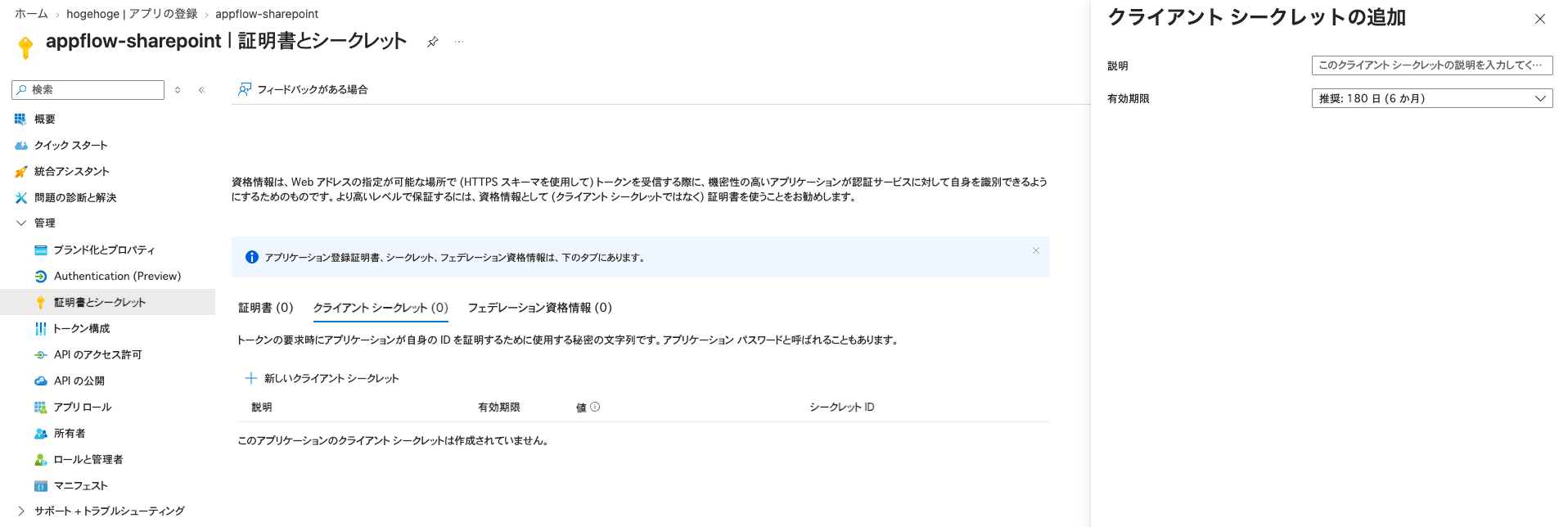
Also create a client secret and make note of it.
SharePoint Site
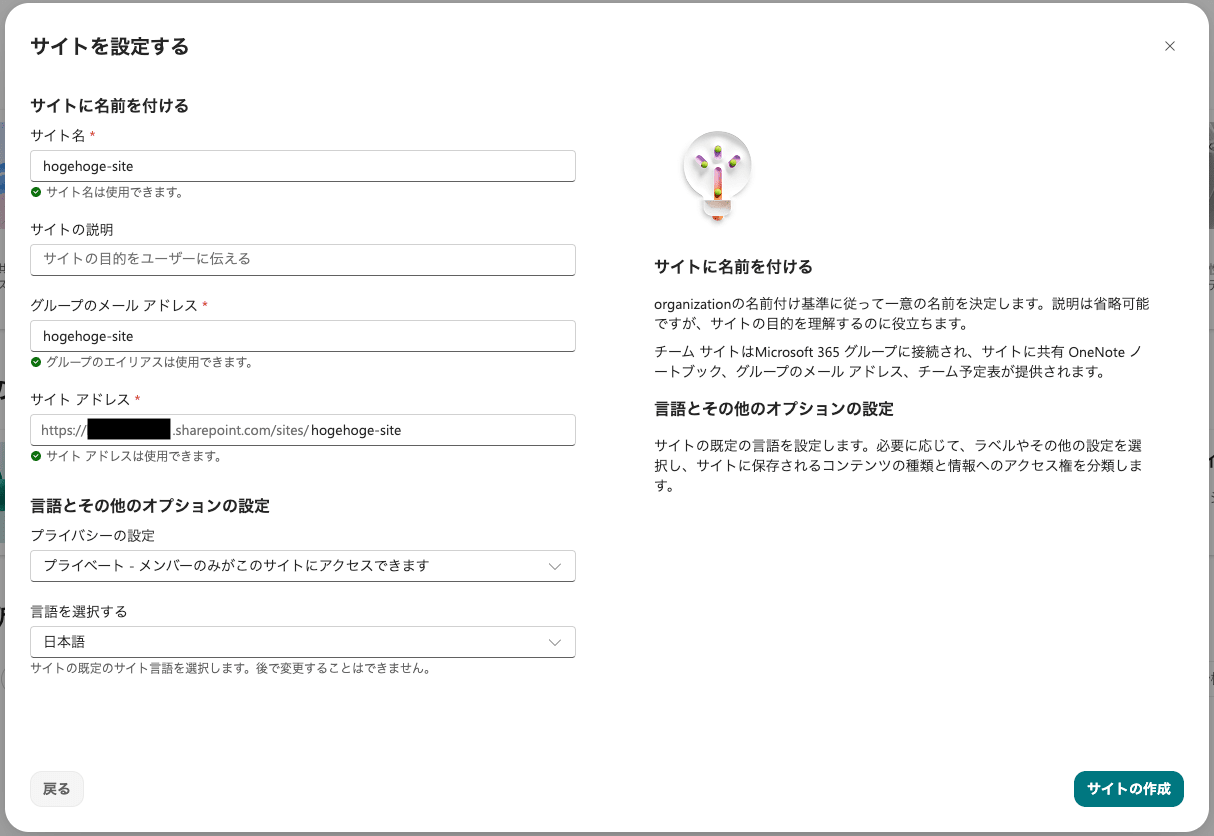
Next, create the SharePoint site that will be the source for transferring data to S3.
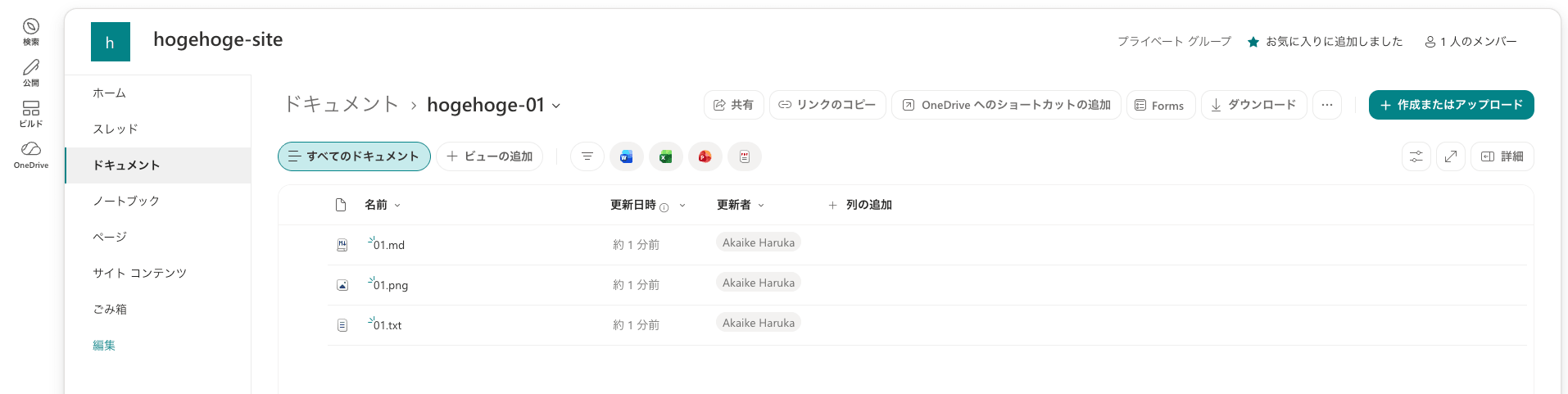
Prepare folders and files for transfer to verify the operation.
This time, I created 3 folders named hogehoge-XX.
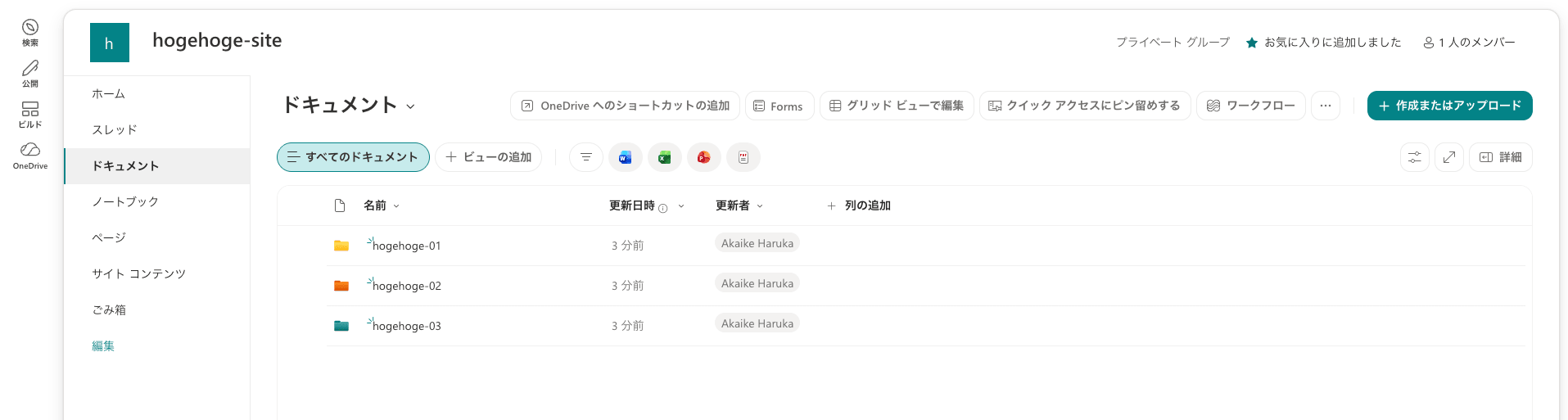
Place md, png, and txt files in each folder.
These will also be used to verify the filter feature described later.
AppFlow
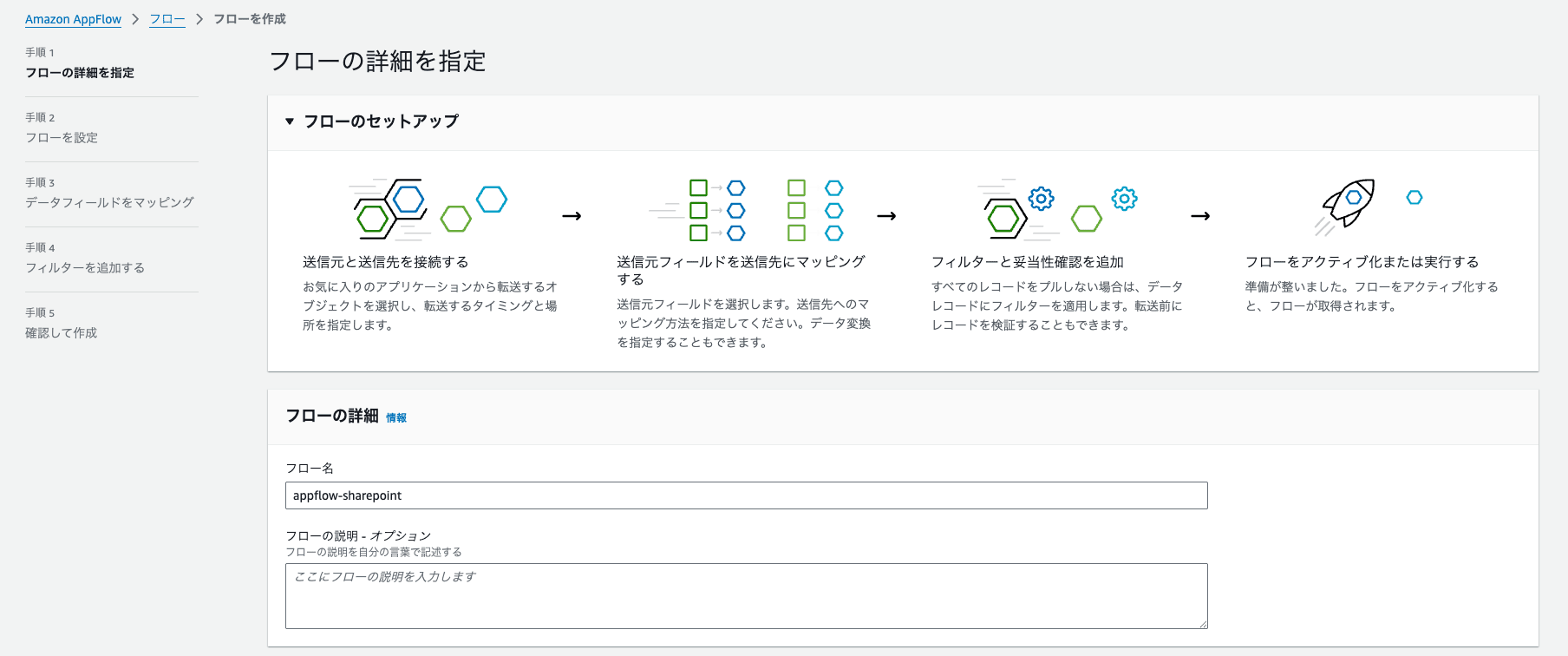
Now that the preparations are complete, let's create the flow on the AppFlow side.
Use any name for the flow name.
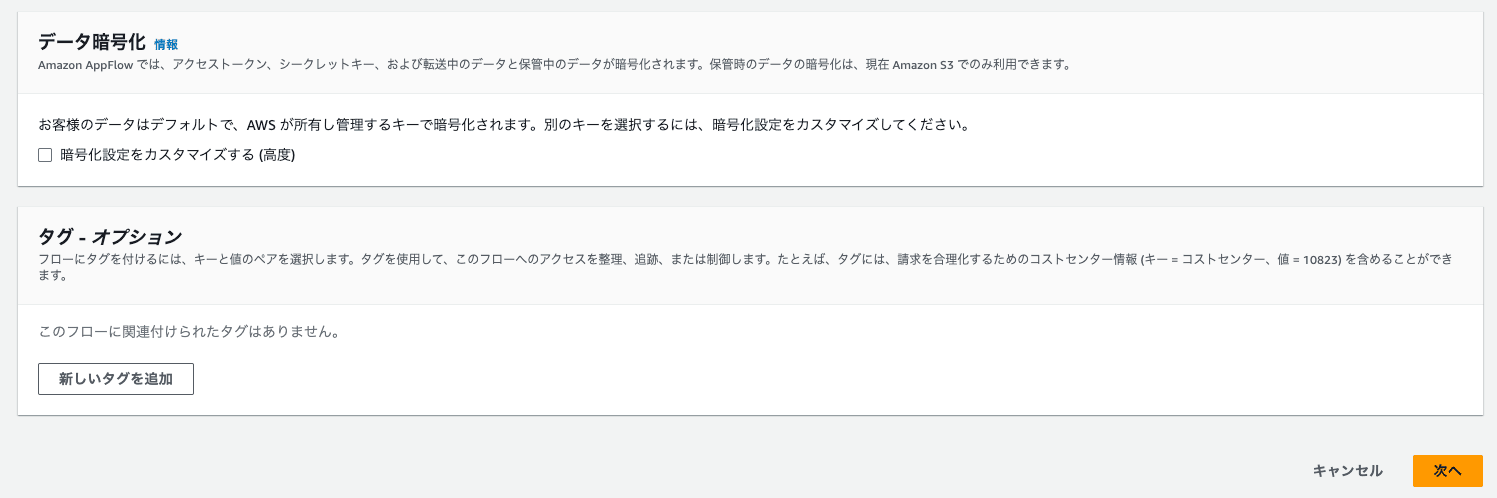
Proceed with the default data encryption settings (no customization).
Create a new connection in the flow and enter the Entra ID app information.
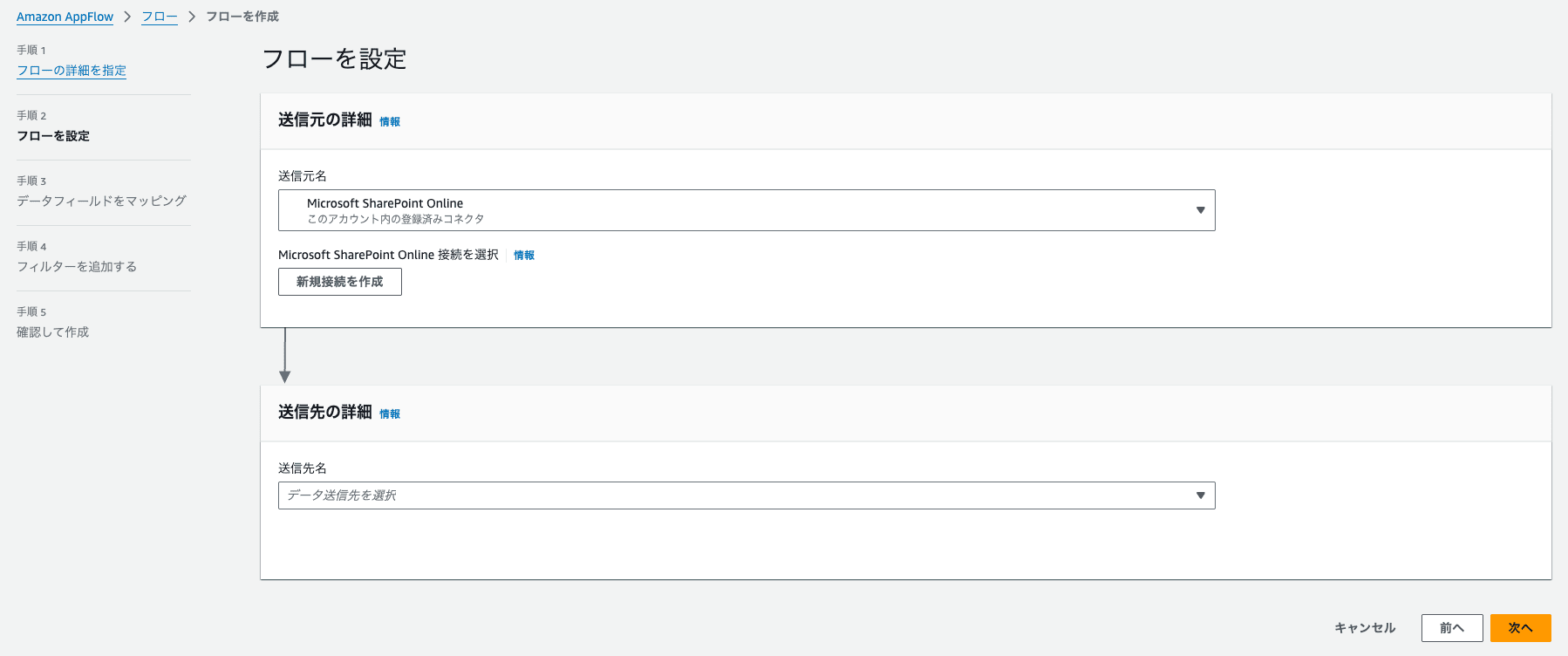
- Custom auth token URL: Tenant ID
- Custom auth code URL: Tenant ID
- Client ID: Client secret's Secret ID
- Client secret: Client secret's value
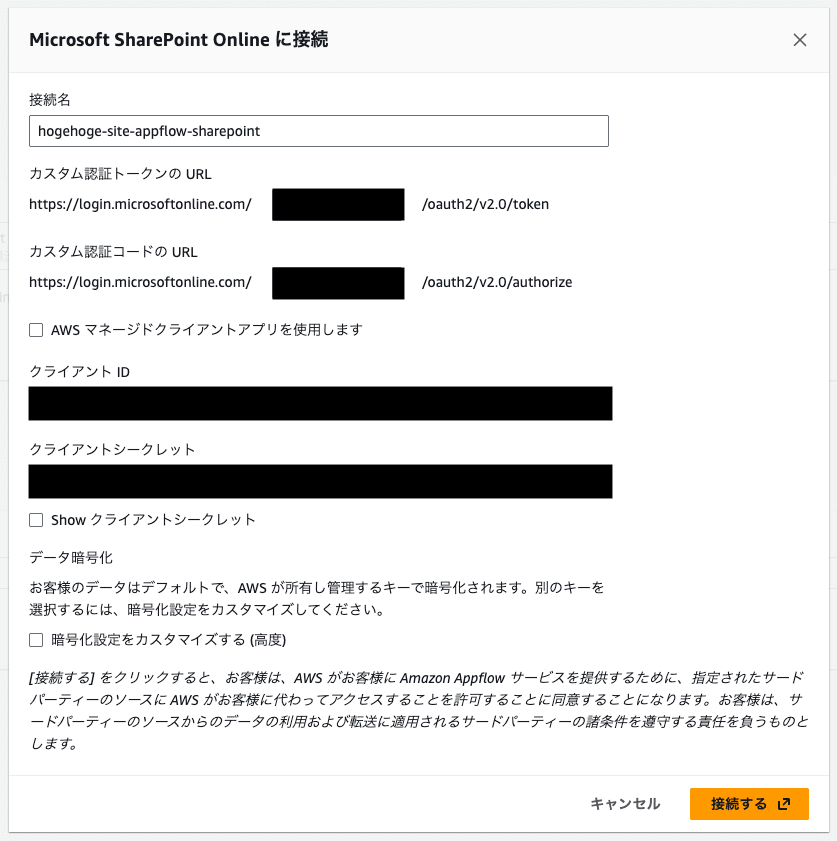
And from here, the errors began one after another.
Error ①: AADSTS700016
AADSTS700016: Application with identifier 'xxxxxxxx-xxxx-xxxx-xxxx-xxxxxxxxxxxxa' was not found in the directory 'yyyyyyyy-yyyy-yyyy-yyyy-yyyyyyyyyyyy'. This can happen if the application has not been installed by the administrator of the tenant or consented to by any user in the tenant. You may have sent your authentication request to the wrong tenant.
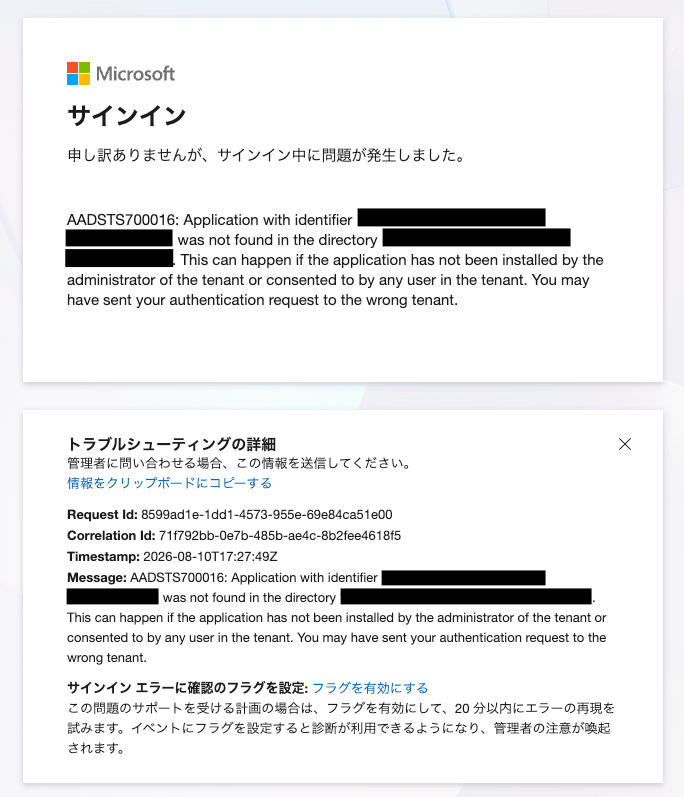
Resolution
The cause was an incorrect specification of the client ID.
The correct approach was to specify the "Client ID (Application ID)", not the "Client secret's Secret ID".
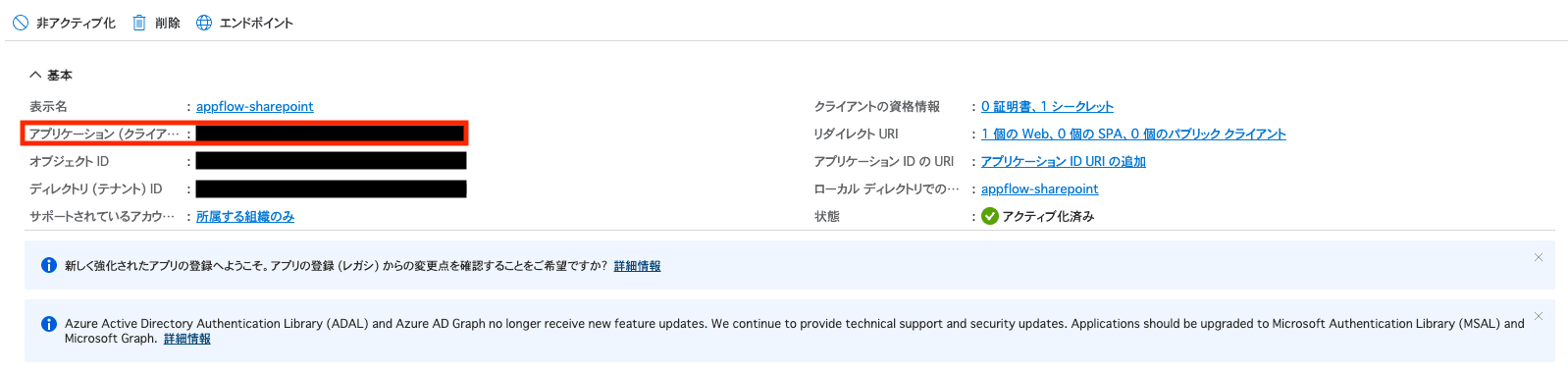
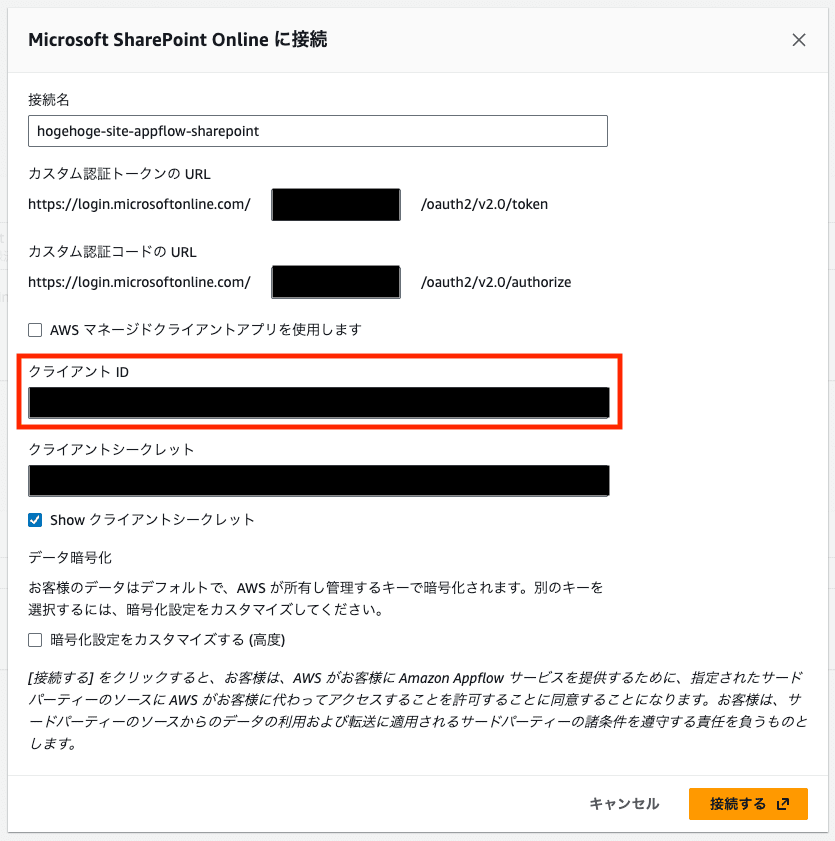
Error ②: AADSTS50011
After fixing the client ID, a different error appeared.
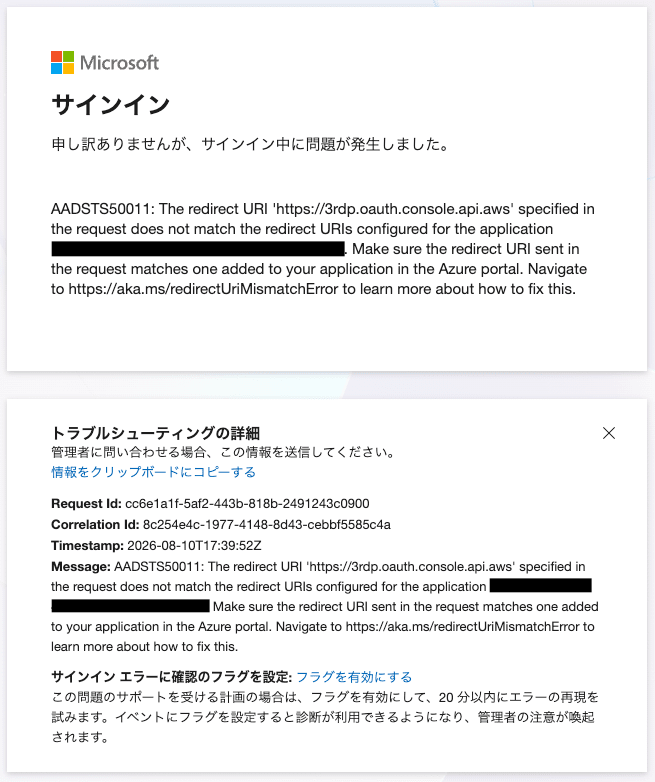
AADSTS50011: The redirect URI 'https://3rdp.oauth.console.api.aws' specified in the request does not match the redirect URIs configured for the application 'xxxxxxxx-xxxx-xxxx-xxxx-xxxxxxxxxxxx'. Make sure the redirect URI sent in the request matches one added to your application in the Azure portal. Navigate to https://aka.ms/redirectUriMismatchError to learn more about how to fix this.
Resolution
The issue was resolved by adding the redirect URI displayed in the error message (https://3rdp.oauth.console.api.aws) as a redirect URI on the Azure side.
It appears that this also needs to be registered in addition to the redirect URI listed in the official documentation (https://region.console.aws.amazon.com/appflow/oauth).
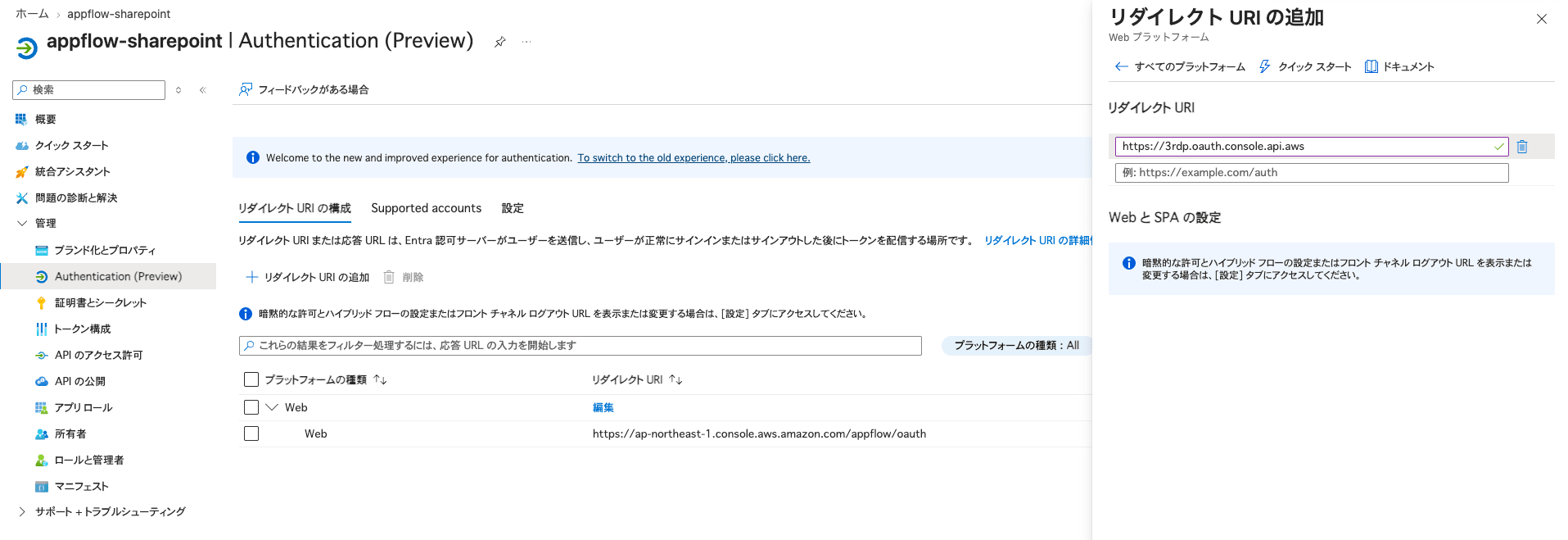
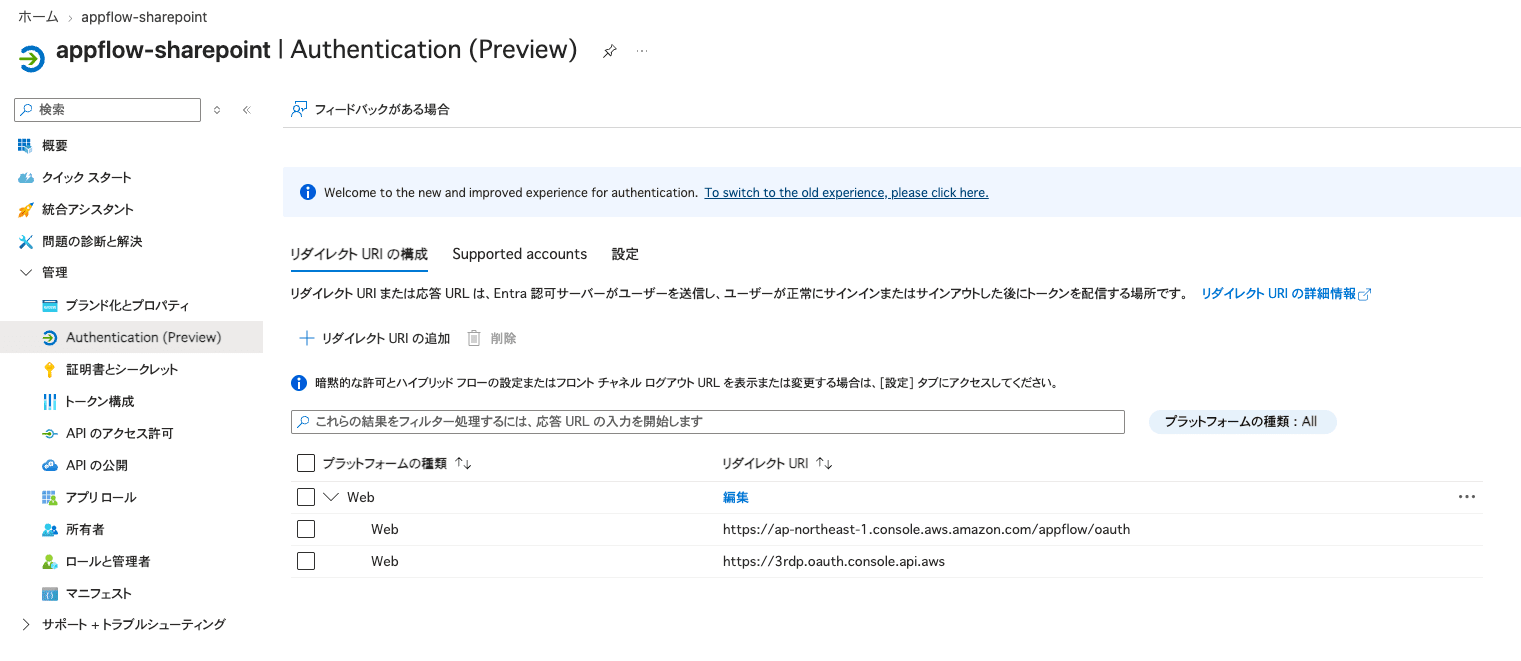
(I haven't investigated the details, but perhaps there was a specification change on the Entra ID (SharePoint) side.)
Error ③: 500 (Internal Server Error)
Although authentication itself was now passing, an error occurred when trying to retrieve the site list.
An error occurred during authentication
Error while communicating to connector: The request failed because the service Source Microsoft SharePoint Online returned the following error: Details: The request failed with status code 500 (Internal Server Error)..
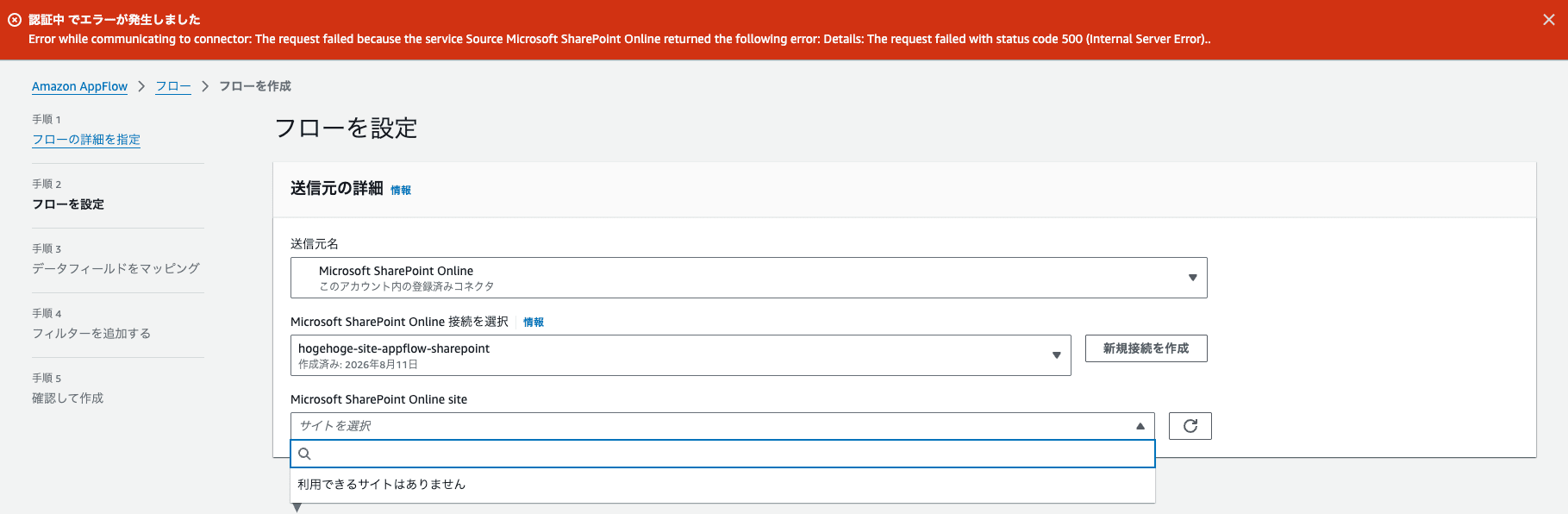
First, I checked whether the SharePoint license was active, but it appeared to be fine.
az rest --method get --uri "https://graph.microsoft.com/v1.0/subscribedSkus"
{
  "servicePlanId": "e95bec33-7c88-4a70-8e19-b10bd9d0c014",
  "servicePlanName": "SHAREPOINTWAC",
  "provisioningStatus": "Success"
},
{
  "servicePlanId": "c7699d2e-19aa-44de-8edf-1736da088ca1",
  "servicePlanName": "SHAREPOINTSTANDARD",
  "provisioningStatus": "Success"
}
Next, I tried directly retrieving the target SharePoint site that wasn't appearing in the AppFlow screen, via a group rather than using search.
az rest --method get --uri "https://graph.microsoft.com/v1.0/groups/{group-id}/sites/root"
{
  "displayName": "hogehoge-site",
  "webUrl": "https://XXXXX.sharepoint.com/sites/hogehoge-site"
}
This succeeded without any issue.
The license was active, the site actually existed and could be retrieved directly. Yet it wasn't appearing in the AppFlow screen.
At this point, I gave up investigating and decided to wait for a while without knowing the cause.
Resolution
After waiting some time, the issue resolved itself.
Specifically, after exhausting myself trying to isolate the cause, I went to sleep and left it alone for about 8 hours, and by then the site had appeared in the list without me doing anything.
At first, only the auto-generated "Communication Site" was visible,
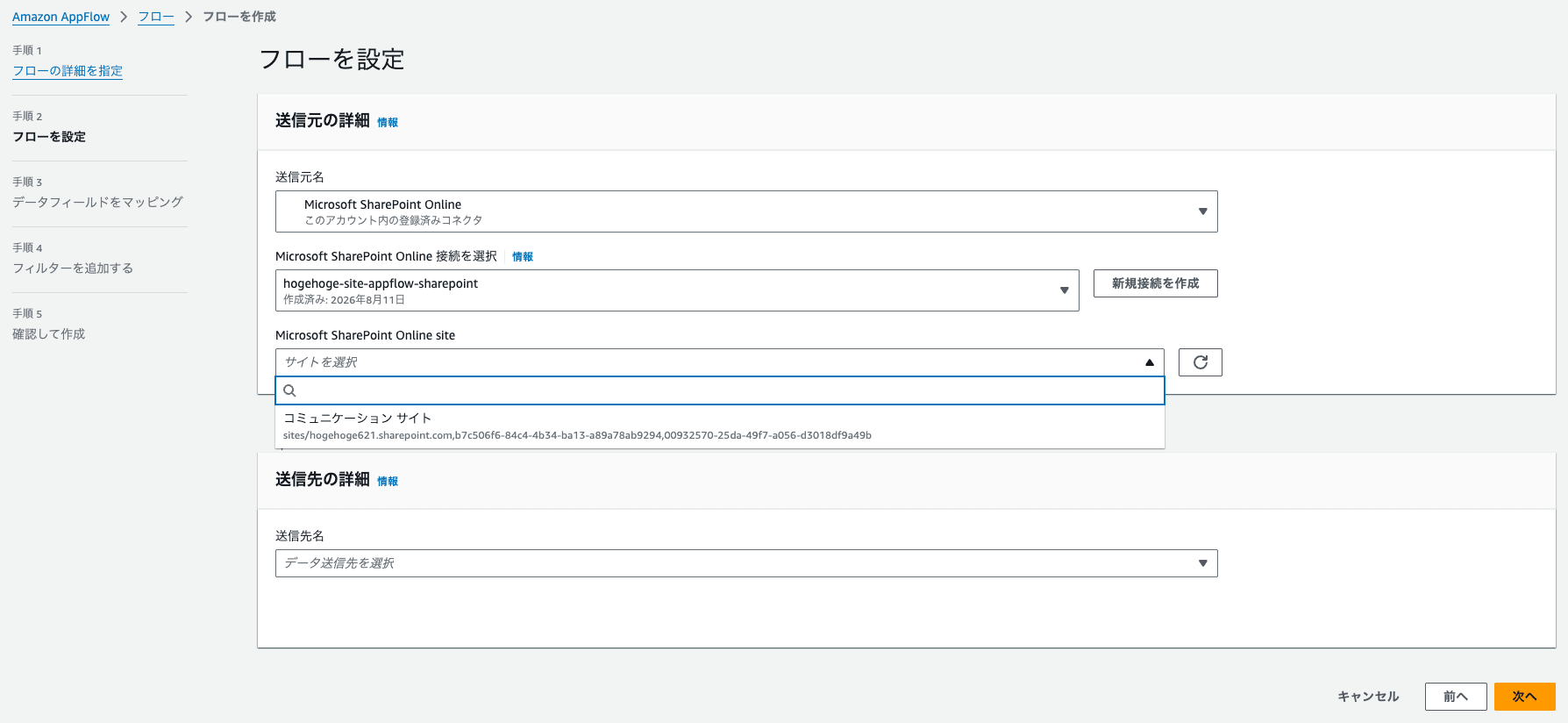
but after some time the site I had created at the beginning also became visible.
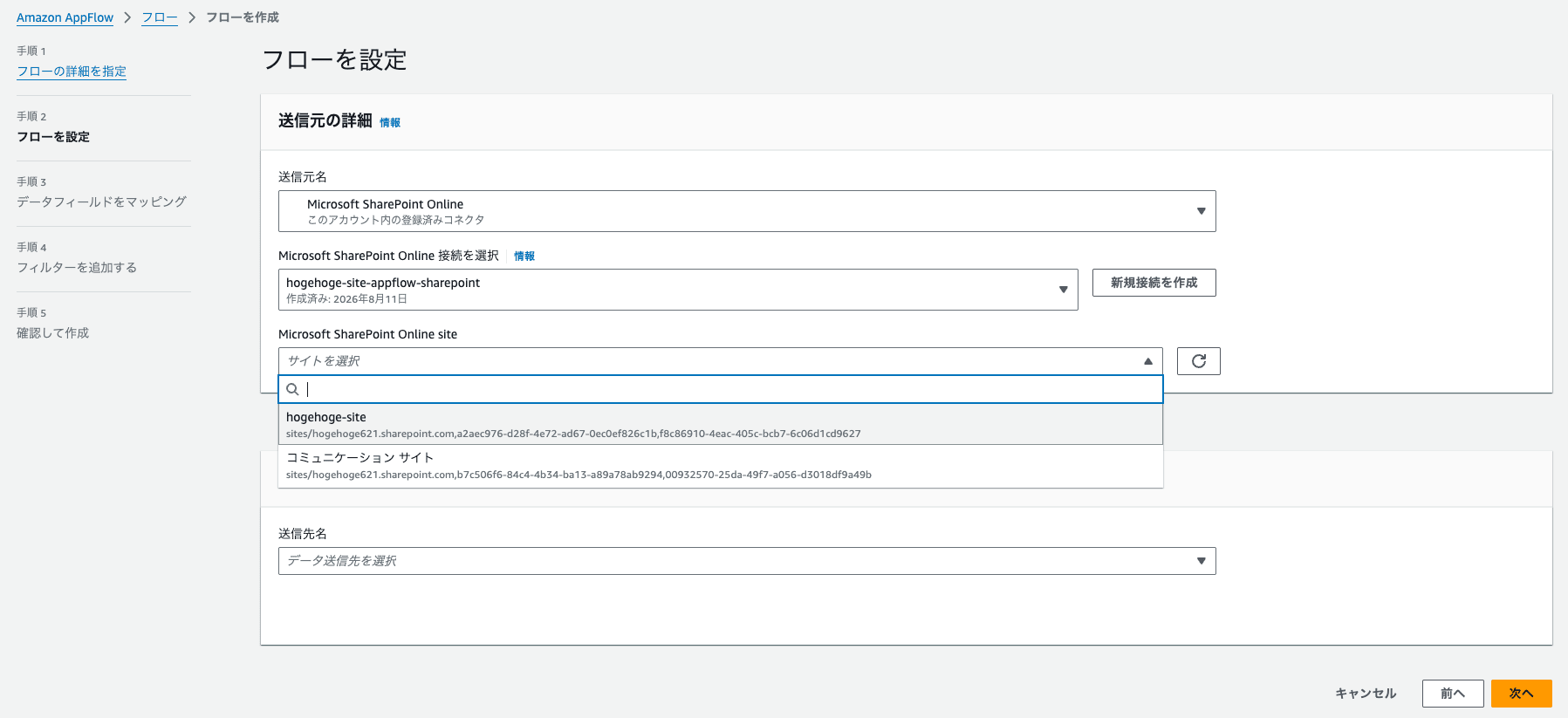
On Microsoft Q&A, similar cases received responses to the effect that it can take time for a newly created site to be reflected.
Since I had just created a new tenant and site this time, it may have taken time to propagate. (Since it's an AI-generated response, I'm honestly not sure how well-supported it is, but the symptoms matched.)
Wait for Propagation: Sometimes, newly created sites may take some time to propagate and become visible in Microsoft Graph. If the site was created very recently, you may need to wait a little while before it shows up.
Specifying the Source
Now that the site can be selected, let's proceed with the remaining settings.
The source is specified at the folder level, and this time I specified only a particular folder.
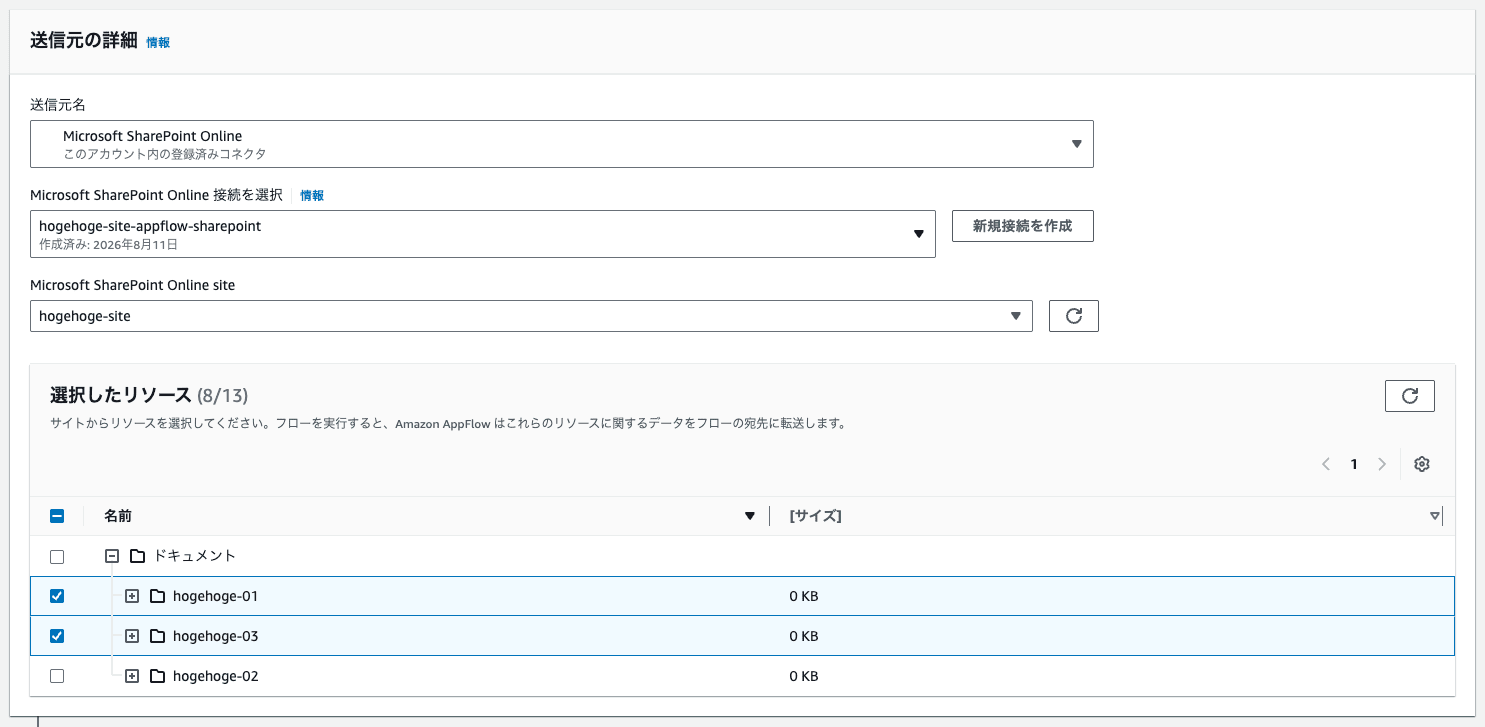
Specifying the Destination
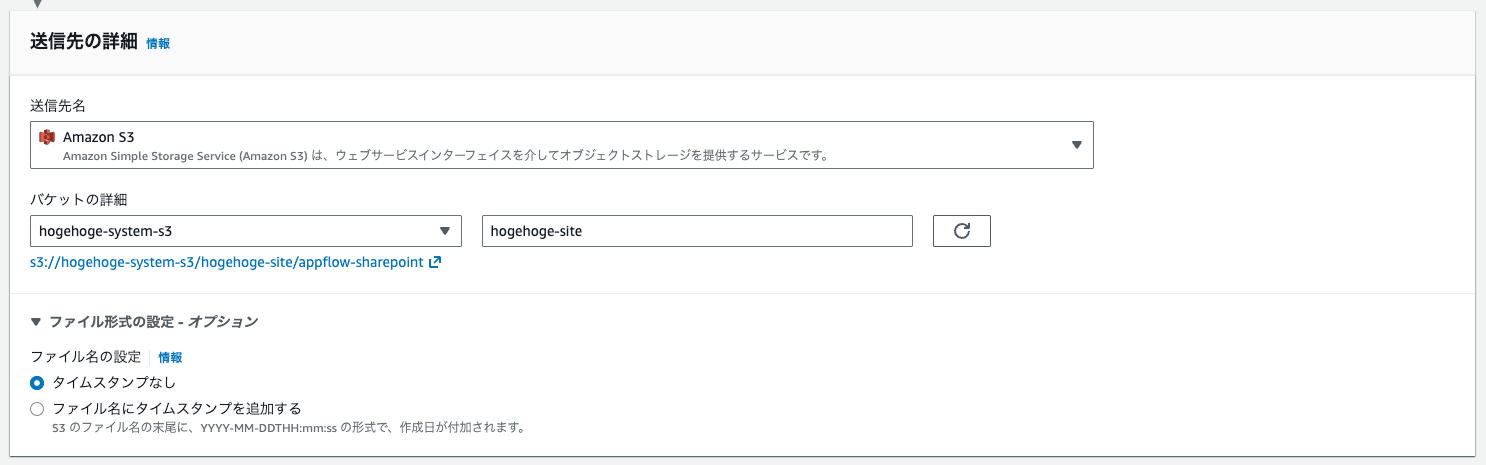
Specify Amazon S3 as the destination.
The destination path format appears to be as follows.
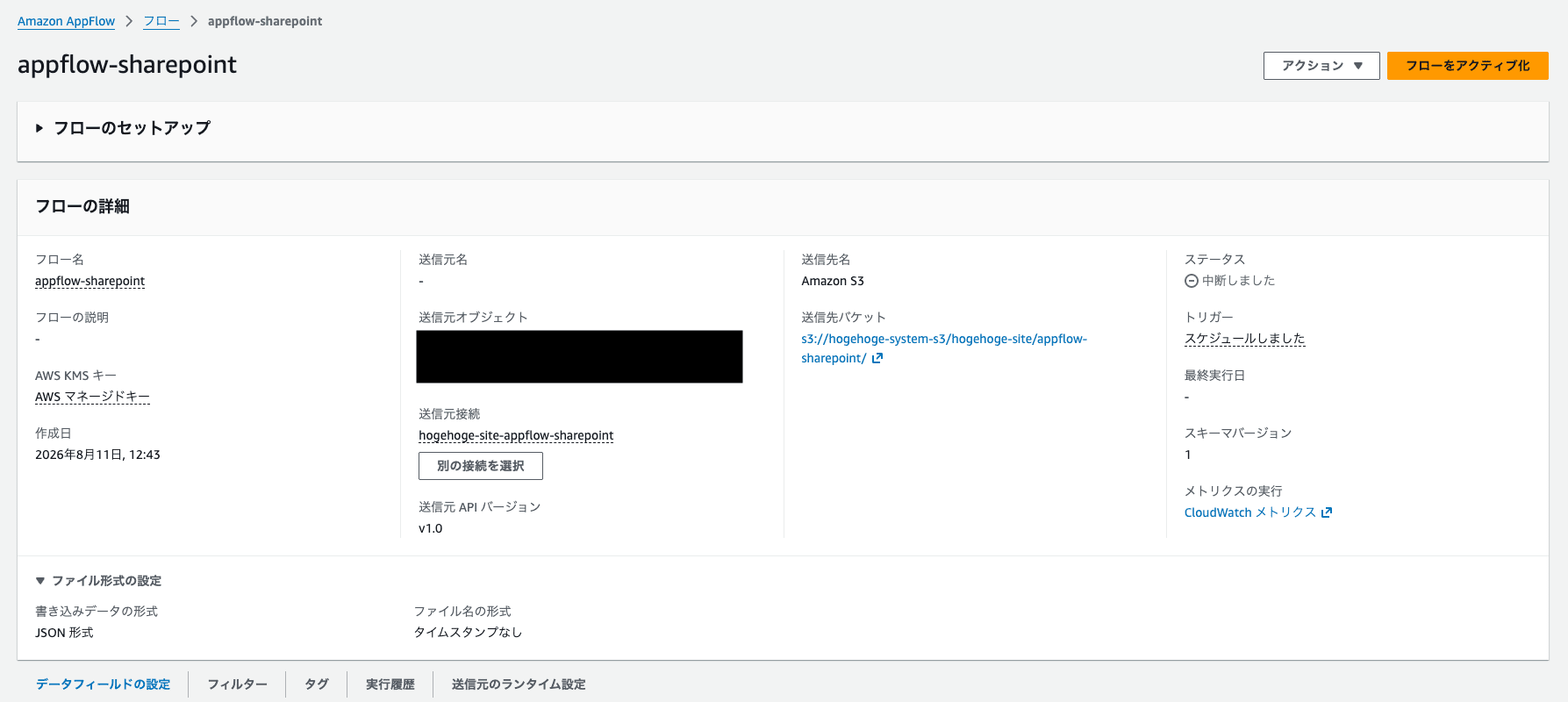
- S3://<bucket-name>/<bucket-prefix>/<flow-name>
Flow Trigger
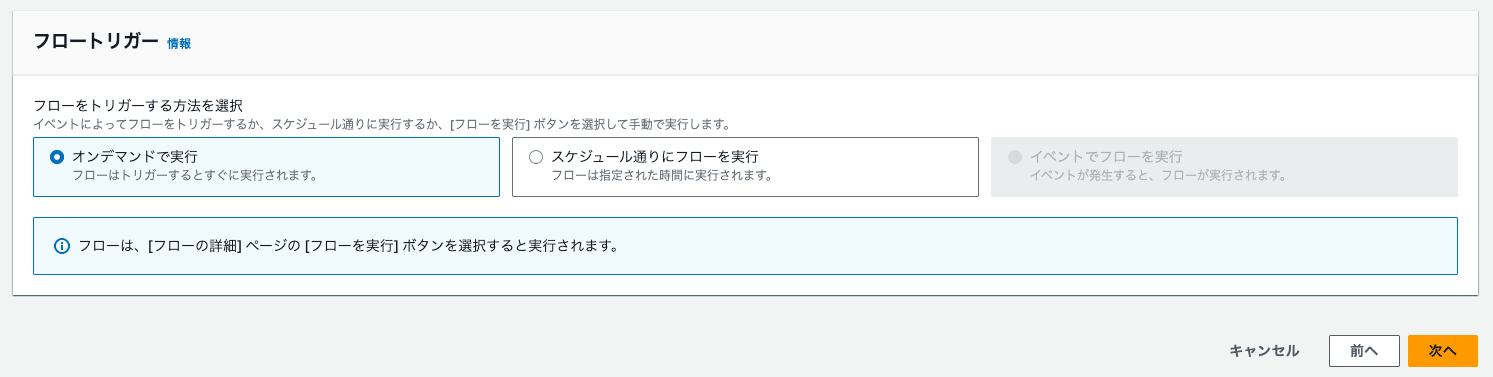
There are 3 types of triggers, but it appears that the SharePoint Online connector can only use on-demand and scheduled execution.
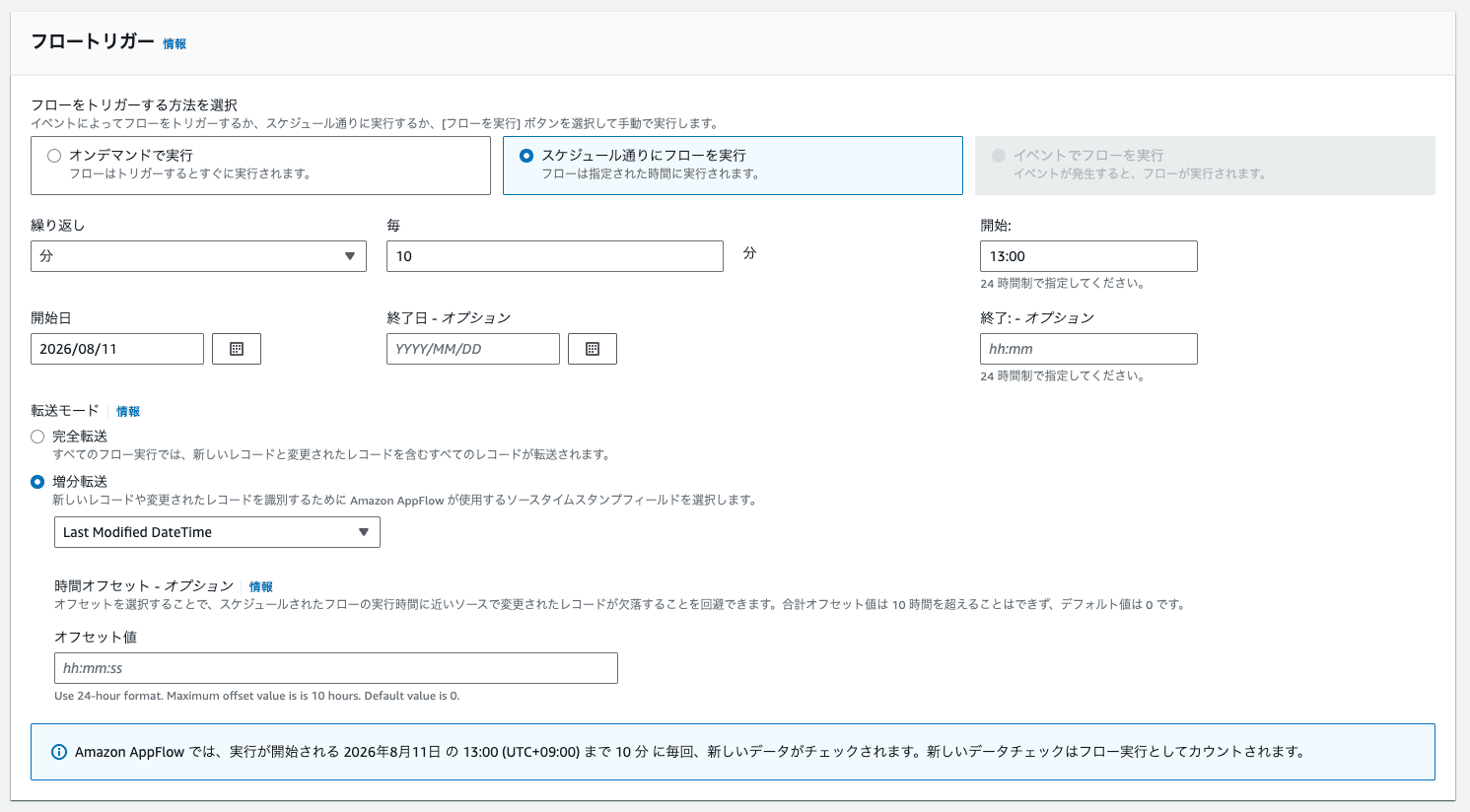
This time I selected scheduled execution and will try incremental transfer.
Note that the start date and start time needed to be set to a point in the future from when the connector was created.
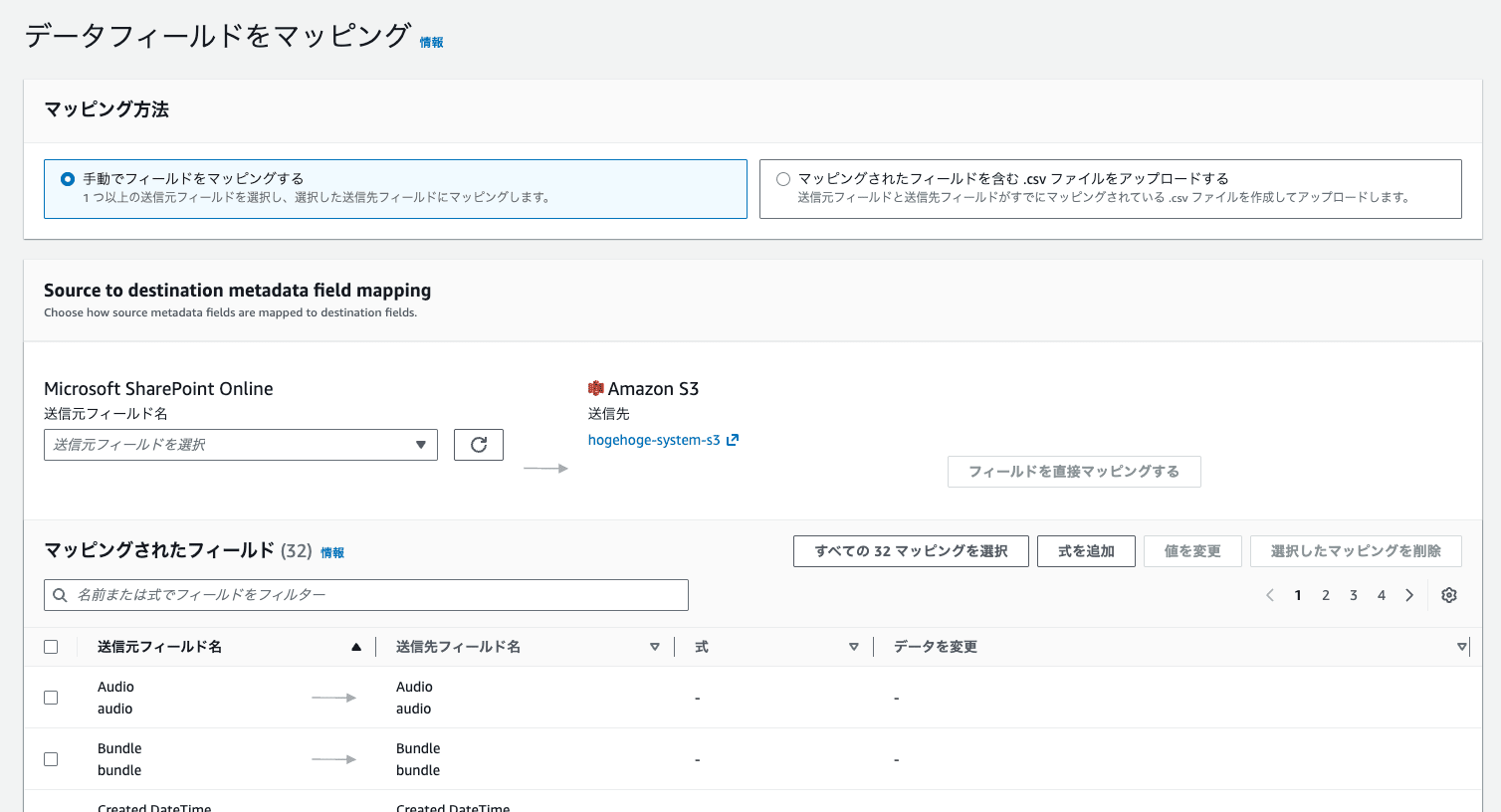
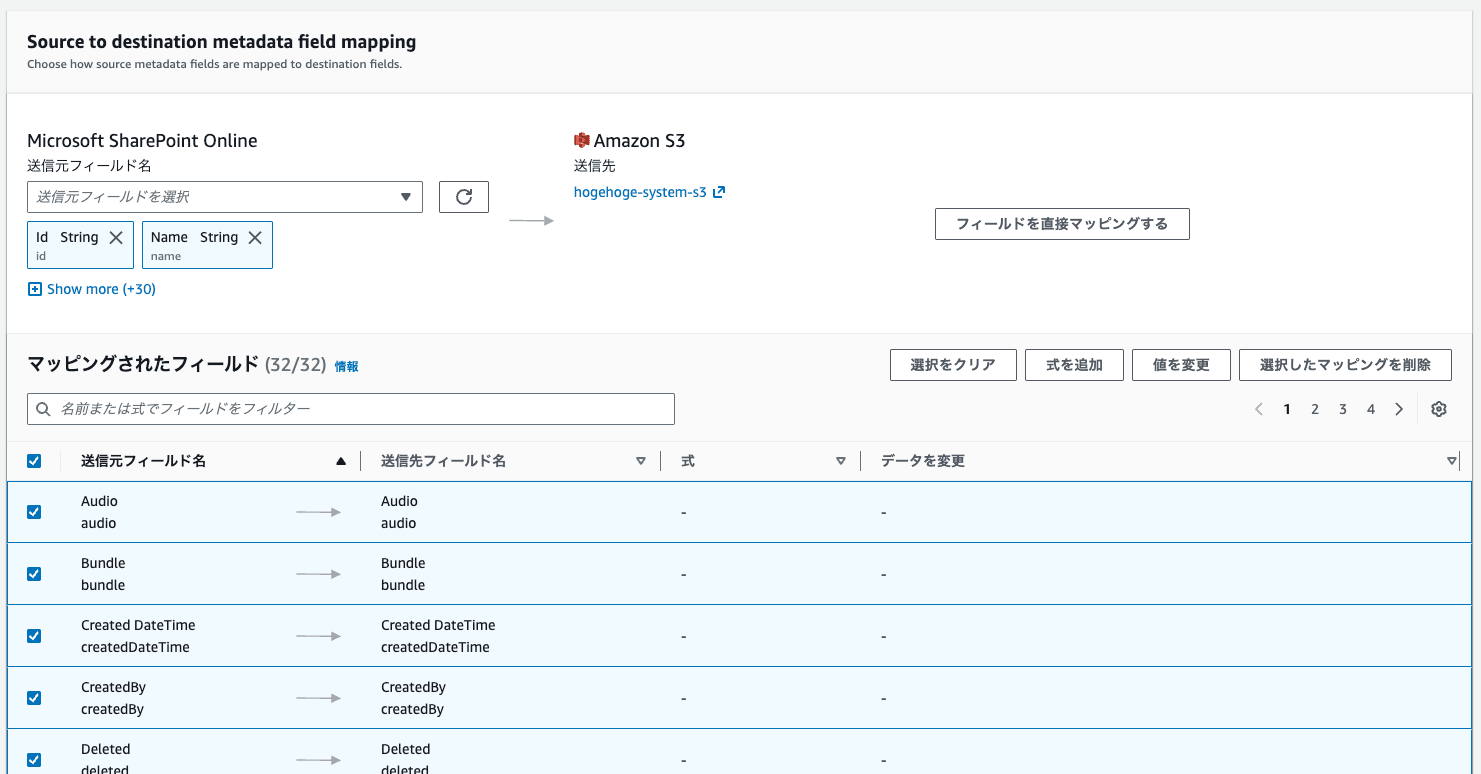
Data Field Mapping
Specify all fields for the data field mapping.
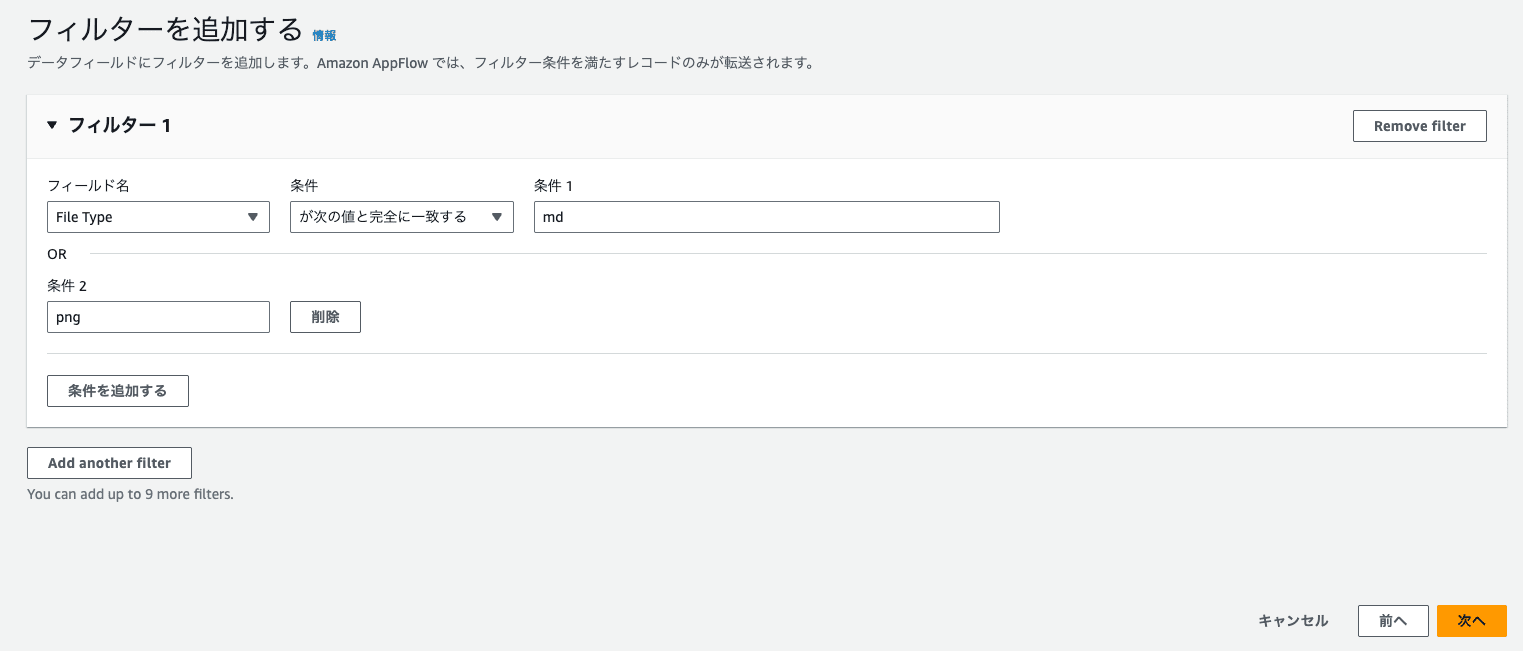
Filter
Let's also try out the filter feature while we're at it.
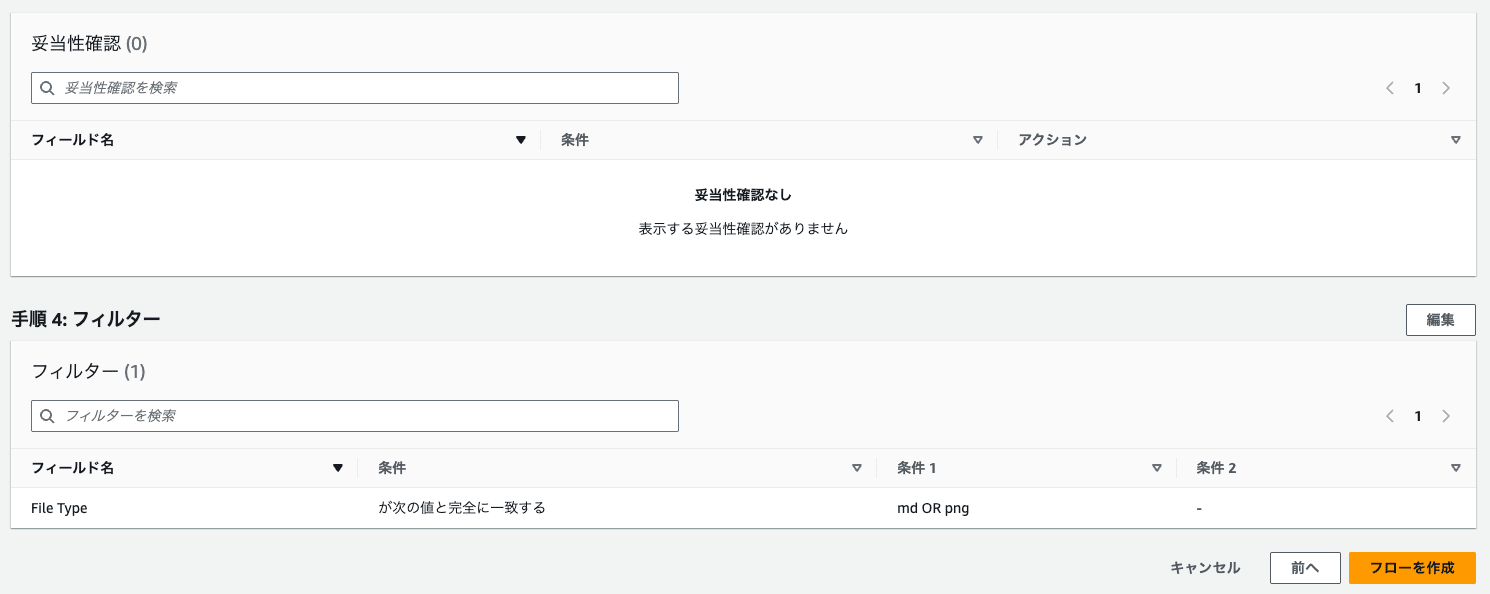
I specified md and png with an OR condition on the "File Type" field.
Flow Activation
Once the settings are complete, create the flow,
and finally activate the flow to complete the setup.
Transfer Results
Initial Transfer
On the first run, all files in the specified folder are transferred.

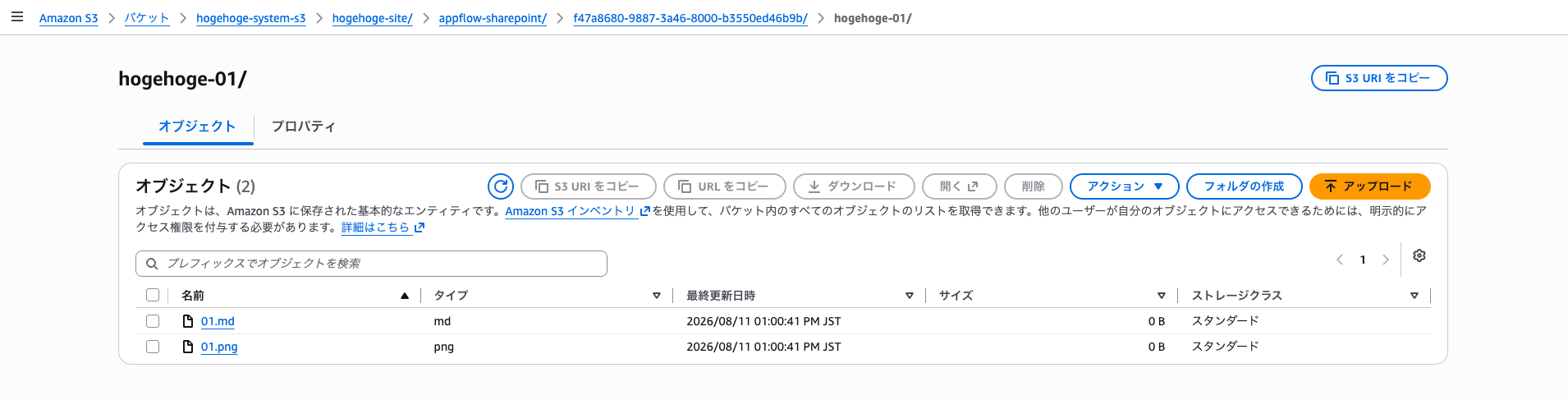
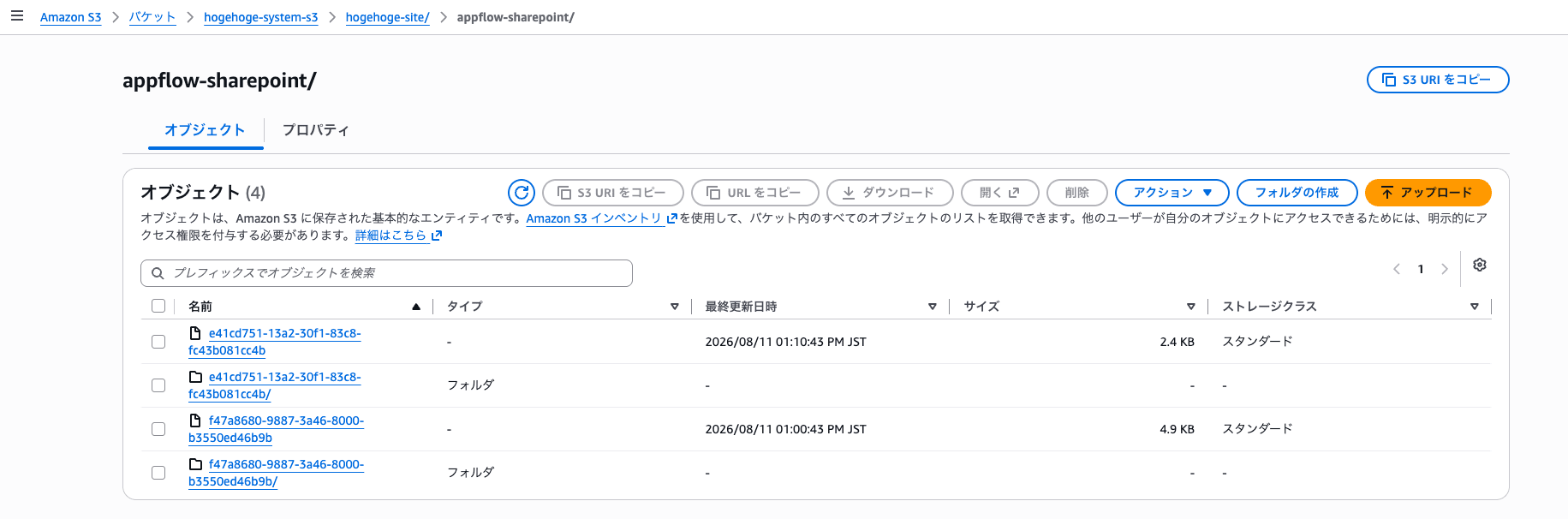
Looking at the S3 side, it appears that the transferred files are stored in a folder named after the execution ID for each flow run.
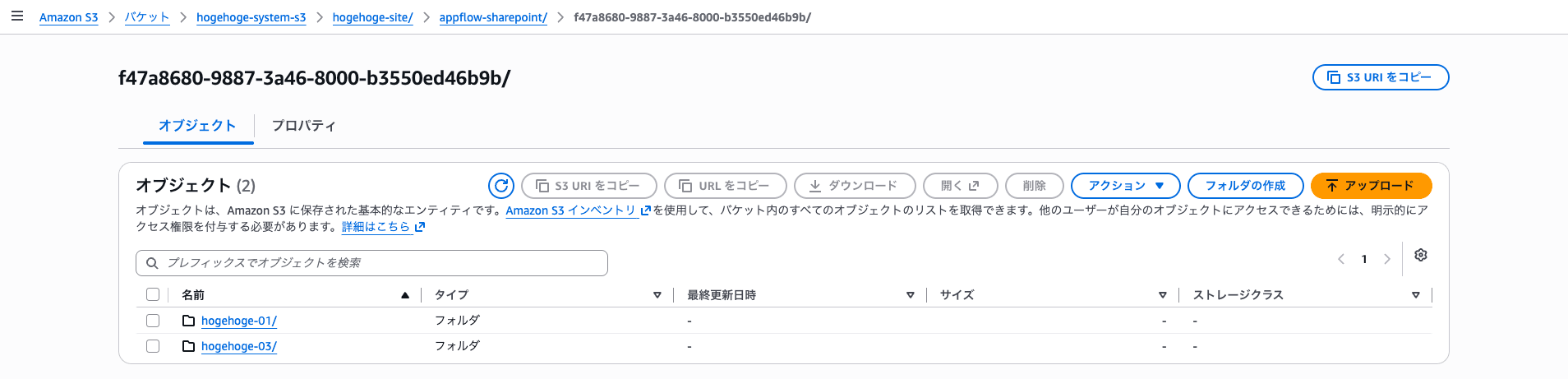
Checking the actually transferred files, only the md and png files specified in the filter were transferred, and txt files were excluded.
The filter feature is working properly.
When There Are Incremental Changes
Next, I update 01.md in hogehoge-01 and add a new 001.md.
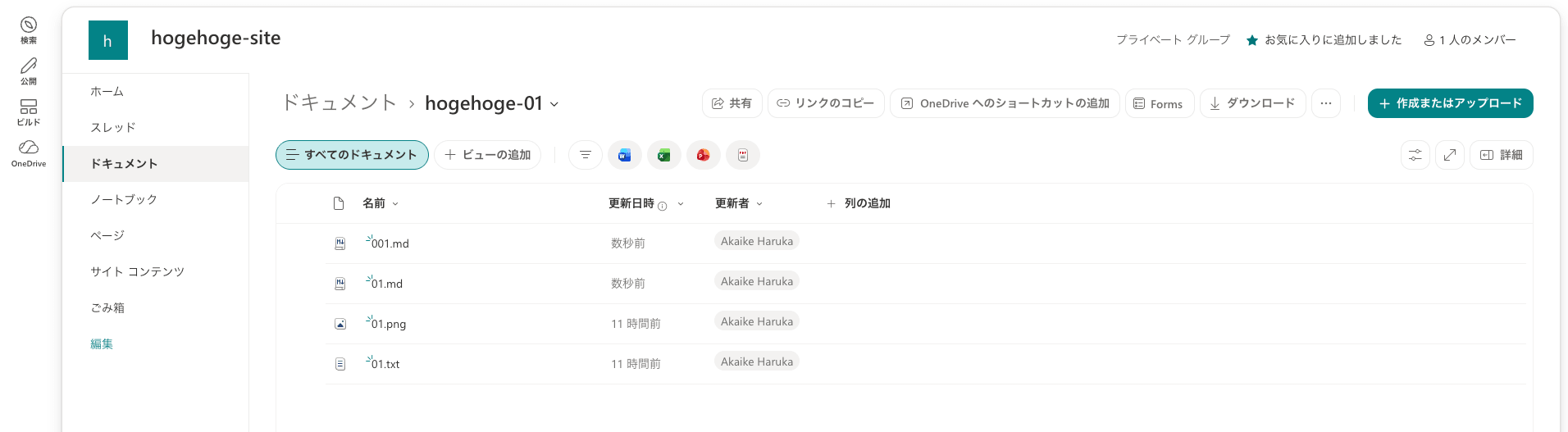
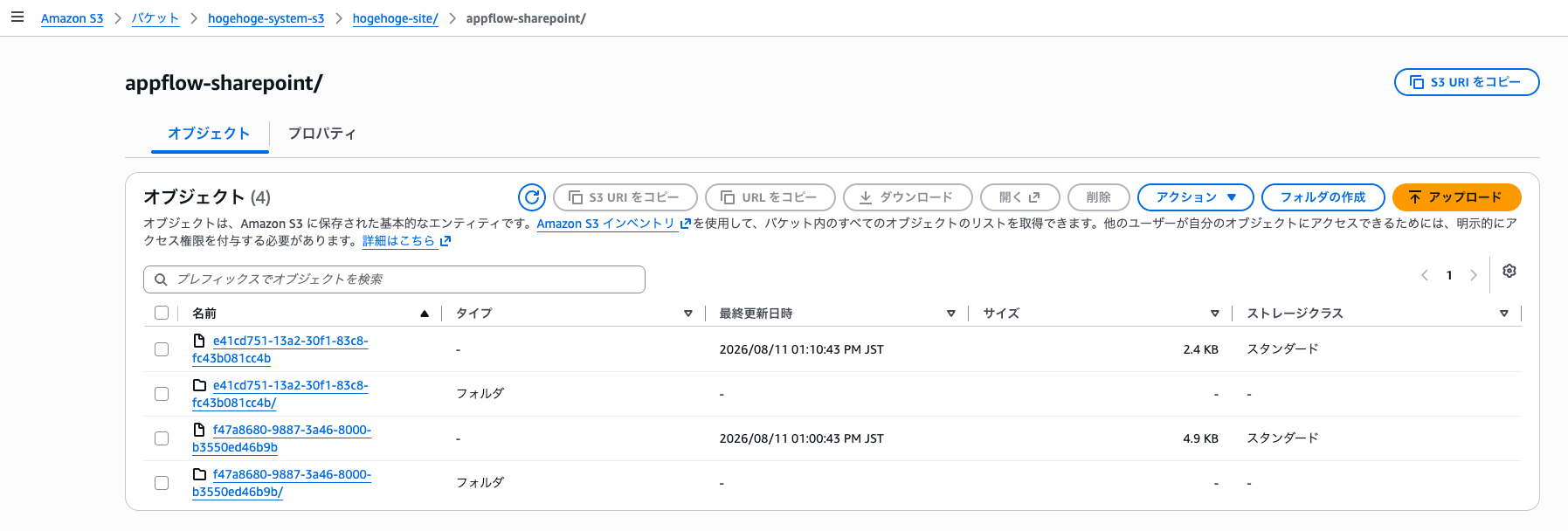
Only the files with differences are properly transferred,

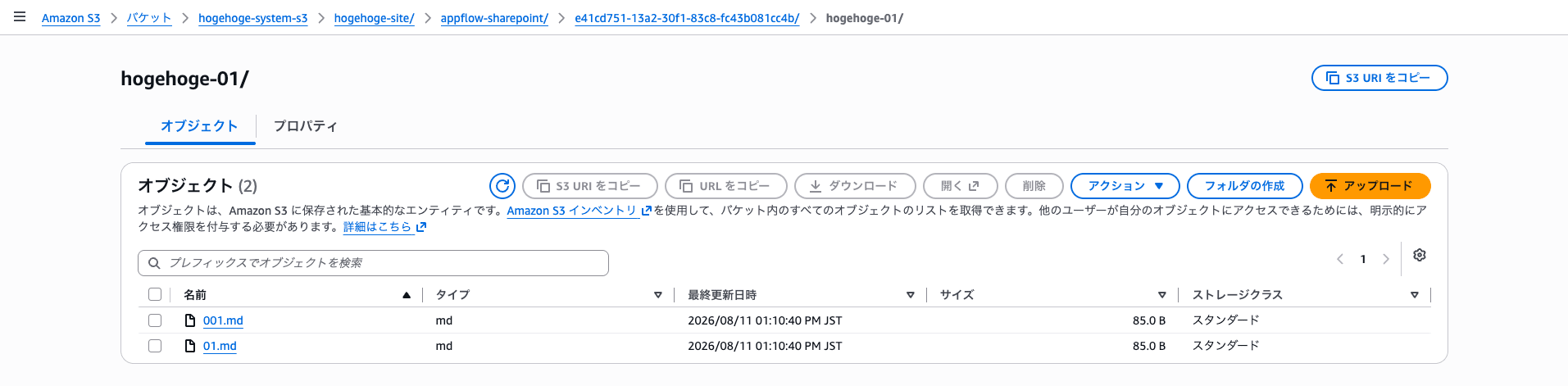
and on the second run, a new folder with a different execution ID from the first run was created, with the files stored underneath it.
Looking at the contents, only the files with differences were transferred.
The folder from the initial transfer remained unchanged.
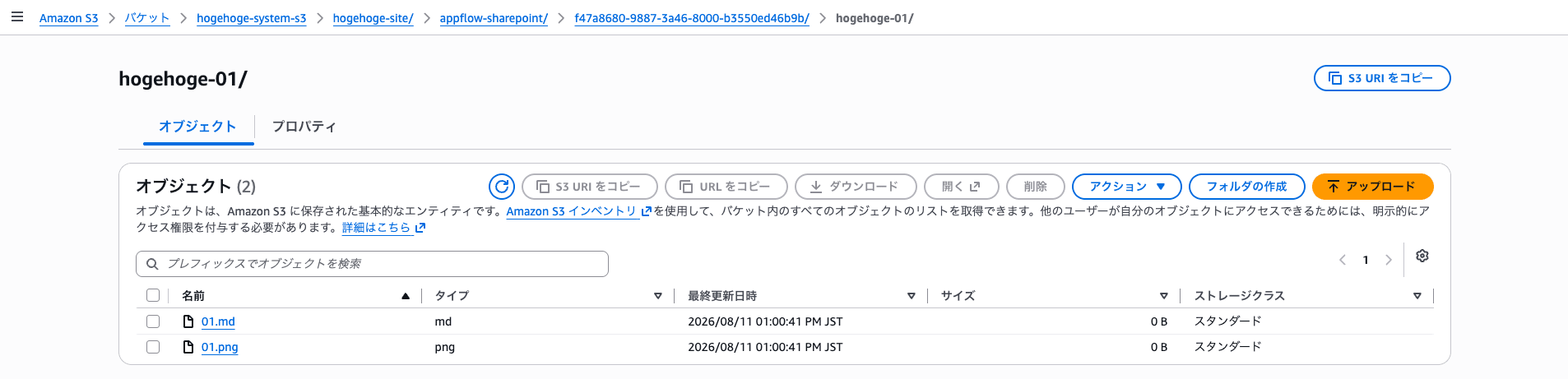
When There Are No Incremental Changes
After that, when the flow runs with no differences, a record remains in the execution history,
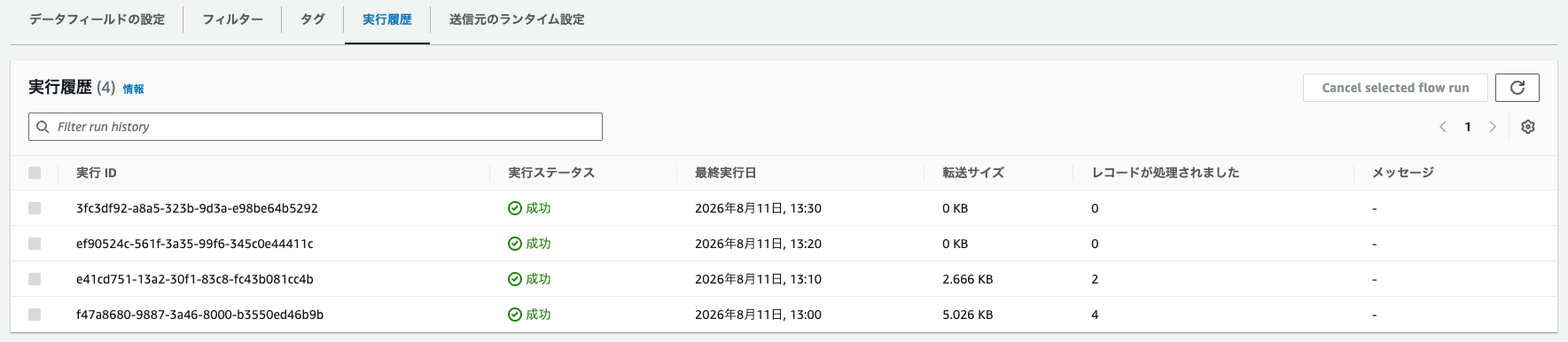
but nothing was actually transferred.
Conclusion
That's all for my trial of data integration from Microsoft SharePoint Online to Amazon S3 using Amazon AppFlow.
I ran into quite a few errors and it took some effort, but I'm satisfied that I was able to confirm that the folder-level transfer source specification, extension-based filtering, and incremental transfer that I wanted to verify all worked without issues.
I hope this serves as a reference for those considering integration from SharePoint Online to S3.
