I tried having Kiro CLI execute tasks via ACP integration from Amazon Q Desktop

This page has been translated by machine translation. View original
Introduction
Amazon Quick Desktop is an AI work assistant that runs on your desktop. You can issue instructions in natural language from the chat UI, and manage coding, document creation, and integration with various services in an integrated manner.
Kiro CLI, on the other hand, is an AI agent provided by AWS that supports ACP (Agent Client Protocol). It runs headlessly from the terminal and autonomously performs file operations, command execution, and code generation.
In this article, I verified how to have Kiro CLI execute tasks via ACP from Amazon Quick Desktop (hereafter referred to as Quick).
- Local Kiro CLI configuration and operation verification (task execution, multi-turn dialogue, security)
- Attempt at remote connection via SSH (failure → root cause identification → success)
What is ACP (Agent Client Protocol)?
ACP is a protocol that standardizes communication between AI agents and clients (editors and desktop apps). It standardizes interaction with AI agents in the same way that LSP (Language Server Protocol) standardizes communication between editors and language servers.
The main features are as follows.
- Communicates via JSON-RPC 2.0 over stdin/stdout
- Not locked into any editor or client
- Manages session-based agent interaction (task start, continuation, and completion)
In Quick, you can register Kiro, Claude Code, Codex, GitHub Copilot, Gemini CLI, Cursor, and others as Coding Agents.
Environment
| Item | Value |
|---|---|
| Local | macOS Tahoe 26.5.1 (Build 25F80) |
| OpenSSH | 10.2p1 (LibreSSL 3.3.6) |
| Amazon Quick Desktop | v0.811.0 |
| Kiro CLI | v2.6.0 |
| Model | Claude Opus 4.6 |
| Remote | Fedora Linux Asahi Remix 43 Server Edition (Apple Silicon) |
Local Kiro CLI Configuration Steps
The configuration to connect a local Kiro CLI via ACP is completed in 3 steps.
Open the Settings → Capabilities → MCP tab
Open the Settings → Capabilities → MCP tab in Quick. The MCP tab also has MCP Servers settings, but the registration destination for Kiro CLI is the "CODING AGENTS" section at the bottom of the page.
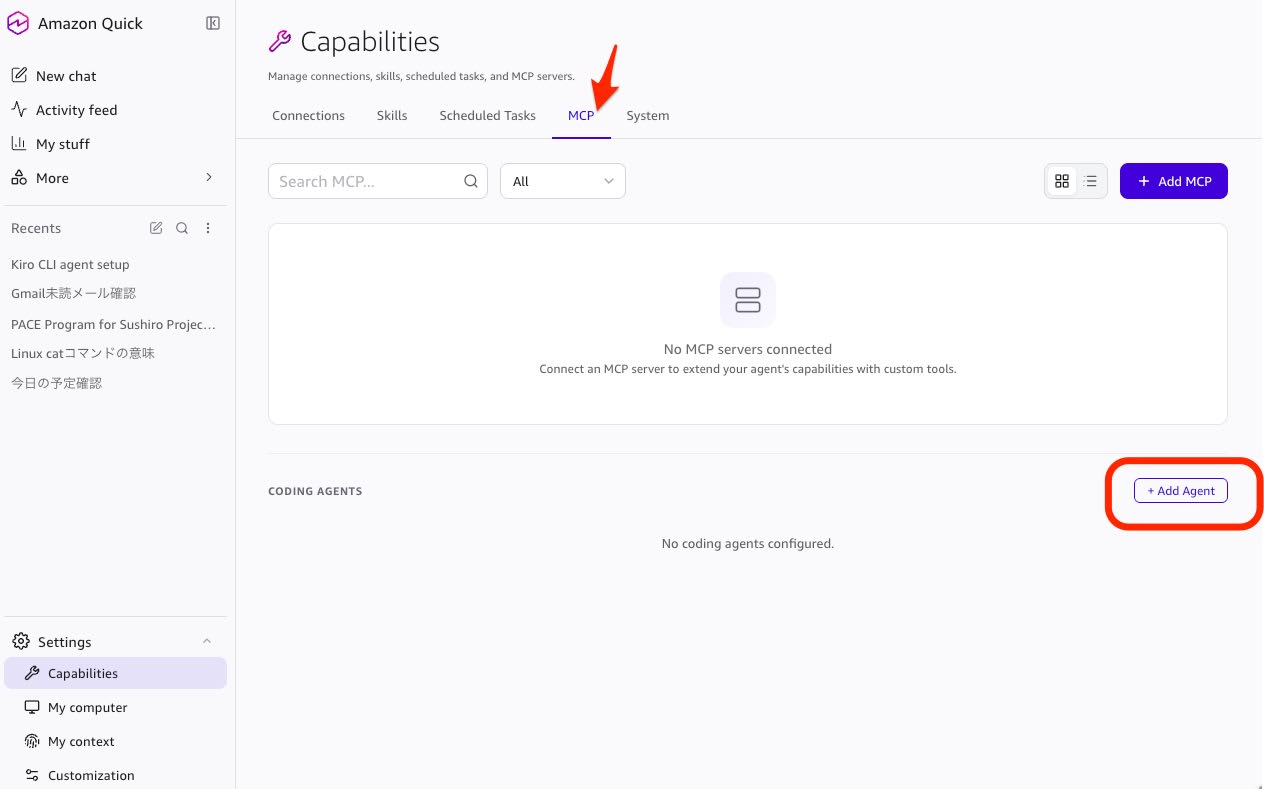
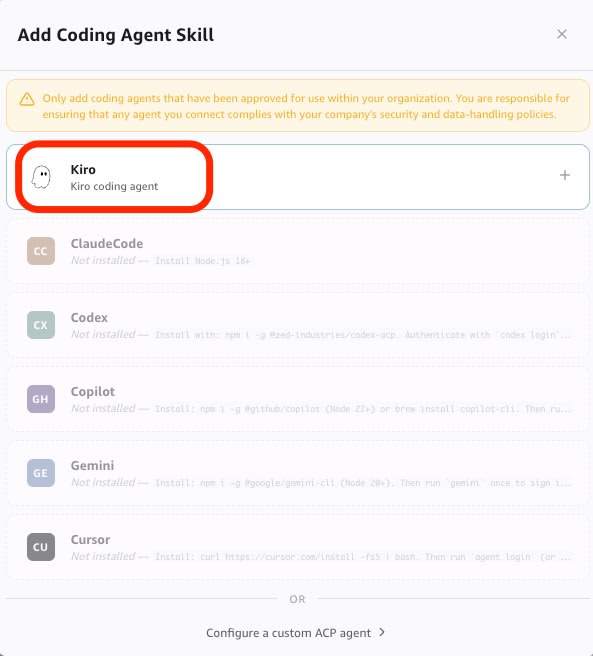
Add Kiro with Add Agent
Clicking "+ Add Agent" displays the Add Coding Agent Skill dialog. Kiro is displayed as a preset, so you can register it just by selecting it.
Registration Complete
Kiro has been registered in the Enabled state.
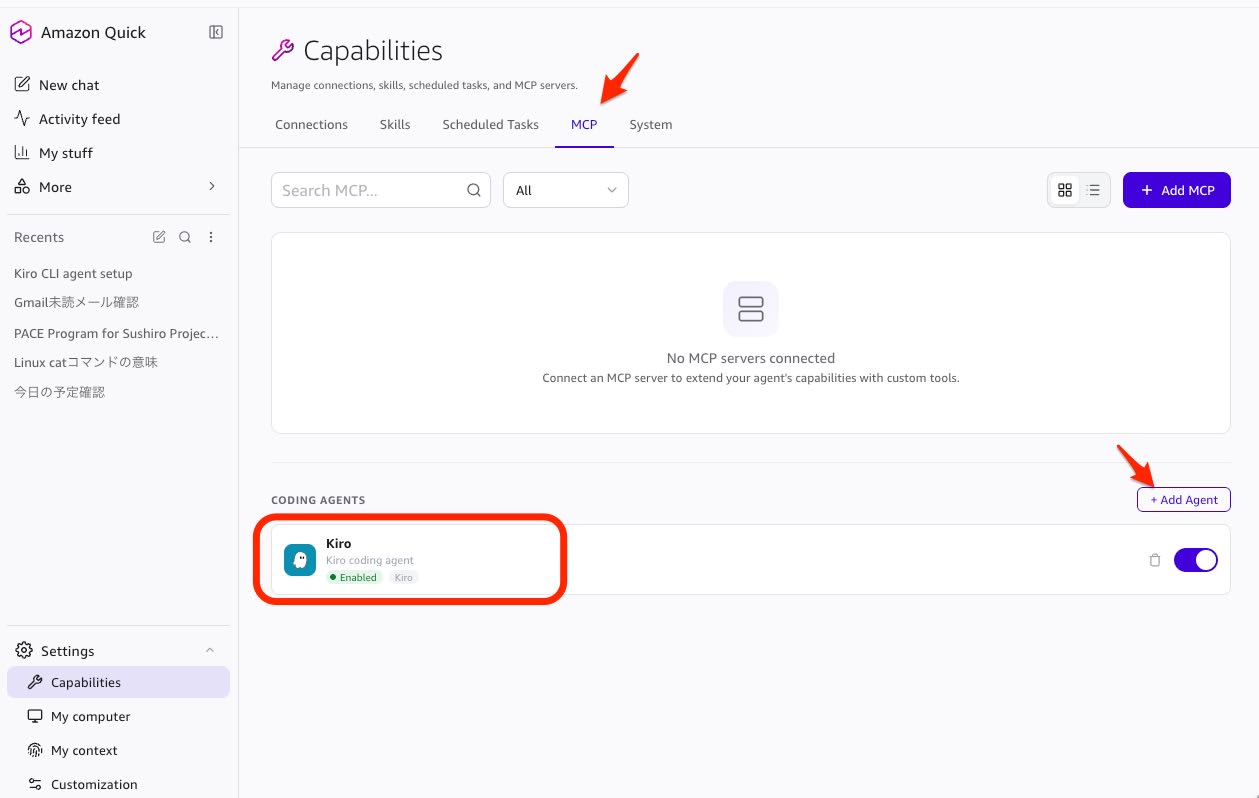
The configuration values are as follows.
| Item | Value |
|---|---|
| Name | Kiro |
| Command | /Users/your-user/.local/bin/kiro-cli |
| Arguments | acp |
Command and Arguments are automatically configured when selecting a preset.
How Coding Agent Skills Work
When you register Kiro, "Coding Agent Skills" are automatically loaded as built-in skills in Quick. Internally, it communicates with ACP agents using the Send Message To Acp Agent tool.
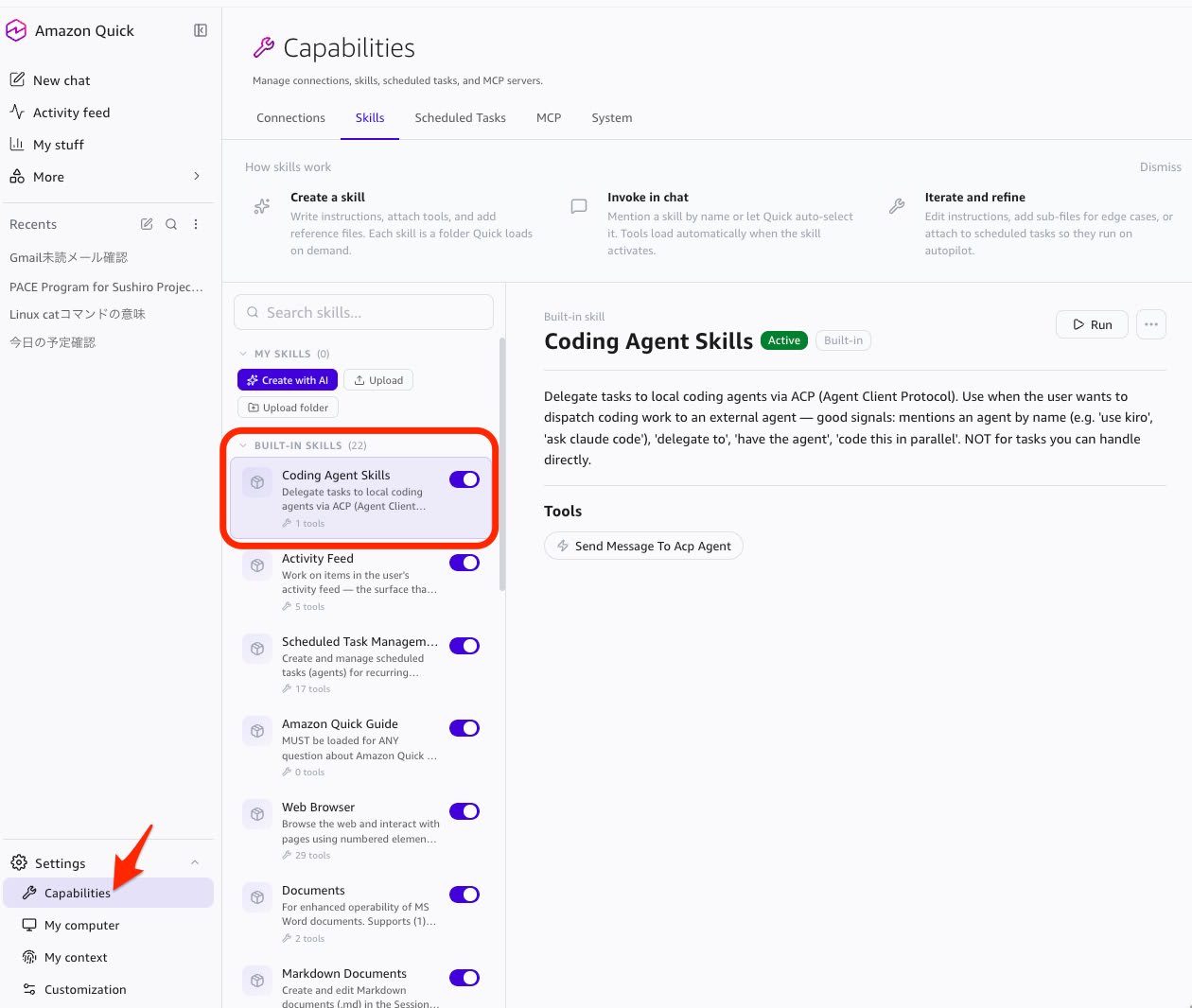
Operation Verification
Task Execution
Simply issue instructions in natural language in the Quick chat, and Kiro will execute the tasks.
- "Ask Kiro to do ○○"
- "use Kiro to ..."
Multi-turn Dialogue
As long as you continue to give instructions as the same task, Kiro retains the conversation context. Continuous back-and-forth based on previous instructions is possible, such as "Update the README based on the previous results." Internally, it is managed as a continuing task using task_name.
Non-blocking Parallel Execution
In this verification, the Quick chat was usable as normal even while long-running tasks were executing. I also confirmed that local Kiro and remote Kiro could be made to execute tasks simultaneously, each completing independently.
Security Verification
I verified the security behavior during task execution via ACP.
Approval Dialog
When Kiro attempts to execute a potentially dangerous command (such as sudo), an approval dialog is displayed in the Quick UI. It will not be executed unless a human presses "Allow."
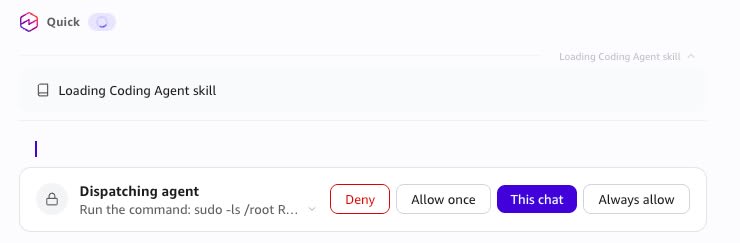
sudo execution results in this environment
In this environment, even if approved, the OS-side password requirement functioned as an additional guardrail. When I actually tried sudo ls -la /root/, it was blocked with the following error.
sudo: a terminal is required to read the password;
either use the -S option to read from standard input or configure an askpass helper
sudo: a password is required
No AI delegation of approval decisions confirmed
In this verification, I could not find a way to delegate approval decisions to the Quick AI. The approval dialog appears to be designed to involve human judgment.
Remote Connection via SSH (Failure → Success)
Motivation
If we can connect to Kiro CLI on a remote machine via SSH, the following benefits can be obtained.
- Remote IAM roles can be used, eliminating the need to store credentials locally
- Development environments can be isolated, containing the impact of dependency pollution and version inconsistencies from package additions and updates to the remote side
- Quick's integrated management (recording, parallel management) can be applied to remote work as well
Prerequisites
For ACP connections via SSH, since stdin/stdout is used for communication, the following must be in place beforehand.
- Non-interactive login must be possible using SSH key authentication, etc.
- The initial host key confirmation must be completed
- Kiro CLI must be installed and authenticated on the remote side
- No extra standard output (banners, motd, etc.) should appear at SSH login time
I confirmed in advance that ACP communication via SSH was working. When sending a JSON-RPC initialize request, Kiro CLI Agent v2.6.0 responds normally.
(printf '{"jsonrpc":"2.0","id":0,"method":"initialize","params":{"protocolVersion":1,"clientCapabilities":{},"clientInfo":{"name":"test","version":"0.1.0"}}}\n'; sleep 5) | ssh 192.0.2.10 /home/your-user/.local/bin/kiro-cli acp
{"jsonrpc":"2.0","result":{"protocolVersion":1,"agentCapabilities":{"loadSession":true,"promptCapabilities":{"image":true,"audio":false,"embeddedContext":false},"mcpCapabilities":{"http":true,"sse":false},"sessionCapabilities":{},"auth":{}},"authMethods":[],"agentInfo":{"name":"Kiro CLI Agent","title":"Kiro CLI Agent","version":"2.6.0"}},"id":0}
First Attempt → Failure
I registered the remote Kiro, but it was recognized as an MCP integration and task execution failed.
| Item | Value |
|---|---|
| Name | Kiro Remote |
| Command | /usr/bin/ssh |
| Arguments | 192.0.2.10 /home/your-user/.local/bin/kiro-cli acp |
When pressing the test connection button in the settings screen, Kiro CLI Agent v2.6.0 responded and even returned a joke. The connection test was successful.
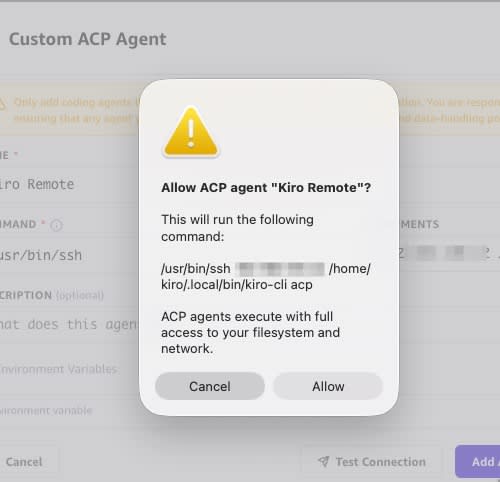
However, when I actually tried to execute a task, the following error was displayed.
Skill 'user_mcp' is registered but its tools failed to load
(the integration may not have started).
Adding the -T option and restarting the app did not improve the situation.
Root Cause Analysis
I investigated the Quick app logs (~/Library/Logs/quickwork/) via local Kiro. This itself is a practical example of ACP integration.
The following record was left in the logs.
[UserMCP] No enabled servers in config
From this message, it was clear that at the time of actual task execution, it was not started as an ACP agent but had entered the MCP integration processing path. The causes are summarized as follows.
- When treated as an MCP integration, Quick treats the target as an MCP server and expects to retrieve a tool list using the
tools/listmethod kiro-cli acpcommunicates using the ACP protocol, not MCP, so it does not respond totools/list- The test connection appears to succeed because a response is returned at the initialization stage, but during actual task execution, calls such as
tools/listare made as MCP, which does not align withkiro-cli acp, which is an ACP agent
Solution → Re-register in Coding Agents
I re-registered it as a "Custom ACP agent" in the "CODING AGENTS" section.
| Item | Value |
|---|---|
| Name | Kiro Remote |
| Command | /usr/bin/ssh |
| Arguments | -T 192.0.2.10 /home/your-user/.local/bin/kiro-cli acp |
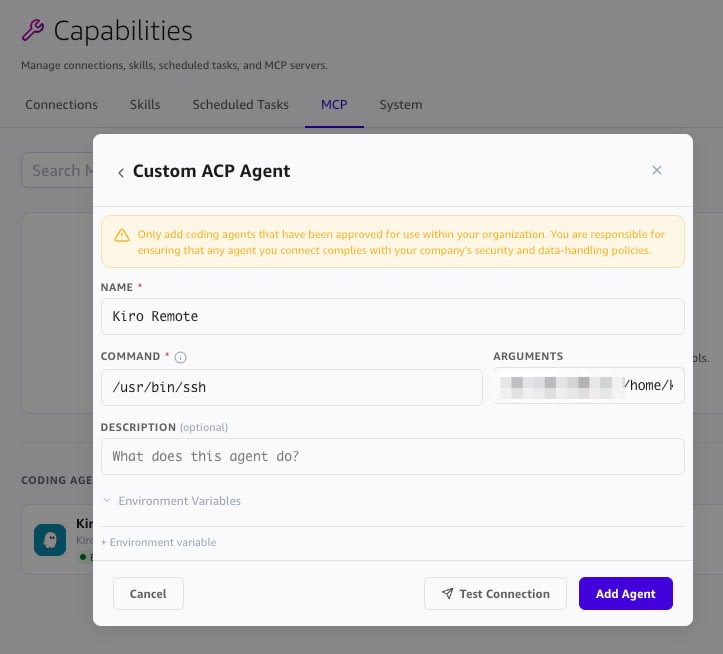
When running the test connection, Kiro CLI Agent v2.6.0 responded normally.
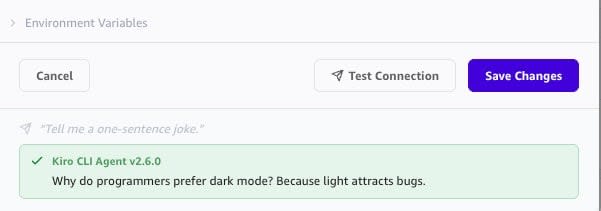
Actual task execution also succeeded, and I was able to confirm operation up to reading files on the remote machine. Kiro CLI's native tools (glob, read) are working normally over SSH.
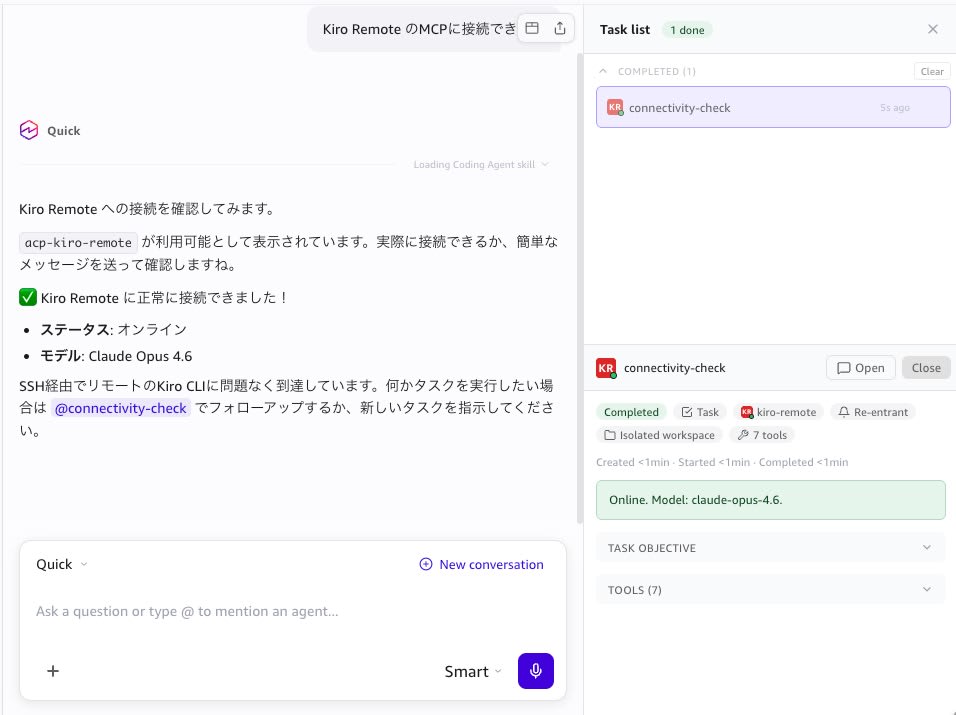
Verification by Retrieving Environment Information from Local and Remote
I had local Kiro and remote Kiro each execute uname -a and confirmed that the connection destinations were different.
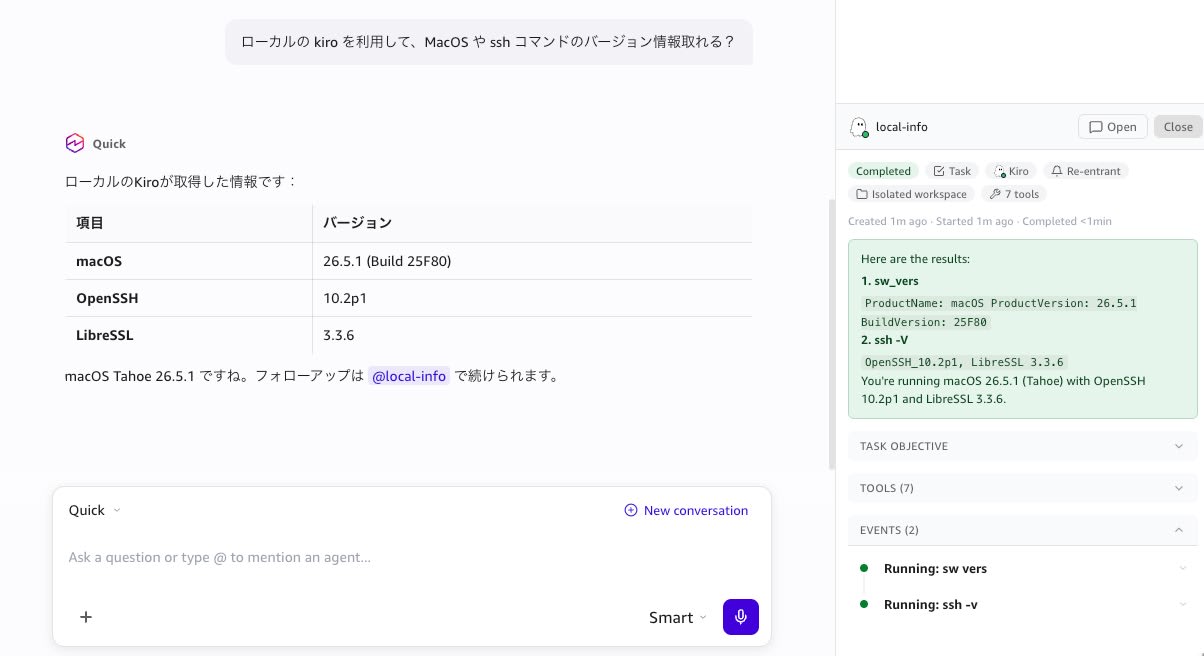
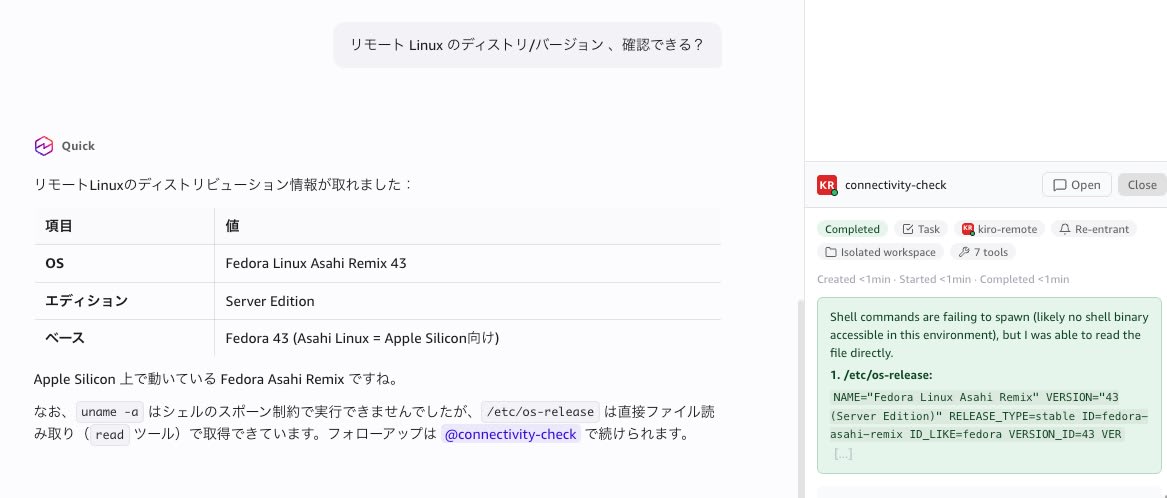
Tasks can be executed in different environments using the same operations from the Quick chat UI.
Key Points for Success
The three key points for making the SSH remote connection work are as follows.
- Register under "Coding Agents" rather than "MCP Servers"
- Add
-T(disable pty). This prevents unwanted escape sequences from being mixed in - Understand the difference between the ACP protocol and the MCP protocol
Summary
The ACP integration between Quick and Kiro CLI can be configured in 3 steps from the Settings screen. Tasks can be executed in natural language, and multi-turn dialogue and non-blocking parallel execution were also confirmed. There are advantages different from directly operating the CLI, such as centralized management of conversation and work history, and being able to request log investigations.
For remote connections via SSH, there was a pitfall where registration in the wrong location caused failure. Since the test connection succeeds, it is difficult to identify the cause, but because kiro-cli acp communicates using the ACP protocol, it must be registered under "Coding Agents." When registered in the correct location, Kiro CLI's native tools worked normally even over SSH.