
I tried getting started with OpenPLC

This page has been translated by machine translation. View original
This is Asano from the Manufacturing Business Technology Department.
My development experience has been centered around web technologies, and I had never touched PLCs, which are used on manufacturing shop floors.
In the midst of this, I came across something called OpenPLC and became interested in it.
This time, I'll try getting started with OpenPLC as a web engineer with no PLC experience. Since I looked up unfamiliar terms as they came up, I'll share that process as well.
What is a PLC?
First, let me cover what a PLC actually is. The following article explains it very clearly, so I read it before getting my hands dirty.
A PLC is an industrial controller for automatically controlling equipment such as motors, valves, and sensors on factory production lines and plants, according to a pre-written program. Its key feature is that conditional branching and timing control—such as moving a conveyor (output) when a button is pressed (input)—can be written and modified as software.
What is OpenPLC?
OpenPLC is an open-source PLC environment developed by Autonomy Logic. It consists of the following three elements.
- OpenPLC Editor: A development environment (IDE) for writing PLC programs
- StruC++: A compiler that converts Structured Text to C++ (C++17)
- OpenPLC Runtime: Software that executes compiled programs. By installing it on a Raspberry Pi or Linux machine, that device operates as a PLC
The flow is: write a program in the Editor, StruC++ compiles it, and the Runtime executes it.
Programs are written in languages conforming to the international standard IEC 61131-3. It supports Structured Text (ST), Ladder Diagram (LD), Function Block Diagram (FBD), Instruction List (IL), and others. OpenPLC Editor has a built-in simulator, so you can run and debug programs on your PC without actual hardware.
Let's try it
Prerequisites
- Verified environment
- macOS Tahoe 26.6.2 (Apple Silicon)
- OpenPLC Editor v4.3.2
- We will run using only the Editor's built-in simulator, without using actual hardware such as a Raspberry Pi or Arduino
Installing OpenPLC Editor
OpenPLC also has a mechanism for deploying from a cloud-based development environment to devices, but since I wanted to keep everything on the desktop first, I downloaded OpenPLC Editor from the OpenPLC download page.
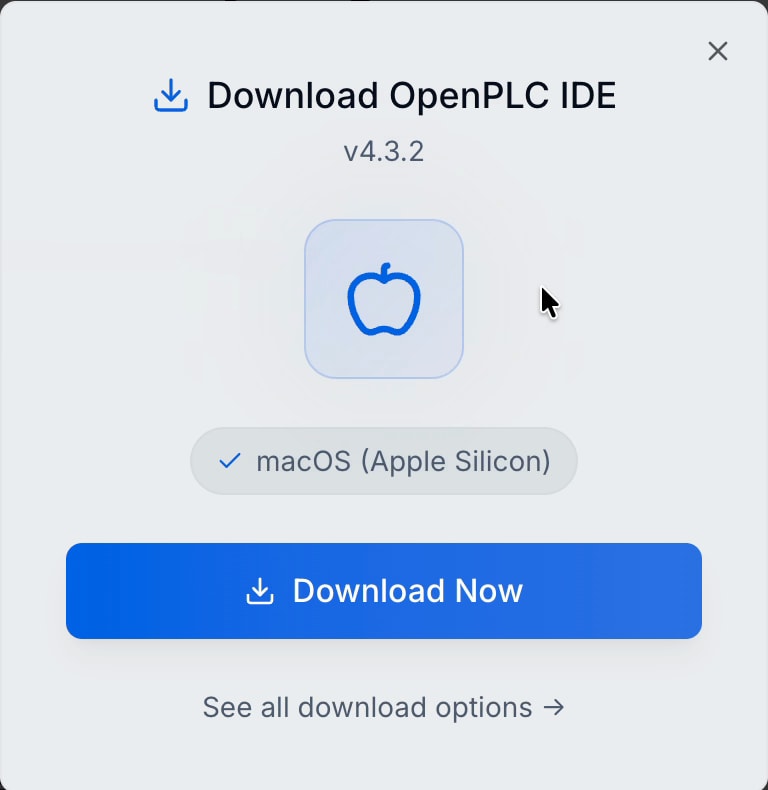
Open the downloaded file and move it to the Applications folder to install. When launched, the following screen appeared.
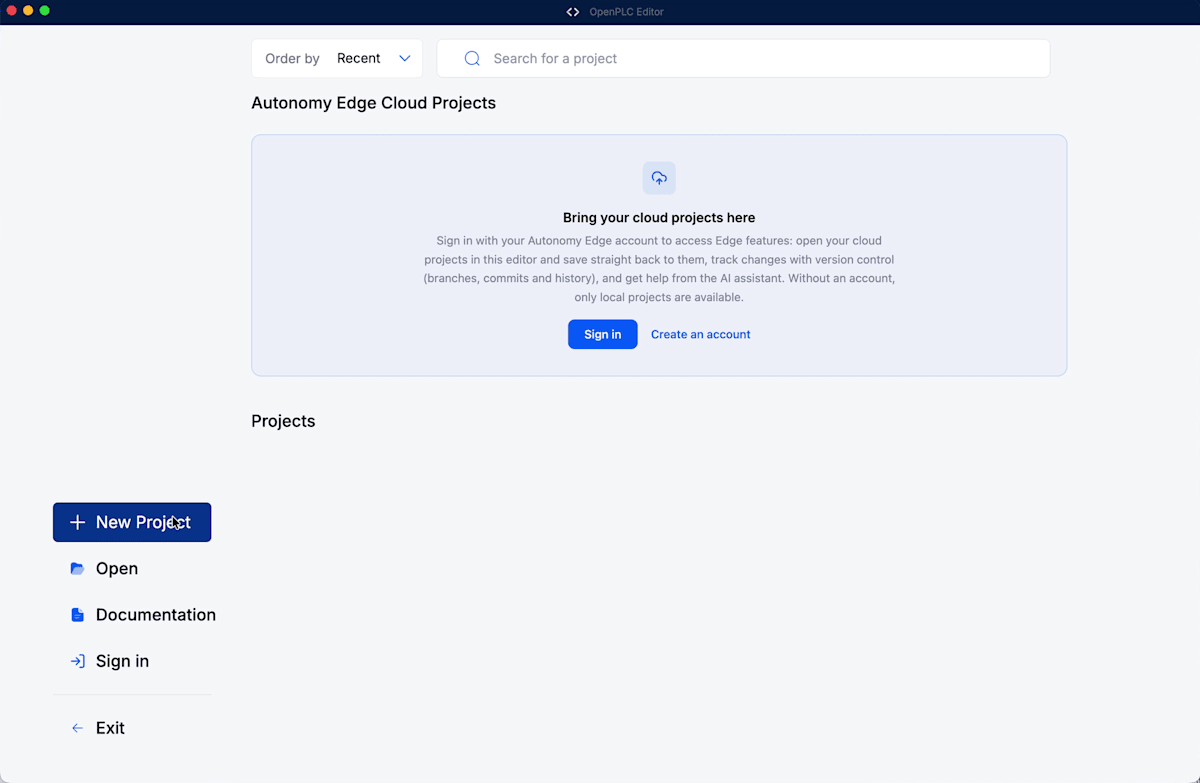
At the top there is a box prompting you to sign in labeled "Autonomy Edge Cloud Projects." Since I just want to try things out this time, I'll skip it for now. You can create local projects without an account.
Creating a project
Opening the official documentation's Quick Start Guide, you'll find steps for creating a so-called "LED blink" sample that blinks an output.
The documentation includes instructions about creating an account and connecting to actual devices, but since I wanted to try things out easily this time, I set aside the account and device-related steps for now and proceeded only with the project setup and program creation parts following the Quick Start Guide.
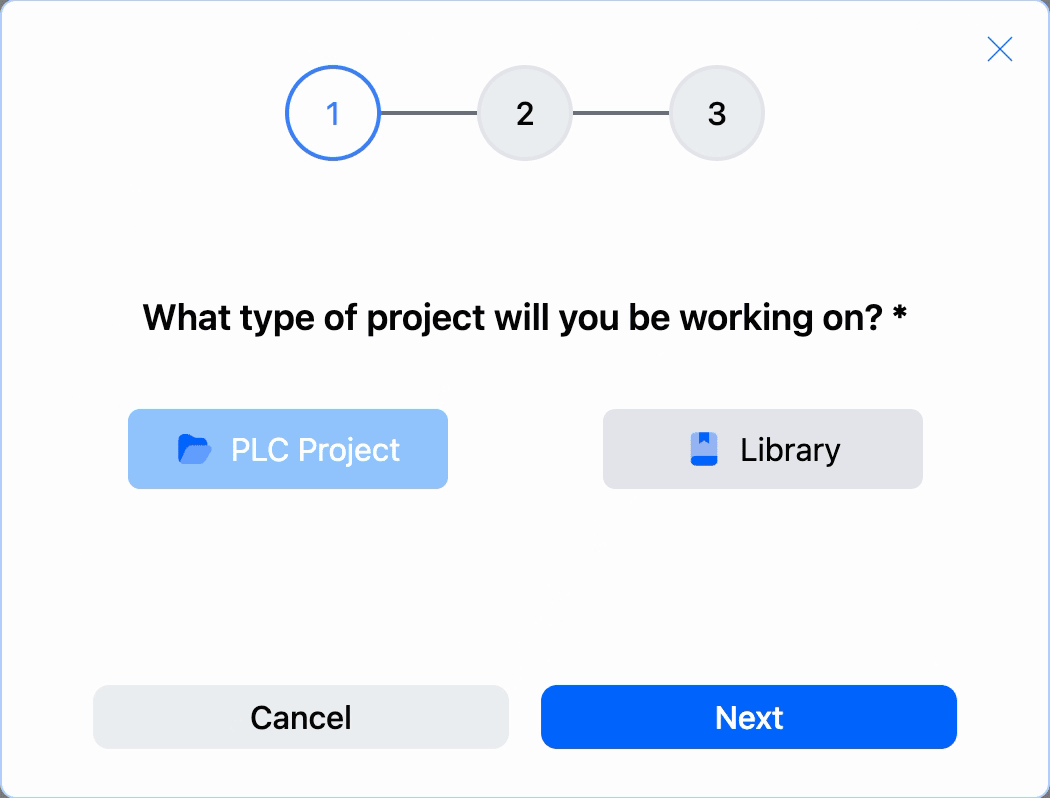
Clicking New Project starts the project creation wizard. First, you're asked whether to create a PLC Project or Library. Since I want to create a program to run on a PLC, I select PLC Project.
Next, specify the project name and save location. Following the Quick Start Guide, I named the project BlinkingOutput.
Finally, specify the base program language and the cyclic task time.
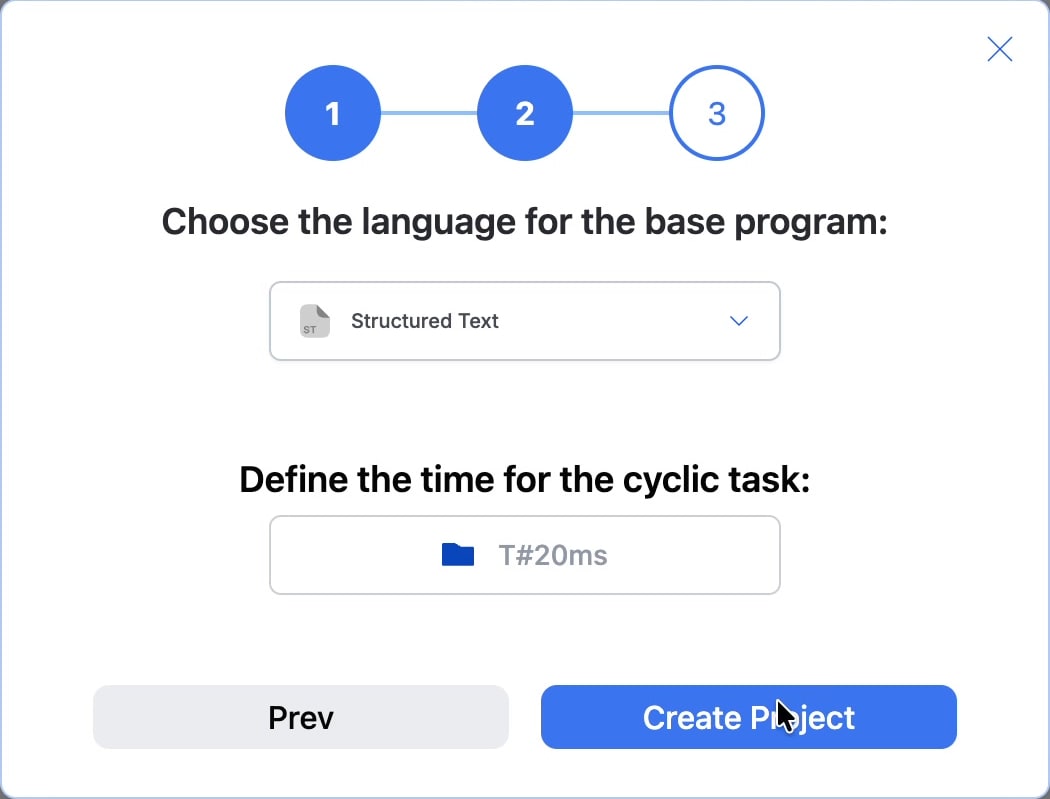
Looking at the language options, Ladder Diagram is also available, as mentioned in the other article introduced at the beginning. I thought about using Ladder Diagram since it was available, but since the Quick Start Guide was written using Structured Text, I followed that and chose Structured Text.
The other setting, "Define the time for the cyclic task," appears to specify "how many seconds between operations." Since I didn't fully understand it at this point, I left it at the default T#20ms and continued. I'll explain this later.
Confirming the simulator is selected
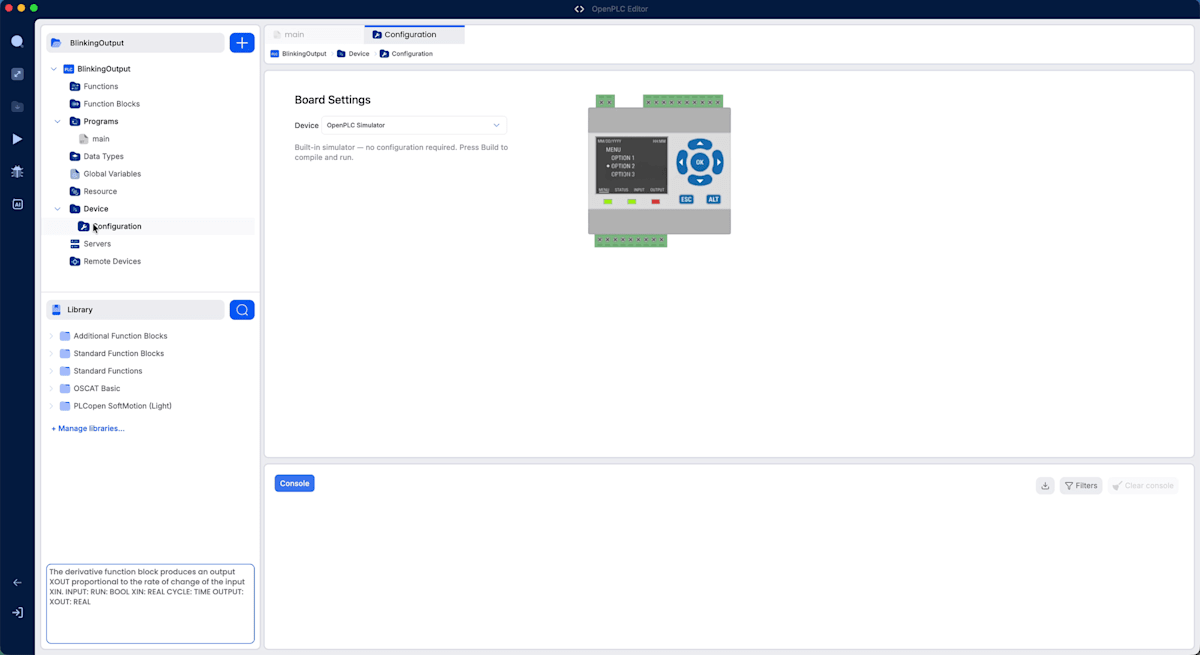
When the project is created, a project tree appears on the left. Opening Device > Configuration, you can confirm that OpenPLC Simulator is selected for Device.
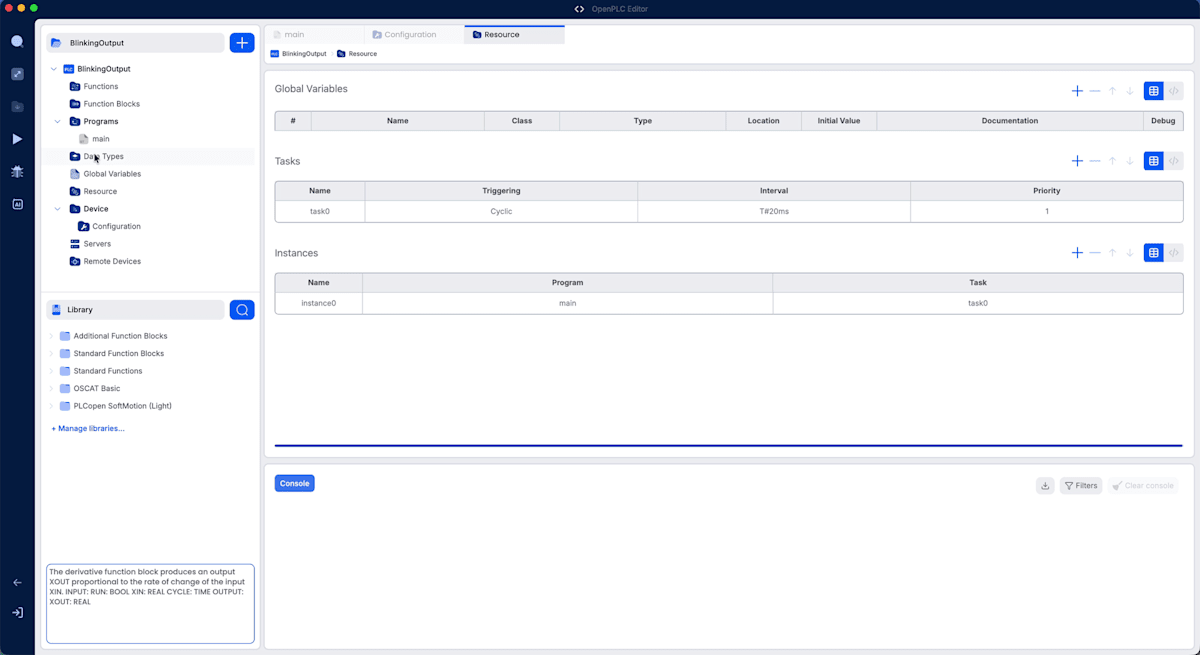
Incidentally, opening Resource, you can confirm that a cyclic task named task0 is configured at T#20ms intervals, and that an instance of the main program is assigned to this task. The T#20ms interval is the content we set in the wizard earlier.
Defining variables
Let's write the program. First, open Programs > main and add two variables to the variable table at the top.
| Name | Class | Type | Location |
|---|---|---|---|
blink_timer |
Local | TON | (none) |
output_state |
Local | BOOL | %QX0.0 |
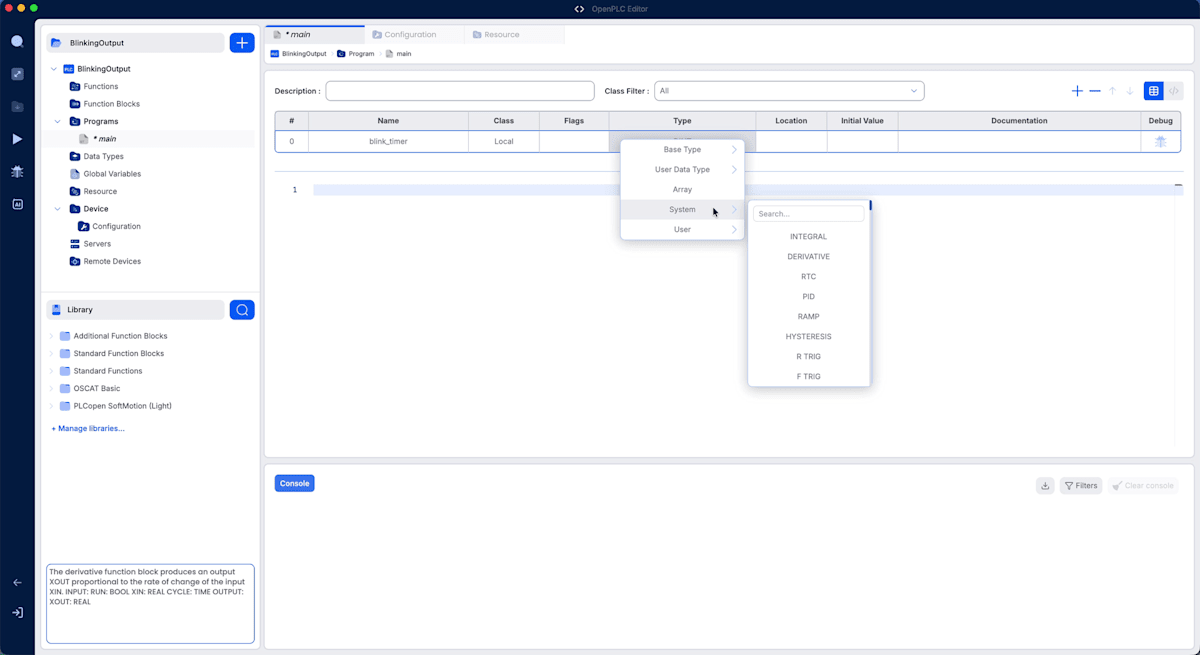
For blink_timer's type TON, select System from the Type dropdown and search for "TON" in the search field to find it.
What is TON?
Right away I found myself wondering "what is TON?"
Searching for "PLC TON," I found it's an on-delay timer. In other words, it's a timer that "turns the output ON after a certain time has elapsed since the input turned ON." Its main inputs and outputs are as follows.
IN(input): Measures time while TRUE. Resets when it becomes FALSEPT(input): Set timeQ(output): Becomes TRUE whenPTtime has elapsed whileINremains TRUEET(output): Elapsed time
What is a coil?
For the other variable output_state, I specify %QX0.0 as the Location. The Quick Start Guide states that this address corresponds to a "digital output coil."
The sudden appearance of the term "coil" was confusing, but it seems this is a remnant of PLCs originally replacing relay circuits, where the "coil" from relay terminology is used to represent PLC output. In relay circuits, when a condition is met, current flows through the coil, the contact moves, and that becomes input to the next circuit. With that in mind, it seems "coil" is used here to refer to output where "the bit turns ON when a condition is met, and OFF when it's not."
The %QX0.0 address is read as follows.
%Q: OutputX: Bit (BOOL)0.0: Byte 0, Bit 0
For inputs, %IX is used. Since we're using a simulator this time, no actual terminal will operate, but on real hardware, the TRUE/FALSE of this variable would correspond to the ON/OFF of an output terminal.
Writing the program
Enter the code from the Quick Start Guide into the editor below the variable table. As configured when setting up the project, the program is written here in Structured Text.
(* Hello World: Blink output every second *)
blink_timer(IN := NOT(blink_timer.Q), PT := T#500ms);

IF blink_timer.Q THEN
    output_state := NOT(output_state);
END_IF;
After entering it, save with Cmd + S.
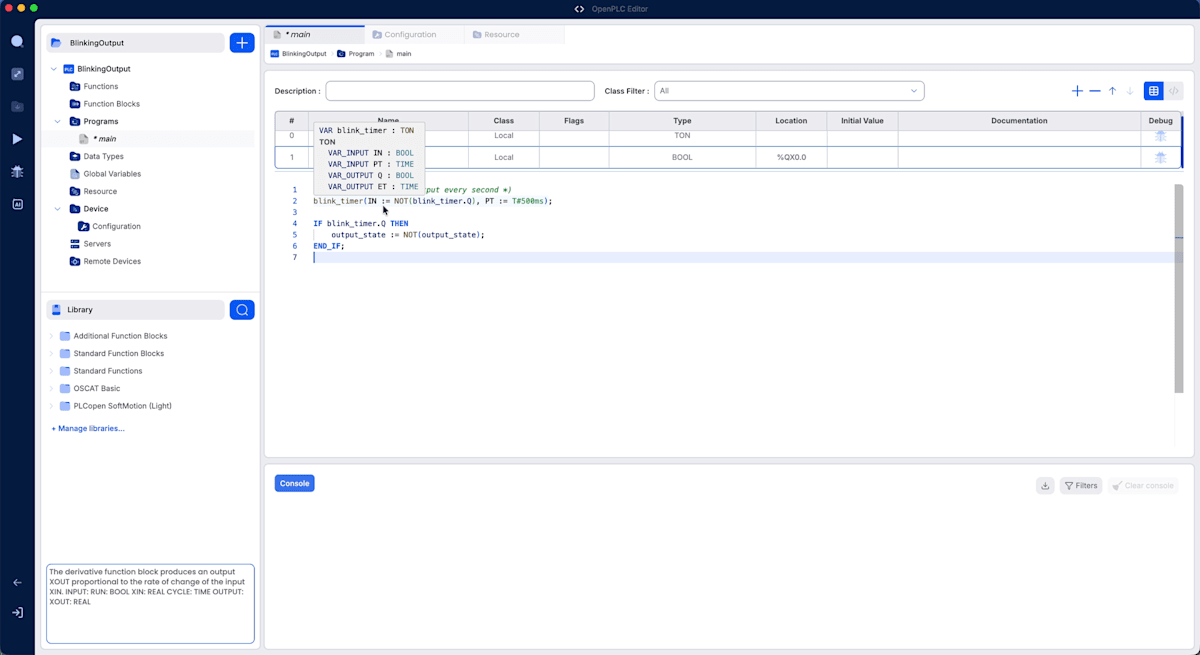
It's also nice that hovering over blink_timer shows a tooltip displaying TON's inputs and outputs.
Breaking down the code
Even after pasting it in, honestly I wasn't sure what this code was doing, so I read through it line by line while looking things up.
The first thing to understand is the premise that PLCs execute programs in an infinite loop. A PLC continuously repeats a cycle (scan) of "read inputs → execute the program once from top to bottom → write to outputs" at short intervals. This code also needs to be read with the understanding that it's not "executed once and done," but rather the entire code is executed every scan.
In terms of syntax:
(* ... *)is a comment:=is assignment, or specification of a named argumentT#500msis a time literal representing 500 milliseconds
blink_timer is something like a class instance, and blink_timer.Q is its output.
Line 2, IN := NOT(blink_timer.Q), does "invert your own output and feed it into your own input." I didn't understand what was happening at first, but this code behaves as follows when executed in an infinite loop.
- While
Qis FALSE,INis always TRUE, so the timer keeps counting - When 500ms passes,
Qbecomes TRUE. In that scan,output_stateis inverted - In the next scan,
INbecomesNOT(TRUE), i.e., FALSE, so the timer resets andQreturns to FALSE - Then
INbecomes TRUE again and measurement restarts
In table form, it looks like this.
| Scan | IN (= NOT previous Q) |
Timer state | Q |
output_state |
|---|---|---|---|---|
| Start | TRUE | Begins counting | FALSE | No change |
| ~500ms | TRUE | Counting | FALSE | No change |
| 500ms reached | TRUE | Expired | TRUE | Inverted |
| Next scan | FALSE | Reset | FALSE | No change |
| Next scan | TRUE | Restarts counting | FALSE | … |
In other words, this is generating a pulse. Q becomes a pulse that is TRUE for just one scan every 500ms, and each time output_state inverts, resulting in a 1-second period blink of "500ms ON → 500ms OFF."
If written in JavaScript, the feel would be something like the following process.
setInterval(() => { output = !output; }, 500);
Since there's no standard PLC instruction for writing "execute this every 500ms" within the program, creating a periodic pulse with a "self-resetting timer" is commonly done. Note that since the reset also takes one scan, the actual period will be slightly longer than the specified time.
More things I became curious about
Two more things I continued to look into were the following.
"Does TRUE just mean 1?"
TRUE/FALSE are BOOL type values, where TRUE corresponds to 1 and FALSE to 0. This is similar to C language, but unlike C, they're not automatically treated as integers, and explicit conversion using BOOL_TO_INT and similar functions is required when you want to use them as numbers.
"Is the output voltage determined in the code?"
It is not.
What the program determines is only TRUE or FALSE; the actual voltage output is determined by the hardware side handling the output. For example, among boards that can run OpenPLC, Arduino Uno outputs 5V, Raspberry Pi outputs 3.3V, and for transistor outputs in industrial PLCs, DC24V is mainstream. The same output_state := TRUE produces different voltages depending on what hardware it's connected to. A good mental model is that the hardware already determines the voltage, and the PLC is just sending the signal to turn it ON.
Running with the simulator
Now that we understand what the code means, let's run it. Clicking the play button (Start Simulator) in the left activity bar starts the build.
The first time, logs like "Installing Arduino core..." and "Downloading packages..." flowed through the console, downloading a lot of Arduino-related packages. In my environment, it took just under a minute from pressing the button to the simulator starting.
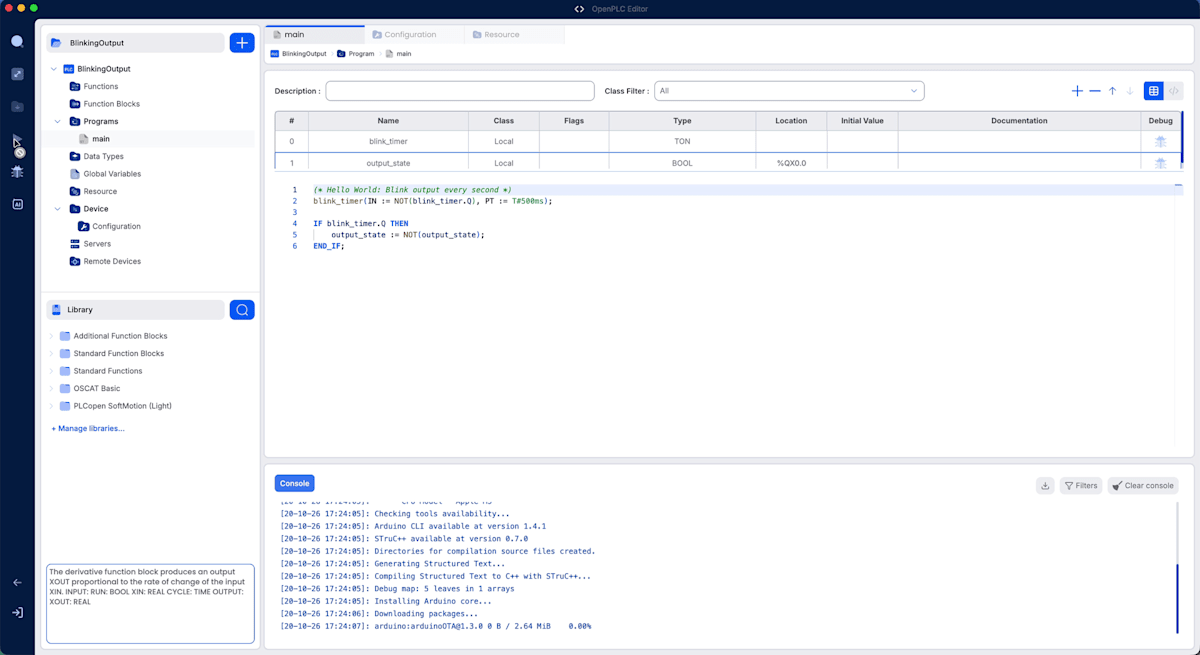
According to the official documentation, this simulator is actually avr8js, a JavaScript-based ATmega2560 (the microcontroller on the Arduino Mega) emulator. When you press Start Simulator, the flow is: convert Structured Text to C++ with StruC++, compile it as firmware for Arduino Mega, then execute it on the emulator.
When the build completes, "Simulator is running." appears in the console and the debugger connects.
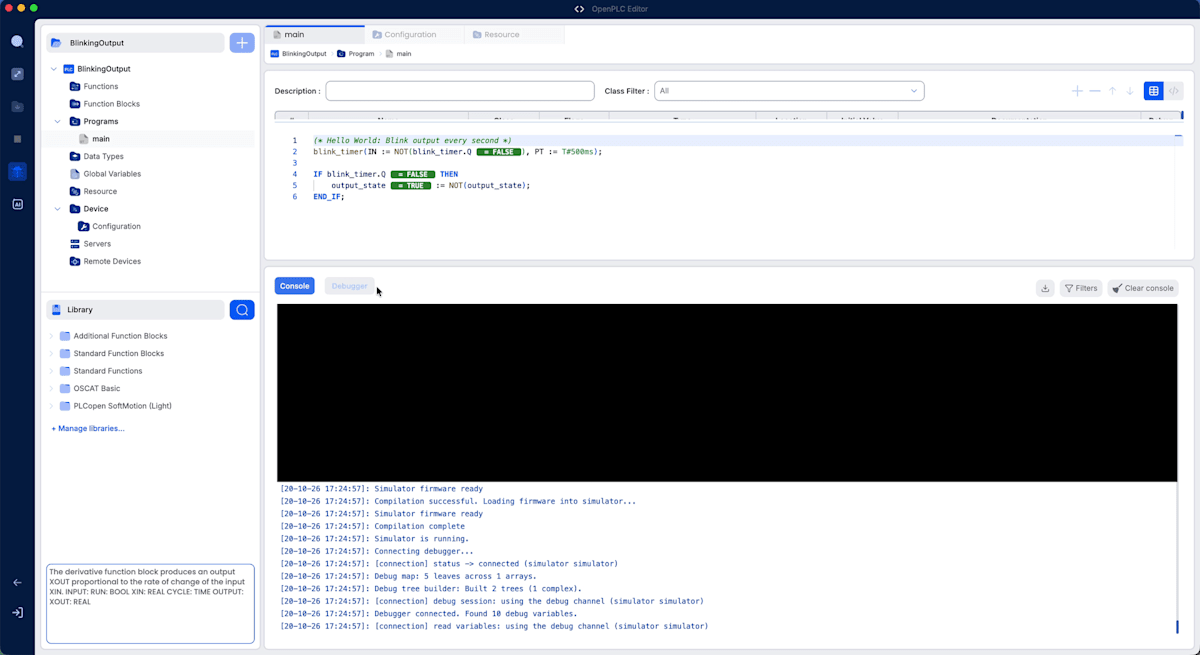
At this point, current values like = TRUE and = FALSE are displayed next to each variable in the editor code and update in real time. It's just values flipping back and forth, but seeing the movement is fun.
Displaying behavior as a graph in the debugger
When the simulator starts, the bottom panel switches to the Debugger tab. Clicking the bug icon under Debug for each variable at the top of the screen displays a list of variables and their current values in Variables on the left side of the Debugger tab. Clicking the eye icon to the left of a variable name adds that variable to the graph on the right.
Let's add main.output_state.
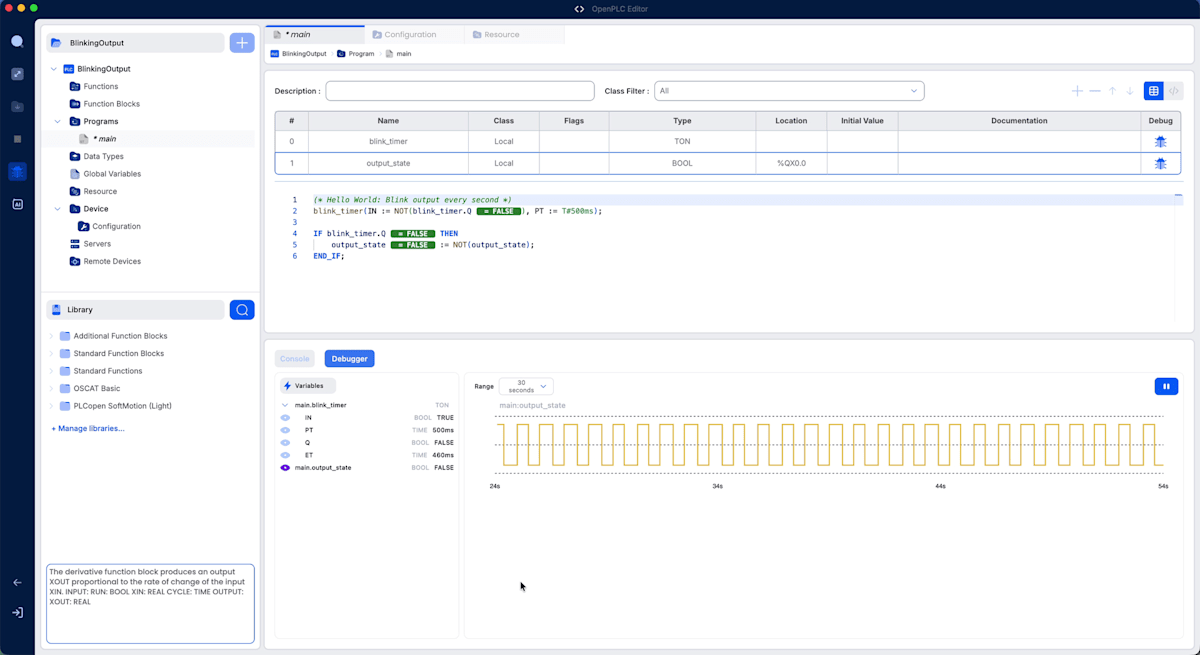
I was able to confirm that output_state's ON/OFF is alternating to form a pulse! If connected to real hardware, an LED should be blinking in sync with this waveform.
Next, let's add the timer input blink_timer.IN to the graph as well.
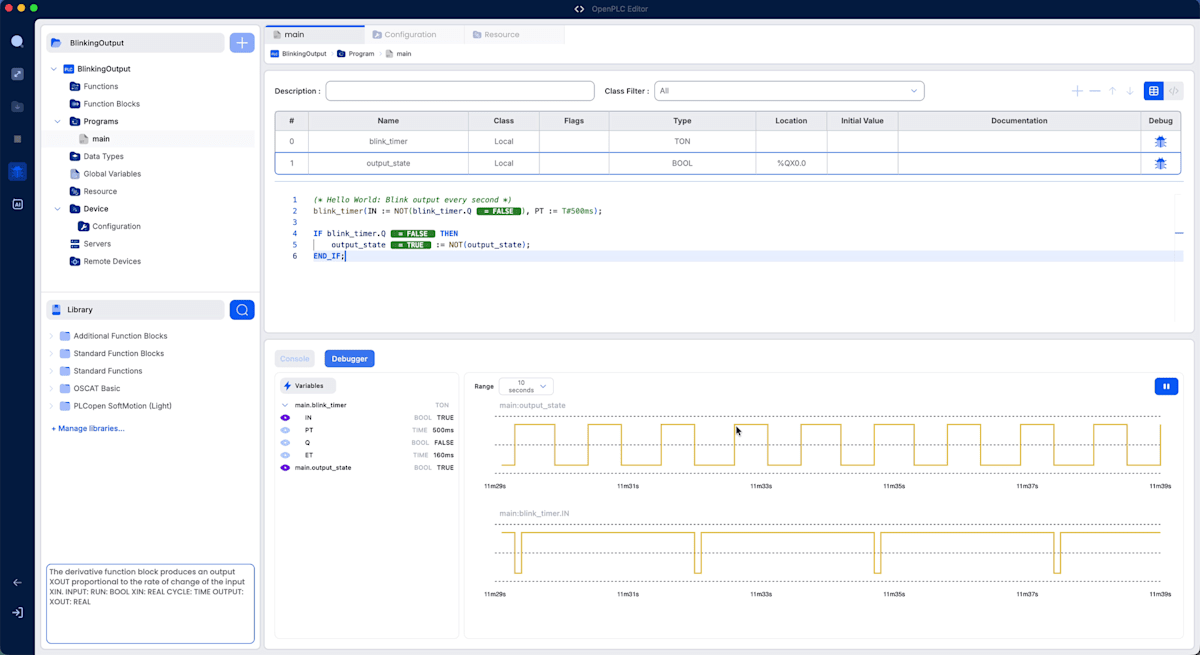
IN is TRUE most of the time, with occasional brief dips to FALSE. This corresponds to the moment in the table from earlier when Q becomes TRUE, the inversion occurs, and in the next scan IN becomes FALSE and the timer resets.
However, looking closely, the dips in IN don't appear every single time output_state switches. Since IN is FALSE for only one scan (about 20ms with the current task settings), the debugger may be missing some occurrences depending on when it samples the values.
Also, looking at the upper graph, there are about 9 cycles in the 10-second display range, making each cycle slightly longer than 1 second. In addition to the previously mentioned "one extra scan for reset," the official documentation also notes that emulation overhead causes it to run slower than real hardware, so that likely plays a role as well.
Investigating further: What is a task?
While gazing at the graphs and exploring the project, I became curious about the "task" that came up during project creation, so I looked into that as well.
A task appears to be a setting that determines "when" and "at what interval" a program is executed. The program itself only describes "what to do" and doesn't hold execution timing. It's only executed once assigned to a task. In other words, in this case, the task established "run this program once every 20ms."
The main settings for a task are:
- Type: In addition to cyclic tasks that execute at fixed intervals, there are also event tasks that execute once only when a certain signal changes, etc.
- Cycle: How many ms between executions (T#20ms in this case)
- Priority: Which task takes precedence when the execution timing of multiple tasks overlaps
I thought "Priority? Can PLCs handle multiple tasks?"—and yes, they can. For example, you can distribute execution frequency according to the importance of the processing, such as "fast-response processing like emergency stops and motor control gets a short cycle and high priority" while "slow-tolerance processing like screen display updates gets a long cycle and low priority." Rather than running in parallel, it's generally more common to switch between them according to priority, which is similar in concept to OS process scheduling.
I've also become curious about actual PLCs and the shop floor
Having come this far, I also became curious about what actual PLCs are like. I did a little research and have noted it below.
What does a real PLC look like?
A real PLC, for smaller models, is typically a box about the size of a book, mounted on a metal rail called a DIN rail inside a factory control panel.
Can a program written in OpenPLC run on a manufacturer's PLC?
Manufacturer-made PLCs have programs written using each manufacturer's dedicated software loaded into them. Programs written in OpenPLC basically cannot be directly loaded into them.
OpenPLC is not "a tool for writing programs to load into other companies' PLCs," but rather a system that enables generic hardware like Raspberry Pi or Arduino to operate like a PLC by installing OpenPLC Runtime on it. However, since the way programs are written—such as Structured Text—conforms to the IEC 61131-3 standard, the concepts learned in OpenPLC are applicable to varying degrees in manufacturer-made PLCs as well.
Is it only for learning? Is it used on actual shop floors?
Based on the research I did, OpenPLC's main uses seem to center on education, research, and prototyping. Even in the developer's documentation, the intended users listed include "educators and students" and "hobbyists running OpenPLC on Raspberry Pi or Linux PCs."
On the other hand, the developer's documentation also states that industrial users such as plant engineers and equipment manufacturers are also intended users. In general, there is a concept called "virtual PLC" where PLC control programs are run not on a dedicated PLC unit but on general-purpose servers, virtual machines, or containers. The developer provides a vPLC that runs OpenPLC v4 Runtime as a Docker container as a product, and these appear to be the industrial-oriented efforts.
Summary
I tried getting started with OpenPLC as a web engineer with no PLC experience.
At first I was confused by unfamiliar terminology, but as I proceeded while looking things up, I was able to form a clearer picture. The OpenPLC IDE I operated this time also had an easy-to-understand UI, and I felt it was user-friendly even for people like me who learn by researching as they go. Most of all, it was enjoyable to be able to run things in the simulator without real hardware and watch the changes in variable values on the graph. I think even someone who starts out wondering "What is a PLC?" like me can have the experience of running it and thinking "Ah, so that's how it works."
This time was an introduction using the simulator, but connecting it to an actual Raspberry Pi and such should produce a real blinking LED, so I want to try running it on real hardware too. It also sounds like fun to create a mock device combining buttons and sensors. If you're curious about PLCs, please give OpenPLC a try.