
I tried semi-automating Obsidian's Daily Note creation with Claude Code

This page has been translated by machine translation. View original
Introduction
I'm kasama from the Data Business Division.
Today I'd like to introduce an update on my personal knowledge management system after 3 weeks of use, including various improvements and semi-automation using Claude Code's Custom slash commands. This blog focuses on updates since my previous post, so please refer to the previous blog first.
Prerequisite
After using the system for 3 weeks, I found that manually running the English feedback script and manually updating Obsidian's Daily Note was a bit cumbersome.
Here are the processing flows for each:
English Feedback Creation Flow
Obsidian Daily Note Creation Flow at Work Start
Obsidian Daily Note Update Flow at Work End
Looking at the process flows again, I realized I'm updating with roughly the same routine, so I wondered if I could somehow automate it.
ADR (Architecture Decision Record)
Options Considered
| Option | Description | Voice Input | Automation | Local Integration | Calendar Integration | Evaluation |
|---|---|---|---|---|---|---|
| Ideal: macOS Scheduler + Popup Notification | Automatic popup notification on PC at work start/end, starting voice dialogue. After completion, Daily Note is automatically generated | ○ | ◎ | ○ | ○ | High implementation cost, requires small app development |
| Google Gemini (Smartphone App) | Voice dialogue on smartphone, creating Daily Note by fetching events from Google Calendar | ◎ | △ | × | ◎ | Cannot easily automatically save files to local PC |
| Google Gemini (Web UI) | Using Gemini in browser to create Daily Note | ○ | △ | × | ◎ | Cannot easily automatically save files to local PC |
| Claude Desktop | Using desktop app version of Claude | × | △ | × | ◎ | No voice input feature |
| Claude Code | Mac voice input + Custom slash commands | ○※ | ○ | ○ | ○ | Selected |
※Using Mac's standard voice input feature (Ctrl×2)
Decision
Adopted Claude Code + Custom slash commands + Mac voice input.
Rationale
- Voice Input Implementation: Utilizing Mac's standard voice input feature (Ctrl×2) enables dialogue-style recording
- Semi-automation Implementation: Custom slash commands allow complex processing flows to be executed with concise commands
- Local Environment Compatibility: Direct read/write of local files enables smooth integration with Obsidian
- Extensibility: Integration with external services like Google Calendar API is facilitated through Python/Bash script connections
Considerations
- Semi-automation rather than full automation (requires command execution and permission approval)
- Voice input rather than live dialogue format
Future Improvements
- Exploring dialogue-based automation
Implementation
The implementation code for this project is stored on Github for your reference.
@obsidian-claude-feedback-sample % tree -la
.
├── .claude → Update!
│   ├── audio_video_to_text
│   │   ├── .env
│   │   ├── audio_video_to_text.py
│   │   ├── input
│   │   │   └── .gitkeep
│   │   └── output
│   ├── commands
│   │   ├── daily-evening.md
│   │   ├── daily-morning.md
│   │   ├── english-lesson.md
│   │   └── meeting-minutes.md
│   ├── format-md.sh
│   ├── requirements.txt
│   ├── settings.json
│   └── today_cal
│       ├── cal_client_secret.json
│       ├── today-calendar.py
│       └── token.json
├── .gitignore
├── .prettierrc
├── 00_Configs
│   ├── Extra
│   │   └── .gitkeep
│   └── Templates
│       └── Daily.md
├── 01_Daily
│   └── .gitkeep
├── 02_Inbox
│   └── 雑メモ.md
├── 03_eng_study
│   └── .gitkeep
├── 04_Meetings
│   └── .gitkeep
├── CLAUDE.md
├── package-lock.json
├── package.json
└── README.md
I'll only introduce the content updated since the previous blog.
As mentioned earlier, I created Custom slash commands to semi-automate with Claude Code. To apply commands at the project level, create md files in .claude/commands/. I referenced the following for creating md files:
Here are the instructions to semi-automate the process flows with Claude Code:
.claude/daily-evening.md
---
allowed-tools: Bash(cd:*), Bash(source:*), Bash(python:*), Write, Read, Glob, Edit
description: Update daily note with today's achievements and tomorrow's plan
---

# Daily Note Evening Assistant(夜用・更新)

## Project Configuration

```
PROJECT_A = "Aプロジェクト"
PROJECT_B = "Bプロジェクト"
PROJECT_C = "Cプロジェクト"
```

## Your task

1. Get Google Calendar events for today
2. Find and read today's daily note
3. Ask user 6 questions one by one about achievements and reflection
4. Update the existing daily note file with responses

### Step 1: Get Calendar Events

```bash
cd .claude && uv run today_cal/today-calendar.py
```

Parse calendar output to understand today's events and generate relevant questions.

### Step 2: Find Today's Daily Note

- Locate today's daily note in `01_Daily/[YYYY-MM-DD].md` format
- Read the file to understand current content structure

### Step 3: Ask User Questions with Calendar Context (一つずつ質問)

First, analyze the Google Calendar events and match them to projects. Then ask these questions one by one, incorporating calendar information. Wait for each response before proceeding:

**質問1: {PROJECT_A}の実績**
Google Calendarから、{PROJECT_A}関連で以下の予定がありました:
[カレンダーの該当イベントをリスト表示]
この作業を実施しましたね。他に追記することがあれば教えてください。なければ「なし」とお答えください。

**質問2: {PROJECT_B}の実績**
Google Calendarから、{PROJECT_B}関連で以下の予定がありました:
[カレンダーの該当イベントをリスト表示]
この作業を実施しましたね。他に追記することがあれば教えてください。なければ「なし」とお答えください。

**質問3: {PROJECT_C}の実績**
Google Calendarから、{PROJECT_C}関連で以下の予定がありました:
[カレンダーの該当イベントをリスト表示]
この作業を実施しましたね。他に追記することがあれば教えてください。なければ「なし」とお答えください。

**質問4: ブログ・その他の実績**
Google Calendarから、その他の予定で以下がありました:
[カレンダーの該当イベントをリスト表示]
ブログやその他の活動で今日やったことがあれば教えてください。カレンダー以外の活動も含めてお答えください。なければ「なし」とお答えください。

**質問5: 今日の振り返り**
今日1日を振り返って、感謝したこと、よかったこと・うまくいったこと、今日の教訓や心に残った言葉などを自由に話してください。

**質問6: 明日やること(全体)**
明日やる予定のタスクを教えてください。プロジェクト別({PROJECT_A}、{PROJECT_B}、{PROJECT_C}、ブログ、その他)に分けてお答えください。なければ「未定」とお答えください。

### Step 4: Update Daily Note File

After collecting all responses, update the daily note file:

1. Read `01_Daily/[date].md` file
2. Update MTG・イベント section:
    - Mark ALL Google Calendar events as `- [x]` (attended)
    - For events that exist in daily note but NOT in Google Calendar, mark with strikethrough: `- [ ] ~~event name~~ (実施せず)`
3. Update 今日のTodo section:
    - Mark completed items as `- [x]`
    - Update progress details (e.g., "実装進める" → "実装80%完了、動作検証に移行")
    - Keep incomplete items as `- [ ]`
4. Update 今日の振り返り section:
    - 感謝: Add user responses as bullet points
    - Good: Add user responses as bullet points
    - Motto: Add user responses
5. Update 明日やる section:
    - Replace "未定" with specific tasks from user responses
    - Format as checkboxes

**Execute all steps and update the file immediately.**

更新例:

```markdown
## MTG・イベント

- [x] 08:30 - (プロジェクトA)実装 # Google Calendarにあった予定
- [x] 11:00 - (プロジェクトB)内部MTG # Google Calendarにあった予定
- [ ] ~~14:00 - (プロジェクトC)内部MTG~~ (実施せず) # Daily noteにあったがGoogle Calendarになかった予定
- [x] 終日 - 自宅 # Google Calendarにあった予定

## 今日のTodo

- Aプロジェクト
    - [x] 実装80%完了、動作検証に移行 # 進捗を具体的に更新
- Bプロジェクト
    - [x] 単体テスト完了、結合テスト開始 # 進捗を具体的に更新
- Cプロジェクト
    - [x] アーキテクチャ検討完了、構成図作成中 # 進捗を具体的に更新
- ブログ
    - [ ] (予定なし) # 実施しなかった場合はそのまま
- その他
    - [ ] (予定なし)

## 今日の振り返り

### 感謝

- [ユーザーの回答内容]

### Good

- [ユーザーの回答内容]

### Motto

- [ユーザーの回答内容]

## 明日やる

- {PROJECT_A}
    - [ ] [具体的なタスク]
- {PROJECT_B}
    - [ ] [具体的なタスク]
- {PROJECT_C}
    - [ ] [具体的なタスク]
- ブログ
    - [ ] [具体的なタスク]
- その他
    - [ ] [具体的なタスク]
```
.claude/daily-morning.md
---
allowed-tools: Bash(cd:*), Bash(source:*), Bash(python:*), Write, Read, Glob
description: Create daily note from calendar events and previous day's tasks
---

# Daily Note Morning Assistant(朝用・作成)

## Project Configuration

```
PROJECT_A = "Aプロジェクト"
PROJECT_B = "Bプロジェクト"
PROJECT_C = "Cプロジェクト"
```

## Your task

1. Get Google Calendar events and add to MTG・イベント section
2. Get previous day's todo from latest daily note
3. Ask user for todo updates
4. Create today's daily note file

### Step 1: Get Calendar Events

```bash
cd .claude && uv run today_cal/today-calendar.py
```

Parse calendar output and convert each event to checkbox format for MTG・イベント section.

### Step 2: Get Previous Tasks

- Find latest daily note in `01_Daily/`
- Extract "明日やる" section content
- If no previous daily note exists, skip to Step 3B

### Step 3A: User Confirmation (when previous tasks exist)

Show previous tasks and ask: "今日のTodoに修正や追加はありますか?修正がある場合は具体的に教えてください。修正がなければ「そのまま」とお答えください。"

### Step 3B: User Input (when no previous tasks exist)

Ask user for today's todos by project:
"前回のdaily noteがないため、今日の各プロジェクトの予定を教えてください:

- Aプロジェクト:
- Bプロジェクト:
- Cプロジェクト:
- ブログ:
- その他: "

### Step 4: Create Daily Note

Create `01_Daily/[今日の日付].md`:

```markdown
---
tags:
    - { PROJECT_A }
    - { PROJECT_B }
    - { PROJECT_C }
---

# Daily [今日の日付]

## MTG・イベント

[Insert calendar events from Step 1 in checkbox format]

- [ ] [Event from Google Calendar]
- [ ] [Event from Google Calendar]

## 今日のTodo

- {PROJECT_A}
  [Previous day tasks + user updates]
- {PROJECT_B}
  [Previous day tasks + user updates]
- {PROJECT_C}
  [Previous day tasks + user updates]
- ブログ
  [Previous day tasks + user updates]
- その他
  [Previous day tasks + user updates]

## 今日の振り返り

### 感謝

-

### Good

-

### Motto

-

## 明日やる

- {PROJECT_A}
    - [ ] 未定
- {PROJECT_B}
    - [ ] 未定
- {PROJECT_C}
    - [ ] 未定
- ブログ
    - [ ] 未定
- その他
    - [ ] 未定
```

**Execute all steps and create the file immediately.**
.claude/english-lesson.md
---
allowed-tools: Bash(cd:*), Bash(source:*), Bash(python:*), Bash(ls:*), Bash(find:*), Write, Read, Glob, LS, Edit, MultiEdit, List
description: Generate English lesson feedback from audio transcription
argument-hint: YYYY-MM-DD
---

# English Lesson Feedback Generator

## Your task

1. Check and transcribe audio files from input directory
2. Read the latest transcript file
3. Load previous feedback for comparison
4. Generate detailed feedback and save to 03_eng_study folder

### Step 1: Check Audio Files and Transcribe

```bash
ls .claude/audio_video_to_text/input/
cd .claude/audio_video_to_text && uv run audio_video_to_text.py
```

### Step 2: Read Latest Transcript

```bash
ls -la .claude/audio_video_to_text/output/
```

Find and read the latest `*_transcript.txt` file from output directory.

### Step 3: Load Previous Feedback

Read the latest feedback file from `03_eng_study/` folder (format: `yyyy-mm-dd-feedback.md`).

### Step 4: Generate Feedback

Analyze the lesson transcript and generate detailed feedback. Save to `03_eng_study/$ARGUMENTS-feedback.md`.

**Important: Read transcript and previous feedback before analysis.**

#### Feedback Requirements

Generate detailed feedback **in English** including:

#### Lesson Overview & Summary

- Content covered in today's lesson
- Vocabulary learned (with English and Japanese meanings)
- Materials and topics used
- Lesson flow and structure

#### English Proficiency Assessment

- Pronunciation and reading issues
- Fluency and naturalness
- Comprehension (response quality to instructor questions)

#### Grammar & Expression Improvements

- Grammar mistakes and unnatural expressions (quote specific utterances and explain why they're incorrect)
- Better expression suggestions (clear Before/After format)
- Vocabulary improvement suggestions

※Consolidate all errors in one section with comprehensive coverage

For grammar/expression improvements and long-term challenges, use this specific format:

- **Actual utterance**: "exact quote from recording"
- **Issue**: detailed explanation of why this is incorrect
- **Correct expression**: "proper expression"
- **Improvement method**: specific learning/practice approach

#### Basic Communication Scenarios - Grammar & Expression Suggestions

- Appropriate greetings and grammar patterns
- Self-introduction sentence structure and vocabulary choices
- Natural response patterns to "Do you have any questions?"
- Appropriate farewell expressions at lesson end
- Other basic conversational grammar patterns

#### Strengths & Growth Areas

- Expressions used appropriately
- Improvements from previous sessions (if any)

**Execute all steps and report the generated feedback file path to user.**
.claude/meeting-minutes.md
---
allowed-tools: Bash, Write, Read, Glob, LS
description: Generate meeting minutes from audio transcription
argument-hint: YYYY-MM-DD
---

# Meeting Minutes Generator

## Your task

1. Check and transcribe audio files from input directory
2. Read the latest transcript file
3. Generate detailed meeting minutes and save to 04_Meetings folder

### Step 1: Check Audio Files and Transcribe

```bash
ls .claude/audio_video_to_text/input/
cd .claude/audio_video_to_text && uv run audio_video_to_text.py
```

### Step 2: Read Latest Transcript

```bash
ls -la .claude/audio_video_to_text/output/
```

Find and read the latest `*_transcript.txt` file from output directory.

### Step 3: Generate Meeting Minutes

Analyze transcript and generate detailed meeting minutes in Japanese. Save to `04_Meetings/$ARGUMENTS-[meeting name].md`.

**Important: Read transcript before analysis. Generate all content in Japanese.**

#### Meeting Minutes Requirements

Generate detailed meeting minutes including:

1. **会議概要** - Meeting overview, date, participants, purpose
2. **報告事項** - Reports and important information
3. **討議事項** - Discussions and Q&A
4. **決定事項** - Decisions and agreements
5. **アクションアイテム** - Who, what, when (action items)
6. **メモ** - Important remarks and issues

**Execute all steps and report the generated meeting minutes file path to user.**
.claude/today_cal/today-calendar.py is a simple implementation that retrieves the day's schedule from Google Calendar and outputs it to standard output. This information is used in the previous daily-evening and daily-morning.
import os
from datetime import datetime, timedelta
from google.auth.transport.requests import Request
from google.oauth2.credentials import Credentials
from google_auth_oauthlib.flow import InstalledAppFlow
from googleapiclient.discovery import build

SCOPES = ['https://www.googleapis.com/auth/calendar.readonly']

def get_today_events():
    creds = None
    credentials_path = os.path.join(os.path.dirname(__file__), 'cal_client_secret.json')
    token_path = os.path.join(os.path.dirname(__file__), 'token.json')

    if os.path.exists(token_path):
        creds = Credentials.from_authorized_user_file(token_path, SCOPES)

    if not creds or not creds.valid:
        if creds and creds.expired and creds.refresh_token:
            creds.refresh(Request())
        else:
            flow = InstalledAppFlow.from_client_secrets_file(credentials_path, SCOPES)
            creds = flow.run_local_server(port=0)

        with open(token_path, 'w') as token:
            token.write(creds.to_json())

    service = build('calendar', 'v3', credentials=creds)

    today = datetime.now().replace(hour=0, minute=0, second=0, microsecond=0)
    tomorrow = today + timedelta(days=1)

    events_result = service.events().list(
        calendarId='primary',
        timeMin=today.isoformat() + 'Z',
        timeMax=tomorrow.isoformat() + 'Z',
        singleEvents=True,
        orderBy='startTime'
    ).execute()

    events = events_result.get('items', [])

    # 今日の日付を出力
    print(f"DATE: {today.strftime('%Y-%m-%d')}")

    if not events:
        print("今日の予定はありません")
        return

    for event in events:
        start = event['start'].get('dateTime', event['start'].get('date'))
        if 'T' in start:
            # 時刻付きの場合、時刻のみ表示
            time_part = datetime.fromisoformat(start.replace('Z', '+00:00')).strftime('%H:%M')
            print(f"{time_part} - {event['summary']}")
        else:
            # 終日イベントの場合
            print(f"終日 - {event['summary']}")

if __name__ == '__main__':
    get_today_events()
These are the major updates since the previous blog.
Setup
Obsidian
This is the same as the previous blog, so I'll skip it.
Google Cloud
Next, let's set up to run scripts using Vertex AI.
For enabling Vertex AI, please refer to the Google Cloud Setup in the blog below:
We'll also set up Google Calendar API.
The setup method is clearly explained with screenshots in the article below, so I'll only briefly introduce it here.
#### Enabling Google Calendar API

1. Access https://console.cloud.google.com/
2. Create new project or select existing project
3. APIs & Services → Library
4. Search for Google Calendar API and enable it

#### OAuth consent screen setup (required)

5. APIs & Services → OAuth consent screen
6. Select Internal (for company accounts) or External (for personal accounts) and CREATE
7. Enter App Information:
    - App name: Any name (e.g., Calendar Reader)
    - User support email: Your email address
8. SAVE AND CONTINUE
9. Audience: Select Internal (company) or External (personal)
10. SAVE AND CONTINUE
11. Enter Contact Information:
    - Email addresses: Your email address
12. Press SAVE AND CONTINUE to complete

#### Creating OAuth Client ID

10. APIs & Services → Credentials → Create Credentials → OAuth 2.0 Client IDs
11. Set Application type to Desktop application
12. Enter a suitable name (e.g., Calendar Reader)
13. Click Create
14. Download cal_client_secret.json
15. Place the downloaded cal_client_secret.json at:

`.claude/today_cal/cal_client_secret.json`
Python Environment
Next, install uv to manage Python versions, virtual environments, and packages.
# macOS/Linux
curl -LsSf https://astral.sh/uv/install.sh | sh

# Windows
powershell -c "irm https://astral.sh/uv/install.ps1 | iex"
After installation, navigate to the project directory, create a uv virtual environment, and install dependencies.
cd .claude
uv venv --python 3.13
source .venv/bin/activate  # macOS/Linux
uv pip install -r requirements.txt
Create a .env file in the audio_video_to_text/ directory. Specify FILE_NAME with the input filename including extension. Include other Google Cloud configuration values.
PROJECT_ID=your-gcp-project-id
REGION=your-region
GOOGLE_APPLICATION_CREDENTIALS=path/to/your/service-account-key.json
FILE_NAME=eng_record.mp3
Also install FFmpeg, which is used for speech/video transcription.
FFmpeg is used to convert MP4 video files to MP3 audio files.
# For macOS
brew install node ffmpeg
Claude Code
The Claude Code setup method is also available on the official site, so please refer to that.
After setup, run npm install to install Prettier from package.json for use with hooks.
@obsidian-claude-feedback-sample % npm install

added 1 package, and audited 2 packages in 706ms

1 package is looking for funding
  run `npm fund` for details

found 0 vulnerabilities
You can confirm the installation with npm list.
@obsidian-claude-feedback-sample % npm list
obsidian-claude-feedback-sample@1.0.0 /git/obsidian-claude-feedback-sample
└── prettier@3.6.2
Mac Voice Input
I referenced the following article for voice input setup. I've also configured voice input to activate with two Ctrl presses.
Using the System
Now let's try using it.
dailiy-morning
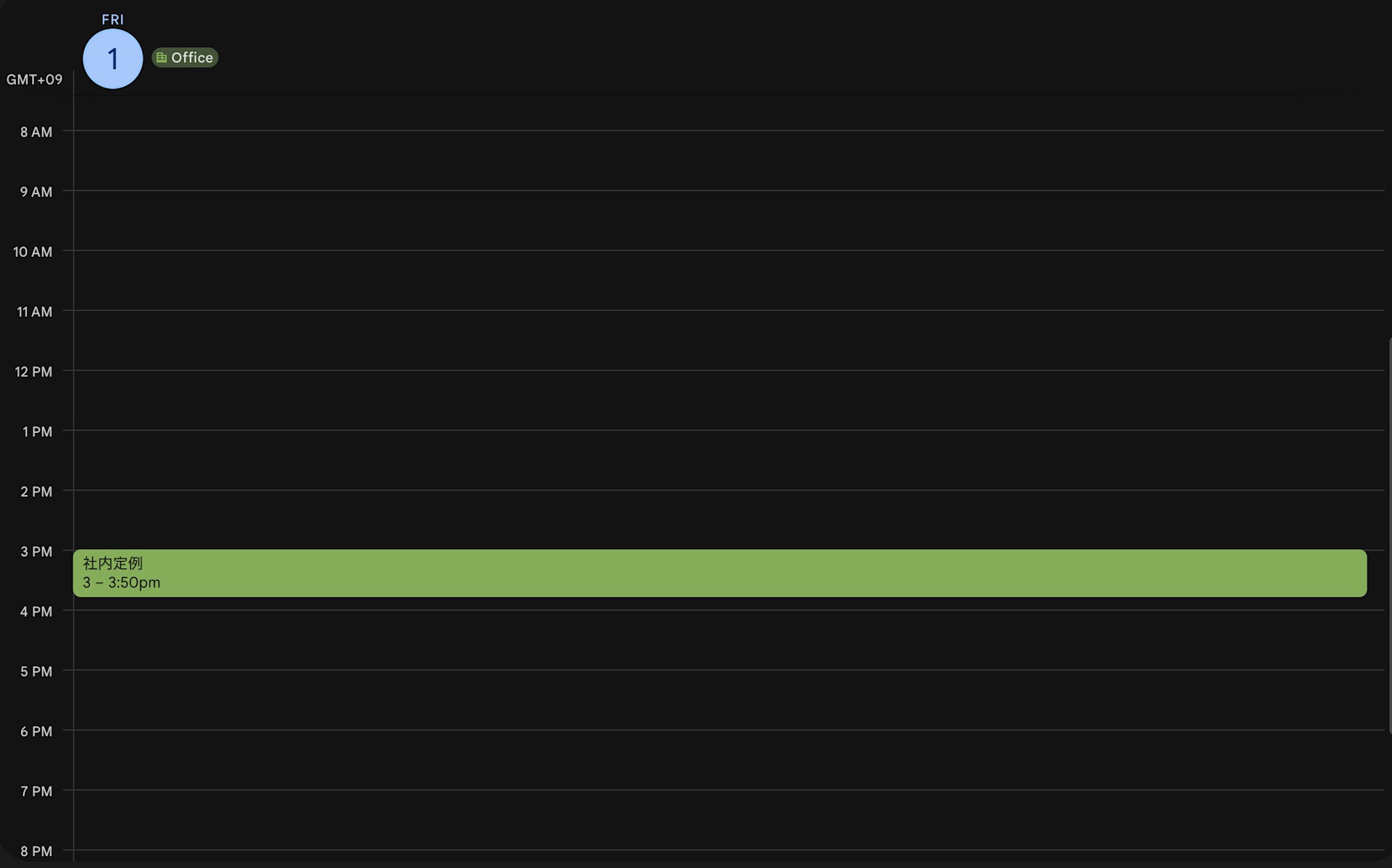
As a premise, only internal regular meetings are on the calendar, and we're creating a daily note for the first time.
We execute Claude Code's Custom slash commands.

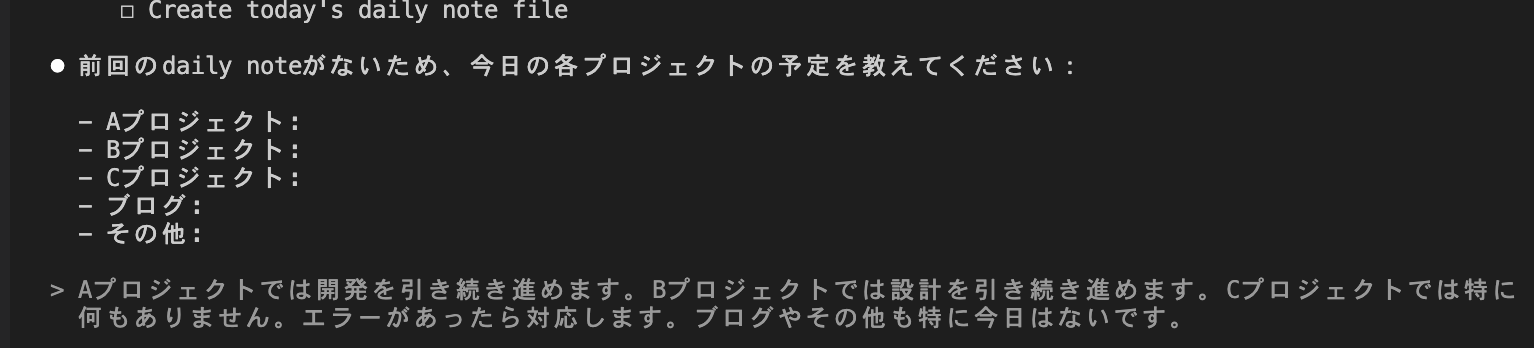
Since there is no previous Daily Note, I entered today's schedule using Mac's voice input.
It was successfully created with today's date.
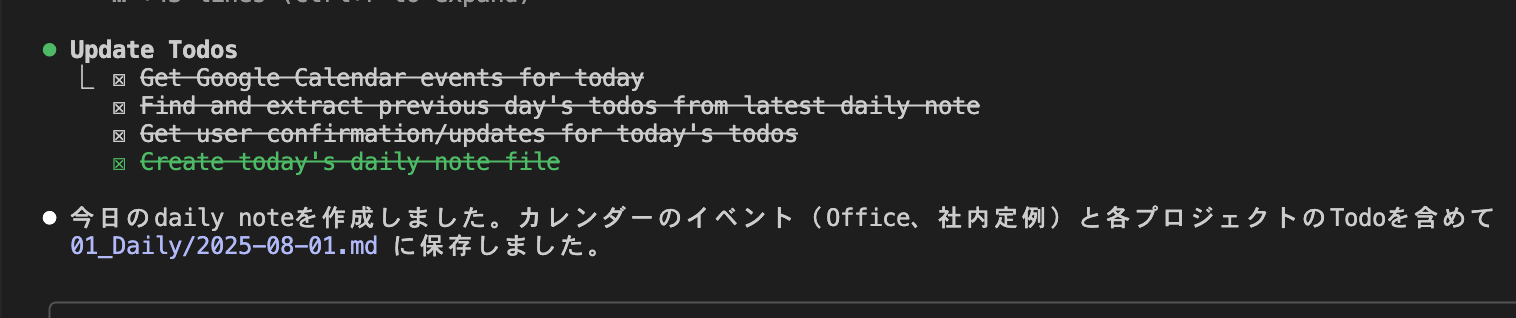
From the created markdown, we can see that scheduled events from the calendar have been registered.
Daily/2025-08-01.md
---
tags:
    - Project A
    - Project B
    - Project C
---

# Daily 2025-08-01

## Meetings & Events

- [ ] Office (all day)
- [ ] Internal regular meeting (15:00)

## Today's Todo

- Project A
    - [ ] Continue development
- Project B
    - [ ] Continue design
- Project C
    - [ ] Respond if there are any errors
- Blog
    - [ ] Nothing in particular
- Others
    - [ ] Nothing in particular

## Today's Reflection

### Gratitude

-

### Good

-

### Motto

-

## Tomorrow's Plan

- Project A
    - [ ] TBD
- Project B
    - [ ] TBD
- Project C
    - [ ] TBD
- Blog
    - [ ] TBD
- Others
    - [ ] TBD
daily-evening
Next, let's try daily-evening. Here's the updated schedule from the calendar.
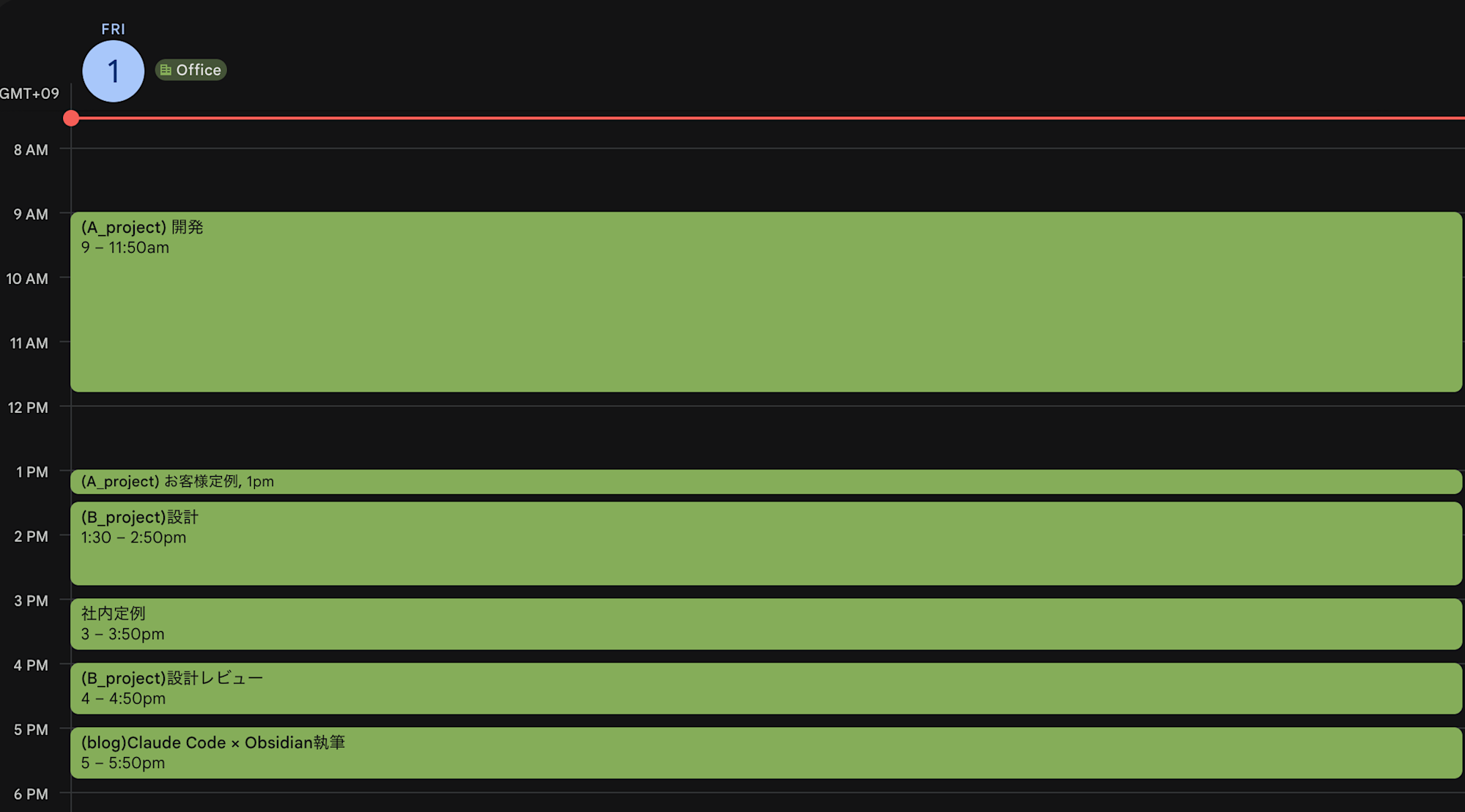
We execute Claude Code's Custom slash commands.

There are 6 questions in total, and I use Mac's voice input for each question.
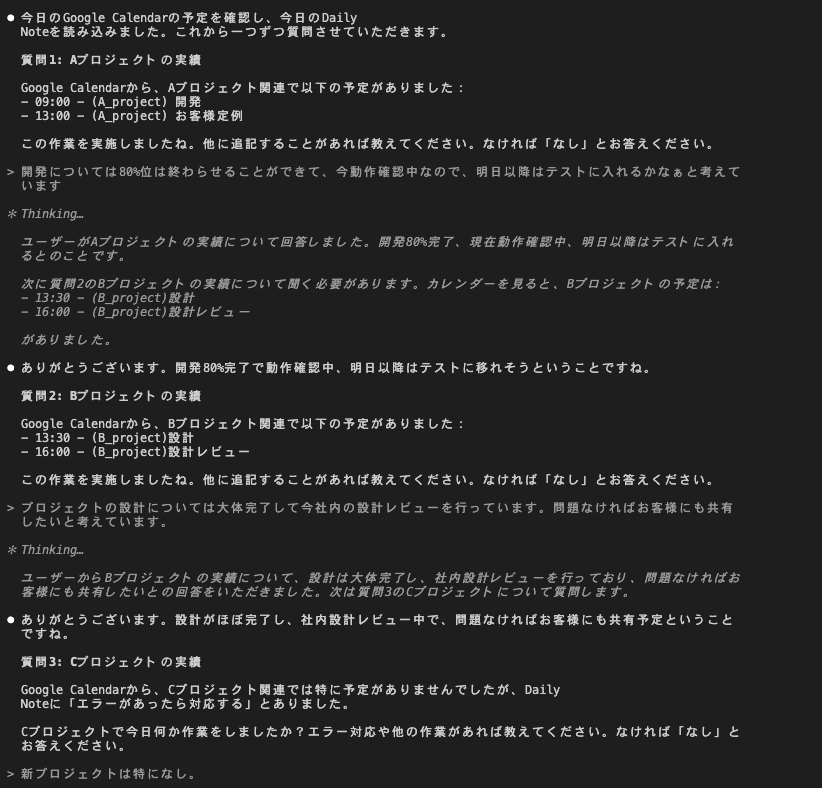
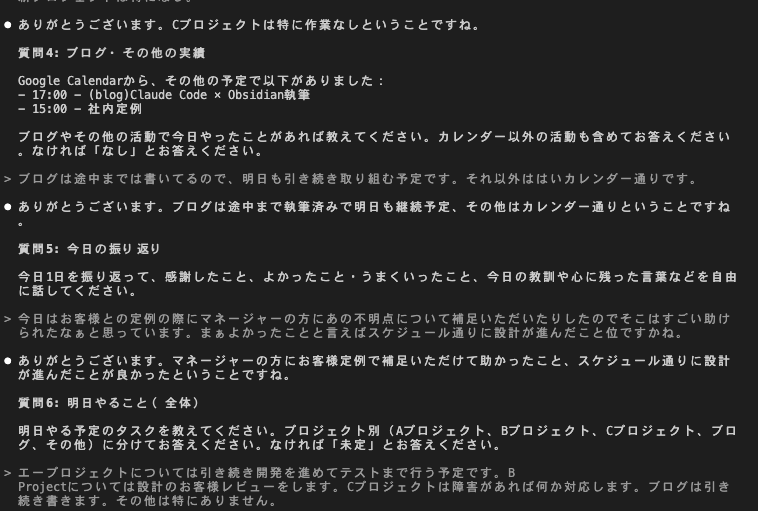
Finally, the update is complete.
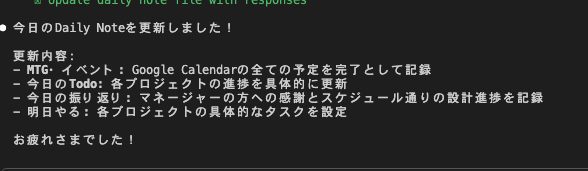
The markdown has been updated according to the questions.
Daily/2025-08-01.md
---
tags:
    - Project A
    - Project B
    - Project C
---

# Daily 2025-08-01

## Meetings & Events

- [x] Office (all day)
- [x] 09:00 - (A_project) Development
- [x] 13:00 - (A_project) Customer regular meeting
- [x] 13:30 - (B_project) Design
- [x] 15:00 - Internal regular meeting
- [x] 16:00 - (B_project) Design review
- [x] 17:00 - (blog) Claude Code × Obsidian writing

## Today's Todo

- Project A
    - [x] Development 80% complete, in testing phase, test preparation complete
- Project B
    - [x] Design complete, internal design review in progress
- Project C
    - [ ] Respond if there are any errors (no response needed)
- Blog
    - [x] Made progress on Claude Code × Obsidian writing
- Others
    - [x] Participated in internal regular meeting

## Today's Reflection

### Gratitude

- During the regular meeting with the customer, the manager helped by clarifying unclear points

### Good

- The design progressed according to schedule

### Motto

-

## Tomorrow's Plan

- Project A
    - [ ] Continue development and proceed to testing
- Project B
    - [ ] Conduct customer review of the design
- Project C
    - [ ] Respond if there are any issues
- Blog
    - [ ] Continue writing Claude Code × Obsidian article
- Others
    - [ ] Nothing in particular
english-lesson
After storing the English lesson mp3 file in the input folder and writing the filename in the .env file, we execute the Custom slash commands.

The task completed successfully. Sometimes even when permissions for commands like uv are allowed in settings.json, it may stop and ask for permission, so the creation process is semi-automatic.
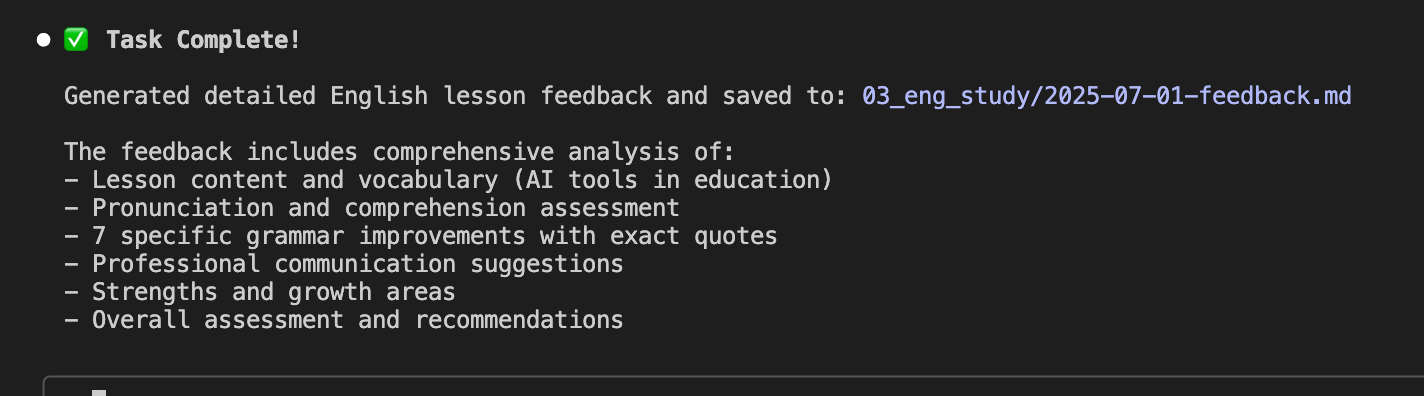
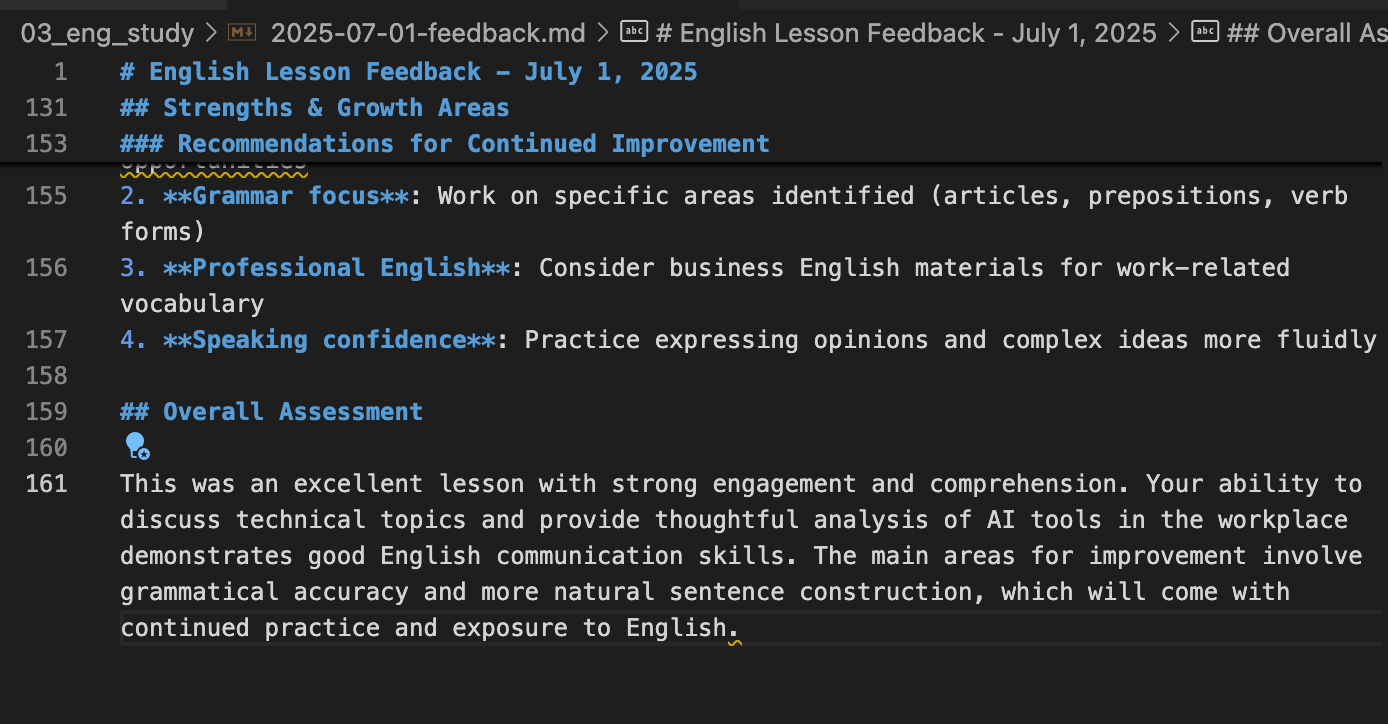
The Markdown file was also generated without issues.
The process for meeting-minutes is similar to english-lesson, so we'll omit the details here.
In Conclusion
The current implementation is based on the current capabilities of Claude Code and other services. As more convenient features become available, I plan to continue improving this workflow.