Testing the AWS DevOps Agent (Preview) according to test scenarios #AWSreInvent

This page has been translated by machine translation. View original
Is everyone enjoying AWS re:Invent2025?
I'll be trying out AWS DevOps Agent which was announced yesterday and looks very useful for troubleshooting.
There are already articles about AWS DevOps Agent, so please check them out as well.
What is AWS DevOps Agent
AWS DevOps Agent is a newly announced AI agent service that autonomously resolves and prevents incidents as a "Frontier Agent".
Frontier Agent is a new class of AI agent defined by AWS that operates independently without human intervention and can handle numerous tasks.
Other agents such as AWS Security Agent and Kiro Autonomous Agent have also been announced.
Among these, AWS DevOps Agent can automatically investigate alerts, conduct investigations using natural language, and identify root causes to resolve incidents.
Trying a test with EC2 CPU usage alerts
While there are many features, you probably want to try a simple use case first.
Conveniently, AWS documentation provides a test scenario where EC2 CPU usage increases and triggers an alert.
Test option A: EC2 CPU capacity test
Purpose: Validate AWS DevOps Agent's ability to detect and investigate EC2 performance issues
Estimated time: 5 minutes setup + 10 minutes automatic execution
Difficulty: Fully automated (no manual steps required)
Let's try this one today.
Test Scenario Flow
Here's the flow of this test scenario:
We'll log into the EC2 instance, run a script that puts load on the CPU, and trigger a CloudWatch alarm.
Let's have AWS DevOps Agent investigate the alarm and identify the root cause.
Prerequisites
An Agent Space needs to be created first, so let's create one.
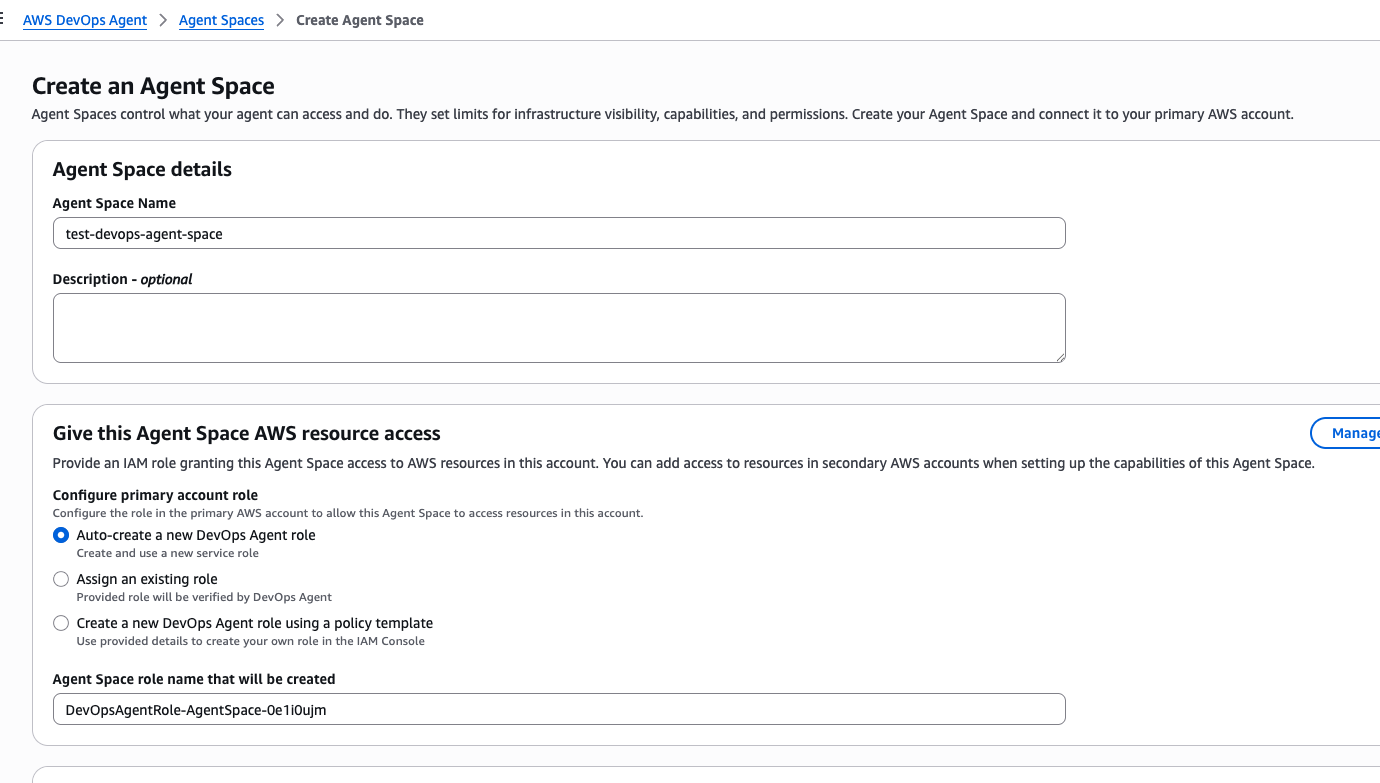
Creating an Agent Space
Enter a space name and configure the role and tag settings. This time I created a role with the default settings.
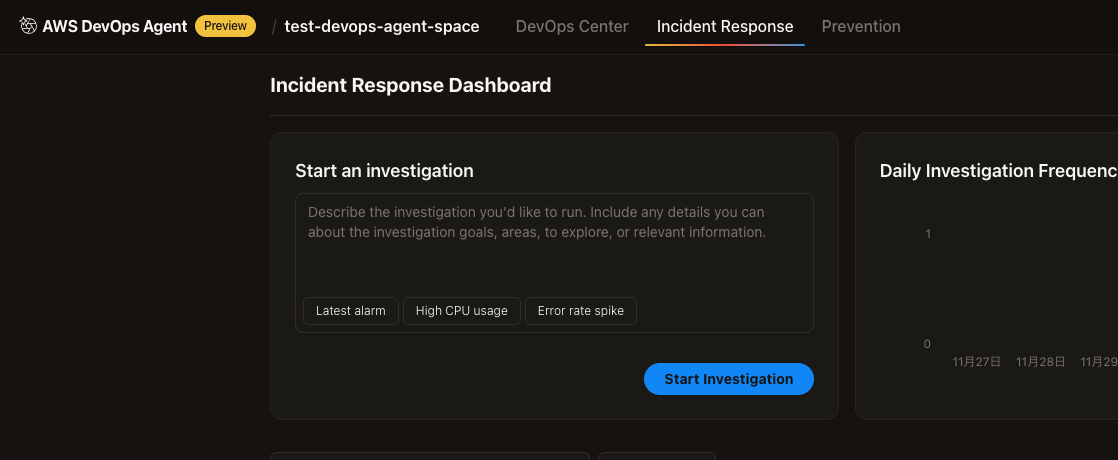
You can open the Web App for incident investigation from Operator access.

If you can open this screen, you're ready to go.
Now let's create a test environment.
Creating a Test Environment
Save the following CFn template mentioned in the documentation as AWS-AIDevOps-ec2-test.yaml.
AWS-AIDevOps-EC2-test.yaml
AWSTemplateFormatVersion: '2010-09-09'
Description: 'AWS AIDevOps EC2 CPU Test Stack'

Parameters:
  MyIP:
    Type: String
    Description: Your current IP address for SSH access (find at https://whatismyipaddress.com)
    Default: '0.0.0.0/0'

Resources:
  # Security Group for SSH access
  TestSecurityGroup:
    Type: AWS::EC2::SecurityGroup
    Properties:
      GroupName: AWS-AIDevOps-test-sg
      GroupDescription: AWS AIDevOps beta testing security group
      SecurityGroupIngress:
        - IpProtocol: tcp
          FromPort: 22
          ToPort: 22
          CidrIp: !Ref MyIP
          Description: SSH access from your IP
      Tags:
        - Key: Name
          Value: AWS-AIDevOps-Test-SG
        - Key: Purpose
          Value: AWS-AIDevOps-Testing

  # Key Pair for SSH access
  TestKeyPair:
    Type: AWS::EC2::KeyPair
    Properties:
      KeyName: AWS-AIDevOps-test-key
      KeyType: rsa
      Tags:
        - Key: Name
          Value: AWS-AIDevOps-Test-Key
        - Key: Purpose
          Value: AWS-AIDevOps-Testing

  # EC2 Instance for CPU testing
  TestInstance:
    Type: AWS::EC2::Instance
    Properties:
      InstanceType: t3.micro
      ImageId: '{{resolve:ssm:/aws/service/ami-amazon-linux-latest/al2023-ami-kernel-6.1-x86_64}}'
      KeyName: !Ref TestKeyPair
      SecurityGroupIds:
        - !Ref TestSecurityGroup
      UserData:
        Fn::Base64: !Sub |
          #!/bin/bash
          yum update -y
          yum install -y htop

          # Create the CPU stress test script
          cat > /home/ec2-user/cpu-stress-test.sh << 'EOF'
          #!/bin/bash
          echo "Starting AWS AIDevOps CPU Stress Test"
          echo "Time: $(date)"
          echo "Instance: $(curl -s http://169.254.169.254/latest/meta-data/instance-id)"
          echo ""

          # Get number of CPU cores
          CORES=$(nproc)
          echo "CPU Cores: $CORES"
          echo ""

          echo "Starting stress test (5 minutes)..."
          echo "This will generate >70% CPU usage to trigger CloudWatch alarm"
          echo ""

          # Create CPU load using yes command
          echo "Starting CPU load processes..."
          for i in $(seq 1 $CORES); do
              (yes > /dev/null) &
              CPU_PID=$!
              echo "Started CPU load process $i (PID: $CPU_PID)"
              echo $CPU_PID >> /tmp/cpu_test_pids
          done

          # Auto-cleanup after 5 minutes
          (sleep 300 && echo "Stopping CPU load processes..." && kill $(cat /tmp/cpu_test_pids 2>/dev/null) 2>/dev/null && rm -f /tmp/cpu_test_pids) &

          echo ""
          echo "CPU load processes started for 5 minutes"
          echo "Check CloudWatch for alarm trigger in 3-5 minutes"
          EOF

          chmod +x /home/ec2-user/cpu-stress-test.sh
          chown ec2-user:ec2-user /home/ec2-user/cpu-stress-test.sh

          # Create auto-shutdown script (safety mechanism)
          cat > /home/ec2-user/auto-shutdown.sh << 'SHUTDOWN_EOF'
          #!/bin/bash
          echo "Auto-shutdown scheduled for 2 hours from now: $(date)"
          sleep 7200
          echo "Auto-shutdown executing at: $(date)"
          sudo shutdown -h now
          SHUTDOWN_EOF

          chmod +x /home/ec2-user/auto-shutdown.sh
          nohup /home/ec2-user/auto-shutdown.sh > /home/ec2-user/auto-shutdown.log 2>&1 &

          echo "AWS AIDevOps test setup completed at $(date)" > /home/ec2-user/setup-complete.txt
      Tags:
        - Key: Name
          Value: AWS-AIDevOps-Test-Instance
        - Key: Purpose
          Value: AWS-AIDevOps-Testing

  # CloudWatch Alarm for CPU utilization
  CPUAlarm:
    Type: AWS::CloudWatch::Alarm
    Properties:
      AlarmName: AWS-AIDevOps-EC2-CPU-Test
      AlarmDescription: AWS-AIDevOps beta test - EC2 CPU utilization alarm
      MetricName: CPUUtilization
      Namespace: AWS/EC2
      Statistic: Average
      Period: 60
      EvaluationPeriods: 1
      Threshold: 70
      ComparisonOperator: GreaterThanThreshold
      Dimensions:
        - Name: InstanceId
          Value: !Ref TestInstance
      TreatMissingData: notBreaching

Outputs:
  InstanceId:
    Description: EC2 Instance ID for testing
    Value: !Ref TestInstance

  SecurityGroupId:
    Description: Security Group ID
    Value: !Ref TestSecurityGroup

  AlarmName:
    Description: CloudWatch Alarm Name
    Value: !Ref CPUAlarm

  SSHCommand:
    Description: SSH command to connect to instance
    Value: !Sub 'ssh -i "AWS-AIDevOps-test-key.pem" ec2-user@${TestInstance.PublicDnsName}'
Here's a list of resources created by running this template:
| Resource | Type | Role |
|---|---|---|
| TestSecurityGroup | EC2::SecurityGroup | Allows SSH access (port 22) |
| TestKeyPair | EC2::KeyPair | RSA key for EC2 SSH authentication |
| TestInstance | EC2::Instance | Instance for CPU load testing (t3.micro) |
| CPUAlarm | CloudWatch::Alarm | Detects CPU usage exceeding 70% |
Let's upload and deploy it to CloudFormation.
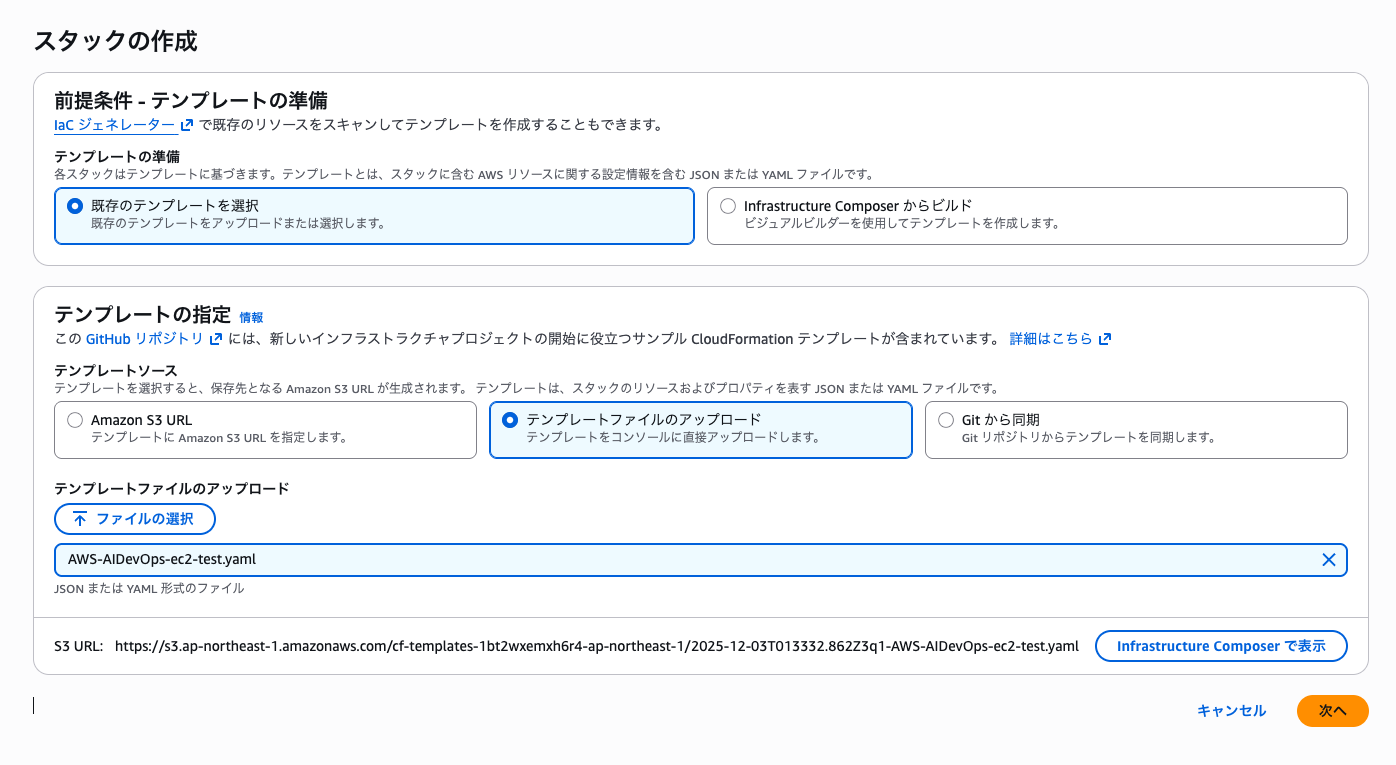
Set the stack name to AWS-AIDevOps-EC2-Test.
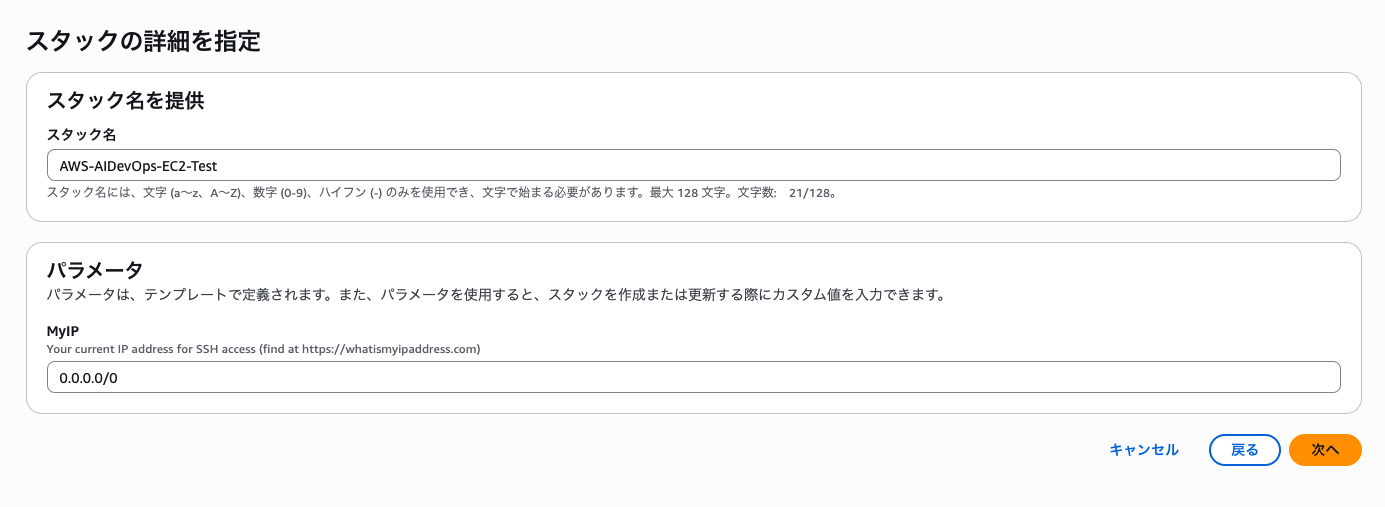
The CPU stress test will start automatically 5 minutes after the instance launches.
https://docs.aws.amazon.com/devopsagent/latest/userguide/getting-started-create-a-test-environment.html
The documentation mentions the above, but no alert was triggered in my environment, so I logged into the EC2 instance and manually ran ./cpu-stress-test.sh.
   ,     #_
   ~\_  ####_        Amazon Linux 2023
  ~~  \_#####\
  ~~     \###|
  ~~       \#/ ___   https://aws.amazon.com/linux/amazon-linux-2023
   ~~       V~' '->
    ~~~         /
      ~~._.   _/
         _/ _/
       _/m/'
[ec2-user@ip-172-31-18-113 ~]$ ./cpu-stress-test.sh
Starting AWS AIDevOps CPU Stress Test
Time: Wed Dec  3 02:04:11 UTC 2025
Instance:

CPU Cores: 2

Starting stress test (5 minutes)...
This will generate >70% CPU usage to trigger CloudWatch alarm

Starting CPU load processes...
Started CPU load process 1 (PID: 26055)
Started CPU load process 2 (PID: 26056)

CPU load processes started for 5 minutes
Check CloudWatch for alarm trigger in 3-5 minutes
[ec2-user@ip-172-31-18-113 ~]$
I was able to confirm the alert successfully.
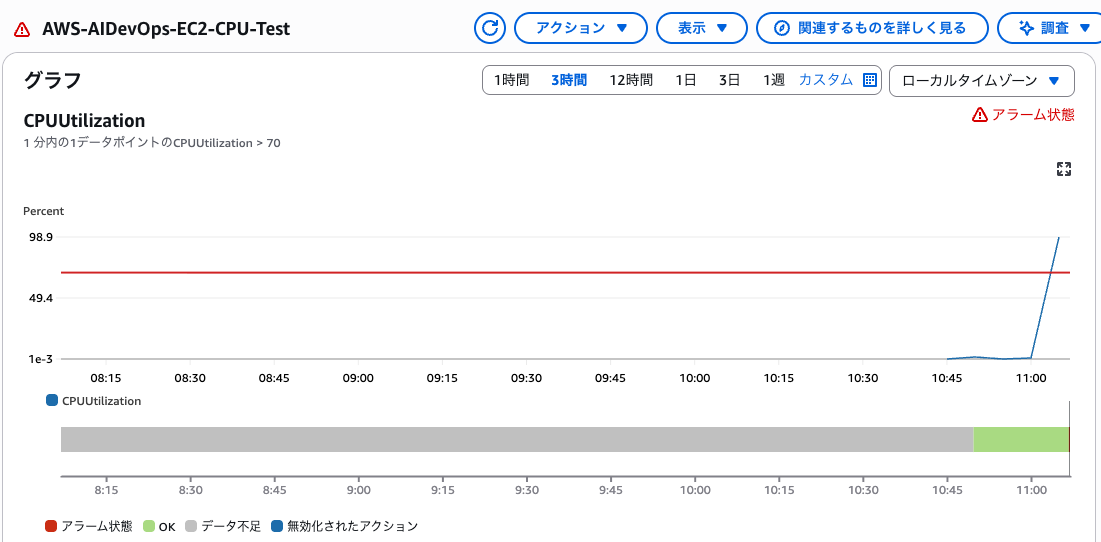
Now let's see how AWS DevOps Agent investigates this issue.
Investigating the error with AWS DevOps Agent
Let's go back to the Web App we opened earlier and enter the details in Start Investigation.

Investigation details
Enter that "AWS-AIDevOps-EC2-CPU-Test" occurred.
Investigate the cause of the "AWS-AIDevOps-EC2-CPU-Test" alert.
Investigation starting point
Enter the time when the CloudWatch Alarm went into alarm state.
CloudWatch Alarm occurred in alarm state at 2025-12-03 11:06:45
I left the Data and time of incident as default since not much time had passed since the alarm occurred.
When the investigation starts, a timeline appears and the investigation progresses. It's fun to watch the timeline as the investigation automatically advances.
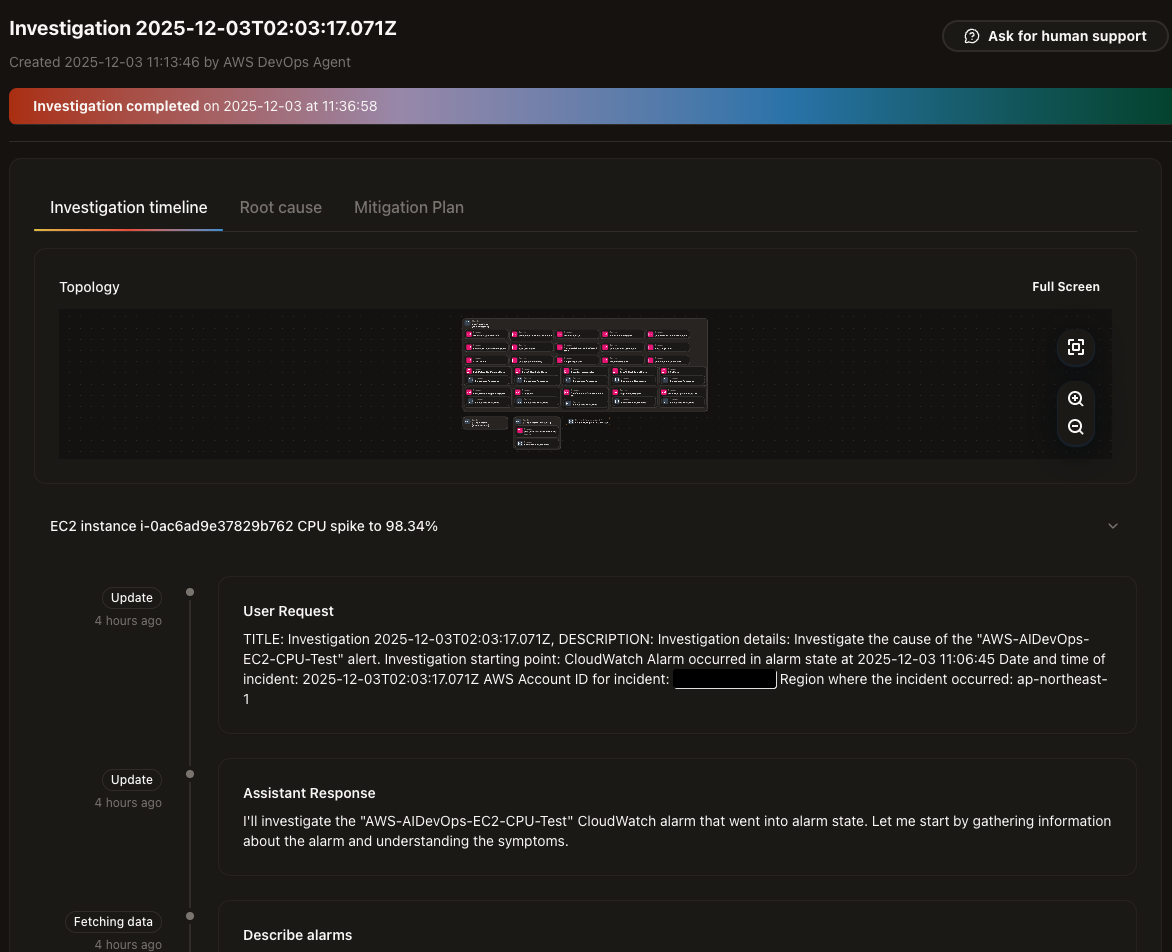
After waiting a few minutes, the Root Cause tab appeared as the root cause was identified.
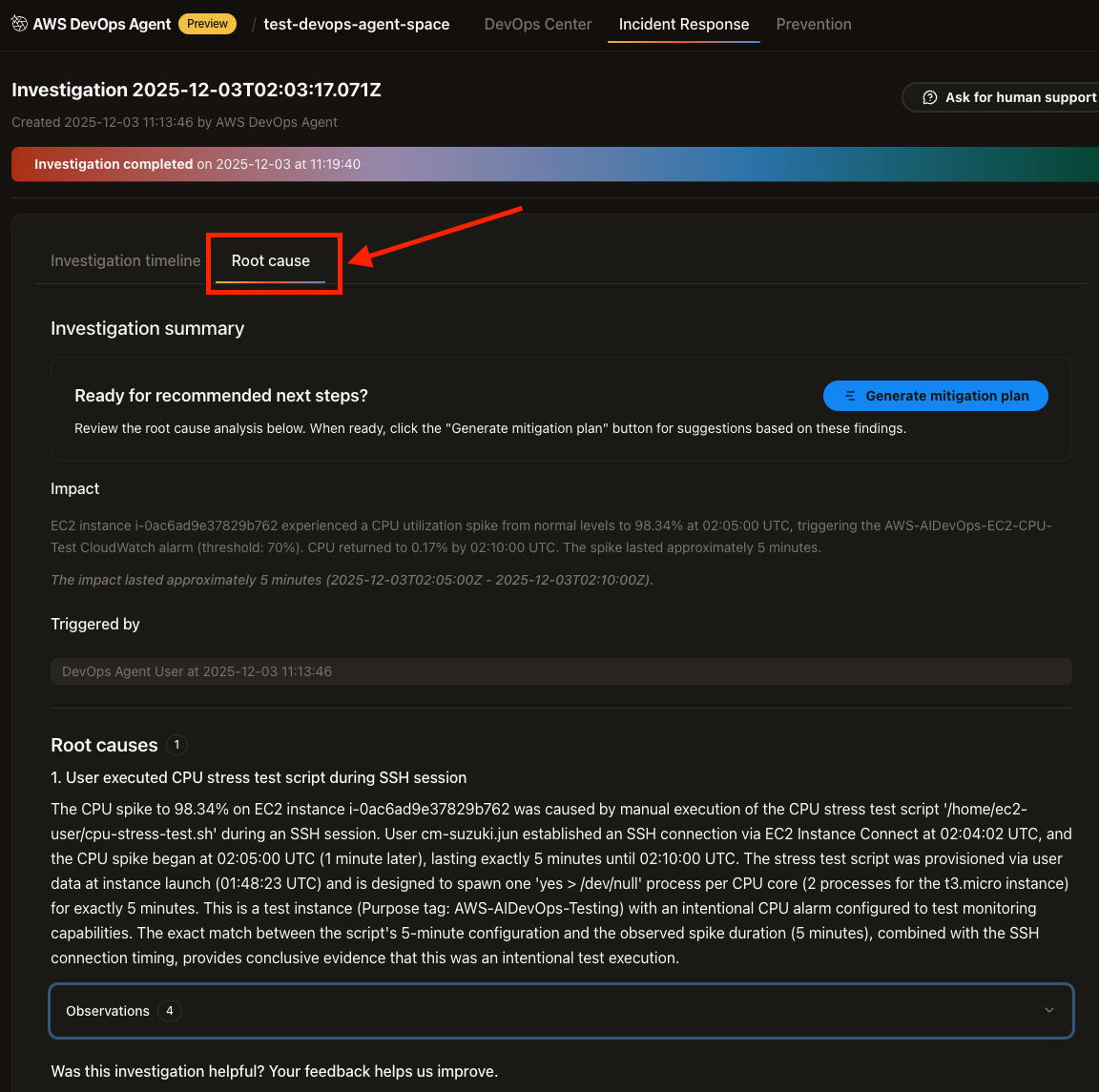
When checking the content, it correctly identified that I ran the test script.
- User executed CPU stress test script during SSH session
The CPU spike to 98.34% on EC2 instance i-0ac6ad9e37829b762 was caused by manual execution of the CPU stress test script '/home/EC2-user/cpu-stress-test.sh' during an SSH セッション. User cm-suzuki.jun established an SSH connection via EC2 Instance Connect at 02:04:02 UTC, and the CPU spike began at 02:05:00 UTC (1 minute later), lasting exactly 5 minutes until 02:10:00 UTC.
That's spot on. It even identified who caused the incident and how it occurred.
We already know the cause, but there's a Generate Mitigation Plan button, so let's try it.
It will suggest countermeasures based on the incident.
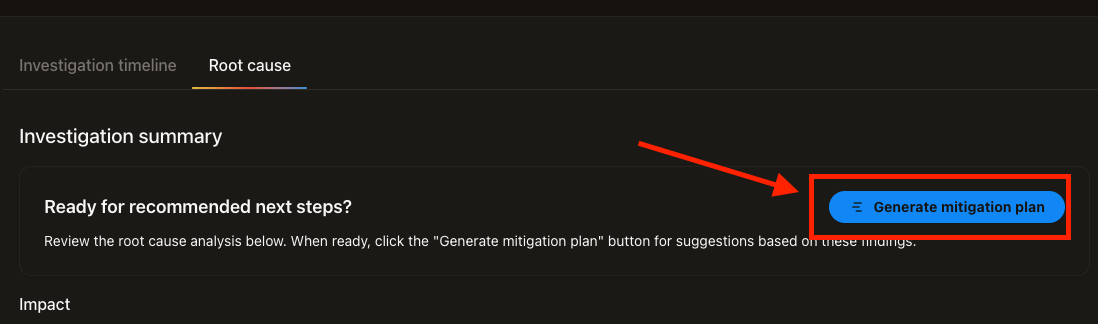
A new tab was created and the Mitigation Plan was displayed.
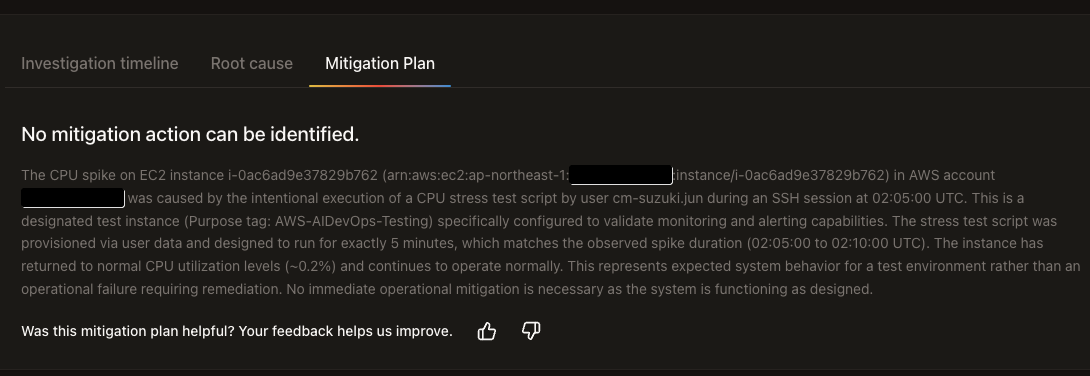
↓Partial Japanese translation excerpt
This is not an operational failure requiring remediation, but an expected result of system behavior in a test environment. Since the system is functioning as designed, no immediate operational mitigation measures are necessary.
Since this was just running a test script, no action was needed, but it's great that it would provide a plan for actual incident response.
Don't forget to delete the CloudFormation stack you created after the test.
Summary
I ran AWS's official test scenario with AWS DevOps Agent (Preview) and confirmed how it works.
Having it automatically identify root causes and suggest countermeasures is really helpful.
In particular, not having to manually trace CloudTrail logs and having it identify who did what and when will likely significantly reduce incident response time.
It seems there are also integration features like GitHub integration, MCP server connection, and Slack notifications. If you're interested, please give it a try!
References
Frontier agent – AWS DevOps Agent – AWS
What is AWS DevOps Agent - AWS DevOps Agent
AWS DevOps Agent helps you accelerate incident response and improve system reliability (preview) | AWS News Blog