
I want to manage users in AWS Directory Service SimpleAD

This page has been translated by machine translation. View original
Hello, this is maruto.
Many of you may be building Simple AD or AWS Managed Microsoft AD for Amazon WorkSpaces.
With AWS Managed Microsoft AD, common CRUD operations are possible with the September 2024 update.
While you can add users to Simple AD from the Amazon WorkSpaces console, for other operations,
you need to launch a Windows Server or other EC2 instance and perform operations from the Active Directory management tools.
In this article, I'd like to try the actual steps for managing Simple AD.
Main Steps
- Creating an IAM role
- Launching a Windows EC2 instance configured with domain-joined directory and IAM role
- Installing Active Directory Domain Services
These are the three steps.
Let's Try It
1. Creating an IAM role
First, we'll create an IAM role so that EC2 can access Simple AD.
For EC2, to create an instance profile, select "AWS service" as the trusted entity type and "EC2" as the service and use case.

For the "domain-joined directory" setting mentioned later when launching the EC2 instance, you can register Windows to the domain by executing a Systems Manager document when launching the EC2 instance.
Therefore, access rights to AWS Directory Service and Systems Manager are required, so attach the AWS managed policies AmazonSSMDirectoryServiceAccess and AmazonSSMManagedInstanceCore to the IAM role.

Now the IAM role preparation is complete.
2. Launching a Windows EC2 instance with domain-joined directory and IAM role
Next, we'll launch a management EC2 instance. Specify Windows for the AMI. (The image shows Microsoft Windows Server 2025 Base)

This is where the key settings come in. In the "Advanced details" where you can configure EC2's detailed behavior, you'll find domain-joined directory and IAM instance profile.
For the domain-joined directory, specify the created Simple AD, and for the IAM instance profile, specify the IAM role created in step 1.

Also, although not specifically mentioned this time, if you place resources in a private subnet, please create VPC endpoints, etc., so that you can access Systems Manager.
*The domain-joined directory setting is applied by executing a Systems Manager document
Once the configuration is complete, launch the EC2 instance.
3. Installing Active Directory Domain Services
Next, log in to the launched EC2 instance. When logging in, use the directory administrator user.
This time, we'll use Systems Manager Fleet Manager Remote Desktop.
Enter <Directory DNS name>\Administrator for the username.

After logging in, we'll work in Windows.
From the top right "Manage" in Server Manager, select "Add Roles and Features".

In the Installation Type section, select "Role-based or feature-based installation".

Move to the feature selection (Features), check "Remote Server Administration Tools" > "Role Administration Tools" > "AD DS and AD LDS Tools", and proceed to the next step.
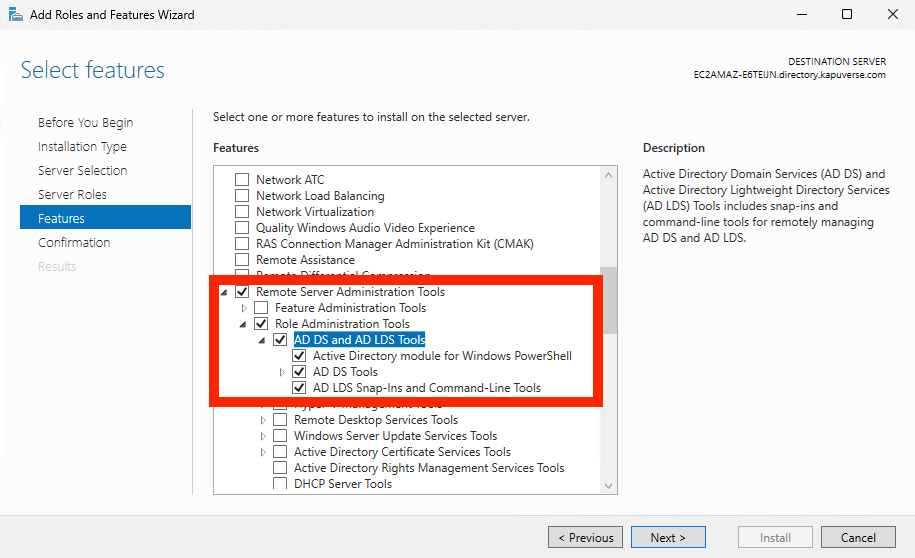
After reviewing the content, select "Install". This will install the necessary management tools.

Performing User Operations
Now that we have the necessary tools, let's perform user operations.
Launch Active Directory Users and Computers. You can search for it in the Start menu or select "Windows Tools" in All Apps and find it in the list of applications.

All that's left is to select the directory and perform user and group operations.

Let's add a maruto user.


Now, the added user can be selected in Amazon WorkSpaces as well.

Conclusion
Thanks to integration with Systems Manager, we can launch EC2 already joined to the domain, making user management relatively easy.
I hope this provides some clarity for those who don't need AWS Managed Microsoft Active Directory but are unsure how to manage Simple AD.