Deprecating IAM User Access Keys and Migrating to aws login

This page has been translated by machine translation. View original
Retire IAM User Access Keys and Migrate to aws login
Hello, this is Simon from the Consulting Department.
An IAM user access key is a long-term credential that stays usable until you disable it manually. It is stored in plain text in ~/.aws/credentials on each user's device, so if it leaks, for example because the device is infected with malware through phishing and the file is read, or because it is accidentally committed to a repository, someone can operate AWS with the same permissions as its owner. You may also want to get rid of the keys themselves because they keep being detected by AWS Security Hub CSPM IAM.3 (rotate active access keys within 90 days) or are flagged in an internal audit.
With the AWS CLI's aws login, you can obtain short-term credentials from the AWS Management Console sign-in while remaining an IAM user. The credentials expire in 15 minutes, and automatic refresh stops after 12 hours at most, so even if they leak, the period during which they can be used is limited. It also works in environments where you cannot use AWS Organizations or AWS IAM Identity Center.
Because aws login requires signing in through a browser, the access keys targeted for migration in this article are those that people use on their devices.
Order of Work for Administrators and Each User
The people involved are the administrator who manages the account and each user who uses the AWS CLI on their device.
| Step | Who | What |
|---|---|---|
| 1 | Administrator | Choose the access keys to migrate |
| 2 | Administrator | Issue temporary passwords and enable each user to register MFA |
| 3 | Administrator | Attach the aws login permissions (AWS managed policy SignInLocalDevelopmentAccess) |
| 4 | Each user | Change the password and register MFA |
| 5 | Each user | Switch to aws login and delete the old keys from the device |
| 6 | Administrator | Disable the access keys, then delete them after observing for a while |
| 7 | Administrator | Prevent new access keys from being created |
| 8 | Administrator | (If you use Security Hub CSPM) Check how the findings change |
Choose the Access Keys to Migrate (Administrator)
First, use a credential report to list each user's access key creation date, last used date, and the last used service and Region.
aws iam generate-credential-report
aws iam get-credential-report --query Content --output text | base64 --decode > credential-report.csv
The last-used information alone does not tell you whether a key is used by a person on a device or by CI or a batch job. Check with the owner of each listed key, and make the keys that each user uses with the AWS CLI or SDK on their device the migration targets. For keys whose owner is unknown, filter the AWS CloudTrail event history by key ID and get a sense of how the key is used from the source IP address and user agent.
Keys used by programs cannot be replaced with aws login, so they are out of scope for this article. Consider migrating them separately to IAM roles or OIDC federation. Keys whose last used date is empty, or that have not been used for a long time (for example, 90 days or more), should not be migrated; simply disable them as they are.
Issue Temporary Passwords and Enable Each User to Register MFA (Administrator)
aws login uses an IAM user's console sign-in, so users who only have access keys need a password. The administrator decides only the temporary password; each user sets their actual password and MFA.
-
Put the users to be migrated into an IAM group (here,
aws-login-users). All the policies that follow are attached to this group -
Attach the following policy to the group so that each user can change their own password and register an MFA device
Policy that lets each user change their own password and register an MFA device{ "Version": "2012-10-17", "Statement": [ { "Sid": "AllowListActions", "Effect": "Allow", "Action": ["iam:ListUsers", "iam:ListVirtualMFADevices"], "Resource": "*" }, { "Sid": "AllowUserToCreateVirtualMFADevice", "Effect": "Allow", "Action": ["iam:CreateVirtualMFADevice"], "Resource": "arn:aws:iam::*:mfa/*" }, { "Sid": "AllowUserToManageTheirOwnMFA", "Effect": "Allow", "Action": ["iam:EnableMFADevice", "iam:GetMFADevice", "iam:ListMFADevices", "iam:ResyncMFADevice"], "Resource": "arn:aws:iam::*:user/${aws:username}" }, { "Sid": "AllowUserToChangeTheirOwnPassword", "Effect": "Allow", "Action": ["iam:ChangePassword"], "Resource": [ "arn:aws:iam::*:user/${aws:username}", "arn:aws:iam::*:user/*/${aws:username}" ] }, { "Sid": "AllowViewAccountPasswordPolicy", "Effect": "Allow", "Action": ["iam:GetAccountPasswordPolicy"], "Resource": "*" } ] } -
Prepare a random temporary password for each user, for example with a password manager, that satisfies the account's password policy. In the IAM console, enable console access for each user, set the prepared temporary password as a custom password, and require a password change at the next sign-in
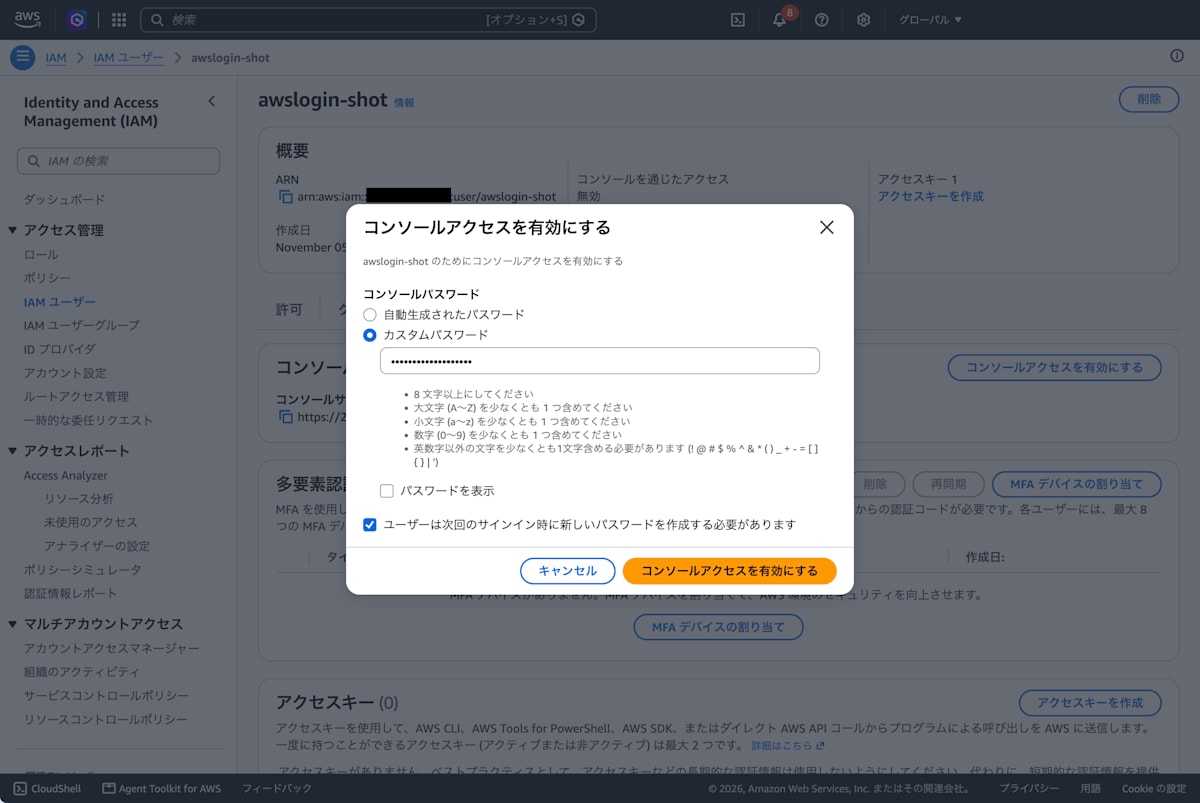
If there are many users, you can issue them with the AWS CLI.
Issue a temporary password and require a change at the next sign-inaws iam create-login-profile \ --user-name example-user \ --password '一時パスワード' \ --password-reset-required -
Give each user their user name, temporary password, and the account's sign-in URL (
https://アカウント ID.signin.aws.amazon.com/console)
If you use a policy that requires MFA (the common form that denies when aws:MultiFactorAuthPresent is false), add iam:ChangePassword and iam:GetAccountPasswordPolicy to the exceptions to the deny. Otherwise, each user will be unable to change their password when prompted and will not be able to sign in.
From the time you create a password until each user registers MFA, that user is flagged by Security Hub CSPM IAM.5 (IAM users that have a console password should have MFA enabled). After handing over the temporary password, ask users to complete everything through MFA registration promptly.
Attach SignInLocalDevelopmentAccess (Administrator)
The permissions required for aws login are signin:AuthorizeOAuth2Access and signin:CreateOAuth2Token, which are bundled in the AWS managed policy SignInLocalDevelopmentAccess. Attach it to the group of users to be migrated.
aws iam attach-group-policy \
  --group-name aws-login-users \
  --policy-arn arn:aws:iam::aws:policy/SignInLocalDevelopmentAccess
Change the Password and Register MFA (Each User)
Once you receive your user name, temporary password, and the account's sign-in URL from the administrator, sign in to the console as the IAM user and change to your own password. Next, open the security credentials page from the user name menu at the top right of the screen and register an MFA device. In addition to authenticator apps, you can also use passkeys and security keys.
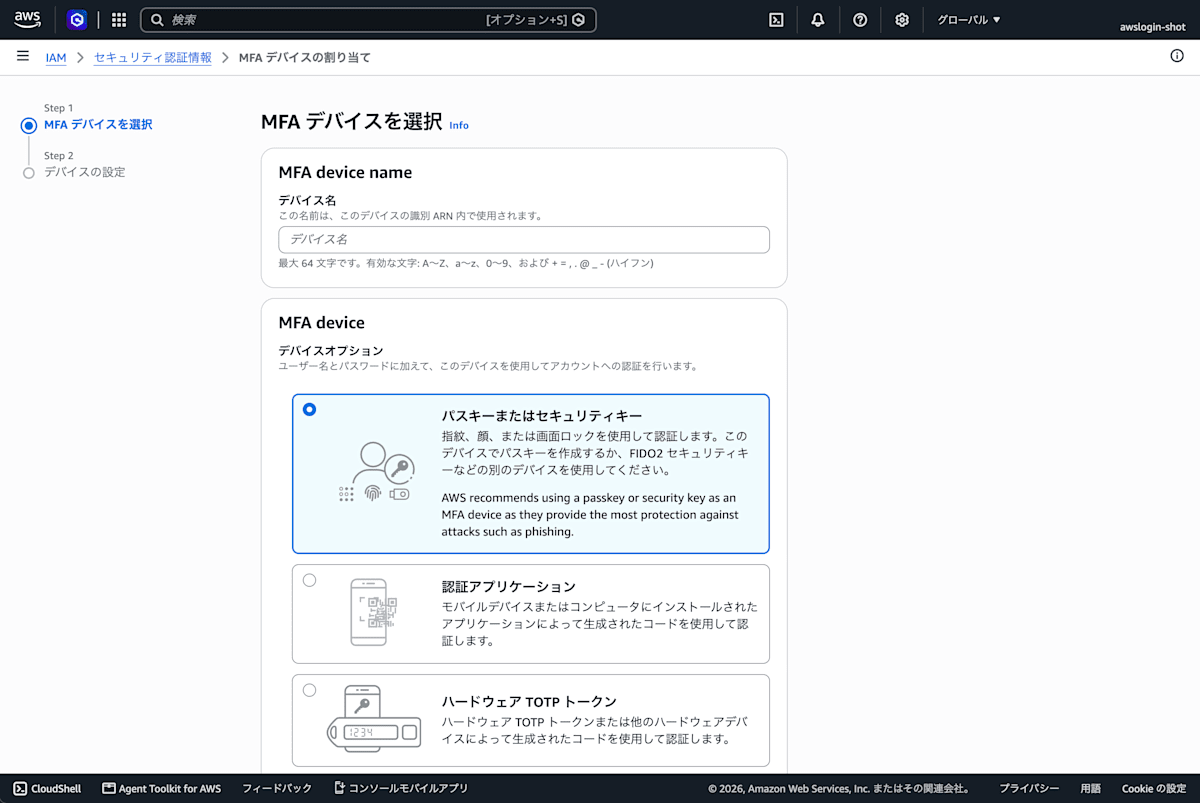
After registering, sign out once and sign in again with MFA. If there is a policy that requires MFA, aws login returns a 400 error when you remain in the session from before you registered MFA.
Switch to aws login (Each User)
Use AWS CLI 2.32.0 or Later
Check your AWS CLI version, and update it if it is older than 2.32.0, the version that supports aws login.
aws --version
Run aws login
If you retrieve access keys with credential_process from a password manager or similar, remove the credential_process line from that profile before running aws login. For a profile that has credential_process, aws login refuses to run before it opens the browser.
[default]
region = ap-northeast-1
credential_process = /usr/local/bin/aws-credential-helper
[default]
region = ap-northeast-1
aws login
Set the aws login credentials on the same profile where you used to have the access keys. If you use a profile other than [default], specify the profile name with --profile. Because the profile name does not change, your scripts, your AWS_PROFILE settings, and role profiles that point to this profile with source_profile all keep working without being rewritten. A browser opens, so sign in.
If the sign-in screen offers a console session that remains in the same browser (another IAM user's session, or your own session from before you registered MFA) as a candidate, open the URL displayed by the AWS CLI in a private window and sign in as the IAM user you are migrating.
When sign-in is complete, a login_session line is appended to the profile you ran (here, [default]) in ~/.aws/config.
[default]
login_session = arn:aws:iam::111122223333:user/example-user
region = ap-northeast-1
Delete the Old Access Keys from the Device
Delete the access keys of the profile with the same name as the aws login profile from ~/.aws/credentials. If your ~/.aws/credentials before migration looks like the following, delete the three lines of [default].
[default]
aws_access_key_id = AKIAIOSFODNN7EXAMPLE
aws_secret_access_key = wJalrXUtnFEMI/K7MDENG/bPxRfiCYEXAMPLEKEY
If you have set keys in the environment variables AWS_ACCESS_KEY_ID and AWS_SECRET_ACCESS_KEY, also delete them from your shell configuration files and .env files.
If either remains, the AWS CLI uses the keys in preference to the aws login credentials. Keys in environment variables are used even if you have selected the aws login profile with [default] or AWS_PROFILE.
After deleting them, check where the credentials come from with aws configure list --profile default. If the TYPE column is login, the aws login credentials are being used; if it is shared-credentials-file, the keys in ~/.aws/credentials are being used.
NAME       : VALUE                    : TYPE             : LOCATION
profile    : default                  : manual           : --profile
access_key : ****************ABCD     : login            :
secret_key : ****************WXYZ     : login            :
region     : ap-northeast-1           : config-file      : ~/.aws/config
NAME       : VALUE                    : TYPE             : LOCATION
profile    : default                  : manual           : --profile
access_key : ****************MPLE     : shared-credentials-file :
secret_key : ****************EKEY     : shared-credentials-file :
region     : ap-northeast-1           : config-file      : ~/.aws/config
Signing In Again After Switching and aws logout
The AWS CLI and SDK versions that support it refresh the credentials automatically. After 12 hours, when refresh stops, run aws login again.
When you finish working, run aws logout. The refresh token remains in plain text in the cache, so deleting it shortens the period during which new credentials can be obtained from the device.
aws logout
Removed cached login credentials for profile 'default'. Note, any local developer tools that have already loaded the access token may continue to use it until its expiration. Access tokens expire in 15 minutes.
Retire the Access Keys (Administrator)
Confirm They Are No Longer Used
Once each user has switched, regenerate the credential report. A report can be regenerated only once every 4 hours, so if it is within 4 hours of when you chose the keys to migrate, wait before generating it.
aws iam generate-credential-report
aws iam get-credential-report --query Content --output text | base64 --decode > credential-report.csv
Open the CSV in a spreadsheet application or similar, and look at the access_key_1_last_used_date and access_key_2_last_used_date columns for the migrated users.
If a migrated user's last used date is later than the day they switched, the key is still being used somewhere. Ask that user to check whether any keys remain on their device or whether other tools are using the key.
Disable, Then Delete
First, disable them. Calls made with a disabled key fail, so if any place still uses the key you can often notice from reports from each user, and you can re-enable it if a problem occurs.
aws iam update-access-key --user-name example-user --access-key-id AKIAIOSFODNN7EXAMPLE --status Inactive
If there are no problems for a certain period (for example, 2 weeks), delete them.
aws iam delete-access-key --user-name example-user --access-key-id AKIAIOSFODNN7EXAMPLE
Prevent New Access Keys from Being Created
Even after you delete the keys, if each user has the permission to create new keys themselves, you will be back to a state with access keys. Attach a policy that explicitly denies iam:CreateAccessKey to the group of migrated users.
{
  "Version": "2012-10-17",
  "Statement": [
    {
      "Sid": "DenyCreateAccessKey",
      "Effect": "Deny",
      "Action": "iam:CreateAccessKey",
      "Resource": "*"
    }
  ]
}
This policy only stops group members from creating keys. It does not stop an administrator who is not in the group from creating keys for other users. If you operate an AWS Organizations management account, you can apply a service control policy (SCP) that denies iam:CreateAccessKey, except for administrative roles you make exceptions for, to all member accounts. SCPs do not apply to the management account itself, so attach the policy above to the users in the management account.
Security Hub CSPM Findings That Change with This Migration (Administrator)
If you use Security Hub CSPM, the results of the following controls change with this migration.
| Control | Description | Change with this migration |
|---|---|---|
| IAM.3 | Rotate active access keys within 90 days | Resolved at the next periodic evaluation after you disable or delete the keys |
| IAM.5 | IAM users that have a console password should have MFA enabled | Newly detected if a user for whom you created a password has no MFA |
| IAM.22 | Remove passwords and active access keys unused for 45 days | Newly detected if a user for whom you created a password does not sign in, either to the console or with aws login, for 45 days or more |
| IAM.8 | Remove passwords and active access keys unused for 90 days | Newly detected if a user for whom you created a password does not sign in, either to the console or with aws login, for 90 days or more |
IAM.22 is evaluated using the credential report, which is updated every 4 hours, so it can take up to 4 hours for a change to an IAM user to appear in the IAM.22 result. Browser sign-ins with aws login are also recorded in the password's last used date.
Summary
This article introduced the steps for replacing the access keys that IAM users use on their devices with short-term credentials from aws login.
Because access keys can be used indefinitely until they are disabled, a leak from a device could allow someone to operate AWS with the same permissions as the owner.
After migrating to aws login, no keys without an expiration remain on each user's device, and even if credentials leak, they become unusable within 12 hours at most. If you delete the keys, the Security Hub CSPM IAM.3 finding also goes away. You can achieve this while remaining an IAM user, even in environments where you cannot use AWS Organizations or IAM Identity Center.
References
aws login configuration and permissions:
- aws login using console credentials (AWS CLI User Guide)
- AWS managed policies for AWS Sign-In
- Trying out switch role with aws login
Security Hub CSPM: