I Tried Exchanging Files with Amazon FSx for NetApp ONTAP via SFTP Using AWS Transfer Family

This page has been translated by machine translation. View original
I Want to Exchange Files with FSxN Using SFTP
Hello, this is Nonpi (@non____97).
Have you ever wanted to exchange files with Amazon FSx for NetApp ONTAP (hereafter FSxN) using SFTP? I have.
As introduced in the article below, FSxN did not support SFTP. Therefore, to exchange files via SFTP, you had to take the approach of mounting FSxN from an EC2 instance acting as an SFTP server.
Considering the effort of managing EC2 instances, I would rather avoid this approach if possible. It also bothers me that chroot cannot be applied with this method.
A while ago, Transfer Family added support for FSxN.
When I checked the documentation, it appears to use the S3 Access Point feature of FSxN.
This makes it possible to exchange files with FSxN using SFTP through a managed feature.
Let's actually try it.
Trying It Out
Test Environment
The test environment is as follows.
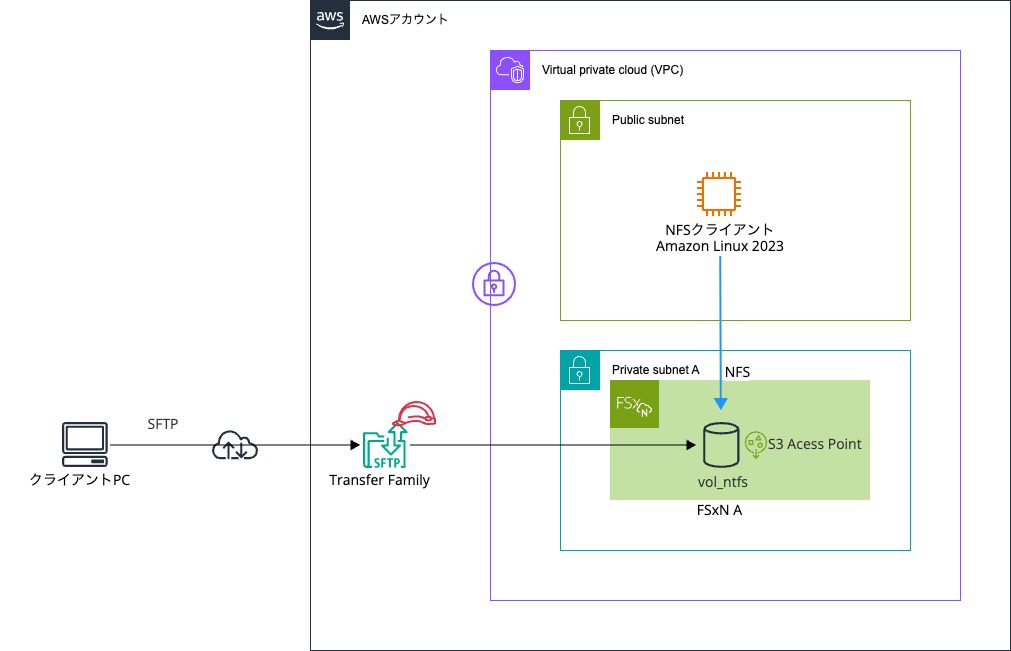
We attach an S3 Access Point to a volume with the UNIX security style, and exchange files via SFTP through Transfer Family against it.
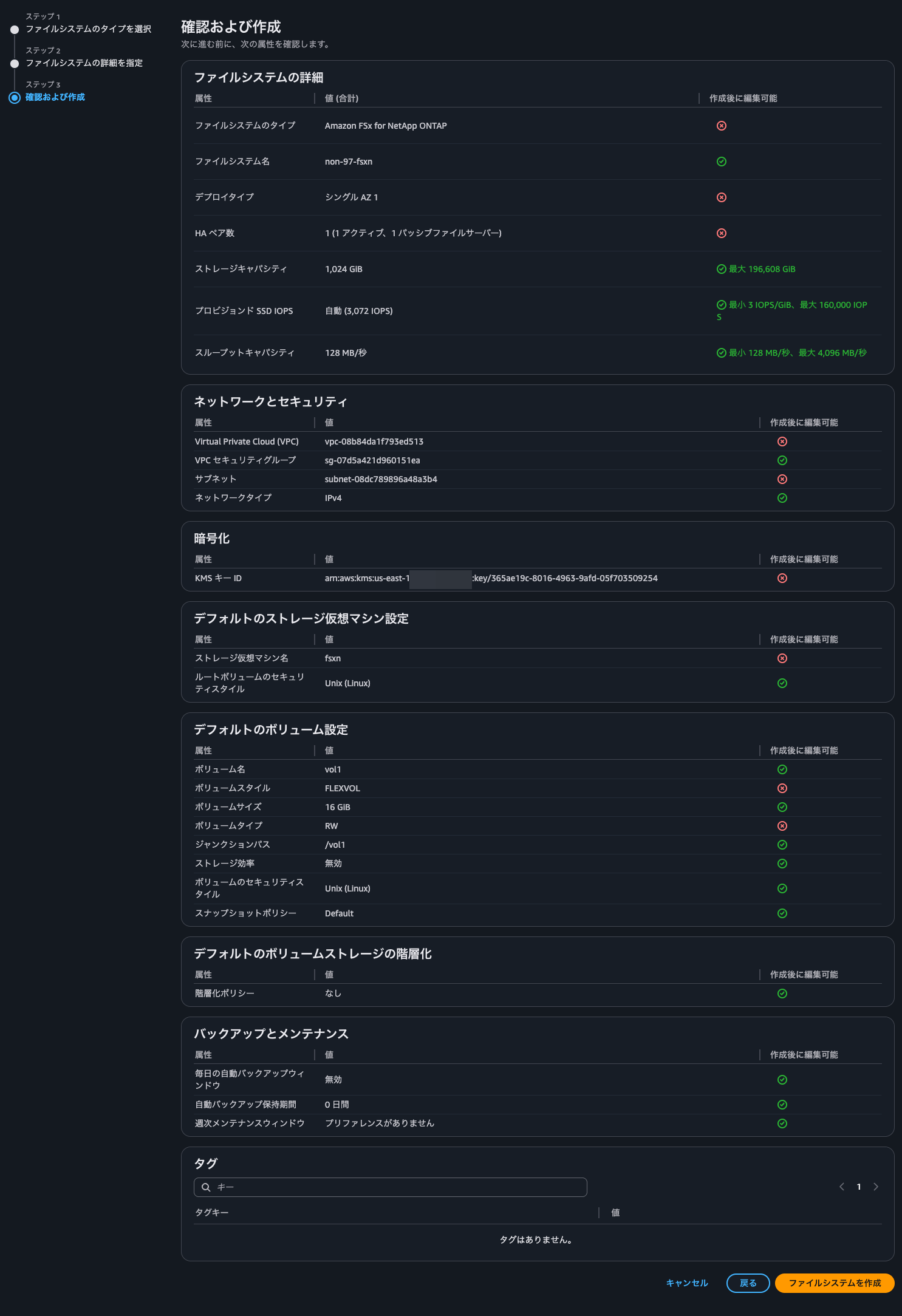
As preparation, I created the FSxN file system as follows.
Attaching the S3 Access Point
Attach an S3 Access Point to the FSxN volume. Since the security style is UNIX this time, I also set the file system user ID type to UNIX and the user name to root.
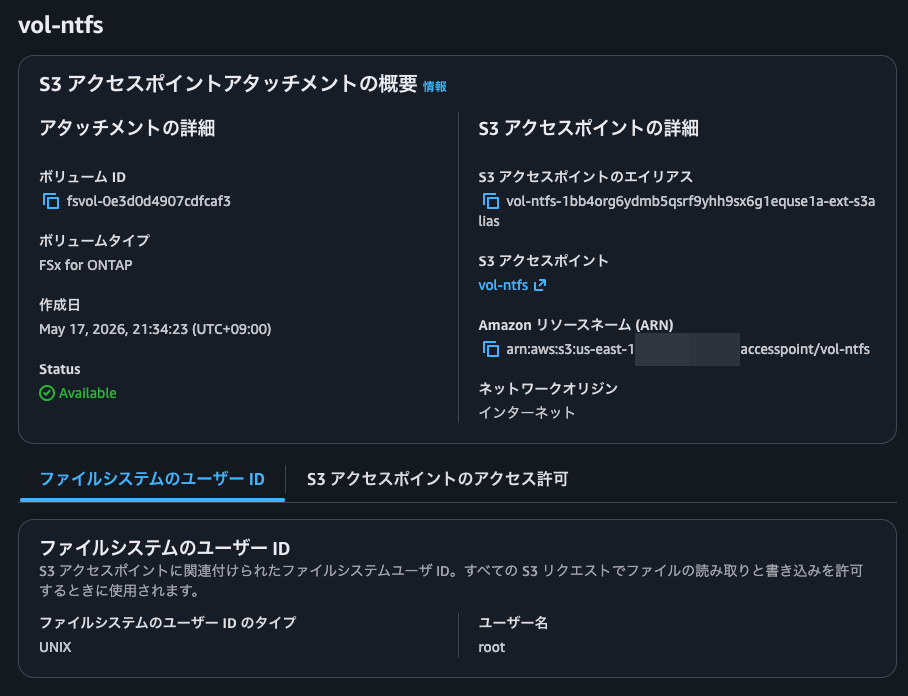
The permissions for file operations via Transfer Family depend on the permissions assigned to the user specified here.
The Transfer Family user specified later only designates the access destination. If you care about permissions as seen from the NFS or SMB world, you will need to create S3 Access Points for each set of permissions.
Creating the IAM Role
Create the IAM role used when Transfer Family accesses the S3 Access Point.
This time I created an IAM role named non-97-fsxn-TransferFamily.
The IAM policy is as follows. It allows retrieving, adding, and deleting files via the S3 Access Point.
{
    "Version": "2012-10-17",
    "Statement": [
        {
            "Sid": "AllowFileOperations",
            "Effect": "Allow",
            "Action": [
                "s3:GetObject",
                "s3:PutObject",
                "s3:DeleteObject",
                "s3:GetObjectTagging",
                "s3:PutObjectTagging"
            ],
            "Resource": "arn:aws:s3:us-east-1:<AWSアカウントID>:accesspoint/vol-ntfs/object/*"
        },
        {
            "Sid": "AllowDirectoryOperations",
            "Effect": "Allow",
            "Action": [
                "s3:ListBucket",
                "s3:GetBucketLocation"
            ],
            "Resource": "arn:aws:s3:us-east-1:<AWSアカウントID>:accesspoint/vol-ntfs"
        }
    ]
}
The trust policy is as follows.
{
    "Version": "2012-10-17",
    "Statement": [
        {
            "Sid": "",
            "Effect": "Allow",
            "Principal": {
                "Service": "transfer.amazonaws.com"
            },
            "Action": "sts:AssumeRole"
        }
    ]
}
Creating the Transfer Family Server
Create the Transfer Family server.
This time I'm creating one dedicated to SFTP.
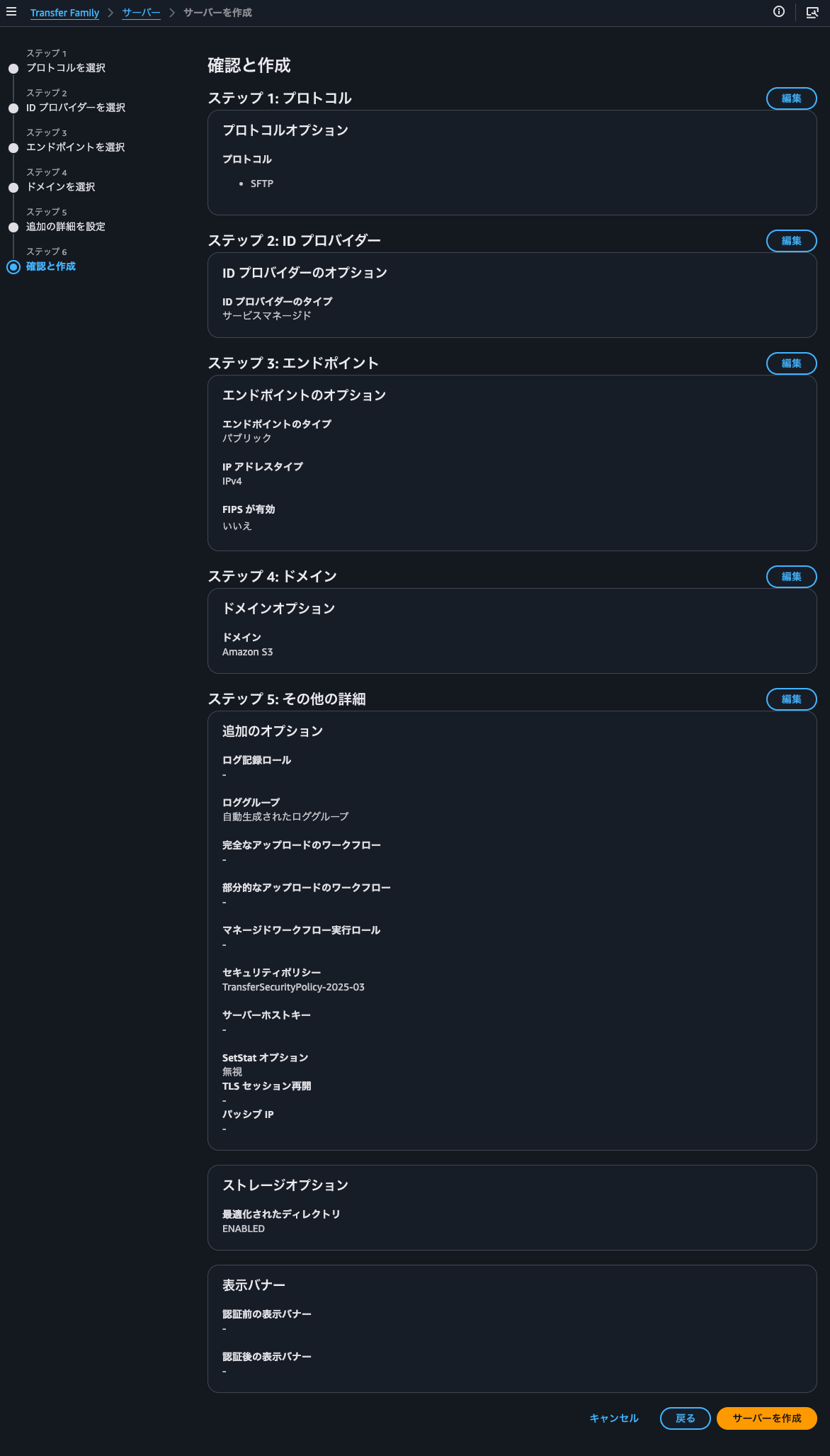
Once creation is complete, it looks like the following.
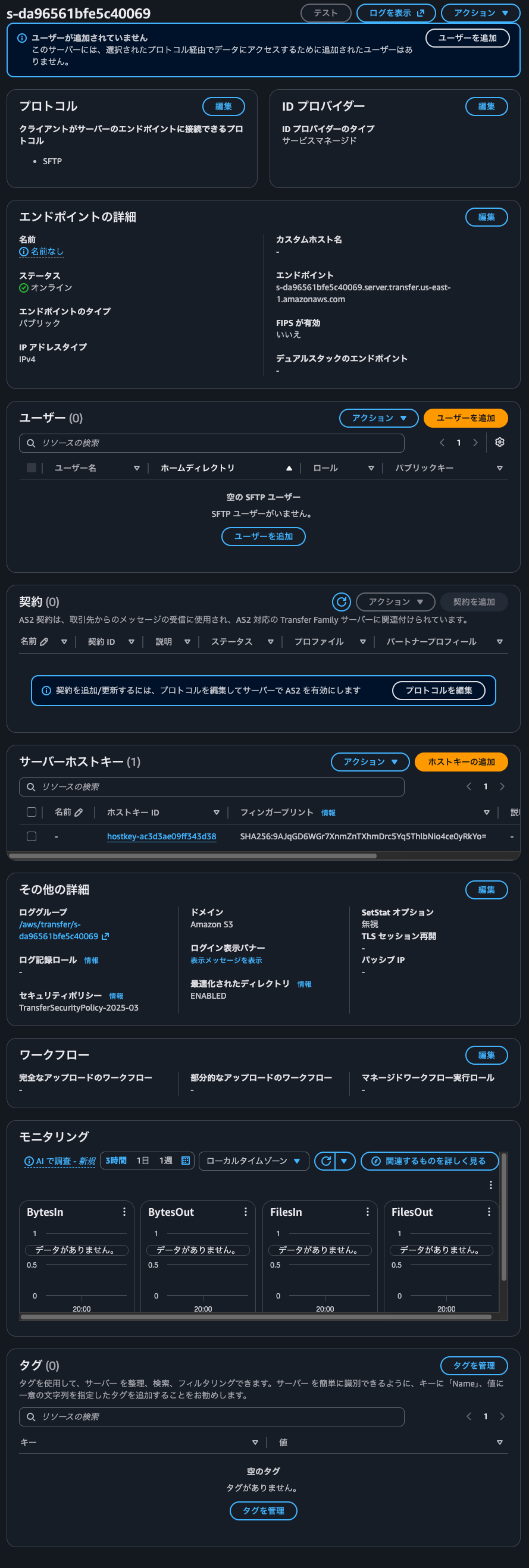
I set authentication to service managed. If you want to reduce the effort of managing users individually, I think you would adopt Directory Service.
However, to reiterate, the permissions used in the NFS and SMB worlds are those of the user assigned to the S3 Access Point. For example, if sufficient permissions are not granted in the SMB world, but the S3 Access Point is granted domain Administrator-level permissions, then files that cannot be accessed directly via SMB could be accessed via SFTP. If you reuse an existing IdP, it tends to result in excessive permission grants. Let's narrow down the accessible area using home directory mapping.
Create the SFTP user. This time I'll configure the sftp directory directly under the volume as the home directory.
> aws transfer create-user \
    --server-id s-da96561bfe5c40069 \
    --user-name non-97 \
    --role arn:aws:iam::<AWSアカウントID>:role/non-97-fsxn-TransferFamily \
    --home-directory-type LOGICAL \
    --home-directory-mappings '[
        {
            "Entry": "/",
            "Target": "/vol-ntfs-1bb4org6ydmb5qsrf9yhh9sx6g1equse1a-ext-s3alias/sftp"
        }
    ]'
{
    "ServerId": "s-da96561bfe5c40069",
    "UserName": "non-97"
}
Generate the key used for SFTP.
> ssh-keygen -t ed25519 -C "non-97-fsxn"
Generating public/private ed25519 key pair.
Enter file in which to save the key (/<ホームディレクトリパス>/.ssh/id_ed25519): ./non-97-fsxn
Enter passphrase for "./non-97-fsxn" (empty for no passphrase):
Enter same passphrase again:
Your identification has been saved in ./non-97-fsxn
Your public key has been saved in ./non-97-fsxn.pub
The key fingerprint is:
SHA256:eNWWSr1E1azwVuUvqQgzfCmLH7AIiGfvgtcSEXDXklo non-97-fsxn
The key's randomart image is:
+--[ED25519 256]--+
|... .o      ...oo|
| ...E .    +.. .+|
|   + .    o *o o.|
|..o    o o = .+..|
|o +.  o S + ..o .|
| o.o . = B . . . |
| . oo o o . .    |
|. +..  . .       |
| . o.   .        |
+----[SHA256]-----+

> ls -l
total 16
drwxr-xr-x  6 <ユーザー名>  <グループ名>  192  5 17 21:43 images
-rw-------@ 1 <ユーザー名>  <グループ名>  399  5 17 21:58 non-97-fsxn
-rw-r--r--@ 1 <ユーザー名>  <グループ名>   93  5 17 21:58 non-97-fsxn.pub
Register the generated public key to the SFTP user.
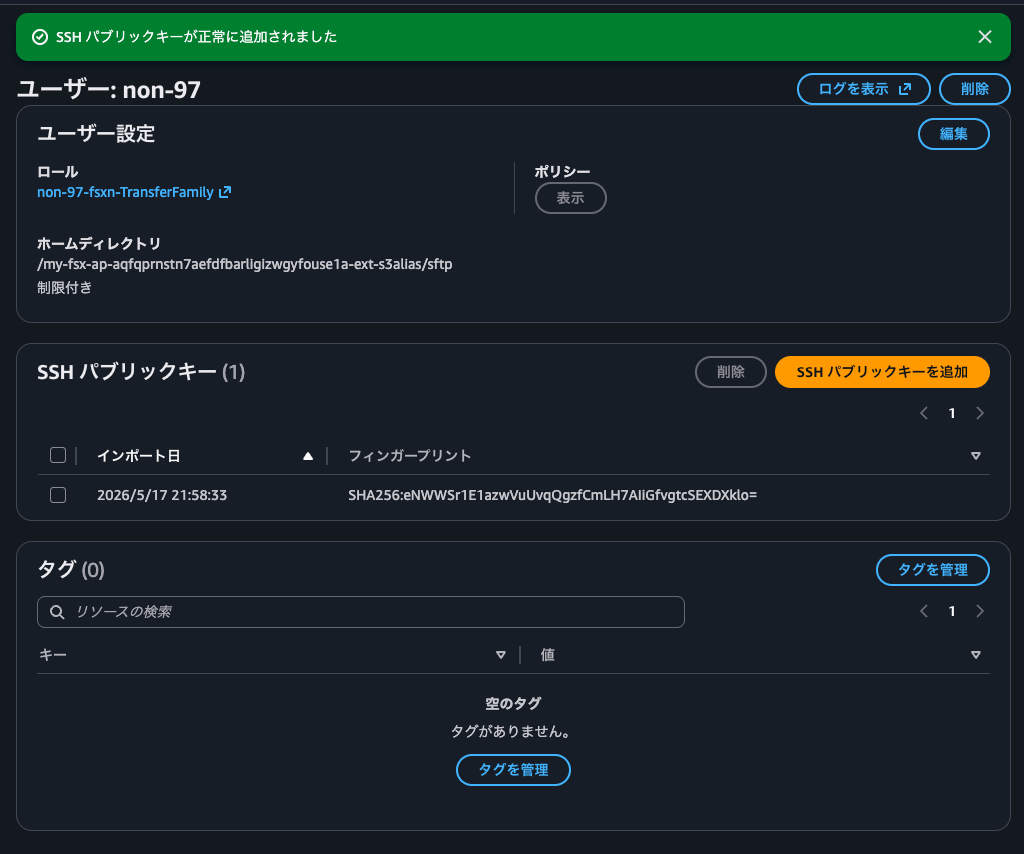
Operation Check
Now let's check the operation.
As preparation, I prepare a test file locally.
> cat test.txt
This is test.txt
Connect via SFTP.
> sftp -i non-97-fsxn non-97@s-da96561bfe5c40069.server.transfer.us-east-1.amazonaws.com
The authenticity of host 's-da96561bfe5c40069.server.transfer.us-east-1.amazonaws.com (52.204.74.66)' can't be established.
RSA key fingerprint is SHA256:9AJqGD6WGr7XnmZnTXhmDrc5Yq5ThlbNio4ce0yRkYo.
This key is not known by any other names.
Are you sure you want to continue connecting (yes/no/[fingerprint])? yes
Warning: Permanently added 's-da96561bfe5c40069.server.transfer.us-east-1.amazonaws.com' (RSA) to the list of known hosts.
Connected to s-da96561bfe5c40069.server.transfer.us-east-1.amazonaws.com.
sftp> ls -l
sftp>
sftp> pwd
Remote working directory: /
We connected successfully.
Upload the test file.
sftp> lls -ls test.txt
8 -rw-r--r--@ 1 <ユーザー名>  <グループ名>  17  5 17 22:15 test.txt

sftp> put test.txt
Uploading test.txt to /test.txt
test.txt               100%   17     0.1KB/s   00:00

sftp> ls -l
-rwxr--r--   1        -        -       17 May 17 13:21 test.txt
The upload worked.
Check the uploaded file from an NFS client.
$ sudo mount -t nfs svm-01a0d16e19d5a0194.fs-070d7901c6842ba22.fsx.us-east-1.amazonaws.com:/vol1 /mnt/fsxn/
$ df -hT -t nfs4
Filesystem                                                                   Type  Size  Used Avail Use% Mounted on
svm-01a0d16e19d5a0194.fs-070d7901c6842ba22.fsx.us-east-1.amazonaws.com:/vol1 nfs4   16G  384K   16G   1% /mnt/fsxn

$ ls -l /mnt/fsxn/
total 4
drwxrwxrwx. 2 root daemon 4096 May 17 13:21 sftp

$ ls -l /mnt/fsxn/sftp/
total 0
-rw-r--r--. 1 root daemon 17 May 17 13:21 test.txt

$ cat /mnt/fsxn/sftp/test.txt
This is test.txt
We could confirm the home directory and the file we just uploaded via SFTP.
Next, let's try retrieving a file via SFTP.
Create a test file on the NFS client.
$ echo "こんにちは" | sudo tee /mnt/fsxn/sftp/test2.txt > /dev/null
$ ls -l /mnt/fsxn/sftp/
total 0
-rw-r--r--. 1 root daemon 17 May 17 13:21 test.txt
-rw-r--r--. 1 root root   16 May 17 13:26 test2.txt
Retrieve the file via SFTP.
sftp> ls -l
-rwxr--r--   1        -        -       17 May 17 13:21 test.txt
-rwxr--r--   1        -        -       16 May 17 13:26 test2.txt

sftp> get test2.txt
Fetching /test2.txt to test2.txt
test2.txt      100%   16     0.0KB/s   00:00

sftp> bye

> cat test2.txt
こんにちは
I was able to download the file locally.
The logs output to CloudWatch Logs during this series of operations are as follows.
{
    "role": "arn:aws:iam::<AWSアカウントID>:role/non-97-fsxn-TransferFamily",
    "activity-type": "CONNECTED",
    "ssh-public-key-fingerprint": "SHA256:eNWWSr1E1azwVuUvqQgzfCmLH7AIiGfvgtcSEXDXklo",
    "home-dir": "LOGICAL",
    "ssh-public-key": "AAAAC3NzaC1lZDI1NTE5AAAAIAgpd0aLPyg1+jbBk3PvQanBmtSYhNgLvZ/jSNFrWFip",
    "ssh-public-key-type": "ssh-ed25519",
    "macs": "<implicit>,<implicit>",
    "ciphers": "aes128-gcm@openssh.com,aes128-gcm@openssh.com",
    "client": "SSH-2.0-OpenSSH_9.9",
    "source-ip": "104.28.23.249",
    "resource-arn": "arn:aws:transfer:us-east-1:<AWSアカウントID>:server/s-da96561bfe5c40069",
    "user": "non-97",
    "kex": "ecdh-sha2-nistp256",
    "session-id": "0223f0e315494257ab0a"
}
{
    "mode": "CREATE|TRUNCATE|WRITE",
    "path": "/vol-ntfs-1bb4org6ydmb5qsrf9yhh9sx6g1equse1a-ext-s3alias/sftp/test.txt",
    "activity-type": "OPEN",
    "resource-arn": "arn:aws:transfer:us-east-1:<AWSアカウントID>:server/s-da96561bfe5c40069",
    "session-id": "0223f0e315494257ab0a"
}
{
    "path": "/vol-ntfs-1bb4org6ydmb5qsrf9yhh9sx6g1equse1a-ext-s3alias/sftp/test.txt",
    "activity-type": "CLOSE",
    "resource-arn": "arn:aws:transfer:us-east-1:<AWSアカウントID>:server/s-da96561bfe5c40069",
    "bytes-in": "17",
    "session-id": "0223f0e315494257ab0a"
}
{
    "mode": "READ",
    "path": "/vol-ntfs-1bb4org6ydmb5qsrf9yhh9sx6g1equse1a-ext-s3alias/sftp/test2.txt",
    "activity-type": "OPEN",
    "resource-arn": "arn:aws:transfer:us-east-1:<AWSアカウントID>:server/s-da96561bfe5c40069",
    "session-id": "0223f0e315494257ab0a"
}
{
    "path": "/vol-ntfs-1bb4org6ydmb5qsrf9yhh9sx6g1equse1a-ext-s3alias/sftp/test2.txt",
    "activity-type": "CLOSE",
    "resource-arn": "arn:aws:transfer:us-east-1:<AWSアカウントID>:server/s-da96561bfe5c40069",
    "bytes-out": "16",
    "session-id": "0223f0e315494257ab0a"
}
{
    "activity-type": "DISCONNECTED",
    "resource-arn": "arn:aws:transfer:us-east-1:<AWSアカウントID>:server/s-da96561bfe5c40069",
    "session-id": "0223f0e315494257ab0a"
}
Convenient, but Understand the Scope and Permissions Accessible via Transfer Family Well
I tried exchanging files with Amazon FSx for NetApp ONTAP via SFTP using AWS Transfer Family.
It is very convenient, but depending on the home directory mapping of the Transfer Family user and the permissions of the user associated with the S3 Access Point, you may end up granting unintended access. When configuring, take a breath and organize the scope of impact beforehand.
I hope this article helps someone.
This was Nonpi (@non____97) from the Consulting Department, Cloud Business Division!