
aws-vault Now Supports Storing Credentials via 1Password Desktop, So I Gave It a Try

This page has been translated by machine translation. View original
aws-vault provides several storage options called Backends for managing credentials, which differ by OS. If nothing is specified, it normally uses the OS keychain. (e.g., Keychain on macOS, Credential Manager on Windows)
This time, 1Password Desktop has been added to these Backends. This makes it possible to manage credentials via 1Password Desktop.
Configuring 1Password Desktop
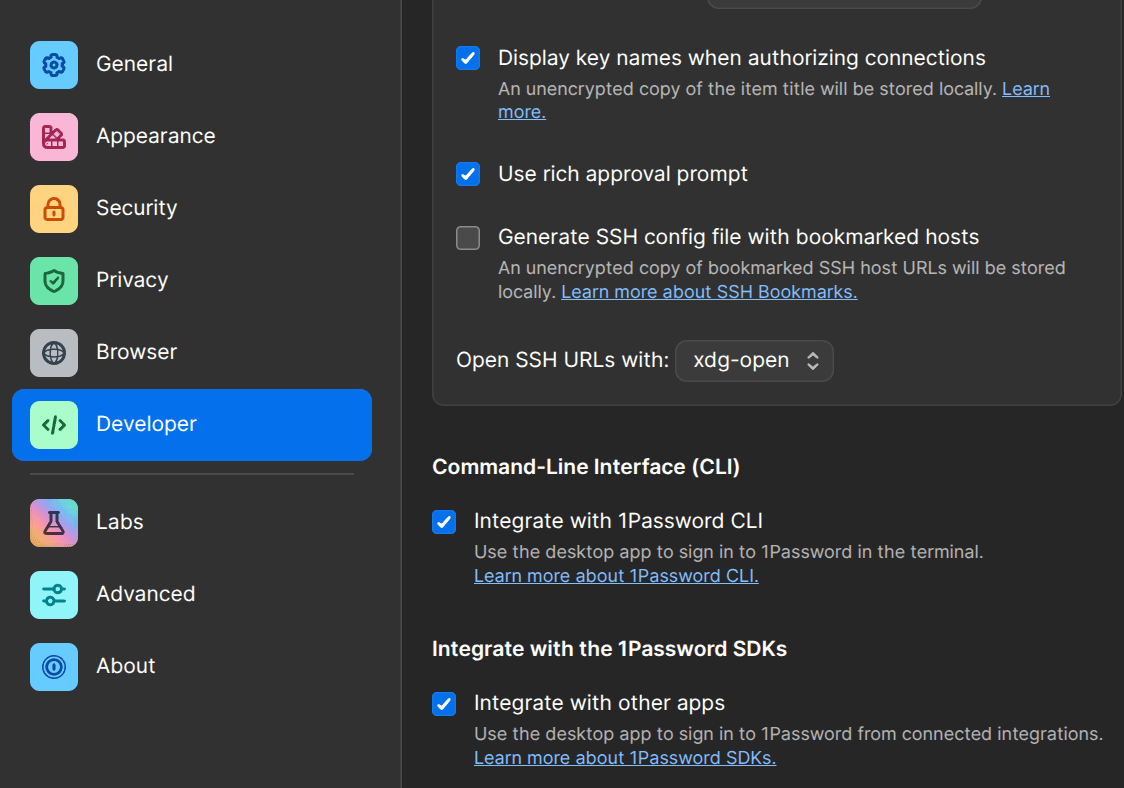
Enable "Integrate with the 1Password SDK" under "Settings > Developer". If you can't find this setting, try updating 1Password Desktop to the latest version.
It seems that enabling it sometimes doesn't work properly, so in that case it may help to restart your PC once.
Below is an example of the Developer settings screen in 1Password Desktop.
Configuring aws-vault
- requires
- aws-vault v7.9.3 or later
There are broadly the following two ways to use it.
1. Specifying via environment variables
You can also add the following environment variables to your shell configuration file such as .bashrc or .zshrc.
export AWS_VAULT_BACKEND=op-desktop
export AWS_VAULT_OP_VAULT_ID=<vault-id>
export AWS_VAULT_OP_DESKTOP_ACCOUNT_ID=<account-id>
AWS_VAULT_BACKEND: Specifies 1Password Desktop as the BackendAWS_VAULT_OP_VAULT_ID: Specifies the ID of the 1Password Vault in which to store credentials (can be obtained by right-clicking the Vault in the desktop app and selecting "Copy ID")AWS_VAULT_OP_DESKTOP_ACCOUNT_ID: Specifies the 1Password Desktop account ID (this is the account name shown at the top left of the desktop app. Thexxxpart of the URLhttps://xxx.1password.com/is the account ID)
2. Specifying via options
aws-vault exec <profile-name> \
  --backend=op-desktop \
  --op-vault-id=<vault-id> \
  --op-desktop-account-id=<account-id>
Migrating from another Backend
To change the Backend to 1Password Desktop, you need to move the credential information stored in your current Backend to 1Password Desktop.
aws-vault does not provide a command to assist with credential migration, so you need to migrate manually.
1. Check the credentials in the existing Backend
Check the credentials stored in the Backend you are currently using, such as Windows Credential Manager or macOS Keychain Access.
In most cases they should be stored under the name awsvault, so check its contents.
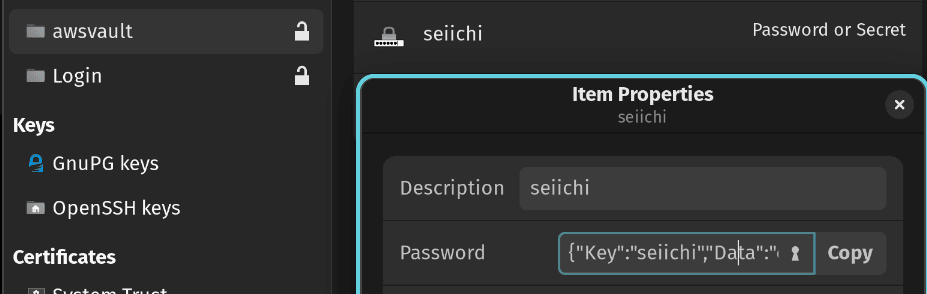
The contents of the data are usually in a JSON format like the following.
{
  "Key": "profile-name",
  "Data": "eyJ...",
  "Label": "aws-vault (profile-name)",
  "Description": "",
  "KeychainNotTrustApplication": true,
  "KeychainNotSynchronizable": false
}
The Data part is the credential information encoded in Base64. Decode it to obtain the AWS Access Key ID and Secret Access Key.
echo "eyJ..." | base64 --decode

{"AccessKeyID": "...",
The output is in JSON format, and you can find the necessary information by looking for fields such as AccessKeyId and SecretAccessKey.
2. Save the credentials to 1Password Desktop
Save the AWS Access Key ID and Secret Access Key you just obtained to 1Password Desktop.
aws-vault add <profile-name> --backend=op-desktop --op-vault-id=<vault-id> --op-desktop-account-id=<account-id>
You can specify the same profile name without any problem. The contents of .aws/config do not need to be changed; think of it as simply changing the storage location (Backend) of the credential information to 1Password Desktop.
With this, the credentials will be saved in the specified Vault in 1Password Desktop.