Try everything from user creation to SSO with your local app using Microsoft Entra ID (formerly Azure AD) Free

This page has been translated by machine translation. View original
Hello! I'm Nishimura Yuji from the Operations Department!
Even if you want to try Microsoft Entra ID (formerly Azure Active Directory) on your own, there are parts that are hard to understand just from reading the documentation. For example, how far you can go for free, how MFA is required, and what happens when you integrate SSO into your own app.
In this article, I actually tried the following flow using a Microsoft Entra ID Free tenant that comes with an Azure account.
- Check the tenant and license
- Create test users and groups
- Sign in for the first time with a test user and register MFA
- Register an app, and sign in (SSO) using Microsoft's Python sample (ms-identity-python-webapp) running locally
- Restrict users who can sign in to the app using assignments
- Verify the results in the sign-in logs
The screens shown are from the Microsoft Entra admin center (entra.microsoft.com) Japanese UI as of October 17, 2026. Some screens were displayed in English. In the images, email addresses, tenant names, various IDs, IP addresses, locations, and similar information are redacted. Features requiring P1 or higher, such as Conditional Access, are not covered.
What You Can and Cannot Do with Entra ID Free
Here is a summary of what is sufficient with Free, based on what I tried this time.
| Feature | Free | How Verified |
|---|---|---|
| Creating users and groups | Available | Created via the UI |
| MFA via Security Defaults | Available | Confirmed in UI, registered MFA with test user |
| App registration and sign-in (SSO) | Available | Signed in with local sample app (ms-identity-python-webapp) |
| Individual user assignment to apps | Available | Assigned via UI, confirmed that unassigned users are denied |
| Group assignment to apps | P1 or higher | UI shows "Cannot assign groups." Official documentation also states P1/P2 is required |
| Dynamic membership groups (for users) | P1 or higher | Stated in official documentation |
| Conditional Access | P1 or higher | Confirmed in licensing documentation |
| Sign-in log and audit log retention period | 7 days (30 days for P1/P2) | Confirmed in data retention documentation |
For purposes such as learning the authentication flow personally or integrating Entra ID sign-in into a local app, Free was sufficient to try everything. Features used in organizational operations, such as group-based assignment and Conditional Access, require P1. Pricing is summarized on the Microsoft Entra pricing page.
Setting Up an Entra ID Free Tenant
Azure Free Account Requirements
Entra ID Free is included with subscriptions such as Azure and Microsoft 365. If you are starting from scratch as an individual, creating an Azure free account is the entry point. According to the page FAQ, the key points are as follows:
- You need a phone number, a non-prepaid credit or debit card, and a Microsoft account or GitHub account
- You can use USD$200 in credits for up to 30 days
- For identity verification, a temporary USD$1 authorization may be placed on the card (reversed after verification)
- You will not be charged unless you switch to pay-as-you-go. If you do not switch after 30 days or after using up the credits, the account and services will be disabled
The free account is only for new users, and is limited to one per person. When I tried to sign up with my GitHub account, it turned out I had used Azure before with that account, so the following screen appeared.
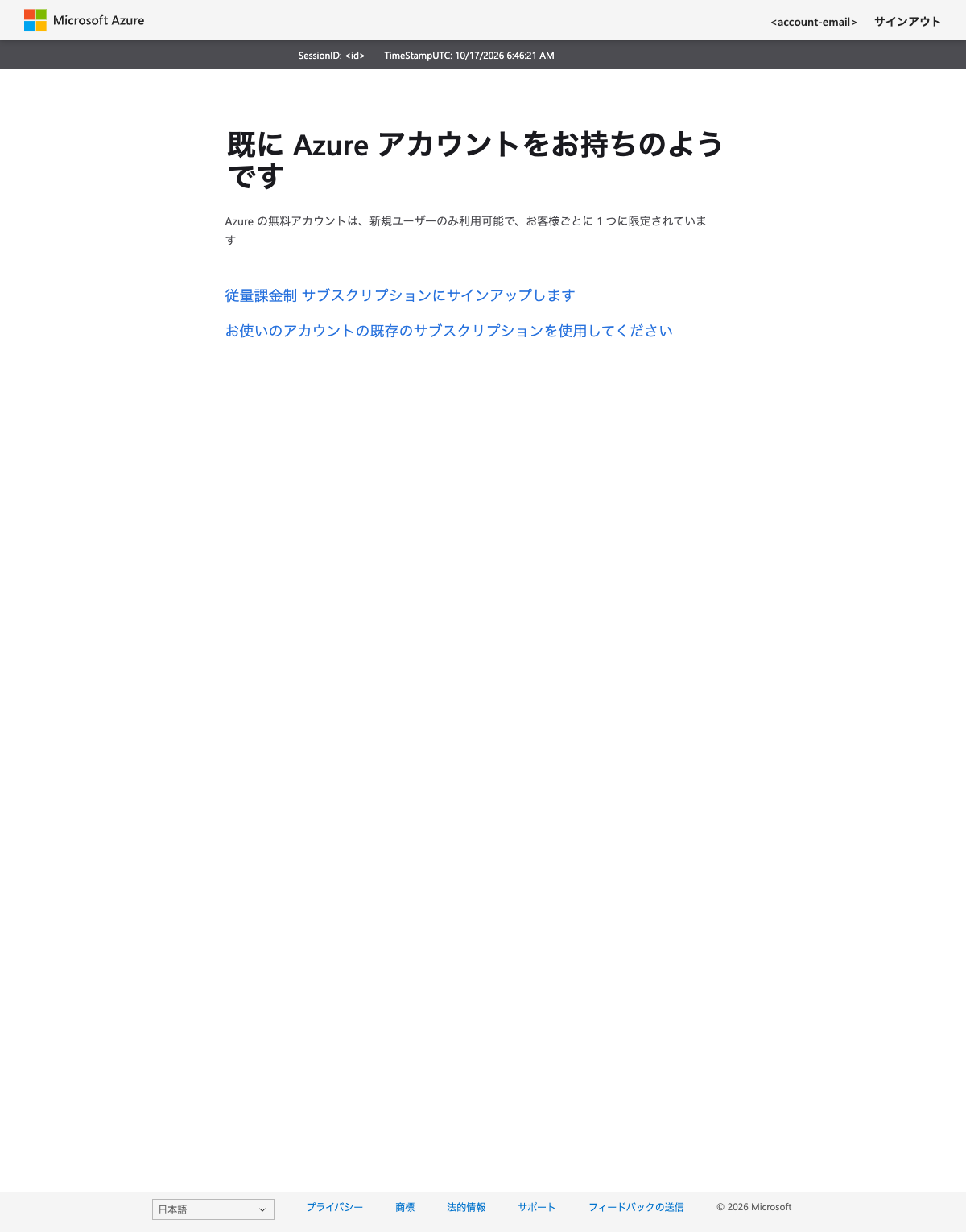
Even if you cannot create a free account, the tenant from when you previously used Azure remains. Since Entra ID Free is tied to the tenant, I proceeded with this existing tenant.
Checking the Tenant and License
Opening "Entra ID" > "Overview" in the Microsoft Entra admin center displays the basic tenant information.
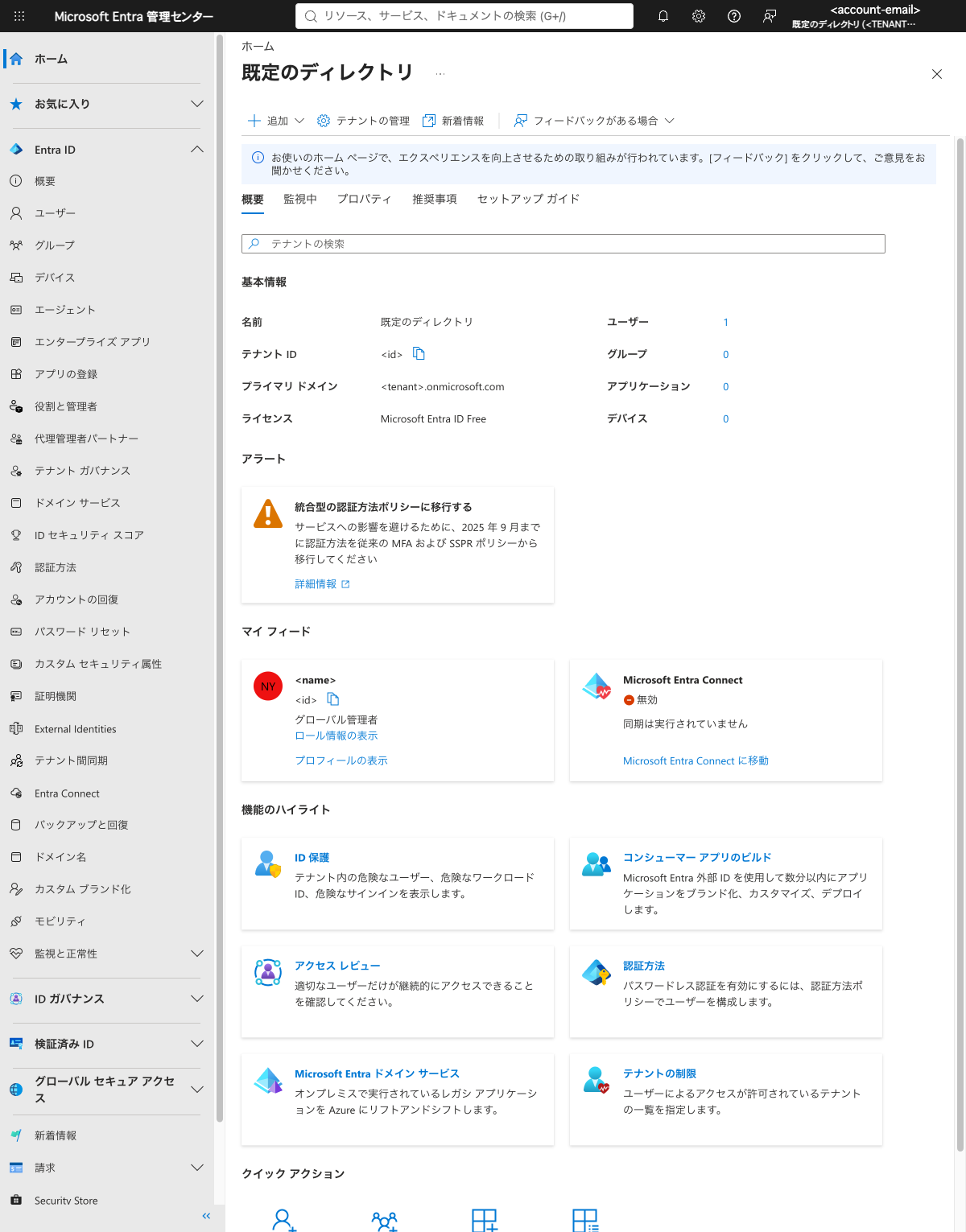
The name was "Default Directory" and the license was "Microsoft Entra ID Free." The primary domain is in the format <tenant name>.onmicrosoft.com, and in this case the name was based on the email address used to sign up.
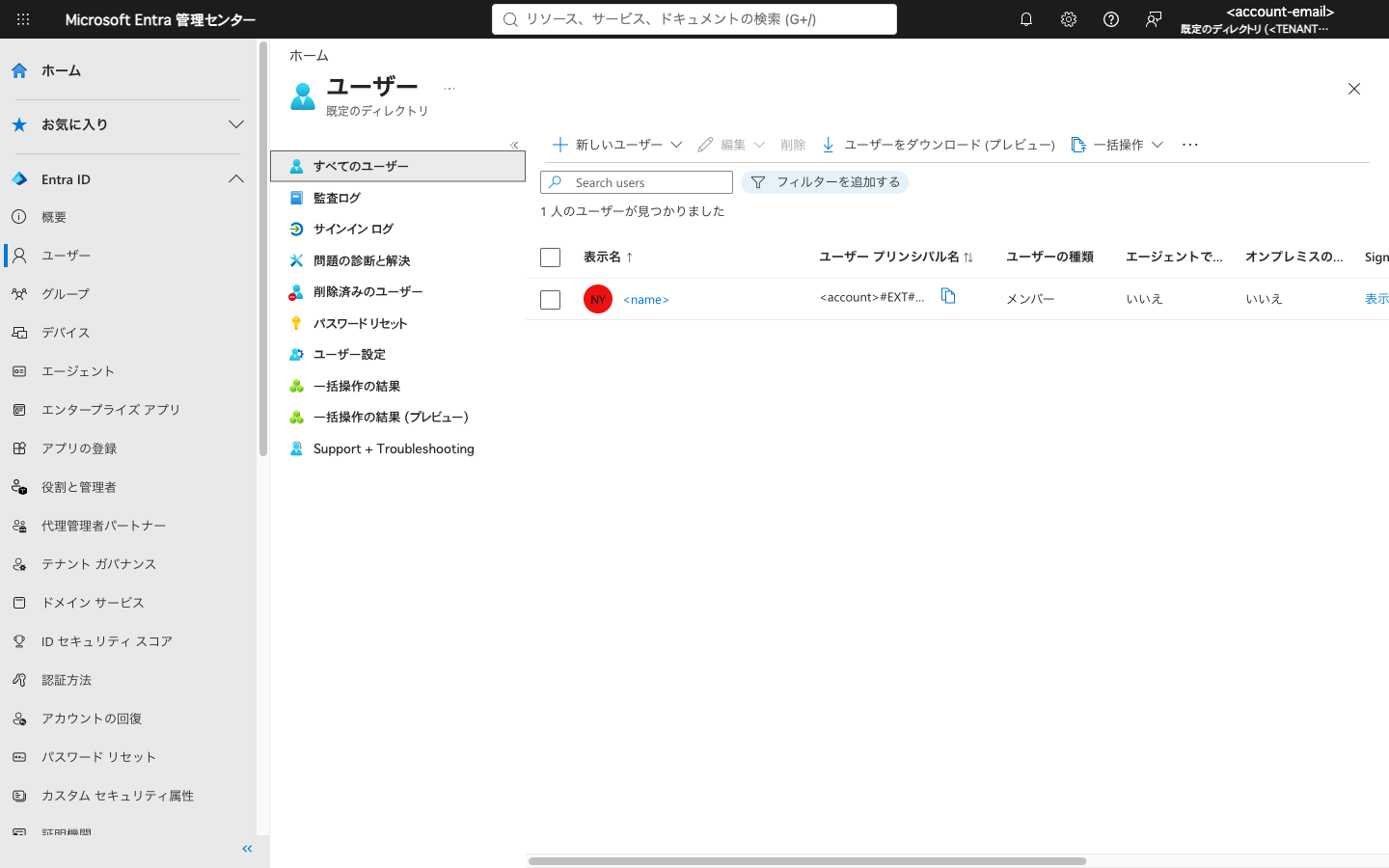
Looking at "Users" > "All users," my account's User Principal Name (UPN) was in the format <account>#EXT#@<tenant name>.onmicrosoft.com. Since I signed up with a Microsoft account and created the tenant, it is registered in the tenant as an external identity. The user type is "Member" and the role is Global Administrator. The test user I will create next is an internal user with the tenant's domain.
Checking Security Defaults
Opening "Overview" > "Properties" > "Manage security defaults" showed it was set to "Enabled (recommended)."
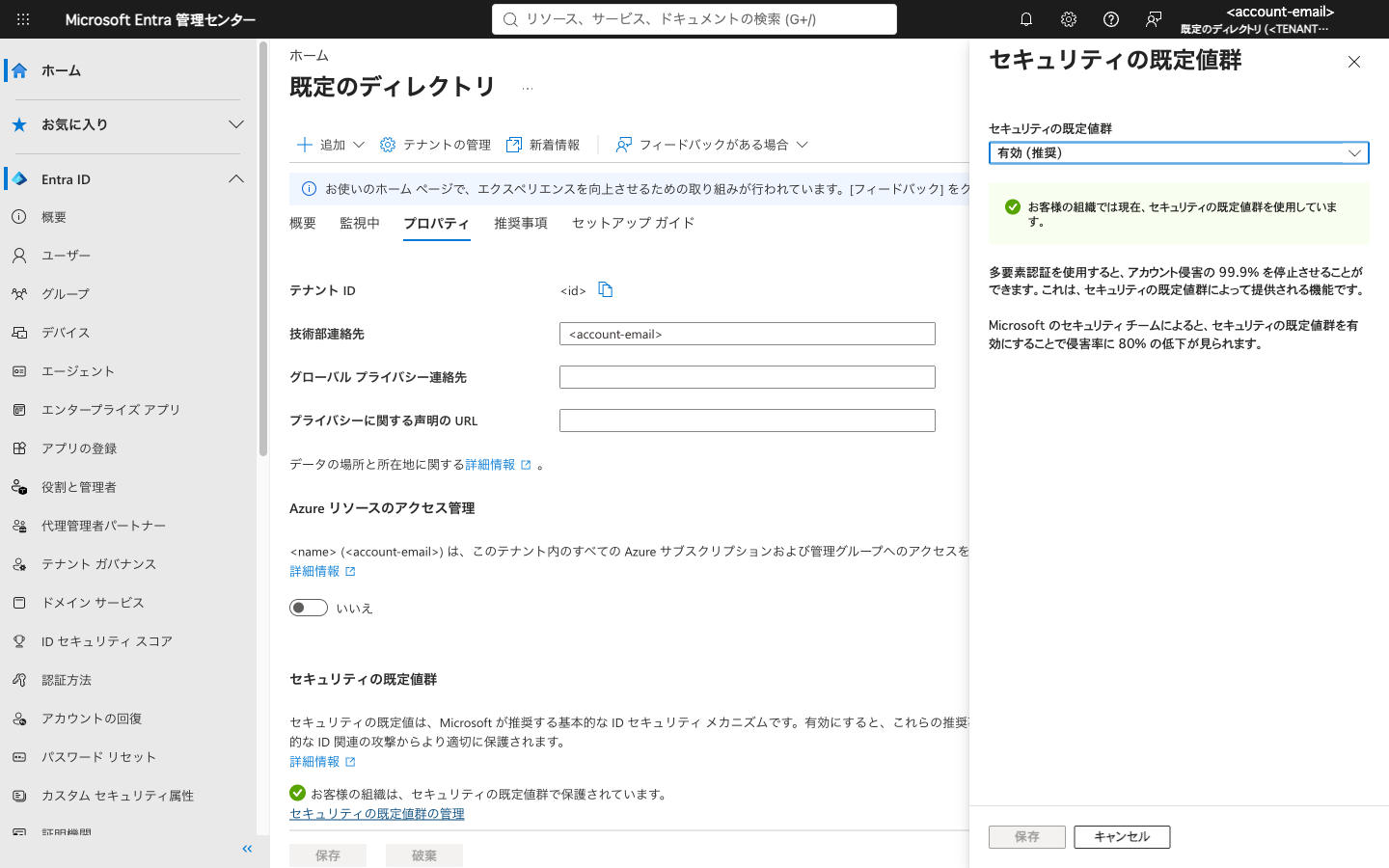
Security defaults are Microsoft-recommended baseline settings that are enabled by default for all new tenants. They apply protections collectively, such as requiring users to register for MFA. This feature is available in Free, and since it is enabled in this tenant, the test user I create next will also be required to register MFA.
Creating Test Users and Groups
Creating a User
Open "Users" > "All users" > "New user" > "Create new user." The menu also has "Invite external user," but this time I am creating an internal tenant user.
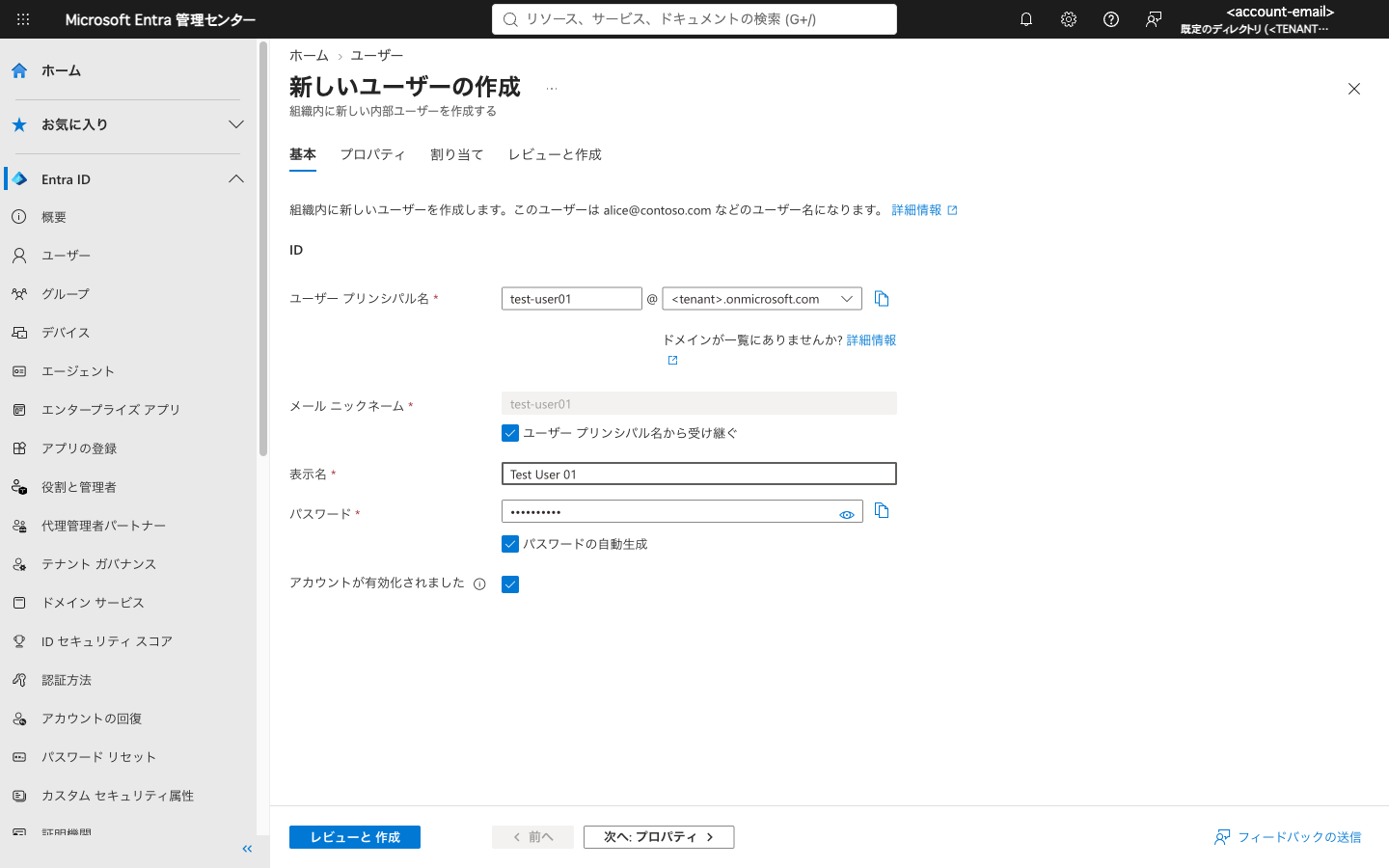
I entered the following values in the "Basics" tab and created the user via "Review + create."
- User principal name:
test-user01(domain is the tenant'sonmicrosoft.com) - Display name:
Test User 01 - Password: Left as "Auto-generate password"
I made a note of the auto-generated password (saved it in 1Password this time). This password is temporary, and the user will be prompted to change it on first sign-in.
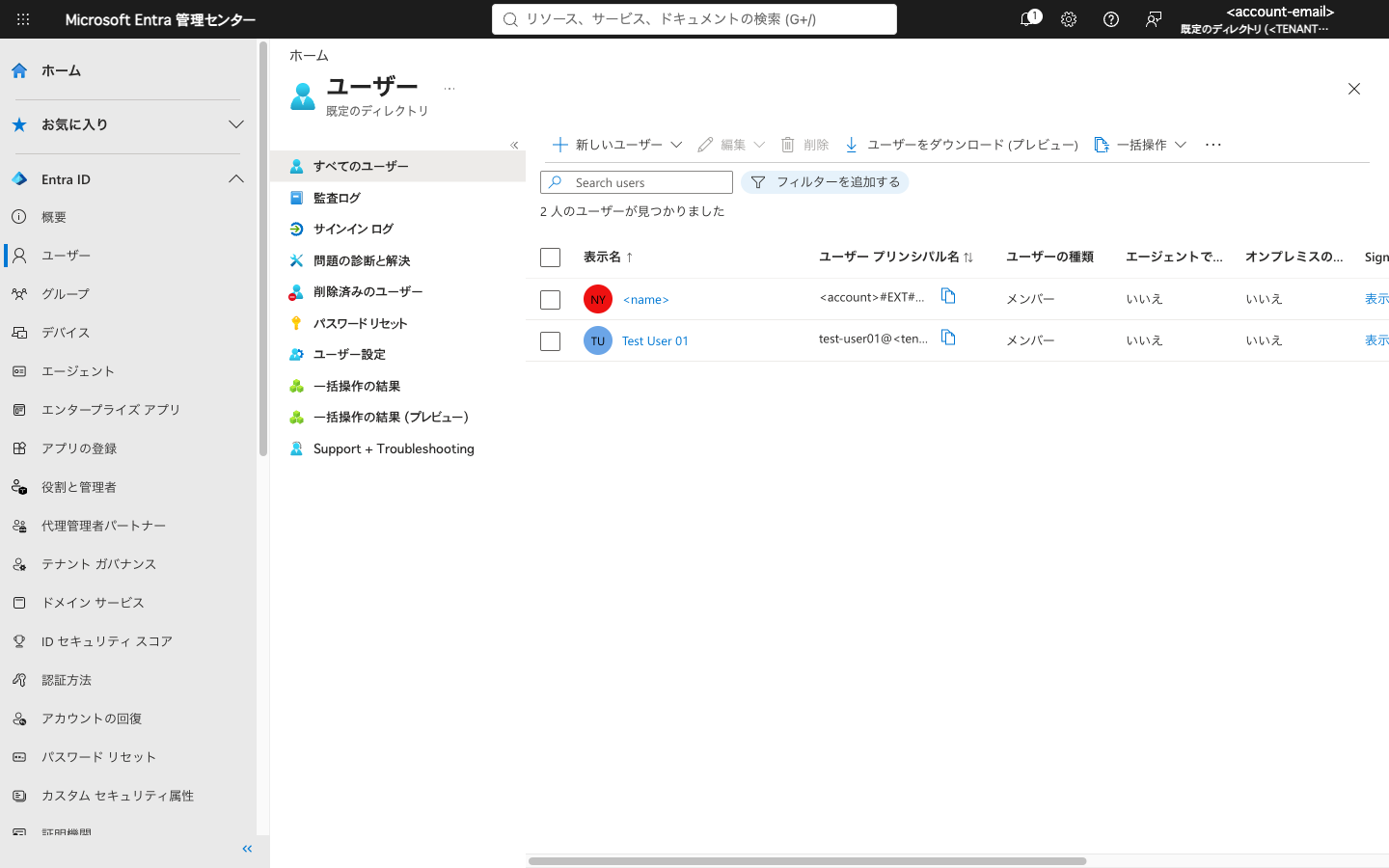
The user was not reflected in the list immediately after creation, but appeared as the second user after refreshing.
Creating a Group
I created a security group from "Groups" > "All groups" > "New group."
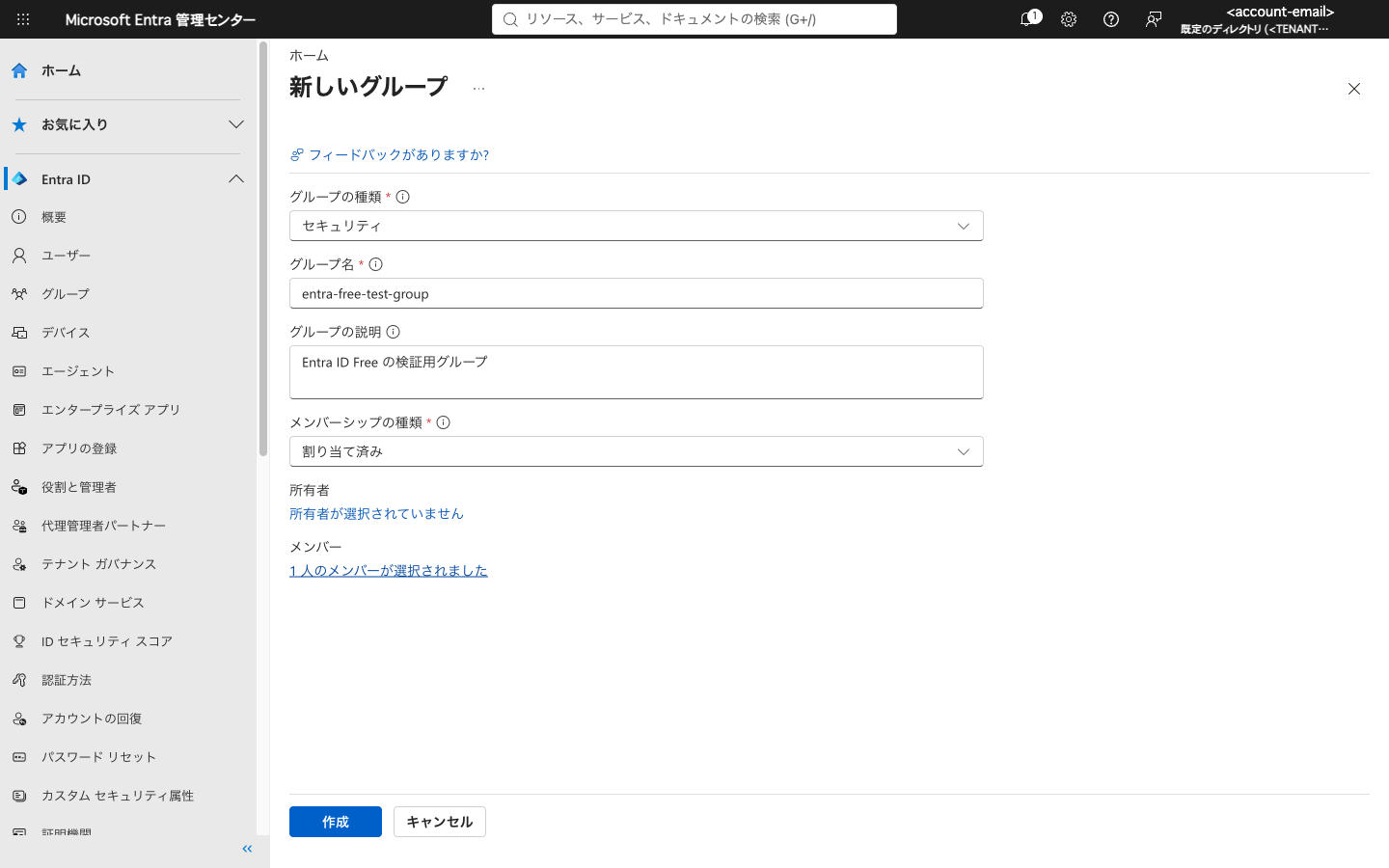
- Group type: Security
- Group name:
entra-free-test-group - Membership type: Assigned
- Members: Test User 01
The membership type options shown were "Assigned," "Dynamic User," and "Dynamic Device." However, according to the official documentation, dynamic membership groups require a P1 license when targeting users. I did not create a dynamic group this time.
Signing In for the First Time with the Test User
I signed in to My Apps with the test user. I used a different browser session from the one I was signed in to as an administrator.
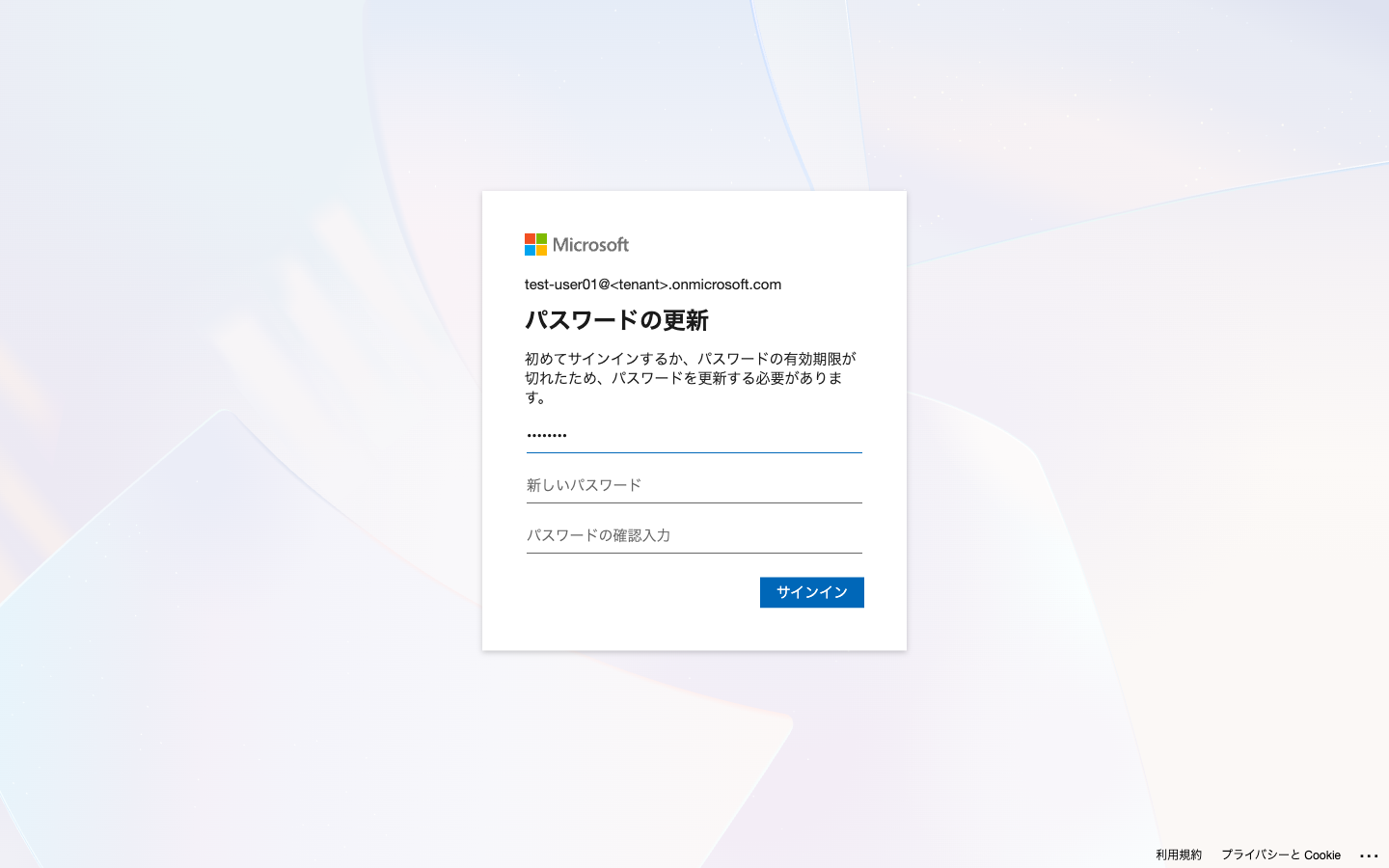
Updating the Password
After signing in with the temporary password, I was first prompted to "Update your password."
Registering MFA
After updating the password, "Keep your account secure" was displayed, prompting me to proceed with MFA registration.
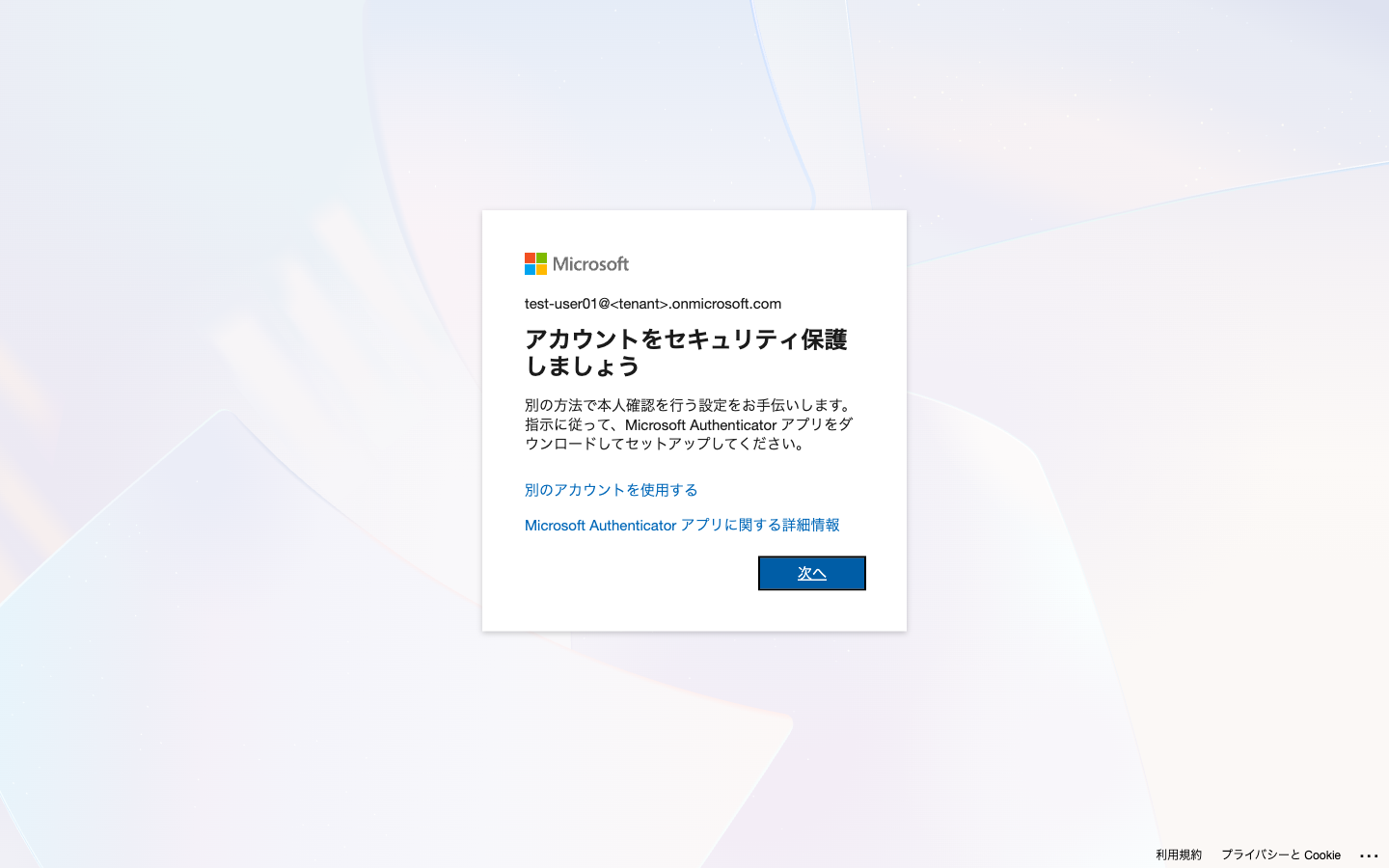
Security defaults previously allowed a 14-day grace period to postpone MFA registration. According to the official documentation, this grace period has been removed for both new and existing tenants since July 29, 2024. This time as well, registration was required on the spot at first sign-in.
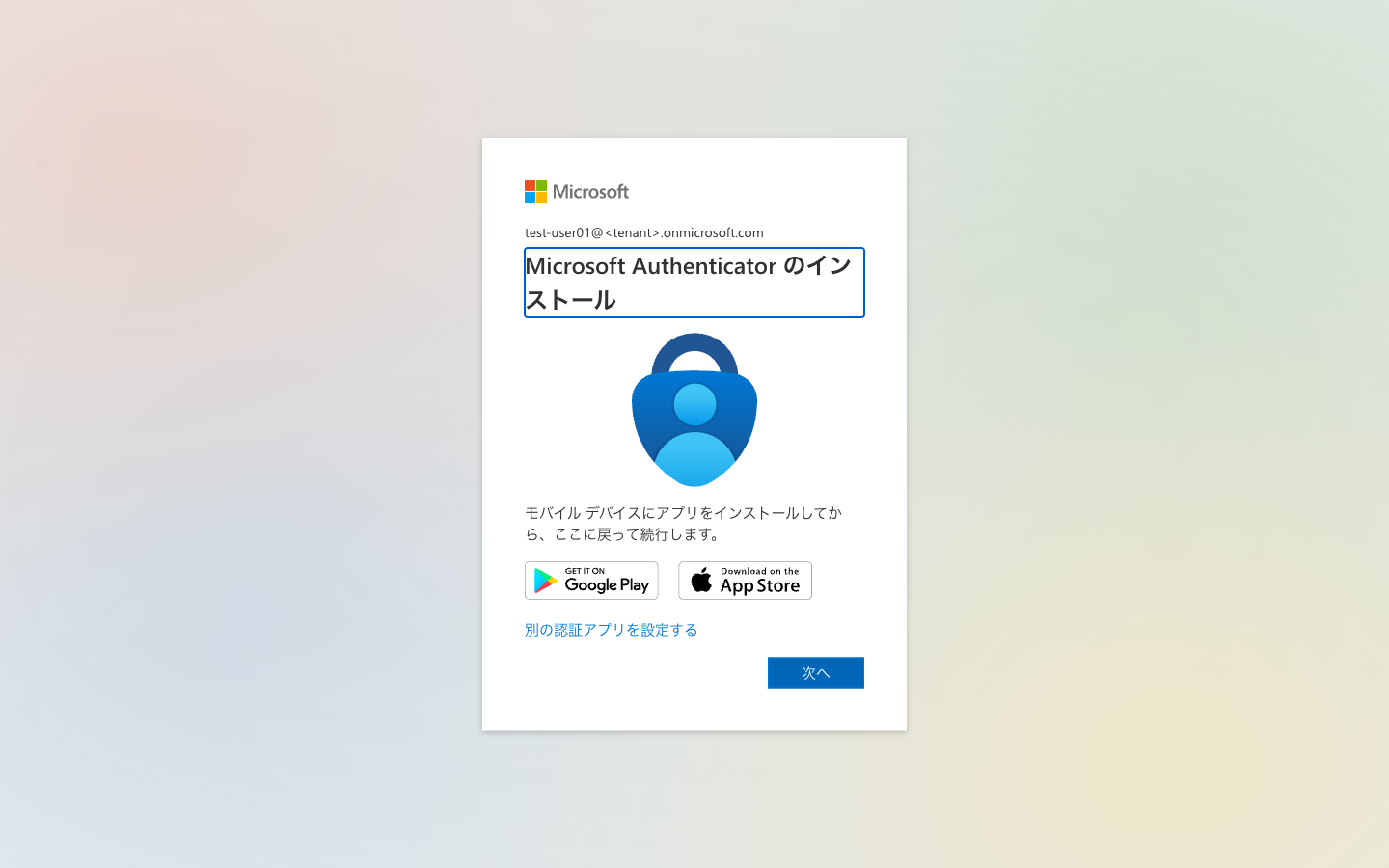
The screen guides you to install Microsoft Authenticator, but you can also register other TOTP-compatible apps via "I want to use a different authenticator app." This time I used 1Password's one-time password.
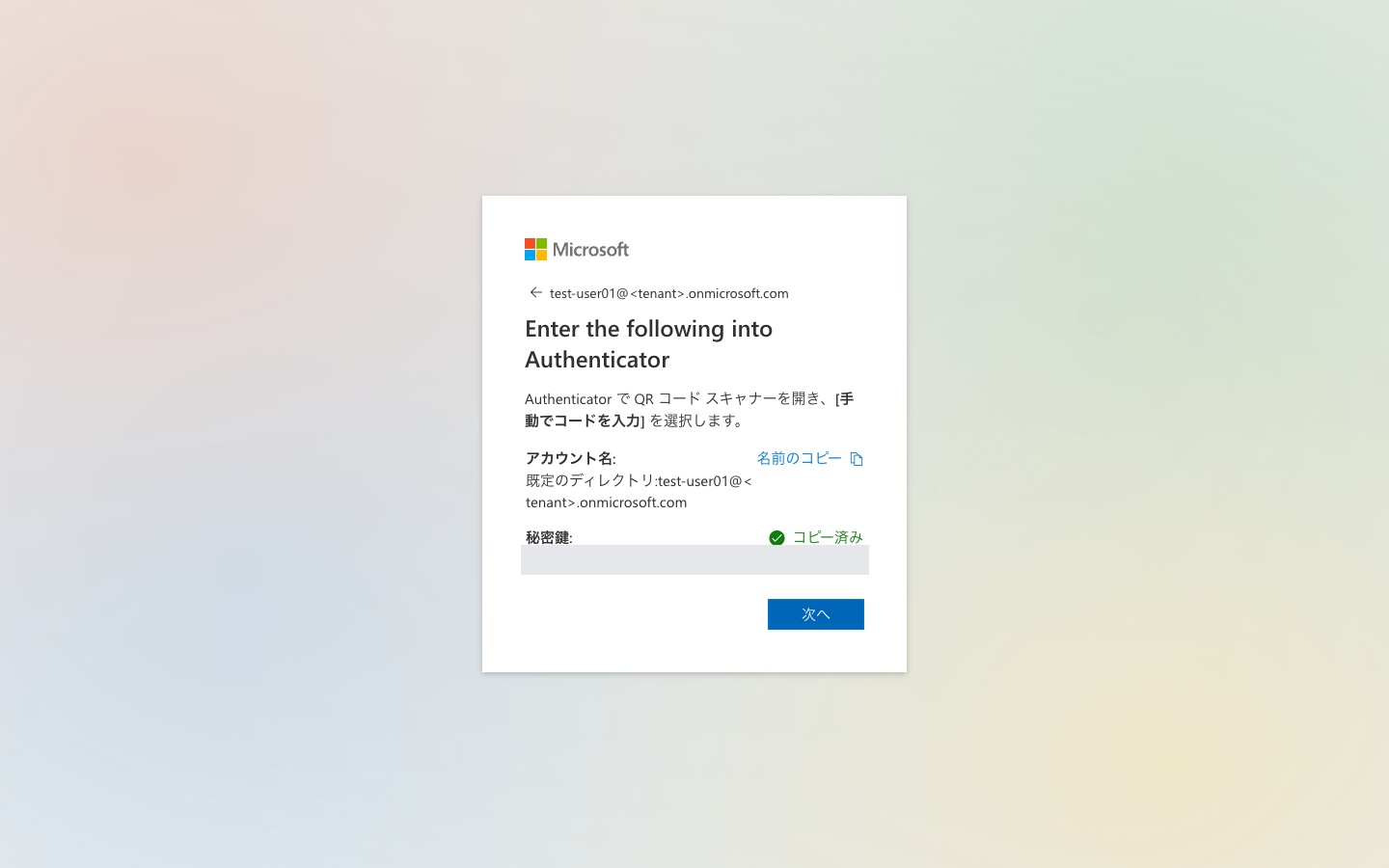
Selecting "I want to use a different authenticator app" displays a QR code. Opening "Can't scan the QR code?" shows the account name and secret key as text, allowing you to register it in 1Password's one-time password field.
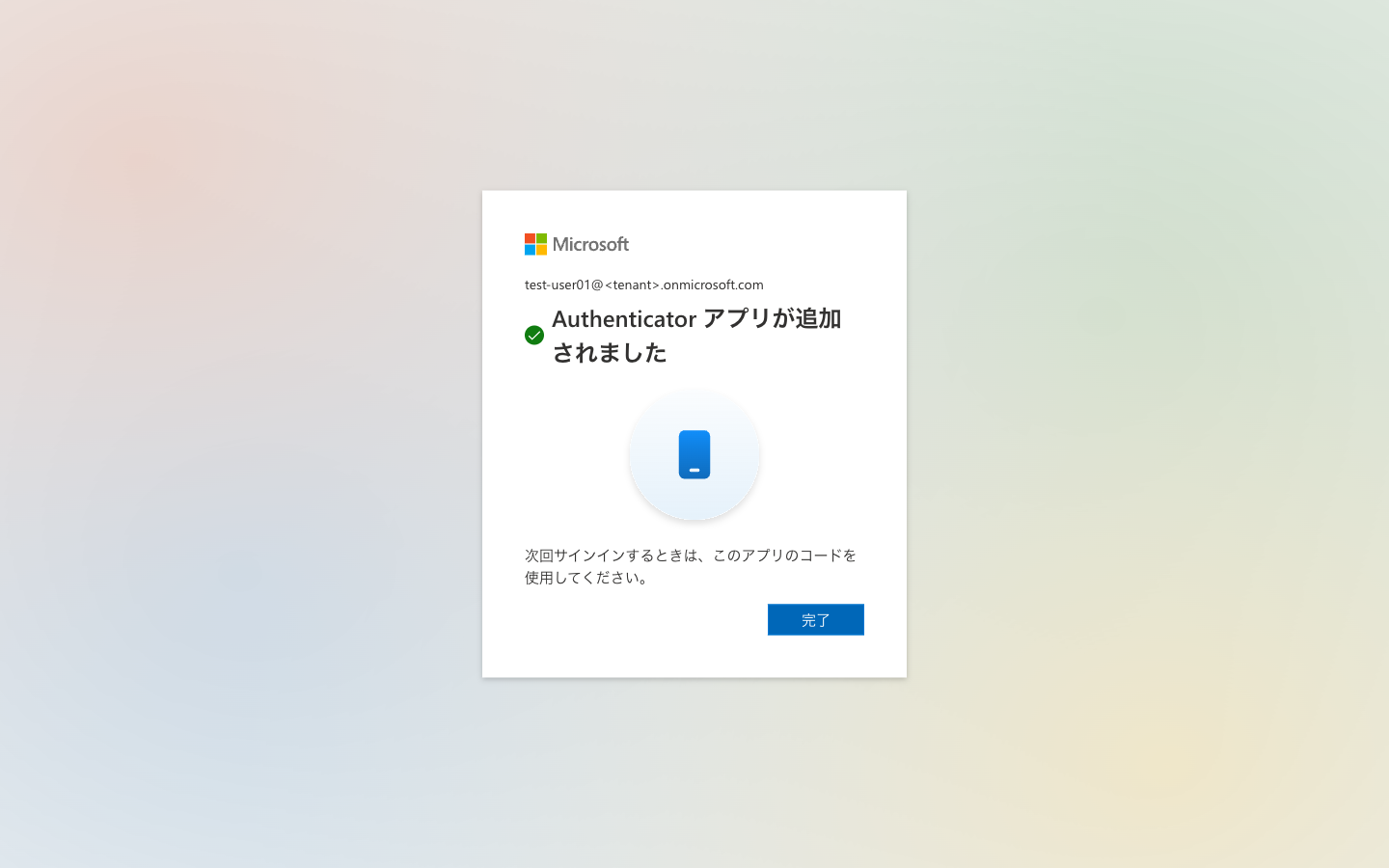
Entering the 6-digit code displayed by the authenticator app completes the registration.
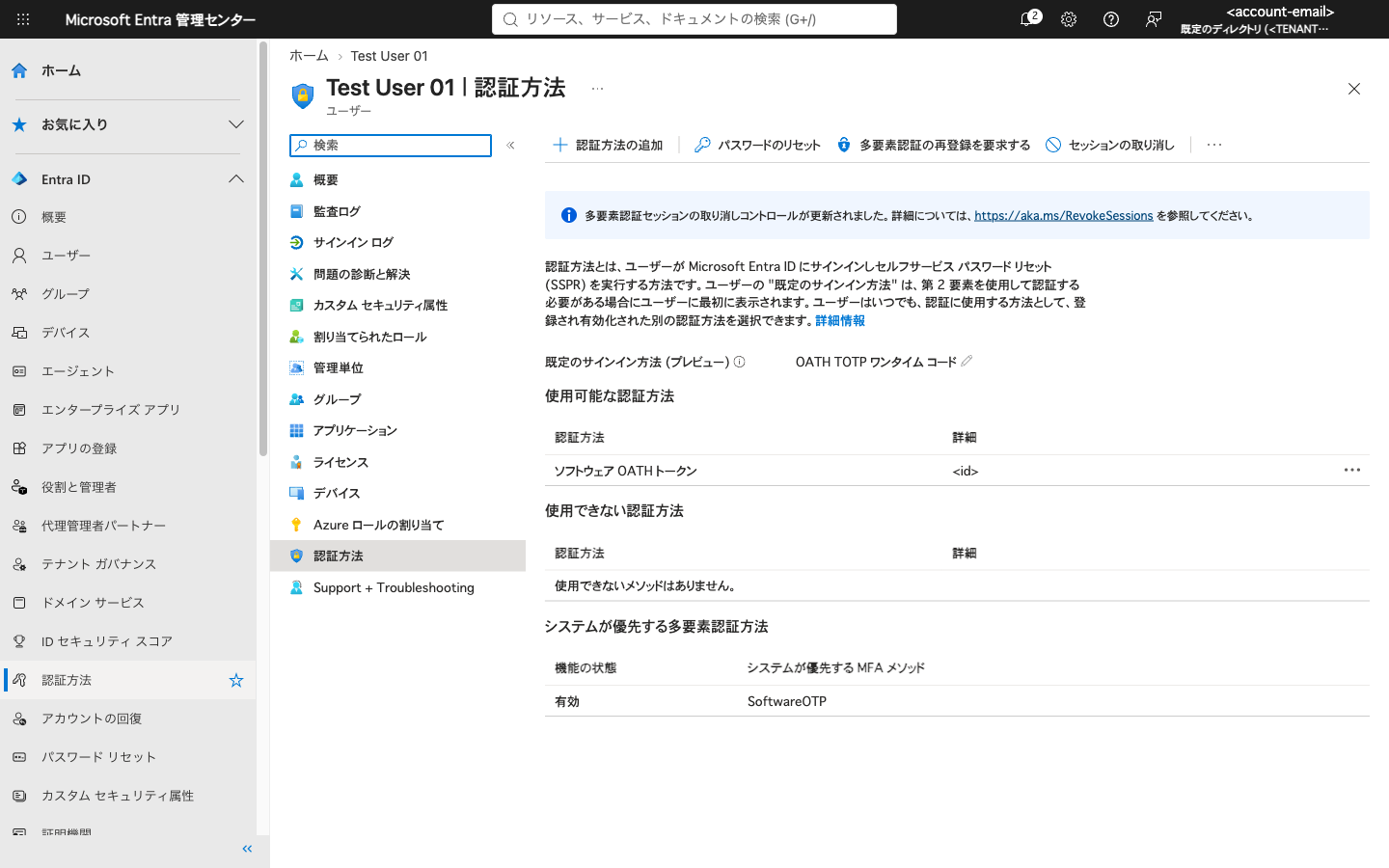
On the admin side, looking at "Users" > Test User 01 > "Authentication methods," "Software OATH token" was registered. The default sign-in method is "OATH TOTP one-time code."
Registering an App and Signing In with a Local Sample
Next, I registered an app in Entra ID and signed in with the test user from a web app running locally on my Mac. For the web app, I used the Python (Flask) sample ms-identity-python-webapp published by Microsoft in Azure-Samples. How to run it is explained in "Running the Sample App" later on.
Sign-In Flow
The diagram below is a conceptual diagram I created myself, not an official architecture diagram.
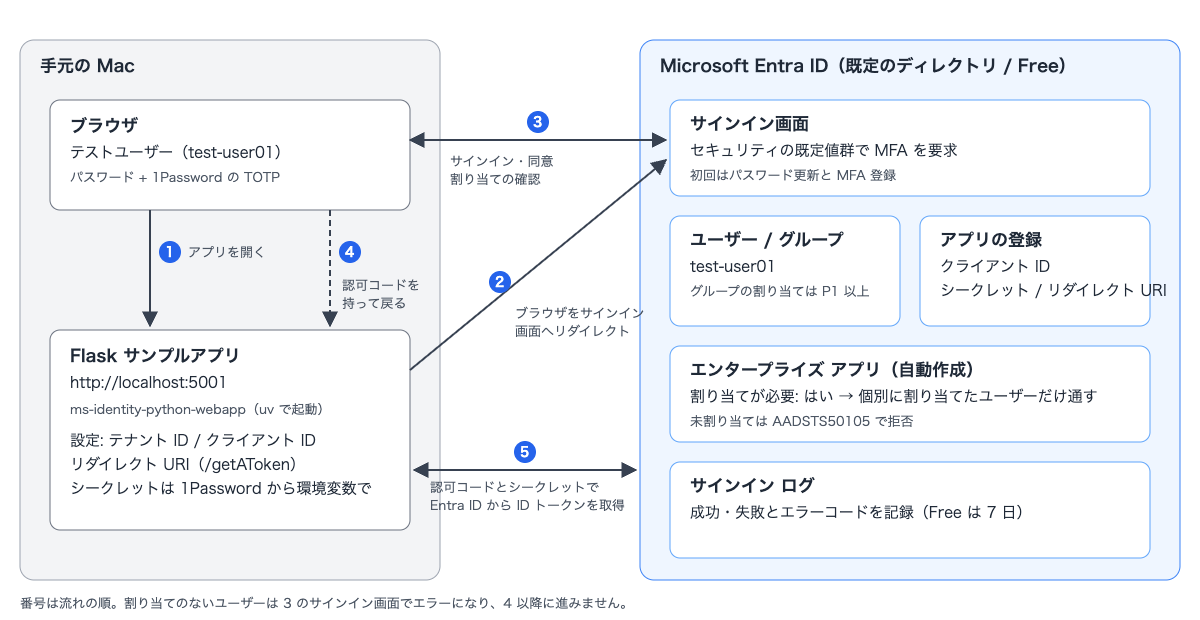
When the browser opens the sample app, the app redirects the browser to the Entra ID sign-in page. After the user completes sign-in and consent in the browser, the browser returns to the app's redirect URI with an authorization code. The app uses that authorization code and client secret to receive an ID token from Entra ID. If assignment is required, users without an assignment are stopped at the sign-in page in step 3 and never return to the app.
Registering the App
I opened "App registrations" > "New registration" and registered with the following details.
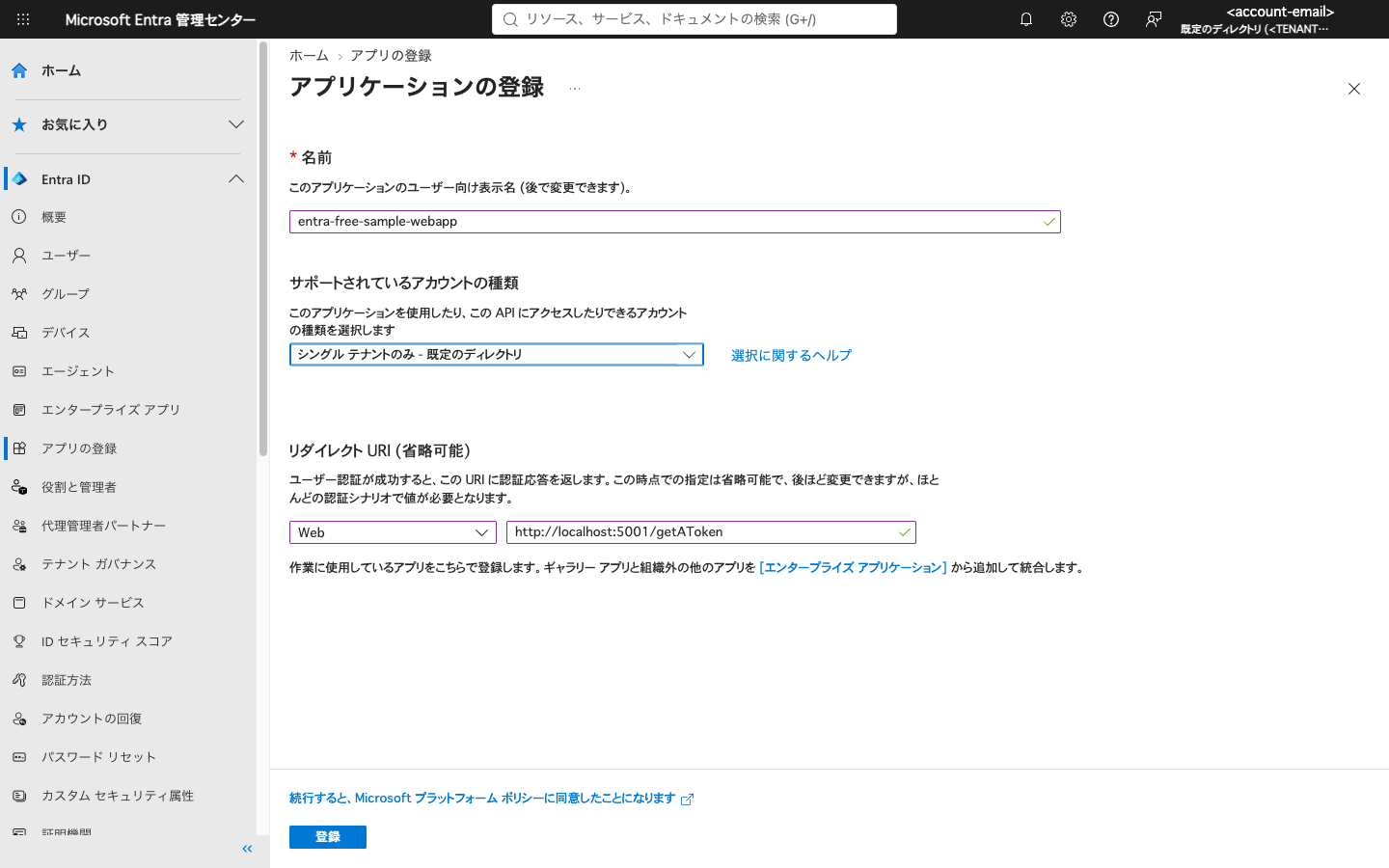
- Name:
entra-free-sample-webapp - Supported account types: Single tenant only - Default Directory
- Redirect URI: Platform is "Web," URI is
http://localhost:5001/getAToken
The supported account type options were: "Single tenant only," "Multiple Entra ID tenants," "Any Entra ID tenant + personal Microsoft accounts," and "Personal accounts only." Since I am targeting only users within the tenant this time, I selected single tenant.
The sample instructions assume port 5000, but I used 5001 this time. On my Mac (macOS 26.6.1), port 5000 was in use by AirPlay Receiver (ControlCenter). You can check which process is using port 5000 with lsof -iTCP:5000 -sTCP:LISTEN.
After registration, the app overview screen opens. Here I noted the "Application (client) ID" and "Directory (tenant) ID."
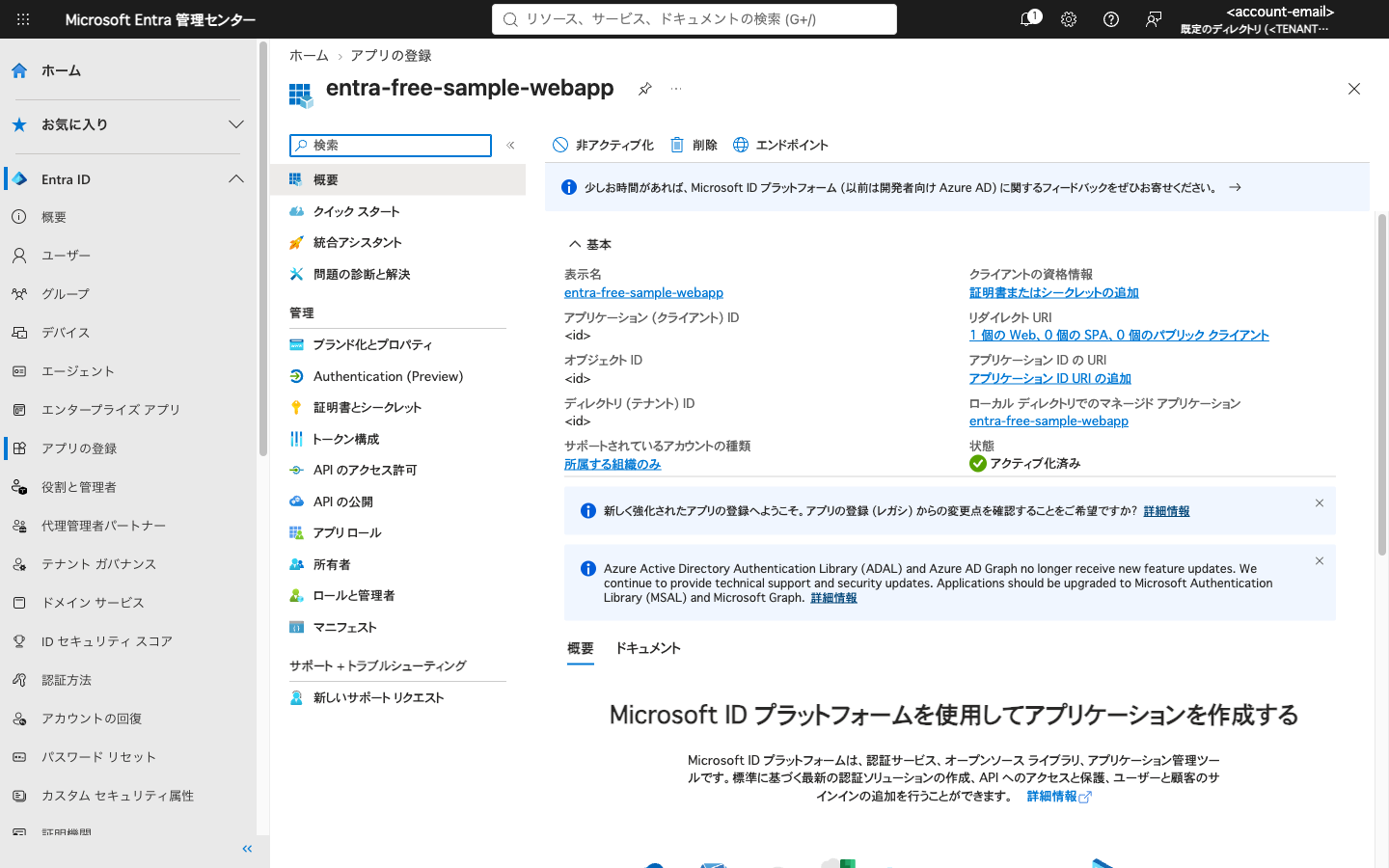
The link "Managed application in local directory" on the right side leads to the enterprise application created at the same time. User assignment will be configured there later.
Creating a Client Secret
I created a secret from "Certificates & secrets" > "Client secrets" > "New client secret." The expiration was left at the default "Recommended: 180 days (6 months)."
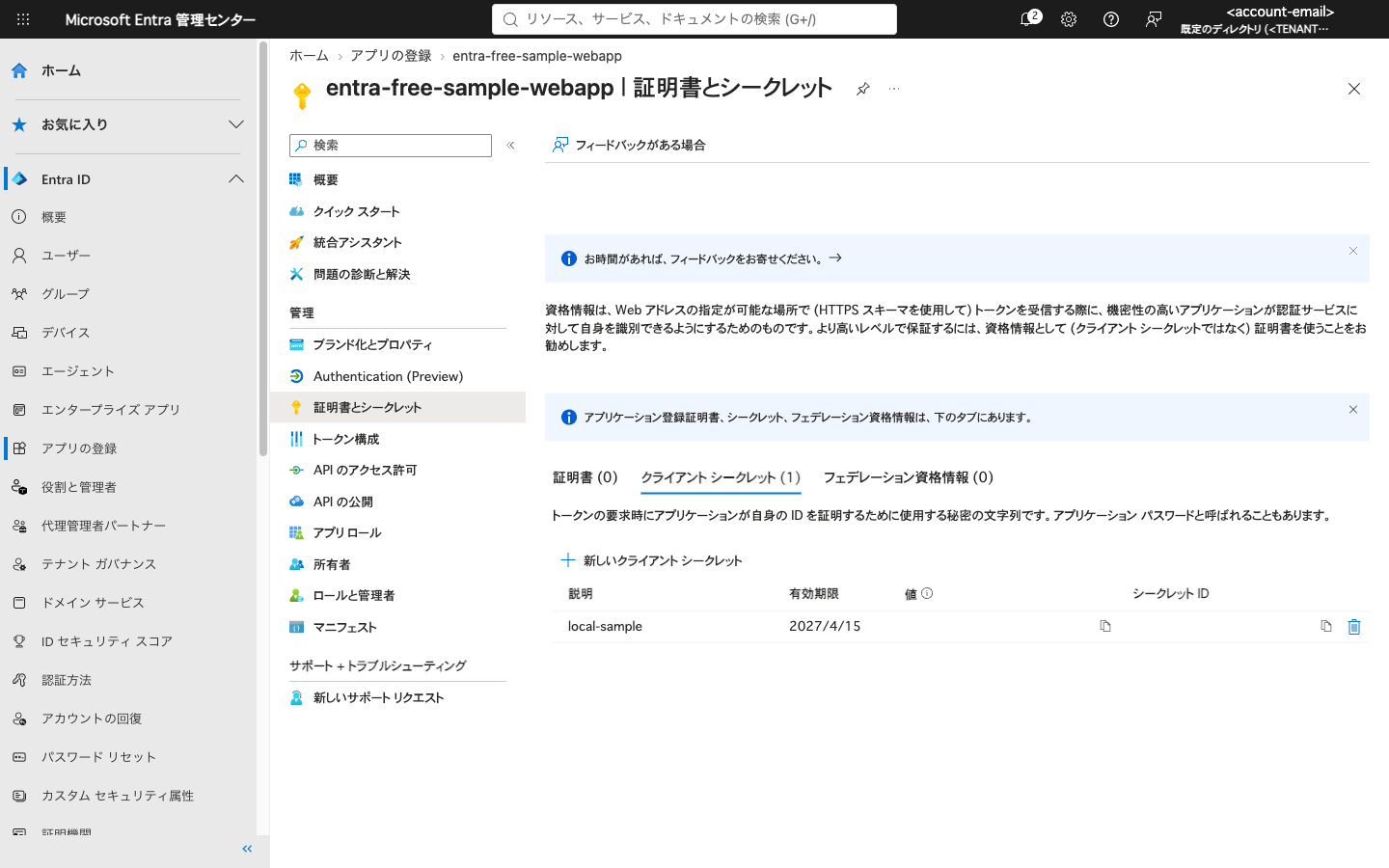
I copied the value and saved it to 1Password.
Running the Sample App
I used the sample ms-identity-python-webapp from Azure-Samples. It is a Python web app sample linked from the README to the official quickstart, written with Flask and the identity library, which wraps MSAL for Python.
The environment was macOS 26.6.1, Python 3.13.13, using uv for package management and 1Password CLI (op) for passing secrets.
git clone https://github.com/Azure-Samples/ms-identity-python-webapp.git
cd ms-identity-python-webapp
uv venv
uv pip install -r requirements.txt
Flask 3.1.3, ms-identity-python 0.9.2, and msal 1.39.0 were installed.
Settings are written in .env. The sample's .env.sample.entra-id contains the fields AUTHORITY, CLIENT_ID, CLIENT_SECRET, and REDIRECT_URI. Since I did not want to leave the client secret in a file, I did not write it to .env and instead passed it as an environment variable from 1Password at startup.
AUTHORITY=https://login.microsoftonline.com/<Directory (tenant) ID>
CLIENT_ID=<Application (client) ID>
REDIRECT_URI=http://localhost:5001/getAToken
CLIENT_SECRET="$(op read 'op://<vault>/<item>/<field>')" \
  uv run flask run --debug --host=localhost --port=5001
If you are not using 1Password, the same behavior can be achieved by passing CLIENT_SECRET as an environment variable. Make sure REDIRECT_URI exactly matches the URI registered in Entra ID. The sample uses this URI path as the route to return to after sign-in.
The sample screen only displays the display name. To also view the ID token claims, I added two lines below the Welcome line in templates/index.html.
<h2>Welcome {{ user.get("name") }}!</h2>
<h3>ID token claims</h3>
<pre>{{ user | tojson(indent=2) }}</pre>
Signing In with the Test User
When I opened http://localhost:5001/ in the test user's browser, I was redirected to the Entra ID account selection screen. After selecting Test User 01, a consent screen titled "Permissions requested" appeared for the first time.
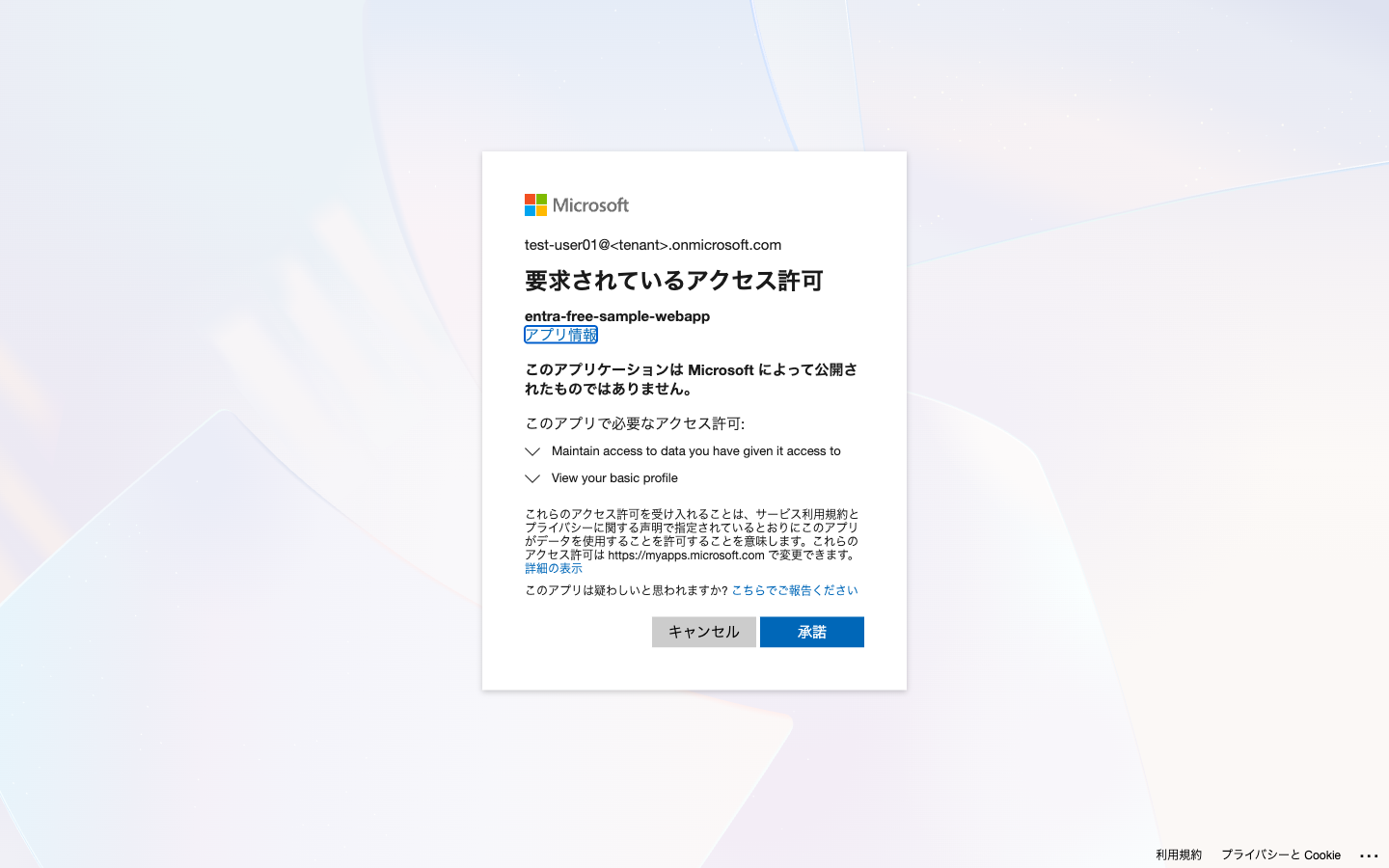
"This application is not published by Microsoft" was displayed, and the requested permissions included "View your basic profile" and others. After clicking "Accept," I was returned to the sample app.
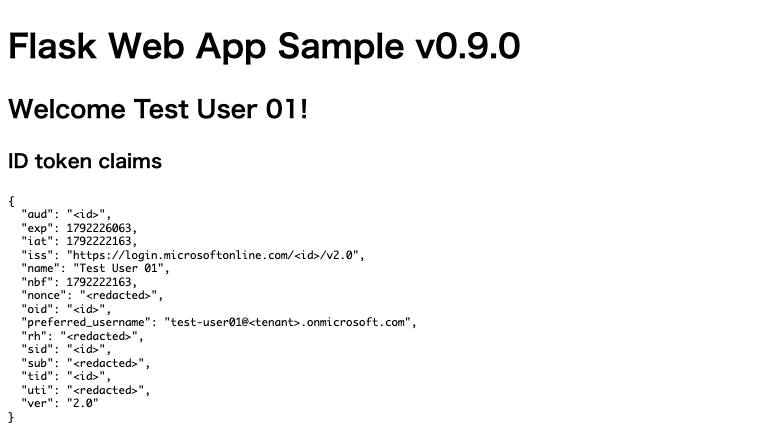
"Welcome Test User 01!" and the ID token claims were displayed. name and preferred_username are the test user's information, tid is the tenant ID, and aud is the app's client ID. Since the iss ends with /v2.0, this is a v2.0 endpoint token. Values corresponding to identifiers are redacted in the image.
Restricting Users Who Can Sign In via Assignments
Immediately after registering the app, any user in the tenant can sign in to it. As described in the official documentation, enabling "Assignment required" on the enterprise application side restricts access to only assigned users.
Groups Cannot Be Assigned in Free
When I opened "Enterprise applications" > entra-free-sample-webapp > "Users and groups" > "Add user/group," the following message appeared.
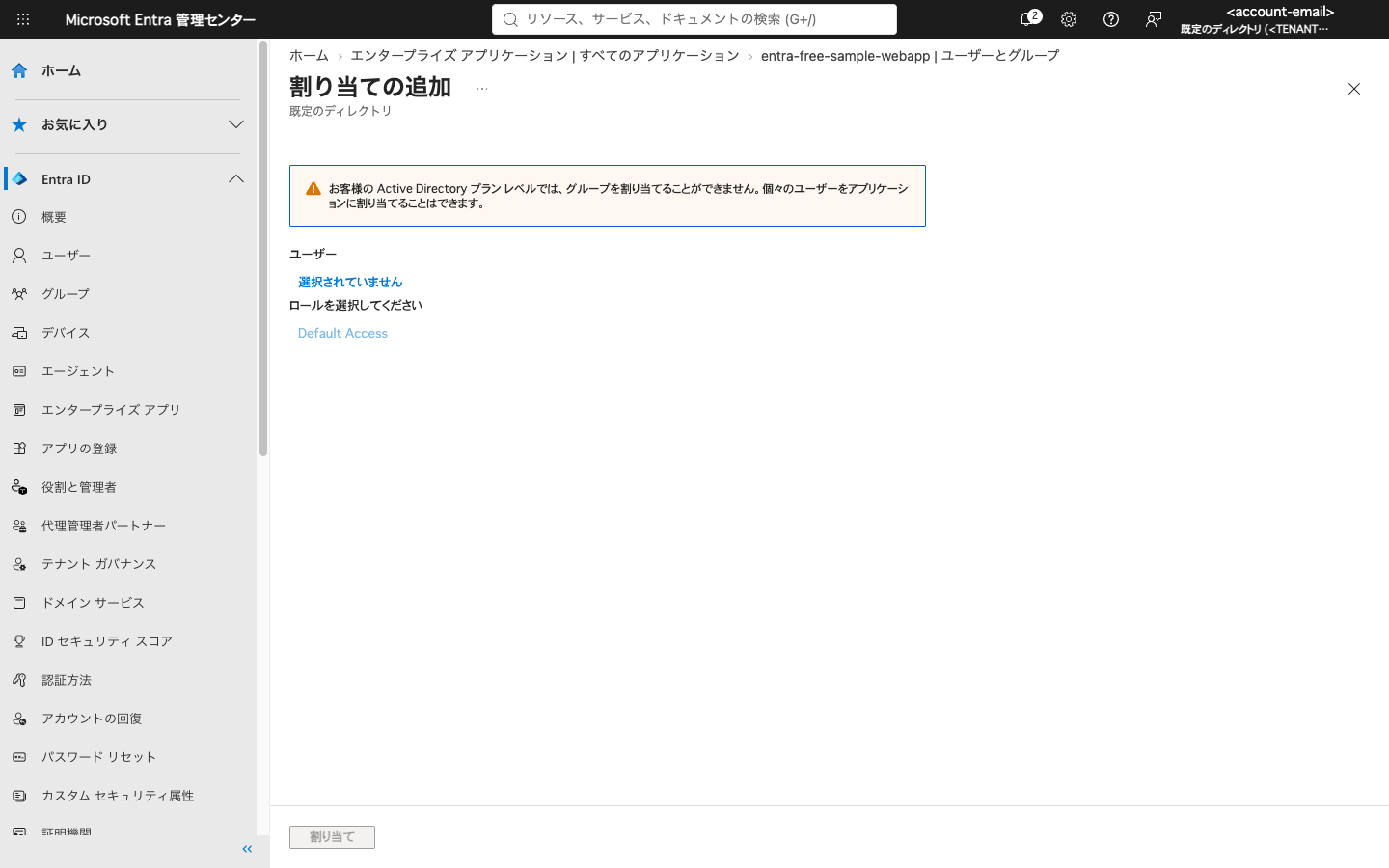
Only users can be selected, so with Free you must assign users one by one. I closed this without adding anyone.
Requiring Assignment
In the "Properties" of the same enterprise app, I set "Assignment required?" to "Yes" and saved.
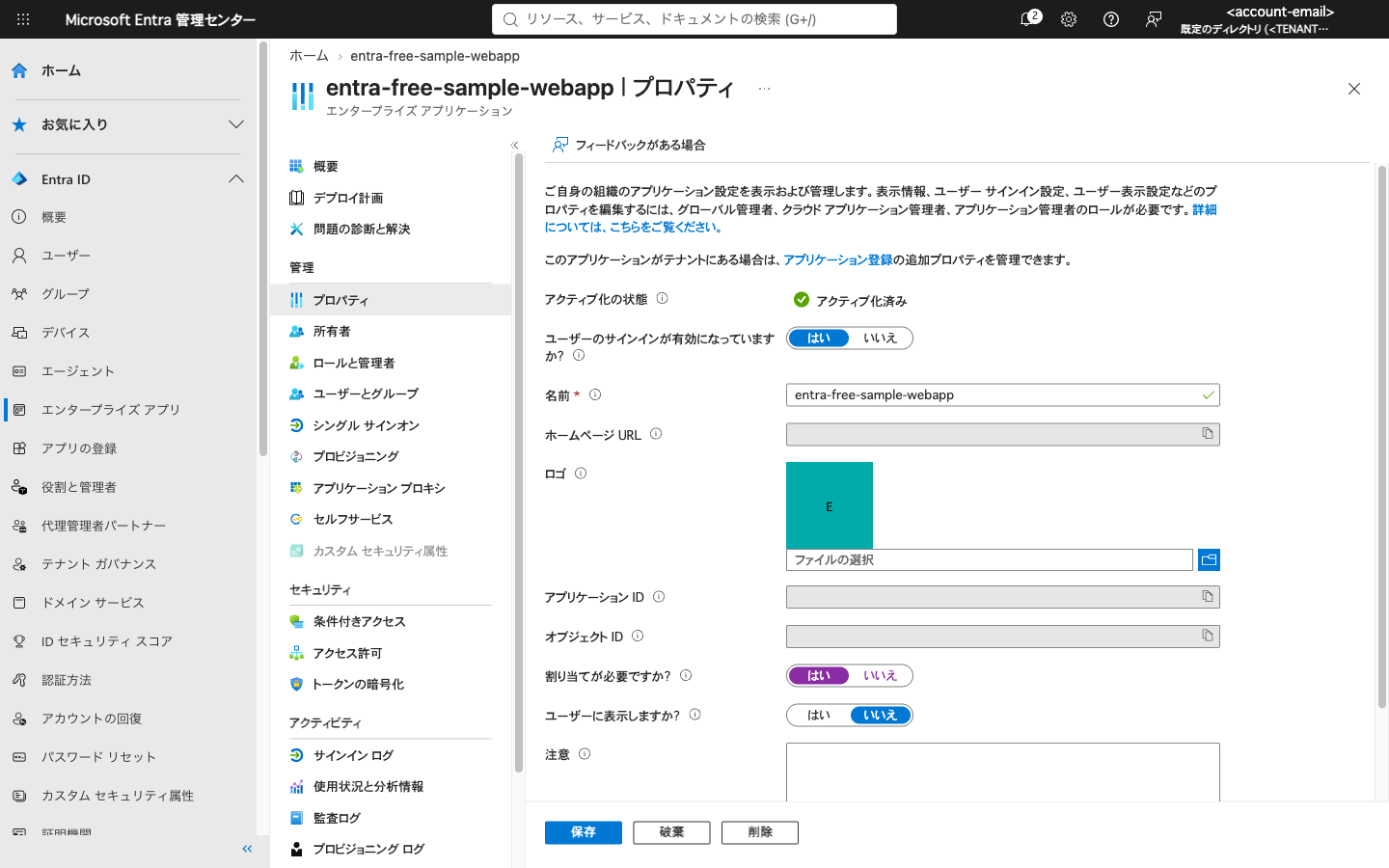
Since no one was assigned yet, I expected the test user to be denied. However, signing in again allowed the user through without any issue. Looking at "Users and groups," Test User 01 was already listed as assigned, with the role "Default Access."
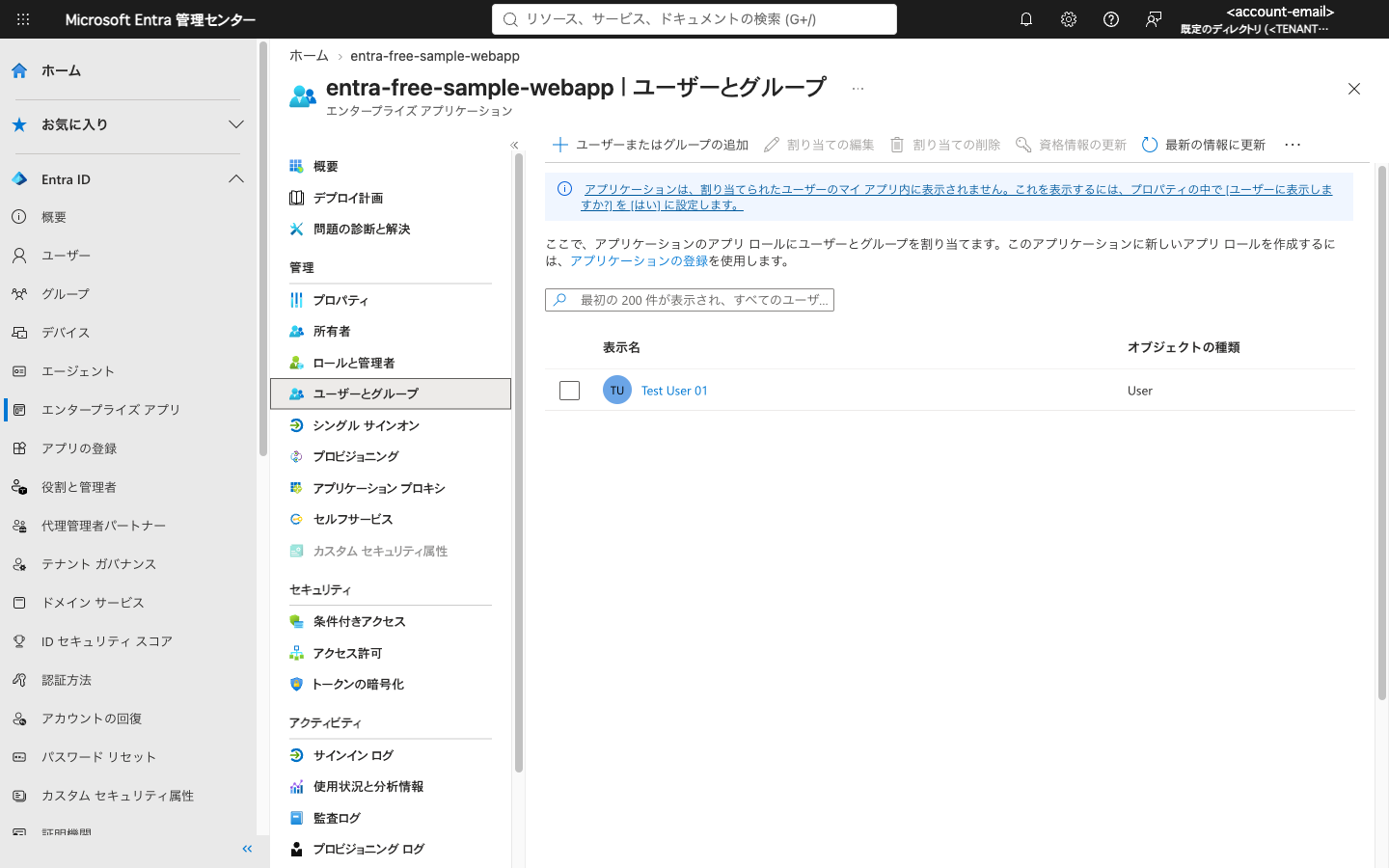
I removed this assignment, signed out of the sample app, and tried to sign in again. This time, an error appeared on the Entra ID sign-in screen.
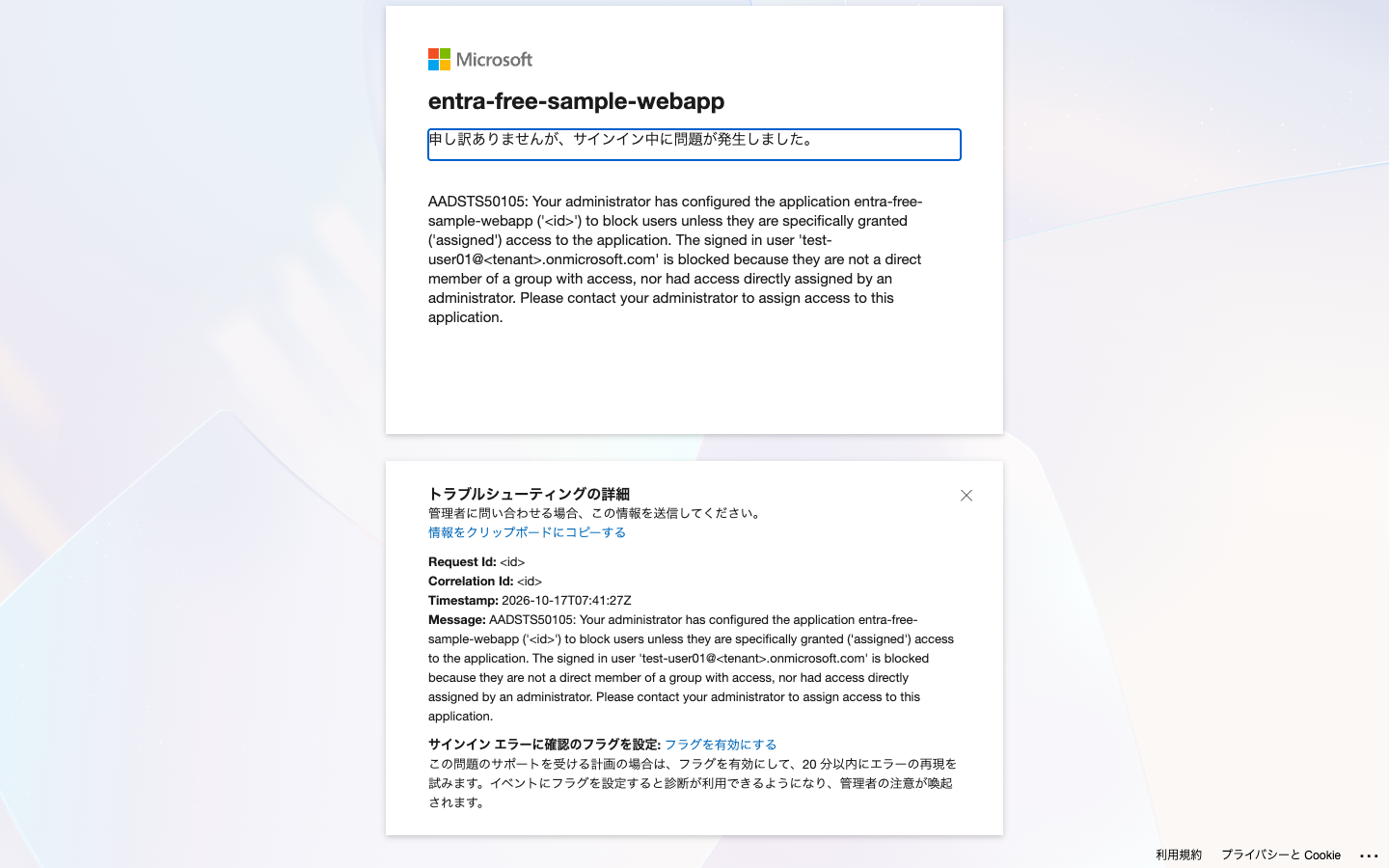
The message displayed was as follows (ID and username are redacted):
AADSTS50105: Your administrator has configured the application entra-free-sample-webapp ('<id>') to block users unless they are specifically granted ('assigned') access to the application.
The message states that users are configured to be blocked unless specifically assigned. The flow stopped at the Entra ID sign-in screen without returning to the app.
Next, I individually assigned Test User 01 via "Add user/group" (role: Default Access), and was able to sign in again and see the claims screen.
Note that according to the official documentation, users cannot consent on their own for apps that require assignment. Since consent was already given in this case it worked, but if testing with a user who has not yet consented, admin consent must be granted in advance.
Verifying with Sign-In Logs
The sign-ins up to this point can be checked in "Entra ID" > "Monitoring & health" > "Sign-in logs."
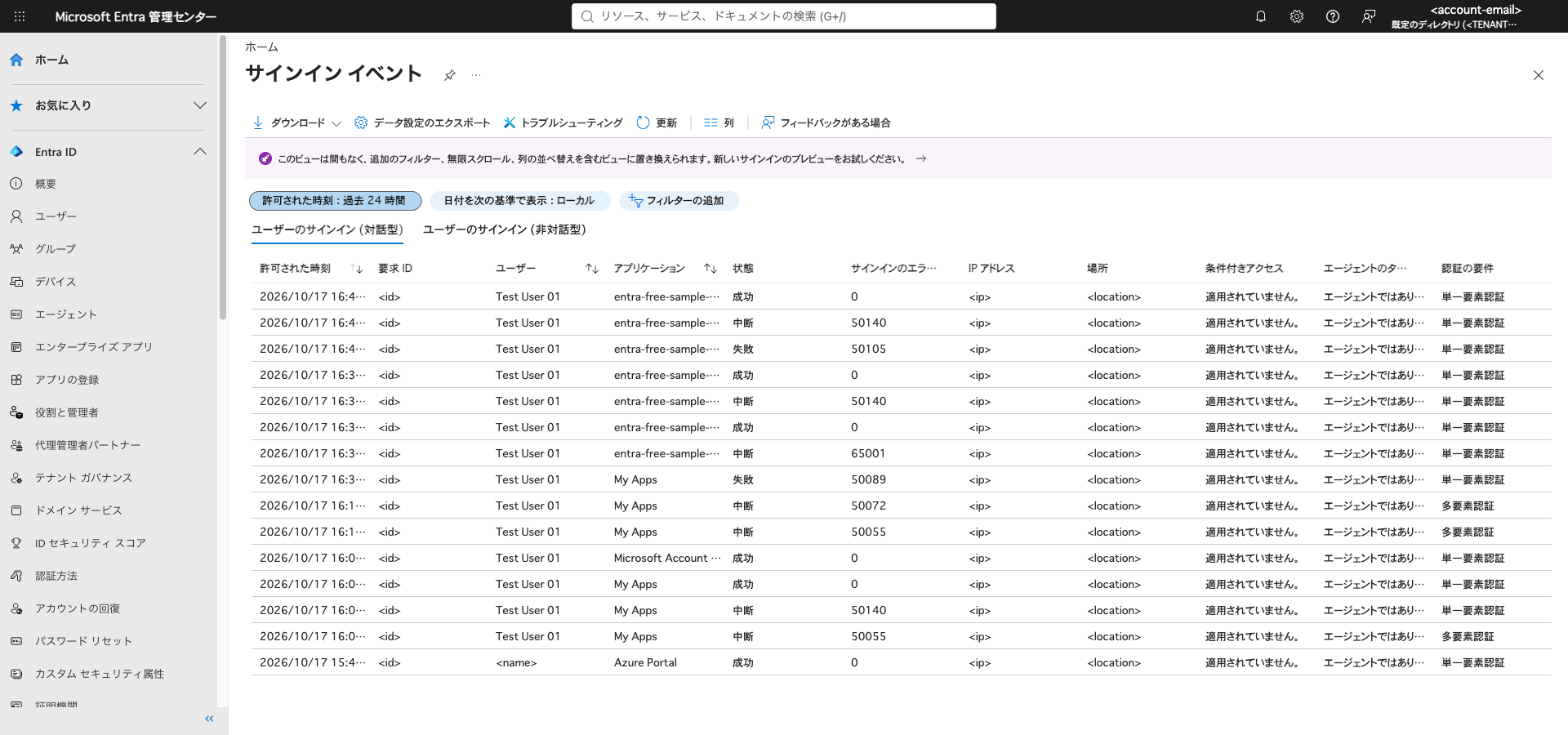
From the top, there is a "Success" after re-assigning, and a "Failure" (error code 50105) from when the assignment was removed. The initial sign-in steps such as password update (50055), MFA registration (50072), and the consent screen (65001) were also retained as "Interrupted." It took a few minutes for the logs to appear in the list.
Since the sign-in log retention period is 7 days with Free, make sure to check within 7 days if you want to keep a record of your testing.
Cleanup
I deleted what I created during verification in the following order:
- Open
entra-free-sample-webappin "App registrations," select "Delete." Check "I understand the implications of deleting this app registration." and click "Delete" - Select
test-user01under "Users" andentra-free-test-groupunder "Groups" and delete them - Stop the local sample app and delete the cloned repository
Passwords, TOTPs, and client secrets saved in 1Password should also be deleted when no longer needed.
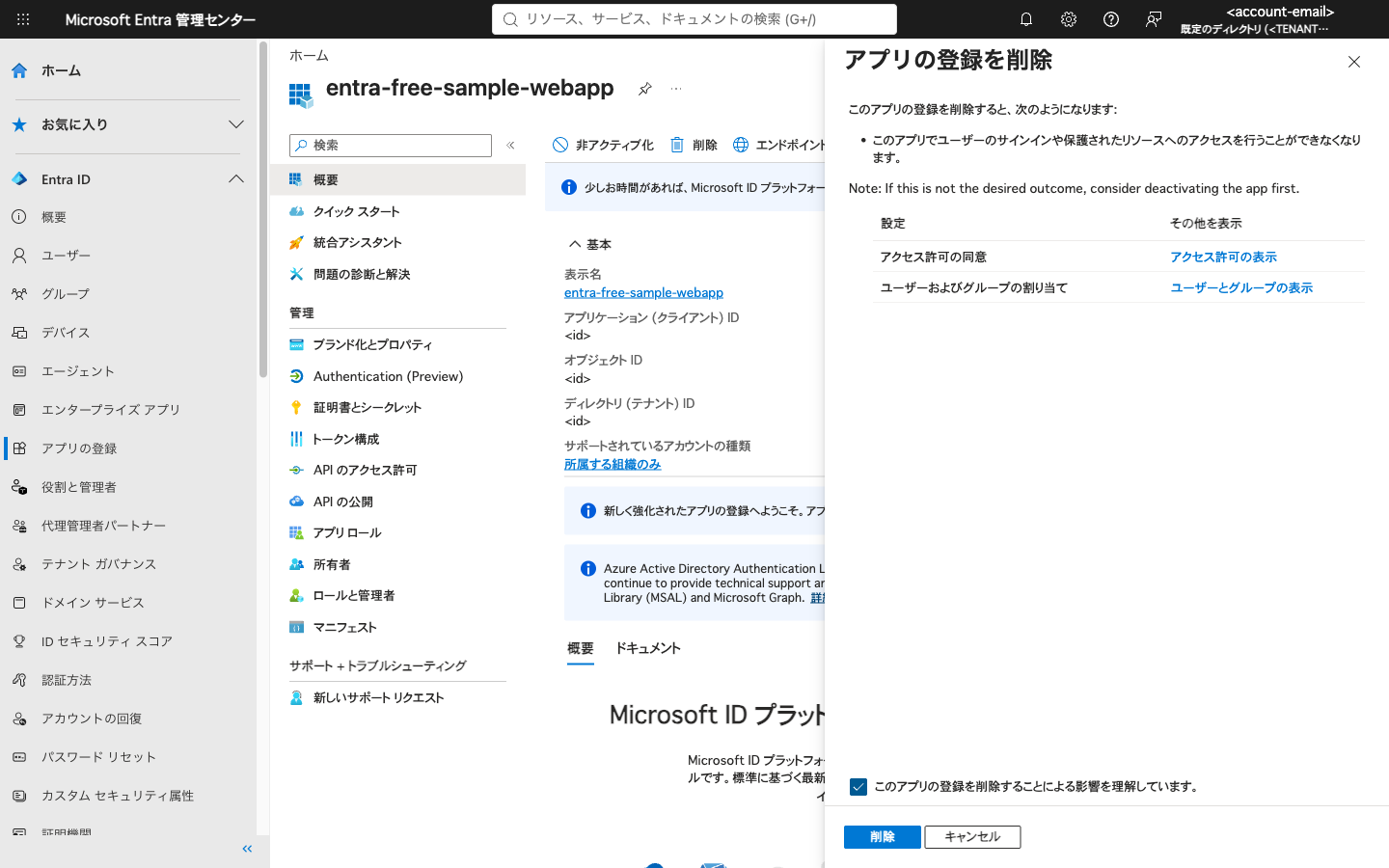
Deleting the app registration also removed it from the enterprise applications list. Deleted app registrations remain in the "Deleted applications" tab, and deleted users remain in "Deleted users." Both can be restored within 30 days of deletion, after which they are permanently deleted.
Summary
- The Azure free account is limited to one per person, and cannot be created if you have used Azure before. However, since Entra ID Free is included with the tenant from that time, you can try things there
- New users are prompted to update their password and register MFA on first sign-in. The 14-day MFA grace period is no longer available. In addition to Microsoft Authenticator, TOTP apps such as 1Password can be used via "I want to use a different authenticator app"
- Even with a Free tenant, you can register apps, sign in with a test user, and display ID token claims
- Enabling assignment required causes unassigned users to be denied with
AADSTS50105. However, after a user consents, they may already be listed as assigned. With Free, groups cannot be assigned, so users must be assigned individually - Sign-in logs retain successes, failures (50105), and interruptions with error codes. The retention period for Free is 7 days
Individual user assignment was achievable with Free. The right time to consider P1 is when the number of users grows and you want to manage them by group, or when Conditional Access becomes necessary.
References
- Azure free account
- Microsoft Entra ID licensing
- Security defaults
- How to create, invite, and delete users in Microsoft Entra ID
- Manage groups and members
- How to register an app in Microsoft Entra ID
- Quickstart - Sign in users with a sample web app
- Restrict your app to a set of users
- Manage user and group assignments for an application
- Microsoft Entra data retention
- Azure-Samples/ms-identity-python-webapp