# Claude Code Skills: Optimizing Diagram Generation — SVG vs Mermaid vs Excalidraw Comparison and Design Decisions

This page has been translated by machine translation. View original
Introduction
When writing articles for DevelopersIO, diagrams explaining technical concepts greatly deepen readers' understanding. However, manually creating diagrams every time is tedious.
So I'm using Claude Code's skill feature to build a pipeline that automatically generates diagrams in SVG at publication time and converts them to PNG. However, the quality of generated diagrams was inconsistent. Thinking "there must be a better way," I actually compared and tested three approaches: SVG (cairosvg), Mermaid CLI, and Excalidraw.
This article shares the comparison results and how I ultimately improved the skill design.
Prerequisites & Environment
- Claude Code
- macOS (Apple Silicon)
- Python 3.14 +
uv(package management) - cairosvg (SVG → PNG conversion)
@mermaid-js/mermaid-cli(Mermaid → PNG conversion)- Playwright (Excalidraw rendering)
Overview of the Three Approaches
The current SVG pipeline operates with the following flow:
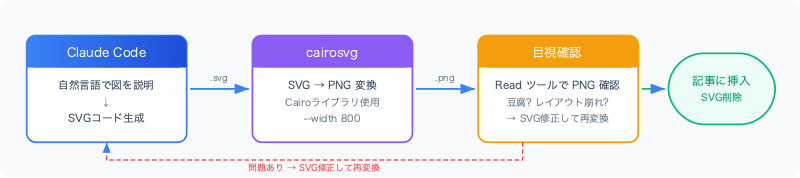
I compared this pipeline against other approaches:
| Approach | Mechanism | What Claude writes |
|---|---|---|
| SVG + cairosvg | Claude generates SVG code → PNG conversion with cairosvg | SVG (including coordinates & styles) |
| Mermaid CLI | Claude generates Mermaid notation → PNG conversion with mmdc (Puppeteer) | Mermaid text syntax |
| Excalidraw | Claude generates Excalidraw JSON → PNG conversion via Playwright | Excalidraw JSON (including coordinates) |
Round 1: Simple Workflow Diagram
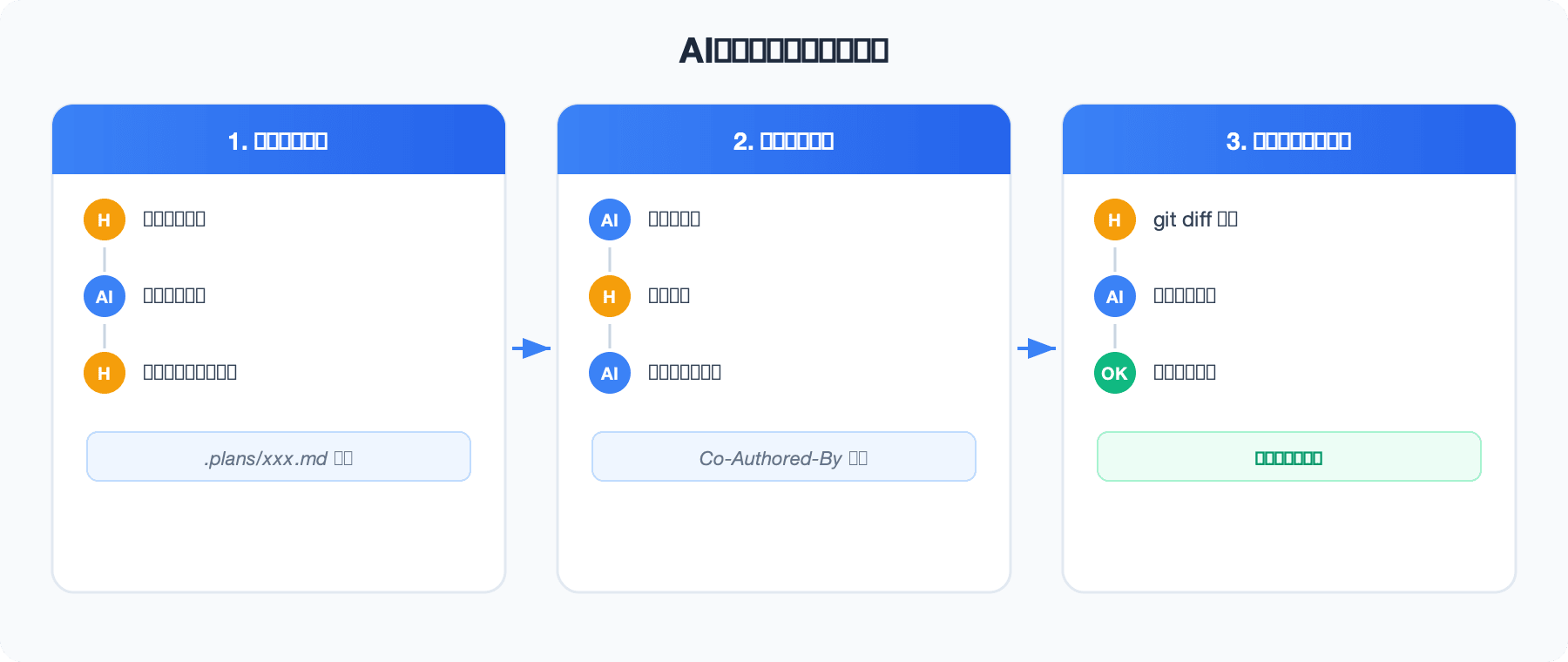
As an initial test, I generated a 3-phase workflow diagram (Plan → Implement → Review) using the same concept across all three approaches.
SVG + cairosvg Result
- Design: Gradient header, drop shadow, badge icons (H/AI/OK). The most modern look
- Japanese text: Became tofu (□□□□). Caused by forgetting to specify Hiragino font in
font-family - Layout: Manual coordinate placement, but no issues at this level of simplicity
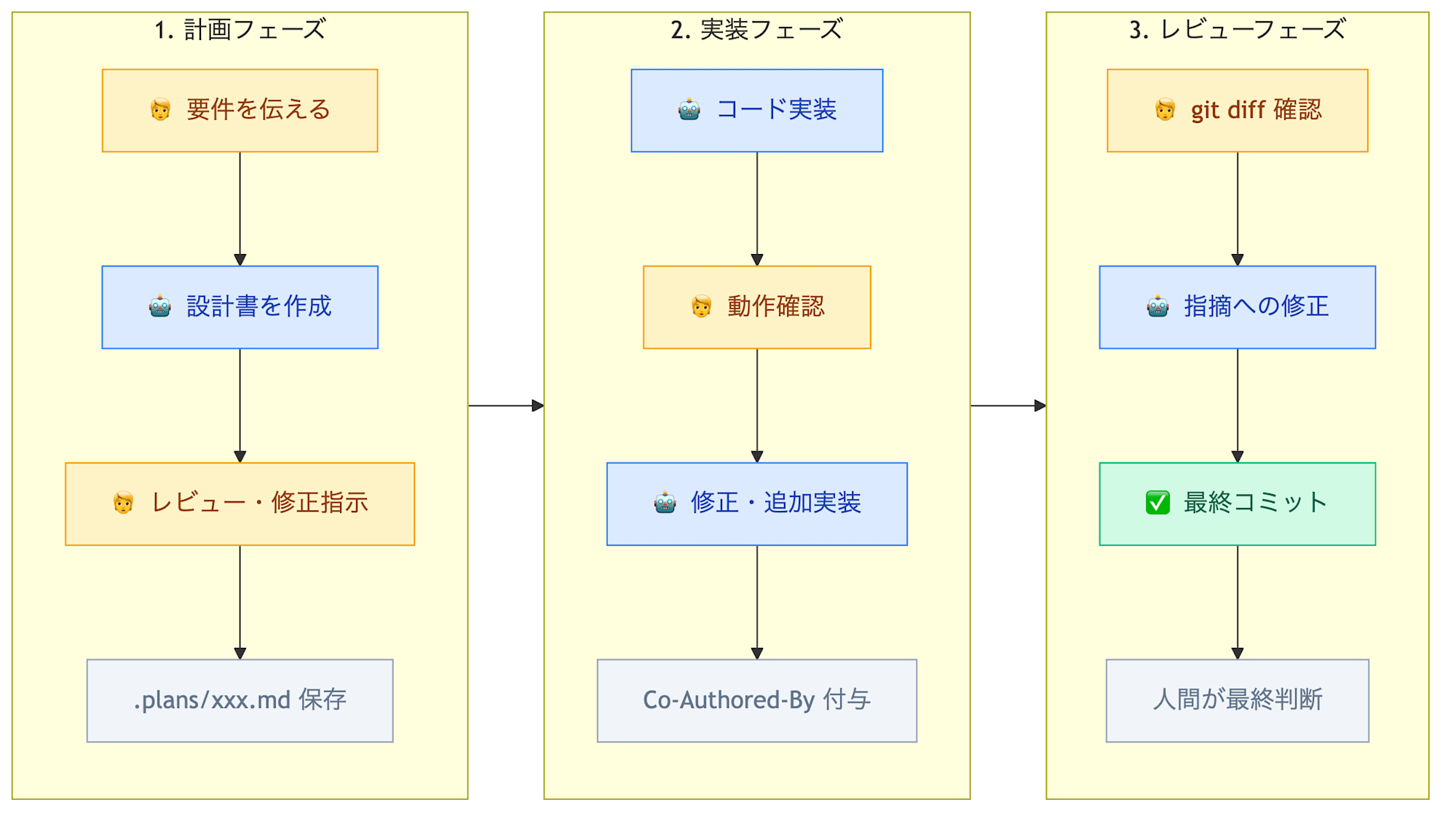
Mermaid CLI Result
- Design: Standard diagram tool appearance. Node colors can be changed with
classDef, but gradients and shadows are not possible - Japanese text: Displayed perfectly. Because Puppeteer renders using a real browser
- Layout: Automatic layout engine handles placement. No manual adjustment needed
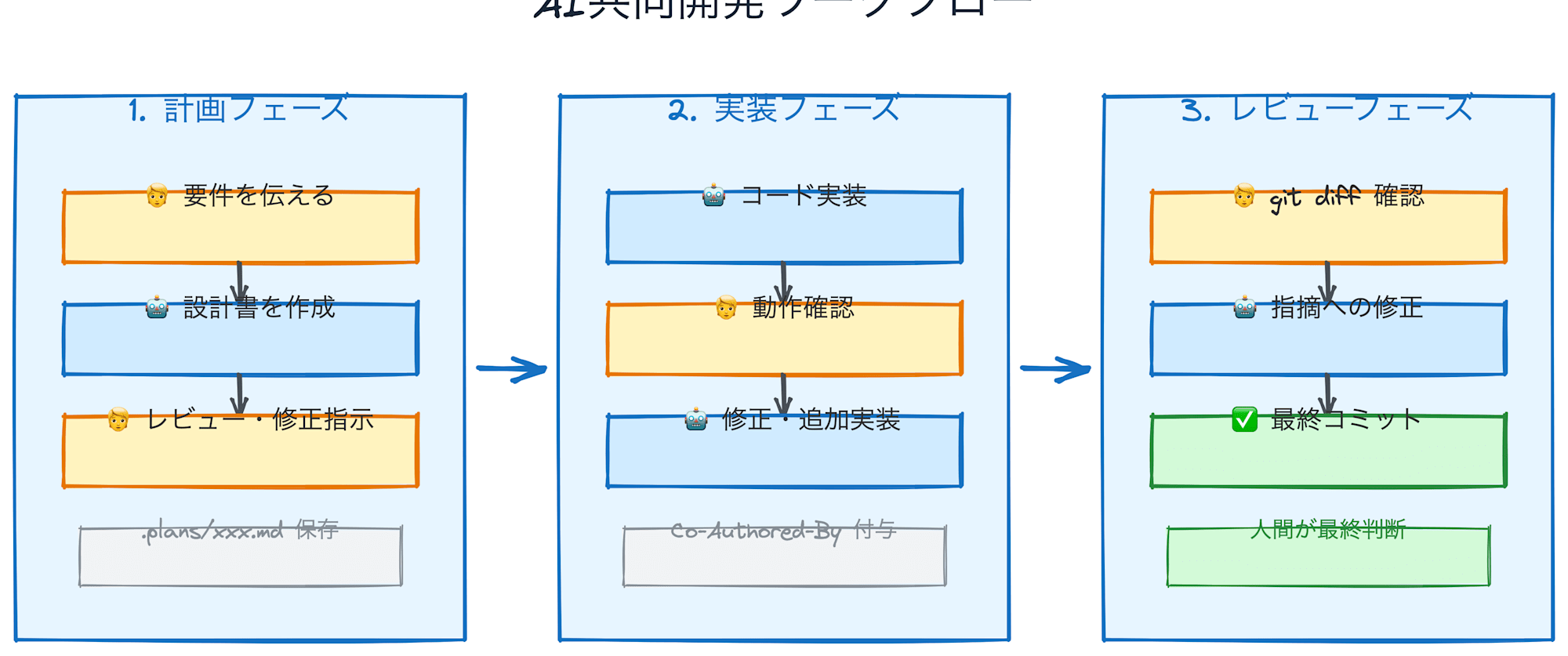
Excalidraw Result
- Design: Hand-drawn style lines. Somewhat unsuitable for technical blogs
- Japanese text: Displays but rough
- Layout: Text overflows boxes, coordinate misalignment. Has the same "manual coordinate placement" problem as SVG, and is harder to fine-tune
Round 2: Complex CI/CD Pipeline
I had the question "Simple diagrams are fine with SVG, but won't arrows break down in complex ones?" So I retested with a CI/CD pipeline diagram containing 15 nodes, parallel branches, and feedback loops. Since Excalidraw showed poor layout quality in Round 1, Round 2 was narrowed down to SVG and Mermaid.
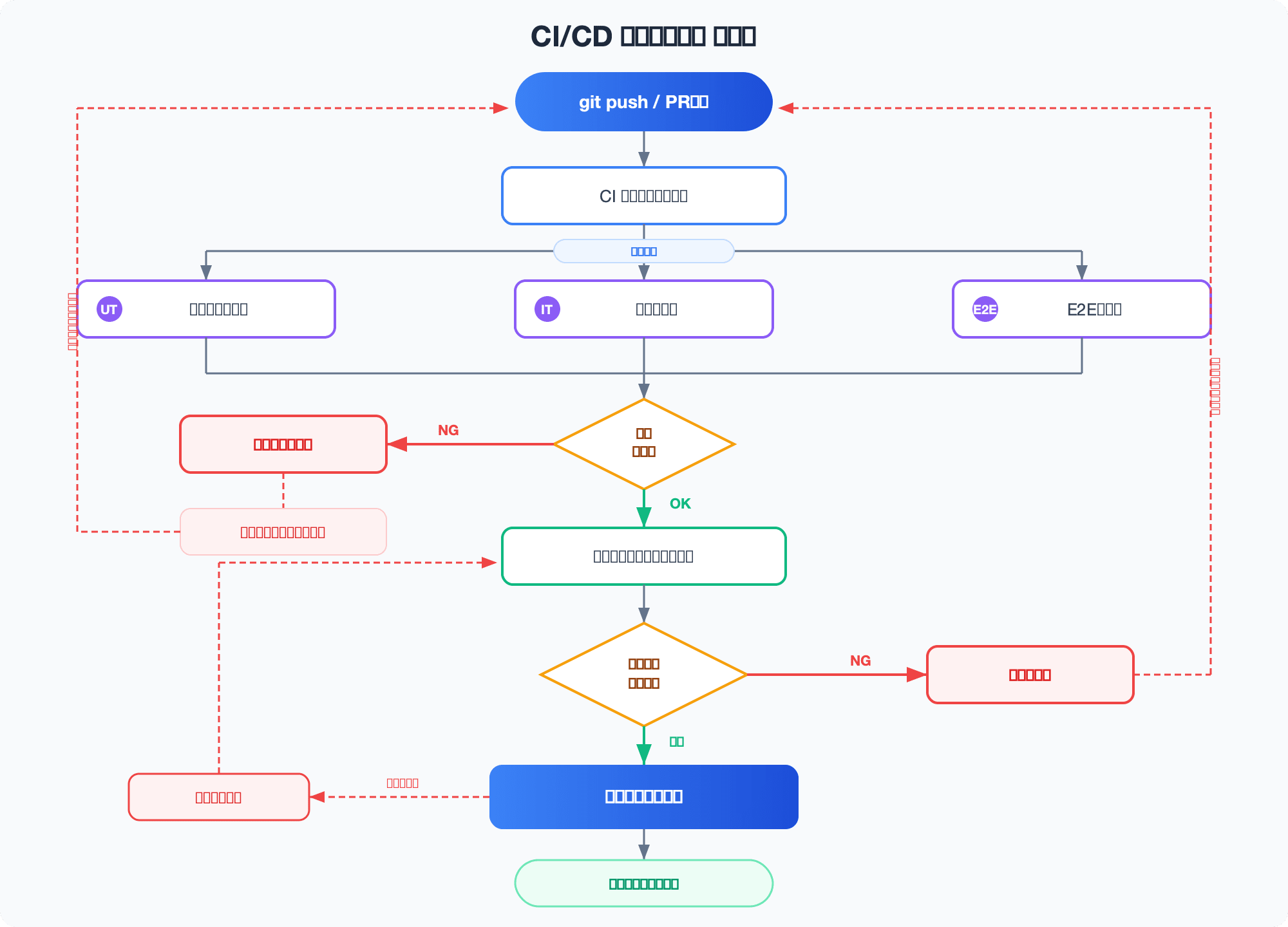
SVG + cairosvg
- Parallel branches (3 simultaneous test executions), diamond-shaped decision nodes, dashed feedback loops, rollback path — all rendered correctly
- No arrow crossings either. Even complex layouts didn't break
- With Hiragino font correction, Japanese text also displays without issues
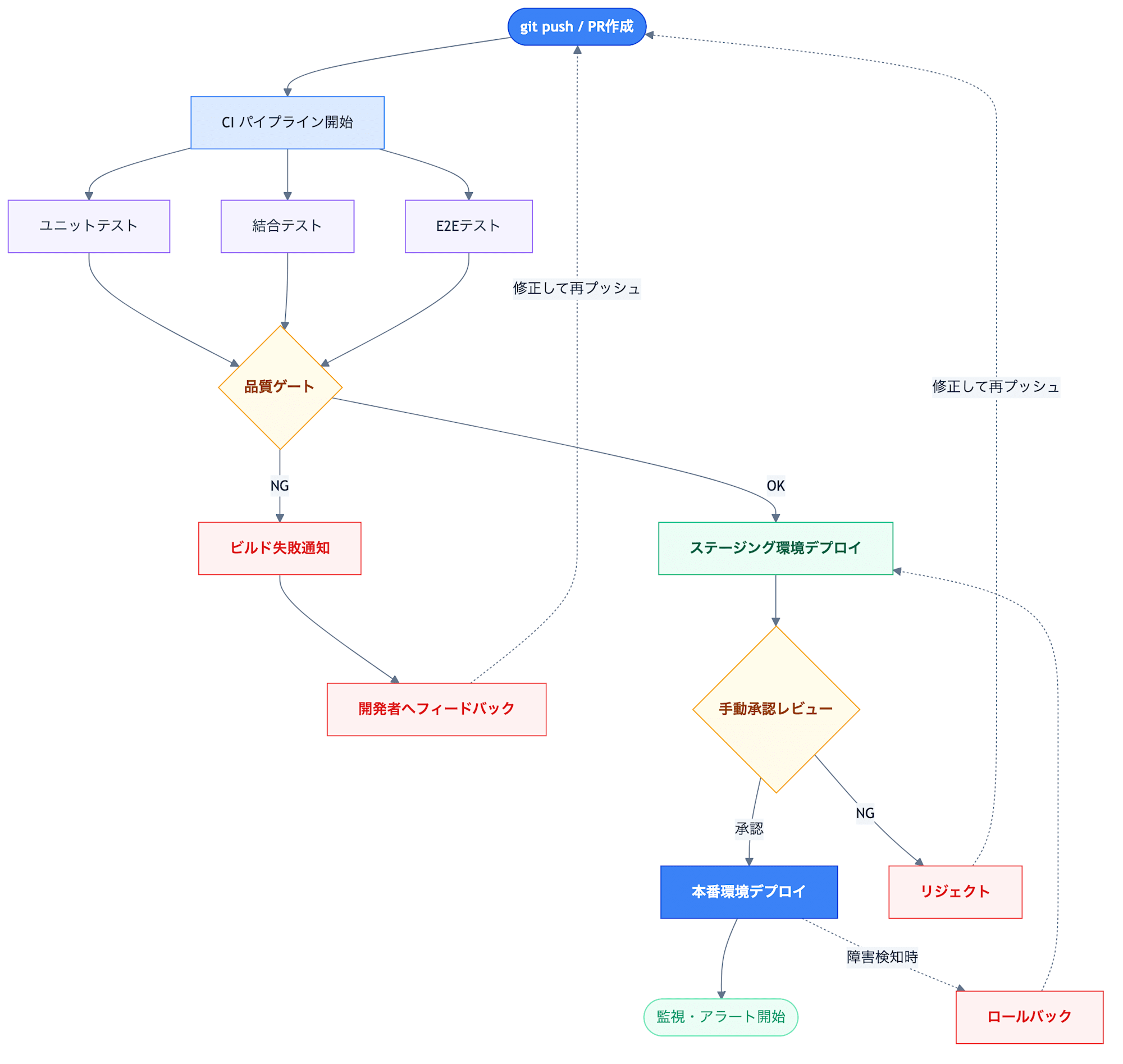
Mermaid CLI
- Zero arrow crossings with automatic layout. Stable
- However, OK/NG branch placement can flow in a counterintuitive direction
- Visually flat, and the quality gap with SVG becomes more noticeable in complex diagrams
Comparison Summary
| Perspective | SVG + cairosvg | Mermaid | Excalidraw |
|---|---|---|---|
| Visual quality | Best (gradients, shadows, badges) | Medium (flat design) | Low (hand-drawn style, text overflow) |
| Japanese support | Resolved by specifying Hiragino font | Supported automatically | Works but rough |
| Layout stability | Manual but OK if Claude places appropriately | Best (automatic layout) | Manual coordinates + low quality |
| Human workload | Same (Claude instruction in natural language) | Same | Same |
| Visual ceiling | Unlimited (pixel-level control) | Fixed (up to Mermaid theme features) | Fixed to hand-drawn style |
Key Finding: "Writing Cost" Is Irrelevant
Initially I placed importance on "SVG takes 200 lines, Mermaid only needs 30 lines." But in practice Claude writes the code, so the human cost (describing diagrams in natural language) is the same for all three. The difference in amount of code written is not a decision criterion.
Conclusion: Continue with SVG + cairosvg
For published blog diagrams, visual quality was prioritized and the SVG approach was adopted. The Japanese tofu problem is a known issue that can be resolved with font specification.
Reflecting in the Skill: What Was Improved
Based on the comparative study results, the SVG guidelines in the skill were significantly enhanced.
Before Improvement (7 lines of vague instructions)
- Simple, readable design. Minimal decoration
- Color scheme: white background, blue accents, gray supplementary
- Font: Hiragino Sans specified
- Width: within 800px
With only this, Claude would generate diagrams in different styles each session, leading to inconsistent quality.
After Improvement: 4 Pillars
1. Semantic Color Palette
Colors were defined by "purpose":
| Purpose | Main | Sub/Background |
|---|---|---|
| Normal flow | #3B82F6 |
#DBEAFE |
| Success/Complete | #10B981 |
#D1FAE5 |
| Error/NG | #EF4444 |
#FEE2E2 |
| Warning/Decision | #F59E0B |
#FEF3C7 |
By defining colors based on meaning rather than "blue/gray," consistent design is achieved across all sessions.
2. <defs> Template
Common SVG parts (shadow filters, arrow markers, gradients) are provided as templates:
<defs>
  <filter id="shadow" ...>
    <feDropShadow dx="0" dy="2" stdDeviation="3" flood-opacity="0.08"/>
  </filter>
  <marker id="arrowBlue" ...>
    <polygon points="0 0, 8 3, 0 6" fill="#3B82F6"/>
  </marker>
  <linearGradient id="headerGrad" ...>
    <stop offset="0%" stop-color="#3B82F6"/>
    <stop offset="100%" stop-color="#1D4ED8"/>
  </linearGradient>
</defs>
There's no longer a need to think up styles from scratch every time.
3. Defining Design Patterns
Patterns repeatedly used in diagrams—such as "card-type containers," "badges," and "decision nodes"—were defined with names. No more need to reinvent "rounded-corner cards with gradient headers" each time.
4. Complexity Limits
Acknowledging SVG's weakness (manual coordinate placement), rules were established to prevent layout breakdown:
- Maximum 12 nodes
- Split if 2 or more arrow crossings
- Nesting of 3 or more levels prohibited
Implementation-Level Countermeasures for the Japanese Tofu Problem
The tofu problem discovered in Round 1 tends to be dismissed with "just specify the font and it's fixed," but in the actual skill, 3 layers of defense prevent recurrence.
Layer 1: Root-Level Font Specification (Required Rule)
The following was explicitly stated in the guidelines:
Font: font-family="Hiragino Sans, Hiragino Kaku Gothic ProN, sans-serif" (required)
The key point is setting it on the root <svg> element. Through CSS inheritance, it applies to all child elements, preventing accidents where <text> elements are individually missing font specifications. With sans-serif alone, cairosvg cannot find Japanese glyphs, resulting in tofu.
Layer 2: Prohibition of Unicode Special Characters
cairosvg also converts symbols not included in the font to tofu. Unicode special characters such as ✓, ✗, and ≥ are prohibited, with alternative means specified:
| NG | Alternative |
|---|---|
✓ |
Draw circle + checkmark shape in SVG |
✗ |
Draw × shape in SVG |
≥ |
ASCII >= |
Even with correct font specification, glyphs not included in the font become tofu. This layer covers that blind spot.
Layer 3: Visual Confirmation Loop After Conversion
As a last line of defense, a rule was established where Claude itself loads the image with the Read tool after PNG conversion and visually confirms the rendering result:
After conversion, always load the PNG with the Read tool and visually confirm the rendering result.
If there are issues, fix the SVG, reconvert, and confirm again.
Only after confirming there are no issues, delete the SVG file and keep only the PNG.
Since Claude is a multimodal LLM, loading a PNG allows it to detect tofu and overlapping labels on its own. Problems that slip through layers 1 and 2 are caught here.
This 3-layer structure elevated the tofu problem from "preventable if you know about it" to "prevented by the system."
File Structure Improvement
Guidelines were extracted into a separate file:
.claude/skills/devio/
├── SKILL.md            # Entry point
├── article.md          # Article creation
├── publish.md          # Publishing flow (references svg-guidelines.md)
├── svg-guidelines.md   # SVG diagram guidelines (separate file)
└── scripts/
    └── svg_to_png.py   # SVG → PNG conversion
By extracting the guidelines that were embedded in publish.md as svg-guidelines.md, they can now be referenced from other workflows in the future.
Summary
- SVG + cairosvg is optimal for blog article diagram generation. No ceiling on visual quality
- Mermaid has high layout stability but has limits on visual customization. Effective as an alternative when complex arrow routing is needed
- Excalidraw is good for hand-drawn style use cases but unsuitable for technical blog diagrams
- For stabilizing skill quality, concrete templates and rules are more effective than vague instructions
- "The amount of code an LLM writes" is not a decision criterion. What matters is output quality