![[Non-Engineer's Guide to Claude/Claude Code Series] How I Turned Scattered Project Information from Slack and HubSpot into "Readable Documentation" in Cowork with One Click](https://images.ctfassets.net/ct0aopd36mqt/3KBTm8tdpO9RJJuaVvVzod/a9964bb03097b448b2327edc6920bf9f/Claude.png?w=3840&fm=webp)
[Non-Engineer's Guide to Claude/Claude Code Series] How I Turned Scattered Project Information from Slack and HubSpot into "Readable Documentation" in Cowork with One Click

This page has been translated by machine translation. View original
Introduction
My name is Kikuchi, and I work in sales at Classmethod.
If you're in sales, I think you'll relate to this: information about projects is scattered all over the place.
Detailed hearings and kickoff meeting minutes are flowing as text in Slack project channels, proposals are shared as PDFs, and HubSpot contains transaction information and client contact details, while quotes are in spreadsheets.
Both tools and formats are completely inconsistent.
For projects I'm handling, this isn't a problem in day-to-day work because I keep track of everything. But the issue arises when I need to share that project information with "people who aren't involved in supporting the project."
If you're in sales, you probably encounter these situations frequently.
For example, cases like these:
- You need to hand over a project due to personnel transfers
- You want to create materials to report project status to your boss
- You need to compile and share the background and history of a project to seek cooperation from other departments
The information is in your head, but organizing it in a form that can be communicated to others is challenging. Scrolling back through project channels, opening PDFs, checking Canvas, picking out necessary information, and compiling it into materials... this easily takes 30 minutes to an hour.
This exact situation came up recently. Our sales director needed to attend a meeting, but wasn't involved in supporting this project.
I needed materials for the director to review the project content before the meeting
— So I tried using Claude Desktop's Cowork mode to "gather and organize scattered information," and it was able to read across various formats of information and compile them into a Word document in just 5 minutes. I'd like to share that process.
Prerequisites: Cowork and MCP Integration (Slack + HubSpot)
Cowork is a mode built into Claude Desktop that lets you work while manipulating files and integrating with tools. When you connect MCP (Model Context Protocol) connectors, Cowork can directly read information from external tools.
I have connected the following two:
- Slack MCP: Reads messages, PDFs, and Canvas from project channels
- HubSpot MCP: Reads deal information, contact information, deal stage history, etc.
For how to set up MCP integration, please see the previous article in the series, "Connected Sales Tools to Claude Code (MCP Integration)".
Scenario
I'll explain using a fictional project. (※Although I followed the same procedure as I actually used for work, I've prepared a demo channel to protect customer information)
- Client: △△ Corporation (Outdoor equipment EC company)
- Project: Support for migrating EC site from on-premises to AWS (4 months)
- Situation: Support has been completed. The sales director will attend the next meeting. However, since the director hasn't been involved in this project, pre-meeting briefing is necessary.
Information related to the project is scattered across multiple tools × multiple formats.
Within Slack project channel:
- Text messages: Hearing details, kickoff meeting minutes, progress reports, issue sharing, closing reports...
- PDF: Proposal (3 pages, background, configuration comparison table, schedule, quote, team structure)
- Slack Canvas: AWS configuration information (VPC design, EC2/RDS/S3 configuration, monitoring settings, cost information)
HubSpot:
- Deal information: Project name, amount, close date
- Contacts: Client representative name, position, email address
- Company information: Industry, number of employees, URL
Trying to track all of this manually and compile it into materials would take an hour. It's challenging enough with just Slack, but when you have to open HubSpot as well and cross-reference information...
What I Tried
First Attempt: Simple Approach
First, I tried this straightforward prompt:
The sales director will be attending the meeting with △△. Since the director isn't involved in this project, pre-meeting briefing is needed. Please read the information from the following project channel and HubSpot deal information to create pre-meeting briefing materials
(Slack URL for the project channel)
Cowork started working:
- Reading Slack channel messages in chronological order
- Detecting and reading the contents of the PDF (proposal) shared in the channel
- Also detecting and reading Slack Canvas (AWS configuration information)
- Searching for and retrieving deal information and contact information from HubSpot by company name
- Compiling everything and outputting as a Word document
This is what came out:
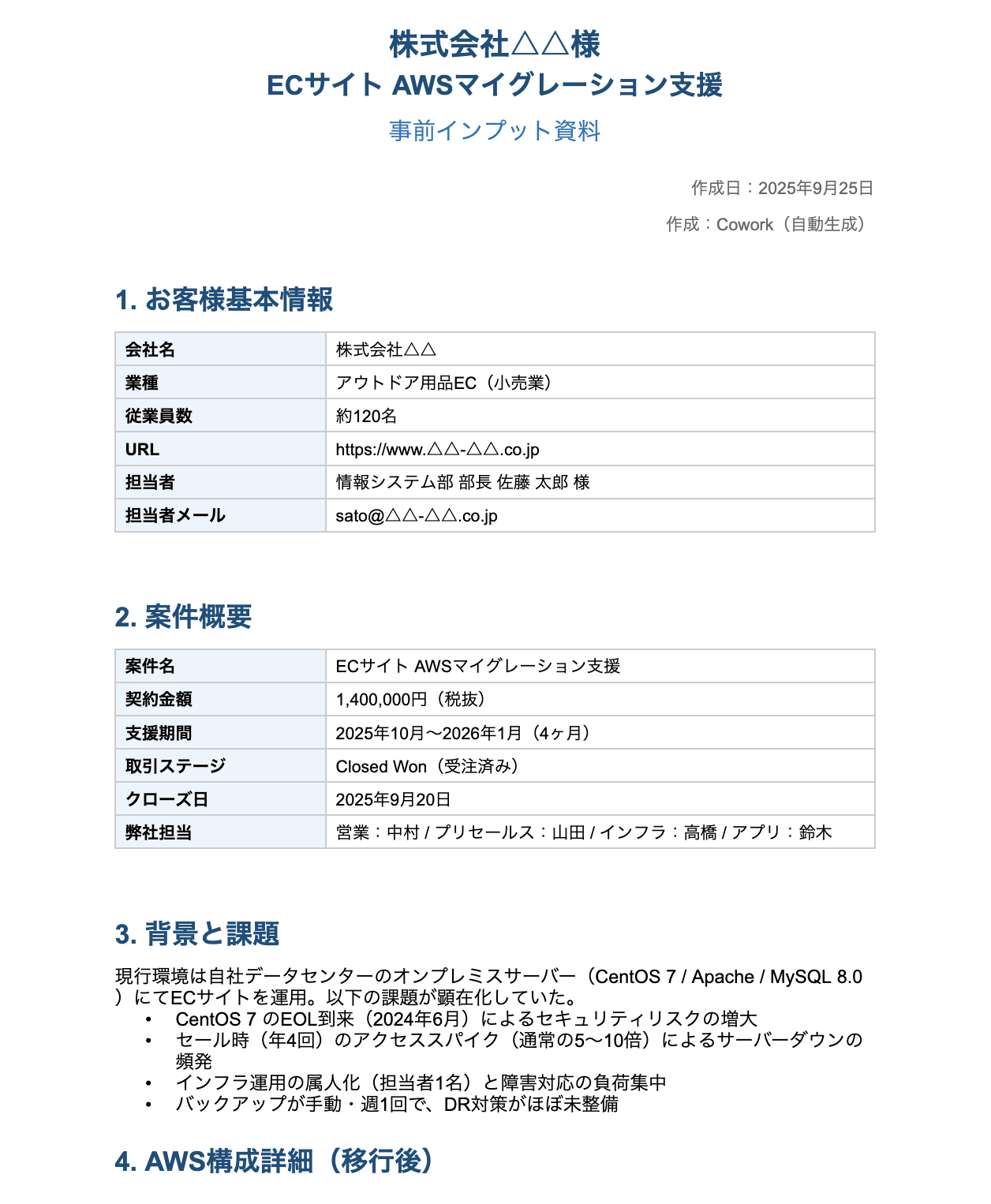
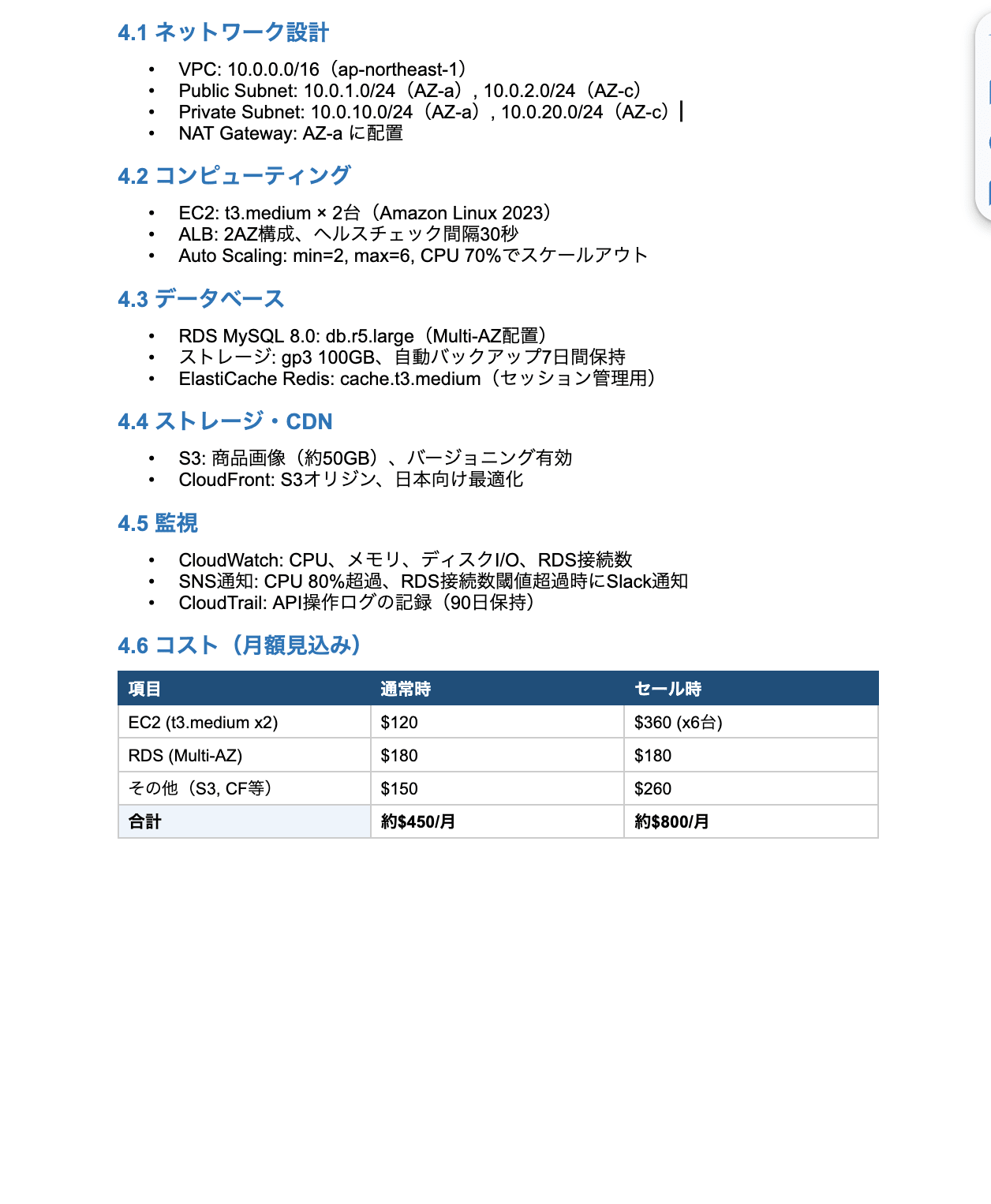
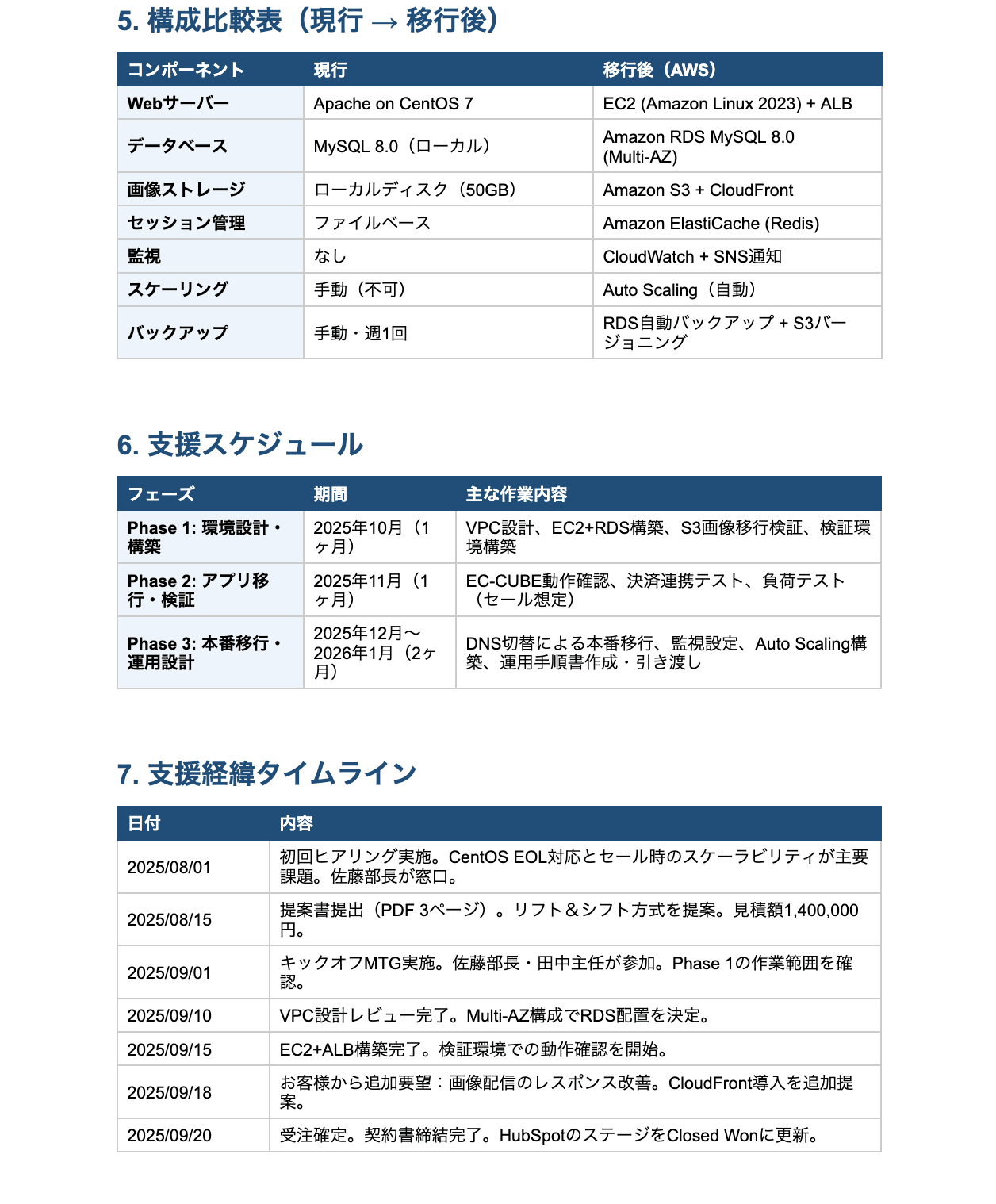
What surprised me most was that it could read everything despite the different tools and formats.
Slack text messages, PDFs, Canvas, and HubSpot deal information. Where a human would have to "scroll through Slack → download and open PDFs → open Canvas → open HubSpot and search for deals" switching between multiple tools and screens, Cowork processed everything seamlessly.
Moreover, even though I only provided a Slack URL, it automatically searched for deals in HubSpot based on the company name mentioned in the messages. It feels like it decided on its own that "this information isn't enough, so let me check HubSpot too."
After a few minutes, a Word file was generated.
It included all the necessary information: client overview, project overview, support details, and a timeline of events. It combined information from the PDF proposal's configuration comparison table, AWS resource details from Canvas, progress reports from text messages, and deal amounts and client representative information from HubSpot—all in a single document.
However, considering that "the sales director who handles many projects needs to read this in limited time," the information seemed a bit too detailed. The technical configuration information was too detailed, making it difficult to know what to focus on from a sales perspective.
Second Attempt: Improved Prompt with Reader in Mind
So I changed the prompt to this:
The sales director will be attending the meeting with △△. Since the director isn't involved in this project, pre-meeting briefing is needed.
From the following project channel and HubSpot deal information, please create pre-meeting briefing materials that the sales director can read in 5 minutes before the meeting.
Key points:
- Focus on conveying the story of "what problems the client had, what was achieved, and how pleased they are" rather than technical details
- Clearly present client feedback and outcomes so the director can join the conversation that day
- AWS configuration details are unnecessary, but a summary of "which AWS services were used" would be helpful
- Include contract amount and client representative positions from the HubSpot deal information
(Slack URL for the project channel)
Results of the Second Attempt: Significantly Better
Here's the document that was produced:
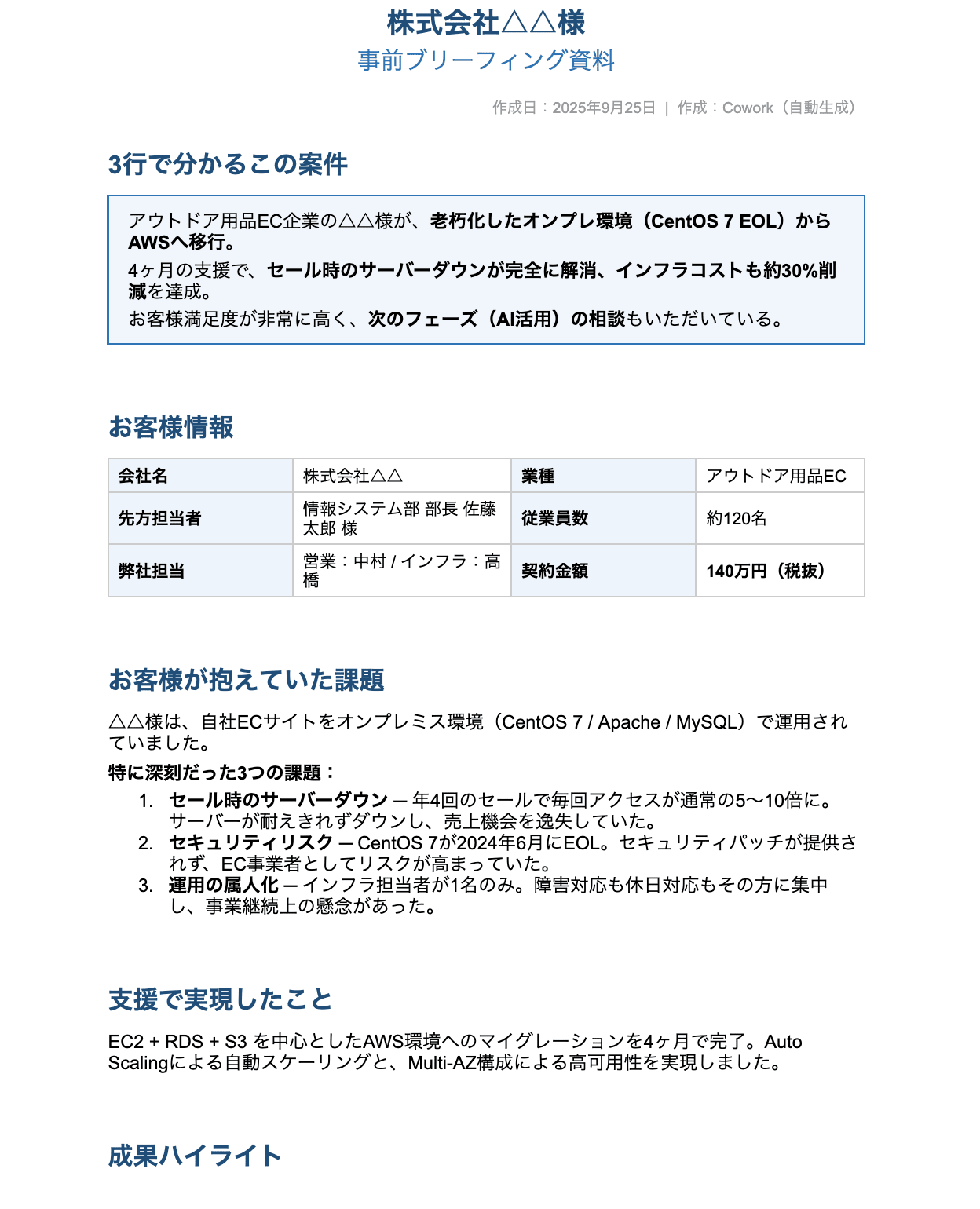
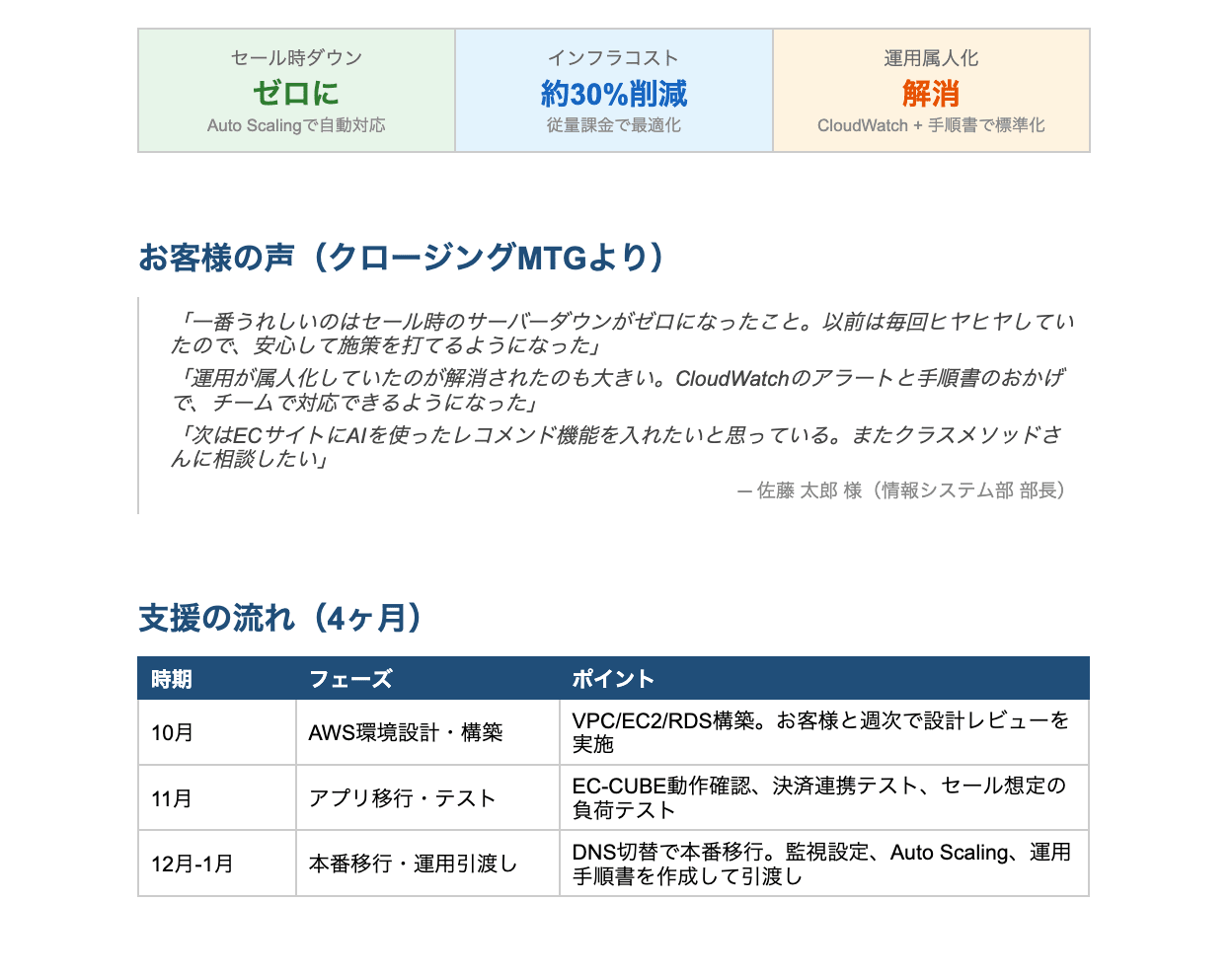
Compared to the first attempt, the structure clearly recognizes that "the reader is the sales director." Here are the specific changes:
Structural Changes:
| Item | First Attempt | Second Attempt |
|---|---|---|
| Introduction | Table of basic client information | "This project in 3 lines" summary |
| Technical Information | Detailed down to VPC design and EC2 specs | Summary level such as "AWS migration using EC2+RDS+S3" |
| Outcomes | Buried within the timeline | Emphasized in a dedicated section (30% cost reduction, zero downtime during sales) |
Particularly Good Points:
- The "3-line summary" at the beginning allows the director to instantly grasp "what kind of project this is"
- Client feedback (zero server downtime during sales events/elimination of operation's dependence on specific individuals/approximately 30% cost reduction) was extracted from closing meeting messages and organized in the outcomes section
- The configuration comparison table from the proposal PDF was summarized at a level where "Before/After is clear" while omitting technical details
What I Learned About Prompt Engineering
After trying twice, I realized that simply including "who will read it" and "what they will read it for" in the prompt dramatically changes the output.
In my first prompt, I only wrote "read the information and create materials." This led Cowork to move in the direction of "organizing all channel information without omission." The result was accurate but overloaded with information.
In the second attempt, I wrote "for the sales director" "readable in 5 minutes" "convey the story." Using the same information sources, this produced a document with completely different selection and emphasis.
When "Mixed Formats" Becomes an Advantage
In this project, information was scattered across tools × formats in two dimensions:
- Slack: Text messages + PDF attachments + Canvas
- HubSpot: Deal information + Contacts + Company information
For humans, this is clearly a "hassle." Scrolling through Slack → opening PDFs → checking Canvas → logging into HubSpot and searching for deals → connecting everything in your head → compiling in Word. The more tools and information sources, the more time it takes.
But for Cowork, the more information sources, the better the materials it can create. It can extract history and nuance from Slack messages, formal proposal content from PDFs, technical configuration information from Canvas, and contract amounts and client organizational information from HubSpot, combining them all together.
In other words, what humans perceive as "scattered" is "information-rich" for Cowork. I discovered that projects with information spread across multiple tools benefit most from Cowork's capabilities.
By the way, this time I used just Slack and HubSpot, but by adding MCP connectors, Google Drive, Notion, and others can be read in the same way. The more tools that salespeople routinely use, the wider Cowork's coverage becomes.
The Importance of Regularly Documenting Information in Channels
Whether good materials are produced depends on the amount of information in the channel. Channels where hearing details and progress are regularly shared produce more comprehensive materials.
I was reminded that "leaving information in channels" itself is an investment in your future self and team members.
Summary
| Item | Before (Manual) | After (Cowork) |
|---|---|---|
| Time Required | 30 minutes to 1 hour | About 5 minutes |
| Tasks | Scroll through Slack → Open PDF → Check Canvas → Search HubSpot → Organize mentally → Create Word doc | Just submit one prompt |
| Sources Handled | Manually open and read all tools | Automatically cross-references Slack (text, PDF, Canvas) + HubSpot |
| Quality of Materials | Often rushed if time is limited | Can be optimized for the reader with the right prompt |
"Just by providing the Slack project channel URL," it was able to comprehensively read information from Slack (messages, PDFs, Canvas) as well as HubSpot deal information, and automatically generate pre-meeting briefing materials. A key point is that simply including "who" and "for what purpose" they're reading in the prompt dramatically changes the quality of the output.
Sales work is a constant cycle of "gathering information, organizing it, and communicating it." By delegating the "gathering and organizing" part to Cowork, I can spend more time on "communicating." I encourage you to try it.