Make the mirror ball shine by connecting it with Claude Code Hooks.

This page has been translated by machine translation. View original
Introduction
Hello everyone, I'm Akaike.
When using Claude Code, have you ever wasted time not realizing that processing was stuck waiting for approval? I have.
Claude Code by default asks for approval every time it edits files or executes commands.
Of course, you can automate most of this by adding permission rules in settings.json or settings.local.json, but it's impossible to fully automate everything.
For example, even if you permit Bash(npm *), compound commands like npm install && npm run build are treated as different patterns, or even if you set up a sandbox, access to files outside the project folder is blocked. Despite configuring settings, I've experienced many situations where unexpected approval requests still appear.
(From a security perspective, it's unavoidable that allowing everything without approval would be too dangerous...)
I also tried using osascript in hooks to send macOS notifications.
However, when focused on other work, notification banners are surprisingly easy to miss.
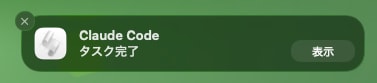
I wanted a physical, unavoidable notification...
That's when I noticed the disco ball sitting in the corner of my room.

That's it, let's light up the disco ball.
So in this article,
I used Claude Code hooks to make a disco ball light up when approval is pending.
Quick Overview
The mechanism is very simple.
- When Claude requests approval, a hook calls the SwitchBot API to turn ON the disco ball
- When the tool executes after approval, a hook calls the SwitchBot API to turn OFF the disco ball
In other words, Disco ball spinning = Claude Code is waiting for approval...
If it's lit up, go back to your PC and give your approval.
What You'll Need
- A disco ball
- SwitchBot Smart Plug
- Anything that can be controlled on/off works, but I'll use the Plug Mini JP for this example
- SwitchBot API token & secret
- Available from the "Developer Options" in the SwitchBot app
- Claude Code
This article describes Claude Code settings and scripts to operate SwitchBot.
For the prerequisite setup of the disco ball and SwitchBot, please refer to the following:
SwitchBot Control Shell Script
I implemented a Bash script to execute shell commands with Claude Code hooks.
Setting Up Authentication Information
SwitchBot API authentication requires a token and secret.
Set them as environment variables in ~/.switchbotrc for the script to read.
SWITCHBOT_DEVICE_MIRRORBALL can be any name, and its value should be the deviceId obtained from the script described below.
SWITCHBOT_TOKEN="your_token"
SWITCHBOT_SECRET="your_secret"
SWITCHBOT_DEVICE_MIRRORBALL="XXXXXXXXXXXX"
The Script
Place the following script in any directory included in your PATH:
#!/usr/bin/env bash
#
# SwitchBot API v1.1 control script for Plug Mini (JP)
# Usage:
#   switchbot.sh list                - List all devices
#   switchbot.sh on <deviceId>       - Turn on a device
#   switchbot.sh off <deviceId>      - Turn off a device
#   switchbot.sh toggle <deviceId>   - Toggle device state
#
# Configuration:
#   Set SWITCHBOT_TOKEN, SWITCHBOT_SECRET, and device IDs
#   as environment variables, or create ~/.switchbotrc with:
#     SWITCHBOT_TOKEN=your_token
#     SWITCHBOT_SECRET=your_secret
#     SWITCHBOT_MIRRORBALL=XXXXXXXXXXXX
#
#   Device ID can be passed as a raw ID or as a variable name:
#     switchbot on XXXXXXXXXXXX          # raw device ID
#     switchbot on SWITCHBOT_MIRRORBALL  # resolved from ~/.switchbotrc

set -euo pipefail

BASE_URL="https://api.switch-bot.com/v1.1"

# Load ~/.switchbotrc if it exists
if [[ -f "${HOME}/.switchbotrc" ]]; then
  # shellcheck source=/dev/null
  source "${HOME}/.switchbotrc"
fi

if [[ -z "${SWITCHBOT_TOKEN:-}" || -z "${SWITCHBOT_SECRET:-}" ]]; then
  echo "Error: SWITCHBOT_TOKEN and SWITCHBOT_SECRET must be set." >&2
  echo "Set them as environment variables or in ~/.switchbotrc" >&2
  exit 1
fi

# Resolve device ID (indirect reference if environment variable name)
resolve_device_id() {
  local input="$1"
  # If starts with SWITCHBOT_, treat as an environment variable name
  if [[ "${input}" == SWITCHBOT_* ]]; then
    local resolved="${!input:-}"
    if [[ -z "${resolved}" ]]; then
      echo "Error: variable ${input} is not defined in ~/.switchbotrc" >&2
      exit 1
    fi
    echo "${resolved}"
  else
    echo "${input}"
  fi
}

# Generate HMAC-SHA256 signature
generate_auth_headers() {
  local token="${SWITCHBOT_TOKEN}"
  local secret="${SWITCHBOT_SECRET}"
  local t
  local nonce

  # 13-digit millisecond timestamp
  t=$(python3 -c 'import time; print(int(time.time() * 1000))')
  nonce=$(uuidgen)

  local string_to_sign="${token}${t}${nonce}"
  local sign
  sign=$(printf '%s' "${string_to_sign}" \
    | openssl dgst -sha256 -hmac "${secret}" -binary \
    | base64)

  # Set as global variables
  AUTH_HEADER="Authorization: ${token}"
  SIGN_HEADER="sign: ${sign}"
  T_HEADER="t: ${t}"
  NONCE_HEADER="nonce: ${nonce}"
}

# API GET request
api_get() {
  local endpoint="$1"
  generate_auth_headers

  curl -s -X GET "${BASE_URL}${endpoint}" \
    -H "Content-Type: application/json; charset=utf8" \
    -H "${AUTH_HEADER}" \
    -H "${SIGN_HEADER}" \
    -H "${T_HEADER}" \
    -H "${NONCE_HEADER}"
}

# API POST request
api_post() {
  local endpoint="$1"
  local body="$2"
  generate_auth_headers

  curl -s -X POST "${BASE_URL}${endpoint}" \
    -H "Content-Type: application/json; charset=utf8" \
    -H "${AUTH_HEADER}" \
    -H "${SIGN_HEADER}" \
    -H "${T_HEADER}" \
    -H "${NONCE_HEADER}" \
    -d "${body}"
}

# Display device list
list_devices() {
  local response
  response=$(api_get "/devices")

  if command -v jq &>/dev/null; then
    echo "${response}" | jq '.body.deviceList[] | {deviceId, deviceName, deviceType}'
    echo "${response}" | jq '.body.infraredRemoteList[] | {deviceId, deviceName, remoteType}' 2>/dev/null || echo "(none)"
  else
    echo "${response}"
  fi
}

# Send command to device (only allowed commands)
send_command() {
  local device_id="$1"
  local cmd="$2"

  local body="{\"command\":\"${cmd}\",\"parameter\":\"default\",\"commandType\":\"command\"}"

  local response
  response=$(api_post "/devices/${device_id}/commands" "${body}")

  if command -v jq &>/dev/null; then
    echo "${response}" | jq .
  else
    echo "${response}"
  fi
}

# Main processing
usage() {
  echo "Usage: $(basename "$0") <subcommand> [args]"
  echo ""
  echo "Subcommands:"
  echo "  list                  List all devices"
  echo "  on <deviceId|varName>     Turn on a device"
  echo "  off <deviceId|varName>    Turn off a device"
  echo "  toggle <deviceId|varName> Toggle device state"
  echo ""
  echo "deviceId: raw ID (e.g. XXXXXXXXXXXX) or variable name from ~/.switchbotrc (e.g. SWITCHBOT_MIRRORBALL)"
  exit 1
}

if [[ $# -lt 1 ]]; then
  usage
fi

case "$1" in
  list)
    list_devices
    ;;
  on)
    [[ $# -lt 2 ]] && { echo "Error: deviceId required" >&2; exit 1; }
    send_command "$(resolve_device_id "$2")" "turnOn"
    ;;
  off)
    [[ $# -lt 2 ]] && { echo "Error: deviceId required" >&2; exit 1; }
    send_command "$(resolve_device_id "$2")" "turnOff"
    ;;
  toggle)
    [[ $# -lt 2 ]] && { echo "Error: deviceId required" >&2; exit 1; }
    send_command "$(resolve_device_id "$2")" "toggle"
    ;;
  *)
    usage
    ;;
esac
Note that SwitchBot API v1.1 requires HMAC-SHA256 signature authentication.
Therefore, we need to sign a string combining the token, timestamp, and nonce with the secret, and include it in the request header.
Checking the Device ID
To check the device ID of your SwitchBot plug, use the list subcommand:
switchbot.sh list
Add the deviceId displayed here to your ~/.switchbotrc file:
{
  "deviceId": "XXXXXXXXXXXX",
  "deviceName": "Disco Ball",
  "deviceType": "Plug Mini (JP)"
}
Setting Up Claude Code Hooks
Claude Code Hooks allow you to execute arbitrary shell commands based on agent lifecycle events.
There are various hook events available as triggers, but for this purpose, we'll use these two:
When approval is pending, the disco ball starts spinning, and when the tool executes after approval, it turns off.
| Event | Timing | Disco Ball Action |
|---|---|---|
PermissionRequest |
When Claude requests approval | ON (Light up) |
PostToolUse |
When a tool finishes execution | OFF (Turn off) |
Placing settings.json
Create a settings.json file in any scope (in this case, the project root).
For the command, specify ${script_name} ${action} ${device_variable_name}.
{
  "hooks": {
    "PermissionRequest": [
      {
        "matcher": "",
        "hooks": [
          {
            "type": "command",
            "command": "switchbot.sh on SWITCHBOT_DEVICE_MIRRORBALL"
          }
        ]
      }
    ],
    "PostToolUse": [
      {
        "matcher": "",
        "hooks": [
          {
            "type": "command",
            "command": "switchbot.sh off SWITCHBOT_DEVICE_MIRRORBALL"
          }
        ]
      }
    ]
  }
}
Setting matcher to an empty string means the hook will trigger for all tools' approval requests/execution completions.
If you want to limit to specific tools, you can specify the tool name like "matcher": "Bash".
The Disco Ball Lights Up
Once the setup is complete, try having Claude Code perform some task.
The moment approval is requested, the disco ball should start spinning, and it should stop when you approve and the tool executes.
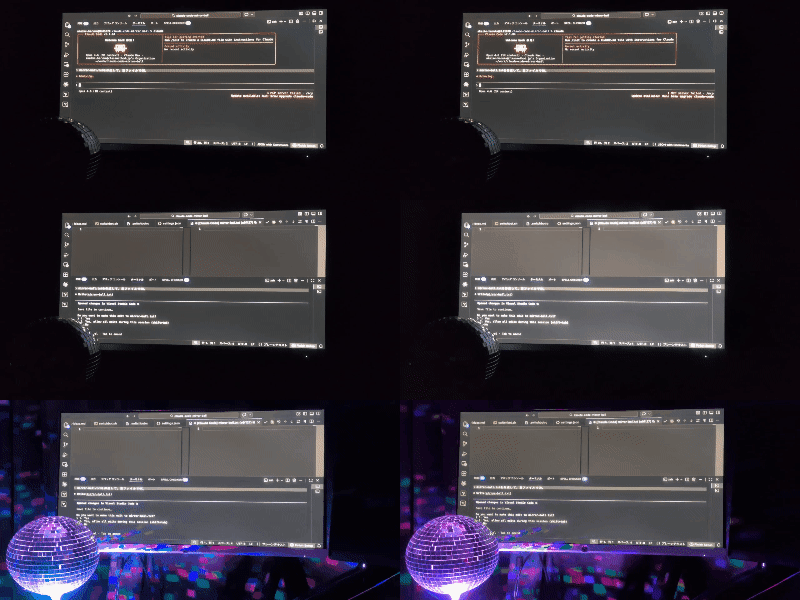
It's lit up, beautiful...
Other Useful Hook Event Patterns
By changing hook events, this can be used for other purposes.
There are countless applications depending on the combination, but here are a few ideas assuming disco ball usage:
Claude Code Working
Rather than notification for approval, this pattern visualizes whether Claude is working or not.
While the disco ball is spinning, you can physically see that "Claude is working hard."
| Event | Action | Meaning |
|---|---|---|
UserPromptSubmit |
ON | User submitted a prompt |
Stop |
OFF | Claude completed the response |
{
  "hooks": {
    "UserPromptSubmit": [
      {
        "matcher": "",
        "hooks": [
          {
            "type": "command",
            "command": "switchbot.sh on SWITCHBOT_DEVICE_MIRRORBALL"
          }
        ]
      }
    ],
    "Stop": [
      {
        "matcher": "",
        "hooks": [
          {
            "type": "command",
            "command": "switchbot.sh off SWITCHBOT_DEVICE_MIRRORBALL"
          }
        ]
      }
    ]
  }
}
Error Disco
The disco ball starts spinning every time a tool fails.
If your room turns into a disco, something's wrong... This visualizes debugging time.
| Event | Action | Meaning |
|---|---|---|
PostToolUseFailure |
ON | Tool execution failed |
PostToolUse |
OFF | Turn off when next tool succeeds |
{
  "hooks": {
    "PostToolUseFailure": [
      {
        "matcher": "",
        "hooks": [
          {
            "type": "command",
            "command": "switchbot.sh on SWITCHBOT_DEVICE_MIRRORBALL"
          }
        ]
      }
    ],
    "PostToolUse": [
      {
        "matcher": "",
        "hooks": [
          {
            "type": "command",
            "command": "switchbot.sh off SWITCHBOT_DEVICE_MIRRORBALL"
          }
        ]
      }
    ]
  }
}
Encouraging Context Compression Reflection
This visualizes the moment when context overflow happens.
When the disco ball starts spinning, it's a sign that the context has overflowed - time to reflect.
| Event | Action | Meaning |
|---|---|---|
PreCompact |
ON | Context is full |
PostCompact |
OFF | Compression completed |
{
  "hooks": {
    "PreCompact": [
      {
        "matcher": "",
        "hooks": [
          {
            "type": "command",
            "command": "switchbot.sh on SWITCHBOT_DEVICE_MIRRORBALL"
          }
        ]
      }
    ],
    "PostCompact": [
      {
        "matcher": "",
        "hooks": [
          {
            "type": "command",
            "command": "switchbot.sh off SWITCHBOT_DEVICE_MIRRORBALL"
          }
        ]
      }
    ]
  }
}
Combining Multiple Lights
If you prepare three SwitchBot plugs and control green, yellow, and red lights respectively, you can visualize various Claude states in real-time.
I only have one disco ball at hand so I haven't tried this, but making multiple lights flash in response to various events as shown below would surely be fun:
| Event | Green | Yellow | Red | Status |
|---|---|---|---|---|
SessionStart |
ON | - | - | Session start, standby |
UserPromptSubmit |
- | ON | - | Thinking... |
Stop |
- | OFF | OFF | Completed, back to standby |
PermissionRequest |
- | - | ON | Waiting for approval |
PostToolUse |
- | - | OFF | Red off after approval |
PostToolUseFailure |
- | - | ON | Tool failure |
StopFailure |
- | OFF | ON | API error |
SessionEnd |
OFF | OFF | OFF | All lights off |
Implementation Notes
- The SwitchBot API has rate limits (10,000 requests/day).
Be careful with hook settings that might rapidly toggle the device - Hook commands are executed asynchronously, so if ON and OFF are sent in quick succession, the order may not be guaranteed
- SwitchBot API responses take a few dozen to several hundred milliseconds, making instant flashes difficult
Conclusion
That's how to make a disco ball light up with Claude Code notifications.
Missing approval requests can be stressful, but if a disco ball starts spinning, you'll definitely notice it.
Disco ball notifications are the best. 🪩
Of course, Claude Code Hooks aren't just for fun like this - they can be used for practical purposes like notifications and logging.
Please try combining your own IoT devices with Claude Code hooks.
I hope this article has been useful to someone.