Making Claude Code a PM Assistant: A Design Pattern of Information Aggregation × 3 Skills

This page has been translated by machine translation. View original
I'm Katagiri from the AI Business Division / Western Japan Development Team.
This time, I'll introduce a case study where I semi-automated project task management using Claude Code.
About This Article
[Target Audience]
- Those who want to streamline their work using Claude Code
- Those who manage multiple projects as a PM and struggle with scattered information
- Those who want to centrally manage information spread across multiple tools
- Those interested in context engineering (the approach of designing the quality and scope of information given to AI)
The Claude Code Operational Design I Came Up With
The following two articles were very helpful in designing this setup.
Both the approach of organizing project information in a form that AI can easily reference (context engineering) and the approach of designing daily flows starting from a workspace form the basis of this design.
In day-to-day work, communication tools differ by project and data is stored in different places, so understanding the situation can take time.
Claude Code can create drafts and organize tasks based on the context it is given.
On the other hand, if information remains scattered, it cannot stably create drafts or organize tasks that take the scattered information into account unless the information is gathered manually.
Problems I Solved
1. Information is scattered across tools and hard to follow
For example, if communication is in Teams, meeting minutes are in Meet transcripts, and task management is in Backlog, just searching takes time.
By first consolidating everything into inbox/, I've shortened the path for checking.
2. Transcription work after meetings is heavy
Formatting minutes, extracting actions, and turning them into tasks are routine work, but doing it by hand is a big burden.
I set up the workflow so that Claude Code generates the first draft and humans focus on judgment and revision.
3. Operational rules tend to vary by project
If naming conventions and storage locations differ per project, handover costs increase.
By defining common rules in CLAUDE.md, I've made it easier to roll out across projects.
So I put each project's information into a single folder and organized it in a form that Claude Code and AI agents can easily reference.
The directory structure is as follows.
my-pm-system/
  ├── CLAUDE.md                         # Overall rules and project list
  ├── .claude/
  │   ├── skills/                       # Skill definitions
  │   └── hooks/                        # Hook definitions
  ├── .mcp.json                         # MCP server settings
  ├── _templates/                       # Templates to copy from (by project type)
  │   ├── project/                      #   Standard project
  │   ├── internal/                     #   Internal project
  │   └── research/                     #   Research/validation project
  └── <project-x>/                      # Per project
      ├── CLAUDE.md                     # Project-specific info (data source settings, etc.)
      ├── core/                         # Overview info
      │   ├── summary.md                #   Project overview and members
      │   └── phases.md                 #   Phases and progress
      ├── tasks/                        # Tasks
      │   ├── backlog.md                #   Backlog
      │   └── 2026-W20.md               #   Weekly tasks (YYYY-Www)
      ├── minutes/                      # Minutes (per YYYY-MM-DD)
      │   └── 2026-05-13.md
      ├── inbox/                        # Import from external sources
      │   ├── meet-2026-05-13.md        #   Meet transcript
      │   ├── slack-project-x-...md     #   Slack fetch results
      │   └── gmail-2026-05-13.md       #   Gmail fetch results
      ├── communications/               # Communication tool logs (mail / slack)
      ├── docs/                         # Project documents
      ├── templates/                    # Email/message templates
      └── dashboard/
          └── index.html                # Project progress display (HTML)
The aim of this structure is to separate the information needed for project operations by role and to fix the update flow.
Specifically, external information goes into inbox/, decision logs into minutes/, execution management into tasks/, prerequisite information into core/, communication history into communications/, supplementary materials into docs/, and boilerplate text into templates/.
By creating a dashboard in HTML under dashboard/, people can visually grasp the project status more easily.
Minimum Setup Required to Reproduce This
From here, I'll focus on the minimum setup you can try on your own machine.
The key is to first prepare three things: "operational rules," "skills for collecting, organizing, and visualizing," and "directories to receive the data."
You can get started by preparing at least the following.
- Root
CLAUDE.md(operational rules and guardrails) - Three skills in
.claude/skills/(sync-sources/gen-minutes/gen-dashboard) - The
inbox/,minutes/,tasks/, anddashboard/directories for one project
In the next section, I'll show a minimal example of CLAUDE.md, which forms the foundation.
A Practical Example of CLAUDE.md (Minimal Version)
In actual operation there will be more items, but the following is enough at first.
The YAML Frontmatter used here serves as a common format so that AI and scripts can reliably read a project's metadata.
---
status: ACTIVE
project: project-x
owner: katagiri
---

# PM システムルール(最小版)

## グローバルルール
- ドキュメントは Markdown + YAML Frontmatter
- タスクステータスは `TODO` / `IN_PROGRESS` / `DONE` / `PENDING`
- 週次タスクは `tasks/YYYY-Www.md`
- 議事録は `minutes/YYYY-MM-DD.md`
- 外部取得データは `inbox/` に保存(例: `slack-`, `meet-`, `gmail-`)

## AI運用ルール
- 外部送信(メール送信、予定登録、チケット更新)は必ずユーザー確認を取る
- 未確定情報は `PENDING` で記載し、推測で埋めない
- 秘匿情報をリポジトリや同期フォルダに保存しない
CLAUDE.md is both an "instruction manual for the AI" and an "operations manual."
Without it, the output quality of skills and the consistency of file updates become unstable.
Extending It in Real Operation
Starting from the minimal version, as the number of projects and tools grows, I add items like the following to the root CLAUDE.md.
Example of an extended root CLAUDE.md
## プロジェクト一覧

| フォルダ        | プロジェクト名 | ステータス |
| ----------- | ------- | ------ |
| _templates  | (複製用テンプレート) | -      |
| project-a   | プロジェクトA   | ACTIVE |
| project-b   | プロジェクトB   | ACTIVE |

## 利用可能なスキル

| スキル                    | 用途                          |
| --------------------- | --------------------------- |
| `/new-project`        | 対話式で新プロジェクトをセットアップ              |
| `/sync-sources`       | 外部ソース取得 → `inbox/` に保存       |
| `/gen-minutes`        | Meet 文字起こし → 議事録 + ToDo 生成   |
| `/gen-dashboard`      | `dashboard/index.html` 再生成 |
| `/weekly-report`      | 週次レポート生成                    |

## 接続中の MCP サーバー

- **Google Calendar / Gmail / Drive**: カレンダー参照・Gmail・Drive操作
- **teams**: Microsoft Teams チャット
- **backlog**: Backlog プロジェクト管理
- **slack**: チャンネル読み取り・下書き作成

## Slack 操作ルール

1. 現在のプロジェクト `CLAUDE.md` の「データソース設定」に書かれたチャンネルを優先
2. 複数該当する場合は操作目的に合うものをユーザーに確認
3. 未設定の場合は DM を使わずユーザーに確認
4. DM はユーザーが明示的に指示した場合のみ
On the other hand, each project's CLAUDE.md contains the data source connection information that sync-sources refers to.
Example of data source settings in a project-specific CLAUDE.md
---
status: ACTIVE
project: project-x
owner: katagiri
---

# project-x

## データソース設定

### Gmail
- 検索クエリ: `from:client@example.com OR subject:"project-x"`

### Google Drive(Meet 文字起こし)
- フォルダID: `1AbCdEf...`

### Teams
- チャンネル: `project-x-general`

### Backlog
- プロジェクトキー: `PROJX`

### Slack
- チャンネル: `#project-x-pm`
When sync-sources runs, it reads this section to determine the access conditions for each tool, so consolidating each project's settings here keeps operations consistent.
Practical Examples of Skills
For the concept of skills and how to configure them, please see the previous article.
This time, I'll introduce the three skills used in the minimal setup (collect, organize, visualize).
Skill definitions are placed in .claude/skills/<skill-name>/SKILL.md.
By specifying the following items in the YAML Frontmatter at the top, Claude Code recognizes the skill and can invoke it at the appropriate time.
name: Skill name (identifier used when invoking)description: Overview of the skill (a clue for Claude Code to decide whether it "should be used")when_to_use: Expected usage scenariosuser-invocable: If set totrue, the user can invoke it directly with/<skill-name>allowed-tools: Tools allowed when the skill runs
You can invoke a skill by instructing Claude Code in natural language (e.g., "Run sync-sources"), or, for skills with user-invocable: true, by using a slash command such as /sync-sources.
The following are minimal examples; in actual operation you would write more detailed steps.
1) Example of the sync-sources Skill
This skill collects information from external tools and saves it to inbox/ in a unified format.
Example of the sync-sources skill definition
---
name: sync-sources
description: Meet / Teams / Gmail / Backlog / Slack を取得して inbox/ に Markdown 保存する
when_to_use: 朝のルーティン時、またはミーティング後に外部情報を取り込みたいとき
user-invocable: true
allowed-tools: [Bash, Read, Write]
---

## 実行手順

1. 起動位置からスコープを判定する(プロジェクト / ルート)
2. 各プロジェクトの `CLAUDE.md` からデータソース設定を読み込む
3. 各ソース(Gmail / Meet / Teams / Backlog / Slack)を並列で取得し、`inbox/<source>-YYYY-...md` に保存する
4. 取得件数とスキップ理由をサマリー表示する

## 重要

- 取得済みファイルは上書きしない(同名なら `-2`, `-3` のサフィックスを付ける)
- 機微情報(パスワード・個人情報など)を含むデータは要約のみ残す
2) Example of the gen-minutes Skill
This skill formats the meeting notes gathered in inbox/ into minutes.
Example of the gen-minutes skill definition
---
name: gen-minutes
description: inbox/ の Meet 文字起こしから議事録とアクションアイテムを生成する
when_to_use: Google Meet ミーティング後に議事録化したいとき
arguments:
  - name: date
    description: 対象日付(YYYY-MM-DD)。省略時は最新の meet-*.md を使用
    required: false
user-invocable: true
allowed-tools: [Read, Write, Edit]
---

## 実行手順

1. 入力ファイルを決定する(`date` 指定があれば `inbox/meet-${date}.md`、なければ最新の `meet-*.md`)
2. `core/summary.md` と `CLAUDE.md` を読み込んでコンテキストを補完する
3. 文字起こしから「議題」「決定事項」「アクションアイテム」「懸念事項」を抽出する
4. `minutes/YYYY-MM-DD.md` に Frontmatter 付きで保存する
5. 週次タスクファイル(`tasks/YYYY-Www.md`)にアクションアイテムを追記し、ユーザー確認を取る

## 重要

- 推測で補完しない(聞き取り不明瞭な箇所は「※聞き取り不明瞭」と明記)
- 顧客発言は改変しない
3) Example of the gen-dashboard Skill
This skill aggregates the state of tasks and minutes and generates HTML that can be viewed in a browser.
Example of the gen-dashboard skill definition
---
name: gen-dashboard
description: tasks/・minutes/・core/ から dashboard/index.html を再生成する
when_to_use: ダッシュボードを最新データに更新したいとき
user-invocable: true
allowed-tools: [Read, Write, Bash]
---

## 実行手順

1. プロジェクト層で起動されているか確認する(プロジェクト層でなければ中断)
2. `tasks/` `minutes/` `core/` `CLAUDE.md` を読み込む
3. ヘッダー(プロジェクト名・現フェーズ)、タスクサマリー、直近議事録、進捗ゲージ、PENDING 警告を生成する
4. `dashboard/index.html` に書き出す

## 重要

- 外部CDN依存は最小限にし、オフラインでも閲覧可能にする
- 個人情報・連絡先は含めない(タイトル・進捗・件数のみ)
Trying Out This Setup
Step 1. Create the Initial Project Structure
Copy the template under _templates/ to <project-x>/, and generate the necessary directories (inbox/, minutes/, tasks/, dashboard/, etc.) and the project's CLAUDE.md.
If you prepare a skill like /new-project for initialization, you can pick a template according to the project type (client-facing / internal / research, etc.) and set up projects with the same structure every time.
The contents of the template differ by project type. As an example, the standard (project) template is structured as follows.
Contents of the project template
_templates/project/
  ├── CLAUDE.md                    # Data source settings template (includes PENDING)
  ├── core/
  │   ├── summary.md               # Project overview
  │   └── phases.md                # Phase management
  ├── tasks/
  │   └── backlog.md               # Backlog template
  ├── inbox/                       # Empty directory
  ├── minutes/                     # Empty directory
  ├── docs/                        # Empty directory
  ├── dashboard/
  │   └── index.html               # Dashboard template
  ├── templates/
  │   ├── mail-schedule-request.md
  │   ├── mail-progress-report.md
  │   └── mail-concern-report.md
  └── communications/
      ├── mail/                    # Empty directory
      └── slack/                   # Empty directory
Here is also a sample of the new-project skill.
Example of the new-project skill definition
---
name: new-project
description: 標準テンプレートを使って新規プロジェクトの初期構成を作成する
when_to_use: 新しいプロジェクトの管理を始めたいとき
arguments:
  - name: project-name
    description: プロジェクト名(ディレクトリ名としても使用)
    required: true
user-invocable: true
allowed-tools: [Bash, Read, Write, Edit]
---

## 実行手順

1. 引数 `project-name` が既存ディレクトリと衝突しないか検証する
2. プロジェクトタイプを対話的に選択させる(project / internal / research)
3. `_templates/<タイプ>/` の中身を `<project-name>/` にコピーする
4. `CLAUDE.md` の `project:` フィールドを引数の名前で置換する
5. データソース設定は `PENDING` のまま残し、後で手動補完する旨を案内する
Example input to Claude Code:
/new-project project-x
What gets generated:
project-x/{inbox, minutes, tasks, dashboard, ...}directories (copied from the template)project-x/CLAUDE.md(contains a template with the data source settings asPENDING)
Step 2. Build the Collection Foundation with Connectors/MCP and Consolidate into inbox
Move to the project directory you created and start Claude Code.
Then, when you run the sync-sources skill, information from Meet, Slack, Gmail, and Backlog is imported into inbox/ via MCP and connectors.
For connector setup, refer to the official documentation.
After setting up MCP and connectors, entering the following will gather the various pieces of information.
Example input to Claude Code:
sync-sources を実行して。対象: project-x、期間: 直近7日
What gets generated (example):
inbox/
  gmail-2026-05-13.md            (3 通取得)
  meet-2026-05-13.md             (1 件取得)
  slack-project-x-2026-05-13.md  (12 件取得)
  backlog-2026-05-13.md          (5 チケット取得)
By turning this "information consolidation" step into a skill, you can collect under the same conditions every time and reliably give Claude Code the context it should reference.
Please think about how to adapt it to your own environment.
Step 3. Run Skills to Update the Minutes and Dashboard
After collecting the information, generate minutes with gen-minutes and update the visualization with gen-dashboard.
Example input to Claude Code:
gen-minutes を実行して
What gets generated (example):
minutes/yyyy-mm-dd.md(minutes in DRAFT state. Action items are automatically appended totasks/yyyy-Wx.md)
gen-dashboard を実行して
What gets generated (example):
dashboard/index.html(static HTML including counts of TODO / IN_PROGRESS / DONE, links to recent minutes, and PENDING warnings)
Execution Examples
By running this series of steps regularly, it doesn't end with "just gathering information"; from creating drafts to creating a page that lets you visually grasp the project status, everything can be done with minimal confirmation operations.
Example of Having a Draft Created for Scheduling a Meeting
Just by instructing "Refer to Google Calendar and create a scheduling email," it refers to the calendar and previous minutes, and creates a draft for you.
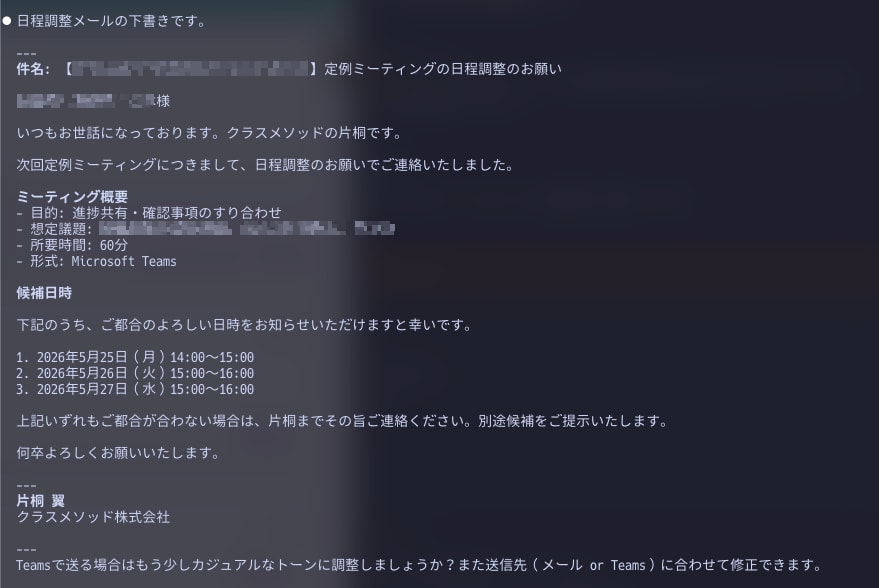
If you bundle frequently used operations into a skill as described earlier, such as /schedule-meeting, you can reproduce them with the same steps every time.
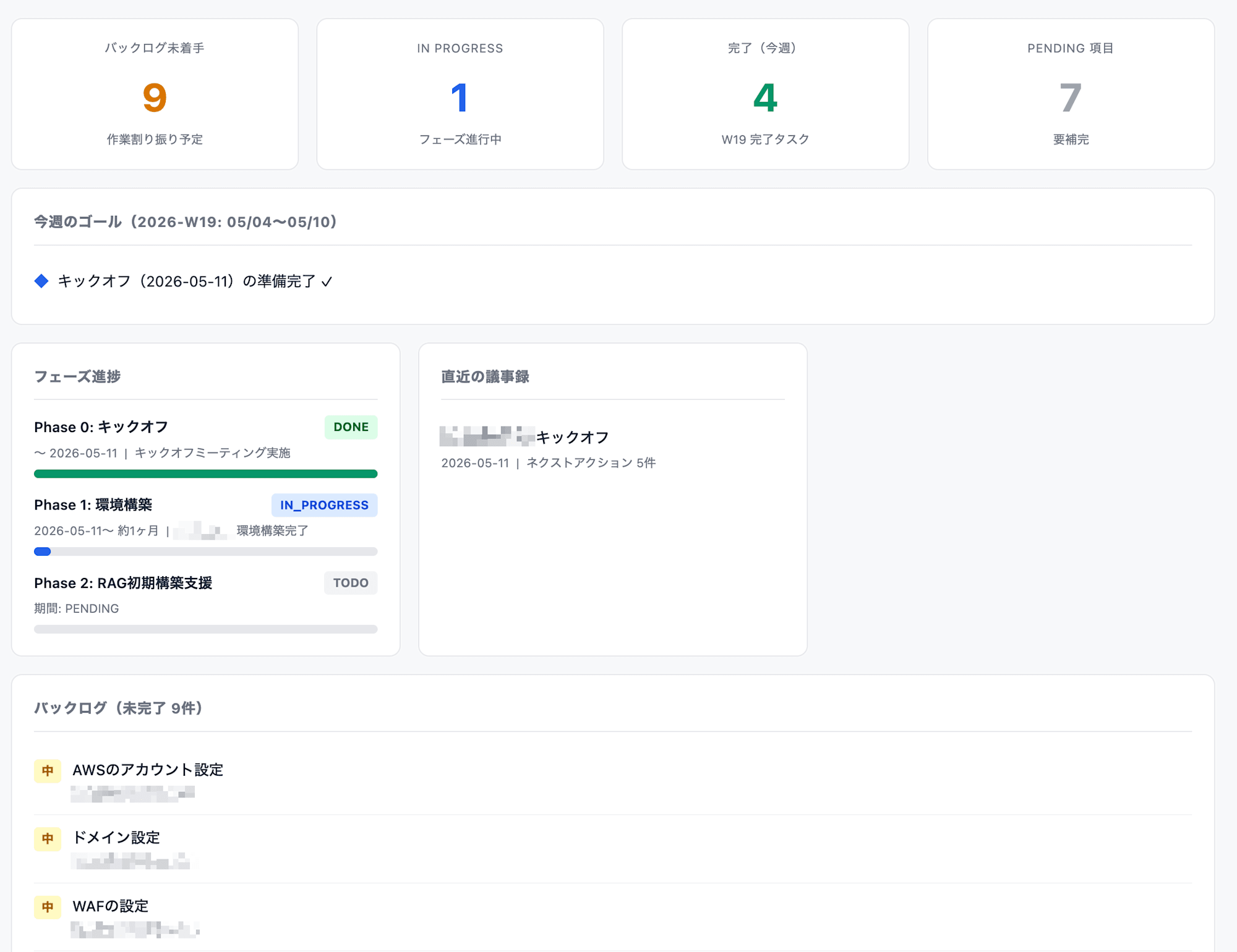
Image of the Generated Dashboard
This is an image of the dashboard created for each project.
It is structured so that the breakdown of task statuses, links to recent minutes, and phase progress can be checked at a glance.
Effects I Found from Using It
After actually using this setup, I noticed two main changes.
Reduced information searching and transcription
Previously, after meetings I manually formatted minutes, extracted actions, and created tickets separately, but now running gen-minutes automates everything up to the first draft, so I can focus on review and revision.
Lower handover costs
With unified storage locations and naming rules, there is less effort needed to explain "what is where" when a member joins midway.
On the other hand, it is essential not to treat AI output as confirmed information as-is.
I leave information collection, task identification, and draft creation to the AI, while humans make the final decisions.
Keeping logs in Markdown also makes it easier to review and revise later.
Cautions and Countermeasures
1. Do not place confidential information in public or synced areas
2. Require human confirmation for sending and updating operations
Design it so that sending emails, registering appointments, changing statuses, and the like are not finalized automatically.
Drawing the line at "drafts are automatic, finalization is human" is safer.
3. Understand the dependence on collected data quality
Data via MCP or connectors may have gaps or delays.
Check the import results and keep a procedure that allows manual supplementation when needed.
Conclusion
I feel that task management with Claude Code is more likely to be effective by focusing on "automation that organizes operational data" before aiming for full automation.
New features are also being released, so I'll keep trying them out and introduce anything effective on the blog!