I tried automating AWS architecture diagram generation with the official Claude Code × draw.io Skill

This page has been translated by machine translation. View original
Introduction
When drawing flowcharts or architecture diagrams on the web, many people may be creating them manually. As of April 2026, while the trend of delegating work to AI Agents is accelerating, many diagram-creation web applications still have many restrictions on AI integration (such as MCP).
In this context, I discovered that draw.io (jgraph) has officially released a Skill for Claude Code and decided to try it out.
(Although draw.io has an MCP server version, the Skill version doesn't require external processes and has a simpler setup. I used the Skill version for this article.)
- draw.io skill-cli: https://github.com/jgraph/drawio-mcp/tree/main/skill-cli
I already have the Draw.IO plugin installed in my VSCode/Cursor, so Claude Code would already look up how to write and generate .drawio files when I asked it to "create a diagram in drawio." However, the quality would tend to decrease when requesting complex diagrams. By implementing the official Skill, Claude Code gains built-in knowledge of draw.io's XML format and styles, enabling it to generate higher-quality diagrams.
This article provides a hands-on guide covering the official Skill setup, generating AWS architecture diagrams, and the problems encountered along with their solutions.
Test Environment
- macOS
- Cursor
- Claude Code (Opus 4.6)
- Draw.io Desktop
What is draw.io Skill?
Claude Code Skills are a mechanism that defines specialized knowledge for specific tasks as Markdown files that are loaded into Claude Code. Unlike MCP servers, Skills operate as prompt extensions rather than external processes.
The official draw.io Skill includes knowledge such as:
- Correct structure of
.drawiofiles (mxGraphModel XML) - Export commands (PNG/SVG/PDF, with embedded XML for re-editing)
- Style property details (connection points, fonts, layouts, etc.)
- 2-layer rendering (technique for drawing edges behind icons)
In other words, with Skills, Claude Code can accurately use the draw.io XML knowledge that it previously had to look up each time without Skills.
Additionally, if Draw.io Desktop is installed, the Draw.io Desktop app will automatically open after generating a diagram, allowing immediate preview and editing of the generated diagram. The ability to smoothly cycle through generation → confirmation → modification instructions is subtly convenient.
Installing the Skill
Prerequisites
- Claude Code installed
- Draw.io Desktop installed (for using export functions)
Steps
- Create a
.claude/skills/folder under your project folder - Download the
drawiofolder from the official draw.io repository and place it under the.claude/skills/directory
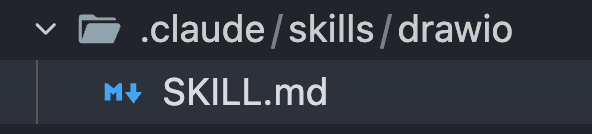
your-project/
└── .claude/
    └── skills/
        └── drawio/
            └── SKILL.md
If you want to apply Skills globally, place them in
~/.claude/skills/.
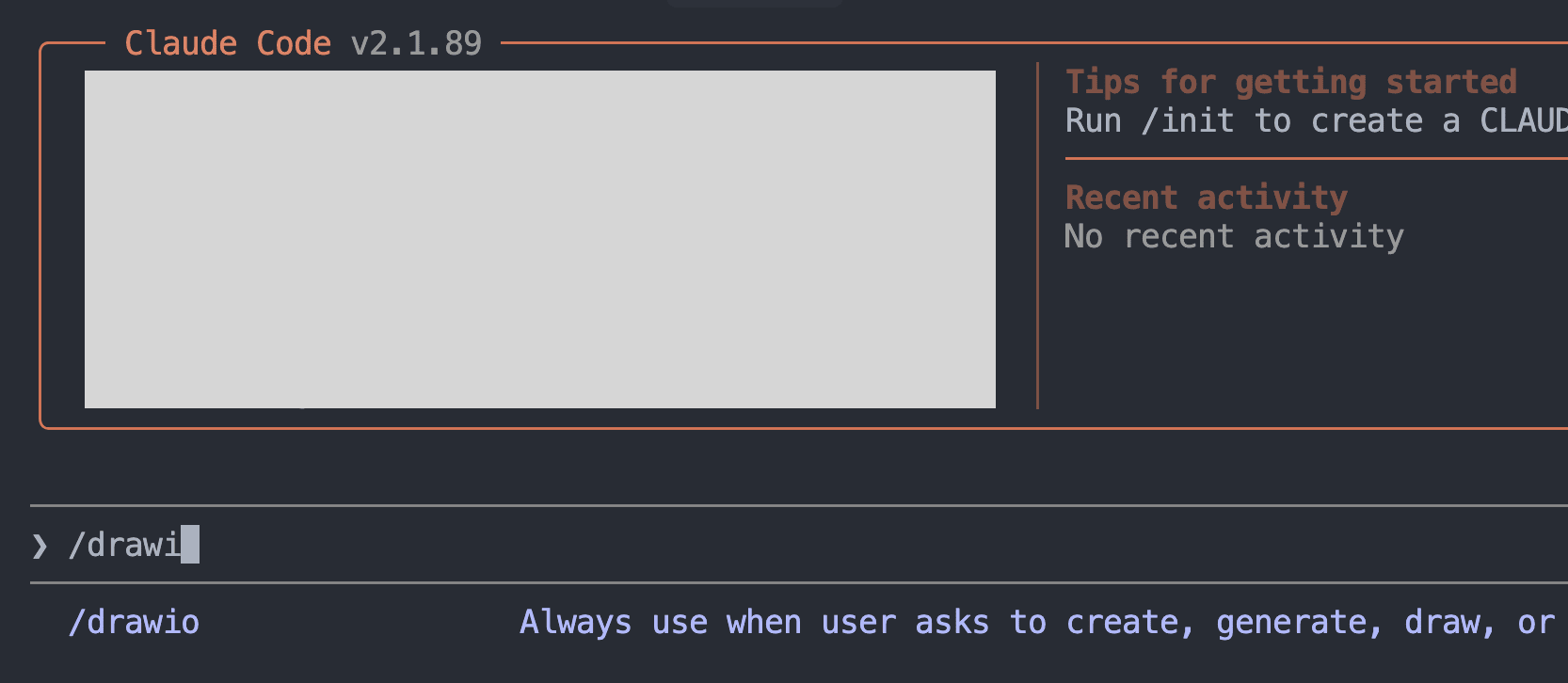
Once placed, the /drawio command will be recognized in Claude Code.
Testing: Generating an AWS Architecture Diagram
Trying a Simple Architecture Diagram
Let's first try with a simple prompt.
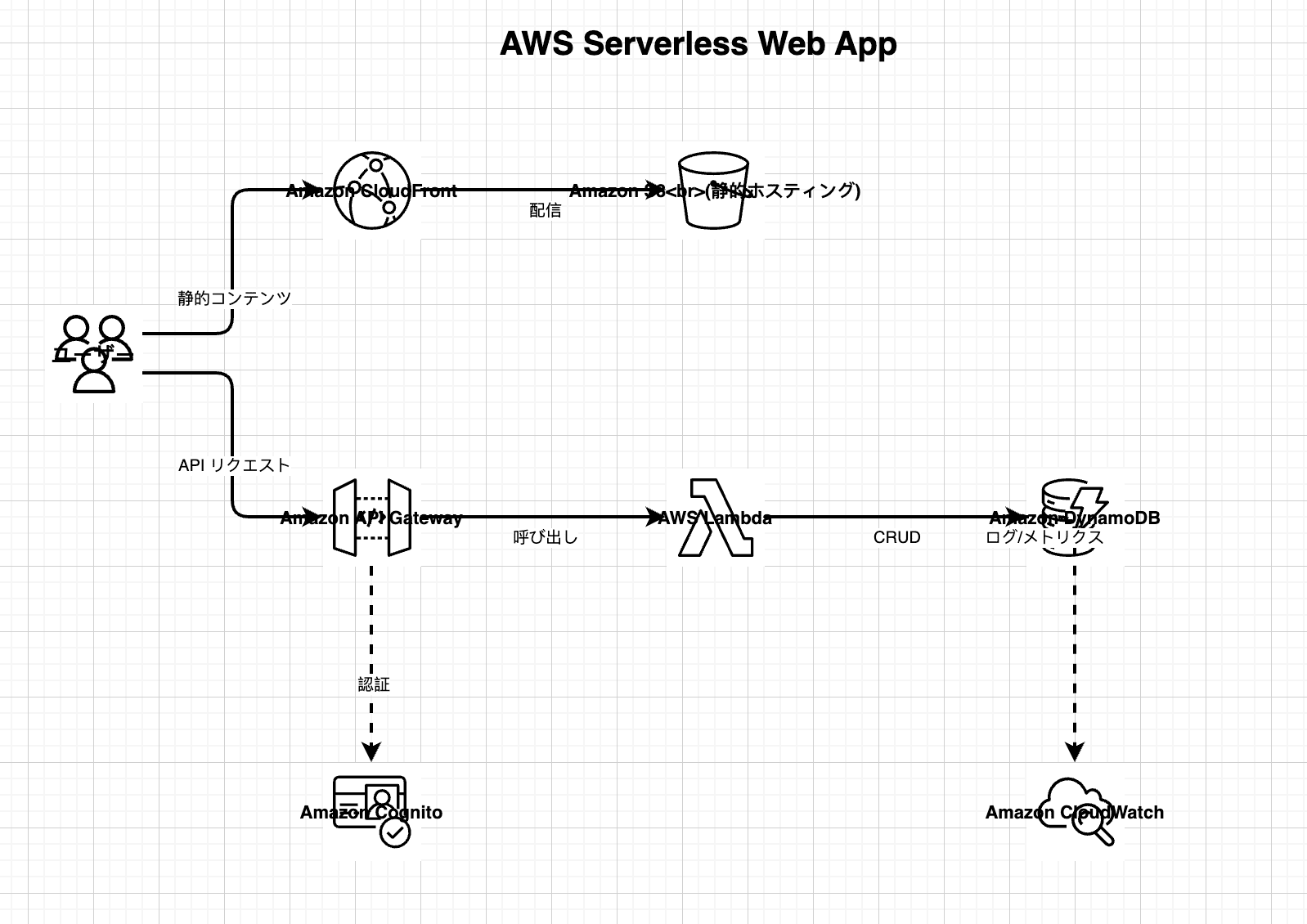
/drawio Can you create a sample serverless web application architecture diagram on AWS?
As a result, a diagram was generated, but with monochrome icons rather than AWS's colorful icons.
Requesting Color Icons
/drawio There are only monochrome icons here. Could you replace them with colored AWS 2026 icons?
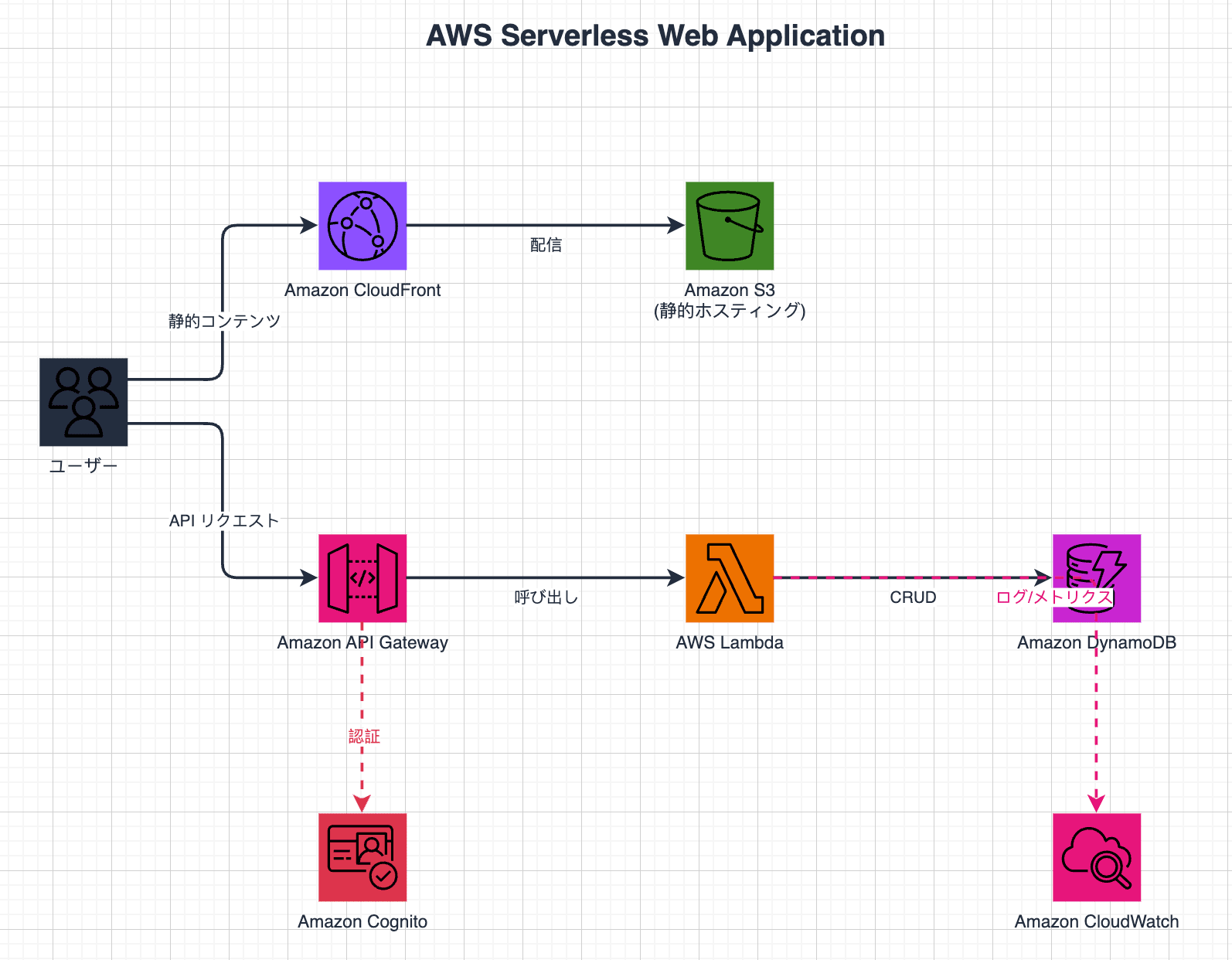
The icons were updated with colors, but upon closer inspection, icon lines were still black, colors were slightly off, and other issues remained. When testing with larger architecture diagrams, multiple issues emerged: labels overlapping icons, connection lines drawn over icons, missing VPC and subnet boundaries, and more.
Summary of Issues Encountered
| Problem | Cause | Solution |
|---|---|---|
| Black lines on icons | strokeColor unspecified, defaulting to black |
Explicitly specify strokeColor=#ffffff |
| Incorrect category colors | Using old color codes | Retrieve correct values from draw.io source code (Sidebar-AWS4.js) |
| Labels overlapping icons | By default, labels are placed inside icons | Use verticalLabelPosition=bottom to place below |
| Connection lines drawn over icons | In mxGraph, edges are always drawn over vertices in the same layer | Use a 2-layer structure with edge_layer and shape_layer |
| Missing VPC boundaries | No grouping | Define AWS group containers with mxgraph.aws4.group shape |
After solving these issues one by one, I ultimately added guidelines for AWS architecture diagrams to SKILL.md.
Example of resolving category colors
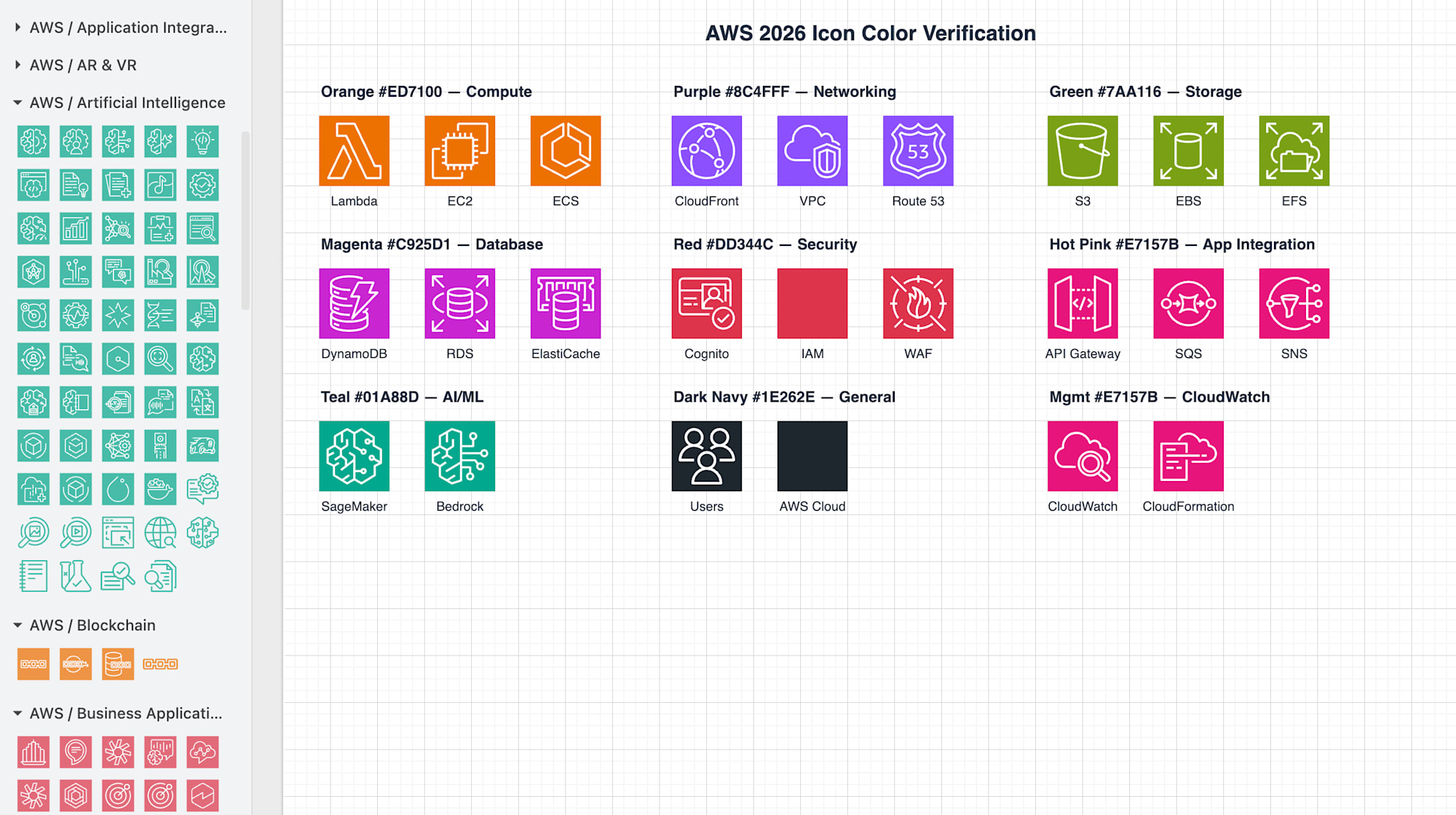
AWS Guidelines Added to SKILL.md
The official Skill covers general draw.io knowledge but doesn't include style rules specific to AWS icons. Therefore, I added the following guidelines to SKILL.md.
You can copy this directly to your SKILL.md and customize as needed.
Full text of AWS icon styling added to SKILL.md:
## AWS icon styling (AWS 2026)

When generating AWS architecture diagrams, always use the **AWS 2026** icon style from draw.io's `mxgraph.aws4` namespace.

### Base style template

Every AWS icon must use this base style:

```
sketch=0;points=[[0,0,0],[0.25,0,0],[0.5,0,0],[0.75,0,0],[1,0,0],[0,1,0],[0.25,1,0],[0.5,1,0],[0.75,1,0],[1,1,0],[0,0.25,0],[0,0.5,0],[0,0.75,0],[1,0.25,0],[1,0.5,0],[1,0.75,0]];outlineConnect=0;fontColor=#232F3E;fillColor=<CATEGORY_COLOR>;strokeColor=#ffffff;dashed=0;verticalLabelPosition=bottom;verticalAlign=top;align=center;html=1;fontSize=12;fontStyle=0;aspect=fixed;shape=mxgraph.aws4.resourceIcon;resIcon=mxgraph.aws4.<service_name>;
```

Critical properties:
- **`strokeColor=#ffffff`** — draws the icon graphic lines in white. Never use `none` or other values.
- **`fillColor`** — set per service category (see table below)
- **`verticalLabelPosition=bottom;verticalAlign=top`** — places the label below the icon to avoid overlap
- **`sketch=0`** — disables hand-drawn style
- **`points=[[...]]`** — connection points for edges

### AWS group containers

For enterprise-scale diagrams, use AWS group shapes to visually separate environments (e.g., inside AWS vs external, VPC boundaries, regions). Icons inside a group must use `parent="<group_id>"` and positions are relative to the group's origin.

| Group | grIcon | strokeColor | Usage |
|-------|--------|-------------|-------|
| AWS Cloud | `mxgraph.aws4.group_aws_cloud_alt` | `#232F3E` | Top-level AWS boundary |
| Region | `mxgraph.aws4.group_region` | `#00A4A6` | AWS region |
| VPC | `mxgraph.aws4.group_vpc2` | `#8C4FFF` | Virtual private cloud |
| Public Subnet | `mxgraph.aws4.group_security_group` | `#7AA116` | Public subnet |
| Private Subnet | `mxgraph.aws4.group_security_group` | `#147EBA` | Private subnet |
| Availability Zone | `mxgraph.aws4.group_availability_zone` | `#232F3E` | AZ boundary |

**Base group style template:**

```
points=[[0,0],[0.25,0],[0.5,0],[0.75,0],[1,0],[1,0.25],[1,0.5],[1,0.75],[1,1],[0.75,1],[0.5,1],[0.25,1],[0,1],[0,0.75],[0,0.5],[0,0.25]];outlineConnect=0;gradientColor=none;html=1;whiteSpace=wrap;fontSize=12;fontStyle=0;container=1;pointerEvents=0;collapsible=0;recursiveResize=0;shape=mxgraph.aws4.group;grIcon=<GROUP_ICON>;strokeColor=<STROKE_COLOR>;fillColor=none;verticalAlign=top;align=left;spacingLeft=30;fontColor=#232F3E;dashed=0;
```

**Example — AWS Cloud group with children:**

```xml
<mxCell id="aws_cloud" value="AWS Cloud" style="points=[[0,0],[0.25,0],[0.5,0],[0.75,0],[1,0],[1,0.25],[1,0.5],[1,0.75],[1,1],[0.75,1],[0.5,1],[0.25,1],[0,1],[0,0.75],[0,0.5],[0,0.25]];outlineConnect=0;gradientColor=none;html=1;whiteSpace=wrap;fontSize=12;fontStyle=0;container=1;pointerEvents=0;collapsible=0;recursiveResize=0;shape=mxgraph.aws4.group;grIcon=mxgraph.aws4.group_aws_cloud_alt;strokeColor=#232F3E;fillColor=none;verticalAlign=top;align=left;spacingLeft=30;fontColor=#232F3E;dashed=0;" vertex="1" parent="1">
  <mxGeometry x="150" y="50" width="900" height="600" as="geometry" />
</mxCell>
<mxCell id="lambda" style="...resIcon=mxgraph.aws4.lambda;..." value="Lambda" vertex="1" parent="aws_cloud">
  <mxGeometry x="100" y="200" width="60" height="60" as="geometry" />
</mxCell>
```

Key rules:
- Child cells use `parent="<group_id>"` — their x/y coordinates are relative to the group's top-left corner
- Place external elements (users, third-party services) **outside** the AWS Cloud group with `parent="1"`
- Size the group container large enough to fit all children with padding (at least 40px on each side)

### Category color table

| Category | fillColor | Example services |
|----------|-----------|-----------------|
| Compute | `#ED7100` | Lambda, EC2, ECS, Fargate, Batch |
| Containers | `#ED7100` | ECS, EKS, ECR |
| Network & Content Delivery | `#8C4FFF` | CloudFront, VPC, Route 53, ELB, API Gateway (NW) |
| Analytics | `#8C4FFF` | Athena, Kinesis, Redshift, EMR, QuickSight |
| Storage | `#7AA116` | S3, EBS, EFS, Glacier, Storage Gateway |
| IoT | `#7AA116` | IoT Core, Greengrass |
| Database | `#C925D1` | DynamoDB, RDS, Aurora, ElastiCache, Neptune |
| Developer Tools | `#C925D1` | CodeBuild, CodePipeline, CodeDeploy |
| Security, Identity & Compliance | `#DD344C` | Cognito, IAM, WAF, Shield, KMS |
| Front-End Web & Mobile | `#DD344C` | Amplify |
| Application Integration | `#E7157B` | API Gateway, SQS, SNS, Step Functions, EventBridge |
| Management & Governance | `#E7157B` | CloudWatch, CloudFormation, CloudTrail, Systems Manager |
| AI/ML | `#01A88D` | SageMaker, Bedrock, Rekognition, Comprehend |
| Migration & Modernization | `#01A88D` | DMS, Migration Hub |
| General Resources | `#1E262E` | Users, AWS Cloud, Internet, Generic resource |

### Example

```xml
<mxCell id="10" style="sketch=0;points=[[0,0,0],[0.25,0,0],[0.5,0,0],[0.75,0,0],[1,0,0],[0,1,0],[0.25,1,0],[0.5,1,0],[0.75,1,0],[1,1,0],[0,0.25,0],[0,0.5,0],[0,0.75,0],[1,0.25,0],[1,0.5,0],[1,0.75,0]];outlineConnect=0;fontColor=#232F3E;fillColor=#7AA116;strokeColor=#ffffff;dashed=0;verticalLabelPosition=bottom;verticalAlign=top;align=center;html=1;fontSize=12;fontStyle=0;aspect=fixed;shape=mxgraph.aws4.resourceIcon;resIcon=mxgraph.aws4.s3;" value="Amazon S3" vertex="1" parent="1">
  <mxGeometry x="100" y="100" width="60" height="60" as="geometry" />
</mxCell>
```
Known Limitations
Since Claude Code cannot see the rendered result of the diagrams it creates, edge label coordinates are calculated based on source/target positions. This works fine for simple diagrams, but manual adjustment of label positions may be necessary for complex diagrams.
That said, having AI generate the basic structure and only needing minor adjustments is a significant time-saver compared to drawing everything manually from scratch.
Conclusion
Using the official draw.io Skill significantly improved the quality of diagrams generated by Claude Code.
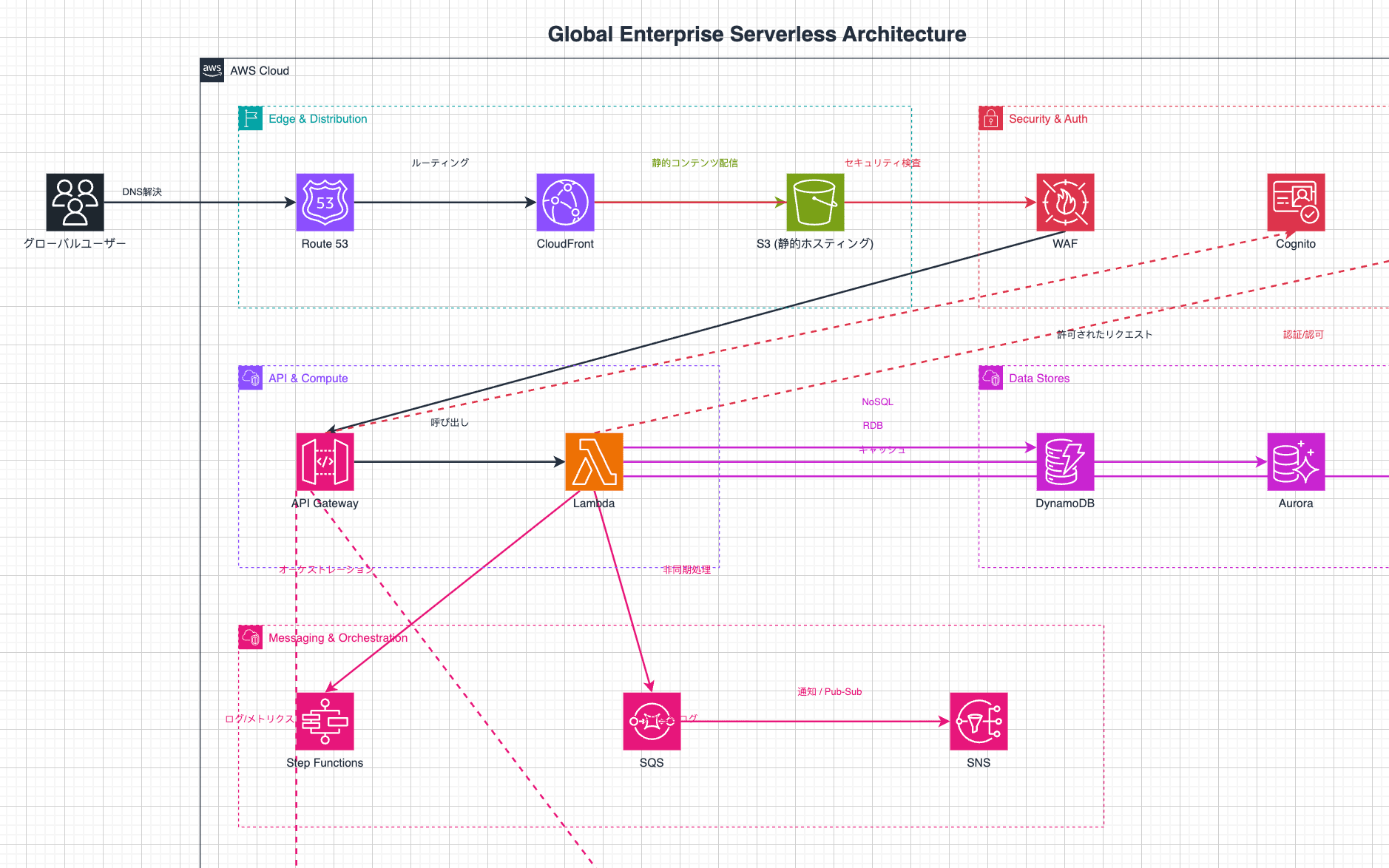
However, the AWS icon style rules aren't fully covered by the official Skill alone, so guidelines needed to be added to SKILL.md.
SKILL.md is a Markdown file, so customization is simple. Feel free to use the guidelines in this article as a base and adjust them to fit your project.