
I Created a Skill to Customize Google Meet Minutes in Claude Cowork

This page has been translated by machine translation. View original
Introduction
I'm kasama from the Data Business Division.
Today I'll introduce a Skill I created using Claude Desktop's Cowork feature to customize Google Meet minutes.
Google Meet has an automatic memo generation feature powered by Gemini that creates meeting minutes as a Google Document after the meeting ends.
It's a convenient feature, but since you can't customize the output format, you need to manually adjust it to match your team or personal style.
So I created a Skill that takes Gemini's transcription as input material for Claude, and outputs minutes in Markdown format according to your preferred template. It also includes a feedback accumulation mechanism, so it becomes increasingly optimized to your style the more you use it.
Prerequisites
- Being logged in with a paid Claude plan (Pro/Max/Team, etc.)
- Having Claude Desktop installed
- Having added Google Calendar connector and Google Drive connector in Claude.ai settings
- Having enabled Gemini transcription (Gemini memos) in Google Meet
What is Claude Cowork
Cowork is an agent feature built into Claude Desktop. Unlike chat mode, it can access the local file system to read and write files and execute commands. It allows you to use Claude Code CLI equivalent functionality through a GUI, and also supports running Skills. You can switch to it by selecting "Cowork" in the tab at the top of Claude Desktop.
In this article, I'm introducing it using Cowork, but you can run the same Skill in Claude Desktop's code mode. Just place the Skill files (under .claude/skills/) in your target project and run it with a slash command.
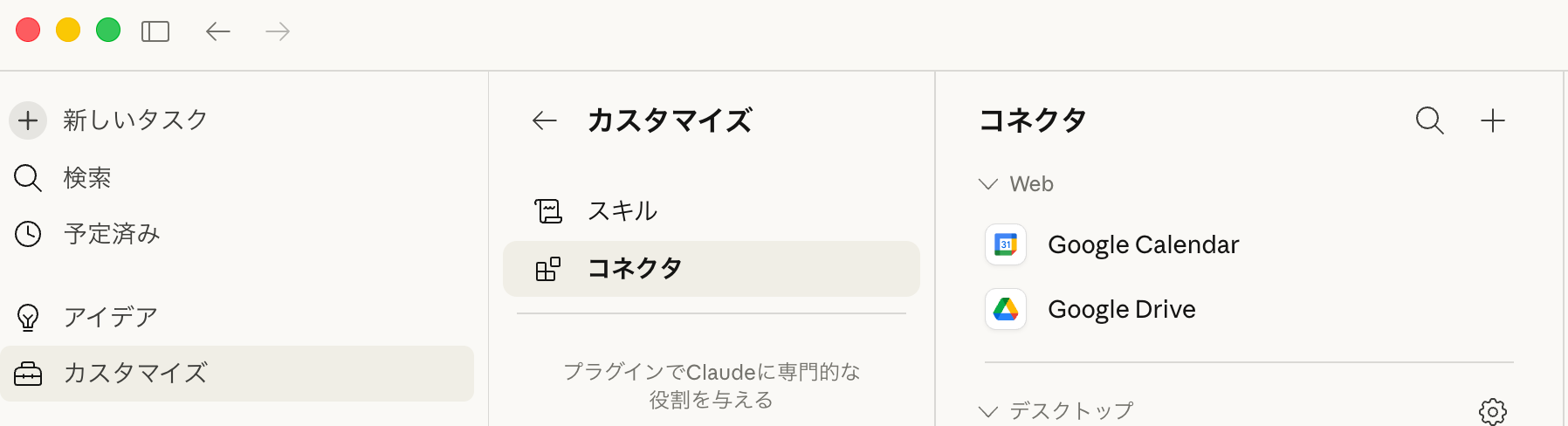
Setting up Google Calendar connector and Google Drive connector
This Skill accesses Google Calendar and Google Drive data, but you don't need to manage Google Cloud projects or API keys. Through Claude.ai connectors, you can access them with just Google account authentication permission. Since Claude Code v2.1.46, connectors added in Claude.ai can also be used from Claude Code (including Cowork).
From Claude.ai's Settings → Connectors, add both Google Calendar and Google Drive. Just authorize your Google account in the browser to complete setup.
Architecture
The overall process flow is as follows:
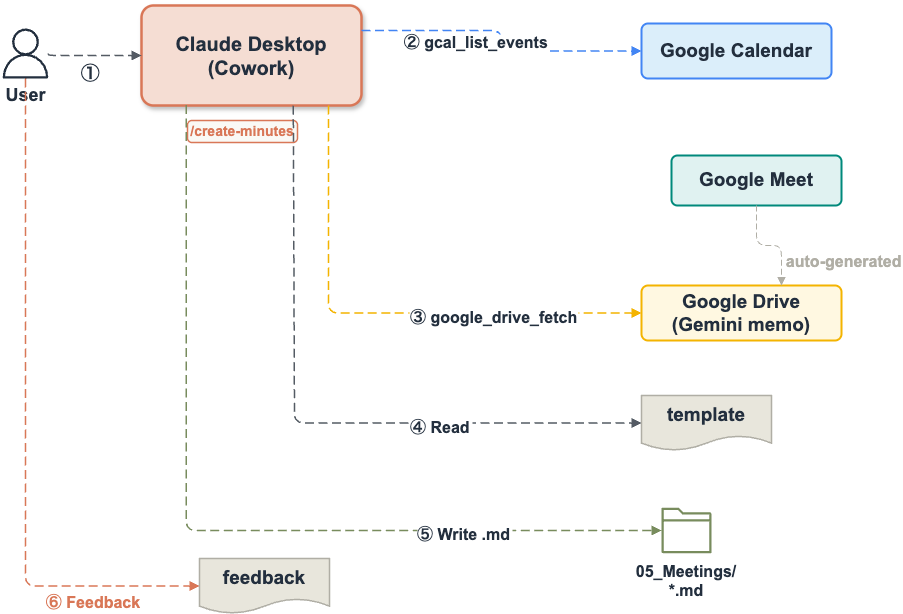
- User executes
/create-minutes YYYY-MM-DD - Retrieves events via Google Calendar connector and identifies events with Gemini memos
- Fetches Gemini memo content via Google Drive connector
- Loads templates and feedback, generates minutes
- Outputs as a Markdown file
- Collects feedback and updates the skill
Implementation
Implementation code is stored on GitHub.
.claude/skills/create-minutes/
├── SKILL.md                          # Skill entry point
├── INSTRUCTIONS.md                   # Detailed workflow instructions
└── references/
    ├── template_default.md           # Default minutes template
    └── feedback.md                   # Feedback accumulation file
SKILL.md
This is the entry point for the Skill.
It specifies mcp__*__gcal_list_events and mcp__*__google_drive_fetch with wildcards in allowed-tools. Since the MCP server UUID part differs by environment, it uses the mcp__*__ glob pattern to match.
INSTRUCTIONS.md
This defines the detailed workflow procedures.
Google Calendar connector and Google Drive connector are provided as deferred tools. You can't call the tools without retrieving the schema via ToolSearch at the start of Skill execution. Since Google Drive's MCP server might take time to initialize due to OAuth token refresh etc., it's designed to retry up to 3 times (at 20-second intervals each).
To identify Gemini memos, it uses the attachments field of Google Calendar events. Documents with mimeType: "application/vnd.google-apps.document" that contain "Gemini" in the title become the source material for minutes. To avoid duplication with already generated minutes, it skips if a file with the same name exists in the output destination.
If there are multiple meetings in a day, it launches subagents in parallel using the Agent tool to generate minutes for each meeting simultaneously.
To improve minutes generation accuracy, it collects incomplete todos and main decisions from recent minutes as past context for reference during generation. It also has a conversion table to automatically correct common homophone mistranscriptions that frequently occur in Gemini transcriptions (like "タブ賞" → "他部署", etc.).
template_default.md
This is the template for minutes.
The template defines the structure and rules for the minutes. Please customize this as you like.
feedback.md
This is the feedback accumulation file.
After generating minutes, it asks for feedback, and if there are improvements, it directly edits the feedback.md or INSTRUCTIONS.md in the project folder. Since these are automatically loaded the next time you generate minutes, accuracy improves the more you use it. To reflect changes in Cowork, zip the edited .claude folder and re-upload it.
Trying it out
Preparing the Skill
Copy the Skill files (under .claude/skills/) to the working folder where you want to save the minutes. Since the skill updates local files directly when receiving feedback, they need to be placed within your working folder.
cp -r 67_cowork_create_minutes/.claude <working_folder>/
If you want to change the output destination, edit the OUTPUT_PATH at the beginning of .claude/skills/create-minutes/INSTRUCTIONS.md that you copied. By default, it outputs to 05_Meetings/{YYYY}/{MM}/{DD}/{filename}.md.
OUTPUT_PATH = <custom_path>/{YYYY}/{MM}/{DD}/{filename}.md
Next, compress the copied .claude folder into a zip file. In Finder, right-click on the .claude folder → select "Compress .claude".
Opening a project in Cowork
Launch Claude Desktop and select "Cowork" in the top tab. Open your working folder as a project.
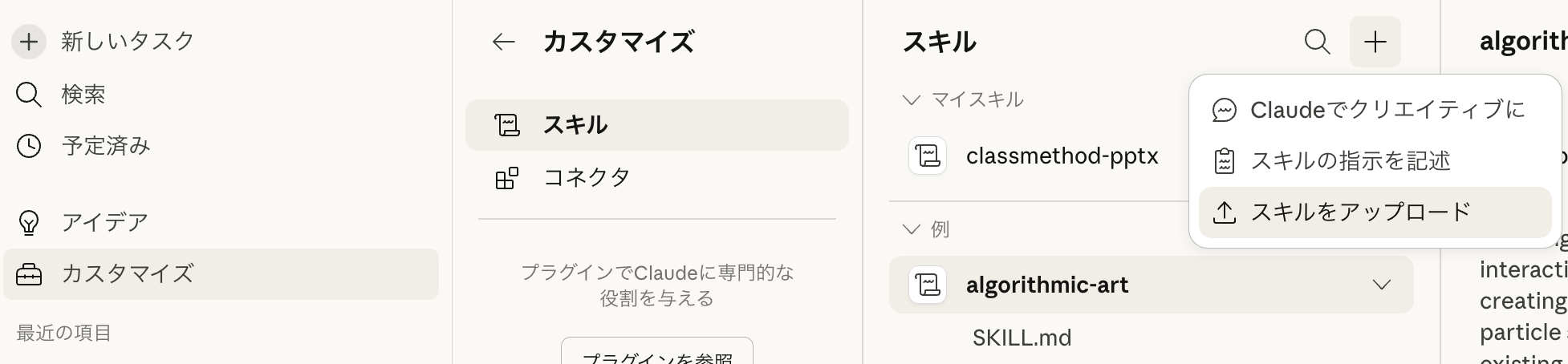
In the "Context" section of the right panel, the project name and skills will be displayed. When you upload the zip file, Cowork will automatically recognize the Skill.
Running the Skill
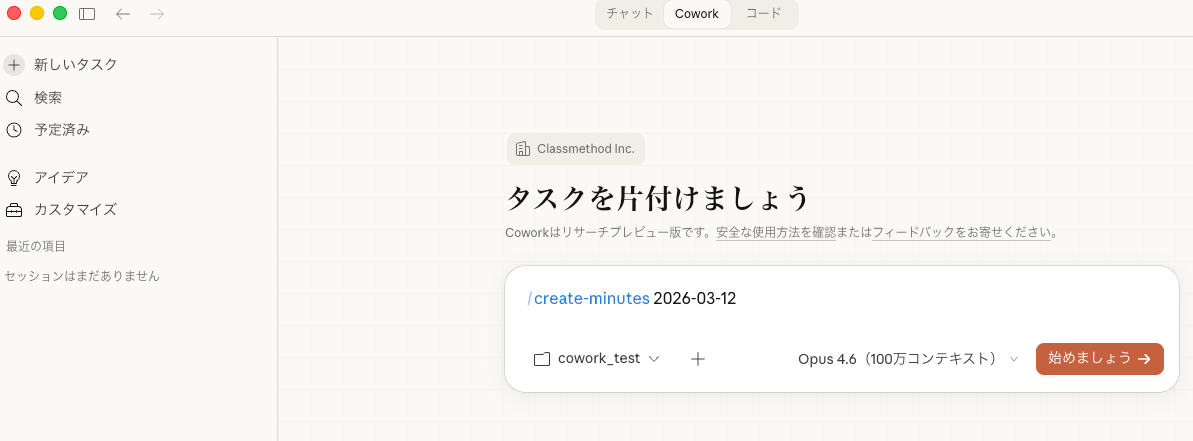
After setting up your working folder in Cowork, run the skill by typing /create-minutes 2026-03-12 or similar in the prompt input field. Without arguments, it will process from the current date.
When retrieving Gemini memo content via the Google Drive connector, an approval prompt will appear. You can choose between "Always allow", "Allow once", or "Deny".
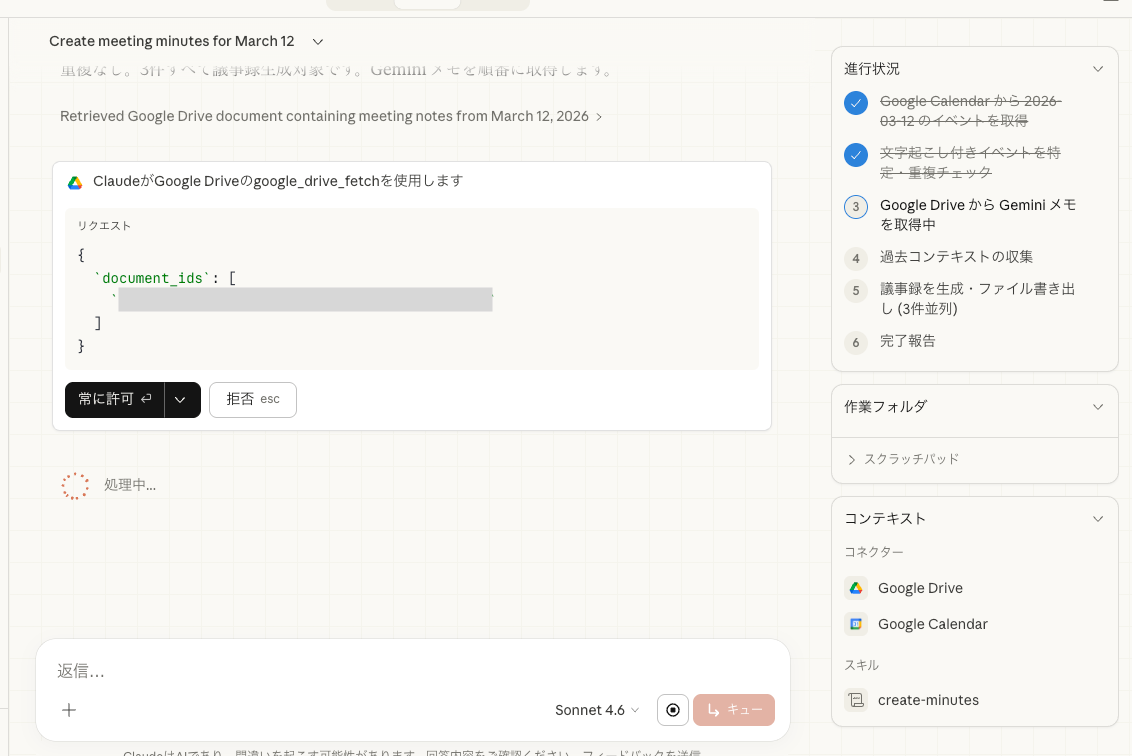
Minutes will be generated according to the template and written out as a Markdown file in the directory specified by OUTPUT_PATH.
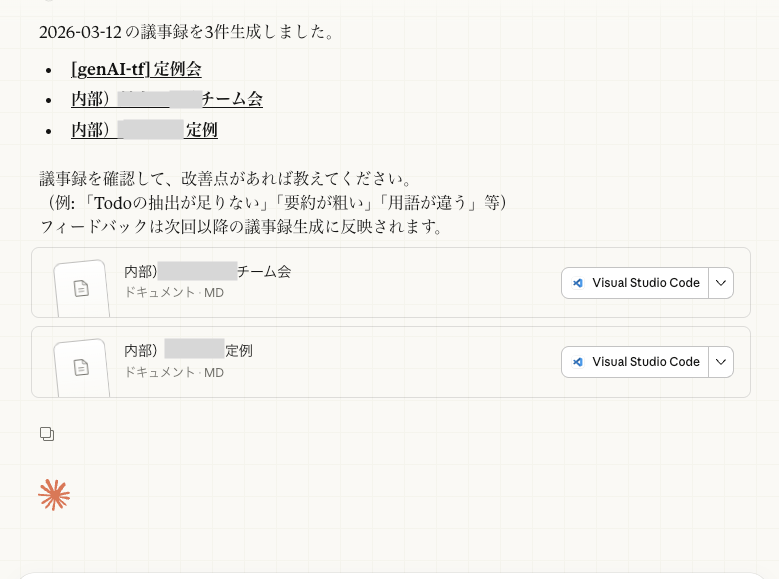
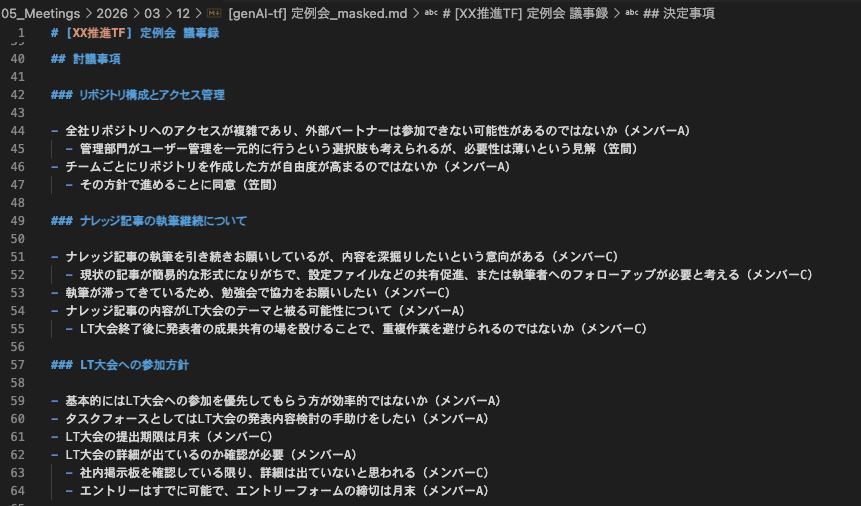
Generated Minutes
The generated minutes will have a structure like this. (Content is a sample.)
Improvement through Feedback
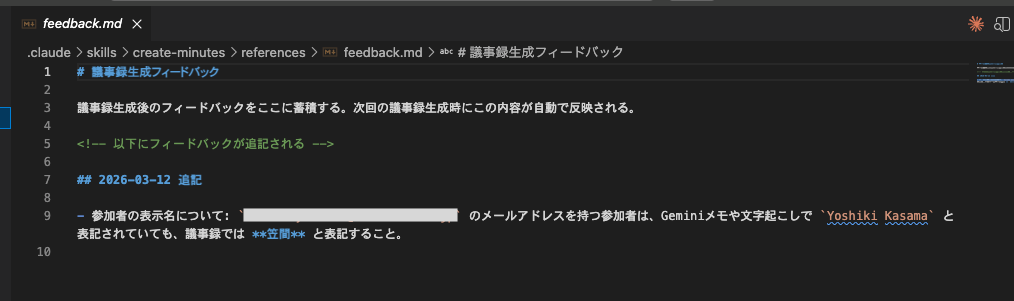
After generating minutes, when you provide feedback, it automatically adds to the feedback.md in the project folder and modifies INSTRUCTIONS.md as needed.
As a test, I'll ask it to convert my romanized name to kanji.

The feedback was added to feedback.md. If you update the Skill, it will reference this content for future creations.
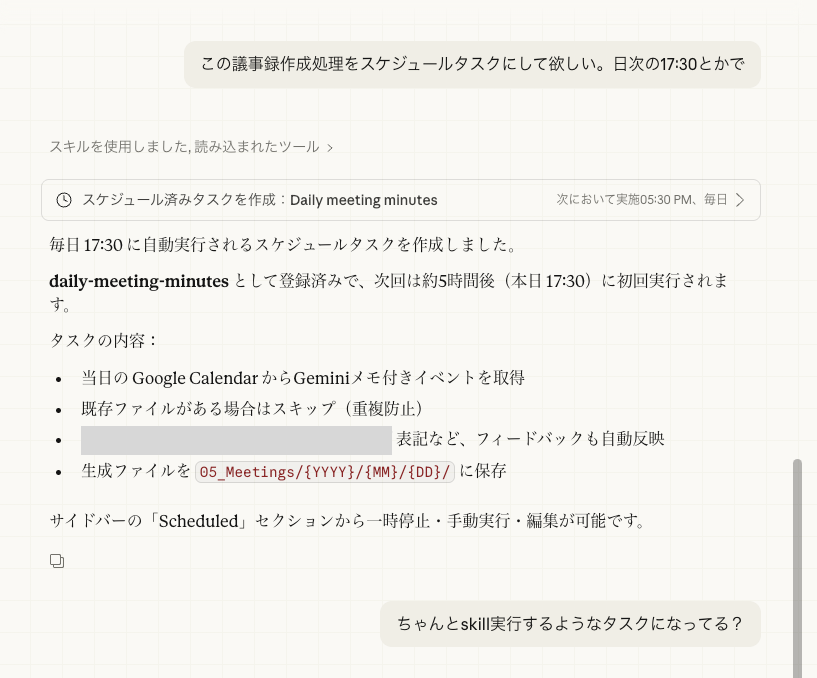
You can also register the task to execute this Skill as a scheduled task. Saying just "Register it" wasn't specific enough for a procedure that executes the Skill, so you need to explicitly instruct "Register a task to execute the Skill".
Conclusion
I created a Skill that automatically generates minutes from Gemini transcriptions by combining Claude Desktop's Cowork with Google connectors. The biggest advantage is its ease of use - no need to create Google Cloud projects or manage API keys; you can start with just connector authentication permissions. Since it incorporates a feedback accumulation mechanism, accuracy improves the more you use it, making daily minute creation easier over time. I hope this can be useful to someone.