I tried auto-generating daily recaps of Slack channels using Claude Cowork's scheduling feature

This page has been translated by machine translation. View original
Introduction
In project Slack channels, various discussions are happening inside threads every day. However, tracking information scattered across multiple threads is challenging, and cases where "an old thread received a new reply yesterday" are easy to miss.
So I built a system using Claude Cowork's scheduling feature (cron) to automatically generate and post a daily recap of Slack channel activity every morning. Since it was interesting that this could be achieved without writing a single line of code—just by having a conversation to nail down the requirements—I'd like to share the process and key points.
What I Built
A bot that automatically summarizes the previous day's Slack channel activity every weekday morning at 9 AM and posts it in the following format.
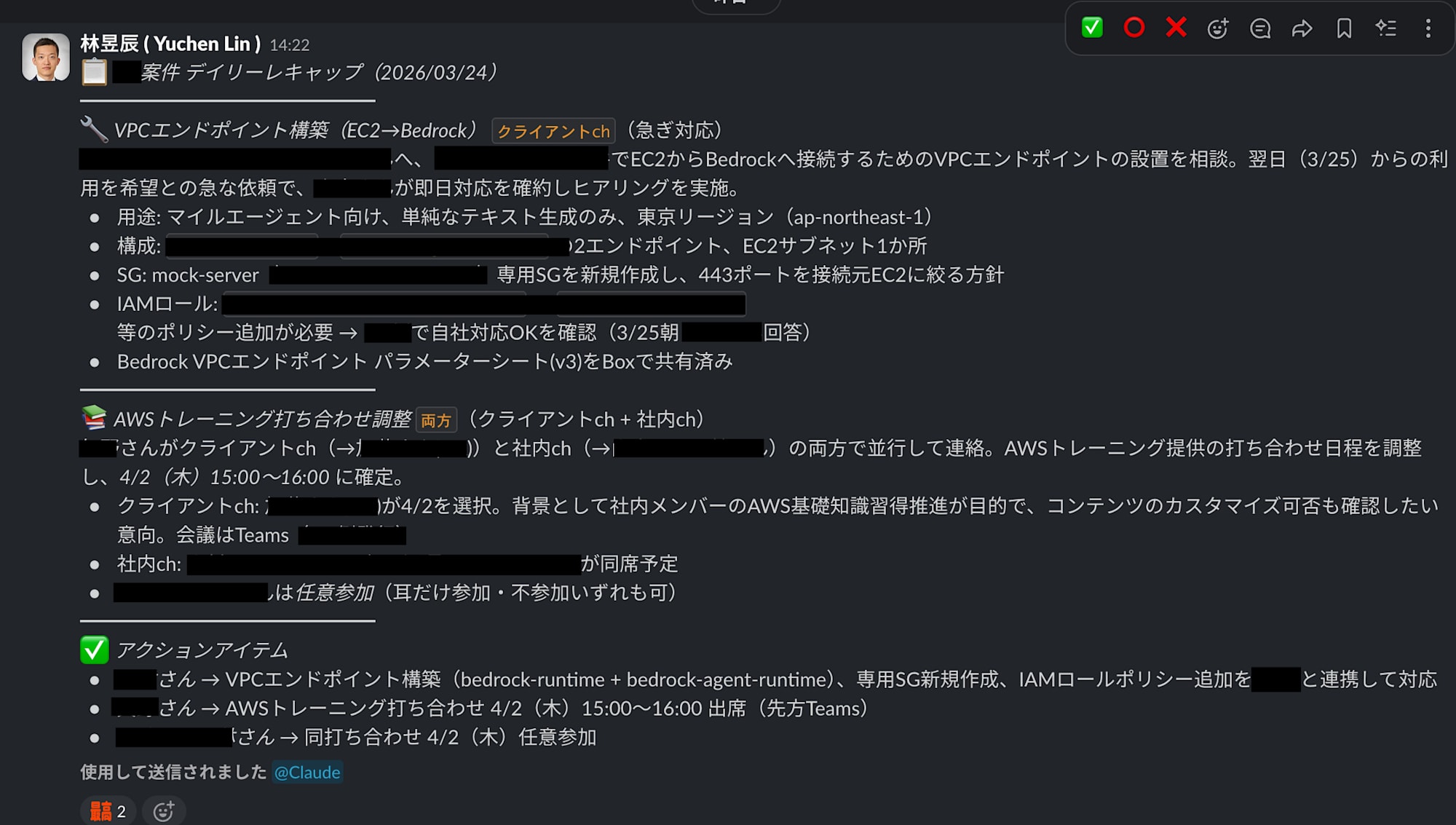
The key features are as follows:
- Cross-monitors 2 channels—an internal channel and a client channel (Slack Connect)—and automatically merges identical topics
- Catches new replies to old threads without missing any
- Displays a channel source tag per topic (
Internal ch/Client ch/Both) - Output is limited to the internal channel only (no posting to the client channel)
- All recap content is in Japanese
Prerequisites & Environment
- Claude Desktop (with Cowork features available)
- Slack integration (Claude Desktop's Slack MCP connector) enabled
- Access to the target Slack channels
Setup Process
1. Confirming Slack Integration
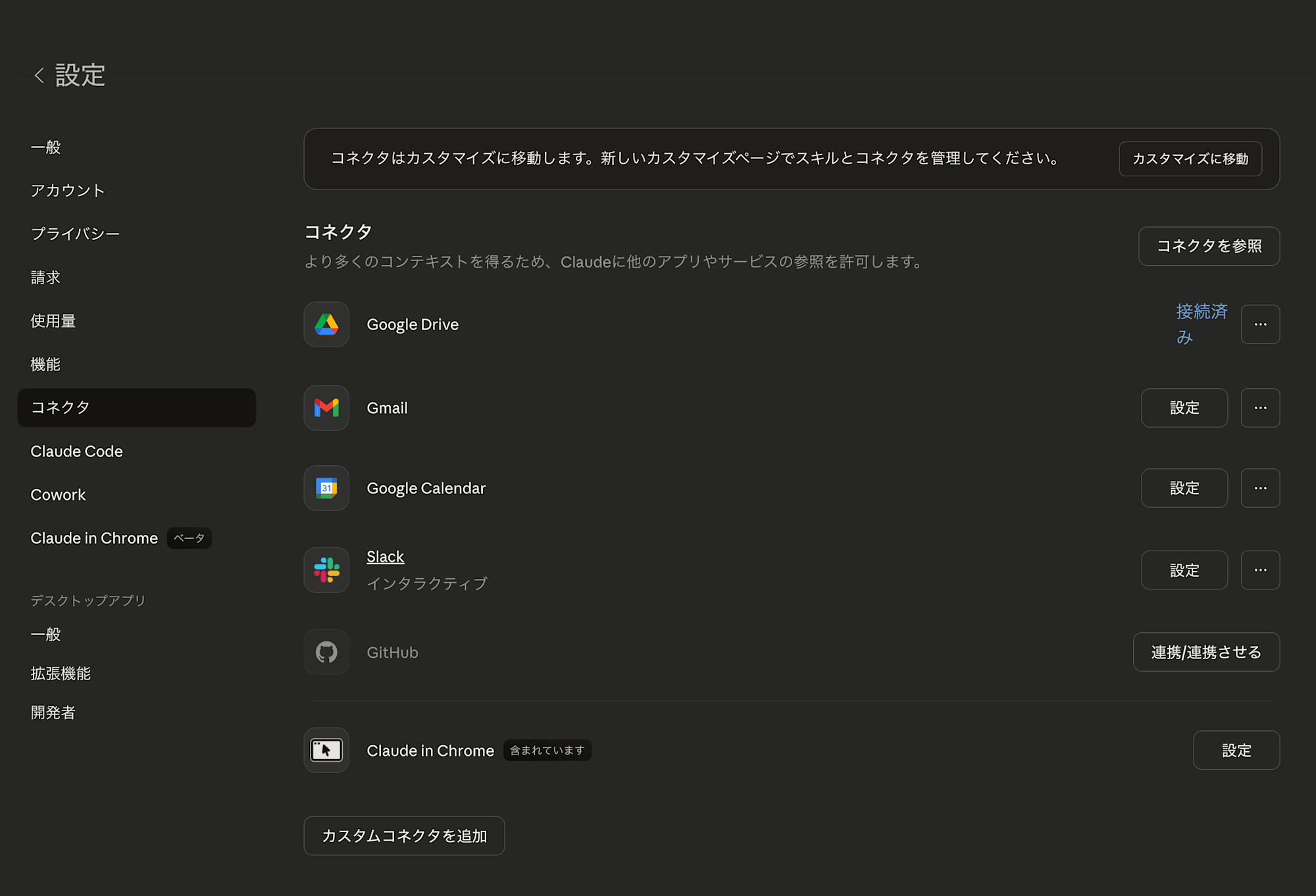
Claude Cowork provides a Slack MCP connector that enables reading channels, sending messages, searching, and more. The following tools were used this time:
| Tool | Purpose |
|---|---|
slack_search_channels |
Identifying channel IDs |
slack_search_public_and_private |
Searching previous day's messages (including thread replies) |
slack_read_channel |
Reading channel timeline |
slack_read_thread |
Reading full thread content |
slack_send_message |
Posting the recap |
2. Designing the Task Through Conversation with Claude
Claude Cowork's scheduling feature lets you create cron tasks just by telling it in natural language what you want to do. I refined the requirements through the following kind of exchange.
First, I described what I wanted to do.
"I want to add a cron that reads yesterday's threads and creates a channel recap. I want it to include a summary and action items, output in Japanese."
Claude came back with questions about execution time, where to post, and how to handle threads, which I answered as follows:
- Execution time: Weekdays at 9 AM (JST)
- Posting destination: Same channel as the source being summarized
- Threads: Read all thread replies
With just this, the first version of the cron task was created.
3. Discovering and Fixing Issues with a Dry Run
When I ran the first version, I found a problem: new replies to old threads were not being picked up.
There were two root causes.
Problem 1: Using slack_search_public to search a private channel
Because the target channel was a private channel, slack_search_public returned 0 results. Switching to slack_search_public_and_private resolved this.
Problem 2: Channel timeline alone cannot catch replies to old threads
Since slack_read_channel returns the timeline of top-level messages in a channel, replies posted yesterday to past threads are not included.
To solve this, I adopted an approach that combines two methods:
| Approach | Method | What It Catches |
|---|---|---|
| A: Channel Timeline | slack_read_channel |
Yesterday's new top-level messages |
| B: Full-text Search | slack_search_public_and_private |
All of yesterday's messages (including replies to old threads) |
For thread replies found via Approach B, slack_read_thread is used to retrieve the parent message, understand the context, and include it in the summary.
To illustrate how much difference this fix made in practice, on one test day:
- Approach A only: 1 item (top-level message)
- Approach A + B: 49 items (including thread replies)
That was a significant difference.
4. Adding the Client Channel
In addition to the internal channel, I added the Slack Connect client channel as a monitoring target. The key points are:
- If the same topic is being discussed in both channels, merge them into one section
- Display the channel source for each topic (
Internal ch/Client ch/Both) - Output is limited to the internal channel only (never post to the client channel)
This resulted in a recap where you can see at a glance "what the client approved" and "what was discussed internally."
5. Improving the Output Format
In the first version, the summary was condensed into one long paragraph, making it difficult to read in Slack. The following improvements were made:
- Split into sections by topic, visually distinguished with emoji markers
- Dividing lines (
━━━) to clarify structure - Each topic has a 1-2 line overview + bullet points for easy scanning
- Person's name unified as "Last name + san" (to match the natural tone of the team's Slack)
- Action items use
→to express visual flow
📋 *〇〇 Project Daily Recap (YYYY/MM/DD)*

━━━━━━━━━━━━━━━

📩 *[Topic Name]* `Client ch` ([Context])
[1-2 line overview]
• [Key point 1]
• [Key point 2]

🏠 *[Topic Name]* `Internal ch` ([Context, e.g., continuing 3/18 thread])
[1-2 line overview]
• [Key point 1]
• [Key point 2]

🔗 *[Topic Name]* `Both` ([Context])
[If the same topic was discussed in both channels, merge them under one heading]
• [Key point 1 — from customer channel]
• [Key point 2 — from internal channel]

━━━━━━━━━━━━━━━

✅ *Action Items*
• *[Last name] san* → [Action details]
• *[Last name] san* → [Action details]
(If none, write "None in particular")
---
Scheduled Task Configuration
Here is an overview of the final cron task created.
| Item | Setting |
|---|---|
| Task ID | daily-slack-recap-project-x |
| Schedule | 0 9 * * 1-5 (Weekdays 9:00 JST) |
| Monitored Channels | Internal channel + Client channel (Slack Connect) |
| Output Destination | Internal channel only |
| Language | Japanese |
Scheduled tasks can be viewed and managed from the Claude Desktop sidebar, and can also be manually triggered with "Run now." Once the Slack MCP tool permissions are approved on the first run, no approval prompt will appear for subsequent automatic runs.
Key Points & Pitfalls
Handling Private Channels and Slack Connect
The Slack MCP has two search tools: slack_search_public and slack_search_public_and_private. When searching private channels or Slack Connect channels, you must use the latter. I initially didn't notice this difference and ended up with 0 search results.
The Need for Pagination
In active channels, a day's worth of messages may not fit on a single page of search results (20 items). As long as a cursor is returned in pagination_info, you need to keep fetching the next page.
Skipping Days with No Activity
Posting a recap on holidays or days with no activity serves no purpose, so the bot is set to skip posting if there are zero human messages (excluding bot messages and automated notifications).
Conclusion
Using Claude Cowork's scheduling feature, I built a system that automatically generates daily recaps of Slack channels.
By going through just a few cycles of conveying requirements conversationally, running dry runs, and discovering and fixing issues, a practical Slack bot was completed without writing a single line of code. In particular, the problem of "picking up replies to old threads" was something I wouldn't have noticed without actually doing a dry run—a moment where the strengths of an interactive development process really shone through.
Going forward, I'm considering improving recap accuracy (filtering out unnecessary information, automatic follow-up on action items, etc.) and expanding to other channels.