I tried setting up a spending limit in Claude Enterprise

This page has been translated by machine translation. View original
Hello! I'm Takakuni (@takakuni_) from the Cloud Business Division Consulting Department.
Recently, I've been receiving many inquiries about Claude Enterprise.
Since I've had the opportunity to test Claude Enterprise, I'd like to summarize information about usage and spending limits in this post.
Usage and Spending Limits
First, Usage-based Enterprise plans charge token usage fees on a pay-as-you-go basis according to standard API rates.
Usage billing
On usage-based Enterprise plans, usage is charged separately from your seat fee and is based on actual token consumption at standard API rates. For current per-model pricing, see our API pricing page.
Since token usage is not included in the seat fee, you can set spending limits to prevent unlimited costs.
Usage isn't included in the seat fee. Every token your team uses—in chat, Claude Code, or Cowork—is billed at standard API rates on top of your seat cost. For full details on how usage billing works for your plan, see How am I billed for my Enterprise plan?
About Spending Limits
Spending limits can be set for both organizations and individuals.
If you need cost predictability, admins can set spend limits at the organization or user level.
The lower limit takes precedence.
These limits work hierarchically — a user cannot exceed their individual limit or the organization limit, whichever is lower.
There are several ways to purchase Claude Enterprise, but for Sales-assisted plans, when you reach the usage limit, you can either raise the cap or usage will resume at the start of the next billing period. It's important to remember this.
Sales-assisted plans: If a spend cap is reached, an Owner or Primary Owner can raise the cap, or usage will resume at the start of the next billing period. Contact your account manager with questions.
Permissions
Owner or Primary Owner permissions are required to set spending limits.
Let's Try It
Let's actually set spending limits.
Checking Default Values
First, let's check the default values.
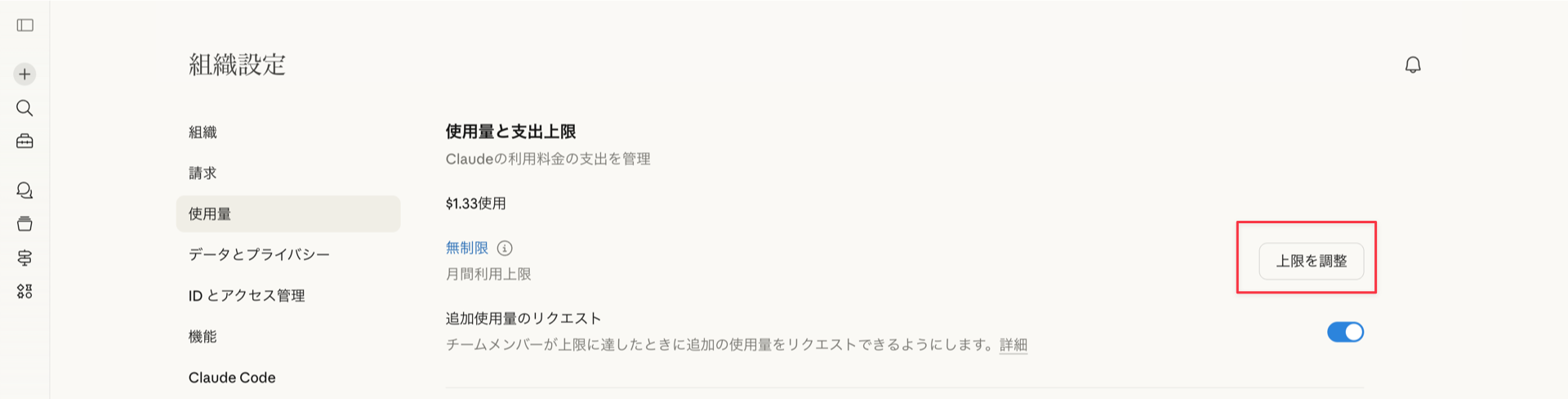
The organization's monthly usage limit is set to Unlimited.
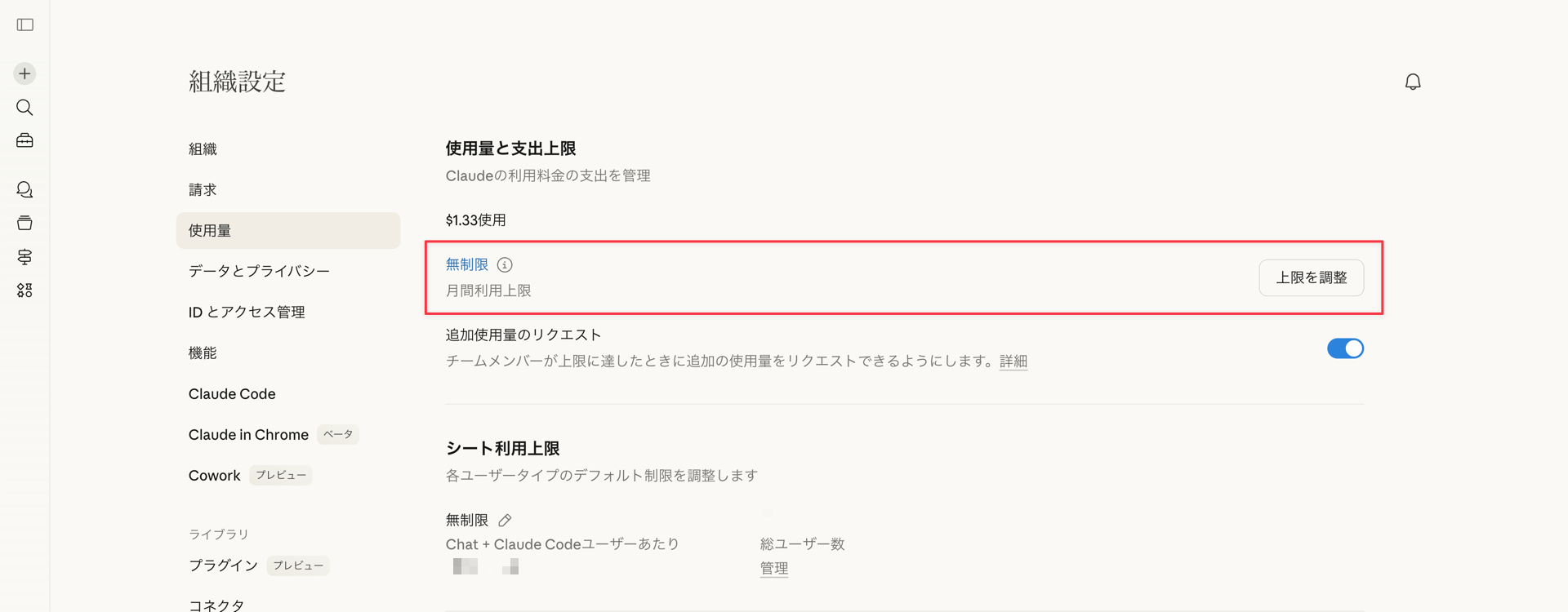
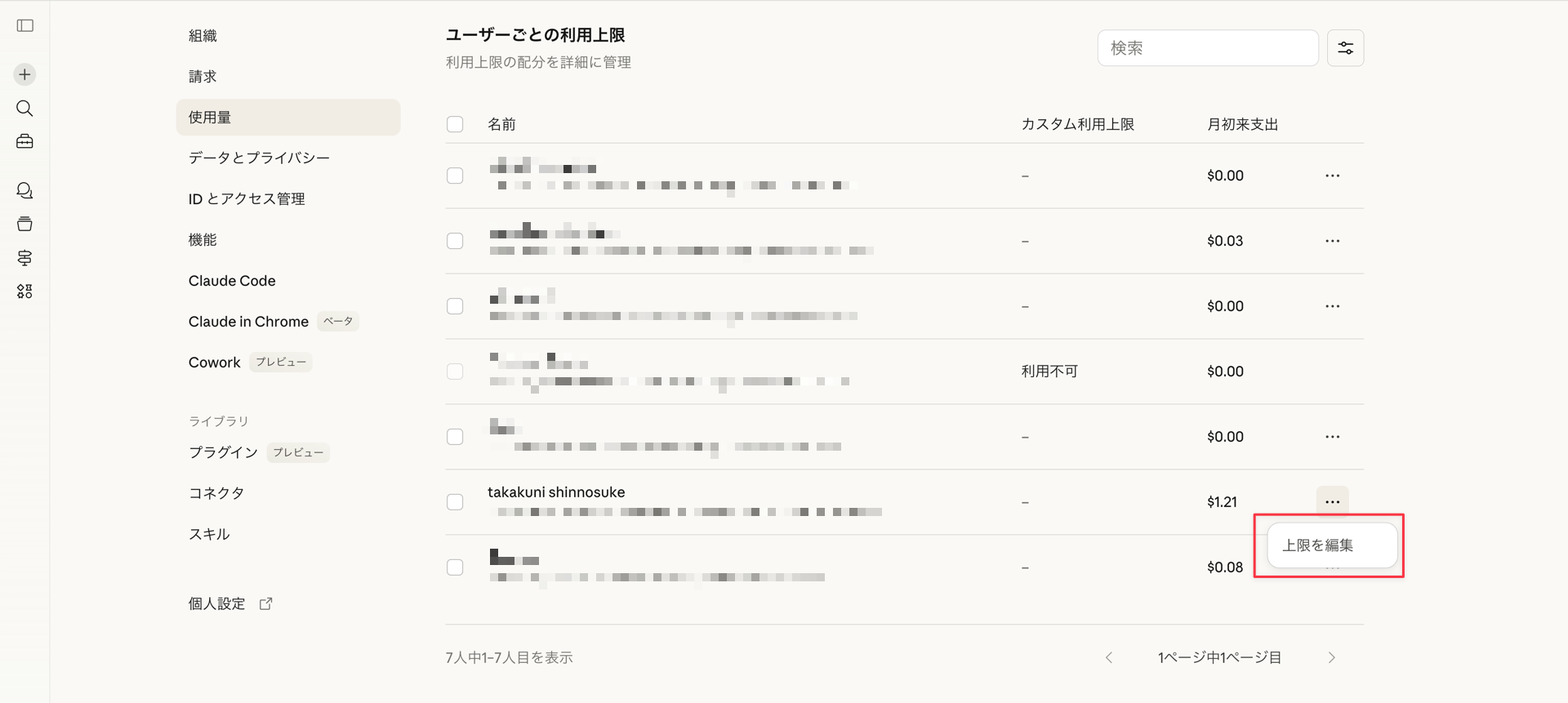
Let's also check the "Per-user usage limits." By default, it seems that nothing is specifically set.
There's one user marked as "Unavailable." This was a user with Primary Owner permissions. Therefore, we can understand that spending limits cannot be set for Primary Owners.
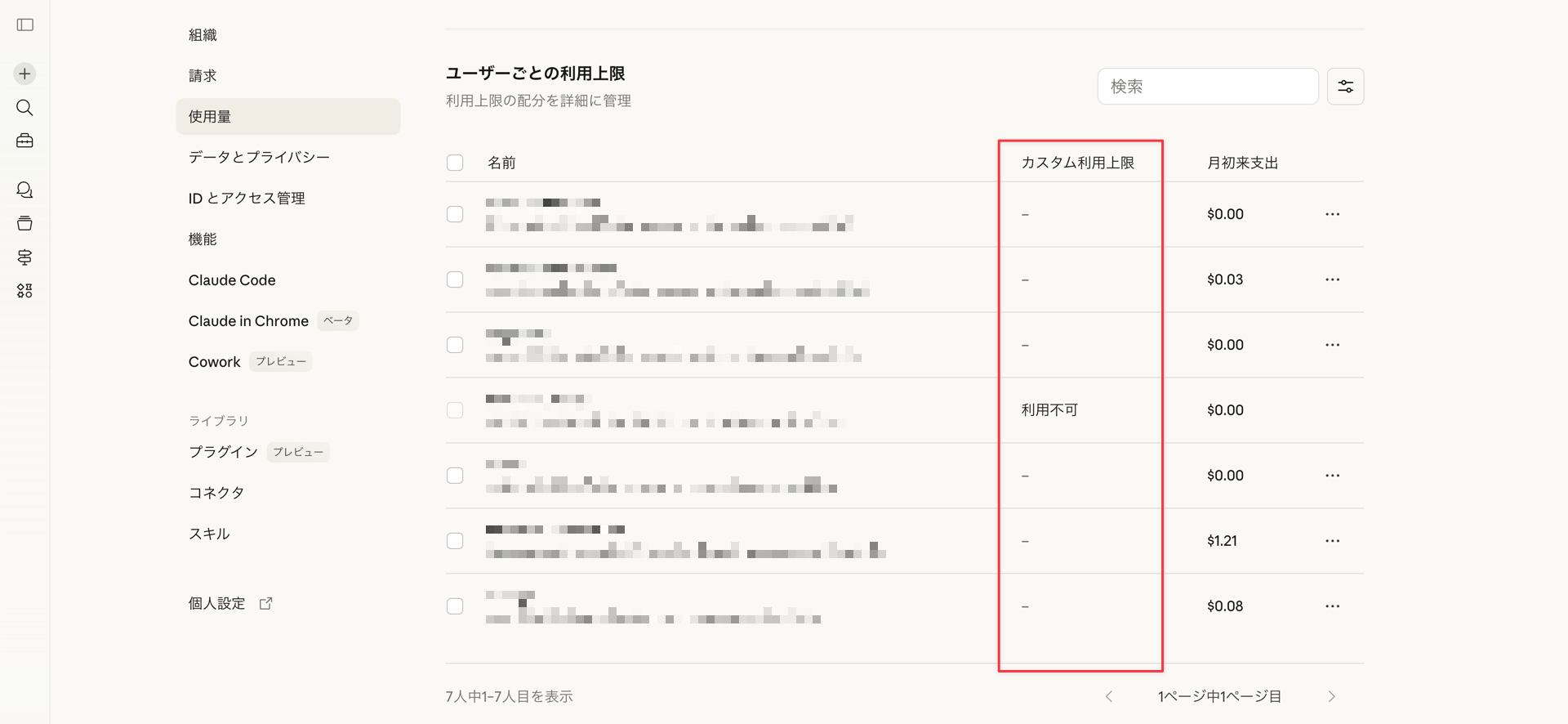
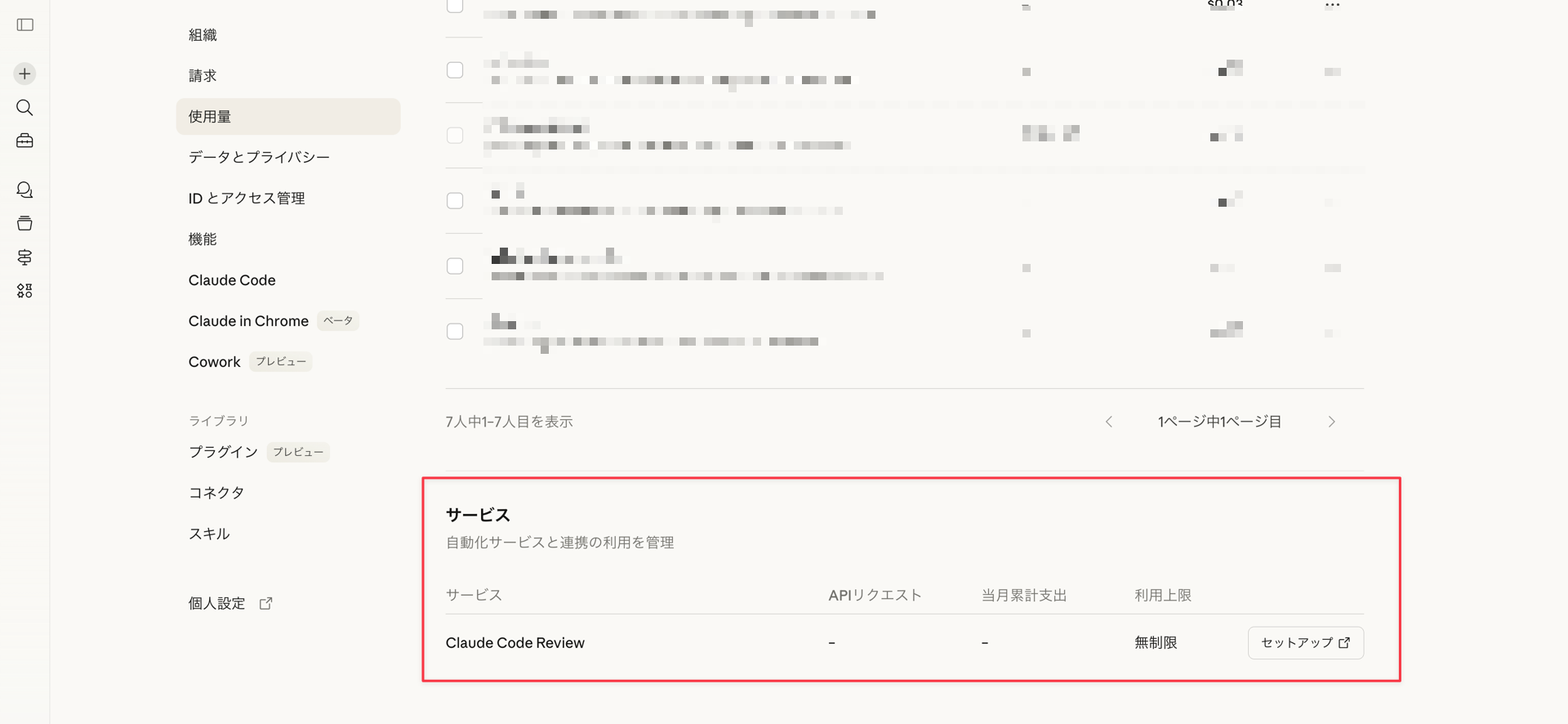
It seems possible to set usage limits by service unit as well. Currently, Claude Code Review is displayed.
Setting Spending Limits
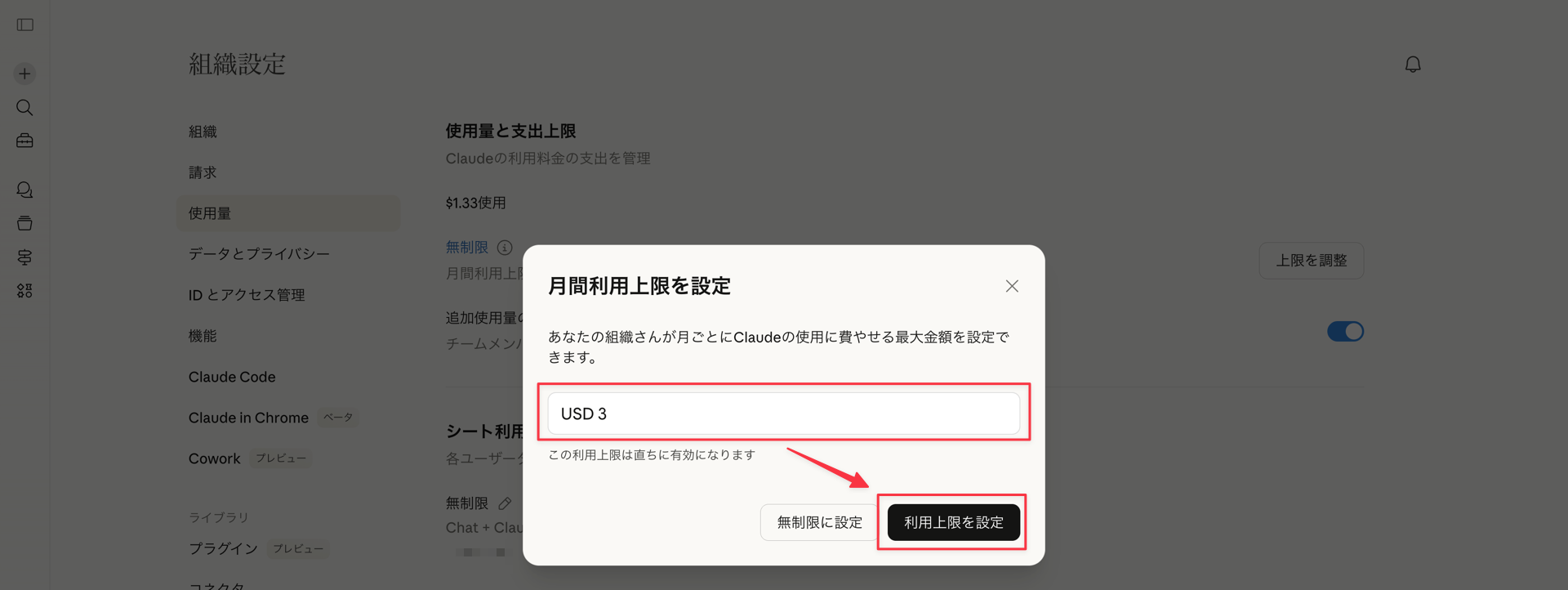
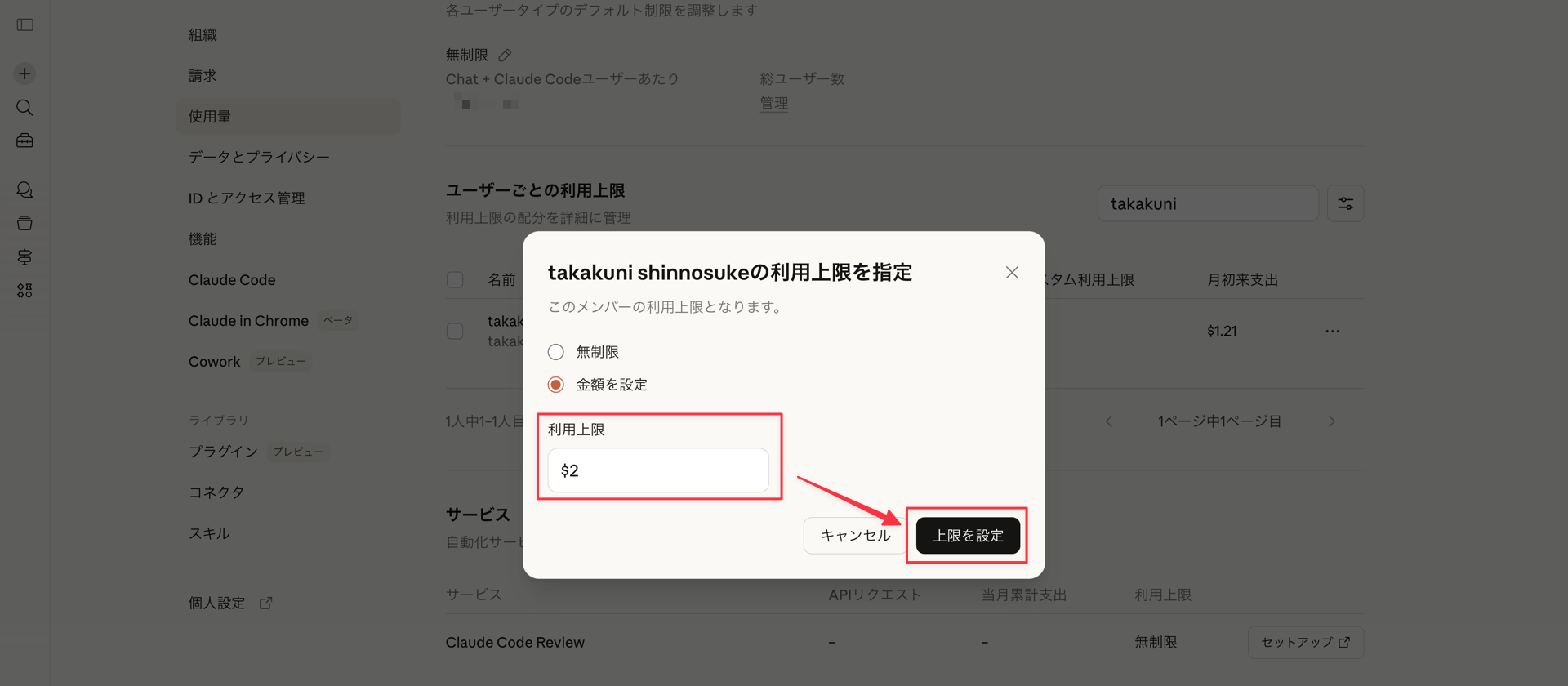
For this test, I'll set an organizational usage limit of $3 and an individual usage limit of $2.
Setting Organization Usage Limit
From Usage, click "Adjust limit" under "Usage and spending limit."
Set $3 and click "Set usage limit."
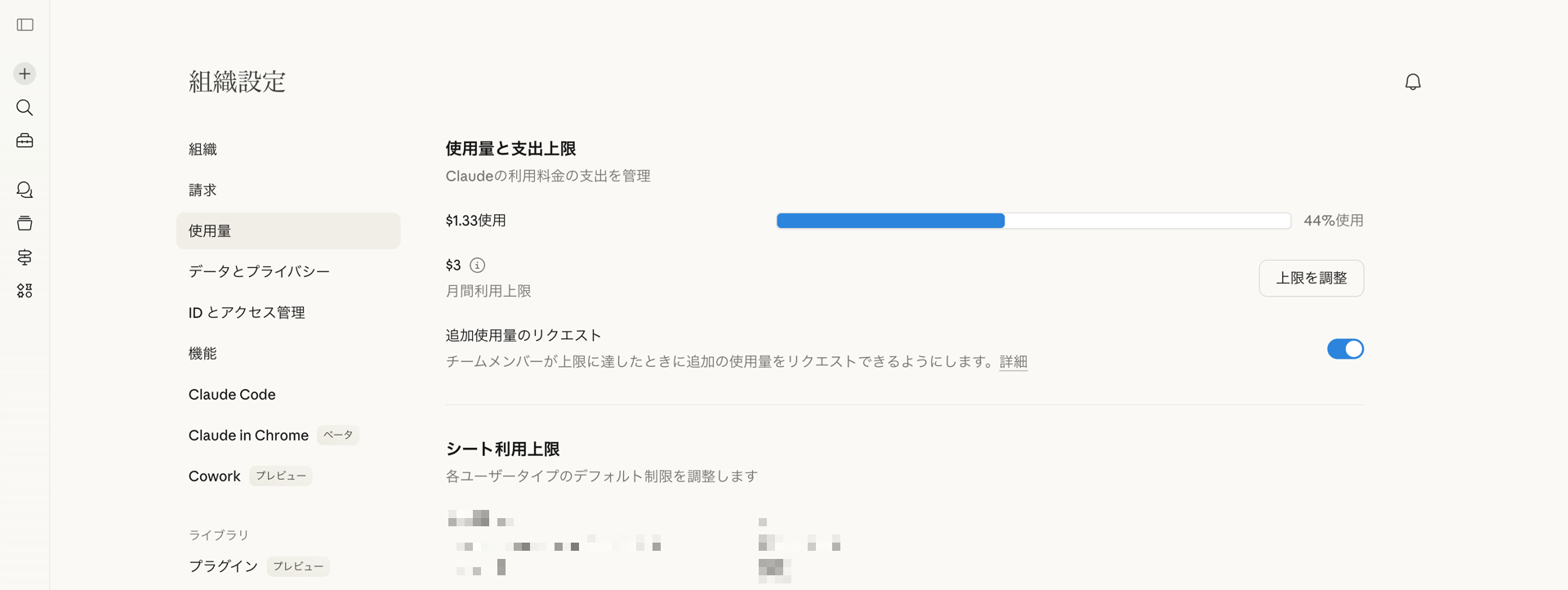
The gauge has been set based on current usage.
Setting Individual Usage Limit
Next, let's set an individual usage limit.
Click "Edit limit" for the target user under "Per-user usage limits."
Set $2 and click "Set usage limit."
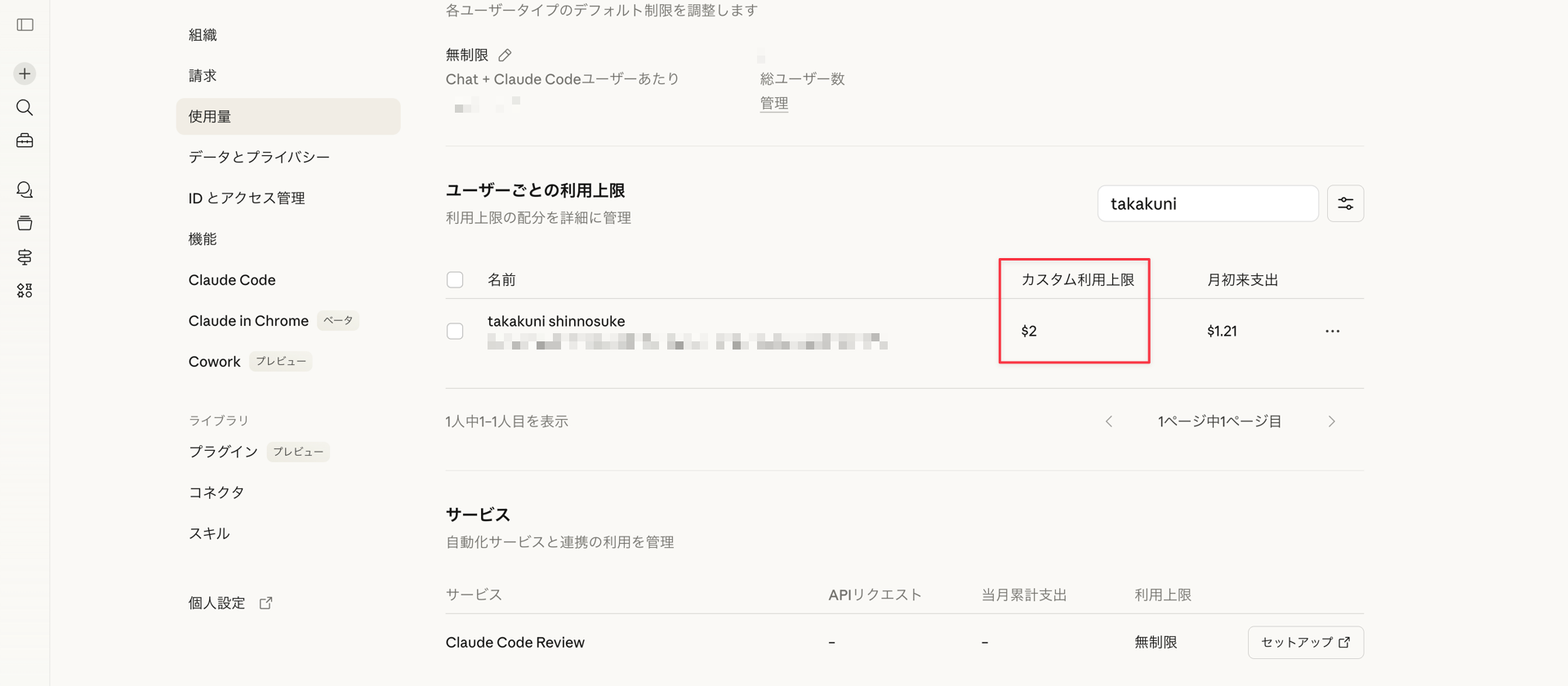
It's been set to $2.
Exceeding Spending Limits
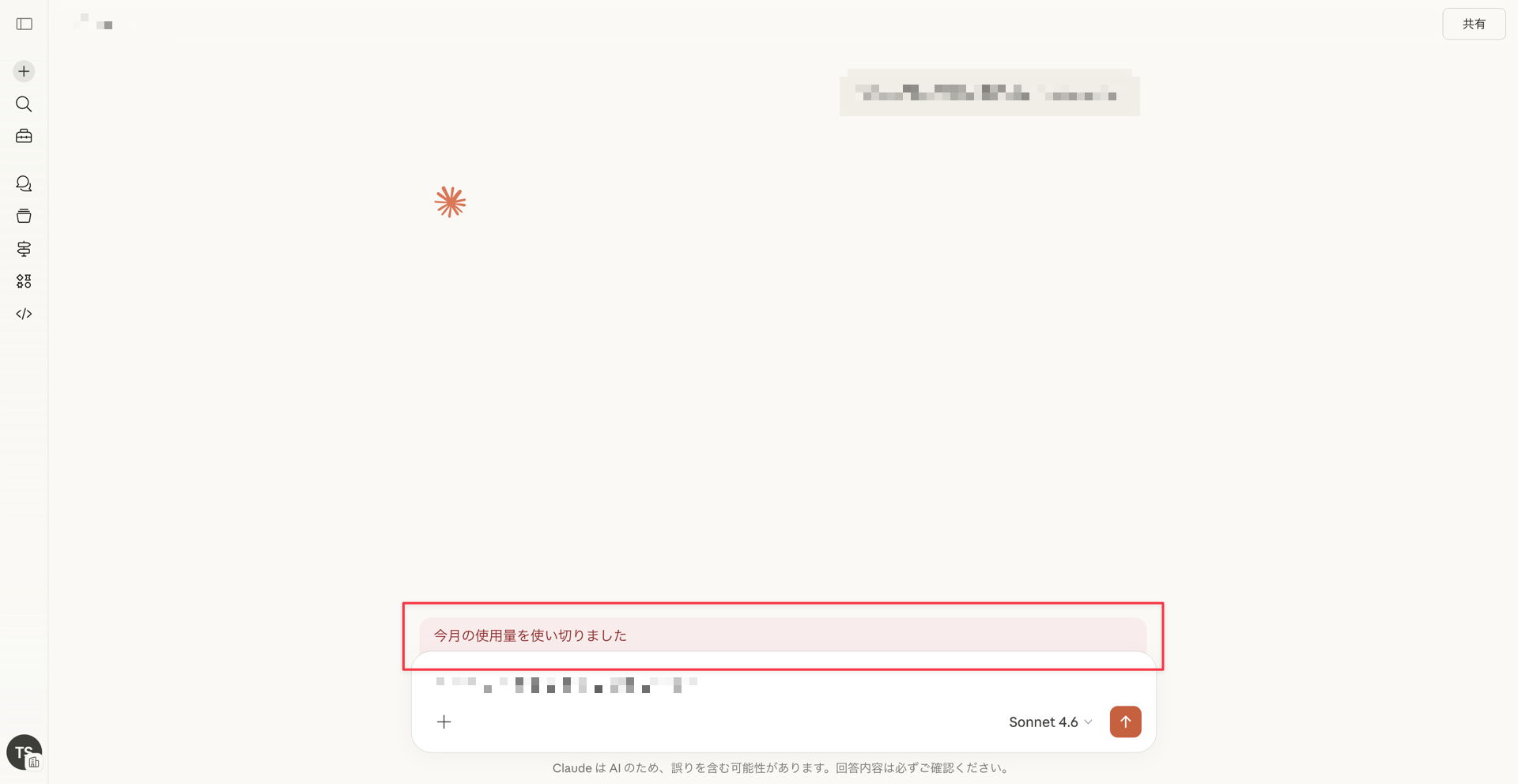
When I tried to use more than $2, I reached the usage limit as shown below.
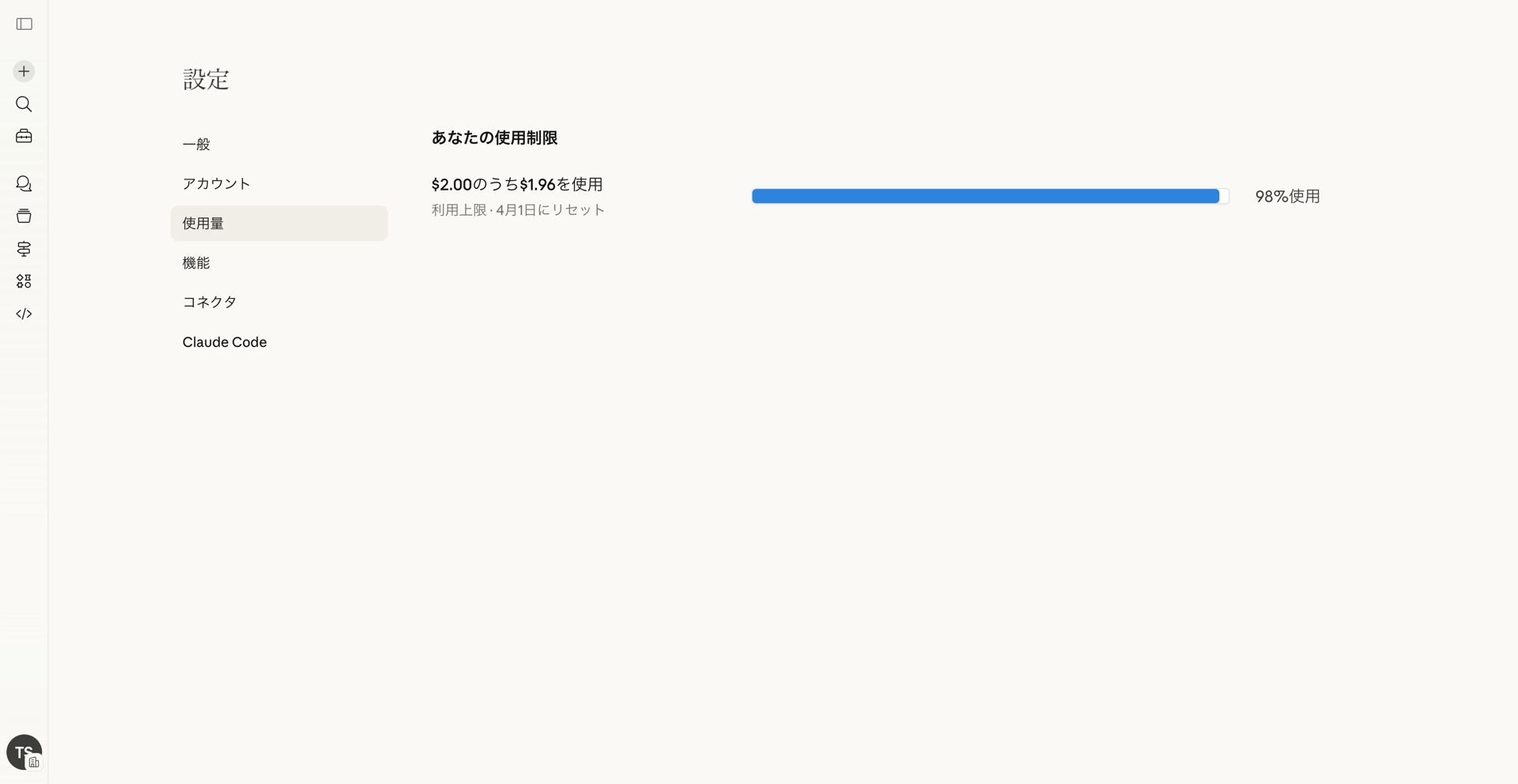
The individual usage screen also shows that I'm right at the usage limit.
Next, let's consider a scenario where individual usage limits are removed and only organizational spending limits are set.
When reaching the spending limit threshold, I received a notification like this:
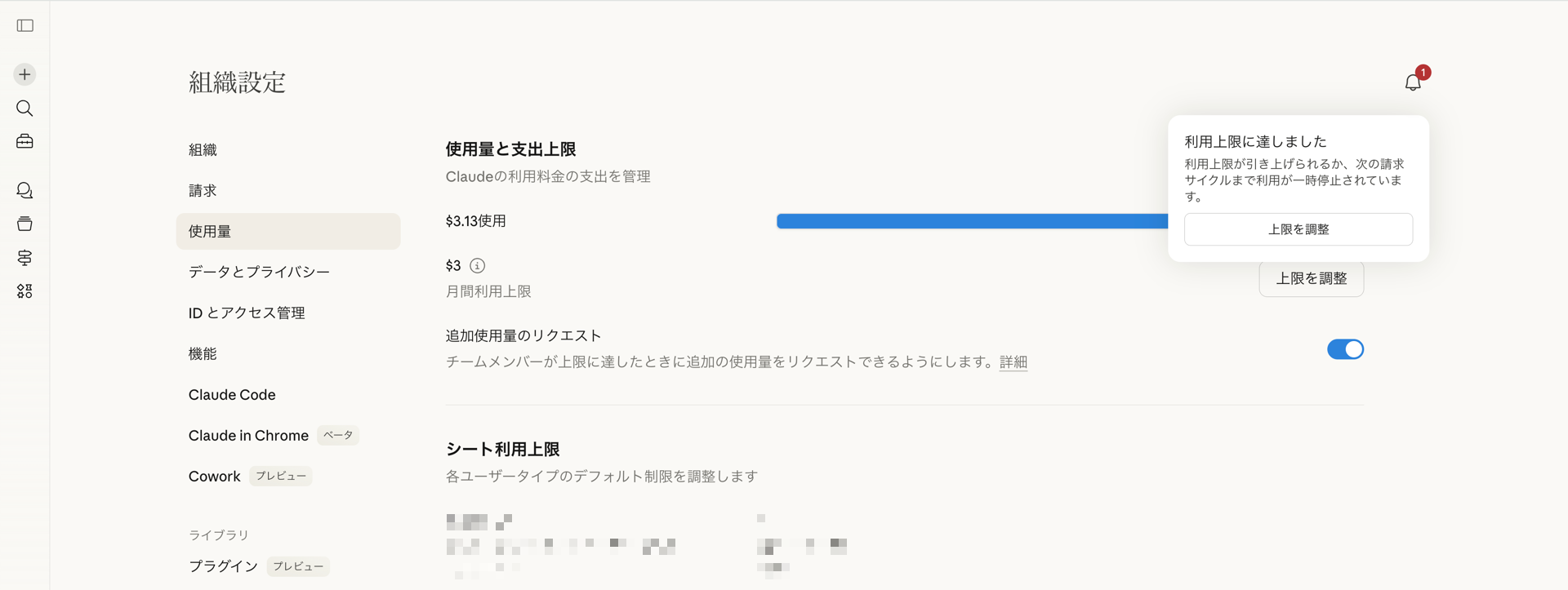
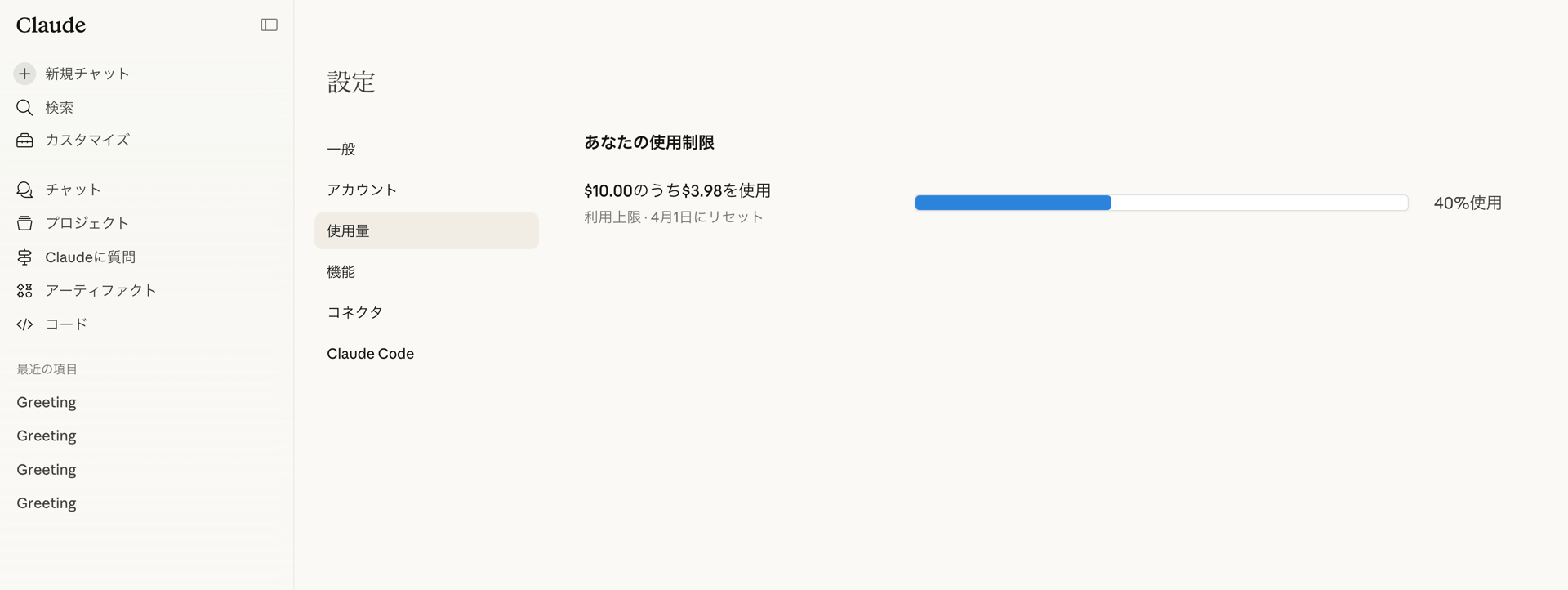
Although I set the limit to $3, it shows $3.13, slightly over the limit.
While I couldn't find specific documentation for Usage-based Enterprise plans, for Extra usage limits, token consumption is calculated after the request processing is completed, which means the last request might cause you to exceed the limit.
I believe a similar mechanism is used for token spending limits.
It's possible to slightly exceed your defined usage limit. Our system checks if you're within your limit before you're allowed to make a single request or send a message. Once the request is processed, we calculate your token consumption, which means you may bypass your limit with that request. Once this happens, any subsequent requests will be blocked.
When only the organizational spending limit is set, individual usage is marked as "Unlimited."
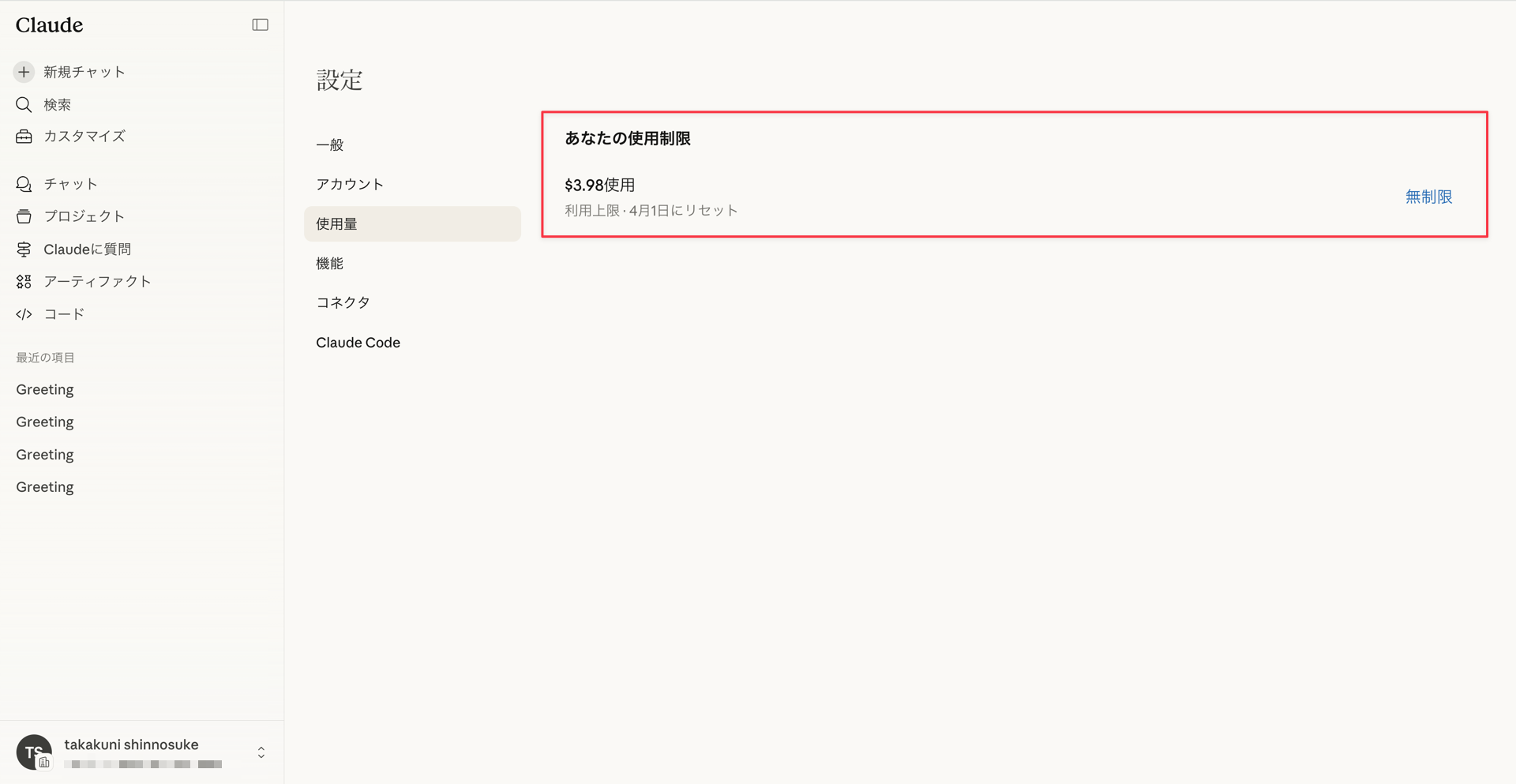
When reaching the spending limit threshold, it displays: "Your organization has reached its monthly usage limit. Administrators have been notified."
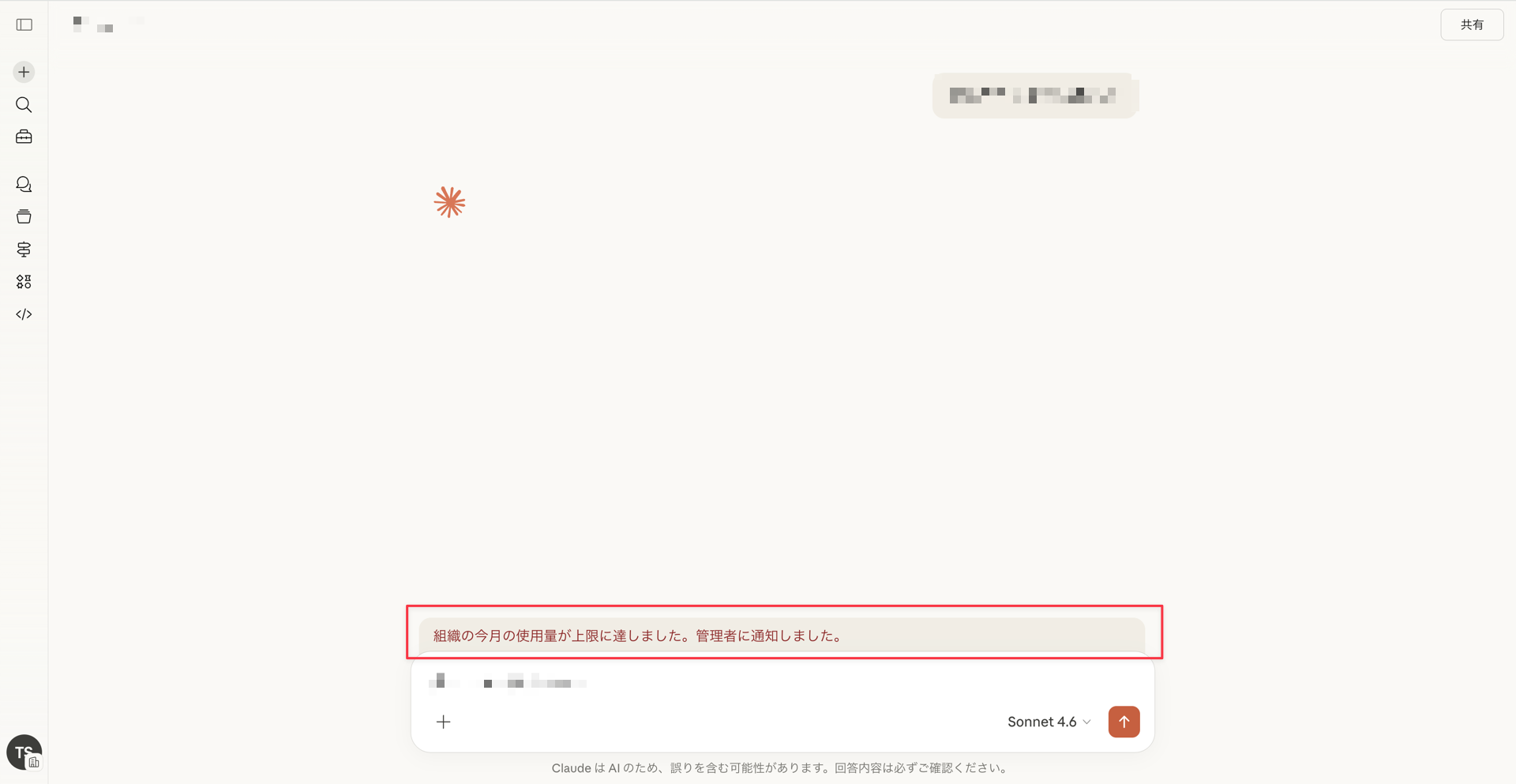
Setting Default Spending Limits
While spending limits can be set individually, setting them for each user can be cumbersome.
In this case, setting a default spending limit can help avoid configuring limits for each user.
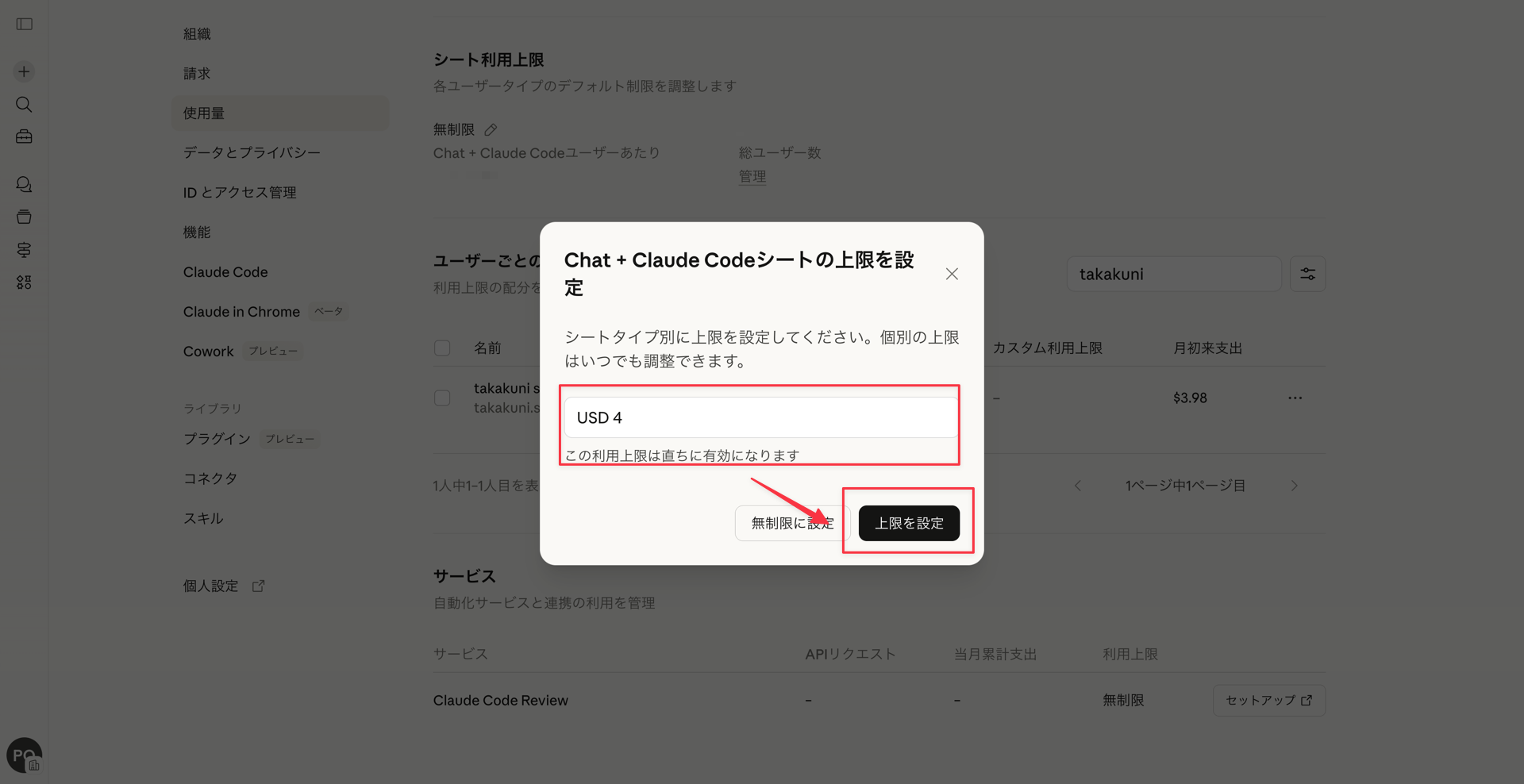
Click the pencil button from "Seat usage limits,"
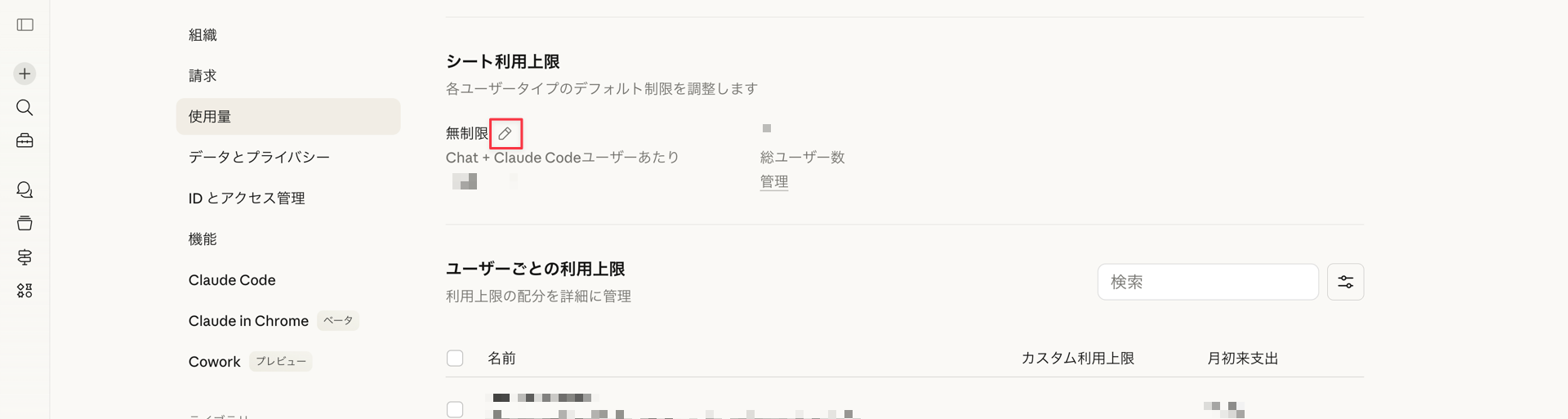
Then set the limit.
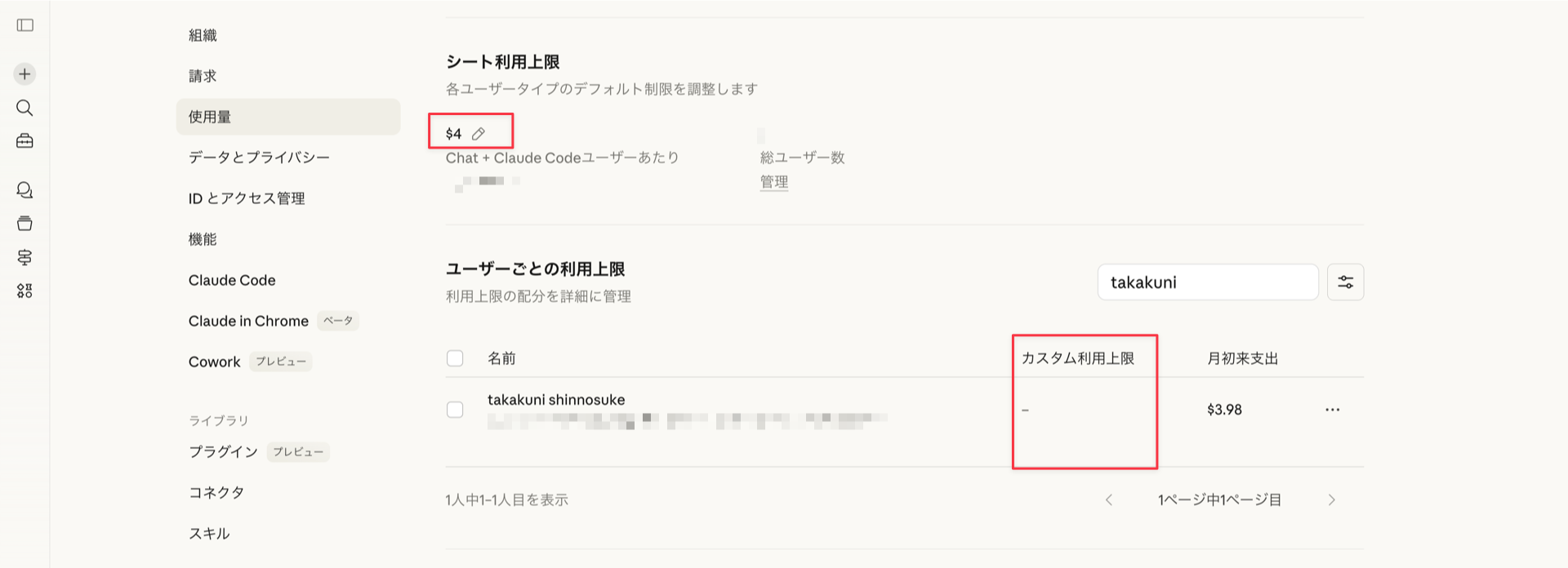
Even though I haven't set custom usage limits for users,
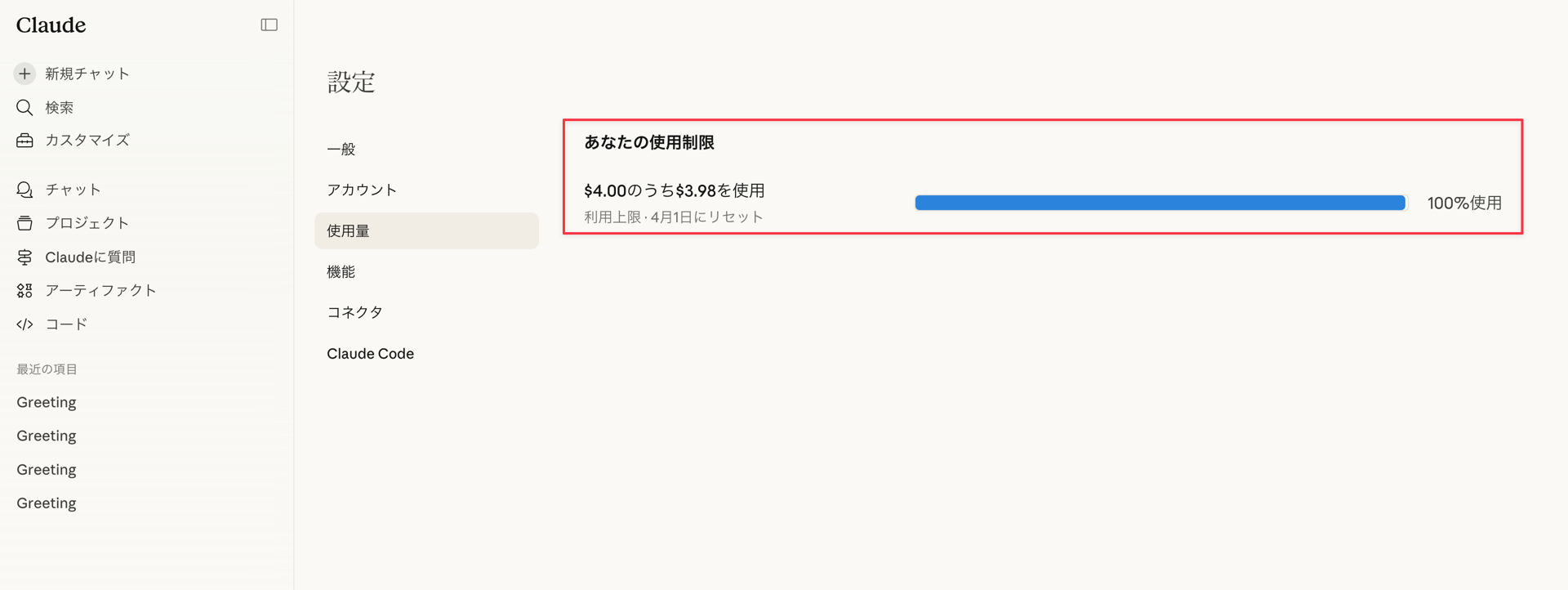
The $4 I just set is reflected in the usage.
This is just a default setting, so if you set a custom usage limit for a specific user,
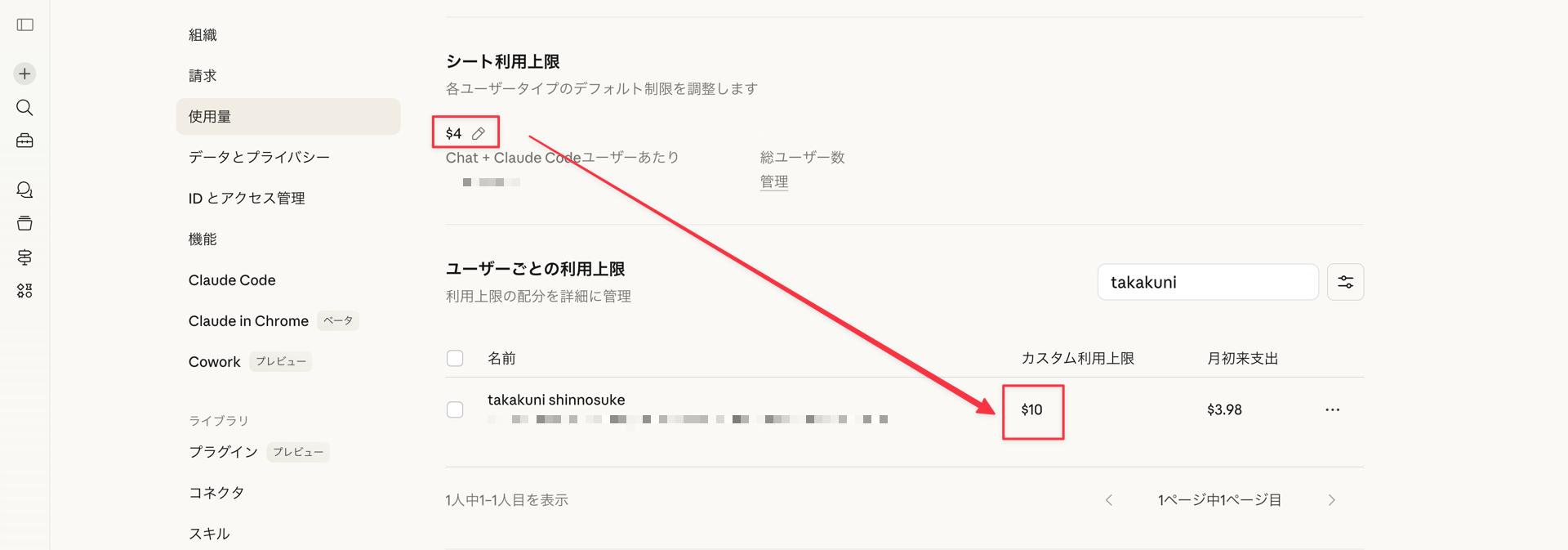
The individual custom usage limit takes precedence and is reflected as the user's threshold.
Summary
That concludes "Setting spending limits with Claude Enterprise."
Since it's pay-as-you-go, controlling these costs is important.
Due to the calculation mechanism, there can be slight overflows, so if you have a fixed budget, it's better to set thresholds with a bit of buffer rather than exact amounts.
There don't appear to be gradual alerts, so you might need to implement your own solution or figure something out.
This was Takakuni (@takakuni_) from the Cloud Business Division Consulting Department!